
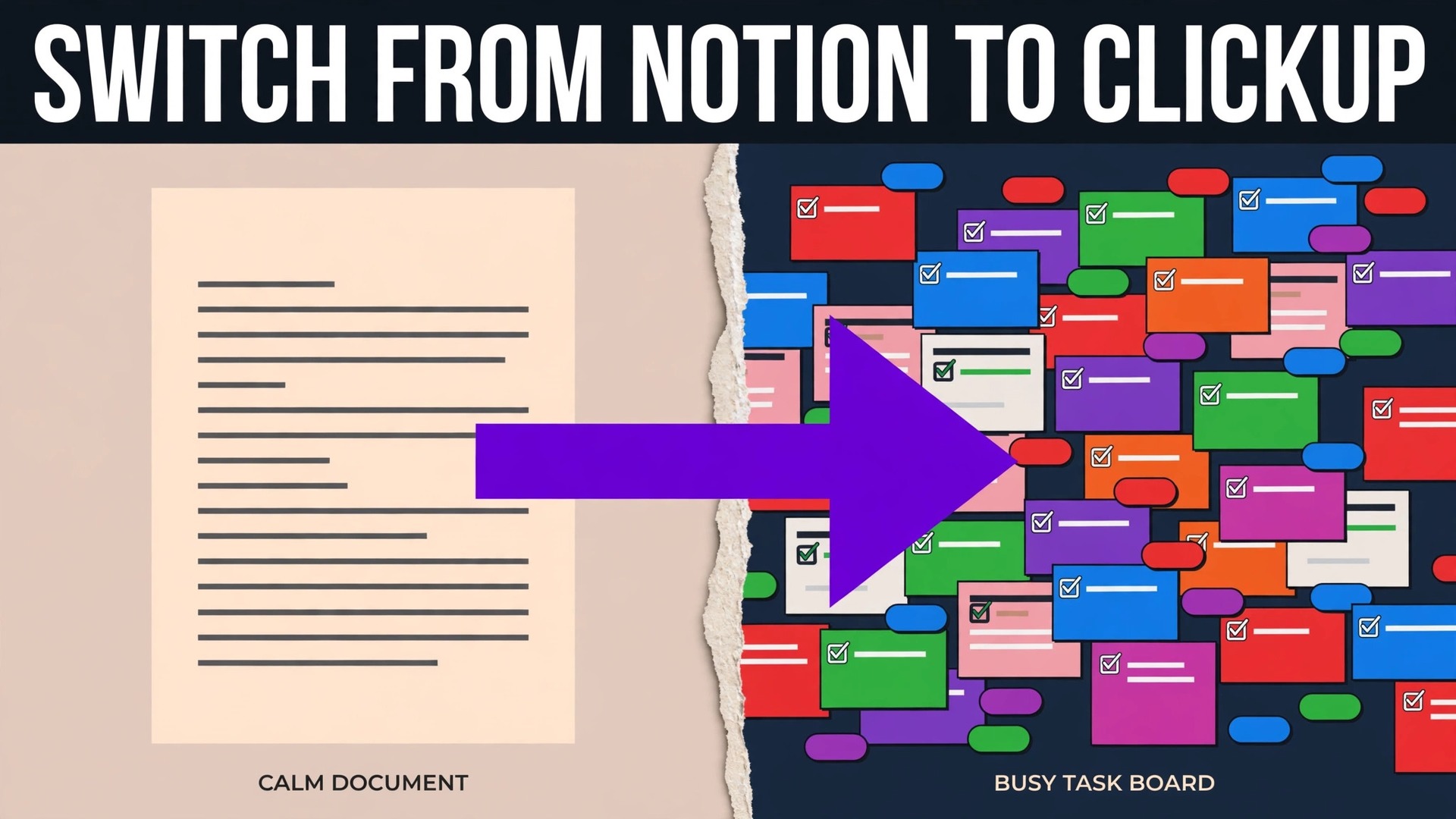
Nearly half of workspace moves fail on the same point, which is not the import itself but the week after it, when a team cannot find its work in the new layout and quietly returns to old habits. A switch Notion to ClickUp small team project avoids that outcome by treating the import as the middle of the job, not the end of it, with cleanup before, rebuilding after, and a short adoption period in which the new workspace earns its place.
The reason teams attempt the move is usually a shift from documents to action. Notion excels at pages, notes and databases that describe work, while ClickUp excels at tasks, deadlines, assignees and views that drive work forward. A team that spends its day asking who is doing what, and by when, will feel that difference quickly. A team that mainly writes, stores and reads documents may not, and this guide helps a team tell which group it belongs to before it exports anything.
Prices here are ranges drawn from published pricing guides at writing time, so confirm on the vendor page before you buy. Guides put Notion Plus at about 10 dollars per member a month on annual billing and Business at about 20 dollars, while ClickUp Unlimited sits near 7 dollars per user a month and Business near 12 dollars, with ClickUp Brain AI as a separate add on near 9 dollars per user. The seat saving is real for a small team, but it is not the main reason to switch, and a team that switches for price alone while needing Notion document depth will be disappointed.
How a Switch Notion to ClickUp Small Team Move Changes Daily Work
Daily work in Notion starts from a page. A team opens a doc, reads a brief, checks a database view, and then works out what to do next, often in another tool. Daily work in ClickUp starts from a task list, a board or a calendar, where each item already has an owner, a due date and a status. That shift sounds small, but it changes the morning routine, because the question moves from what is written about this project to what is due today and who owns it.
Views carry much of that change. A Notion database can show as a table, board or calendar, yet the rows remain pages first and tasks second. A ClickUp list can show as list, board, calendar, timeline or workload views, with the same tasks rearranged for different questions, such as what is overdue, who is overloaded, and what ships this week. A team that reviews workload weekly will value that flexibility, while a team that rarely reviews workload may find the extra views distracting at first.
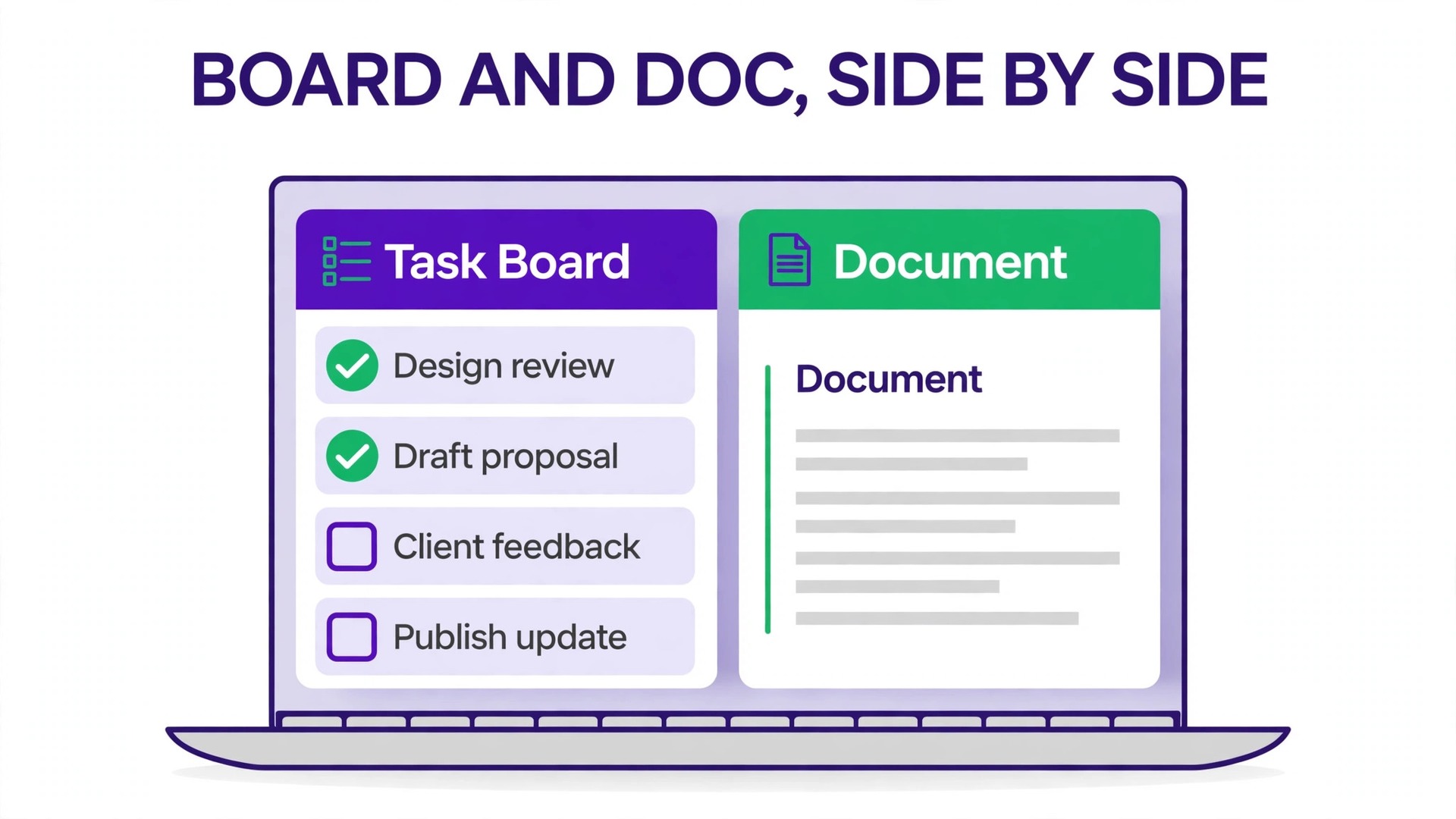
Documents do not disappear in ClickUp, but their role changes. ClickUp Docs hold briefs, notes and wikis, and imported Notion pages can become docs or wikis, yet the workspace centre of gravity moves toward tasks. A team with a large knowledge base should therefore plan to keep its best documents prominent, with clear doc homes per project, rather than letting imported pages scatter across a new space. The move succeeds when documents stay findable and tasks become trackable, not when one replaces the other entirely.
What the ClickUp Importer Carries, and What It Leaves Behind
ClickUp publishes a Notion importer that starts from a Notion export file, and understanding its limits before export prevents most disappointment. Pages and databases do move, fields become custom fields, and documents can be converted to wikis, but formatting, permissions and some attachments do not survive in their original form, so the team should plan cleanup as part of the project rather than as a surprise afterward.
| Notion item | ClickUp result | Cleanup needed after import |
|---|---|---|
| Pages | Docs, often grouped in a space and folder | Reorganise into project doc homes |
| Databases | Lists inside a single folder | Split lists into the right spaces |
| Database fields | Text custom fields on the list | Restore select, date and number field types |
| Page content | Doc content, some formatting flattened | Fix toggles, callouts and columns by hand |
| Page comments | Added to the bottom of the page if included | Review long comment threads for decisions |
| Inline database comments | Not imported | Save key decisions elsewhere before export |
| Attachments in tasks | Not imported for inline database tasks | Reattach key files after import |
| Permissions | Not imported | Reset permissions from the new access plan |
| Templates | Pages import, template behaviour does not | Recreate as ClickUp templates after import |
| Page history | Not imported | Archive a Notion export copy for reference |
Export from Notion in HTML format with everything included, either for the whole workspace or for selected pages with subpages included, and keep the emailed download link and the export file as a backup. A workspace export can be large, so run it when the team is not editing heavily, and note the export date on the backup, because any page edited after export will need a manual update in ClickUp after import.

The Step Workflow for a Switch Notion to ClickUp Small Team Migration
Work in this order, and keep Notion open in read only spirit until ClickUp has run real work for two weeks. The team needs a fallback that still contains the original pages, not just an export file on one laptop.
- Audit the Notion workspace and mark every page and database as keep, archive or drop. Archive means it stays in the Notion backup but does not move, while drop means it is genuinely obsolete. Moving everything, including dead pages, recreates the clutter the switch was meant to escape.
- Document permissions and sensitive areas before export. List who can see which Notion pages, which areas hold private or client sensitive material, and how those areas should map to ClickUp spaces, private folders and list permissions. Permissions do not migrate, so this document is the only bridge.
- Clean databases before export. Standardise status values, fix date formats, remove empty properties, and merge duplicate tags, because every messy value becomes a text custom field that must be fixed by hand after import.
- Export from Notion in HTML format, workspace wide or page by page for a large workspace. Check the export file opens correctly and contains the key pages, before starting the ClickUp import, since a corrupt or partial export discovered later wastes a full import cycle.
- Import into ClickUp through its import settings, choosing Notion as the source, uploading the export file, and selecting the destination space. Map Notion users to ClickUp members, invite missing members, or import them as inactive users where the guide allows, then run the import and record the time it completes.
- Reorganise the imported content immediately. Split the single folder of lists into project spaces, convert key docs to wikis, restore field types on the most used lists, and reattach the key files that did not import. Do this before inviting the wider team, so their first view of ClickUp is tidy rather than a raw import dump.
- Rebuild templates, automations and views from the audit list. Save the most used page and database patterns as ClickUp templates, recreate the automations that protect deadlines, and build the list, board and workload views each role actually uses.
- Run a two week pilot on one live project, then cut over. The pilot team works only in ClickUp for that project, reports friction daily, and the full team moves only when the pilot project runs cleanly for a full week.

Turning Databases Into Lists That Behave Like Work
A Notion database row becomes a ClickUp task, and that sentence hides the most important cleanup in the whole move. Notion fields arrive as text custom fields, which means a status field that once offered a dropdown now accepts any typed value, and a date field that once sorted correctly may now sort as text. The team should restore the correct field type on every list that matters, starting with status, priority, due date and owner, before the team starts working, because fixing field types after a week of live use means correcting a week of typed values too.
Relations and rollups need a separate plan, since a new import cannot recreate every linked structure automatically. A project database linked to a task database in Notion may need rebuilding as linked tasks, custom relationships or a single combined list in ClickUp, depending on how the team actually uses the link. Ask how often the link is followed, what decision it supports, and whether a simpler structure would serve the same need. Many elaborate Notion relations exist because the tool allowed them, not because the team uses them weekly, and the move is a good moment to simplify.
Views should be built per role, not per database. A project lead needs a timeline and workload view, a team member needs a personal list of due tasks, and a client facing view needs only status and next step. Build those three views for the pilot project first, test them with the people who will use them, and only then copy the pattern to other projects. A switch Notion to ClickUp small team workspace with one good view per role beats a workspace with twenty views nobody opens.

Rebuilding Templates, Permissions and Automations in ClickUp
Templates in Notion do not arrive as reusable templates in ClickUp, so the team must recreate them deliberately. Import the underlying page or database first, tidy it, then save it as a ClickUp template with a clear name and a short description of when to use it. Limit the template library to the patterns the team uses monthly, such as project kickoff, client onboarding and weekly review, because a library of thirty templates helps no one and confuses new members.
Permissions need a fresh design, not a copy of Notion sharing. Decide which spaces are open to the whole team, which folders are private to a project group, and which lists hold sensitive material with restricted access. Apply that design before the full team arrives, test it with a member from each group, and check that a guest or client view shows only what it should. A permission error discovered by a client is embarrassing, while the same error found in testing takes minutes to fix.
Automations should start small and grow with evidence. Begin with deadline reminders, status change notifications, and task creation from a template, and add more only when a repeated manual chore justifies it. Name each automation in plain words, note what triggers it and what it does, and review the list monthly, because automations multiply quietly and old rules for finished projects keep firing long after anyone remembers creating them. A switch Notion to ClickUp small team setup with five understood automations outperforms a setup with thirty forgotten ones.
Adoption in the First Month, When Old Habits Pull Back
Adoption fails quietly, through a team that keeps its real task list in Notion, in chat messages, or in memory, while ClickUp holds a tidy but fictional version of the work. Prevent that drift by making ClickUp the only place where task status is reviewed. Run the weekly review from ClickUp views only, and when someone mentions a task that is not in ClickUp, add it live in the meeting rather than noting it elsewhere. That single habit does more for adoption than any training session.
Training should be short, role based and tied to real work. Show each person their own task list, how to update status, add a comment and set a due date, then let them move their current work into ClickUp during the session. A generic tour of every ClickUp feature overwhelms new users, while a session that ends with their real tasks in the system gives them a reason to return the next morning. Pair each new user with a confident colleague for the first week, so questions get answered by a teammate rather than piling up for an admin.
Expect a dip in speed during week one, and say so openly. A new workspace always feels slower before it feels faster, because familiar paths are gone and new paths are not yet habit. Measure week one by tasks captured and updated, not by tasks completed, and celebrate the capture habit, since a complete task list is the foundation the later speed gains rest on. By week three, most teams report that finding work, checking workload and running reviews take less time than in Notion, and that is the point at which the move can be called a success rather than a trial.
What the Move Costs for a Five and Ten Person Team
ClickUp seat maths favours a small team on paper, and the honest total needs the AI line added. On published guide rates, five ClickUp Unlimited seats cost about 35 dollars a month on annual billing, and ten seats about 70 dollars, while Business lifts those totals to about 60 dollars for five and 120 dollars for ten. Notion Plus at about 10 dollars per member costs about 50 dollars for five and 100 dollars for ten, while Notion Business at about 20 dollars reaches about 100 dollars for five and 200 dollars for ten. The base saving on Business tiers is therefore about 40 dollars a month for five people and 80 dollars for ten, before AI.
AI changes the comparison for teams that use it heavily. ClickUp Brain AI at about 9 dollars per user a month adds about 45 dollars for five people and 90 dollars for ten, which closes much of the gap against Notion Business, where main AI features are included in the seat price in published guides. A team that uses AI lightly should skip the add on and keep the saving, while a team that uses AI daily should compare ClickUp Business plus Brain against Notion Business as the true pair. Confirm on the vendor page before you buy, since AI packaging and credit limits change frequently.
Migration cost is mainly staff time, with a pilot project absorbing most of it. Budget one week of part time admin work for audit, cleanup and import on a small workspace, plus two weeks of pilot running in which the pilot team works slightly slower while learning. A team hiring outside help should budget for that help plus internal testing time, since no outside service can validate field types, permissions or template choices without the team. Keep Notion paid for one extra month after cutover, so history and page versions remain available while the team settles.

Mistakes That Leave a Team With Two Workspaces
The first mistake is importing everything without an audit, which recreates clutter in a new tool and teaches the team that ClickUp is just as messy as Notion was. Archive dead pages, drop obsolete databases, and move only the work the team still needs, even if the audit takes a week. A tidy import is worth that week, because the team judges the new tool by its first view of it.
The second mistake is restoring field types late, after the team has already entered a week of free text values into fields that should have been dropdowns or dates. Restore status, priority, date and owner fields on the pilot lists before the pilot starts, and check a sample of imported tasks against their Notion originals on the same day as import. Field errors found on import day take an hour to fix, while field errors found a month later take a week.
The third mistake is copying Notion permissions by guesswork instead of designing ClickUp access fresh. A private Notion page that becomes a visible ClickUp list can expose client or salary material to the wrong eyes, while an over restricted ClickUp space can block the very collaboration the move was meant to improve. Test permissions with a member of each group before full cutover, and record the access design where the next admin can find it.
The fourth mistake is declaring victory on import day and skipping adoption. Import day is the middle of the project, not the end, and a team without a pilot, a weekly review in ClickUp, and a named champion will drift back to old habits within a month. Plan the adoption month with the same care as the import, and judge success at the end of that month, not at the end of import day.
When Notion Remains the Better Home
Notion remains right for document heavy teams. A team whose main output is writing, research, knowledge bases and long form planning will miss Notion page depth, database flexibility and the calm writing surface, even if ClickUp tasks look attractive. If the team rarely misses deadlines because work is tracked elsewhere, and mainly needs a better place to write and organise knowledge, the switch solves a problem the team does not have.
Notion also remains right when the team has built elaborate linked databases that it uses daily and understands well. Rebuilding relations, rollups and formulas in another tool is real work, and a team that depends on those structures should price that rebuild honestly before committing. A switch Notion to ClickUp small team project that underestimates relation rebuilding will stall in the cleanup phase, with a half moved workspace and a frustrated team.
A trial can settle a close call without a full migration. Run one live project in ClickUp for a month while Notion keeps the rest, and compare task completion, deadline visibility and review time on that project against its Notion baseline. If the pilot project runs clearly better, extend the move, and if it does not, the team has learned cheaply. That trial needs a real project with real deadlines, not a sample workspace, to mean anything.
The Go Live Checklist for Workspace Cutover
Cutover for a workspace move is a list of proofs, checked in order, with any failure delaying full team migration rather than being noted for later.
– Every kept page and database appears in ClickUp in the right space, checked against the audit list on the same day as import. – Status, priority, date and owner fields on pilot lists use the correct field types, with a sample of tasks verified against Notion originals. – Permissions have been tested with a member of each group, including guest and client views where those exist. – Templates for kickoff, onboarding and weekly review are saved in ClickUp and tested by creating a live item from each. – Automations for deadline reminders and status changes fire correctly on test tasks. – The pilot project has run cleanly in ClickUp for a full week, with the weekly review held from ClickUp views only. – Notion is set aside for history, with the export backup saved and the access plan recorded for the next admin. – The first month adoption review is booked, covering tasks captured, overdue share, and time spent finding work.
After cutover, review those measures weekly for a month. Tasks captured, overdue share, and review time tell the team whether ClickUp is becoming the single source of truth or merely a second workspace. If capture rises and review time falls, the move is working. If capture stalls, find the friction, whether it is a missing view, a broken field or a template gap, and fix it in the same week rather than waiting for the monthly review.

Keeping Documents Findable After the Task System Takes Over
A common complaint after this move is that documents vanish into the task system, even though every page technically imported. The fix is structure, applied in the first week, not search skill. Give each project a clear doc home, meaning one folder or doc list that holds its brief, decisions, reference material and meeting notes, and link that home from the project task list so anyone opening the project finds its documents in one click. A switch Notion to ClickUp small team workspace without doc homes forces every document hunt through global search, and global search rewards exact wording rather than good organisation.
Naming discipline helps as much as folders. Title documents with the project name first, then the document purpose, such as a brief, a decision log or a launch plan, so alphabetical and search results group sensibly. Add a short description line at the top of each key document, naming its owner, its last review date and what it decides, because an imported page without context looks abandoned even when its content is current. Review doc homes monthly in the early months, archiving documents for finished projects and updating the briefs for live ones, so the library stays trustworthy.
Links between tasks and documents close the remaining gap. Attach the brief to the kickoff task, link the decision log from the tasks that depend on it, and mention the reference document in the task description where a team member would otherwise ask where the detail lives. That linking habit takes seconds per task and saves the repeated question of where something is stored, which is the question that quietly drives teams back to a document tool. A switch Notion to ClickUp small team move that keeps documents linked, named and homed gives the team the best of both tools, meaning tasks that drive the day and documents that support them without getting lost.
Finally, assign a document owner per project, not per document, so one person watches the whole doc home for that project. That owner checks monthly that briefs are current, that decision logs record the latest choices, and that archived material is clearly marked as archive rather than mixed with live work. The role takes under an hour a month per project for a small team, and it prevents the slow decay that makes a document library untrusted. When documents stay trusted, tasks stay trusted too, because the team knows the detail behind each task is one click away and up to date.
Frequently Asked Questions About Switching From Notion to ClickUp
Can Notion pages and databases move to ClickUp?
Yes, ClickUp provides a Notion importer that works from a Notion HTML export, bringing pages, databases and users into a ClickUp space. Databases become lists, fields become text custom fields that need type restoration, and some formatting, comments and attachments need manual cleanup after import.
How long does a switch Notion to ClickUp small team move take?
A small workspace with tidy databases usually takes one to two weeks for audit, cleanup and import, plus a two week pilot before full cutover. A large workspace, messy field values or elaborate linked databases can stretch the project to a month or more, with cleanup taking the largest share.
Do Notion permissions move to ClickUp?
No, permissions do not migrate, so the team must design ClickUp spaces, private folders and list permissions fresh. Document Notion access before export, apply the new design before the full team arrives, and test it with a member of each group, including any guest or client view.
What happens to Notion templates in the move?
Template behaviour does not carry over, though the underlying pages import normally. Recreate the most used patterns as ClickUp templates after tidying the imported content, and limit the library to patterns used monthly, so new members find a short useful list rather than a long confusing one.
Is ClickUp cheaper than Notion for a small team?
On base seat prices in published guides, yes, with Unlimited near 7 dollars against Notion Plus near 10 dollars, and Business near 12 dollars against Notion Business near 20 dollars. AI changes the gap, since ClickUp Brain is a separate add on near 9 dollars per user, so compare the AI inclusive totals and confirm on the vendor page before you buy.
Should Notion be closed on cutover day?
No, keep Notion and the export backup available for at least a month, so the team can check page history and original values while ClickUp settles. Export any remaining reports before closing, confirm no live link still points to Notion pages that moved, and only then close the old workspace.
More Reading on Stratilyze
– Cost of Notion for a Small Business Monthly – Cost of ClickUp for a Small Business Monthly – Migrate Trello to Notion for a Small Team – Switch Asana to ClickUp for a Small Team