
Eleven native importers, one of them for Asana, and an import that ClickUp itself describes as running from one minute to a few hours depending on data volume. Those numbers explain why teams assume the switch Asana to ClickUp small team leaders plan will be quick, and why so many of those teams are still untangling the result weeks later. The import is fast. The decisions around it, which projects become Spaces, which sections become statuses, which templates survive, and which permissions carry over, are the real migration, and they take weeks of careful work if they are done properly.
The distinction matters because Asana and ClickUp organise work differently. Asana gives a team a focused project flow, with projects, sections, tasks and a clean view of who owns what. ClickUp gives a team a wider workspace, with Spaces, Folders, Lists, Docs, Whiteboards, time tracking and Chat sitting beside tasks, and far more ways to configure the same work. A team that imports Asana projects without first designing the ClickUp hierarchy will recreate Asana inside ClickUp, plus confusion, because every old section becomes a choice the importer asks the team to make, and a rushed choice becomes a permanent structure.
This guide works through the move in the order that prevents that outcome. It covers the decision checks, the project export, the task status mapping, the template rebuild, the permission reset, and the adoption checklist that decides whether the team actually uses the new system after launch. It also names what the importer leaves behind, including recurring tasks, nested subtasks, private tasks, mentions, automations, dashboards and views, so the rebuild is planned rather than discovered.
No plan prices are quoted as settled facts, because both vendors change tiers and per user pricing, and a small team should check current pricing on its real headcount, including guests and collaborators. That headcount check is the first step in any plan to switch Asana to ClickUp small team leaders run well.
Start With Why the Team Wants ClickUp
A switch driven by a single complaint rarely survives contact with a new tool. List the real reasons, and test each one against what ClickUp actually changes. Common honest reasons include a need for Docs, time tracking, Whiteboards or Chat beside tasks without paying for separate tools, a need for more flexible views such as Gantt, Calendar, Workload or Mind Map in one place, and a need for a lower per user cost at the team size in question. Each of those is a genuine ClickUp strength for many small teams, and each should be tied to a workflow the team runs every week, not to a feature list admired in a demo.
Equally important is listing what Asana does well that the team would miss. A clean, focused interface, fast onboarding for new joiners, and a simple project flow are real Asana strengths, and a team that values simplicity over configurability may find ClickUp heavier, not better. ClickUp rewards a team willing to configure Spaces, Lists, statuses and templates as work grows. It punishes a team that wants the tool to stay out of the way, because configuration choices appear constantly, and an unconfigured workspace feels sprawling.
Ask who will own ClickUp after migration. A small team needs one named owner, even if that owner also does other work, who designs the hierarchy, cleans templates, manages permissions, and answers how do we do this in ClickUp questions for the first month. Without an owner, every member configures their own corner differently, and the workspace drifts into the same tangle the team left Asana to escape. If nobody wants that role, that is useful information, and it may mean the team should stay on Asana and fix its structure there instead.
Before You Switch Asana to ClickUp Checklist
Complete this audit in Asana before any import, and keep the results in a shared migration folder.
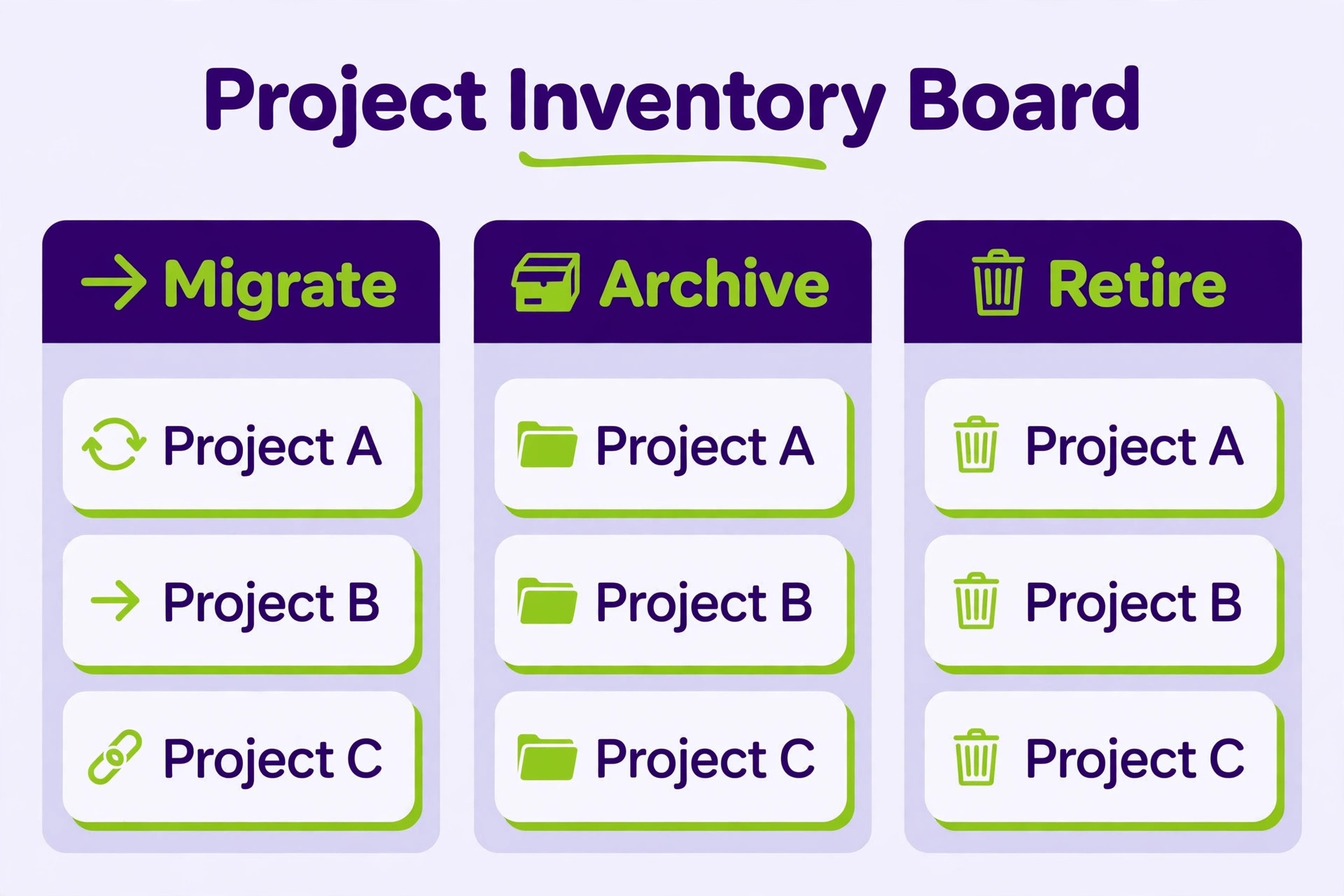
First, inventory every project, with its owner, its members, its purpose, its active tasks, its completed tasks, and its last activity date. Mark each project as migrate live, migrate as archive, or retire. Retire dead projects, test projects and duplicate projects now, because importing them creates noise that the new team must learn to ignore, and ignored noise becomes a reason to distrust the new system. Retiring dead work early improves any plan to switch Asana to ClickUp small team leaders attempt.
Second, list every custom field, every tag, every section, and every status used across projects, and note which ones still drive a decision. Merge duplicates, such as priority fields spelled three ways, and delete fields that were created for one project and never used again. The ClickUp field and status design should be smaller and clearer than the Asana sprawl, or the migration has simply moved clutter to a new address.
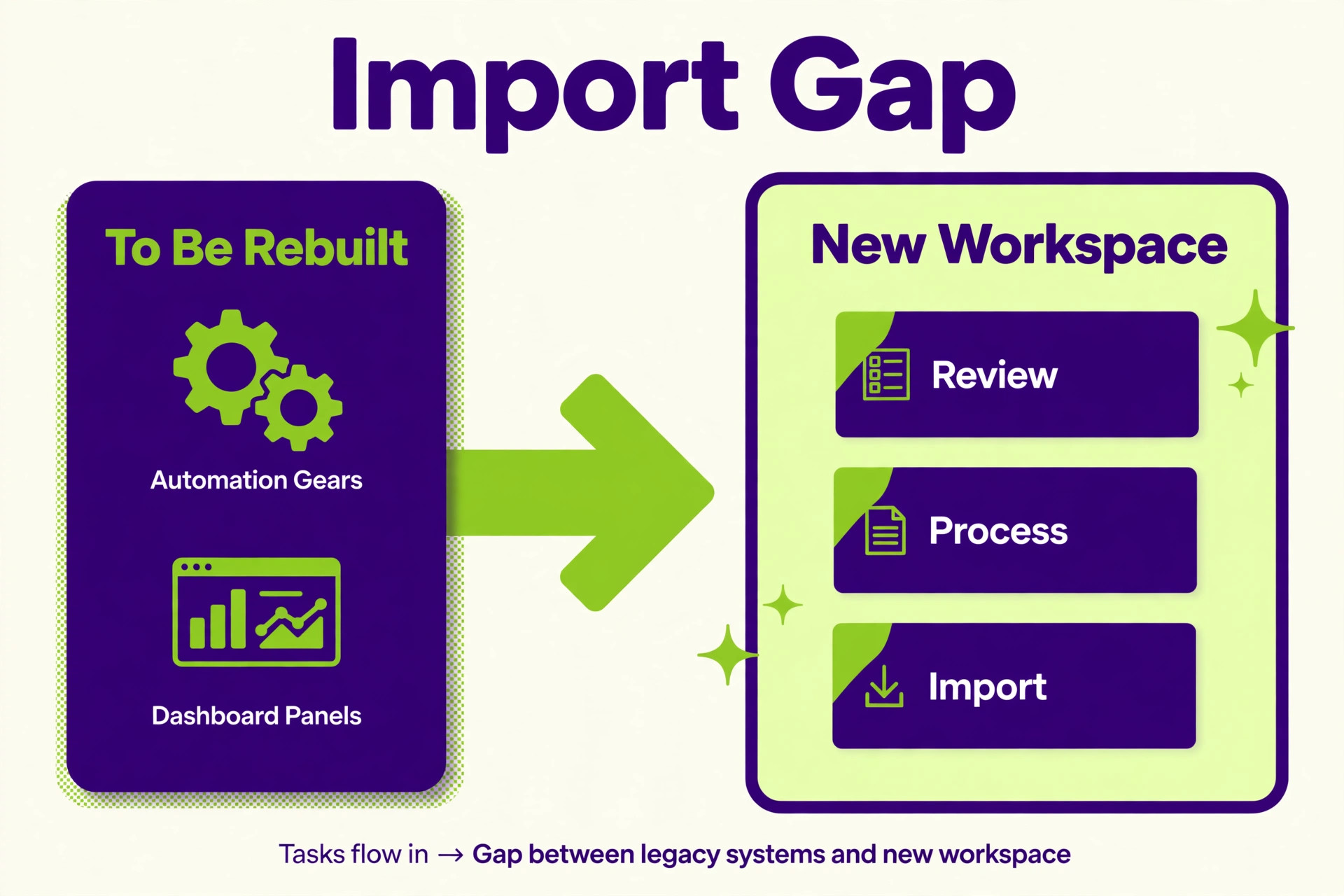
Third, record automations, rules, dashboards, saved views, forms and integrations. None of these transfer automatically, so each one needs a rebuild decision. A rule that moves a task when a custom field changes, a dashboard the manager checks weekly, and a form that feeds client requests into a project all need ClickUp equivalents, and the equivalents may work differently. Note the trigger, the action and the purpose for each one, so the rebuild is a translation, not a guess.
Fourth, check data that needs special handling. Private tasks, tasks with many nested subtasks, tasks with long comment threads, tasks with attachments, and recurring tasks all need a plan, because the importer handles some of them imperfectly or not at all. Decide for each category whether the data will be imported, rebuilt by hand, archived as a document, or left behind with a note. A decision made now saves a frantic search later for a task that never arrived.
Fifth, choose a pilot project and a quiet window. A migration should never start with the busiest project in the busiest week. Pick a live but manageable project, migrate it first, learn from it, and only then migrate the rest. The pilot also gives the team a safe place to learn ClickUp views, statuses and templates before the whole workload depends on them.
What the Asana Import Carries and What It Leaves Behind
ClickUp provides a native Asana importer, reached through Settings and Imports and Exports, which maps projects, people and sections, and lets the team choose whether to include completed tasks and attachments. Asana projects can become Spaces or Folders with Lists, and sections can map to status choices, label fields, or separate Lists, depending on the choice made during import. That flexibility is powerful, and it is also why the hierarchy design must come before the import, not during it, when the team is clicking through options under time pressure.
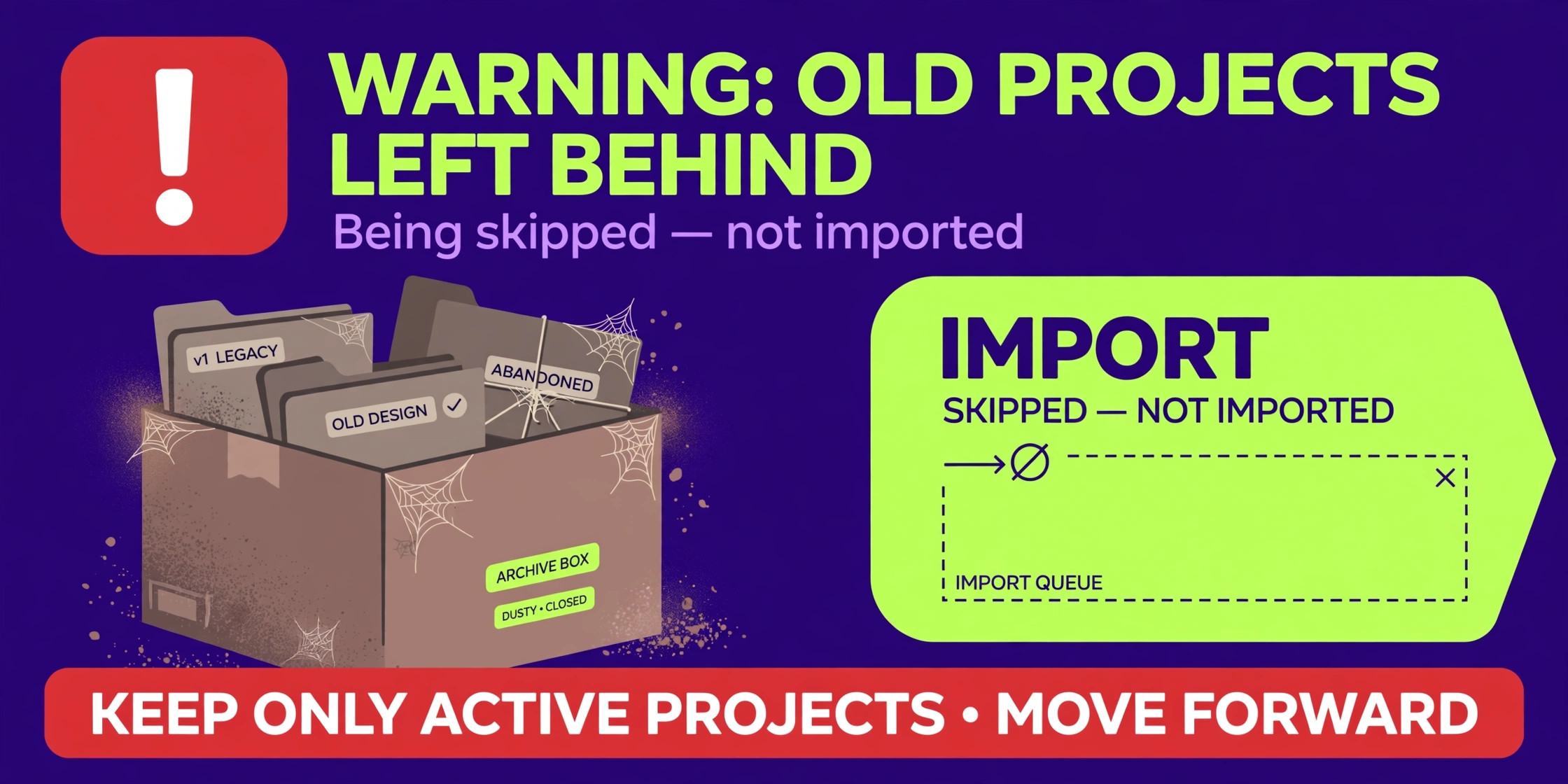
What the importer leaves behind is well documented in migration guides and in ClickUp own comparison material. Recurring tasks do not transfer from Asana, and must be recreated in ClickUp. Nested subtasks, private tasks and mentions are reported as lost or imperfect in Asana imports. Automations, dashboards and views do not transfer from any source, and must be rebuilt. Comment history and attachment handling also need checking after import, because a task that arrives without its context is a task the team cannot safely act on.
CSV export is the fallback route, and it has its own limits. Asana CSV exports have been reported as limited to 140,000 rows per project, which matters for very large projects but rarely for a small team. More relevant for a small team is that CSV import requires careful field mapping, with one row per task and columns for status, priority, assignee, dates, tags, subtasks and checklists. CSV gives control, but it also gives the team every opportunity to map a field wrongly, so test a small CSV batch before importing a full project that way. That test batch is a control every plan to switch Asana to ClickUp small team leaders run should include.
The practical lesson is simple. Treat the importer as a bulk carrier for tasks, assignees, dates and basic structure, and treat everything else as a rebuild project. Budget time for that rebuild, assign it to named people, and do not promise a launch date that assumes the importer does the whole job. Teams that plan for a rebuild finish on time. Teams that plan for an import finish late and blame the tool.
Step Workflow to Switch Asana to ClickUp Small Team Leaders Can Follow
Work through these steps in order, with the pilot project first and the full migration only after the pilot passes its checks.
Step 1. Export Projects From Asana and Freeze the Source
Start with a clean export record. For the native importer route, the export happens through the importer connection itself, but still record what was selected, including whether completed tasks and attachments were included, and the date and time of each import. For the CSV route, export each project separately, save the original file untouched as a backup, and work only on a copy. Name backups with project and date, so a later export never overwrites the only good copy.
Freeze Asana work for a migrating project during its import window. New tasks, comments and status changes made in Asana after the import will not appear in ClickUp, and the team will end up working in two systems with different truths. A short freeze, communicated clearly, with a named restart point in ClickUp, prevents that split. A communicated freeze belongs in every plan to switch Asana to ClickUp small team leaders trust. For projects that cannot freeze, migrate in batches by section or by date, and log exactly which batch covers which work, so nothing falls between batches.
After each import, reconcile counts. Tasks imported, plus tasks deliberately left behind, plus tasks rejected for errors should equal tasks exported. Check a sample of tasks for assignee, due date, status, tags, custom fields, subtasks and attachments, and fix mapping errors before importing the next project. A mapping error repeated across ten projects is ten times harder to fix than the same error caught on the first project.
Step 2. Map Task Statuses From Asana Sections to ClickUp Lists
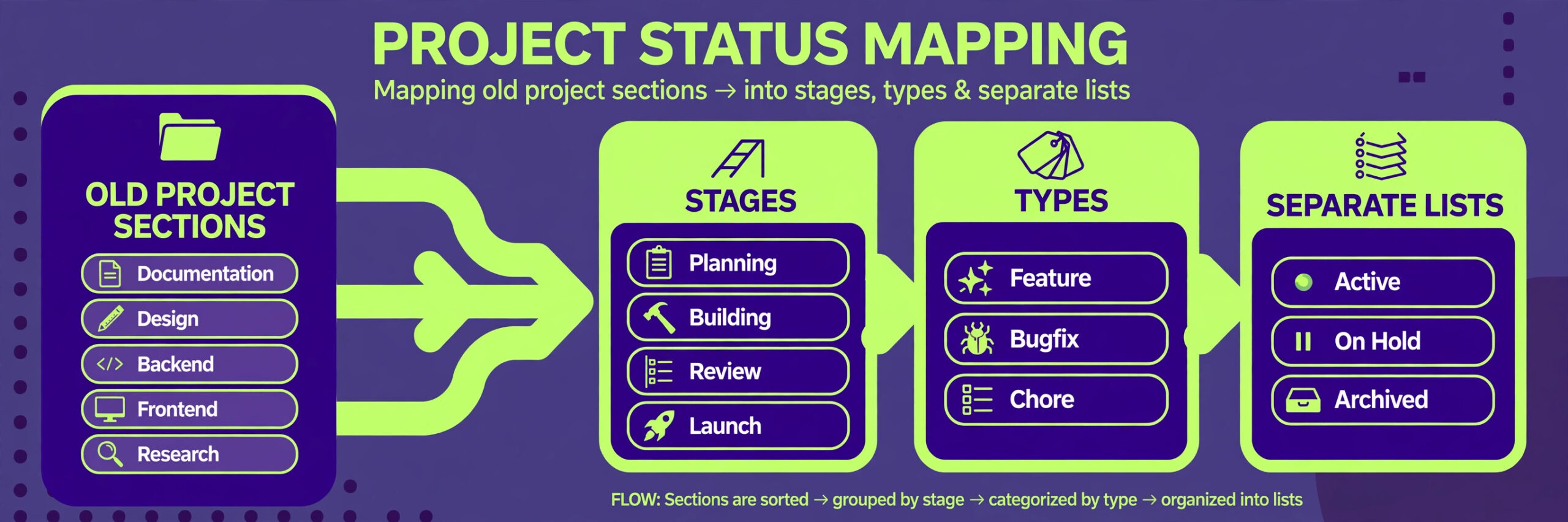
Status mapping is the most consequential design decision in the migration, because it shapes every view, every report and every daily habit after launch. Asana sections often mix two ideas, which are stage and type. A section called Review may mean a stage in a workflow, while a section called Bugs may mean a type of work. In ClickUp, stages belong in statuses, and types belong in tags, custom fields, or separate Lists, depending on the project. Separating those ideas during mapping prevents a status list that is really a category list in disguise.
Design one status set per workflow, not one status set per project copied from Asana. A content workflow, a client delivery workflow and a product fix workflow may share words like In Progress, but they mean different things, with different exit criteria. Write the exit criterion for each status, such as what must be true before a task moves from Review to Done, and share it with the team. A status without an exit criterion becomes a parking place, and parked tasks are how a new system starts to feel as messy as the old one. Written exit criteria are the fix in any plan to switch Asana to ClickUp small team leaders design well.
Use the importer mapping choice deliberately. Where Asana sections represent stages, map them to ClickUp statuses. Where sections represent separate workstreams, map them to separate Lists. Where sections represent labels, such as priority or channel, map them to a custom field or tags. Record the choice for each project in the migration folder, so a future team member can understand why two projects that looked alike in Asana look different in ClickUp, and can follow the same logic for new projects.
Step 3. Rebuild Templates, Automations and Views in ClickUp
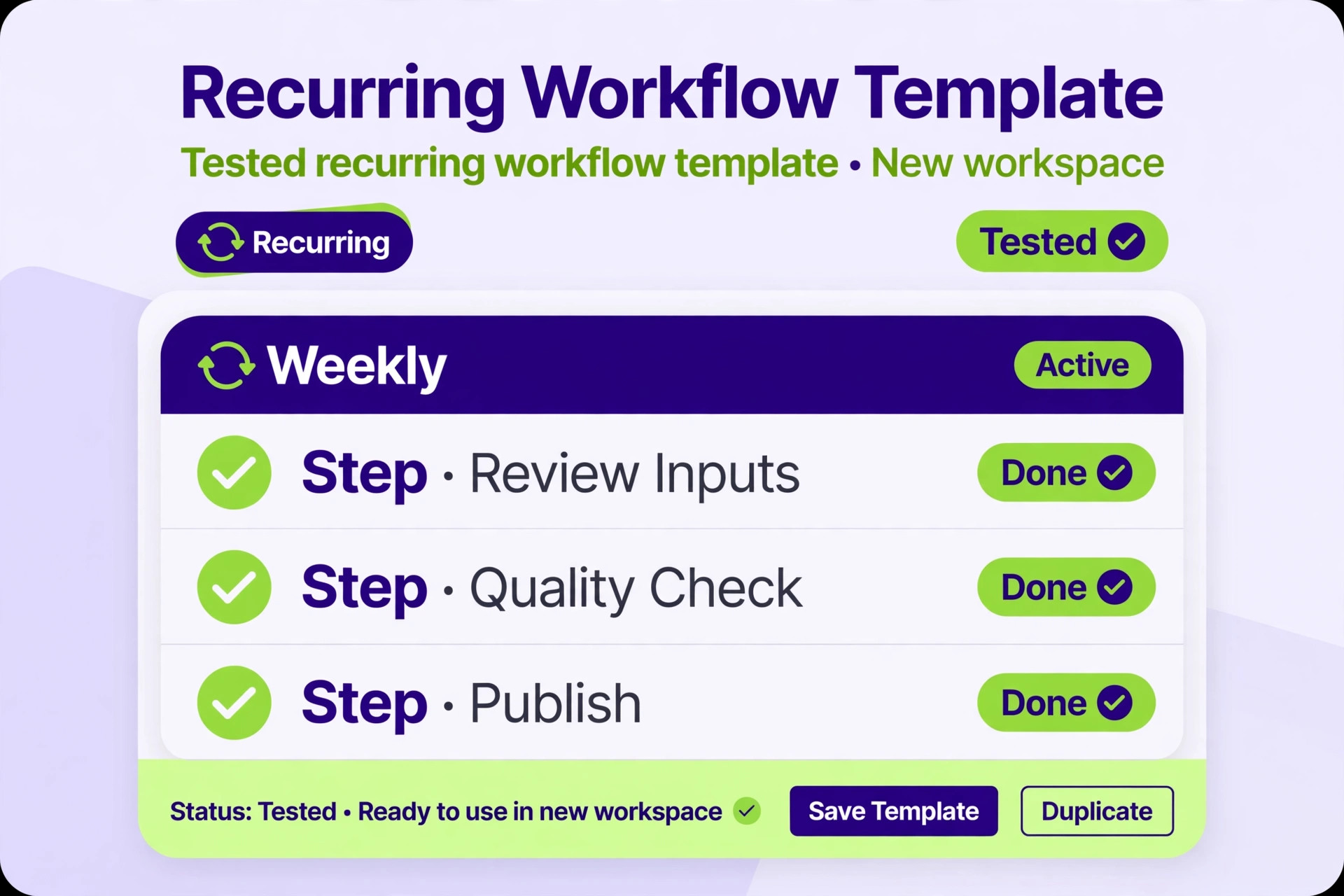
Templates are where a migration either saves time or wastes it. List every Asana project template, task template and recurring task pattern, and rebuild only the templates the team actually uses. A template used weekly deserves a careful ClickUp rebuild, with statuses, custom fields, assignees, checklists and due date logic tested on a real example. A template used once last year should be retired, not rebuilt out of nostalgia. That retirement test saves weeks in a plan to switch Asana to ClickUp small team leaders run.
Recreate recurring tasks by hand in ClickUp, because they do not transfer. For each recurring pattern, confirm the recurrence rule, the assignee, the due date logic and the completion behaviour, and test one full cycle with a short recurrence before trusting a monthly or quarterly pattern. A recurring task that fires wrongly creates noise, while a recurring task that never fires creates a missed deadline, and both errors are avoidable with a test.
Rebuild automations and rules in ClickUp own automation builder, starting with the highest value rules, such as moving a task on status change, notifying an owner on a due date, or creating a follow up task on completion. Test each automation with a real task, not just a preview, and watch for loops, where two automations trigger each other repeatedly. Rebuild dashboards and views next, choosing the views the team actually checks, such as a List view for daily work, a Board view for standups, a Calendar view for deadlines, and a Workload view for managers. A view nobody checks is clutter, however impressive it looks in a demo.
Step 4. Reset Permissions, Guests and Access in ClickUp
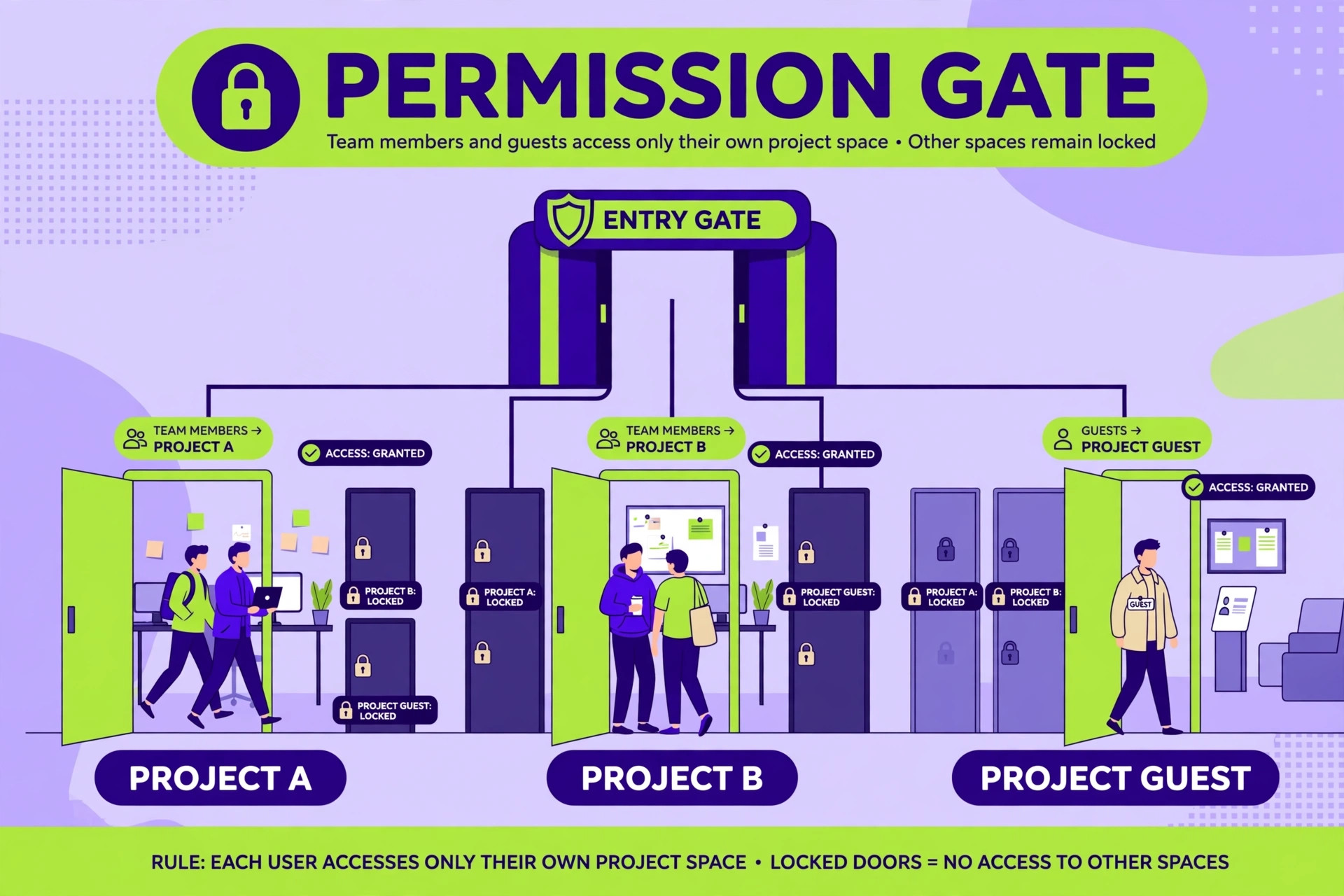
Permissions do not transfer as a simple copy, because ClickUp permission model differs from Asana, with Workspace, Space, Folder and List levels, plus guest roles for external collaborators. Design permissions before the full migration, starting from the principle that a person should see the work they need and edit the work they own, and no more. A small team often needs fewer permission levels than it thinks, and a simple model that everyone understands beats a precise model that nobody can explain.
Map each Asana member to a ClickUp role, and each guest or client collaborator to the correct ClickUp guest arrangement, noting which plan limits apply to guests. Check the current ClickUp plan details for guest limits, because guest handling affects cost and access, and a plan assumption made from an old guide can break the budget. Invite members in waves, starting with the pilot team, then project owners, then the wider team, so permission problems appear on a small group first.
Audit access after migration. Check that no former member, contractor or client retains access they should not have, that sensitive projects are restricted, and that every Space has a named owner. A permission audit feels administrative, and it is the step that prevents the most embarrassing migration outcome, which is a client seeing internal work, or a former contractor editing a live project, because access was carried over without review.
Step 5. Migrate in Batches, Pilot First, Then Project by Project
Run the pilot migration end to end. Import the pilot project, map its statuses, rebuild its templates and automations, reset its permissions, and let the pilot team work in ClickUp for at least one full work cycle, such as a week or a sprint. Gather feedback daily, fix mapping and template problems, and record every fix in the migration folder, so the same problem does not recur on the next project.
Then migrate project by project, in priority order, not all at once. High value active projects first, archived projects later, retired projects never. After each project, run the same checks as the pilot, including count reconciliation, sample task checks, status checks, and a team confirmation that the project is usable. A project is not migrated when its tasks arrive. It is migrated when its owner confirms the team can work in it without returning to Asana for missing context.
Keep Asana live and read only during the batch migration, so the team can check history without editing in two places. Read only access prevents the split truth problem while preserving the safety net. Close Asana only after every live project has passed its checks, the adoption checklist below has been met, and the rollback window has closed.
Cost and Time Picture for a Small Team Move
Cost comparison for a project tool should start with headcount, not with headline tiers. Count full members, guests, clients and occasional collaborators separately, because plans treat those groups differently, and a team that counts everyone as a full member will overstate cost on one side and understate it on the other. Check current Asana and ClickUp pricing for the exact mix, including any limits on guests, storage, automations or rules that matter to the workflows in question. One comparison point worth noting is that ClickUp own material contrasts unlimited Asana Starter rules with a 500 active rule limit on ClickUp Unlimited, so a team with heavy automation needs should check rule limits explicitly rather than assuming unlimited on both sides.
Time is the larger cost, and it should be budgeted honestly. A small team with a handful of projects can complete a pilot plus full migration in three to six weeks of part time work, including hierarchy design, template rebuild, permission reset and training. A team with many projects, complex automations, or a large archive can take longer, and the archive decision drives much of that time. Migrating an archive as live work wastes weeks. Migrating it as searchable documents, or leaving it read only in Asana for a defined period, saves weeks and loses little, because archived tasks are rarely reopened, and when they are, a search in the old system finds them.
Also budget for the overlap period, when both tools are paid for and the team is learning the new one. Overlap feels wasteful, and it is the cheapest insurance in the project. It lets the team compare, correct and roll back without losing work, and it should last at least one full work cycle after the last project migrates, not end on the day the last import finishes.
Rollback Plan If Adoption or Data Fails
Keep Asana live, backed up and restorable until the rollback window closes, and keep the export files from the migration folder. A rollback is rarely a full technical reversal, because work done in ClickUp during the trial will need to be carried back. Plan for that carry back before launch, by deciding which ClickUp work would be copied to Asana, which would be recorded as a summary, and who would do that copying. A rollback without a carry back plan loses the trial week work, and the team will resist rolling back even when it should.
Set rollback triggers in advance. A sensible set is a critical project whose tasks, comments or attachments did not migrate correctly and cannot be repaired quickly, a permission failure that exposes sensitive work, an automation failure that creates wrong assignments or missed deadlines for more than a day, or team adoption below an agreed level after training and fixes, such as half the team still working in Asana after two weeks. Any trigger should start a rollback review within a day, with a named decision maker, not a vague agreement to monitor the situation.
If rollback is chosen, communicate it plainly, with a date, a reason, and a single source of truth from that date onward. Teams forgive a reversed decision far more readily than they forgive working in two systems with no clear answer to where the real work lives. After rollback, diagnose before retrying, because the same hierarchy, mapping or permission error will recur if it is not fixed first.
Adoption Checklist for the ClickUp Go Live
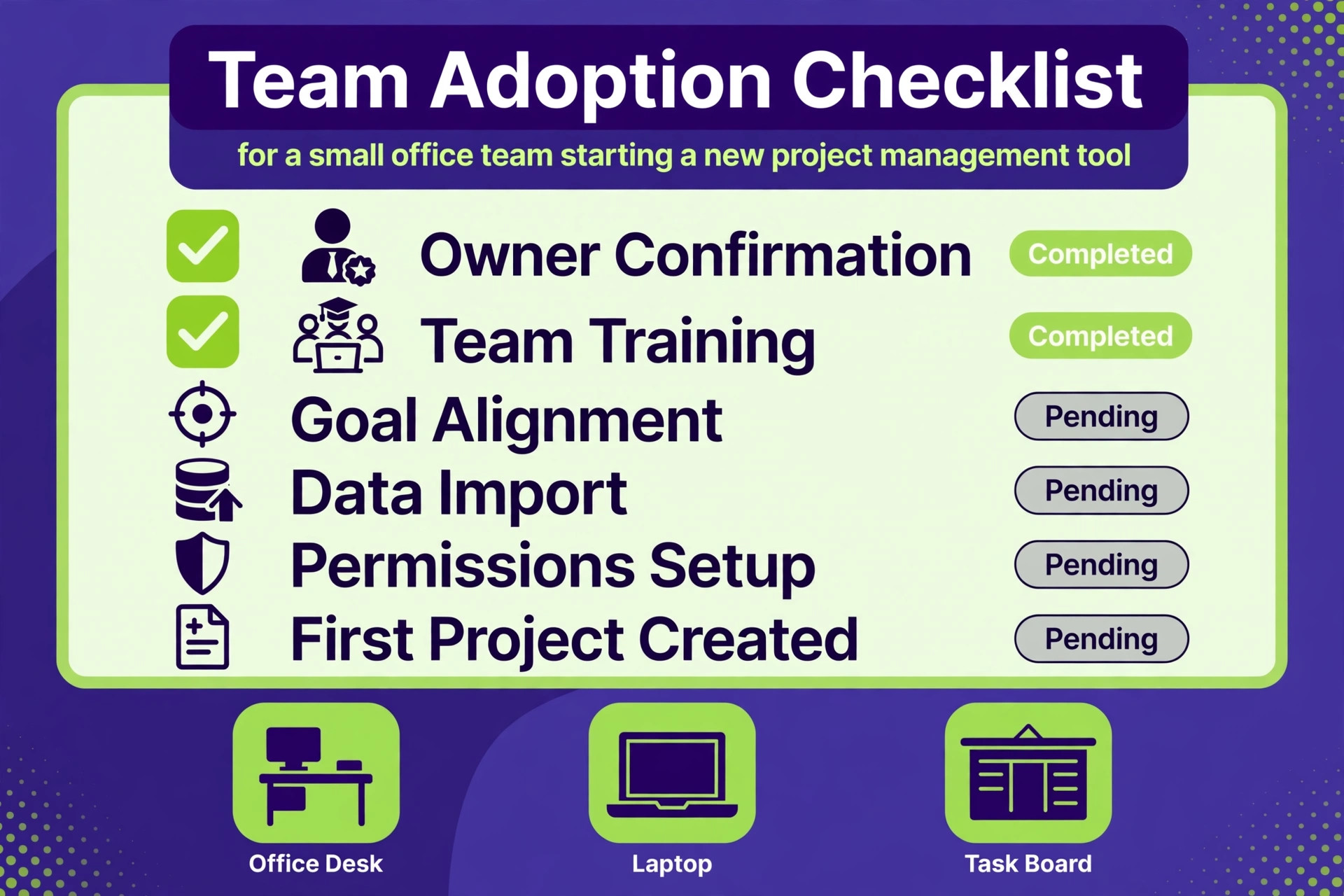
Use this checklist after the last live project migrates, and do not close Asana until every item passes.
– Every live project has an owner who confirms the team can work in ClickUp without returning to Asana – Status sets have written exit criteria, and the team can state them without opening a document – Templates for recurring work are rebuilt, tested on a real example, and named clearly – Recurring tasks are recreated, with one full test cycle completed for each pattern – Permissions are audited, guests are correctly placed, and every Space has a named owner – Automations, dashboards and views the team actually uses are rebuilt and tested – Training is complete, including a short guide for new joiners, and a named ClickUp owner for questions – Asana stays read only for the rollback window, with exports backed up outside either tool – The first two weeks of ClickUp work are reviewed, with fixes logged and applied
Mistakes That Sink an Asana to ClickUp Switch
The first mistake is importing everything, including dead projects, duplicate fields and one off templates. Imported clutter teaches the team that ClickUp is messy, and that lesson is hard to undo. Clean in Asana, design in ClickUp, and import only live work that deserves a new home.
The second mistake is letting the importer choose the hierarchy by default. Sections mapped without thought become statuses, Lists or fields that nobody understands, and the workspace inherits Asana structure plus ClickUp confusion. Design Spaces, Folders, Lists and statuses on paper first, then tell the importer what to do, project by project.
The third mistake is forgetting what does not transfer. Recurring tasks, automations, dashboards, views, private tasks and mentions will not appear by magic, and a team that discovers those gaps during a deadline week will blame the migration rather than the plan. List the gaps before import, assign rebuild owners, and test each rebuild.
The fourth mistake is training once and assuming adoption follows. A single demo does not change daily habits. Short role based training, a pilot project, daily feedback in week one, and a named owner for questions change habits. Adoption is a project, not an event, and it deserves time in the plan equal to the import itself. That adoption time is the part of a plan to switch Asana to ClickUp small team leaders most often underbudget.
Frequently Asked Questions
Does the ClickUp Asana importer move automations and dashboards?
No. Automations, dashboards and views do not transfer, and must be rebuilt in ClickUp. Tasks, assignees, dates and basic structure move, while recurring tasks, nested subtasks, private tasks and mentions are reported as lost or imperfect. Plan the rebuild as part of the migration, not as an afterthought.
How long does a small team migration take?
The import itself can run from one minute to a few hours depending on data volume, according to ClickUp own material. The full migration, including hierarchy design, a pilot, cleanup, template rebuild, permission reset and training, takes weeks rather than hours for most small teams. A pilot plus a handful of projects often takes three to six weeks of part time work.
Do Asana sections become ClickUp statuses automatically?
Not automatically in a way the team should accept without review. Sections can map to statuses, label fields, or separate Lists, depending on the choice made during import. Design that choice per project, separating stages, which belong in statuses, from types, which belong in tags, fields or Lists, and record the choice for each project.
What happens to completed tasks and attachments?
The importer lets the team choose whether to include completed tasks and attachments, so that choice should be made deliberately per project. Including everything preserves history but adds noise. Excluding completed work keeps the new workspace clean but loses context. A common compromise is to migrate recent completed work live, and archive older completed work as documents or leave it read only in Asana.
Should the team keep Asana after moving to ClickUp?
Yes, read only, for at least one full work cycle after the last project migrates, and longer if the archive is large. Read only access preserves history and provides a rollback route without creating a split truth problem. Close Asana only after adoption checks pass and the rollback window closes.
Is ClickUp better than Asana for a small team?
It depends on the workflows. ClickUp fits teams that want Docs, time tracking, Whiteboards, Chat and flexible views beside tasks, and that are willing to configure a workspace. Asana fits teams that want a focused, simple project flow with fast onboarding. Choose on weekly workflows and on who will own the workspace, not on feature count alone.
Final Assessment for a Small Team Considering the Move
Move when the team needs an all in one workspace, when it has a named owner for ClickUp, and when it is willing to design hierarchy, map statuses, rebuild templates and reset permissions properly. Stay when simplicity is the priority, when Asana already works and only needs a cleanup, or when nobody will own the new workspace after launch.
The switch Asana to ClickUp small team leaders get right is not the fastest import. It is the migration where dead projects were retired, statuses were designed with exit criteria, templates were rebuilt and tested, permissions were audited, a pilot proved the design, and adoption was checked before Asana closed. Do that work, and ClickUp becomes a genuine upgrade. Skip it, and the team simply moves its mess to a larger, more confusing home.
More Reading on Stratilyze
– Switch Asana to ClickUp for Project Teams – Cost of Asana for Small Business Monthly – Cost of ClickUp for Small Business Monthly – Asana Alternatives – Asana vs Monday