
The problem with most Shorts is not the idea. It is the gap between a decent idea and a finished video that actually gets published. A creator records a strong 40 second clip, opens an editor with good intentions, and then loses two hours to trimming, captions, music, export settings and a title that gets written in a hurry at upload time. The next day the same thing happens again, so posting three Shorts a week starts to feel like a part time job. When you use CapCut for YouTube Shorts with a fixed workflow, that gap shrinks.
The decisions are made once, the steps run in the same order every time, and the only part that changes from video to video is the content itself.
This guide gives you that fixed workflow, from the first project setup in CapCut to the final checks in YouTube Studio. It covers the project settings that keep a Short vertical and sharp, a repeatable edit order that protects pacing, caption and audio rules that avoid copyright trouble, export settings that survive YouTube re-encoding, and a publish routine that catches the small errors that cost views. Prices change often, so check the official CapCut pricing page and your checkout before paying for any plan mentioned here. The free version is enough to test the whole workflow, and the paid decision should come after you know which limits you actually hit.
The Shorts Workflow at a Glance
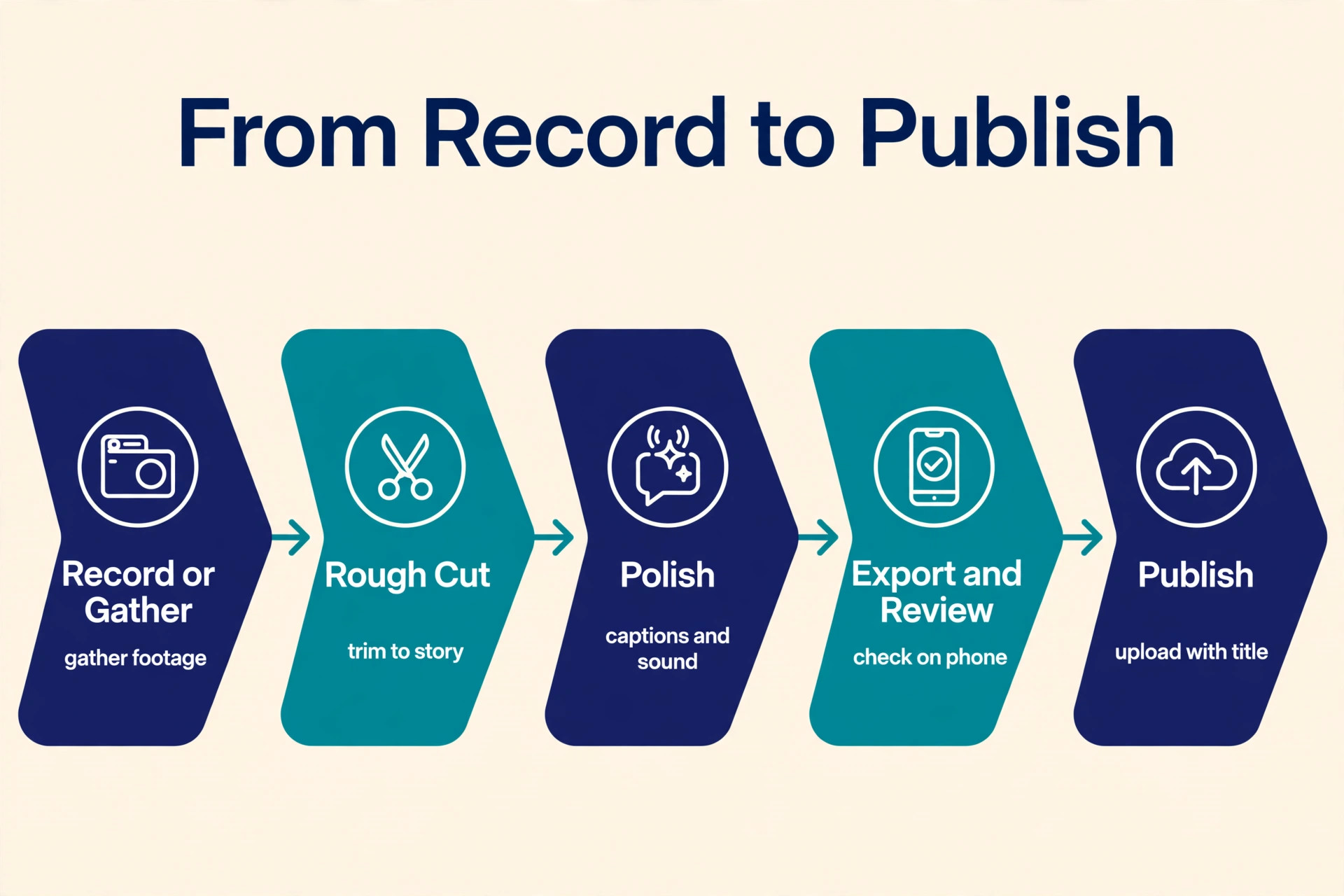
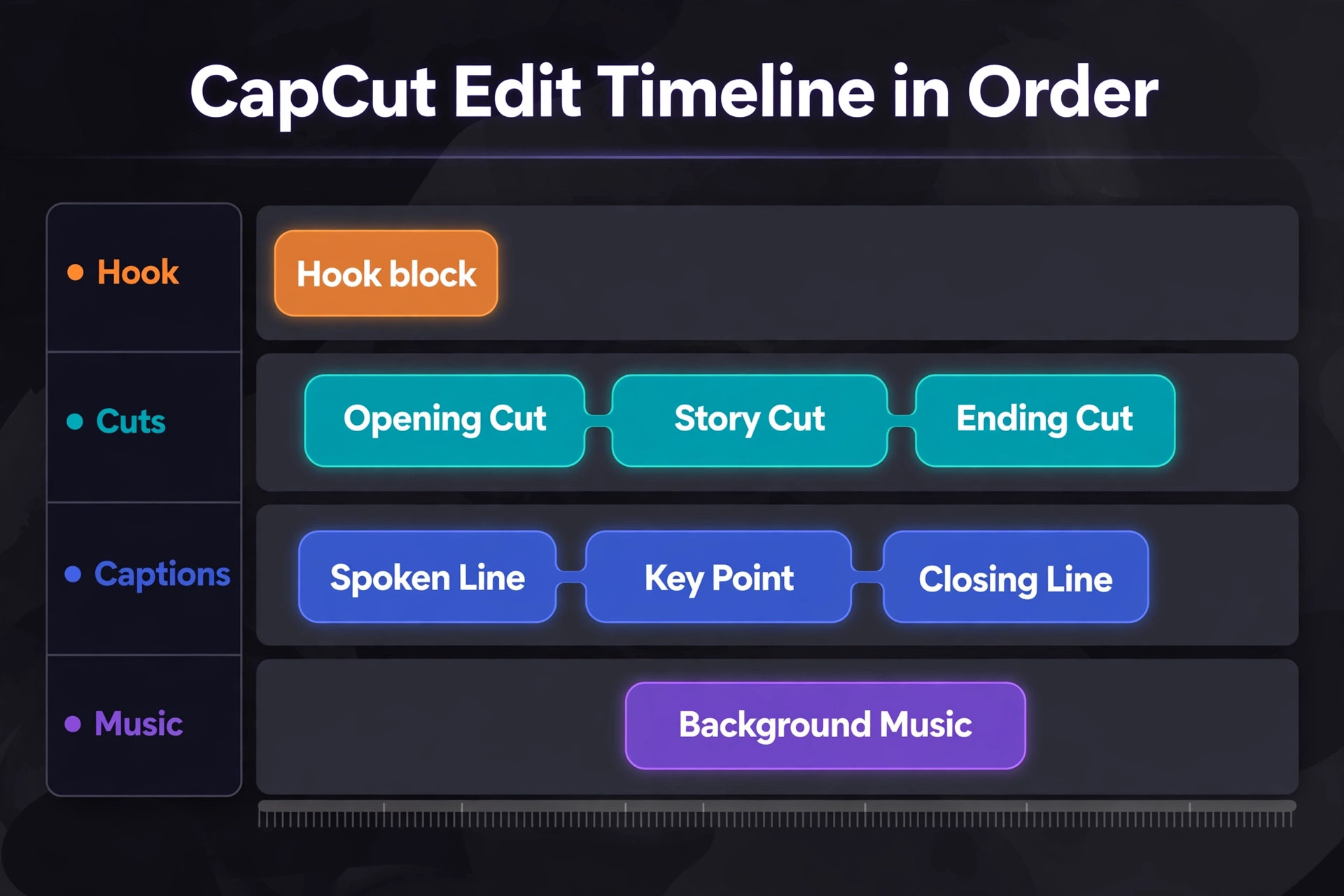
A good workflow when you use CapCut for YouTube Shorts has five stages, and each stage has one job. Record or gather, rough cut, polish, export, and publish. Mixing the stages is where time disappears. If you start choosing music before the rough cut is tight, you will rework the music when the cut changes. If you write captions before you lock the hook, you will rewrite them when the opening changes. When you use CapCut for YouTube Shorts regularly, keep the order, and each stage gets faster.
A realistic time budget for one Short, once the workflow is familiar, looks like the table below. Beginners should double the edit time for the first ten Shorts.
| Stage | What happens | Typical time |
|---|---|---|
| Record or gather | Film the clip or collect existing footage and B-roll | 10 to 30 minutes |
| Rough cut | Trim to the story, lock the hook, cut dead air | 15 to 25 minutes |
| Polish | Captions, text, sound, colour and pacing fixes | 15 to 30 minutes |
| Export and review | Export, watch on a phone, fix what looks wrong | 10 minutes |
| Publish | Title, description, thumbnail frame, audience setting, upload | 10 minutes |
Set Up the Project So the Edit Stays Fast
Open CapCut and start a new project, then set the canvas before you import anything. For Shorts, the canvas should be vertical, 9 by 16, at 1080 by 1920 pixels. This is the shape YouTube expects for the Shorts feed, and it fills a phone screen without black bars. Square video still counts as a Short, but it wastes screen space and looks smaller beside vertical videos in the feed. A horizontal video does not count as a Short at all, no matter how short it is, so a horizontal clip must be reframed or it will publish as a regular video.
Import only the footage you need for this Short. A project stuffed with ten unused clips slows down every preview and makes the timeline harder to read. If you filmed several takes, import the best two, not all six. Name the project with the Short title and the date, so you can find it again when a viewer asks a follow up question and you want to reuse a clip.
Check your audio before you start cutting. Listen to the raw clip on phone speakers, not only on headphones, because most Shorts viewers watch on a phone speaker or with sound off. If your voice is quiet, uneven or drowned by room noise, fix it early with the voice enhancement or noise reduction tools, or re-record the line while the setup is still in place. Audio fixed at the end, after captions and music are layered in, always takes longer and sounds worse.
How to Use CapCut for YouTube Shorts Without Losing a Day to Editing
The core of this workflow is the order of operations. Follow it in sequence, and resist the urge to polish a section before the whole Short holds together. A beautiful caption on a weak opening still loses the viewer in two seconds.
Step 1. Build the rough cut first
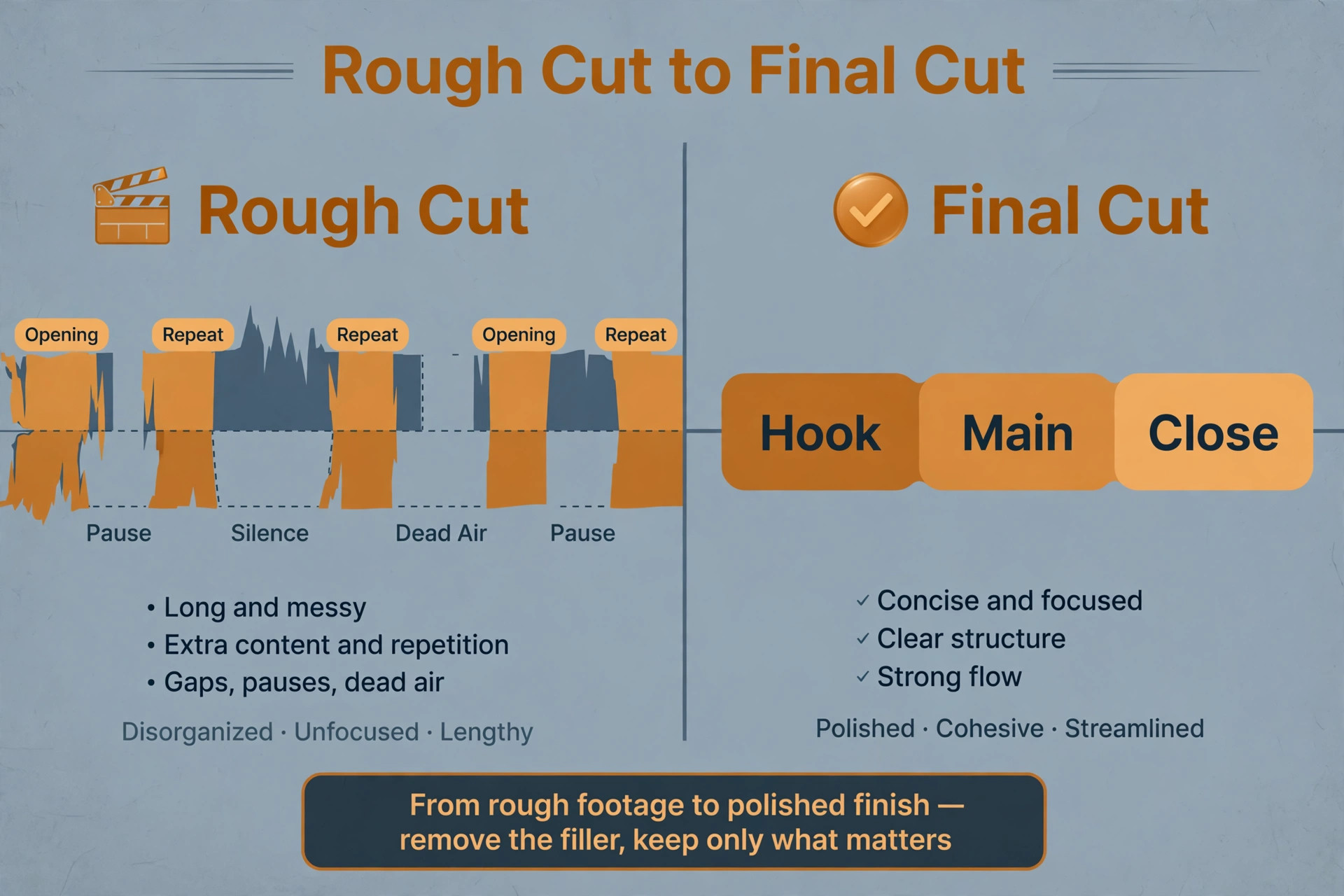
Drop your clips on the timeline in story order and trim ruthlessly. Cut the setup, the repeated sentence, the pause while you think, and the long ending where you wave at the camera. For most Shorts, the rough cut should land within 10 percent of the final length before you touch text or effects. If the story does not work silent, with no captions and no music, it will not work with them either. Watch the rough cut twice, once for story and once for pacing, and mark every spot where your attention drifts. Those are the cuts to make.
Step 2. Lock the hook in the first three seconds
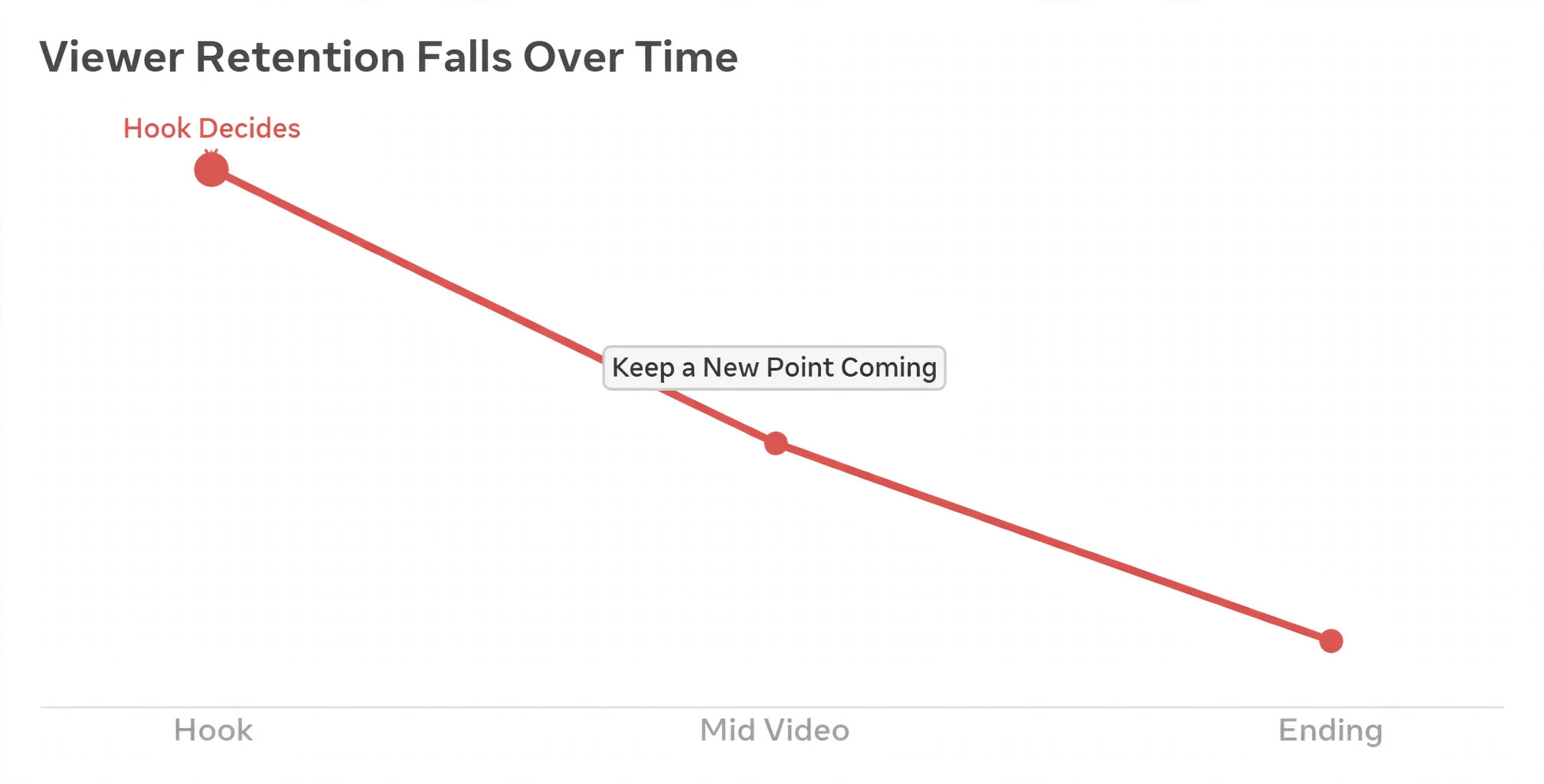
The hook is the first visual and the first line, together. A strong hook shows the result, asks the question the video answers, or states a claim the viewer wants to test. A weak hook explains what the video will be about, introduces the creator, or apologises for the quality. Viewers decide in the first seconds whether to stay, and YouTube watches that decision closely, so the hook deserves more edit time than any other three seconds in the video.
When you use CapCut for YouTube Shorts, build the hook as a separate edit task. Try two versions if you have time. One version opens on the result, the finished dish, the fixed error, the before and after. The other opens on the question or the mistake. Export both as drafts if you publish often enough to test, and keep notes on which opening held viewers longer in YouTube Analytics. Over a month, that small test teaches you more about your audience than any generic hook list.
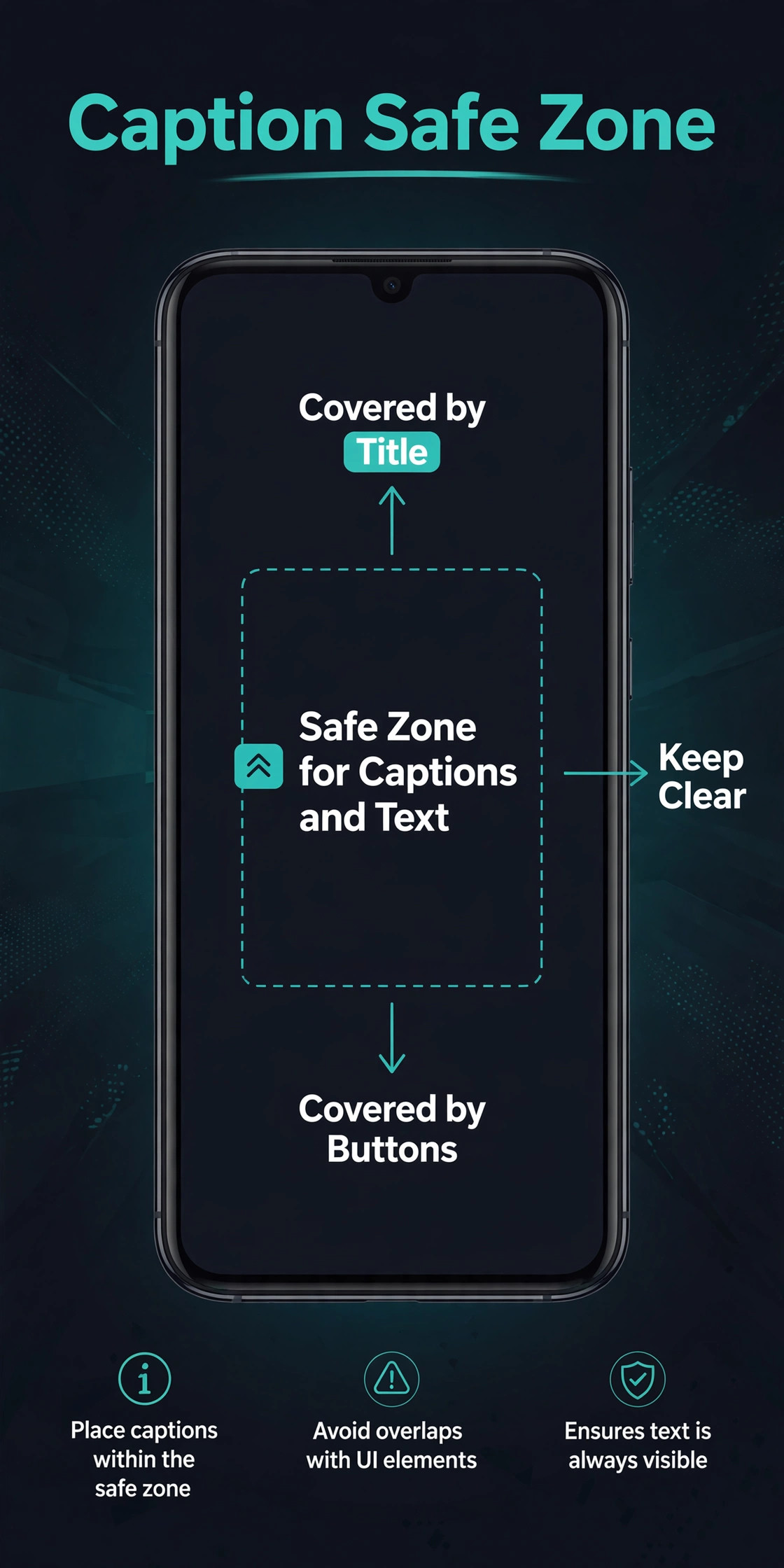
Keep on screen text in the hook short, no more than six or seven words, large enough to read on a small phone screen, and placed away from the edges. YouTube overlays the video title, channel name and action buttons on parts of the frame, so text near the bottom or the far right edge can be covered. Leave a clear margin around text, and check the hook on an actual phone before you call it done.
Step 3. Tighten pacing with cuts, not effects
Shorts pacing comes from cutting, not from effects. Split clips to remove filler words, long pauses and repeated points. A jump cut that removes half a second of dead air is more valuable than a flashy transition that takes a full second to play. Use transitions sparingly, one consistent style for most cuts, and reserve a more visible transition for a real scene change. When every cut has a different effect, the video feels busy and the message gets lost.
Vary shot length on purpose. A fast sequence of short clips works for a list or a process, while a slightly longer hold works for a moment you want the viewer to absorb, such as a result, a price, a warning or a punchline. Aim for a rhythm that matches the topic. A tutorial that races through steps without letting the viewer see each step will get comments asking for a slower version. A comedy or reaction Short that lingers will get swipes. Watch the edit at full speed, not scrubbed, because scrubbing hides pacing problems.
Step 4. Add captions and on screen text that help, not clutter
Auto captions in CapCut are the fastest way to make a Short watchable with sound off, which is how a large share of Shorts viewing happens. Generate auto captions from the spoken audio, then read every line before publishing. Auto caption tools are good with clear speech and weaker with names, numbers, brand terms and accented speech, so check product names, prices and technical terms by hand. A wrong number in a caption is worse than no caption, because viewers trust text they can read.
Style captions for readability, not decoration. One consistent font, one consistent colour, a clear background or outline, and a position that stays out of the way of your face and the YouTube interface. Two lines at most on screen at once, and each caption chunk should match a spoken phrase, not a whole paragraph. If captions cover the thing you are demonstrating, move them to the top or shrink them, and re-check on a phone. What looks fine on a desktop preview often covers the subject on a phone screen.
Step 5. Fix sound, then add music at the right level
When you use CapCut for YouTube Shorts, sound order matters. Clean the voice first, balance it second, and add music last. Use noise reduction lightly, because heavy noise reduction can make a voice sound thin or robotic, and a slightly imperfect natural voice usually beats an over processed one. If you recorded in a noisy room, a short re-record of the worst line, matched to the same distance from the phone, often sounds better than an hour of repair work.
Choose the Right Length and Pace for the Topic
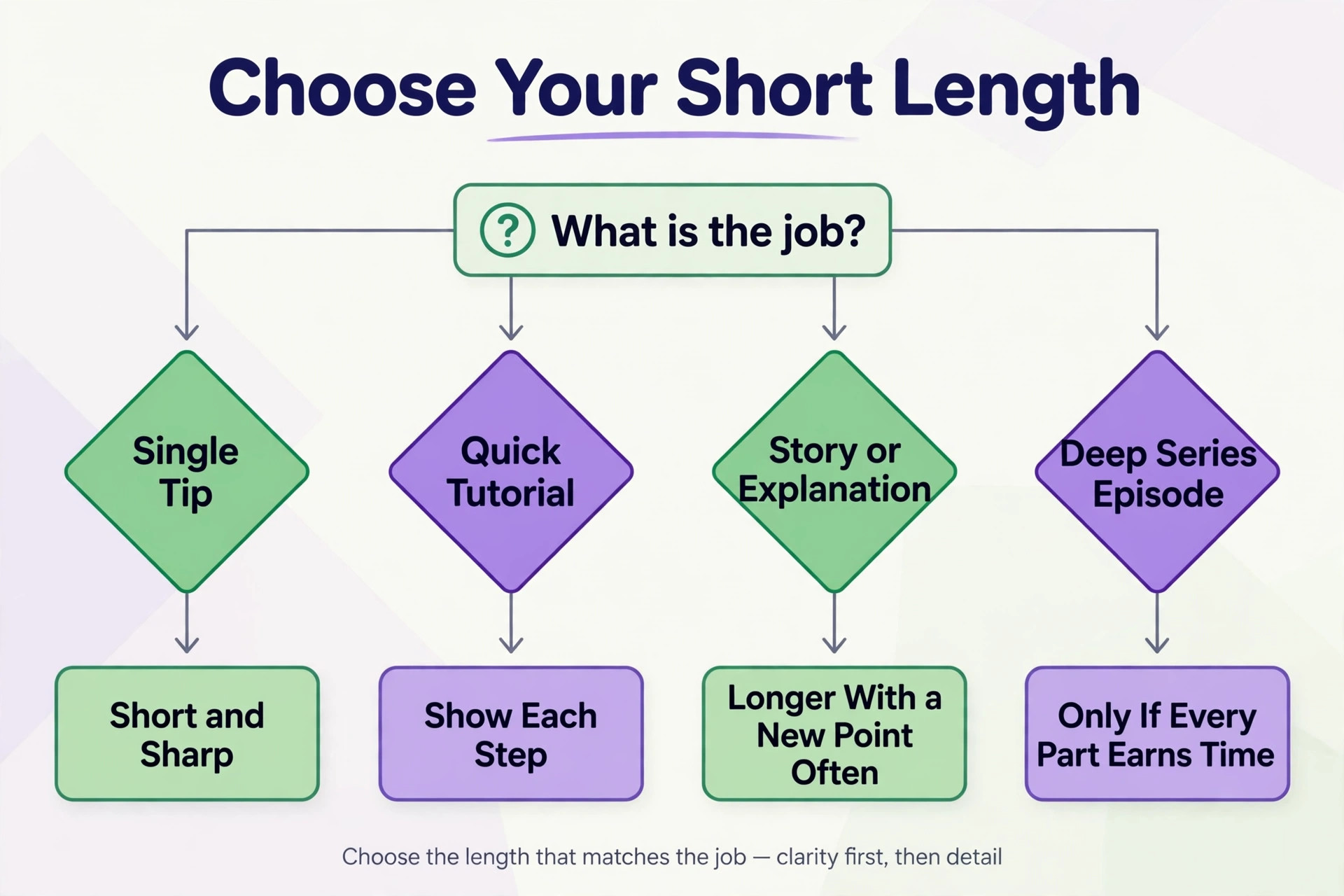
YouTube treats a vertical or square video of up to 3 minutes as a Short. That is the ceiling, not the target. Most strong Shorts land between 20 and 60 seconds, because a Short that viewers finish and rewatch sends a better signal than a longer Short that viewers abandon halfway. Length should follow the job the video has to do, and the table below gives a starting point for common Short types.
| Short type | Good length range | Pacing note |
|---|---|---|
| Single tip or fact | 15 to 30 seconds | One idea, one example, one ending line |
| Quick tutorial | 30 to 60 seconds | Show each step, do not just describe it |
| Before and after or result | 20 to 45 seconds | Show the result early, then explain briefly |
| Story or explanation | 45 to 90 seconds | Keep a new visual or point every 10 seconds |
| Series episode or deep cut | 90 seconds to 3 minutes | Only if every section earns its time |
Captions, Sound and Music Without a Copyright Headache
Music is the most common avoidable problem in a Shorts workflow. A track that sounds fine in CapCut can still cause a claim, a mute or a block on YouTube, and the rules change with track length, region and licence. The safest routine is to decide the music source before you edit, not after you export. For most creators, that means one of three routes, and each route has a trade off.
The first route is YouTube own audio. Music added inside YouTube, or from the YouTube Audio Library, is built for YouTube use, and the library shows licence terms per track. The trade off is a smaller selection and less control over the exact edit, since you add or swap audio at upload or in YouTube Studio rather than inside CapCut. The second route is CapCut licensed music, which is convenient inside the editor but must be checked for YouTube use, because a licence for one platform does not automatically cover another.
The third route is royalty free music bought or licensed from a music library, which gives the widest reuse across platforms but costs money and requires you to keep the licence receipt.
Export Settings That Keep a Short Sharp After Upload
When you use CapCut for YouTube Shorts, export is where many good edits lose quality, because YouTube re-encodes every upload. A file that looks perfect on your phone can look soft on YouTube if the export settings were too low, and a huge file does not automatically look better if the bitrate and resolution do not match. For most Shorts, export at 1080 by 1920, 30 frames per second, in MP4 with H.264 video and AAC audio. That matches the Shorts feed, keeps file size manageable, and gives YouTube a clean file to re-encode.
| Export setting | Recommended value | When to change it |
|---|---|---|
| Resolution | 1080 by 1920 | Only for footage that needs higher detail |
| Frame rate | 30 frames per second | 60 for fast movement, sport or gaming |
| Format | MP4, H.264 video, AAC audio | MOV only if your workflow requires it |
| Length | Up to 3 minutes, usually under 60 seconds | Longer only for multi step topics |
| File naming | Title plus date, no draft label on finals | Always, to avoid uploading a draft |
Publish in YouTube Studio and Check the Shorts Shelf
Upload from YouTube Studio on desktop when you want full control, or from the YouTube app when you are publishing on the move. Upload the exported file, not a screen recording of the preview, and let the upload finish on a stable connection before you close the app.
Title, description and audience settings deserve the same care as the edit. Front load the title with the topic, because only the first words show in many feed views, and keep the title under 100 characters. Write a description that adds context, a link if relevant, and a small set of relevant hashtags, including the Shorts hashtag only where it fits naturally, since YouTube classifies Shorts from the video shape and length, not from a hashtag alone. Set the audience correctly, choosing whether the video is made for kids or not, because that setting affects comments, recommendations and features.
If the Short is for a general audience, do not mark it as made for kids, and if it is genuinely for children, mark it honestly.
The Edit to Publish Checklist and the Hook and Caption Template
This is the part of the workflow to copy into your own document and reuse for every Short. It is also the part that makes this guide hard to replace with a short summary, because it turns general advice into a concrete pass or fail check for your specific video. Run through it in order, and do not publish a Short with an unchecked box unless you have a reason you can state in one sentence.
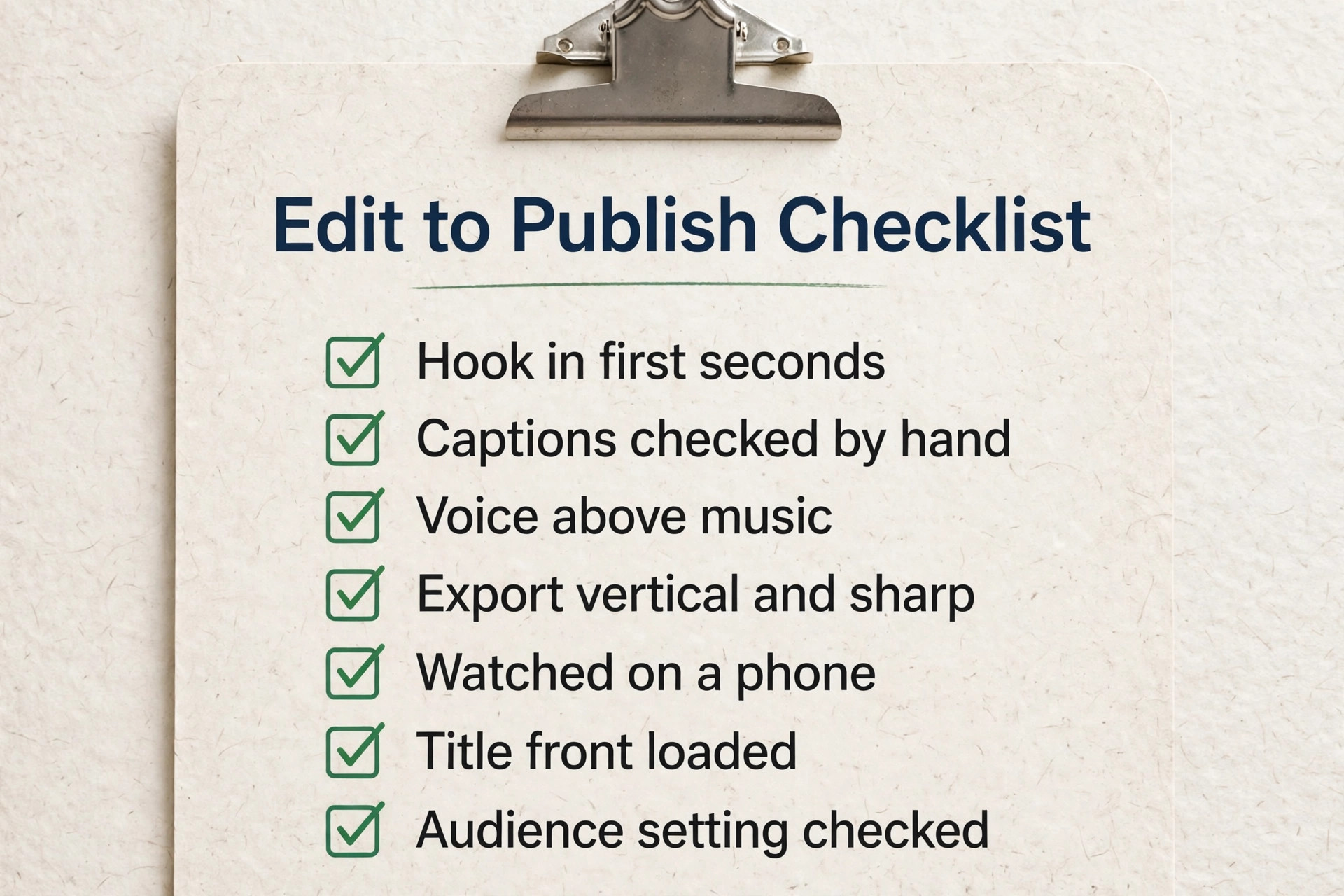
Edit to publish checklist
– Hook shows the result, the question or the claim in the first three seconds, in both visuals and words – Rough cut tells the story with sound off, with no section where attention clearly drifts – Every caption line checked by hand, with names, numbers and product terms corrected – Captions readable on a phone, two lines at most, clear of faces and interface overlays – Voice cleaned lightly, balanced above music, with fades at the start and end – Music source and licence recorded, with no commercial track relied on for a full long Short – Text limited to the hook, step numbers, key figures or warnings, with no stacked layers – Export at 1080 by 1920,
30 frames per second, MP4 with H.264 video and AAC audio, unless fast footage needs 60 – Draft watched full screen on a phone, with sound on and with sound off, before final export – Final file named clearly and stored apart from drafts, with the CapCut project saved – Title front loaded with the topic and under 100 characters, description adds context and relevant links – Audience setting checked, thumbnail frame shows the result or key moment – Video confirmed in the Shorts feed and Shorts tab after upload, copyright notices checked within the hour – First comments and questions answered in the first hour, with a note taken for the next Short
Hook template
Use one of these hook shapes and fill in the blanks for your topic. Keep the spoken hook and the on screen hook consistent, so viewers hear and read the same promise.
– Result hook. On screen text plus spoken line in this shape. Here is the result, then the short version of how you get it. Example shape. Stop doing this one thing, start doing this instead, and here is what changes. – Question hook. Ask the question the viewer is already asking, then promise the answer in the video. Example shape. Why does this keep failing, and what fixes it in under a minute. – Mistake hook. Name a common mistake, show its cost, then show the fix. Example shape. Most people do this step wrong, and it costs them views. Here is the fix. – Comparison hook. Show two options side by side in words, then give your verdict.
Example shape. Option A or option B for this job. Here is the one I would pick, and why.
Caption template
A reusable caption for the Short description, not the on screen captions, follows this shape. Line one states the result in plain words. Line two gives the single most useful detail, a number, a step or a warning. Line three tells the viewer what to do next, such as watch a related video, try the step, or comment with their result. Then add two or three relevant hashtags and a link if the Short supports a longer video or a guide. Keep the whole description short, because most Shorts viewers read only the first lines before they decide to stay or move on.
When you use CapCut for YouTube Shorts on a regular schedule, this checklist and these templates are the difference between a workflow and a habit of improvising. Improvising feels creative, but it produces a different set of mistakes every week. A checklist produces the same good result every week, and leaves your creative energy for the idea and the hook, where it actually changes views.
How to Choose Between Free CapCut and CapCut Pro
CapCut free covers the core Shorts workflow, timeline editing, trimming, basic text, auto captions, basic effects and export. For a creator testing Shorts, publishing a few times a week, or editing on a tight budget, free is the right starting point, and you should use it until a specific limit blocks you. Paying for Pro before you know your volume is a common waste, because the free editor already handles the steps that decide most Shorts, the hook, the cut, the captions and the export.
Pro, listed at about 19.99 dollars a month or about 179.99 dollars a year in US reference pricing at the time of writing, adds higher resolution export options, premium effects and assets, expanded AI tools, and cloud features that vary by account. A mobile only Standard tier has been listed at about 9.99 dollars a month in some regions, sitting between free and Pro. Prices vary by region, platform, promotion and tax, and app store prices can differ from web prices, so treat every figure here as a dated reference and check your checkout before paying. If you edit daily, publish at volume, or need premium assets and higher export quality regularly, Pro can pay for itself in saved time.
If you publish a few Shorts a month, it usually cannot.
The decision table below turns that judgement into a check you can run in two minutes.
| Your situation | Best starting point | Why |
|---|---|---|
| Testing Shorts, under 5 videos a month | Free | Core editing and captions already included |
| Publishing weekly, basic look | Free, then review after a month | Upgrade only if a named Pro feature is missing |
| Publishing daily, needs premium assets | Pro | Asset library and AI tools save time at volume |
| Team or multi device workflow | Pro or Team, check checkout | Cloud and collaboration features matter here |
| Tight budget, mobile only | Free or Standard where offered | Standard removes some free limits without full Pro cost |
For creators weighing CapCut against other editors, capcut alternatives compares the wider field, and descript vs capcut is useful if transcript based editing matters to you. If video editing is new to you, best ai video editing tools gives a broader starting point before you commit to one editor.
Mistakes That Quietly Kill a Short
The first mistake is a slow opening. An intro card, a channel greeting, or a sentence that explains what Shorts are wastes the only seconds that decide whether a viewer stays. Cut the greeting, start on the result or the question, and put channel branding at the end if you must have it. The second mistake is over editing. Five effects, three fonts, stickers, a filter and a transition on every cut make a video look busy and amateur, even when each effect alone looks good. Pick one visual style and repeat it.
The third mistake is captions nobody checked. Auto captions with a wrong name, a wrong price or a missing negation can reverse the meaning of a sentence. A caption that says a step is safe when you said it is not safe is not a small typo, it is misinformation. Read captions aloud against the audio before export, every time. The fourth mistake is music that overpowers the voice or starts abruptly. Viewers forgive a plain visual, but they swipe quickly from audio that hurts or distracts.
The fifth mistake is exporting the wrong shape. A horizontal export, a square export with huge black bars, or a vertical export with text cut off at the edges all signal that the creator did not check the final file on a phone. The sixth mistake is publishing without a title plan. A title written in ten seconds at upload time, with the topic buried at the end, loses the feed view where only the first words show. Write the title during the edit, when the hook is fresh, and paste it at upload.
Fix It When Something Goes Wrong
Most Shorts problems have a boring cause and a fast fix. Use the table below before you rebuild an edit from scratch, because rebuilding is usually the slowest response to a problem that a single setting change would solve.
| Problem | Likely cause | Fix to try first |
|---|---|---|
| Video shows as a regular video, not a Short | Horizontal shape or length over 3 minutes | Re-export vertical, 9 by 16, and trim to under 3 minutes |
| Text cut off on a phone | Text too close to the frame edge | Move text inward, shrink it, and re-check on a phone |
| Captions wrong on names or numbers | Auto caption error | Edit the caption text by hand and re-export |
| Sound too quiet or uneven | Voice level low, music too high | Raise voice, lower music, add gentle fades |
| Video looks soft after upload | Low export resolution or bitrate | Re-export at 1080 by 1920 and re-upload |
| Music claimed or muted | Licence does not cover YouTube use | Swap audio in Studio or re-export with library music |
| Views drop after a strong start | Hook promises more than the video delivers | Rewrite the hook to match the real payoff |
| Export fails or stalls | Large project, low storage, weak connection | Clear space, export a draft first, use stable Wi-Fi |
For related reading, how to start a youtube channel with ai covers the wider channel setup around Shorts, and best ai tools for youtubers helps if you want to add tools beyond the editor. If captions are your bottleneck, best ai video caption generators compares caption tools that can sit alongside or replace CapCut auto captions.
Frequently Asked Questions
Can I use CapCut for YouTube Shorts for free?
Yes. The free version of CapCut handles the full basic workflow, including timeline editing, trimming, text, auto captions, basic effects and export. You can test the whole workflow in this guide without paying. Upgrade only when a specific Pro feature, such as premium assets, higher export quality or expanded AI tools, becomes a real bottleneck in your volume.
What size should I export a Short from CapCut?
Export at 1080 by 1920 pixels in a vertical 9 by 16 shape, usually at 30 frames per second, in MP4 with H.264 video and AAC audio. That matches the Shorts feed and survives YouTube re-encoding well. Use 60 frames per second only for fast movement, sport or gaming footage, where the extra frames genuinely help.
How long can a YouTube Short be?
A vertical or square video of up to 3 minutes counts as a Short. That limit has applied to uploads since October 2024, replacing the older 60 second cap. In practice, most strong Shorts run 20 to 60 seconds, and a longer Short needs a topic that genuinely needs the extra time, such as a multi step fix or a cost breakdown.
Do I need CapCut Pro to remove the watermark?
Free CapCut exports can carry watermark or asset limits depending on the templates and assets you use, and paid tiers remove many of those limits. Check the export preview and the plan terms in your own account before you rely on a specific asset, because free and paid asset rules differ, and a template that looks free can still carry a paid element. If clean exports matter for every video, that alone can justify a paid tier.
Can I use CapCut music in a YouTube Short without a copyright claim?
Not automatically. A track licensed inside CapCut does not always carry a licence for YouTube, and commercial songs can be limited in length or claimed even in a short clip. The safest routine is to use YouTube Audio Library music, a royalty free library track you have licensed, or music you have confirmed for YouTube use, and to keep a log of the track name and source for every Short.
How do I know if my Short is actually a Short after uploading?
Check your channel Shorts tab and the Shorts feed on a phone after upload. A true Short appears there, while a horizontal video or a video over 3 minutes appears as a regular video. Also check YouTube Studio for processing or copyright notices in the first hour, and fix audio or shape problems early rather than leaving a misclassified video up.
A Workflow You Can Repeat on a Busy Tuesday
The test of a Shorts workflow is not whether it works on a free weekend. It is whether it works on a busy Tuesday, when you have one hour, one idea and no patience for reinventing the edit. When you use CapCut for YouTube Shorts with the order in this guide, that Tuesday edit has a shape. Set the vertical project, cut the story tight, lock a hook that shows the result or asks the question, check captions by hand, balance voice above music, export at the right settings, and run the checklist before you publish. Together they separate a channel that posts sometimes from one that posts consistently.