

Portrait photographers face a numbers problem that landscape photographers rarely meet. A single portrait session can produce hundreds of frames, a wedding can produce thousands, and every frame that reaches a client must look consistent, natural, and finished. Studies of professional workflows consistently show that editing, not shooting, consumes the largest share of a photographer’s working hours, and portrait editing is the slowest part of that work, because skin, eyes, and color must be handled with care on every image, which is why photographers use Lightroom for portrait editing photographers.
When you use Lightroom for portrait editing photographers gain a workflow built for that scale, because presets, batch sync, masking, and non-destructive edits let you shape one strong portrait and carry that look across a whole set without starting over on every frame.
Lightroom comes in two main forms, and the distinction matters before you build a workflow. Lightroom Classic is the desktop-focused version with local file management, deep masking tools, and a catalog system that suits high-volume professional work. The cloud-based Lightroom version syncs across devices and suits photographers who edit on the go, but it offers a smaller toolset for complex portrait work. This guide focuses on Classic, because its masking, preset, and batch tools fit portrait sessions best, and most of the workflow transfers to the cloud version with minor differences in where panels live. Whichever version you use, the principles are the same, which are edit globally first, retouch locally second, and check skin tone before you export anything.
A portrait edit should be invisible when done well. The viewer should notice the person, not the editing, and that standard guides every decision in this guide. Skin should keep texture, eyes should look bright without looking artificial, color should flatter without shifting into orange or magenta, and the background should support the subject without competing. Photographers who chase dramatic looks on portraits often produce images that impress other photographers and disappoint clients, because clients want to recognize themselves, only better. The workflow below aims for that recognition, with consistency across a set as the measure of success.
The Portrait Editing Order That Prevents Rework
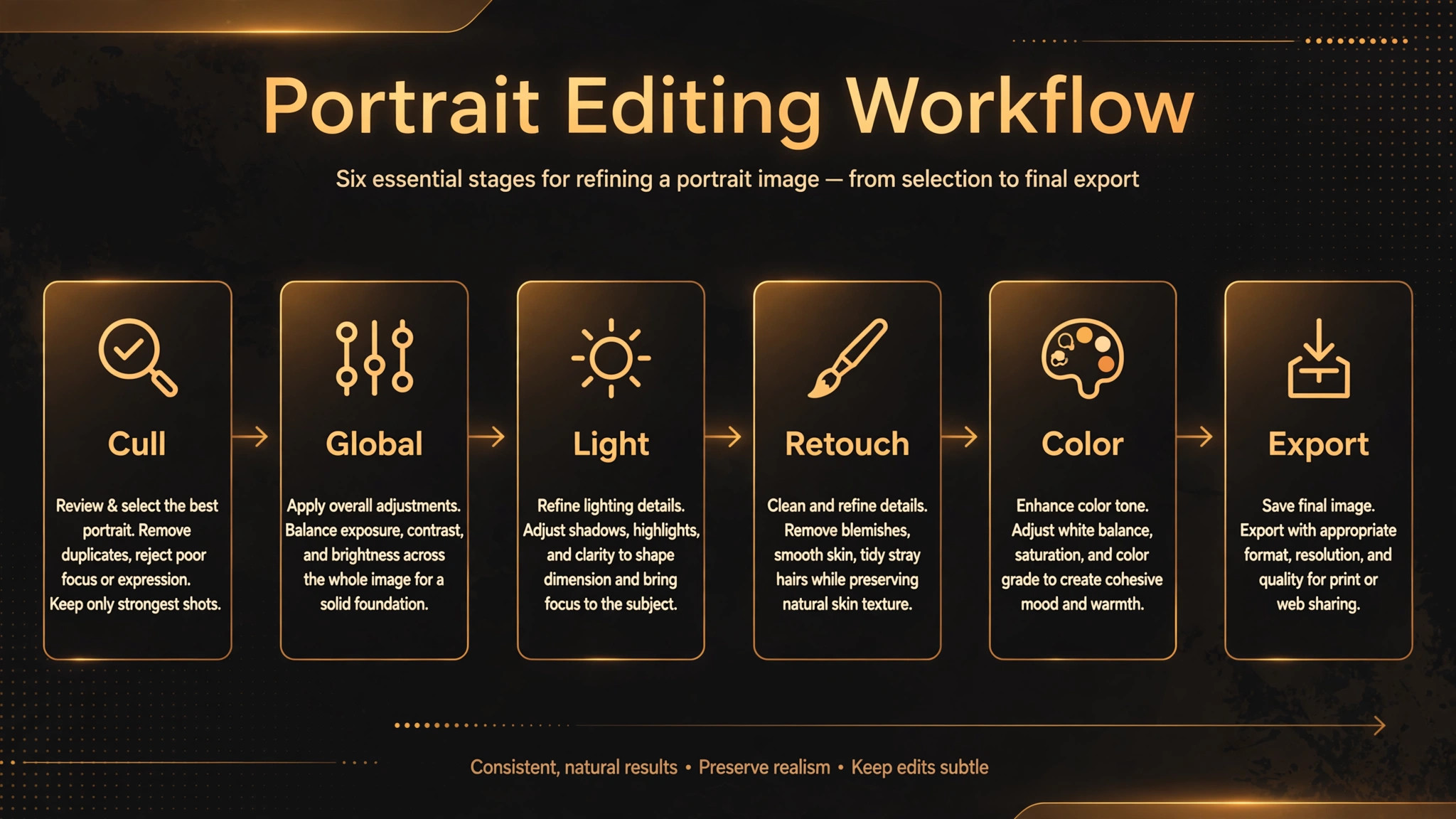
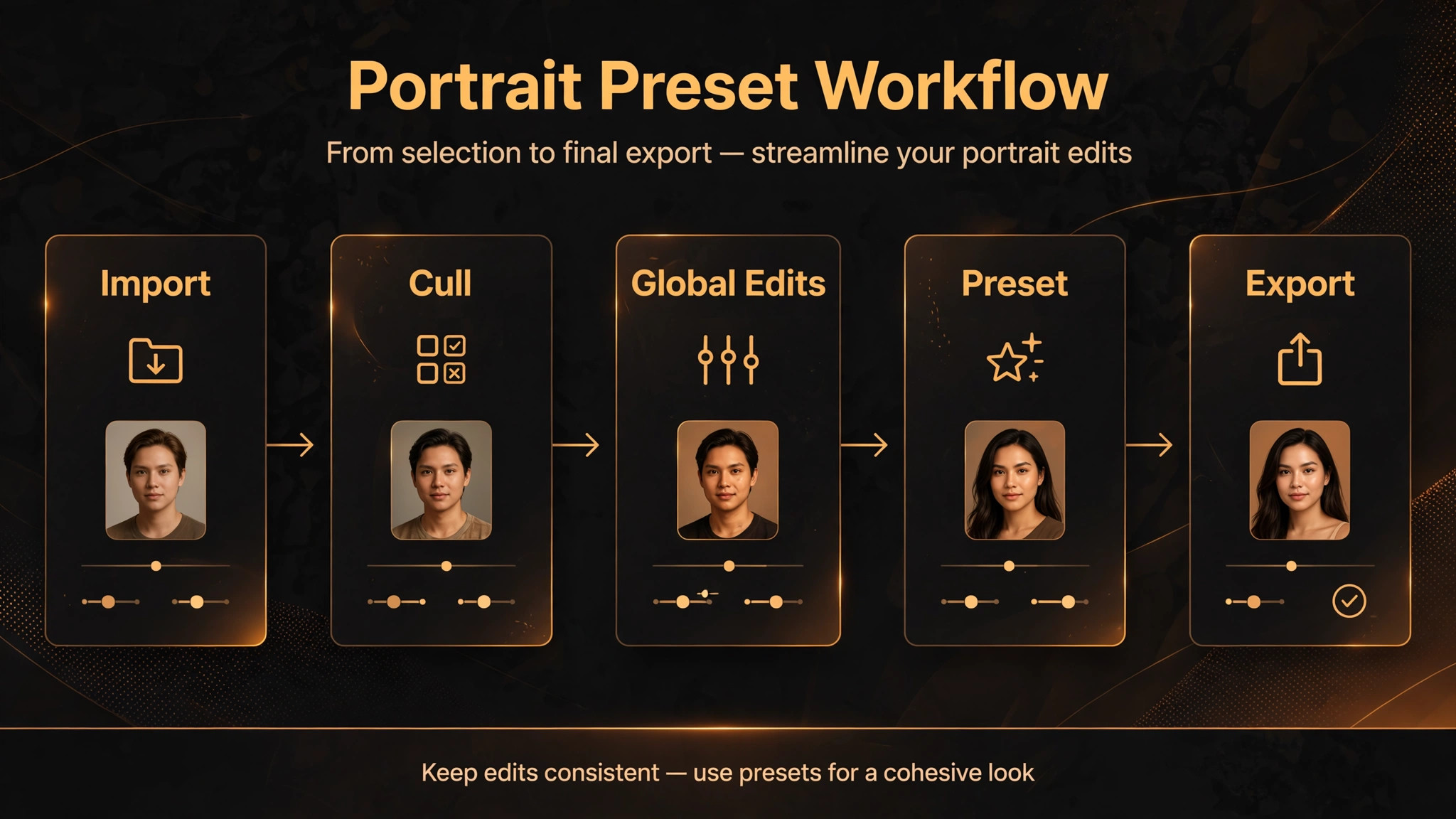
Editing in the wrong order causes rework. Photographers who retouch skin before fixing exposure end up retouching twice, because exposure changes alter how skin looks. Photographers who apply creative color before correcting white balance end up fighting color casts they created. The order that prevents this is fixed. Cull first, so you edit only the frames that matter. Correct globally second, which means exposure, white balance, and lens corrections. Shape light third, with tone curve and local adjustments. Retouch fourth, with skin, eyes, and distractions. Color fifth, with HSL and calibration. And finish sixth, with sharpening, noise handling, and export preparation. Each stage builds on the previous one, and skipping ahead always costs time later.
Culling deserves more respect than it usually gets. Editing every frame from a session is wasteful, and it dilutes the set, because clients notice weak frames more than they appreciate extra ones. Rate ruthlessly, flag the strongest frames, and edit only those, plus a small set of alternates for safety. Lightroom’s rating, flagging, and filtering tools make culling fast, and a second pass after a break catches frames you missed and drops frames you overrated in the excitement of the shoot. A photographer who delivers eighty strong portraits beats one who delivers three hundred uneven ones, and the editing time saved can go into making the strong frames genuinely excellent.
| Editing stage | Tools used | What good looks like |
|---|---|---|
| Cull and organize | Flags, ratings, collections | Only strong frames move forward |
| Global correction | Exposure, white balance, lens profile | Natural light, neutral color, straight lines |
| Light shaping | Tone curve, radial and linear masks | Depth on the face, calm background |
| Retouching | Healing, masking, skin softening | Clean skin with texture intact |
| Color refinement | HSL panel, calibration | Flattering skin, no orange or magenta cast |
| Finish and export | Sharpening, noise, export presets | Sharp eyes, clean files, correct sizes |
The table is your checklist for every portrait. Work down it in order, and resist the urge to jump to retouching before the global stage is right. When you use Lightroom for portrait editing photographers who follow this order spend less time fixing their own earlier decisions, and their sets look consistent, because every frame passed through the same stages in the same sequence.
Global Corrections Before Any Retouching
Start with the lens profile, because distortion and vignetting affect how a face reads, especially at wide apertures and short focal lengths. Enable profile corrections in the lens panel, and check that the correction matches your lens, since a wrong profile does more harm than none. Next, set white balance, and do it by eye against skin, not by numbers alone. A gray card or a known neutral reference from the shoot gives the most reliable starting point, but in its absence, adjust temperature and tint until skin looks neither too yellow nor too pink, and check the result on a calibrated display if possible.
White balance errors are the most common reason portraits look unflattering, and they are also the easiest to fix when caught early.
Exposure comes next, and the goal is skin placed correctly, not a histogram that looks perfect. Portraits often have bright backgrounds and darker faces, or the reverse, and a global exposure that satisfies the histogram may still leave the face too dark. Use the exposure slider to place the face, then recover highlights and shadows gently to hold detail elsewhere, without flattening the image into gray. Contrast should be moderate on portraits, because high contrast hardens skin and deepens every line, while very low contrast makes faces look washed out. The tone curve offers finer control than the contrast slider, and a gentle S-curve that lifts midtones slightly often flatters skin better than a strong contrast push.
Check your work on the whole set, not just one hero frame. After correcting the first portrait, sync those global settings to the rest of the session’s selects, then review the set as a group. Consistency across a set matters more than perfection on a single frame, because clients view portraits together, and a set where skin shifts from warm to cool frame by frame looks careless, however good each frame is alone. Sync, review, adjust the outliers individually, and only then move to local work. That discipline is what separates a professional set from a collection of individually edited images.
Reading Skin Tone With RGB Values
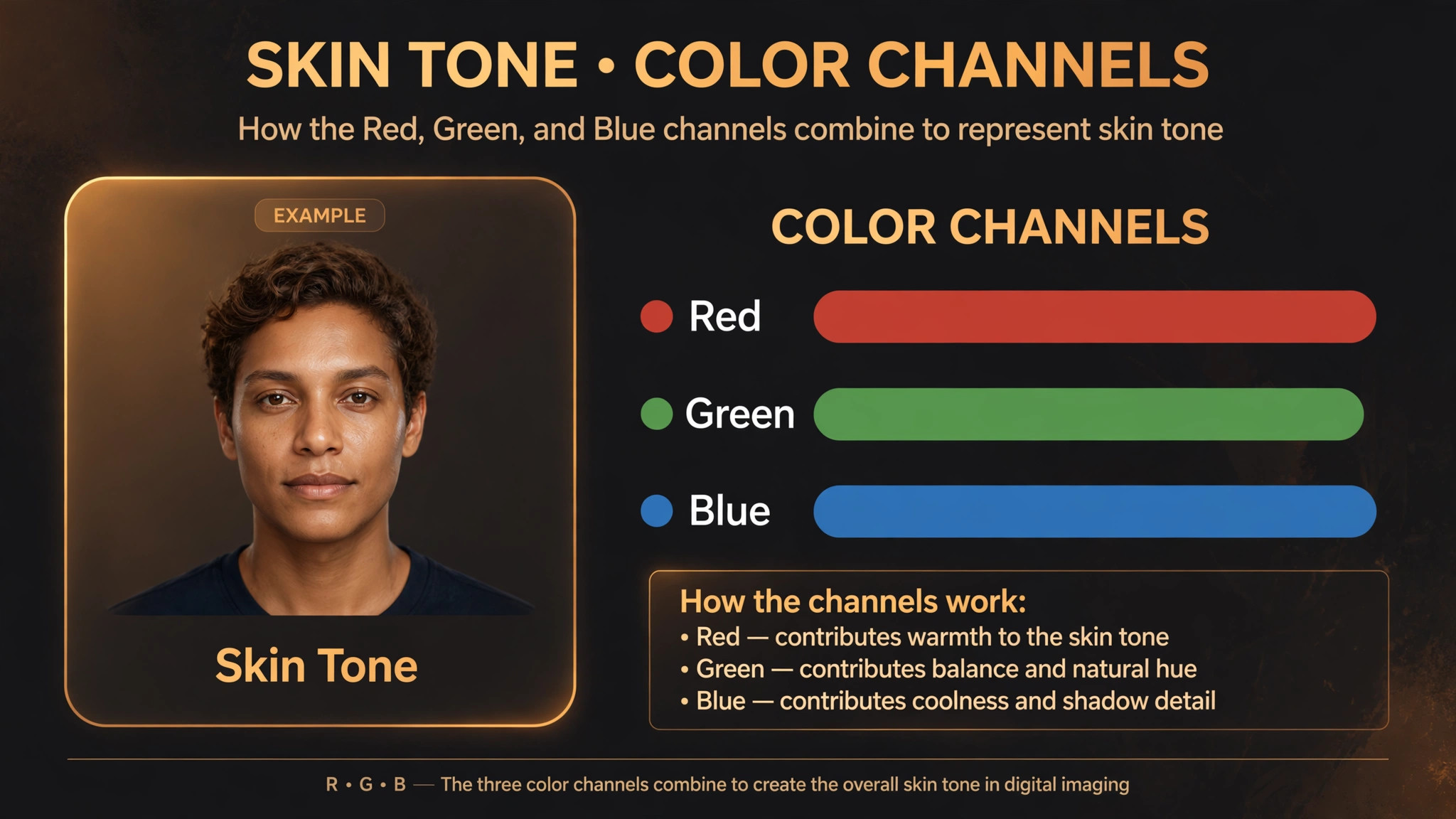
Numbers can guide skin tone when your eyes get tired, and Lightroom’s eyedropper gives you a simple check. Sample a well-lit area of skin, such as a cheek or forehead, and look at the red, green, and blue values. For most skin tones, red should be highest, green in the middle, and blue lowest, with a clear gap between each channel. Skin that shows blue approaching green often looks cold or gray, while skin with red far above the others may look sunburned or oversaturated. Use these readings as a guide, not a rule, because skin tones vary widely across people and lighting, and the goal is skin that looks like the person, not skin that matches a formula.
When the numbers and your eyes disagree, trust your eyes after a break, because tired eyes misread color more than any tool does.
Masking Faces, Skin, and Backgrounds
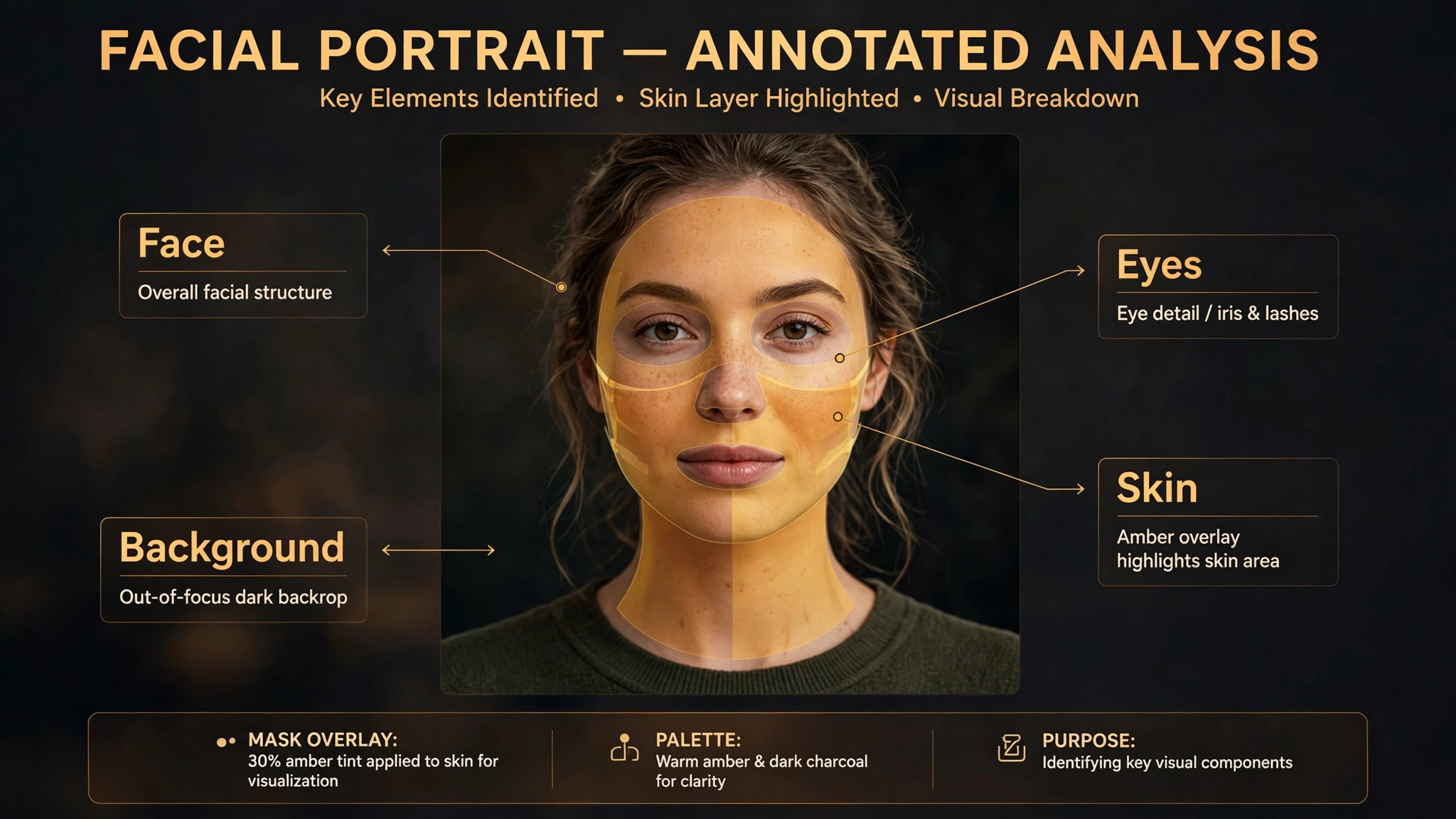
Masking is where Lightroom’s portrait tools earn their keep. The masking panel can detect people in a frame and offer separate masks for face skin, body skin, eyes, lips, hair, and more, which lets you adjust each area independently. Start with a face skin mask for tone and softening, add an eye mask for brightness and sharpness, and add a background mask to darken or desaturate distractions. Work with modest slider moves, because masked adjustments compound quickly, and a small change on skin plus a small change on eyes plus a small change on the background adds up to a portrait that looks processed.
Check each mask by viewing its overlay, and refine the edges where the mask bleeds into hair or clothing, because a sloppy mask edge is visible even when the adjustment is subtle.
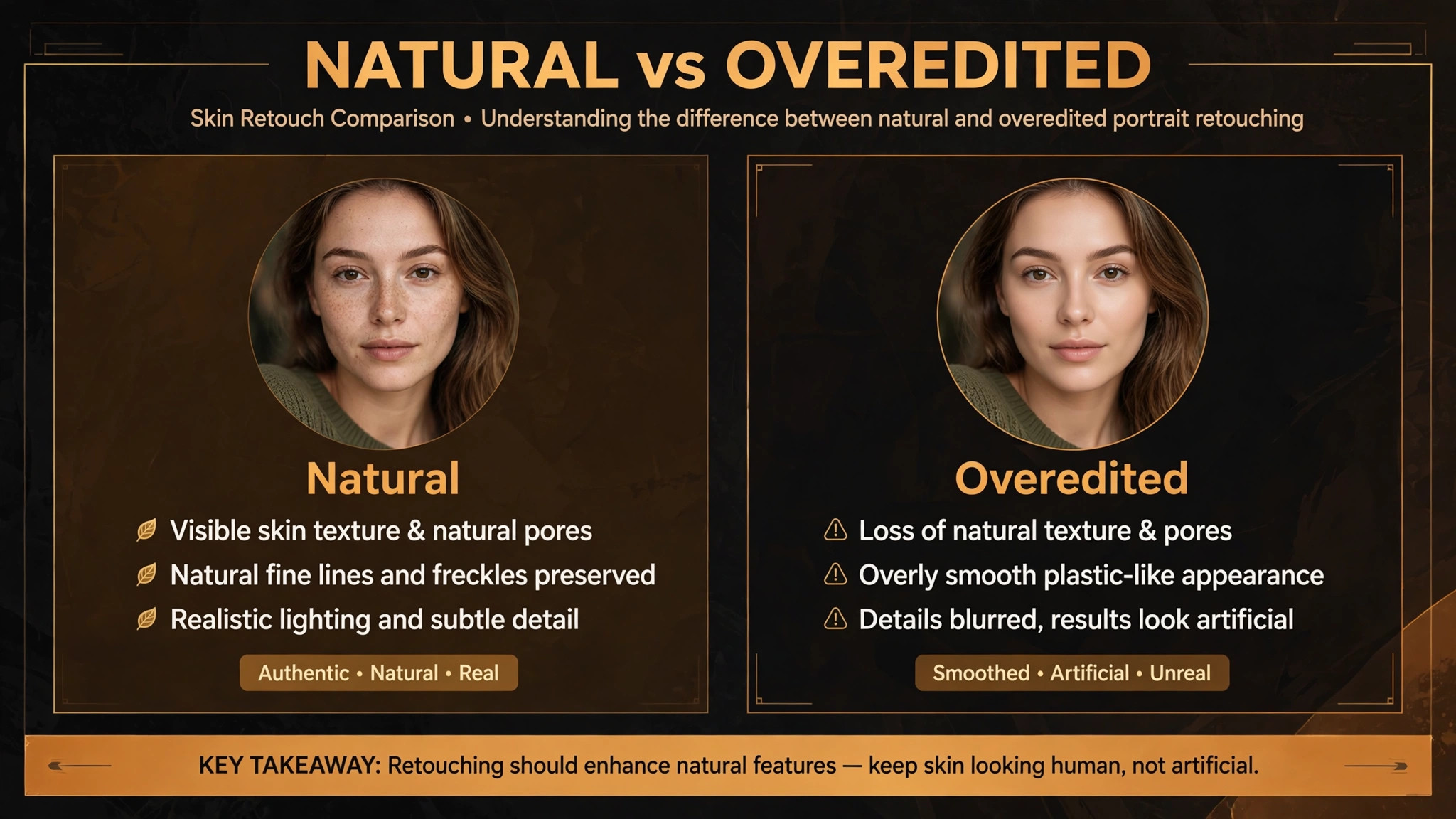
Skin softening is the most abused portrait adjustment, and restraint is the skill. Lightroom offers a Soften Skin effect for masked skin, and it works well at low strength, smoothing tonal transitions without erasing texture. Push it too far and skin turns plastic, pores vanish, and the portrait looks like an illustration. The test is simple. Zoom to full size on the face, and ask whether the skin still shows natural texture, such as pores and fine lines. If not, reduce the effect until texture returns. Apply softening after healing, not before, because softening over blemishes smears them rather than removing them, and the result looks worse than either step alone.
Eyes deserve separate attention, because viewers look at eyes first. Brighten the iris slightly with an eye mask, add a touch of sharpness and clarity to the eyes only, and whiten the whites very gently if needed, without turning them blue or gray. Avoid over-brightening, which makes eyes look startled, and avoid sharpening the whole face to sharpen the eyes, because global sharpening hardens skin. The same logic applies to lips and hair, which benefit from small, targeted moves rather than global ones. Portrait editing is local work done carefully, and masking is what makes local work practical at scale.
When Lightroom Hands Off to Photoshop
Some portrait jobs exceed what Lightroom should do, such as complex background replacement, detailed frequency separation, or compositing. Photoshop handles those tasks with finer control, and sending a frame there from Lightroom is straightforward, with the edited file returning to the catalog afterward. The rule is to do everything Lightroom can do well in Lightroom, and to reserve Photoshop for work that genuinely needs layers and pixel-level control. Photographers who jump to Photoshop for every portrait waste hours on tasks Lightroom handles in minutes, and they lose the batch consistency that makes Lightroom powerful. Use Photoshop as a specialist, not as a default.
Building a Preset Workflow for Consistent Sets
Presets are saved groups of settings that you apply in one click, and for portrait photographers, they are the key to consistency and speed. Build presets in stages that match your editing order, rather than one giant preset that tries to do everything. A base preset might hold lens corrections, a gentle tone curve, and your preferred sharpening approach. A skin preset might hold your standard masked skin adjustments at modest strength. A finish preset might hold your export sharpening and vignette choices. Applying staged presets lets you adjust each stage per frame, while still starting from a consistent place, and it makes your look repeatable across sessions and seasons.
Create your presets from real sessions, not from theory. Edit a strong portrait fully, save the settings as presets stage by stage, then test them on ten other frames from different lighting situations. A preset that works only on one lighting setup is not a workflow, it is a filter, and it will disappoint you on the next session. Refine presets until they produce a good starting point on most frames, with only small per-frame adjustments needed. Document what each preset does and when to use it, because a preset library you cannot explain becomes a pile of mysterious buttons, and mysterious buttons get used randomly, which destroys consistency.
When you use Lightroom for portrait editing photographers should version their presets, because looks evolve and clients sometimes ask for the earlier style. Save a new version when you change a preset significantly, rather than overwriting the old one, and keep a small set of reference images edited with each version, so you can compare looks side by side. A preset library of five well-understood presets beats a library of fifty untested ones, and the discipline of versioning keeps your style intentional rather than accidental. Review presets annually, retire ones you never use, and refine the ones that carry your work.
How to Use Lightroom for Portrait Editing Photographers Can Repeat
The repeatable workflow in this section is the overview-proof element for this guide. It combines the stages above into a preset sequence you can run on every session, with checks that catch the errors clients notice most. When you use Lightroom for portrait editing photographers who follow a written sequence produce more consistent sets than those who edit by feel alone, because feel varies with fatigue, mood, and deadline pressure, while a sequence does not.
| Preset step | Settings applied | Check before moving on |
|---|---|---|
| Import and cull | Ratings, flags, collection for selects | Only strong frames in the edit set |
| Base preset | Lens profile, white balance, exposure | Skin placed correctly, no color cast |
| Light preset | Tone curve, face brightening mask | Face has depth, background stays calm |
| Retouch preset | Healing first, then masked skin softening | Texture intact at full zoom |
| Color preset | HSL skin adjustments, calibration | No orange or magenta cast on skin |
| Finish preset | Output sharpening, vignette, noise handling | Eyes sharp, skin not hardened |
| Export preset | Correct size, format, and color space per use | Files checked at delivery size |
Run the sequence on one hero frame first, perfect it, then sync to the set and adjust outliers. That hero-first approach gives you a reference for the whole session, and it prevents the drift that happens when you edit frames in random order and slowly change your mind about the look. Keep the hero frame visible while editing others, either as a reference view or as a printed proof, so your eyes have a constant target. Consistency is a visual skill, and visual skills need a reference, not just memory.
Batch sync deserves a caution. Syncing copies settings from one frame to others, including local adjustments and masks, and masks do not always transfer cleanly when faces are in different positions. After syncing, review each frame at full size on the face, and fix masks that missed or bled. Sync saves hours, but blind sync creates errors, and a mask error on a delivered portrait is worse than no mask at all. The workflow is sync, then verify, then adjust, never sync and forget. That verification pass is where professional quality lives, and it takes minutes when you know what to look for.
The Skin Tone Export Checklist
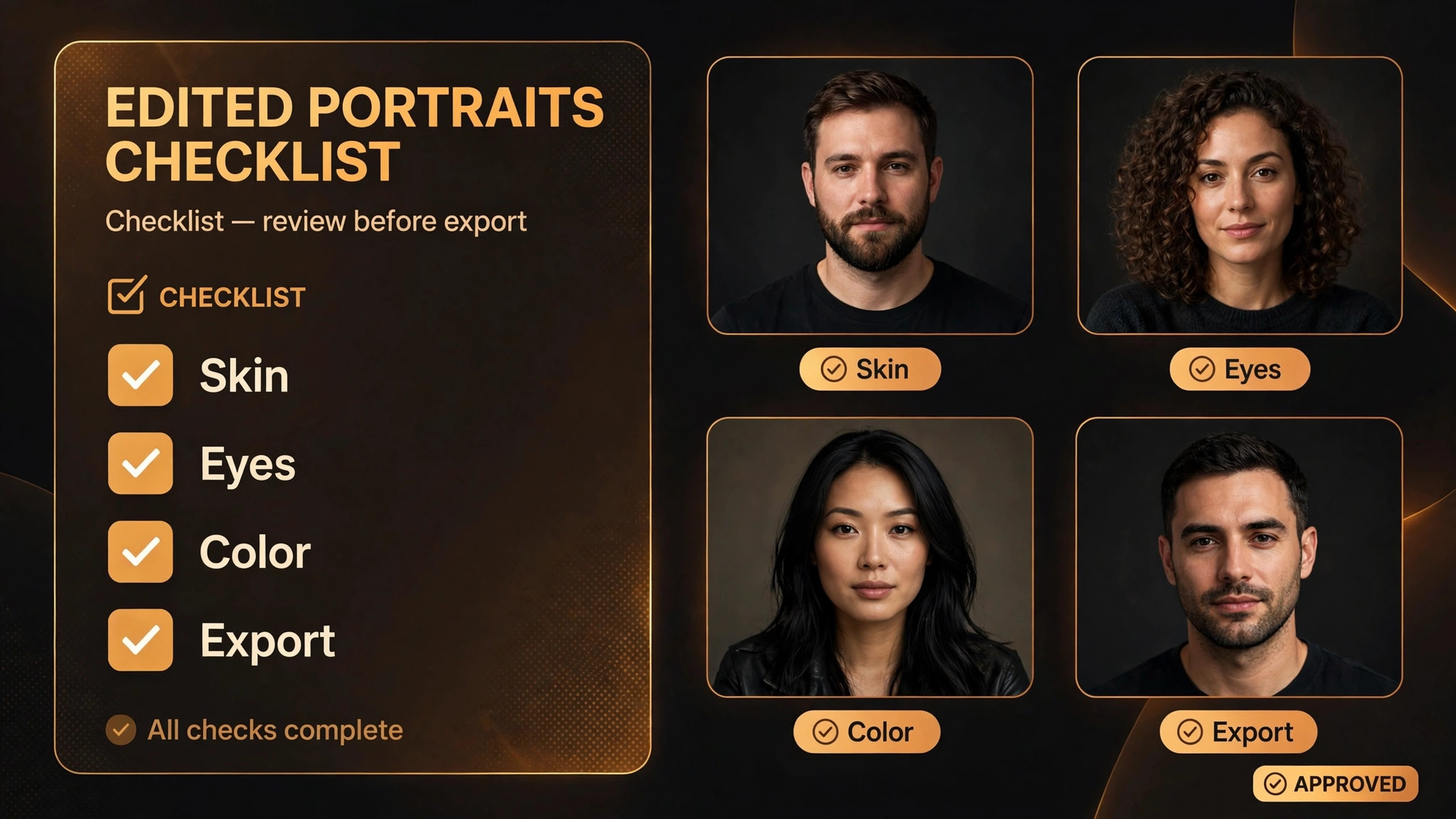
Run this checklist on every portrait before export, because export is the point of no return for client delivery. A check that takes two minutes per hero frame, and seconds per set frame, catches the errors that clients notice and photographers miss when tired. When you use Lightroom for portrait editing photographers who export with this checklist deliver cleaner sets, because the checklist forces a final look at skin, eyes, and color under delivery conditions.
- View the portrait at full size on the face, and confirm skin texture is visible, not smoothed away.
- Sample skin RGB values on a well-lit cheek, and confirm red is highest, green middle, and blue lowest.
- Check white balance against skin, not against the background, and confirm no yellow, green, or magenta cast.
- Confirm eyes are bright and sharp without looking artificial, and that eye masks have not bled into surrounding skin.
- Check lips and hair for mask edges, and refine any mask that bleeds into clothing or background.
- Compare the frame against the session hero frame, and confirm skin tone and brightness match the set.
- Check the background for distractions, sensor spots, or objects that should have been removed.
- Confirm sharpening is applied to eyes and detail, not hardened across skin.
- Export a test file at delivery size, and view it on a phone as well as a computer, since clients view on phones first.
- Confirm file size, format, and color space match the delivery purpose, such as print or web.
Export settings matter as much as editing. Web delivery usually wants a smaller size, a common format, and a color space suited to screens, while print delivery wants full resolution and a color space suited to the lab. Keep separate export presets for each purpose, named clearly, so you never send a print client a web-sized file or a web client an enormous print file. After export, open a few delivered files from the export folder, not from Lightroom, and confirm they look as expected, because export can occasionally shift appearance, and catching that shift before delivery beats an apology afterward.
Editing Different Skin Tones and Lighting Conditions
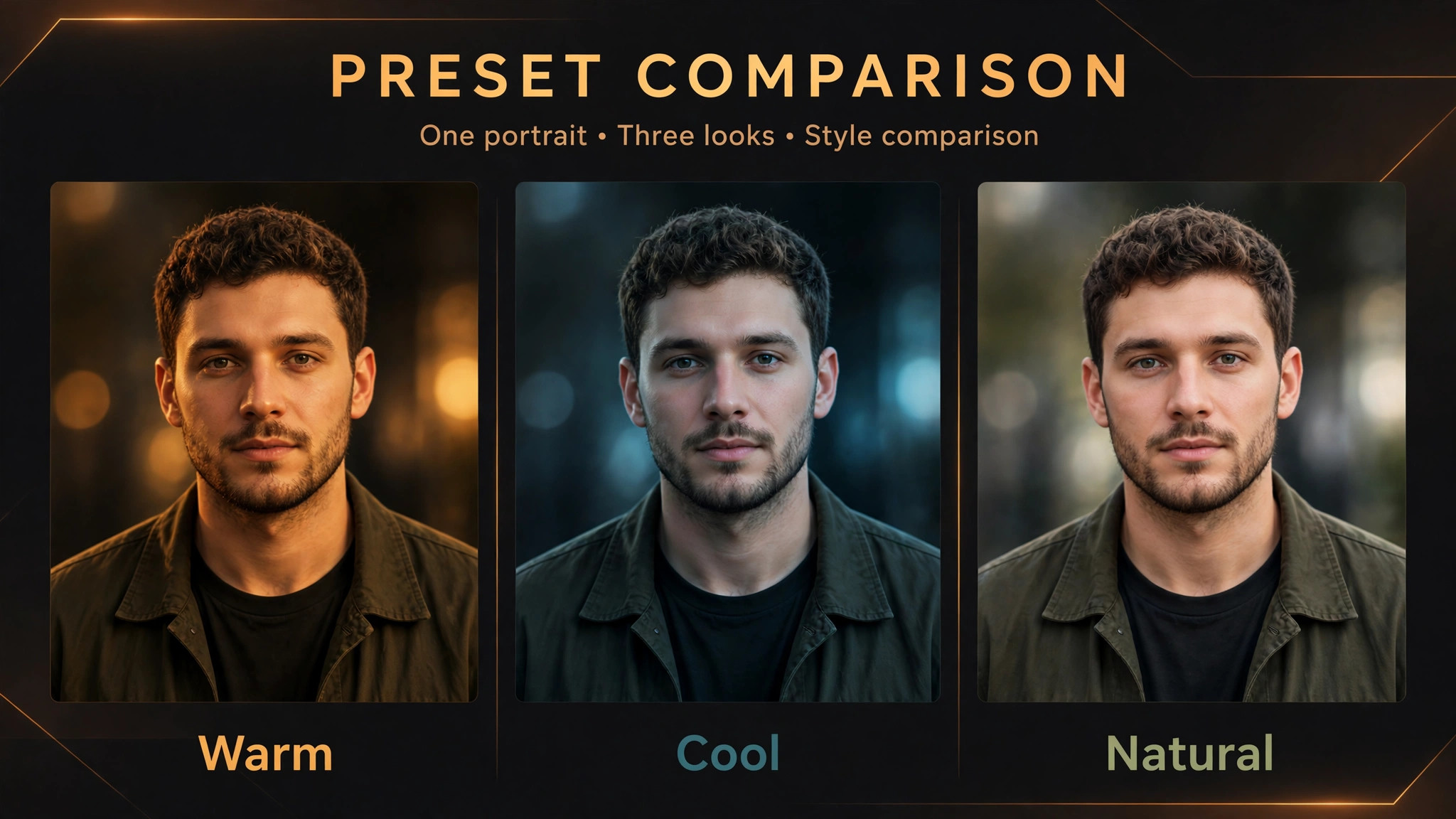
A preset built on one skin tone will not flatter every skin tone, and photographers who apply the same settings blindly produce sets where some clients look great and others look wrong. When you use Lightroom for portrait editing photographers should treat presets as starting points that get adjusted per person, not as finished looks. For deeper skin tones, watch for loss of detail in shadows, and lift shadow areas gently so richness remains without flattening the face. For lighter skin tones, watch for redness and blown highlights on foreheads and noses, and recover highlights before adding any warmth.
In both cases, the RGB check helps, but the real test is whether the person looks like themselves, with their natural undertones preserved rather than pushed toward a single ideal.
Mixed lighting is the other great complicator. A portrait shot under window light plus overhead tungsten, or under shade plus a warm reflector, contains two color temperatures at once, and a single global white balance cannot satisfy both. Start by choosing the balance that flatters skin, then use masked adjustments to correct the background or clothing separately if needed. A linear gradient mask can cool a warm background cast without touching the face, and a face skin mask can warm skin that fell under cool shade. These local corrections take minutes and rescue frames that global editing cannot, which is why masking belongs in every portrait workflow, not just in hero edits.
Outdoor portraits bring their own pattern, which is harsh midday light that creates deep eye shadows and bright hotspots. A radial mask over the face that lifts shadows gently, combined with a slight highlight recovery, often saves such frames, but no edit fully replaces good light, and photographers should note harsh-light sessions as a shooting lesson, not just an editing challenge. Indoor portraits with window light usually need the opposite, which is gentle contrast and careful highlight control to keep skin luminous without blowing the window side of the face.
When you use Lightroom for portrait editing photographers learn to read each session’s lighting before touching a slider, because the lighting diagnosis decides which tools matter, and a correct diagnosis saves more time than any preset.
Build a small reference library of your own edited portraits across skin tones and lighting conditions, and consult it when a new session resembles an old one. That library teaches you faster than any tutorial, because it shows your own decisions and their results, and it helps you quote realistic editing time for new clients. Over a year, the library becomes a style guide for your business, showing assistants and second shooters how you handle different people and different light, and keeping your output consistent even when the team grows.
Mistakes That Make Portraits Look Overedited
Over-smoothing is the most visible mistake, and it comes from pushing skin softening until texture vanishes. Clients rarely ask for plastic skin, even when they ask for retouching, because what they want is to look like themselves on a good day, not like a different person. Keep softening modest, keep texture, and remove temporary blemishes while keeping permanent features, such as moles and freckles, unless the client asks otherwise. A portrait that erases identity in the name of beauty fails its subject.
Color mistakes run a close second. Oversaturated skin turns orange, aggressive white balance shifts turn skin green or magenta, and heavy split toning that suits landscapes makes people look ill. Check skin against the hero frame and against your memory of the person, and when in doubt, pull saturation back. Eyes are the third trap. Over-brightened, over-sharpened eyes look startled and artificial, and whitened whites that turn blue look worse than natural whites. Small moves, checked at full size, beat dramatic moves every time. Finally, inconsistent sets disappoint clients more than any single imperfect frame, because a set is judged as a whole.
Sync carefully, verify masks, and compare frames before delivery, so the set reads as one photographer’s vision, not as a series of experiments.
More Reading on Stratilyze
Readers refining their portrait workflow may also enjoy using a portable SSD for photography backup, editing landscape photos in Lightroom, and editing wedding photos in Lightroom. Each one covers a different part of the photographer’s workflow, from keeping sessions findable to delivering client galleries that feel professional.
Frequently Asked Questions
Should I use Lightroom Classic or the cloud version for portraits?
Lightroom Classic suits most portrait professionals, because its local catalog, deep masking, and batch tools handle high-volume sessions well. The cloud version suits photographers who edit across devices and value sync over depth. If you shoot large portrait sessions and need consistent batch editing, Classic is the safer choice, and most of this guide’s workflow applies to it directly.
How much skin retouching is too much?
Too much is when texture disappears or the person stops looking like themselves. Remove temporary blemishes, soften tonal transitions modestly, and keep pores, freckles, and permanent features unless the client asks otherwise. Check at full zoom on the face, and if skin looks plastic, reduce softening until texture returns. Clients want to look like themselves on a good day, not like a different person.
Can presets replace manual editing on portraits?
Presets replace repetitive starting points, not judgment. A good preset workflow gives every frame a consistent starting look, and you still adjust exposure, masks, and color per frame. Photographers who apply presets blindly produce inconsistent sets, because lighting and skin vary. Use presets to save time, then verify each frame, especially masks, before delivery.
What is the best export setting for client portraits?
It depends on delivery purpose, so keep separate presets for print and web. Print delivery wants full resolution and a color space suited to the lab, while web delivery wants a smaller size and a screen-friendly color space. Name presets clearly by purpose, export a test file, and view it at delivery size on a phone and a computer before sending the full set.
How do I keep skin tones consistent across a whole session?
Edit a hero frame first, sync its global settings to the set, and compare every frame against the hero before delivery. Fix white balance and exposure globally before retouching, and check masks after syncing, since masks can miss when faces move. Consistency comes from order and verification, not from a single perfect edit.
Do I need Photoshop for portrait editing in Lightroom?
Not for most portraits. Lightroom handles global correction, masking, skin work, eyes, color, and export well, and its batch tools make it faster for sets. Photoshop earns its place for complex work such as background replacement, detailed compositing, or pixel-level repair. Do everything Lightroom can do well in Lightroom, and send only specialist jobs to Photoshop.
A Portrait Workflow Clients Can Recognize
Great portrait editing is not about dramatic transformation. It is about consistency, restraint, and respect for the person in front of the camera. When you use Lightroom for portrait editing photographers build that trust frame by frame, through a fixed order, a preset workflow, careful masking, and a final export check that catches what tired eyes miss. Build your presets from a real session this week, edit a hero frame, sync it carefully, and run the export checklist before your next delivery. Your clients may never name the workflow, but they will recognize its result, which is a set where they look like themselves, only better, in every frame.