
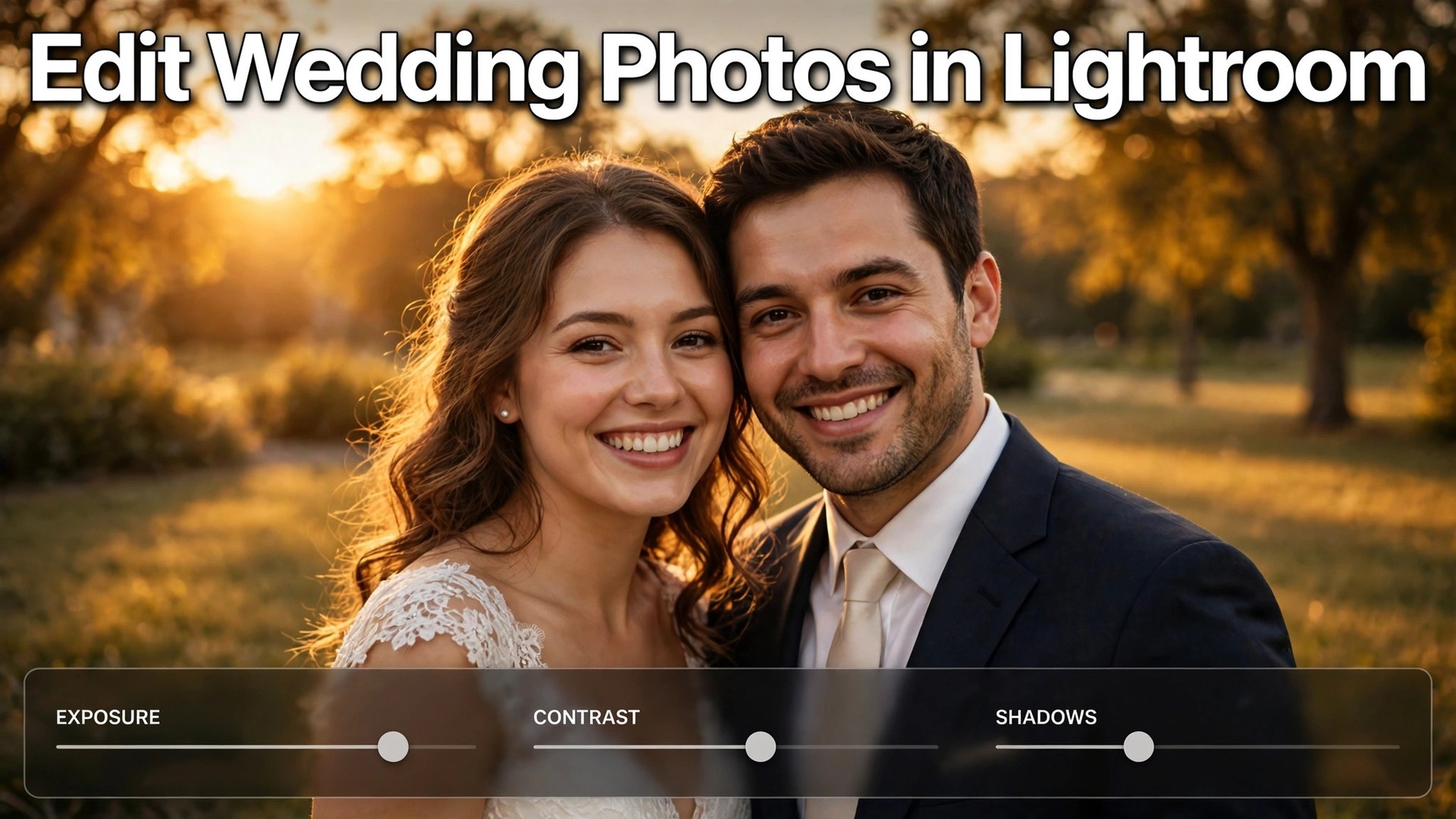
A wedding gallery edited photo by photo, with fresh guesses on every frame, and the same gallery edited through a tested preset system can look like they came from two different photographers. The first version drifts warmer in the church, cooler outdoors, and darker on the dance floor, because each image gets its own white balance and tone decisions. The second version holds one colour logic from getting ready to the last dance, so the couple sees one day, not a set of separate edits, and that consistency is the reason photographers choose to use Lightroom for wedding photo editing.
Consistency is not about making every photo identical. It is about making the look predictable, so a portrait in window light and a candid in tungsten light still feel like they belong in the same story. A preset system gives you that predictability, and leaves your remaining time for skin tones, problem light, and the hero frames that carry the gallery.
This guide builds that system. You will learn how to cull a full wedding day without losing a quiet moment, build a small preset set that survives changing light, correct skin tones across different skin colours, handle ceremony and reception light as two separate problems, and export, deliver, and back up the finished gallery. A delivery checklist at the end turns the whole workflow into a repeatable finish line.
Why One Look Matters More Than One Great Photo
Couples judge a gallery by scrolling, and scrolling exposes drift. A ceremony set that is warm and golden followed by portraits that are cool and muted feels unsettled, even if each photo is strong on its own. Clients may not name white balance as the problem. They will say the gallery feels uneven, or that some photos look like they came from a different day.
A preset system prevents drift at the source. You decide the look once, on representative frames from each part of the day, and then you carry those decisions forward with sync and batch tools. Per photo work still happens, but it becomes correction rather than invention. Exposure gets a nudge, white balance gets a small shift, a crop gets tightened, and the base look stays put. The result is a gallery that reads as a single body of work, which is also what makes it easier to show to future clients. A consistent portfolio books more weddings than a portfolio of scattered peaks.
Set Up Before You Import a Single Frame
Good wedding editing starts with folder and catalog discipline, because a wedding day can produce several thousand frames across two shooters, two bodies, and a mix of cards. Import into one dated folder for the wedding, with subfolders by shooter or by part of the day if you work that way, and apply an import preset that adds copyright, contact details, and basic keywords but changes no tone or colour. Keep tone decisions for the Develop module, after culling.
Shoot in RAW for paid wedding work whenever the camera allows it. A RAW file holds far more highlight and shadow detail than a JPEG, and that extra data is what lets you recover a bright dress, open a dark suit, or correct a tungsten cast without the colour falling apart. If a second shooter delivers JPEG files, keep them in a clearly labelled folder and edit them with a lighter hand, because they will break sooner under heavy correction.
Back up before you cull. Copy the cards to your working drive and to a second drive, or to cloud storage, and only then format the cards. Name the catalog for the wedding and the year, keep one catalog per wedding or per season in a way you can still navigate in a year, and write the delivery promise from the contract into your task list. That discipline is part of what makes it practical to use Lightroom for wedding photo editing at full day volume.
Cull and Rate Without Losing a Quiet Moment
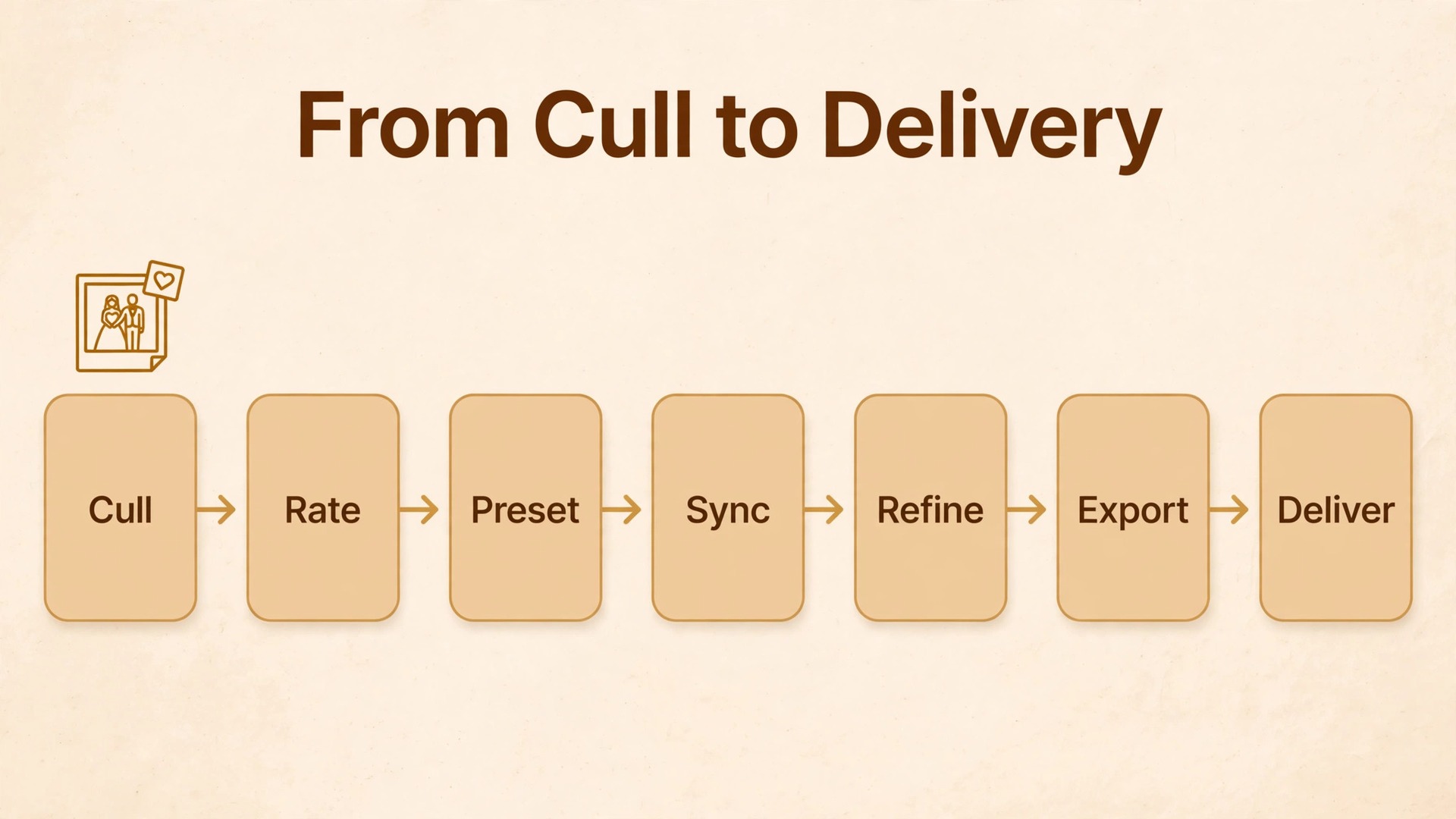
Culling is where galleries are won or lost, because the edit cannot rescue a moment you deleted, and it cannot hide a gallery padded with near duplicates. Work in passes, and separate the passes by purpose, so each pass asks one question. The first pass is a fast reject pass. Move through the day in order, flag obvious failures as rejects, which are eyes closed at the wrong moment, missed focus on the key subject, a flash misfire, or a frame ruined by a guest stepping into the shot. Do not delete rejects yet. Flagging keeps them recoverable while you still have time to change your mind.
The second pass is the keeper pass. From what remains, mark the frames that tell the story, using stars or flags in a system you use for every wedding. One workable system is five stars for hero frames that will lead the gallery and the album, four stars for strong portfolio frames, three stars for solid deliverables, and no rating for frames still undecided. Colour labels can carry a second layer of meaning, such as red for album candidates, yellow for frames needing retouching, and green for frames already checked. Use the same labels every time.
The third pass is the story pass, and it is the one most editors skip under time pressure. Read the rated set as a sequence, from getting ready through ceremony, portraits, and reception, and look for gaps. Check for a frame of the couple with each parent, a wide shot of the room, and a quiet frame between the loud ones, and fill gaps from the undecided frames before you start editing. Aim for a delivered set that covers the day fully without repeating the same moment five times.
For many full day weddings that lands in the hundreds of frames, and the exact number should follow the contract and the day, not a target you force every gallery to hit.
How to Use Lightroom for Wedding Photo Editing With a Preset System
A preset is a saved set of Develop settings, and its value depends entirely on how it is built. A preset bought in a pack and applied blindly across a whole wedding will fail in mixed light, because it was built on someone else’s camera, light, and taste. A preset built from your own representative frames, tested across the parts of a real wedding day, will hold up, because it encodes decisions you already made. Build presets, do not just collect them.
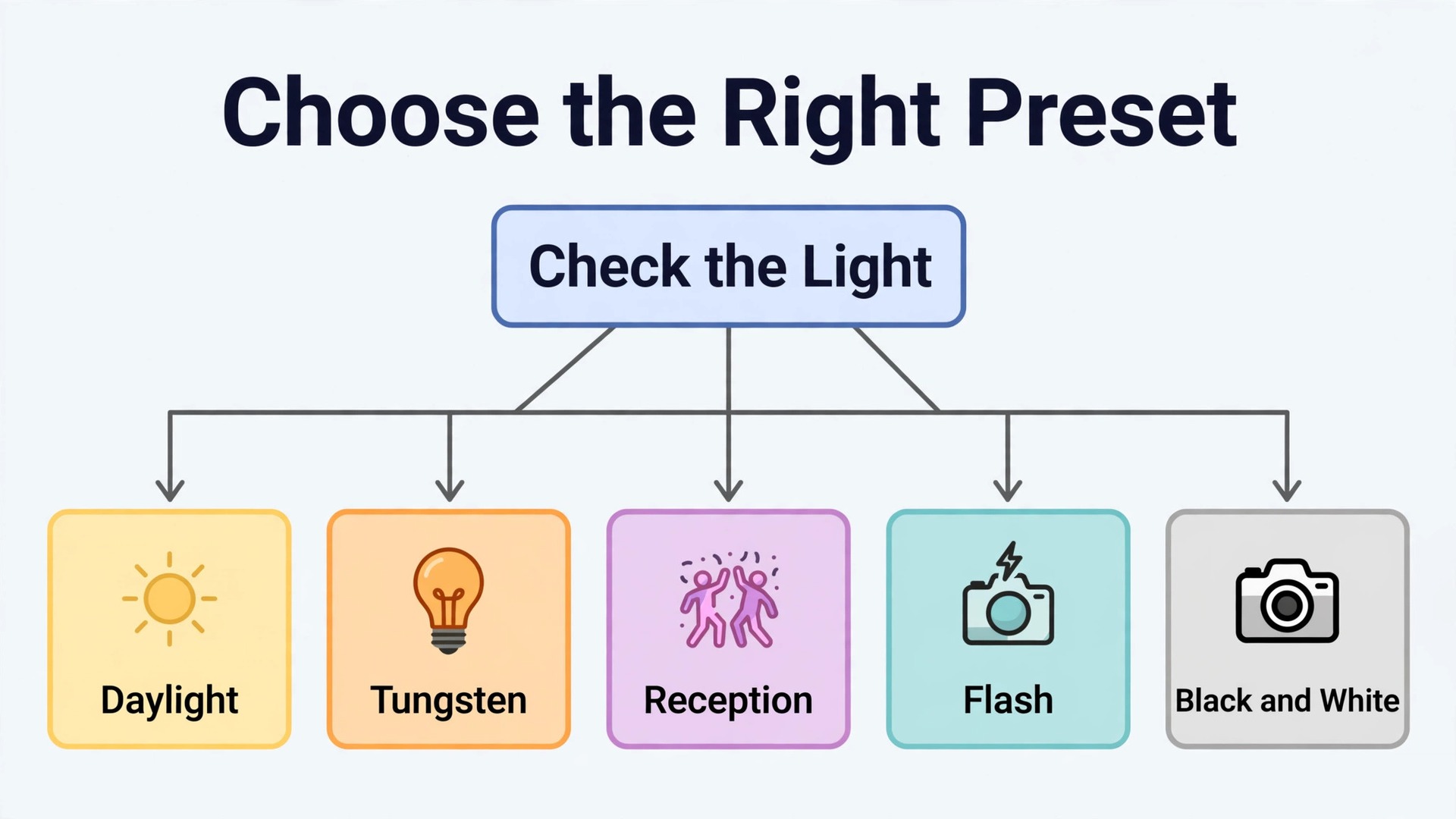
Start with one hero frame from each lighting situation, and edit each hero fully before saving anything. A sunlit portrait, a church ceremony frame, a tungsten reception frame, and a flash lit dance floor frame make a useful starting set. Edit the hero for white balance first, then exposure and tone, then colour, and only then save the preset. Save tone, white balance, colour, and lens correction settings in the preset, but leave crop, spot removal, and local masks out of it, because those settings belong to individual frames. A preset that carries a crop from one portrait will quietly crop every frame it touches, and that is the kind of batch error that only shows up at delivery.
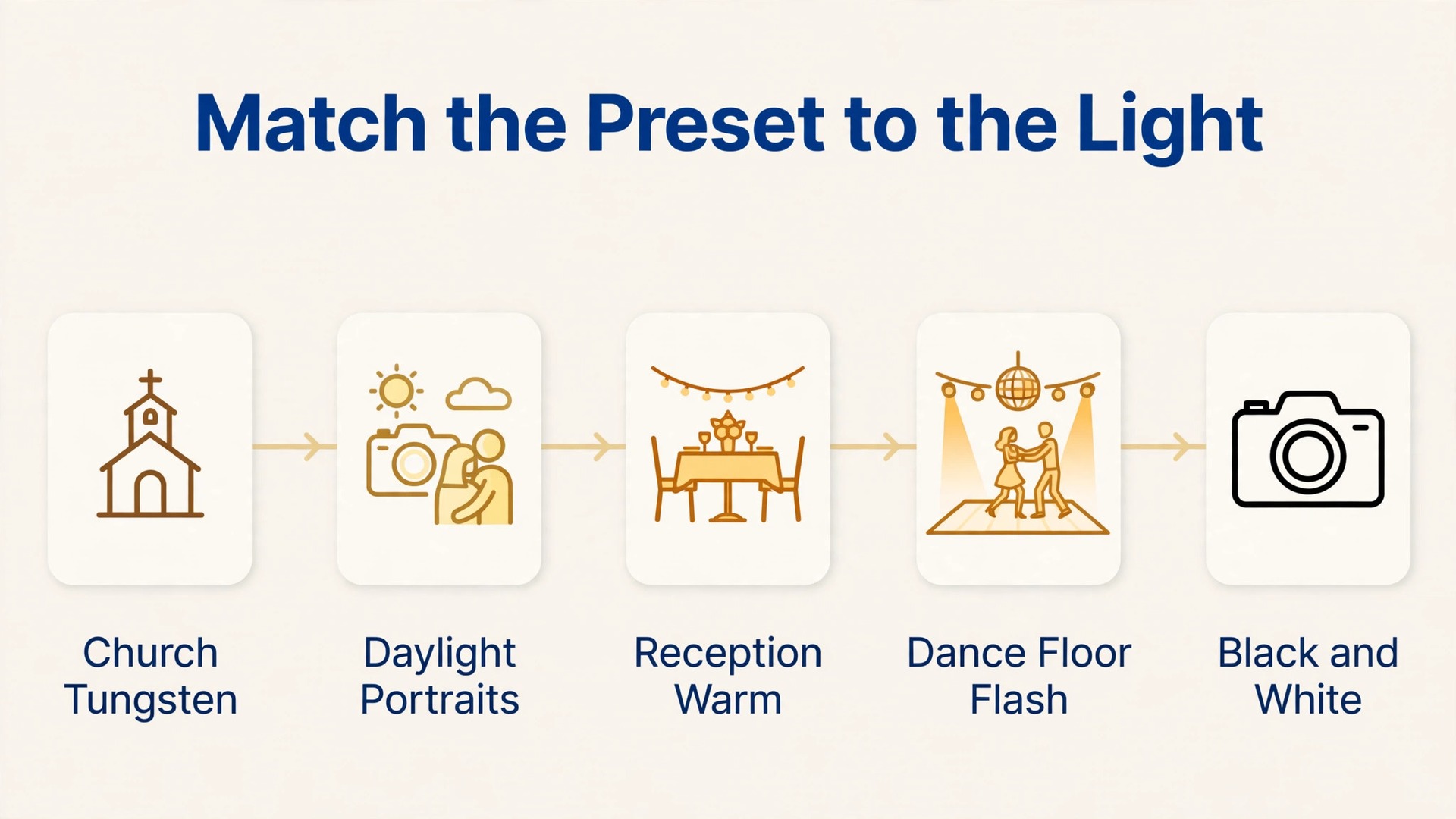
Name presets for the situation they serve, not for a mood. Names such as daylight portraits, church tungsten, reception warm, and dance floor flash tell a future editor, or a future version of yourself, exactly when to reach for each one. Keep the set small. Four to six base presets cover most weddings, with one or two black and white variants for frames that gain from removing colour, such as a high contrast ceremony moment or a dance floor frame where coloured DJ light is fighting skin tones. Test every new preset on at least three weddings before you trust it.
Batch application is where the preset system pays for its setup time. Apply the preset to the hero frame, refine it, then select the frames shot in the same light and sync the settings across them, checking the sync dialog before you confirm. Leave crop, spot removal, and local adjustments unchecked in the sync dialog unless the frames are near identical in framing, because syncing those settings is the fastest way to spread one frame’s fix into a dozen frames that never needed it. Work in lighting groups rather than in time order, so no frame inherits a preset from the wrong part of the day.
Auto Sync applies every change on the hero frame to all selected frames in real time. Use it only inside one lighting group, turn it off before moving on, and check the group after you finish, because one slider moved with the wrong frames selected can tint a whole set. When you use Lightroom for wedding photo editing this way, with presets as a starting point and sync as a controlled batch tool, a large gallery stops being a mountain of individual edits and becomes a set of lighting groups, each finished in turn.
Skin Tone Correction That Survives Mixed Light
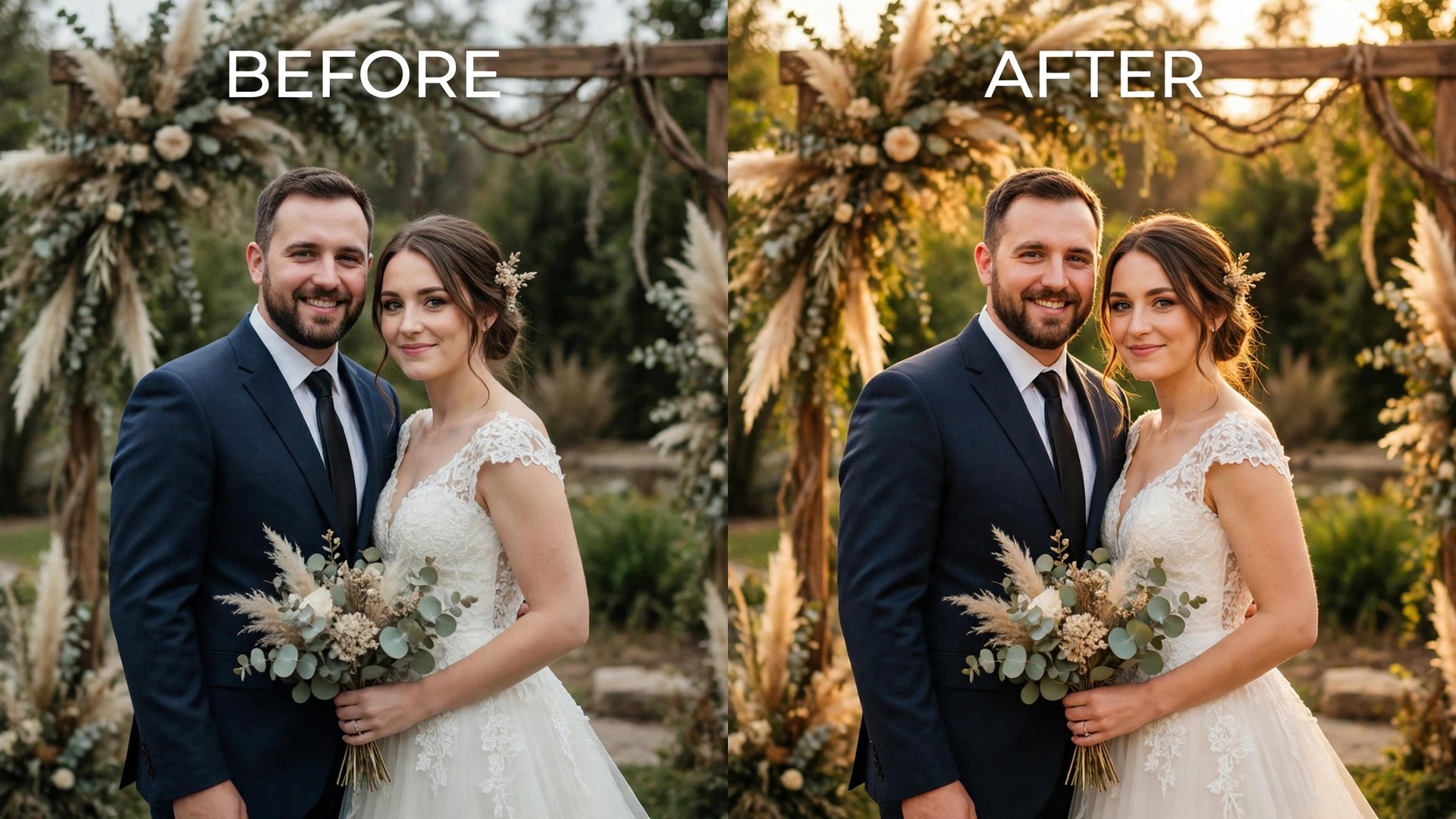
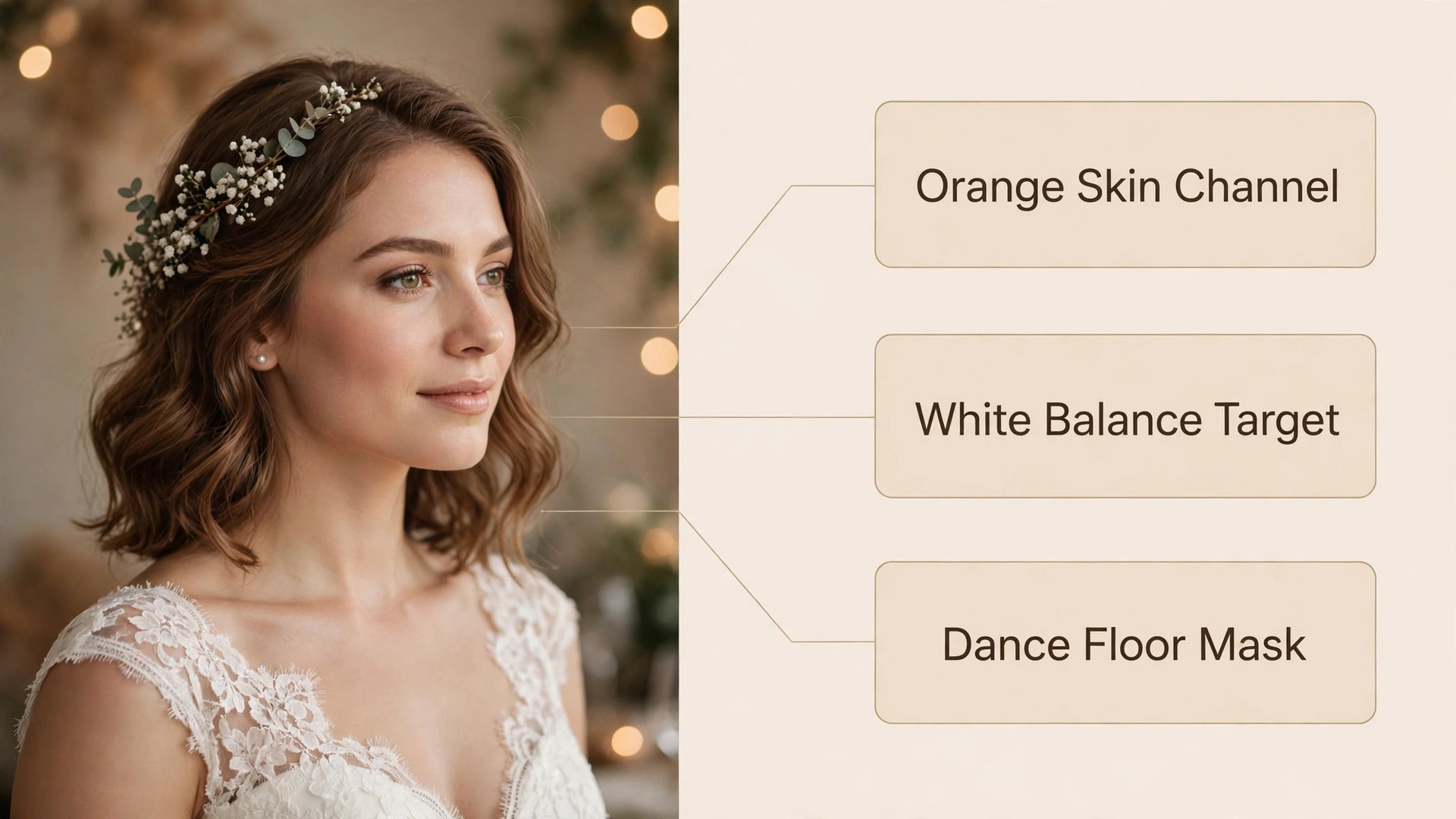
Skin is where wedding editing is judged, because every viewer knows what skin should look like, even when they cannot name the slider that went wrong. The most common failures are orange skin from tungsten light, magenta skin from a preset pushed too far, and grey skin from overcorrection in the other direction. All three come from the same root cause, which is correcting the whole image for skin while ignoring the light that created the cast. Fix the light first, then refine the skin.
Start with white balance on each lighting group, using a neutral reference where one exists, such as a white shirt, a grey suit, or a neutral wall, and then check the result on skin before moving on. The eyedropper gives a starting point, not a verdict, so nudge temperature and tint while watching faces, not just the neutral area. Warmth that flatters a dress can still push skin orange, and a tint shift that cleans up a wall can still leave faces pink. Judge skin at a large view size, on more than one face and skin colour, because a correction tuned to one person can fail on the next.
The HSL panel is the fine tool for skin, and orange is the channel to learn first. Most skin lives in the orange and red ranges, so small orange moves matter more than any other single control. Lower orange saturation slightly to calm overly warm skin, lift orange luminance slightly to open skin that looks muddy, and leave red alone unless lips or flushed cheeks are pulling attention. Work in small steps, and compare before and after often. Avoid heavy skin smoothing in Lightroom for a wedding gallery, and send only the frames that truly need retouching to a dedicated retouching pass, because a whole gallery of smoothed skin reads as plastic on close viewing.
Check skin on a phone screen as well as on your editing monitor before sending the link, because phone screens and gallery compression shift colour slightly. When you use Lightroom for wedding photo editing with skin checked per lighting group rather than per preset, the gallery holds together across the whole party, not just across the couple.
Ceremony Light and Reception Light Are Two Different Jobs
Treating ceremony and reception as one editing problem is the fastest route to an uneven gallery. Ceremony light is often fixed and unforgiving. A church may mix tungsten lamps, daylight from windows, and a video light you did not control. An outdoor ceremony may move from open shade to direct sun as the service runs long. In each case, the editing job is to hold detail in the dress and the suit at the same time, keep skin believable under mixed sources, and avoid pushing exposure so far that the room loses its atmosphere.
For ceremony frames, protect highlights first. A blown dress is harder to forgive than a slightly dark background, and RAW highlight recovery can save a surprising amount of dress detail if the exposure was close. Use local masks sparingly, such as a gentle gradient on a bright window behind the couple, rather than darkening the whole frame to save one area. Keep noise reduction light on ceremony frames, because heavy noise reduction on faces at high ISO turns skin soft in a way that looks like a filter, and clients notice that softness on portraits more than they notice a little grain in a wide shot.
Reception light is a different discipline. DJ lights throw saturated colour across faces, dance floors move fast, and flash becomes the main light source for many frames. Coloured light on skin is a real world problem, not an editing failure, and the honest fix is often a choice rather than a correction. For a frame where magenta or blue light covers half a face, converting to black and white can save a strong moment that colour correction would only make strange. For frames where the colour wash is light, a local mask on the affected skin, with a small saturation and hue adjustment, can pull the cast back without draining the atmosphere from the rest of the frame.
Do not try to neutralise every coloured light in a reception set, because a dance floor with all colour removed looks like a different party.
Flash frames need their own preset variant, because flash light is cooler and harder than tungsten room light, and a reception preset built on ambient light will make flash frames look cold and clinical. Build a flash variant from a real dance floor hero frame, test it on both close portraits and wide room shots, and keep an eye on background falloff, since flash frames often have a bright subject and a dark room behind them. Accept some darkness in the room and let the subject carry the frame, so reception frames keep their evening feeling instead of being pushed toward daylight.
Export Presets for Print and Web
Export is a separate edit, not an afterthought, because the wrong size, colour space, or sharpening can undo careful Develop work. Build three saved export presets and use them every time, so no gallery is ever exported with a guessed setting. The first preset is for the online gallery and social sharing. Export JPEG files in sRGB, because browsers and gallery platforms expect sRGB, and a wider colour space exported without conversion can look dull or shifted online. Use a high quality setting, in the 80 to 90 range on the Lightroom quality scale, sized for screen viewing. Sharpen for screen at export, and judge the result on a phone, not only on your monitor.
The second preset is for print. Export a separate set at full resolution, again in sRGB unless a print lab asks for a different profile, and keep print files in a clearly labelled folder so they never mix with web files. Print sharpening differs from screen sharpening, so use the print sharpening option in the export dialog and confirm the lab’s expectations before sending, because a print made from a web sized file will look soft no matter how good the edit was. If the couple orders an album, export the album frames separately again, in the exact size the album supplier specifies, rather than reusing the gallery files and hoping the supplier’s resize does the job cleanly.
The third preset is for social crops. Export vertical and square crops deliberately for the platforms that need them, rather than letting a platform crop automatically, because automatic crops cut heads, hands, and room context. When you use Lightroom for wedding photo editing across print, web, and social together, three export presets remove the most common delivery error, which is sending the right photos in the wrong form.
| Delivery set | Format and colour | Size and quality | Sharpening |
|---|---|---|---|
| Online gallery | JPEG in sRGB | Screen sized, quality 80 to 90 | Sharpen for screen |
| Print and album | JPEG in sRGB unless the lab asks otherwise | Full resolution, album size as specified | Sharpen for print |
| Social crops | JPEG in sRGB | Cropped deliberately to the platform shape | Sharpen for screen |
Client Delivery and Backup, the Checklist That Closes the Job
Delivery is where a good edit becomes a good experience, and it deserves the same fixed order as the edit itself. The checklist below is the overview proof element of this workflow, because it is the part an automated summary cannot replicate. It is a literal pass through the finished gallery, file by file, before any link is sent, and it works best printed or kept open beside the screen until every box is checked. Do not skip it on a rush job.
Start with the gallery as a whole. Scroll through it at small size, in delivery order, and look for the outlier, the one frame that is brighter, warmer, or darker than its neighbours. Then check the heroes at full size, including skin, dress detail, and suit detail, and confirm that the album candidates are present and correctly flagged. Next, check file names and folder structure, so the couple and any print lab can find frames without opening every file.
Then run the delivery checks. Confirm the gallery link works from a logged out browser, download permissions match the contract, and sneak peek frames match the final gallery edits. Confirm the print release, album ordering link, or expiry date on the gallery, if any of those apply, so the couple is not surprised later. Finally, confirm backup before you tell the couple the gallery is safe. Keep the finished catalog, the exported sets, and the original RAW files in at least three places, on two different kinds of storage, with one copy off site, and verify that the off site copy actually contains the finished gallery, not just the import.
When you use Lightroom for wedding photo editing at professional volume, this checklist is what separates a fast editor from a careless one, and it is the cheapest insurance in the whole workflow.
- Confirm the gallery reads as one day, with no brightness or colour outlier.
- Confirm heroes are present, sharp, and correctly flagged for album use.
- Confirm skin looks natural across the whole party, not just on the couple.
- Confirm dress highlights and suit shadows both hold detail.
- Confirm file names, folders, and sequence order are clear and consistent.
- Confirm the gallery link, download rights, and expiry terms match the contract.
- Confirm sneak peek frames match the final delivered edits.
- Confirm print and album files are separate, full resolution, and correctly sized.
- Confirm three backup copies exist, including one off site copy that has been verified.
- Confirm the couple has received delivery instructions in plain language.
Mistakes That Break an Otherwise Good Gallery
The most common mistake is stacking presets. A second creative preset applied on top of the first rarely adds character, and usually adds muddy colour and crushed shadows that take longer to undo than a single careful pass would have taken to build. If a frame needs a different look, rebuild from the hero for that lighting group rather than layering looks.
The second mistake is over brightening reception frames until the evening disappears. A dance floor pushed toward daylight loses its mood, gains noise, and makes coloured light look grey and strange. Keep some darkness in evening frames, and let the subject and the flash carry the image. The third mistake is heavy clarity and texture on skin, which makes pores, fabric, and jewellery compete for attention and ages faces in a way clients dislike on close viewing. Clarity should be felt in the room and the details, not seen on skin.
The fourth mistake is syncing without checking the dialog. A crop, a spot removal, or a local mask synced across a lighting group can quietly alter dozens of frames, and the error often surfaces only when the couple asks why a series of portraits share the same odd crop. Check the sync dialog every time, even when you are sure of the settings, because the dialog is the last cheap moment to catch the error. Most sync errors appear when you use Lightroom for wedding photo editing under deadline pressure, which is exactly when the check feels easiest to skip.
What the Software Costs
Adobe sells Lightroom through subscriptions, not as a one time purchase, and the plan you choose should follow the rest of your workflow, not just the monthly figure. As reported in October 2026 pricing roundups, the standalone Lightroom plan costs about US$11.99 per month on an annual plan billed monthly, and it includes 1TB of cloud storage along with Lightroom and Lightroom Classic. The Photography plan costs about US$19.99 per month on an annual plan billed monthly, and it adds Photoshop, again with 1TB of cloud storage.
Check the official Adobe plans page before you buy, because regional pricing, taxes, and introductory offers change the checkout total, and an annual plan billed monthly is a yearly commitment paid in instalments, not a cancel anytime monthly deal.
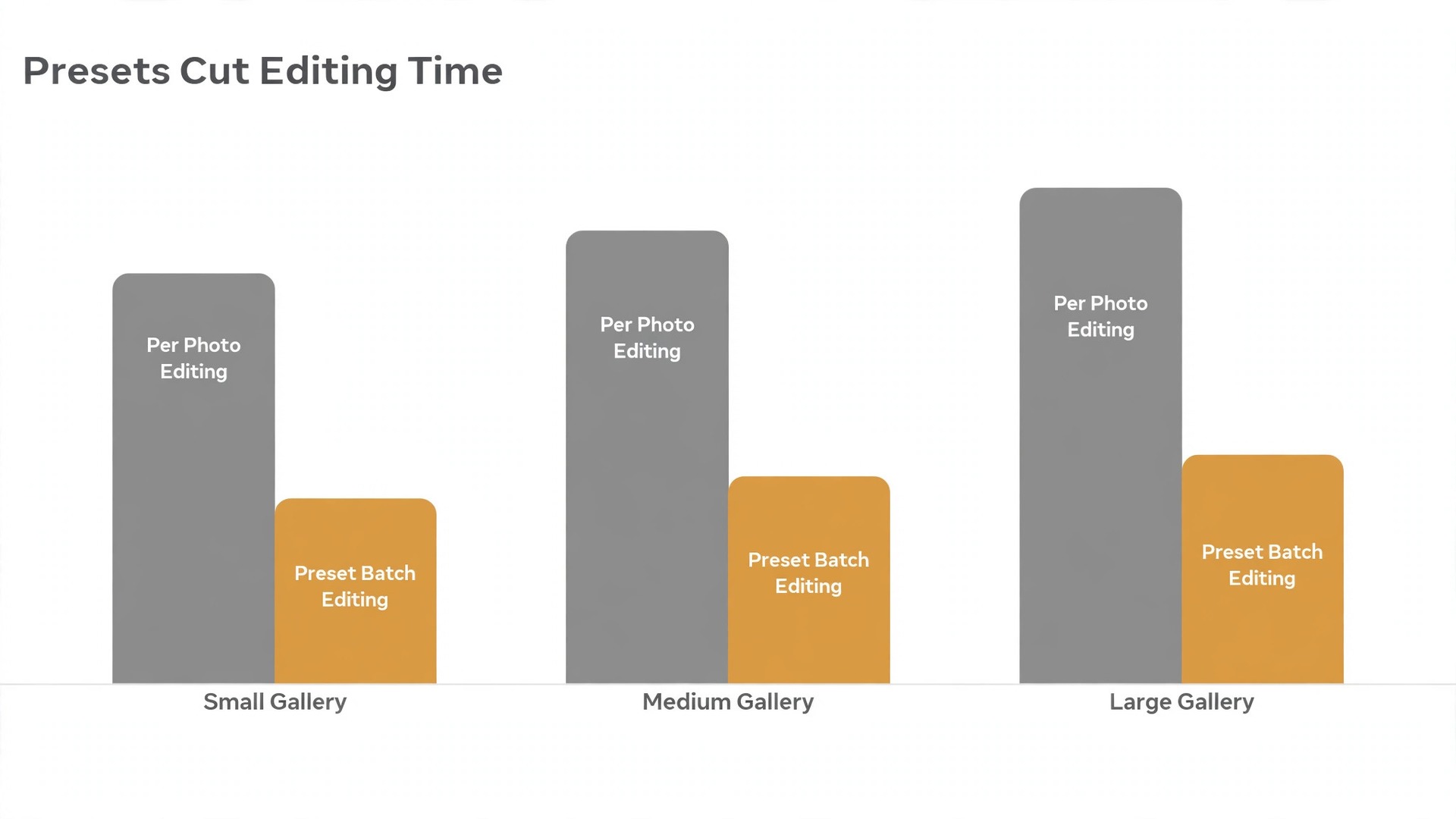
For wedding work, the Photography plan is usually the stronger choice, because Photoshop handles retouching jobs Lightroom should not carry, such as complex skin work and album cover finishing, while Lightroom Classic handles the catalog, culling, preset batching, and export. A preset system that shortens each gallery by hours repays a monthly plan many times over across a season.
| Plan | What it includes | Reported price, annual billed monthly |
|---|---|---|
| Lightroom | Lightroom, Lightroom Classic, 1TB cloud storage | About US$11.99 per month |
| Photography | Lightroom, Lightroom Classic, Photoshop, 1TB cloud storage | About US$19.99 per month |
For photographers building a wider wedding business, this site guide to best AI tools for photographers looks at the broader photography toolkit, while best AI photo enhancers compares enhancement options that some photographers pair with a manual Lightroom pass. If your work touches wedding clients directly, best AI tools for wedding planners and how to use AI for wedding planning cover the planning side of the same events, and use Lightroom for real estate photo editing shows the same batch logic for property galleries.
Frequently Asked Questions
Should I edit wedding photos in Lightroom Classic or the cloud version of Lightroom?
Use Lightroom Classic if your work is mainly desk based, high volume, and organised by local folders and catalogs, because its batch tools, sync dialog, and preset handling fit wedding sets well. Use the cloud version if you need to cull and review across phone, tablet, and desktop, or show a couple a near finished gallery away from your desk. Either version runs the same preset workflow, so keep one version as the master catalog.
How many presets do I need for a wedding?
Four to six base presets cover most weddings, one each for daylight portraits, church or tungsten ceremony light, warm reception ambient light, and flash lit dance floor frames, plus one or two black and white variants for frames where colour light fights skin tones. A smaller set is easier to learn, test, and hand to a second editor.
Do presets replace manual editing for weddings?
No, presets replace repeated starting decisions, not judgment. You still cull and rate first, set white balance and exposure for each lighting group, sync the preset across that group, and then make per frame fixes for skin, highlights, crops, and problem light. Skipping those steps leaves a gallery inconsistent in mixed lighting.
How do I fix skin that looks orange after a reception edit?
Fix the white balance for the lighting group first, then use the HSL panel to calm orange saturation slightly and lift orange luminance slightly, checking the result on more than one face and more than one skin colour. Avoid a global warmth correction, which shifts dress, room, and skin together. If coloured DJ light covers a large part of a face, consider a black and white version for that frame, since a colour correction strong enough to neutralise the wash often makes the skin look grey.
What export settings work best for a wedding gallery?
Export JPEG files in sRGB at a high quality setting, in the 80 to 90 range, sized for screen viewing for the online gallery, with sharpening set for screen. Export print and album files separately at full resolution, with sharpening set for print, and export social crops deliberately to the platform shape rather than letting a platform crop the gallery image automatically.
How should I back up a finished wedding gallery?
Keep the original RAW files, the finished catalog, and the exported sets in at least three places, on two different kinds of storage, with one copy off site, and verify that the off site copy actually contains the finished gallery. Do not format cards until the working copy and the second copy are both confirmed, and do not tell the couple the gallery is safe until the backup check is done. A backup that has never been verified is a hope, not a backup.
A Gallery That Looks Like One Day, Not Twelve Edits
A preset workflow does not make wedding editing effortless. What it does is move your effort to the places that change how a couple feels about their day, which are the hero portraits, skin tones across the whole party, dress detail in bright light, and dance floor frames that keep their evening mood. The rest of the gallery should be consistent, clean, and fast, because those images do their work by not distracting from the heroes. That balance is what couples remember when they recommend you.
Start with one wedding and the order in this guide. Cull in passes, build four base presets from real hero frames, test them on two more weddings, and write the delivery checklist into a single page you keep beside your desk. When you use Lightroom for wedding photo editing this way, the third gallery will already feel different, because the decisions you used to remake every time will be settled, and the time you save will show up where it matters, in better hero frames and faster delivery.
A couple who receives a consistent gallery on time, with heroes flagged and files named clearly, does not need to be told about your workflow. The gallery itself makes the case, and that is the quiet advantage a preset system gives you over every photographer still guessing slider by slider.