
Buffer reported that 75 percent of remote workers spend between one and 10 hours in meetings each week, with just over half spending one to five hours and the rest spending six to 10 hours. That is a large share of the working week spent on a small microphone sitting a few centimetres from your mouth, in rooms that were never built for recording. When you use wireless earbuds for work calls, the difference between sounding clear and sounding distant is rarely the price of the earbuds. It is fit, pairing, microphone placement, battery planning, and a few settings that most people never touch after unboxing.
This guide fixes the whole setup, not just the purchase. You will learn how to pair earbuds to a laptop and a phone without the daily reconnect dance, how to test your microphone before a call rather than during one, how to stretch battery life across a full day of meetings, and how to choose between the models that actually work well for calls. Prices and battery figures here come from vendor specification pages and current retailer listings checked at draft time, and you should still check the checkout page before you buy, because sale prices move and battery claims depend on volume, noise cancelling, and whether you are listening or talking.
Why Earbuds Fail on Calls Even When Music Sounds Great
Music and calls ask different things from the same hardware. Music playback is forgiving. A song can lose a little detail and still sound pleasant, and your brain fills in gaps without noticing. A call is unforgiving. Your voice has to survive compression, background noise, and a meeting app that may cut the audio quality the moment the microphone turns on. That is why a pair of earbuds that sounds excellent on a train can still make you sound thin, echoey, or muffled on Zoom or Teams.
The first problem is distance and direction. Earbud microphones sit beside your ears, not in front of your mouth. They rely on beamforming, which is a polite way of saying that several microphones work together to guess which sounds are your voice and which sounds are the room. That guess works well in a quiet room and poorly beside a fan, an open window, a coffee machine, or a colleague talking two desks away. If your voice sounds distant, the cause is often not a broken microphone. It is a room that gives the beamforming system too much competing sound to sort through.
The second problem is the Bluetooth profile switch. When you listen to music, earbuds use a high quality audio profile. When a call starts, many laptops and phones switch to a hands free profile that carries your voice back but drops music quality sharply. You hear that drop as flat, telephone style audio, and you may assume the call itself is broken. In most cases the call is fine. The earbuds are simply trading music quality for two way voice, and there is no way to keep both at full quality over standard Bluetooth. Knowing that trade off stops you from chasing a fix for a limitation that is built into the connection.
The third problem is fit. A loose seal lets outside noise leak in and lets your own voice leak out in odd ways. It also changes how the microphones hear you, because a bud that shifts when you talk changes its angle to your mouth. People often blame the microphone when the real fix is a different tip size, a foam tip instead of silicone, or a bud that sits a little deeper. Spend ten minutes on fit before you spend money on a replacement pair. That ten minutes will tell you more about your call quality than any specification sheet.
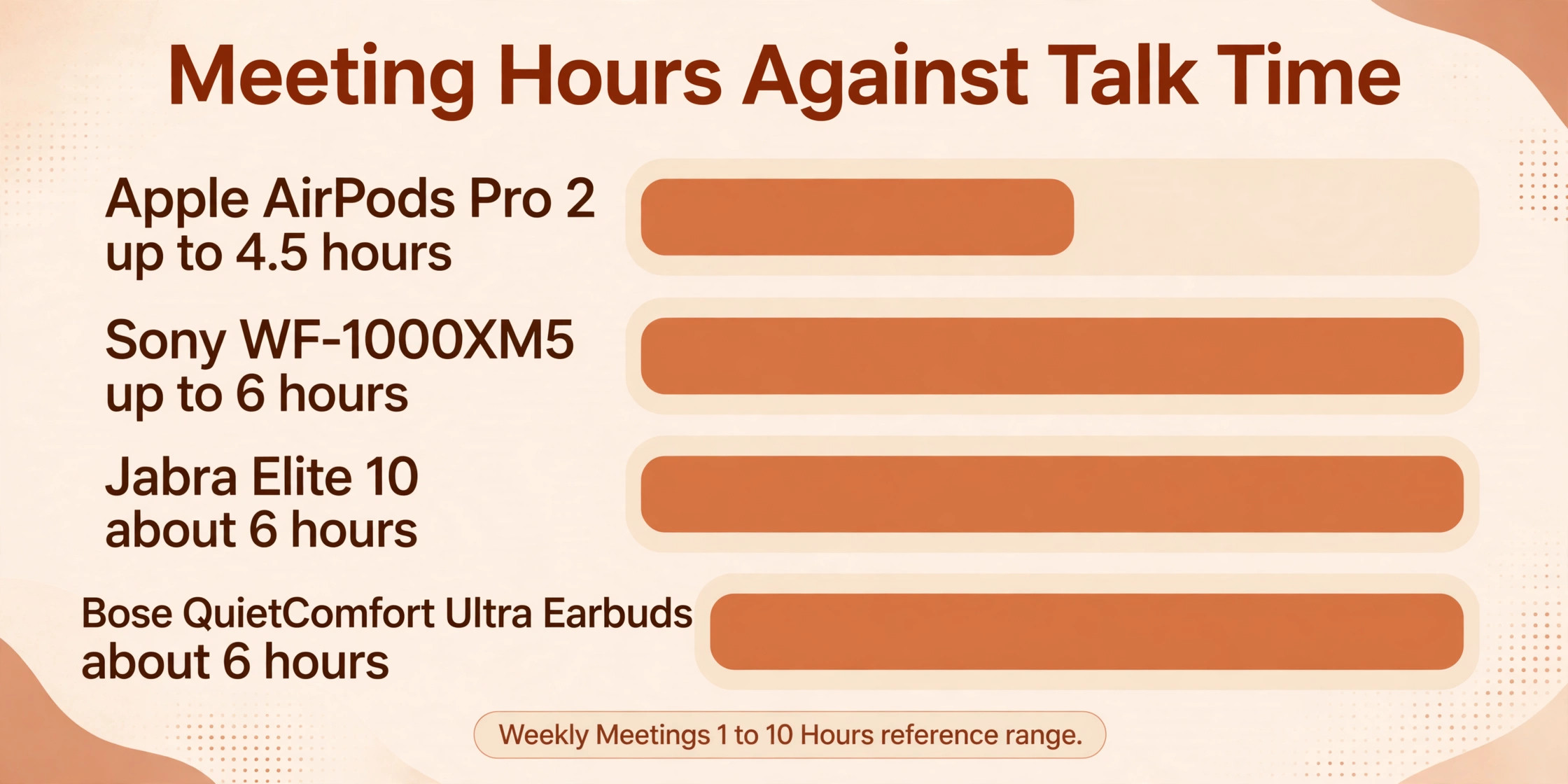
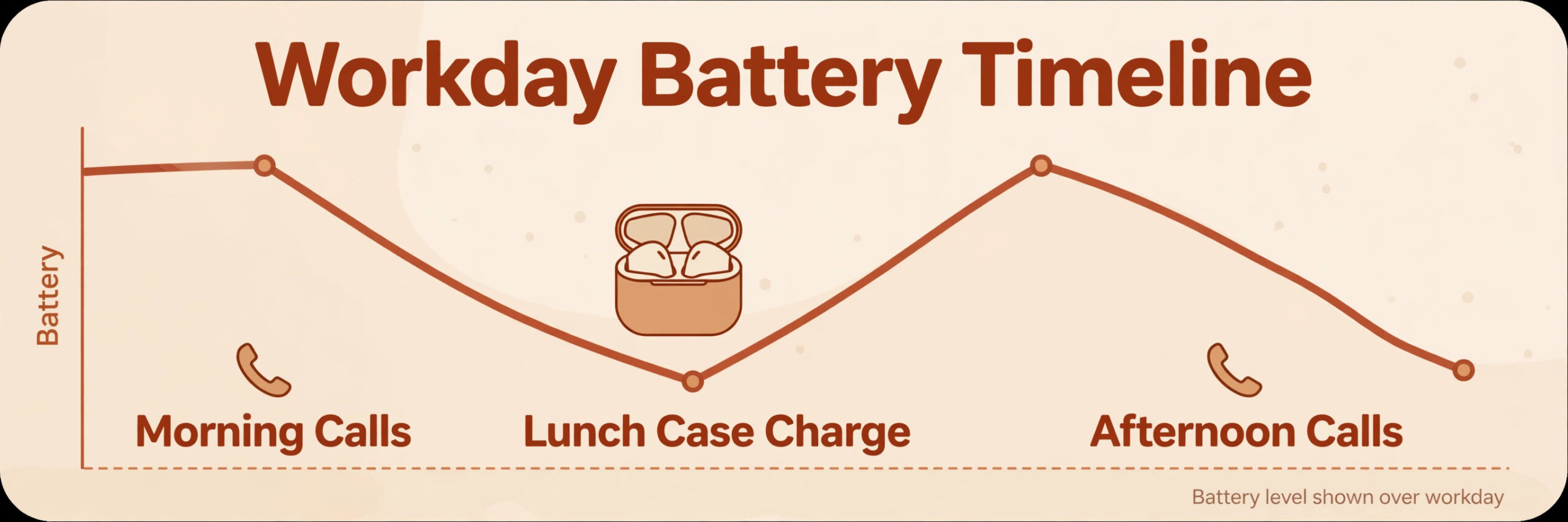
The fourth problem is battery maths. Vendors quote listening time first, because the number is bigger. Talk time is almost always shorter, sometimes by a third or more. Apple lists AirPods Pro 2 at up to 6 hours of listening on one charge but up to 4.5 hours of talk time, with up to 24 hours of talk time when you include the case. Sony lists the WF-1000XM5 at up to 6 hours of continuous communication with noise cancelling on, against up to 8 hours of music playback. If your day holds five hours of calls, a single charge will not carry you, even if the box promises all day battery.
The case is not an accessory for call heavy days. It is the battery plan.
How to Use Wireless Earbuds for Work Calls Without Sounding Distant
Start with the room, not the earbuds. Close the window nearest your desk if traffic noise is steady, move away from a fan or an air vent, and avoid sitting with a hard wall directly behind you, because hard surfaces bounce your voice back into the microphones and create a hollow echo. A rug, a curtain, a bookshelf, or even a closed wardrobe door behind you will soften that reflection more than a new pair of earbuds will. You do not need a treated studio. You need one soft surface and a little distance from the noisiest thing in the room.
Next, test your voice the way your colleagues hear it. Open your meeting app settings, start a test call or a short recording, and speak at your normal meeting volume for 30 seconds. Read a paragraph from an email, pause the way you would on a real call, and then play it back. Listen for three things. Is your voice loud enough without you raising it. Does background noise rise every time you stop talking. Does your voice cut in and out when you turn your head. If any answer is no, change one thing at a time.
Try a different tip size, move two steps from the noise source, or switch from full noise cancelling to transparency mode and test again. Changing three settings at once makes it impossible to know which change helped.
Set your input level once and leave it. On a laptop, open sound settings, select the earbuds as the input device, and speak while watching the level meter. Aim for a level that sits in the upper middle of the meter on normal speech without hitting the top on louder words. If the meter barely moves, your meeting app may be using the laptop microphone instead of the earbuds, which is one of the most common causes of distant audio. If the meter slams to the top on every word, turn the input down a notch rather than speaking more quietly, because whispering on a call forces listeners to strain.
Check this setting after every major operating system update, because updates sometimes reset the input device without telling you.
Pairing That Survives a Laptop and a Phone
Pairing problems usually come from a simple misunderstanding. Pairing is not the same as connecting. Pairing is the one time introduction between two devices. Connecting is the daily handshake. When earbuds refuse to join a call, they are usually still paired to the laptop but connected to the phone, or paired to both and unsure which device should win. Bluetooth multipoint is the feature that solves this, by letting earbuds stay connected to two devices at once, such as a laptop and a phone, and switch audio when a call arrives. When you use wireless earbuds for work calls across two devices, multipoint matters more than any music feature.
Sony, Jabra, and Samsung flagships all offer multipoint, and AirPods handle a similar job through automatic switching inside the Apple system. Before you buy, check the multipoint line on the specification page, not just the marketing page, because some models pair with many devices but connect to only one at a time.
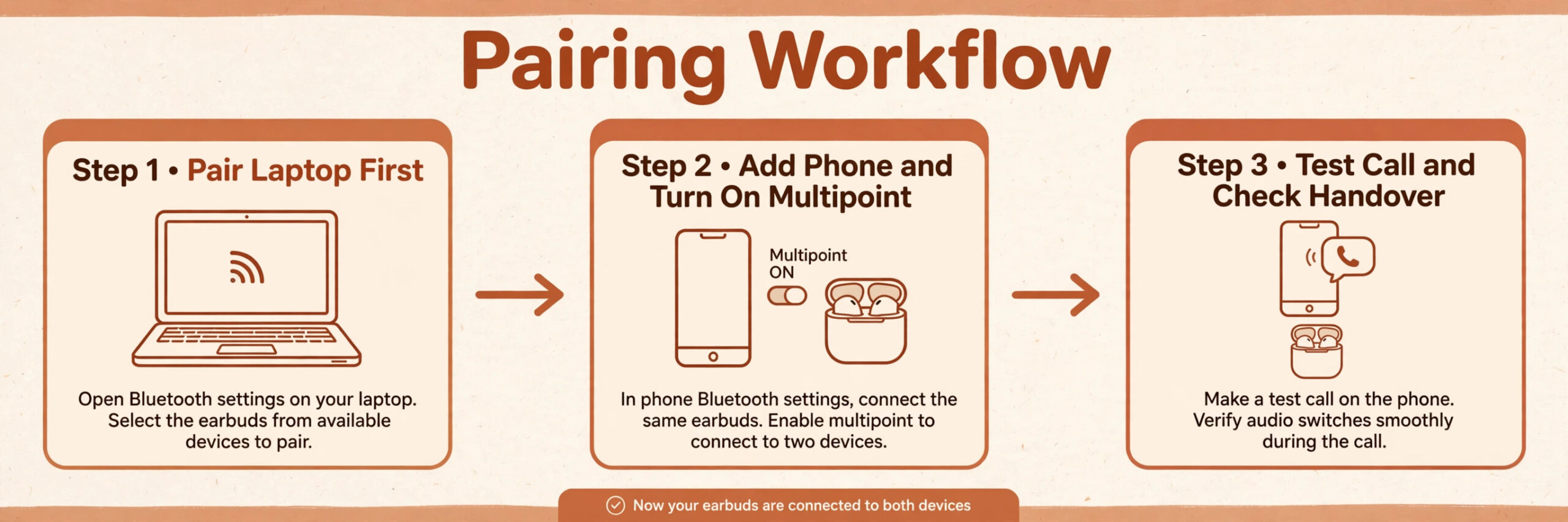
Pair in the order you will use the devices. Start with the laptop, because that is where most work calls happen, then add the phone. After both are paired, test the handover. Play music on the laptop, then call your own voicemail or a test number from the phone, and watch whether the earbuds switch cleanly. If they do not, open the earbuds app and look for a multipoint or dual connection toggle. Some models ship with that toggle off, and the manual buries it three menus deep. Turn it on, forget the earbuds on both devices, pair again in the same order, and test again.
A clean re-pair after enabling multipoint fixes more problems than any amount of tapping the Bluetooth menu.
Name the problem before you reset everything. If the earbuds connect to the laptop but the meeting app still plays audio through laptop speakers, the Bluetooth connection is fine and the app output setting is wrong. Open the meeting app audio settings during a test call, not during a live meeting, and set both speaker and microphone to the earbuds by name. If the earbuds connect but sound robotic, check whether another app is holding the microphone open in the background, such as a voice recorder or a second meeting app left running. Close it and the audio usually clears.
If the earbuds will not connect at all, put them back in the case, close the lid for 10 seconds, open it, and try again before you reach for a factory reset. That short case reset clears more stuck connections than people expect.
The Mic Comparison That Matters for Calls
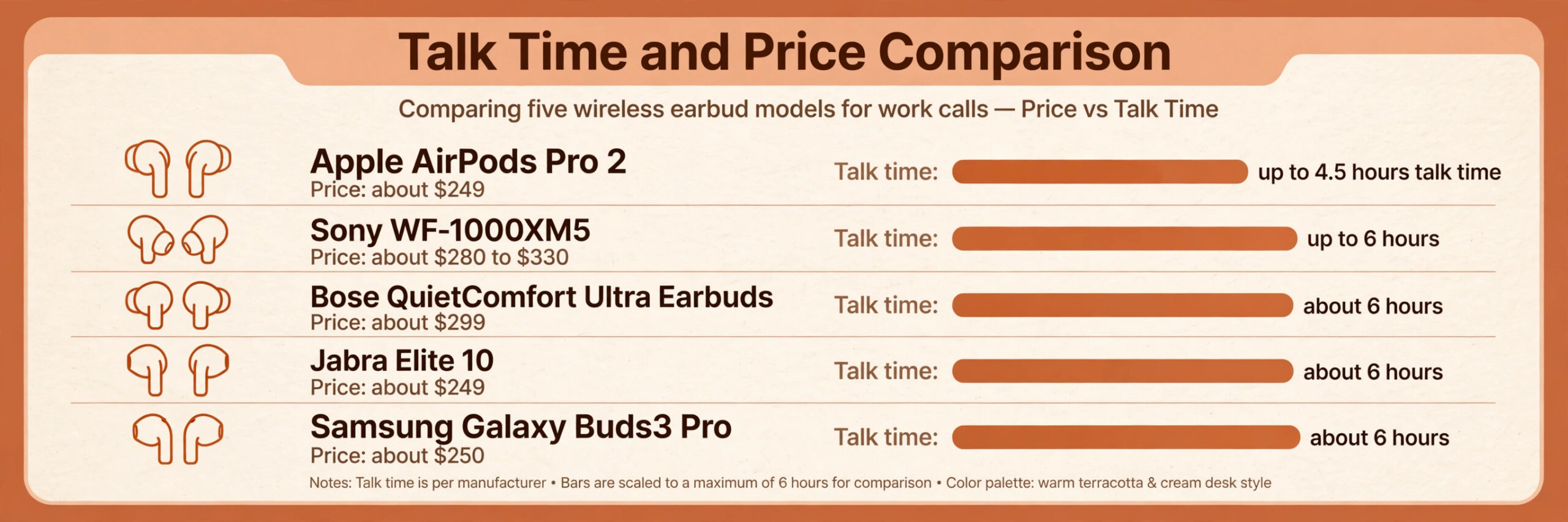
Microphone counts make good marketing but poor buying advice on their own. Six microphones with weak noise processing can sound worse than three microphones with strong processing, and a microphone array tuned for quiet rooms can struggle in a busy office. The table below compares the models most often bought by people who use wireless earbuds for work calls, on the factors that actually change how you sound, which are talk time, multipoint, noise handling on calls, and price at draft time. Use it to narrow the list to two models, then test those two with a real recording, because your room and your voice matter more than any table.
| Model | List price at draft time | Talk time on one charge | Multipoint | Call strength | Call weakness |
|---|---|---|---|---|---|
| Apple AirPods Pro 2 | About 249 dollars | Up to 4.5 hours | Automatic switching in Apple devices | Clear voice in quiet rooms, strong app control on iPhone | Talk time is the shortest here, best value stays inside Apple devices |
| Sony WF-1000XM5 | About 280 to 330 dollars depending on sale | Up to 6 hours with noise cancelling on | Yes, two devices | Long talk time, strong noise reduction, good app tuning | Fit is fiddly for some ears, foam tips need replacing over time |
| Bose QuietComfort Ultra Earbuds second generation | About 299 dollars | About 6 hours with noise cancelling on | Check the current app, availability varies by firmware | Strong noise cancelling, natural voice tone | Highest list price here, case total is lower than AirPods Pro 2 on talk time |
| Jabra Elite 10 | About 249 dollars | About 6 hours with noise cancelling on | Yes, two devices | Six microphones, comfortable semi open fit, built for calls | Noise cancelling is a step below Sony and Bose in loud rooms |
| Samsung Galaxy Buds3 Pro | About 250 dollars | About 6 hours with noise cancelling on in common listings | Yes, two devices | Strong value for Samsung phone owners, clear calls indoors | Some features stay locked to Samsung devices |
Battery Tricks for a Full Day of Calls
Think in talk hours, not listening hours. If you use wireless earbuds for work calls on heavy days, plan in talk hours first and treat listening figures as a secondary number. Add up your meetings for a heavy day, then compare that total with the talk time figure, not the headline listening figure. If your heavy day holds six hours of calls, AirPods Pro 2 at 4.5 hours of talk time will need a case top up mid day, while Sony, Jabra, and Bose at about six hours will finish the day with little margin.
If your heavy day holds eight hours of calls, every model on the table needs case time, and your plan must include a break where the buds sit in the case. The case is a charger you carry, so use it the way it was designed and treat breaks as charging breaks.
Use the case between calls, even for ten minutes. Apple says five minutes in the case gives around one hour of listening or talk time for AirPods Pro 2, and Sony says about three minutes in the case gives around one hour of playback for the WF-1000XM5. Those figures are for listening, so treat talk time gains as a little lower, but the principle holds. A ten minute gap between meetings is enough to add meaningful charge. Put the buds in the case during a break instead of leaving them in your ears, and you will end the day with charge to spare.
Leaving buds in your ears between calls drains the battery for no benefit and tires your ears at the same time.
Charge the case every night, and check the case battery, not just the bud battery. Many dead bud stories are really dead case stories. The buds were fine, but the case had been empty for two days and nobody noticed. Most companion apps show both figures on one screen. Make that screen part of your end of day routine, beside plugging in your laptop. Keep a short USB-C cable at your desk so the case charges where you work, not in another room where you will forget it. If your case supports wireless charging, a small charging pad on your desk turns every desk break into a top up without any cable fumbling.
Fit, Noise Control, and Hearing Yourself
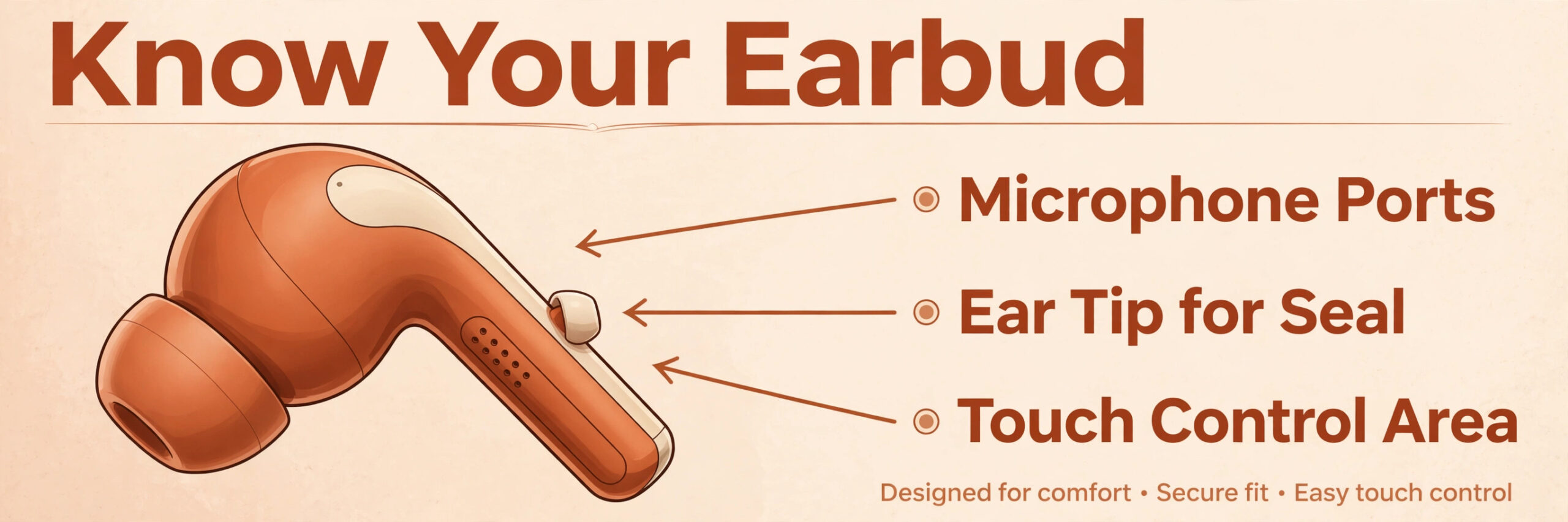
Fit is a call quality setting, not a comfort luxury. Anyone who plans to use wireless earbuds for work calls for hours each day should treat fit as the first setting to get right, before touching an equaliser or a codec option. Try every tip size in the box, including the smallest, because many people default to the medium tips that ship installed and never test the others. A correct tip seals gently without pressure, stays put when you chew or talk, and does not slowly slide out during a 45 minute call. Foam tips seal better for many ears and stay in place during long calls, but they wear out faster and need replacing every few months.
Silicone tips last longer and clean more easily. If one ear always loses its seal, mix tip sizes between ears without guilt. Ears are not symmetrical, and a mixed pair that seals is better than a matched pair that slips.
How to Choose Between the Main Models
Start with your phone and laptop, not with a review score. When you use wireless earbuds for work calls, buy for the system you actually use for calls, not the system you wish you used. AirPods Pro 2 reward iPhone and Mac owners with automatic switching, Find My support, and the deepest app control, and they lose much of that advantage on Windows and Android, where they work as standard Bluetooth earbuds. Samsung Galaxy Buds3 Pro reward Samsung phone owners in a similar way. Sony and Jabra treat every system more equally, which matters if your work laptop runs Windows and your phone runs Android, or if you change phones more often than laptops.
Price needs the same care as features. At draft time, AirPods Pro 2 list at about 249 dollars and Jabra Elite 10 at about 249 dollars, while Sony WF-1000XM5 sits in a range of about 280 to 330 dollars depending on whether a sale is running, and Bose QuietComfort Ultra Earbuds sit at about 299 dollars. Sale prices narrow those gaps often, and Sony in particular drops well below list during sale events. Do not pay list price in a hurry if a sale is a week away, and do not buy a cheaper model that lacks multipoint if you switch between a laptop and a phone all day.
The 50 dollars saved on a model without multipoint will cost you far more in daily frustration than the upgrade would have cost once.
Mistakes That Ruin Work Calls
The first mistake is joining a call on the wrong audio device. Anyone who has had to use wireless earbuds for work calls in a hurry knows this check saves the meeting. You put the earbuds in, but the meeting app still uses the laptop microphone and speakers, or the phone speaker. Your colleagues hear room echo, you hear yourself through the laptop, and everyone assumes the connection is bad. Fix this by setting the meeting app audio device by name during a test call, and by checking the device list after updates. This single check fixes more call complaints than any hardware upgrade.
The second mistake is leaving multipoint off and blaming the earbuds for switching badly. Without multipoint or automatic switching, earbuds connect to the last device they used, which may be your phone in your pocket while your laptop call starts. The result is a frantic minute of tapping Bluetooth menus while the meeting waits. Turn multipoint on, pair in laptop first order, and test a phone call interruption before it happens live. Preparation here is invisible when it works and very visible when it does not.
The third mistake is testing nothing until a live call. A 30 second test recording once a week, after any update or tip change, catches input level problems, wrong device problems, and dead microphone problems before they reach a client. Make the test part of your Monday routine, beside checking your calendar. It takes less time than apologising for bad audio once, and it builds a habit that protects every important call that follows.
The fourth mistake is chasing music quality settings for calls. High resolution codecs, spatial audio, and maximum noise cancelling all sound like upgrades, but on a call they can add latency, shorten battery life, or switch multipoint off. Set a call profile in the companion app if one is offered, with standard codec, moderate noise cancelling, and spatial audio off. Save the high quality profile for music after work. Two profiles, one for calls and one for music, is a small setup cost for a large daily benefit.
The fifth mistake is ignoring the case. Buds left out of the case between meetings lose charge, gather dust in the microphones, and get lost. The case protects the microphones, charges the buds, and gives you a single place to find them. Put the buds in the case whenever you leave your desk for more than a few minutes. That habit alone will prevent most dead battery surprises, and it keeps the microphone ports cleaner than leaving buds loose in a pocket or a bag.
The Pairing Checklist to Run Before Your First Call
Use this checklist once when you set up a new pair, and again after any major phone or laptop update. If you use wireless earbuds for work calls every week, run it once properly and your daily routine becomes putting the buds in and joining the call. It takes about ten minutes and prevents the problems that usually appear in the first five minutes of a real meeting.
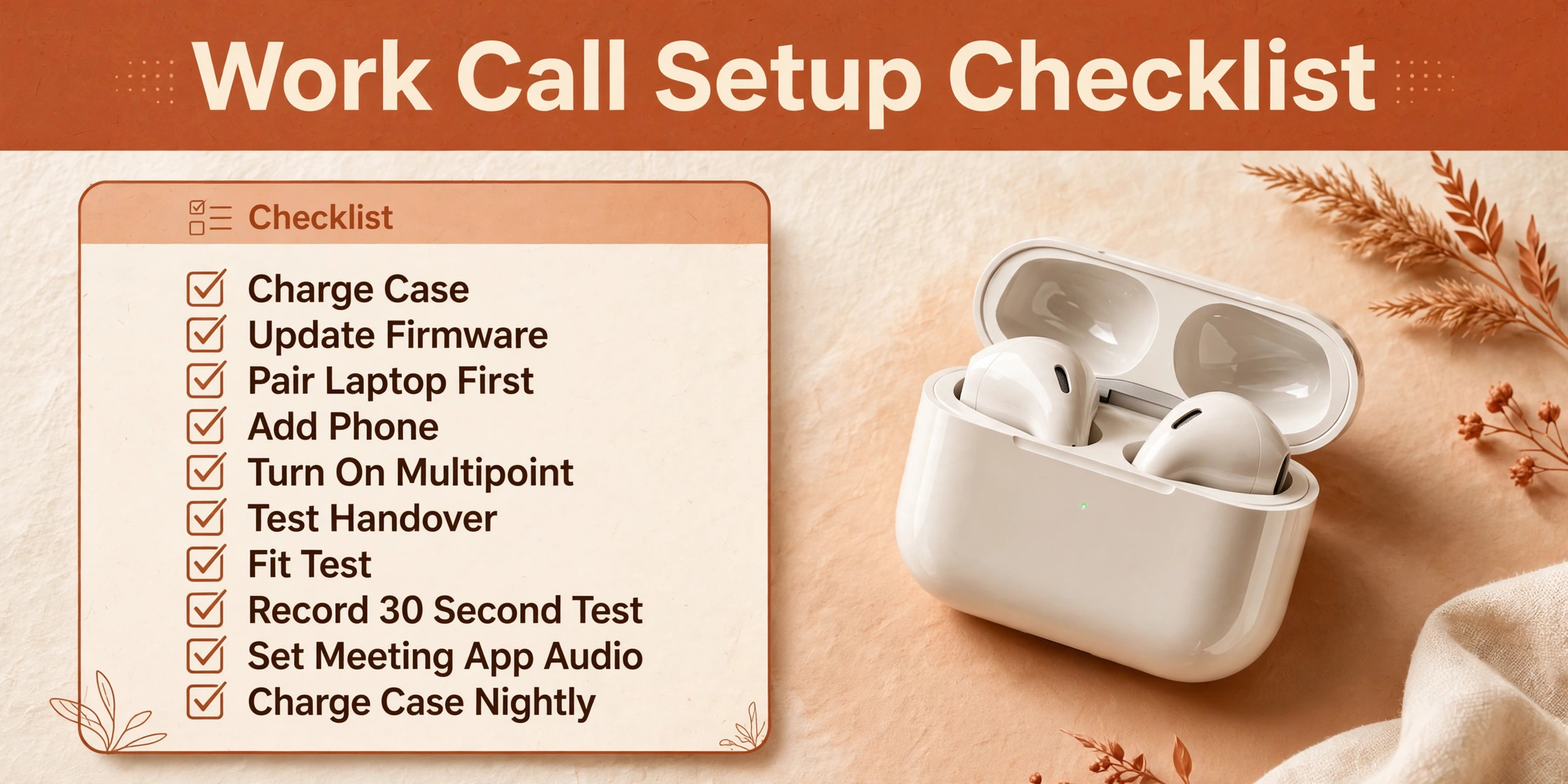
- [ ] Charge the case fully, then charge the buds in the case for at least 15 minutes before pairing.
- [ ] Update the earbuds firmware in the companion app before you test call quality, because mic tuning often changes with firmware.
- [ ] Pair the laptop first, then the phone, and turn multipoint or automatic switching on in the app if the toggle is off by default.
- [ ] Test the handover by playing audio on the laptop, then receiving a short test call on the phone, and confirming the earbuds switch back afterwards.
- [ ] Run the ear tip fit test, try every tip size, and keep a mixed pair if your ears need different sizes.
- [ ] Record a 30 second test in your normal room and again beside your usual background noise, then play both back and check clarity.
- [ ] Set the meeting app speaker and microphone to the earbuds by name, and set the laptop input level so normal speech sits in the upper middle of the meter.
- [ ] Turn spatial audio off for calls, set a standard codec for call days, and pick one noise mode for the call rather than leaving it on automatic.
- [ ] Put the buds in the case for ten minutes between long meetings, check the case battery each evening, and keep a wired backup in your desk for client calls.
- [ ] Remove old phones, tablets, and laptops from the paired list, so a forgotten device cannot steal the connection mid call.
If any checklist step fails, fix that step before moving on. A pairing setup that passes nine steps and fails the microphone test will still fail on a live call, and a setup that passes the microphone test but fails the handover will fail on the first phone interruption. The checklist is short because it covers the failure points that actually happen, not every setting in the app. Run it once, properly, and your daily routine becomes putting the buds in and joining the call, which is how it should feel.
For related reading, this site covers meeting tools in depth. The guide to best AI meeting assistants helps you pick note taking and summary tools for the calls themselves, the comparison of Zoom vs Google Meet covers the platforms your earbuds will connect to most often, and the roundup of best AI meeting notes tools compares transcription options that pair well with clear call audio. If you dictate notes after calls, the guide to best AI dictation tools is also useful, because a clear voice recording helps dictation accuracy as much as it helps live listeners.
Frequently Asked Questions
Can I use one earbud for work calls while the other charges?
Yes, on most modern models. Put one bud in the case to charge and keep the other in your ear for the call. Your voice still reaches the meeting, though your own hearing will be less rich with one ear open to the room. Test single bud mode with a short recording first, because a few models change microphone behaviour with one bud in use. Swap buds at lunch on very long days to double your effective talk time.
Why do my earbuds sound great for music but bad on calls?
Calls switch Bluetooth to a hands free profile that trades music quality for two way voice, so music will sound flat while the microphone is active. That drop is normal and not a fault. A second cause is the meeting app using the laptop microphone instead of the earbuds, which makes you sound distant. Check the app audio settings by name, record a test, and play it back to confirm which microphone is actually live.
Do I need multipoint if I only use one laptop for calls?
If you truly use one device and never take phone calls on earbuds, multipoint adds little. If your phone sits nearby and sometimes rings during laptop meetings, multipoint or automatic switching saves the daily reconnect struggle. It also helps when you move between a work laptop and a personal laptop. Check the specification page for multipoint support before you buy, because pairing with many devices is not the same as staying connected to two at once.
Are AirPods Pro 2 good enough for all day work calls?
They are good for most workdays, with clear voice in quiet rooms and strong switching inside Apple devices. The limit is talk time, at up to 4.5 hours on one charge, so a six hour call day needs case top ups between meetings. If your calendar regularly passes six hours of calls, Sony, Jabra, or Bose models with about six hours of talk time give more margin, and a wired backup or a boom headset is worth keeping for the longest days.
How do I stop wind noise when I take calls outside?
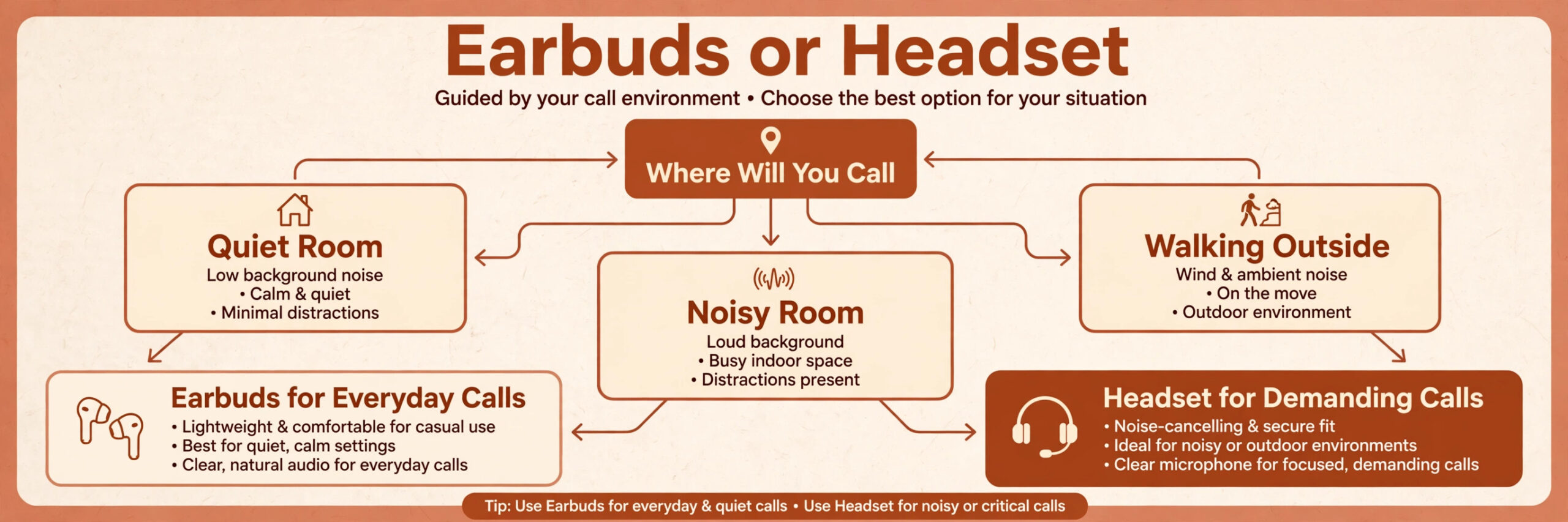
Walk on the sheltered side of a building, turn so wind hits the back of your head rather than your ears, and switch to transparency mode if full noise cancelling makes wind roar worse. A hat or a hood that covers the ears can also break the wind before it reaches the microphones. For regular walking meetings, no true wireless model beats a small boom headset, so keep one for windy days rather than fighting wind with software filters.
Should I buy earbuds or a headset for work calls?
Buy earbuds if your calls are mostly indoors, under six hours a day, and you value portability, music, and easy switching between devices. Buy a headset with a boom microphone if your calls run longer, happen outdoors, take place in noisy rooms, or include client presentations where audio failure carries a real cost. Many people end up with both, using earbuds for everyday meetings and a headset for the calls that matter most.
Your Call Setup, Settled in One Evening
Good call audio is not a mystery and it is not a luxury purchase. When you use wireless earbuds for work calls after this setup, the earbuds stop being a source of meeting anxiety. It is a room with one soft surface, a tip size that seals, a pairing order that puts the laptop first, a microphone test you actually run, and a case habit that keeps charge ahead of your calendar. Set those five things up in one evening, run the checklist once, and your earbuds will stop being a source of meeting anxiety and start being the convenient tool they were meant to be.
Start tonight with the cheapest fixes. Try the other tip sizes, record a 30 second test in your real room, check the meeting app device list by name, and put the case on charge beside your laptop. If those steps already make you sound clear, you do not need new earbuds at all. If they reveal a real limit, such as talk time that cannot cover your day or a microphone that falls apart in your office noise, you now know exactly which model to buy and why.
That is the difference between upgrading on hope and upgrading on evidence, and it is the habit that will keep every future call sounding like you are in the room, even when you are not.