
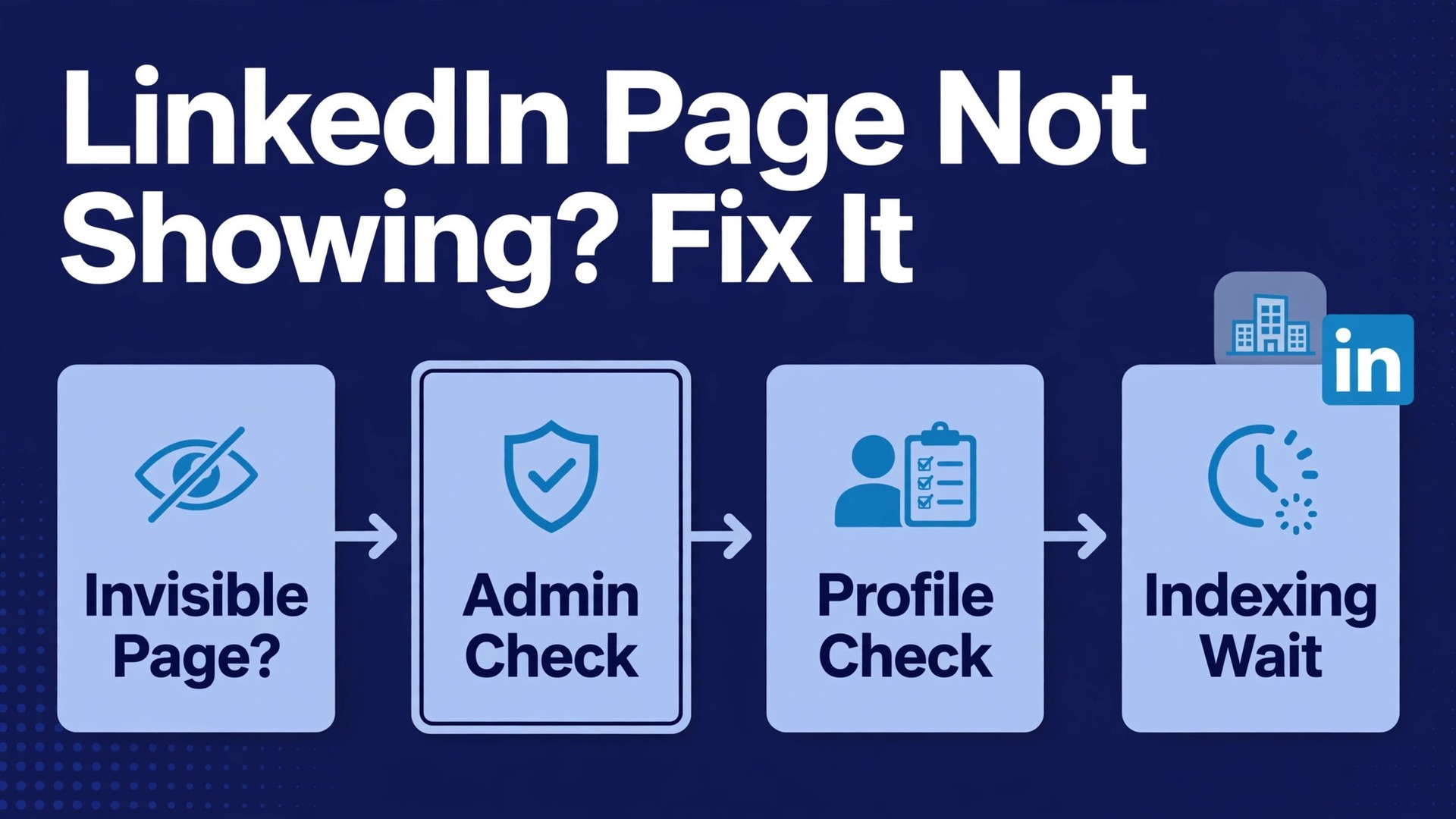
You created the page, you can see it when you are signed in, and yet customers say they cannot find it. Or worse, you cannot see it at all, and a colleague insists it exists. That gap between what you see and what the public sees is the core of this problem, and it has several different causes. A page can be new and unindexed, incomplete and ranked low, restricted by an admin problem, or simply searched with the wrong name. This guide shows how to fix LinkedIn company page not visible small business problems step by step, starting with the checks that take minutes and ending with the waits that cannot be rushed.
Work through the steps in order. Most small business owners jump straight to contacting support, but support cannot fix an admin access gap or an incomplete profile, and those are the most common causes. The fastest fixes are usually unglamorous. Confirm you are actually an admin, confirm the page is live rather than deactivated, finish the profile, and test the page from a signed out browser. If those checks pass and the page is simply new, the remaining fix is patience plus promotion, and this guide explains how to use that waiting time well.
One caution applies throughout. LinkedIn does not publish an exact timetable for when a new page appears in search, and third party guides disagree on the wait, with some reporting a few days and others reporting one to two weeks or longer for search engines. Treat any precise day count you read online as an estimate, not a promise. The steps below help you prove whether waiting is the real issue or whether something else is blocking visibility.
First, Decide Which Kind of Invisible It Is
Not visible means different things, and each meaning points to a different fix. A page that you cannot see in your own account usually means an admin access problem. A page that you can see but customers cannot find in LinkedIn search usually means an indexing or completeness problem. A page that appears in LinkedIn search but not in Google usually means a search engine timing problem. A page that does not appear when someone adds it to their work experience usually means a dropdown matching problem, not a missing page at all.
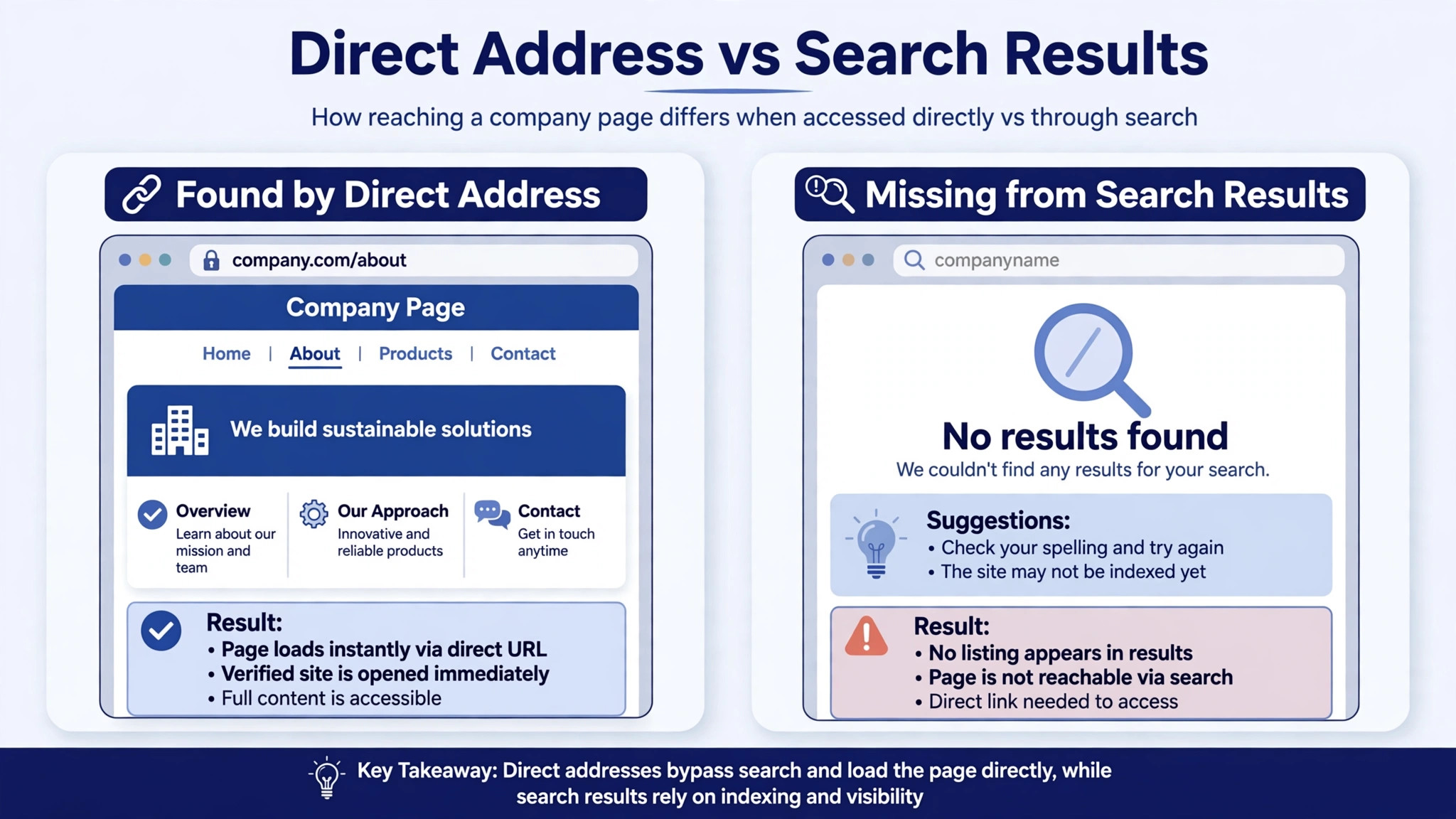
Ask three questions before changing anything. Can you open the page from its direct web address while signed out. Can a colleague who is not an admin find it in LinkedIn search. Can you find it yourself in LinkedIn search from a different account or device. The answers split the problem cleanly. If nobody can open it, suspect status or access. If you can open it but search cannot find it, suspect indexing or completeness. If search finds it for some people but not others, suspect name matching or a very new page still spreading across LinkedIn systems.
| Symptom | Likely cause | First check |
|---|---|---|
| You cannot see the page in your account | You are not an admin | Ask a Super Admin to check Manage admins |
| Colleagues cannot find it in LinkedIn search | New page or incomplete profile | Check age, logo, description, and posts |
| Google does not show it | Search engine has not indexed it yet | Test the direct address and wait, then promote the address |
| Experience dropdown does not list it | Dropdown matching quirk | Follow the page first, then retry the dropdown |
| Page opens but looks empty | Profile unfinished | Complete every section and publish a post |
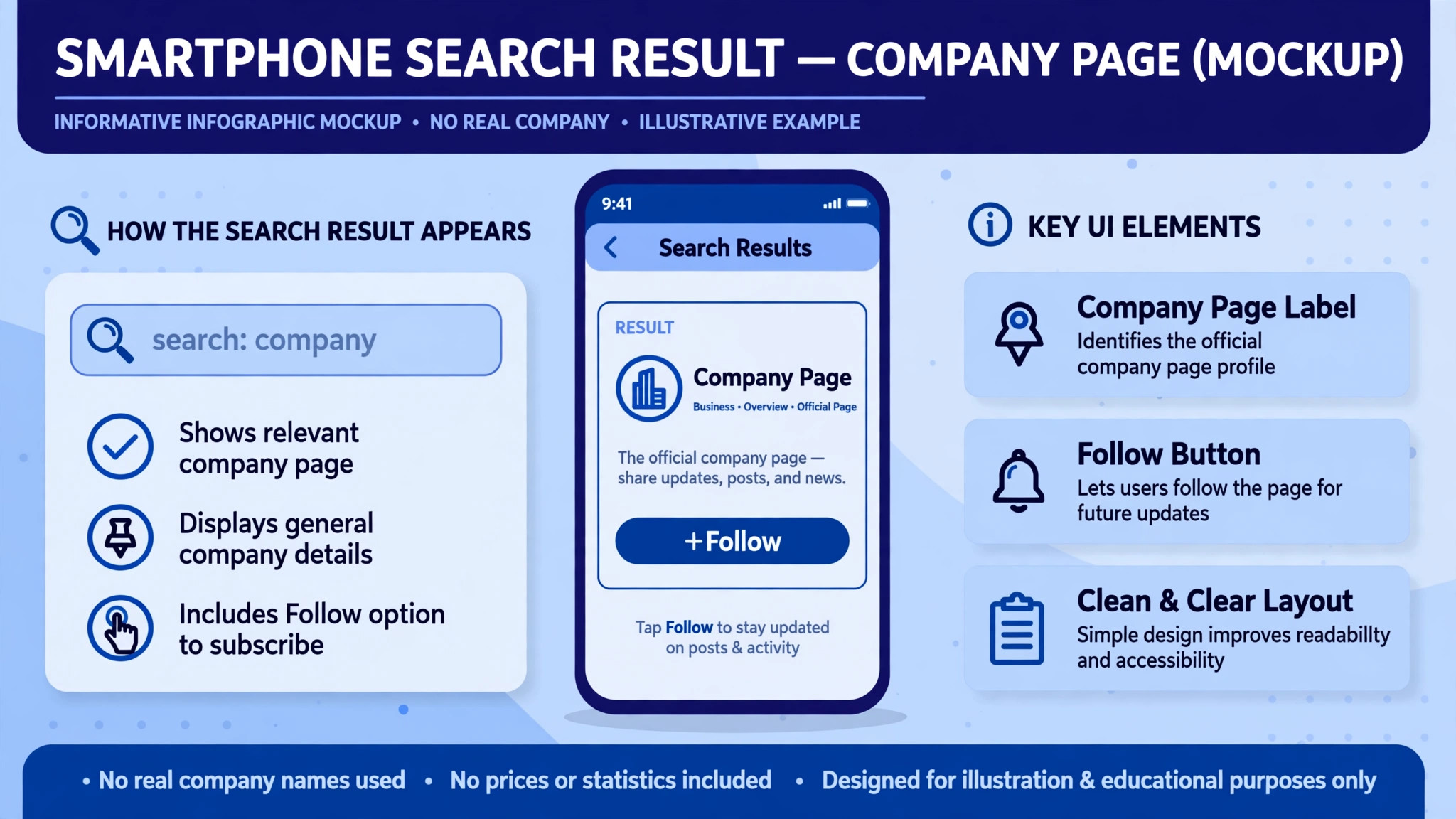
The Step Workflow for a Page Nobody Can Find
Step 1. Open the page from its direct address while signed out
Find the page address from your admin view or from a link you shared before, and open it in a private browser window without signing in. If the page loads, it exists and is public in the basic sense, and the problem is search or matching rather than existence. If it does not load, note the exact message, because a not found message and a restricted message point to different causes. Take a screenshot for support if you later need it.
Step 2. Confirm your admin role in Page settings
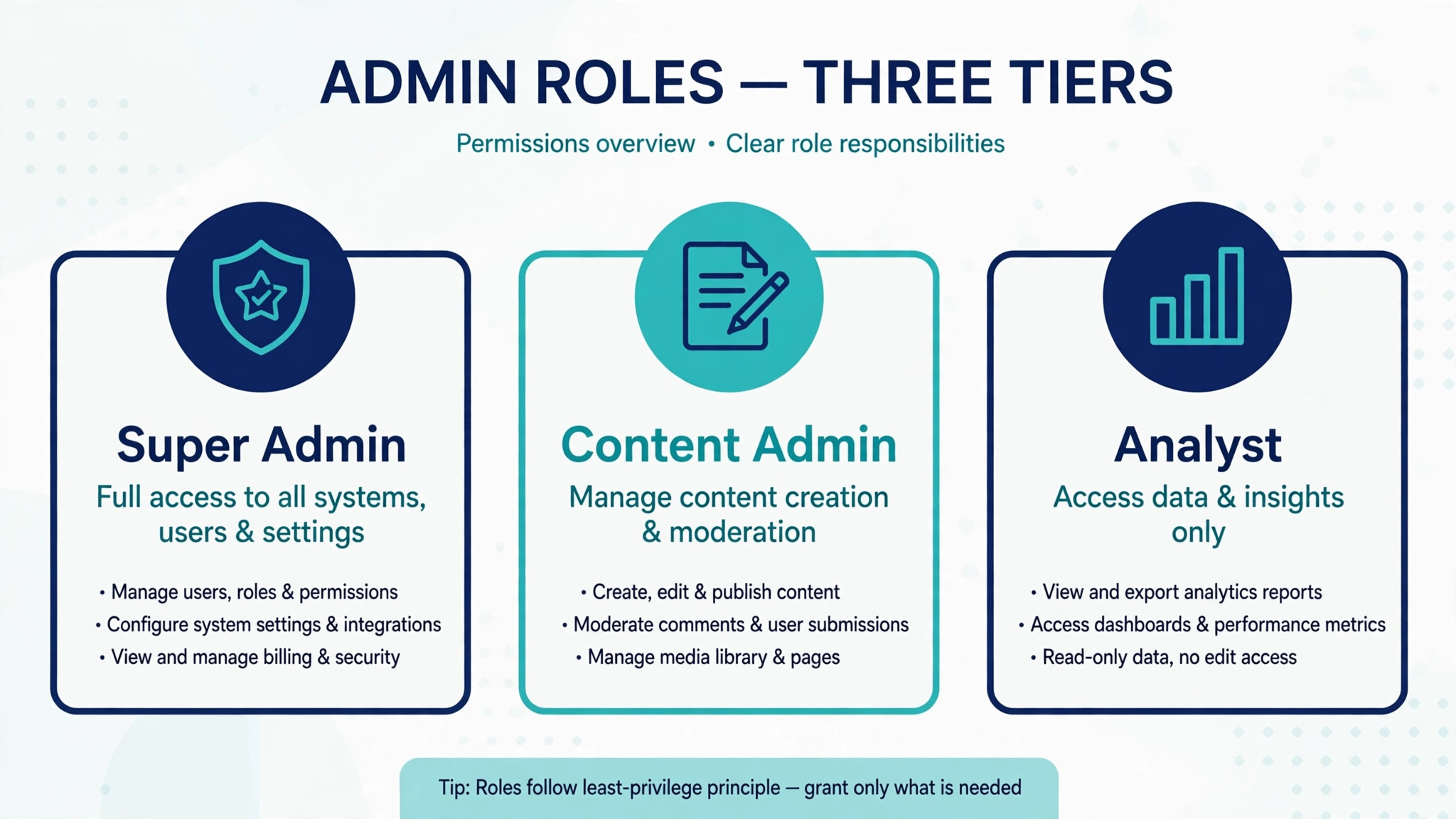
Open the page admin view, go to Settings, then Manage admins, and check the Page admins list. LinkedIn Page admin roles include Super Admin, Content Admin, and Analyst. Only a Super Admin can add or remove admins, so if you are not listed at all, you need a Super Admin to add you. If you are listed as Analyst, you can see reporting but you cannot manage the page, and some tools will not list the page for you at all. Ask for Content Admin at minimum, and Super Admin if you are the business owner or the person who connects tools.
Step 3. Check whether the page is live, deactivated, or restricted
A Super Admin can deactivate a page, and a deactivated page will not appear normally. Check the admin settings for page status, and ask any other admin whether someone deactivated it during a cleanup or a rebrand. Also check whether the page was created as a different type, such as a Showcase Page attached to another company page, which behaves differently in search. If the page was merged or renamed during a rebrand, the old address may no longer work, and the new name is what search needs to learn.
Step 4. Check the exact name, spelling, and company type
Search LinkedIn for the exact page name, then try shorter versions and common spelling variants. A page named with a legal suffix, a location, or a hyphenated brand may not match the name customers type. Check the page name field itself for typos, extra words, or an old trading name. One unverified tip reported by third party guides is that changing company type, for example from sole proprietorship to privately held, helped a page appear. Treat that tip as unproven, and change company type only if the current type is genuinely wrong for your business.
Step 5. Complete every profile section
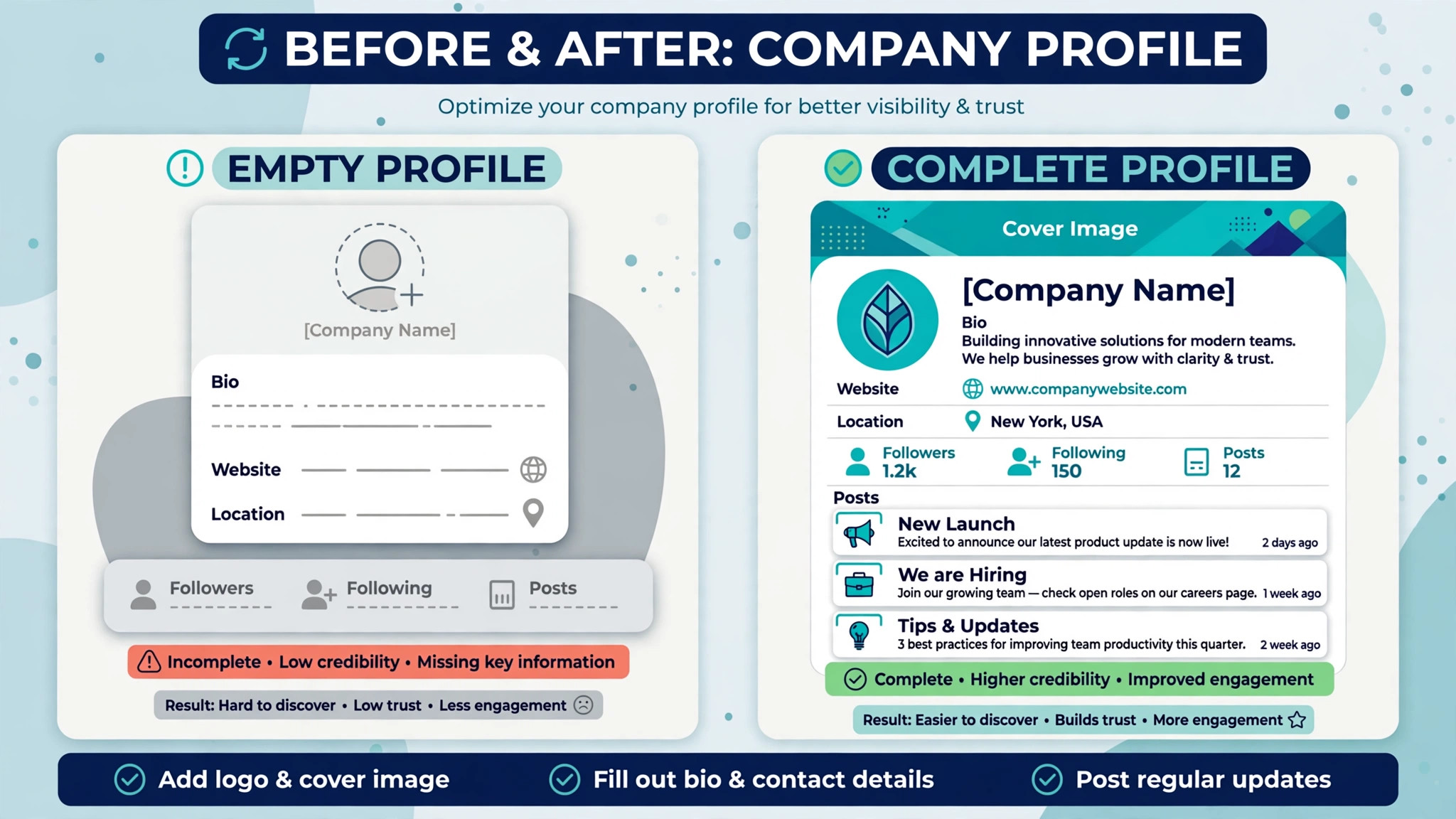
An incomplete page is harder to find and less trusted when it is found. Add a logo, a cover image, a tagline, a full description in plain words customers use, a website address, an industry, a company size, a location, and at least one hashtag if the page setup offers it. Publish at least one post, because a page with no activity looks unfinished to visitors and to ranking systems alike. Invite colleagues to follow the page, since early followers help a new page look established.
Step 6. Test LinkedIn search properly
Search from the LinkedIn search bar, filter to Companies if the filter is available, and try the exact name in quotes as well as without quotes. Test on desktop and on mobile, and ask a colleague in a different location to test too, because results can vary by account and region. Note whether the page appears low in results rather than not at all. A page buried under larger companies with a similar name is a ranking and naming problem, not a missing page problem, and it calls for a more distinctive name or stronger profile wording.
Step 7. Test Google separately and promote the address
Google indexing takes longer than LinkedIn internal search, and LinkedIn itself notes that it cannot control how quickly search engines update. Search Google for the exact page name plus LinkedIn, and check later result pages before concluding the page is absent. Meanwhile, put the page address on your website, in your email signature, and on other social profiles. Those links help search engines discover the page and help customers reach it directly while indexing catches up.
Step 8. Wait, then escalate with evidence
If every check above passes and the page is only days old, wait before escalating. Third party guides report waits from a few days to one or two weeks for LinkedIn search, and longer for Google, but LinkedIn publishes no guaranteed timetable, so set your expectation in weeks rather than days. If the page is still invisible after two weeks of a complete profile and normal activity, contact LinkedIn support with the page address, screenshots of signed out and search tests, your admin role, and the date the page was created. Evidence gets a faster useful answer than a general complaint.
Admin Access Problems in Detail
Admin access is the most common reason a small business owner cannot see a page that definitely exists. The usual story is that a former employee, a freelancer, or a previous agency created the page, and nobody recorded who holds Super Admin access. The current owner can see the public page but cannot manage it, cannot see it in admin tools, and cannot connect it to scheduling or advertising tools. That is an access problem, not a visibility problem, and it needs a people fix.
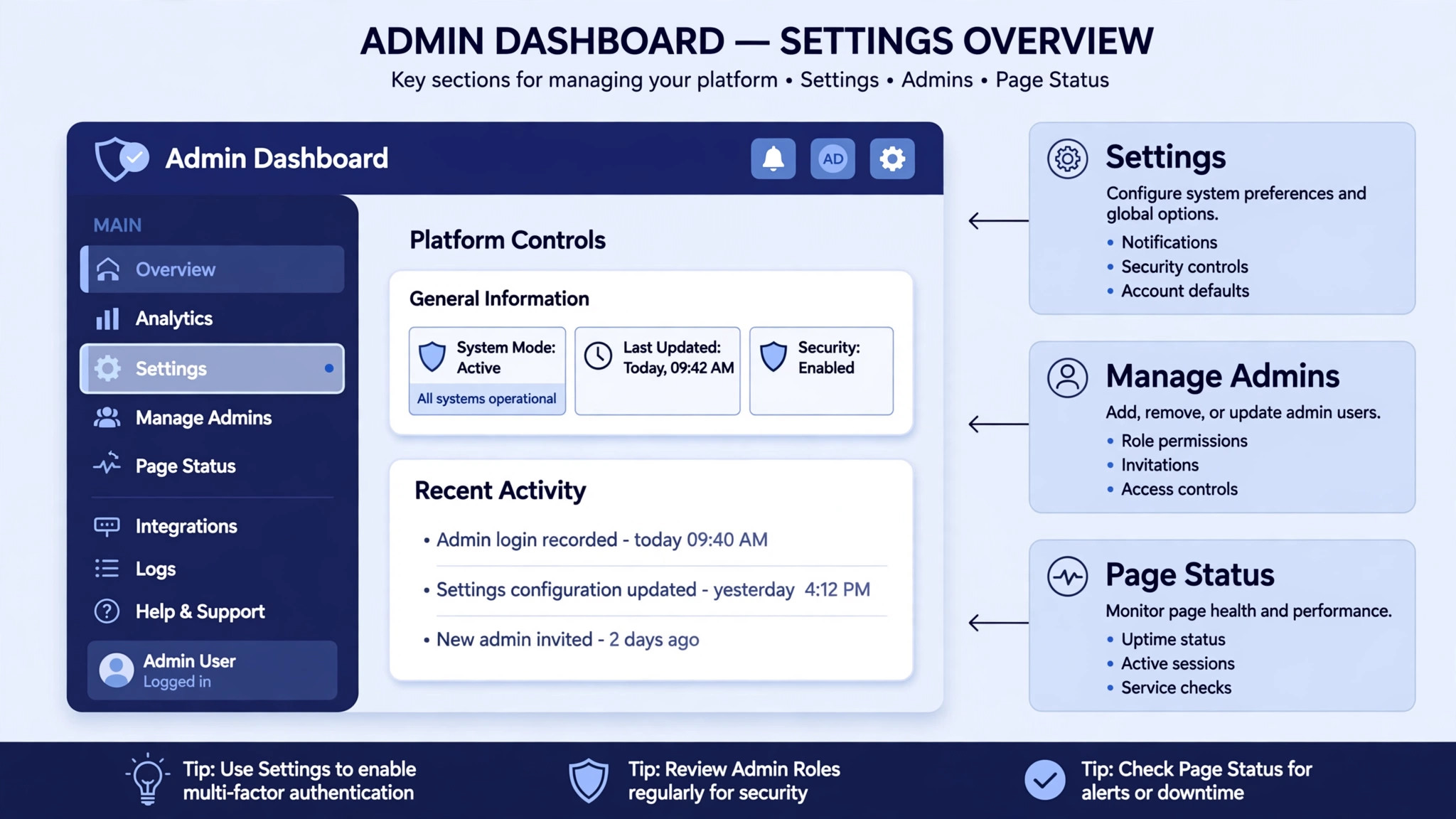
Start by listing every person who might hold Super Admin access, including founders, former staff, and agencies. Ask each one to check their Manage section for the page. If you find a Super Admin, ask them to add you through Settings and Manage admins, choosing Page admins and the right role. If no one can be found, use the LinkedIn support route for admin recovery, and be ready to prove you represent the business with official documents. That process takes time, so start it early rather than creating a duplicate page in frustration.
Duplicate pages make everything worse. A second page with a similar name splits followers, confuses search, and creates two competing results. If a duplicate exists, do not promote both. Decide which page is the real one, usually the older page or the one with Super Admin access you control, and work on recovering or merging the other through support. Promoting a duplicate while the original still exists guarantees that some customers will follow the wrong page.
Tool connections add a second admin trap. Some third party tools require Super Admin access to connect a page, even though LinkedIn itself allows Content Admins to publish. If a scheduling tool does not list your page, check your role first, and ask a Super Admin to make the connection if the tool requires it. When the person who connected a tool leaves and loses admin access, the connection can break, and another admin must reconnect it. Keep a note of who connected each tool, so a departure does not become a mystery outage.
Making a Complete Page That Search Can Trust
Search systems, both inside LinkedIn and in Google, favour pages that look like real businesses. A page with a logo, a cover image, a clear description, a website, a location, and recent posts signals a real operation. A page with a blank logo, a one line description, and no posts signals a placeholder, and placeholders rank poorly or not at all. Completeness is not vanity. It is part of how a small business becomes findable.
Write the description in customer words, not internal jargon. Name what the business does, who it serves, and where it operates, in the first two sentences. A bakery that writes artisan baked goods may miss customers searching for a local bakery, while a bakery that writes fresh bread and cakes baked daily in its town gives search systems words that match real queries. Use the same core wording on the website and the LinkedIn page, so the two reinforce each other rather than describing different businesses.
Activity helps, but it must be real activity. Publish a welcome post, a post about a service, and a post answering a common customer question. Invite employees to follow the page and to add it to their experience sections, because employee profiles link back to the page and help search systems confirm it is genuine. Avoid buying followers or posting identical content daily, since thin activity helps no one and can look artificial to visitors who do check.
| Profile element | Why it helps visibility | Small business standard |
|---|---|---|
| Logo and cover image | Page looks real and recognisable | Clear logo, no stretched or pixelated image |
| Tagline and description | Matches customer search words | What you do, who you serve, where you are |
| Website and location | Confirms a real business | Working website address and correct town |
| Industry and size | Helps filters and matching | Closest industry, honest size range |
| Posts and followers | Shows an active business | At least one post, colleagues following |
Search Indexing and the Waiting Period
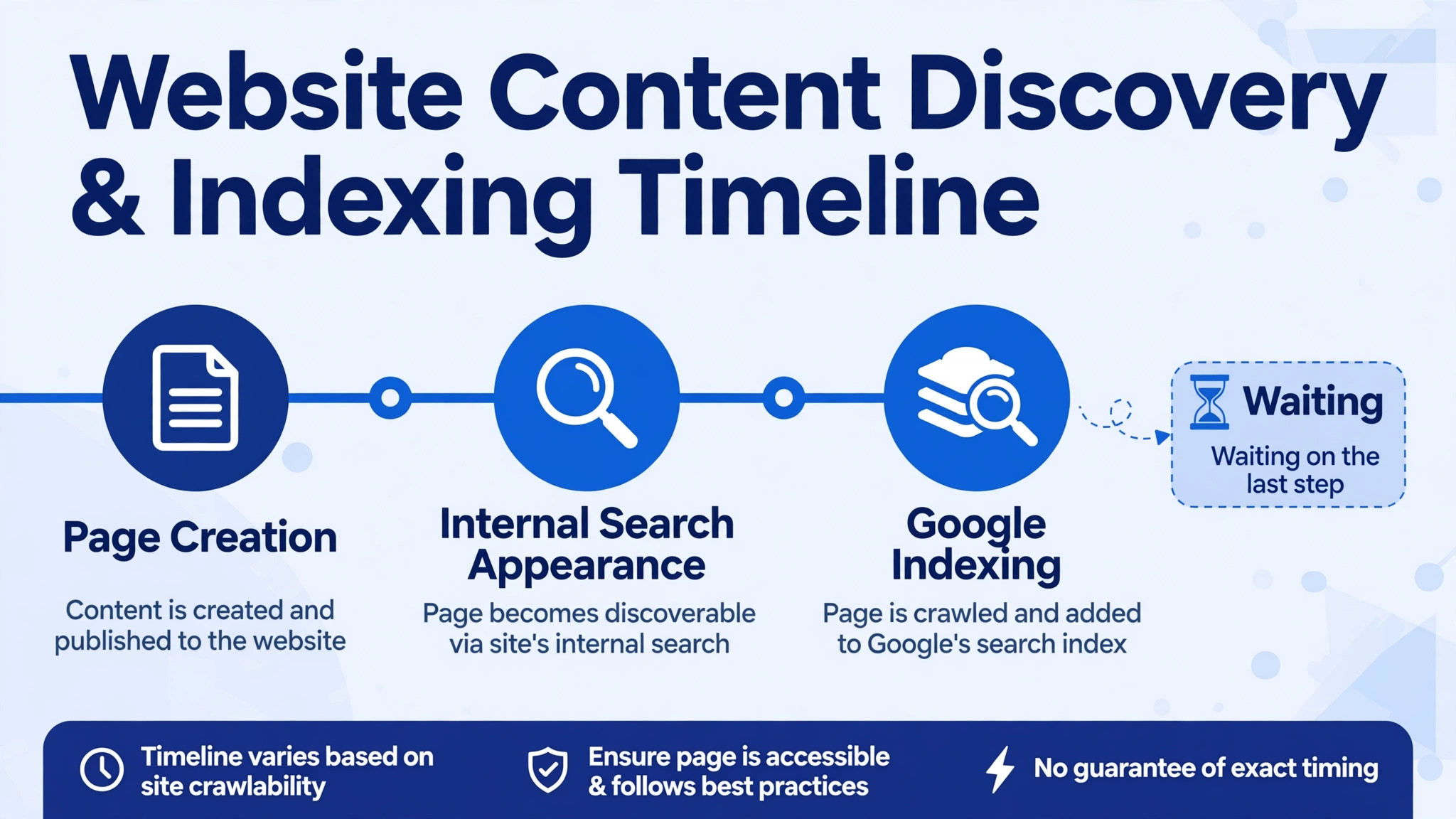
Indexing is the least satisfying fix because it cannot be forced. When a page is created, LinkedIn must spread it across its own search systems, and Google must discover and index it separately. Both steps take time, and neither publishes a guaranteed schedule. A page that is invisible on day two may be perfectly visible on day twelve with no further action, which is why the checks in this guide come before the wait. Waiting without checking is guessing. Checking and then waiting is a plan.
Use the waiting period productively. Publish posts, add the page address to your website and profiles, ask customers to follow the page, and make sure employee profiles link to it. Each of those actions gives search systems more signals and gives customers a direct route that does not depend on search at all. A customer who clicks a link on your website does not care whether Google has indexed the page yet, and that direct traffic is often what a new small business needs first.
Watch for a common trap during the wait, which is renaming the page repeatedly to chase search results. Every rename forces search systems to relearn the page, and a page renamed three times in a week may stay invisible longer than a page left alone with a good name. Choose a clear name once, fix typos promptly if you find one, then leave the name stable while you build out the profile and posts. Stability helps indexing more than constant tweaking.
The Verification Checklist to Fix LinkedIn Company Page Not Visible Small Business Cases
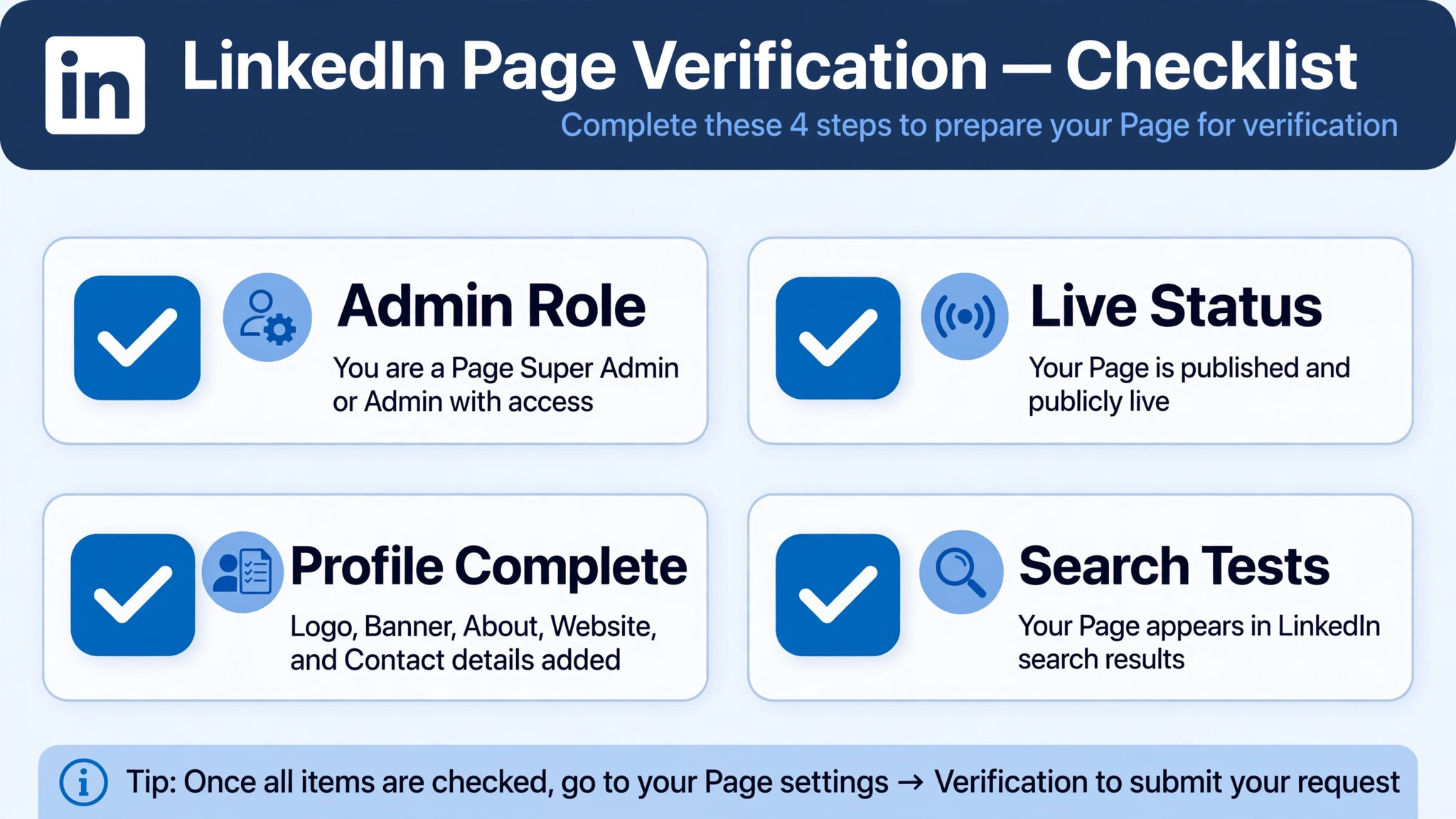
– Page opens from its direct address in a signed out browser window. – Your role is confirmed in Settings and Manage admins, with Super Admin or Content Admin as needed. – Page status is live, not deactivated, and no duplicate page is being promoted. – Page name, spelling, and company type are correct and match the trading name. – Logo, cover image, tagline, full description, website, industry, size, and location are complete. – At least one genuine post is published and colleagues follow the page. – LinkedIn search tested with exact name, quotes, filters, desktop, and mobile. – Google search tested separately, including later result pages. – Page address added to the website, email signature, and other social profiles. – Support evidence gathered if escalation is needed, with dates and screenshots.
Run this checklist again after any change, because a fix in one area can reveal a problem in another. For example, recovering admin access may reveal that the page is also incomplete, and completing the profile may reveal a duplicate page that needs attention. When you fix LinkedIn company page not visible small business cases, the checklist is what stops you from fixing one cause and missing the second one hiding behind it.
Mistakes That Keep a Page Invisible
Creating a duplicate page is the most damaging mistake, because it splits the very signals that help a page rank. A second page started in frustration will compete with the first, confuse customers, and double the work of keeping profiles complete. Recover access to the original page first, even if support takes time, and treat a duplicate as a last resort rather than a quick fix.
A second mistake is judging visibility from your own account alone. Admins see pages differently from the public, and a page that looks fine to an admin may still be unindexed for everyone else. Always test signed out, test from a colleague account, and test on mobile. A fix confirmed only in the admin view is not confirmed at all.
A third mistake is sending support a vague message. A message that says the page is not visible, with no address, no screenshots, and no dates, will bounce back with generic questions and lose days. Send the page address, the exact tests you ran, the results, your admin role, and the creation date. Support can act on evidence. It cannot act on frustration alone, however justified that frustration feels after weeks of invisibility.
Keeping the Page Visible After It Appears
Appearing in search is not the end of the job. A page that appears once and then goes quiet can slip again, especially if a larger competitor with a similar name publishes regularly and gathers followers. The maintenance routine is short, and it protects the visibility you worked to recover. Publish at least once a week, keep the description current when services or locations change, and review admin access whenever staff leave or agencies change. When you fix LinkedIn company page not visible small business problems, the follow up routine is what stops the same problem returning in six months.
Post content that answers real customer questions, rather than generic announcements. That routine is part of how you fix LinkedIn company page not visible small business problems for good, rather than for a single week. A post about opening hours during a holiday, a new service, a completed project, or a common question will earn more attention than a daily motivational quote. Customers follow pages that help them, and followers are one of the signals that help a page stay findable. Ask satisfied customers to follow the page after a good experience, and include the page address in invoices or thank you messages where appropriate.
Review the admin list quarterly. Small businesses often discover during a crisis that the only Super Admin left years ago, and by then the business needs urgent access for an advert or a rebrand. A quarterly check takes two minutes. Confirm at least two trusted people hold Super Admin access, remove former staff and former agencies promptly, and store the page address and admin names in the business records. That small habit prevents the most stressful version of this problem, which is needing access and finding no one who has it.
Watch for name confusion as the business grows. If a competitor opens with a similar name, or the business adds a second location, search results can mix the two pages. Keep the page name, location, and description precise, and avoid adding vague words that make the name longer without making it clearer. If a duplicate or lookalike page appears, report it through the proper channel rather than engaging with it publicly, and keep promoting the correct address from the website so customers have one trusted route.
Finally, treat search visibility as something to check, not something to assume. A monthly check is the simplest way to fix LinkedIn company page not visible small business problems early, before they become a disappearance. Once a month, search for the page name signed out, check that the direct address still works, and confirm that employee profiles still link to the correct page. When you fix LinkedIn company page not visible small business issues and then check monthly, a new problem shows up as a small dip rather than a sudden disappearance. Early detection means a small fix, such as updating a description or restoring a post, instead of another full investigation.
That monthly check also helps when the business rebrands, moves, or adds services. A rebrand is the moment pages most often break, because names, addresses, and descriptions change at once. Change one element at a time where possible, keep the page address stable if LinkedIn allows it, and tell customers about the new name through posts and the website. A careful rebrand preserves the search trust the page has built, while a rushed rebrand can send visibility back to the start.
Frequently Asked Questions
How long does a new LinkedIn Company Page take to appear in search?
There is no published guarantee, and reports vary. Third party guides commonly report a few days for LinkedIn internal search, with one to two weeks also reported, and longer for Google. The honest answer is to complete the profile, publish posts, promote the direct address, and judge after two weeks of normal activity. If the page is still invisible after that period with a complete profile, escalate with evidence rather than waiting indefinitely.
Why can I see my page but customers cannot find it?
The most likely reasons are that the page is new and not yet indexed, the profile is incomplete, or the page ranks below larger companies with a similar name. Test the direct address signed out to confirm the page exists, then check completeness and search ranking. If the page appears low in results rather than not at all, strengthen the name and description wording and build followers and posts to improve ranking over time.
Why does my page not appear when I add it to my work experience?
The experience dropdown matches differently from main search, and it sometimes fails to list a page that exists. A widely reported workaround is to follow the page first, then retry the dropdown, with the followed page appearing near the top of the list. Also try typing the exact name in quotes. If the page still does not appear, open the page directly and follow it, then wait a day and retry, since dropdown data can lag behind the main page.
What admin role do I need to manage a LinkedIn Company Page?
You need Super Admin to add or remove admins and to deactivate the page. Content Admin can publish and manage content, while Analyst can mainly view reporting. If a tool does not list your page, check whether that tool requires Super Admin, since some tools are stricter than LinkedIn own publishing rules. Business owners should hold Super Admin, and day to day publishers should hold Content Admin.
Can a deactivated page be restored?
A Super Admin who deactivated a page can usually restore it through admin settings, but the exact recovery path depends on the page status and on LinkedIn current settings, so check the admin view first and contact support if the restore option is not visible. Do not create a duplicate page while a restore is possible, since duplicates split followers and search signals. If support confirms the original cannot be restored, then a new page becomes the right move.
Does a LinkedIn Page need a website to be visible?
A website is not strictly required to create a page, but a page without a website, logo, or description looks incomplete and ranks poorly. Small businesses should add a working website address as part of profile completion, along with location and industry. If the business has no website yet, a complete profile with clear services, location, and posts is still far better than a bare page, and the website can be added later.
Should I change the company type to improve visibility?
Only if the current type is wrong. One unverified third party tip claims that changing from sole proprietorship to privately held helped a page appear, but that claim is unproven and may simply reflect other changes made at the same time, such as profile completion. Changing a correct company type to chase a rumour risks confusing customers and support. Fix completeness, admin access, and indexing first, and treat company type as a correctness check, not a visibility trick.
When should a small business contact LinkedIn support?
Contact support when the page is complete, older than two weeks, tested signed out and in search, and still invisible, or when admin access cannot be recovered through any known Super Admin. Include the page address, screenshots, test results, admin role, and creation date. When you fix LinkedIn company page not visible small business issues, support is the last step after evidence gathering, not the first step before checking, because evidence is what turns a support ticket into a fix.
A Calm Finish for a Frustrating Problem
Page invisibility feels personal, because the business is real and the page should be findable. In most small business cases, though, the cause is ordinary. Access sits with the wrong person, the profile is unfinished, the page is days old, or the name matches a larger company. Each of those causes has a concrete fix, and the workflow in this guide finds them in order, without guesswork.
Start with the direct address test and the admin check today. Finish the profile this week. Promote the address everywhere customers already find you. Then give indexing the time it needs, with evidence ready if support becomes necessary. A page that is complete, correctly administered, and consistently promoted will become findable, and the customers who arrive by direct link in the meantime will already be learning what your business does.