
YouCanBookMe reports that it passed 120 million total bookings by the beginning of 2026 and handles around a million bookings a month, according to its company blog. That scale is the first reason a small business should take this alternative seriously, and the second reason is price, with YouCanBookMe presenting paid plans from 9 dollars a month against 12 dollars per seat a month for Calendly in its comparison, a figure you should check on the vendor’s current pricing page before budgeting. If you switch Calendly to YouCanBookMe small business booking can become cheaper and more brand-focused, but only if you rebuild event types, links, and reminders correctly, because there is no one-click importer to do that work for you.
This guide is built around that honest limit. It explains what Calendly data you can carry, what must be rebuilt by hand, how to avoid double bookings during the change, and how to run the first week so clients book on the new pages without confusion. A booking tool move is different from a website move. A broken link does not just lose a visit. It loses a meeting, a client, and sometimes a sale.
Why a Small Business Considers the Move
Calendly is widely known, easy to explain to clients, and strong on integrations. That familiarity is valuable. Clients recognise the booking flow, staff know how to use it, and many tools connect to it without extra work. Switching away from a known tool needs a reason stronger than curiosity. Common reasons include cost per seat as a team grows, a desire for more branded booking pages, multiple services on one link, request-only bookings that need approval, or spam controls that fit a service business better.
YouCanBookMe positions itself around those small business needs. Its booking pages can carry your branding more prominently, list several services on a single page, and let clients combine services in one booking where the total duration fits. That last feature matters for businesses that sell packages, such as a consultation plus a follow-up, or a service with an optional add-on. Calendly handles separate event types well, but a client who needs two linked services may need two links and two bookings. A single page that combines services can reduce that friction.
Cost is not a simple comparison. Calendly pricing is per seat in many plans, so a growing team pays more as staff join. YouCanBookMe pricing also depends on calendars checked, pages, and plan features, so a business with many calendars or team pages must compare total cost, not headline price. Check both vendors’ current pricing pages, count seats and calendars honestly, and include any paid features you actually use, such as SMS reminders, payments, or team routing. A tool that looks cheaper on a comparison page can cost more once your real setup is priced.

The Hard Truth, There Is No Native Importer
The most important fact in this guide is also the most disappointing. Unlike some platform moves with a built-in importer, a Calendly to YouCanBookMe move is largely a manual rebuild. You cannot press a button and watch event types, booking pages, reminder workflows, and historical bookings appear in YouCanBookMe. You can carry your calendar, because both tools connect to Google or Microsoft calendars, and you can carry your client knowledge, because you know your services, durations, and questions. The booking configuration itself must be recreated.
That manual rebuild has an upside. It forces you to audit event types that grew messy over time. Many Calendly accounts contain duplicate event types, old durations, retired services, and questions no one reads. Rebuilding in YouCanBookMe is a chance to keep only the services you still offer, with correct durations, buffers, locations, and questions. A smaller, cleaner booking setup converts better than a large setup full of outdated links, and clients notice the difference when they book.
Historical bookings also need a plan. Past Calendly bookings live on your connected calendar, so they do not vanish when you stop using Calendly links. Future bookings made through Calendly before the switch also live on the calendar, and they should be honoured. Do not cancel future Calendly bookings just because you launched a new page. Keep both systems visible to staff during transition, and move future bookings only by agreement with the client, not by bulk cancellation.
What Transfers, What Rebuilds, and What Stays on the Calendar
Think in three buckets. Calendar data transfers through your calendar provider. Booking configuration rebuilds by hand. Business knowledge transfers because you carry it in your head and in your notes. Keeping those buckets separate prevents the most common error, which is assuming a calendar connection equals a booking migration.
| Item | Likely outcome | Action needed |
|---|---|---|
| Calendar events and availability | Carries via Google or Microsoft calendar | Connect the same calendar first |
| Event types | Does not import | Rebuild duration, buffers, and locations |
| Booking pages and links | Does not import | Create new pages and update every link |
| Booking questions | Does not import | Rewrite questions and test answers |
| Reminders and workflows | Does not import | Rebuild email and SMS reminders |
| Past bookings | Stay on calendar | Keep calendar access and export records |
| Future bookings | Stay on calendar | Honour them, do not bulk cancel |
| Payments and integrations | Must be reconnected | Test payment, video, and CRM links |
| Team routing | Must be rebuilt | Recreate round robin and team pages |
| Embeds and website buttons | Must be replaced | Update every embed and button |
Team setup needs extra care. YouCanBookMe team pages share calendars and route bookings across members, with roles such as owner, administrator, editor, and contributor in its team model. An existing YouCanBookMe user who accepts a team invitation may move personal pages into the main account, so anyone with a paid personal subscription should check billing before joining a team, to avoid paying twice. That detail is easy to miss, and it is exactly the kind of billing fault that creates frustration in week one. Confirm team billing before invitations go out.
Audit Every Event Type Before You Rebuild
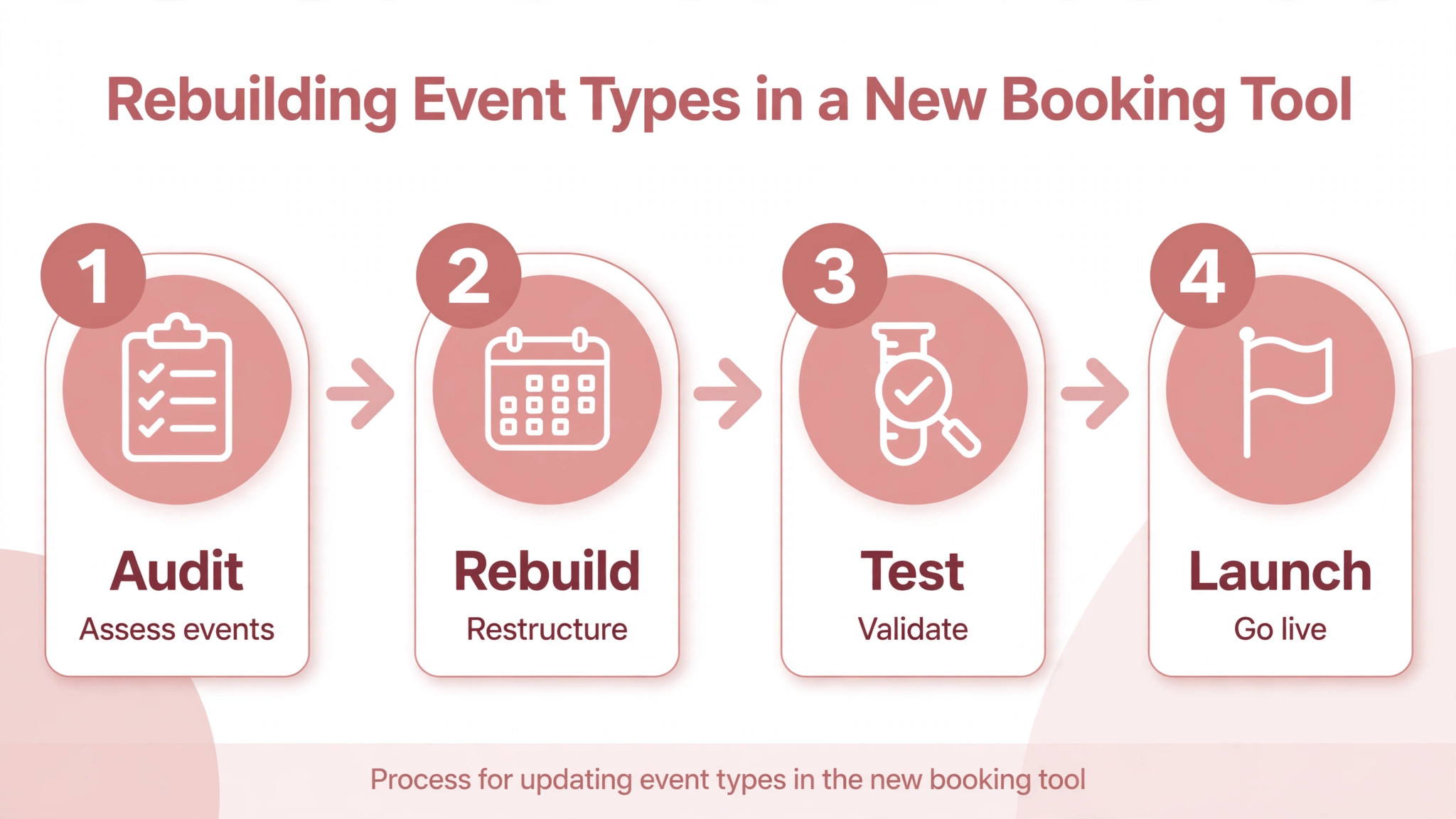
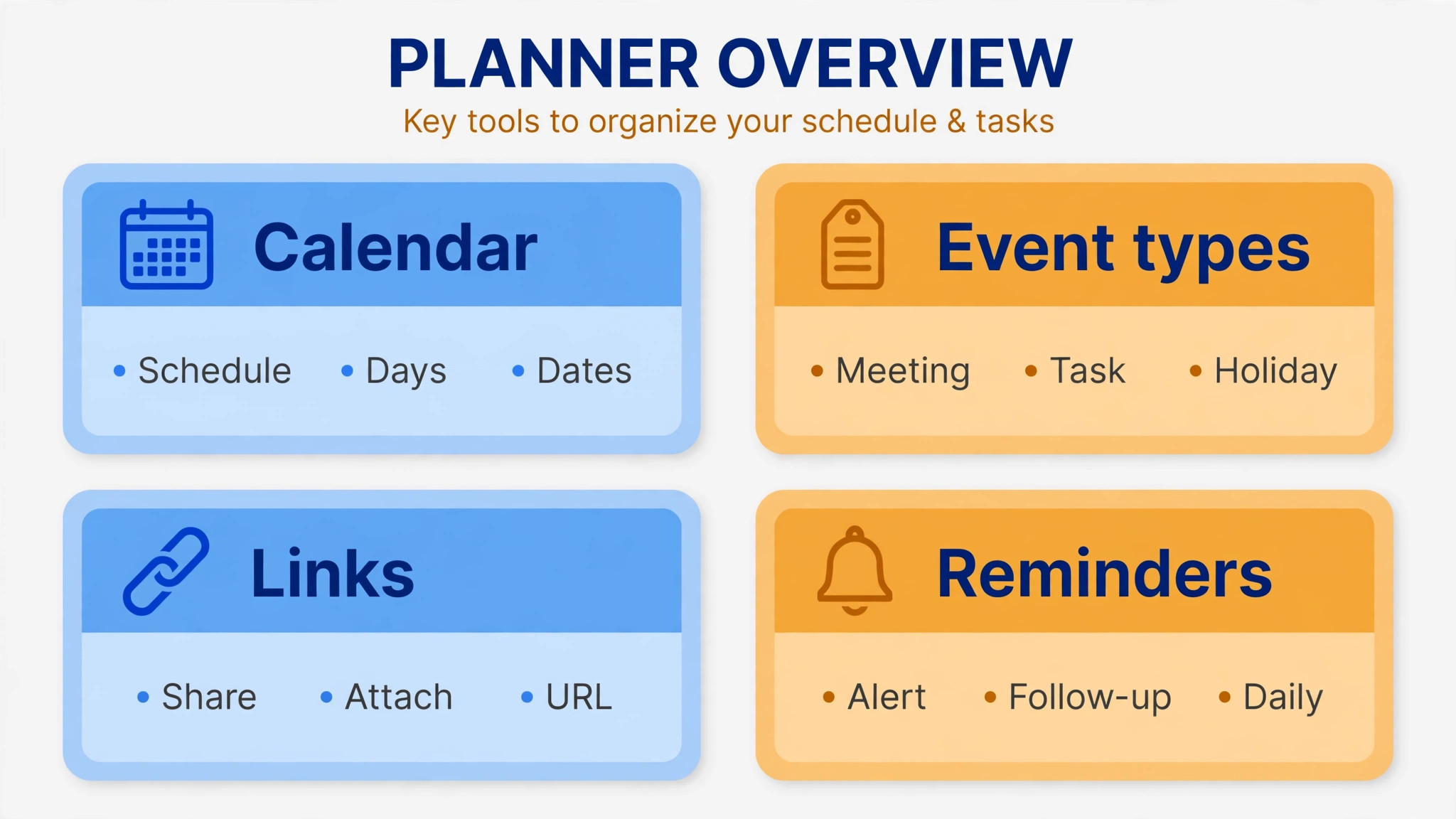
Start with a full list of Calendly event types, including hidden, duplicate, and rarely used ones. For each event type, record its name, duration, location, buffer before and after, booking window, minimum notice, maximum bookings per day, questions, and confirmation and reminder settings. That list becomes your rebuild specification. If you skip this audit, you will rebuild from memory, and memory misses the buffer that prevented back-to-back meetings or the question that collected a phone number for SMS reminders.
Decide what to keep, merge, or retire. Merge duplicate event types that serve the same service. Retire services you no longer offer, even if the link still gets occasional clicks, and redirect those visitors to the closest live service. Update durations to match reality, not the optimistic duration you set when the service launched. If a 30 minute consultation regularly runs to 45 minutes, set the duration and buffer to protect the next client. A booking tool should reflect how your business actually works, not how you wish it worked.
Questions deserve the same audit. Keep only questions that change how you prepare, confirm, or follow up. A question that no one reads adds friction and lowers completion. A question that collects a phone number, a location, or a key detail should stay, and it should be clearly labelled so clients answer it correctly. Test the rebuilt form as a client, not as the owner, and watch for questions that feel intrusive, confusing, or unnecessary on a phone screen.
Rebuild Booking Pages for Clients, Not for Staff
A booking page is a client-facing product, not an internal calendar view. Clients should understand what they are booking, how long it takes, where it happens, and what happens next, without needing to ask. Write service descriptions in plain language, state the location clearly, and confirm whether the meeting is in person, by phone, or by video. If a service has a price, show it or explain when payment is taken. Ambiguity at booking time creates no-shows and rescheduling messages later.
Branding matters here, but clarity matters more. Use your logo, colours, and a short welcome message that sets expectations. Avoid long paragraphs on the booking page itself. Clients arrive ready to pick a time, not to read a sales page. Put detailed service information on your website, and keep the booking page focused on choice, confirmation, and next steps. A clean page with one clear service list will outperform a busy page with every offer you have ever sold.
Test the page on a phone, because many clients book from a phone between tasks. Check the service list, the calendar grid, the time zone display, and the confirmation screen. Time zones cause more booking errors than any other setting. Confirm that the page shows times in the client’s time zone where supported, and that confirmation emails state the time zone clearly. If you serve clients across regions, add a line in the confirmation that states the time zone in words, not just as an abbreviation.

The Migration Checklist for Event Types, Pages, Links, and Reminders
Verify each item on a live test page before you share the new link publicly. A checked item means you booked through it yourself.
– Export Calendly event type details, booking records, and link lists – Audit event types and retire duplicates and outdated services – Connect the correct Google or Microsoft calendar to YouCanBookMe – Rebuild event types with durations, buffers, locations, and booking windows – Rewrite booking questions and test answers on a phone – Rebuild reminder emails, SMS reminders where used, and confirmation messages – Reconnect video conferencing, payments, and CRM integrations – Rebuild team pages, round robin rules, and staff roles – Create new booking links and update website, email signatures, and social bios – Set up redirects or notices on old Calendly links where possible – Test bookings, cancellations, rescheduling, and no-show handling – Keep Calendly access until future bookings and transition checks are complete
Old links are a special problem. Calendly links shared in emails, documents, social bios, and website buttons will not automatically point to YouCanBookMe. You must find and update them. Search your website, email templates, proposals, contracts, and social profiles for Calendly links. Where a link cannot be updated, such as a printed document or an old email, add a clear notice or a forwarding step where the platform allows it. Tell active clients directly about the new link, rather than hoping they discover it.
Reminders need a rebuild, not a copy. Calendly workflows and YouCanBookMe notifications use different settings, triggers, and wording. Rebuild each reminder with its timing, recipient, and message, then test it with a real booking. Check confirmation, reminder, cancellation, and rescheduling messages separately, because each one uses a different trigger. A reminder that arrives at the wrong time, or not at all, creates no-shows that look like client faults but are really system faults.

Payments, Video Links, and Integrations
If you take payment at booking, test the full payment path on YouCanBookMe before launch. That includes a successful payment, a failed payment, a refund process, and a cancellation with payment handling. Payment settings from Calendly do not carry over, and payout timing, fees, and supported methods may differ. Confirm who handles refunds, whether payment is taken at booking or later, and what the client sees on the confirmation page. A payment fault on launch day loses the exact clients who trusted the new link first.
Video links also need testing. Connect the correct Zoom, Google Meet, or Microsoft Teams account for each host, and test that the video link appears in the confirmation and calendar event. A booking without a working video link creates a meeting that cannot start, and clients often blame the host rather than the tool. If team members use separate video accounts, confirm each member’s connection, not just the owner’s. Team booking pages fail most often on a single unconnected member account.
Integrations with CRM, email, or automation tools must be rebuilt or reconnected. A Calendly automation that created a CRM record, sent a Slack message, or triggered a follow-up will not run on YouCanBookMe unless you rebuild it. List every automation before migration, rebuild the important ones, and test them with a real booking. Low-value automations can wait, but client-facing automations, such as follow-up emails and CRM records, should be ready on day one.

First-Week Cutover Plan
Run both tools in parallel during the first week, with Calendly handling existing future bookings and YouCanBookMe handling new bookings. That parallel run is the safest way to avoid double bookings and missed meetings. Staff must know which tool handles which bookings, and clients must receive one clear link for new bookings, not a choice between two systems.
| Day | Focus | Checks before you finish |
|---|---|---|
| Day 1 | Launch and new bookings | Test new pages, payments, and confirmations |
| Day 2 | Links and embeds | Update website, signatures, bios, and templates |
| Day 3 | Reminders and video | Test reminders, video links, and time zones |
| Day 4 | Team and calendar | Check team routing, buffers, and double booking |
| Day 5 | Cancellations | Test cancel, reschedule, and no-show handling |
| Day 6 | Support review | Fix repeat client questions and page wording |
| Day 7 | Closeout decision | Confirm bookings, then decide on Calendly plan |
On day 1, book a test meeting for each main service, from a phone and from a desktop. Check the calendar event, the confirmation email, the video link, and any CRM record. Then watch real bookings closely. A real client may book a combined service, reschedule quickly, or use a time zone you did not test. Log every fault and fix, because the log becomes your evidence that the new system is stable enough to promote.
Double booking is the fault to watch most closely. It usually comes from a calendar connection error, a missing buffer, or a team page that checks the wrong calendar. If a double booking happens, fix the cause before apologising for the symptom. Clients forgive a reschedule when the cause is fixed. They lose trust when the same fault repeats. Check calendar connections for every team member, not just the account owner, during the first week.
By day 7, compare booking volume, no-show rate, and support messages with a normal week. If new bookings flow cleanly and old Calendly bookings are honoured, you can reduce Calendly to a holding plan or close it, depending on future bookings still on the calendar. Do not close Calendly while future bookings still depend on it, unless you have moved those bookings by agreement with each client. A clean closeout protects both revenue and reputation.

How to Switch Calendly to YouCanBookMe Small Business Clients Without Confusing Them
Clients do not care about your booking tool. They care about booking quickly, receiving a clear confirmation, and joining the meeting without trouble. A move that confuses clients will cost more than a move that takes an extra week to prepare. To switch Calendly to YouCanBookMe small business clients smoothly, communicate once, clearly, and at the right time, and then make the new booking path the only path for new bookings.
Start with active clients. Send a short message that names the new booking link, explains that old bookings still stand, and gives a contact option if the new page does not work. Keep the message to a few sentences. Clients do not need a history of why you changed tools. They need the link, the reassurance that existing meetings are safe, and a way to reach you if something goes wrong. Send that message only after the new pages, reminders, and video links have been tested, not before.
When you switch Calendly to YouCanBookMe small business staff should also receive a short guide. Staff need to know which tool handles new bookings, which tool holds old bookings, how to cancel and reschedule in each system, and what to say if a client uses an old link. A one-page staff note prevents the most common transition error, which is a team member booking through the wrong system and creating a double booking. Put that note where staff actually work, not in a document no one opens.
Website and template updates should happen on the same day as the client message, not spread over a week. If the website shows a new link while email templates still show an old link, clients receive mixed signals and staff must monitor two systems longer than necessary. Update the website, email signatures, proposal templates, social bios, and automated messages in one focused session, then check each updated link by clicking it as a client would. That check takes minutes and prevents weeks of split bookings.
A client communication plan also needs a fallback. If a client cannot book through the new page, offer a phone or email booking option for the first week, and log the fault so it can be fixed. A fallback does not mean the new system failed. It means you protected a client relationship while fixing a fault. When you switch Calendly to YouCanBookMe small business clients will judge the move by how easily they could book, not by how modern the booking page looked.
After the first week, review client messages for patterns. If several clients ask where to book, the link update was incomplete. If several clients miss meetings, reminders or time zones need fixing. If several clients book the wrong service, the service list needs clearer names. Each pattern points to a specific fix, and fixing patterns in week two is normal. The goal is to switch Calendly to YouCanBookMe small business booking without losing the trust that made clients book in the first place, and trust is rebuilt one clear booking at a time.
Finally, keep the new booking page simple after launch. Resist adding every service, question, and upsell in the first month. A booking page that grows slowly, based on real client behaviour, will serve the business better than a page that tries to do everything on day one. When you switch Calendly to YouCanBookMe small business growth should come from meetings that happen, not from features that look impressive in a demo.
Mistakes That Break a Booking Migration
The most common mistake is sharing the new link before testing reminders and video links. A booking page that looks finished but sends no reminder will increase no-shows in the first week, and the team may blame the new tool rather than the untested workflow. Test every message type before launch, even if that means a slower launch day. A booking tool is judged by meetings that happen, not by pages that look good.
Another mistake is forgetting old links. A proposal, a contract template, or an email signature with an old Calendly link will keep sending clients to the old system long after launch. Those clients may still book, which creates a split system that staff must monitor. Search for old links systematically, update templates, and tell staff to use only the new link for new bookings. A split booking system is manageable for a week, but it becomes a permanent headache if no one closes the old links.
A third mistake is rebuilding every event type without an audit. Duplicate, outdated, and rarely used event types travel into the new system as clutter, and clients face a longer service list with more chances to choose wrong. Use the rebuild to simplify. Fewer, clearer services with correct durations and buffers will serve clients better than a complete copy of a messy old setup.
For related scheduling moves, read Switch Calendly to SavvyCal Small Business for another booking migration pattern, and Fix Calendly Double Booking Small Business if double bookings are the reason you are moving. For service scheduling context, Best Booking Software for Music Schools shows how lesson and service booking differ. For general scheduling choice, Best Scheduling Apps is a useful comparison. For paid booking setup, Cost of Acuity for Small Business Monthly helps frame what paid scheduling features cost.
Frequently Asked Questions
Can I switch Calendly to YouCanBookMe small business event types automatically?
No, there is no native importer that moves Calendly event types into YouCanBookMe. You must rebuild event types, booking pages, questions, reminders, and integrations by hand, using an audit of your Calendly setup as the specification. Calendar events themselves carry through your connected Google or Microsoft calendar, but booking configuration does not.
Do future Calendly bookings move to YouCanBookMe?
Future bookings stay on your calendar, so they remain visible and should be honoured. They do not become YouCanBookMe bookings automatically. Keep Calendly access during transition, honour existing bookings, and move a future booking only by agreement with the client, not by bulk cancellation.
Will clients need a new booking link?
Yes. New YouCanBookMe pages have new links, and old Calendly links will not automatically point to them. Update website buttons, email signatures, social bios, proposals, and templates, and tell active clients about the new link. Search systematically for old links, because forgotten templates keep sending clients to the old system.
Do reminders and workflows transfer?
No. Reminder emails, SMS reminders, confirmation messages, and cancellation workflows must be rebuilt in YouCanBookMe with its own triggers and wording. Test confirmation, reminder, cancellation, and rescheduling messages separately with real bookings before launch, because each uses a different trigger.
How long does the move take?
A solo business with a few event types can rebuild and test in a day or two. A team with many services, team routing, payments, and integrations can take one to two weeks, plus a first-week parallel run. The schedule depends on how many event types, integrations, and old links need updating, not just on the number of services.
Should I cancel Calendly on launch day?
No. Keep Calendly access until future bookings are complete or moved by agreement, and until YouCanBookMe bookings, reminders, and team routing run cleanly for a week. Cancelling early removes your view of old bookings and creates risk for clients who already booked through the old link.
A Booking Move Judged by Meetings Kept
A successful booking migration is measured in meetings that happen on time, with the right people, the right video link, and the right preparation. It is not measured by how quickly you created new pages. Take the time to audit event types, rebuild reminders, update old links, and run both tools in parallel for a week. That patience protects clients, staff, and revenue.
If YouCanBookMe fits your services, branding, and budget after a careful price check, the manual rebuild is worth it. You gain a booking system shaped around your current services, not around years of accumulated Calendly clutter. If the rebuild reveals that Calendly still fits better, that is also a useful result, because you will have audited your booking setup and can simplify it where you are. Either way, clients benefit when booking becomes clearer, and that clarity is the real goal of the move.
In the second week, review the booking data with fresh eyes. Look at which services were booked most, which times filled first, and where cancellations clustered. That data tells you whether durations, buffers, or availability windows need adjustment. A booking system should be tuned after real use, not set once and forgotten. Small adjustments in week two, such as a longer buffer after a popular service or a clearer service name, often improve the booking experience more than a larger redesign.
Keep a short list of booking improvements for the next month, and work through it one item at a time. Fix the biggest client friction first, then the biggest staff friction, then the cosmetic details. That order keeps the system useful while it improves, and it prevents a second disruptive rebuild soon after the first move, which is a benefit clients and staff will both notice every working day, and that steady benefit is the true payoff of a careful migration.