Two small teams can finish the same kind of meeting and have opposite experiences an hour later. To fix Microsoft Teams meeting recording missing small team cases, first decide whether policy, storage, or permissions is at fault. One team opens the meeting chat, finds the recording link waiting there, and shares it with a colleague who missed the call. The other team opens the same chat, finds nothing, searches OneDrive, searches SharePoint, asks everyone who attended, and still cannot find the recording. The difference is rarely that the recording never happened.
It is usually that the recording landed in a different place than the searcher expected, that a policy blocked recording for that meeting type, or that the searcher does not have permission to see a file that does exist.
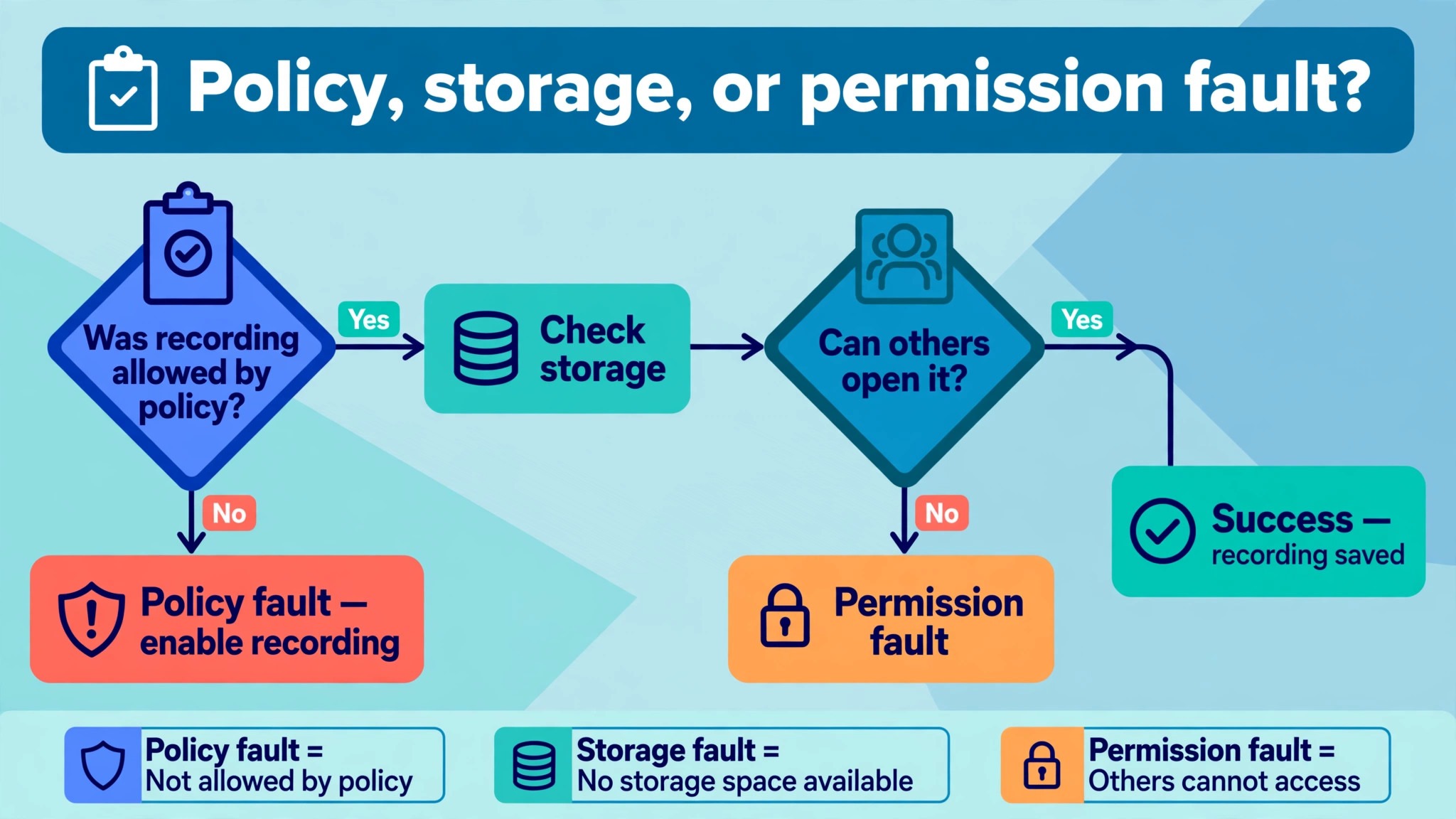
When you fix Microsoft Teams meeting recording missing small team problems, the first job is to decide which of those three cases you have, because each one has a different fix.
A missing recording matters more than a missing file. It may hold a client decision, a training walkthrough, a handover, or the only record of what was agreed. Recreating that content from memory is unreliable, and asking a client to repeat a meeting damages trust. At the same time, a frantic search that involves sharing links widely, downloading files to personal drives, or changing permissions for everyone creates a second problem, which is a sensitive recording ending up in the wrong hands. This guide keeps both risks in view.
It shows how to find a recording that exists, how to tell when a recording was never made, and how to recover or re-record in a way that respects privacy and permissions.
Recording in Teams follows a chain, and the chain decides where the file lands. First, policy must allow recording for the meeting organiser and for the person who starts it. Second, the meeting type decides storage, with regular meetings going to OneDrive and channel meetings going to SharePoint. Third, processing must finish before the link appears in chat. Fourth, permissions decide who can open, download, or share the file. A break at any link looks like a missing recording, but only the first link means nothing was recorded. The other breaks mean the file exists somewhere, and the job is to find it.
How to Fix Microsoft Teams Meeting Recording Missing Small Team in Order
Start by describing the meeting exactly, because the meeting type decides everything that follows. Was it a scheduled meeting, a Meet Now meeting, a channel meeting, a one to one call, a group call, or a webinar or town hall. Who organised it, who pressed record, and who is now looking for it. Was the record button visible during the meeting, greyed out, or missing entirely. Did anyone see a message that recording had started, and did anyone see a message that it had stopped.
Those answers separate a policy problem, where recording could never start, from a storage problem, where recording happened but landed elsewhere, and from a permission problem, where the file exists but the searcher cannot see it.
Check the meeting chat first, but do not stop there. A finished recording normally appears as a link in the meeting chat, and processing can take time, especially for long meetings, so a recording that finished minutes ago may not have appeared yet. Wait, refresh the chat, and check the chat on another device if you can, since a stale client can hide a link that is already there. If the link appears for the organiser but not for another attendee, the problem is sharing or permissions, not storage.
If the link appears for nobody after a reasonable wait, move to storage, and check the places listed in the next sections in order.
Work through the steps below in that order, and do not change policies or permissions until you know whether a file exists. Changing a policy will not recover a recording that was never made, and widening permissions before you know what the file contains can expose a sensitive meeting to people who should not see it. Find the file first, or prove it was never made, and only then decide who should have access to it.
Policy First, Because Policy Decides Whether Recording Could Start
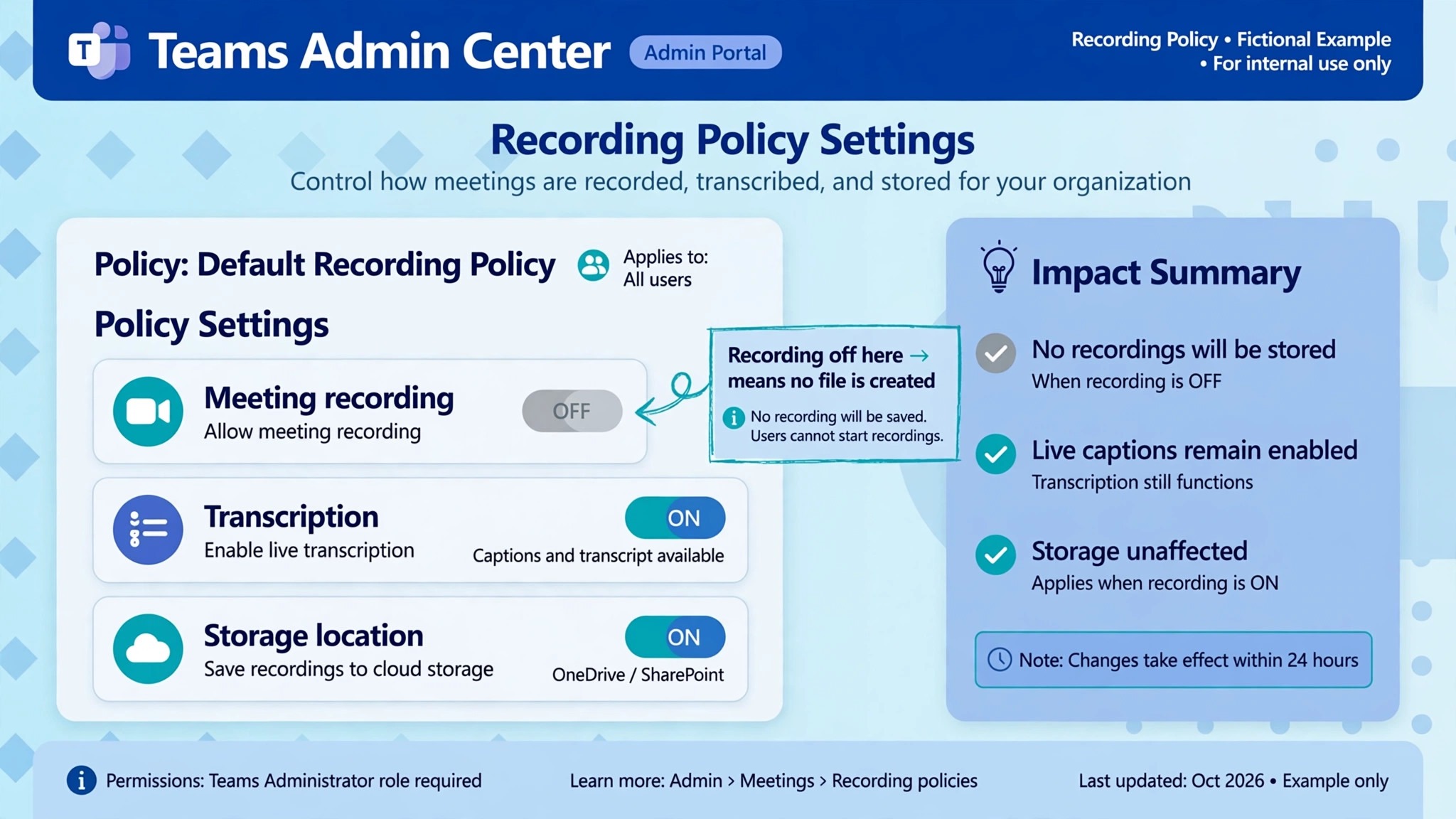
When you fix Microsoft Teams meeting recording missing small team policy faults, remember that recording in Teams is controlled by policy in the Teams admin centre, and a small team without a dedicated IT admin often discovers this only when recording fails. For regular meetings, the relevant meeting policy setting is the cloud recording setting, which must be on for the organiser and for the person who initiates recording. For one to one and group calls, a separate calling policy setting controls call recording, so a team that can record meetings may still be unable to record calls, or vice versa.
If the record button was missing or greyed out during the meeting, policy is the most likely cause, and no amount of searching OneDrive will find a file that was never created.
Licensing and account type matter alongside policy. Recording requires the organiser and the initiator to meet licensing and permission prerequisites set by Microsoft, including OneDrive and SharePoint being enabled for the tenant, sufficient storage for the owner, and the user not being an anonymous, guest, or federated user in the meeting. Guests and external participants generally cannot start a recording, and they cannot be expected to own one afterwards. If the person who was supposed to record joined as a guest, or from an external organisation without the right access, the recording may never have started, even though everyone else in the meeting assumed it had.
Meeting options add another layer. The organiser can control who can record, who can present, and related meeting options, and a meeting set up with restricted options may block recording for attendees who expected to start it. Ask the organiser to check the meeting options for that specific meeting, not just the general policy, since a single meeting can differ from the team default. If policy or options blocked recording, the honest conclusion is that no recording exists for that meeting, and the recovery section later in this guide covers what to do instead, including notes, a follow up recording, and a summary from attendees.
Admin changes also need time to take effect, and a policy change made during a meeting will not necessarily enable recording for that meeting. If your admin recently changed a policy, test it on a new short meeting, rather than assuming the old meeting should have recorded. Keep a note of which policy applies to which team members, since a small team often has different policies for staff, contractors, and guests, and a recording failure that affects only one group usually points at a policy difference between groups.
Storage Next, Because the File Lands by Meeting Type
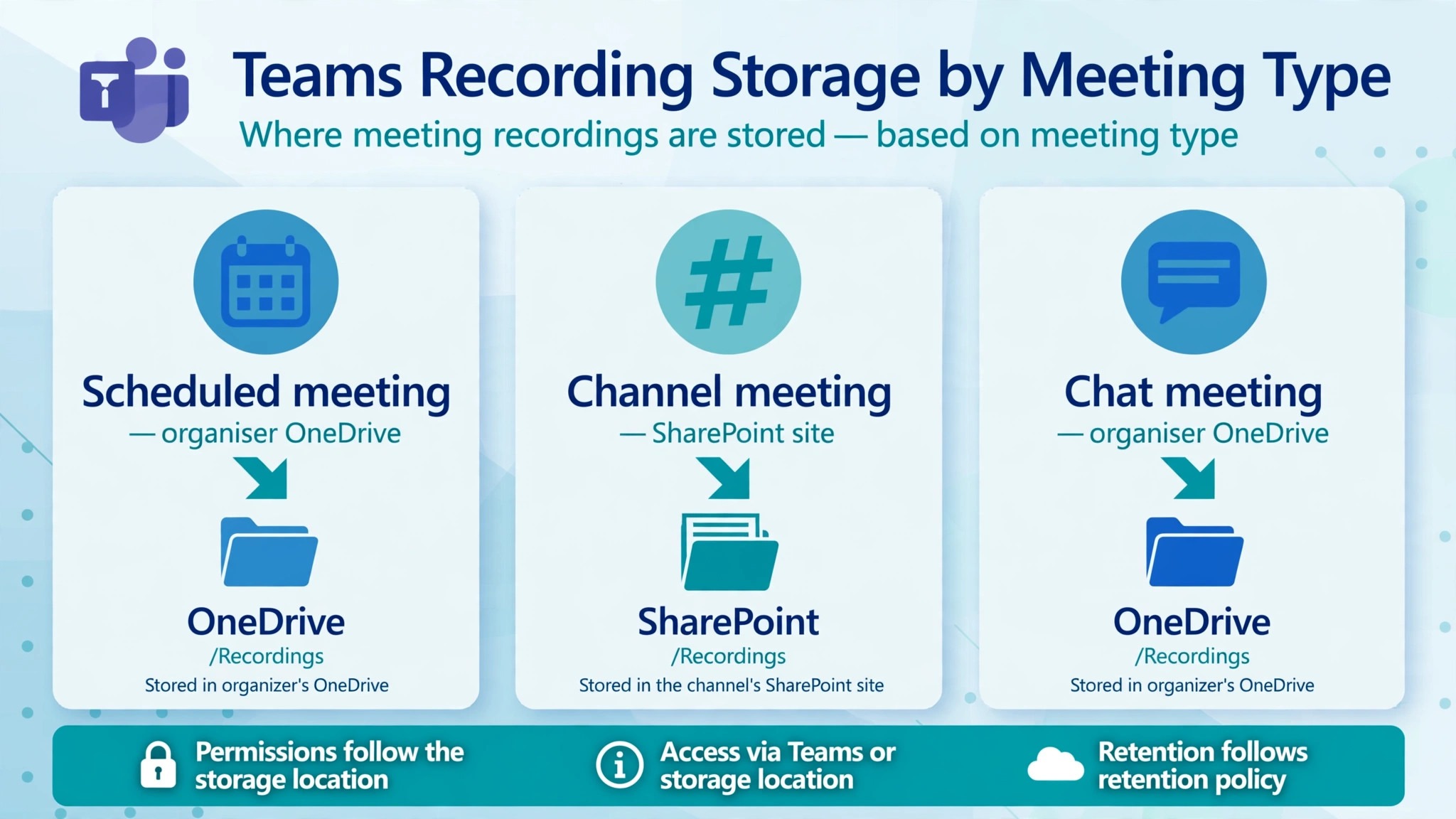
If recording did start, and you still must fix Microsoft Teams meeting recording missing small team storage searches, remember the file lands according to meeting type, not according to who pressed the button in most cases. For a scheduled meeting or a Meet Now meeting that is not a channel meeting, the recording is saved to the organiser OneDrive, in a folder called Recordings, even if the organiser did not attend and someone else pressed record. That surprises many teams, because the person who pressed record naturally searches their own OneDrive first, and finds nothing, while the file sits in the organiser OneDrive. Always check the organiser OneDrive first for a regular meeting.
For a channel meeting, the recording is saved to the team SharePoint site, in the document library for that channel, under a Recordings folder. The path follows the team and channel names, so a meeting held in the wrong channel will store its recording under that channel, not under the channel where the team expected it. Check the channel where the meeting was actually held, open its Files tab, and look for the Recordings folder. If download is blocked by policy for channel recordings, the file may sit in a view only folder, which is covered in the permissions section below.
For a one to one call or a group call, the recording is saved to the OneDrive of the person who selected record, in their Recordings folder. That is the exception to the organiser rule, and it is why call recordings and meeting recordings seem to land in different places. For webinars and town halls, recording behaviour follows event policies, which differ from regular meeting policies, so treat an event recording as a separate case and ask the event organiser where the recording was published, rather than searching regular meeting storage.
There are fallback cases worth knowing. If the organiser has no OneDrive, the recording may fall back to a co-organiser OneDrive, and then to the recording initiator OneDrive. If the organiser left the organisation, or their OneDrive is inaccessible, the file may be harder to reach, and an admin may need to help. A recording file is a video file, and guides commonly note that an hour of recording can be several hundred megabytes, so it counts against the storage quota of whoever owns it.
A full OneDrive or SharePoint quota can block a recording from saving, which is another reason a recording can appear to vanish after a meeting that seemed to record normally.
Processing Delays, Expiry, and the Recycle Bin
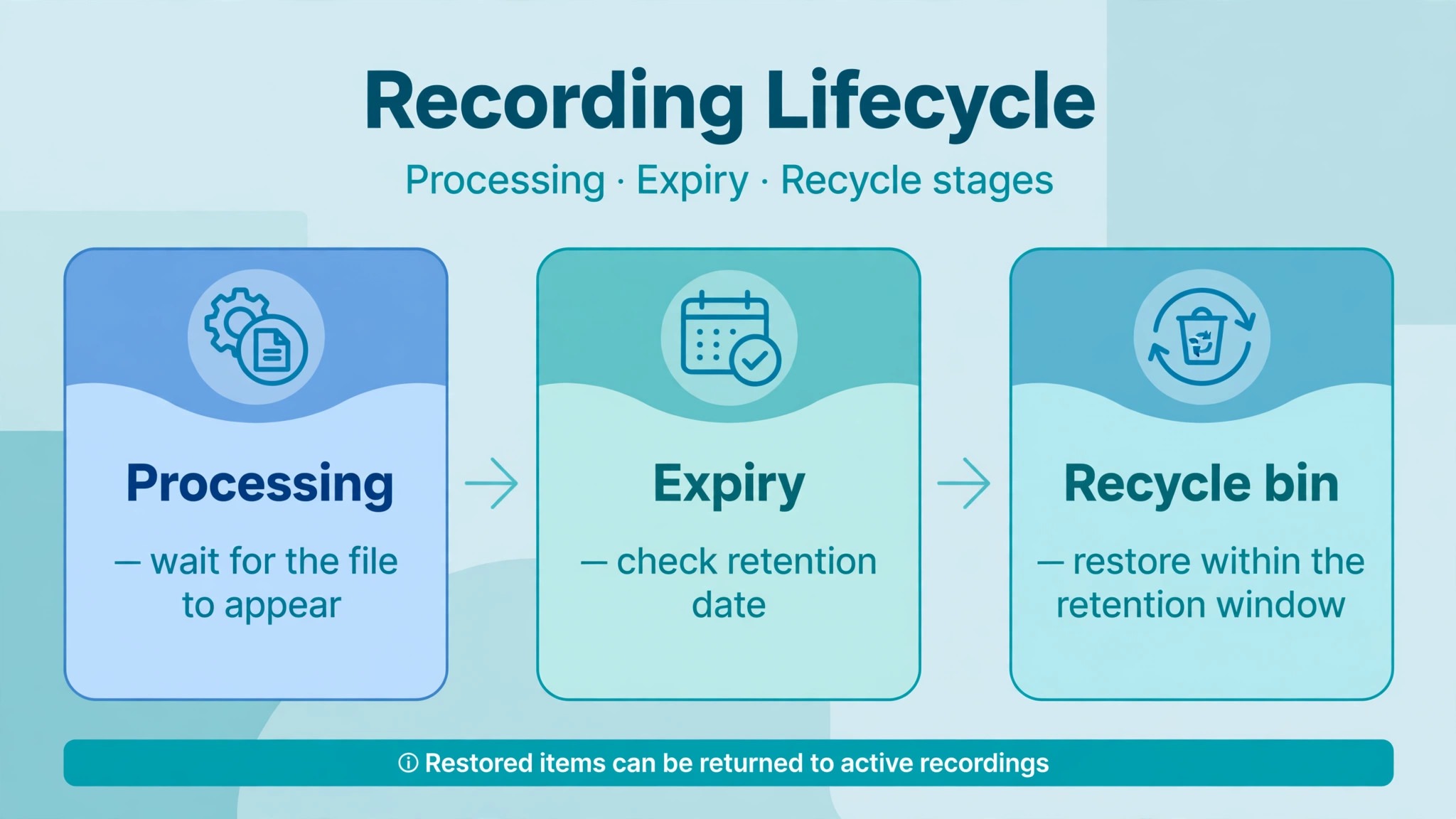
A recording that was made but has not finished processing will not appear in chat yet, and searching too early creates false alarms. Processing time varies with meeting length, and a long meeting takes longer than a short one. Wait, refresh, and check again before concluding the recording is missing. Also check whether the recording link is simply buried in a busy chat. A meeting chat with many messages after the meeting can push the recording link far up the history, and a searcher who only looks at recent messages will miss it.
Use the chat search or the shared files view for that meeting to find the recording, rather than scrolling.
Expiry and deletion are the next checks when a recording existed but can no longer be found. Recordings stored in OneDrive and SharePoint are subject to retention and expiry settings set by the organisation, and a recording that expired may have been moved to a recycle bin or deleted, depending on those settings. Ask the file owner to check the OneDrive recycle bin, or the SharePoint recycle bin for a channel recording, and check whether a retention policy applies.
A file in a recycle bin can often be restored by its owner, while a file deleted beyond retention may be unrecoverable, and an admin may need to check retention and compliance settings before declaring it lost.
Also check whether the meeting itself was deleted or the channel was renamed, archived, or deleted. A channel recording lives with its channel site, so archiving or deleting the channel can hide the recording even though the file still exists in SharePoint. An admin can check the site status and restore access if needed. Do not assume a recording is gone because its chat link broke. The chat link is a pointer to a file, and a broken pointer does not mean the file was deleted. Search the storage location directly, by file name and date, before concluding anything.
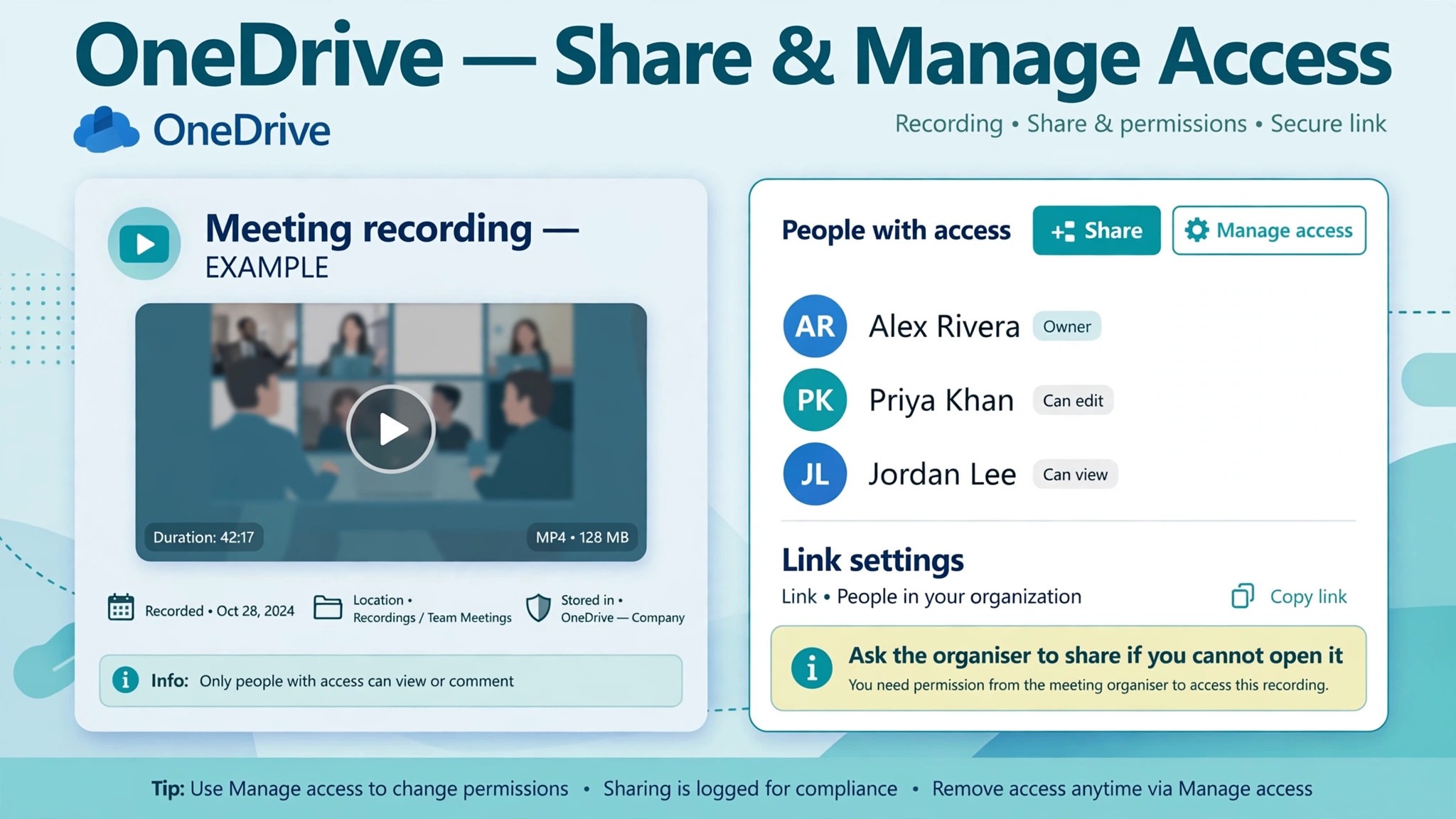
When the file exists but a team member cannot open it, and you must fix Microsoft Teams meeting recording missing small team access problems, permissions are the cause, and the fix belongs to the file owner. For a regular meeting, invitees inside the organisation typically receive access through the shared recording link, while external and guest viewers need an explicit share from the owner. A link in chat does not guarantee access for everyone who can see the chat, and an external attendee who clicks the link may see an access denied message even though internal attendees can watch the recording.
The owner can fix this by opening the file in OneDrive, choosing share or manage access, and adding the specific person with the correct permission.
Download permission is a separate setting from view permission. Attendees other than the organiser and co-organisers may be able to watch a recording but not download it, and the download command will be missing from their menu. That is expected behaviour for view only access, not a fault in the recording. The owner can change the access entry from view to edit where download is appropriate, or download the file and share it through an approved channel. Be careful with external sharing, since a link that anyone can open has no sign in trail, and it should not be used for sensitive meetings.
Prefer a link for people in the organisation, or a link for specific named people, over a public link.
Channel recordings follow channel and SharePoint membership, plus a channel recording download policy. If that policy is set to block downloads, channel recordings are stored in a view only folder, and attendees can watch but not download. The folder path itself confirms the policy, since a view only folder name appears in the path. Changing that policy is an admin decision that affects every channel recording, not a per file fix, so do not ask an admin to change it for one meeting without understanding the wider effect.
For a single file that needs downloading, the owner or admin can provide a copy through an approved route, rather than changing the policy for the whole organisation.
Large meetings add a permission wrinkle. In very large meetings, some attendees may not receive automatic file permissions, and the owner may need to add them to the share list individually. If a recording works for most attendees but not for a few, check those few individually in the share list, rather than assuming the file is broken. The same logic applies when a team member changed roles, left a team, or lost access to a channel, since their permission may have changed even though the file did not.
What to Do When No Recording Exists
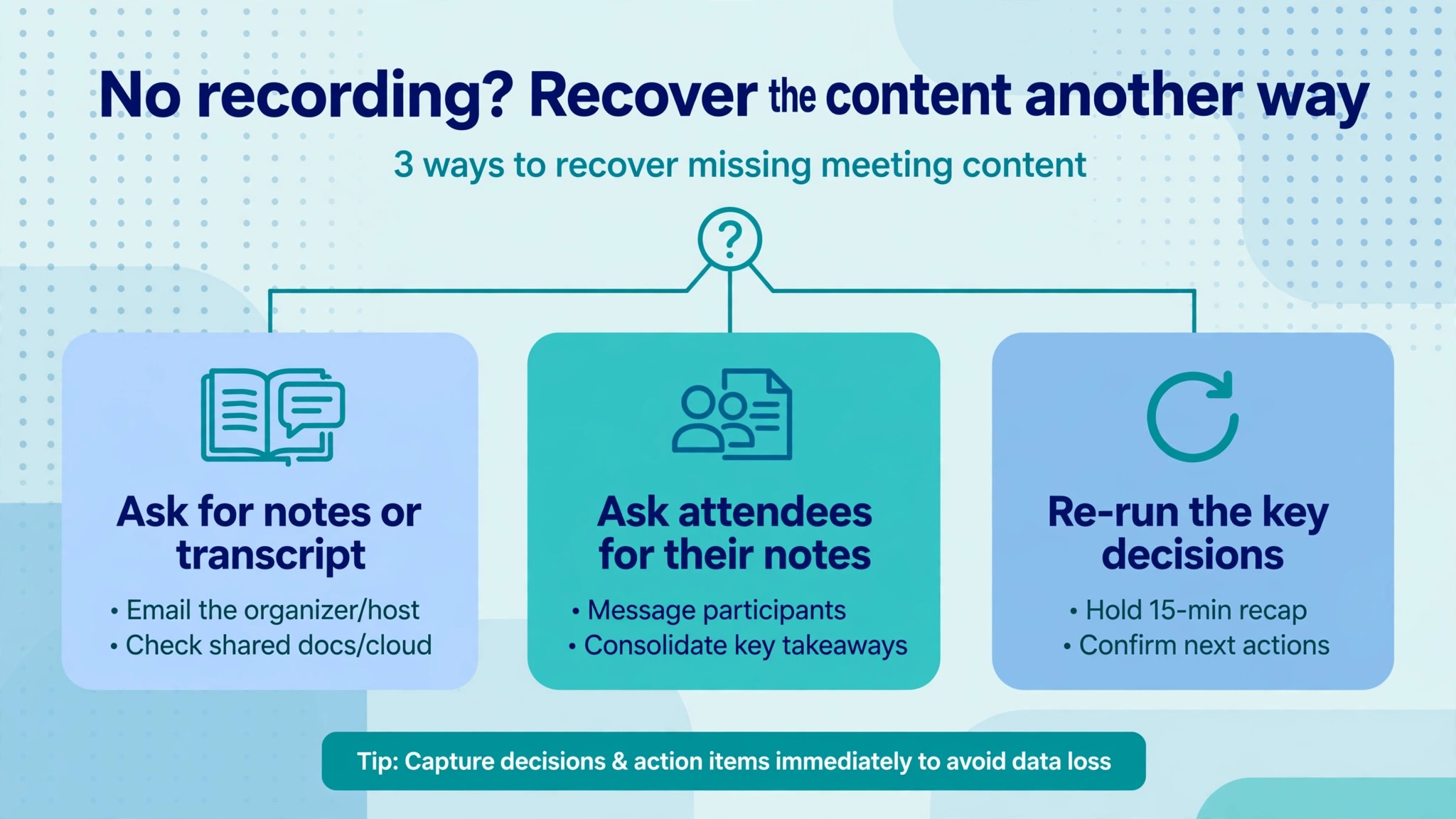
If policy, storage, and chat checks all show that no recording was made, and you cannot fix Microsoft Teams meeting recording missing small team files by finding one, stop searching and start recovering the content another way. Ask attendees for notes, slides, chat messages, and any screen captures taken during the meeting, and combine them into a written summary while memories are fresh. The chat transcript, if one was kept, may hold decisions and links even without a video recording. Check whether transcription was enabled for the meeting, since a transcript can sometimes be recovered even when a video recording was not made, depending on settings.
Arrange a short follow up recording for the essential content, rather than trying to recreate the whole meeting. A fifteen minute summary recording, made by the right person with the right policy and storage, is more useful than a long attempt to repeat everything. In that follow up, state decisions clearly, name owners and dates, and share the recording link immediately, so the team can confirm it is accessible. Use the follow up as a test of the fixed policy or process, and confirm the recording appears in chat and in the expected storage location before relying on it.
Prevent the same failure by assigning recording ownership before the next meeting. Name the organiser, name the person who will press record, confirm that person can record under policy, and confirm where the file will land. Add a short check at the start of important meetings, where the recorder confirms recording has started and the link will be shared afterwards. That two minute habit prevents most missing recording incidents, because it catches policy and permission problems while the meeting is still running, when they can still be fixed.
The Recording Recovery Checklist to Run for Every Missing Recording
Use this checklist in order, and stop as soon as the recording is found. It is the overview proof element of this guide in practical form.
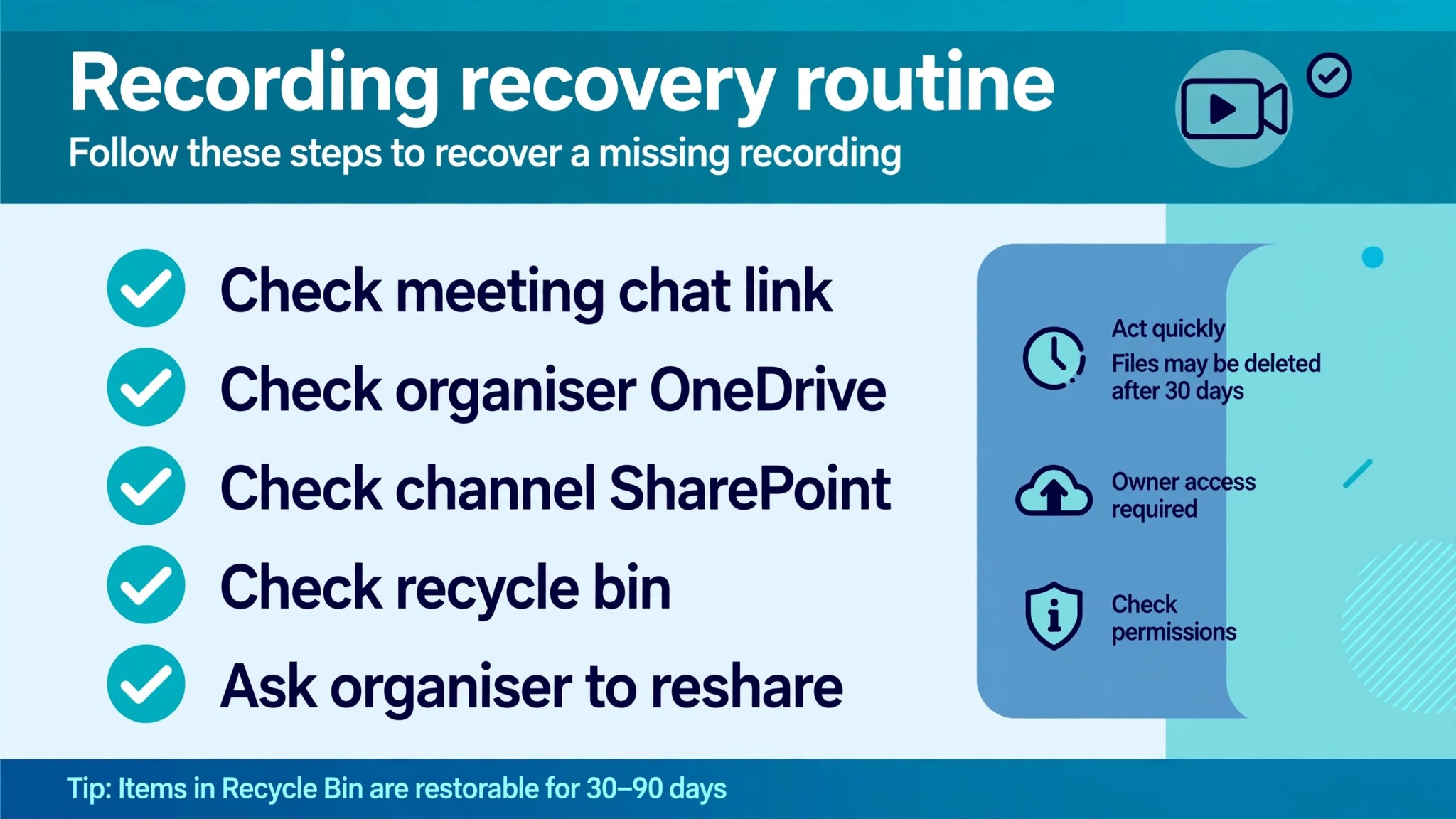
Step 1, identify the meeting type and people
Note whether it was a scheduled, channel, call, or event meeting, who organised it, who pressed record, and whether the record button was visible.
Look for the recording link in chat, in shared files, and by searching the chat, after allowing time for processing to finish.
Step 3, check policy for that meeting type
Confirm cloud recording is on for the organiser and initiator for meetings, or call recording is on for calls, and confirm the recorder was not a guest or external user.
Step 4, check the correct storage location
Check organiser OneDrive Recordings for regular meetings, SharePoint channel Recordings for channel meetings, and recorder OneDrive Recordings for calls.
Step 5, check fallback storage and recycle bins
If the organiser has no OneDrive, check co-organiser storage, then check recycle bins and retention settings for an expired or deleted file.
Step 6, check permissions and sharing
Ask the file owner to check manage access, add missing attendees individually, and confirm whether download is view only or blocked by channel policy.
Step 7, recover the content if no file exists
Gather notes, slides, and chat, check for a transcript, and record a short follow up covering decisions, owners, and dates.
Step 8, record the lesson and fix the process
Assign a recorder for the next meeting, confirm policy and storage in advance, and note the fix so the same failure does not repeat.
Mistakes That Make a Missing Recording Worse
The first mistake is sharing a recording link widely before checking who can open it. A sensitive meeting shared with an anyone link can reach people far beyond the intended audience, and that access cannot be fully undone once the file is downloaded. Share with named people or with the organisation only, and check the share list before sending the link onward. The second mistake is changing a policy for one meeting without understanding its wider effect. A channel download policy, a recording policy, or an external sharing policy affects many meetings, and a change made in a hurry can expose future recordings or break other teams workflows.
The third mistake is assuming the person who pressed record owns the file. For regular meetings, the organiser owns it, and the recorder searching their own OneDrive will waste time while the file sits elsewhere. Always start from meeting type and organiser, not from who pressed the button. The fourth mistake is deleting a meeting chat or channel before checking for recordings. A deleted chat link or an archived channel can hide a file that still exists, and recovery becomes harder once the container is gone. Check storage directly before deleting anything related to a meeting whose recording is missing.
The fifth mistake is re-recording a whole meeting from memory without labelling it as a reconstruction. A reconstruction that is presented as the original recording will mislead anyone who relies on it later, especially for decisions and dates. Label any follow up recording clearly as a summary made after the meeting, state what it covers, and keep attendee notes alongside it, so future viewers know what they are watching.
How to Set Up Recording So the Next Meeting Is Found
A small team does not need a complex policy to avoid most recording failures. It needs a short, shared routine. Before an important meeting, the organiser confirms the meeting type, confirms the recorder, and confirms the recorder can record under current policy. During the meeting, the recorder confirms recording has started, and a second person notes the start time, so the team knows a recording should exist. After the meeting, the recorder checks that the link appears in chat, opens the file in its storage location, and shares it with the people who need it, using named sharing rather than a public link.
Storage hygiene helps too. Keep a simple record of where recordings live, by meeting type, and share that record with the team, so nobody searches the wrong place first. Review storage quotas for organisers who record often, since a full OneDrive can block future recordings without warning. Review channel membership when team members join or leave, since a new member may not have access to old channel recordings, and a departing member may retain access until their membership is removed. Those two reviews, done quarterly, prevent a large share of permission surprises.
For related reading, see Zoom meeting link not working, Calendly double booking, Gmail going to spam and setting up a waitlist. Those posts cover adjacent meeting, scheduling, and email problems, and the same lesson applies when you fix Microsoft Teams meeting recording missing small team issues. Identify the meeting type first, check the correct storage, and confirm permissions before declaring a recording lost.
Frequently Asked Questions
Where do Teams meeting recordings save?
For a regular scheduled or Meet Now meeting, the recording saves to the organiser OneDrive, in the Recordings folder, even if someone else pressed record. For a channel meeting, it saves to the team SharePoint site, under that channel Documents and Recordings. For a one to one or group call, it saves to the recorder OneDrive Recordings folder.
That usually means recording policy does not allow it for that user or meeting type, or the user joined as a guest or external participant. Check the meeting policy for cloud recording, the calling policy for call recording, and the meeting options set by the organiser.
Why can I watch a recording but not download it?
Download is a separate permission from viewing. Attendees other than the organiser and co-organisers may have view only access, and channel recordings may be stored in a view only folder when download is blocked by policy. Ask the file owner to change your access, or to provide a copy through an approved route.
How long should I wait for a recording to appear?
Processing takes time, and longer meetings take longer. Wait, refresh the meeting chat, and check the shared files view before concluding the recording is missing. A link buried in a busy chat can also look like a missing recording, so search the chat rather than only scrolling recent messages.
Can an external guest access a Teams recording?
Not automatically. External and guest viewers need an explicit share from the file owner, and the organisation sharing policy must allow it. The owner should share with the specific person, rather than using a public link, especially for sensitive meetings.
What if the organiser left the organisation?
The recording may still exist in the organiser OneDrive or SharePoint, but access may need admin help, and fallback storage may apply. Contact your admin with the meeting date, organiser name, and meeting type, so they can locate the file or confirm whether retention settings removed it.
A Practical Verdict for a Small Team
A missing Teams recording is usually a finding problem, not a lost meeting. The file is often in the organiser OneDrive when the team searched the recorder OneDrive, or in a SharePoint channel folder when the team searched chat only, or visible to the organiser but not yet shared with the person looking for it. Policy is the exception, and when policy blocked recording, the honest answer is that no file exists, and the team should recover the content with notes and a short follow up recording.
Work the checklist in order, from meeting type to chat, from policy to storage, from recycle bins to permissions, and share what you find with named people only. Teams that follow that routine spend less time searching, protect sensitive meetings, and rarely lose a recording twice. That is the practical result when you fix Microsoft Teams meeting recording missing small team problems properly, and it starts with naming a recorder and a storage location before the next meeting begins.