
Canva vs Figma is not really a contest between two versions of the same product. It is a choice between two different jobs. Canva Pro costs about $18 a month, or about $144 a year, for one person, while Figma Professional costs about $16 per full seat a month on annual billing. Those headline numbers look close, and that closeness misleads a lot of buyers. One tool is built to publish finished marketing output fast. The other is built to design, test and hand over product interfaces that a development team will build. If you buy the wrong one, you will feel it every week, not just on the invoice.
This guide compares them the way a buyer should: on the work itself. We look at speed for everyday marketing assets, control for product design, collaboration, AI features, brand control, pricing at team scale, and what happens when a file has to leave the tool. Prices quoted here reflect publicly listed October 2026 figures, and you should check checkout before you commit, because both vendors adjust plans and seat types. By the end you should know not only which tool wins overall for your situation, but which one to buy first if you can only afford one right now.
The Short Answer on Canva vs Figma
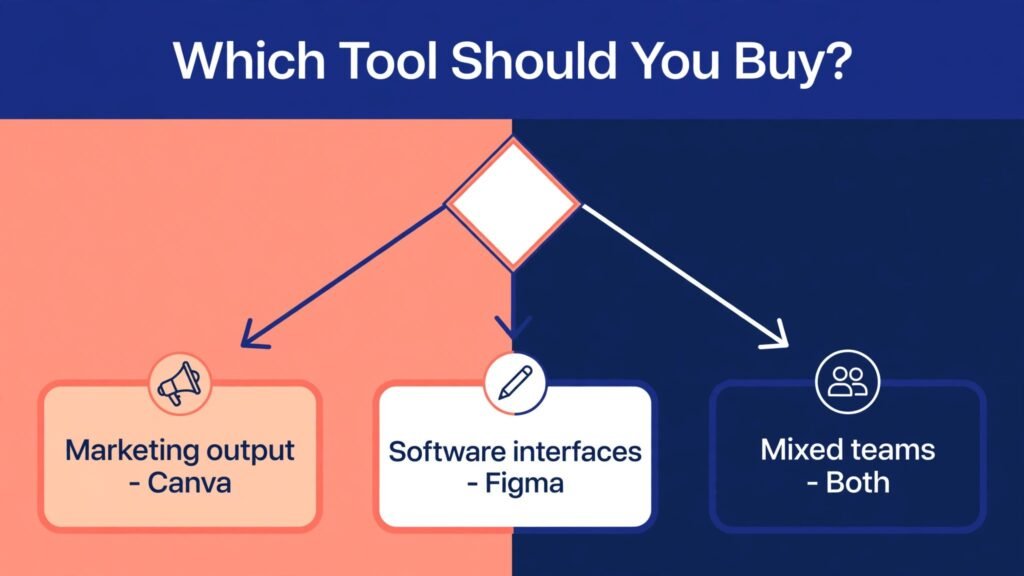
If you publish social posts, decks, flyers, lead magnets and short videos, buy Canva first. You will ship faster, you will need less training, and your non designer colleagues will actually use it. If you design apps, websites or any product that developers must build from your files, buy Figma first. Its components, variants, auto layout and developer handoff have no real equivalent in Canva, and trying to force Canva into that job creates rework that costs far more than a seat licence.
The honest answer for many organisations is both, used for different jobs. Give product designers and developers Figma seats, and give marketers and founders one or two Canva Pro licences for daily output. That split is usually cheaper than giving everyone the wrong tool, and it stops the familiar argument in which each side insists the other tool is broken, when in fact each side is asking it to do work it was never designed to do.
How This Comparison Was Judged
A fair comparison needs the same jobs, not the same feature checklist. We judged both tools on seven practical tests: how fast a non designer can publish a usable social set, how well a design system survives real change, how clean the handoff to developers feels, how useful the AI features are in daily work, how brand control holds up across a team, how the bill scales from one person to ten, and how easily finished work leaves the tool in a usable form. Each test below ends with a verdict, so you can weight the tests that match your own work and ignore the ones that do not.
We also paid attention to friction that does not show up on a pricing page. A tool that is powerful but unused is a worse purchase than a simpler tool your team opens every day. Likewise, a tool that is fast for one asset but forces a rebuild for every variation is slower over a quarter than a tool that is slower on day one but scales cleanly.
Canva in Depth: Speed, Templates and Publishing
Canva wins on time to first good result. Open a template, swap the text and image, apply your brand colours, and export. A social post, a presentation slide, a poster, a thumbnail and a short video can all come from the same account, and most of them can be resized for another format without starting again. Magic Resize on paid plans is the feature that turns one campaign asset into a full set, and for a small marketing team that single capability can save hours every week.
The template library is both the strength and the limit. It is enormous, and for common formats it is genuinely good. For distinctive brand work it can also be a trap, because thousands of other businesses start from the same templates. The fix is to treat templates as a starting point, not a finished design: change the layout, change the imagery, rewrite the headline, and lock brand fonts and colours in a brand kit so the output still looks like yours. Canva Pro and Business both support brand kits, and Business adds the controls a larger team needs, including more kits and stronger admin options.
Canva also covers more of the publishing chain than Figma. You can schedule social posts from the Content Planner, present directly from a deck, print through Canva Print, and export video in formats ready for social platforms. That end to end path matters for a solo creator or a small team, because every extra export, conversion and upload is a place where work stalls. Canva keeps the chain short.
Canva Pricing, Best For and Watch Outs
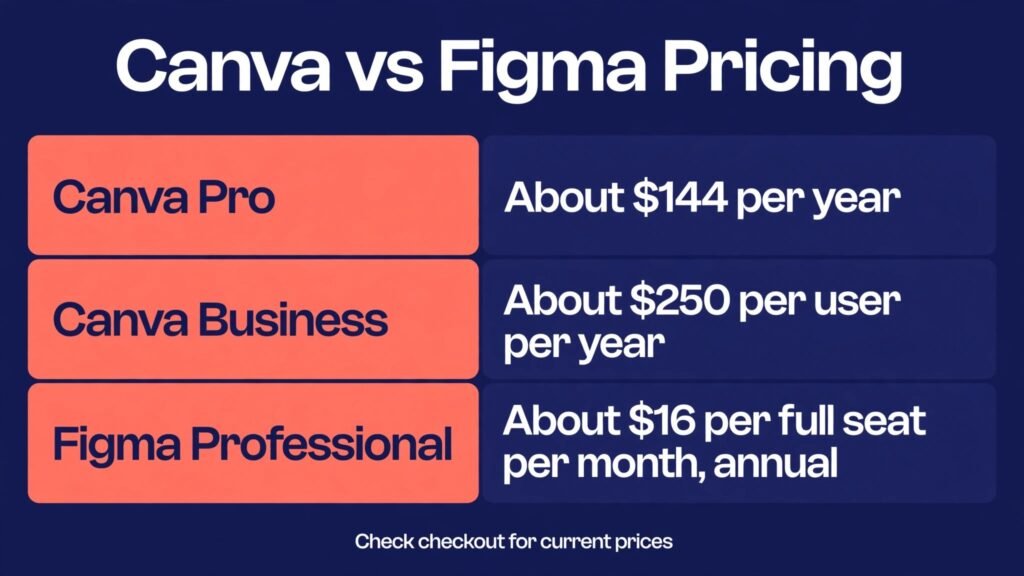
Canva Free is genuinely useful for occasional work, with thousands of free templates and basic editing, but paid features, premium stock and brand tools are limited. Canva Pro, at about $18 a month or about $144 a year for one person, is the plan most solo creators and small teams should price first. Canva Business, at about $25 per user a month or about $250 per user a year, is now the team plan for new buyers, because the older flat rate Teams plan is closed to new sign ups. Enterprise pricing is quoted on request. Check checkout for your region and currency, because Canva shows local pricing and the annual saving varies.
Canva is best for marketers, founders, creators, educators, small business owners and anyone who publishes often and has no dedicated designer. It is also the better choice for print, presentations and social video, where Figma is simply not built to compete. Watch out for three things. First, Pro is a one person licence, so a team that shares one Pro login is not buying a team plan and will hit admin and brand limits. Second, template sameness is real, so distinctive brands need custom templates and strict brand kits. Third, Canva is not a product design tool: it has no component variant logic, no token pipeline and no developer handoff surface that a serious engineering team can rely on.

Figma in Depth: Systems, Prototypes and Handoff
Figma wins where design has to survive change. A button built as a component with variants can be updated once and change everywhere, across dozens of screens, without a designer hunting through files. Auto layout lets a card grow with its content instead of breaking when a headline gets longer. Variables and styles let a team change a colour, a spacing value or a type scale in one place and see the effect across a product. That is the difference between a design file and a design system, and it is why product teams accept a steeper learning curve.
Prototyping in Figma is also in a different class. You can link screens, add interactions, test flows with real users, and iterate on a flow in the same file where the screens live. FigJam adds whiteboarding and early ideation, Figma Slides covers decks for product reviews, and Dev Mode gives developers measurements, code snippets, variables and asset exports in one place. For a team shipping software, that single source of truth replaces a chain of screenshots, specification documents and chat messages that always drift out of date.
The cost of that power is real. Figma rewards people who invest in structure, and it punishes files built without it. A file with no components, no naming discipline and no library governance becomes hard to maintain fast, and new team members need training before they can contribute safely. That is not a flaw in the tool so much as a statement about what it is for: it is a professional product design environment, and it expects professional habits.
Figma Pricing, Best For and Watch Outs
Figma Starter is free, with a limited number of design and FigJam files, and it is enough to learn the tool and run small projects. Figma Professional costs about $16 per full seat a month on annual billing, with monthly billing higher, and it adds unlimited files, team libraries, branching and Dev Mode. Organisation and Enterprise tiers, at higher per seat rates, add governance, analytics, advanced security and support for larger organisations. Figma also uses different seat types, including Dev seats for developers and Collab seats for people who mainly use FigJam and Slides, so a mixed team should price by seat type rather than assuming every person needs a full seat. Check checkout before you budget, because seat definitions and prices change.
Figma is best for product designers, UX teams, front end developers, product managers and any team that designs software interfaces, runs user testing on prototypes, or maintains a shared design system. It is the safer choice for agencies that hand work to client engineering teams. Watch out for seat sprawl, because full seats bought for people who only comment are wasted money, and watch out for file governance, because a shared library without an owner becomes inconsistent within months. Also note that Figma is not a publishing tool: if your main output is social content, print or video, you will be working against the tool rather than with it.

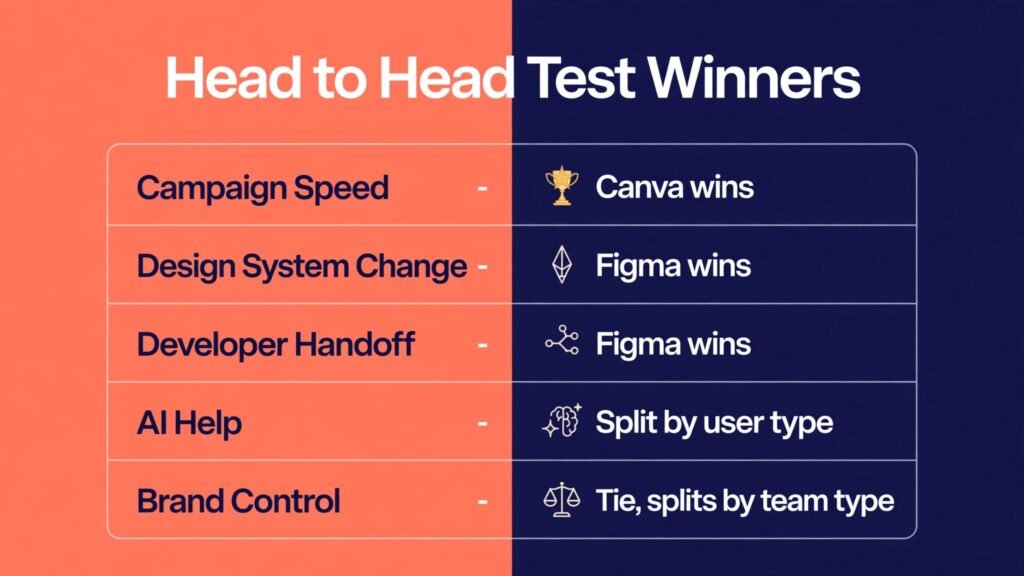
The task was simple: take one campaign message and produce a feed post, a story, a banner and a short video caption set, all on brand. Canva finished the set in a fraction of the time Figma needed, because templates, stock media, Magic Resize and direct social export are built for exactly this job. A marketer with no design training could complete it in Canva with confidence. In Figma the same job required building frames, sourcing imagery elsewhere, and exporting each format by hand, which is workable for a designer but slow for everyone else. Verdict: Canva wins this test by a wide margin, and it is the test that matters most for marketing led teams.
Test 2: Build and Change a Design System
The task was to build a button, a card and a navigation element, then change the primary colour and the corner radius across a 20 screen flow. Figma did it in minutes through components, variants and styles. Canva could produce attractive individual screens, but changing a shared element across many designs required editing each design or rebuilding from a template, which does not scale. For a product that will change weekly for years, that difference compounds into hundreds of hours. Verdict: Figma wins this test decisively, and it is the test that matters most for product teams.
Test 3: Hand Work to Developers
The task was to hand a finished screen to a developer who had never seen the file and ask for a build ready specification. Figma Dev Mode delivered measurements, spacing, colours in usable formats, typography, variables and exportable assets in one place, and the developer could inspect without asking the designer for a new export. Canva exports attractive images and PDFs, but it does not provide that inspectable specification layer, so developers end up guessing spacing and colours or requesting new files. Verdict: Figma wins, and for engineering teams this test alone settles the purchase.

Test 4: AI Help in Daily Work
Canva AI features are aimed at volume production: generate an image, remove a background, expand a design, rewrite text, and resize a whole set. They are easy to reach and they save time on repetitive marketing work, although generated images still need a human eye for text errors and brand fit. Figma AI features are aimed at workflow: first drafts from a prompt, renaming layers, tidying structure and speeding up routine design tasks. They help a designer move faster, but they do not replace design judgement, and they are less useful to a non designer who just needs a finished post. Verdict: Canva wins for everyday content AI, Figma wins for professional workflow AI, so weight this test by who will use the tool.
Test 5: Brand Control Across a Team
Canva brand kits keep fonts, colours and logos consistent, and Business adds stronger controls for larger teams, but the control is at the asset level: it keeps individual designs on brand. Figma libraries control the system level: shared components, styles and variables keep every screen consistent, and changes propagate. For a marketing team, Canva brand control is enough and easier to enforce. For a product organisation, Figma library governance is the only control that survives scale, because asset level checks cannot catch a component that has drifted in fifty screens. Verdict: a tie that splits by team type, with Canva ahead for marketing teams and Figma ahead for product organisations.
Pricing at Real Team Sizes
Headline prices hide the real bill, so run the numbers for your team shape, not just for one person. A solo creator pays about $144 a year for Canva Pro or about $192 a year for a Figma Professional full seat on annual billing, before taxes, so Canva is cheaper for one person. A seven person mixed team changes the picture: three Figma full seats plus cheaper Dev and Collab seats for the rest can cost less than putting all seven people on Canva Business at about $250 per person a year, and the mixed Figma setup buys a design system as well. Conversely, a seven person marketing team with no product work should not buy Figma seats for everyone at all; one or two Canva Pro or Business seats will cover the work.
The practical rule is to price by job, not by headcount. Count full Figma seats only for people who design in Figma, Dev seats for developers who inspect, and Collab seats for reviewers. Count Canva seats only for people who publish marketing output. Teams that price every employee on both tools will overpay, and teams that share logins to avoid seat costs will lose admin control and auditability. Check checkout for both vendors, confirm seat minimums, and budget for the plan that includes the features you actually need, because a cheap plan that lacks Dev Mode, brand kits or automation is not a saving if you upgrade within a month.
| Area | Canva | Figma |
|---|---|---|
| Best for | Marketing, social, print, decks, video | Product UI, design systems, prototypes |
| Free plan | Useful for occasional work | Limited files, good for learning |
| Paid starting point | Pro about $144 per year for one person | Professional about $16 per full seat per month annual |
| Team plan | Business about $250 per user per year | Seat types, price by full, Dev and Collab seats |
| Design system | Brand kits, templates | Components, variants, variables, libraries |
| Developer handoff | Exports only | Dev Mode with specs and assets |
| AI strength | Content generation and resizing | Workflow help and first drafts |
| Publishing | Social scheduling, print, video export | Built for handoff, not publishing |
| Learning curve | Low | Medium to high |
Mistakes to Avoid When Choosing Between Canva and Figma
The most common mistake is buying on headline price alone. A $144 Canva Pro licence looks cheaper than a Figma seat until a product team rebuilds screens in Canva, exports images to developers, and then rebuilds again after every change. The second mistake is buying Figma for a marketing team that will never use components or Dev Mode, and then wondering why adoption stalls. The third mistake is sharing one login across a team to save money, which breaks brand control, version history and accountability. The fourth mistake is ignoring seat types on Figma and paying full seat prices for reviewers. The fifth mistake is treating templates as a brand: if your output looks like everyone else, the tool is not the problem, the template discipline is. The sixth mistake is skipping a trial with real work: a week of real campaign or product work reveals more than a month of feature list comparisons.
If you are choosing for a mixed organisation, run a two week trial with a real job in each tool, not a demo file. Ask the marketing team to ship a campaign in Canva and a product team to ship a flow in Figma, then swap the jobs for one day. The complaints that surface in that swap will tell you exactly where each tool belongs in your stack.
Who Should Buy Which Tool
Buy Canva if you publish often, you have no full time designer, your output is marketing led, or you need print and social video from the same account. Buy Figma if you design software, you maintain a design system, developers build from your files, or you run prototype testing before release. Buy both if you run a product and a marketing function, and split seats by job: Figma for product people, Canva for marketing people. Avoid buying both for everyone, because that doubles cost without doubling output, and avoid buying one tool to do both jobs, because that doubles rework.
For related reading, Canva alternatives covers other marketing design options, and Figma alternatives covers other product design tools. If your design work serves a visual brand team, best AI tools for graphic designers may also help you compare the wider field.
A Week of Real Work in Each Tool
Theory is useful, but a buying decision should survive a normal week. Imagine a Monday campaign launch and a Thursday product review, because most teams live with both, and the tool that handles your busiest days is the tool worth paying for.
On Monday, a marketing lead needs a launch post, three story variants, an email header and a one page flyer, all by lunch. In Canva, that work starts from a saved brand template, so the headline, colours and logo are already in place. The lead swaps the offer text, changes one hero image, resizes for story format, and exports the set. The email header goes out as a PNG, the flyer goes to print as a PDF, and the social set is scheduled from the same account. The whole morning feels like production, not design, and that is the point: Canva turns a campaign into a repeatable run, not a fresh design project each time.
In Figma, the same Monday job is possible but slower, because the marketer must build frames, find imagery, set type by hand, and export each format separately. A designer can do it well, but a non designer will hesitate, ask for help, or ship something that drifts off brand. That hesitation is a hidden cost. It shows up as missed posting windows, late assets and a marketing lead who quietly stops asking for design help and starts using screenshots instead.
On Thursday, a product team reviews a checkout flow with fifteen screens, a new payment option, and feedback from user testing. In Figma, the designer updates the payment component once, and the change appears across the flow. The prototype is already linked, so the team can click through the revised flow in the review meeting and test it with users the same afternoon. Developers open Dev Mode, check spacing and variables, and leave comments tied to specific frames. The meeting ends with a clear build list, not a pile of screenshots to interpret.
In Canva, the same Thursday job falls apart at scale. Each screen is a separate design, so changing a shared element means opening screen after screen. There is no linked prototype that behaves like the real flow, and developers have no inspection layer to pull specifications from. The team can still present attractive screens, but the gap between presentation and build is wide, and that gap is where errors, delays and rework live. A product team that tries to live in Canva for this job will spend more time managing files than improving the product.
The lesson from that week is simple and practical. Judge a tool by your hardest recurring week, not by your easiest demo. If your hardest week is campaign volume, Canva will feel like a relief. If your hardest week is product change, Figma will feel like control. Teams that run both kinds of weeks should stop searching for one tool that does both perfectly, because neither vendor is trying to win the other job. They are each trying to win their own job completely, and the smart buyer lets them.
A second practical test is onboarding. Give a new hire one hour and a real task in each tool, then watch what happens without help. In Canva, most new hires finish a usable social post in that hour. In Figma, most new hires finish a decent screen only if they already understand components and auto layout, and many will need a second session before they can edit a shared library safely. Neither result is a criticism. It is a staffing signal: Canva lets you hire for marketing skill and add design later, while Figma rewards hiring or training for design skill up front. Budget for training if you choose Figma, and budget for template governance if you choose Canva, because both tools need a human owner to stay clean.
Frequently Asked Questions
Is Canva or Figma better for beginners?
Canva is better for beginners who need finished marketing output quickly, because templates and a simpler editor remove most of the learning curve. Figma is better for beginners who want to become product designers, because it teaches the component and system thinking that professional work requires, even though the first weeks are slower.
Can Canva replace Figma for app design?
No, not for serious product work. Canva can mock up a screen that looks good in a presentation, but it lacks the component variants, auto layout, variables and developer handoff that make a product file maintainable and buildable. Use Canva for marketing mockups and Figma for anything developers will build.
It can produce social graphics, but it is slower for that job. Figma lacks Canva template breadth, stock media, Magic Resize and social scheduling, so a marketing team will spend more time per asset. If social output is your main job, Canva is the efficient choice.
Which is cheaper for a small team?
For one person, Canva Pro at about $144 a year is cheaper than a Figma Professional seat. For a mixed product team, Figma priced by seat type can be cheaper than putting everyone on Canva Business, because reviewers and developers do not all need full seats. Price your actual team shape and check checkout before deciding.
Do I need both Canva and Figma?
Many organisations do, but not for the same people. Product designers and developers belong in Figma, marketers and founders belong in Canva, and a small overlap for brand asset sharing is normal. Buying both for every employee is usually wasteful.
Which tool has better AI features in 2026?
Canva AI is stronger for generating and resizing marketing content at volume. Figma AI is stronger for speeding up professional design workflow, such as first drafts, layer naming and structure cleanup. Judge AI by the job you repeat most, not by the longest feature list.
What happens to my work if I cancel?
Both tools keep export options, but the value of a Figma design system lives in its components and libraries, which do not transfer cleanly to Canva, and the value of a Canva brand kit lives in its templates and assets, which do not transfer cleanly to Figma. Export finished assets before cancelling, and keep source files for any work you may need to revise.
The Verdict: Canva vs Figma
There is no single winner, because these tools win different jobs, and a verdict that pretends otherwise would mislead you. For marketing output, speed and publishing, Canva wins clearly. For product design, design systems and developer handoff, Figma wins clearly. If you must choose one tool today, choose by your main output: marketing output points to Canva, software interfaces point to Figma. If you run both functions, buy both and split seats by job, because that is the setup that actually ships work on time, on brand, and in a form developers can build. That split, not a single tool loyalty, is the professional answer in 2026.