
Evernote’s free plan now caps you at 50 notes and one notebook, with 60 MB of monthly uploads, and that change has pushed thousands of long time users to look for a new home for their notes. A paid Evernote plan still buys strong search and a good web clipper, but the monthly price has climbed while Notion’s free plan still offers unlimited pages for a solo user. If you decide to migrate Evernote to Notion, the move itself is not the hard part. The hard part is keeping the structure that made your notes findable, your notebooks, your tags, your attachments and the links between notes you built over years.
This checklist walks through that move in the order that prevents data loss. You will audit what you have, map every Evernote element to its Notion equivalent, pick an import route that fits your library, verify the result note by note, and only then close Evernote down. Prices quoted here reflect publicly listed October 2026 figures, and you should check the official pricing page and checkout before you pay, because both vendors change plans and billing terms.
Before You Move Anything, Audit What You Actually Have
Most failed migrations start with a guess about library size. Open Evernote and count before you import anything. Note how many notebooks you have, how many notes sit in each one, how many tags you use, and which notes carry large attachments. A library of 300 short text notes behaves very differently from a library of 4,000 notes stuffed with scanned PDFs and web clips. Guides that test the direct importer report that it stays reliable up to about 5,000 notes, and larger libraries fail more often. Knowing your count tells you whether the simple route will work or whether you need the file based route described later.
Next, list your notebooks and notebook stacks exactly as they exist. Evernote stacks group notebooks, but the import does not always preserve that grouping cleanly, so write the stack structure down before you start. Do the same for tags. List your most used tags, your rarely used tags, and any tag that carries meaning you would miss, such as a client name or a project code. Tags are the part of a migration most people regret skipping.
Then hunt for the edge cases that break imports. Encrypted text blocks must be decrypted before export, or they arrive unreadable. Notes with very large attachments and web clips with complex layouts deserve a separate look. Audio notes and handwritten notes need a decision too, because Notion treats them as files rather than searchable text. Finally, check sharing, because an import moves content, not permissions.
This section is the heart of the checklist, because it answers the question every migrator actually asks. What becomes of each thing I built in Evernote once it lands in Notion? The table below maps each Evernote element to its Notion equivalent, and to the action you should take before import. Read it before you touch the importer, because two of these mappings need preparation work in Evernote.
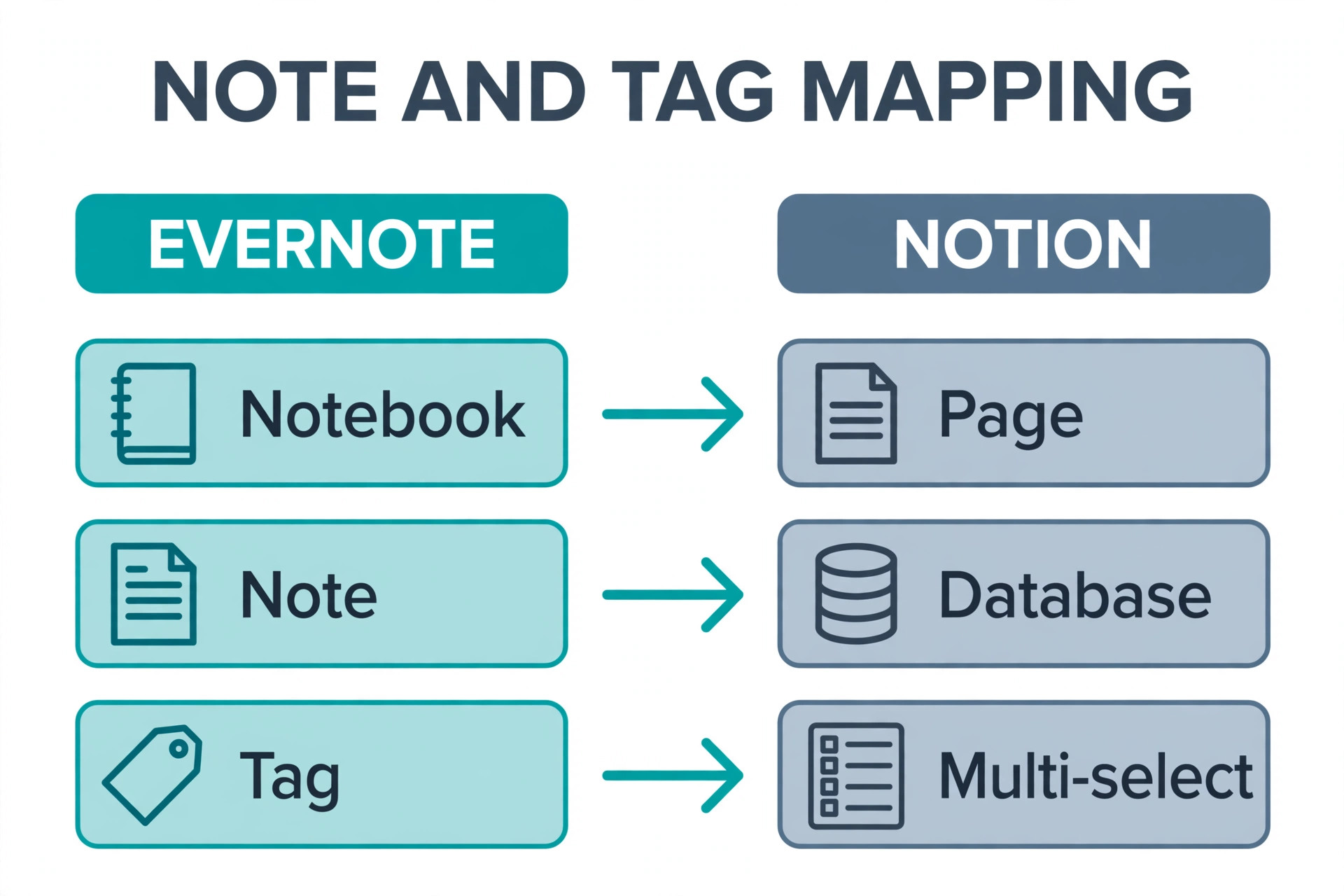
| Evernote element | Notion equivalent | What to do before import |
|---|---|---|
| Notebook | Top level page or database | Name notebooks clearly and keep stack names as page prefixes |
| Notebook stack | Parent page holding notebook pages | Write stack names down, rebuild as parent pages after import |
| Note | Page inside a database or a standalone page | Clean duplicate titles and decrypt encrypted blocks first |
| Tag | Multi-select property on a database page | Merge near duplicate tags and drop tags used only once |
| Note title | Page title | Fix untitled notes and vague titles like “Note” or “Untitled” |
| Created and updated dates | Created time and last edited time properties | Expect some dates to shift, record original dates for key notes |
| Attachment | File block or file property inside the page | Check large files against Notion upload limits on your plan |
| Web clip | Page with text and images, or a PDF file | Decide per clip whether text or a PDF preserves it better |
| Internal note link | Page link or mention inside Notion | Expect some links to break, plan a manual relink pass |
| Reminder and task | To-do block or a task database entry | Move active reminders into a Notion task database by hand |
Tags deserve special attention, because the mapping looks simple and still trips people up. In Evernote, one note can carry many tags in any notebook. In Notion, that idea lives as a multi-select property, which only works well inside a database. If imported notes land as loose pages rather than database entries, tags may arrive as plain text or not at all. Import into databases wherever possible, check the tag property on a sample before importing the rest, and stop and switch routes if tags arrive flattened.
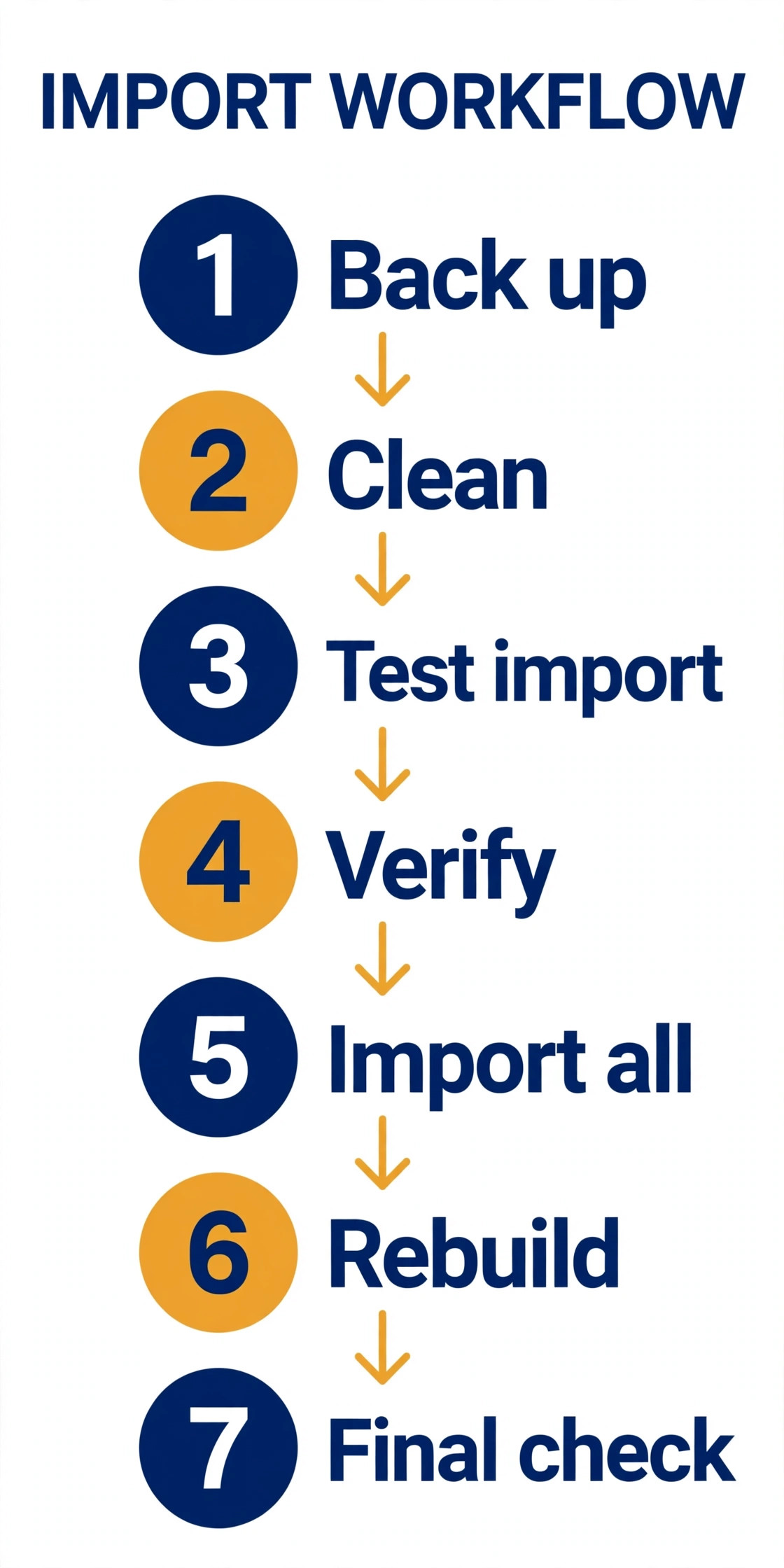
The import workflow below is the sequence to follow for each notebook, not just once for the whole library. Working notebook by notebook keeps failures small and verification honest.
1. Back up Evernote first. Export each notebook as an ENEX file and store the files somewhere safe, even if you plan to use the direct account importer. The ENEX files are your fallback if anything goes wrong. 2. Clean the notebook in Evernote. Merge duplicate tags, delete obvious duplicates, decrypt encrypted blocks and rename vague titles. 3. Import one small notebook first as a test, with 20 to 50 notes, mixed tags and a few attachments. 4. Verify the test import fully. Check note count, tag values, attachment presence, formatting, and a handful of internal links. 5.
Fix the route based on what the test showed, then import the remaining notebooks one at a time, verifying counts after each one. 6. Rebuild structure in Notion. Create parent pages for stacks, add database views, recreate favourites and re-share pages. 7. Run a final spot check across your most important notes, then keep Evernote read only for at least two weeks before cancelling.
That two week overlap is not wasted money. It is insurance. If a note turns out to be missing or mangled in Notion, you can still open the original in Evernote and copy it across by hand. Cancel the Evernote plan only after you have lived in Notion for a fortnight and found nothing missing.
Choose Your Import Route Based on Library Size
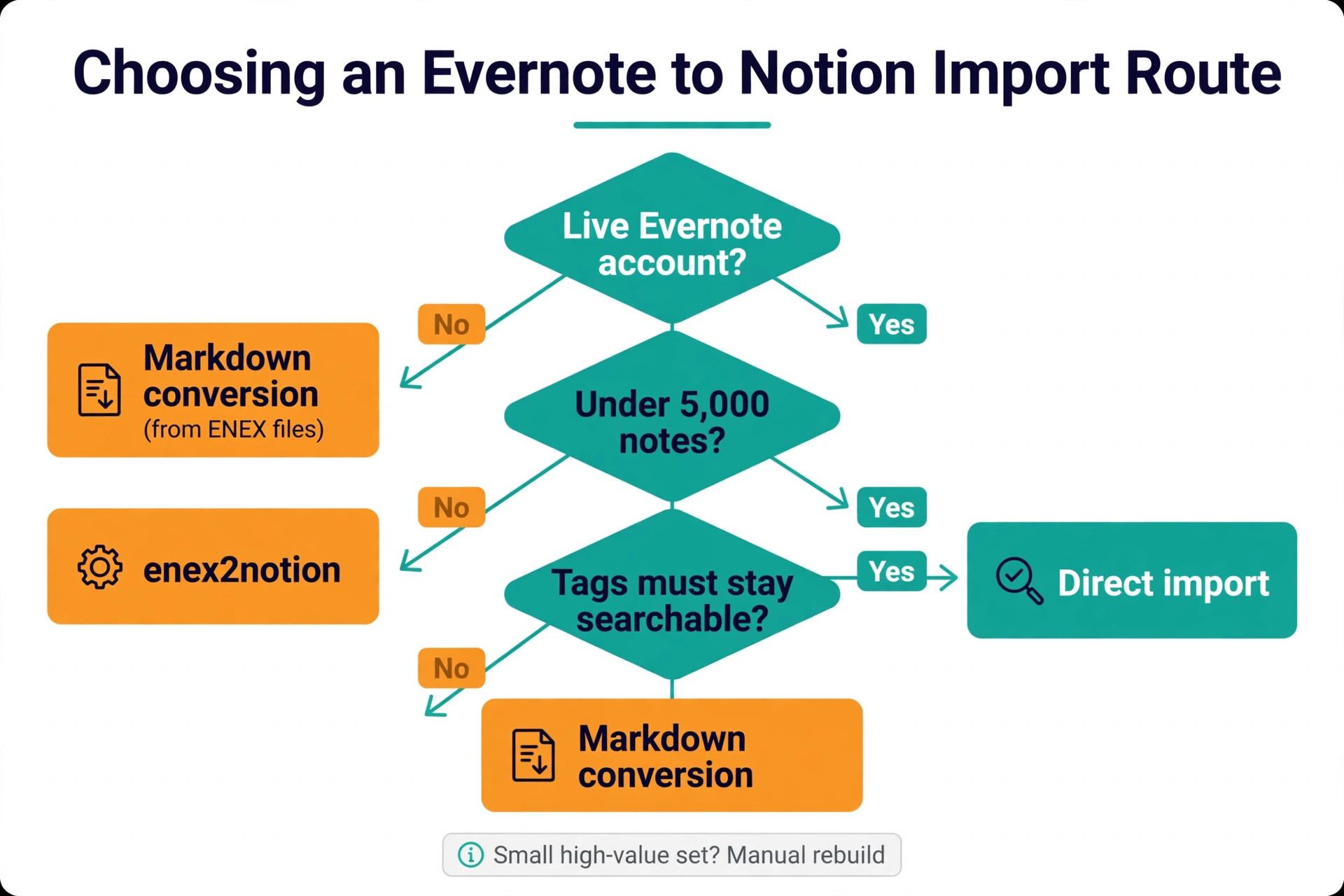
There is no single best route, only a route that fits your library and your tolerance for manual work. The direct account importer is the easiest path when it works. In Notion, open Settings, choose Import, pick Evernote, sign in and authorise the connection, then tick the notebooks you want. Notebooks arrive as pages, and the notes inside them typically arrive as a database, which is exactly what you want for tags. This route suits a live account with a tidy library under a few thousand notes, but very large libraries can fail partway through.
The second route suits people who only have exported files, and it is the path you take when you migrate Evernote to Notion without a live account. Notion cannot open an ENEX file directly. Its accepted formats include Markdown, CSV, HTML, Word, plain text and PDF, but not ENEX, so you convert ENEX to Markdown first, then import the Markdown files. This route gives you more control, but Markdown import does not always recreate database properties like tags, so test it on one notebook first.
The third route is for large or messy libraries where the first two routes keep failing. The open source tool enex2notion uploads ENEX files to Notion directly, with options to import each notebook as a database or a page tree, to convert web clips to text or PDF, and to resume an interrupted upload from a saved list of completed notes. It runs from the command line, so it suits users comfortable with a terminal, and it needs a Notion token to upload. Run it on a test notebook first. You can find it at https://pypi.org/project/enex2notion/.
The fourth route is manual, and it suits a small, high value set of notes even when automated routes work. Copy your most important notes into Notion by hand, rebuilding them as proper database entries with tags, dates and attachments. Reserve this for the 50 or 100 notes you open every month, not an archive of 5,000 clips you have not read in years. Many successful migrations are hybrids, with the bulk archive going through an automated route and the working set rebuilt by hand.
How to pick comes down to three questions. Do you still have a live Evernote account. Is your library under about 5,000 notes. Do your tags need to survive as a searchable property rather than plain text. If all three answers are yes, start with the direct importer. If you only have ENEX files, start with Markdown conversion. If either automated route fails twice on the same notebook, switch routes or rebuild that notebook by hand.
What Transfers Cleanly, What Breaks, and What to Fix by Hand
Set expectations honestly before import day, because no route transfers everything perfectly. Text content, headings, bold and italic formatting, simple lists and images usually transfer well. Tables transfer in most cases, though complex tables with merged cells may arrive simplified, so check any table that carries numbers you rely on, such as a budget, cell by cell after import.
What breaks most often is the connective tissue. Internal links between Evernote notes are the top casualty, because the two apps address pages differently, and a link that pointed to a note title in Evernote may not resolve to the same page in Notion. Check links on your most linked notes, such as indexes, project hubs and reading lists, and relink them by hand. Formatting casualties come next. Paragraph alignment, custom fonts and font sizes, and subscript and superscript may flatten or change.
Tasks and reminders need a deliberate decision. Evernote tasks with due dates and assignees do not map neatly onto Notion pages, so they often arrive as plain checklist text with dates lost. Before import, list your active tasks and open reminders separately, and recreate them in a Notion task database with real due dates after the move. Original creation dates sometimes shift to the import date too, so for notes where the original date matters, add it to the note body before you close Evernote.
Encrypted blocks deserve a warning of their own. If you export a note that still contains an encrypted section, that section may arrive unreadable or empty. Decrypt every encrypted block in Evernote before export, verify you can read the text, and only then back up and import. The same caution applies to audio notes. An audio memo imports as a file you can play, but its spoken words are not searchable text in Notion unless you transcribe them.
Rebuild Your Evernote Structure in Notion Databases
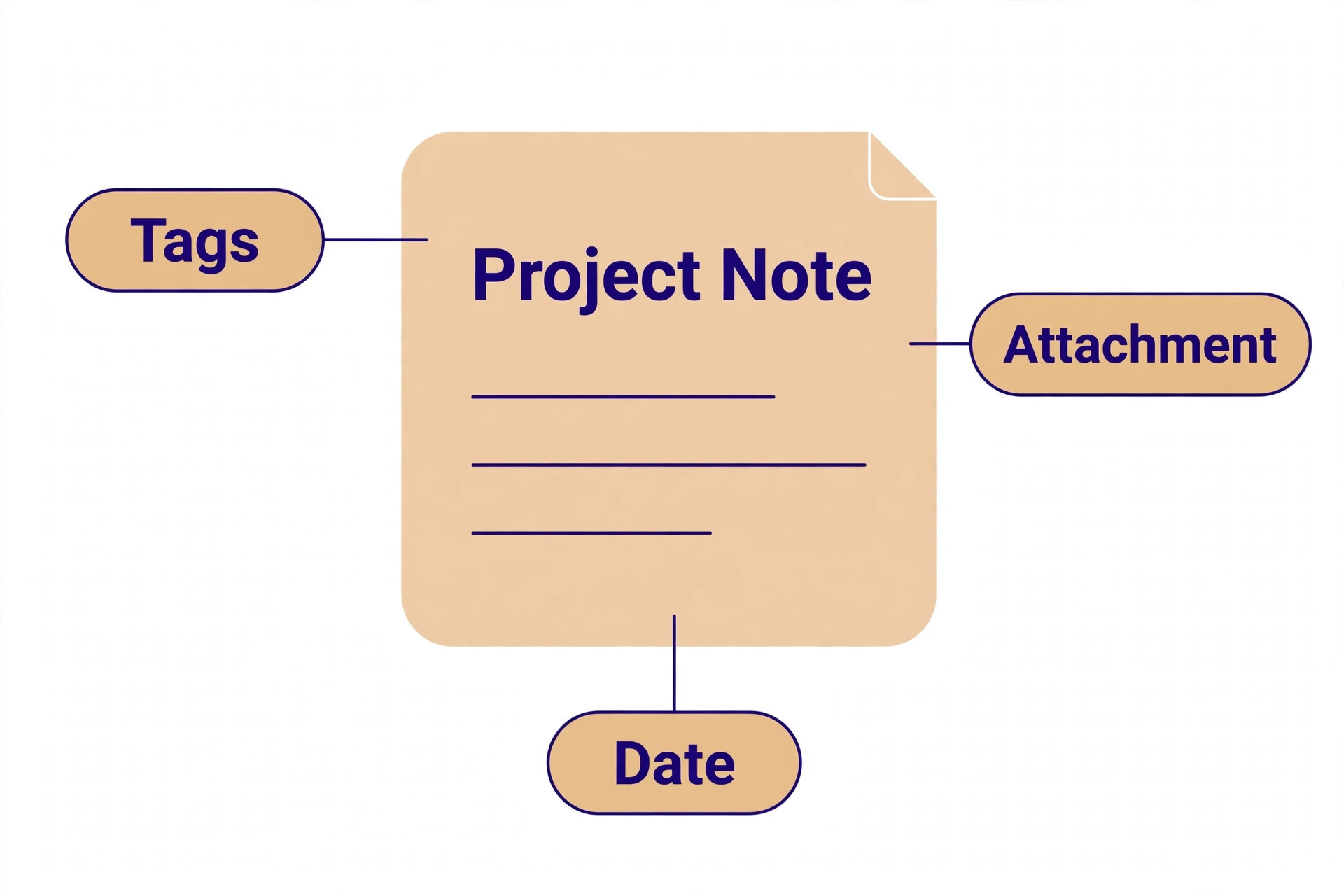
Importing is only half the job. The other half is turning imported pages into a workspace you can use. Start with one master notes database with properties for notebook, tags, status, date and source, and create filtered views that mirror your old notebooks, plus views for untagged notes and recent notes. That keeps the familiarity of notebooks while adding the filtering power that made you want Notion.
Next, rebuild your stacks as parent pages. If you had a stack called Work holding notebooks for Clients, Projects and Admin, create a Work page in Notion and place the corresponding database views or linked pages inside it. This step is manual, but it is also where the migration starts to feel like an upgrade rather than a copy. Add a short description of what belongs there and a list of active projects, and the page becomes a dashboard instead of a folder.
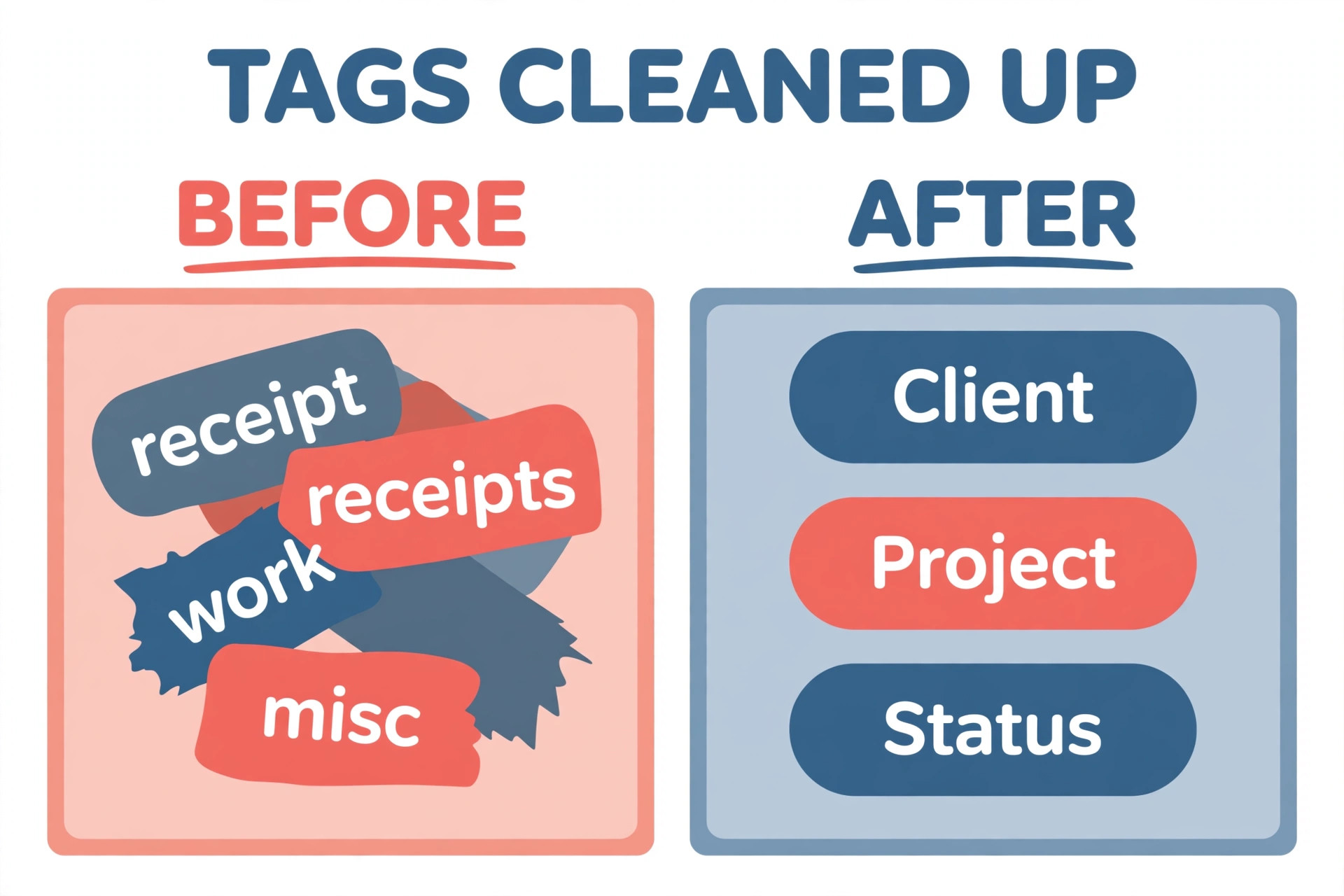
Then fix your tag system for Notion rather than copying it blindly. Evernote users often accumulate 100 or more tags, many used once or twice, and a multi-select property with 100 options is painful to use. Keep tags that answer a real question, such as which client, which project, or what status. Merge near duplicates, such as “receipt” and “receipts”, into one tag, and delete tags that duplicate a property you now have. Aim for 20 to 40 working tags.
Finally, decide what becomes a database and what stays a page. Meeting notes, research notes, receipts and reading notes usually belong in databases, because you filter and sort them. Project hubs, personal wikis and evergreen reference notes usually work better as pages with linked database views embedded inside them. If you force everything into one database, project hubs become rows and lose their narrative shape.
For a wider comparison before you commit, this site’s notion vs evernote guide covers the two apps head to head, and best note taking apps places them among the wider field.
Attachments, Web Clips, and Scanned PDFs After Import
Attachments are where a migration looks complete on a count check and still disappoints in daily use, so verify them as files, not as page counts. After import, open a sample of notes that should carry PDFs, images, spreadsheets and audio files, and confirm each file opens. Pay attention to file size limits on your Notion plan, because a file that lived happily in Evernote may exceed the per file upload cap on a free Notion workspace. Notion’s free plan caps individual file uploads at 5 MB, while paid plans allow much larger files.
Web clips need a separate verdict per clip, because no single treatment preserves every kind of clipped page. A clipped article that you want to read and search usually works best as text, even if the original layout is lost. A clipped page whose layout matters, such as a designed report, a receipt, or a form, usually survives better as a PDF attached to the note. When you migrate Evernote to Notion, decide this per notebook rather than per clip. Reading and research notebooks can go to text. Receipts, contracts and reference documents can go to PDF.
Scanned PDFs deserve their own check because of search. Evernote’s search reads text inside PDFs and images, so a scanned receipt was findable by its contents, not just its title. Notion does not offer that same depth of search inside every scanned file, so a receipt you once found by searching for a shop name or an amount may now only be findable by its title or tags. Rename scanned files descriptively, tag them well, and for your most important scanned documents add a short text summary at the top of the note.
The Cost Question, Evernote Versus Notion in 2026
Migration decisions are often framed as feature decisions, but the bill matters too. Evernote’s free plan is narrow, with 50 notes, one notebook and 60 MB of monthly uploads, so most serious users need a paid plan. Evernote Personal is commonly listed at 14.99 dollars a month, or about 10.83 dollars a month on annual billing at 129.99 dollars a year, with 10 GB of monthly uploads. Evernote Professional is commonly listed at 17.99 dollars a month, with 20 GB of monthly uploads, while annual listings vary, so check checkout for the exact figure in your region.
Notion’s free plan is genuinely usable for a solo user, with unlimited pages and blocks for an individual, a 5 MB per file upload cap, 7 day page history and up to 10 guests. Notion Plus is commonly listed at 10 dollars per member a month on annual billing, or 12 dollars on monthly billing, with unlimited file uploads, 30 day page history and unlimited guests. Notion Business is commonly listed at 20 dollars per member a month on annual billing, or 24 dollars on monthly billing, and it includes full Notion AI features, private teamspaces and stronger permissions.
When you migrate Evernote to Notion, the comparison that matters is not the headline monthly rate but the cost of the setup you will actually live in. A solo user moving from Evernote Personal at about 10.83 dollars a month on annual billing to Notion Free saves the whole subscription, as long as the 5 MB file cap and 7 day history do not bite. A solo user moving to Notion Plus at 10 dollars a month on annual billing saves only a little, but gains databases, views and unlimited uploads.
A five person team on Notion Plus pays 50 dollars a month, while the same team on Notion Business pays 100 dollars a month, so Business is only worth it if the team will genuinely use the included AI features.
Also count the cost of the overlap month. Keeping Evernote paid for one extra month while you verify Notion is the cheapest insurance in this whole project, and it is far cheaper than losing a contract note or a tax receipt. Set a calendar reminder to cancel Evernote only after the two week verification period ends.
| Setup | Commonly listed cost | Best fit |
|---|---|---|
| Evernote Personal, annual | About 10.83 dollars a month | Staying in Evernote |
| Evernote Professional, monthly | 17.99 dollars a month | Power users needing extra search room |
| Notion Free, solo user | 0 dollars | Solo migrators with small files |
| Notion Plus, annual | 10 dollars per member a month | Most solo users and small teams |
| Notion Business, annual | 20 dollars per member a month | Teams needing included AI and permissions |
Official pricing pages to check before you pay are Notion pricing and Evernote. If a figure here differs from checkout, trust checkout.

How to Choose Your Notion Setup
Notion can be a simple notes app or a full workspace, and the setup you choose on week one shapes how much maintenance you will face in month six. Start from how you retrieve notes, not from a template gallery. If you mostly search for a note by title or tag and open it, a single master database with a few filtered views is enough. If you run projects from your notes, you need databases for tasks and projects linked to your notes database. If you share notes with clients, you need a setup where sharing is deliberate, with private teamspaces or carefully shared pages.
Choose your plan by file size and history needs, not by AI hype. If your attachments are mostly small images and short PDFs, the free plan may carry you for months. If your notes carry large scans, videos or design files, Plus removes the file size worry. If you need to recover a page you edited two months ago, only Business history at 90 days or Enterprise history covers that window, while Plus history stops at 30 days.
Choose your structure by the smallest unit you actually manage. Some people manage notes, and a notes database is their core. Others manage projects, and notes are just evidence attached to a project. Others manage clients, and notes, tasks and files all hang off a client record. When you migrate Evernote to Notion, build your core database around that unit, and let everything else link to it. A notes centred person who builds a project centred workspace will fight their own system every day.
Finally, keep template building small before you import. Build the master notes database, its properties, and three or four views. Import. Live in it for two weeks. Then add the dashboard, extra databases and automations that your real use has shown you need. Templates built before you know your workflow get abandoned.
Mistakes That Cost Migrators Their Notes
The first mistake is importing everything at once without a test notebook. When you migrate Evernote to Notion, a full library import that fails halfway, flattens tags, or drops attachments leaves you unsure what succeeded, and reimporting creates duplicates that are painful to untangle. Import one small notebook first, verify it fully, and only then proceed notebook by notebook.
The second mistake is cancelling Evernote on import day. Import is not verification, and a note count match does not prove attachments opened, tags survived, or links resolved. Keep Evernote read only for at least two weeks, use Notion as your daily tool during that period, and actively look for missing notes.
The third mistake is letting tags flatten into text. Tags that arrive as words inside a page body look fine at a glance but cannot be filtered, and rebuilding them across thousands of notes by hand is a project nobody finishes. Check the tag property on your test import before you import anything else. If tags did not survive as a property, fix the route before moving on.
The fourth mistake is ignoring internal links. Many long term Evernote users rely on index notes that link to dozens of other notes, and those links are often the real structure of a research project or a client file. After import, open your index notes and test their links, and relink the ones that broke. An index with dead links sends you hunting for notes you know exist.
The fifth mistake is importing clutter you should have deleted. Every old note you import adds to search noise, tag sprawl and future cleanup, and a library that felt manageable in Evernote can feel overwhelming in Notion simply because the new search surfaces everything at once. Delete duplicates, dead clips and notes you have not opened in years before export, or move them into a clearly labelled archive database.
A Week-by-Week Migration Plan That Keeps You Working
A migration that stops your work for days will be resented, even if the result is good, so plan it around your working week rather than against it. The plan below assumes a library of a few hundred to a few thousand notes and a normal workload. Keep the order, because each phase protects the next one.
In week one, audit and back up. Count notebooks, notes and tags, write down stack structure, clean duplicates and near duplicate tags, decrypt encrypted blocks, and export every notebook as an ENEX file. Store those files in two places, such as a local drive and a cloud folder. At the end of week one you should be able to answer three questions without opening Evernote. How many notes do you have. Which notebooks matter most.
In week two, test and import. Run the test notebook, verify tags, attachments, formatting and links, fix the route if needed, then import notebooks in priority order, most used first, archive last. Verify counts after each notebook and keep a simple log of what imported and what needed a fix.
In week three, rebuild and live in Notion. Create stack parent pages, filtered views, favourites and sharing, rebuild your task list in a Notion database, relink index notes, and rename and tag your most important scanned documents. Use Notion as your only capture tool during this week, and note every moment you reach for Evernote instead. Each of those moments points to a gap in the new setup, and fixing those gaps as you find them is what makes the new workspace stick.
In week four, verify and decide. Run a final check on your most important notes, confirm that attachments open and tags filter correctly, and review your plan choice against your real file sizes and history needs. If everything checks out after you migrate Evernote to Notion, cancel Evernote, or downgrade it if you want a longer safety net at lower cost. If anything is still missing, restore it from your ENEX backup or from Evernote before you cancel, and extend the overlap by another two weeks.

Frequently Asked Questions
Tags usually survive as a multi-select property when notes import into a database, which is how the direct importer typically handles them. They are most at risk when notes import as loose pages or through a Markdown conversion that does not recreate properties. Test one notebook first and check the tag property on several notes before importing the rest.
Can I import Evernote into Notion without a live Evernote account?
Yes, if you have ENEX export files, but the path is longer. Notion cannot open ENEX directly, so you convert the files to Markdown first and import the Markdown, or you use a tool such as enex2notion that uploads ENEX files to Notion. The direct account importer is simpler, but it needs a live account, so keep your account active until the import is verified.
What happens to my Evernote notebooks and stacks?
Notebooks typically become top level pages or databases in Notion, with their notes inside. Notebook stacks do not always survive as a grouping, so expect to rebuild stacks as parent pages that hold the notebook pages or views. Write your stack structure down before import.
Do attachments and web clips transfer fully?
Most attachments transfer, including images, PDFs and common file types, but you should open a sample after import to confirm each file actually opens. Web clips transfer as text and images or as PDFs depending on the route, and complex layouts may simplify. For clips where layout matters, a PDF treatment preserves the original better than a text conversion.
How long does a migration take?
A library of a few hundred notes often imports in under an hour of active work, plus verification time. A library of several thousand notes with large attachments can take a day or more across the audit, test, import and verification phases in this guide. The calendar time matters more than the import time, because the two week overlap with Evernote is what makes the move safe.
Should I cancel Evernote right after importing?
No. Keep Evernote read only for at least two weeks and use Notion daily during that period, actively looking for missing or damaged notes. Cancel only after that verification period, when you have found nothing missing in real use. Keeping the account open for one extra month costs little compared with losing a note you cannot recover any other way.
Your Notes Deserve a Handover, Not a Leap
A good migration is boring in the best sense. When you migrate Evernote to Notion, you audit, you back up, you test one notebook, you import the rest in order, you verify tags and attachments, you rebuild structure around how you actually work, and you keep the old tool open until the new one has earned your trust. That discipline is what separates a move you stop thinking about from a move that leaves you searching for notes for months.
Start with the audit this week, even if you do not import anything yet. Count your notes, list your stacks and tags, export your ENEX backups, and pick your test notebook. Those four steps take an afternoon and they remove most of the risk from everything that follows. Then run the test, fix what it shows you, and import in priority order.