
A family password manager only works when everyone can find the right login at the right moment, and when no one is locked out after a phone is lost or a parent forgets a password. For many households, LastPass stopped meeting that test. The free plan limits sync to one device type, shared folders grow messy over years, and trust took a hit after past security incidents that are still raised in every comparison a household reads before it moves. If you decide to switch LastPass to 1Password, the move itself is not hard.
The hard part is moving the structure around the passwords, which is who can see what, which logins are shared, which two-factor codes live where, and who can help when someone is locked out.
This guide covers that whole move for a family plan, not just the export and import buttons. You will price both family plans on current figures, audit your LastPass vault before you export anything, map each folder to a 1Password vault, rebuild sharing with a checklist, set up family recovery and emergency access properly, and handle the items that do not transfer cleanly, such as attachments, passkeys, and authenticator codes. Prices change often, so check the official pricing page and checkout before you pay for either plan. The steps assume a household of two to five people. A larger household or a small business should read the section on when a family plan is the wrong fit before it buys.
Why Households Leave LastPass
Price alone rarely explains a decision to switch LastPass to 1Password. LastPass Families is cheaper on paper, and that fact should stay in the open through this guide. At figures reported from official pricing pages in October 2026, LastPass Families costs about 4 dollars a month billed annually and covers up to six people, while 1Password Families costs 5.99 dollars a month billed annually at the regular rate, or 4.49 dollars a month in the first year for new customers who buy directly from 1Password. That makes 1Password Families 71.88 dollars a year at the regular rate, against 48 dollars a year for LastPass Families.
A household that only counts dollars will stay with LastPass, and for a household on a tight budget that is a fair choice.
Households move for three other reasons, and they matter more than a two dollar monthly gap once a vault holds bank logins, school portals, medical accounts, and work tools. The first reason is recovery. In 1Password Families, a family organizer can recover a locked out member, and that member gets a new Secret Key and creates a new account password. That design suits the real household problem, which is rarely a hacker. It is a teenager who forgot a password, a parent who cannot find a printed code, or a partner who changed phones without checking that the new phone can unlock the vault.
LastPass also offers emergency access on paid plans, and it lets a trusted person request access after a waiting period. Both need to be set up before the emergency happens.
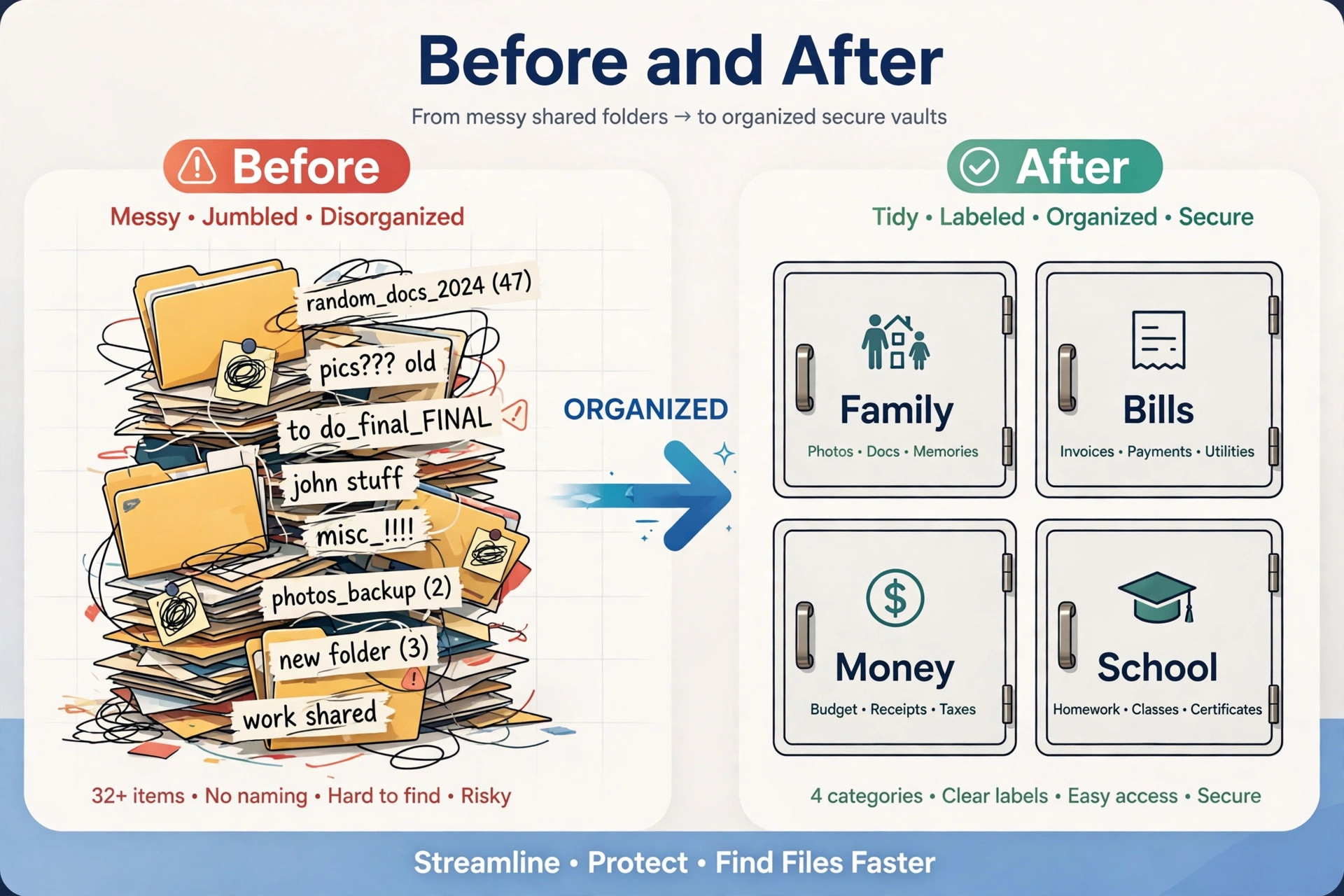
The second reason is structure. LastPass organizes sharing around folders, and 1Password organizes sharing around vaults. A folder feels easy at first, because you drop a login into a shared folder and everyone in that folder sees it. Over years, folders accumulate and permissions blur. Vaults force a cleaner decision. You create a vault for a purpose, add exactly the people who need it, and move items into it on purpose.
The third reason is confidence in the security model. 1Password adds a Secret Key to the account password, so unlocking needs something you know plus a long device generated secret that 1Password says it does not hold. That does not make a vault unbreakable. It does change what an attacker needs to steal before an offline attack becomes practical, and for households that read breach news, that distinction is often decisive.
The Family Price Comparison, Done Honestly
A migration guide that hides the price increase does its readers no favours, so here are the numbers side by side, with the limits that change the maths. LastPass Premium costs about 3 dollars a month billed annually for one person. LastPass Families costs about 4 dollars a month billed annually for up to six people, with each person getting Premium features and a family manager dashboard. 1Password Individual costs 3.99 dollars a month billed annually at the regular rate, or 2.99 dollars a month in the first year for new direct customers.
1Password Families costs 5.99 dollars a month billed annually at the regular rate, or 4.49 dollars a month in the first year, and covers up to five family members plus five guest accounts for limited sharing with one vault each.
That guest detail matters for a babysitter, carer, or accountant who needs one shared login for a short period. A guest is not a full family member and does not get a private vault. Used well, guest access stops a household from texting a password to a helper. Used badly, it becomes a forgotten door, so the sharing checklist includes a guest review.
Do the per person maths only after you count real users, not seats on a pricing page. A two person household pays 35.94 dollars per person per year at the regular 1Password Families rate, against 24 dollars per person per year for LastPass Families. A five person household pays 14.38 dollars per person per year on 1Password Families, against 8 dollars per person per year on LastPass Families at six users. The gap narrows as more seats are used, but it does not disappear. Budget for the renewal rate, not the first year promo.
Also budget for the free trial correctly. 1Password offers a 14 day trial with no card required on personal plans. Start it when the organizer and at least one other adult can verify logins together. A short overlap where you pay for both services is money well spent compared with cancelling LastPass before the new vault is proven.
| Plan | Monthly price billed annually | People covered | Yearly total |
|---|---|---|---|
| LastPass Premium | About 3 dollars | 1 | About 36 dollars |
| LastPass Families | About 4 dollars | Up to 6 | About 48 dollars |
| 1Password Individual | 3.99 dollars regular, 2.99 dollars first year promo | 1 | 47.88 dollars regular, 35.88 dollars first year |
| 1Password Families | 5.99 dollars regular, 4.49 dollars first year promo | Up to 5 members plus 5 guests | 71.88 dollars regular, 53.88 dollars first year |
Check checkout before you commit, because vendors adjust promo eligibility and renewal terms.

Before You Export Anything, Audit the Vault
Most failed migrations are not import failures. They are audits that never happened, so a household imports years of dead logins, duplicate passwords, and shared items no one remembers sharing, and then blames the new tool for the mess. Spend 30 minutes on this audit before you switch LastPass to 1Password, and the rest of the move gets easier.
Start with a count. Open LastPass on the web, not only on a phone, and note how many items you have, how many folders exist, and how many items sit outside any folder. Items outside a folder are the ones most likely to be missed in a vault map. Next, use the LastPass security dashboard to find weak and reused passwords, and write down the ten accounts that matter most if they were lost, such as primary email, bank accounts, cloud storage, and school or health portals. Those ten get manual verification after import.
Then clean, but do not delete yet. Delete obvious duplicates, such as three saved logins for the same streaming service with only one current password. Archive or rename dead accounts instead of deleting them on audit day, because a deleted login cannot be recovered from the export if you later learn it was still linked to an order or subscription. Rename vague items now, while you still remember what they are.
How to switch LastPass to 1Password Without Losing a Login
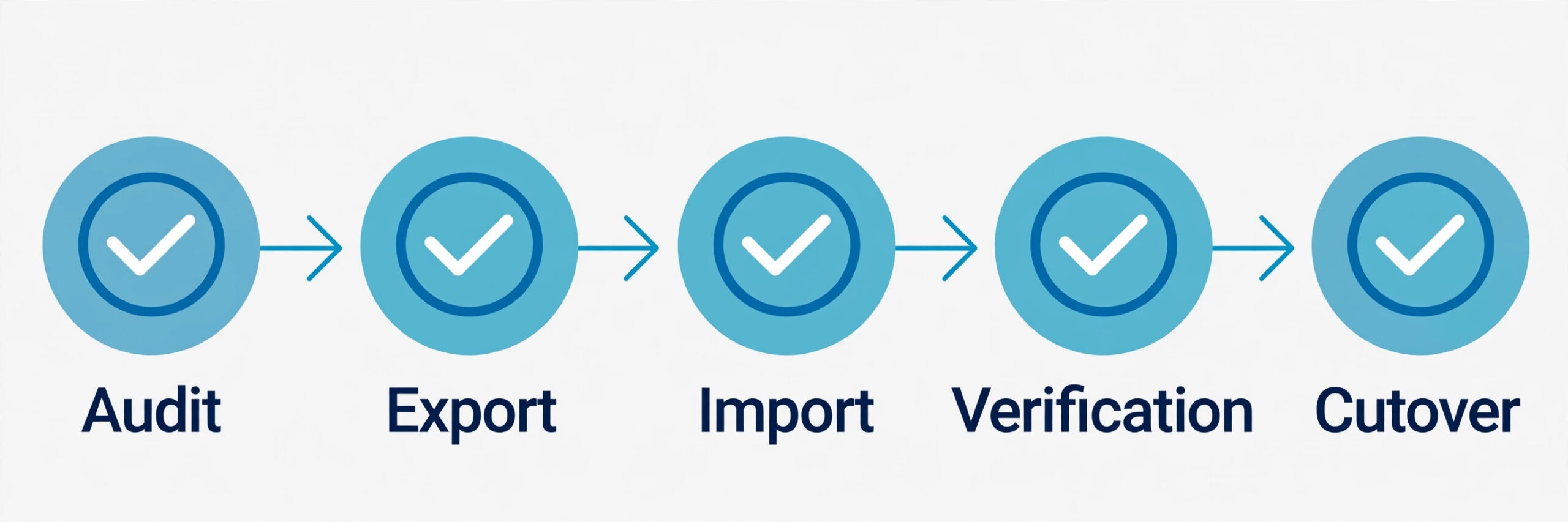
The full move fits into one focused session for a small vault and one evening for a large household vault. Do not rush verification to hit a clock, and do not cancel LastPass until the final step. The order below is deliberate. You back up before you clean, you clean before you export, and you keep LastPass readable until the new vault is proven on every device the family uses.
Step 1. Create the 1Password Families account and save the Emergency Kit. The person who creates the account becomes the family organizer. Save the Emergency Kit as a PDF, print one copy for a safe place at home, and store a second copy somewhere only trusted adults can reach, such as an encrypted drive. Without the Secret Key and the account password together, 1Password cannot recover the account for you.
Step 2. Add a second family organizer before you invite anyone else. An organizer cannot recover their own account, so a family with one organizer has a single point of failure. Invite a trusted adult, confirm the account, and promote that person to family organizer. Test the idea now by asking what that person would do if you lost your phone tomorrow.
Step 3. Invite family members and let each person create their own account password and Secret Key. Each member gets a Private vault for personal items and access to shared vaults you create later. Do not share one account password across the family to save time, because that destroys the audit trail and breaks recovery.
Step 4. Export from LastPass on the web vault, where you reach the full export tool. The export produces a CSV file that contains passwords in readable form, so treat it like cash. Save it to the local device only, never to a shared cloud folder, a chat message, or an email draft. Turn off cloud backup for the folder that holds the export until you delete the file, because a synced copy can outlive the local copy you think you deleted.
Step 5. Import into 1Password on the web. Sign in at 1Password.com, follow the 1Password import guide, choose LastPass, and choose the vault that should receive the import. For a first import, use your Private vault for personal items, and turn off the option to import items in shared folders if you want to rebuild sharing deliberately, which this guide recommends. If the import goes wrong, use Undo Import and start again rather than fixing hundreds of items by hand.
Step 6. Verify before you organize. Open the imported items list and check the count against your LastPass count. Spot check the ten critical accounts from your audit, plus five random logins, by confirming the username, password, and website address. Fix any item that arrived as a secure note instead of a login, and fix any item with a missing website address before you move it into a shared vault.
Step 7. Install the apps and extensions, then test autofill on one site per device. Install 1Password on each phone and computer the family uses, add the browser extension to each browser, and sign in with the Emergency Kit details if a device asks for the Secret Key. Test a low risk login first, such as a streaming service, before you test a bank login. Disable LastPass autofill in each browser once 1Password autofill works, and remove the LastPass extension only after the cutover step.
Step 8. Cut over, wipe the export, and then retire LastPass. Once every device works and every critical login is verified, delete the CSV export file, empty the trash, and confirm no synced copy remains. Only then downgrade or cancel LastPass. Keep a note of the cancellation date and check the next bill, because annual plans renew automatically.
The Vault Mapping Table
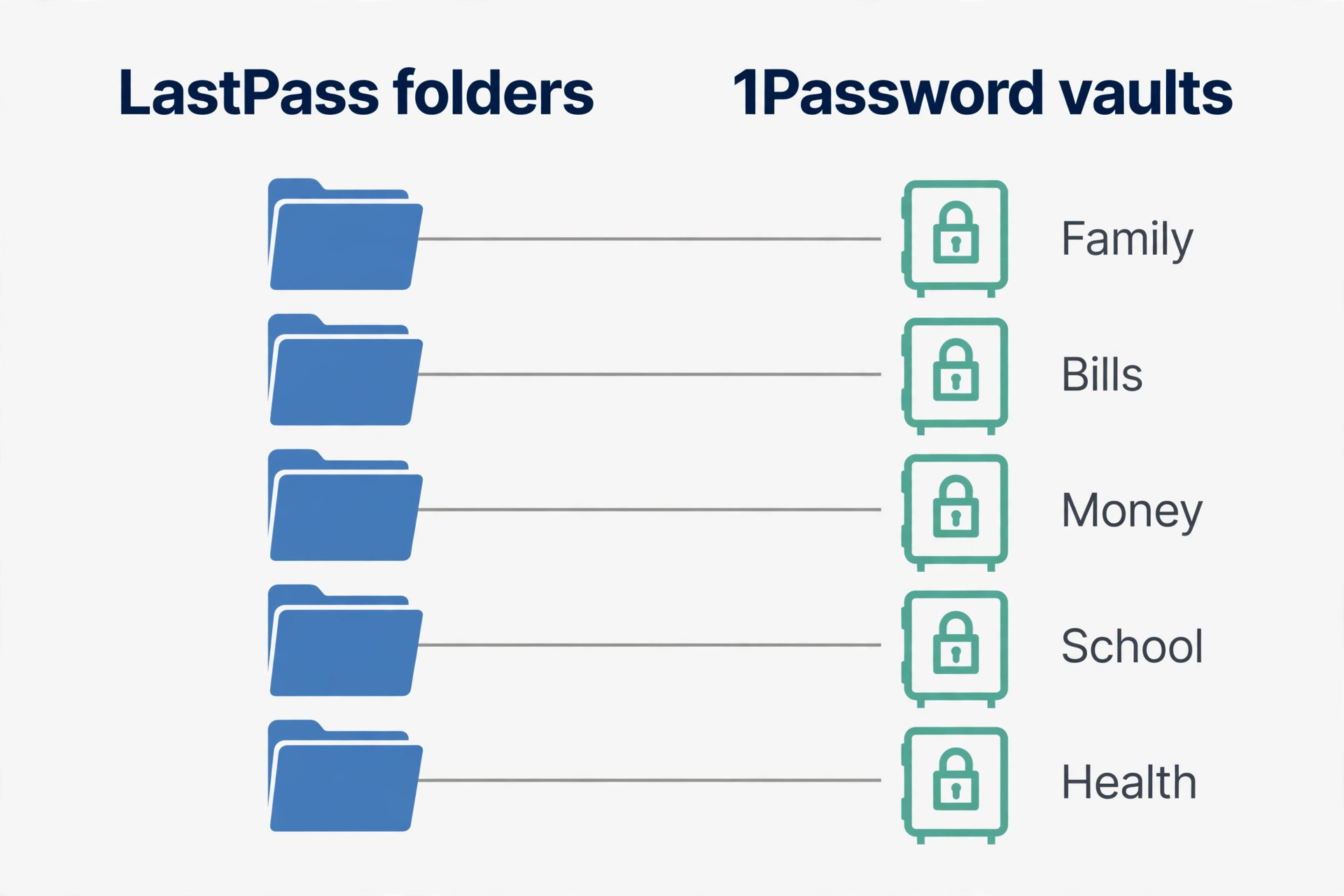
This table is the part of the work when you switch LastPass to 1Password that an overview cannot do for you, because it depends on your household, not on a generic tool. LastPass folders do not become 1Password vaults automatically in a useful way, and importing shared folders into one big vault is how a child ends up able to open a parent bank login. Map first, move second, and let each row answer two questions. Who needs this vault, and what happens if someone outside that group opens it.
| LastPass folder or group | 1Password vault to create | Who gets access | Items to move there |
|---|---|---|---|
| Personal logins with no folder | Private vault for each member | Only that member | Personal email, shopping, social accounts |
| Family shared folder | Shared vault | All family members | Streaming, Wi-Fi, household shopping |
| Bills and utilities | Household Bills vault | Adults only | Energy, water, internet, council, insurance |
| Money and banking | Money vault | Adults only, never children or guests | Bank, card, tax, investment logins |
| School and children | School vault | Parents plus the child who needs it | School portal, learning apps, clubs |
| Health and medical | Health vault | Adults only, plus a named carer if needed | Health portal, pharmacy, insurance health logins |
| Work or freelance | Work vault | Only the working adult | Work email, client portals, freelance tools |
| Travel and bookings | Travel vault | Adults, plus children for a trip if needed | Airline, hotel, passport and booking logins |
| Helpers and guests | Helper vault | One guest at a time, reviewed monthly | Single logins a helper needs, nothing else |
| Old or dead accounts | Archive vault | Organizer only | Closed shops, old services, items to review yearly |
Three rules keep this map honest. First, a vault should have a purpose narrow enough that you can explain it in one sentence. Second, children get access to a vault only when they need the logins inside it for their own use, not simply because they are family members. Third, review the map every six months, because households change and a vault map that was perfect on migration day will drift unless someone owns the review.
Rebuild Sharing With the Checklist
Sharing is where a decision to switch LastPass to 1Password either protects a household or quietly weakens it, because sharing settings are easy to copy and easy to get wrong. Use this checklist in order, and do not mark an item done until you have checked it in 1Password, not just planned it.
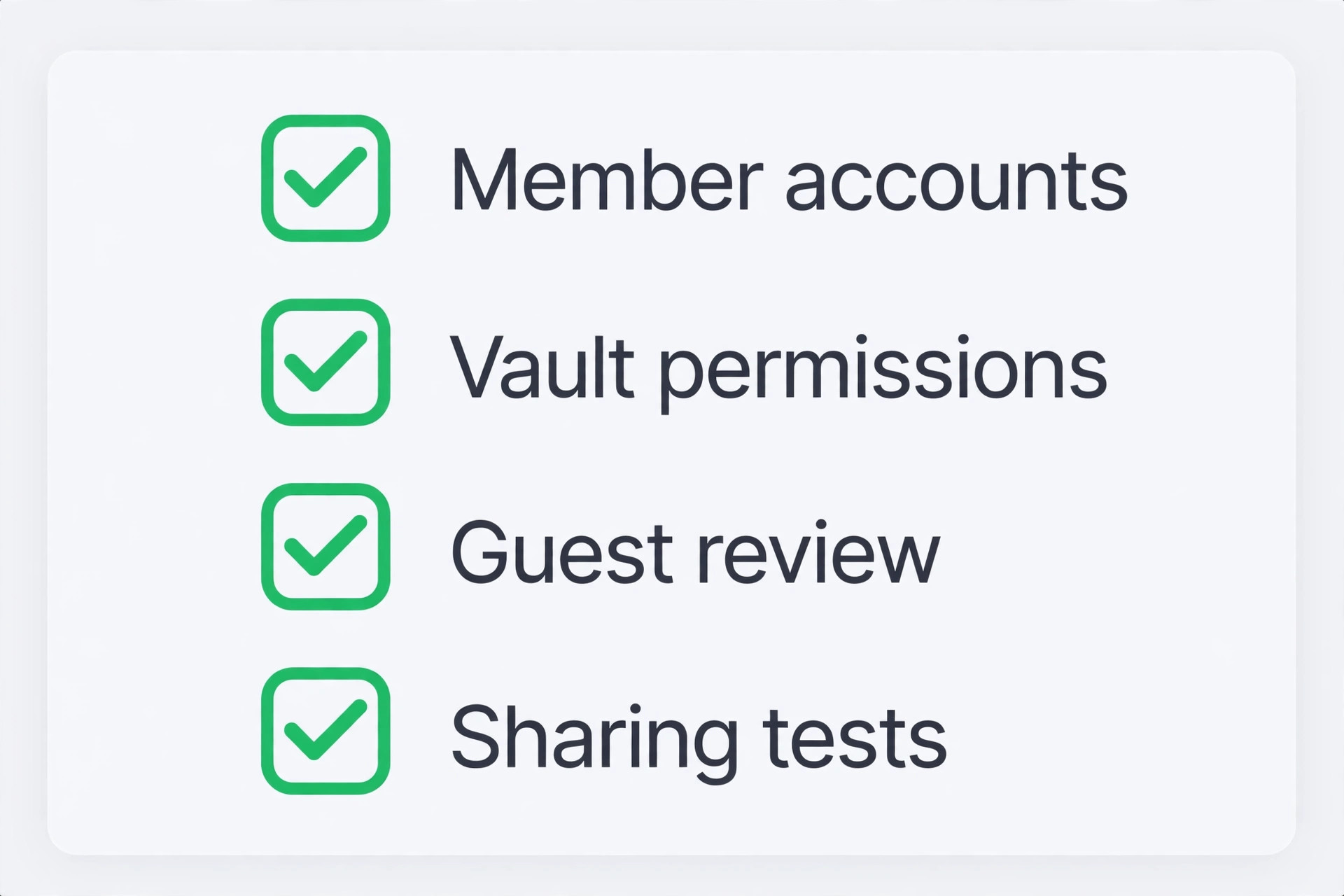
First, confirm every family member has their own account and Private vault, and that no one is still signing in with the organizer account. Second, create the shared vaults from the mapping table, and add members vault by vault. Third, move shared items into those vaults, and delete imported copies where a move, not a copy, was intended. Fourth, check guest access, remove guests who no longer need it, and set a monthly review reminder. Fifth, test sharing from the other side, by asking one member to open a shared login and another to confirm they cannot open a vault they should not see.
Sixth, fix the items that sharing breaks. Some sites block simultaneous logins or send a security alert when a new device signs in, so warn family members before they test a shared streaming or shopping login, and confirm the alert is expected. Seventh, update any login that was shared by text message or email in the past. Those old copies still exist in chats and inboxes, and moving to a vault does not delete them. Change the password for any login that was ever sent in plain text, and then share the new password only through the vault. Eighth, write down who owns each shared vault.
An ownerless vault is a vault no one cleans, and an uncleaned vault is how an old helper keeps access for a year after they stopped helping.
For a household streaming login, vault access is fine, because everyone in the vault is meant to use it. For a bank login, only the account holder should hold the login, while the other adult holds recovery information for the account itself, such as a printed recovery code in a safe place. Sharing a bank password with a whole vault turns a personal financial account into a household account, and banks treat those differently when fraud is reported.
Emergency Access in 1Password Families
When you switch LastPass to 1Password, remember that LastPass emergency access and 1Password family recovery solve different problems, and a household that expects one to behave like the other will be disappointed at the worst time. LastPass emergency access lets a trusted person request access to a vault, and access is granted after a waiting period unless the owner rejects the request. That design suits a situation where the owner cannot respond, because silence after the timer becomes approval. 1Password Families works differently. A family organizer can recover a member who cannot sign in, and the member then creates a new account password and gets a new Secret Key.
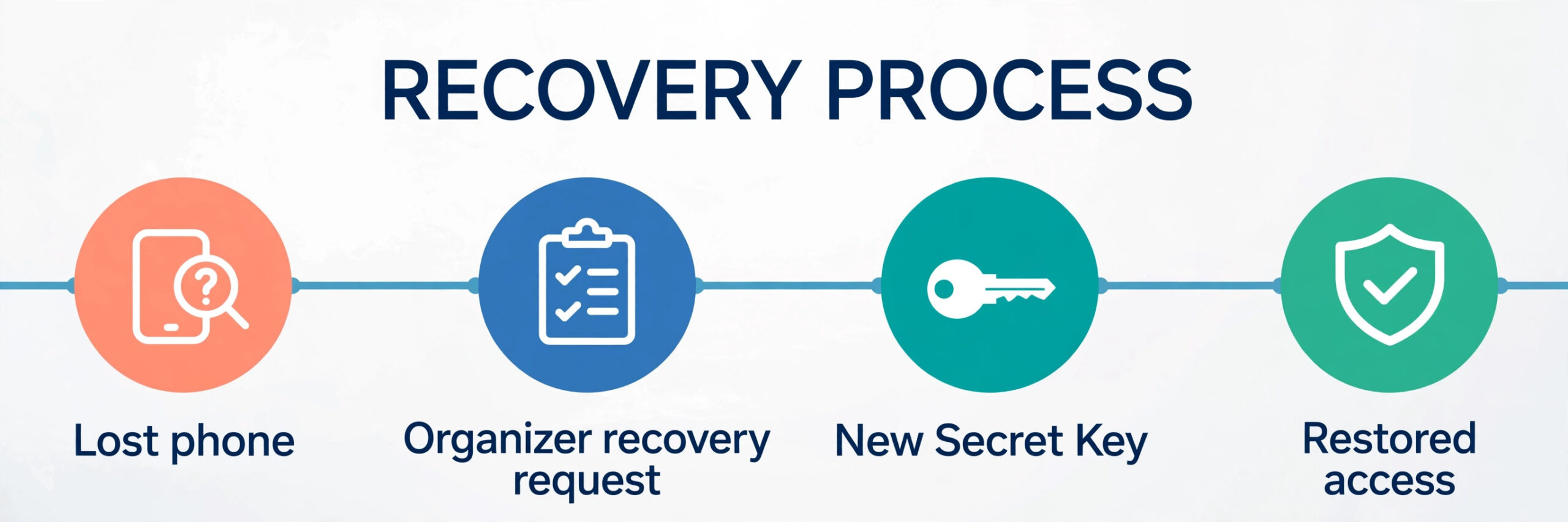
The organizer does not get to read the member vault, and the organizer cannot recover their own account, which is why a second organizer matters so much.
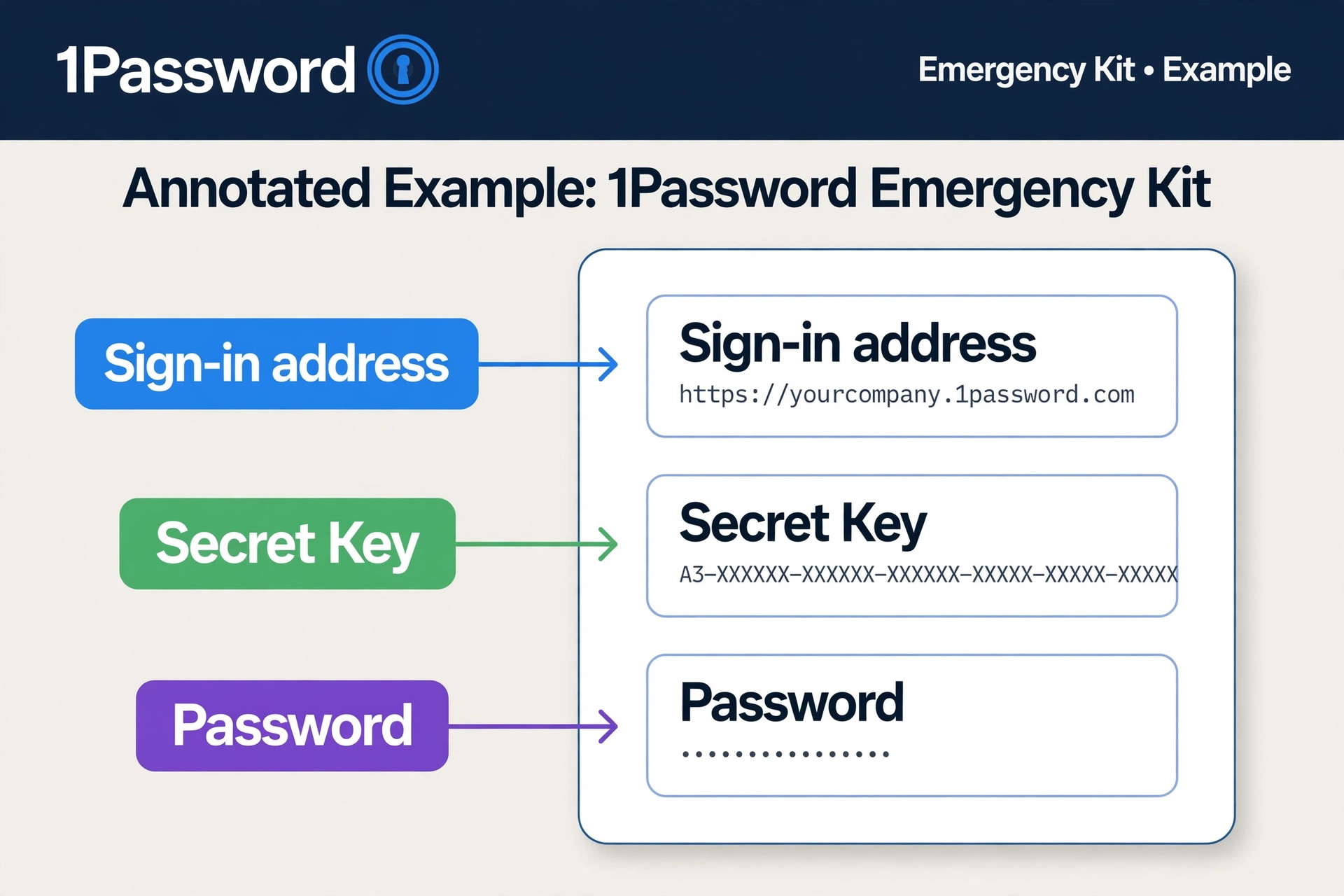
Set up emergency access in 1Password in four layers, and test each layer before you need it. Layer one is the Emergency Kit for every adult, printed and stored safely. Layer two is a second family organizer, so the first organizer can be recovered by someone else. Layer three is a recovery code for each adult, stored separately from the Emergency Kit. Layer four is a shared vault for the information a trusted person needs in a true emergency, such as the location of the Emergency Kit. Do not put the Emergency Kit itself or any account password in that shared vault.
Also plan for the case where the organizer is unavailable. Write a one page note, kept with the Emergency Kits, that names the second organizer, explains how to begin recovery with the 1Password family recovery guide, and lists which accounts need urgent attention, such as email, bank, and phone carrier. Review that note once a year, or whenever a family member joins or leaves.
Passkeys, Two-Factor Codes, and Attachments
Three categories of data cause most surprises after you switch LastPass to 1Password, and each needs a different plan. Passkeys come first. A passkey stored in LastPass does not move inside a CSV export in the same way a password does, because a passkey is tied to a device and a service, not just to a text secret. After you move passwords, open the passkey settings for your most important services, such as email, cloud storage, and banking, and create a new passkey in 1Password where the service supports it.
Keep the password login working until the new passkey is tested on each device, because a passkey that works on a phone but not on a laptop is not yet a replacement.
Two-factor codes come second. If you stored one time codes in LastPass Authenticator, those codes do not move with a vault export, and you must re enrol each service in the new authenticator. Do this service by service. For each service, sign in with the old code, turn off two-factor authentication, turn it back on, scan the new QR code into 1Password, and save the backup codes into a secure note in your Private vault. Start with email and cloud storage, because those services guard password resets for everything else.
Attachments come third. Download each attachment from LastPass before you cancel, and reattach it to the correct item in 1Password after import. Both services offer 1 GB of document storage on the plans covered here, so size is rarely the blocker. The blocker is finding the attachment again, so make a short list of attachments during the audit, and tick each one off as it is reattached.
Mistakes That Undo a Good Migration
The first mistake is exporting to a shared folder. A CSV file with every household password in readable form should never sit in a shared drive, a family chat, or an email attachment, even for a few minutes, because shared copies are hard to delete completely. Export to a local folder, turn off sync for that folder, and delete the file and its trash copy at cutover. The second mistake is importing shared folders into one vault, which is invisible on migration day and obvious months later, when a child or guest can open a login they should never have seen.
The third mistake is cancelling LastPass before verification. Annual billing makes this mistake expensive, because a cancelled account can be hard to restore, and a household that cancels early has no safety net if an import is incomplete. Keep LastPass readable until every device works and every critical login is checked. The fourth mistake is forgetting two-factor codes. A vault export moves passwords, not authenticator enrolments, and a household that deletes the old authenticator app before re enrolling services will lock itself out of email and banking at the same time.
The fifth mistake is using one account password for the whole family to keep things simple. Each adult needs their own account password, their own Secret Key, and their own Emergency Kit. The sixth mistake is leaving guest access open. A guest who helped for one weekend should not still have vault access a year later. Review guests monthly, remove guests who no longer need access, and change any password a former guest could have copied, because vault removal does not erase a password someone already saw.
How to Choose, Stay, or Move Back
Not every household should switch LastPass to 1Password, and a guide that only argues for moving is a sales page, not advice. Stay with LastPass Families if your household uses all six seats, if the lower yearly total matters more than organizer recovery, if your sharing is already tidy, and if you have already set up emergency access and tested it. Staying is also sensible during another big change, such as a move, when verification cannot get full attention.
Move to 1Password Families if organizer recovery matters to you, if your sharing needs vault level control, if you want the Secret Key model, if you have five or fewer full members plus guests, and if the regular yearly total fits your budget without strain. Move if you are already paying for LastPass Premium per person, because a family plan on either service is cheaper than separate individual plans once two or more people are covered.
Do not move to a business plan for a household problem. 1Password Business, at about 8.99 dollars per user per month billed annually, buys admin controls and reporting a household does not need. A household that outgrows Families should first check whether guests cover the extra people, and only then consider a second family account. A small business with staff and compliance needs is a different case, and should compare business plans on admin and reporting, not on family pricing.
For households that also manage work tools and family schedules, related reading includes best software for small business for the wider tool stack, best note taking apps for secure notes and family information, and AI tools for Gmail power users for keeping the primary email account, which guards most password resets, in good order.
Frequently Asked Questions
How long does a family migration from LastPass to 1Password take?
A small vault with under 200 items usually takes about an hour, including audit, export, import, and spot checks. A large household vault with attachments and authenticator codes to re enrol can take an evening, so split that work across two sessions rather than rushing verification. The import itself takes minutes. Verification, vault mapping, and two-factor re enrolment take the rest of the time.
No, and that is a deliberate difference, not a bug. A CSV import brings items into a vault you choose, and shared folders from LastPass do not automatically become separate 1Password vaults with the same members. That is why this guide recommends importing personal items first and rebuilding shared vaults from the mapping table, so each vault gets exactly the members who need it.
What happens to LastPass emergency access after the move?
LastPass emergency access does not transfer to 1Password, because the two systems use different models. In 1Password Families, you replace it with family organizer recovery, Emergency Kits, and recovery codes, plus a shared vault for the information a trusted person needs in an emergency. Set up all three before you cancel LastPass, and test recovery with a second organizer.
Will my passkeys move with the CSV export?
Passkeys do not move in a CSV export in the same way passwords do, so plan to create new passkeys in 1Password for services that support them. Keep the password login working until the new passkey is tested on each device you use. Start with email and cloud storage, because those services protect password resets for other accounts.
Can I keep LastPass active while I test 1Password?
Yes, and you should. Keep LastPass readable until every device works, every critical login is verified, attachments are reattached, and two-factor codes are re enrolled. Paying for a short overlap between two annual plans is cheaper than losing access to a critical account because an import was incomplete. Cancel only after cutover, and check the next bill to confirm it took effect.
Is 1Password Families worth the higher price than LastPass Families?
That depends on what the household values. LastPass Families is cheaper, covers six people against five full members on 1Password Families, and includes emergency access on paid plans. 1Password Families costs more at the regular rate, but adds organizer recovery, guest accounts, and the Secret Key model, with vault level sharing many households find easier to keep tidy. A household that values the lowest price should stay.
The Move That Leaves Your Household Safer Than Before
A good decision to switch LastPass to 1Password does more than copy passwords from one vault to another. It leaves a household with fewer shared secrets in chats, fewer logins that no one owns, a tested recovery plan, and vaults that match who actually needs each login. That is the standard to judge this move by, not whether the import finished without an error message. If a child can still open a bank login, the migration is not finished. If the vault map is clean and recovery is tested, it succeeded.
Start with the audit, map the vaults before you move a single item, and keep LastPass until the new vault is proven on every device. Set up a second organizer, print the Emergency Kits, and write the one page recovery note while the details are fresh. Review guests monthly and review vaults every six months, and the household will not drift back into the mess that prompted the move.