
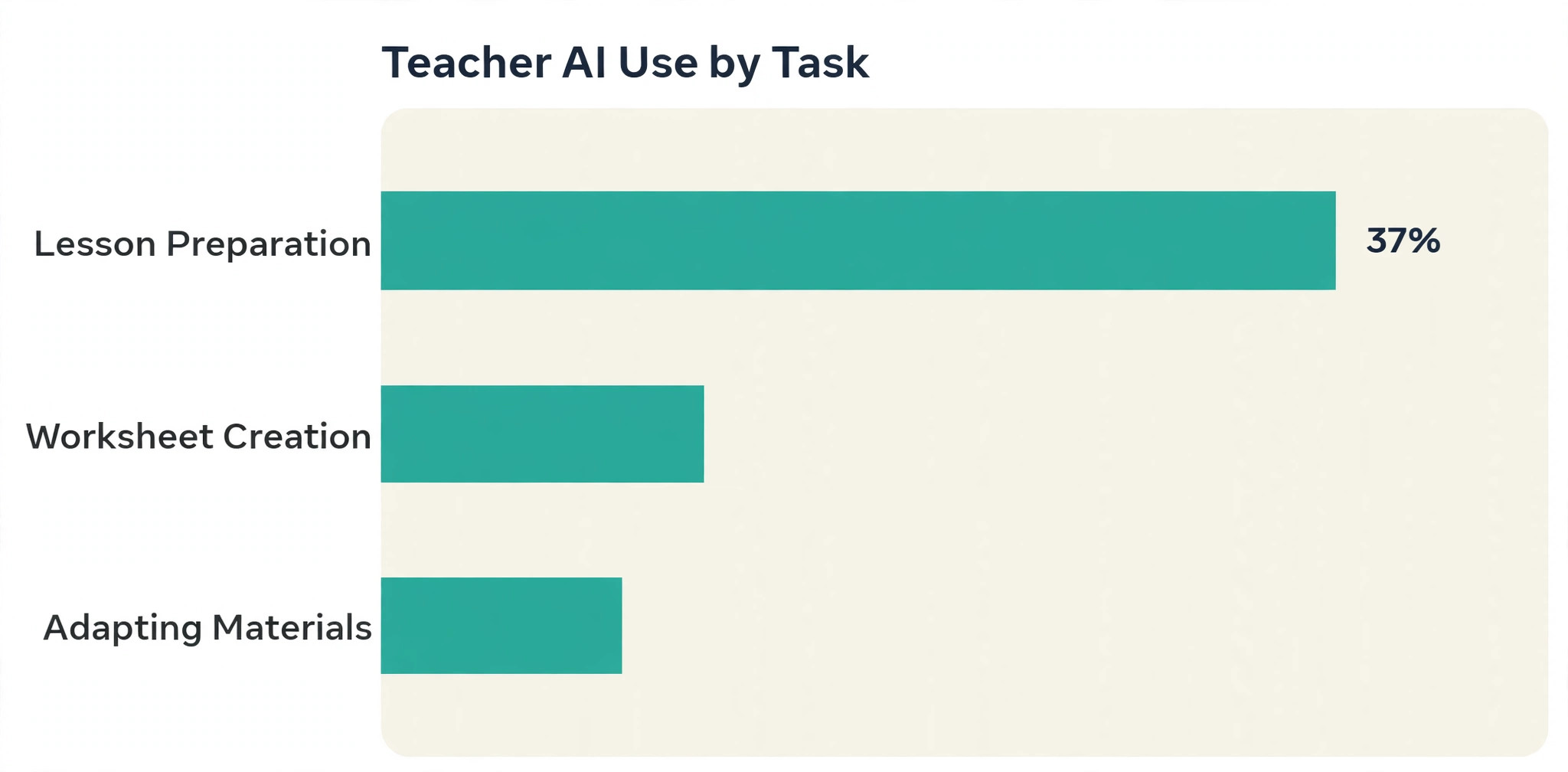
In a 2025 Gallup and Walton Family Foundation survey of 2,232 United States public school teachers, 37 percent said they used AI to prepare lessons at least monthly, the highest rate for any teaching task the survey measured. Yet only about a third of teachers used it that often, even though 69 percent said they felt comfortable using AI for lesson planning. That gap is the real story. Teachers are not waiting for permission to use ChatGPT for lesson planning teachers already do by hand, but many have no repeatable system for it, so the tool gets used in rushed bursts instead of as part of a steady weekly routine.
This guide closes that gap with a workflow you can run every week, a template you can copy, and checking steps that keep the final lesson yours.
You will learn when ChatGPT genuinely saves time and when it creates extra work, how to write prompts that produce usable first drafts instead of generic worksheets, how to adapt one lesson for mixed ability classes without tripling your workload, and how to check facts, reading levels, and safeguarding issues before anything reaches students. Prices are given as United States list prices found in October 2026, and you should confirm the current price on the official OpenAI pricing page before paying, because plans and limits change often.
What Good Planning Looks Like Before You Open ChatGPT
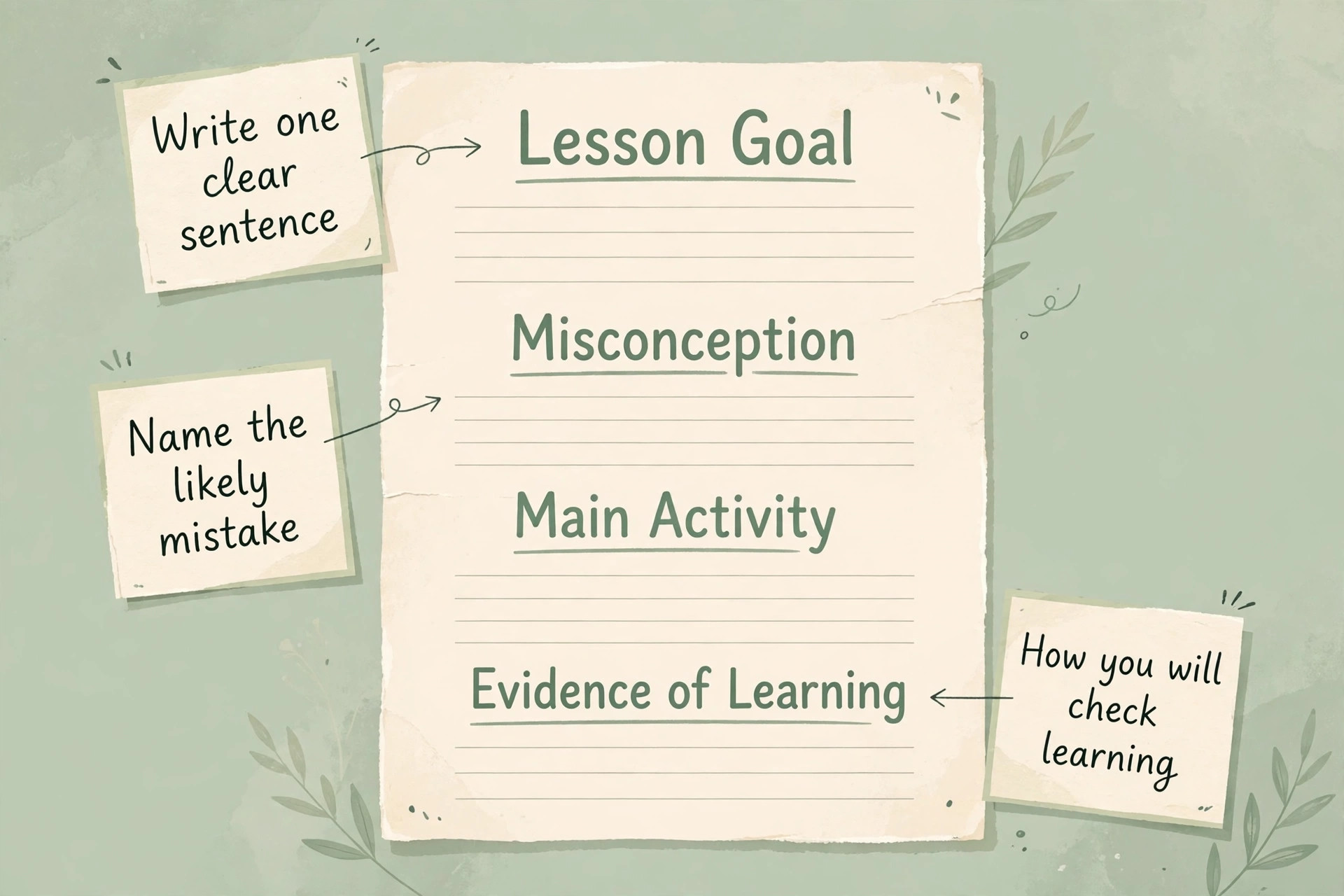
A lesson plan is not a document. It is a set of decisions about what students should learn, how you will know they learned it, what they will actually do for most of the lesson, and what happens when some students finish early or get stuck. ChatGPT can draft text fast, but it cannot make those decisions for you, and a plan that skips them will feel busy without being clear. Before you open the tool, write down four things on paper or in your planner. The learning goal in one sentence, the evidence you will accept that the goal was met, the main activity students will spend their time on, and the one misconception most likely to appear.
That short list changes what ChatGPT gives you. A prompt that says “write a lesson on fractions” returns a generic lesson that could fit any class in any country. A prompt that says the goal, the year group, the time available, the materials you already have, and the misconception you want to address returns a draft you can actually teach from. The difference is not prompt magic. It is the difference between asking a colleague to plan a lesson blind and asking a colleague who already knows your class.
Good planning also means deciding what not to ask the tool to do. ChatGPT should not decide your grades, write reports about individual students from private data, or invent quotes, statistics, or historical details you then repeat in class. It is strong at generating options, rephrasing explanations at different reading levels, drafting questions, and turning a rough outline into a timed sequence. It is weak at knowing your students, your curriculum documents, your school policy, and the exact wording of your exam board. Keep those jobs with you, and use the tool for the drafting work around them.
That boundary is part of learning to use ChatGPT for lesson planning teachers do by hand every week, not a reason to avoid the tool.
Time expectations need the same honesty. The Gallup survey found that teachers who used AI at least weekly self reported saving about 5.9 hours a week across all their AI use, not lesson planning alone. A separate randomised trial of a different AI lesson tool, Aila, run by the Education Endowment Foundation and NFER in autumn 2025, measured a smaller and more specific saving of about 49 minutes a week on planning time, with lesson quality judged no worse than lessons planned without the tool. That framing protects both your time and your standards.
How to Use ChatGPT for Lesson Planning Teachers Actually Rely On
The teachers who get the most from ChatGPT do not use it as a lesson vending machine. They use it as a drafting partner inside a fixed routine, with the same steps each week, so the quality of the output does not depend on how creative they feel on a Sunday night. The routine below is built for a teacher planning five lessons a week with about 90 minutes of planning time in total. If you have more time, spend the extra minutes on checking and adaptation, not on generating more drafts you will never use.
Start by gathering your inputs in one place. That means the topic, the curriculum objective in your own words, the year group and reading range, the lesson length, the resources already in the room, and any must cover vocabulary. Paste those inputs into a saved document or a ChatGPT project so you do not retype them for every lesson. Teachers who retype context every time get inconsistent results, because the tool fills the gaps with guesses. Teachers who reuse a short class profile get drafts that sound like they were written for their room, because the key facts were present from the first prompt.
That file is the foundation when you use ChatGPT for lesson planning teachers repeat across a term.
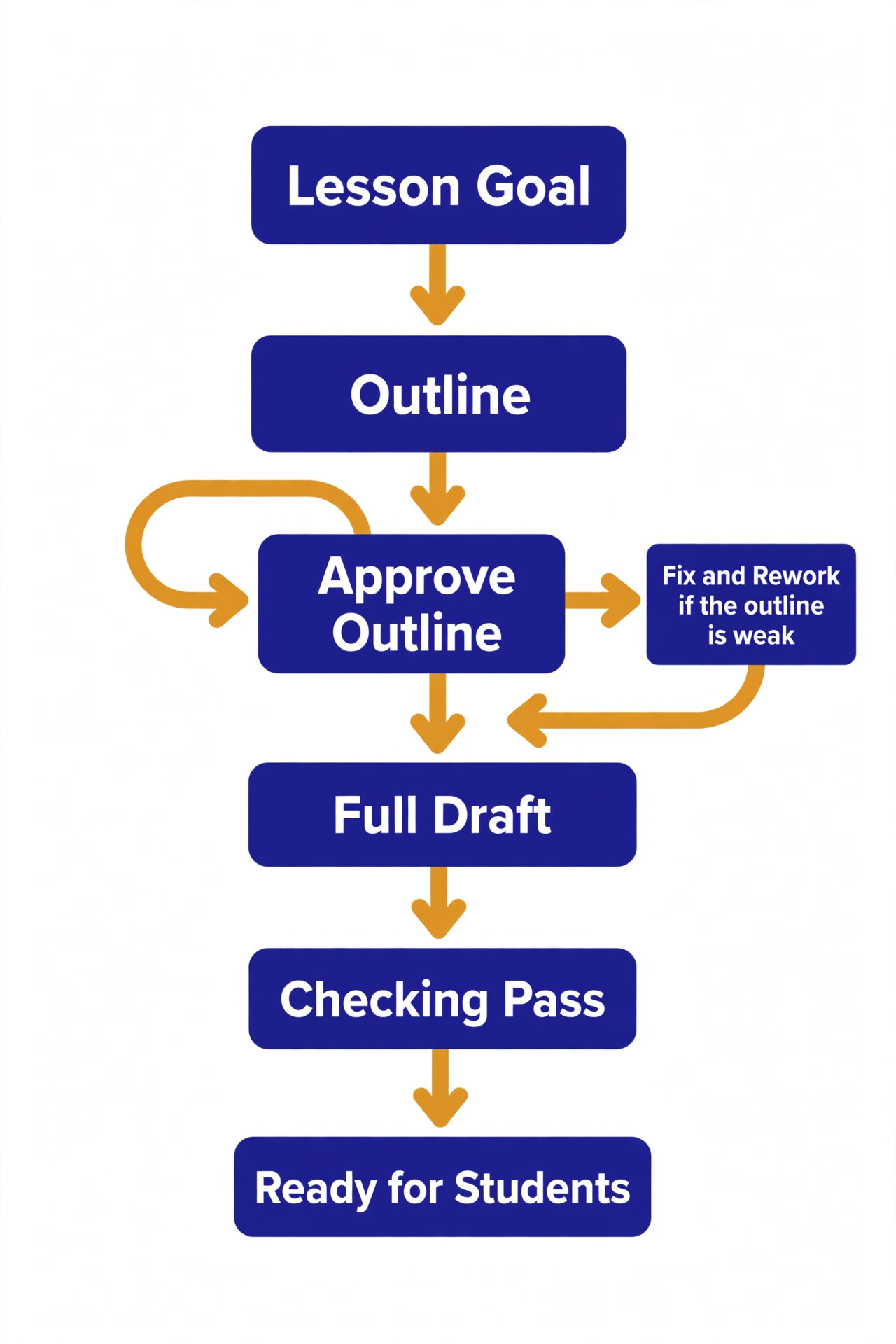
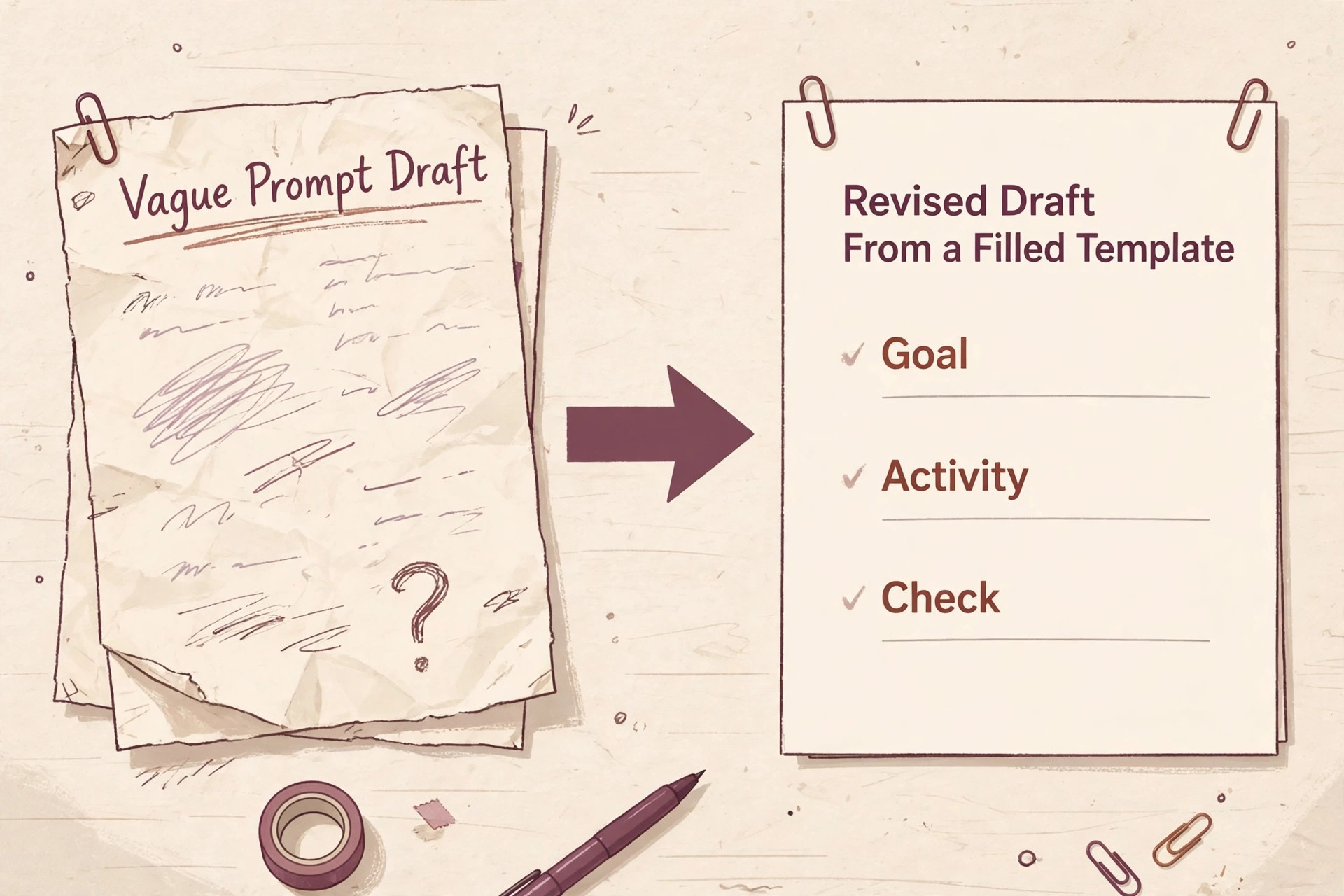
Next, ask for an outline before you ask for a full lesson. An outline takes a minute to read and a minute to fix, while a full lesson takes ten minutes to read and often hides a weak middle section behind a polished opening. Ask for the goal, a five minute starter, two main activities with timings, a check for understanding, and a closing task. Read that outline, fix the sequence, swap any activity that does not fit your class, and only then ask for the full draft of the version you approved. This two step habit is the single biggest quality control in the whole workflow, and it costs less time than rewriting a bad full draft.
A Weekly Planning Workflow That Fits a Real Teaching Week
A workflow only works if it survives a bad week, so this one is built around two focused sessions and a short daily check, not a single heroic Sunday session that collapses the first time you are ill or marking runs late. Session one, on Friday after school or on Sunday, lasts about 45 minutes and covers the whole coming week at outline level. Session two, spread across the week in 10 minute blocks, turns each outline into a teachable lesson the day before it is needed. The daily check, about five minutes, is for printing, posting, and fixing anything that changed, such as a room move or a cancelled period.
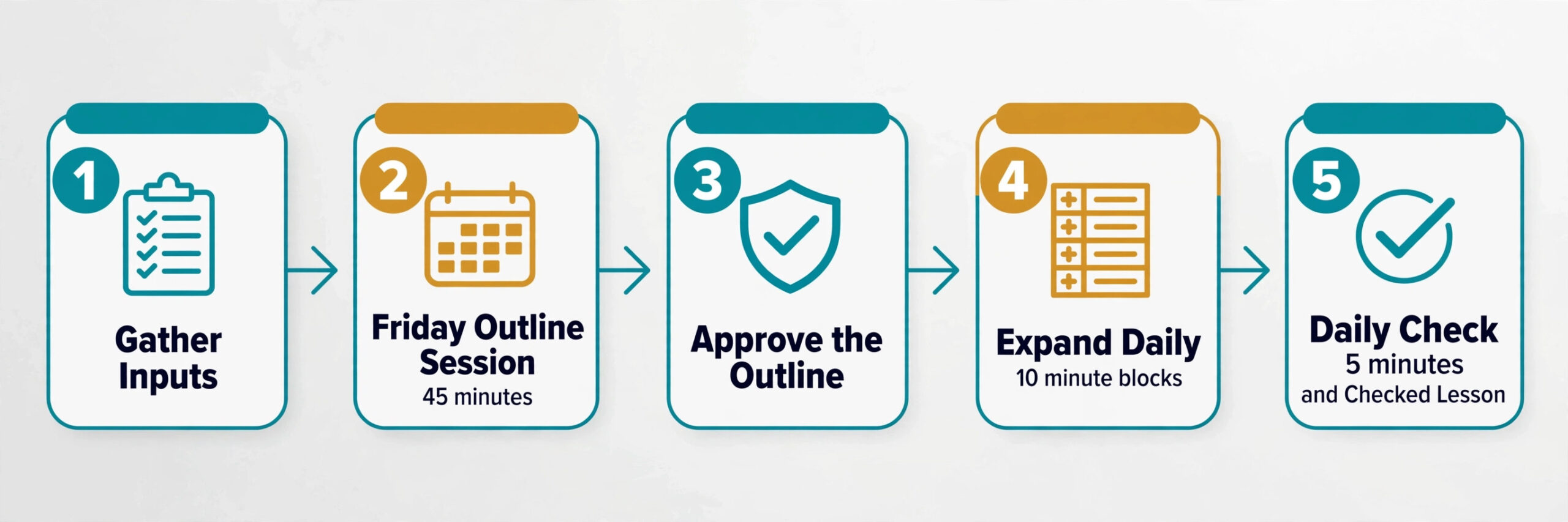
In session one, work through your week in order and produce one approved outline per lesson. Do not write full worksheets yet. For each lesson, confirm the goal, the main activity, and the check for understanding, and note any resource you need to book or print. If an outline is weak, fix it now, while you can still see the whole week and move an activity from Tuesday to Thursday if the sequence works better that way. This is where teachers who use ChatGPT for lesson planning teachers plan on a Friday save the most time later.
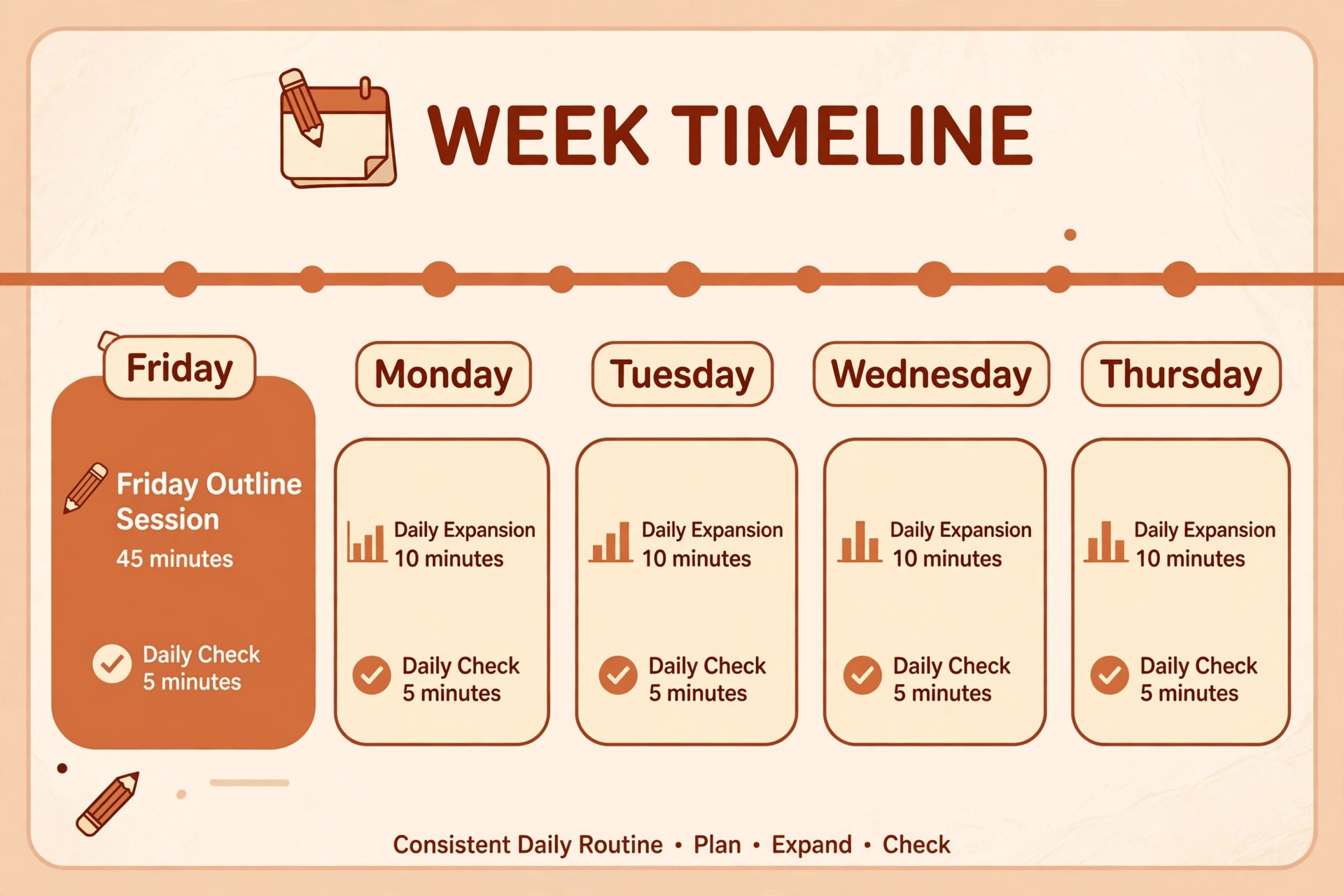
Teachers who skip this step often discover on Wednesday that two lessons in a row need the same set of textbooks or the computer room, and by then it is too late to rebook.
In session two, open the approved outline and ask ChatGPT to expand it into the full lesson and materials. This is where you generate the starter questions, the main task instructions, the support version, the stretch version, and the exit ticket. Work one lesson at a time, and save each finished lesson with a clear filename that includes the date, the class, and the topic, so you can find it next term. A file named “lesson1” will not help you in February. A file named “2026-11-03 Year 8 fractions adding unlike denominators” will.
The Lesson Template to Copy Into ChatGPT
Copy the template below into your first prompt for each lesson, fill in the bracketed parts, and reuse it all term. The template works because it forces the decisions from the first section into the prompt itself, so ChatGPT cannot skip them. Replace every bracketed item, keep the structure the same each time, and save the filled template with the finished lesson so next term’s version starts from a good draft instead of a blank page. Reuse it whenever you use ChatGPT for lesson planning teachers prepare for a new topic.
Lesson goal. One sentence stating what students will be able to do by the end of the lesson, written in student friendly language.
Year group and class profile. Year group, class size if it affects grouping, reading range in plain terms, and any access needs that change how materials should be presented, without naming individual students or sharing private data.
Time and setting. Lesson length in minutes, room type, and equipment already available, such as textbooks, whiteboards, or a set of tablets.
Prior learning. What students already covered, and the one misconception or gap most likely to appear.
Main activity. What students will spend most of their time doing, and whether they work alone, in pairs, or in groups.
Evidence of learning. How you will check understanding during the lesson and at the end, such as a set of questions, a short written answer, or a practical demonstration.
Differentiation. One support version for students who need smaller steps and one stretch version for students who finish early or need a harder problem.
Tone and reading level. Plain, direct language at the reading level of the class, with key vocabulary defined in the lesson rather than assumed.
What to avoid. Any content, examples, or activity types that do not fit your school policy or your class, stated plainly so the draft does not include them.
A filled example makes the template concrete. A Year 8 maths teacher might set the goal as adding fractions with unlike denominators, the prior learning as finding equivalent fractions, the misconception as adding the denominators together, the main activity as paired problem solving with a worked example first, and the evidence as an exit ticket with three questions of rising difficulty. With those facts in the prompt, ChatGPT can draft a starter that revisits equivalent fractions, a main task that builds in steps, and an exit ticket that actually tests the goal. Without them, it will draft a pleasant fractions lesson that may test something else entirely.
Prompts That Produce Usable First Drafts
A good prompt for lesson planning has four parts, and you can check any prompt against them before sending it. Context, meaning the class, the topic, and the time available. Task, meaning exactly what you want back, such as an outline, a worksheet, or five questions. Constraints, meaning reading level, length, format, and anything to avoid. Output shape, meaning headings, timings, or a table you can copy into your planner. Prompts missing the last two parts produce long, shapeless answers that take longer to edit than to write from scratch. Check every new prompt against those four parts before you use ChatGPT for lesson planning teachers will teach tomorrow.
Try this structure for a first outline. “Plan a 50 minute Year 7 science lesson on food chains for a mixed ability class. Give the learning goal, a five minute starter, two main activities with timings, a check for understanding, and a closing task. Use plain language, define key vocabulary, and avoid any activity that needs internet access.” That prompt is short, but it contains all four parts, and the reply will be short enough to judge in a minute. If the outline is wrong, fix one part, such as the timings or the activity type, and ask again, rather than rewriting the whole prompt.
For worksheets, ask for questions in bands, not just a list. “Write 12 questions on this topic in three bands of four. Band one checks recall, band two checks application to a new example, band three asks students to explain or compare. Include an answer key with short working for each question.” Banding forces the tool to vary difficulty on purpose, instead of producing 12 questions that all test the same skill at the same level. It also makes differentiation easier, because you can assign bands rather than rewriting the sheet.
Differentiation Without Tripling Your Workload
Differentiation is where ChatGPT saves the most time, but only if you ask for it in a controlled way. The mistake is to ask for three fully separate lessons, one for each ability group, which triples your checking work and creates three sets of materials that drift apart. The better approach is one core lesson with two variations, a support version that adds steps and a stretch version that adds depth, both built from the same examples and vocabulary. Students still meet the same goal, but the path to it changes, and you only check one set of facts. That control is what makes teachers use ChatGPT for lesson planning teachers can defend in a department meeting.
For the support version, ask for smaller steps, a worked example before the practice questions, sentence starters for written answers, and key vocabulary with short definitions at the top of the page. Ask for the same numbers or examples as the core version where possible, so a support student who joins a class discussion is talking about the same problem as everyone else. Changing the numbers as well as the steps isolates those students and makes whole class feedback harder, because the teacher is then managing two different answers at once.
For the stretch version, ask for a harder problem, a “why does this work” question, or a task that asks students to spot an error in a worked solution and correct it. Error spotting is a strong stretch task because it requires understanding, not just speed, and it can be written from the same example as the core task. Avoid stretch tasks that are simply more of the same questions, because fast finishers learn that finishing early earns extra work, and they slow down to avoid it. A stretch task should feel like a different challenge, not a punishment for finishing.
Assessment, Quizzes, and Feedback That Stay Fair
ChatGPT can draft quiz questions, mark schemes, and feedback comments quickly, but assessment is where accuracy and fairness matter most, so this is the area to check hardest. Start with questions tied to the lesson goal, not to the textbook chapter in general. A quiz that tests everything in the chapter but not the specific skill you taught will mislead you about what students learned, and it will confuse students who studied the right thing and still scored badly. List the goal first, then ask for questions that test that goal at recall, application, and explanation levels.
For written feedback, use ChatGPT to draft comment banks, not individual student reports. A comment bank of accurate, specific comments for common strengths and common errors saves writing time and keeps feedback consistent across a class. Write the comment yourself for anything sensitive, unusual, or tied to an individual student’s progress, and never paste private student data, names, grades, or pastoral notes into a public AI tool. If your school uses a business or education account with data controls, follow its rules for what may be pasted, and when in doubt, leave names and identifying details out entirely.
Marking with AI needs a clear boundary. ChatGPT can help you build a mark scheme, draft model answers, and generate practice questions with answers you can check. It should not be the sole marker of student work that counts toward a grade, because it can misread handwriting in photos, miss a correct method that looks different from the model answer, and give confident marks to wrong reasoning. If you use it to draft feedback on practice work, read every comment before it reaches a student, and keep the final judgement with yourself. That boundary protects students from errors and protects you from defending a mark you did not actually decide.
What to Check Before Anything Reaches Students
Every AI draft needs a checking pass, and the pass should be short enough that you actually do it. Work through five checks in order, and fix problems as you find them instead of reading the whole draft twice. First, facts. Verify any date, statistic, scientific claim, or quote you did not already know, using a textbook, a curriculum document, or a trusted source, not another AI answer. ChatGPT can present invented details with complete confidence, and a wrong fact taught in class is harder to correct than a blank space in a draft. This check matters most when you use ChatGPT for lesson planning teachers have not taught before.
Second, curriculum fit. Confirm the lesson matches the objective, the vocabulary, and the level your students are actually working at, not a generic version of the topic. Check that the examples use the methods your exam board or curriculum expects, because a correct answer reached by a different method can still confuse students who will be marked on method. If the draft uses a different method, either rewrite that section or teach the difference explicitly, rather than letting students meet two methods without explanation.
Third, reading level and clarity. Read the student facing instructions aloud, or at least silently in full, and check that a student could follow them without you explaining them first. Instructions that say “discuss” without saying what to discuss, how long to discuss it, and what to produce at the end will waste lesson time. Add those details yourself. They are small edits, but they are the difference between a lesson that runs itself and a lesson that needs rescuing every ten minutes.
Fourth, fairness and safeguarding. Check that examples, names, images, and scenarios do not stereotype groups, single out a student, or include content that is inappropriate for the age group. Check that any scenario about families, money, health, or personal life does not assume a background some students do not share. ChatGPT drafts often default to familiar, narrow examples, and a quick edit to vary names, settings, and family situations makes the lesson welcoming without changing the learning.
How to Choose Between Free, Go, Plus, and Business
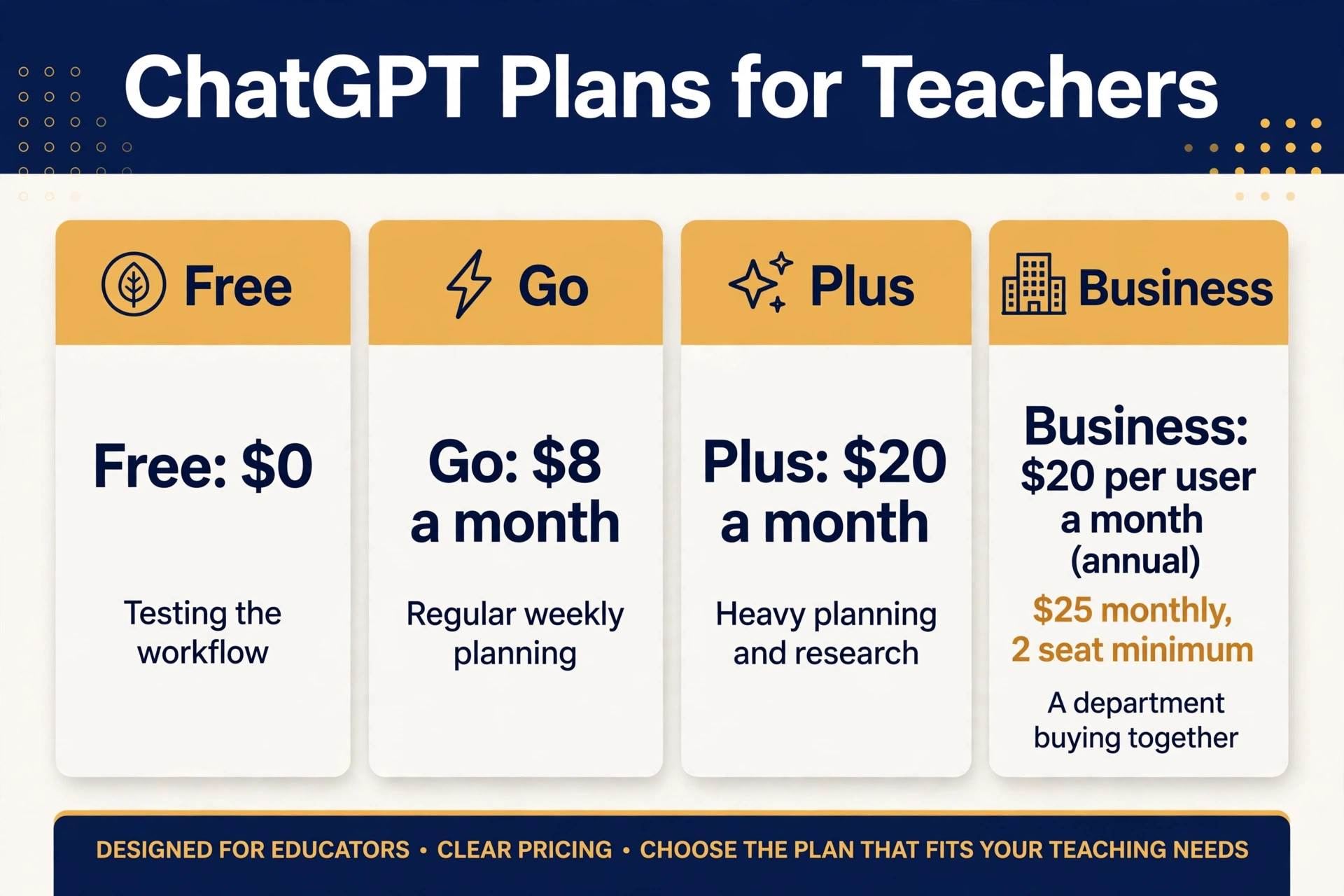
Most teachers can start on the free plan and learn the workflow before spending anything. The free plan costs nothing and is enough to test outlines, prompts, and the weekly routine for a few lessons, though it has usage limits and may switch to a lighter model when demand is high. If you plan a full week in one session, you may hit those limits at the worst moment, so keep your outlines in a document outside ChatGPT and work in short sessions rather than one long burst.
ChatGPT Go, listed at $8 a month for United States accounts in October 2026, raises message, upload, and image limits above the free plan and suits a teacher who plans regularly but does not need the heaviest research features. ChatGPT Plus, listed at $20 a month, adds higher limits, deeper research tools, and priority access during busy periods, and it is the plan most regular planners will land on if the free plan feels tight. Pro plans, listed at $100, $200, or $500 a month in October 2026, are built for heavy research and coding workloads and are far more than a classroom planner needs, so do not buy Pro for lesson planning alone.
Business plans, listed at $20 per user a month on annual billing or $25 monthly with a two seat minimum, add admin controls and workspace features that suit a department or a school buying together, not a single teacher buying alone.
The practical test is simple. Use the free plan for two full weeks of the workflow. If you hit limits during planning sessions, or you regularly need deeper research and file uploads, move to Go. If Go still feels tight, or you plan for a whole department and need priority access, move to Plus. Do not pay for a higher plan because a feature list looks impressive. Pay when you can name the limit you keep hitting, because that is the only upgrade that reliably saves time. Apply it before you pay to use ChatGPT for lesson planning teachers do on a tight budget.
Check the official OpenAI announcement of ChatGPT Go and the current pricing page before subscribing, because plan names, limits, and prices have changed several times in the past year.
| Plan | United States list price in October 2026 | Best fit for a teacher |
|---|---|---|
| Free | $0 | Testing the workflow for a few lessons |
| Go | $8 a month | Regular weekly planning on a tight budget |
| Plus | $20 a month | Heavy weekly planning with research and uploads |
| Business Standard | $20 per user a month annual, $25 monthly, two seat minimum | A department buying together with admin controls |
| Pro | $100, $200, or $500 a month | Not needed for lesson planning alone |
Mistakes That Waste the Time ChatGPT Was Meant to Save
The first mistake is generating before deciding. Teachers who open ChatGPT with only a topic get a generic lesson, spend 30 minutes rewriting it, and conclude the tool does not work. The tool worked as asked. The request was too vague. Spend three minutes on the goal, the class profile, and the misconception before you prompt, and the rewrite time falls sharply.
The second mistake is accepting the first draft. ChatGPT drafts are polished, and polish makes weak content look finished. Read every draft as if a colleague handed it to you, and be ready to cut the opening, swap the main activity, or rewrite the exit ticket. A draft you teach unchanged because it reads well is a draft you have not checked, and the problems will appear in front of students instead of on your screen.
For related reading, the guide to best AI tools for teachers covers the wider field beyond ChatGPT, best AI quiz generators helps if quizzes are your main need, and how to use AI to prepare for an exam is useful when revision season arrives and students need structured practice.
Frequently Asked Questions
Can teachers use ChatGPT for lesson planning without breaking school policy?
It depends on your school policy, and you should check it before you build a term of materials. Many schools allow AI for planning drafts, but restrict pasting student names, grades, or personal data into personal accounts. Use a school provided account where one exists, keep identifying details out of prompts, and keep the final decisions, grades, and judgements with yourself. If your school has no written policy, ask your department head and keep a short record of what was agreed.
How much time does ChatGPT actually save on lesson planning?
Honest answer, it depends on how you use it. Weekly AI users in the 2025 Gallup survey self reported saving about 5.9 hours a week across all AI tasks, not planning alone, while a randomised trial of a different lesson tool measured about 49 minutes a week saved on planning specifically. A realistic expectation for ChatGPT is a solid first draft in about 20 minutes plus 20 minutes of checking and adaptation, compared with starting from a blank page. Teachers who skip the checking pass may appear to save more time, but they pay for it later in classroom problems.
Is the free plan enough for a teacher planning a full week?
For testing the workflow, yes. For a full week planned in one session, often no, because free plan limits can interrupt a long session and switch you to a lighter model. If you hit limits regularly, ChatGPT Go at $8 a month is the next step for most teachers, and Plus at $20 a month suits heavier planning with research and uploads. Confirm current prices and limits before paying, because both have changed in the past year.
Will ChatGPT lessons all sound the same?
They will if you use the same vague prompt every time. They will not if you change the goal, the misconception, the main activity, and the examples for each lesson, and if you rewrite the opening and the closing in your own voice. Vary the activity types across the week, such as discussion one day, practical work the next, and problem solving after that, and save your best templates so the structure stays familiar while the content changes.
How do I check a ChatGPT lesson for accuracy?
Verify every fact you did not already know against a textbook, curriculum document, or trusted source. Check that the method matches what your students will be marked on, read the student instructions in full, add up the timings, and confirm that resources and links are correct. Pay special attention to dates, statistics, quotes, and scientific explanations, because those are the details ChatGPT can present confidently even when wrong.
Should students know their lesson was planned with ChatGPT?
There is no need to announce the tool for every lesson, but there is also no benefit in hiding a normal planning aid. What matters is that the lesson is accurate, fits your students, and reflects your professional judgement. Be open if a colleague or a parent asks, explain the checking steps you use, and never present AI generated text as a student’s own work or as a verified source in class.
Start Next Monday With One Planned Week, Not a New System
You do not need a new planning system, a paid plan, or a perfect prompt library to benefit from ChatGPT this term. You need one week planned with the workflow in this guide, one filled template saved for reuse, and one honest note after each lesson about what to change next time. Run the Friday outline session, expand one lesson at a time, check every draft with the five checks, and save the finished lessons where you can find them in February.
After three weeks, you will know something no feature list can tell you. You will know whether ChatGPT saves you time on your topics, with your classes, in your timetable, or whether it mainly helps with quizzes and differentiation while your main planning stays manual. That knowledge is worth more than any new plan tier, because it tells you exactly where to spend the next hour. Start with one week, keep what works, fix what does not, and let the system grow from evidence rather than from enthusiasm. That is how a drafting tool becomes a reliable part of teaching, instead of another app that promised to save time and quietly added work.