

The verdict is simple. If you sell on Etsy and you do not have a designer on staff, Canva is the fastest way to turn one good product photo into a full set of listing images that look planned rather than improvised. That does not mean Canva fixes a weak product, a blurry photo, or a price nobody wants to pay. It means that when the product is ready, you can use Canva for Etsy listing images that answer a shopper’s questions in order, show scale and detail, and still look like they came from one shop.
The rest of this guide shows exactly how to do that, with sizes, a slot by slot plan, and the points where sellers usually waste time or mislead buyers by accident.
A listing image set is not decoration. On Etsy, the first image decides whether a shopper clicks at all, and the images that follow decide whether that shopper trusts what they see enough to buy. Shoppers cannot hold the item, feel the fabric, test the fit, or check the colour in daylight. They judge all of that from pixels. A seller who treats images as an afterthought will lose to a seller with a similar product and a clearer set, even when the second seller charges a little more.
The workflow below keeps the work to one sitting per product type, reuses a template for repeat listings, and leaves room for real photos where Canva graphics would only get in the way.
What Shoppers Decide From Images Alone
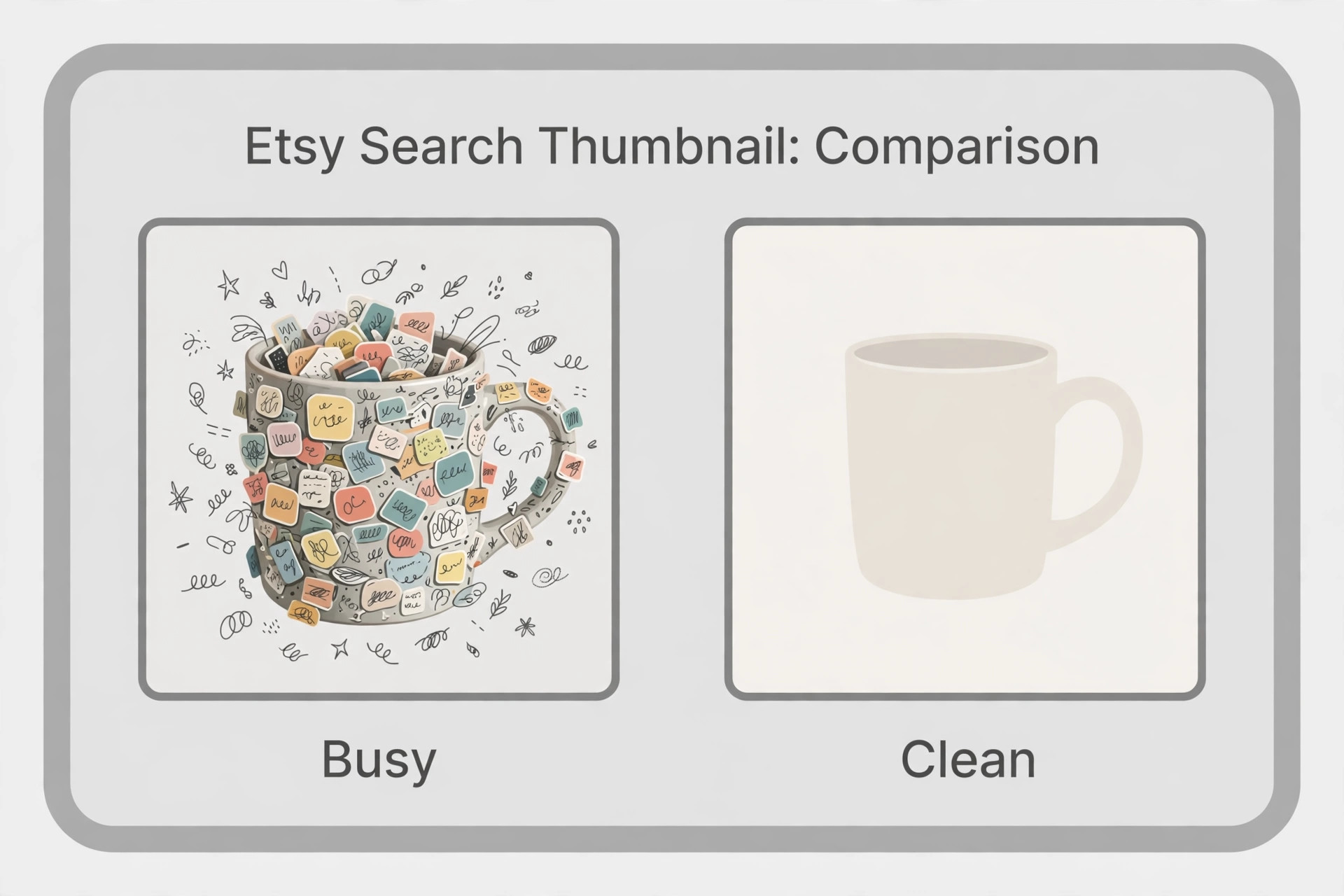
Search results on Etsy move fast. A shopper types a phrase, scans a wall of small thumbnails, and clicks the one or two listings that read clearly at that tiny size. Colour, contrast, and a single clear subject win at that stage. Fine print, busy backgrounds, and three competing messages lose, because the eye cannot resolve them before the thumb moves on. Your first image therefore has one job, and only one job. It must make the product, and what it is for, obvious in under two seconds.
How to Use Canva for Etsy Listing Images in a Repeatable Weekly Workflow
This is the section to copy into your own notes, because it holds the two things that make the rest of the guide work in practice. The first is the size and spec checklist. The second is the workflow that turns that checklist into ten finished images without redesigning every listing from zero. If you only remember one part of this post, remember this part, and run every new listing through it before you press publish.
The image size and spec checklist
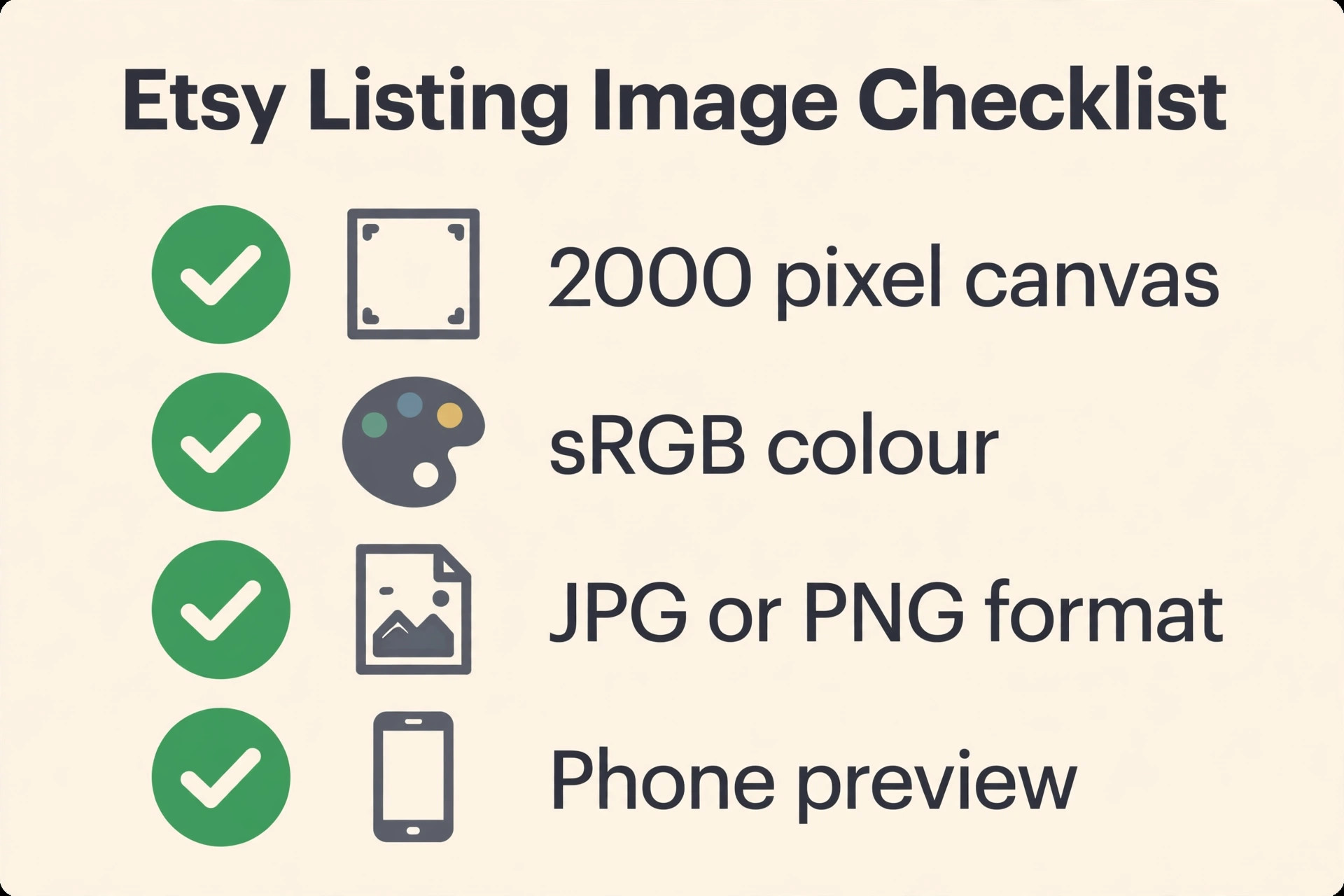
Etsy recommends listing photos with a width and a height of at least 2,000 pixels, so a square export of 2,000 by 2,000 pixels is the safest starting point for most shops. That size keeps the zoom view sharp on a phone and on a desktop, and it survives Etsy’s different crops better than a small upload stretched to fit. A 3,000 by 3,000 pixel square is also a sound choice for products with fine detail, such as jewellery or embroidery, though the file will be larger and slower to upload.
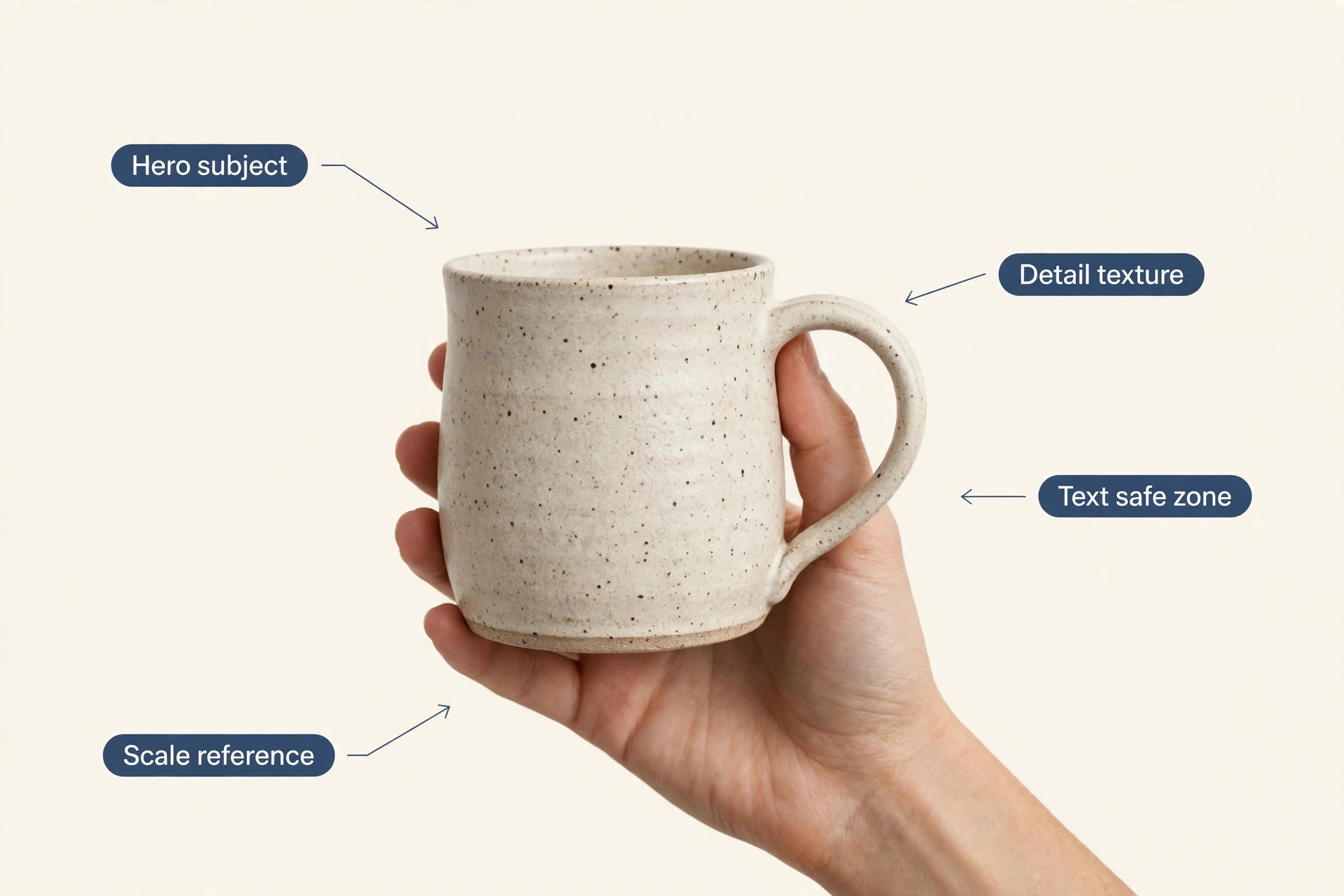
Keep the main subject centred with breathing room around it, because Etsy crops the same image differently in search, on your shop page, and inside the listing, and a subject pressed against an edge will be cut in one of those views.
Use JPG for ordinary product photos, because it compresses well and keeps colours stable. Use PNG when you need a clean graphic, a logo, or a digital product preview where crisp text matters more than file size, and remember that transparent areas in a PNG can render as black on Etsy, so flatten a design onto a solid background before export unless you have tested the result. Keep the colour mode as sRGB, which is the standard for web display, and avoid exotic colour profiles that shift on different screens.
Export at a size that stays sharp without becoming a slow download, and check the finished file on a phone before you upload it, because most Etsy shoppers will first see it there.
The thumbnail crop deserves its own check. Etsy generates search thumbnails from the first image at roughly 570 by 456 pixels, a wider shape than a square. That means a square first image will be cropped top and bottom in search. Place the product in the middle band of the frame, keep essential text out of the top and bottom edges, and preview the listing in search view after publishing. If a headline or a key detail disappears in the crop, move it, shrink it, or remove it from the first image and put it on the second image instead. A design that only works at full size is not finished.
| Check | Target for every listing |
|---|---|
| Canvas size | 2,000 by 2,000 pixels square, or 3,000 by 3,000 for fine detail |
| First image minimum | At least 2,000 pixels on each side, subject centred |
| Search thumbnail crop | About 570 by 456 pixels, keep key detail in the middle band |
| File format | JPG for photos, PNG for crisp graphics flattened onto a solid background |
| Colour mode | sRGB for consistent colour across screens |
| Image count | Use all available photo slots, up to 10, with a purpose for each |
| Video | One short video of 5 to 15 seconds where it helps, with no misleading edits |
| Alt text | One plain, specific description per image |
| Final check | Preview on a phone in search view and in listing view before publishing |
The ten slot workflow, step by step
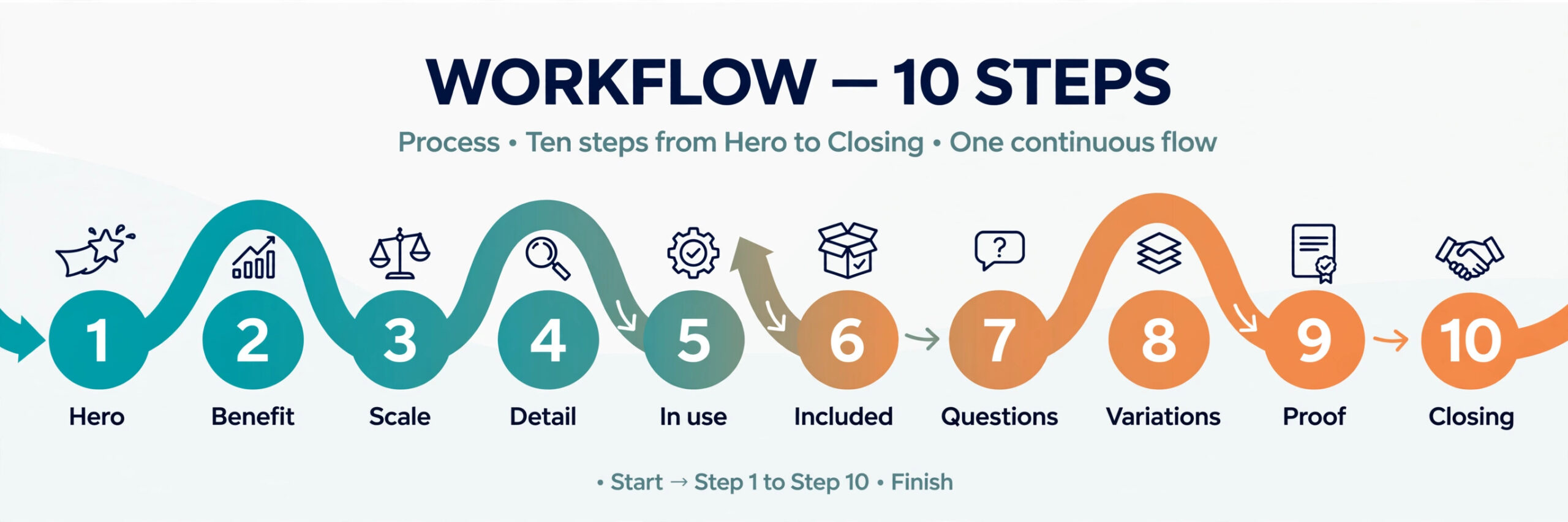
Start with the product, not with a template. Photograph or gather the real product images first, in daylight, against a simple background, with at least one shot that shows scale. Import those photos into Canva, and build one master design file per product type, not per listing. A mug shop needs one mug master file. A printable shop needs one printable master file. A jewellery shop needs one jewellery master file. Inside that master file, create ten pages, one for each slot, and save the fonts, colours, and logo positions as a repeatable pattern. The next listing of the same type then becomes an edit, not a new design.
Work through the slots in this order, because the order matches the order of a buyer’s questions. Slot one is the clean hero shot, with the product large, centred, and easy to read at thumbnail size. Slot two adds the key benefit or the main use in a few words, without covering the product. Slot three shows scale, next to a hand, a common object, or a room setting, so size stops being a guess. Slot four is a close detail shot, where texture, stitching, glaze, print quality, or paper weight becomes visible. Slot five shows the product in use, in a real setting a buyer can picture at home.
Slot six lists what is included, in plain words, so a buyer does not have to hunt through the description to learn whether a gift box, a set of sizes, or a digital file is part of the deal. Slot seven answers the most common question or objection for that product, such as care, sizing, materials, or how a digital file is delivered. Slot eight shows a variation, a colour range, a size range, or a personalisation example, so a buyer can see choice without opening five listings. Slot nine is proof, such as a packaging shot, a making shot, or a clear photo of the finished item ready to ship, which builds trust without inventing reviews.
Slot ten is a calm closing image, with the product, the shop name, and one short line about what happens after purchase, such as dispatch timing or a note about personalisation. If a slot does not fit your product, replace it with a second angle or a second use case, rather than leaving it blank or repeating an earlier image.
Export in one batch, name the files in slot order, and upload in that order, because Etsy shows images in upload order and a shuffled set confuses the story. Check each image on a phone, fix any text that is cut by the thumbnail crop, add alt text, and only then write or finalise the title and description to match what the images promise. A listing where the images promise one thing and the text promises another creates returns, and returns cost far more than the ten minutes a careful image check takes.
Build Your Canva Setup Once, Then Reuse It
A good setup when you use Canva for Etsy listing images is boring in the best sense. It is the same fonts, the same colours, the same logo position, and the same spacing, applied to every listing, so a shopper who finds one listing recognises the next one as coming from the same shop. That recognition matters on Etsy, where shoppers often browse a shop after liking one item. A shop with five different visual styles looks like five different sellers. A shop with one steady style looks like a brand, even when it is one person working from a kitchen table.
Design the First Image So It Wins the Click
The first image carries more weight than the other nine combined, because it is the only image most searchers ever see. When you use Canva for Etsy listing images, treat the first image as a poster for the product, not as a catalogue page. One product, one clear background, one short message at most, and nothing that competes with the product for attention. If you need text on the first image, keep it to a few words that name the benefit or the use, such as a size, a set count, or a gift occasion, and place it where the search crop will not cut it.
If the product speaks for itself, leave text off entirely, because a clean photo often beats a busy graphic in search.
Colour accuracy on the first image is a trust issue. A mug that looks sage green in the listing and arrives looking grey will generate a message, a return, or a review that hurts more than a slightly less vivid photo would have. Edit for clean light and true colour, not for maximum saturation. If your phone camera warms a photo, correct it in Canva with a gentle adjustment, and compare the result with the real item under daylight before you export.
Sellers who sell colour variants should show the exact variant in the first image, not a generic photo with a colour name in the title, because shoppers click on what they see and feel misled when the item that arrives does not match.
Fill the Other Nine Slots With Proof, Not Repetition
The most common mistake in a ten image set is repetition disguised as completeness. Ten versions of the same hero shot, with different filters or different text, do not answer ten questions. They answer one question ten times, and they waste the slots that could have removed doubt. A stronger set treats each slot as a different kind of evidence, and the seller’s job is to decide which evidence matters most for that product. A ring needs a worn shot and a size reference more than it needs a packaging shot. A printable needs a printed example and a page preview more than it needs a lifestyle shot.
A candle needs a lit shot and a burn time note more than it needs a colour chart.
Detail shots deserve real care. Zoom into the part of the product a buyer would inspect in a shop, such as a seam, a clasp, a print edge, or a glaze finish, and let that detail fill the frame. Use a steady hand or a simple tripod, shoot in daylight, and avoid heavy filters that smooth texture away. In Canva, you can add a short label that names what the detail shows, such as hand stitched seam or matte glaze finish, but keep the label small and out of the way, because the texture is the message.
A detail shot that is sharp and honest does more for trust than a polished graphic that hides the very thing a buyer wants to inspect.
Scale shots are where many listings fail quietly. A product photographed alone, with no reference object, leaves size to guesswork, and guesswork leads to returns. Place the item next to a hand, a coin, a book, or a standard object a buyer knows, and keep that reference in the same frame, not as a separate diagram that requires interpretation. For wall art and larger items, show the piece on a wall with furniture visible, so the buyer can judge proportion. For jewellery and small goods, show the item worn or held, because a measurement in centimetres alone does not convey how a piece sits on a wrist or a neck.
Photography, Mockups, and Honest Edits in Canva
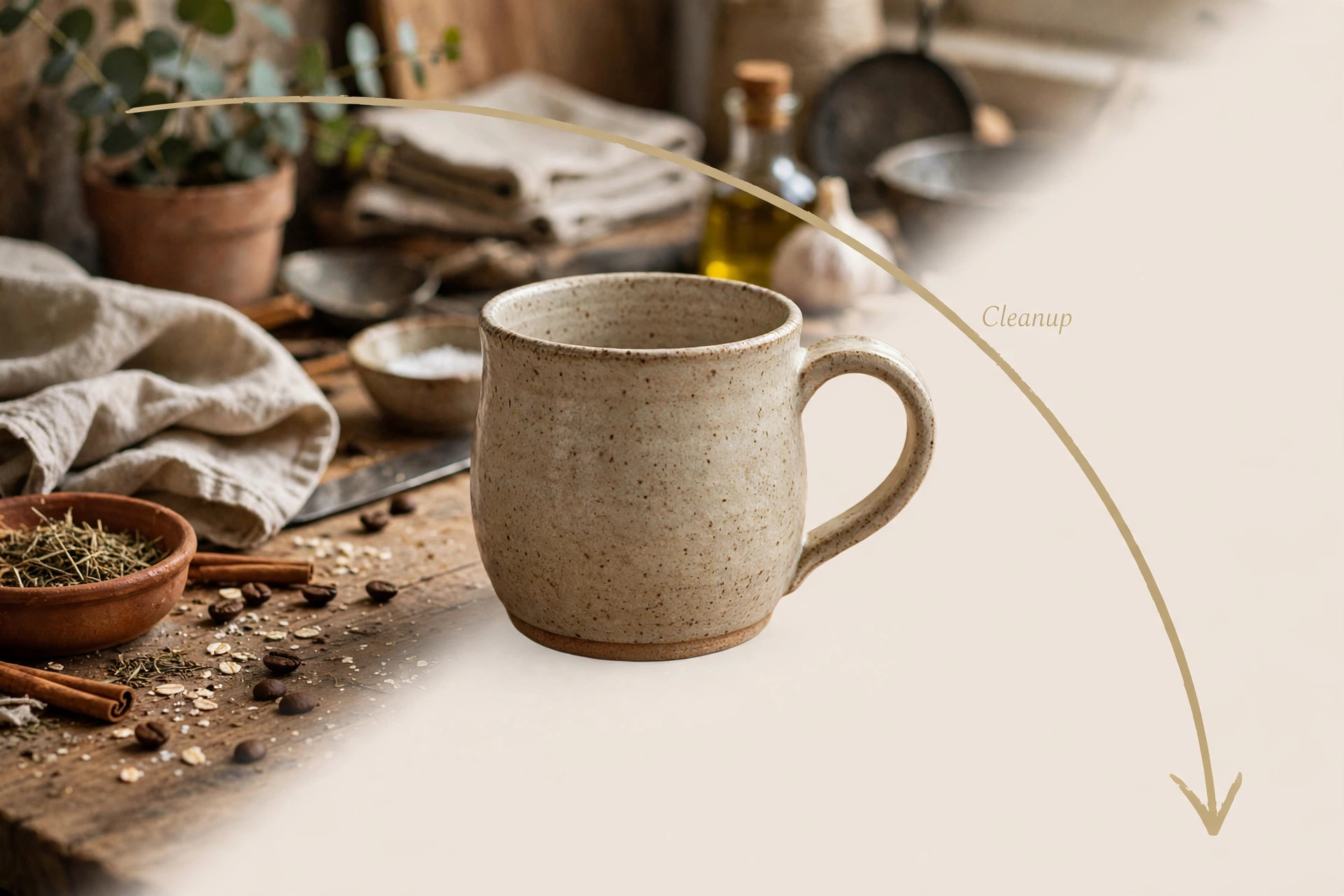
Canva is a design tool, not a substitute for a decent photo, and the best workflow respects that boundary. Start with the best photo you can take, then use Canva to clean, crop, label, and arrange, rather than to invent. The background remover, available on paid plans, is useful for turning a cluttered home photo into a clean product shot, but it needs a check at full zoom, because it can eat fine edges on jewellery chains, fringe, fur, and lace. If the edge looks chewed or a chain link disappears, keep the original background or reshoot against a plain surface, because a buyer will notice the flaw on zoom even if you miss it at thumbnail size.
Mockups in Canva can speed up digital product listings, and they are also where honesty matters most. A mockup should show the design in a plausible setting, at a plausible size, with no extra items that suggest the buyer receives more than they do. If a printable set includes ten pages, do not show a mockup with twenty pages fanned out. If a phone wallpaper is the product, do not show it as a framed poster. Add a short line on the image or in the description that states what the buyer receives, and keep that line consistent across the set. Sellers who are clear about digital delivery get fewer confused messages, even when the mockup itself looks polished.
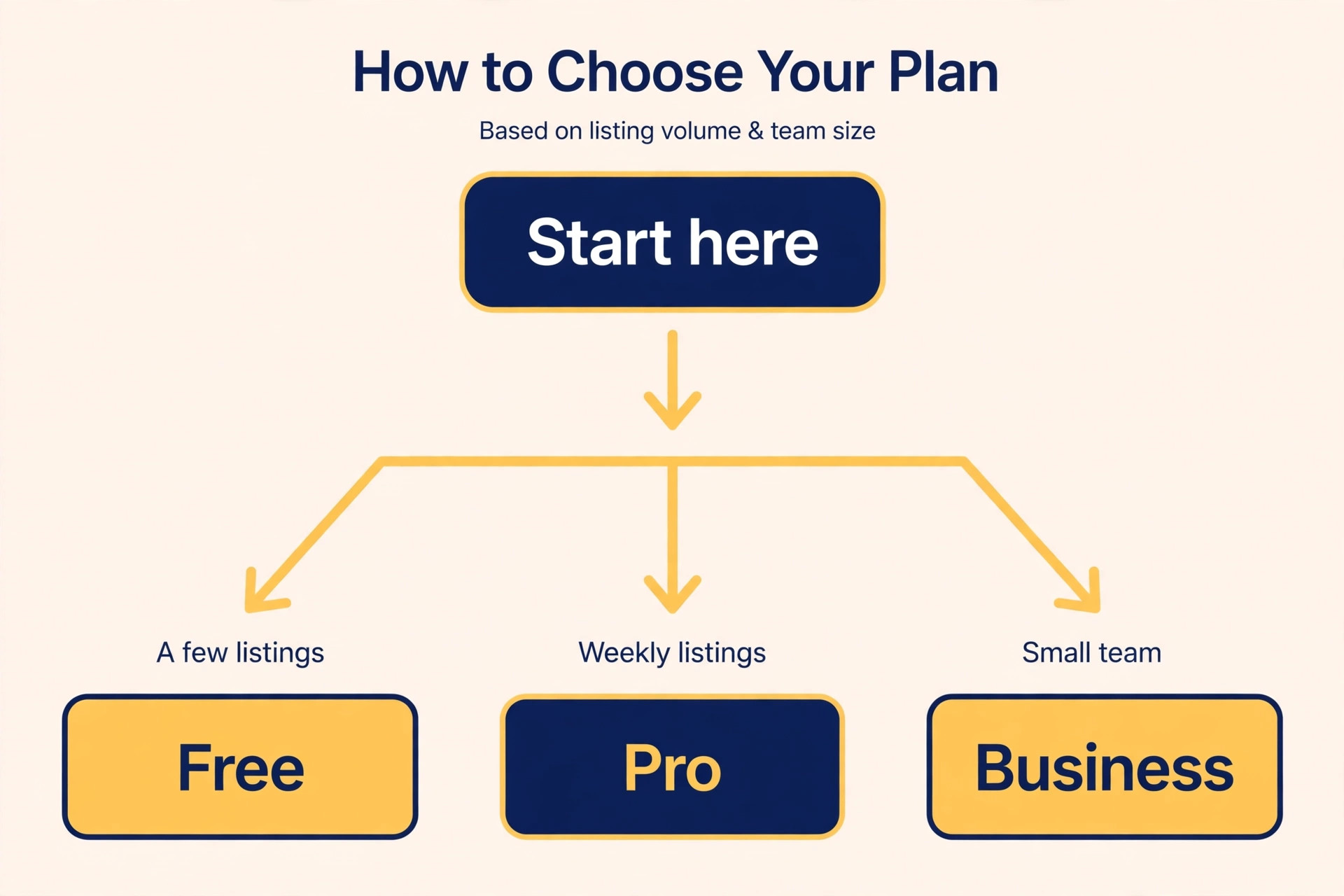
Free, Pro, or Business, and What Each Plan Actually Buys You
Canva pricing changes by region and over time, so treat the figures here as a checked snapshot for the United States in October 2026, and confirm the final price at checkout before you pay. Canva Free costs nothing and covers the core editor, a large set of free templates, and basic design tools, which is enough for a seller testing a first listing or publishing a few items a month. Canva Pro is listed at about 18 dollars a month on monthly billing, or about 144 dollars a year on annual billing, which works out to about 12 dollars a month, for one person.
Canva Business is listed at about 25 dollars per person a month on monthly billing, or about 250 dollars per person a year, and adds team folders, approvals, and shared brand controls. Prices exclude local taxes in many regions, so the invoice can sit a little above the headline figure.
For most solo Etsy sellers, the decision is between Free and Pro, not between Pro and Business. Pro buys three things that matter for listing work. The first is the background remover, which saves real time when product photos need a clean background. The second is the Brand Kit, which stores your fonts, colours, and logo in one place and applies them consistently across listings. The third is a much larger library of premium templates, photos, and elements, plus one click resizing, which matters when the same design needs to serve Etsy, a shop banner, and social posts.
If you publish new listings weekly, use background removal often, and care about a consistent shop look, Pro usually pays for itself in saved hours within the first month or two.
Do a simple cost check before you upgrade. Count how many listings you publish in a typical month, estimate the minutes Pro saves you per listing through background removal, Brand Kit, and templates, and multiply that saving by the value of an hour of your time. If the monthly saving beats 18 dollars, Pro is a sound buy. If it does not, stay on Free and revisit the question when your listing volume grows.
Also factor in Etsy fees when you price the product itself, because image costs sit on top of a fee stack that already includes a 0.20 dollar listing fee per item, a 6.5 percent transaction fee on the item price plus shipping and gift wrap, and, for United States sellers using Etsy Payments, a payment processing fee of about 3 percent plus 0.25 dollars per order. A design subscription should be priced into your margins, not absorbed silently while fees and materials eat the profit.
| Plan | Listed United States price, October 2026 | Best for an Etsy seller |
|---|---|---|
| Free | 0 dollars | Testing a first listing, a few items a month, clean photos already in hand |
| Pro, one person | About 18 dollars a month, or about 144 dollars a year | Weekly listings, background removal, Brand Kit, premium templates |
| Business, per person | About 25 dollars a month, or about 250 dollars a year | A small team sharing folders, templates, and approvals |
Check the official Canva pricing page before you commit, and check the Etsy fees and payments policy for the rates that apply to your country, because both vendors adjust figures and regional rates differ.
How to Choose Your Approach by Product Type
Not every product needs the same Canva treatment, and a workflow that fits a printable will waste time on a ceramic mug. The table below gives a starting point, and you should adapt it to the questions your buyers actually ask in messages and reviews. If buyers keep asking about size, add a stronger scale image. If they keep asking about materials, add a detail image with a materials label. Let real buyer questions, not a template, decide which slot gets extra effort.
A handmade physical product needs real photos first, with Canva used for labels, scale, and a clean closing image. The hero should be the real item, not a rendered version, and the detail and worn shots should be photographs, not illustrations. A digital product needs Canva for almost everything, because the listing image is the sample, and the set should show the file in use, the pages or sizes included, and a clear note about delivery. A personalised product needs a personalisation example, with a real example name or initial shown, plus a note about how the buyer supplies their details, because personalisation is where orders go wrong when the image promises more choice than the listing allows.
Mistakes That Cost Clicks, Trust, or Sales
The first mistake when you use Canva for Etsy listing images is designing for the desktop canvas and never checking the phone crop. A headline that reads well at 2,000 pixels can vanish in the 570 by 456 search crop, and a product placed near an edge can be cut in half in search while looking perfect inside the listing. Check every first image in search view, on a phone, before you publish, and treat a cut headline or a cut product as a failed design, not a minor flaw.
The second mistake is text overload. A listing image is not a product description, and an image with five bullet points, three badges, and a paragraph of small print will be unreadable at thumbnail size and distracting at full size. Put detailed information in the listing description, where a buyer can read it properly, and keep image text to one short message per image. If you cannot state the message in five words or fewer, the image is trying to do too much, and the message belongs in the text.
The third mistake is using the same image for every variant. A buyer who clicks a sage mug and sees a terracotta mug in the first image, because the seller reused one photo across variants, feels misled, even if the title names the colour. Give each main variant its own first image where possible, or use a clear variation image early in the set that shows the exact colours available. Variant clarity is especially important for personalised and made to order items, where the buyer cannot return a custom piece as easily as a standard one.
The fourth mistake is hiding flaws or overstating quality with heavy editing. Over smoothing texture, whitening a background until the product edge glows, or boosting saturation until colours look unreal will win a click and lose a sale, because the buyer who opens the listing and then reads reviews or messages the seller will sense the gap. Edit for clean, true representation, and let the product’s real quality carry the sale. A slightly imperfect but honest photo builds more long term trust than a flawless render that the delivered item cannot match.
The fifth mistake is leaving slots empty. A listing with two images looks unfinished next to a competitor with ten, even when the product is better, because shoppers read an empty set as low effort or low stock. If you do not have ten distinct images yet, add a second angle, a packaging shot, a size reference, or a printed example, rather than publishing with two images and promising to add more later. Shoppers decide in the moment, not on a future update.
For related reading, best AI tools for Etsy sellers covers the wider tool set for running a shop, best Etsy SEO tools helps with titles and tags that match the images, and best AI tools for ecommerce product photos compares photo tools beyond a single editor. If you are weighing editors, Canva alternatives and Canva vs Adobe Express give a fuller comparison before you commit to one subscription.
Frequently Asked Questions
Do I need Canva Pro to use Canva for Etsy listing images?
No. You can use Canva for Etsy listing images on the Free plan, with the core editor, free templates, and manual background control, and many sellers start there. Pro becomes worth paying for when you publish weekly, need background removal often, want a Brand Kit for consistent fonts and colours, or use premium templates and photos regularly. Start on Free, count the hours Pro would save you, and upgrade only when that saving beats the monthly price.
What size should I export from Canva for Etsy?
Export a square of 2,000 by 2,000 pixels as your default, and use 3,000 by 3,000 pixels for products with fine detail such as jewellery or embroidery. Keep the subject centred, keep key text out of the top and bottom edges so the wider search crop does not cut it, and preview the result on a phone in search view before you publish.
How many images should an Etsy listing have?
Use all available photo slots, up to 10, with a distinct purpose for each slot, from hero and scale to detail, use, contents, and proof. A set with two or three images looks unfinished next to a full set, and it leaves buyer questions unanswered. If a slot does not fit your product, replace it with a second angle or a second use case rather than repeating an earlier image.
Should the first Etsy image have text on it?
Only if the text adds a clear, true message in a few words, such as a set count, a size, or a gift occasion, and only if that text survives the search crop. A clean product photo with no text often wins more clicks than a busy graphic, because the product stays large and readable at thumbnail size. Test both versions at thumbnail size on your phone and keep the version a stranger can understand without reading the title.
Can I use Canva mockups for digital products on Etsy?
Yes, provided the mockup shows how the buyer will actually use the file and does not suggest the buyer receives a physical item. Show a printable as a printed page, a wallpaper on a phone, or a poster in a frame, and state clearly what the buyer receives. A mockup that looks like a finished physical product, when the order is only a digital file, is one of the fastest routes to a confused message or a complaint.
Do I need to add alt text to Etsy listing images?
Yes, add one plain description per image, such as a ceramic mug in sage green on a wooden table. Alt text helps shoppers who use screen readers, and it gives search a clearer signal about what the image shows. Keep it specific and honest, name the colour variant or the use shown, and avoid stuffing it with keywords that do not describe the image.
Your Next Listing, Done in One Sitting
A strong set when you use Canva for Etsy listing images does not require a design degree or a studio. It requires one good photo, one steady template, ten images with ten different jobs, and a final check on a phone before publishing. Start with your best selling product type and use Canva for Etsy listing images through the checklist, build the master file once, and run the next listing through the checklist and the ten slot workflow in this guide. Measure the result by the questions buyers stop asking, the clicks that turn into saves and sales, and the returns that do not happen because size, colour, and contents were clear from the start.
