
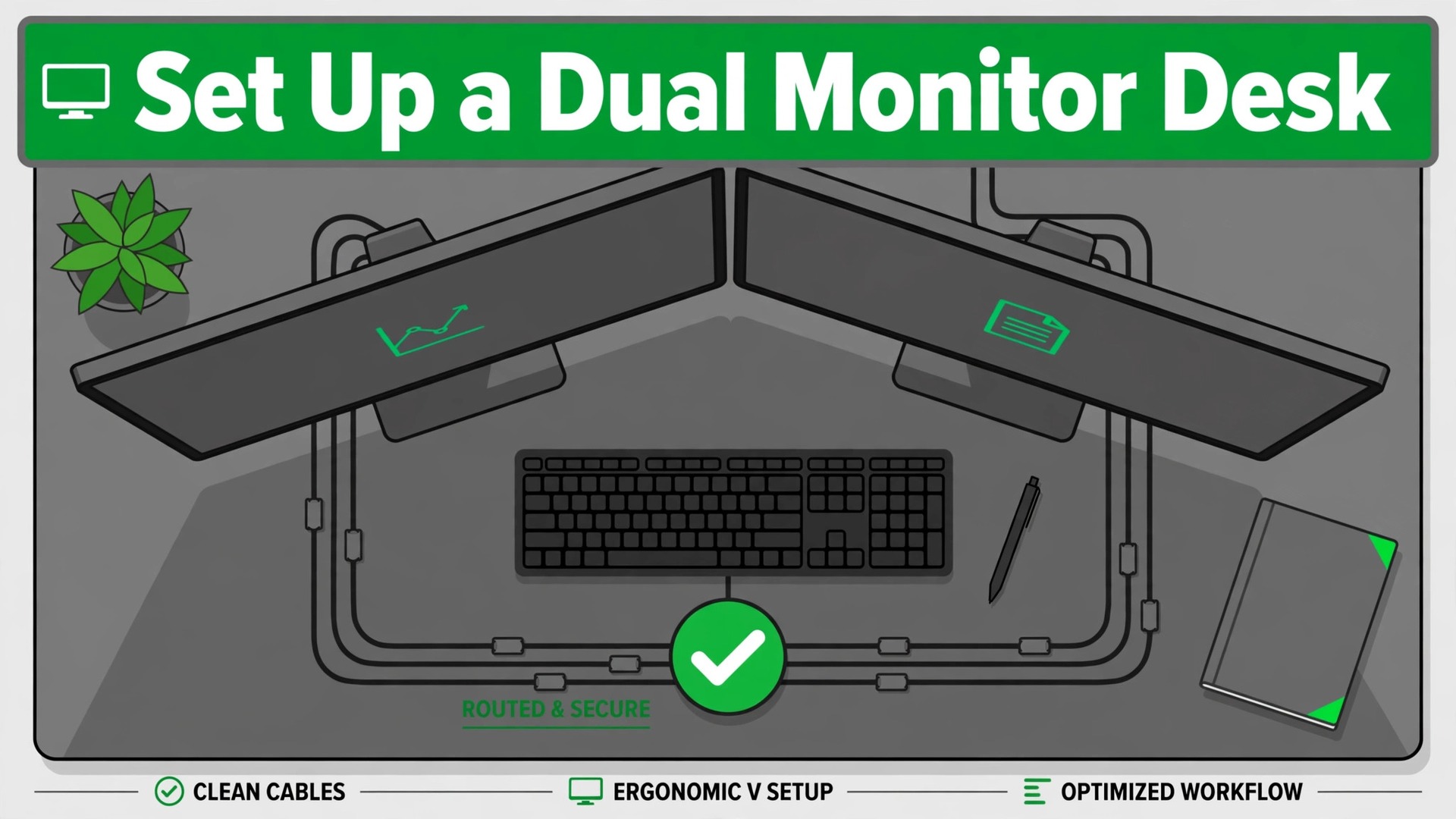
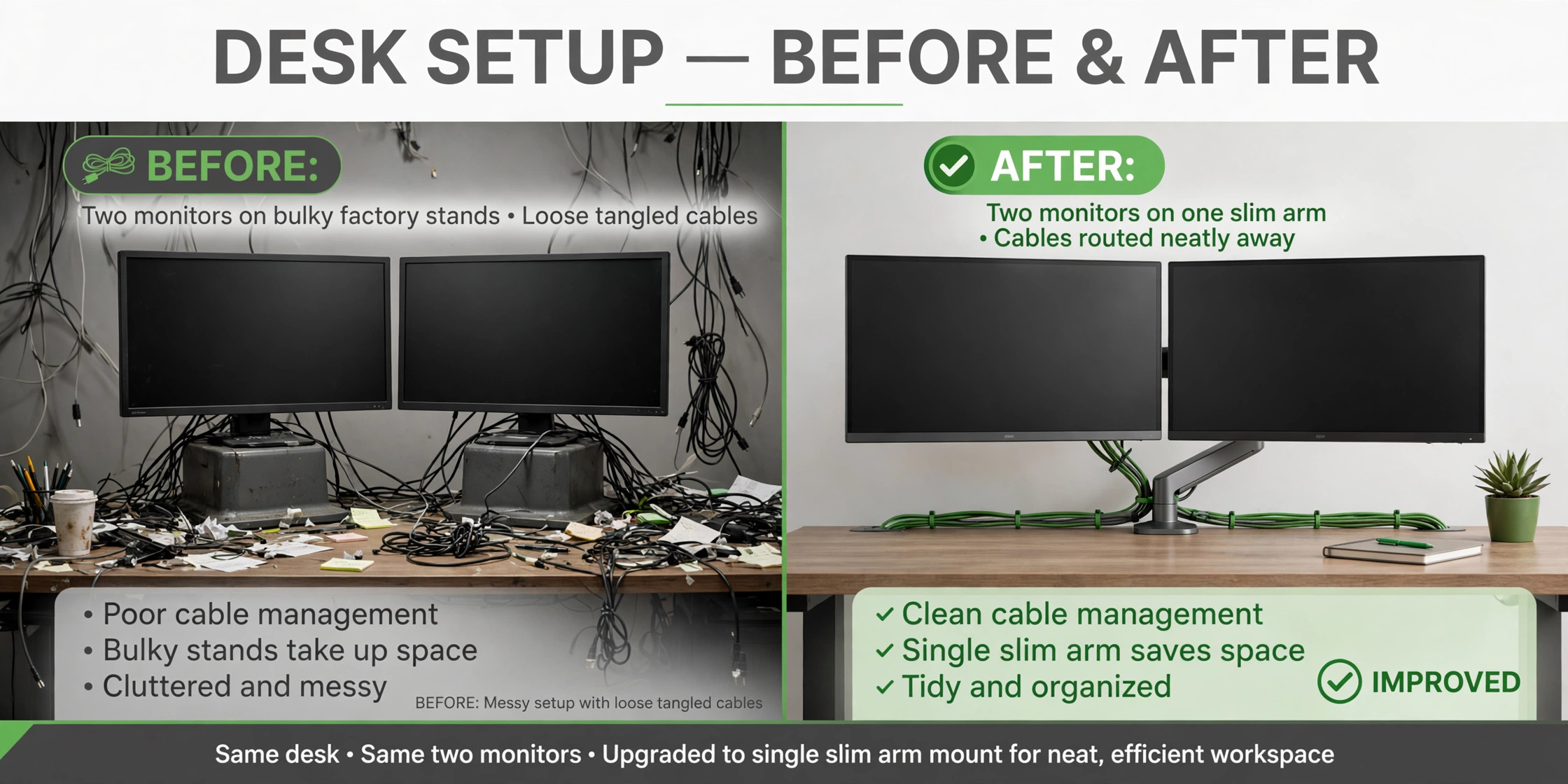
Put two identical desks side by side in your mind. On the first, a second monitor has simply been added to the factory stand, pushed to the right, and left wherever it fit. On the second, the same two monitors sit on one arm, at the same height, angled toward the chair, with cables routed out of sight and a clear job for each screen. Both desks have two monitors. Only one of them will help you work faster by Friday, and when you set up dual monitor desk productivity properly, the difference has almost nothing to do with how much was spent.
If you want to set up dual monitor desk productivity that lasts past the first week, the layout, the measurements and the cable plan matter more than the brand on the box.
This guide works through those decisions in the order that avoids rework. You will pick a layout, measure your desk, match your monitors, choose between arms and stands, set height and distance, plan ports and cables, and assign each screen a job. Prices are drawn from vendor and retailer listings checked at draft time, and you should still check checkout before paying, because monitor arm prices move with sales and stock.
Pick a Layout Before You Buy Anything
Most dual monitor problems start with a purchase made before a layout was chosen. A buyer orders an arm, then discovers the desk is too narrow for side by side screens, or buys two large monitors and then finds the only comfortable layout is stacked. Decide the layout first, then buy hardware that fits it.
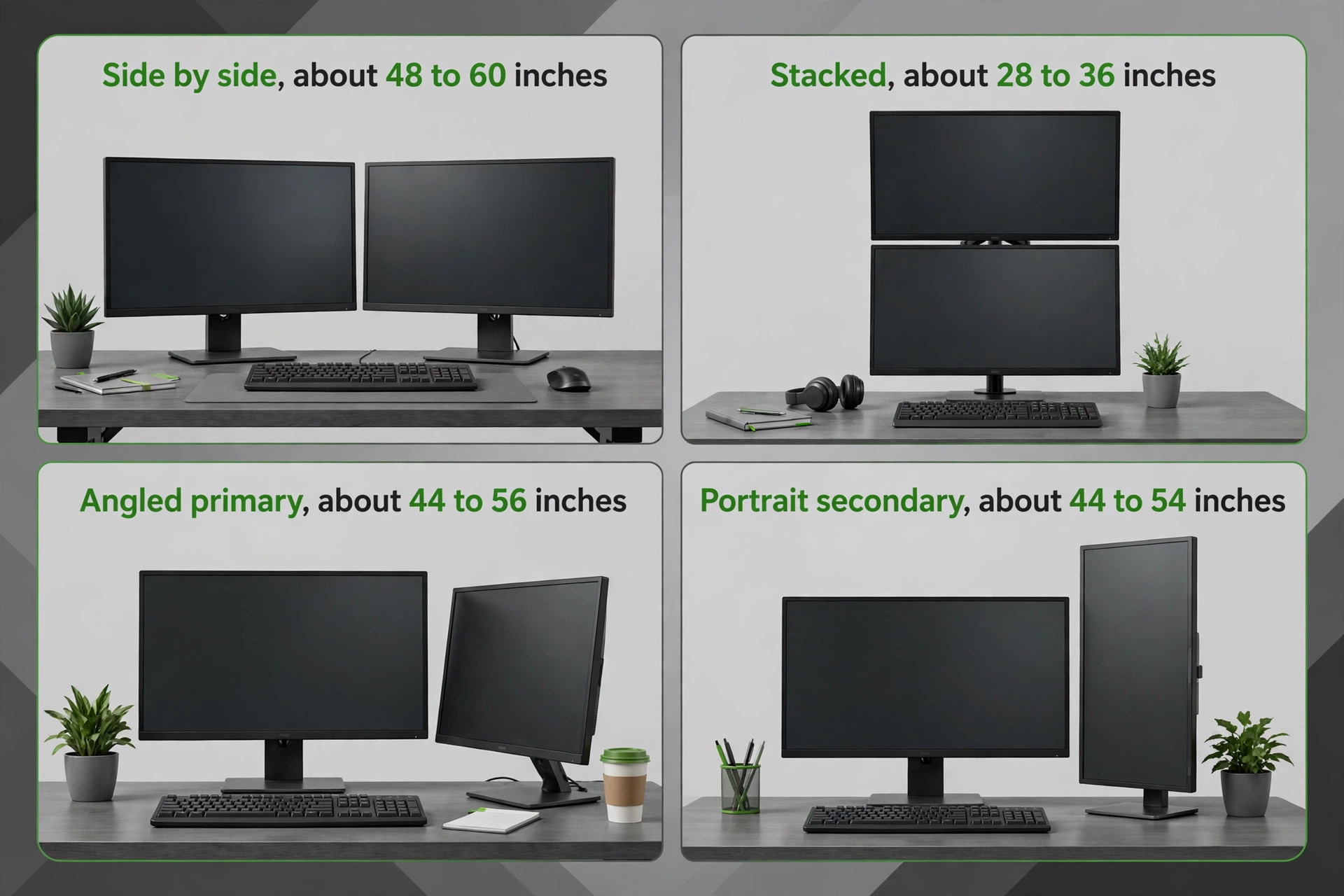
Side by side is the default for good reason. Both screens sit at the same height, your eyes move left and right rather than up and down, and most work, writing on one screen while reading on the other, maps naturally onto it. It needs the most width, roughly 48 to 60 inches of desk for two 24 to 27 inch monitors with a little breathing room at the edges. If your desk is narrower than that, a different layout will serve you better, and that choice is the first step when you set up dual monitor desk productivity on a real desk rather than a wish list.
Stacked, one screen above the other, suits narrow desks and work where one screen is clearly primary. The main screen sits at eye level and the second screen sits above it for reference material, email, or a video call. Neck strain is the risk here, so the upper screen should hold glanceable material, not text you read line by line for hours. Stacked layouts also need an arm or pole tall enough to lift the top screen, which rules out many basic dual arms.
An angled primary layout puts your main screen directly in front of you and the second screen to one side, turned inward by about 15 to 30 degrees. This is the right choice when one screen does most of the work and the other is a support screen for chat, notes, or monitoring. Keep the angle shallow and the secondary screen close to the primary, so the turn of your neck stays small.
A portrait secondary layout turns the second screen upright. Long documents, code, chat threads, and article feeds fit a tall screen better than a wide one, and a portrait screen takes up less desk width. It works best as a support screen, and it needs an arm that rotates a full 90 degrees and a monitor that reports its orientation correctly to your computer.
| Layout | Best for | Desk width needed | Watch out for |
|---|---|---|---|
| Side by side | Equal work on both screens | About 48 to 60 inches | Needs the widest desk |
| Stacked | Narrow desks, one primary screen | About 28 to 36 inches | Neck strain if the top screen holds reading work |
| Angled primary | One main screen plus a support screen | About 44 to 56 inches | Neck turning if the angle is too wide |
| Portrait secondary | Documents, code, and long feeds | About 44 to 54 inches | Rotation support and driver settings |
Choose the layout that matches how you actually split your attention. If you spend half the day on each screen, side by side wins. If one screen is home base and the other is a glance screen, an angled primary or stacked layout wins, and forcing side by side will leave one screen half used.
Measure Your Desk and Your Reach First
A tape measure saves more money on this project than any discount code. Measure desk width, depth, and thickness, and check what sits under the rear edge, because a clamp needs a clear strip of desk edge, and a support rail or cable tray in that spot can block it. Measure the distance from the back edge to where your chair normally sits, since that distance sets how far your eyes will be from the screens.
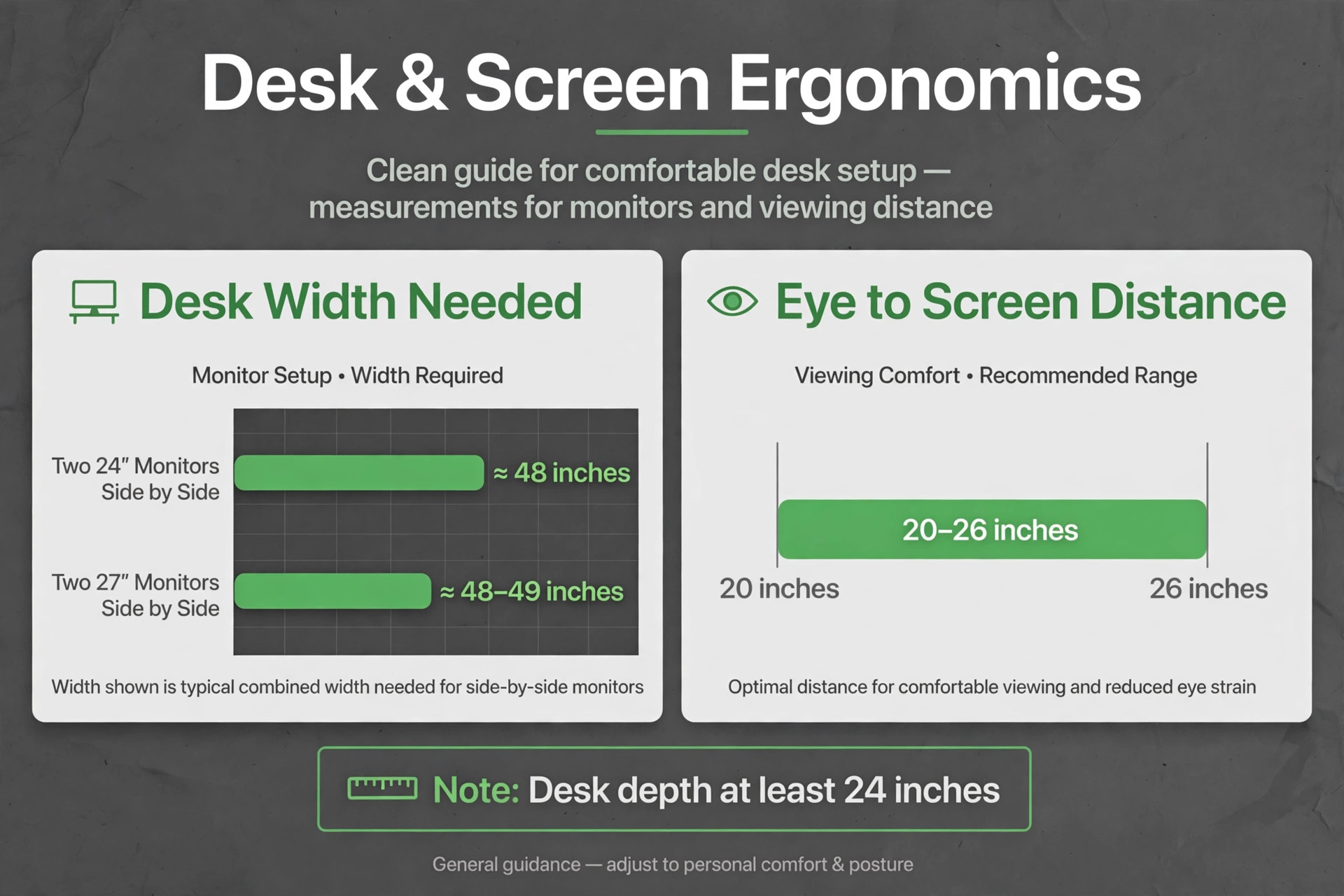
Depth matters as much as width. A desk 24 inches deep is the commonly cited minimum for dual monitors, and guides that cover ergonomic two screen setups generally point to 20 to 26 inches of eye to screen distance. On a shallow desk, a monitor arm helps because it moves the screens back and frees the space the factory stands would have taken, which is often 9 to 11 inches of depth per stand.
Desk thickness decides the mount. Many budget gas spring arms clamp desks from about 0.4 inches to about 3.5 inches thick, while grommet mounts need a hole between roughly 0.4 and 2 inches in diameter. Glass tops, hollow core tops, and desks with a thin lip at the back edge are the usual failures. If your desk is glass or hollow, use a grommet mount through a solid section, a freestanding dual stand, or a reinforcing plate under the clamp.
Also measure the monitors you already own, or the pair you plan to buy. Two 27 inch monitors side by side need roughly 48 to 49 inches of width before bezels and breathing room. Add the width of a laptop, a notebook, or speakers that must stay on the desk, and the true width requirement grows fast. People who skip this step end up with a keyboard pushed to one side, which twists the shoulders and cancels out the ergonomic benefit of the whole project.
Match Your Two Monitors, or Accept the Trade Off
Two matching monitors are the single biggest quality of life upgrade in a dual setup, and they are worth paying for if you are buying a pair from scratch. Matched size, resolution, and panel type mean your eyes do not readjust every time they cross the seam, colours look the same on both screens, and windows dragged across the gap keep their size. A pair of 27 inch 1440p monitors is the sweet spot for most desk work.
If you already own one good monitor, adding a second that matches it is better than buying a mismatched pair for novelty. Match resolution first, then size, then panel type. A 27 inch 1440p screen next to a 24 inch 1080p screen will show the same document at visibly different sizes, and the height difference forces a tilt or a riser to line up the tops. An arm can fix the height difference, but it cannot fix the text size difference, and it will annoy you daily.
Refresh rate and colour accuracy only need to match if your work depends on them. A video editor who grades footage needs matched colour, while a writer who keeps notes on the second screen does not. Be honest about which screen does colour critical or fast motion work, and spend the money there.
Arms, Stands, and What Each One Costs
A monitor arm replaces the factory stands and holds both screens on one base or pole. The gain is desk space, independent height adjustment, and the ability to push screens back, angle them, and rotate one into portrait. The cost is complexity, because you must check weight, VESA pattern, desk thickness, and screen size against the arm before buying. A freestanding dual stand is simpler and needs no clamp, but it gives back less desk space and adjusts less freely.
Budget arms cluster around 50 to 85 dollars. The HUANUO FlowLift dual stand, which holds two 13 to 32 inch screens at up to 19.8 pounds per arm with VESA 75 by 75 and 100 by 100 mounting, was listed around 58 to 60 dollars in late October 2026 retailer listings. That price band buys gas spring height adjustment, tilt, swivel, and rotation, which is enough for most side by side and angled layouts.
Premium arms cost several times more, and the money buys build quality, smoother adjustment, and longer support. Ergotron LX dual arms listed through ErgoDirect in late October 2026 ranged from about 365 dollars for the LX Desk Dual Direct Arm to about 485 dollars for the LX Dual Side by Side Arm and the LX Stacking Arm. Those arms suit offices where screens move daily or a cheap arm that slowly sags would become a daily frustration. For a single user who sets a position once and leaves it, the premium is hard to justify.
A dual stand that sits on the desk, rather than clamping, usually costs less than a gas spring arm and avoids clamp problems on glass or thin tops. The trade off is a base that eats desk space and a fixed height range, so check the stand height against your eye level before buying. Whichever route you take, confirm three numbers for each monitor, screen size range, weight per arm, and VESA pattern.
How to Set Up Dual Monitor Desk Productivity Step by Step
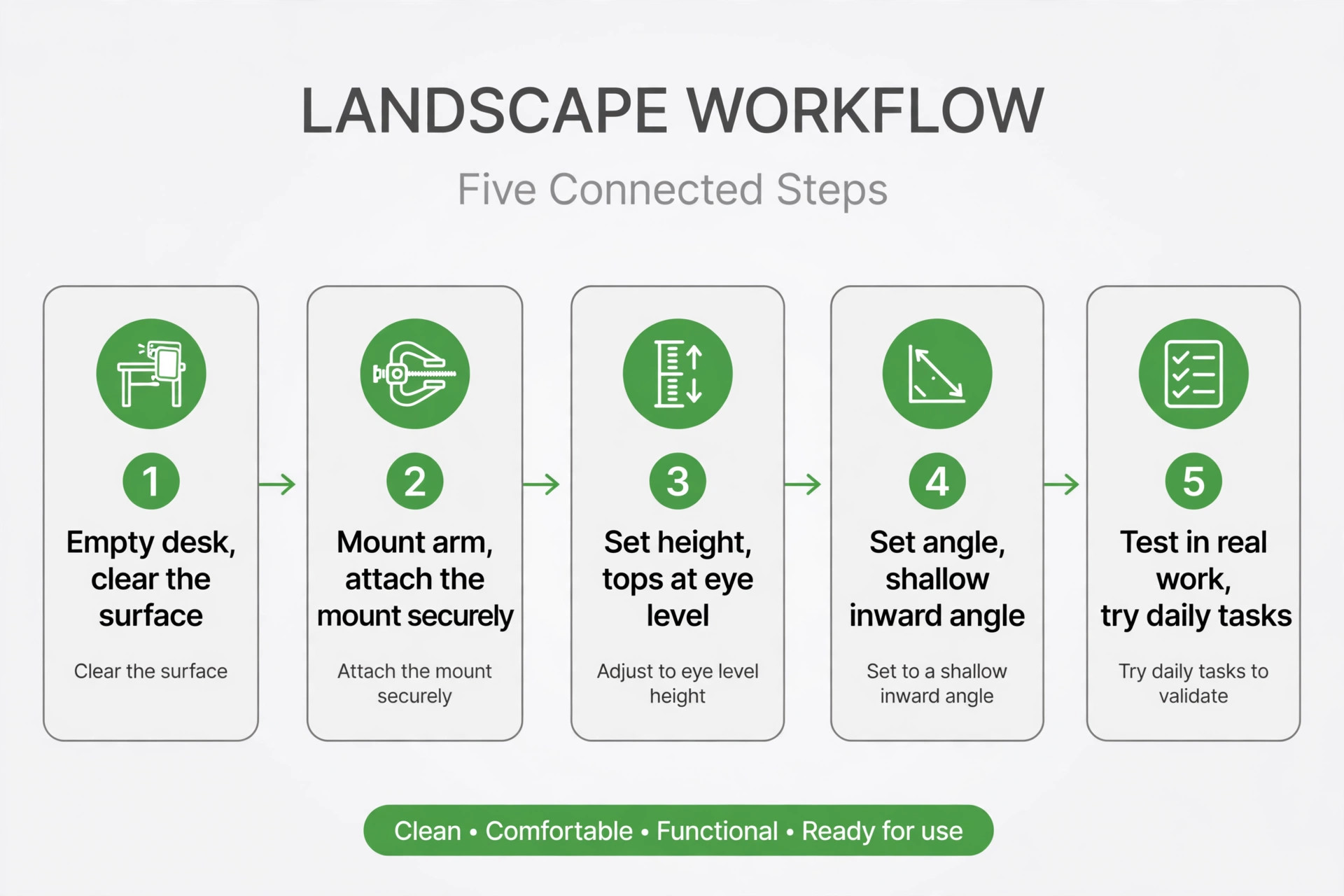
Start with the desk empty. Remove both factory stands, put the arm base or pole in place, and tighten it before any screen goes on. An arm tightened with screens already attached is harder to level and easier to knock over, and a clamp that feels tight on an empty desk can slip once weight is added.
Mount the primary screen first, then set its height. Sit in your normal chair, look straight ahead, and set the top edge of the primary screen at or just below eye level, with the screen about an arm’s length away. Then mount the second screen and match its height to the first, not to the desk. Matching tops matters more than matching bottoms, because your eyes travel along the top edge when scanning.
Now set the angle between the screens. For side by side work, bring the inner edges close together with a tiny inward angle, so the two screens read like one wide surface with a thin seam. For an angled primary layout, keep the secondary screen turned inward by 15 to 30 degrees and close to the primary, so the turn of your neck stays small. If you must turn your head more than about 35 degrees to read the far edge of the secondary screen, move that screen closer or reduce its angle.
Connect cables before you tidy them. Plug in power and video for both screens, confirm each screen is detected at its native resolution, and set the display arrangement in your operating system to match the physical layout, primary on the correct side, secondary on the correct side, and heights aligned. A mismatch between physical and software layout is a common source of lost cursors and dragged windows that appear on the wrong screen.
Finally, spend ten minutes working, not admiring the setup. Open a document on one screen and reference material on the other, take a video call, and read a long page. Small height or angle errors that are invisible when the screens are blank become obvious in real work, and they are cheapest to fix in this first session, while tools are still out.
Set Height, Distance, and Angle Like an Ergonomist
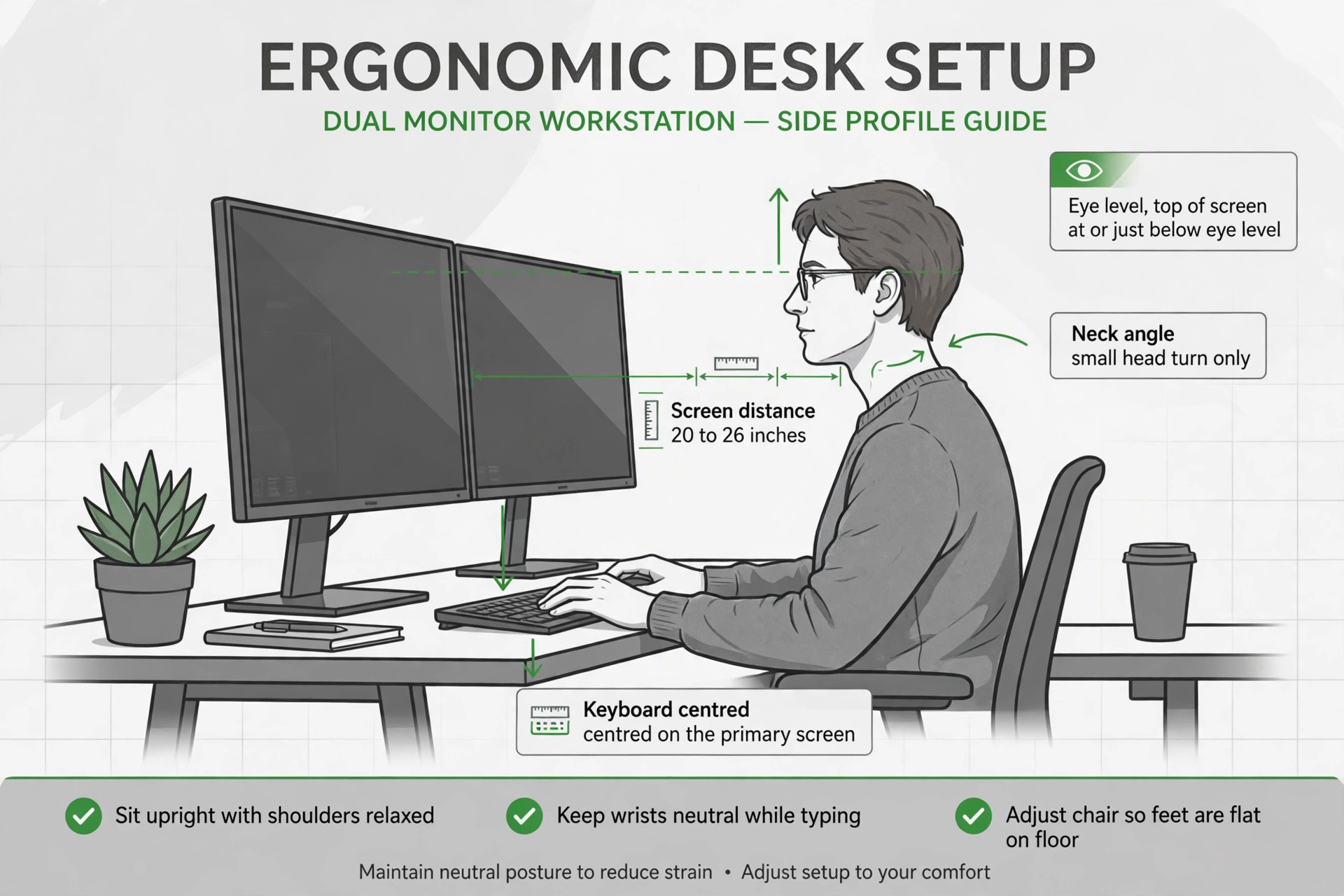
Eye level is the rule that matters most. The top of each screen should sit at or slightly below eye level when you sit upright, with your gaze falling naturally on the upper third of the screen. Screens set too high push your chin up and strain the neck. Screens set too low pull your head forward, which loads the shoulders by the end of the day. If your chair height changes, or you switch between sitting and standing, recheck this after the change.
Distance follows from screen size. A widely cited ergonomic range is 20 to 26 inches from eyes to screen, and larger screens belong at the far end of that range. A 27 inch screen at 20 inches feels large and forces more head movement, while the same screen at 26 inches feels calmer. If your desk is too shallow to reach that distance, use an arm to push screens back or raise font scaling by one step.
Angle is about the neck, not the screens. The secondary screen should sit close enough and angled enough that you can read it with a small head turn, not a twist. If you use both screens equally, centre the seam between them on your nose, so each screen takes a similar small turn. If one screen dominates, centre that screen on your nose and let the other sit at a shallow angle. Keep the keyboard centred on the primary screen, because a keyboard centred on the seam twists the wrists and shoulders. Getting this angle right is a quiet part of how you set up dual monitor desk productivity that holds up over a full day.
Ports, Docks, and the Cable Route
Two monitors double the cable count, and the cable plan should be decided before the screens are mounted, because routing cables after mounting usually means unmounting one screen to reach the ports. Count every cable first, two power cables, two video cables, and any USB cables for a hub, webcam, or speakers. Then decide the route, from each screen, along the arm, down the back of the desk, into a tray or channel, and out to power and to the computer.
Video connections deserve a check before you buy cables. Many laptops have only one video output, or one HDMI port plus a USB C port that carries video, and a second monitor may need a dock or a USB C to DisplayPort cable rather than a second HDMI cable. Check your computer’s ports and your monitors’ inputs, HDMI, DisplayPort, and USB C, and buy the cables that match, in the length the route actually needs. A cable that is too short will pull a screen out of position.
A dock is worth its price when a laptop drives both screens. A single USB C cable from the dock to the laptop carries video for both screens, power, and USB accessories, which means docking in the morning is one plug instead of four. Check that the dock supports two external screens at the resolution you use, not just one screen plus a mirrored copy. For a desktop computer with two video outputs, a dock is unnecessary, and the money is better spent on the arm or on better cables.
The Cable Checklist
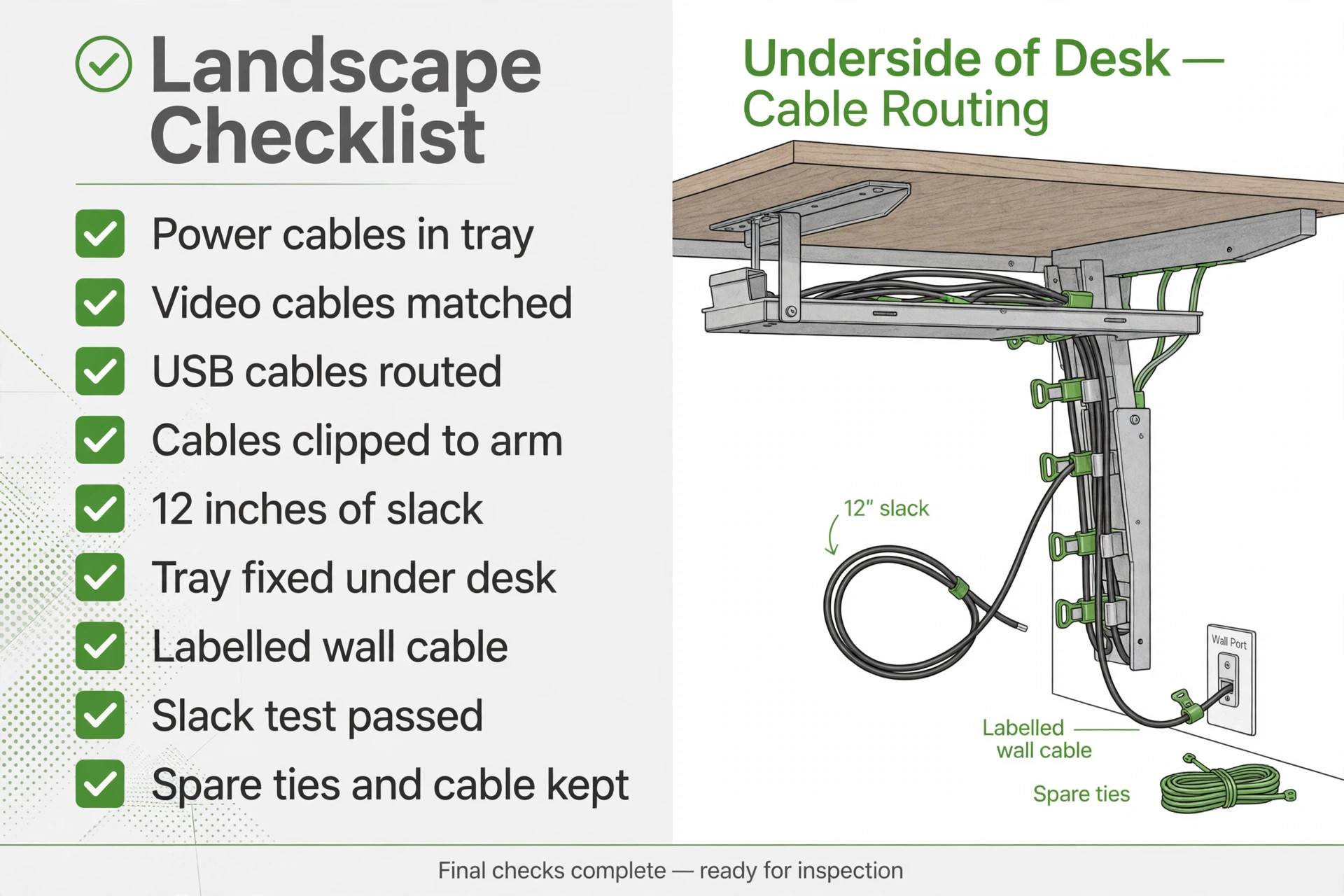
Work through this list in order, and do not skip the slack test. A tidy desk that cannot move without unplugging something is not finished.
- Power cables for both monitors plugged into one strip in the tray
- Video cables matched to each screen input and each computer output
- USB cables for webcam, hub, or speakers routed with the video cables
- Cables clipped along the arm, not hanging free behind the screens
- Slack of about 12 inches left where the arm moves and where a standing desk rises
- Cable tray or channel fixed under the desk, with the strip inside it, not on the floor
- One labelled cable from the strip to the wall socket
- Slack test passed, move each screen through its full range and raise a standing desk once
- Spare cable ties and one spare video cable kept in a drawer, not in the tray
Budget for cables and trays separately from the arm. No drill metal mesh trays were listed around 14 dollars on Amazon in late October 2026, and a 48 inch clamp or screw mount tray was listed around 27 dollars. The full cable kit for most desks lands well under 50 dollars, which is small beside the arm.
Give Each Screen a Job
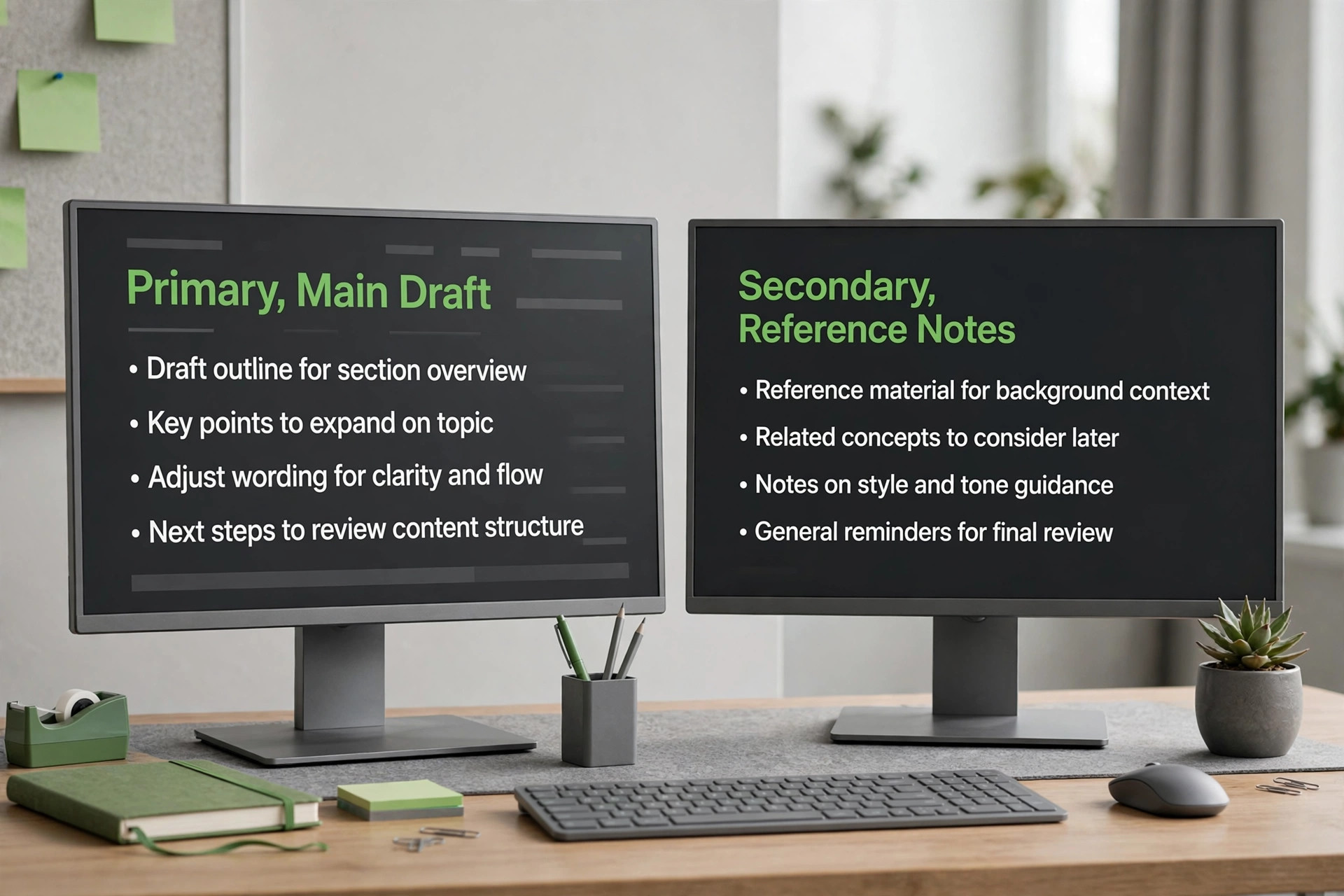
Hardware alone does not create productivity. Two screens with no assigned jobs become two places to lose windows, and many people with dual monitors still work on one screen while the other shows email they glance at out of habit. Assign each screen a job before the first workday, and keep that assignment stable for at least two weeks, so finding a window becomes muscle memory rather than a search.
A common split that works for desk jobs is main work on the primary screen and reference on the secondary. Writers keep the draft on the primary and research, notes, or an outline on the secondary. Analysts keep the spreadsheet or document they are editing on the primary and source data on the secondary. Project staff keep the task they are doing on the primary and the project board, chat, or calendar on the secondary.
Communication deserves a deliberate decision, not a default. If email and chat live on the secondary screen all day, they will interrupt work on the primary screen every time a message arrives. A better rule for most people is to keep communication on the secondary screen only during dedicated communication blocks, and to hide or minimise it during focused work. That single habit does more to set up dual monitor desk productivity for deep work than any extra screen ever will.
For people whose work is organised around projects and tasks, this site’s guide to best AI tools for project managers covers the task and board tools that pair well with a two screen workflow, and best AI tools for virtual assistants is useful if support work and inbox handling fill your secondary screen.
How to Choose an Arm Without Overspending
Start from the three numbers, screen size, weight per screen without the factory stand, and VESA pattern. If any of those falls outside an arm’s rated range, that arm is out, no matter how good its reviews are. A 32 inch screen that weighs 21 pounds needs an arm rated above 21 pounds per arm, not an arm rated to 19.8 pounds that happens to list 32 inch support. Size range alone is not a guarantee, because weight varies a lot within the same screen size.
Next, match the arm type to your layout. Side by side layouts suit a dual arm with two independent gas spring arms on one base. Stacked layouts need a tall pole or a stacking arm, and the Ergotron LX Stacking Arm, listed around 485 dollars, is an example of the premium end of that category. Portrait rotation needs an arm that rotates 90 degrees and locks, which most gas spring arms do, but a fixed dual bar that only tilts will not.
Desk compatibility is the third filter, and it is the one that causes returns. Check desk thickness against the clamp range, check for a clear strip at the rear edge, and check the material. Wood and solid tops suit clamps. Glass, hollow core, and thin laminate tops need a grommet mount, a freestanding stand, or a reinforcing plate.
Finally, price the whole kit, not just the arm. Arm, cables, tray, and any adapters together form the real cost. A 60 dollar arm plus a 27 dollar tray and 20 dollars of cables is still a complete setup for roughly 110 dollars, while a 365 dollar premium arm with the same accessories lands near 415 dollars. Both can be the right buy. The wrong buy is the arm that fails on weight, VESA, or desk thickness, because that purchase costs return shipping and a second round of research.
Mistakes That Undo a Good Dual Monitor Desk
The first mistake is mismatched heights. Two screens at different heights force the eyes to jump up and down at the seam, which is tiring in a way that is hard to name but easy to feel by mid afternoon. Match the tops, use the arm’s independent height adjustment, and check height again after a week, because arms settle slightly and a screen that was level on day one can sag a few millimetres by day seven.
The second mistake is putting the secondary screen too far away or at too wide an angle. A screen that requires a full head turn becomes a screen you avoid, and an avoided screen is wasted money. Keep the secondary screen close, angled shallowly, and holding work you actually need, not work you feel you should monitor. If you cannot read the secondary screen comfortably from your normal seating position, move it, do not squint at it.
The third mistake is cable optimism. People route cables neatly for the sitting position and forget that a standing desk moves, an arm swings, and a laptop gets unplugged daily. Cables without slack pull screens out of position, unplug at the worst moment, and eventually damage ports. Run the slack test from the checklist before calling the job done.
The fourth mistake is ignoring the chair and keyboard. A perfect monitor layout with a keyboard pushed to one side, or a chair set too low, still produces shoulder and neck pain, and the monitors get blamed for it. Centre the keyboard on the primary screen and set chair height so elbows sit near 90 degrees. The fifth mistake is buying screens before measuring the desk, which leads to a desk that is too narrow or a clamp that does not fit. Measure first, buy second, and keep the packaging until the setup has survived a full workweek, because that is when you truly set up dual monitor desk productivity rather than just assembling it.
A second screen changes how you plan a day as well as how you see it, so the workflow around the desk matters as much as the hardware. Readers who organise their week around a screen based system may find best AI daily planner apps useful for keeping tasks visible on the secondary screen, and how to plan a month of social media content with AI shows a batching system that pairs naturally with a reference screen for research and a main screen for writing. Keep the desk setup stable while you test a new workflow, so you can tell whether a problem comes from the layout or from the habit.
Frequently Asked Questions
What size desk do I need for two monitors?
For two 24 to 27 inch monitors side by side, plan on about 48 to 60 inches of width and at least 24 inches of depth. A stacked layout needs far less width, roughly 28 to 36 inches, but needs a taller arm. Measure your monitors and keyboard before you buy, since those measurements decide whether you set up dual monitor desk productivity cleanly or end up rebuilding it.
Should both monitors be the same size and resolution?
Matching size and resolution is ideal, because windows keep their size across the seam and your eyes do not readjust. If you already own one good monitor, match its resolution first, then its size. An arm can fix a height difference, but it cannot fix a text size difference between a 1080p and a 1440p screen.
Is a monitor arm worth it over the factory stands?
For most dual setups, yes. An arm frees 9 to 11 inches of desk depth per factory stand, sets height independently for each screen, and lets you push screens back on a shallow desk. A freestanding dual stand is a good alternative on glass or thin tops where a clamp is risky, but it adjusts less freely.
How high should dual monitors sit?
Set the top edge of each screen at or just below eye level, with your gaze falling on the upper third of the screen. Match the tops of both screens, not the bottoms. Recheck height after a week, because arms can settle slightly, and again if you change chair height or switch between sitting and standing.
How far away should I sit from two monitors?
Aim for 20 to 26 inches from eyes to screen, with larger screens at the far end of that range. If your desk is too shallow to reach that distance, use an arm to push screens back, increase font scaling by one step, or choose smaller screens rather than sitting closer and squinting.
Do I need a dock to run two monitors from a laptop?
It depends on the laptop ports. A desktop with two video outputs needs no dock. A laptop with one video output, or one HDMI port plus a USB C port that carries video, may need a dock or a USB C to DisplayPort cable for the second screen. Check that a dock supports two external screens at your resolution, not just one screen plus a mirrored copy, before buying.
The Desk You Will Still Like in Six Months
A dual monitor desk earns its keep quietly. It does not announce itself, it simply lets you keep a draft open while research stays visible, take a call without losing your place, and finish the day without a stiff neck. That quiet result comes from a short list of decisions made in the right order, layout before hardware, measurements before purchase, matched heights, a cable route with slack, and a job for each screen.
Start with the tape measure and the layout table, not with a shopping cart. Check weight, VESA pattern, and desk thickness against any arm you consider, and keep packaging until the setup has survived a full workweek. If you follow that order, you will set up dual monitor desk productivity that still feels right in six months, when the novelty has worn off and only the daily comfort remains.