
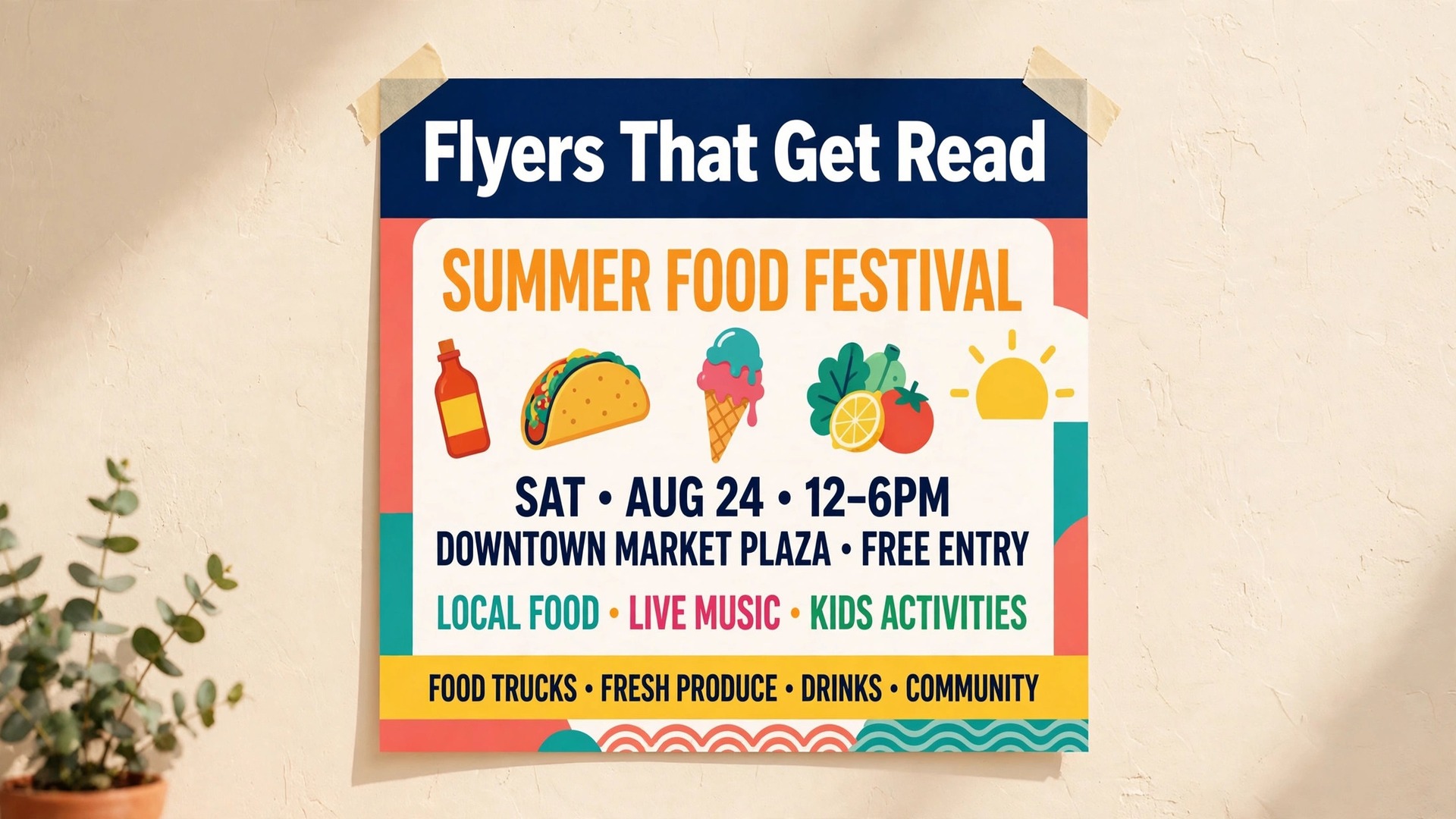
Most small business flyers fail before anyone reads the offer. Research on print advertising consistently finds that readers decide within a few seconds whether a flyer is worth a second look, and a cluttered layout or unreadable headline ends that decision fast. That is why the best AI flyer makers matter so much in 2026. They do not just save design time. They give a shop owner, event organiser, or freelancer a structured starting point, with hierarchy, spacing, and readable type already handled, so the message survives those first seconds.
This guide tests that promise against reality. We compared twelve tools on what actually decides a flyer job, including template quality, text control, print-ready export, free tier usefulness, and price. Some tools generate a flyer from a single prompt. Others give you a strong template and AI help for images and copy. Both approaches can work, but they suit different people, and picking the wrong one is how you end up with a pretty image that cannot be printed or edited. The reviews below state plainly who each tool suits, what it costs, where it shines, and where it falls short, so you can choose once and move on to promoting your event or offer.
The best AI flyer makers earn that trust by keeping text editable and exports honest.
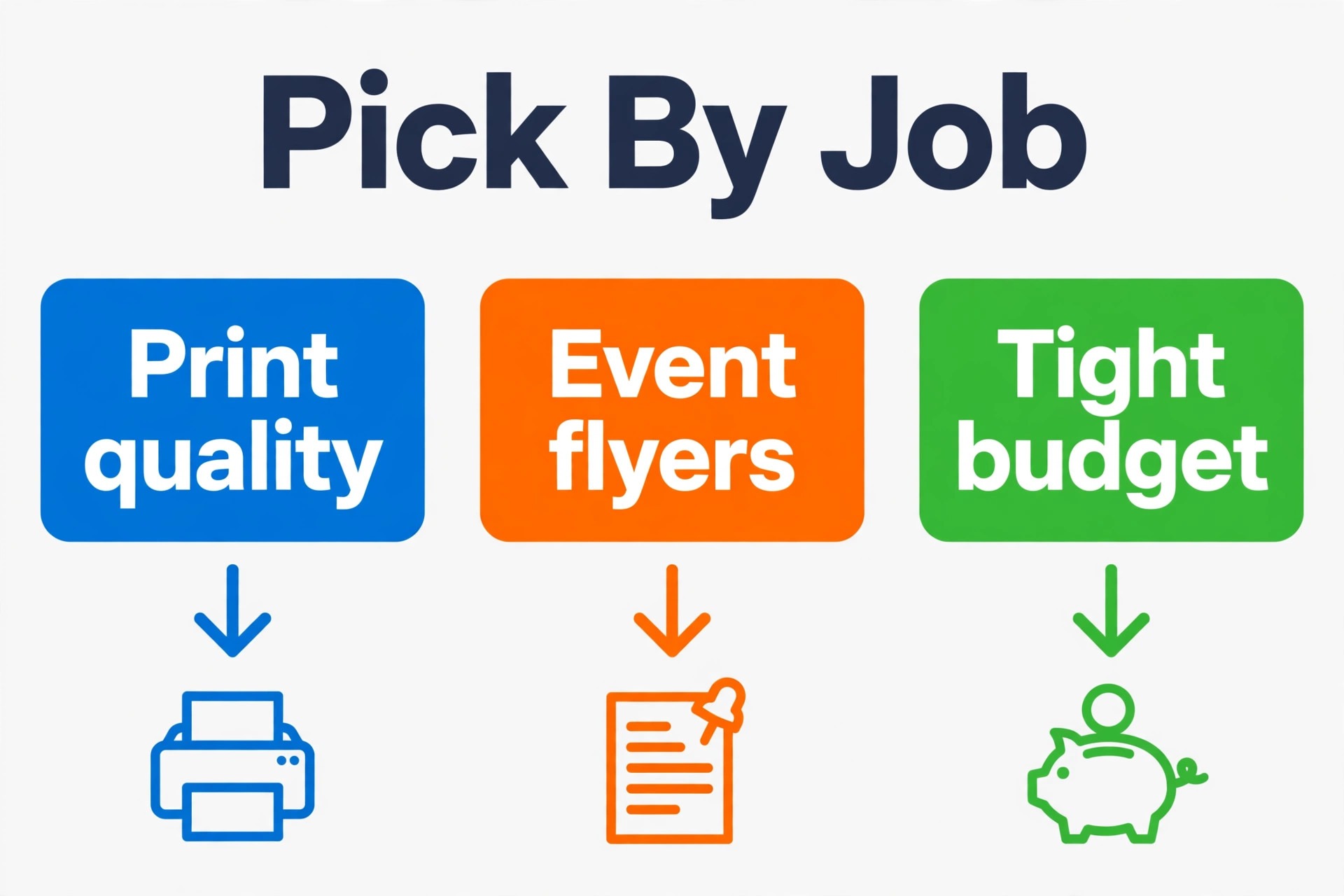
The Best Pick by Job
| Job | Pick | Why it wins |
|---|---|---|
| Fastest all-round flyer | Canva | Huge template library plus AI design help and print export |
| Print quality first | Adobe Express | Clean templates with strong PDF export and Adobe fonts |
| Event flyers at volume | PosterMyWall | Event templates, scheduling, and email built in |
| Tightest budget | VistaCreate | Generous free tier with a low cost paid plan |
| Data heavy flyers | Piktochart | Charts and structured layouts that stay readable |
| Brand matched flyers | Design.com | Logo and brand assets carried across designs |
How to Choose Among the Best AI Flyer Makers
Start with the end use, not the feature list. A flyer for a shop window needs high resolution PDF export with bleed, while a flyer for Instagram Stories needs the right vertical size and bold type that survives a small phone screen. The best AI flyer makers for print are not always the best for social, and a tool that exports only a low resolution image will disappoint you at the printer even if the on-screen preview looks great. Check export options before you fall in love with a template. Look for PDF for print, PNG for social, and a clear statement about resolution.
Next, judge text control. AI image generators still garble words, so a flyer tool must let you edit every headline, date, price, and address as real text, not as part of a baked-in picture. Test this early by changing the event date and the headline on a sample design. If the tool fights you, or if text sits on a busy photo with no contrast control, walk away. The best AI flyer makers also let you save brand colours and fonts, because retyping your palette for every new flyer wastes the time the AI was supposed to save.
For related design work, see our guide to AI image generators and our roundup of AI logo makers, since a flyer usually needs both a good image and a recognisable mark.
The 12 Tools Reviewed
1. Canva
Canva remains the default choice for most flyer jobs, and the reason is breadth. Its template library covers restaurants, gyms, concerts, sales, classes, and community events, and its Magic Design feature can build a starting layout from a short prompt or an uploaded image. The free plan is genuinely usable for single flyers, with many templates and stock photos included, while Pro adds background removal, brand kit controls, Magic Resize, and PDF export with bleed and crop marks. That last point matters more than most buyers realise, because a flyer without bleed can print with an unwanted white edge. Canva also offers its own print service, so a design can go from screen to delivered flyers without a separate printer.
The limits are real too. Popular templates are widely used, so a flyer can look familiar, and some stock photos and fonts sit behind the Pro paywall. AI image generation on the free plan is limited, and heavy users will hit those limits fast. Still, for a first flyer or a weekly run of event flyers, Canva is the safest starting point.
2. Adobe Express
Adobe Express suits people who want cleaner typography and a more controlled result than a template farm usually gives. It offers a free plan with templates, stock assets, and daily Firefly AI generations, while Premium costs around 9.99 dollars a month and unlocks more templates, fonts, and features. Its strength is the Adobe ecosystem. Fonts from Adobe Fonts look professional, Firefly generated images are commercially safe for business use, and exports include PDF, JPG, and PNG at sizes suited to print. The editor is less sprawling than Canva, which many users experience as focus rather than limitation, though it does mean fewer novelty templates.
The main limit is that truly advanced layout work still belongs in desktop design software, and the free plan reserves some premium templates and assets for paying users. If you already use Adobe tools, or if print quality and font quality rank above template quantity, Express is a strong second choice.
3. PosterMyWall
PosterMyWall is built specifically for flyers and posters, and that focus shows in the details. Its library leans toward events, parties, church gatherings, school notices, and local promotions, with sizes for print, Facebook, Instagram, and email already set up. A free plan lets you design with a watermark on downloads, while Premium starts at around 9.95 dollars a month and removes the watermark, adds high resolution PDF export, and opens scheduling and email marketing tools. For a venue or church that publishes a new flyer every week, the built-in publishing tools save a separate scheduling step. AI tools cover image generation, text suggestions, and background removal, though the AI side is lighter than a dedicated image generator.
The limit is style range. Corporate or luxury brand flyers can feel constrained by the event-heavy template set, and the editor, while friendly, offers less fine control over spacing than Canva or Express. For event-led flyers, it is hard to beat.
4. VistaCreate
VistaCreate is the budget pick that does not feel like a compromise for simple flyers. The free Starter plan covers many templates and design tools, and Pro costs around 10 dollars a month and can cover up to ten seats, which makes it unusually good value for a small team. Templates are bright and modern, animation options exist for social versions, and the editor is easy for a first-time designer to learn in one sitting. Background removal and brand kit features sit in the paid tier, so free users should expect to work around those gaps. The template count is smaller than Canva, and AI generation is less central to the workflow, with templates doing most of the heavy lifting.
That is fine for a sale flyer or a class announcement, but weaker for a flyer that needs a fully original image. If cost is the deciding factor and your flyers are template-led, VistaCreate deserves a serious look before you pay more elsewhere.
5. Microsoft Designer
Microsoft Designer turns a prompt into a set of design options fast, using image generation to build the visual side and then letting you edit text and layout. It is free with a Microsoft account, with fuller access tied to Microsoft 365 Personal at around 9.99 dollars a month. Its best use is speed. A cafe owner can type a prompt for a weekend brunch flyer, pick a direction, fix the wording, and export a social-ready image in minutes. The editor is simpler than Canva, which keeps the learning curve flat but limits fine typographic control.
Print export is the weak point, with PNG and JPG output and no full print workflow, so treat Designer as a social and digital flyer tool first and a print tool second. Brand controls are also lighter than a dedicated brand platform. For quick social flyers inside the Microsoft world, it is genuinely useful, and the price of entry is hard to argue with.
6. Visme
Visme fits flyers that carry information, not just a headline and a photo. Think workshop schedules, price lists, course outlines, and service menus, where a chart, table, or diagram has to stay legible. Its AI Designer can draft a layout from a prompt, and its chart and data widgets let you present numbers without pasting in a screenshot from a spreadsheet. A free plan exists, while paid plans start at around 12.25 dollars a month on annual billing. Interactivity is a bonus for digital flyers, with links and animation that work well in email or on a landing page.
The trade-off is that Visme is heavier than a pure flyer tool, so a simple party flyer takes more clicks than it would in PosterMyWall, and print export on lower tiers is limited. If your flyer has to explain something, Visme earns its place. If it only has to announce something, a lighter tool will be faster.
7. Design.com
Design.com approaches flyers through branding first. You enter a business name and a few keywords, and its AI generates design directions that carry your logo, colours, and fonts across flyers, social graphics, and other assets. That consistency is the real selling point. A small business that has struggled to keep every flyer looking like it came from the same company will notice the difference immediately. Pricing is low, with a free tier for exploring designs and paid plans from around 3 dollars a month on annual billing for high resolution and vector downloads. Exports include PNG, JPG, PDF, EPS, and SVG, which covers both print and digital needs. The limits matter too.
Template variety is narrower than Canva, and the AI-led flow can feel prescriptive if you want a fully custom layout from scratch. It is also a branding suite rather than a pure flyer specialist, so event organisers who need weekly poster variations may prefer PosterMyWall. Ranked here in the middle, Design.com is a sensible pick for a business that values a consistent brand over maximum template choice.
8. Piktochart
Piktochart is the right tool when a flyer must present facts clearly. Its AI can draft a layout from a prompt, and its chart, icon, and map elements help a reader grasp a schedule, a comparison, or a set of results at a glance. A free plan exists, though it allows only a small number of PNG downloads in total, so treat it as a trial rather than a long-term free ride. Pro starts at around 10 dollars a month on annual billing and opens PDF export and fuller use. The design quality for informational flyers is high, with clean spacing and readable type that many template tools lose when data enters the picture. The limit is scope.
Piktochart is not built for photo-led party flyers or bold artistic posters, and its template set reflects that. For a clinic, school, nonprofit, or consultancy flyer that explains, compares, or instructs, it is one of the strongest options here. For pure promotion, look higher up this list.
9. Venngage
Venngage sits close to Piktochart but leans more corporate, with templates for HR notices, internal communications, training flyers, and business announcements. Its AI suggests layouts and content structure, and the editor handles charts and diagrams well. A free plan lets you create designs but not download them, which is a genuine frustration, so budget for Premium at around 10 dollars a month on annual billing if you plan to use it seriously. The strength is professionalism. A Venngage flyer looks like it came from a communications team, with consistent headers, footers, and data presentation. The limit is creative range.
It is not the tool for a music event or a bold retail sale, and its free tier is too restricted to judge fairly without paying. For office, education, and nonprofit flyers where credibility matters more than flair, Venngage is a solid, if unexciting, choice.
10. Fotor
Fotor combines photo editing with flyer design, which suits flyers built around a strong photograph, such as a restaurant dish, a property, or a product. Its AI tools cover background removal, image enhancement, and conversational design help, and its flyer templates are easy to customise. A free plan covers basic features, while Pro starts at around 8.99 dollars a month and unlocks fuller AI use and exports. The photo-first workflow is the advantage. You can fix lighting, remove a distracting background, and place the result in a flyer without switching apps. The limit is template depth for print, since Fotor began as a photo editor and its flyer library is thinner than Canva or PosterMyWall.
Print-specific features like bleed control are also lighter. If your flyer lives or dies on one great photo, Fotor is worth trying. If it needs a large template library, start elsewhere.
11. Snappa
Snappa is built for speed and simplicity, with curated templates and a minimal editor that a beginner can learn in minutes. It offers a free plan with limited downloads, and Pro costs around 15 dollars a month. Its strength is the absence of clutter. There are no sprawling menus, and a social flyer or a simple print flyer can be finished quickly, with stock photos and graphics included. Smart resize helps adapt one design to several social sizes, though print handling is basic compared with Canva or Express. The limit is depth. Snappa will not satisfy a designer who wants precise control, and its template library is smaller than the leaders.
The price is also high relative to what you get if you only make occasional flyers. Snappa earns its place for teams that value a fast, foolproof workflow and make simple flyers often, not for complex or print-critical work.
12. Desygner
Desygner rounds out the list as a simple, business-friendly editor with flyer templates, AI text and image tools, and branding suggestions. A free plan covers basic design, while paid plans run from around 7.50 dollars a month upward depending on billing and tier. Its interface is uncluttered, and small businesses that want a quick branded flyer without learning a large platform will find it approachable. PDF export supports print use, and the template set covers common business needs. The limits are scale and originality. The library is smaller than the leaders, AI generation is a helper rather than the main event, and advanced typography control is limited.
For a straightforward business flyer made by a non-designer, Desygner does the job cleanly. For high volume or highly original work, the tools above it offer more room to grow.
A flyer fails quietly when its size is wrong. For print, the common safe choices are A5 for handouts, A4 for noticeboards, and US Letter for North American audiences, all exported as PDF with bleed where the tool allows it. Ask your printer about bleed and safe margins before you design, because a headline placed too close to the edge will be trimmed. For social, design the same message twice rather than stretching one file. A square version suits feeds, a vertical version suits Stories and Reels, and a wide version suits event covers. Most tools here support resizing, but resizing is not the same as redesigning.
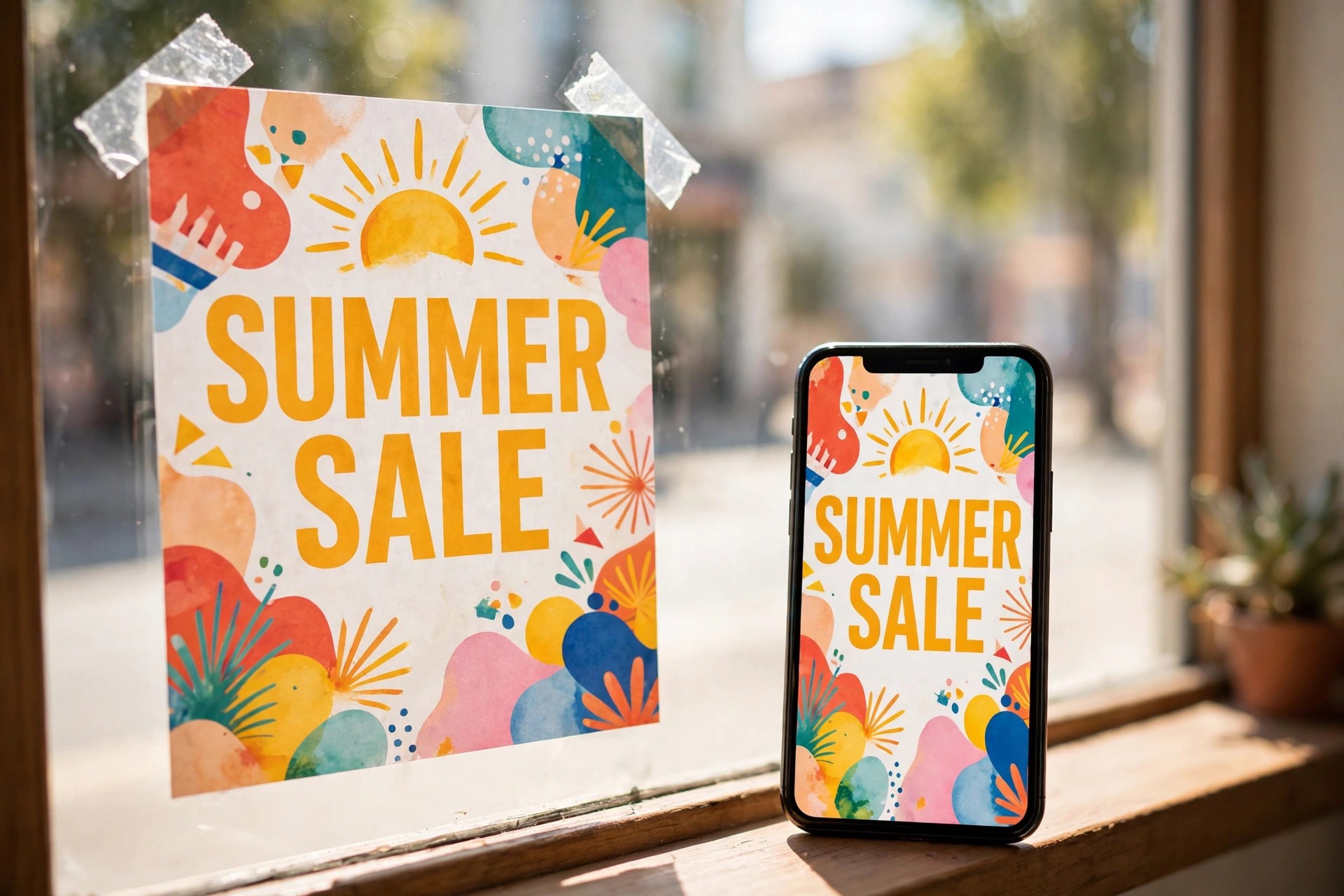
Check the headline size at phone scale after every resize, since type that looks fine on a laptop can vanish on a phone. Keep one master file with editable text so a date change does not force a full rebuild. The same discipline applies to paper choice and finishing, which many first-time flyer makers overlook. A heavy matte stock suits a premium service or a gallery event, while a lighter glossy stock suits a high volume handout where cost per unit matters more than feel. If your flyer will sit in a shop window, ask about fade resistance and lamination, since sunlight will wash out a cheap print within days.
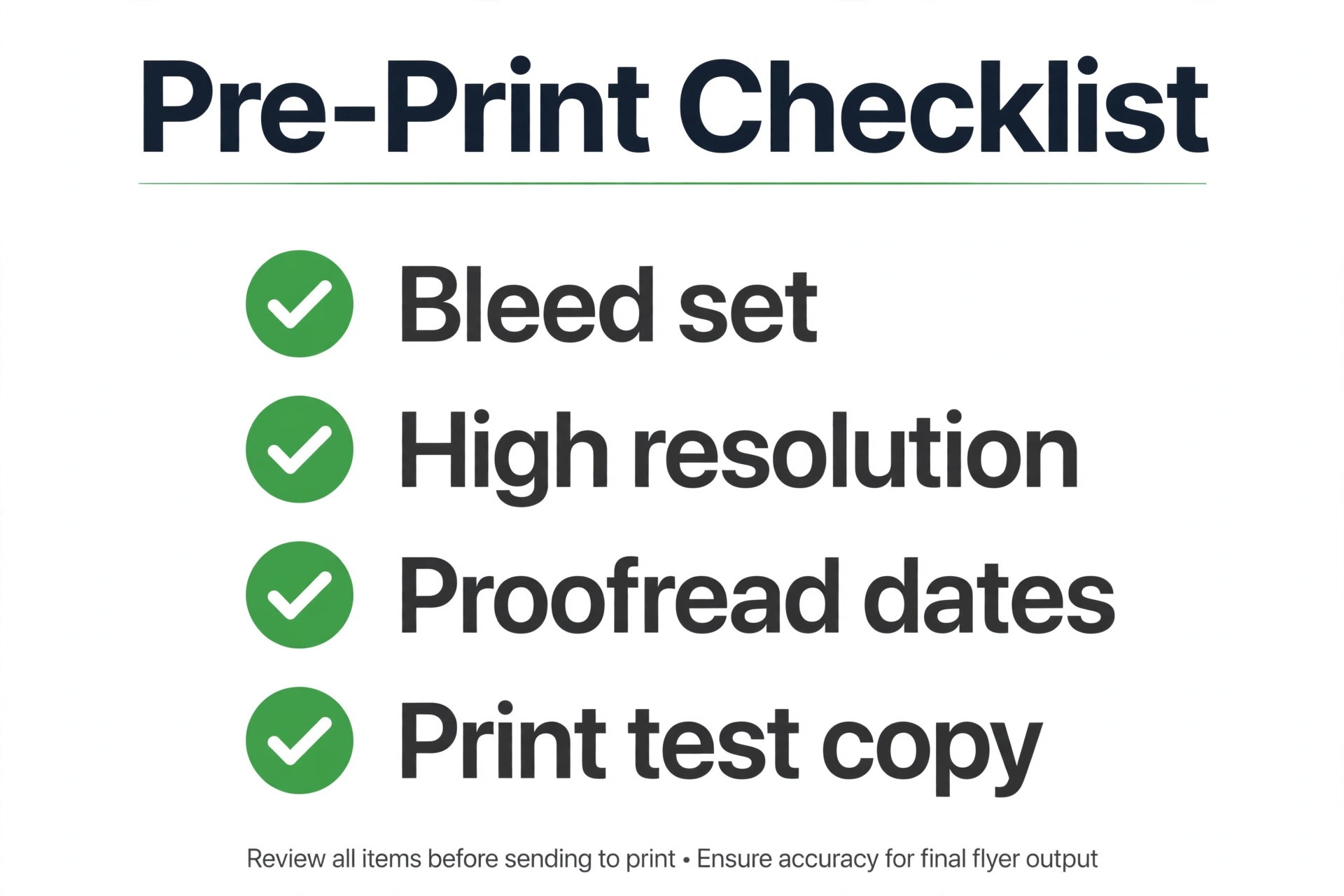
For a flyer that will be handed out outdoors, a slightly heavier stock survives rain and handling better than the thinnest option. These choices cost little when planned early and cannot be fixed after printing, so confirm stock, finish, and quantity with your printer at the same time you confirm bleed and file format.
How to Brief the AI So the First Draft Is Usable
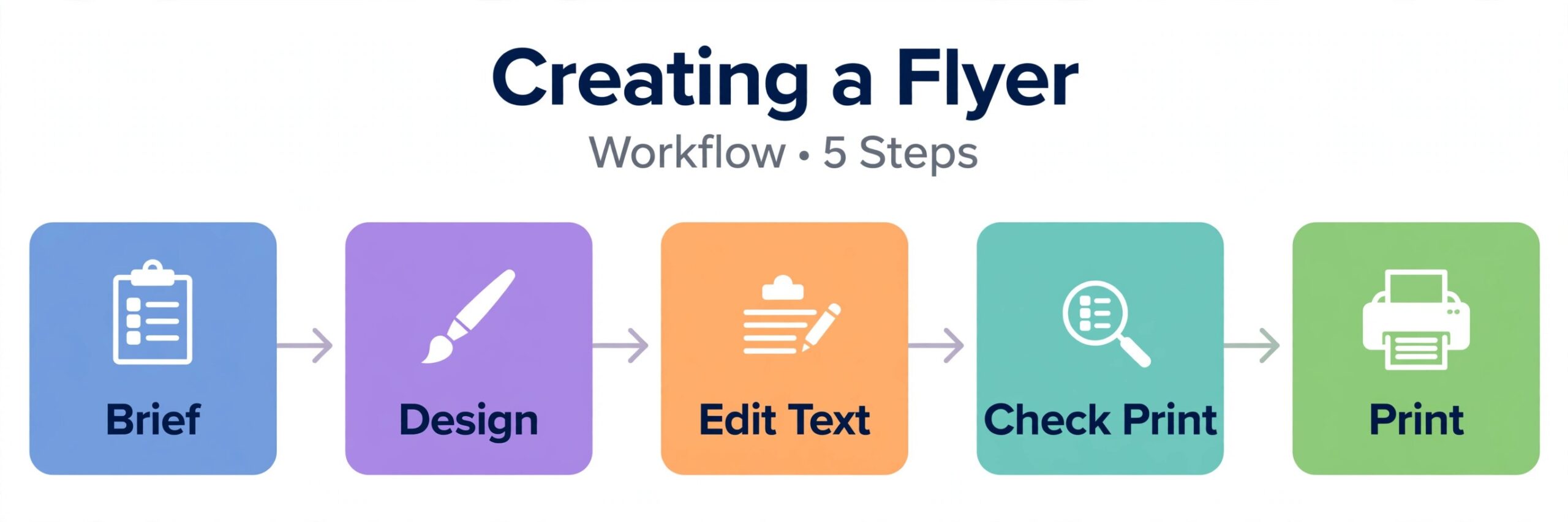
A vague prompt produces a vague flyer. Before you open any tool, write down five facts on paper or in a notes app. These are the event or offer name, the date and time, the place or link, the price or entry condition, and the single action you want the reader to take. If any of those facts is missing from your prompt, the tool will either leave a gap or invent a plausible detail, and both outcomes cost you editing time later.
A good brief also states the audience in plain words, such as parents of primary school children, weekend gym members, or local cafe regulars, because audience shapes tone, imagery, and type size more than any style keyword does.
Next, separate the image job from the layout job. If you need an original scene, such as a jazz night illustration or a product photo that does not exist yet, prompt for the image first and judge it on its own. Check faces, hands, and text inside the image before it enters a layout, since flaws that look small in a thumbnail become obvious at A5 size. If you already have a good photo, skip image generation and spend your time on layout, hierarchy, and colour. Many beginners do the opposite, generating image after image while the headline stays weak, and the result is a beautiful picture wrapped around a message nobody can follow.
Give the tool constraints it can respect. Name two brand colours in hex values if you have them, or describe them plainly, such as deep navy and warm yellow, and name the mood in one word, such as calm, bold, or playful. Ask for one headline, one subheading, and short supporting text, rather than asking for a complete flyer and hoping the structure lands well. When the first draft arrives, edit in passes. Fix the wording first, then the hierarchy, then the colours and images, and only then worry about decorative touches. Editing in that order stops you polishing a flyer whose headline still says the wrong thing.
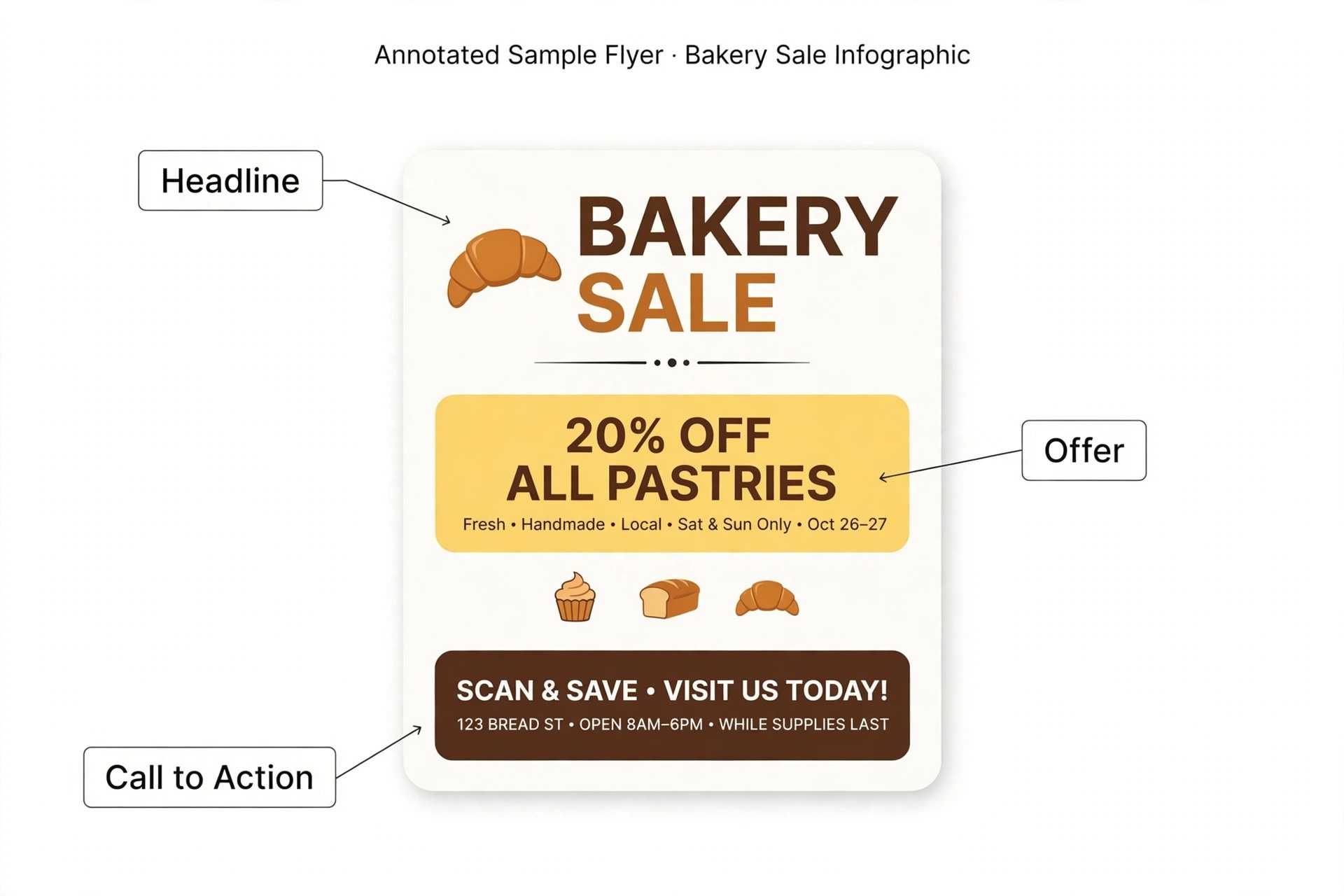
Finally, test the draft the way a stranger will meet it. View it at phone size for social and at arm’s length on paper for print. Ask one honest question. Could a person who has never heard of your business understand what is on offer, when it happens, and what to do next, within five seconds? If the answer is no, the problem is rarely the tool. It is usually a headline that tries to say three things, a call to action buried at the bottom, or an image that competes with the text.
Fix that one problem before you generate a fresh batch of alternatives, because a new batch with the same weak brief will repeat the same flaw in a prettier form.
Mistakes That Make Flyers Look Cheap
The most common mistake is cramming too much onto one page. A flyer is not a brochure, and every extra line weakens the one action you want, whether that is a booking, a visit, or a ticket sale. Pick one headline, one offer, and one call to action, and let the rest go. The second mistake is low contrast text over a busy photo. If you must place type over an image, darken the image behind the text or use a solid panel, and test readability at arm’s length. The third mistake is using a low resolution image pulled from a web search, which prints soft and pixelated even if it looked sharp on screen.
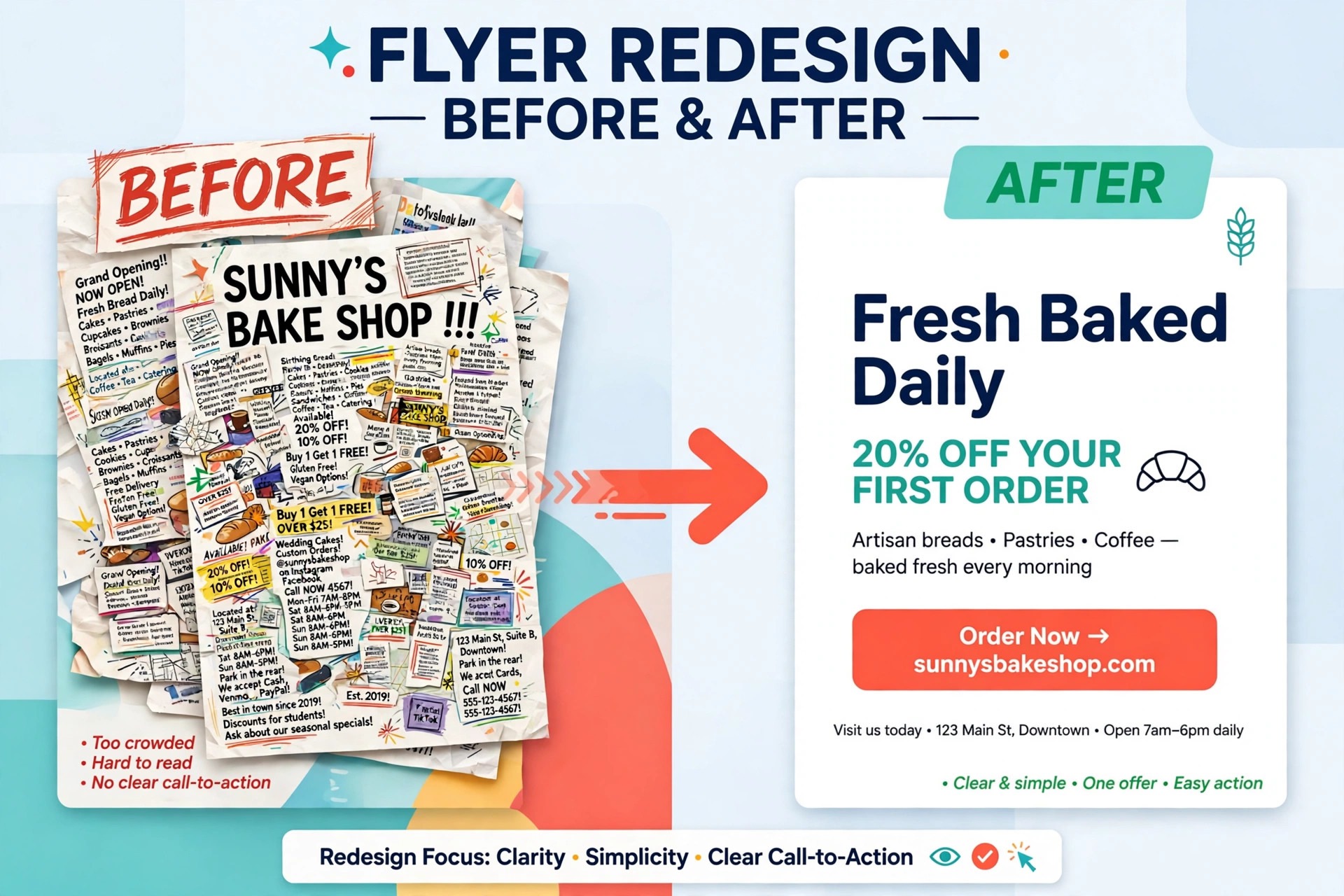
Use stock from inside your tool or a high resolution original. Designers can sharpen these habits further with our guide for graphic designers using AI tools. Finally, proofread dates, prices, and addresses twice. An AI draft will happily invent a plausible looking detail, and a wrong date on a printed flyer cannot be recalled with an edit button. That discipline separates the best AI flyer makers from tools that only generate pretty pictures.
Final Word on Flyers That Get Read
The best flyer tool is the one whose export, text control, and template style match the job in front of you, not the one with the longest feature list. That match is what the best AI flyer makers deliver when they are judged on finished flyers rather than demo videos. Canva wins for most people on breadth, Adobe Express wins on print polish, PosterMyWall wins for events, and the specialist tools win when data or branding leads the design. Start free where a free plan is genuinely usable, test a real flyer with your own wording and photos, and check the print or phone result before committing to a paid plan.
A flyer that is readable, honest, and easy to act on will outperform a flashy design every time, and these tools make that standard reachable without hiring a designer for every event.
More Reading on Stratilyze. If flyers are part of a wider campaign, our guides to AI ad creative generators, AI presentation makers, and AI social media management tools show how to carry one message across ads, decks, and social posts without redesigning from scratch each time.
Frequently Asked Questions
Can I make a print-ready flyer with a free AI tool?
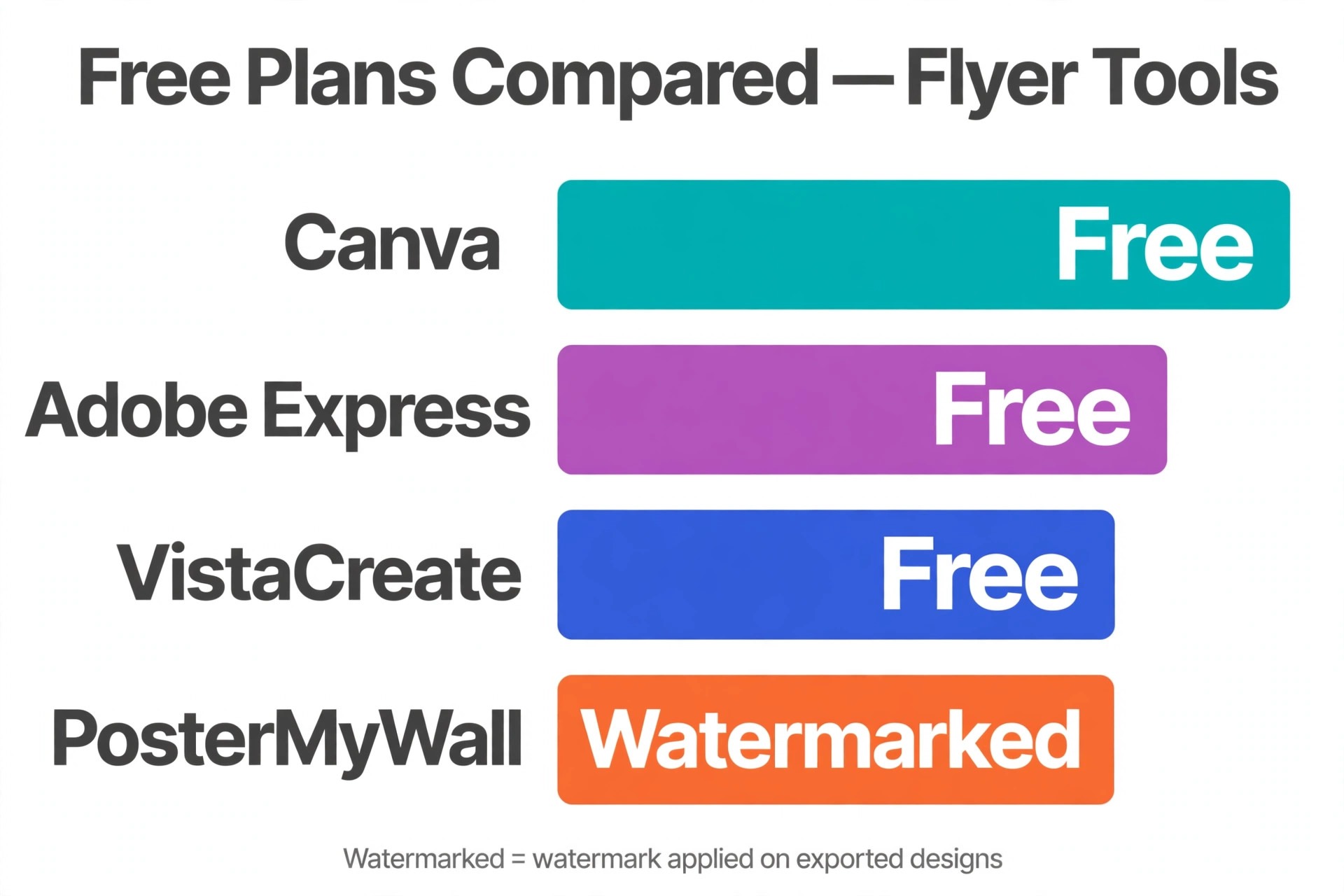
Yes, with conditions, and the best AI flyer makers make their free limits clear upfront. Free plans from Canva, Adobe Express, and VistaCreate let you design and export a usable flyer, but check whether PDF export, high resolution, and bleed control sit behind a paid tier. For a one-off handout, a free export is often enough. For a paid print run, a single month of a Pro plan is usually cheaper than reprinting a flawed batch.
Do AI flyer tools handle text reliably?
Editable text in a template is reliable, because you type it yourself. AI generated images with baked-in text are less reliable, and words can still come out misspelled or garbled. The safe workflow is to generate or choose an image first, then add headlines, dates, and prices as editable text in the editor, and proofread the final export at full size.
What size should a flyer be for printing?
A5 works well for handouts, A4 suits noticeboards and menus, and US Letter is standard in North America. Export as PDF, keep important text away from the trimmed edge, and confirm bleed requirements with your printer before you send the file. A flyer designed at the wrong size and stretched to fit will look soft in print.
Are AI generated flyer images safe for commercial use?
It depends on the tool and its licence terms. Adobe Firefly images are positioned as commercially safe, while other generators vary in their terms and training data claims. If a flyer will run in paid advertising or large print runs, read the licence for your chosen tool and keep a record of which images you used.
How do I avoid my flyer looking like everyone else’s template?
Change more than the words. Swap the hero image for your own photo, adjust the colour palette to your brand, rework the headline hierarchy, and remove decorative elements that do not serve the message. A template is a starting structure, not a finished design, and fifteen minutes of customisation usually removes the generic feel.
Is Design.com a good choice for flyers?
Design.com is a good choice when brand consistency matters most, since it carries your logo and colours across flyers and other assets, with vector exports for print. It is less strong than Canva or PosterMyWall for template variety or event-specific designs, so judge it on whether you need a consistent brand system or a large library of one-off templates.