
Your Facebook page gets one wide banner to explain who you are before anyone reads a post, and most pages waste it on a stretched photo or a blank graphic. The right choice among the best Facebook cover makers fixes that in minutes, because the canvas is already the right size and the text sits where visitors can actually read it.
This guide compares eleven tools on template quality, photo handling, brand control, and price, so you can pick one that fits a personal profile, a small business page, or an event. Every tool below was checked for a real Facebook cover workflow, not just a generic design editor with a social size buried inside it.
Why the Cover Still Matters More Than the Profile Photo
A profile photo is small on most screens, while the cover fills the top of the page on desktop and crops to a wide strip on mobile. That strip carries the first impression for a new visitor, a potential customer, or someone deciding whether to follow. A cover that states the offer, the place, or the event date does work that a dozen posts cannot, because it is visible on every visit without scrolling.
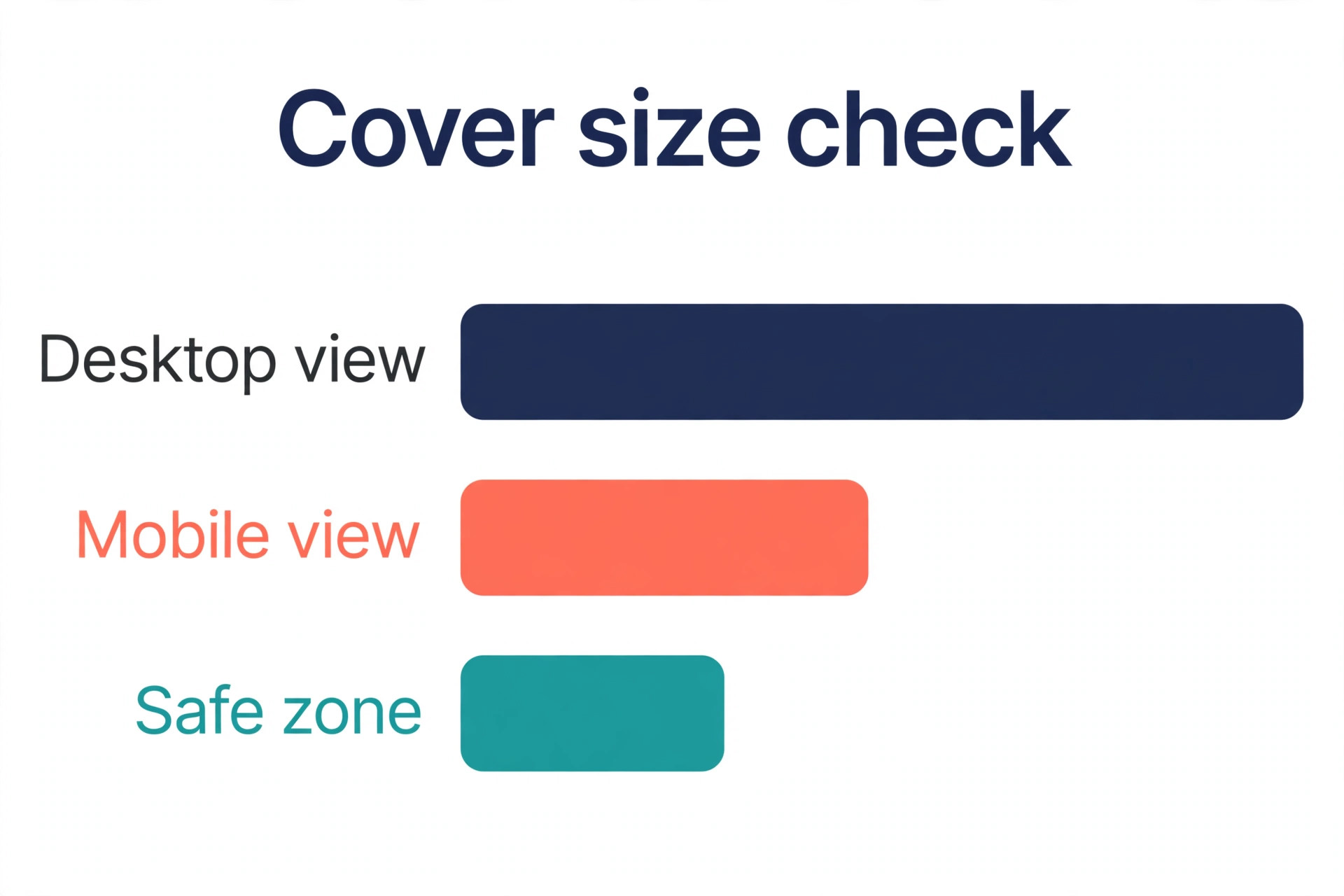
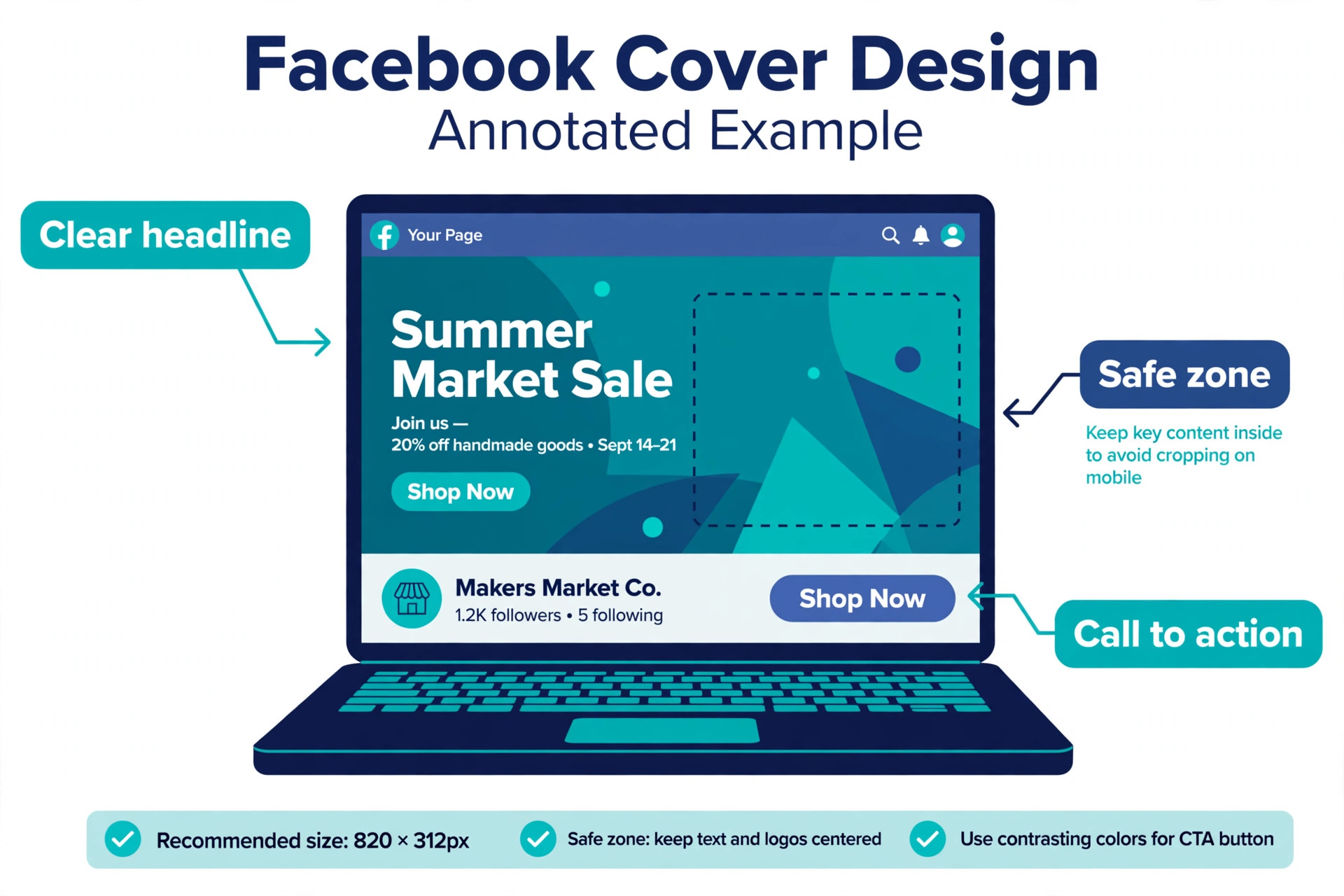
The practical test for best Facebook cover makers is the mobile crop. Facebook shows less of the cover on a phone than on a desktop screen, and the profile photo overlaps the lower left corner. Text placed near the edges or the bottom left gets cut or hidden, so a good tool shows a safe zone preview or at least lets you test both views before export. When best Facebook cover makers are judged on that test alone, the simple template editors often beat the powerful ones, because their templates were built with the crop in mind.
Best Pick by Job
The table below gives the short answer for each common job, then the reviews explain the trade-offs behind each pick. Use it to narrow the list to two or three options before you start a free trial.
| Tool | Best for | Free tier |
|---|---|---|
| Canva | beginners and small businesses | Yes |
| Adobe Express | Adobe users and brand-led pages | Yes |
| VistaCreate | small teams that want colour and motion | Yes |
| PosterMyWall | local businesses and event pages | Yes |
| Snappa | busy owners who want a cover in minutes | Yes |
| Fotor | creators who also edit photos | Yes |
| Visme | teams that must stay on brand | Yes |
| Design.com | event pages and small brands | Yes |
| Placeit | sellers and creators who need mockups too | Yes |
| PicMonkey | photo-led pages and small shops | Yes |
| BeFunky | casual users and community pages | Yes |
How to Choose Among the best Facebook cover makers
Start with the job, not the feature list. A restaurant needs a cover that announces opening hours or a seasonal menu, and it will change that cover often. A wedding event page needs one beautiful cover that lasts for months. A coach or consultant needs a cover that states the service and the call to action in one line. Those three jobs point to different tools, even though all of them can technically make a cover.
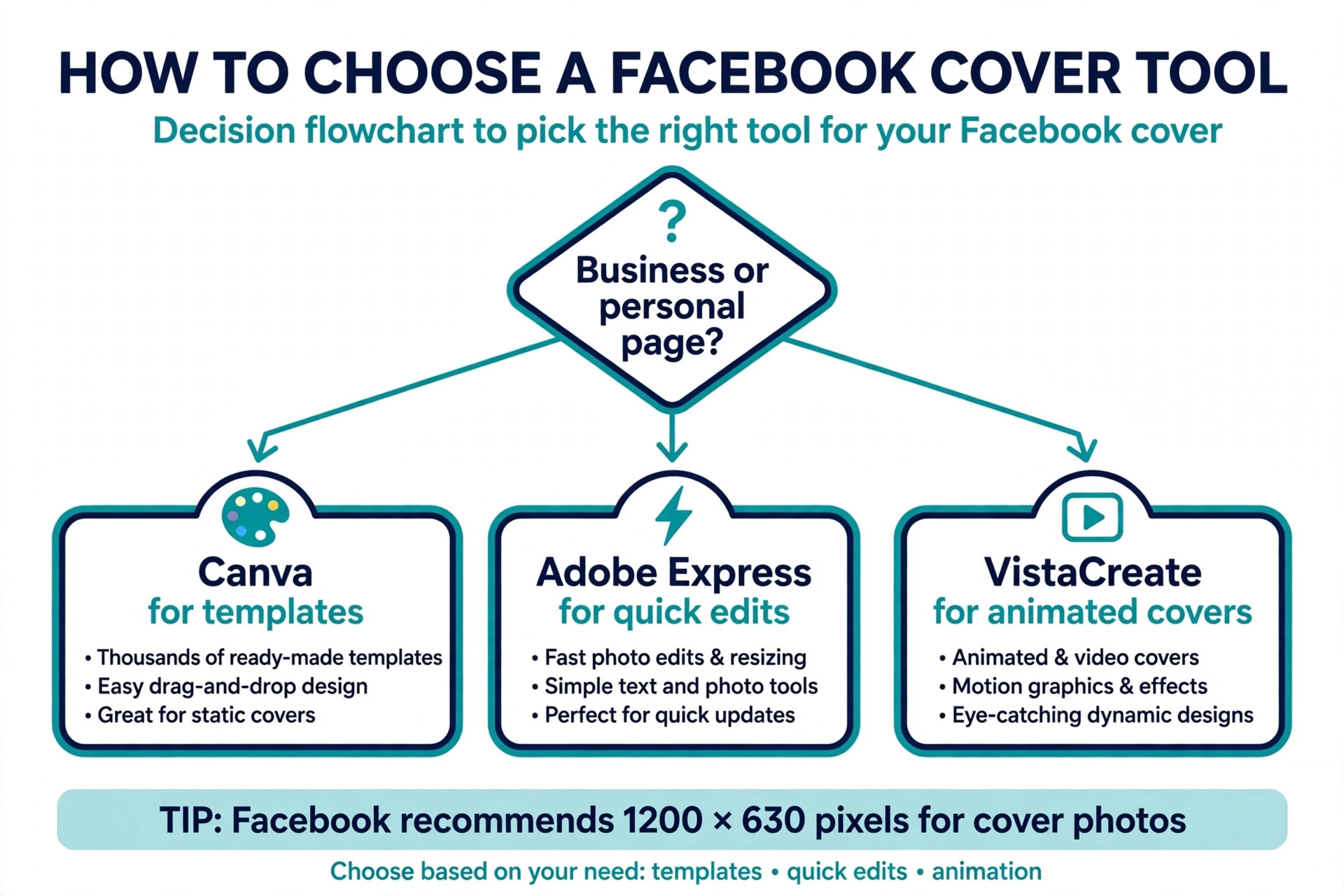
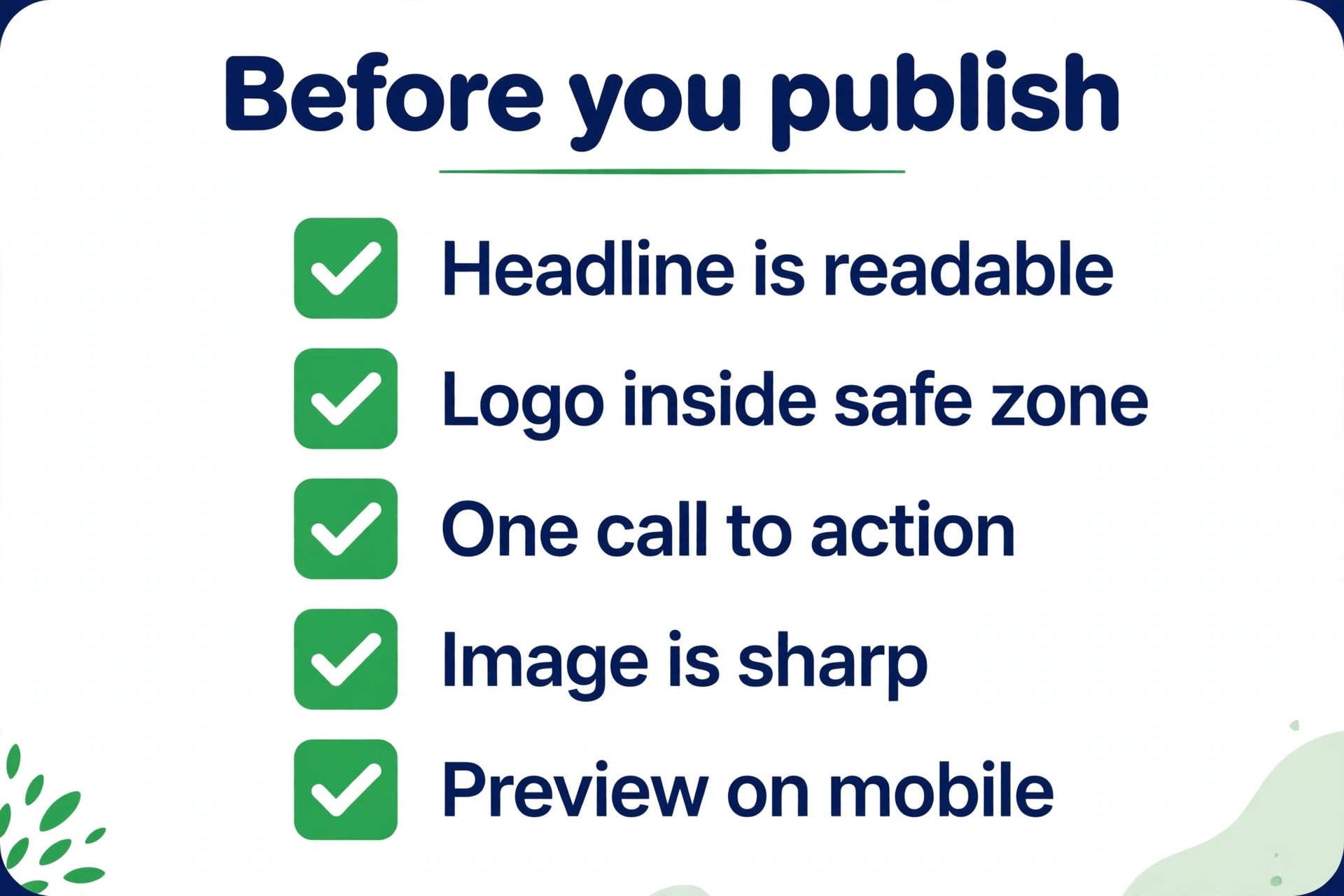
Next, check the photo question. If your cover starts from a photograph you took, pick a tool with strong retouching and background removal. If it starts from text and colour, pick a tool with strong typography and templates. Finally, check the export, because best Facebook cover makers differ in export quality more than in template count. A cover exported at low resolution looks soft on a large desktop monitor, so export at the largest size the tool offers and preview the result on both a phone and a computer before you publish it.
The Tools in Detail
The reviews below follow the same order as the table. Each one covers what the tool does, who it suits, pricing, and the honest limits, so you can compare like with like.
1. Canva
Canva is built for beginners and small businesses. It offers the largest template library in this roundup, with Facebook cover sizes built in. You search for a cover, swap in your photo and text, and export a file that already fits the desktop and mobile crops. Brand Kit tools on paid plans keep colours and logos consistent across covers. Pricing is Free plan, Pro from about 12.99 dollars per month in some regions and 120 dollars per year in others, so check the checkout page for your region.
In practice, the test that matters is whether a finished file still looks right where it will be used. Check it at real size, on a phone, and in print if print matters, before you commit to the tool for a whole series. A tool that looks good in a demo but fails that real-world check will cost you redesign time later, so run the check early and keep notes on what passed.
Strength to note. Huge template choice and a fast path from blank page to finished cover. Limit to weigh. Popular templates appear on many pages, so customise the photo and headline rather than publishing a template unchanged.
2. Adobe Express
Adobe Express is built for Adobe users and brand-led pages. It offers Adobe Stock photos, Adobe Fonts, and Firefly image tools inside a browser editor. Templates are sized for Facebook, and brand colours and fonts can be saved once and reused. Background removal helps product covers look clean without a separate photo editor. Pricing is Free plan, Premium from 9.99 dollars per month.
In practice, the test that matters is whether a finished file still looks right where it will be used. Check it at real size, on a phone, and in print if print matters, before you commit to the tool for a whole series. A tool that looks good in a demo but fails that real-world check will cost you redesign time later, so run the check early and keep notes on what passed.
Strength to note. Strong stock and font quality, plus a generous free tier. Limit to weigh. The deepest Adobe features still live in desktop apps, so very detailed compositing may need Photoshop.
3. VistaCreate
VistaCreate is built for small teams that want colour and motion. It offers animated covers and a large stock library, with templates for pages, events, and promotions. Animation is the difference here. A short animated cover can hold attention on a page visit in a way a still image cannot, and the editor stays simple enough for a non-designer. Pricing is Free Starter plan, Pro from 10 dollars per month billed annually.
In practice, the test that matters is whether a finished file still looks right where it will be used. Check it at real size, on a phone, and in print if print matters, before you commit to the tool for a whole series. A tool that looks good in a demo but fails that real-world check will cost you redesign time later, so run the check early and keep notes on what passed.
Strength to note. Animated covers on both free and paid tiers, plus team seats in Pro without per-seat pricing on the same plan. Limit to weigh. Template volume is smaller than the biggest libraries, and resizing to other sizes is a paid feature.
4. PosterMyWall
PosterMyWall is built for local businesses and event pages. It offers flyer-style covers with bold text, built for promotions, sales, and community events. The library leans commercial rather than decorative. That suits a shop, restaurant, gym, or venue that needs a cover to announce an offer, a date, or a new menu. Pricing is Free plan with pay per download options, Premium from 9.95 dollars per month.
In practice, the test that matters is whether a finished file still looks right where it will be used. Check it at real size, on a phone, and in print if print matters, before you commit to the tool for a whole series. A tool that looks good in a demo but fails that real-world check will cost you redesign time later, so run the check early and keep notes on what passed.
Strength to note. Fast promotion covers and video cover options. Limit to weigh. Design control is lighter than a full editor, so unusual layouts are harder to build.
5. Snappa
Snappa is built for busy owners who want a cover in minutes. It offers a deliberately simple editor with pre-sized graphics and one-click resizing. Snappa removes decisions rather than adding them. You pick a size, pick a template, change the words, and download. There is no deep layer system to learn. Pricing is Free Starter plan with 3 downloads per month, Pro from 10 dollars per month billed annually.
In practice, the test that matters is whether a finished file still looks right where it will be used. Check it at real size, on a phone, and in print if print matters, before you commit to the tool for a whole series. A tool that looks good in a demo but fails that real-world check will cost you redesign time later, so run the check early and keep notes on what passed.
Strength to note. The fastest learning curve in this group. Limit to weigh. The free download limit is tight, and the template range is narrower than the leaders.
6. Fotor
Fotor is built for creators who also edit photos. It offers photo editing and AI generation in the same workspace as its templates. If your cover starts from a photograph, Fotor lets you retouch it, remove a background, and then lay out text without switching apps. That single-workspace flow saves time for photo-led pages. Pricing is Free plan, Pro from 3.99 dollars per month.
In practice, the test that matters is whether a finished file still looks right where it will be used. Check it at real size, on a phone, and in print if print matters, before you commit to the tool for a whole series. A tool that looks good in a demo but fails that real-world check will cost you redesign time later, so run the check early and keep notes on what passed.
Strength to note. Photo tools and cover templates together at a low paid price. Limit to weigh. Template depth for covers is thinner than the design-first tools.
7. Visme
Visme is built for teams that must stay on brand. It offers brand kits, locked templates, and collaboration for teams. Visme suits a page run by more than one person. A manager can lock the logo position and colours, then let staff change only the text and photo for each new cover. Pricing is Free plan, paid plans from 12.25 dollars per month.
In practice, the test that matters is whether a finished file still looks right where it will be used. Check it at real size, on a phone, and in print if print matters, before you commit to the tool for a whole series. A tool that looks good in a demo but fails that real-world check will cost you redesign time later, so run the check early and keep notes on what passed.
Strength to note. Brand control and team review in one place. Limit to weigh. The price is higher than single-user tools, and the editor takes longer to learn than the simplest options.
8. Design.com
Design.com is built for event pages and small brands. It offers Facebook event cover templates that can be customised with event details, dates, and logos. Design.com is useful here for event covers rather than everyday page covers. Its templates are organised by event type, which shortens the search for a party, conference, or fundraiser cover. Pricing is Free plan, paid plans from about 3 dollars per month billed annually.
In practice, the test that matters is whether a finished file still looks right where it will be used. Check it at real size, on a phone, and in print if print matters, before you commit to the tool for a whole series. A tool that looks good in a demo but fails that real-world check will cost you redesign time later, so run the check early and keep notes on what passed.
Strength to note. A wide event-cover template range with easy text and logo customisation. Limit to weigh. It is not the strongest choice for a permanent business page cover, where brand control and photo editing matter more.
9. Placeit
Placeit is built for sellers and creators who need mockups too. It offers templates and mockups from Envato, including social covers. Placeit is worth a look when a cover is only one part of a launch. The same subscription covers logo, video, and mockup templates, so a shop can keep one visual style across a page and a listing. Pricing is Free templates, Unlimited from about 7.47 dollars per month billed annually.
In practice, the test that matters is whether a finished file still looks right where it will be used. Check it at real size, on a phone, and in print if print matters, before you commit to the tool for a whole series. A tool that looks good in a demo but fails that real-world check will cost you redesign time later, so run the check early and keep notes on what passed.
Strength to note. Breadth across mockups, logos, and video in one plan. Limit to weigh. Well-known templates can look familiar, and the editor is template-led rather than freeform.
10. PicMonkey
PicMonkey is built for photo-led pages and small shops. It offers photo retouching, text effects, and social templates. PicMonkey sits between a photo editor and a design tool. Pages built around photography, food, products, or travel get more from it than pages that only need a text banner. Pricing is Free trial, paid plans vary by region.
In practice, the test that matters is whether a finished file still looks right where it will be used. Check it at real size, on a phone, and in print if print matters, before you commit to the tool for a whole series. A tool that looks good in a demo but fails that real-world check will cost you redesign time later, so run the check early and keep notes on what passed.
Strength to note. Strong photo touch-up tools next to the templates. Limit to weigh. There is no permanent free plan, so budget for a subscription from the start.
11. BeFunky
BeFunky is built for casual users and community pages. It offers a simple editor with photo effects, collage tools, and social templates. BeFunky is the low-pressure option. The editor opens fast, the tools are clearly labelled, and a community page or hobby group can produce a clean cover without a tutorial. Pricing is Free plan, Plus plan with paid pricing that varies by region.
In practice, the test that matters is whether a finished file still looks right where it will be used. Check it at real size, on a phone, and in print if print matters, before you commit to the tool for a whole series. A tool that looks good in a demo but fails that real-world check will cost you redesign time later, so run the check early and keep notes on what passed.
Strength to note. Very easy to learn and free to start. Limit to weigh. Advanced brand controls and team features are limited.
Sizes, Safe Zones, and Export Settings That Avoid Cropping
Facebook recommends a cover around 851 pixels wide by 315 pixels tall on desktop, with a mobile crop that shows a narrower central area. The exact numbers shift over time as Facebook updates its layout, so treat the template size inside your chosen tool as the current answer rather than memorising a figure from an old guide. What does not change is the safe zone habit. Keep the headline, the logo, and the call to action near the centre, away from the edges and the lower left corner.
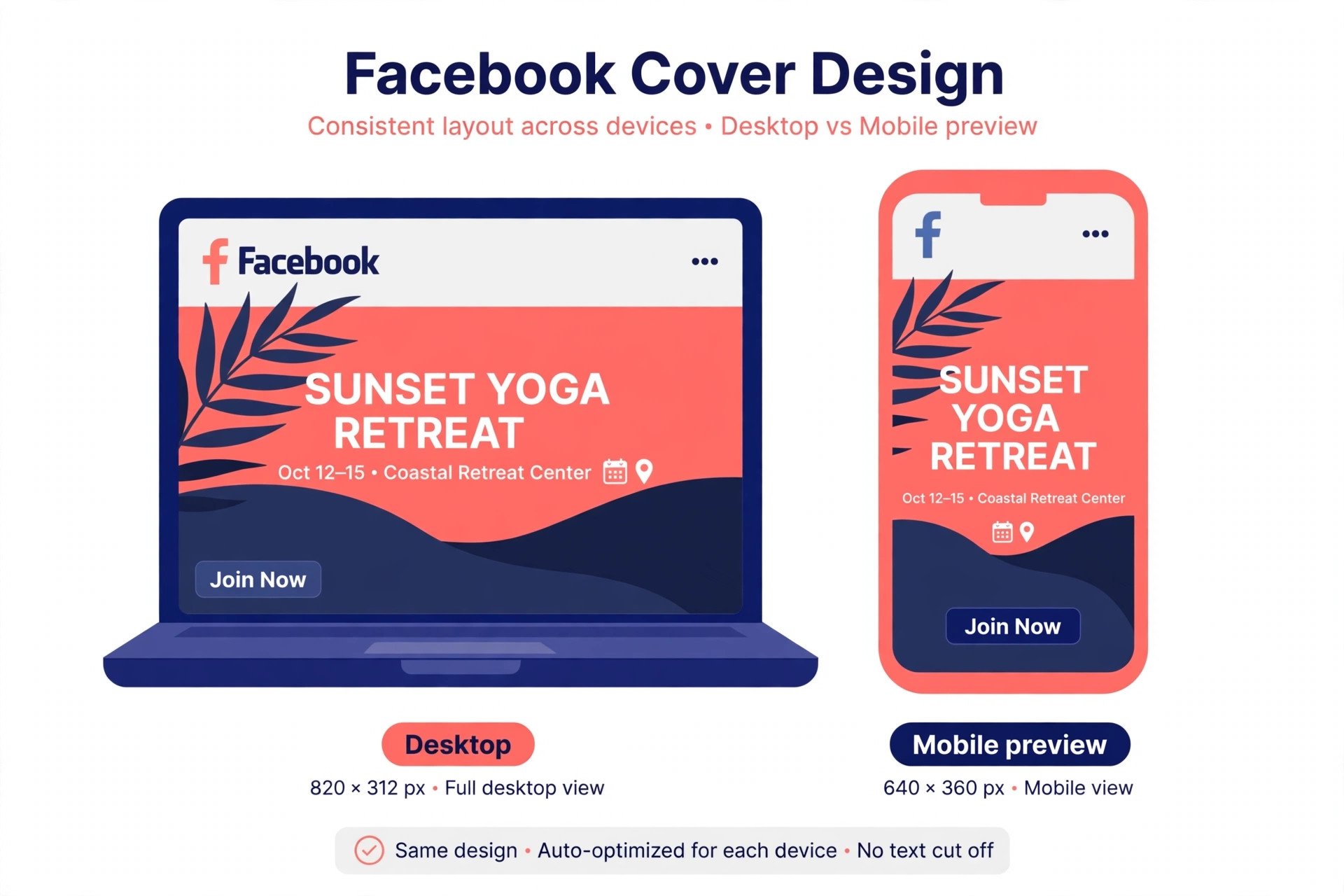
Export as a high quality PNG or JPG, and avoid uploading a file that Facebook must stretch. A stretched cover loses sharpness and makes text look fuzzy, which undermines the professional impression you wanted. If your tool offers a video cover option, test it on mobile first, because motion that looks smooth on desktop can distract on a small screen. For most pages, a still cover with one clear message beats a busy animated cover. The tools in this guide that offer best Facebook cover makers cover both still and animated options, so you can test the animated version and keep the still version if it reads better.
That test, done once, saves repeated redesigns, and it is why best Facebook cover makers should be judged on preview tools as much as on template count.
Mistakes That Make a Good Cover Look Amateur
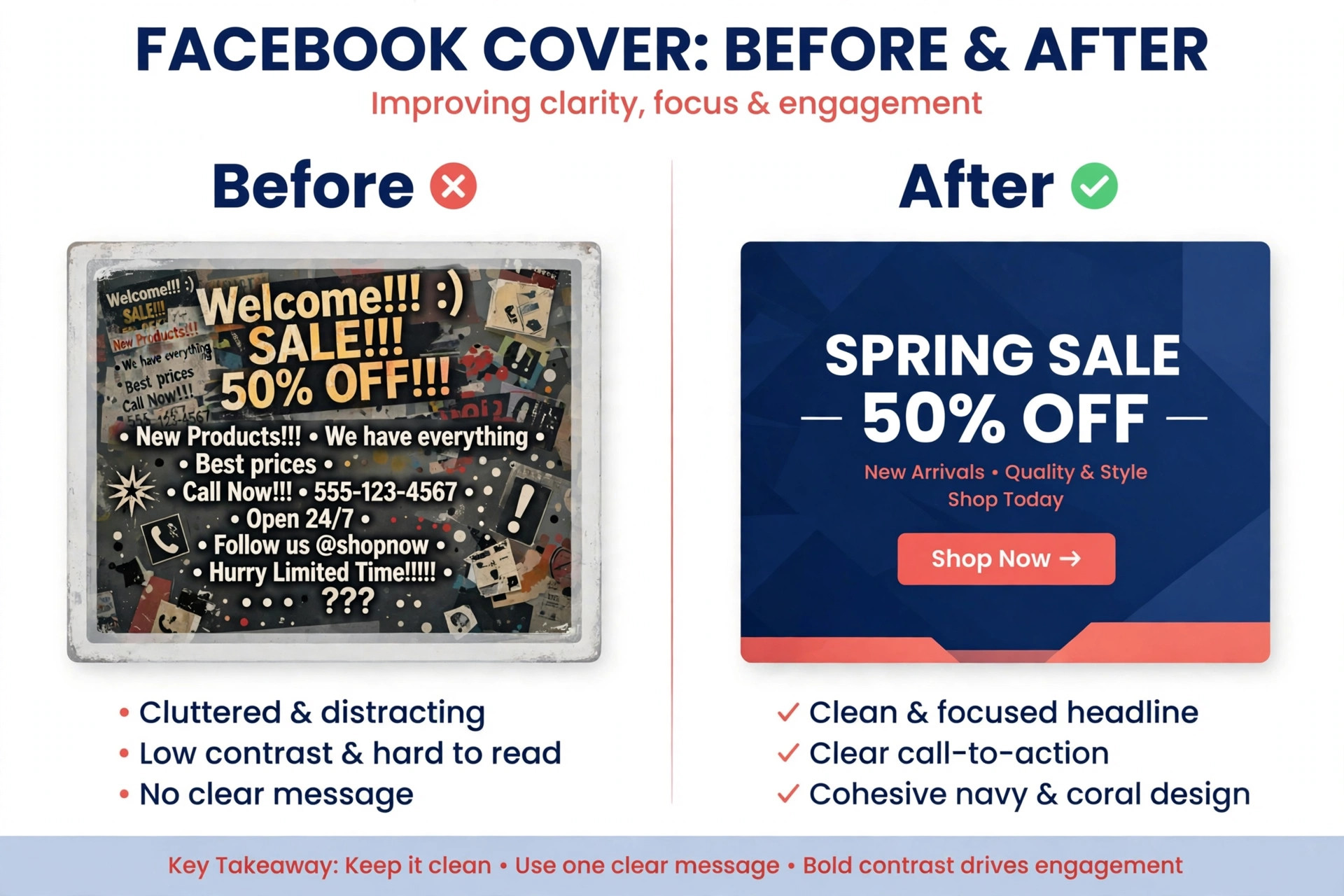
The most common mistake is too much text. A cover is not a flyer, and a paragraph squeezed into a wide strip becomes unreadable on a phone. One headline, one supporting line, and one call to action is enough. The second mistake is a low resolution photo pulled from a message thread, which looks fine as a thumbnail and blurry as a cover. Use the original photo file, not a compressed copy.
The third mistake is ignoring contrast. Light text on a light photo disappears, and dark text on a busy photo does the same. A solid colour panel behind the text, or a darker photo treatment, fixes this without design skill. The fourth mistake is never updating the cover, and it is a mistake that best Facebook cover makers cannot fix for you, because no tool updates a stale message on its own. A Christmas offer still showing in March tells visitors the page is not maintained, so set a simple habit of reviewing the cover whenever you change an offer, a season, or an event date.
A Simple Workflow From Blank Page to Published Cover
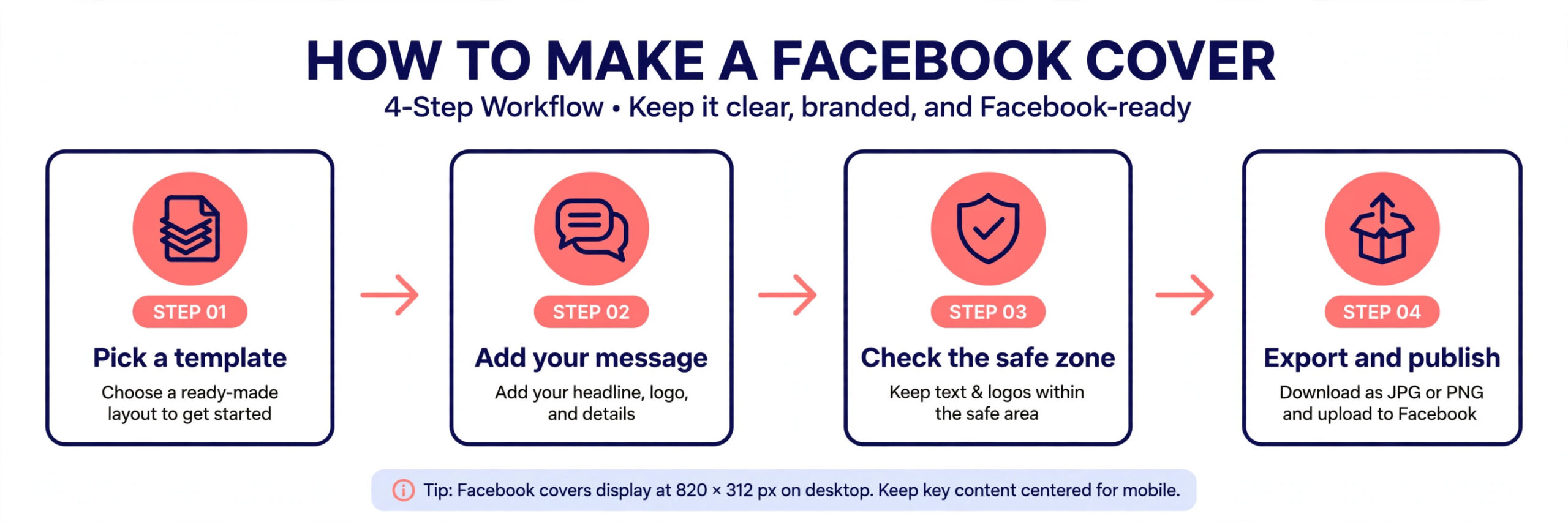
Start with the message, not the template. Write one headline of five words or fewer, one supporting line, and the action you want, such as visiting a shop, booking a call, or joining an event. If you cannot state the message in that short form, the cover will not state it either, whatever template you choose. Put the headline in a document first, then open the tool, because browsing templates before you know the message leads to a pretty cover that says the wrong thing.
Next, choose the photo. A sharp original photo of your product, your place, or your people beats a generic stock image for a local business, because visitors recognise the real thing. If you must use stock, pick an image with space for text, such as a wide sky, a plain wall, or an uncluttered background, rather than a busy scene that fights the headline. Place the photo, add a colour panel or a darker treatment behind the text if contrast is weak, and set the headline in a large readable font. Avoid script fonts for the main headline, because they lose legibility at small sizes and on mobile screens.
Then run the preview checks. View the cover on a phone and on a desktop screen, check the profile photo overlap, and ask someone who has not seen the design whether they can state the message in three seconds. If they cannot, shorten the headline or increase the contrast before you publish. Finally, save the source file in the tool, not just the exported image, so the next update takes minutes rather than a full redesign. A cover workflow that follows those steps turns a task many owners dread into a fifteen minute job, and the result looks intentional because every choice served the message rather than decoration.
More Reading on Stratilyze
If your cover is part of a wider page refresh, the next decisions are the profile photo, the post templates, and the page description, and getting those consistent matters more than perfecting any single graphic. A cover that matches the tone of your posts makes the page feel intentional, while a cover that promises one thing and posts that show another creates confusion. Start with the cover, then bring the rest of the page into line with the same colours, the same headline style, and the same offer.
Read our guide to best ai tools for facebook for the next step after you finish this design.
Read our guide to best ai tools for graphic designers for the next step after you finish this design.
Read our guide to best ai logo makers for the next step after you finish this design.
Read our guide to use canva for youtube thumbnail design for the next step after you finish this design.
Read our guide to best ai tools for instagram for the next step after you finish this design.
Read our guide to best ai social media management tools for the next step after you finish this design.
Frequently Asked Questions
What size should a Facebook cover be?
Use the Facebook cover template inside your chosen tool, which is set to the current recommended size. The desktop display is wide and short, around 851 by 315 pixels in recent guidance, while mobile shows a narrower crop. Keep important text near the centre so it survives both views.
Can I make a Facebook cover for free?
Yes. Several tools in this guide offer free plans with cover templates, including Canva, Adobe Express, VistaCreate, and Fotor. Free plans may limit downloads, premium templates, or brand kit features, but a single polished cover is possible without paying.
Should a business cover include a call to action?
A short call to action helps when the page has one clear next step, such as booking, ordering, or visiting a shop. Keep it to a few words and pair it with the service or offer, rather than listing several actions that compete for attention.
Is an animated cover better than a still cover?
An animated cover can draw the eye, but it can also distract from the message, and it does not always play well on every device. Test the animated version on a phone first. If the headline is harder to read in motion, keep the still version.
How often should I change my cover?
Change it when the message changes, such as a new offer, a season, an event, or a rebrand. A page that updates its cover with its offers looks maintained, while a stale cover suggests the page is no longer active even when posts are recent.
Do I need design skill to make a good cover?
No. Template tools in this guide are built for non-designers, with pre-sized canvases and editable text. The skills that matter most are choosing one clear message, using a sharp original photo, and checking the mobile crop before publishing.
Our Verdict on Facebook Covers
Canva is the safest default for most pages, because the template range, the free plan, and the brand tools cover the common cases without a learning curve. Adobe Express is the better pick inside the Adobe world or when stock quality matters most. VistaCreate earns its place when motion matters, and Snappa wins when speed matters more than depth. For event pages, Design.com deserves a trial for its event template range, though it should not be your only tool for a permanent business cover.
Pick two finalists, make the same cover in both, and judge best Facebook cover makers by that side-by-side test rather than by marketing claims, preview each on a phone, and keep the one that reads clearly in three seconds. That three second test is the whole job, and the tool that passes it for your page is the right one, whatever the rankings say.
Seasonal updates deserve their own habit, because a cover that never changes starts to look like a neglected shopfront even when the page posts daily. Plan four cover updates a year tied to seasons, holidays, or product changes, and keep the previous versions saved in the tool so a past cover can return if an offer repeats. That habit also gives you a reason to review the headline, the photo, and the call to action regularly, which is when most small errors get caught. A cover review takes five minutes when it is scheduled, and it prevents the slow drift where a page promises an offer that ended months ago.
Testing also matters more than taste. Show the cover to someone outside your business and ask what the page sells or offers, without explaining it first. If they answer correctly in a few seconds, the cover works. If they hesitate, the problem is usually the headline or the contrast, not the template. Change one element at a time and test again, rather than redesigning from scratch, because a single change tells you what actually fixed the problem. Over time, those small tests build a cover style that is recognisably yours, with consistent colours, a consistent headline position, and a consistent tone that returning visitors learn to trust.