
A generic image generator will happily draw a dragon, a rose, or a snake. A tattoo generator has a harder job. It has to produce linework that still reads at small size, shading that will age without turning to a blur, and a shape that follows an arm, a shoulder, or a ribcage. That is the difference this guide is built around, and it is why the best AI tattoo design generators are not always the most famous image tools. The best tool for a first tattoo idea is often not the best tool for a full sleeve plan, a cover up, or a fine line piece that must stay clean for years.
If you want the short version first, start with BlackInk AI for a tattoo specific workspace, Ink Studio AI for a fast photo to tattoo concept, and TattoosAI for a simple prompt and style flow. Use Midjourney or Adobe Firefly for the widest creative range. Take every output to a licensed artist before booking ink. AI gives you a visual brief, not a finished stencil or a judgment about how ink behaves in skin over time.
What makes a tattoo concept ink ready, and what does not
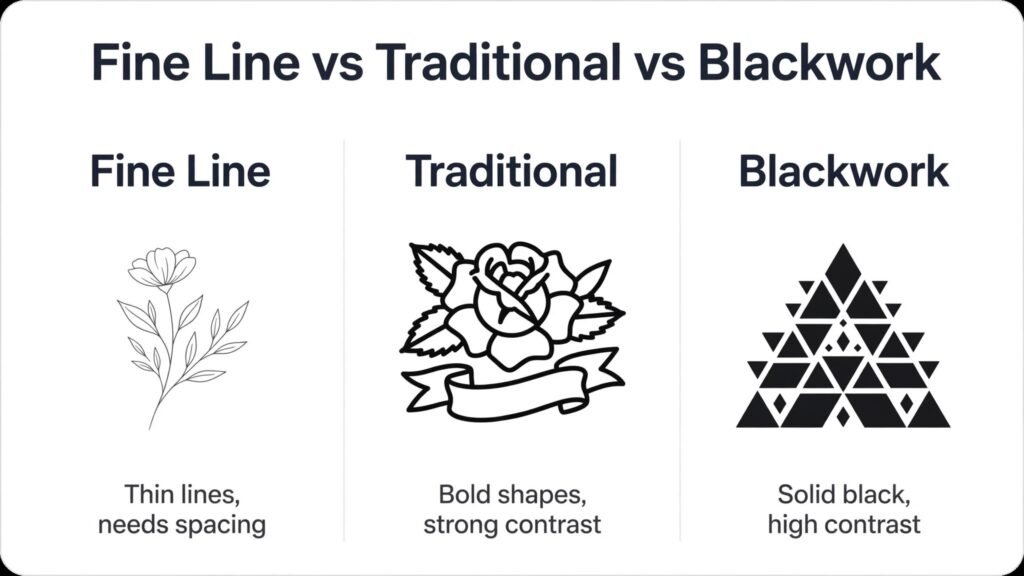
A strong tattoo concept has five qualities. First, the outline is clear enough to trace without guesswork. Second, the darkest areas are placed where they will hold contrast, not scattered across fine detail. Third, the design has breathing room, meaning empty skin around the main shapes so the eye can follow the image at a glance. Fourth, the size matches the body area. A design that looks detailed on a phone screen can collapse when it is reduced to fit a wrist. Fifth, the style is consistent. Fine line, traditional, blackwork, Japanese, realism, and dotwork each use different line weight, shading, and spacing, and mixing them without intent usually weakens the result.
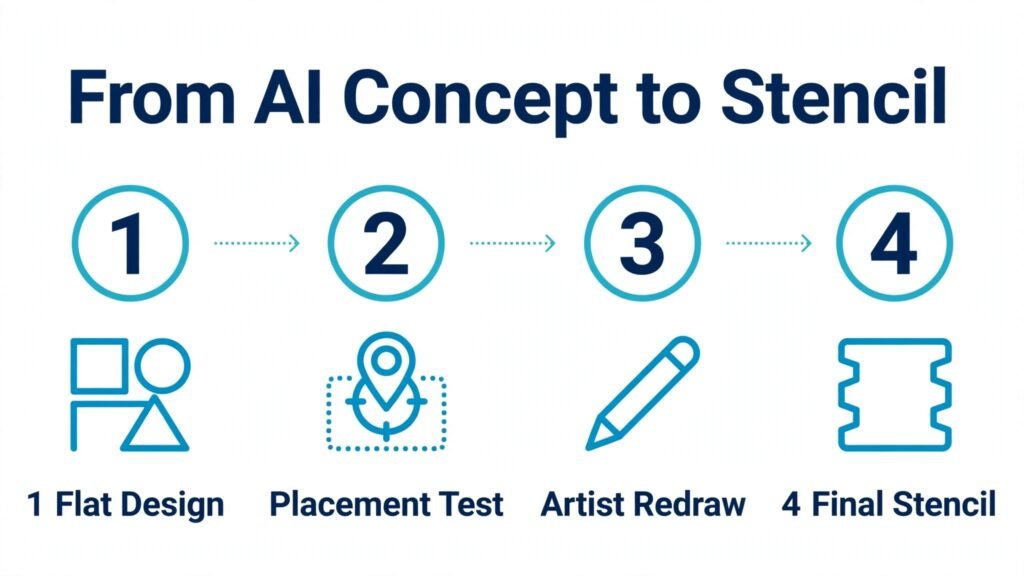
Most failures come from the opposite pattern. A generator adds tiny text inside a small shape, packs too many subjects into one frame, or creates shading that looks soft on screen and muddy on skin. That is why placement previews matter, and why a flat design on a plain background is still the most useful file to send an artist.
The 10 best AI tattoo design generators at a glance
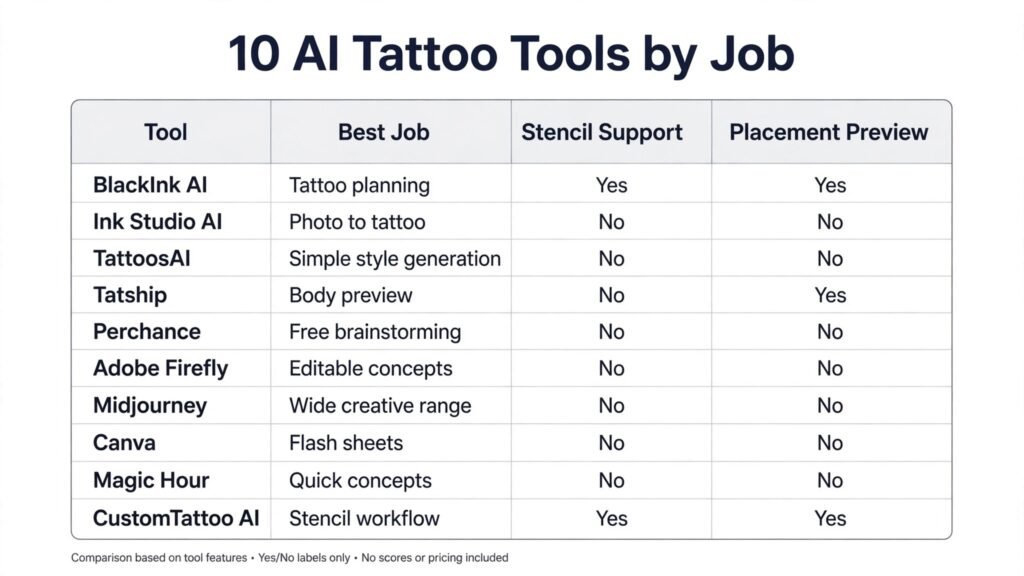
| Tool | Best for | Standout strength | Pricing note |
|---|---|---|---|
| BlackInk AI | Tattoo specific planning | Style, placement, and stencil tools in one place | Free credits, then paid plans; check checkout |
| Ink Studio AI | Fast photo to tattoo ideas | Image to tattoo conversion and guided prompts | First design free, then short access passes; check checkout |
| TattoosAI | Simple style led generation | Clean prompt flow with style filters | Free designs, then paid plans; check checkout |
| Tatship | Trying a design on your own body | Photo preview and temporary tattoo orders | Free credits, then credit packs; check checkout |
| Perchance | Free idea generation | No cost brainstorming with prompt controls | Free |
| Adobe Firefly | Controlled, editable concepts | Reference and style controls inside Adobe tools | Free generations, then paid plans; check checkout |
| Midjourney | Wide creative range | Strong style interpretation for complex briefs | Paid plans only; check checkout |
| Canva | Flash sheets and lettering layouts | Easy layout, text, and presentation | Free plan, then Pro; check checkout |
| Magic Hour | Quick no signup concepts | Fast browser generation and templates | Free and paid options; check checkout |
| CustomTattoo AI | Connected generator to stencil flow | Generator, preview, and stencil editing in one workflow | Paid plans; check checkout |
Pick by the job, not by the headline
For a first tattoo idea
Start with Perchance, Magic Hour, or TattoosAI. You want volume and variety at this stage, not a perfect final image. Generate ten or more directions, save the three that still appeal to you after a day, and only then move to a paid tool for refinement. A first idea session should be cheap and fast. If a tool asks for a subscription before you know what style you like, skip it for now.
For a sleeve, a back piece, or a cover up
Use BlackInk AI or CustomTattoo AI. Larger work needs planning across sessions, gap fillers, and a way to test how separate pieces sit together. A single image generator can produce a beautiful central motif and still fail at making the whole composition read as one piece. For cover ups, the new design must use enough dark area and bold shape to work with existing ink, and that decision belongs to your artist.
For fine line, lettering, and small tattoos
Use Adobe Firefly, Canva, or Ink Studio AI, and check every letter and line at the exact size you plan to wear. Fine line work punishes small errors. A letter that is slightly off, a line that breaks, or a dot that drifts will be visible for years. Print the design at true size, hold it against the body area, and look at it from normal viewing distance, not zoomed in on a screen. If you cannot read it clearly at that distance, simplify it.
1. BlackInk AI
BlackInk AI is the most tattoo focused tool in this list, and that focus shows in the workflow. You can generate by style, test placement ideas, adjust detail and line weight controls where offered, and convert a concept toward a stencil style output. For someone planning more than one tattoo, that connected workflow saves time. You are not exporting an image from one app, rebuilding it in another, and then trying to explain the idea to an artist from a screenshot.
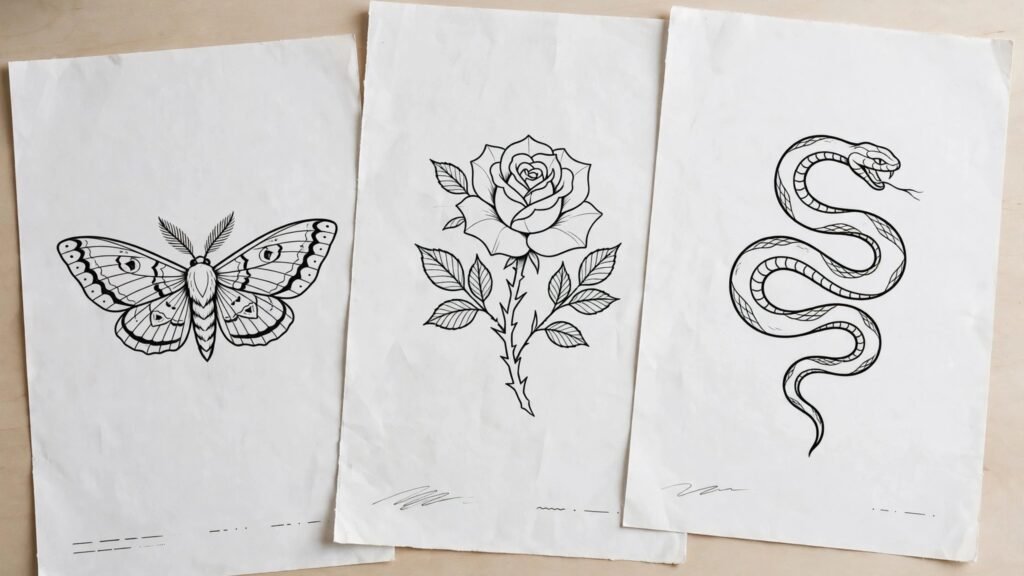
BlackInk AI works best when you give it a clear style first. Name the style, the subject, the size feeling, and the body area in the prompt. For example, ask for a fine line moth, with open wings, centred, with plain background, rather than a vague request for a cool moth tattoo. The clearer the brief, the fewer wasted generations. It also helps to generate the same idea in two or three styles and compare them side by side. Many people discover they like blackwork more than realism once they see both at the same size.
Watch out for two limits. First, a placement preview is a guide, not a fitting. Skin tone, body curvature, hair, and existing tattoos change how a design reads, and a flat preview cannot capture all of that. Second, free designs may be public and may be removed after a period, so save any concept you want to keep. Pricing is credit or subscription based, so check checkout for the current free allowance and renewal terms before you commit to a long planning project.
2. Ink Studio AI
Ink Studio AI earns its place for speed and for its image to tattoo workflow. Upload a portrait, a pet photo, an object, or a sketch, and the tool returns a tattoo style interpretation. That is useful when you already know the subject but you are unsure how it should be drawn as a tattoo. A photo of a dog does not automatically become a good tattoo. Ink Studio AI helps you see whether the face, the pose, and the shading can survive as linework.
The text generator is also well suited to short projects. If you want one design, or a small set of ideas for a single appointment, the short access model can be cheaper than a renewing subscription you forget to cancel. Generate a first version, then ask for variations with simpler shading, bolder outlines, or a different style. Keep at least one version with a plain background and one version that shows placement, because your artist will want the plain version for tracing and you will want the placement version for decision making.
Watch out for the credit model. Some workflows use premium credits even when the basic text generation does not, so read the plan details before you upload a batch of photos. Also treat every image to tattoo result as a concept. It may look complete, but the artist still needs to redraw lines, fix proportions, and adjust shading for skin and for healing.
3. TattoosAI
TattoosAI is built for people who want a simple start and a clear result. The prompt flow leans on style filters, so you can move from an idea to a set of styled options without learning prompt engineering. That matters for first time users. Many general image tools reward long, technical prompts. TattoosAI rewards a short, clear brief and a style choice, which keeps the early stage enjoyable rather than frustrating.
It works well for exploring a style family. Try the same subject in traditional, fine line, and blackwork styles, then narrow to one family before you refine details. A traditional rose and a fine line rose are different tattoos, even when the subject is the same.
Watch out for the limits of a simple flow. When you need precise control over composition, negative space, or a complex scene, a more flexible tool such as Midjourney or Adobe Firefly may give you more control. TattoosAI is also not a substitute for a placement fitting. Use its output as a brief, save the best versions at full resolution, and ask your artist how the design should change for the body area you have chosen.
4. Tatship
Tatship answers a different question from most generators. It does not only ask what design you want. It asks how that design will look on your body, in your daily life, before you commit. You can preview designs on your own photo and, where offered, order a temporary version to wear for a few days. That test reveals problems a screen cannot show. A design may feel too large on a forearm, too busy on a wrist, or too low on a shoulder once you live with it.
Tatship is especially useful for placement decisions. Try the same design at two sizes and in two positions, and photograph it in normal light rather than only in a studio style preview. Ask a trusted friend whether the design reads clearly from a few steps away. That distance test is close to how other people will actually see the tattoo. It also helps to wear the temporary version while doing normal activities, because a design that looks good when you stand still can feel distracting when you move.
Watch out for the temporary tattoo limit. A temporary version shows size, position, and general contrast, but it does not show healed ink, fine line ageing, or how colour settles in skin. Treat it as a placement test, not a final quality test. Credit packs also mean you should plan your tests in batches rather than buying small amounts repeatedly. Check checkout for current credit pricing and expiry terms.
5. Perchance
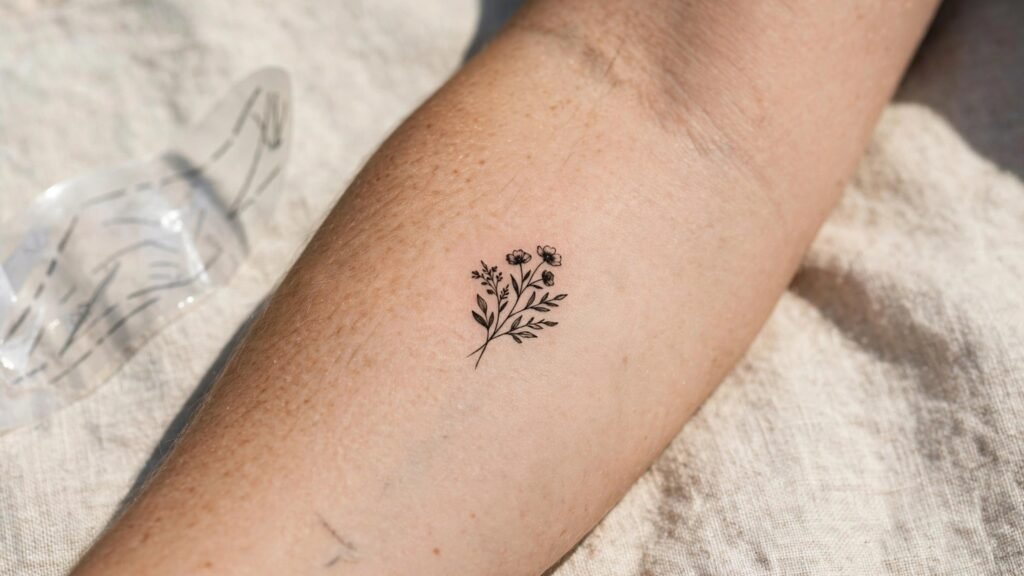
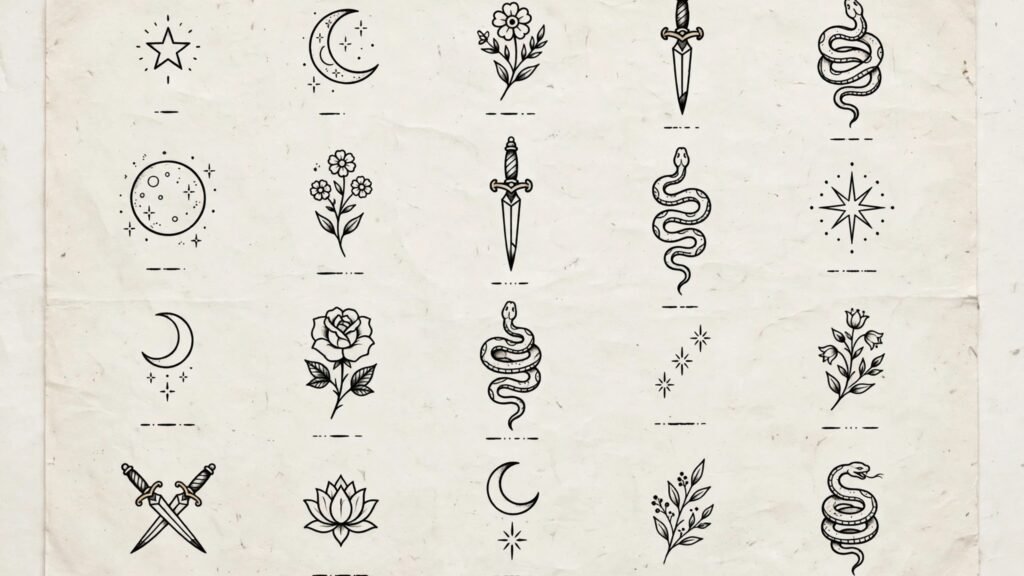
Perchance is the best free starting point in this list, and it is ideal for brainstorming. The tattoo generator lets you adjust prompt controls and generate many ideas without paying, which makes it easy to explore styles you had not considered. If you are unsure whether you want a snake, a moth, a dagger, or a botanical piece, Perchance lets you test all four directions in one session and compare them without cost pressure.
The key to good results is structure. Put the style first, then the subject, then the composition, then the background. Ask for a flat design on a plain background when you want a file your artist can use. Ask for a version on skin only after you have a flat version you like. That order matters, because a skin preview can hide weak linework behind realistic shading and lighting. A flat version exposes the drawing itself, which is what the artist needs to judge.
Watch out for quality variation. Free generation means you will see more weak results mixed with strong ones, and you will need to filter firmly. Save only the best few, and do not mistake volume for progress. Perchance also lacks the tattoo specific stencil and placement suite of BlackInk AI, so plan to move a strong concept into another tool or directly to your artist for refinement.
6. Adobe Firefly
Adobe Firefly is the strongest choice when editing matters as much as generation. Firefly lets you work with reference images, style controls, and Adobe editing tools, so you can take a promising concept and adjust it step by step rather than starting again from a new prompt each time. For lettering, composition, and clean presentation, that control is a real advantage. You can also prepare a flash sheet layout, with several designs on one page, which is useful for a studio consultation.
Firefly works well for people who already use Adobe tools, but it is also usable on its own for tattoo concepts. Start with a simple prompt, generate variations, and then use editing tools to remove clutter, strengthen an outline, or simplify shading. The goal is not to make the image more detailed. In tattoo work, the goal is often to make it simpler and bolder while keeping the character of the design. Firefly gives you the tools to do that without losing the original idea.
Watch out for the general purpose trap. Firefly is not tattoo specific, so it will not warn you when a design has detail that will not age well, or when lettering is too small for the body area. You have to apply that judgment yourself, or ask your artist early. Also check the plan limits for commercial use if you are an artist generating client concepts, because free generations and paid plans have different terms. Check checkout for current generation allowances.
7. Midjourney
Midjourney remains the widest creative tool in this list, and it is the best pick when your brief is unusual, detailed, or stylistically demanding. It interprets style language well, handles complex scenes, and produces variations that can push an idea further than a narrow tattoo generator might. If you want a Japanese style sleeve concept, a dark illustrative piece, or a surreal composition, Midjourney is often where the most interesting starting points appear.
The trade off is control and workflow. Midjourney runs through its own interface and prompt system, and it does not offer a tattoo specific stencil converter or body placement suite. You will need to request flat designs explicitly, ask for plain backgrounds, and export the best result for your artist to redraw. It also has no free tier in the usual sense, so it is best used after you have narrowed your style with a free tool. Use it for refinement and inspiration, not for the first ten rough ideas.
Watch out for detail overload. Midjourney loves texture, shading, and small elements, and those qualities can make an image look impressive on screen while making it a poor tattoo. When you find a strong Midjourney concept, ask for a simplified version with bolder outlines and fewer small details. That simplified version is usually the one your artist can actually work from. Also confirm the current plan and commercial terms at checkout before you use outputs for client work.
8. Canva
Canva is not a tattoo generator in the specialist sense, but it belongs in this list for layout, lettering, and presentation. If you want to build a flash sheet, test lettering options, or present three design directions to an artist in a clean document, Canva is faster than any specialist tool. Its AI image features can produce simple graphics and flash style ideas, and its text tools let you test fonts, spacing, and layout for script tattoos.
Canva is most useful after generation, not instead of it. Generate your core design in BlackInk AI, Midjourney, or Firefly, then bring it into Canva to test size, layout, and lettering. That step often reveals problems early. A script phrase that looks elegant in a large font may become cramped at tattoo size. A flash sheet with too many designs on one page may hide the one design that actually works. Use Canva to make those decisions visible before you book.
Watch out for spelling and font traps. Read every letter in a script tattoo three times, and check it at true size. Some decorative fonts look beautiful but lose legibility when reduced, and some letter shapes merge when ink spreads slightly during healing. Your artist should confirm the final font and size. Canva also works best for simpler, graphic styles. For complex illustrative work, start in a stronger image generator and use Canva only for layout.
9. Magic Hour
Magic Hour is the fastest way to get a tattoo concept without signing up or learning a new system. That low friction matters when you are still exploring. You can test a style, a subject, and a composition in minutes,. For group decisions, such as matching tattoos or a shared theme with different personal variations, that speed helps everyone see options without a long setup process.
Watch out for the limits of a quick flow. Magic Hour is not a full tattoo studio suite, so you will not get the same stencil, placement, and planning controls as BlackInk AI or CustomTattoo AI. Treat it as an idea tool, save the best outputs at the highest quality available, and plan a refinement step in another tool or with your artist. Also check whether the free flow meets your resolution needs before you rely on it for a final presentation file.
10. CustomTattoo AI
CustomTattoo AI is built around a connected workflow, from generation to placement preview to stencil editing. That connection is its main advantage. Many tattoo projects fail in the gaps between tools, when an image loses quality, a style changes during editing, or a placement idea is never tested properly. A connected workflow reduces those gaps and keeps the concept, the preview, and the stencil version aligned.
It works well for people who want a clear process rather than a collection of separate apps. Generate the concept, test placement, adjust the stencil style output, and then take a coherent set of files to your artist. It also helps you make decisions in order: style first, then composition, then size, then placement, rather than trying to solve all four at once.
Watch out for the same rule that applies to every tool in this list. A connected workflow does not replace an artist’s judgment about skin, ageing, and anatomy. A stencil style output still needs to be redrawn for your body, and a placement preview still needs to be confirmed in person. Pricing is subscription based, so check checkout for current plan terms and for any limits on commercial use if you are generating concepts for clients.
Best pick by job
| Job | First pick | Why it wins | Second option |
|---|---|---|---|
| First tattoo idea | Perchance | Free, fast, and easy to compare styles | Magic Hour |
| Tattoo specific planning | BlackInk AI | Style, placement, and stencil tools together | CustomTattoo AI |
| Photo to tattoo concept | Ink Studio AI | Image input with tattoo style output | Adobe Firefly |
| Trying placement before booking | Tatship | Photo preview plus temporary wear test | BlackInk AI |
| Simple style led generation | TattoosAI | Clean prompt flow and style filters | Ink Studio AI |
| Widest creative range | Midjourney | Strong style interpretation for complex briefs | Adobe Firefly |
| Editing and flash sheets | Canva | Layout, lettering, and presentation | Adobe Firefly |
| Quick no signup ideas | Magic Hour | Low friction browser generation | Perchance |
How to choose the best AI tattoo design generators for your project
Start with the body area and the size, not with the tool. A wrist tattoo, a forearm piece, and a back piece have different needs for detail, contrast, and composition. Once you know the area, choose a style family, then choose a tool that supports that family well. Fine line work needs clean outlines and careful lettering checks. Traditional work needs bold shapes and limited colour. Realism needs shading control and a realistic sense of what skin can hold. The tool should serve the style, not the other way around.
Next, test the tool with a single brief before you pay. Generate the same brief in a free tool and in the paid tool you are considering, and compare them at true size. Ask three questions. Does the outline hold without shading? Does the design read clearly from a few steps away? Does it still look like the style you chose, or has the tool drifted into a generic look? If a paid tool does not beat the free result on those three questions, do not pay for it yet.
Then plan your artist conversation. Bring a flat design, a placement idea, and a short note about what matters most to you. For example, note whether the animal, the flower, or the lettering is the priority, and which elements you are willing to simplify. Artists work best with a clear brief and room to adapt it for skin. A long list of unrelated reference images, with no priority, usually leads to a confused design. See best AI tools for graphic designers and, if you want broader image generation context, Midjourney alternatives.
Finally, check practical terms before you commit. Confirm whether free designs are public, whether paid plans renew, whether credits expire, and whether you can download at full resolution.
Mistakes to avoid with AI tattoo designs
The most common mistake is taking an AI image straight to a tattoo appointment as if it were a stencil. AI images often contain broken lines, extra fingers or petals, merged shapes, and shading that looks soft on screen and muddy on skin. An artist needs to redraw the design for your body, and that redraw is not a minor step. It is where the tattoo becomes wearable. Budget time and money for it.
The second mistake is choosing detail over longevity. Small text, tiny faces, and dense patterns age poorly, especially on hands, feet, and areas that move a lot. A design that looks intricate in a large image can become a blur in five years if the lines are too close together. Ask your artist about minimum line spacing and minimum size for the style you want, and accept simplification when they recommend it.
The third mistake is ignoring placement and movement. A design that fits a flat image may stretch, fold, or distort when you bend an elbow, raise an arm, or sit down. Test placement with a temporary version or a printed stencil in person, and check it while moving, not only while standing still. Also consider visibility for work, clothing, and sun exposure, because those factors affect both healing and long term appearance.
The fourth mistake is copying a generated design without checking originality and meaning. AI tools remix patterns they have seen, and a design may resemble an existing artist’s work, a cultural symbol, or a phrase with a meaning you did not intend. Research symbols, check lettering in the correct language, and ask your artist whether the design raises any cultural or originality concerns. A tattoo should be personal, not only visually appealing.
The fifth mistake is rushing because generation was fast. Save your top three designs, look at them again after a week, and notice which one still feels right. That pause costs nothing and prevents many regrets.
Frequently asked questions
Can AI generate a tattoo that is ready to ink?
No, not in the sense a tattoo artist means by ready. AI can generate a strong visual brief, a flat design, and a placement idea. The artist still needs to redraw lines, adjust spacing and shading for skin, test size and placement on your body, and prepare a stencil that fits your anatomy. Treat AI output as the start of the design process, not the end of it.
Which of the best AI tattoo design generators is best for beginners?
Perchance is the best free starting point, because it costs nothing and lets you compare styles quickly. TattoosAI is the best simple paid leaning option for a clean prompt flow. If you want a tattoo specific workspace from the start, BlackInk AI is the most complete beginner friendly specialist tool, provided you check its current free allowance and plan terms at checkout.
Do AI tattoo generators work for cover ups?
They can help you explore direction, but cover ups need an artist’s judgment. The new design must work with existing ink, skin tone, and scar tissue where present. AI can suggest bold shapes and dark areas, but only an in person consultation can test what will actually cover the old work. Bring AI concepts to that consultation as ideas, not as a final plan.
How do I check lettering before I get a script tattoo?
Print the phrase at true size, read every letter aloud, and check spelling in the correct language. Test the font at the exact size you plan to wear, and ask your artist whether the letter shapes will stay legible as ink settles. Avoid tiny script, crowded letter spacing, and decorative fonts that merge at small size. If you are unsure, choose a simpler font or a larger size.
Should I pay for a tattoo generator or start free?
Start free. Use Perchance or Magic Hour to find your style family and your preferred subjects. Pay only when you need a specific workflow, such as placement previews, stencil conversion, or a connected planning suite, and only after a free test shows the paid tool beats the free result at true size. For most first tattoos, a free concept plus a good artist is enough.
Conclusion: start with style, test placement, trust your artist
The best AI tattoo design generators do not replace tattoo artists. They replace the blank page, the vague brief, and the long search for a style you can describe. Start free, narrow to one style family, test placement at true size, and then take a flat design plus a placement idea to a licensed artist. That order gives you the best of both worlds: fast exploration from AI, and a tattoo that is drawn for your body, your skin, and the years ahead. For visual creators who also work with photos and layouts, our guide to best AI tools for photographers and Canva alternatives can help with presentation and editing after you have a concept you like.