

The verdict is simple. If you schedule posts for a small business, install the Buffer extension first and stop shopping. If you manage clients, install SocialPilot instead. The other three tools in this guide earn their place for specific jobs, and the best chrome extensions for social media are the ones that remove clicks from work you already do, not the ones with the longest feature list. An extension that saves twenty seconds on every post repays itself hundreds of times a month.
Most social media work happens inside the browser, in tabs full of articles, images, and half written captions. A good extension meets you there, turning a page you are already reading into a scheduled post without opening another app. A bad extension adds a sidebar you ignore, a popup you dismiss, and a subscription you forget. This guide tests five extensions on the only measures that matter, how fast they turn browsing into publishing, what they cost as you grow, and whether they stay out of your way.
Prices here come from vendor pricing pages and independent comparisons checked in late 2026, so check the vendor pricing page before committing, because extension pricing changes often and free tiers shrink without warning. The cheapest extension is rarely the cheapest system once channel counts and team seats are added, and the guide works through that arithmetic for a real small team.
Best Chrome Extensions for Social Media at a Glance
| Extension | Main job | Best for | Starting price |
|---|---|---|---|
| Buffer | Capture and schedule | Solo owners and small teams | Free, paid from 6 dollars per channel a month |
| Hootsuite Hootlet | Share to a team dashboard | Teams on Hootsuite already | Paid, from 99 dollars per user a month |
| SocialPilot | Schedule for clients | Agencies and freelancers with clients | Paid, from around 30 dollars a month |
| Grammarly | Clean captions before posting | Anyone who writes captions daily | Free, Premium from 12 dollars a month |
| VidIQ | Grow on YouTube | Creators who publish video weekly | Free, Pro from 7 dollars and 50 cents a month |
The table shows five tools doing five different jobs, and that is the point. Buffer and SocialPilot compete directly on scheduling, while Grammarly and VidIQ do jobs no scheduler touches. A small business that buys all five without thinking will pay for overlap it does not need, so the guide groups them by job first and recommends one tool per job. Pick the scheduler that fits your team size, add Grammarly if captions are your bottleneck, and add VidIQ only if YouTube is a real channel for you.
Free plans deserve a careful look before you trust them. Buffer free covers three channels with a limit on queued posts per channel, which is enough to learn the habit and not enough to run a serious calendar. Grammarly free catches basic errors and leaves tone and clarity suggestions behind the paywall. VidIQ free shows basic scores and hides the deeper keyword data. A free tier is a trial with no expiry date, and the honest question is always what it stops doing the week your posting volume doubles.

Best Pick by Job
| Job type | First pick | Second tool | Why this pair works |
|---|---|---|---|
| Solo owner, 3 channels | Buffer | Grammarly | Fast capture plus clean captions |
| Freelancer with clients | SocialPilot | Buffer | Client workspaces plus simple scheduling |
| Team of 5 or more | Hootsuite Hootlet | SocialPilot | Shared inbox plus client friendly pricing |
| YouTube first creator | VidIQ | Buffer | Video insight plus cross channel scheduling |
| Caption heavy brand | Grammarly | Buffer | Writing quality plus a publishing queue |
A solo owner running the best chrome extensions for social media needs speed above all else, and Buffer plus Grammarly gives exactly that. Buffer turns any page into a queued post in two clicks, and Grammarly catches the typo that would have gone out to thousands of followers. Neither tool asks for a team workflow you do not have, and the combined cost stays under 20 dollars a month at the entry tier.
A freelancer with clients faces a different problem, which is keeping client accounts separate and reports clean. SocialPilot handles that with client workspaces, while Buffer covers the simple accounts that need no approval chain. A team of five or more needs the shared inbox and approvals that Hootsuite sells, even at 99 dollars per user, because the cost of a wrong post going out from a shared account dwarfs the subscription. Match the pick to the job, and the price stops looking expensive.
How to Judge the Best Chrome Extensions for Social Media
Start with the moment the extension is supposed to help, which is the second you find something worth sharing. Open an article, click the extension, and count the steps to a scheduled post. The best extensions need two clicks and one caption field. Anything that opens a full dashboard, asks you to pick an account from a long list, and then makes you retype the link has failed the core job, because you will stop using it within a week and go back to copy and paste.
Next, test the extension where you actually work, not on a clean demo page. Try it on a video page, on an image heavy article, and on a page with a paywall, and watch what it captures. Some extensions grab the title and image cleanly every time. Others pull the wrong image, truncate the title, or fail silently on pages that block scrapers. Your feed is full of messy pages, so the extension must handle messy pages, and a trial that only tests clean pages tells you nothing.
Then model the cost at your real channel count, because extension pricing is rarely flat. Buffer charges per channel, so a business with six channels pays six times the entry price, while Hootsuite charges per user, so a team of five pays five times its entry price. Work through a month with your actual accounts and people before comparing headline prices. A 6 dollar extension that covers one channel is not cheaper than a 30 dollar tool that covers ten, once you count what you actually connect.
Finally, check what the extension does to your browser. Open your task manager while it runs, watch memory use with five tabs open, and read the permissions it requests on install. An extension that reads every page you visit should earn that access with obvious value, and one that slows the browser down will cost you more in lost time than it saves in clicks. The best extensions are light, ask for narrow permissions, and disappear when you are not using them.
The 5 Extensions in Detail
1. Buffer
Buffer is the simplest scheduler in this guide, and its Chrome extension is built for one moment, the moment you find something worth sharing. Click the icon, and the page title, link, and image drop into your publishing queue, ready for a caption and a time slot. You can queue to several channels at once, see the calendar fill up, and track basic results without leaving the browser tab you were reading.
Pricing is per channel, which is both the appeal and the trap. The free plan covers three channels with ten queued posts per channel, plus a basic analytics view, a universal comment inbox, a link in bio page, and an AI assistant for drafting posts. Paid plans start at 6 dollars per channel per month, with a 14 day trial on the Essentials and Team plans, so check the vendor pricing page for the current tier names and limits. A solo owner with three channels pays nothing, while a business with eight channels pays close to 50 dollars a month.
Buffer fits solo owners, freelancers, and small teams that want scheduling without a learning curve. The trade off is depth. There is no serious social listening, no complex approval chain, and no advanced reporting, so a team that needs those features will outgrow it. For a business that posts daily and wants the queue filled in minutes, Buffer is the easiest recommendation in this guide, and the extension is the reason it stays easy.
2. Hootsuite Hootlet
Hootlet is the Hootsuite browser extension, and it exists to feed the Hootsuite dashboard rather than to schedule on its own. Click it on any page, and the link lands in your Hootsuite composer, where your team can add captions, route it through approvals, and schedule it alongside everything else. The extension is small. The system behind it is large, with a shared inbox, monitoring streams, and reporting that smaller tools cannot match.
Pricing is the reason most small businesses pause. Hootsuite has no free plan, only a 14 day trial, and paid plans are priced per user, starting around 99 dollars per user per month in independent 2026 comparisons. That figure buys the whole platform, not just the extension, and it only makes sense when several people share the work. A solo owner should not pay it. A team of five managing twenty accounts across a company should, because the cost of a misrouted reply or an unapproved post is far higher.
Hootlet fits teams already on Hootsuite, or teams large enough to need approvals, a shared inbox, and audit trails. It fits poorly as a first extension for a small business, because the extension alone does nothing without the platform behind it. Judge it as a doorway into a team system, not as a standalone tool, and only walk through that doorway when your team is big enough to need what is on the other side.
3. SocialPilot
SocialPilot is the agency friendly scheduler in this guide, and its browser extension is built for people who juggle client accounts all day. Share a page to the right client workspace, add the caption, and move on, without logging out of one account and into another. The extension keeps the client separation that makes agency work possible, and the dashboard behind it adds bulk scheduling, client approvals, and white label reports.
Pricing sits between Buffer and Hootsuite. Paid plans start around 30 dollars a month in 2026 comparisons, with higher tiers adding more accounts, more users, and approval workflows, so check the vendor pricing page for the current plan names. The per account maths favours agencies, because one subscription covers many client accounts, while a solo owner with three channels may find Buffer cheaper. Work the numbers on your own account count before choosing.
SocialPilot fits freelancers and agencies managing several brands, and small teams that want client style separation without Hootsuite prices. The trade off is polish. The interface is functional rather than beautiful, and the analytics are solid without being spectacular. For a freelancer whose day is ten client accounts and a queue that never empties, that trade is easy to accept, and the extension is what makes the daily switching bearable.
4. Grammarly
Grammarly is the only extension in this guide that does not schedule anything, and it earns its place because captions are where small businesses embarrass themselves most. The extension checks spelling, grammar, and tone as you type in the browser, in the composer, in a Google Doc, and in a social post draft. A caption that reads cleanly gets more engagement than a clever caption with a typo, and Grammarly catches the typo before your audience does.
The free plan catches basic spelling and grammar errors, which is enough for many owners. Premium starts around 12 dollars a month billed annually, and adds tone detection, clarity rewrites, and vocabulary suggestions that matter when a brand voice must stay consistent across channels. The price is per person, so a team of three writers pays three times the entry figure, and that multiplication should be in the budget.
Grammarly fits any business that writes captions daily, especially one where several people post from the same account and the voice drifts between them. It fits poorly as a replacement for a human editor on long form content, because it polishes sentences without checking facts. Use it as a safety net for short social copy, not as a writer, and it will quietly save your brand from its most public mistakes.
5. VidIQ
VidIQ is a YouTube extension, and it belongs in this guide because YouTube is social media for a growing number of small businesses, even if it does not look like a feed. The extension overlays scores, keyword data, and competitor insight directly onto YouTube pages, showing which titles work, which tags a rival video uses, and where your own videos rank. A creator who publishes weekly can see, before uploading, whether a title has a real chance.
The free plan shows basic scores and limited keyword data, which is enough to learn the workflow. Pro starts around 7 dollars and 50 cents a month billed annually, and Boost, the higher tier, runs around 39 dollars a month, so check the vendor pricing page for current tiers. The jump between tiers is large, and most small creators should stay on Pro until the channel earns enough to justify Boost. The extension pays for itself when one better title lifts a video from a hundred views to a thousand.
VidIQ fits creators and businesses where YouTube is a real channel, with weekly uploads and a growth goal. It fits poorly for a business that posts one video a quarter, because the insight only compounds with volume. Install it, use it on every upload for a month, and judge it on whether your titles and thumbnails actually changed. If they did not, the extension is decoration, and decoration is the one thing a busy browser does not need.
Free Extensions Against Paid Plans
Free tiers are generous until they are not, and the line usually appears the week your posting volume doubles. Buffer free stops at three channels and ten queued posts per channel, which is fine for a hobby schedule and tight for a business posting twice a day. Grammarly free catches spelling but not tone, so a brand voice built on free Grammarly still drifts. VidIQ free shows scores but hides the keyword depth that makes the tool worth installing. None of this is dishonest. It is the business model, and the honest question is whether the free tier covers your real week or only your quiet week.
Paid plans change the maths in different ways. Buffer charges per channel, so growth in accounts grows the bill directly. Hootsuite charges per user, so growth in team size grows the bill. SocialPilot charges per plan tier, so growth in accounts is cheaper until you hit the tier ceiling. Before paying, list your channels and your people, price each tool on those exact numbers, and compare the totals rather than the headlines. A tool that looks expensive at 30 dollars a month can be the cheapest option for a business with eight channels.
There is also the cost of switching later. A queue full of scheduled posts, a library of captions, and a team trained on one extension do not move cleanly to another tool. That lock in is mild compared with accounting software, but it is real, and it argues for choosing carefully now rather than switching in six months. Pick the tool that fits the business you will be in a year, not the business you are in this week, and the free tier becomes a genuine trial rather than a trap.
Renewal dates deserve the same attention as the purchase price, because the best chrome extensions for social media renew quietly in the background while the team is busy posting. Buffer, Hootsuite, and the rest all renew automatically on annual plans, and a team that added channels mid year can find the renewal far higher than the first invoice. Put every renewal date in a shared calendar with a reminder two weeks ahead, and use that reminder to check channel counts, remove unused seats, and confirm the plan still fits. A ten minute review twice a year keeps the extension bill honest, and it is the cheapest habit in this whole guide.
A Week With Extensions, What Changes
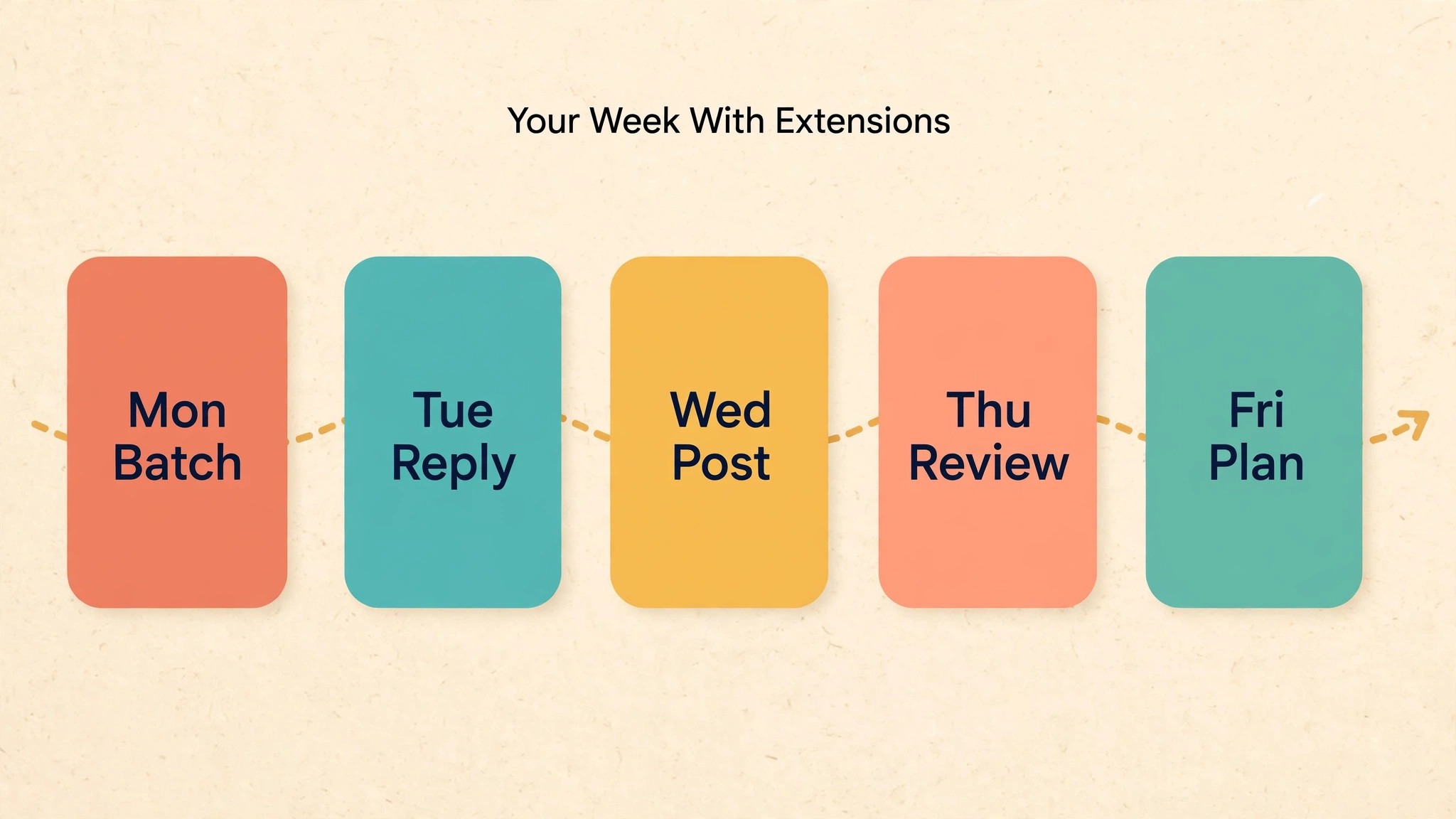
Monday is the batch day, and it is where the best chrome extensions for social media earn their keep. Open the articles and videos you saved during the week, click through them with the Buffer or SocialPilot extension, and fill the queue for the next seven days in one sitting. A week of posts scheduled in ninety minutes beats a week of daily scrambling, because daily scrambling is where captions get rushed and mistakes slip through.
Tuesday to Thursday is engagement, not publishing, and the extensions step back. Grammarly checks the replies you type, catching the hasty typo in a customer answer before it goes public. VidIQ tells you which of Monday videos is gaining traction, so Thursday effort goes to the format that works rather than the format you guessed would work. The scheduler runs quietly in the background, and the human work shifts to conversations, which is where followers become customers.
Friday is review day, and it takes twenty minutes. Open the analytics in your scheduler, note the three best posts and the three worst, and write down what they had in common. Then clear the queue of anything that no longer fits, update the caption templates that underperformed, and save the articles worth sharing next week. A weekly review turns posting from a chore into a system, and the extensions are what make the system cheap enough to keep.
Extension Safety and Browser Health
An extension that reads every page you visit deserves scrutiny, and the Chrome Web Store gives you the tools to apply it. The best chrome extensions for social media earn broad permissions by doing an obvious job well, so check the publisher name, the install count, the recent reviews, and the permissions listed on the install screen. A scheduling extension needs access to the pages you share from, which is broad by nature, but it does not need access to your banking tabs, and a permission request that looks wider than the job should make you pause.
Browser health is the quieter cost. Every extension adds memory use and startup time, and five heavy extensions can turn a fast laptop sluggish. Open the browser task manager after installing each one, watch memory with your normal ten tabs open, and remove anything that adds a large footprint for a small benefit. The best setup is three or four extensions you use daily, not twelve you installed once and forgot.
Keep extensions updated and remove the ones you stop using. An abandoned extension is a security risk, because old code with broad permissions is exactly what attackers look for. Once a quarter, open the extensions page, delete anything unused for a month, and check that the ones you keep are still published by the company you trust. Five minutes of hygiene protects the accounts that your whole business depends on.
Mistakes That Waste the Extension
The first mistake is installing five schedulers at once. A business that runs Buffer, Hootsuite, and SocialPilot together pays three subscriptions, splits its analytics across three dashboards, and trains nobody properly on any of them. Pick one scheduler, learn it deeply, and add the writing and video tools around it. One queue, one analytics view, and one habit will beat three half used tools every time.
The second mistake is scheduling without a caption plan. An extension makes it easy to queue twenty links, and a queue full of bare links reads like a robot runs the account. Every queued post needs a human sentence that says why this link matters to your audience, and Grammarly can polish that sentence, but it cannot write the reason for you. If you cannot write one honest sentence about a link, do not queue it.
The third mistake is ignoring the free tier limits until they bite. A Buffer free account that hits its queue limit on Wednesday leaves Thursday and Friday empty, and the owner discovers the gap when engagement drops. Watch the queue count weekly, and upgrade the week before the limit becomes a problem, not the week after. The best chrome extensions for social media fail quietly when their limits are hit, so the owner must watch the numbers.
Setup Checklist
Use this checklist when you set up extensions for a small business, and keep a copy where the whole team can see it.
1. List every social channel and its owner, then pick one scheduler covering them all. 2. Install the scheduler extension and test it on five real pages, including a video page. 3. Install Grammarly and set the brand tone so every writer gets the same suggestions. 4. Connect the scheduler to each channel and send one test post to confirm it works. 5. Build three caption templates, for links, announcements, and questions. 6. Set a weekly batch time and put it in the calendar as a repeating event. 7. Check browser memory after installing everything, and remove anything that slows it down. 8. Review the queue every Friday, note the best and worst posts, and clear outdated items.

Related Guides
Keep exploring with these guides on Stratilyze:
- Best AI Social Media Tools for Small Businesses (10 Tools)
- Best Social Media Management Tools for Small Business
- Best AI Tools for Social Media Scheduling
Frequently Asked Questions
Are Chrome extensions for social media free?
Some are, within limits. Buffer, Grammarly, and VidIQ all offer free tiers that cover basic use, while Hootsuite has no free plan and SocialPilot is paid only. Free tiers usually cap channels, queued posts, or advanced features, so a business posting daily will likely need a paid plan. Check the vendor pricing page before you commit, because free tier limits change often.
Which extension is best for scheduling posts?
Buffer is the best starting point for a solo owner or small team, because its extension turns any page into a scheduled post in two clicks and its free plan covers three channels. SocialPilot is the better pick for freelancers and agencies with client accounts, because its workspaces keep clients separate. Hootsuite suits larger teams that need approvals and a shared inbox, and its per user price reflects that.
Do social media extensions slow down Chrome?
They can, especially if you install many of them. Each extension adds memory use, and five heavy extensions on a laptop with ten tabs open will slow things down. Keep the set small, check the browser task manager after installing each one, and remove anything unused. The extensions in this guide are light enough for daily use on a normal machine, but the habit of pruning matters more than any single tool.
Is Grammarly worth paying for just for captions?
For a business that posts daily, yes, because Premium adds tone and clarity suggestions that keep a brand voice consistent when several people write from one account. For a solo owner who writes short captions and already proofreads carefully, the free tier may be enough. Try the free tier for a month, count the suggestions you actually accept, and let that count decide.
Can I use VidIQ without a YouTube channel?
VidIQ is built for YouTube, so without a channel it has little to offer. Its scores and keyword data only matter when you publish videos and want them found. A business that posts one video a quarter will get more value from a scheduler and a writing tool. A creator publishing weekly will find VidIQ pays for itself in better titles and thumbnails.
How many extensions should a small business install?
Three or four, each with a clear job. One scheduler, one writing tool, and one video tool cover almost every small business need, with a second scheduler only if client work demands separation. More than that adds browser load, subscription cost, and confusion about which tool does what. Install the smallest set that covers your week, and add a tool only when a specific job keeps going undone.
A Final Word Before You Install
Start with Buffer, add Grammarly, and stop there until a specific job goes undone. That pair covers the two things that matter most, getting posts out on time and getting the words right, for less than 20 dollars a month. Add SocialPilot when clients arrive, Hootsuite when the team grows past five, and VidIQ when YouTube becomes a weekly habit. The best chrome extensions for social media are not the ones with the most features. They are the ones you still use in six months, because they fit the work you actually do.