

Most lists of free AI tools for video creators are a grab-bag: a clipper next to a voice generator next to an editor, with “free” meaning anything from genuinely free forever to a 3-day trial wearing a costume. That is useless when you are actually making a video, because you do not need twelve random tools — you need one reliable free option at each stage of making the thing: script, voiceover, editing, captions, and thumbnails.
So this guide is organised the way you work. For every production stage we name the best free tool, the exact free limit (verified in October 2026), and — this is the part most roundups skip — the watermark and gotcha audit: which free exports are actually clean, which are stamped, which files vanish after three days, and which “free” tiers are non-commercial. We tested the free tiers by making one complete short video end-to-end using only free plans: a 60-second product explainer scripted, voiced, edited, captioned, and thumbnailed without paying a cent. It is possible — if you pick the right tool at each stage and route around the traps below.
One scope note: this guide covers free workflow tools for creators; for a wider look at free AI software, see our general guide linked below.
Bottom line: A complete, publishable video with zero spend is realistic in 2026 if you build your stack as CapCut (editing + captions) + ElevenLabs or your own voice (voiceover) + Canva (thumbnails) and treat Descript and Opus Clip free tiers as sampling tools — their watermarks and storage windows mean finished work belongs elsewhere unless you upgrade. The single most expensive mistake is editing a whole project in a tool whose free export is watermarked; check the table before you start, not after.
Quick Answer
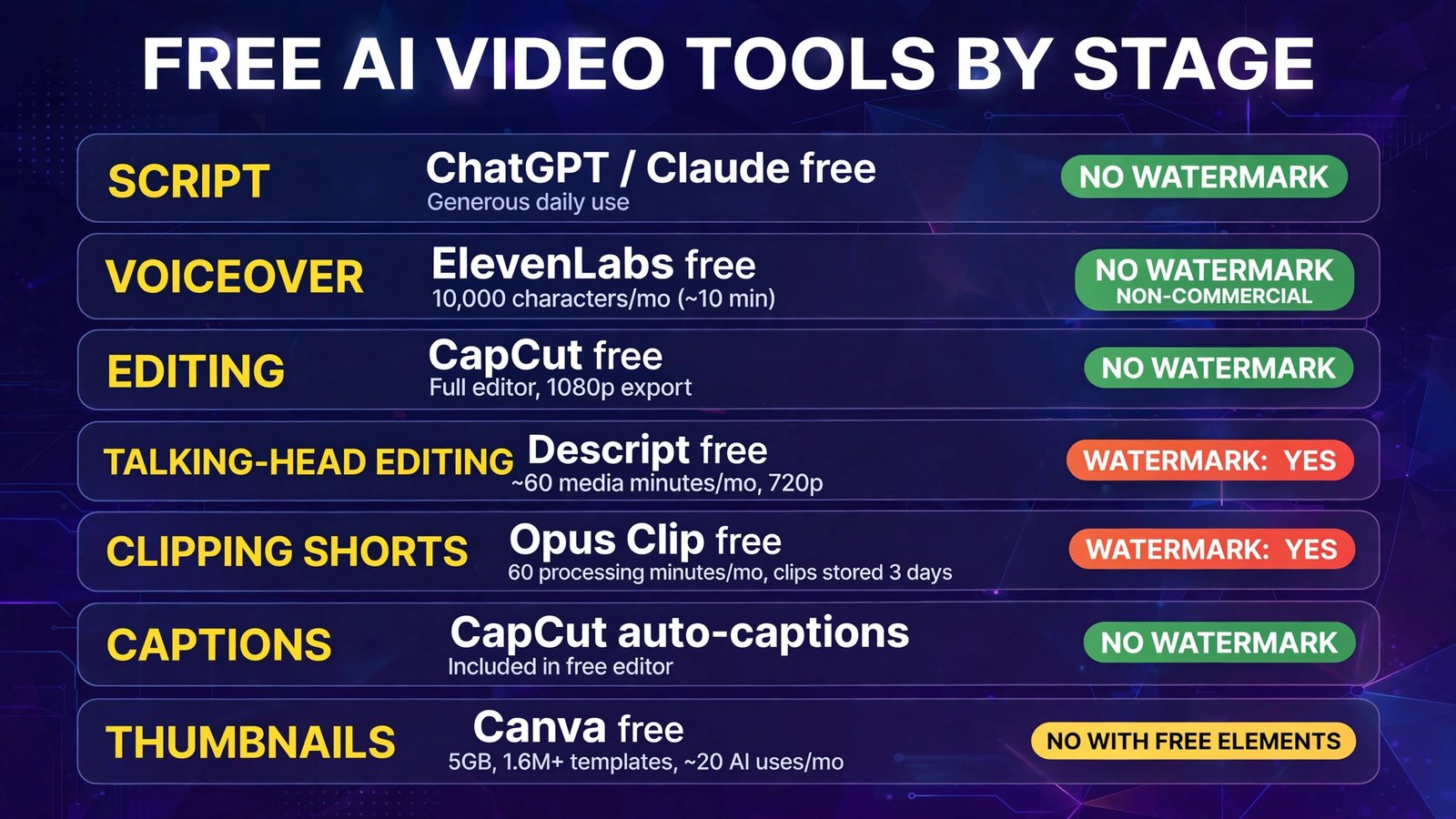
| Stage | Best free tool | Verified free limit (Oct 2026) | Watermark? |
|---|---|---|---|
| Script | ChatGPT / Claude free tiers | Generous daily use; advanced models limited | No |
| Voiceover | ElevenLabs free | 10,000 characters/mo (~10 min) | No — but non-commercial, attribution required |
| Editing (main) | CapCut free | Full editor, 1080p export | No on standard exports (see gotchas) |
| Editing (talking-head) | Descript free | ~60 media minutes/mo, 720p | Yes on free exports |
| Clipping shorts | Opus Clip free | 60 processing minutes/mo, clips stored 3 days | Yes |
| Captions | CapCut auto-captions | Included in free editor | No |
| Thumbnails & graphics | Canva free | 5GB, 1.6M+ templates, ~20 AI uses/mo | No with free elements; yes if premium elements used |
How We Tested (and What Counts as “Free”)
Rules for inclusion: a permanent free plan (no credit card, no expiry) with AI features a creator would actually use. Time-limited trials do not count. For each tool we created an account on the free tier in October 2026, ran the relevant stage of our test video through it, and recorded the limit we hit, the export quality, and whether the output carried branding.
Our test video: a 60-second explainer, “3 ways to keep coffee hot on a commute” — talking-head intro, B-roll cuts, captions, and a custom thumbnail. Total cost: $0. Total traps encountered: four, flagged stage by stage below.
Stage 1 — Script: ChatGPT and Claude Free Tiers
Scripting is the one stage where “free” is genuinely generous. Both major AI chatbots offer free tiers that are entirely sufficient for YouTube scripts, hooks, and Shorts outlines.
What you get free (October 2026): Access to capable current models with daily/usage-based limits — free tiers throttle the best models after a quota and fall back to lighter models, and file/vision features are more limited than on paid plans. For scriptwriting (hooks, outlines, full first drafts, title options), the free tiers are not the bottleneck; your prompting is. Because both vendors adjust free quotas frequently, treat the model as “generous but metered” rather than a fixed number, and do long scripting sessions earlier in the day if you hit caps.
Our test: ChatGPT’s free tier produced the snappier hooks and better Shorts structure; Claude’s free tier produced the cleaner full draft with less hype to edit out. Both needed the same human pass: checking two product claims and cutting about 20% for length. Neither restricts commercial use of your script — your video, your words.
Pros:
- No cost, no watermark, no commercial-use restriction on your script
- Hook/title variants at volume — the most useful free AI in the stack
- Good enough that scripting is never the reason to pay
Cons:
- Best models are quota-limited on free; quality dips when you fall back
- Facts still need human verification — both tools invented a plausible-sounding statistic in draft one
- No video-specific structure (timestamps, B-roll notes) without deliberate prompting
Verdict for this stage: Stay free here, permanently. Put your money (later) into the stages where free tiers bite — exports and voice licensing.
Stage 2 — Voiceover: ElevenLabs Free (With a Licensing Trap)
If you do not record your own voice, AI voiceover is where free gets complicated — not technically, but legally.
What you get free (verified October 2026): ElevenLabs’ free plan includes 10,000 credits/characters per month — roughly 10 minutes of finished speech — across its voice library, with 3 custom voice slots. Paid plans start with Starter (~$6/month for 30,000 characters), and Creator ($22/month, ~121,000 characters) is where regular creators land. CapCut also includes free text-to-speech voices inside its editor (see Stage 3), which is the simpler free route if your video lives in CapCut anyway.
The gotcha — read this before publishing: ElevenLabs’ free tier is non-commercial and requires attribution. That means a monetized YouTube video voiced on the free plan violates the license, no matter how good it sounds. The audio itself carries no watermark — which makes the trap invisible. The Starter plan is where the commercial license begins, and at roughly $6/month it is the cheapest meaningful upgrade in this entire guide.
Our test: We voiced the 60-second script (~950 characters — about a tenth of the monthly free allowance) in two ElevenLabs voices. Quality was the best of any free option: natural pacing, believable emphasis, one mispronounced word fixed by respelling. For non-commercial projects, school work, or testing whether AI voiceover suits your channel at all, the free tier is perfect. For a monetized channel, we re-voiced in CapCut’s free TTS (flatter, but licensed for your content) and flagged the ElevenLabs Starter upgrade as the first dollar to spend.
Pros:
- Best-sounding free AI voices, ~10 minutes/month is enough to evaluate properly
- No audio watermark; quick generation and easy re-takes
- Voice library breadth (languages, styles) is unmatched at free
Cons:
- Non-commercial license on free — cannot monetize; attribution required
- 10 minutes disappears fast if you generate multiple takes (budget ~2–3 minutes per finished minute)
- Credits do not roll over on the free plan
Verdict: free for testing and non-commercial work only. Monetized creators: CapCut TTS as the stopgap, ElevenLabs Starter as the first paid step.
Stage 3 — Editing (Main Timeline): CapCut Free, Descript Free
This is the stage where the free choice defines your whole workflow, and where the two best free options have opposite gotchas.
CapCut — the genuinely generous free editor
What you get free (verified October 2026): The full CapCut editor (desktop, web, mobile) with 1080p exports and no watermark on standard edits — still the most generous free tier in video editing. In early 2026 CapCut restructured its paid line: the old Pro tier became Standard at ~$9.99/month, and a new Pro at ~$19.99/month added 4K export and the full AI toolkit; prices run a little higher through app stores than on capcut.com.
The gotchas: “No watermark” has two asterisks. First, projects using Pro-locked templates or premium assets can export with a watermark or prompt an upgrade — the fix is swapping to free assets. Second, CapCut appends a branded end clip by default; it is a separate segment you can simply delete before export — but if you forget, your video ends with a CapCut card. Some newer AI features are credit-metered on paid tiers, so free users get the core AI (auto-captions, background removal basics) rather than the whole catalogue.
Our test: We cut the full explainer in CapCut free: talking-head intro, B-roll, captions, music. Export: clean 1080p, no watermark, after deleting the end clip (Trap #1, avoided). For short-form and standard YouTube work, we never hit a reason to pay.
Pros:
- 1080p, watermark-free standard exports — the real deal
- Auto-captions, templates, effects, and TTS in one free app
- Fast learning curve; phone-to-desktop continuity
Cons:
- Pro templates/assets reintroduce watermarks or paywalls mid-project
- Default branded end clip must be deleted manually
- Advanced AI features increasingly sit behind Standard/Pro
Descript — the transcript editor with a watermarked free tier
What you get free (verified October 2026): Descript’s free plan includes about 60 media minutes per month (roughly one hour of footage transcribed and editable as text), with exports capped at 720p with a watermark. Paid plans start with Hobbyist at ~$16/month (annual) and Creator at ~$24/month (annual) — Creator, with ~30 media hours and 4K watermark-free exports, is where serious users land.
The gotcha: The free tier is for evaluating the transcript-editing workflow, not publishing from it. Sixty minutes sounds workable until a single 45-minute podcast episode consumes most of a month. And the watermark + 720p cap makes free exports unsuitable for a public channel.
Our test: Descript’s text-based editing was the fastest way to cut our talking-head intro — delete a sentence in the transcript, the video follows. For a creator whose bottleneck is editing interviews and podcasts by reading, nothing free matches it. We then exported from CapCut for the publishable file (Trap #2, routed around).
Pros:
- Transcript-based editing is a genuine workflow superpower
- 60 free media minutes is enough to learn whether it fits you
- Excellent for podcasts, interviews, talking-head content
Cons:
- Free exports are 720p and watermarked — not publishable for most channels
- Media minutes are consumed by source footage, not finished length
- AI features beyond core editing push you to paid tiers quickly
Verdict: edit and publish your main timeline in CapCut free. Use Descript free to discover whether transcript editing is worth $16–24/month for your format — for interview-heavy channels, it usually is.

Stage 4 — Clipping Shorts From Long Videos: Opus Clip Free
What you get free (verified October 2026): Opus Clip’s free plan gives 60 processing minutes per month (1 credit = 1 minute of source video), auto-reframing and captions included, with exports at up to 1080p. Paid: Starter at $15/month (150 minutes, watermark removed) and Pro at $29/month, or ~$14.50/month billed annually (300 minutes, scheduler, AI B-roll).
The gotchas — there are three: (1) Free exports are watermarked. (2) Free clips are only stored/exportable for 3 days — process a video Friday, lose the clips Monday (Trap #3). (3) The free plan excludes the editor and Virality Score, so you get the AI’s cuts as-is. Also remember credits burn on source length: one 60-minute podcast = your entire free month.
Our test: We fed Opus a 12-minute source video. It returned 17 captioned, reframed clips in about four minutes; roughly 40% were genuinely postable, the rest technically-on-topic filler — matching what most reviewers find. As a discovery tool it is superb even free; as a publishing tool at $0 the watermark blocks you. Our workflow: find moments in Opus free, recreate the winners in CapCut free, publish clean.
Pros:
- Fastest way to surface the good moments in long footage
- Auto-reframe + captions are strong even on free
- 60 minutes/month is enough for regular short-source testing
Cons:
- Watermarked free exports — the deal-breaker for publishing
- 3-day storage window on free clips
- No editor or Virality Score on free; credits burn on source minutes
Verdict for this stage: Use Opus Clip free as your moment finder, CapCut as your publisher — or budget $15/month for Starter the moment clipping becomes a weekly habit.
Stage 5 — Captions: CapCut Auto-Captions (and a Warning About VEED Free)
What you get free: CapCut’s auto-captions are included in the free editor, styleable (the animated word-by-word styles Shorts audiences expect), and export burned-in or as part of the standard watermark-free 1080p export. Descript’s captions are excellent too, but inherit Descript free’s watermarked export. Dedicated caption/subtitle tools are where free tiers sting most: VEED’s free plan watermarks exports and caps resolution at 720p, and Kapwing’s free tier similarly watermarks with short export caps (per October 2026 comparisons) — fine for a draft, wrong for a final.
Our test: CapCut captioned our explainer with two word errors in 60 seconds (a name and a number — always proofread numbers and names), styled in one pass. Total added cost: $0, total added traps: none.
Pros (CapCut captions):
- Free, accurate enough with a proofread, on-style templates
- No separate tool, upload, or export step
Cons:
- Style catalogue’s best templates skew Pro; free styles are good, not endless
- Accuracy still requires a manual pass on names, numbers, and jargon
Verdict for this stage: Caption inside your editor. Never insert a watermarked free captioning tool into an otherwise clean pipeline.
Stage 6 — Thumbnails and Channel Graphics: Canva Free
What you get free (verified October 2026): Canva’s permanent free plan includes 1.6M+ templates, 4.7M+ free photos/videos/graphics, 5GB storage, one Brand Kit, and up to ~20 AI uses per month (Magic Write, Magic Media images, and friends draw from this pool). Free video exports run up to 30 minutes at 1080p if you also assemble end screens or simple edits there. Pro is $144/year with the full 141M+ asset library and ~10× the AI allowance.
The gotcha: Canva does not watermark your designs as such — but any premium (Pro) element placed in a free design watermarks the export or requires licensing that element (Trap #4, and the most common Canva complaint on the internet). The filter fix: search with the “Free” filter on, every time. For thumbnails — a still image — the other limit is simply taste: free templates are heavily used, so customize colors, fonts, and layout or your thumbnail will look like everyone else’s homework.
Our test: We built the thumbnail from a free template: custom photo, three words of text, high-contrast color swap. Clean PNG export, no watermark, in about six minutes. The limited free AI allowance covered one background-image generation — metered, but sufficient at thumbnail scale.
Pros:
- Real free plan; thumbnail workflow is fast and genuinely good
- No watermark when you use free elements only
- Same account covers end screens, community posts, and channel art
Cons:
- One premium element silently watermarks the whole export
- Only ~20 AI uses/month on free — spend them deliberately
- Popular free templates are visually overexposed
Verdict: Canva free is the default thumbnail tool for a reason — filter to free elements, customize hard, and it can stay free for years.
Full Comparison Table
| Tool | Stage | Free limit (Oct 2026) | Watermark on free export | Commercial use on free | First paid step |
|---|---|---|---|---|---|
| ChatGPT / Claude (free) | Script | Metered daily use | n/a | Yes (your content) | ~$20/mo tiers (optional) |
| ElevenLabs | Voiceover | 10,000 chars/mo (~10 min) | No | No — attribution required | Starter ~$6/mo |
| CapCut | Editing + captions | Full editor, 1080p | No (standard edits; mind Pro assets + end clip) | Yes | Standard ~$9.99/mo |
| Descript | Editing (transcript) | ~60 media min/mo, 720p | Yes | Limited by watermark | Hobbyist ~$16/mo annual |
| Opus Clip | Clipping | 60 min/mo, 3-day storage | Yes | Limited by watermark | Starter $15/mo |
| Canva | Thumbnails | 5GB, ~20 AI uses/mo | No (free elements only) | Yes | Pro $144/yr |
If you outgrow free entirely, our companion guide to the best free AI tools across all categories — and our paid editing roundups in the internal links below — pick up where this stage map leaves off.
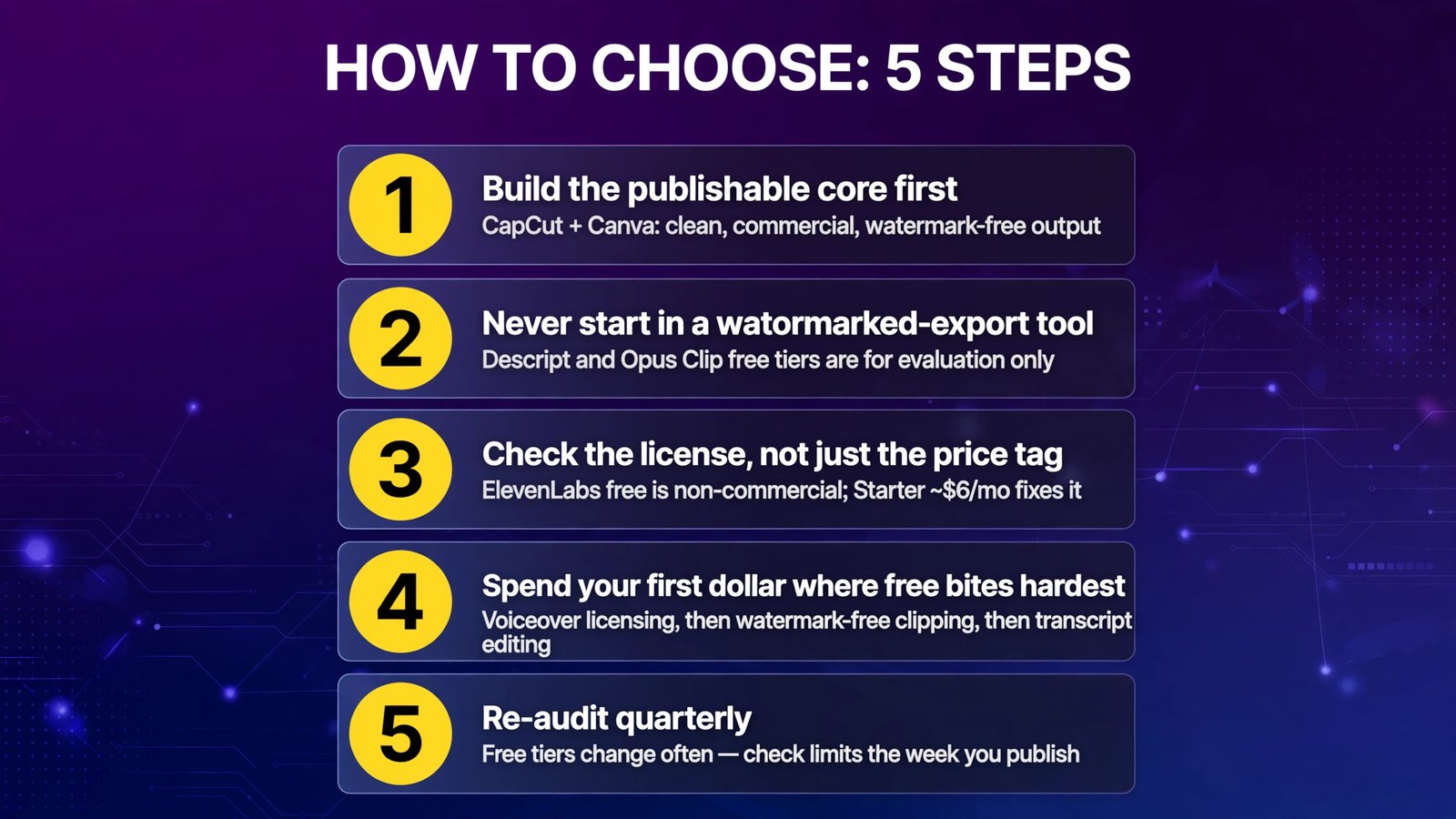
How to Choose
- Build the publishable core first: CapCut + Canva. These two permanent free tiers produce clean, commercial, watermark-free output. Every other free tool in this guide plugs into that core; none replaces it.
- Never start a project in a watermarked-export tool. Descript and Opus Clip free tiers are for evaluation and discovery. If the final file must come from them, that is the definition of “time to pay for that tool.”
- Check the license, not just the price tag. ElevenLabs free is $0 and watermark-free — and non-commercial. For monetized channels, the license is the product; Starter at ~$6/month is the fix.
- Spend your first dollar where free bites hardest. Order of pain for most creators: voiceover licensing (~$6) → watermark-free clipping ($15) → transcript editing volume ($16–24) → 4K and premium assets (CapCut Pro/Canva Pro). Scripting stays free longest.
- Re-audit quarterly. Free tiers in this category changed repeatedly through 2026 (CapCut restructured its plans; AI allowances shrank at Canva). The limit that matters is the one on the pricing page the week you publish, not the week you read this.
Frequently Asked Questions
Which free AI video tools have no watermark?
For finished exports: CapCut (standard edits at 1080p — avoid Pro-locked assets and delete the default end clip), Canva (designs and videos built only from free elements), and ElevenLabs for audio (no watermark, but non-commercial on free). Descript, Opus Clip, VEED, and Kapwing all watermark free exports as of October 2026.
Is CapCut still really free in 2026?
Yes. The core editor, auto-captions, and 1080p watermark-free exports remain free. CapCut restructured paid plans in early 2026 — Standard (~$9.99/month) and Pro (~$19.99/month, with 4K and the full AI toolkit) — and some premium templates and AI features sit behind them, but a creator can publish professional short-form and standard YouTube videos entirely on the free tier.
Can I monetize videos made with free AI tools?
Mostly yes — with one major exception. Videos edited in CapCut free and thumbnailed in Canva free (free elements) are fine to monetize. ElevenLabs’ free plan is non-commercial with attribution required, so monetized videos need at least the Starter plan for voiceover. Descript and Opus Clip free exports carry watermarks, which does not legally block monetization but looks unprofessional and may violate sponsor/platform expectations.
What is the catch with Descript’s and Opus Clip’s free plans?
Both are evaluation tiers wearing free-plan clothes. Descript free: ~60 media minutes/month, 720p, watermarked exports. Opus Clip free: 60 processing minutes/month, watermarked clips, and files deleted after 3 days. Both are excellent for deciding whether the workflow fits you; neither is a publishing pipeline at $0.
How much free AI voiceover can I actually get?
ElevenLabs free gives 10,000 characters/month — roughly 10 minutes of finished speech, and in practice 3–4 minutes of finished audio once you account for re-takes and alternate takes. CapCut’s built-in TTS is the uncapped-sounding free alternative for in-editor narration, at lower realism. Plan voiceover minutes like a budget, not an all-you-can-eat buffet.
Do I need to pay for anything to publish a good video?
No — our test video was published entirely from free tiers: script (free chatbots), voice (CapCut TTS), edit and captions (CapCut), clips (moments found in Opus free, finished in CapCut), thumbnail (Canva free elements). Paid tiers buy you realism (voice), speed (transcript editing, auto-clipping without watermarks), and polish (4K, premium assets) — in that order of value for most new channels.
Conclusion
The best free AI tools for video creators are not a list — they are a pipeline: free chatbots for scripts, CapCut for editing and captions, Canva for thumbnails, with ElevenLabs, Descript, and Opus Clip free tiers used knowingly for what they are (a non-commercial voice demo, a transcript-editing trial, a watermarked moment-finder). Assembled that way, $0 buys you a genuinely publishable video in 2026. Assembled carelessly, the same tools hand you a watermarked export, an expired clip, or a monetization problem discovered after upload.
Know each stage’s limit before you start the project, keep your final exports inside the clean tiers, and spend your first upgrade dollars on licensing and watermarks — not on features you can already get free.
Next step: make our test video yourself this week — one 60-second explainer, free tiers only, using the Quick Answer table as your stack. You will find your personal bottleneck (for most creators it is voiceover or clipping) and know exactly which single upgrade, if any, is worth paying for.