
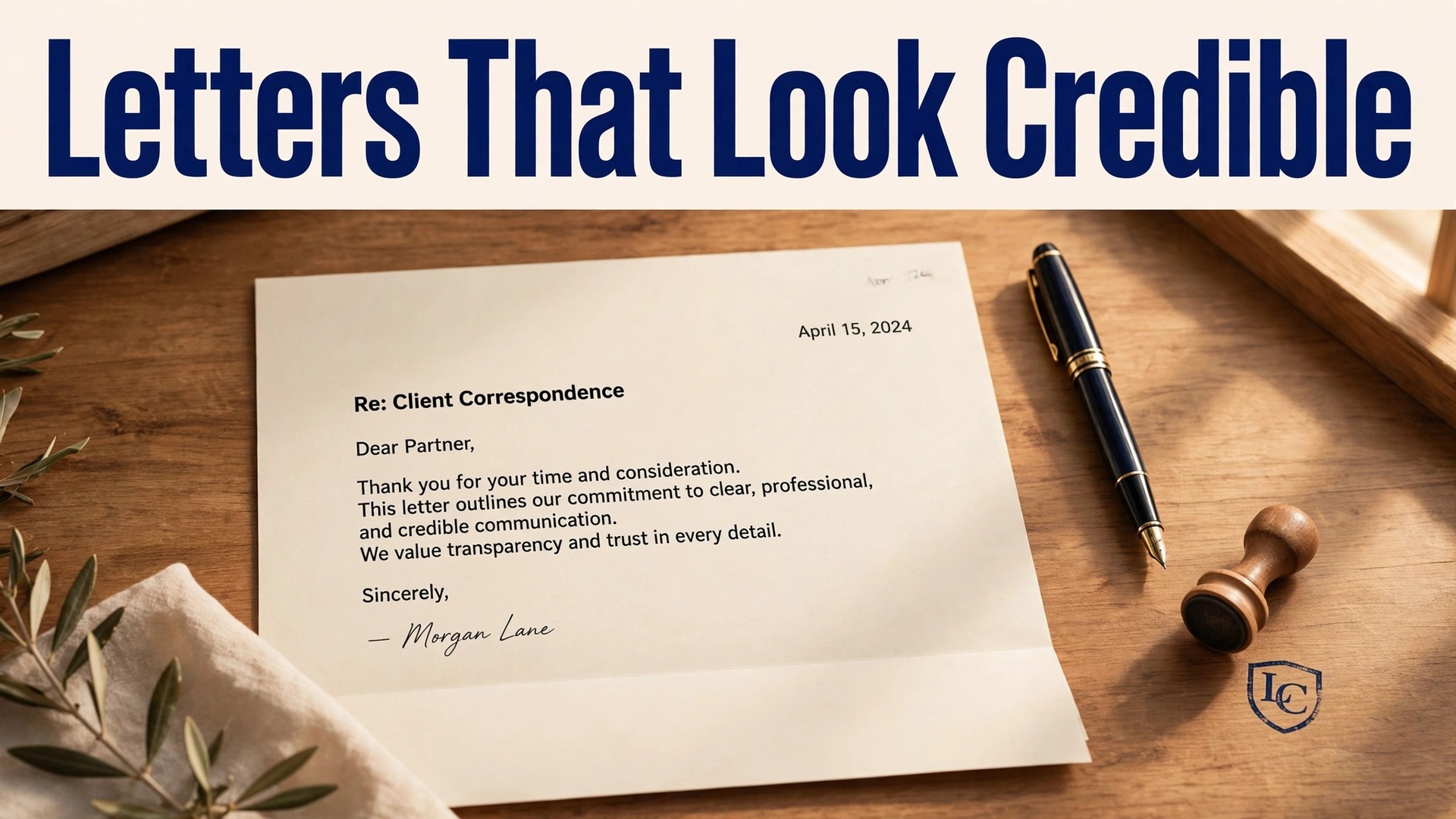
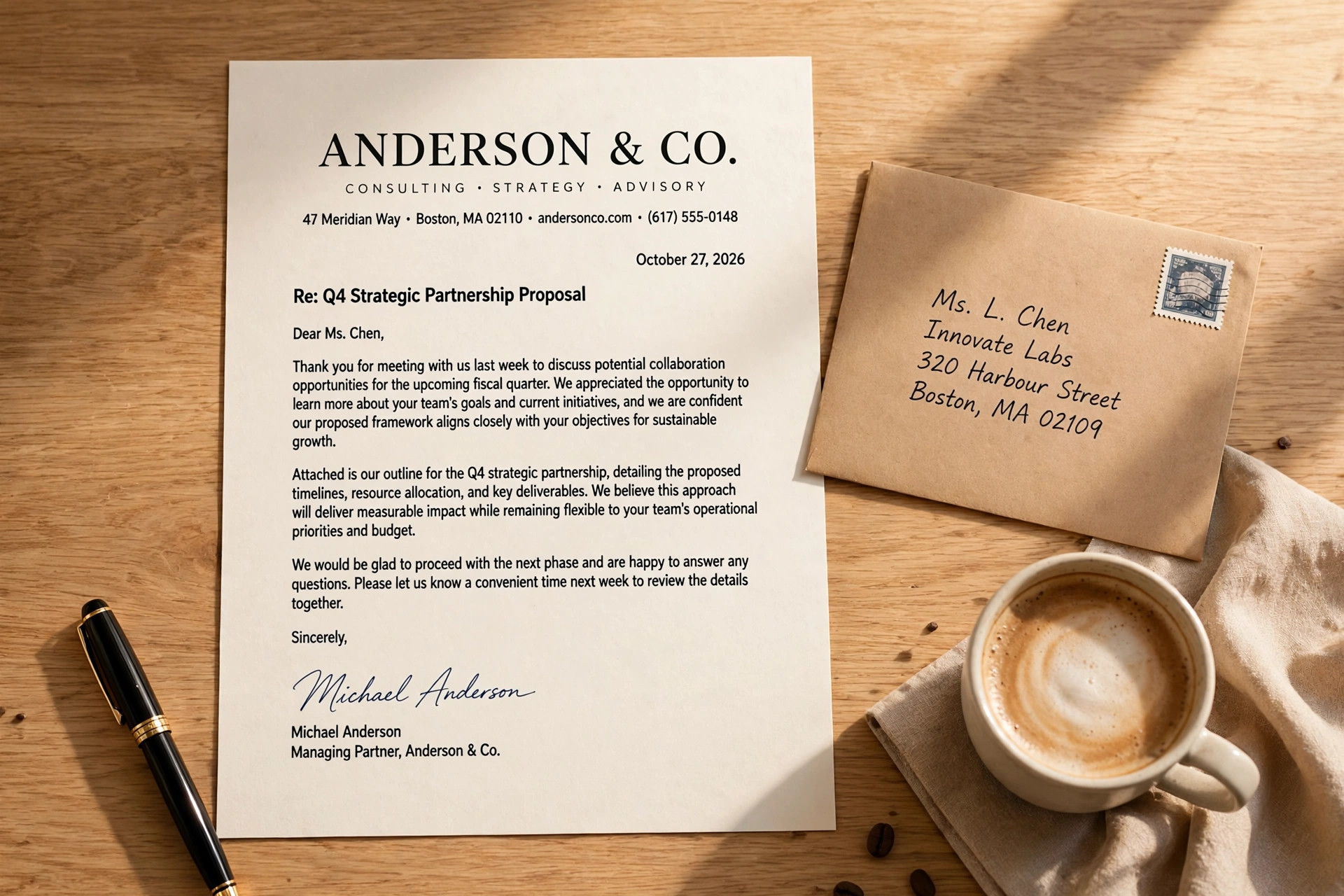
Two letterheads can carry the same words and send opposite signals. One looks like a firm that checks its details, with steady margins, a clear logo and contact lines a reader can actually use. The other looks rushed, with a stretched logo, crowded header and type that fights the page. This guide to the best letterhead makers compares the tools that help a small business land on the right side of that split, whether the letter is printed, emailed as a PDF or written inside a shared document.
The choice is not only about templates. A letterhead must survive printing, stay readable when a PDF is forwarded, and repeat correctly on page two. We therefore weighted print export, header control, brand consistency and ease of editing alongside template style, and we flagged where a free plan limits downloads or brand controls. Start with the table, read the reviews for your kind of business, and proof a real letter before you order stationery.
What a Good Letterhead Must Do on Paper and on Screen
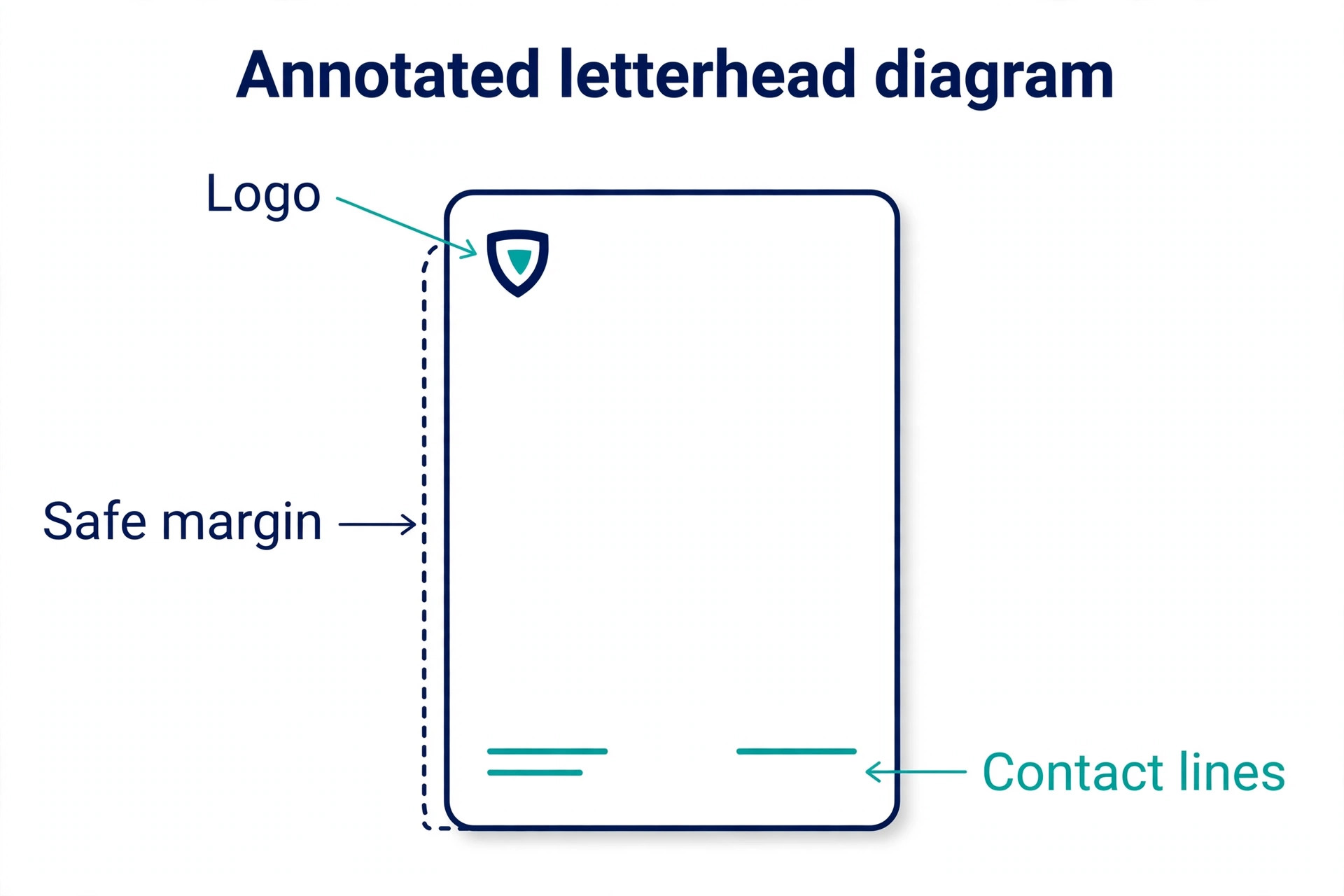
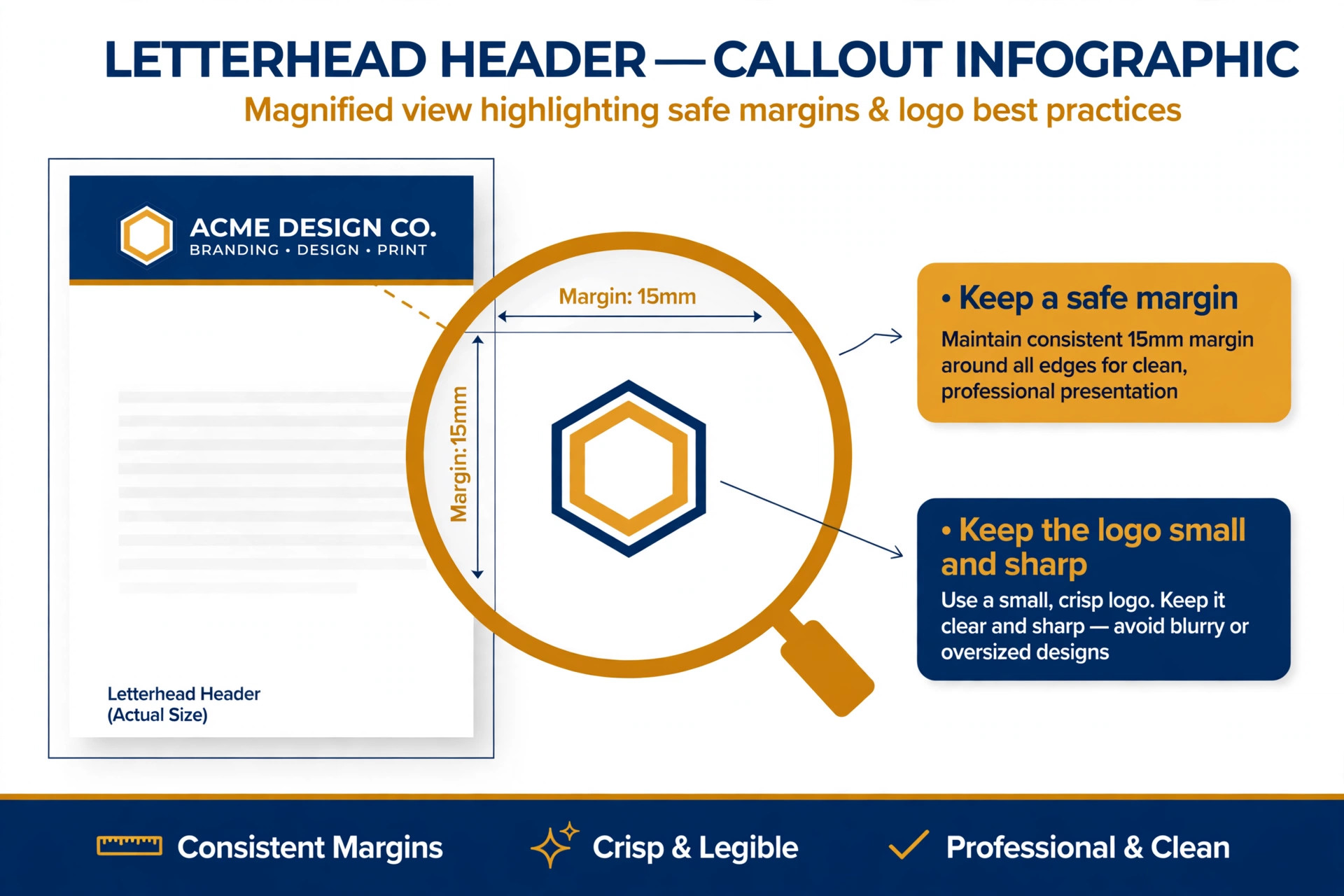
A letterhead has three jobs, and a pretty header alone does only one of them. It must identify the sender at a glance, give contact details without clutter, and leave the body text room to breathe. On paper, that means high resolution export, safe margins and a logo that stays sharp at small size. On screen, it means a PDF that opens cleanly, text that can be selected and copied, and a header that does not push the first paragraph off the page. A tool that fails any of these tests will embarrass a good letter, however stylish the template looked in the editor.
Best Pick by Job
The table below gives the fast comparison. Read it as a shortlist, not a verdict, because print behaviour and document control only show up in the full reviews.

| Tool | Best for | Starting point |
|---|---|---|
| Canva | Broad templates and sharing | Free plan, Pro paid |
| Adobe Express | Typography and brand systems | Free plan, Premium 9.99 dollars |
| VistaCreate | Low cost stationery set | Free Starter, Pro paid |
| BrandCrowd | Logo-led stationery | Preview, paid downloads |
| Design.com | Keyword-generated letterheads | Free tier, paid plans vary |
| Microsoft Word | Exact document control | Microsoft 365 paid, web free |
| Google Docs | Free collaboration | Free |
| PosterMyWall | Fast low cost templates | Free tier, subscription or download |
Use the table to shortlist, then judge the best letterhead makers by a real job, not by a feature list alone.
With that context, the next section reviews the best letterhead makers one by one, starting with the strongest all-rounder.
The 8 Tools Reviewed
Canva
Canva offers a large letterhead template library, with drag and drop editing, logo upload, brand colours and export to PDF and image formats. It suits small businesses that want many letterhead styles and easy sharing. Its template range is the draw. A law firm, a clinic, a studio and a shop can each find a starting layout that already fits their tone, then adjust it in minutes.
Canva has a free plan, and Pro is priced by region, with annual billing commonly shown around 144 dollars a year in the United States. Brand Kit controls sit on Pro. In daily use, the appeal is practical rather than decorative. a team can share a letterhead, lock brand colours and export a print-ready PDF without design software. That matters when a deadline is close and the design still has to look intentional, not rushed.
The limit to weigh is that letterhead is one format among hundreds, so the finest print controls, such as bleed and margin presets for a specific printer, need manual checking. Verdict. The easiest all-rounder for a business that also needs other brand assets in the same account.
A practical check before you commit to Canva is to run one real job through it end to end, from first draft to final export, and time the result. Note where you waited, where you guessed, and where you needed help, because those three moments predict whether the tool will feel fast in a normal week or only in a demo.
Adobe Express
Adobe Express pairs letterhead templates with Adobe Fonts, stock assets and brand kits, inside an editor that keeps the layout tidy. It suits businesses that want polished templates with strong fonts and stock assets. Its font library lifts a letterhead more than a new colour can. A careful serif or a clean sans, matched to the logo, makes a plain letter look considered.
Adobe Express has a free plan, and Premium is listed at 9.99 dollars a month, with 100 GB storage on Premium compared with 2 GB on the free plan in older guides. Confirm current storage on the vendor page. In daily use, the appeal is practical rather than decorative. a user gets high quality templates and reliable PDF export, with brand application across other assets. That matters when a deadline is close and the design still has to look intentional, not rushed.
The limit to weigh is that some premium templates and advanced exports need Premium, and the free plan storage limit can bite when a team stores many brand files. Verdict. A strong pick when typography and a consistent brand system matter most.
Before you pay for Adobe Express, test it with your own material rather than a sample file. Use a real headline, a real photo and a real deadline, then check the export on the device where it will actually be seen. A tool that passes that test is worth its price, while a tool that only impresses on sample content will disappoint when real work arrives.
VistaCreate
VistaCreate offers letterhead and stationery templates alongside social, flyer and presentation formats, with brand kits and direct download in common formats. It suits small teams that want a low cost letterhead plus other print assets. Its value is breadth at a low price. One account can cover letterhead, business cards and flyers, which suits a new business building its full stationery set.
VistaCreate Starter is free, and Pro costs 10 dollars a month billed annually or 13 dollars a month billed monthly. In daily use, the appeal is practical rather than decorative. a small team gets a real free tier, a brand kit on Starter and unlimited downloads in standard formats. That matters when a deadline is close and the design still has to look intentional, not rushed.
The limit to weigh is that the letterhead library is smaller than Canva, and fine print controls need manual care, so a firm with strict stationery rules should proof carefully. Verdict. Good value for a small business building a whole stationery set at once.
One more check for VistaCreate is to ask who else will use it and what they already know. A tool that one person loves can slow a team if colleagues cannot edit its files, and a simple tool that everyone can use often beats a powerful tool that only one person understands. Match the choice to the weakest skill in the team, not the strongest.
BrandCrowd
BrandCrowd generates logo and brand assets, including letterhead templates, from a business name and style choices, with an editor for colours, fonts and layout. It suits owners who want a logo-led stationery set generated from their brand. Its logo-first flow suits a business that starts from a new mark. The letterhead inherits the logo, colours and fonts, so the set feels coherent from the first draft.
BrandCrowd has preview options, and paid plans vary by asset and download type, so check the price for full letterhead files before checkout. In daily use, the appeal is practical rather than decorative. a new business can get a matched set of logo, letterhead and cards without hiring a designer. That matters when a deadline is close and the design still has to look intentional, not rushed.
The limit to weigh is that the editor is less flexible than a full design platform for custom layouts, and high resolution or vector files sit behind paid tiers. Verdict. A useful shortcut for a new brand, best when the logo and letterhead are built together.
A practical check before you commit to BrandCrowd is to run one real job through it end to end, from first draft to final export, and time the result. Note where you waited, where you guessed, and where you needed help, because those three moments predict whether the tool will feel fast in a normal week or only in a demo.
Design.com
Design.com generates letterhead designs from a business name and keywords, with designer-made templates and brand customisation for logo, colours and fonts. It suits business owners who want keyword-generated letterheads matched to their industry. Its keyword approach saves browsing time. Instead of paging through generic layouts, an owner sees industry-matched options and refines the closest one.
Design.com has a free tier for exploring designs, and paid plans vary by product, so check the price for high resolution letterhead downloads. In daily use, the appeal is practical rather than decorative. a business gets a professional starting set quickly, with brand colours applied across the letterhead rather than added by hand. That matters when a deadline is close and the design still has to look intentional, not rushed.
The limit to weigh is that fine typographic control is thinner than a document editor, and the best downloads sit behind a paid plan, so a firm that needs exact print control should compare it with Word. Verdict. A fair mid-list option for speed and brand matching, not the first pick for exact print typography.
Before you pay for Design.com, test it with your own material rather than a sample file. Use a real headline, a real photo and a real deadline, then check the export on the device where it will actually be seen. A tool that passes that test is worth its price, while a tool that only impresses on sample content will disappoint when real work arrives.
Microsoft Word
Microsoft Word is the document standard for letterhead in practice, with templates, headers, footers and precise margin and section controls. It suits offices that already write letters in Word and need exact document control. Its strength is that the letterhead lives inside the document. A writer can type, format and print without exporting between apps, and the header repeats correctly on every page.
Microsoft Word is part of Microsoft 365, with paid plans that vary by household or business tier, and a free web version covers basic editing. Check the current plan for desktop features. In daily use, the appeal is practical rather than decorative. an office gets exact control over margins, headers, tables and print settings, plus templates that colleagues already know. That matters when a deadline is close and the design still has to look intentional, not rushed.
The limit to weigh is that design starting points are plainer than a design platform, so a striking letterhead needs more manual layout work or a template imported from elsewhere. Verdict. The practical pick for offices where the letter is the work, and design polish is secondary to document control.
One more check for Microsoft Word is to ask who else will use it and what they already know. A tool that one person loves can slow a team if colleagues cannot edit its files, and a simple tool that everyone can use often beats a powerful tool that only one person understands. Match the choice to the weakest skill in the team, not the strongest.
Google Docs
Google Docs offers letterhead through templates and header design, with real-time collaboration, comments and sharing built in. It suits teams that collaborate on letters and want no software cost. Its collaboration is the reason to use it. Two colleagues can draft, comment and approve a letter in one document, and the letterhead stays consistent because it lives in a shared template.
Google Docs is free with a Google account, and paid Workspace plans add storage and admin controls. The core editor costs nothing for most small teams. In daily use, the appeal is practical rather than decorative. a team gets free, collaborative letter writing with easy sharing and version history. That matters when a deadline is close and the design still has to look intentional, not rushed.
The limit to weigh is that template choice is narrower than Canva or Adobe Express, and print controls are simpler, so a firm with strict stationery rules must check margins and PDF output carefully. Verdict. Best for collaborative teams on a zero budget, with a template imported when a richer design is needed.
A practical check before you commit to Google Docs is to run one real job through it end to end, from first draft to final export, and time the result. Note where you waited, where you guessed, and where you needed help, because those three moments predict whether the tool will feel fast in a normal week or only in a demo.
PosterMyWall
PosterMyWall offers letterhead templates inside a large design library, with drag and drop editing and download options for print and digital use. It suits small businesses that want quick stationery plus social and flyer designs. Its breadth suits a shop that needs a letterhead today and a flyer tomorrow, without learning a new tool for each format.
PosterMyWall has a free tier, and paid options include a subscription around 9.95 dollars a month and per-download pricing around 5.99 dollars for a multi-page download in third party comparisons. Confirm the current vendor price. In daily use, the appeal is practical rather than decorative. a small business gets fast templates and a simple editor at a low entry cost. That matters when a deadline is close and the design still has to look intentional, not rushed.
The limit to weigh is that the letterhead range is smaller than the leaders, and brand kit depth is thinner, so a growing firm may move to a fuller brand platform later. Verdict. A handy low cost option for a business that values speed over a deep stationery system.
Before you pay for PosterMyWall, test it with your own material rather than a sample file. Use a real headline, a real photo and a real deadline, then check the export on the device where it will actually be seen. A tool that passes that test is worth its price, while a tool that only impresses on sample content will disappoint when real work arrives.
Letterhead Sizes and Paper Choices
Most business letters use Letter size in the United States and A4 elsewhere, and a letterhead designed for one size will not automatically fit the other. Check the paper size your printer and your readers actually use, set margins for that size, and test a print before you adopt a template built for a different standard. Paper weight matters as well. A heavier stock feels more substantial and holds ink better, while a light stock can show through when printed on both sides. For emailed PDFs, paper weight does not matter, but margin and font size still do, because a letter that prints well usually reads well on screen too.
Colour choice also changes on paper. A dark navy or charcoal header prints reliably, while a pale grey or pastel contact line can fade, especially on a home printer. Test the header in greyscale as well as colour, because many offices still print in black and white, and a letterhead that depends on colour alone will lose its structure in a monochrome copy. Keep the logo simple, the contrast strong and the contact lines dark enough to survive a photocopy, and the letter will look professional in every format it meets.
When to Hire a Designer Instead
A template tool covers most small businesses well, but there are cases where a designer earns the fee. A firm with a complex brand, a regulated layout or a stationery set that must match packaging, signage and a website may need a single system built by one person, rather than several templates stitched together. A designer can also solve a specific problem, such as a logo that does not work at small size, a colour that prints inconsistently, or a header that crowds the page in a second language.
Hiring does not mean abandoning a template tool. A common pattern is to pay a designer for the master letterhead, then build everyday letters from that master in Word or Google Docs. That gives a business a distinctive, correct starting point and a cheap way to use it daily. If you hire, brief the designer with real letters, your printer details and your brand colours, and ask for both a print file and an editable template, so future edits do not require another paid job.
How to Choose Among the Best Letterhead Makers
Decide where the letter lives. If most letters are written and printed from a document, Word or Google Docs will serve better than a design platform, because the header, margins and page flow stay inside the writing tool. If the letterhead is mainly a brand asset, printed by a shop or sent as a designed PDF, Canva, Adobe Express or Design.com will give a stronger visual result. Between those poles, weigh how often the design changes, who edits it and whether a printer needs bleed and crop marks. In short, choosing among the best letterhead makers is a volume and workflow decision first, and a price decision second.
A letterhead system, not just a letterhead file, is what keeps a growing firm consistent. Save the approved header, footer, fonts and colours in a shared folder, name the file clearly, and write a short note about margins and print settings beside it. When a new colleague joins, that folder answers their questions without a meeting, and when a phone number changes, one update flows to every future letter. Without that system, each letter becomes a fresh design decision, and the brand drifts a little with every new hire.
Legal and regulated firms face an extra layer of care. Some professions require specific details on letterhead, such as a registration number, a regulated address or a disclaimer, and those details must be correct on every letter, not merely on the first one. Check the requirements for your profession and location before you finalise a template, and build those lines into the header itself rather than adding them by hand each time. A design tool cannot check your compliance, but a template that carries the required lines removes a repeated source of error.
Digital signatures and letterhead need to work together. A letter that is signed digitally and sent as a PDF should keep its header intact, with the signature placed where it does not cover contact details or the body text. Test the signed PDF on a phone and in print, and agree where signatures sit before a busy week forces a rushed placement. A small amount of planning here prevents a signed letter that looks careless, which undermines the professionalism the letterhead was meant to signal.
Proofing is where most letterhead projects fail. A header that looks balanced on a laptop can crowd the page when printed, and a logo that looks crisp on screen can pixelate on paper. Print one copy, check the margins with a ruler, read the contact lines without glasses, and send the PDF to a colleague who opens it on a phone. If any of those checks fail, fix the template before you print a batch, because reprinting stationery costs more than an extra hour of proofing. That test applies to the best letterhead makers as a whole, not merely to one popular tool.

A Print and PDF Checklist for Any Maker
First, export as PDF at print quality and check that the logo is at least 300 dots per inch at its printed size. Second, keep contact details in live text where possible, so a reader can copy an email address or phone number from the PDF. Third, set margins that leave room for a printer and for hole punches, and test page two, where a header should repeat or disappear by design, not by accident. Fourth, check colour in print, because a screen colour can shift on paper, and a light grey contact line can vanish entirely.

Fifth, save the final template in a shared folder with a clear name, so the next letter uses the approved version rather than an old draft.

Frequently Asked Questions
These are the questions that come up once a business has chosen a style and starts using it in real letters. They cover the best letterhead makers from price to everyday use.
Can I make a professional letterhead for free?
Yes, with limits. Canva, Adobe Express, VistaCreate and Google Docs all offer free plans that can produce a clean letterhead, and a careful template with a good logo can look fully professional. Paid plans earn their price through brand kits, high resolution exports and premium templates, so start free and upgrade only when a limit blocks real work.
Should letterhead be made in Word or in a design tool?
Use Word or Google Docs when the letter itself is the main work and the header must repeat across pages without fuss. Use a design tool when the letterhead is a brand asset printed by a shop or sent as a designed PDF. Many firms do both, designing the header in Canva or Adobe Express and placing it as a header image in Word.
What file format should I send to a printer?
Send a print-ready PDF with embedded fonts and high resolution images, and ask the printer about bleed if the design reaches the edge of the page. Keep an editable source file as well, so a future change to a phone number or address does not require rebuilding the whole design.
How much contact detail belongs on a letterhead?
Include the details a reader needs to reply, usually a phone number, an email address, a website and a postal address or city, and no more. Social handles belong on a letterhead only when clients actually contact you there, because every extra line crowds the header and weakens the first impression.
Can one letterhead work for print and email?
Yes, if it is designed for both. Keep the header compact, use live text for contact details, and test the PDF on a phone as well as on paper. A header that is too tall wastes screen space, while a header that is too light can disappear in print, so proof in both places before you adopt it.
Do I need a logo before I make letterhead?
A logo helps, but it is not a blocker. A clean wordmark in a good font, with steady colours, can carry a letterhead for a new business, and tools like BrandCrowd and Design.com can generate a mark alongside the stationery. Add a proper logo when the brand settles, and update the template in one place so every future letter matches.
Final Word on Paper That Represents You
For most small businesses, Canva or Adobe Express will give the strongest balance of templates, brand control and print export, with Word as the practical home for everyday letters. A new business that wants a fast matched set should test BrandCrowd or Design.com, and a collaborative team on a zero budget should start with Google Docs and import a richer template when needed. That is the practical way to choose among the best letterhead makers without overpaying for features you will not use.
Judge the result by a printed letter, not by a screen preview. If the header identifies you clearly, the contact lines are easy to use and the body text has room to breathe, the tool did its job. If any of those fail, change the template now, while the fix is cheap, rather than after a full stationery run.
More Reading on Stratilyze. If brand assets come before stationery, read AI logo makers and AI tools for graphic designers, and for the wider design workflow, see Canva alternatives. For content that carries your brand voice, read AI tools for content creators and AI social media management tools. Those guides pair well with the best letterhead makers when you plan a full workflow.