
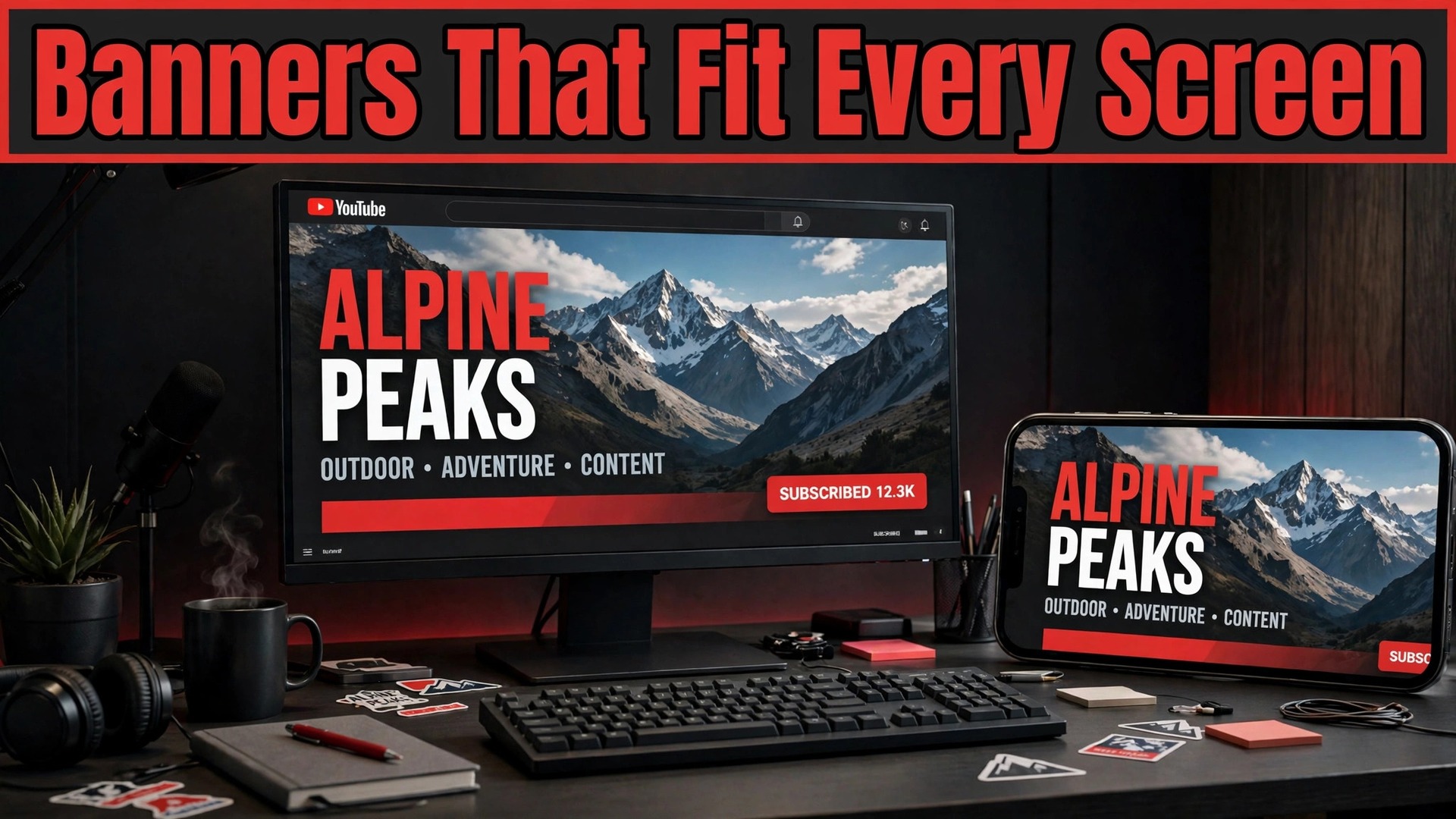
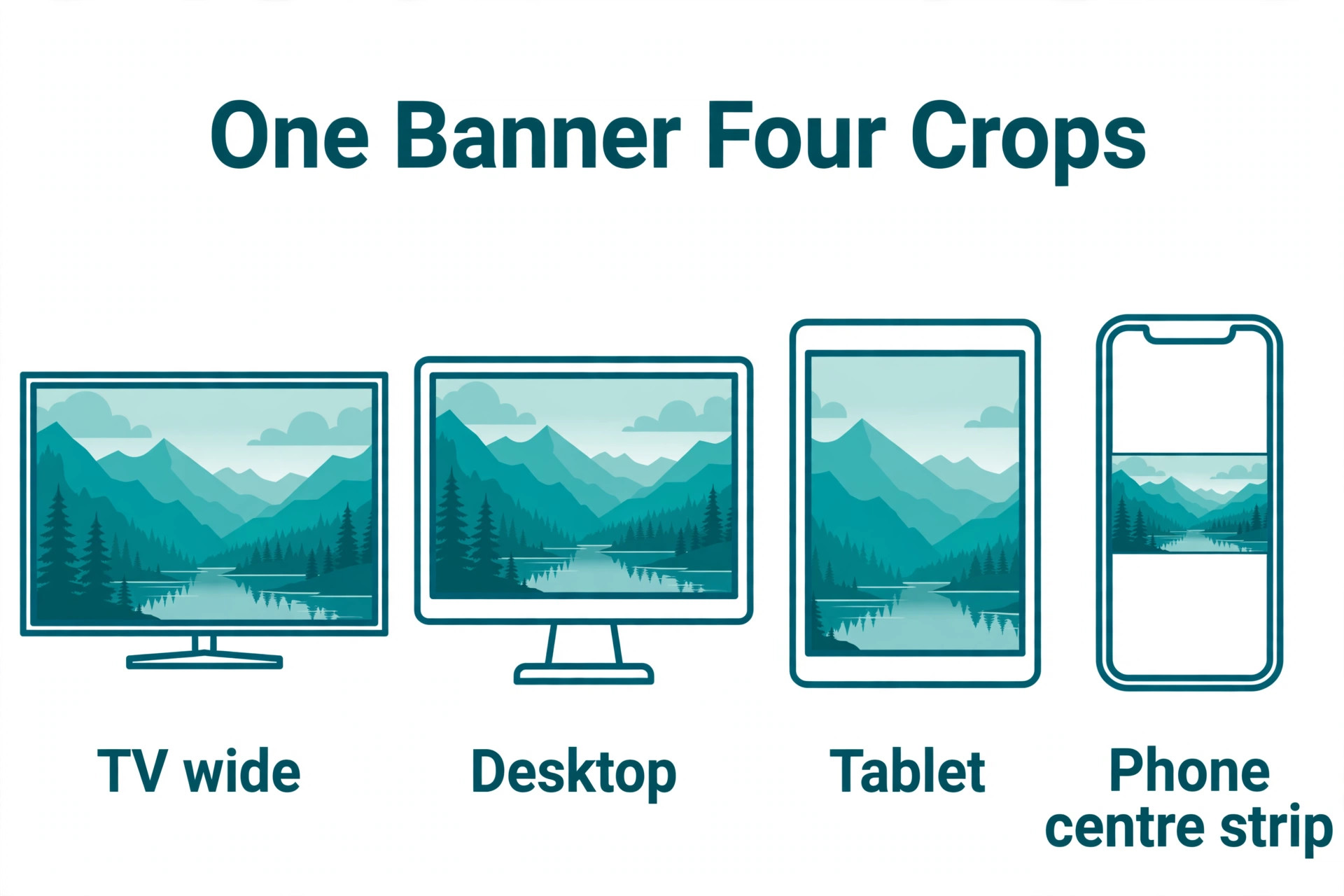
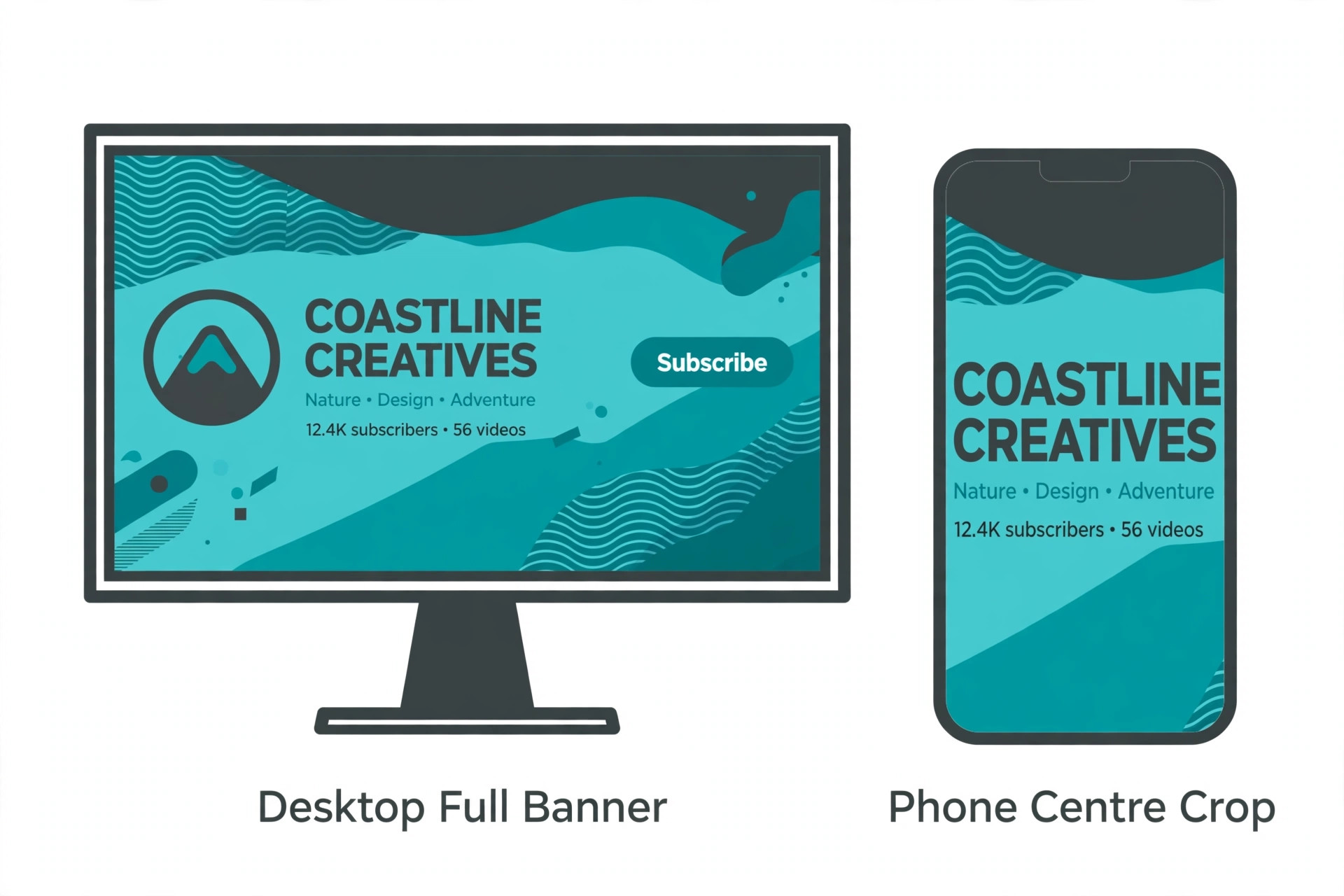
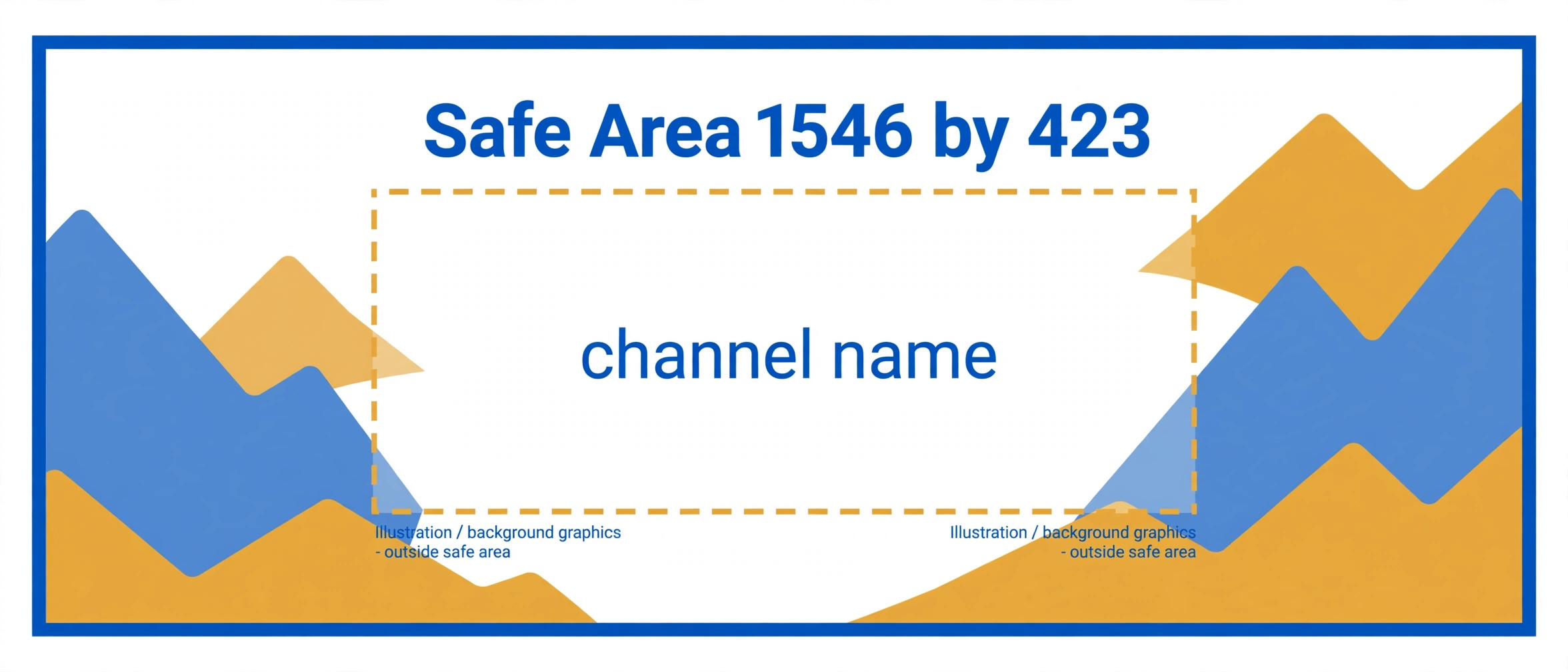
YouTube recommends an upload of 2560 by 1440 pixels, yet the part every viewer actually sees on a phone is only about 1546 by 423 pixels in the centre. That gap explains why so many channel banners look strong in an editor and broken on a real device, with headlines cut at the edges and faces cropped out of frame. The best YouTube banner makers solve this with pre sized canvases, safe area guides, and previews for TV, desktop, tablet, and phone, so you design once and trust the result everywhere.
This guide reviews eight tools that cover that job, from free template editors to paid brand systems. Each review covers template quality, safe area handling, export quality, and pricing, plus the limits that only show up after you upload. Read the sizing section first if you have never made channel art, then shortlist two tools and test them with your own channel name and tagline before you settle.
Get the Size Right Before You Design
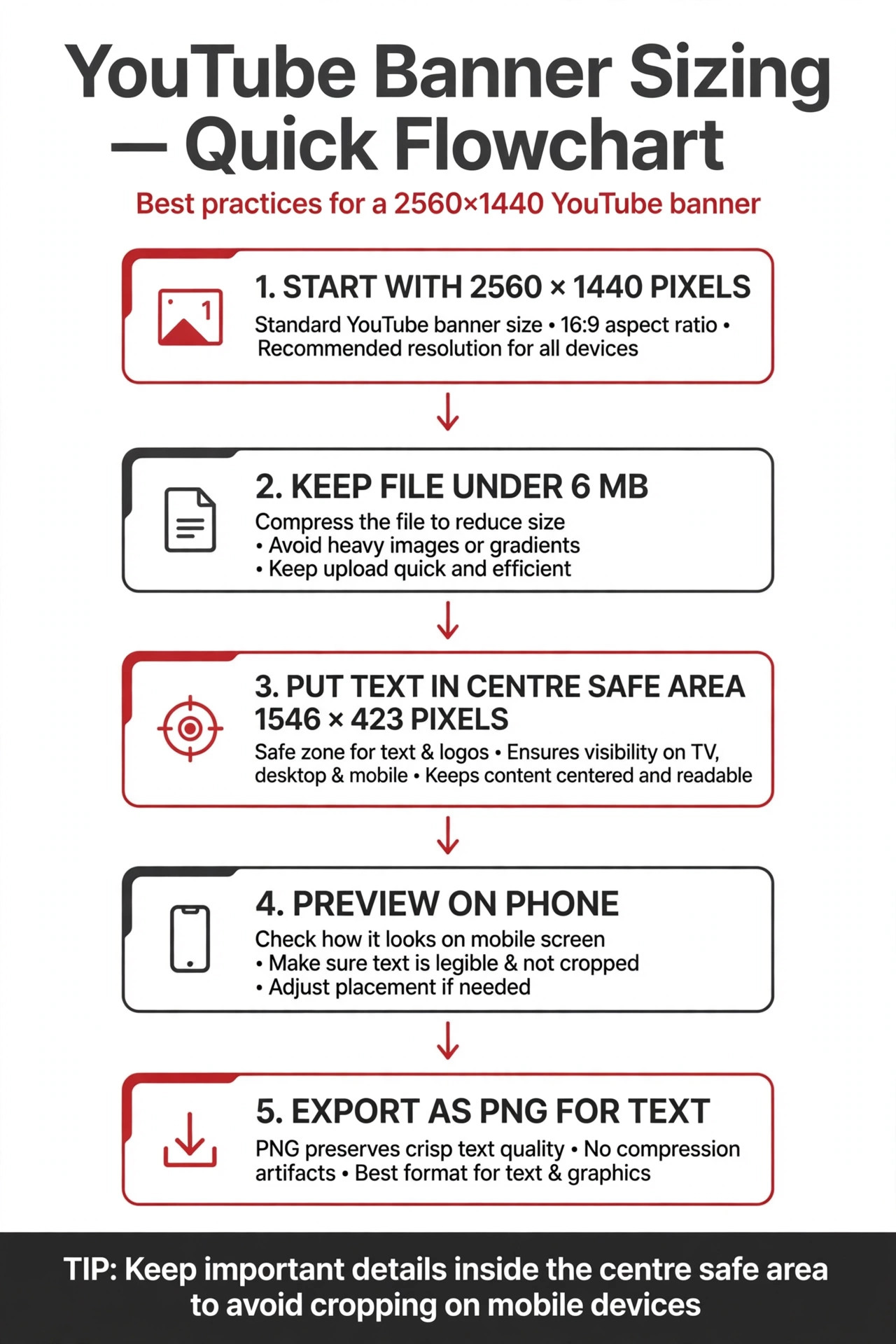
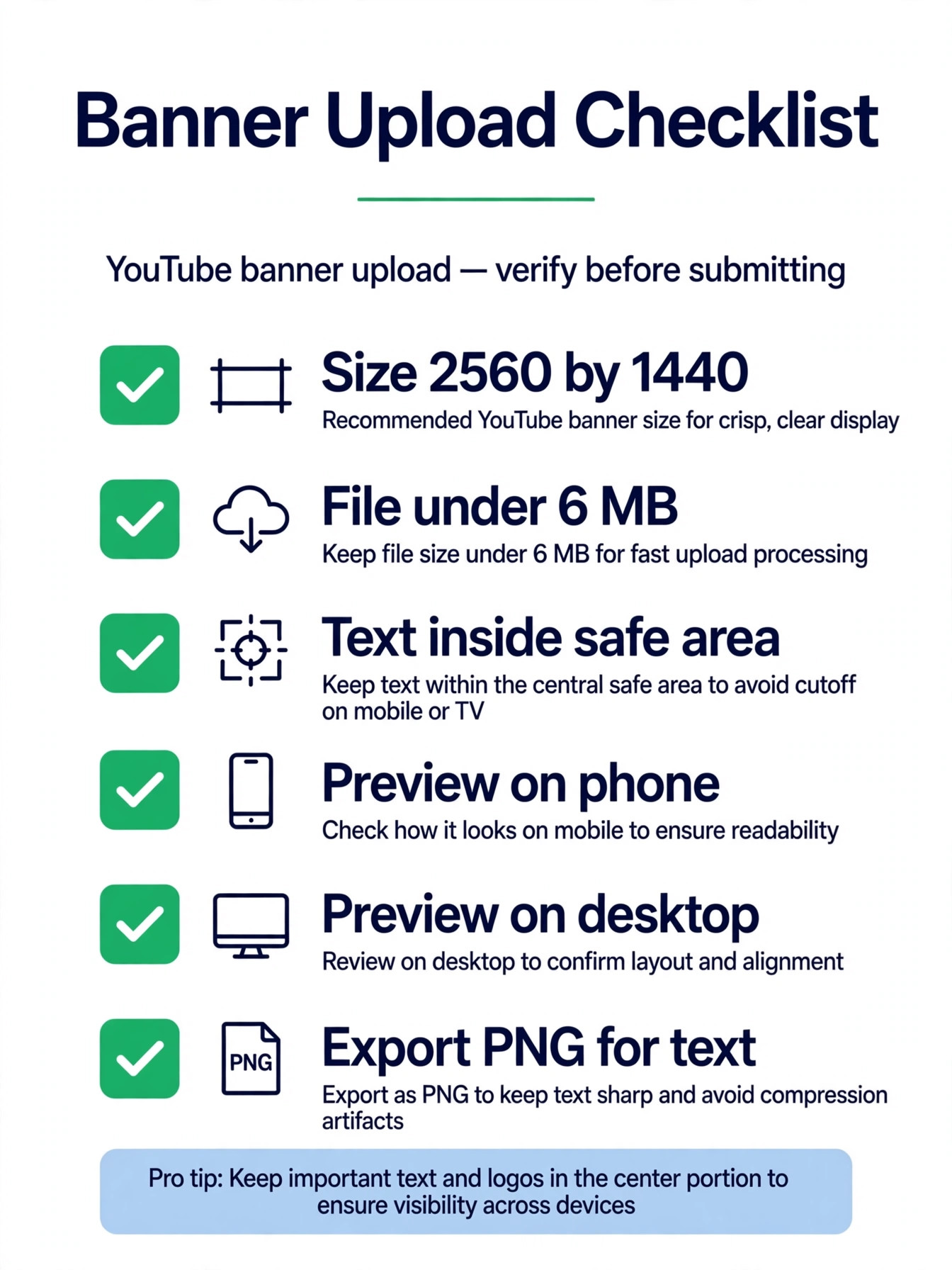
A banner is not a poster shrunk to fit a header. YouTube crops the same image differently on every screen, so the centre strip carries all critical text and logos while the outer areas carry background color, texture, or supporting imagery. Upload at 2560 by 1440 pixels and keep the file under 6 MB, and check the result on a phone, not just in the editor preview. A design that fills the desktop width but crowds text into the corners will fail on mobile, where most discovery happens.
Start with a blank pre sized canvas or a YouTube specific template, never a generic social post size. The best YouTube banner makers make that starting point obvious, with a dedicated channel art size in the template search rather than a size you must type in by hand. Place your channel name, niche, and posting schedule inside the safe strip, and keep social icons and calls to action out of the bottom right corner on desktop, where YouTube overlays channel links. Use high contrast text over a darkened or blurred background area, and export as PNG for crisp text or JPG for photographic backgrounds.
If a tool cannot show you the mobile crop before export, treat that as a serious weakness, because guessing the crop costs you subscribers.
Quick Comparison
| Tool | Best for | Free tier | Safe area help |
|---|---|---|---|
| Canva | Most creators | Yes | Pre sized templates with guides |
| Adobe Express | Adobe users | Yes | Pre sized templates with resize |
| Placeit | Fast template starts | Limited | YouTube specific templates |
| Snappa | Social graphics speed | Yes, limited downloads | Pre sized headers with safe zones |
| VistaCreate | Animated and social assets | Yes | Pre sized formats with resize |
| Fotor | Beginners on a budget | Yes | Template sizes with simple editing |
| Design.com | Brand matched templates | Browse and edit free | Templates sized for YouTube |
| FotoJet | Quick no fuss banners | Yes | Pre sized banner templates |
The tools above differ less on raw editing power than on how fast they get you to a correct canvas. The best YouTube banner makers in this list all start from the right size, so your choice should turn on template taste, brand controls, and export limits rather than on whether you can draw.
The 8 Tools in Detail
1. Canva
Canva is the default pick for most creators because its YouTube banner templates already use the correct canvas and its editor stays friendly for non designers. Search for channel art, pick a layout close to your niche, swap in your channel name and colors, and drag photos or illustrations into place. Brand Kit tools on Pro save your logo, colors, and fonts so every future banner matches your thumbnails and end screens, and Magic Design tools can suggest layouts from a short prompt or an uploaded image.
Pricing is clear. Canva Free covers a large template library and basic editing, while Pro costs about 12 dollars per month on annual billing and adds premium templates, stock assets, background removal, and brand controls. Free exports carry no watermark on most designs, which is a real advantage over rivals that stamp free downloads. The mobile app also works well, so you can tweak a banner on a phone and reupload from the same device.
The limits are about originality and depth. Popular Canva templates appear on many small channels, so a banner built from an untouched template can look familiar to viewers who browse your niche daily. Advanced photo editing, precise typography control, and vector work are also weaker than in dedicated design software. Treat Canva as a fast, reliable starting point, and customize colors, imagery, and layout enough that the result reads as yours.
2. Adobe Express
Adobe Express suits creators who already live in the Adobe world or who want polished typography without learning Photoshop. The editor offers thousands of YouTube banner templates, Adobe Fonts, and royalty free Adobe Stock assets on the free plan, plus Firefly image generation for backgrounds and illustrations. Resize tools move a design between banner, thumbnail, and social formats, and brand kits on Premium keep colors and logos consistent across a channel.
Pricing follows a simple split. The free plan covers templates, basic editing, and a limited AI credit allowance, while Premium costs 9 dollars and 99 cents per month and adds full brand kits, 100 GB of storage, and a larger monthly generative credit allowance. Premium is also included with most Creative Cloud plans, so existing subscribers may already have access without a separate payment. That bundle value is easy to miss when comparing headline prices.
The trade offs are a smaller template community than Canva and a slightly steeper learning curve for complete beginners. Some free plan features, such as premium templates and full brand kits, require the paid tier, and AI credits run out fast if you generate many backgrounds. Choose Adobe Express when typography, stock quality, and Adobe integration matter more than the largest template count.
3. Placeit
Placeit is the speed pick for creators who want a polished result with few decisions. Its YouTube banner templates lean toward pre styled, mockup style layouts where you swap text, colors, and a photo and export, rather than building from a blank canvas. That approach suits gaming, fitness, beauty, and business channels that need a professional header today, not a design project that stretches across a weekend.
Pricing is subscription based, at about 14 dollars and 95 cents per month on monthly billing or about 89 dollars and 69 cents per year on annual billing, with a limited free tier for browsing and some templates. Unlimited downloads on paid plans cover banners, mockups, logos, and videos, which adds value if you also need merch mockups or social assets. Single design purchases are also available in some cases, so check the current purchase options if you only need one banner.
Flexibility is the limit. Placeit templates look strong out of the box but offer less fine control over layers, typography, and custom shapes than Canva or Adobe Express. If your channel art needs an unusual layout, a hand drawn illustration, or precise brand geometry, you will hit the edges of the editor fast. Use Placeit when speed and polish beat full creative control.
4. Snappa
Snappa is built for social graphics, and its YouTube banner workflow shows that focus. Templates are pre sized for channel art, safe zones are visible in the editor, and the drag and drop interface keeps text, shapes, and photos easy to arrange. Team features on paid plans let small channels share assets and templates, and the stock photo library means you rarely need to hunt for a background elsewhere.
The free tier allows a small number of downloads per month, reported as three in several listings, which is enough to test the editor but not enough to run a channel that refreshes art often. Paid plans are reported in the low to mid teens per month in some listings and higher in others, so confirm the current pricing page for your region before you commit, and weigh the download limit against how often you redesign. For a creator who makes one banner and keeps it for a year, the free tier may already be enough.
Snappa loses to Canva and Adobe Express on template variety and advanced features, and it offers less animation and video support than VistaCreate. It wins on focus. If you want a tool that opens, shows the right size, and gets out of your way, Snappa is a strong second pick behind Canva, especially for solo creators who dislike cluttered editors.
5. VistaCreate
VistaCreate, formerly Crello, stands out when a banner needs motion or a wider social kit. The platform offers tens of thousands of templates, a large royalty free media library, background removal, and animation tools that turn a static banner concept into social posts and short promos. Brand Kit tools store logo, colors, and fonts, and resize tools adapt a design to other formats without rebuilding it from scratch.
Pricing is competitive. A free plan covers basic templates and editing, while Pro costs about 10 dollars per month on annual billing and adds premium assets, unlimited storage in some bundles, team accounts, and multiple brand kits. That price sits below Canva Pro and Adobe Express Premium while covering a similar template job, which makes VistaCreate attractive for budget conscious creators who still want premium assets.
The weakness is channel specific depth. VistaCreate templates cover every social format, so YouTube banner options feel less curated than Placeit or Snappa, and safe area guidance is less prominent than in a dedicated channel art tool. Animation also matters less for a static YouTube header than for social feeds, so do not pay for motion features you will not use on the banner itself. Pick VistaCreate when you want one tool for banners, thumbnails, and social posts together.
6. Fotor
Fotor is a good budget pick for beginners who want simple editing without a steep learning curve. The editor covers YouTube banner templates, photo enhancement, text tools, and filters, and the interface stays calm compared with larger design platforms. Free editing covers many everyday tasks, and the design tools feel closer to a photo editor than to a full brand system, which suits creators who start from a photo rather than a blank layout.
Paid pricing is reported near 8 dollars and 99 cents per month for Pro in several listings, with free tier editing available for basic designs. Confirm the current plan page, because Fotor pricing and feature splits have changed across regions and over time. Pro adds premium templates, advanced editing, and higher export quality, which matters if your banner uses detailed photography or fine text.
Limits show up in template depth and brand controls. Fotor does not match Canva for template variety, Adobe Express for typography, or VistaCreate for animation, and team features are thinner than Snappa on paid tiers. It also works best as a single creator tool rather than a team system. Choose Fotor when simplicity and price matter more than the deepest template library.
7. FotoJet
FotoJet rounds out the general editors as a quick, no fuss option for a one off banner. The tool offers pre sized YouTube banner templates, collage tools, and photo editing in a browser editor that loads fast and asks little of the user. That simplicity helps when you need a banner for a new channel tonight and do not want to learn a full design platform first.
Pricing follows a free plus paid model, with a free tier for basic designs and a paid Plus tier for premium templates and features. Some listings report Plus near 3 dollars and 33 cents per month on annual billing or 6 dollars and 99 cents on monthly billing, but confirm the current page before you rely on those figures, since FotoJet pricing has varied by listing. The free tier is usable for a simple banner, though premium templates and high resolution exports sit behind the paid tier.
FotoJet falls short on brand kits, team tools, and advanced typography, and its template library is smaller than Canva or VistaCreate. It also lacks the AI layout help that newer editors offer. Use FotoJet for a fast first banner or a temporary header while you build a stronger brand system elsewhere, and move to Canva or Adobe Express when the channel grows.
8. Design.com
Design.com takes a brand first approach to channel art. Its YouTube banner maker offers professionally designed templates across niches such as gaming, beauty, vlogging, and business, with customization for text, colors, fonts, and uploaded logos or images. Banners are sized for YouTube, and the wider platform can apply the same logo and colors to social graphics, business cards, and a website, which helps a new creator build a consistent look in one place.
Pricing follows the platform subscription model, with plans reported from about 5 dollars per month on annual billing for Starter and higher tiers adding a website and extra features. Browsing and editing are free, while premium downloads and full brand assets require a paid plan. That structure can be good value if you use the logo maker and brand tools as well, and poor value if you only need a single banner, since Canva and Adobe Express offer stronger free exports for that one job.
The honest limits matter here. Design.com templates look polished, but channel specific preview tools, safe area guides, and export controls are less prominent than in Canva, Snappa, or Adobe Express, and template variety for YouTube is narrower than the general design leaders. Rank it eighth for that reason. It is a genuine contender for brand matched banners, especially for creators already using the platform, and it is not the best first pick for a creator who only needs one sharp channel header.
Pretty templates fail when they ignore the crop, the file size, and the brand system around them. A strong tool starts from 2560 by 1440 pixels, shows the mobile safe strip, keeps text readable at small sizes, and exports under the 6 MB limit without softening fine type. It also saves your brand assets so the banner matches your avatar, thumbnails, and video end screens, because a channel that looks different in every surface feels unfinished to new visitors.
Judge tools on those practical tests, not on template count alone. Open a template, replace the text with your longest channel name, preview it on a phone, and check that nothing important touches the edges. If the tool hides the mobile preview, forces a watermark on free exports, or cannot save your colors, it will cost you time on every redesign. The right tool makes the second banner faster than the first, and the tenth banner consistent with the first.
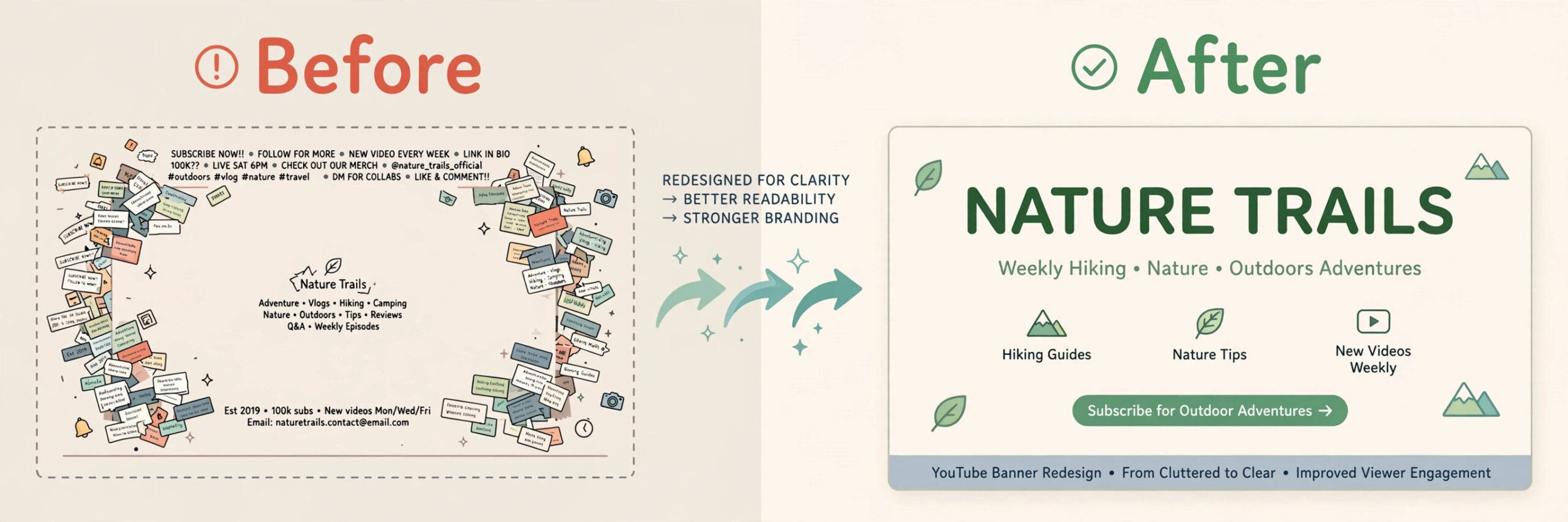
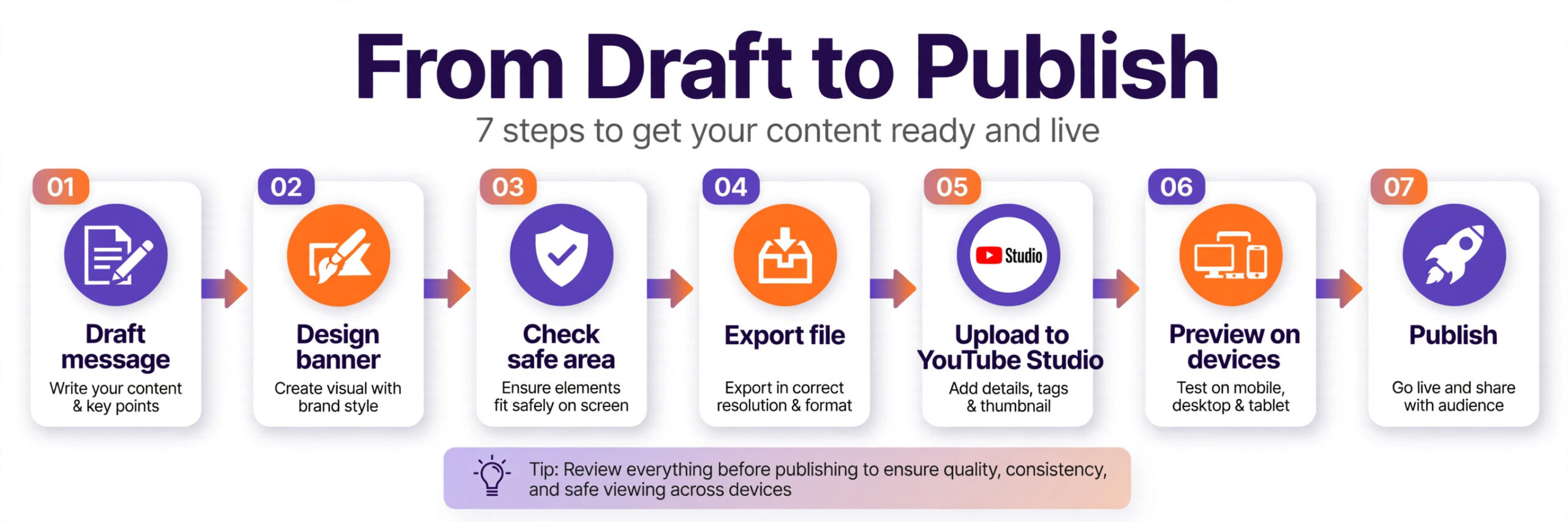
Start with the message, not the template. Write your channel name, your niche in five words or fewer, and one reason to subscribe, then cut that list until only the name and the niche remain on the banner itself. A banner that tries to carry a schedule, three social handles, and a slogan will lose to a banner that carries one clear promise and lets the channel description do the rest.
Next, pick a background that supports text rather than competing with it. The best YouTube banner makers help here too, with background dimming, blur, and overlay tools that keep a photo visible without swallowing the channel name. A darkened photo, a solid color with texture, or a blurred scene all work, while a busy collage behind small text does not. Place the channel name in the centre strip, add a short tagline only if it fits without shrinking the name, and leave generous empty space around the text. Before you export, step back and check the design at thumbnail size on your screen, because that small view mimics how much attention a new visitor gives the header.
If the name is unreadable at that size, increase its weight or simplify the background rather than adding effects. A banner that reads clearly when small will also read clearly at full width, while a banner that only works large will disappoint on the devices that matter most.
Finally, export, upload to YouTube Studio, and preview on a phone, a tablet, and a desktop before you publish. Fix the mobile crop first, because that view decides most first impressions.
Brand Consistency Across Your Channel
A banner does not live alone. It sits above your avatar, beside your video titles, and next to thumbnails that compete for the same click, so a banner that clashes with those elements weakens the whole page. The best YouTube banner makers support this wider job with saved brand kits, shared color palettes, and font choices that carry across banners, thumbnails, and end screens. When those assets match, a new visitor reads the channel as intentional within seconds, even before watching a video.
Build a small brand sheet before your next redesign, and keep it to one page. Record two main colors and one accent, two fonts at most, a logo or avatar style, and a photo treatment such as darkened edges or a consistent filter. Apply that sheet to the banner first, then to three recent thumbnails, and compare the channel page as a whole. If the banner uses a bright neon palette while thumbnails use muted tones, one of them is wrong for the channel, and the banner is usually the easier piece to fix.
Consistency also helps with production speed. A saved template with your colors, fonts, and safe area guides in place turns a seasonal refresh into a thirty minute job rather than a fresh design project. The best YouTube banner makers reward that habit, because brand kits and template duplicates remove the setup work that causes most creators to delay updates. Keep the core identity stable and change only the seasonal element, such as a series title or a background image, so returning viewers still recognize the channel at a glance.
Test consistency the way a stranger would. Open your channel page on a phone, scroll past the banner to the video grid, and ask whether the banner, avatar, and top three thumbnails look like they belong to one creator. If the answer is no, simplify the banner first, because it is the largest visual element on the page and it sets the tone for everything below it. A banner that matches the rest of the channel does quiet work every day, turning casual browsers into subscribers who remember where to return.
Mistakes to Avoid
The biggest mistake is designing for desktop only. A banner that looks balanced on a wide monitor can lose its headline on a phone, and most new viewers meet your channel on mobile first. The second mistake is overloading the banner with text. Channel links, subscribe buttons, and video titles already crowd the page, so your banner should add identity, not repeat every detail. The third mistake is using a low resolution image stretched to fill the canvas, which turns soft and noisy after upload.
Another common error is designing with too many fonts. Two fonts are enough for almost every channel, one for the name and one for a short tagline, and a third font usually adds noise rather than personality. Stick to weights and sizes of the same families to create contrast, such as a bold name with a lighter tagline, and keep letter spacing consistent. Viewers read a banner in under two seconds, so clarity beats decorative type every time, and a simple type pairing also survives the mobile crop far better than ornate lettering.
Another common error is ignoring file size and format. A PNG with fine text stays crisp, while a heavily compressed JPG can blur small letters and logos. Keep the file under 6 MB, use PNG for text heavy designs, and test the upload rather than trusting the editor export alone. Finally, do not copy a rival channel layout pixel for pixel. Viewers notice, and a copied banner signals that the channel has no identity of its own.
Frequently Asked Questions
Upload at 2560 by 1440 pixels, with a maximum file size of 6 MB. Keep all critical text and logos inside the centre safe area of about 1546 by 423 pixels, because YouTube crops the image differently on TV, desktop, tablet, and phone. A banner built at the full size but designed only for desktop will lose text on mobile, so preview every device before you publish.
No. Canva Free, Adobe Express Free, and FotoJet Free all cover a solid banner with pre sized templates and watermark free exports on most designs. Paid plans become worth it when you need premium templates, brand kits, background removal, or stock assets on a regular basis. Start free, and upgrade only when a specific limit blocks a design you actually need.
Yes, YouTube uses one uploaded image and crops it per device, which is why the safe area matters so much. Design the centre strip for mobile, use the outer areas for background only, and avoid placing logos or text near the edges. Check the preview in YouTube Studio on a phone and a desktop, and adjust the layout until both views read clearly.
Change it when your niche, branding, or content promise changes, not on a fixed schedule. A stable banner builds recognition, while frequent redesigns confuse returning viewers. Seasonal updates, a rebrand, or a major series launch are good reasons to refresh, and each refresh should keep the channel name and core colors recognizable.
Restraint makes the difference. Professional banners use one clear message, high contrast text, consistent brand colors, and generous empty space, while amateur banners crowd in many fonts, colors, and messages at once. Sharp imagery, aligned text, and a clean mobile crop signal care, even when the design itself is simple.
Not if you customize it well. Templates save time and guarantee correct sizing, and most viewers judge the result, not the starting point. Change the colors, imagery, fonts, and layout enough that the banner matches your thumbnails and avatar, and replace it with a custom design once the channel has a clear brand system. A customized template beats a messy original every time.
The Bottom Line for Creators
Start with Canva if you want the widest template choice and the easiest free path to a correct banner. The best YouTube banner makers all pass the same final test, so pick the one whose editor you enjoy opening, because you will return to it every time your channel evolves. Pick Adobe Express if typography and Adobe assets matter most, Placeit if speed matters most, and Snappa if you want the leanest editor. Budget creators should test Fotor and FotoJet before paying, and brand led creators already on Design.com can build a matching banner there without adding another tool.
Whichever tool you choose, judge it on the phone preview, not the editor screen, because that is where your next subscriber will meet your channel. Keep the first version simple, publish it, and refine it after a month of real channel traffic rather than delaying launch for a perfect header. Small steady improvements beat endless drafts.
Further Reading
More Reading on Stratilyze. Pair your new banner with a stronger thumbnail system using Best AI YouTube Thumbnail Generators and Best AI Tools for YouTubers, and learn the thumbnail workflow in Use Canva for YouTube Thumbnail Design. For wider channel growth, see Best AI Tools for Content Creators, Canva Alternatives, and Best AI Video Editing Tools.