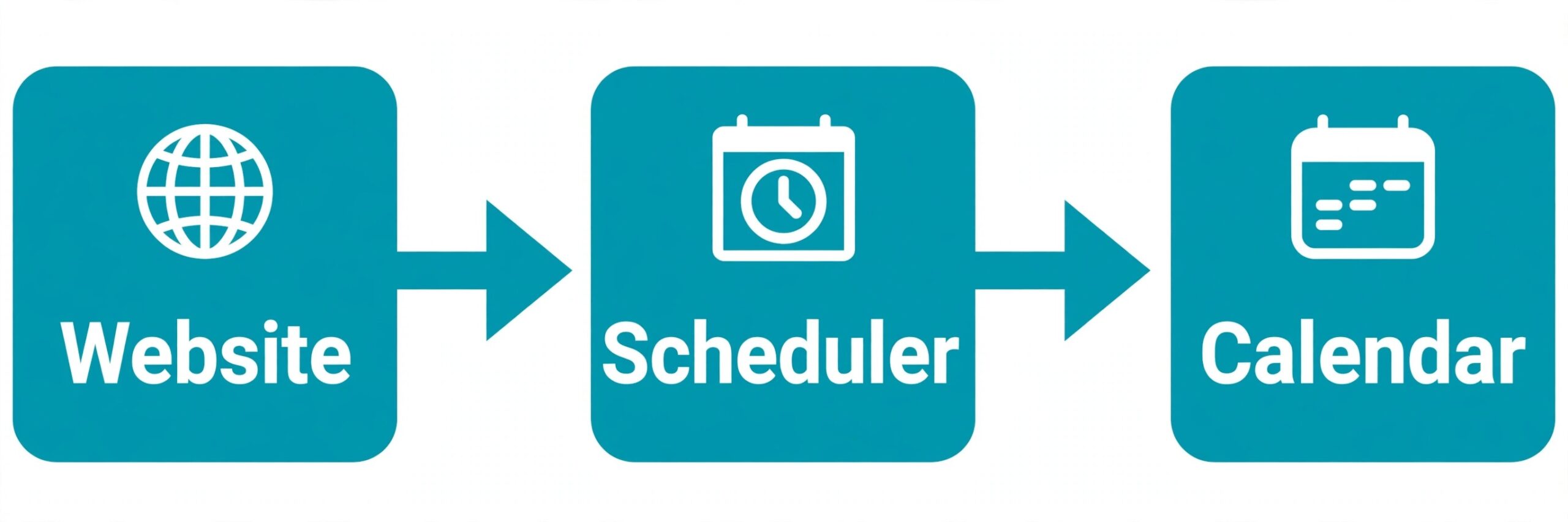
Two weeks is the length of the trial that many owners start with, one embed code is all that connects a website to a scheduler, and a single disconnected calendar can quietly remove every open slot from view. When you fix Acuity booking page not loading small business problems, those three small facts explain why the failure feels so sudden.
The page worked last week, nothing obvious changed on the website, and yet clients now see a blank space, a spinning loader, or a message saying no times are available. The booking page has not vanished. Something in the short chain between the website, the scheduler, and the calendar has broken, and the chain is short enough to test link by link.
A booking page that will not load costs more than a missed appointment. A client who cannot book at the moment they decide to book rarely waits patiently and tries again the next day. Some clients call, which interrupts the workday and recreates the exact scheduling job the page was meant to handle.
Others move on to a competitor whose booking button works, and the owner never learns that the visit was lost. A few keep refreshing the page, conclude the business has closed its books, and leave a message that sounds far more final than they intended. Speed matters here, but guessing hurts more than waiting, because changing three settings at once hides the cause and often creates a second fault.
This guide works through the fault in the order a small business owner should use it. It starts with the direct booking link, because that single test separates a website problem from a scheduler problem in under a minute. It then moves through the embed code, the calendar connection, availability settings, appointment type settings, payment and browser issues, and the account status checks that owners forget.
It ends with a page load checklist you can run before every promotion, so a broken page is caught by you rather than by a client. It does not promise that every page should load for every visitor. Some pages should show no times, because the owner is genuinely full, on leave, or closed for a date. The goal is to know whether the blank page is correct or a fault, and to fix only the faults.
How to Fix Acuity Booking Page Not Loading Small Business in Order
Before you change anything, gather four facts about one failed visit. The exact address the client used, whether it was the direct scheduling link or a page on your website. The device and browser they used, and whether the page failed on a phone, a computer, or both. The exact thing they saw, whether it was a blank area, a loader that never finished, an error message, or a calendar with no times. And the time of the failed visit, so you can match it against any change you made that day. Those four facts point straight at the part of the chain that failed, and they save you from rebuilding a page that was never the problem.
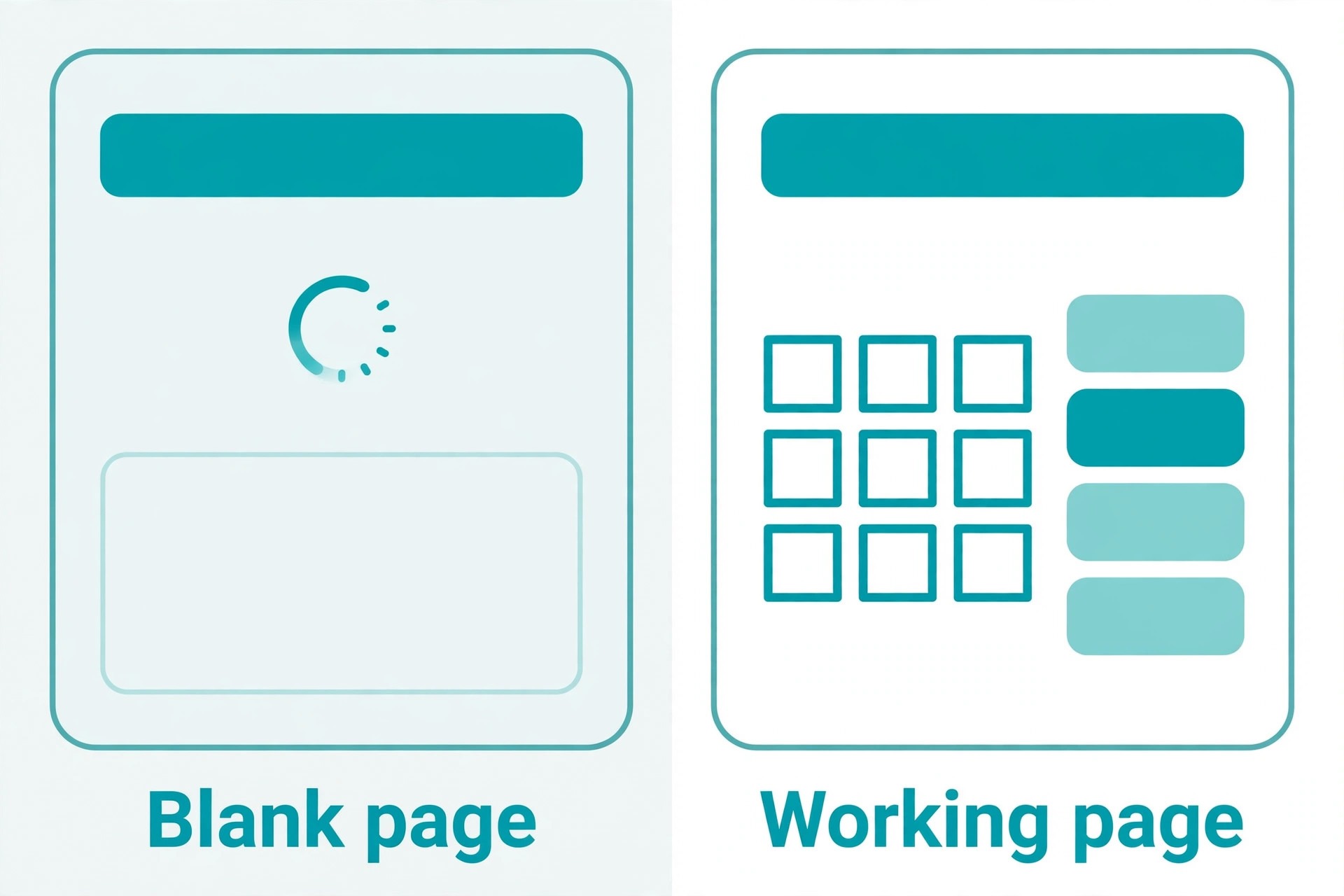
A page that fails for everyone, on every device, is almost always an account, embed, or appointment setting problem. A page that fails only on your website, while the direct link works, is almost always an embed or website problem. A page that loads but shows no times is a different fault altogether, and it usually lives in availability, calendar blocking, or appointment type settings rather than in the page code. Keep those three patterns in mind as you work, because they tell you where to spend your time.
The diagnosis below follows a simple rule. Test after each change, change one thing at a time, and stop as soon as a test booking succeeds from the same kind of device your clients use. If you change the embed code, the calendar link, and the availability at once and the page starts working, you will never know which change fixed it, and you may have opened slots you meant to keep closed. Work through the steps in order, and keep a short note of what you changed, so the next fault starts from a known state rather than from guesswork.

Start With the Direct Link Before You Touch the Website
Open your scheduling link directly, without going through your website at all. You can find it in your scheduler account, and it usually ends with your business scheduling address. Paste it into a fresh browser window, and watch what happens. If the direct link loads and shows appointment types and times, your scheduler account is working, and the fault lives in the website embed. If the direct link also fails, the fault lives in the scheduler account itself, and rebuilding the website page will not help. That one test, done first, prevents the most common wasted hour in this whole problem, which is redesigning a website page while the scheduler behind it is paused, expired, or misconfigured.
Test the direct link on a phone as well as on a computer, because clients book far more often from phones than owners expect, and a page that loads on a large screen can still fail on a small one when an embed frame is sized badly. If the direct link works on one device and not the other, note the difference carefully, because it points at a display or sizing problem rather than an account problem. Try the link in a private or incognito window too, since that strips away saved logins, extensions, and cached files that can mask a fault on your own computer while clients still see it.
When you fix Acuity booking page not loading small business cases from the owner side, the direct link test also gives you a safe fallback to share while you repair the website. You can send clients the direct link by email or message, add it as a plain button on the website, and keep taking bookings while the embed is fixed. A plain link is less elegant than an embedded calendar, but a working plain link beats a beautiful blank frame every time, and it protects revenue while you work through the remaining steps.
Check the Embed Code and the Page That Holds It
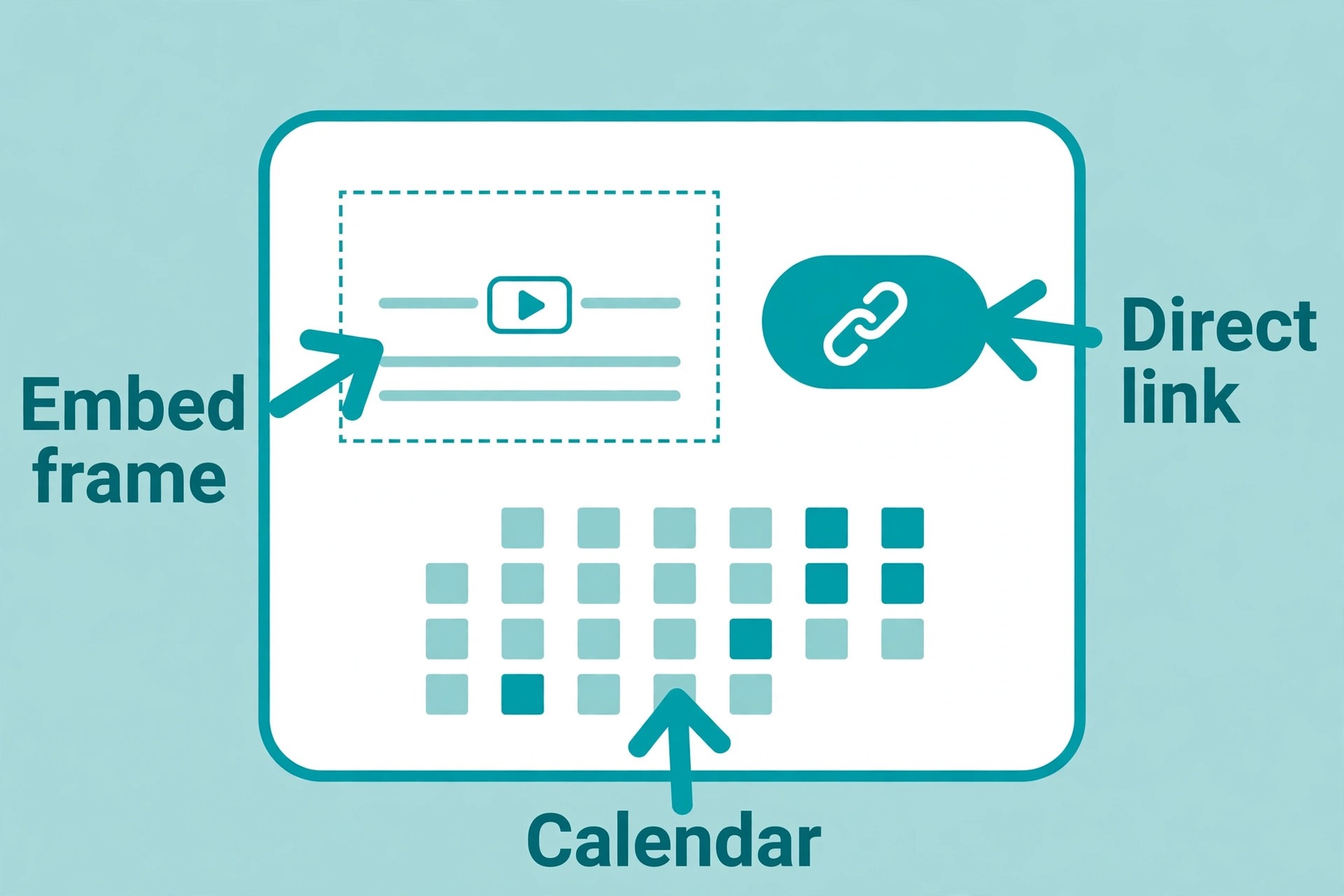
If the direct link works and the website page does not, the embed is the prime suspect. On a Squarespace site, the native scheduling block is the simplest route, and it shows only appointment types that are public and available to book. If you used that block, open the page editor, click the block, and confirm it still points at the right appointment types. A block that was set to show a single appointment type will go blank if that type is later hidden, paused, or renamed, even though the rest of the scheduler is healthy. Re-selecting the appointment types, saving, and publishing the page again often restores the display without any code work at all.
If you embedded the scheduler with a code block instead, open that block and compare the code with a fresh copy from your scheduler account. Embed code can break when a website theme is updated, when a page is duplicated, or when an editor pastes the code into a text block that alters its characters.
Look for a missing closing tag, a code block that was switched to plain text, or an embed that now sits inside a hidden or collapsed section of the page. Copy the fresh embed code, paste it into a new code block on a test page first, and confirm the scheduler loads there before you replace the live page version. Testing on a draft page protects the live page from a half finished repair.
Sizing is the quieter embed fault. An embed frame with a fixed height that is too short can hide the calendar below the visible area, which looks exactly like a page that never loaded. An embed placed inside a narrow column can squeeze the scheduler until its controls overlap or disappear.
Give the embed the full width of the page content area, let its height grow with its content where your website tool allows it, and test the result on a phone, where narrow widths expose sizing faults fastest. If the scheduler loads on the test page but not on the live page, the difference between those two pages, whether it is a section, a script, or a layout setting, is where the fault lives.
Check the Calendar Connection Next
A booking page can load perfectly and still show no times, and a broken calendar connection is one of the most common reasons. Acuity and Squarespace Scheduling sync two ways with Google Calendar, iCloud, Outlook, and Office 365, per the vendor help guides, so personal events block booking availability and new bookings appear on the connected calendar.
When that connection breaks, the scheduler may treat your time as unknown, or it may fall back to a narrow or empty availability window. Open the calendar sync settings in your scheduler account, confirm the right calendar is still connected, and look for any warning, expired permission, or reconnect prompt. Calendar permissions expire after password changes and security reviews, and the expiry rarely announces itself on the booking page.
Reconnect the calendar deliberately rather than adding a second calendar on top of the first. Disconnect the stale connection, reconnect the calendar you actually use, and confirm that a test event on your personal calendar blocks the matching slot on the booking page. That test matters, because a connection that looks linked but does not block time is worse than an obviously broken one. It lets double bookings through while the owner believes the system is protecting them. After reconnecting, make one test booking and confirm it appears on your personal calendar as well, so the sync is proven in both directions before you trust it again.
Review Availability, Hours, and Appointment Type Settings
Availability settings are the next place to look when the page loads but the calendar looks empty. Open the availability for the appointment type that clients cannot book, and check the days, hours, and advance booking rules as a client would see them. A common fault is a weekly schedule that ends on a date in the past, a seasonal schedule that was never extended, or a new appointment type that inherited no availability at all.
Another is a minimum notice rule that is longer than owners realise, so same week slots that look open to the owner are correctly hidden from clients who try to book too close to the appointment time. Read each rule out loud as a booking rule, and ask whether a real client could satisfy it this week.
Appointment type settings can hide a page just as completely as a broken embed. An appointment type set to private will not appear in a scheduling block that shows public types, and a type with no duration, no location, or no calendar assigned can fail to render at all. Check that the type is public, that it has a calendar and a location, and that its capacity and group settings match what you intend.
For group appointments and classes, check the capacity limit and the number of already booked places, because a full class correctly shows no availability, and the fix is a new session rather than a technical repair. For one to one appointments, check that the type is not accidentally limited to a single staff member whose calendar is full.
Buffer time and scheduling limits also shape what clients see, and they are easy to misread as a fault. A buffer before and after each appointment protects preparation and travel time, but a long buffer can remove slots that look free on a plain calendar. A limit on how far ahead clients can book can make next month look empty when it is simply not yet open.
Check the buffer, the future booking window, and the maximum bookings per day for the type, and compare them with the week you are trying to fill. If the rules are doing what you intended, the page is not broken, and the honest fix is to widen the window or shorten the buffer deliberately, not to chase a code fault that does not exist.
Account Status, Trial Expiry, and Payment Holds
Account status is the check owners skip because it feels too simple, yet it explains a whole class of sudden failures. Scheduling through Squarespace is a paid add-on rather than part of a standard website plan, per vendor guides, and a trial that ends without an upgrade stops the scheduler from working.
Open your account billing area, confirm the plan is active, and check whether a payment failed, a card expired, or a trial ended on the same day the page stopped loading. If the plan lapsed, renewing it and then retesting the direct link is the whole fix, and no website work is needed. Record the renewal date somewhere you will see it, so the next expiry is a calendar reminder rather than a client complaint.
Payment processor connections can also interrupt booking, though they show up differently from a blank page. If the appointment type requires payment at booking and the Stripe, Square, or PayPal connection has broken, clients may reach the payment step and then stall, or the type may fail to display its price correctly. Open the payment settings, confirm the processor is still connected, and run a test booking with a small or test amount where the processor allows it. If the processor connection has lapsed, reconnect it and test again before you announce the page is fixed. A page that loads but cannot take payment is still a broken booking path, even though the calendar itself looks fine.
Browser Cache, Extensions, and the Client Side of the Fault
Not every blank page is your fault, and the browser checks exist to prove which side the fault sits on. Ask a client who reports the problem to try the direct link in a private window, on a different browser, and on a different device if they can.
If the page loads in a private window but not in their normal browser, saved cache, cookies, or an extension is interfering, and the fix on their side is to clear cached files for your site or to disable the extension that blocks embedded frames. Privacy and ad blocking extensions are frequent culprits with embedded schedulers, because they can block the frame that carries the calendar while leaving the rest of your website untouched.
On your own computer, run the same tests before you conclude the page is fixed. Clear the browser cache for your site, disable extensions one at a time, and reload the page after each change. If an extension is the cause, note its name, because clients using the same extension will hit the same fault, and a plain direct link button gives those clients a route around it.
Also test with a phone on mobile data rather than office wifi, since office networks and content filters sometimes block scheduler domains that home networks allow. A page that works on mobile data but not on office wifi is a network fault, not a scheduler fault, and it tells you to check the network rather than rebuild the page.
What to Do When Only Some Clients See the Fault
A fault that affects only some clients usually has a pattern, and finding the pattern is faster than rebuilding the page. Ask each affected client for the same four facts you gathered at the start, and lay the answers side by side. If every affected client uses the same browser, the same phone type, or the same link source, such as a social media app that opens pages inside its own viewer, you have a display or in app browser fault.
Social and messaging apps often open links inside a built in viewer that handles embedded frames poorly, and clients who open the same link in a full browser see a normal page. Adding a clear instruction to open the link in a browser, plus a plain button that opens the direct link outside the app viewer, solves many of these reports.
Time based patterns deserve the same attention. If the page fails only in the evening, only on weekends, or only for next day bookings, the cause is more likely a rule than a code fault. Evening failures can reflect availability that ends earlier than owners think, weekend failures can reflect a weekly schedule with no weekend hours, and next day failures can reflect a minimum notice rule.
Match the pattern to the rule before you touch code, because a rule fix is a one minute settings change, while a code rebuild can consume an afternoon and still leave the rule in place. For a fuller view of how scheduling faults sit alongside other booking tools, see Best Booking Software for Music Schools and Fix Calendly Double Booking Small Business.
Match the Symptom to the Likely Cause
When you fix Acuity booking page not loading small business cases, a short symptom table saves time, because different failures point at different parts of the chain. Use it to choose your next test rather than working through every setting in turn. The table below reflects the patterns described in this guide, and it is a starting point for diagnosis rather than a guarantee, since a single page can carry two faults at once.
| Symptom you see | Most likely cause | First test to run |
|---|---|---|
| Direct link fails too | Account, trial, or appointment settings | Check plan status and appointment visibility |
| Direct link works, website page is blank | Embed code or scheduling block | Rebuild the embed on a test page |
| Page loads but shows no times | Availability, calendar blocking, or staff assignment | Check the weekly schedule and connected calendars |
| Page fails only on phones | Embed sizing or in app browser display | Test the direct link in a full mobile browser |
| Payment step stalls | Processor connection broken | Reconnect the processor and run a test booking |
Page Load Checklist to Run Before Every Promotion
Run this checklist before you send a promotion, publish a new service, or share a booking link widely, because a promotion multiplies the cost of a broken page. When you fix Acuity booking page not loading small business faults for good, the checklist is what keeps them fixed, since it catches expiry, disconnects, and setting drift before clients do. Work through it in order, and do not skip the phone test, which is the test owners skip most often.
- Open the direct scheduling link in a private window on a computer and confirm appointment types and times appear.
- Open the same link on a phone on mobile data and confirm the calendar displays and a slot can be selected.
- Open the website booking page and confirm the embedded scheduler matches the direct link, with no blank frame or hidden calendar.
- Confirm the scheduler plan is active, the trial has not ended, and no payment or renewal warning is showing in the account.
- Confirm the right calendar is connected, with no expired permission warning, and that a test personal event blocks the matching slot.
- Confirm the appointment type is public, has a calendar and location assigned, and carries availability for the weeks you are promoting.
- Confirm the payment processor is connected where payment is required, and run a test booking through to confirmation.
- Send a test booking confirmation to yourself and confirm the booking appears on your personal calendar and in the scheduler diary.
If any check fails, fix that check and rerun the whole list, because a late change can affect an earlier result. A checklist run takes a few minutes, and it is far cheaper than a promotion that sends clients to a blank page. Keep a dated copy of each run, so a future fault can be compared with the last known good state rather than rebuilt from memory. For cost context on the tool itself, see Cost of Acuity for Small Business Monthly, and for a habit that keeps client records tidy after booking returns, see How to Set Up a Client Feedback Loop Small Business.

Mistakes That Turn a Small Fault Into a Long Outage
When you fix Acuity booking page not loading small business pages, the first mistake is rebuilding the website page before testing the direct link. A rebuilt page feels like progress, but it leaves the real fault untouched and adds a new page version to untangle later. Always test the direct link first, and let that result choose the repair path. The second mistake is changing several settings at once. Bulk changes feel efficient, but they destroy the evidence that tells you which setting mattered, and they can open availability you meant to keep closed. Change one thing, test, and record the result before moving on.
The third mistake is testing only on your own computer, with your own login, on your own network. Owners see a page that works for them and conclude it works for everyone, while clients on phones, other networks, or other browsers still see a blank frame. Test as a stranger would, in a private window, on a phone, on mobile data, without being logged in. The fourth mistake is leaving a broken page live while you search for a perfect fix. A plain direct link button, added in minutes, keeps bookings flowing while the embed is repaired properly. A perfect embed that arrives next week is worth less than a working link today.
When to Escalate and What to Send Support
Escalate when the direct link fails, the plan is active, the calendar is connected, availability is open, and a test in a private window on two devices still shows the fault. At that point you have ruled out the settings an owner can fix, and the fault likely sits with the scheduler service, a broken account state, or a website integration that needs vendor help. Before you contact support, gather the evidence they will ask for, because a complete first message gets a faster answer than a vague report followed by days of follow up questions.
Send the direct scheduling link, the website page address, screenshots of the blank page and of the appointment type settings, the device and browser results, and the times of the failed visits. State what you have already tested, including the direct link result, the calendar reconnect, and the private window test.
That list stops support from asking you to repeat steps you have already done, and it shows that the fault survived a proper diagnosis. While you wait, keep the direct link button live on your website and keep taking bookings by message where needed, so the support wait does not become a booking freeze. When you fix Acuity booking page not loading small business faults that need vendor help, the direct link is your bridge, not a defeat.
Frequently Asked Questions
Why does my booking page load for me but not for clients
Your browser may hold a cached copy, a saved login, or extensions that mask the fault, while clients load a fresh page without those advantages. When you fix Acuity booking page not loading small business pages, test the direct link in a private window, on a phone, and on mobile data, without being logged in. If the page fails in those tests, the fault is on the site or scheduler side, not on the client device, and the diagnosis steps in this guide apply.
Why does the page show no available times
No times usually means availability is closed, a connected calendar is blocking the day, a staff calendar is full, or the appointment type has no availability for the requested period. Check the weekly schedule, the future booking window, the minimum notice rule, and each connected calendar for all day blocks. If those rules are doing what you intended, the page is correct, and the fix is to widen availability deliberately rather than to chase a code fault.
Should I use the scheduling block or an embed code
The native scheduling block is simpler and shows only public, available appointment types, which makes it the safer choice for most small businesses. An embed code gives more control over sizing and placement, but it needs more care when themes change or pages are duplicated. If the block works for your services, keep it, and use a plain direct link button as a fallback for clients whose browsers block embedded frames.
How often should I test the booking page
Test the page before every promotion and after every website, theme, or scheduler change, and run a quick direct link check each month even when nothing has changed. Calendar permissions expire, trials end, and staff changes break assignments quietly, so a page that worked last month can fail this month without any visible change. A short monthly check catches those silent faults before clients do.
Can a browser extension really break a booking page
Yes, and it happens more often than owners expect. Privacy and ad blocking extensions can block the embedded frame that carries the calendar while leaving the rest of the website untouched. Clients affected by this see a blank area where the calendar should be. A plain direct link button gives those clients a route around the block, and asking them to try a private window confirms the cause quickly.
What should I do first when a client reports a blank page
Thank the client, send the direct scheduling link, and hold a slot while they retry, before you start any technical work. That sequence saves the booking and the relationship. Then run the diagnosis in order, starting with the direct link test, so you fix the real cause rather than rebuilding a page that was never the problem. For wider context on choosing booking tools and keeping client systems healthy, see Best CRM Software for Small Business.
A Calm Verdict on a Blank Booking Page
A blank booking page feels like a crisis, but it is usually a short chain with one broken link, and the direct link test finds that link in minutes. When you fix Acuity booking page not loading small business faults in order, you protect bookings, you protect the client relationship, and you avoid the long outage that comes from rebuilding the wrong part of the system.
The page does not need to be perfect. It needs to load, show real times, and let a client finish a booking without help. Once it does those three things reliably, the scheduler is doing its job, and your attention can return to the work the bookings bring in.