
Two phones can sit side by side on the same network, receive the same call, and behave completely differently. One rings loudly and the other stays silent, showing only a missed call notification minutes later. That contrast is the key to understanding how to fix Android phone not ringing calls, because the silent phone is rarely broken. It is usually following an instruction you gave it, or one that an update, a mode, or a battery saver gave on your behalf. Android gives you more control over sound than any other phone system, and that control cuts both ways. Every silencing feature is useful in the right moment and infuriating when it stays on into the wrong one.
This guide separates the two cases quickly. You will learn to tell a silenced phone from a faulty speaker in under a minute, then work through the fixes in the order that solves the most cases first.
The One Minute Test That Splits the Problem in Half
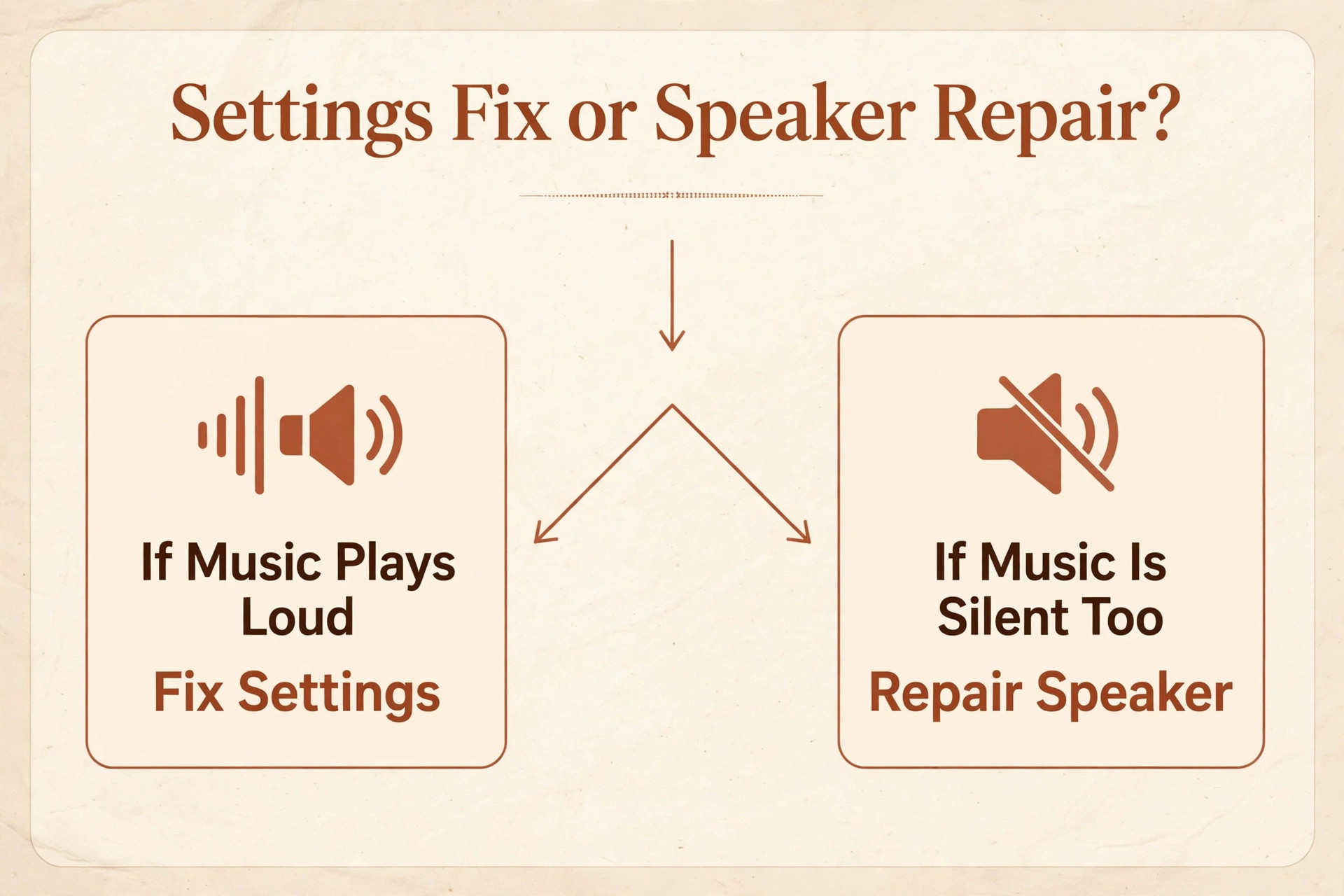
Before you change a single setting, run a test that tells you whether the speaker works at all. Open a music app or a video and play it at full volume through the phone speaker. If sound comes out loudly and clearly, the speaker is fine, and your problem is a setting, a mode, or a routing fault. If the speaker is silent or crackling for music too, the problem is hardware or a system audio fault, and the settings sections below will not help you. That one test saves you from an hour of toggling switches on a phone with a dead speaker.

Next, ask someone to call you while you watch the phone. Does the screen light up with an incoming call display even though no sound plays. If yes, the call is reaching the phone and only the ringtone is missing, which points at volume, Do Not Disturb, or ringtone settings. If the screen stays dark and the call goes straight to voicemail, the phone may not be receiving the call at all, which points at signal, call forwarding, blocked numbers, or a carrier problem. Write down which of these you see, because the fix order changes completely between them.
| What you observe | Most likely cause | Check this first |
|---|---|---|
| Screen lights up but no ringtone sounds | Ringer volume, silent mode, or Do Not Disturb | Volume keys and Do Not Disturb tile |
| Call goes straight to voicemail | Call forwarding, signal loss, or blocked number | Call forwarding and signal bars |
| Phone rings for some contacts but not others | Per-contact silent ringtone or blocked contacts | Contact ringtone and block list |
| Ringtone plays through earbuds or car speakers | Bluetooth audio routing | Bluetooth disconnect test |
| Phone rings sometimes and not others | Scheduled Do Not Disturb or Bedtime mode | Mode schedules in Settings |
| No sound from speaker for music either | Speaker fault or system audio failure | Speaker test and safe mode |
| Ringtone sounds faint or distorted | Clogged speaker port or damaged speaker | Speaker cleaning and inspection |
| Phone stopped ringing after an update | Reset sound profile or new battery rule | Sound settings and battery optimisation |
Notice how many rows in that table are settings rather than faults. That is the whole story of this problem. Android phones do not usually lose the ability to ring on their own. They are told not to ring, by you, by a schedule, by a mode, or by a battery saver, and the fix is finding which instruction is active.
Why Do Not Disturb, Bedtime, and Focus Modes Are Three Different Traps
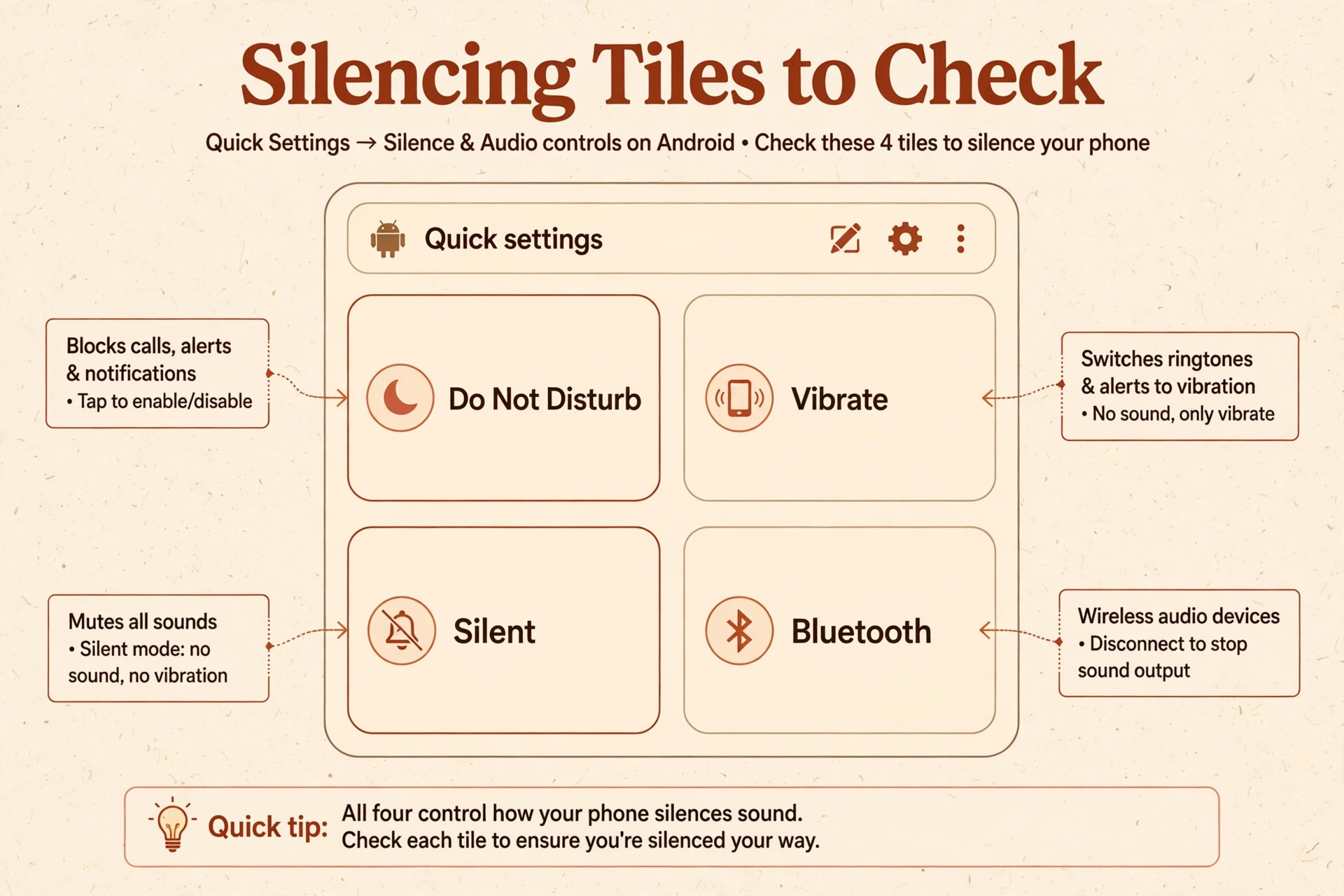
Modern Android carries three separate silencing features, and turning off one does not turn off the others. Do Not Disturb silences calls and notifications globally until you switch it off or its schedule ends. Bedtime mode, part of Digital Wellbeing, quiets the phone during your sleep hours and can keep silencing calls after you wake if its schedule is misconfigured. Focus mode blocks sounds from specific apps, including the Phone app, during a work session, and a forgotten session can silence calls all day. Check all three. On Samsung phones, Do Not Disturb lives in Quick Settings and in Settings under Notifications, Bedtime lives under Modes and Routines, and Focus mode lives under Digital Wellbeing.
On Pixel phones, the same features sit under Sound and Vibration, Digital Wellbeing, and the Quick Settings tiles. The exact menu names vary by brand, but the trio exists on every modern Android phone, and checking only one of them is the most common reason a fix appears to fail.
How to Fix Android Phone Not Ringing Calls in Order
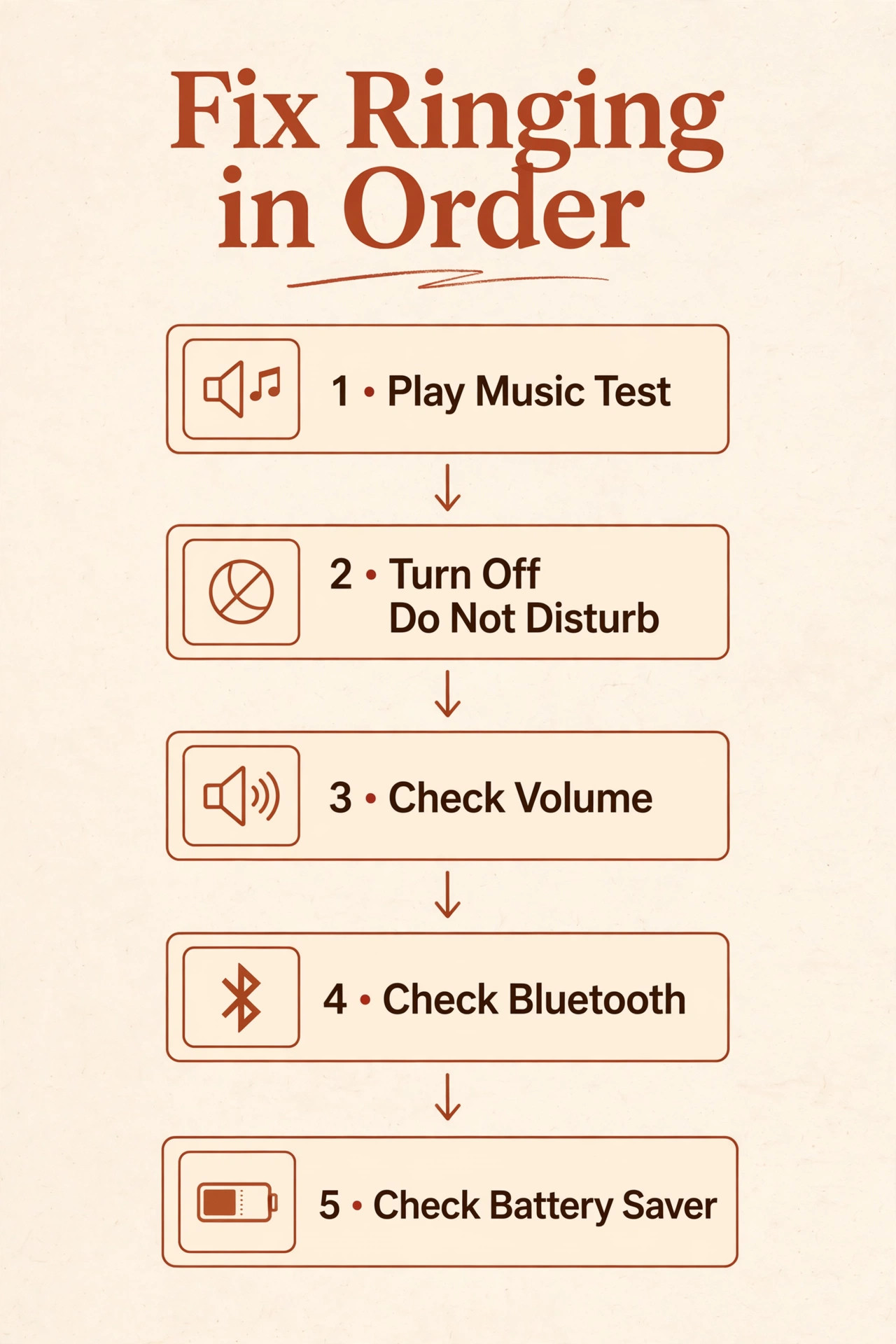
Work through this checklist from top to bottom, testing with a real call after each step. The steps are ordered by how often they solve the problem and how little they disturb the rest of your phone. Do not skip ahead to safe mode or a reset when a volume key press might be the whole answer.
Step 1. Raise the ringer volume and leave silent mode
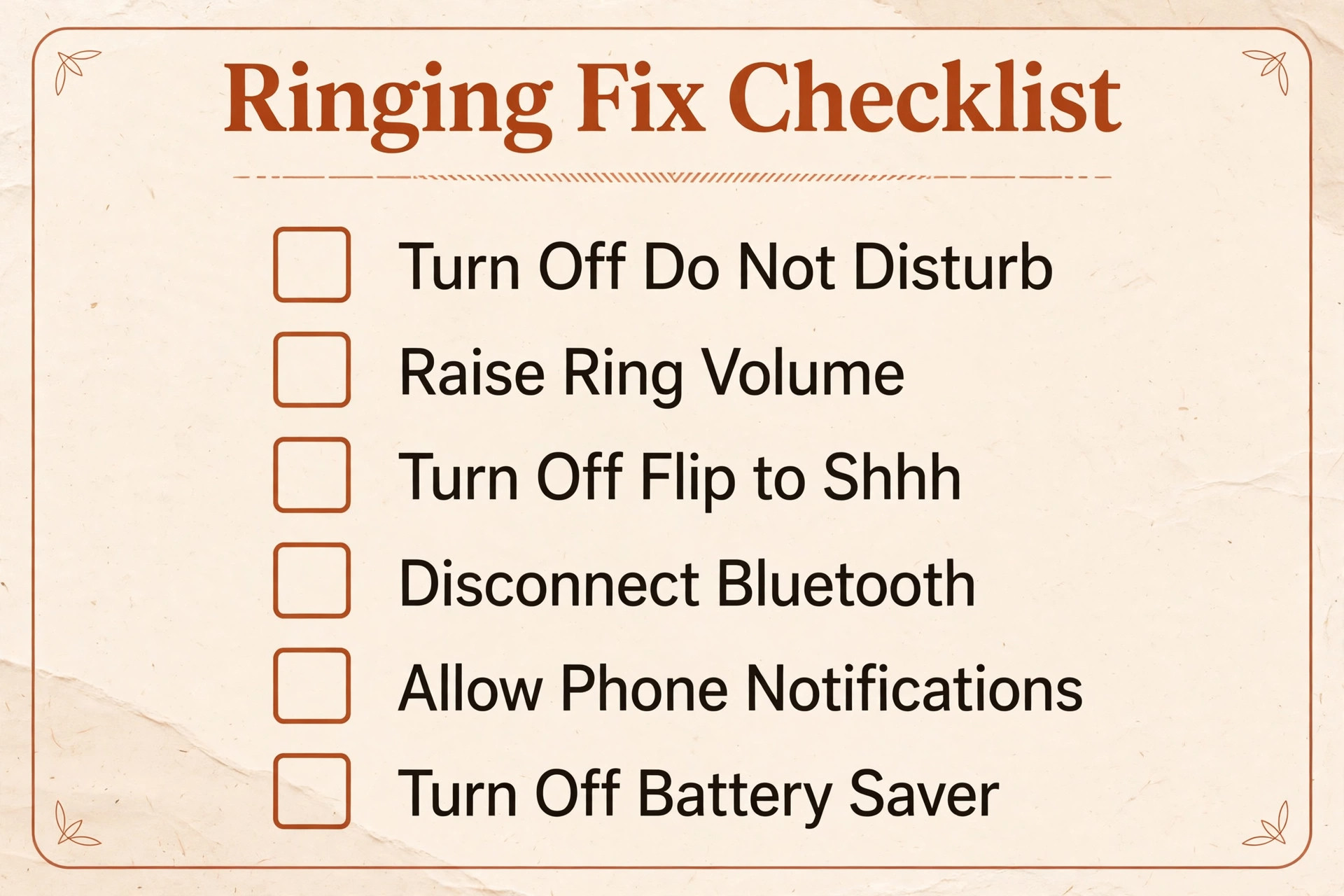
Press the volume up button and look at what the on-screen slider actually says. Android separates ringtone volume, media volume, notification volume, and alarm volume, and raising media volume does nothing for incoming calls. Make sure the ringer slider is high and the phone is not set to Silent or Vibrate only. Swipe down twice to open Quick Settings and confirm the sound profile shows Ring rather than Vibrate or Mute. Then ask someone to call you. If the phone rings, you are done, and the cause was a volume key pressed accidentally in a pocket or bag, which is embarrassingly common and completely harmless.
Step 2. Turn off Do Not Disturb and check its schedule
Open Quick Settings and tap the Do Not Disturb tile off if it is lit. Then open Settings, then Notifications, then Do Not Disturb, and look at the schedule. A schedule set for night hours that runs long, or a rule tied to a calendar event, can silence calls well into the morning. Turn off any schedule you do not recognise, and check the exceptions list. Do Not Disturb can be set to allow calls from starred contacts or repeated callers, which explains why some people get through and others do not.
If you want the mode for sleep but not for daytime, keep the schedule but shorten it to your actual sleep hours, and add an exception for repeated callers so a genuine emergency still rings twice through.
Step 3. Disconnect Bluetooth and test the speaker directly
Bluetooth is the great misdirector of phone audio. A pair of earbuds in another room, a car system in the driveway, or a smartwatch can hold the audio connection and send the ringtone to a device you cannot hear. Open Quick Settings, long press the Bluetooth tile, and disconnect anything showing as connected for audio. If the phone still does not ring, turn Bluetooth off entirely and test again. When the ringtone returns after disconnecting, the phone was never at fault. The Bluetooth device was answering the audio, and forgetting and re-pairing that device usually ends the phantom connection for good.
Step 4. Check the ringtone itself and per-contact settings
Open Settings, then Sound and Vibration, then Phone ringtone, and confirm the ringtone is not set to None or to a silent file. A downloaded ringtone that was deleted or corrupted can leave the phone with no sound to play, even though every other setting is correct. Switch to a built-in ringtone and test. Then check per-contact settings. Open the Phone app, find a contact whose calls never ring, open their details, and check whether a silent ringtone or a blocked status is set for them alone. Individual contact settings override the global ringtone, which is why a phone can ring perfectly for strangers and stay silent for family.
Step 5. Review call forwarding, blocked numbers, and signal
If calls go straight to voicemail without the screen lighting up, the phone may never see them. Open the Phone app, then Settings, then Supplementary Services, then Call Forwarding, and turn off any forwarding rule you did not set. Check the blocked numbers list in the same area, because a number blocked accidentally during a hurried swipe will never ring. Then look at signal strength. A phone with no bars or with only a weak signal in a basement or rural area cannot reliably receive calls, and callers will report voicemail while you see nothing.
Toggle airplane mode on for thirty seconds and off again to force a fresh connection to the nearest tower, and test from a location with strong signal before you conclude anything about the phone.
Step 6. Stop battery optimisation from silencing the Phone app
Aggressive battery management is the most common silent killer of ringtones on Android, and it is the cause most guides overlook. Manufacturers tune their phones to save power by putting rarely used apps to sleep, and on some brands the Phone app itself can be restricted after an update. Open Settings, then Apps, then Phone, then Battery, and set it to Unrestricted or Not Optimised. On Samsung phones the same control lives under Settings, then Battery, then Background Usage Limits, where you should make sure the Phone app is never put to sleep.
This step matters most when the phone rings normally for a while after a restart and then gradually stops, because that pattern matches an app being put to sleep in the background over hours.
Step 7. Clear the Phone app cache and test in safe mode
If the settings are all correct and the phone still does not ring, the Phone app itself may be at fault. Open Settings, then Apps, then Phone, then Storage, and tap Clear Cache. Do not tap Clear Data yet, because that wipes call history and settings you may want. Test again. If the problem persists, restart into safe mode, which loads only the apps that shipped with the phone. On most Android phones you do this by holding the power button, then long pressing the Power Off option until a safe mode prompt appears.
If the phone rings normally in safe mode, an app you installed is interfering, and the usual suspects are launchers, task killers, call blocking apps, and antivirus tools. Uninstall the most recent of those first and test after each removal.
Where Samsung, Pixel, and Xiaomi Hide the Same Switch
Brand differences cause more failed fixes than any real fault, because the same setting lives under a different name on each phone. Samsung phones put Do Not Disturb in Quick Settings and under Settings then Notifications, put Sleep mode under Modes and Routines, and put battery limits under Battery and Device Care. Pixel phones put Do Not Disturb under Sound and Vibration, put Bedtime mode under Digital Wellbeing, and put battery optimisation under Apps then Phone then Battery. Xiaomi phones running HyperOS put Do Not Disturb in the control centre, Bedtime mode under Digital Wellbeing and Parental Controls, and battery limits under Battery then App Battery Saver. The lesson is not to memorise every menu.
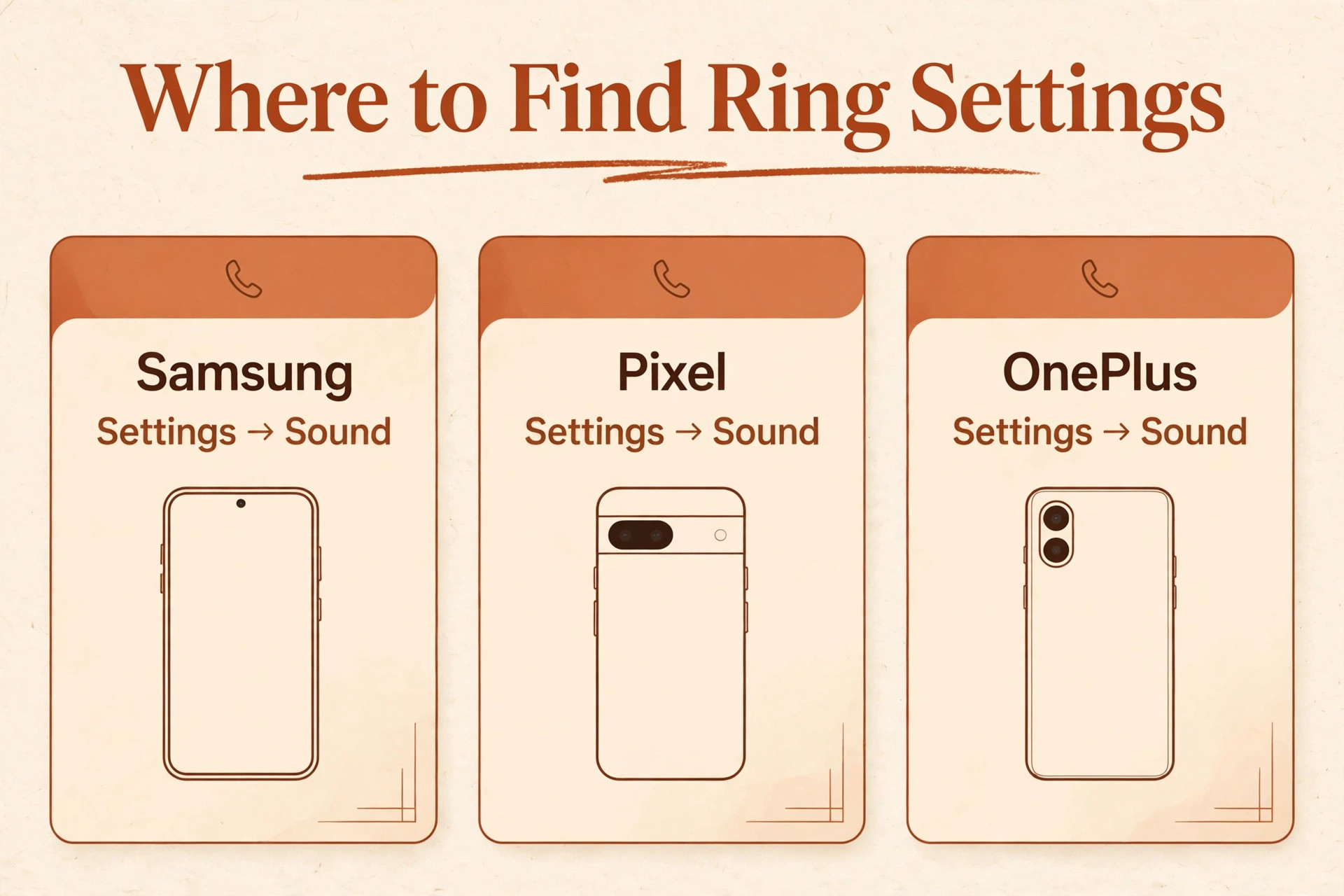
It is to search Settings for the feature name when you cannot find it, because every Android phone has a settings search bar, and typing Do Not Disturb or Battery Optimisation there jumps straight to the right screen regardless of brand.
Carrier features add another brand-independent layer. Some carriers offer call barring, conditional forwarding to voicemail when busy or unreachable, and spam call screening that can silence legitimate calls. If your phone rings for some callers and sends others straight to voicemail, and no phone setting explains the split, call your carrier and ask whether any network-level barring or screening is active on your line. Network features survive factory resets and SIM swaps, so they are easy to miss and impossible to fix from the phone alone. The same applies to a second SIM.
On dual SIM phones, check which SIM is set as the default for calls and whether the silent SIM is the one callers are actually dialling, because a phone can be perfectly configured for one line and silent on the other.
When the speaker itself is the problem
A speaker that plays music faintly, crackles, or stays silent for every sound is a hardware problem, and no settings change will restore it. Inspect the speaker port for lint and debris, and clean it gently with a soft dry brush or a short burst of compressed air held at a distance. Do not poke the port with a pin, which can puncture the speaker mesh. Check for physical damage such as a cracked frame near the speaker or signs of water exposure, and note whether the problem began after a drop or a soaking.
If music, videos, alarms, and ringtones are all silent, and safe mode changes nothing, book a repair and tell the technician that every audio output failed together. That pattern points at the speaker module or the audio circuit, and a technician can confirm it quickly. If only the ringtone is silent while music plays fine, do not book a repair yet, because that pattern is almost always a setting, and the checklist above will find it.
A Routine That Keeps Your Android Phone Ringing
Prevention here is mostly about schedules and permissions you set once and then forget. Review your Do Not Disturb schedule every few months and after every major Android update, because updates sometimes restore default schedules. Keep the Phone app unrestricted in battery settings permanently, since there is no benefit to putting your calling app to sleep. Assign distinct ringtones to your most important contacts, so you notice immediately if one of them goes silent while others still ring. Keep a built-in ringtone as your default rather than a downloaded file that can be deleted or corrupted by a storage cleanup.
Finally, after you pair a new Bluetooth device, test an incoming call with that device connected and again with it disconnected, so you learn its routing behaviour before it surprises you during an important call. These small habits cost minutes and prevent the missed calls that cost far more.
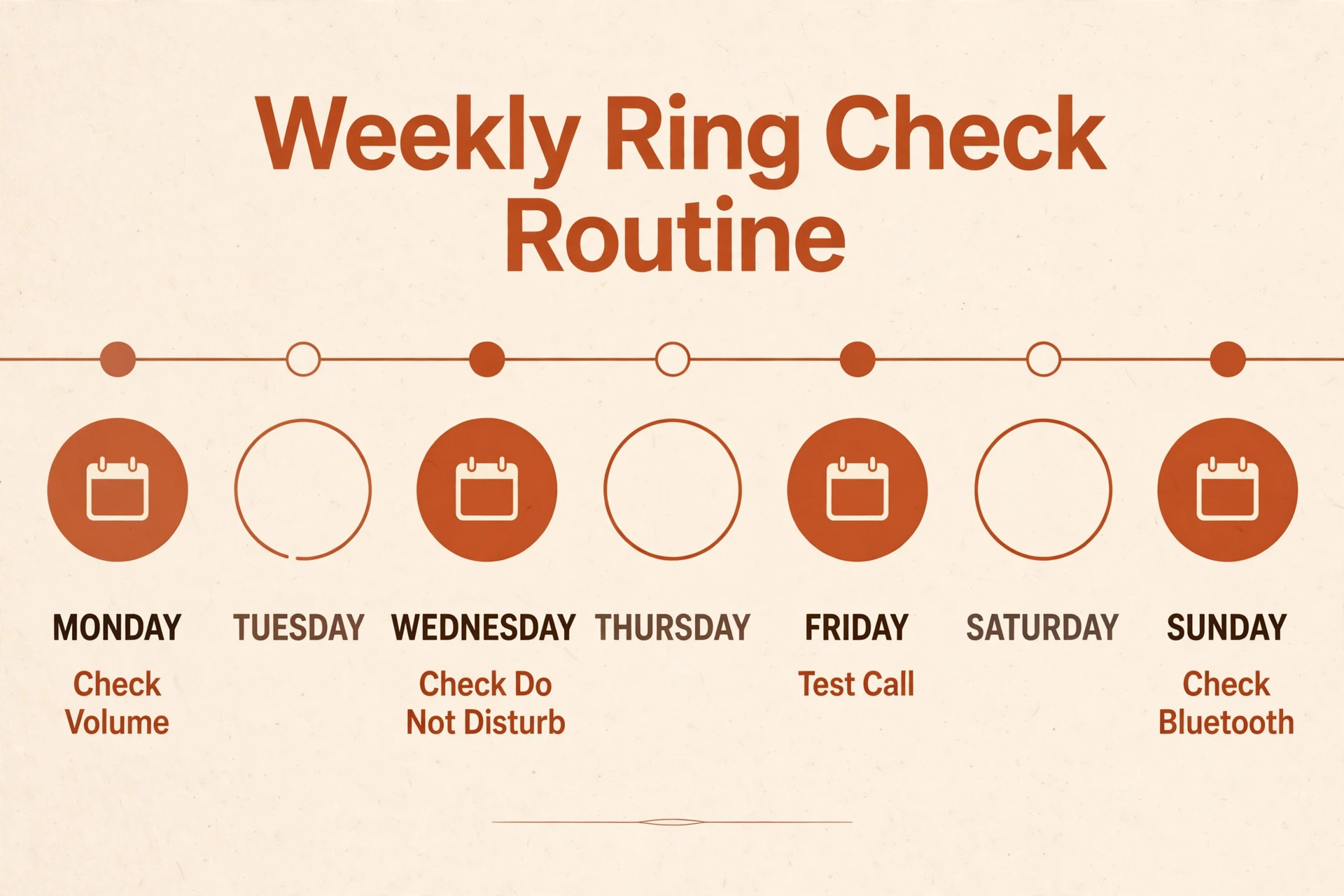
One more habit matters for anyone who depends on their phone for work. Test your ringtone once a week with a call from another phone. It sounds excessive, but a weekly test catches a silenced phone within days rather than after a missed job interview or a family emergency. If you use your phone as an alarm clock too, note that Do Not Disturb schedules and Bedtime mode affect alarms differently from calls on some brands, so a phone that wakes you reliably can still silence calls. Test calls and alarms separately, and treat a phone that passes one test but fails the other as a phone with a settings problem, not a broken device.
Mistakes People Make When They Try to Fix Android Phone Not Ringing Calls
The biggest mistake when you try to fix Android phone not ringing calls is to assume the phone is broken and order a repair before checking the three silencing modes. Repair shops see this weekly, and the fix is often a tile tapped off in ten seconds. The second mistake is to change the ringtone volume only, without checking that the phone is in Ring mode rather than Vibrate, because a high volume slider means nothing when the profile is set to vibrate. The third mistake is to test with only one caller. A single caller may be blocked, forwarded, or filtered, and testing with two different numbers separates a contact problem from a phone problem immediately.
The fourth mistake is to ignore battery optimisation, which is invisible in normal use and only reveals itself when the phone has been idle for hours. If your phone rings in the morning and stops by evening, battery optimisation is the first suspect, not the speaker. Work the checklist in order, test after each step, and note what changed, because a phone that stops ringing again in a month is usually repeating the same cause, and your notes will find it in seconds.
Signal, SIM, and Network Causes That Look Like Phone Settings
Some ringing failures live entirely outside the phone, and no settings menu will reveal them. A phone in a weak signal area may show bars yet still miss calls, because the signal indicator reflects the tower connection at a glance, not the stability of that connection over minutes. Concrete buildings, basements, lifts, and rural stretches all create pockets where a call attempt reaches voicemail before the phone ever wakes. If your phone rings reliably at home but stays silent at work or on a commute, test the same phone in a strong signal location before you change anything.
A phone that rings perfectly outdoors and fails indoors has a coverage problem, not a settings problem, and the practical answers are Wi-Fi calling, a different spot in the building, or a conversation with your carrier about coverage.
Wi-Fi calling deserves a careful look, because it changes the whole path a call takes. When Wi-Fi calling is on, incoming calls arrive over your internet connection instead of the mobile network, and a congested or filtered Wi-Fi network can delay or drop them. Office and hotel networks sometimes block the ports that Wi-Fi calling needs, which produces the confusing pattern of a phone that works on mobile data and fails on office Wi-Fi. If you suspect this, turn Wi-Fi calling off for a day and compare. If calls return on cellular alone, the Wi-Fi network is the culprit, and the fix is a different network or a router setting, not a phone repair.
Equally, if calls only fail when Wi-Fi calling is off and work when it is on, your mobile coverage in that location is the weak link, and Wi-Fi calling is the workaround worth keeping.
SIM problems are quieter but just as real. A damaged or ageing SIM can lose registration intermittently, so the network believes the phone is unreachable and sends callers to voicemail. The phone may still show signal bars, because the radio is working, while the account registration behind it is flaky. Reseat the SIM by powering the phone off, removing the tray, checking the card for scratches or corrosion, and reinserting it firmly. If the problem persists, ask your carrier for a replacement SIM, which is usually free and takes minutes to activate.
Test with the SIM in another phone if you can, because a SIM that fails in two phones is a SIM problem, while a SIM that works in another phone points back at the original handset. Anyone working through how to fix Android phone not ringing calls should run this test before a factory reset, because a reset cannot fix a worn SIM contact.
Dual SIM phones add a final layer worth checking. Each SIM has its own call settings, its own forwarding rules, and its own default for outgoing calls, and it is easy to configure one SIM carefully while the other quietly forwards everything to voicemail. Open the SIM manager in Settings and confirm which SIM is active for calls, whether both SIMs are enabled, and whether the silent SIM carries a forwarding rule you forgot. Also check whether your carrier has enabled a spam screening service on one line, because network screening can silence legitimate callers without any visible change on the phone.
A quick call to the carrier resolves this in minutes, and it is far cheaper than a repair booking. The pattern to remember is simple. If the phone rings for one SIM and not the other, or on one network and not another, the cause is outside the handset, and the fix belongs to the SIM or the carrier. Chasing phone settings in that situation wastes time, while a SIM swap or a carrier call ends it. This network-first thinking is part of learning how to fix Android phone not ringing calls completely, rather than fixing only the settings half of the problem and wondering why the other half remains.
More Reading on Stratilyze
A phone that stays silent for calls usually shares its cause with another audio or connection fault, so readers often check the neighbouring guides next. The guide to WhatsApp calls that will not work covers the app-side failures that mimic a broken ringer, the guide to Bluetooth that will not turn on explains the wireless setting that can swallow call audio, and the guide to an iPhone with no sound at all shows the same silence checks from the other major platform, which helps when the fault follows you to a second phone.
Frequently Asked Questions
Why does my Android phone ring for some people but not others?
This pattern usually means selective filtering is active. Check whether those contacts have a silent ringtone, are blocked, or are excluded by a Do Not Disturb exception list that only allows starred contacts. Also check whether Do Not Disturb is set to allow repeated callers, which lets a second call through within minutes while the first stays silent. Fixing the contact setting or the exception list restores those callers without changing anything for everyone else.
Why did my phone stop ringing after an Android update?
Updates can reset sound profiles, restore default Do Not Disturb schedules, and reapply battery optimisation to the Phone app. After any major update, check the sound profile, the Do Not Disturb schedule, and the Phone app battery setting before anything else. These three checks solve most post-update silence, and they take less than two minutes combined.
Can battery optimisation really stop my phone from ringing?
Yes, and it is one of the most common causes on Samsung and Xiaomi phones. When the Phone app is put to sleep to save power, incoming call alerts can be delayed or suppressed entirely. Setting the Phone app to Unrestricted under its battery settings prevents this, and it costs almost no battery in practice, because the Phone app uses very little power when idle. Anyone learning how to fix Android phone not ringing calls should check this setting early, since it is invisible in normal use.
Why does my ringtone play through my earbuds instead of my phone?
Android routes call audio to the last connected Bluetooth audio device, even when that device is in another room or switched off but still paired. Disconnect Bluetooth devices you are not using, and turn Bluetooth off to test. If the ringtone returns, forget and re-pair the offending device, and check its settings for an option that keeps it connected for calls.
What should I do if my phone rings in safe mode but not normally?
Safe mode disables apps you installed, so normal ringing in safe mode proves an installed app is interfering. The usual suspects are call blockers, launchers, task killers, and antivirus tools. Uninstall the most recently installed of those first, restart normally, and test after each removal until the culprit is found. Do not factory reset before trying this, because uninstalling one app is far less disruptive.
Is it worth factory resetting a phone that will not ring?
Only as a last resort, after the checklist, safe mode, and a carrier check have all failed. A factory reset erases everything and still cannot fix a hardware speaker fault, a network forwarding rule, or a carrier screening feature. If you do reset, back up first, and test ringing before reinstalling your apps, so you can tell whether an app was the cause. If the phone still does not ring on a clean install, the fault is hardware or network level.
Closing the Case on a Silent Android Phone
A phone that will not ring feels broken, but in the great majority of cases it is simply obeying an instruction. Work the order in this guide, from volume and Do Not Disturb through Bluetooth, ringtones, forwarding, and battery optimisation, and test after each step. The moment the phone rings, you have your answer, and the fix is usually a setting you can now manage deliberately instead of discovering by accident. If every step fails and safe mode changes nothing, take your test notes to a repairer or your carrier, because you have already ruled out everything a settings change can fix.
Either way, the next call that matters will not slip past in silence, and that is the whole point of learning how to fix Android phone not ringing calls properly instead of guessing at it.