
You press play and get a black rectangle, a spinning circle, or sound with no picture, and the video that worked yesterday refuses to move today. That failure has several possible causes that all look identical on screen, which is why guessing wastes time when you try to fix Chrome videos not playing. The video itself may use a format your machine cannot decode, an extension may block the player before it loads, or the graphics driver may fail the handoff that sends decoding to the graphics card. Each cause has a different fix, and trying them in the wrong order means resetting things that were never broken.
This guide works through the causes in a tested order, starting with the quick checks that take a minute and ending with the deeper resets that are worth doing only after the simple ones fail.
Two Tests That Split Browser Faults From Site Faults
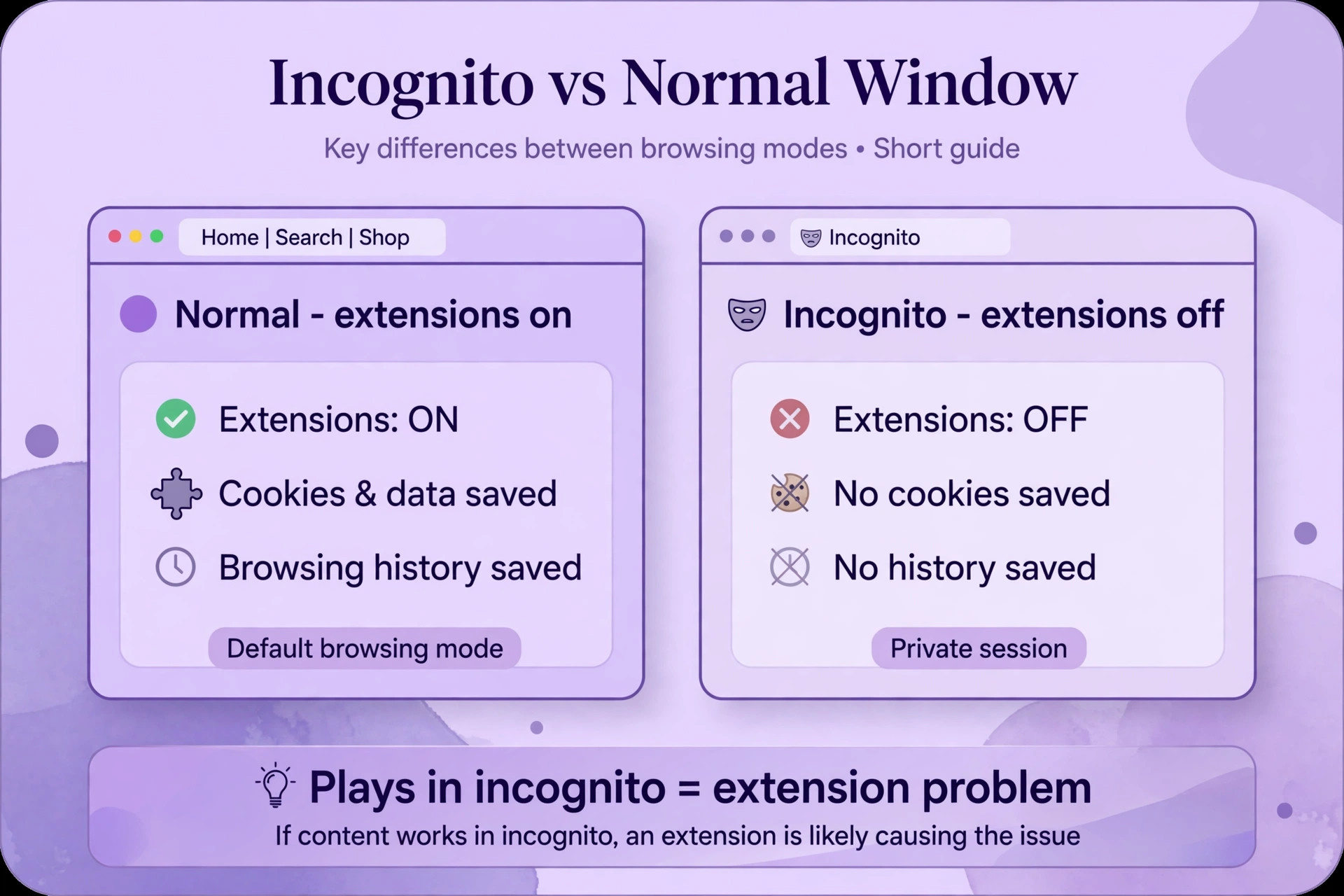
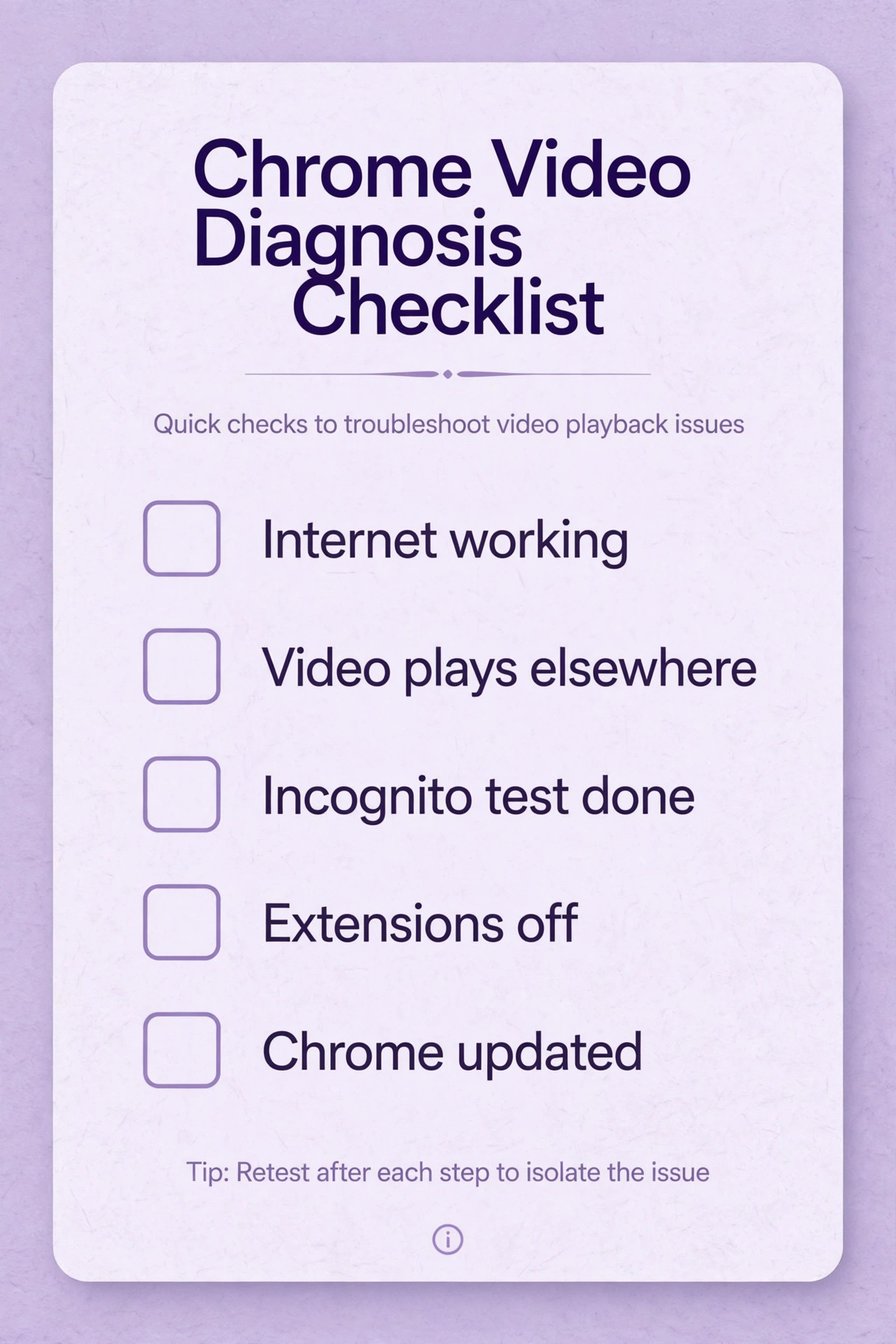
Before you change a setting, run two tests that cost less than a minute combined. First, open the same video in an incognito window. Incognito disables your extensions by default and ignores most cached data, so a video that plays in incognito but not in a normal window points squarely at an extension, a cache problem, or a stored site setting. A video that fails in incognito too points at Chrome itself, the graphics system, the codec support, or the site. Second, try the same video in a different browser on the same computer, such as Edge or Firefox. A video that plays in Edge but not in Chrome points at Chrome’s settings, extensions, or profile.
A video that fails in every browser points at the graphics driver, the system codecs, the network, or the site itself. Write down both results, because they decide whether the rest of this guide should focus on Chrome internals or on the machine underneath it.
Also note exactly what failure looks like, because the symptom narrows the cause. A black player with audio still playing usually means the video decoding path failed while audio decoding succeeded, which points at hardware acceleration or the graphics driver. A spinner that never resolves usually means the video data is not arriving, which points at the network, an extension blocking the request, or a site outage. An explicit error message about format support or decoding points at a codec gap. A player that loads but stutters, drops frames, or falls out of sync points at performance, meaning the machine is decoding in software because hardware decoding is unavailable or disabled.
Each pattern has a different fix, and guessing without the pattern wastes the evening.
| What you see | Most likely cause | Check this first |
|---|---|---|
| Black screen but audio plays | Hardware acceleration or GPU driver fault | Toggle hardware acceleration and update GPU driver |
| Endless spinner on every site | Network, cache, or extension blocking requests | Incognito test and connection check |
| Error about unsupported format | Missing codec, usually HEVC on Windows | Codec support and alternative browser test |
| Video plays in incognito only | Extension or corrupted cache | Extension isolation and cache clear |
| Video plays in Edge but not Chrome | Chrome profile, flag, or setting fault | New Chrome profile test |
| Video fails in all browsers | GPU driver, system codec, or site fault | GPU driver update and site status |
| Stuttering and dropped frames | Software decoding without GPU help | Hardware acceleration on and driver update |
| Autoplay blocked or silent start | Chrome autoplay and sound permissions | Site sound permission and muted autoplay |
| DRM service shows an error | Widevine component outdated or blocked | Widevine update and extension check |
That table is the diagnostic map for this entire guide. Match your symptom to a row before you start toggling settings, because the fix for a codec gap will never help an extension problem, and the fix for a driver problem will never help a site outage.
The incognito test done properly
The incognito test only works if you run it cleanly. Open a new incognito window with the keyboard shortcut, paste the video page address, and press play without signing in or changing anything. Do not allow extensions in incognito for this test, because an extension allowed in incognito defeats the purpose. If the video plays, return to your normal window and disable extensions in halves. Turn off half your extensions, test, and narrow the half that contains the culprit, which finds a bad extension in a handful of tests even with dozens installed. Ad blockers, script blockers, privacy tools, and older video enhancement extensions are the usual offenders, because they intercept media requests or strip player scripts along with advertisements.
If the video fails in incognito too, extensions are not the story, and the graphics, codec, and profile steps below are where your answer lives.
How to Fix Chrome Videos Not Playing in Order
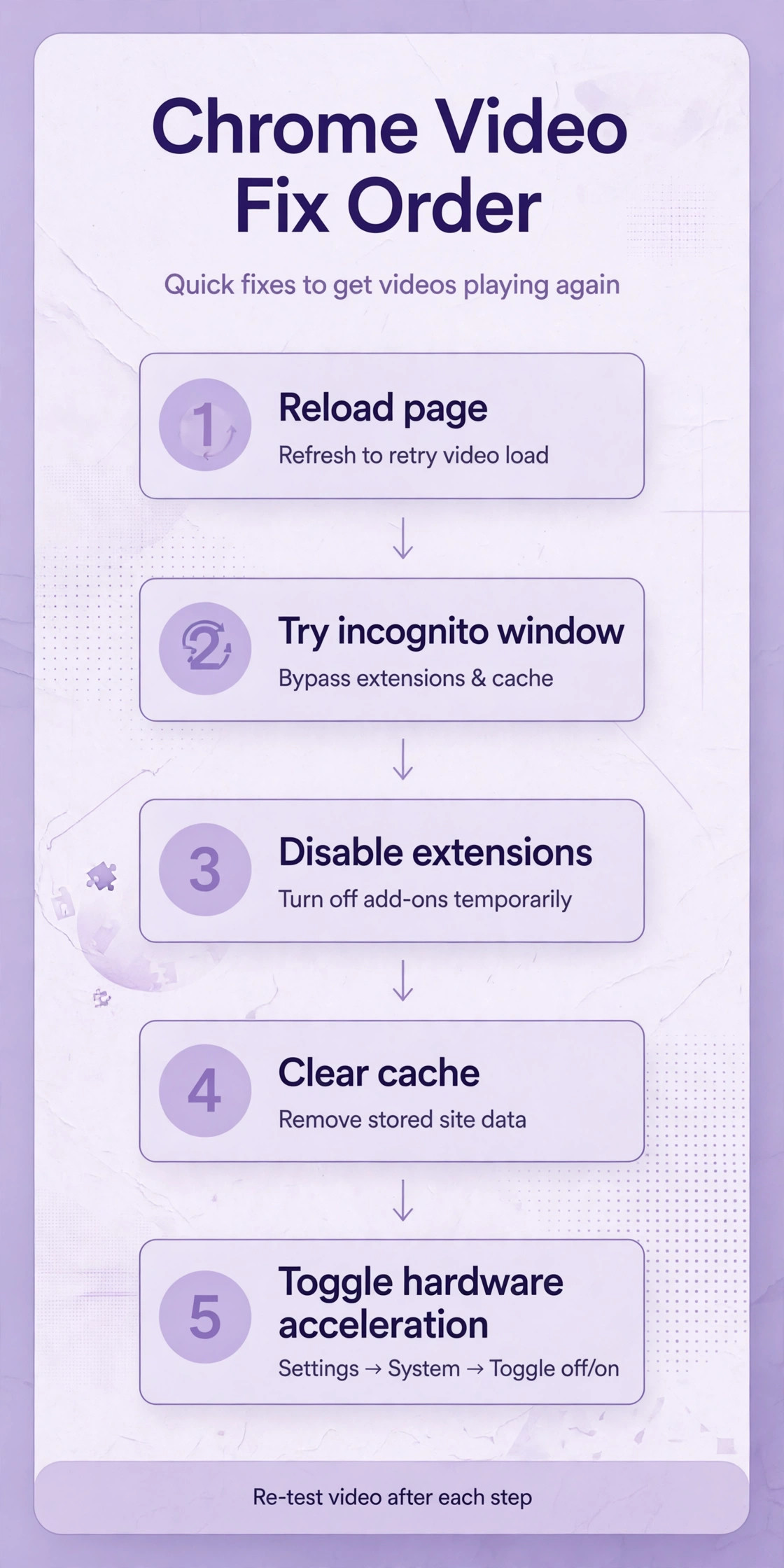
Work through this checklist from top to bottom and test the same video after each step. The order runs from the fastest and least disruptive checks to the deeper system work, and you should stop the moment videos play normally.
Step 1. Check the connection and the site itself
Load a different video site and a different video on the same site. If one site fails while others play, the site or its video delivery network is the problem, and no Chrome setting will fix it. Check the site’s status or try again in an hour. If every site fails, check your connection by loading a plain web page and running a speed test. Video needs a stable connection more than a fast one, so a connection that loads text pages but stalls on video may suffer packet loss or an unstable Wi-Fi link. Try a wired connection or move closer to the router as a test.
Also disable any VPN temporarily, because a VPN routing video traffic through a distant or congested server can stall playback while ordinary browsing feels fine. If videos return with the VPN off, the VPN path is the cause.
Step 2. Update Chrome and restart it cleanly
Open the Chrome menu, then Help, then About Google Chrome, and let Chrome check for updates and install anything available. Then fully close Chrome, including any background windows, and reopen it. Chrome updates include codec, Widevine, and media pipeline fixes, and a pending update can leave you running a build with a known playback bug. After updating, test the same video before changing anything else, because an update alone resolves a surprising number of playback complaints. If Chrome reports it is already up to date, move on, but note the version, since a playback bug tied to a specific release is a known pattern and the next release is often the patch.
Step 3. Clear cache and site data for the affected site
Corrupted cached data can make a video page load its player from stale files that no longer match the site’s current code, producing a black player or a spinner. Open Chrome settings, then Privacy and Security, then Delete Browsing Data, and clear cached images and files. For a targeted approach, open the site’s settings from the lock or tune icon in the address bar and clear data for that site only, which preserves your other logins. Test the video after clearing. If it plays, stale cache was the cause, and you have fixed it without touching extensions or drivers.
If it still fails, the cache was not the story, and you have lost nothing but a few seconds of reload time.
Step 4. Isolate extensions and test with them all off
Open the extensions page from the Chrome menu and turn every extension off. Test the video. If it plays, turn extensions back on in small groups and test after each group until the culprit returns. Pay special attention to ad blockers, script blockers, privacy extensions, and video downloaders, which interact directly with media elements. If you find the culprit, check whether it has an update or a setting that allows the video site, and consider replacing it with a better maintained alternative. If videos fail with all extensions off, extensions are cleared, and the graphics and codec steps below are the remaining suspects.
This step is tedious with many extensions, but the half by half method finds the answer quickly, and skipping it leaves the most common cause untested.
Step 5. Toggle hardware acceleration and check the graphics driver
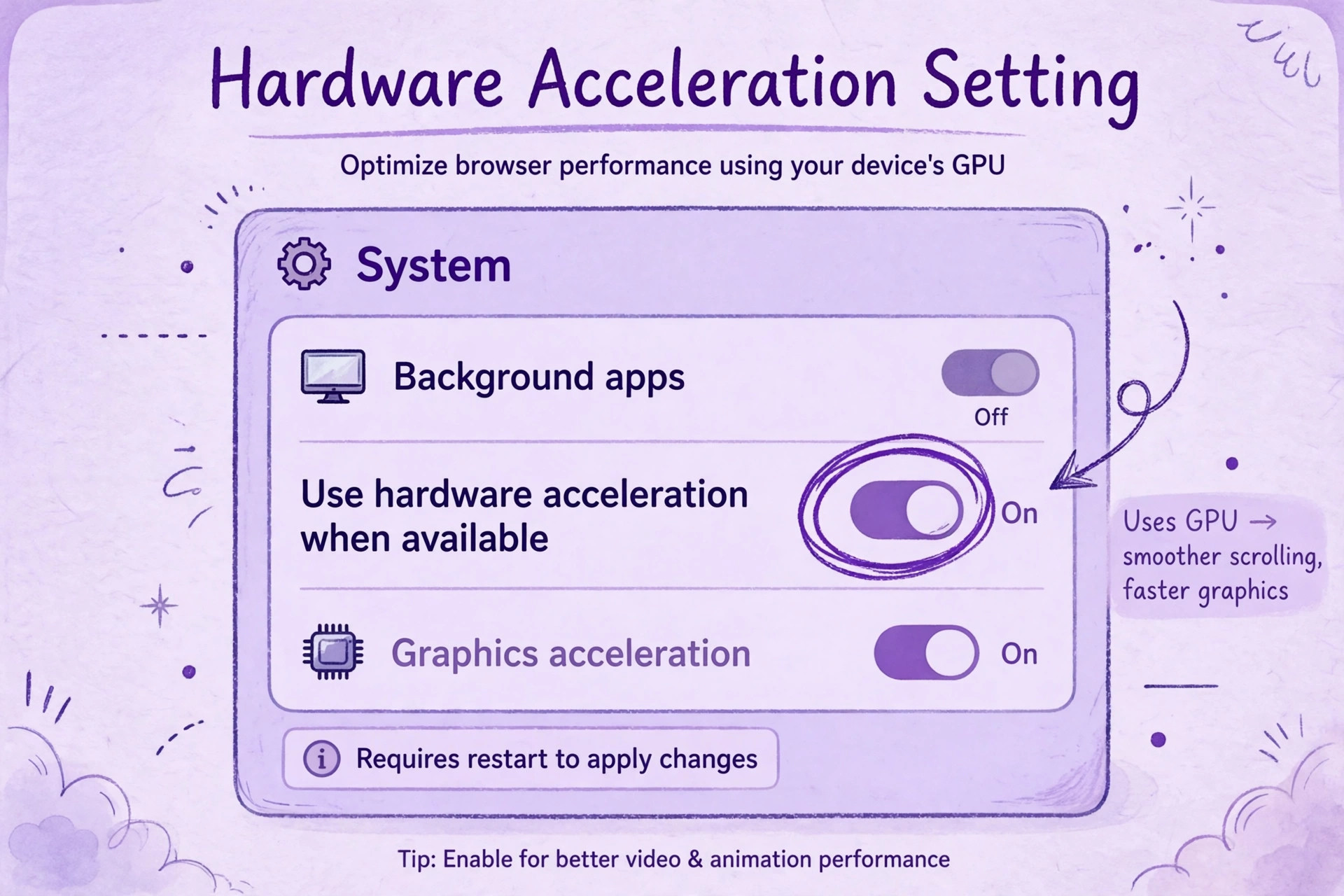
Hardware acceleration hands video decoding to your graphics card, which is faster and smoother than software decoding when it works, and a source of black screens when the driver disagrees with Chrome. Open Chrome settings, then System, and find the hardware acceleration toggle. If it is on, turn it off, relaunch Chrome, and test. If videos play with it off, the graphics driver is the problem, and updating the driver from the graphics card maker’s site, rather than from Windows Update alone, is the lasting fix, after which you can turn acceleration back on.
If acceleration is already off and videos fail, turn it on, relaunch, and test, because software decoding without GPU help can fail on high resolution video that the processor cannot handle alone. Check the graphics status page by typing the GPU internals address into Chrome’s address bar, which shows whether video decoding is hardware accelerated and whether any feature is blocked. A driver update followed by a relaunch resolves most acceleration faults, and running without acceleration permanently is a workaround, not a solution, because it costs performance everywhere else.
Step 6. Check site permissions for sound, JavaScript, and autoplay
Chrome can block video silently through site permissions. Click the tune or lock icon in the address bar on the video page and check that Sound is allowed and JavaScript is allowed, because a video player built on scripts cannot run without JavaScript, and a muted site permission produces a video that plays with no sound. Check autoplay settings too. Chrome blocks autoplay with sound on many sites, so a video that refuses to start may be waiting for a click rather than failing. Click the play button deliberately and check whether sound is muted inside the player itself, which is a separate control from Chrome’s permission.
If a site works after allowing sound and JavaScript, the permission was the cause, and the fix is permanent for that site.
Step 7. Test a fresh Chrome profile and reinstall as a last resort
A corrupted Chrome profile can break video while a clean profile plays perfectly, and testing a profile is faster than reinstalling. Create a new profile from the profile menu, open the video page in that profile without signing in or adding extensions, and test. If videos play in the new profile, your original profile carries a bad setting, flag, or stored state, and moving to the new profile or resetting the original profile’s settings is the fix. Resetting settings from Chrome settings restores defaults without deleting bookmarks or passwords.
Only if a fresh profile also fails, and the driver and codec steps have been tried, should you uninstall and reinstall Chrome, because reinstallation is disruptive and rarely fixes what a profile test would not have revealed.
Codecs Explained Without the Jargon
A codec is simply the method a video file uses to compress pictures, and Chrome can only play a video if your machine can decode its codec. Chrome on desktop supports the common web codecs, including H.264, VP9, and AV1, out of the box. The gap that causes most format errors is HEVC, also called H.265, which Chrome on Windows supports only when the machine has hardware HEVC decoding and the operating system provides the codec. Windows does not include HEVC support by default, and it may require the HEVC Video Extensions from the Microsoft Store or a third-party codec pack before Chrome can use it.
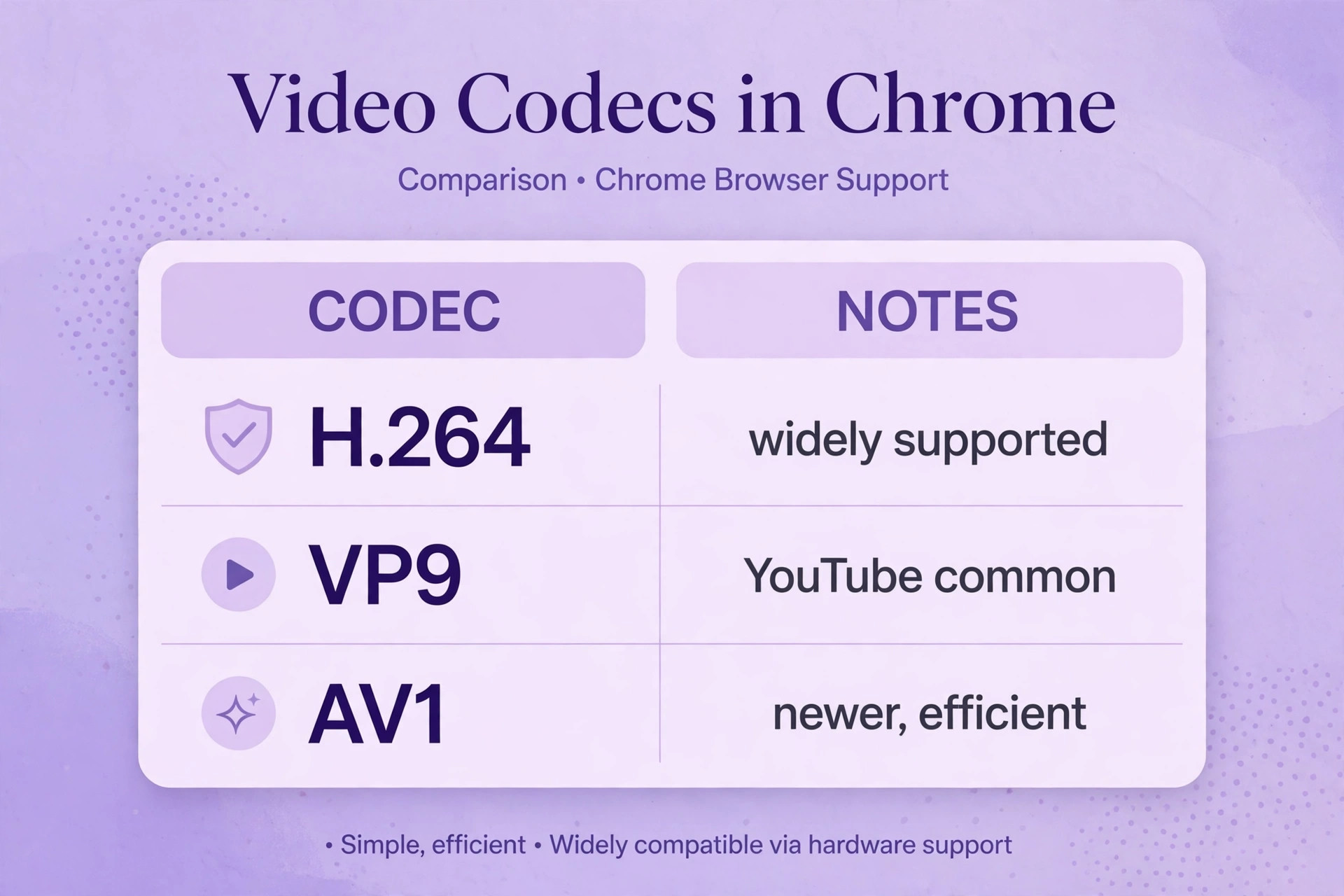
That is why an HEVC video can play in a media player that bundles its own codecs and fail in Chrome, which relies on the system. If your failing videos are HEVC files, install the system HEVC support, confirm hardware acceleration is on, and test again. If the machine lacks hardware HEVC decoding, the practical answer is to use a browser that handles the file through the operating system’s media stack, or to convert the file to H.264, rather than fighting Chrome’s codec support.
On Linux, the equivalent gap is a missing codec library for Chromium builds, which some distributions ship without proprietary codec support. Installing the distribution’s extra codec package for Chromium restores H.264 playback in those builds. On macOS, codec support is broader through the system frameworks, so format errors there point more often at the site or the file than at a missing codec. The practical rule across all systems is the same. If one codec family fails while others play, the problem is codec support, not Chrome in general, and the fix is a codec, a driver, or a different player, not a Chrome reset. DRM protected video adds another layer.
Services that protect their streams use a component called Widevine, which Chrome updates automatically. If a DRM service shows an error while ordinary videos play, check that Widevine is up to date in Chrome’s components page, disable extensions that interfere with DRM, and test in a fresh profile. A blocked or outdated Widevine component produces errors only on protected services, which is why ordinary videos can play perfectly while one subscription service refuses.
Performance problems that look like playback failures
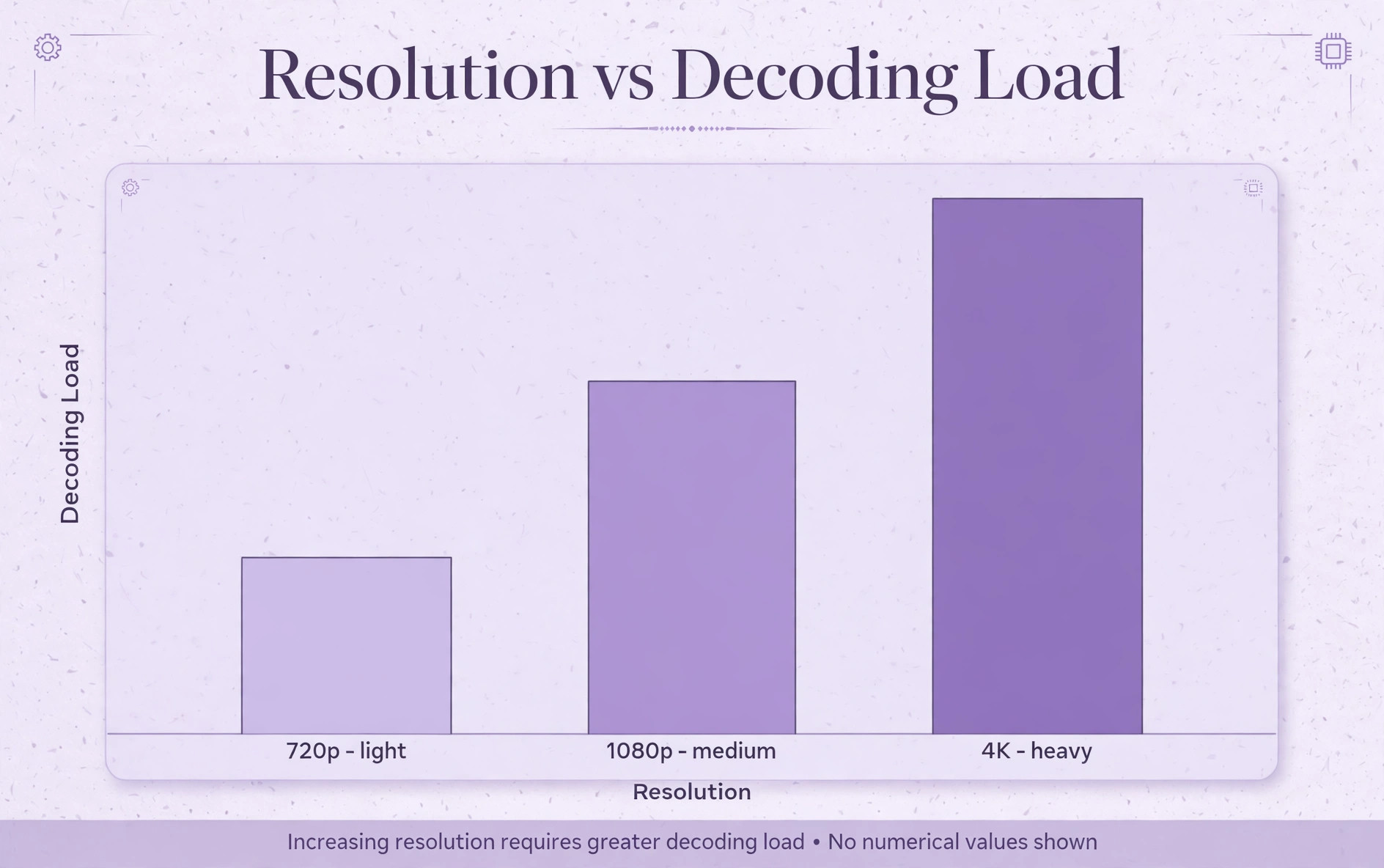
Not every video problem is a failure to play. Stuttering, dropped frames, and audio drifting out of sync are performance problems, and they have their own causes. High resolution video, especially 4K, demands hardware decoding, and a machine decoding in software because acceleration is off or the driver is broken will stutter even on a fast connection. Check that hardware acceleration is on and the driver is current, close other heavy programs and browser tabs, and test at a lower resolution to confirm the pattern. If 1080p plays smoothly and 4K stutters, the machine is at its decoding limit, and the answer is a lower resolution, a driver update, or hardware acceleration, not a Chrome setting.
Multiple monitors, especially mixed refresh rates, can also cause stutter on some graphics drivers, so test with a single monitor if stutter persists. Battery saver modes on laptops throttle the processor and graphics, so a laptop that plays video fine on power and stutters on battery is exhibiting power management, not a Chrome fault, and plugging in is the honest test.
When the Site or the Network Is the Real Fault
It is worth stating plainly that some video failures are not yours to fix. A site experiencing an outage, a video delivery network struggling under load, or a video removed or region restricted will fail in every browser and on every device, and no Chrome setting changes that. Test the same video on another device and another network before you spend an hour on Chrome internals. A video that fails on your home Wi-Fi but plays on mobile data points at your network, your internet provider, or a filtering device on your network, such as a parental control or a corporate filter. A video that fails only on one site while every other site plays points at that site.
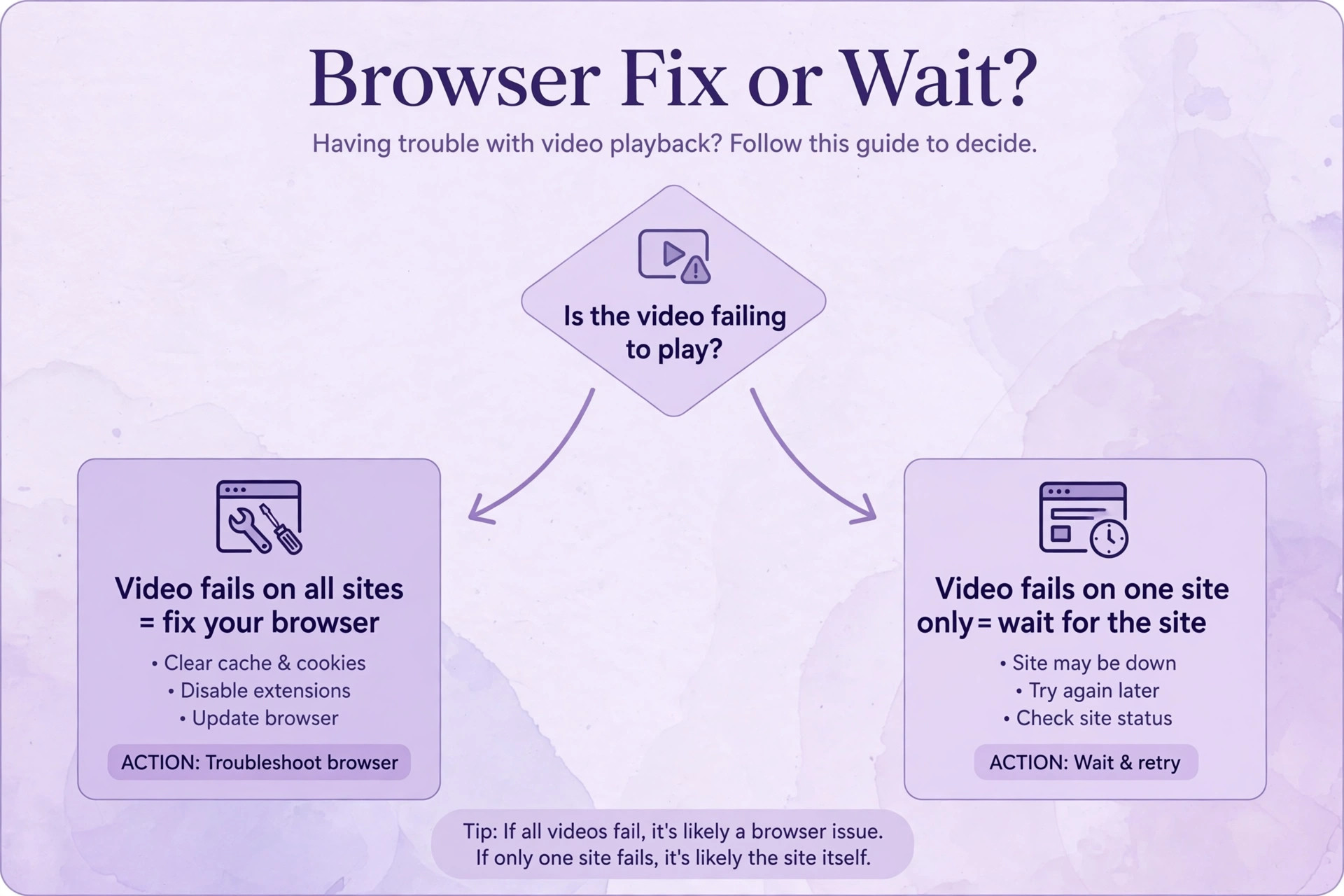
A video that fails only at certain times of day points at congestion. In each case the fix is patience, a different network, or a message to the site or provider, and recognising that early saves you from breaking a working Chrome installation while chasing a fault that lives elsewhere.
Corporate and school networks deserve a special note, because they filter more aggressively than home networks. Firewalls and content filters can block video delivery domains while allowing the main site to load, producing a page that looks complete but whose player never starts. If videos fail only on a managed network and play everywhere else, the network’s filtering is the likely cause, and the network administrator is the only person who can adjust it. The same applies to some public Wi-Fi networks that throttle video. Testing on mobile data separates a network filter from a Chrome fault in seconds, and it is the test most owners skip because they assume the browser is at fault by default.
Chrome Flags and Experiments That Break Video
Chrome’s experimental flags page lets users toggle unfinished features, and a flag changed months ago can break video long after the reason for changing it is forgotten. Flags affecting media decoding, graphics rendering, and autoplay behaviour are the usual suspects. If videos fail in your normal profile but play in a fresh profile, and extensions and cache are already cleared, open the flags page and reset all flags to default, then relaunch Chrome and test. This step is easy to overlook because the flags page is rarely visited, yet it explains a class of failures where Chrome itself is the only variable and every other test passes.
The same logic applies to enterprise policies on work machines, which can disable media features or force proxy settings that break video. On a managed machine, check with IT before assuming a Chrome fault, because a policy can override settings you change locally. Anyone working to fix Chrome videos not playing on a work laptop should test with a personal profile or an unmanaged device before spending an evening on flags and policies they cannot control. A flag reset costs seconds, and it belongs in the checklist before reinstallation, not after it.
Mistakes People Make When They Try to Fix Chrome Videos Not Playing
The most common mistake when you try to fix Chrome videos not playing is to reinstall Chrome before testing incognito, which erases a working setup for an extension problem a ten second test would have found. The second mistake is to change several settings at once, toggling acceleration, clearing data, and disabling extensions together, so the fix is never identified and the problem returns with the next change. The third mistake is to assume every video failure is Chrome’s fault, when the site, the network, or the codec is the real cause, and the cross-browser test would have shown it.
The fourth mistake is to run permanently without hardware acceleration after it fixes a black screen, instead of updating the graphics driver and turning acceleration back on, which leaves every video and every page slower than it should be. Work the order, test after each step, and note what changed, because a video problem that returns in a month is usually the same cause, and your notes will find it fast. Learning how to fix Chrome videos not playing properly is mostly learning to test in the right order, not learning more settings.
A Routine That Keeps Chrome Video Reliable
Video reliability is mostly maintenance. Keep Chrome updated and let it restart after updates rather than running for weeks on an old build. Keep extensions few and well maintained, and remove any you no longer use, because every extension is a potential interference with media playback. Keep the graphics driver current from the card maker’s site, and turn hardware acceleration back on after any driver update that fixed a black screen. Clear cached data occasionally, especially after a site redesign, and test a failing video in incognito before you change anything else. These habits take minutes and prevent the slow accumulation of stale cache, outdated extensions, and old drivers that causes most video complaints.
If you watch video professionally or daily, keep a second browser installed as a known good test, because a video that plays in the second browser instantly tells you Chrome is the problem, and a video that fails in both tells you the machine or the site is.
More Reading on Stratilyze
Video playback faults usually sit in the browser, the network or the site itself, so readers whose videos will not play usually narrow it down with the neighbouring guides next. The guide to Chrome pages that will not load at all separates a browser-wide failure from a video-only one, the guide to Chrome running slow on Windows covers the tab, extension and memory checks that starve video playback first, and the guide to YouTube videos buffering on a slow connection explains the network side when the player works but the stream keeps stalling.
Frequently Asked Questions
Why do Chrome videos play with sound but a black screen?
This pattern usually means video decoding failed while audio decoding succeeded, which points at hardware acceleration or the graphics driver. Turn hardware acceleration off in Chrome settings, relaunch, and test. If videos play with it off, update the graphics driver from the card maker’s site and turn acceleration back on. If the problem persists with acceleration off, test in a fresh Chrome profile to rule out a profile fault.
Why do videos play in incognito but not in a normal Chrome window?
Incognito disables extensions and ignores most cached data, so playback there points at an extension or corrupted cache in your normal window. Disable all extensions and re-enable them in groups to find the culprit, paying attention to ad blockers and script blockers, and clear cached images and files. If videos still fail with extensions off and cache cleared, test a fresh profile, because a stored site setting or flag may be the cause.
Does Chrome support HEVC video?
Chrome on Windows supports HEVC only when the machine has hardware HEVC decoding and the operating system provides the codec, which Windows does not include by default. Installing the HEVC Video Extensions from the Microsoft Store or a third-party codec pack often restores playback. If the machine lacks hardware HEVC decoding, use a player or browser that handles the file through the system media stack, or convert the file to H.264.
Why do videos stutter in Chrome but play smoothly elsewhere?
Stuttering usually means the machine is decoding in software without GPU help, or the graphics driver is outdated. Confirm hardware acceleration is on, update the graphics driver, close heavy programs and extra tabs, and test at a lower resolution. If 1080p plays smoothly and 4K stutters, the machine is at its decoding limit. Laptops on battery saver mode also throttle decoding, so test while plugged in.
Should I reinstall Chrome to fix video playback?
Only as a last resort, after the incognito test, extension isolation, cache clear, acceleration toggle, driver update, and fresh profile test have all failed. Reinstallation rarely fixes what a fresh profile test would not reveal, and it disrupts your setup. If a fresh profile plays videos while your original profile does not, reset the original profile’s settings or move to the new profile instead of reinstalling.
Can an ad blocker really break video playback?
Yes, and it is one of the most common causes. Aggressive ad blockers can strip video player scripts along with advertisements, block media requests, or break the player’s communication with its delivery network. Test with the blocker disabled on the affected site, check for a blocker update, and consider allowing the video site if the blocker offers a per-site exception. If you need to fix Chrome videos not playing on a site you trust, the blocker exception is often the entire answer.
The Final Word on Chrome Video That Will Not Play
A video that will not play in Chrome is a symptom with several possible diseases, and the cure depends on naming the right one. The incognito test and the second browser test name it in under a minute. The fix order then works from extensions and cache through acceleration and drivers to codecs and profiles, stopping the moment video returns. Keep Chrome and the graphics driver updated, keep extensions lean, and keep a second browser ready as a test. Do that, and the next time you need to fix Chrome videos not playing, you will spend minutes on the cause instead of an evening on every setting at once.