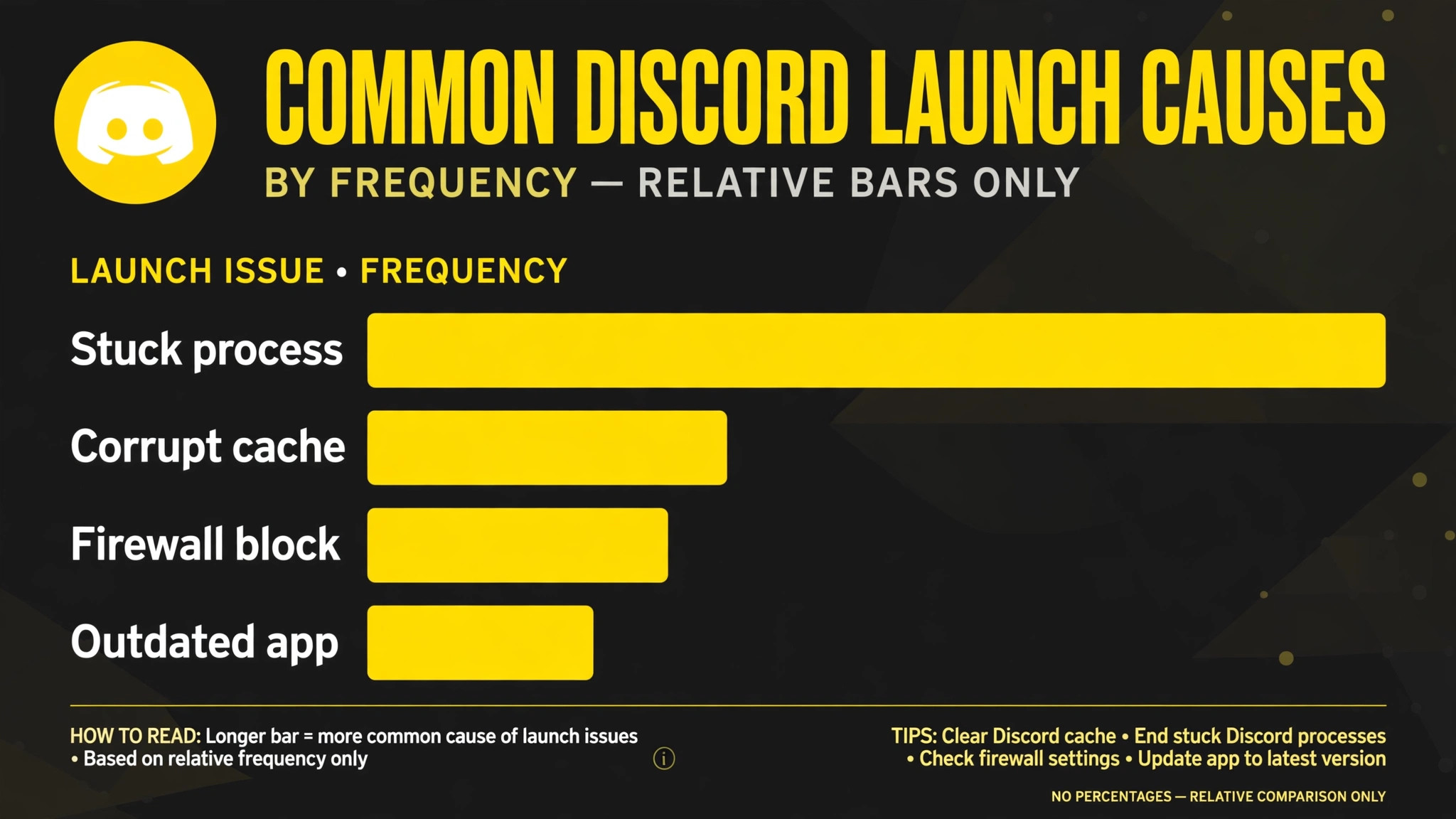
Other Windows apps fail loudly, with an error window, a crash report, or a message that explains what went wrong. Discord often fails silently, which makes it harder to diagnose. You double click the icon, nothing appears, no error shows, and the app seems to have ignored you completely. That silence is itself a clue when you fix Discord not opening Windows, because it usually means Discord is already running in the background in a stuck state, its update process is blocked, or its local data is damaged in a way that stops the window from ever appearing.
Compared with a browser that fails to load a page, where the network is the obvious suspect, a Discord launch failure is usually a local Windows problem, not a Discord server problem. To fix Discord not opening Windows trouble, you therefore start on the computer itself, with processes and local data, before you consider the network or the account. This guide follows that order, from the silent stuck process to the clean reinstall that should be your last step.
What the Silence Tells You About the Fault
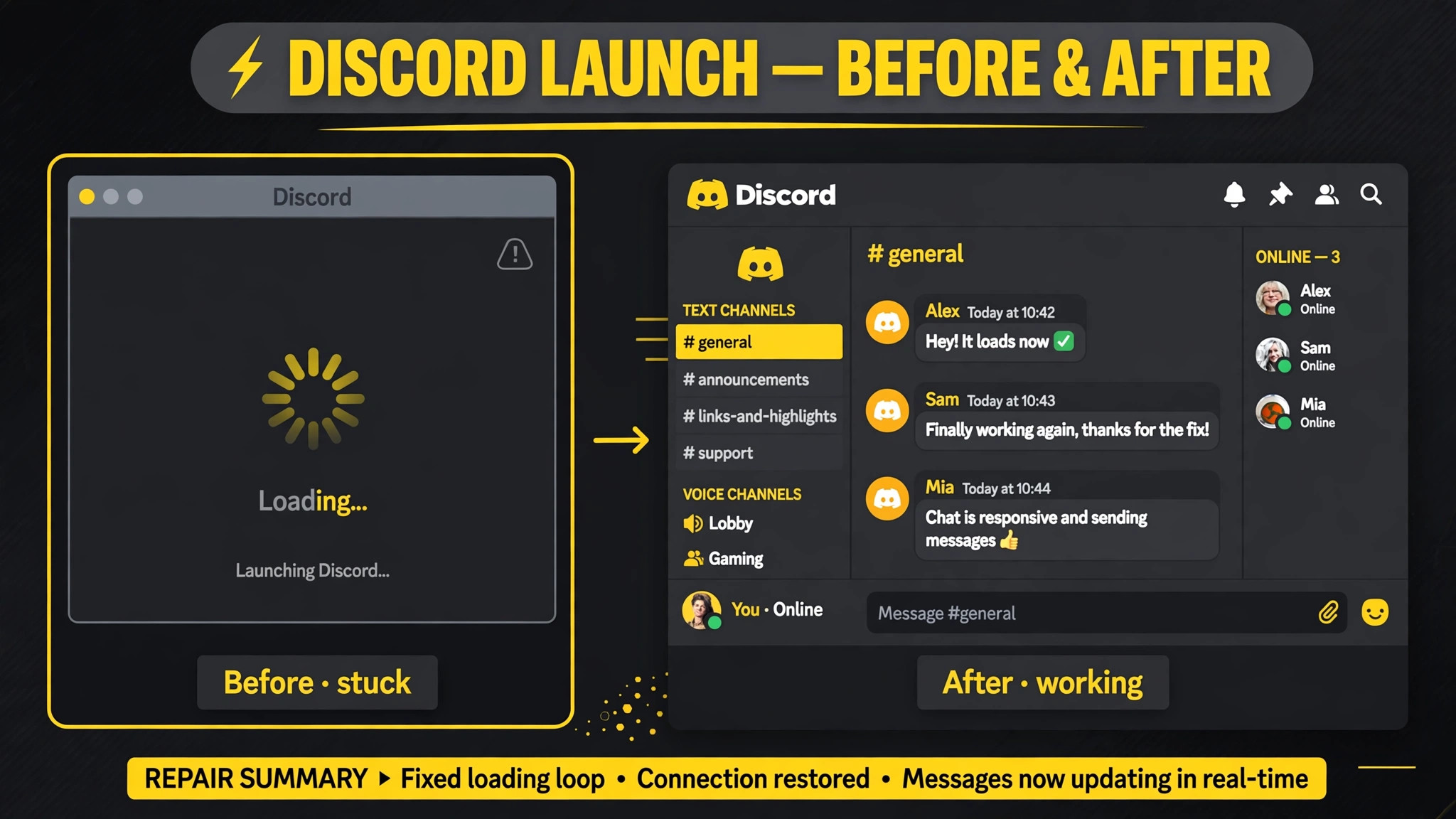
Discord launch failures fall into a few recognisable patterns, even without an error message. If clicking the icon does nothing at all, a previous Discord process is often still running in the background, holding resources and preventing a new window from opening. If Discord shows a splash screen or a loading spinner forever, its update check or its local cache is likely blocked. If Discord opens and then closes immediately, a corrupted file, a conflicting program, or a graphics problem is more likely. If Discord opens on the web but not as a desktop app, the desktop install or its local data is at fault, while the account and network are proven healthy.
Checking which pattern matches yours takes a minute and it determines which section below matters most.
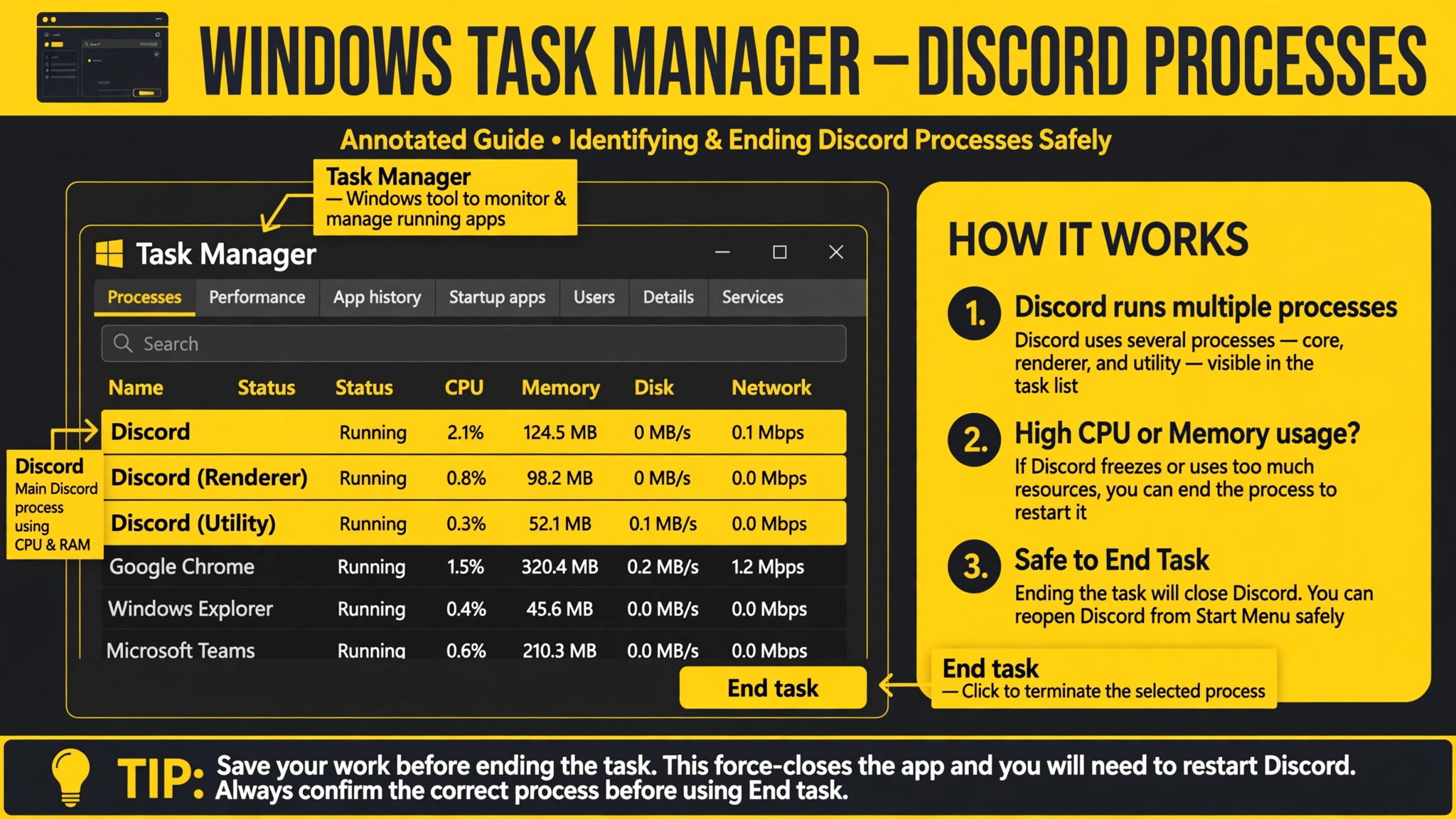
Open Task Manager first, before changing anything, and look for Discord entries. Press Ctrl, Shift, and Esc together to open Task Manager, open the Processes tab, and search for Discord. If you find Discord or its updater running while no window is visible, you have found a stuck process, and ending it is the fix. Also check the system tray in the bottom right corner, because Discord can run minimised there without a visible window, and clicking its tray icon may restore a window you thought had never opened.
Check whether Discord appears briefly in Task Manager and then vanishes, because that pattern points to a crash on launch rather than a stuck process, and the cache and reinstall sections become more relevant. These observations cost nothing and they prevent the mistake of reinstalling an app that was simply already running.
| Launch symptom | Likely cause | First action to try |
|---|---|---|
| Clicking icon does nothing, no window | Stuck background process | End all Discord processes in Task Manager |
| Splash screen or spinner never ends | Blocked update or corrupt cache | Clear AppData folders and test again |
| Window opens then closes immediately | Corrupt install or conflicting software | Run as administrator and test clean boot |
| Discord works on web but not desktop | Desktop install or local data fault | Clear local data and reinstall desktop app |
| Discord fails after a Windows update | Permission or compatibility change | Run as administrator and check compatibility |
| Discord fails only on a work or school network | Network block or proxy interference | Test on phone hotspot and disable proxy |
| Discord fails with a Javascript or update error | Corrupt update files | Delete AppData folders and reinstall |
| Discord opens but shows a blank window | Graphics or cache fault | Disable hardware acceleration via settings file |
The web test deserves emphasis, because it is the fastest way to separate a local fault from an account or server fault. Open a browser, go to the Discord web app, and sign in. If the web app works, your account is healthy, your network can reach Discord, and the fault is confined to the desktop app on that computer. If the web app also fails, the fault may be network, account, or service related, and the network section below matters more. Keep that test in mind throughout, because it tells you whether to keep working on the desktop install or to step back and check the wider connection.
Fix Discord Not Opening Windows With This Ordered Checklist
Work through this checklist in order, testing a launch after each group. Do not delete local data until you have ended stuck processes, because deleting data while Discord is still running can fail or leave partial files that complicate the next launch.
1. Discord Stuck Processes and the Task Manager Fix
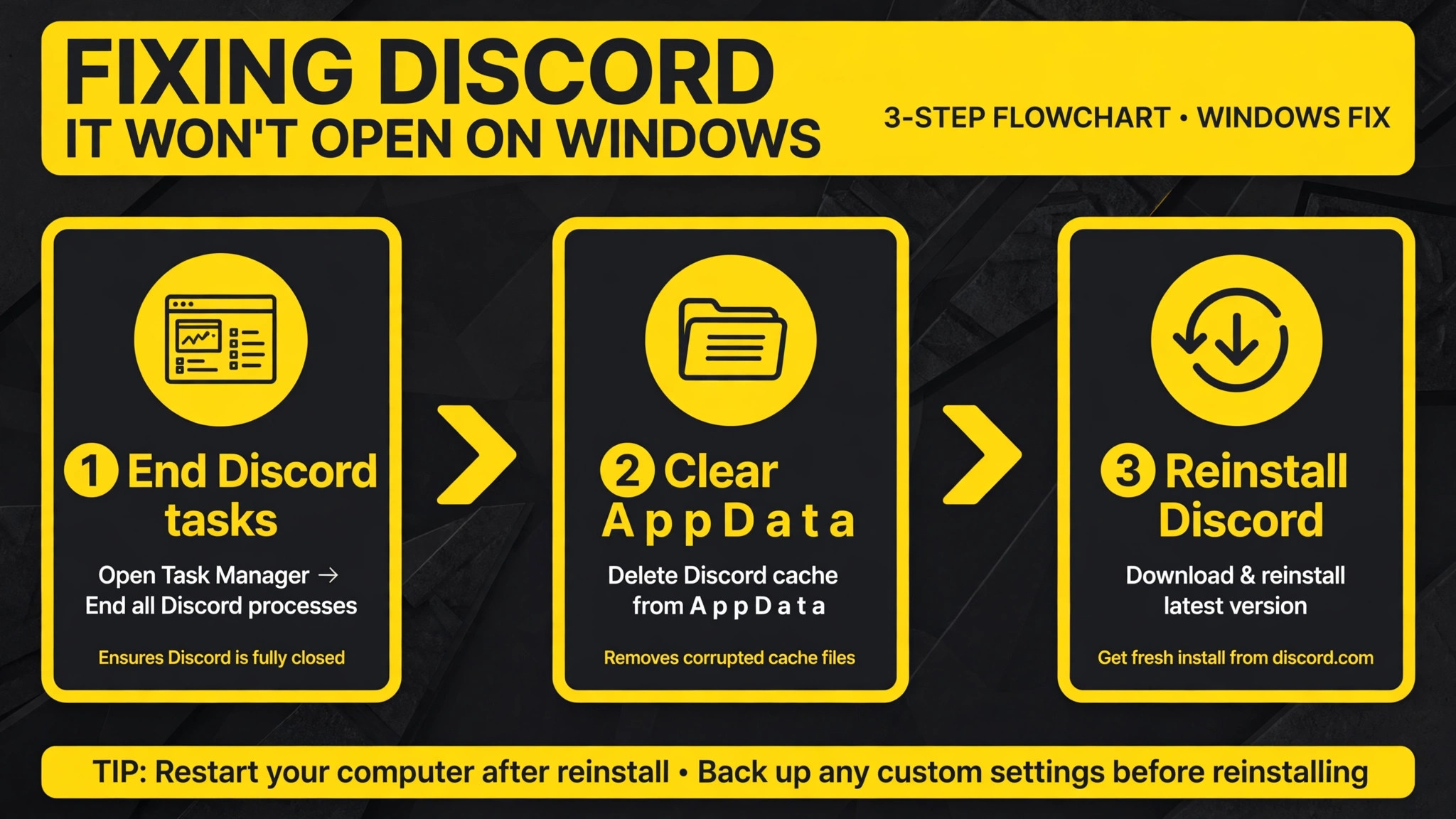
Open Task Manager with Ctrl, Shift, and Esc, and end every process named Discord. Look for both the main Discord process and the updater process, because the updater can hold the install in a state that blocks a new launch even when the main app is closed. Right click each Discord entry and choose End task. If you prefer the command line, open Command Prompt as administrator and run the taskkill command for discord.exe, which ends the process forcefully. After ending all Discord processes, wait a few seconds and launch Discord again from the Start menu rather than from a pinned taskbar shortcut, in case the shortcut itself is damaged.
Restart the computer if ending processes does not help, because a restart clears every stuck process, releases locked files, and resets the update state in one step. A restart also reveals whether the problem is persistent or was a one off process fault, since a Discord that launches cleanly after a restart but fails again later points to a recurring process or update issue rather than permanent corruption. If Discord launches after a restart but fails on the next day, check whether Discord is set to start with Windows and whether its startup entry is conflicting with another startup program, because startup order problems can recreate the stuck state on every boot.
2. Discord AppData and Cache Clearing the Right Way
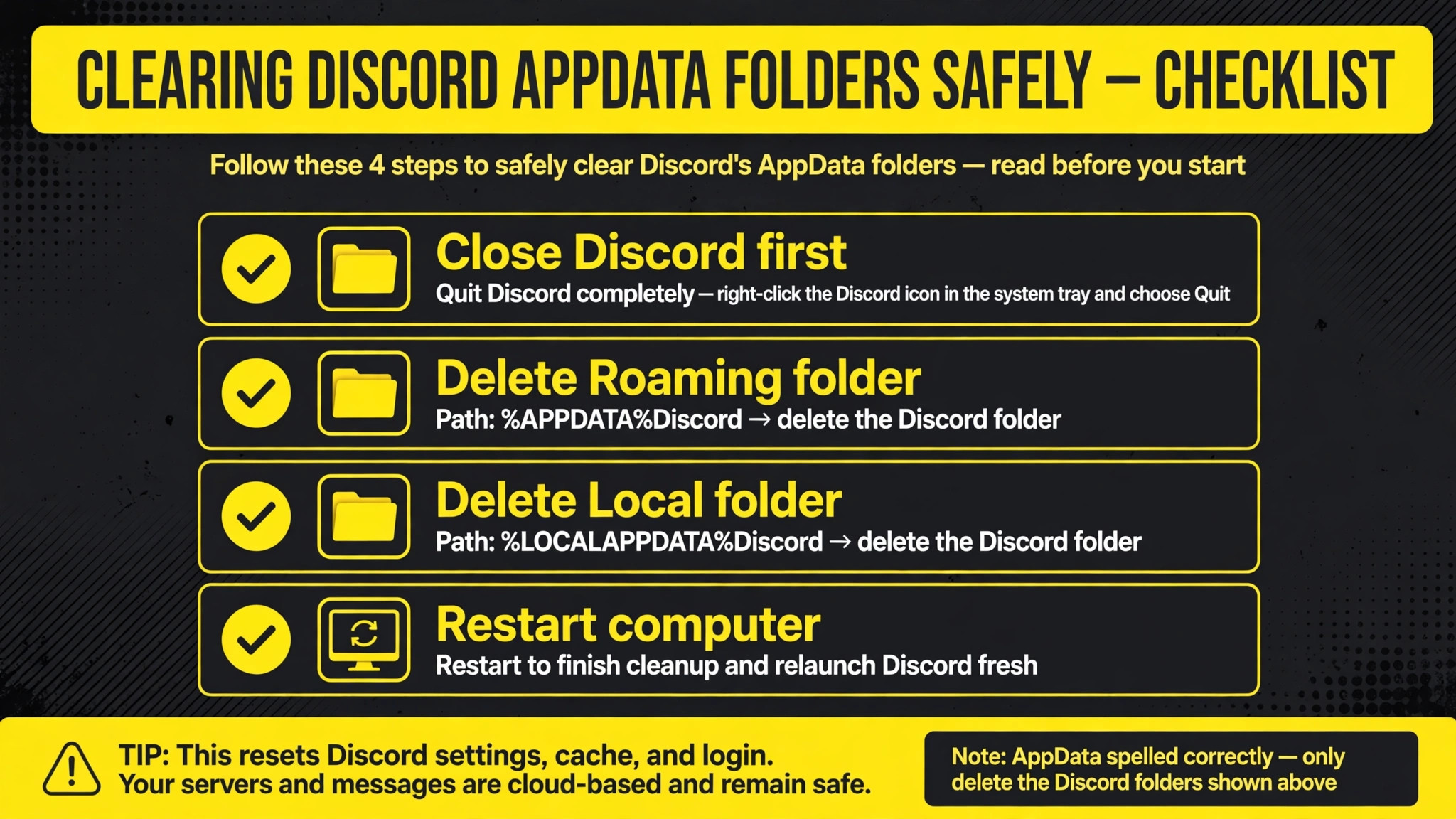
Discord stores local data in two folders inside the user profile, one in the Roaming AppData folder and one in the Local AppData folder. The official repair procedure removes the Discord folder from both locations, because clearing only the cache subfolders sometimes leaves the damaged files that block launch. Before deleting anything, end all Discord processes as described above, and confirm in Task Manager that no Discord process remains, because Windows will refuse to delete files that are in use. Then press the Windows key and R together, type the Roaming AppData shortcut, press Enter, find the Discord folder, and delete it. Repeat with the Local AppData shortcut and delete the Discord folder there as well.
This deletion does not delete your account, servers, messages, or friends, because those live on Discord servers and return when you sign in again. It does remove local settings and cached files, which Discord rebuilds on the next launch, so you may need to adjust a few preferences afterwards. After deleting both folders, restart the computer and launch Discord, allowing it to download a fresh copy of its local data. If Discord launches after this step, the fault was corrupted local data, and you have fixed it without reinstalling. If it still fails, the fault lies deeper, in the install itself, in permissions, or in a conflicting program, and the following sections address those causes.
When you need to fix Discord not opening Windows faults that survive a process restart, this AppData clearing is the most effective single step, and it resolves a large share of persistent launch failures.
3. Discord Administrator, Compatibility, and Graphics Checks
Right click the Discord shortcut and choose Run as administrator to test whether a permission problem blocks launch. If Discord opens as administrator but not normally, a permission fault is involved, and you can make administrator running permanent through the shortcut Properties, under Compatibility, by checking the run as administrator option. Use that permanent setting cautiously, because running apps as administrator has security implications, and prefer it only when the test proves it is necessary. If Discord still fails as administrator, permission is not the cause, and you should move on rather than leaving administrator mode on unnecessarily.
Compatibility mode is a useful test for older systems or for Discord versions that conflict with a new Windows update. In the shortcut Properties, under Compatibility, try running Discord in compatibility mode for an earlier Windows version, and test a launch. If that works, keep the setting while you investigate whether a Windows update or a driver update caused the conflict, and test again after future updates to see whether compatibility mode is still needed. Graphics problems can also block the Discord window, because Discord uses hardware acceleration to render its interface.
If Discord launches to a blank window, disabling hardware acceleration through the settings file, where the option is stored, or testing with graphics driver updates, can restore the window. Update the graphics driver from the manufacturer website as part of this check, since outdated graphics drivers cause blank window faults in apps built on web technology.
4. Discord Updates, Firewall, and Antivirus Blocks
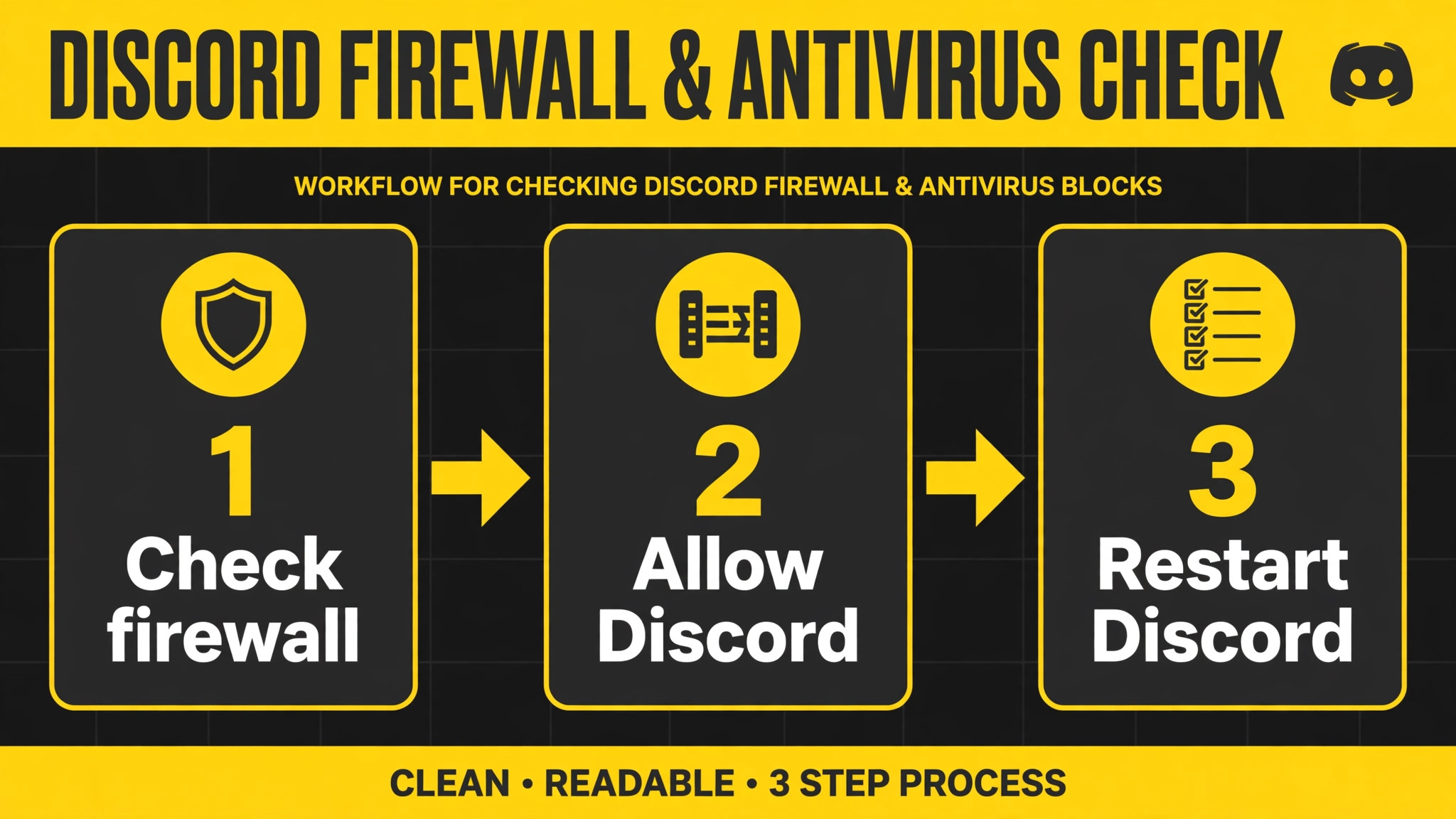
Discord updates itself on launch, and a blocked or interrupted update can leave the app in a state where it never opens. Check that the Discord updater can reach the internet by testing the web app and by confirming no firewall rule blocks Discord. Open Windows Firewall settings and confirm Discord is allowed through, for both private and public networks where appropriate, and check third party firewall or antivirus software for a blocked Discord entry. Security software sometimes quarantines Discord update files after an update, mistaking them for unfamiliar executables, so check the quarantine list if Discord failed immediately after an update. Restoring a quarantined Discord file, where safe, can resolve the fault without a reinstall.
Temporarily testing with antivirus real time protection paused, where permitted and safe, can reveal whether security software is the blocker, but restore protection promptly afterwards and add a Discord exception only if the test proves it necessary. Also check whether Windows is pending an update that requires a restart, because a system left in a half updated state can block app launches unpredictably. Install pending Windows updates, restart, and test Discord again. If Discord fails only after a specific Windows update, compatibility mode and driver updates become the more likely fixes, and reporting the update version to Discord support helps them identify a pattern affecting many users.
5. Discord Proxy, VPN, and Network Restrictions
Proxy settings and VPN connections can prevent Discord from completing its launch, because Discord must contact its servers during startup to check for updates and to sign in. Open Windows Settings, open Network and Internet, open Proxy, and turn off the manual proxy option for testing. Disconnect from any VPN temporarily and launch Discord again. If Discord opens without the VPN or proxy, the network path was the problem, and you should check the VPN or proxy configuration for Discord exceptions rather than leaving the VPN off permanently. On a work or school network, Discord may be blocked by design, and testing on a phone hotspot separates a network block from a computer fault in one step.
If Discord opens on a hotspot but not on the work network, the network policy is the cause, and no computer fix will change it.
Flush the DNS cache as a further network test, since stale DNS entries can block the update check at startup. Open Command Prompt as administrator, run the flush DNS command, and relaunch Discord. This step is harmless and quick, and it resolves launch failures where Discord cannot resolve its update server address. Also test with a different DNS setting only if you understand the implications, and revert any change that does not help. Network faults are less common than process and cache faults for Discord launch failures, but they are worth testing before a reinstall, because a reinstall on a blocked network will fail in exactly the same way as the original install.
6. Discord Clean Reinstall and the Web App Fallback
When earlier steps fail, perform a clean reinstall. Uninstall Discord through Windows Settings, under Apps, then delete any remaining Discord folders in Roaming and Local AppData, as described above, then restart the computer. Download the latest installer from the official Discord website and install it with default settings, avoiding third party download sites that may bundle unwanted software. Sign in and test a launch before restoring custom settings or themes, because a custom theme or plugin, where used, can itself block launch. If the clean install launches, rebuild settings gradually and test after adding each customisation, so you can identify any customisation that breaks launch.
Use the Discord web app as a fallback while troubleshooting, and consider the Public Test Build as a diagnostic tool. The Public Test Build is a separate Discord install that can work when the stable version fails, and if it launches while stable does not, the stable install is likely corrupted in a way that a clean reinstall should fix. If neither the stable version, the test build, nor the web app launches, the fault is broader, involving the network, the account, or the computer itself, and support evidence should include the results of all three tests.
To fix Discord not opening Windows faults that survive a clean reinstall, that three way comparison is the evidence support staff need, because it proves the fault is not confined to one install.
Discord fails most often right after an update, either a Discord update or a Windows update, and the timing is diagnostic. A Discord update that interrupts, perhaps because the computer shut down or lost power during the update, leaves update files in a half written state that blocks the next launch. The AppData clearing and clean reinstall steps address exactly that state, because they remove the half written files and replace them with a fresh download. A Windows update that changes permissions, drivers, or compatibility can also break a previously working Discord, and in that case the administrator, compatibility, and driver checks matter more than cache clearing.
Noting which update preceded the failure therefore guides the fix, and it also helps when reporting the problem, because support teams track update related patterns closely.
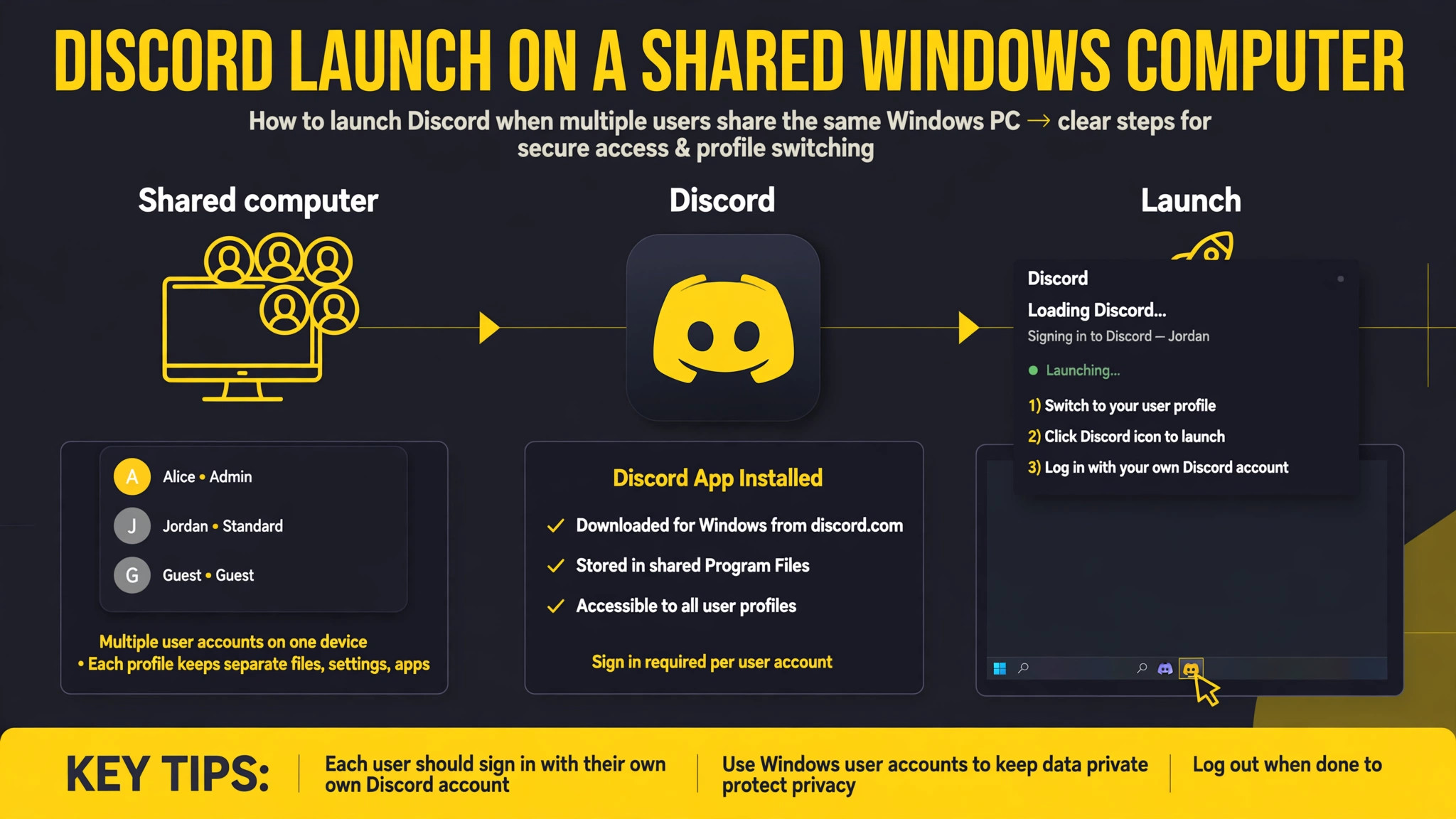
On a shared computer, Discord launch failures have an added layer. Multiple user accounts each have their own AppData folders, so clearing AppData for one user does not fix Discord for another user. If Discord fails for one Windows user but works for another on the same computer, the fault is confined to that user profile, and clearing that user AppData or testing with a fresh Windows user profile separates a profile fault from a system fault. If Discord fails for every user, the fault is system wide, involving the install, drivers, or network policy.
Also check whether Discord is installed per user or per machine, because a per user install that was removed for one user may leave shortcuts that point nowhere for others. These shared computer checks prevent a clean reinstall for one user from being declared a failure when another user profile was the actual fault.
Preventing Discord Launch Failures in Future
Once Discord launches again, a few habits reduce repeat failures. Allow Discord updates to complete without shutting down the computer mid update, and avoid ending Discord processes forcefully unless necessary, since forceful termination during an update is a common cause of corrupted local data. Keep Windows and graphics drivers updated, but install updates at a time when you can restart promptly, rather than leaving the system in a half updated state for days. Review startup programs occasionally, because a growing startup list increases the chance of a startup conflict that recreates the stuck process state on every boot.
Keep only one Discord install, stable or test build, as your daily driver, and use the other only for diagnosis, so the two installs do not compete for the same local data or update state.
Back up your Discord settings mentally rather than technically, by noting any custom keybinds, themes, or notification preferences you rely on, so that an AppData clear or reinstall does not feel like a loss. That note makes the most effective fix, AppData clearing, feel low cost, which means you will use it early rather than avoiding it until the problem becomes severe. Check firewall and antivirus exceptions after installing new security software, because a new security tool can block Discord silently on its first launch after installation. These habits take minutes and they turn Discord launch failure from a recurring frustration into a rare event with a known fix.
Discord Errors That Look Like a Launch Failure but Are Not
Some Discord problems look like a launch failure while being something else entirely, and recognising them saves a reinstall. A Discord window that opens but shows only a grey screen may be a graphics or display scaling fault rather than a launch fault, and testing with a different display scaling setting or an updated graphics driver addresses it better than AppData clearing. A Discord that opens, signs in, and then shows no servers may be an account or connection fault rather than a launch fault, and the web app test reveals that quickly, because the web app will show the same missing servers if the account is the cause.
When you need to fix Discord not opening Windows trouble, first confirm that Discord truly never opens, rather than opening into a broken state, because the two faults have different fixes and confusing them wastes the most effective steps on the wrong problem.
A shortcut fault is another lookalike. A taskbar or desktop shortcut that points to a removed Discord install will do nothing when clicked, while Discord itself launches perfectly from the Start menu. Test by launching from the Start menu search results rather than from any pinned shortcut, and recreate shortcuts after a clean reinstall rather than keeping old ones. Similarly, a Discord that fails to open at Windows startup but opens manually later is a startup fault, not a launch fault, and disabling Discord startup and launching manually separates the two.
To fix Discord not opening Windows faults reliably, test the manual Start menu launch before concluding the app itself is broken, because shortcut and startup faults are common, easy to fix, and invisible in Task Manager.
Finally, consider whether another program is intercepting the launch. Overlay software, screen recording tools, and some gaming utilities inject code into Discord at launch, and a faulty injection can prevent the window from appearing. Test by closing overlay and recording tools before launching Discord, and test with a clean boot, where Windows starts with only essential services, to see whether a third party program is involved. If Discord launches in a clean boot but not normally, re-enable startup programs one group at a time to find the conflicting program. That methodical approach takes time, but it identifies a conflict that cache clearing and reinstalling will never fix, because the conflict returns with the conflicting program on every fresh install.
When you need to fix Discord not opening Windows trouble that survives a clean reinstall, a clean boot test is the step that most often reveals the hidden cause.
More Reading on Stratilyze
Discord launch faults on Windows usually share their cause with another app or system fault on the same machine, so readers often check the neighbouring guides next. The guide to a Discord microphone that will not work covers the same app from the audio side once it does open, the guide to Chrome running slow on Windows explains the memory and startup checks that also stall app launches, and the guide to a Windows laptop that will not turn on at all picks up the power side for machines that fail before any app can start.
Frequently Asked Questions
Why does Discord not open when I click the icon
Clicking with no visible result usually means Discord is already running as a stuck background process, or its window is minimised to the system tray. Open Task Manager, end all Discord processes, check the system tray, and launch again. If no process is running and the icon still does nothing, clear the AppData folders and test again, because corrupted local data can block the window from appearing without showing an error. A restart also clears stuck processes and is worth trying before deeper steps.
Will deleting Discord AppData delete my servers and messages
No, deleting the local AppData folders does not delete servers, messages, friends, or account settings, because those live on Discord servers. It removes local settings and cached files, which Discord rebuilds on the next launch. You may need to adjust a few preferences afterwards, but your account content returns when you sign in again. That is why AppData clearing is a safe and effective fix, unlike deleting account data, which it does not do.
Why does Discord work on the web but not as a desktop app
That pattern proves the account and network work, and confines the fault to the desktop install or its local data. End stuck processes, clear both AppData folders, and test again. If that fails, perform a clean reinstall from the official Discord website. If the desktop app still fails while the web app works, check administrator permissions, compatibility mode, graphics drivers, and security software, because one of those system layers is blocking the desktop app specifically.
Why does Discord get stuck on the loading screen
A loading screen that never ends usually means the update check is blocked or local cache is damaged. Check the network by testing the web app, disable any proxy or VPN temporarily, and clear the AppData folders. Flush the DNS cache as well, since stale DNS can block the update server lookup. If the loading screen persists after those steps, a clean reinstall replaces the update files that may be half written, which is a common cause of a permanent loading screen after an interrupted update.
Why does Discord fail only on my work or school network
Work and school networks often block Discord by policy, through firewall rules, proxy settings, or content filtering. Test Discord on a phone hotspot to confirm the network is the cause. If it works on the hotspot but not on the work network, no computer fix will override the policy, and you should use Discord on a personal network or ask the network administrator whether Discord is permitted. Do not attempt to bypass a work network policy with unauthorised tools, since that may violate acceptable use rules.
Should I use the Discord Public Test Build instead of stable
Use the Public Test Build as a diagnostic tool or a temporary fallback, not as a permanent replacement without reason. If the test build launches while stable does not, the stable install is likely corrupted, and a clean reinstall of stable should fix it. The test build receives experimental features and may contain its own bugs, so it is best for testing rather than daily use when stable works. When you need to fix Discord not opening Windows faults that survive every local step, testing the test build and the web app gives support the comparison evidence that identifies whether the fault is install specific or system wide.
A Last Resort Sequence When Nothing Else Works
If Discord still refuses to open after processes, AppData, permissions, network, and a clean reinstall, work through a final sequence before concluding the computer itself is at fault. Create a fresh Windows user profile and test Discord there, because a fresh profile separates a user profile fault from a system fault cleanly. Test Discord on a different network, such as a phone hotspot, to separate network policy from computer faults. Check Windows system files with the system file checker tool, since corrupted system files can block app launches broadly, and check for disk errors if other apps also behave strangely. If Discord works in a fresh profile, migrate to that profile or repair the original profile rather than reinstalling Windows.
If Discord fails in a fresh profile, on a different network, and after a clean install, the remaining suspects are hardware, a deep system fault, or a Discord service issue, and a support request with all test results is the right next step. That sequence is thorough, but it ends the guessing, because each test eliminates a whole category of causes.