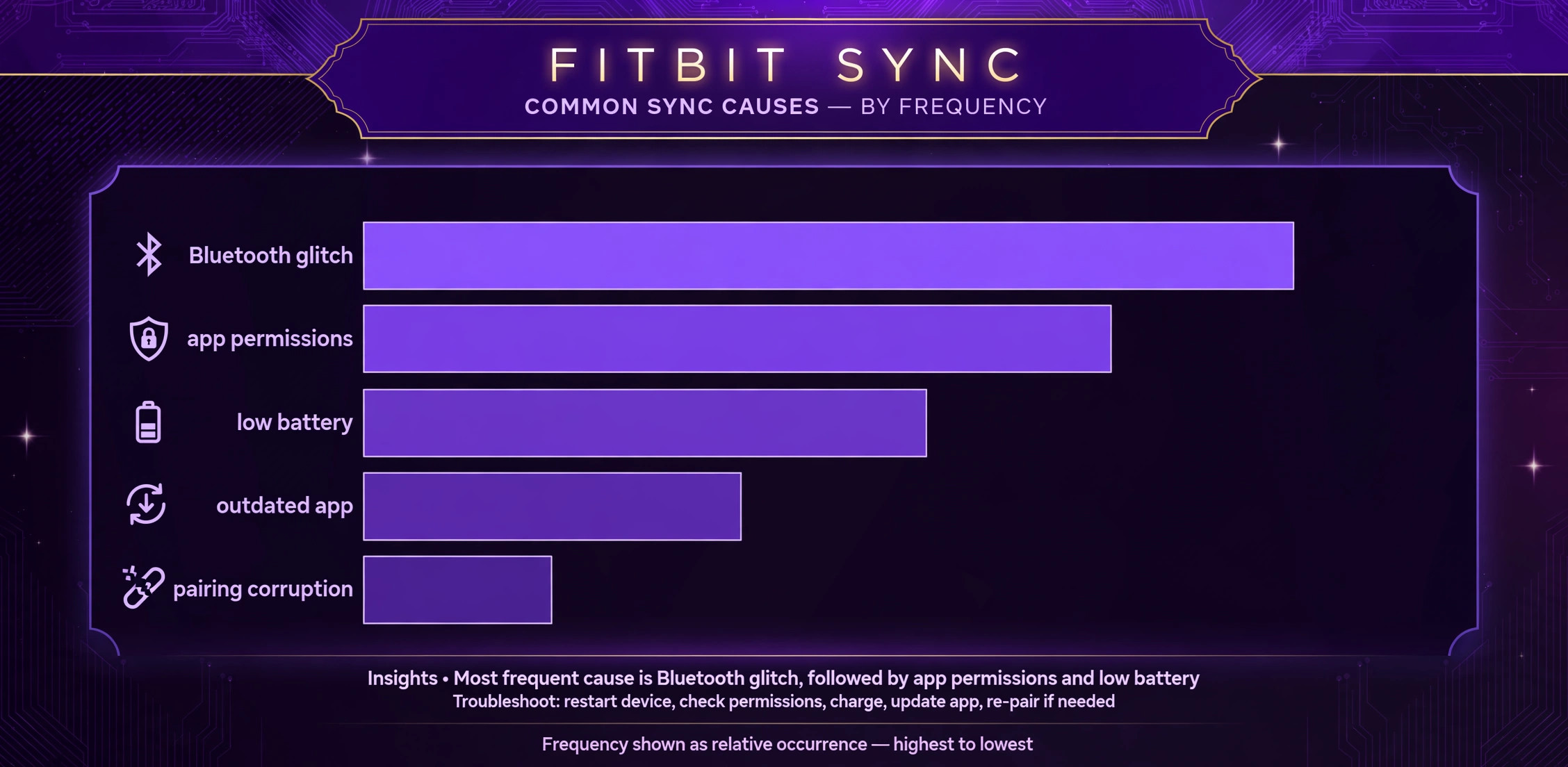
Verdict first. To fix Fitbit not syncing with phone, start on the phone side, not the tracker side, because resetting the tracker first destroys the very data you are trying to recover. Syncing depends on Bluetooth, app permissions, background activity, account data, and tracker firmware all working together, and a failure in any one of them looks the same on screen, which is a step count that stops updating while the tracker still appears connected.
This guide shows how to fix Fitbit not syncing with phone problems in an order that protects your data, proving each link in the chain before touching the next one, and it explains how to tell a phone problem from a tracker problem before you reset anything.
Diagnose Whether the Phone or the Tracker Is at Fault
Sync failure splits into two sides, and the fix depends on which side is broken. If the tracker still records steps and shows the correct time, the tracker itself is working, and the fault is more likely in the phone connection, the app, or permissions. If the tracker screen is blank, frozen, or shows the wrong time for days, the tracker may have crashed, run out of battery, or lost its own ability to sync, and a tracker restart becomes the priority. If the app shows a sync error immediately, Bluetooth pairing is likely broken.
If the app appears to sync but no new data appears, the Bluetooth handshake may succeed while data transfer fails, often because the app was closed too quickly, background activity was restricted, or the phone moved out of range mid sync. Note which pattern matches yours before changing settings.
The second phone test is decisive for the phone versus tracker question. Install the Fitbit app on a second phone or tablet, sign in with the same account, and try to sync the tracker there. If the tracker syncs on the second device, the original phone is at fault, and you should focus on its Bluetooth, permissions, and app settings. If the tracker fails on both devices, the tracker or the account is more likely at fault, and tracker restart, firmware, and support steps become the priority.
A related test is to check whether the tracker still connects to the original phone Bluetooth settings as a paired device, although Fitbit pairing should normally be managed through the app rather than through direct Bluetooth pairing, and a tracker paired directly in phone Bluetooth settings without the app can actually interfere with app syncing. Keep that distinction in mind, because pairing a Fitbit the way you pair a speaker is a common mistake that creates sync problems.
| Symptom pattern | Likely side | First action to try |
|---|---|---|
| Tracker records steps but app shows old data | Phone connection or app fault | Manual sync with app open and tracker nearby |
| App sync fails immediately with error | Bluetooth pairing fault | Forget tracker in phone Bluetooth and re-pair through app |
| App appears to sync but data never updates | Interrupted transfer or restricted background | Keep app open nearby for several minutes and check permissions |
| Tracker screen blank or frozen | Tracker fault | Charge tracker and restart it |
| Tracker time wrong for days | Tracker sync fault | Restart tracker and sync manually |
| Sync fails after a new phone | Old phone still holding connection | Remove tracker from old phone Bluetooth and app account |
| Sync fails after phone system update | Permission or Bluetooth reset | Reallow Bluetooth and background permissions |
| Sync works on second phone but not first | Original phone fault | Reset network settings on original phone as later step |
Fitbit trackers store a period of activity data locally, often up to about thirty days of basic activity, so a sync failure does not usually mean data is lost immediately. That storage gives you time to troubleshoot carefully without rushing to a factory reset, which could delete unrecovered data. Avoid a factory reset until you have tried Bluetooth, restart, and re-pairing steps, because a reset is irreversible for unsynced data, while a restart preserves it. Patience here protects your history, and it is one reason the fix order below places reset last.
Fix Fitbit Not Syncing With Phone With This Ordered Checklist
Work through this checklist in order, testing a manual sync after each group. Keep the tracker nearby, charged, and with the app open during tests, since distance and low battery both interrupt syncing silently.

1. Fitbit Manual Sync and Proximity Checks
Start with the simplest test. Open the Fitbit app, keep the tracker within a few feet of the phone, and trigger a manual sync from the device screen in the app. Keep the app open and the phone awake for several minutes, because a sync that is interrupted by locking the phone, switching apps, or moving out of range may appear to complete while data transfer is still in progress. Check whether the last sync time updates, and whether step counts change after the manual sync. If the sync time updates but step counts do not, the tracker and phone connected but data did not transfer fully, and a longer undisturbed sync may complete it.
Check the tracker battery and charge state as well, because a tracker with a very low battery may prioritise basic tracking over syncing, and a tracker that is completely dead obviously cannot sync at all. Charge the tracker to a comfortable level before testing, and confirm the tracker screen responds and shows a plausible time and step count. Remove any case or cover that might interfere with Bluetooth signal, although most cases have little effect, and move away from other Bluetooth devices temporarily to reduce interference.
If manual syncing works when the app is open but automatic syncing fails in the background, the fault is likely a background permission, addressed below, rather than a Bluetooth pairing fault, and that distinction saves you from an unnecessary re-pairing.
2. Fitbit Bluetooth Reset and Re-pairing Through the App
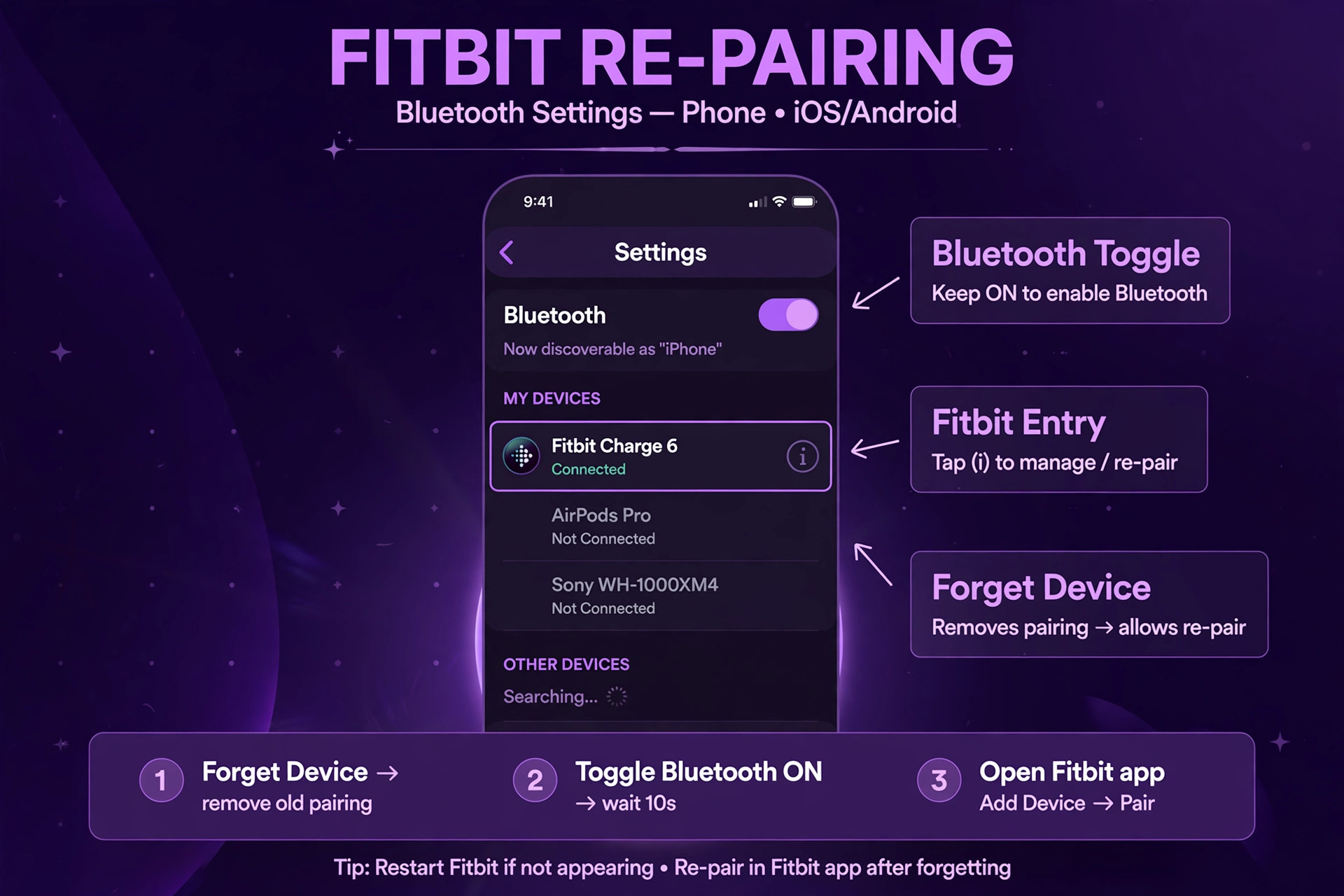
Bluetooth glitches cause many sync failures, and resetting Bluetooth cleanly is more effective than toggling it once. Turn Bluetooth off on the phone, wait about ten seconds, turn it back on, and try a manual sync. If that fails, forget the tracker in the phone Bluetooth settings, choosing Forget or Unpair for the Fitbit entry, then restart the phone. Open the Fitbit app afterwards and follow the app steps to reconnect the tracker, because pairing through the app, not through the phone Bluetooth menu, is the supported path. Pairing directly through the phone Bluetooth menu without the app can create a partial pairing that blocks app syncing, so remove any direct pairing and let the app manage the connection.
Check for stale connections on other devices as well. If the tracker is still connected to an old phone, a tablet, or a computer Bluetooth list, that device may hold the connection and prevent the current phone from syncing. Remove the tracker from the old device Bluetooth settings, and remove any duplicate Fitbit devices from the Fitbit account device list in the app, since duplicate entries can confuse syncing. After re-pairing through the app, test a manual sync immediately, and keep the tracker nearby for several minutes to allow the first sync after pairing to complete fully.
A successful re-pairing that still shows old data may need a second manual sync after a few minutes, because the first sync after pairing sometimes transfers settings before transferring historical data.
3. Fitbit App Permissions, Background Activity, and Battery Settings
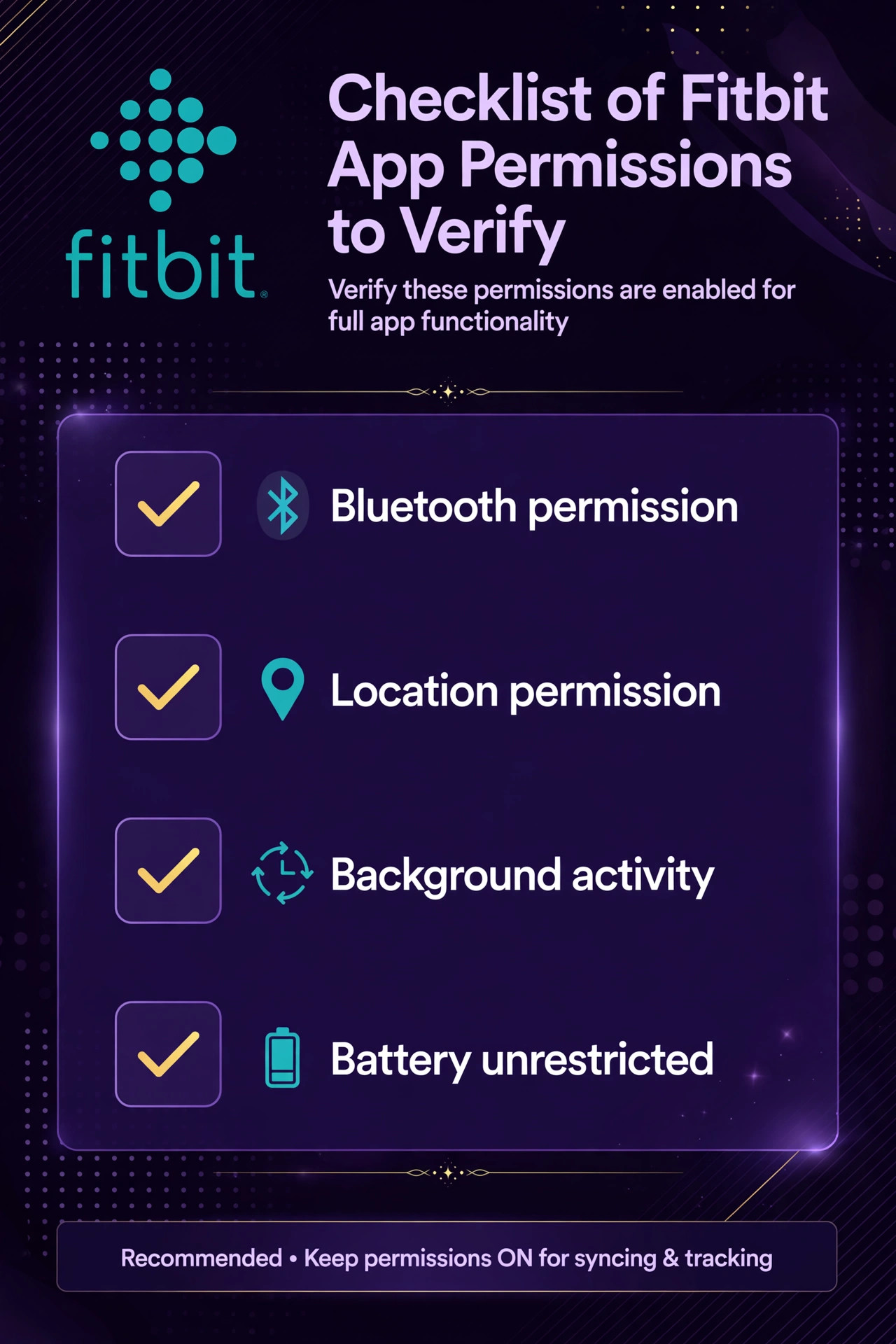
Phone permissions are the most common hidden cause of sync failure, especially after a system update. On Android, open the Fitbit app settings, confirm Bluetooth and Nearby devices permissions are allowed, confirm location permission where required for Bluetooth scanning, and set battery use to Unrestricted or Do not optimise for the Fitbit app. Manufacturer battery settings can add another layer, so check the device care or battery optimisation settings on Samsung, Xiaomi, and similar phones, and exempt the Fitbit app there as well.
On iPhone, open Settings, open Privacy and Security, confirm Bluetooth access for the Fitbit app, and turn on Background App Refresh for Fitbit, since background refresh allows the app to sync when it is not in the foreground.
Check that the phone operating system and the Fitbit app are both updated, because compatibility requirements change over time, and the Fitbit app currently requires a relatively recent Android or iOS version. An outdated phone system that no longer meets the app requirements can fail to sync even when Bluetooth appears connected, and an outdated app can contain sync bugs fixed in later versions. Update both, restart the phone, and test again. Also confirm you are using the official Fitbit app, now integrated with Google services on many phones, rather than a third party app, since third party apps may not support full syncing of steps, heart rate, and sleep data.
To fix Fitbit not syncing with phone faults that began after a phone update, permissions and battery settings are the first place to look, because updates frequently reset them without warning.
4. Fitbit Tracker Restart and Firmware Checks
Restart the tracker itself, which is different from a factory reset and preserves your data. Restart methods vary by model, often involving holding a button, swiping to a settings screen, or connecting to the charger and holding a button, so check the restart steps for your exact model rather than guessing. A restart clears a frozen tracker state, refreshes its Bluetooth stack, and often restores syncing immediately. After restarting, keep the tracker charged and nearby, open the app, and trigger a manual sync. Check whether the tracker time corrects itself after syncing, since a corrected time is a good sign that syncing has resumed even before step data updates visibly.
Check for firmware updates in the app after a successful connection, because firmware fixes can resolve sync bugs, although a firmware update requires a stable connection to download and install, so it cannot fix a tracker that cannot connect at all. If the app offers a firmware update, keep the tracker charged and nearby during the update, and do not close the app until the update completes, since an interrupted firmware update can leave the tracker in a worse state. If the tracker restarts normally, shows correct time after sync, but still fails to transfer new data, the fault may be app data or account related, and the reinstall step below becomes relevant.
To fix Fitbit not syncing with phone trouble that survives a tracker restart, the next question is whether the app or the account, rather than the tracker, holds the fault.
5. Fitbit App Reinstall and Account Device Cleanup
Reinstall the Fitbit app only after Bluetooth, permission, and restart steps have failed, because reinstalling costs sign-in time and can disturb app settings. Uninstall the app, restart the phone, install the latest official app from the app store, sign in with the same account, and follow the app steps to reconnect the tracker. Test a manual sync immediately after reinstalling, before changing other settings, so you can tell whether the fresh app fixed the problem. If syncing works after reinstalling but fails again after a day, a permission or battery setting is likely reverting, and you should recheck the permission section rather than reinstalling again.
Clean up the account device list as part of this step. Open the Fitbit app account settings, review the list of connected devices, and remove old or duplicate trackers that are no longer in use, since duplicate entries can interfere with syncing to the current tracker. Confirm the current tracker is the only active device of its type in the account, unless you genuinely use multiple trackers, in which case confirm each one syncs separately. Check that the phone itself meets Fitbit compatibility requirements and that no other phone is signed into the same account and holding the tracker connection.
Account cleanup is often overlooked, yet it resolves sync failures where the tracker is technically connected but the account routes data to the wrong device entry.
6. Fitbit Network Reset and Support as Final Steps
Resetting network settings on the phone is a deeper step that wipes saved Wi-Fi, Bluetooth, and cellular settings, so use it only after the earlier steps have failed. On iPhone, the reset path is through Settings, General, Transfer or Reset, Reset, then Reset Network Settings. On Android, the path is through Settings, System, Reset Options, then Reset Wi-Fi, Mobile and Bluetooth, although exact names vary by manufacturer. After resetting, reconnect to Wi-Fi, re-pair the tracker through the Fitbit app, and test a manual sync. Note that you will need Wi-Fi passwords again after this reset, so gather them before starting, and treat this step as a last resort rather than a routine fix.
Contact Fitbit support when syncing fails on two phones, after restart, re-pairing, permission checks, and app reinstall, because that pattern points to a tracker hardware fault or an account level fault that local steps cannot fix. Gather evidence before contacting support, noting the tracker model, the phone model and system version, the app version, the results of the second phone test, and whether the tracker records steps locally. That evidence helps support distinguish a hardware fault from an account fault quickly. Avoid a factory reset of the tracker until support advises it, because a factory reset can delete unsynced data that might otherwise be recovered once syncing resumes.
When you need to fix Fitbit not syncing with phone faults that survive every local step, support is the right next layer, since they can check account and device status that you cannot see.
Fitbit Syncing After a New Phone or a New Tracker
Changing phones is a common trigger for sync failure, because the tracker may still be tied to the old phone in ways that are not obvious. Before setting up a new phone, remove the tracker from the old phone Bluetooth settings, sign out of the Fitbit app on the old phone or remove the device from the account if you will no longer use that phone, and charge the tracker fully. On the new phone, install the official app, sign in with the same account, and follow the app setup steps to add the tracker as if it were new, rather than trying to pair it directly through Bluetooth settings.
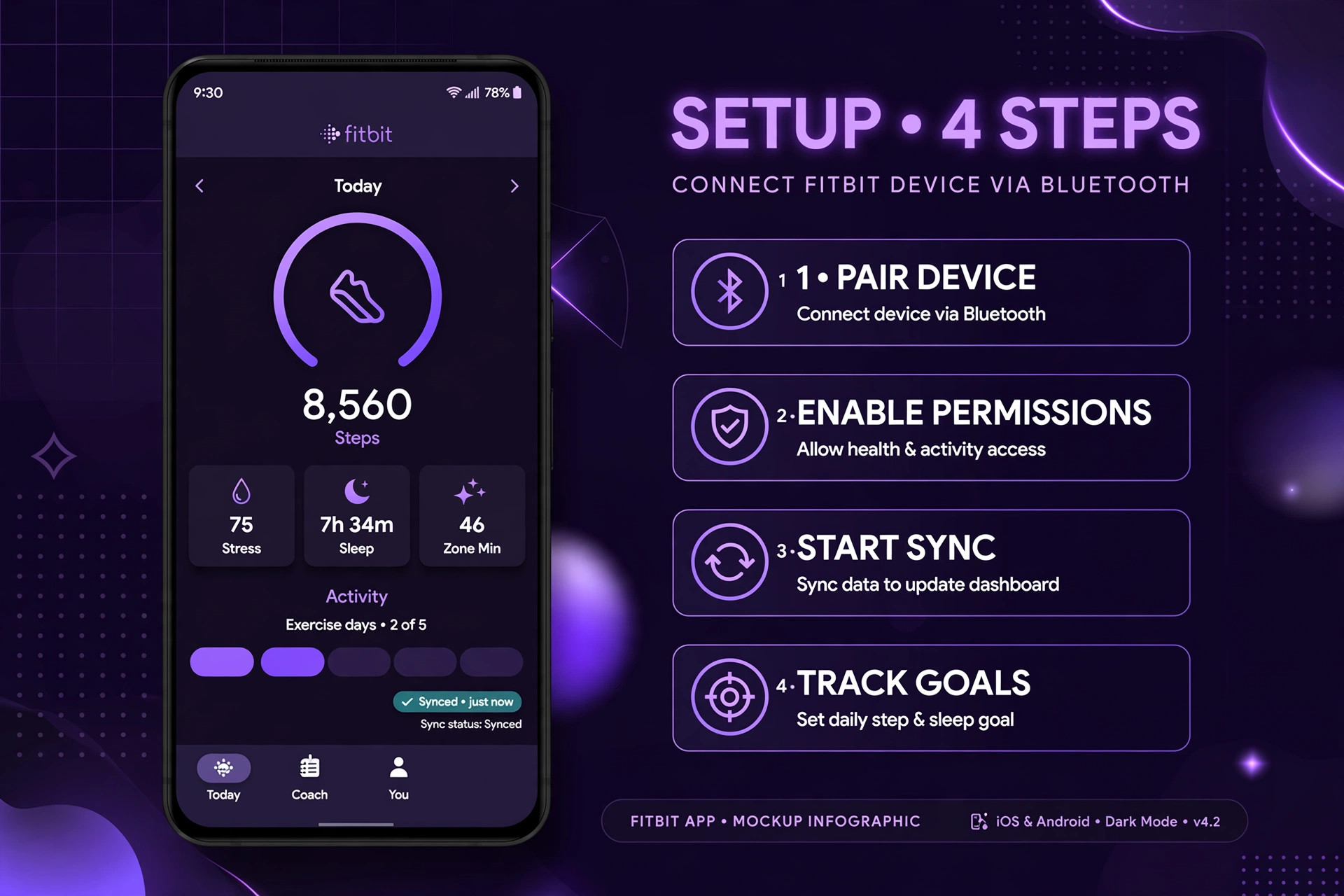
That clean setup avoids the partial pairing problem and ensures the account points to the new phone as the syncing device.
Changing trackers has its own trap, because an old tracker left in the account can compete with a new tracker for syncing, especially if both trackers are similar models. Remove the old tracker from the account device list when you stop using it, and confirm the new tracker is the active device before judging whether syncing works. If you use a Fitbit watch and a tracker together, confirm each device syncs separately and that the app shows data from the intended device, since the app may prioritise one device over another for certain metrics. These setup steps take a few minutes during a phone or tracker change, and they prevent weeks of intermittent sync failure that otherwise appears mysterious.
Keeping Fitbit Syncing Reliable Day to Day
Once syncing works again, habits that keep it working are simple. Keep the Fitbit app updated and keep the phone system updated, but recheck Bluetooth and background permissions after major phone updates, since those updates reset permissions most often. Keep the tracker charged, since a low battery tracker may delay syncing, and keep the phone and tracker within Bluetooth range for at least part of each day, opening the app occasionally to allow a full sync. Avoid pairing the tracker directly through phone Bluetooth settings, and avoid connecting the tracker to many devices at once, since each additional connection adds a chance of a stale hold blocking the main phone.

Review the app device list occasionally and remove old devices you no longer use, since a growing device list increases the chance of a routing confusion. If you travel, remember that syncing requires Bluetooth and, for full account updates, an internet connection on the phone, so a phone in airplane mode or without data will not sync even though the tracker keeps recording locally. That local recording is a safety net, not a failure, and syncing will catch up when the phone reconnects, provided you do not factory reset the tracker in the meantime.

A tracker that records locally and syncs in batches is working as designed, and understanding that design prevents panic when a day of travel shows a sync delay.
Fitbit Syncing With Google Pixel Watch and Smartwatches
Fitbit syncing becomes more complex when the device is a smartwatch rather than a simple tracker, because a watch syncs through both Bluetooth and Wi-Fi or cellular data, and through a companion watch app as well as the Fitbit app. When you need to fix Fitbit not syncing with phone trouble on a Pixel Watch or a similar smartwatch, check the watch connection in the companion watch app first, confirming the watch shows as connected to the phone, and check that the phone has an internet connection, since the Fitbit app needs internet to complete account syncing even when Bluetooth works.
Swipe down on the watch to check its connectivity settings, confirming Bluetooth, Wi-Fi, or cellular data is available, and check for pending updates to both the phone Fitbit app and the watch Fitbit app, since a mismatch between app versions can block syncing.
Force closing and reopening the phone Fitbit app, toggling phone Bluetooth off and on, and restarting both the watch and the phone are useful steps for smartwatch syncing, in that order, because they refresh each link in the longer chain without deleting data. If the watch still fails to sync, check whether the watch appears under Devices in the Fitbit app, and whether the watch app itself is up to date through the watch Play Store, since an outdated watch app can fail to transfer data even when the phone app looks healthy. Test syncing with the watch close to the phone and with the phone connected to Wi-Fi, to remove distance and mobile data variables from the test.
To fix Fitbit not syncing with phone problems on a smartwatch, that combination of companion app connection, internet availability, and app updates on both devices usually reveals the fault faster than tracker focused steps alone, because the chain has more links and any one of them can break the sync.
A smartwatch that tracks correctly but syncs slowly may simply be transferring a large backlog, especially after a period without connection, and keeping the app open with the watch nearby for a longer period can allow that backlog to complete. Avoid restarting the watch repeatedly during a backlog transfer, since each restart can interrupt the transfer and force it to start again. Give a backlog sync at least ten minutes of undisturbed proximity before judging it failed, and check whether step counts update gradually during that window, since gradual updates prove transfer is happening even if it is slow. That patience, combined with the connection checks above, resolves many smartwatch sync complaints without any reset.
More Reading on Stratilyze
Wearable sync faults usually share their cause with another Bluetooth or background-activity fault on the same phone, so readers often check the neighbouring guides next. The guide to a smartwatch that will not sync with a phone covers the same sync diagnosis on the broader class of wearables, the guide to Bluetooth headphones that will not pair explains the pairing checks that also block a tracker from connecting, and the guide to Spotify playlists that will not sync shows the same background-sync pattern applied to an app instead of a device.
Frequently Asked Questions
Why does my Fitbit show old data even though it says it synced
That pattern usually means the Bluetooth handshake succeeded but data transfer was interrupted, or background activity was restricted before transfer completed. Keep the app open with the tracker nearby for several minutes and trigger a manual sync, checking whether the last sync time and step counts update together. If the sync time updates but data does not, try a tracker restart and a manual sync again, since a tracker restart refreshes the data transfer path without deleting recorded data.
Will restarting my Fitbit delete my steps and sleep data
No, a normal tracker restart does not delete recorded data, and it is different from a factory reset. A restart reboots the tracker and preserves locally stored activity, which will sync when the connection resumes. A factory reset, by contrast, can delete unsynced data, so avoid it until support advises it or until you have confirmed that recent data has synced. That distinction is important, because a restart is a safe early step while a factory reset is a last resort.
Why did my Fitbit stop syncing after I got a new phone
A new phone sync failure usually means the tracker is still tied to the old phone, either through Bluetooth pairing or through the account device list. Remove the tracker from the old phone Bluetooth settings, remove old devices from the account if you no longer use them, and set up the tracker on the new phone through the Fitbit app rather than through direct Bluetooth pairing. That clean setup through the app ensures the account routes syncing to the new phone.
Why does my Fitbit sync on one phone but not another
Syncing on one phone but not another proves the tracker and account work, and confines the fault to the failing phone. Focus on that phone Bluetooth settings, app permissions, background activity, battery optimisation, and app version. A network settings reset on the failing phone is a reasonable later step if permission and reinstall steps fail, since it clears deep Bluetooth and network faults that survive app level fixes.
How long does Fitbit store data if it cannot sync
Fitbit trackers store basic activity data locally for a period, often up to about thirty days, so a sync delay of days or even weeks does not usually mean data is lost. That storage gives you time to troubleshoot carefully, and syncing will usually transfer stored history in batches once the connection resumes. Avoid a factory reset during that window, since a reset can delete the stored history that would otherwise have synced. If syncing remains broken for longer than the storage window, contact support promptly, since older data may begin to be overwritten.
Should I factory reset my Fitbit to fix syncing
Factory reset only as a last resort, after restart, re-pairing, permission, reinstall, and second phone tests have failed, and preferably after support advises it. A factory reset deletes tracker settings and can delete unsynced data, so it should not be used as an early troubleshooting step. When you need to fix Fitbit not syncing with phone faults that survive every other step, a factory reset may be the remaining option, but confirm first that recent data has synced or that you accept losing unsynced history, since that loss is irreversible.
A Decision Guide for Persistent Sync Failure
When syncing still fails after the full checklist, use the second phone test as your decision point. If the tracker syncs on a second phone, keep working on the original phone, focusing on network reset and manufacturer battery settings, since those are the deepest phone level causes. If the tracker fails on both phones, focus on the tracker, trying a restart, a firmware check, and then support, since a two device failure points away from any single phone. If the tracker records no data at all, shows a blank screen, and does not respond to charging and restart, hardware failure becomes likely, and support or replacement is the sensible path.
That decision guide ends the troubleshooting loop cleanly, because it uses a single test to choose between phone, tracker, and support paths, rather than repeating the same steps in hopes of a different result. Syncing problems feel mysterious because so many layers are involved, but each layer can be tested separately, and the tests in this guide give you that separation.