
Nobody can hear you in Google Meet, or you cannot hear anyone else, and the meeting is already running. That is the whole problem, and it has only a handful of causes. Meet is pointing at the wrong microphone, the browser is blocking the microphone, the operating system has muted or blocked it, or a Bluetooth device is routing sound to the wrong place. This guide shows how to fix Google Meet audio not working small team calls with a layer by layer check that finds the broken layer instead of changing settings at random.
Meet runs in the browser, which changes the troubleshooting shape compared with a desktop app. There is no Meet program to reinstall. There is a browser permission, a Meet setting, a system permission, and a device, and all four must agree before sound flows. When one layer disagrees, the symptom looks the same from the outside, which is why guessing fails. Work the layers in order, test after each one, and the fault reveals itself.
Small teams feel this acutely because a Meet call is often a client call, a supplier call, or a hiring call, not an internal chat that can wait. The advice in this guide therefore splits into two tracks. One track saves the live call, by switching to phone audio within a minute. The other track fixes the computer properly after the call, so the same fault does not return next week.
What Is Actually Broken
Begin by naming the direction of the failure. If the microphone icon shows a slash, you are muted in Meet, and unmuting may be the entire fix. If you are unmuted and the small microphone activity indicator never moves when you speak, the input side is at fault. If other people’s tiles show that they are speaking but you hear nothing, the output side is at fault. That thirty second observation halves the search space before you open a single settings panel.
Next, run the outside Meet test. Play a video with sound, or play a system sound. If nothing outside Meet makes sound either, the device audio itself is broken, and Meet settings cannot repair it. Fix the device first. If other apps sound fine, the fault lives in Meet, the browser, or a permission, and the steps below will find it.
Note what changed recently. A new headset, a browser update, a switch from Chrome to another browser, a new monitor with built in speakers, or a move to a different laptop are all strong clues. Audio faults rarely appear from nowhere. They follow a change, and the change usually names the layer to check first. Write the change down, because it is easy to forget once the meeting pressure rises.
| Symptom in Meet | What it usually means | Check this first |
|---|---|---|
| Mic icon slashed | Muted in Meet | Unmute in the meeting controls |
| Activity indicator flat | Wrong mic or blocked mic | Meet audio settings and browser permission |
| Others speak, you hear nothing | Wrong speaker | Meet speaker setting and system volume |
| Meter moves but nobody hears you | Wrong audio path or virtual device | Unused virtual devices and device choice |
| Sound cuts in and out | Bluetooth or CPU load | Wired headset and background apps |
| Works in one browser only | Extension or profile fault | Guest profile test |
Keep this symptom map open while you work. It stops the team from treating every audio fault as the same fault, and it gives a new joiner a way to help without taking over the call.
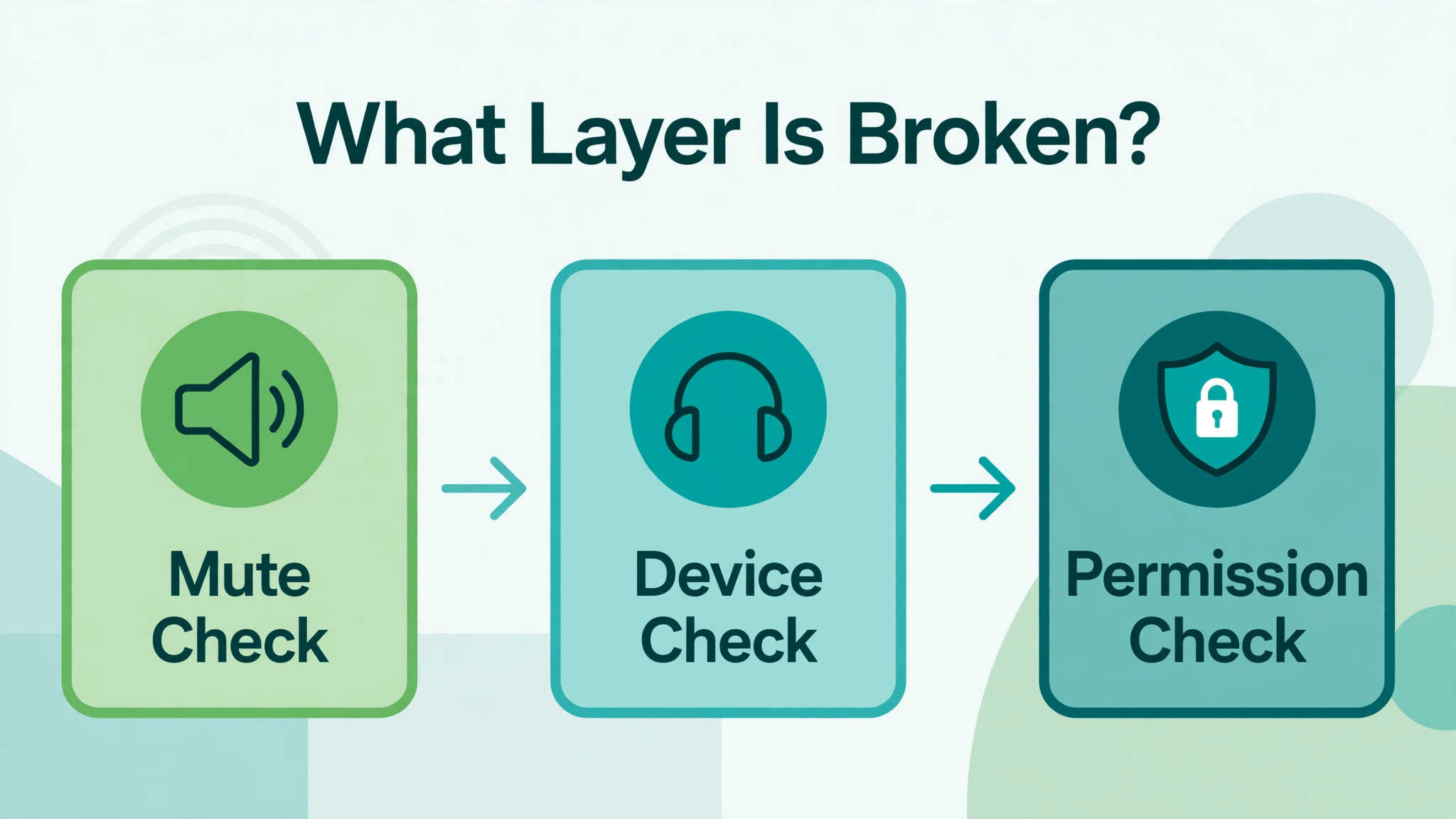
How to Fix Google Meet Audio Not Working Small Team in Order
Work the layers from Meet outward, because the innermost layer is the fastest to check and the most common cause. Meet device selection comes first. Browser and site permission comes second. Device level microphone access comes third. Echo, Bluetooth, and extension traps come fourth. Phone audio is the fallback that can be used at any point when the meeting cannot wait, and it is listed last here only because it is a bridge rather than a repair.
- Open Meet audio settings and pick the exact microphone and speaker you intend to use, then watch the input meter while you speak.
- Open the browser site settings for Meet and set the microphone to Allow, then reload the meeting tab.
- Check microphone access at the operating system level, including privacy panels on Windows and Mac, and restart the browser after a change.
- Deal with echo, Bluetooth profiles, and extension conflicts, testing with a wired headset to isolate the fault.
- Join the meeting audio by phone when the computer path cannot be fixed in time, and fix the computer properly after the call.
Test after every step. Speak, watch the meter, and ask one colleague to confirm. A fix that is not tested is a guess, and guesses stack up until nobody knows which change mattered. The order above is designed so that the most common and fastest fixes come first, and the slower checks come only when the fast ones have ruled themselves out.
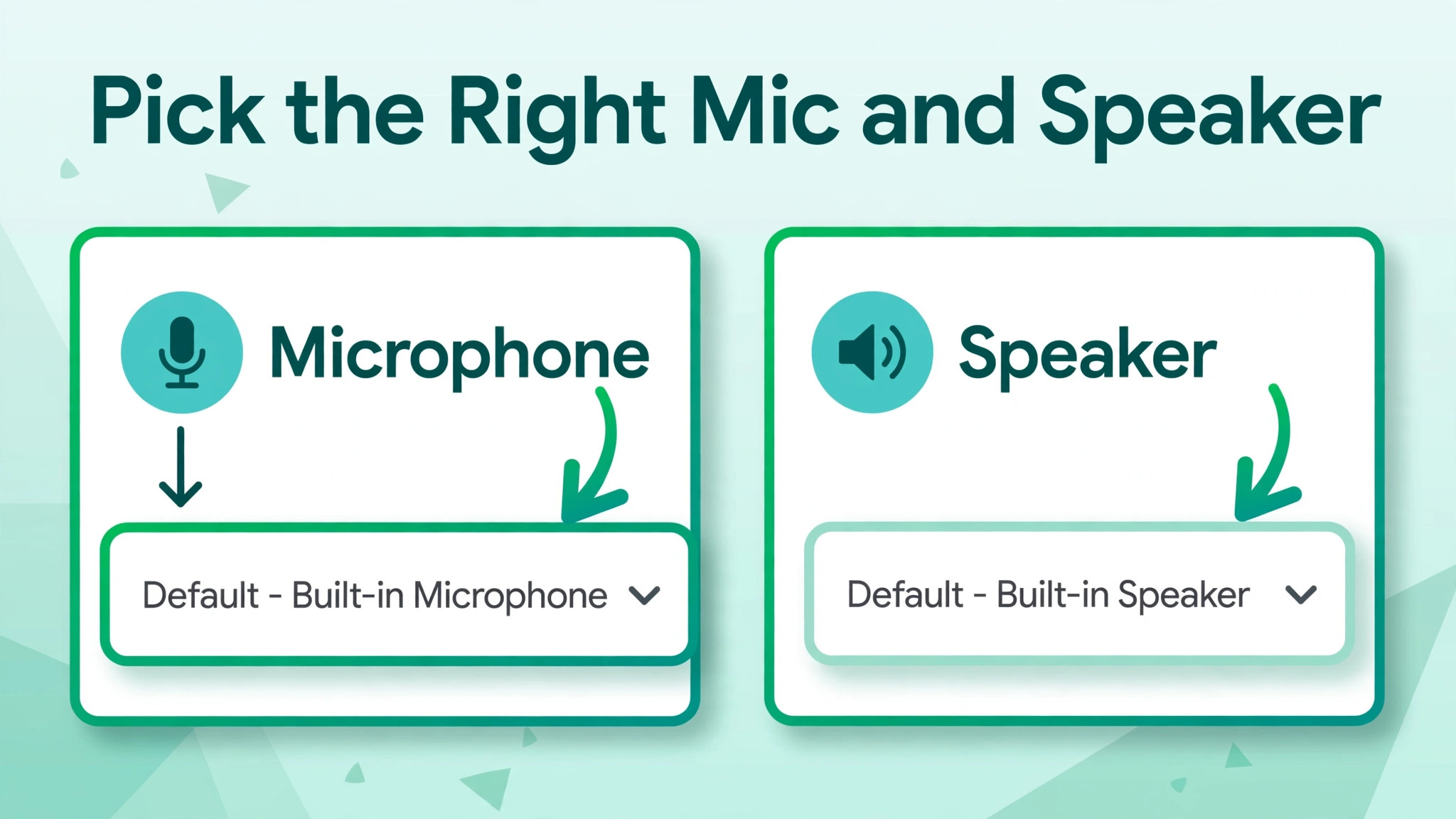
Pick the Right Microphone and Speaker in Meet
During a meeting, open the three dot menu, choose Settings, then open the Audio tab. Under Microphone, pick the device you are actually speaking into, not the generic default. A laptop, a monitor, a USB headset, and a Bluetooth headset can all appear in the same menu, and Meet will happily use the wrong one without complaint. Talk while watching the input meter. If the meter moves, Meet is receiving sound from that device. If it stays flat, pick the next device and test again.
Under Speakers, pick the device you want sound to come from, and use the test sound if one is offered. Monitor speakers are a classic trap, because a monitor connected by cable can become the output device even when the team expects sound from a headset. If sound seems to vanish, check the speaker menu before assuming the meeting itself is silent. Other participants may be speaking normally while your audio plays through a device in another room.
Change one device at a time and give Meet a few seconds after each change. Audio routing can lag, especially with Bluetooth, and a hasty second change can undo a correct first change before it takes effect. If you switch devices mid meeting, tell colleagues you are testing, so a few seconds of silence is understood rather than treated as a new problem.
Before a meeting, the same settings are available from the Meet home page, and testing there is better than testing live. Open the settings, pick the microphone and speaker, speak, and confirm the meter moves. A team that tests before client calls avoids the awkward opening minutes where everyone talks over a silent microphone and wonders who is at fault.
Getting this menu right is the single most useful habit when you need to fix Google Meet audio not working small team calls, because device selection is where the largest share of faults live. It is also the fastest check, which is why it belongs first rather than last.
Restore Browser and Site Permission
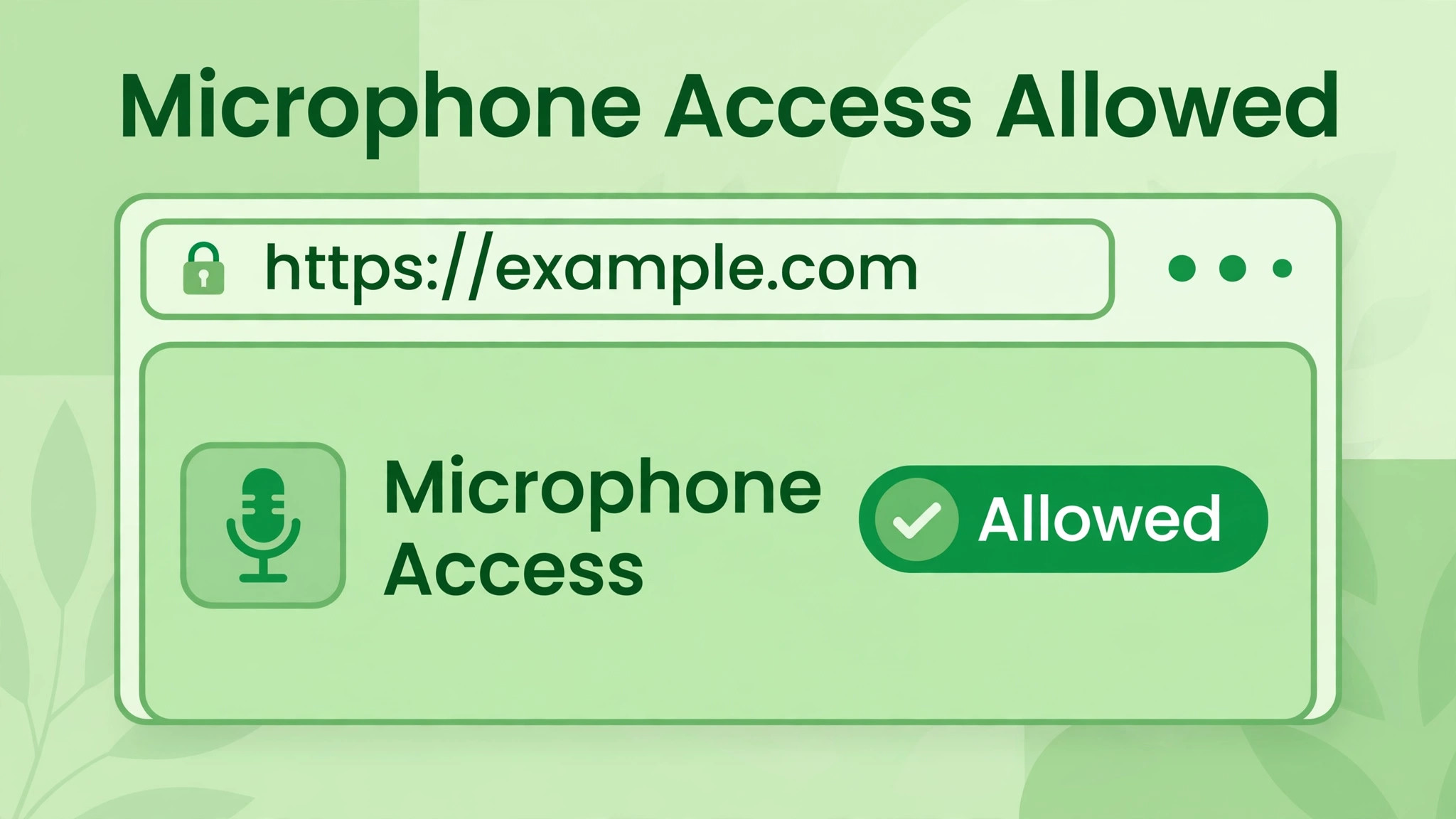
When Meet shows a blocked microphone icon, the browser has denied site level access, and no device setting can recover audio until permission is restored. In Chrome or Edge, look for the small microphone or camera icon near the address bar while on the Meet tab. If it shows a blocked state, click it, change Microphone to Allow, choose the correct device if asked, and reload the meeting tab. The reload matters, because the running meeting may not pick up the new permission on its own.
If no icon is visible, open site settings directly from the address bar controls. Confirm that Microphone is set to Allow rather than Block or Ask, and check that the device chosen in browser settings matches the device chosen in Meet. A mismatch between browser device and Meet device can produce the confusing result where permission looks correct yet sound still fails.
Some workplaces and schools enforce microphone permissions through administrator policy. If the setting is greyed out, you cannot change it from the browser, and the right move is to try a different browser or profile, or to ask the administrator to unblock Meet. Note the exact greyed out control and the browser you are using, because that detail lets the administrator act without a round of follow up questions.
After restoring permission, restart the browser if audio still fails. Browser updates and extension states can linger in a running browser session, and a restart clears them. In Chrome, the restart command reopens tabs and windows, which makes this a low cost test. Rejoin the meeting after the restart and recheck the Meet audio settings, since a restart can reset the device choice.
Permission faults are easy to miss because nothing looks broken, and that is why a careful browser check belongs in every attempt to fix Google Meet audio not working small team calls. When the icon shows Allow, the tab has been reloaded, and the browser has restarted, permission can be ruled out with confidence, and the search can move to the next layer.
Check Microphone Access on the Device
Meet needs microphone access at three levels, and the browser permission is only one of them. The operating system must also allow the browser to use the microphone, and the device itself must be enabled and unmuted. When the browser permission is correct but the meter still stays flat, this device level is the next place to look.
On Windows, open Settings, then Privacy and security, then Microphone, and confirm that microphone access and app access are switched on, and that the browser you use is allowed. On a Mac, open System Settings, then Privacy and Security, then Microphone, and confirm that the browser is checked. Restart the browser after changing a system permission, because a running browser may not notice the change until it restarts.
Check the system sound panel as well. On Windows, open System and Sound, look under Input, and confirm that the intended microphone is chosen, that its volume is up, and that it is not muted. On a Mac, open System Settings, then Sound, then Input, and confirm the same points. A microphone that is muted at system level will stay silent in Meet no matter what Meet or the browser allows.
Also check the physical device. A headset boom in the muted position, a microphone button pressed by accident, a loose USB connection, or a headset that ran out of charge can all mimic a software fault. Reseat the USB connection, try a different port, and test the microphone in a voice recorder app. A microphone that fails in the recorder too is a hardware fault, and the fastest fix is a spare headset rather than another hour in settings.
This device level check is essential when you fix Google Meet audio not working small team setups, because it is the layer most guides skip. Browser permission gets the attention, while a system mute or a dead headset quietly keeps the meeting silent.
Add the system sound panel to the team’s standard check, alongside the Meet menu and the browser permission, so all three layers are confirmed before anyone concludes that the headset has failed. A checklist that covers Meet, browser, and system in one pass prevents the common loop where each layer is checked twice and one layer is never checked at all.
Deal With Echo, Cutouts and Bluetooth Traps
Echo in Meet usually comes from a second audio path in the same room. A laptop speaker playing the meeting while a phone in the same room also joins the audio will feed sound back in a loop. The rule is one audio path per person and one per room. Mute every spare device, close Meet on devices you are not using, and prefer a headset over speakers when two people share a room.
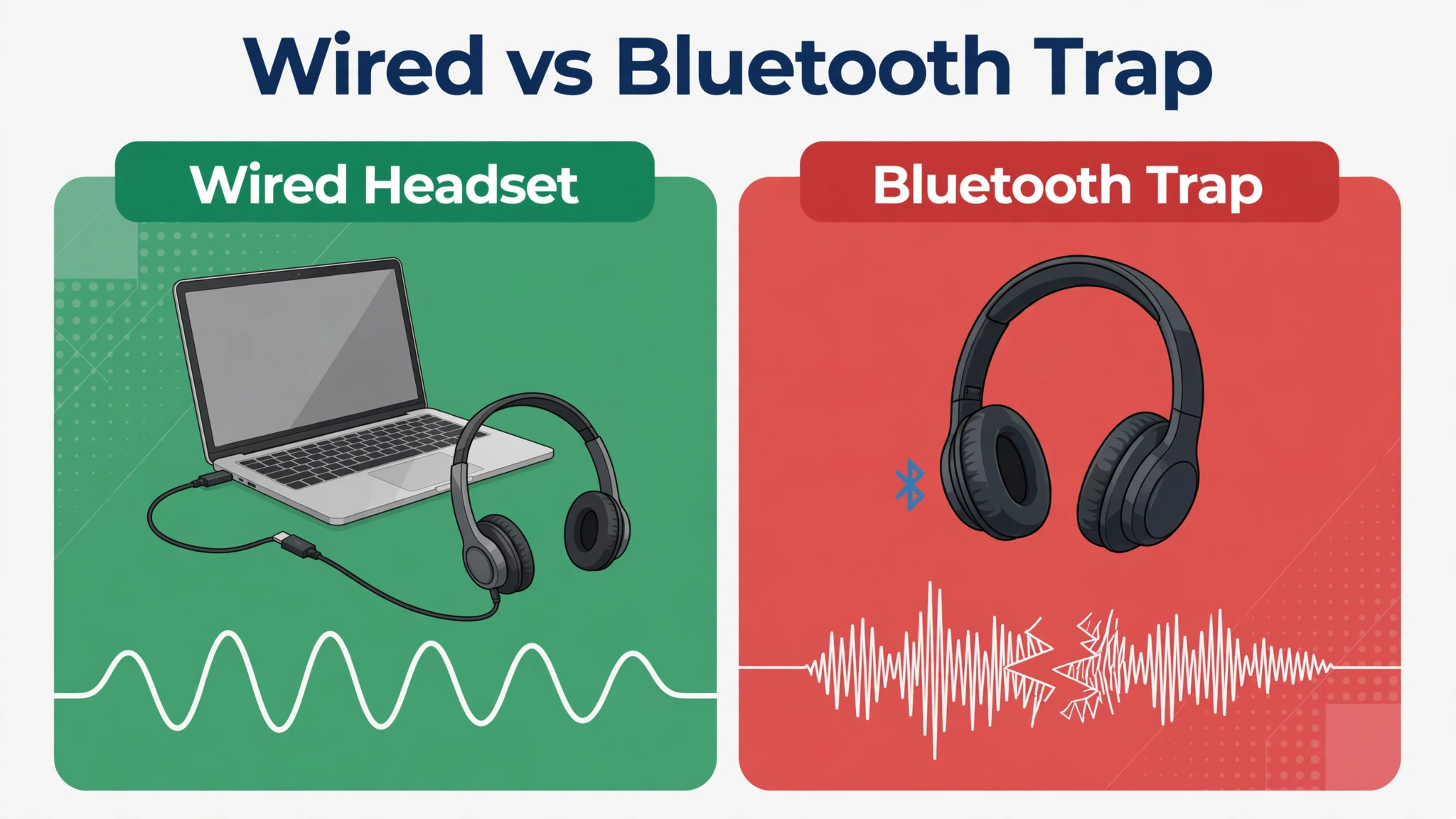
Bluetooth deserves its own warning. A Bluetooth headset can offer a high quality listening profile and a lower quality hands free profile that carries the microphone, and picking the wrong one produces muffled sound or no microphone at all. If Bluetooth behaves oddly, switch to a wired headset for the meeting and sort the Bluetooth pairing afterwards. Wired audio removes the profile question entirely, which is valuable when a client is waiting.
Cutouts have a different set of causes. Bluetooth instability, heavy CPU load, and a weak network connection can all chop audio. Close unnecessary apps, especially video editing, large downloads, and other meeting tools, and test again. If cutouts stop when you switch to a wired headset, the Bluetooth link was the cause. If cutouts stop when background apps close, CPU load was the cause. Isolation tests like these turn a vague complaint into a named fault.
Virtual audio devices from recording or streaming tools can also hijack the path. If the Meet meter moves locally but remote colleagues hear nothing, an unused virtual device may be claiming the microphone. Disable virtual devices you are not using, set the real headset as the default, and retest. Keep a note of which virtual device caused the trouble, so it can be disabled before the next meeting rather than during it.
Bluetooth and virtual device traps explain many faults that survive the basic checks, and they deserve a place in any plan to fix Google Meet audio not working small team meetings for good. Once the wired headset test has isolated the fault to Bluetooth or to a virtual device, the fix is usually a single setting change, and the team can record it for the next person who hits the same trap.
Join by Phone When the Meeting Cannot Wait
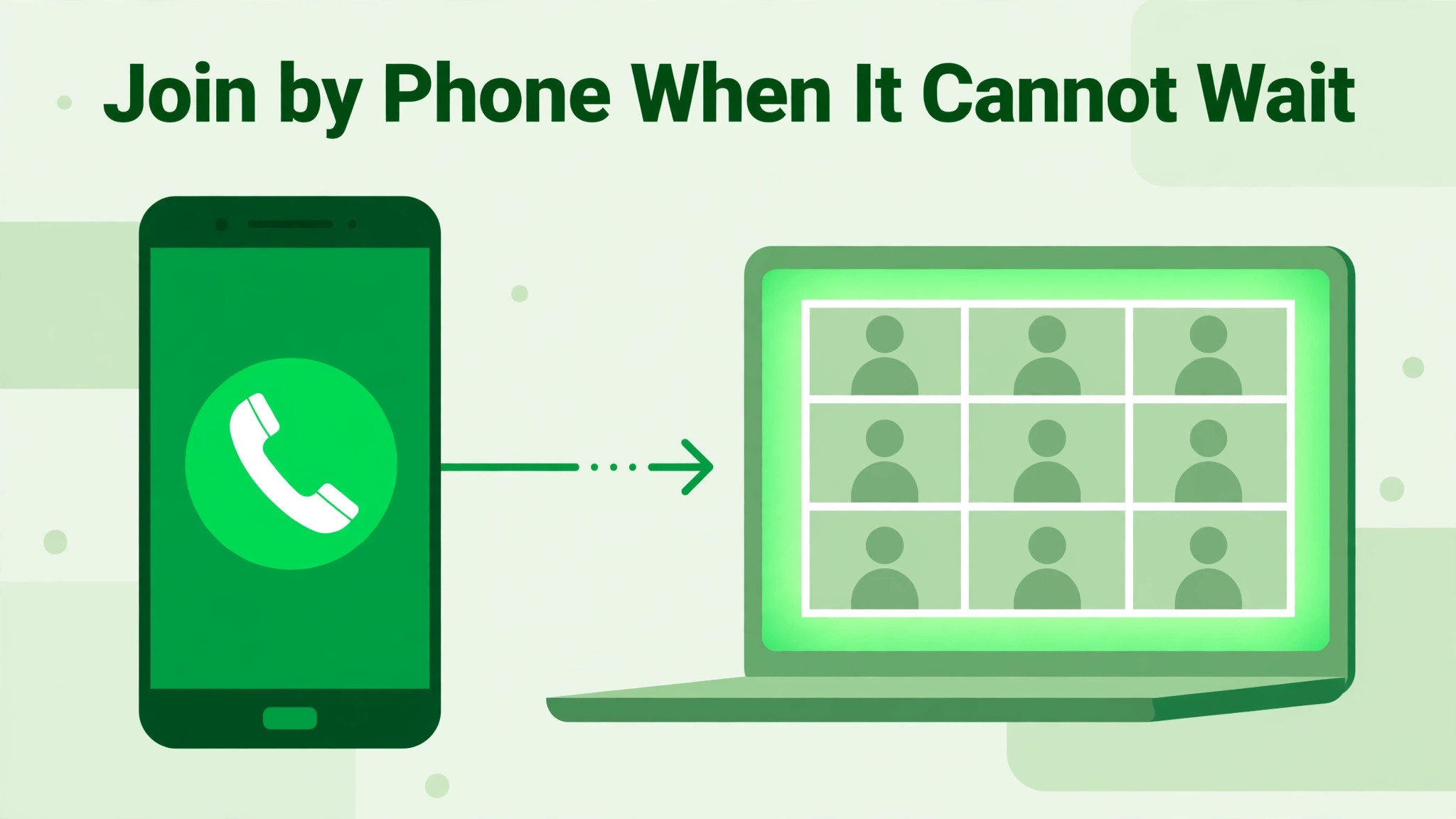
When the computer path resists a quick fix, use a phone for audio and keep the meeting moving. In Meet, the meeting menu offers a phone audio option. Enter the number you want Meet to call, answer the phone, and follow the prompt to join the audio. The computer stays open for video and screen sharing, while the phone carries the sound. The meeting continues, and the computer can be fixed properly afterwards without an audience.
If the meeting organiser has provided dial in details, joining by phone directly is another route. Dial the number, enter the meeting code when asked, and join as an audio participant. Mute the computer audio completely in this setup, because a computer and a phone in the same room will echo each other. Tell the team you have switched to phone audio, so nobody wonders why you appear twice in the participant list.
Phone audio has limits. Call quality is usually lower than a good headset, and managing two devices takes attention. Treat it as a bridge for the current meeting, not as the permanent setup. After the call, return to the device, permission, and system checks, and fix the computer path while the pressure is off. Teams that agree this fallback in advance recover faster, because nobody has to invent a plan while a client waits.
For a small team, the phone fallback is also a fairness tool. The person with the fault should not have to miss the meeting while everyone else continues. A one minute switch to phone audio keeps that person in the conversation, and the team keeps its decision making intact.
Extensions, Profiles and Companion Mode Traps
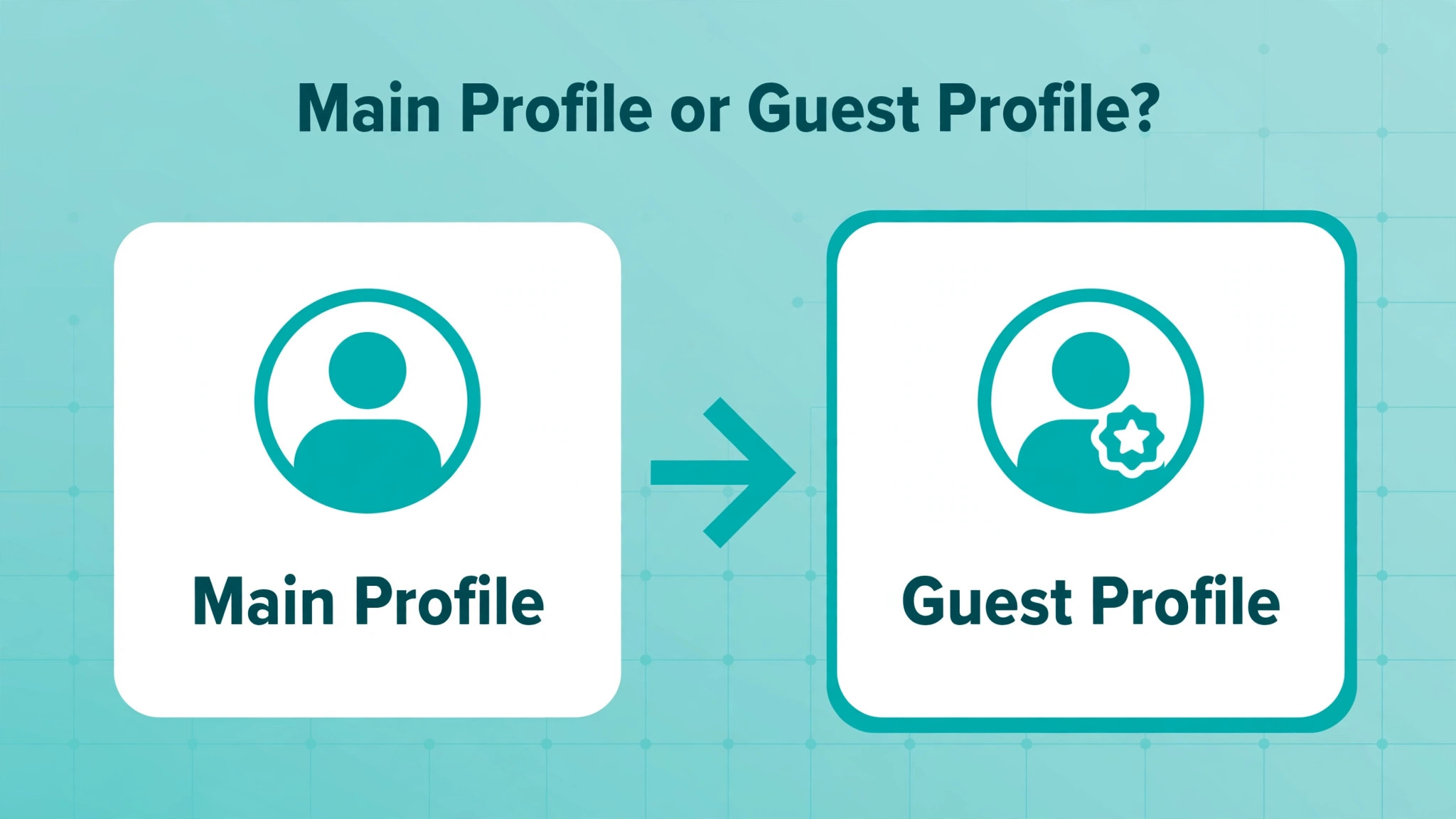
Extensions that use the microphone can block Meet, especially recording, transcription, and voice tools that claim the device and never release it. If audio works in a guest or private browser window but fails in the usual profile, an extension or a profile setting is the likely cause. Test in a guest profile first, because that test takes a minute and it separates a profile fault from a device fault cleanly.
If the guest profile works, return to the main profile and disable extensions one at a time, testing after each change. Note the extension that restores audio, and either remove it or adjust its microphone permission before the next meeting. If the guest profile also fails, the fault sits deeper, in device selection, system permission, or hardware, and extension hunting will only waste time.
Keep a short note of the extensions installed on each team laptop, and review that list when a new audio fault appears. A transcription tool installed for one project can linger for months, claiming the microphone on every call, and nobody connects it to the fault until the extension list is actually read. A clean extension list is part of a clean audio setup, not a separate IT chore.
Companion Mode is a quieter trap. In Companion Mode, the microphone and speaker are unavailable by design, because the mode is meant for a second screen in a meeting room rather than a full participant. If you joined in Companion Mode by accident, leave and rejoin normally. Check the meeting join screen for the mode before joining, especially when joining from a room device or a second laptop.
Meeting host controls can also mute participants. Other participants can mute you to reduce noise, but they cannot unmute you, so a mute applied by someone else stays until you unmute yourself. If you joined late to a large meeting and find yourself muted, check the microphone icon first. After the first few participants join a Meet call, later joiners may also be muted automatically, which is normal behaviour rather than a fault.
A Pre Meeting Check for Small Teams
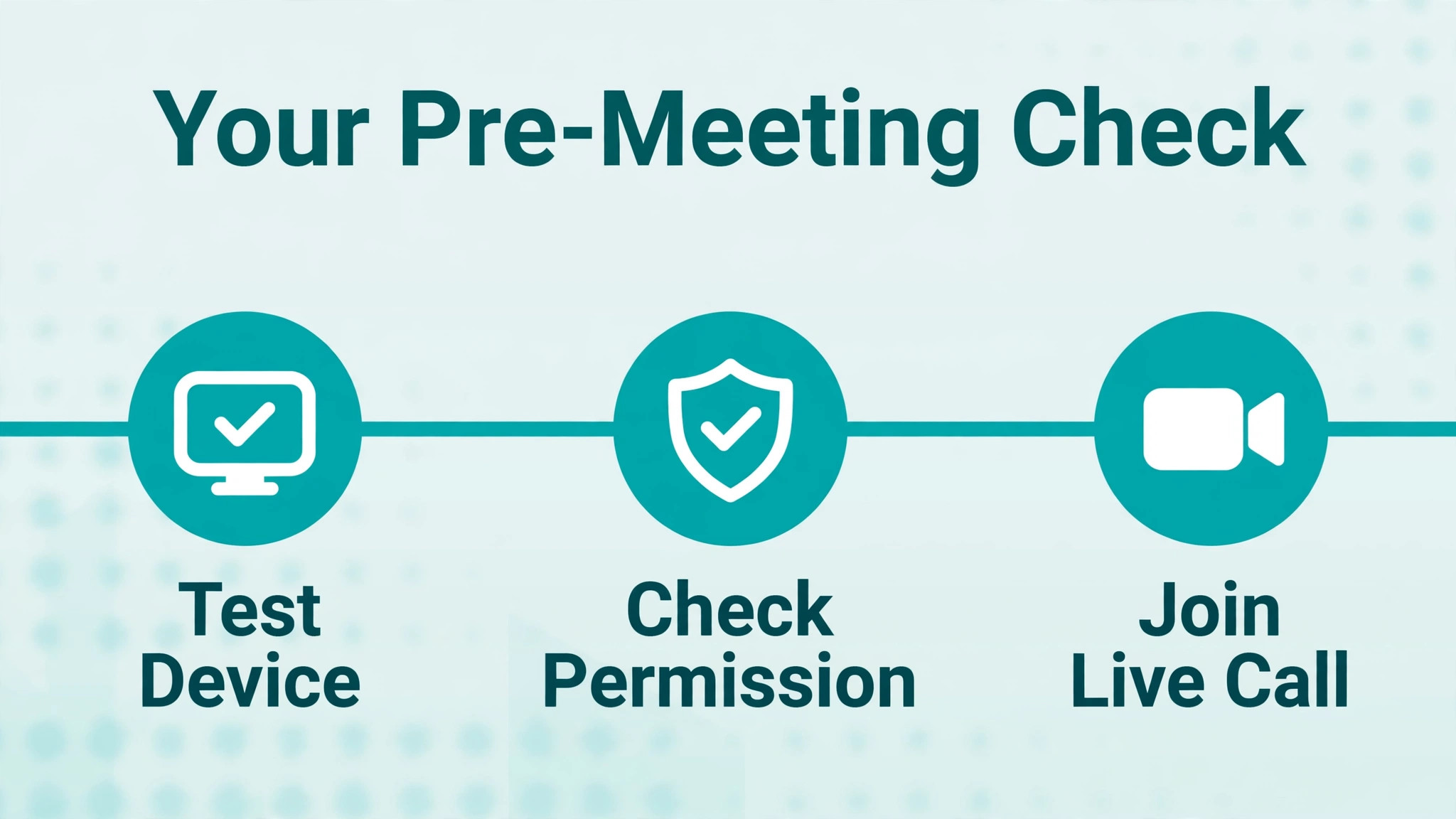
A five minute check before important calls prevents most Meet audio failures. Test the headset in Meet settings, confirm the microphone meter moves, confirm the speaker test sound plays, and confirm the browser permission shows Allow. Run this check on the same laptop, headset, and network that the real meeting will use, because testing on a different setup proves nothing about the real one.
Keep one spare wired headset in the meeting space, with its cable and adapter where anyone can find them. A spare headset is cheaper than a lost client call, and it turns a hardware failure from a crisis into a thirty second swap. Label the spare clearly, and check it during the quarterly setup review, so it is not discovered to be broken at the moment it is needed.
Agree a simple live failure rule. When audio fails mid meeting, the affected person tries the Meet device menu once, then switches to phone audio, while the meeting continues. Deep checks wait until after the call. This rule protects both the meeting and the person, because troubleshooting in front of clients is stressful and rarely effective.
Review the setup once a quarter. Update the browser, confirm permissions, test each regular headset, and remove extensions and virtual devices nobody uses. Quarterly reviews catch slow drift, such as a monitor that quietly became the default speaker after a desk move. Log the review with a date and an owner, so the habit survives staff changes.
A quarterly review is the habit that turns one off fixes into lasting reliability, and it is the final piece of advice for any team trying to fix Google Meet audio not working small team calls permanently. The review takes less than half an hour, it catches drift before it becomes a live failure, and it gives new joiners a setup that already works.
Frequently Asked Questions
Why does Meet say my microphone is blocked?
A blocked microphone message usually means the browser or the operating system has denied microphone access to Meet. Open the browser site settings for Meet, set Microphone to Allow, and reload the tab. Then check the system privacy panel for the browser, and restart the browser after any change. If the setting is greyed out, an administrator policy controls it, and you will need a different browser or profile, or help from the administrator.
What should I check first when nobody can hear me in Meet?
Check the mute state, then the Meet audio settings, then the browser permission, in that order. Unmute in the meeting controls, pick the correct microphone in Meet settings and watch the input meter, then confirm the browser site permission is set to Allow. If the meter stays flat after those checks, move to system privacy settings and test the microphone in another app to rule out hardware failure.
Why does my Meet audio work in one browser but not another?
A browser specific failure points to an extension, a profile setting, or a permission stored in that browser. Test in a guest window in the failing browser. If the guest window works, disable extensions one at a time in the main profile until audio returns. If both browsers fail, the fault is more likely in device selection, system permission, or the headset itself.
How do I use my phone for Meet audio?
Use the phone audio option in the meeting menu, enter the number Meet should call, answer the phone, and follow the prompt to join. Alternatively, dial the meeting dial in number and enter the meeting code. Keep the computer open for video and screen sharing, mute the computer audio completely, and tell the team you have switched, so you do not create echo by joining twice.
What causes echo in Google Meet calls?
Echo usually comes from a second audio path in the same room, such as a laptop speaker and a phone both carrying the meeting, or two devices in one room both unmuted. Keep one audio path per person, mute spare devices, and prefer headsets over speakers in shared rooms. If echo persists, ask participants to mute when not speaking, and identify the source by watching which tile lights up when the echo sounds.
Should a small team switch browsers to fix Meet audio?
Switching browsers is a useful isolation test, but it is not a permanent fix on its own. If Meet works in a second browser, the first browser has a permission, extension, or profile fault worth finding, because the team will keep hitting it. Fix the original browser after the meeting, so the team is not forced to maintain two browsers for one meeting tool.
The Last Word Before Your Next Call
Meet audio fails in a small number of places, and the fastest fix is to check them in order rather than all at once. Pick the device in Meet, restore the browser permission, confirm system access, clear the Bluetooth and extension traps, and fall back to phone audio when the meeting cannot wait. Each step rules out a layer, and the layer that restores sound is the answer.
Make the pre meeting check a team habit, keep a spare wired headset nearby, and write down the fix when one works. A small team that follows this order will spend less time in settings menus and more time in meetings that actually move work forward. That is the practical way to fix Google Meet audio not working small team calls, and to keep them fixed.
Print the order on one page and keep it beside the meeting laptop. Device, permission, system, echo, phone fallback. Five steps, in that order, tested one at a time. When the whole team knows the same five steps, the next audio failure becomes a two minute interruption instead of a meeting lost to troubleshooting.
More Reading on Stratilyze
- Best project management software for architecture firms covers tools that keep a small team organised across projects and deadlines.
- Best client management software for accountants looks at how a small firm tracks clients, documents, and follow up work in one place.
- Best proposal software for freelancers explains proposal tools that help a small business present work clearly and win clients faster.
- Best CRM for event planners small business shows how a small team keeps contacts, bookings, and client details together.