
A fan working hard sounds like steady wind that rises with the work and falls when the work ends. A fan failing sounds different. It clicks, grinds, rattles, or roars at full speed while the MacBook sits idle on a cool desk. Learning to tell those two sounds apart is the fastest way to fix MacBook fan loud noise without replacing a healthy fan or ignoring a dying one. This guide starts with that distinction, then works through load, heat, dust, sensors, and resets in order.
You will not need special tools for the first half of this guide. You need ten quiet minutes, Activity Monitor, a hard desk, and a willingness to test one change at a time. If you change the surface, close five apps, run an update, and reset firmware in the same hour, you will never know which change quieted the fan. Work in order, note what changes after each step, and stop as soon as the fan behaves normally again.
How to Tell a Working Fan From a Failing One
A healthy fan responds to work. Open a video export or join a long video call, and the fan should rise within a minute or two. Close that work, wait a few minutes, and the fan should fall back toward quiet. That rise and fall is the cooling system doing its job, not a fault, even if the sound is noticeable in a silent room. Thin Pro models move a lot of air through small vents, so under sustained load they can sound loud while working exactly as designed.
A failing fan breaks that pattern. It may stay at full speed long after work ends, sometimes for thirty minutes or more with nothing demanding running. It may change pitch suddenly, develop a buzz or rattle, or sound as if something is touching the blades. It may also go silent when it should be spinning, which is just as serious, because a hot MacBook without fan noise may have a stopped fan, a failed sensor, or a control fault. In both cases, the sound no longer tracks the work, and that mismatch is the clue.
Start with a simple sound test before you open any settings. Put the MacBook on a hard desk in a quiet room, close every app except one browser window, and listen for two minutes. Then run a demanding task for five minutes, such as playing a high resolution video, and listen again. Then close the task and listen for another five minutes. A working fan will follow that arc up and then down. A fan that stays loud through idle periods, or makes a mechanical noise, has earned a deeper check. Write down what you heard and when, because a clear pattern helps Apple Support act faster than a vague complaint.
Model matters here, and it is the first thing many guides skip. Apple silicon MacBook Air models are fanless, so they have no fan to make noise at all. If you own one and hear a loud whirring sound, the source is not a fan. Check for a nearby external device, a speaker fault, coil whine under load, or a sound from an attached dock or drive. Confirm your model first in the Apple menu under About This Mac. If the Chip field shows an Apple silicon chip and the model is an Air, expect silence from the machine itself, and treat any loud mechanical sound as something else entirely.
Intel Air models do have a fan, though smaller than a Pro, and Pro models use fans under load, so do not compare your fan directly with a friend’s different model.
What Normal Heat Looks Like on a MacBook
Heat and fan noise travel together, so you need a rough sense of normal before you can judge abnormal. A MacBook should feel warm under sustained work. The keyboard and the underside may feel noticeably warm after a long export or a long call, and that alone is not a fault. Apple specifies an ambient operating range of 10 to 35 degrees Celsius for Mac laptops, which means a room already near the top of that range gives the cooling system less room to work.
A MacBook used in direct sunlight, in a hot car, or on a bed in a warm room will run its fan harder for the same task than the same machine on a desk in a cool room.
Watch for patterns rather than single warm moments. Normal heat rises with work and falls after it. Abnormal heat stays high at idle, returns within minutes of a restart with no apps open, or comes with slowdowns, stuttering video, or shutdowns on its own. Those symptoms point past simple load and toward blocked airflow, a runaway process, a sensor fault, or failing cooling hardware. A MacBook that throttles often, meaning it slows itself to protect against heat, will feel sluggish exactly when you need speed.
One symptom deserves separate treatment. If the trackpad feels raised, the bottom case bulges, or the lid no longer closes flat, stop and treat it as a battery problem, not a fan problem. Do not press the case flat, keep running heavy work on it, or try to open it yourself. Back up your files if you can do so safely, keep the MacBook away from heat, and book service. A swollen battery can add heat and create a safety risk that no fan fix addresses.
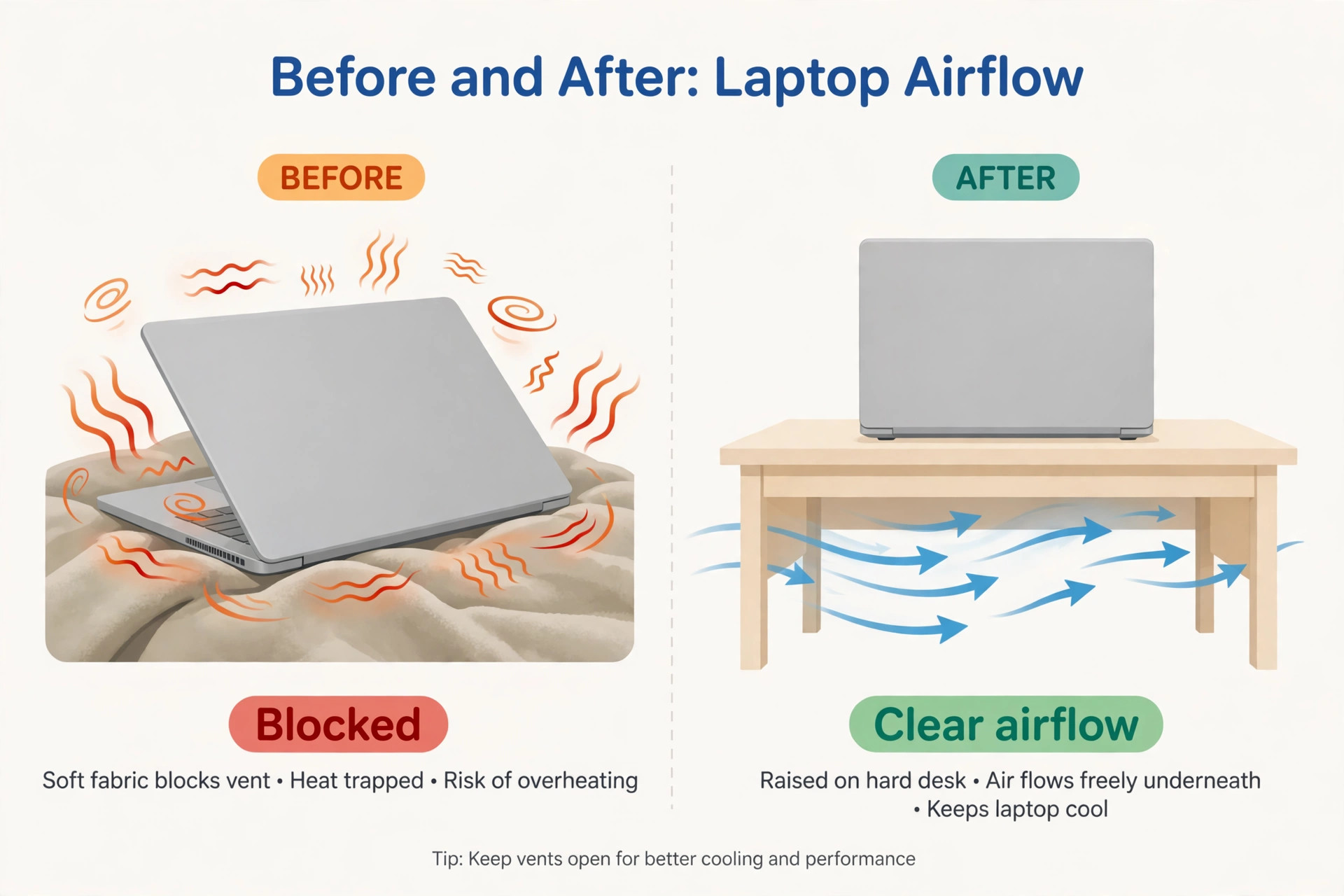
Room setup also changes what normal looks like. A MacBook on a hard desk with its rear edge slightly raised can draw and exhaust air freely, while the same machine on a duvet or a cushion can have vents partly covered. Before you judge the fan, give it a fair test on a desk, away from direct sun, with nothing stacked against the sides or rear.
The Cause Table. Every Common Cause, Its Sound, and Its First Test
The table below is the shortcut for this whole guide. Find the row that matches your sound and situation, jump to its fix step, test, and only move on if the noise remains.
| Cause | What you hear and see | First test that confirms it |
|---|---|---|
| Heavy app load | Steady wind that rises with exports, calls, or games | Quit the heavy app and watch the fan fall within minutes |
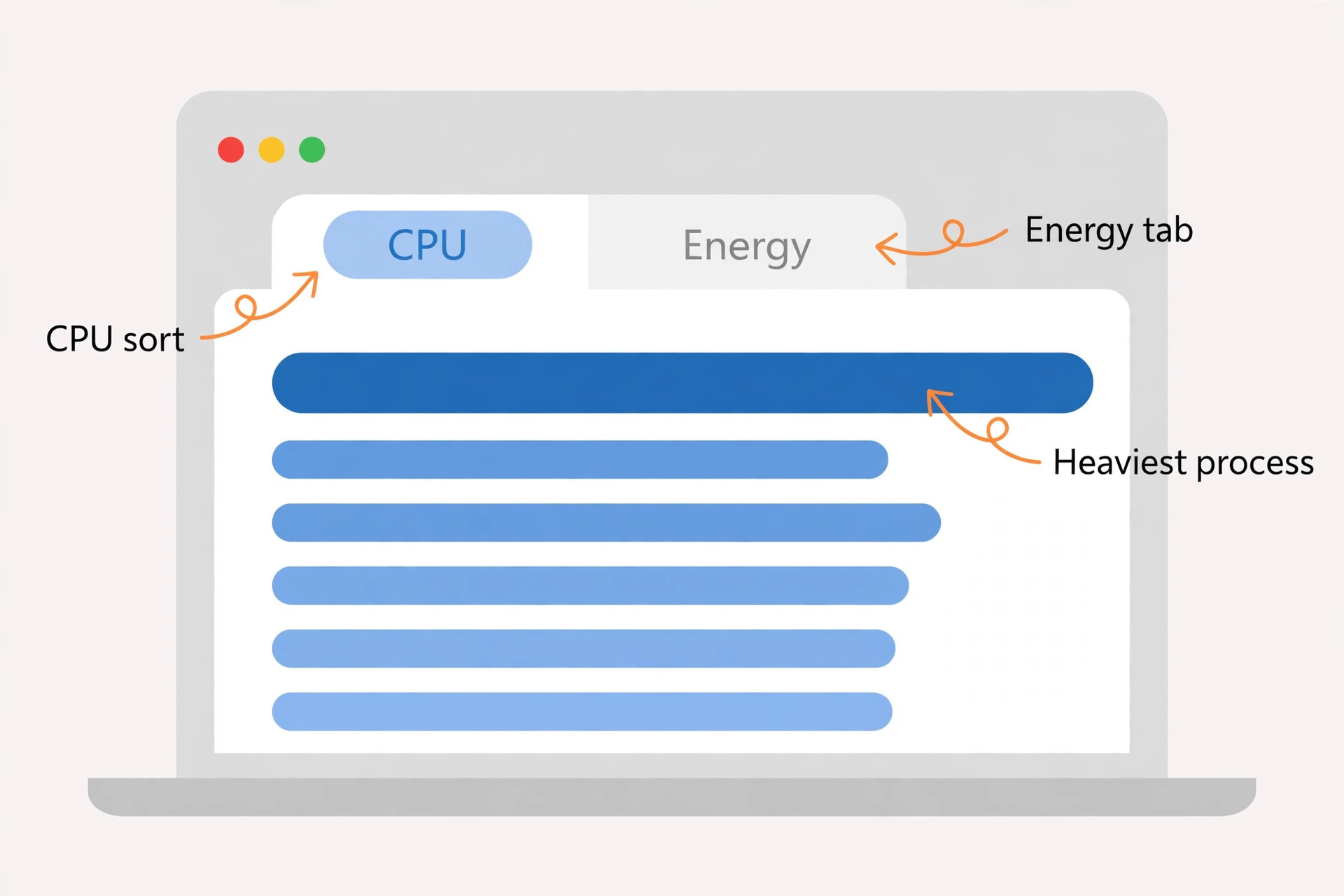
| Runaway background process | Loud fan at idle with no app visibly busy | Sort Activity Monitor by CPU and look for one process far above the rest |
| Spotlight or photo indexing | Loud fan after an update, a restore, or a large import | Wait and check whether indexing finishes, then retest at idle |
| Blocked vents or soft surface | Loud fan that improves on a hard desk | Move to a desk, lift the rear edge, and retest the same task |
| Dust in vents and fins | Loud fan that has grown worse over months | Inspect the vent grilles and compare idle noise after a careful external clean |
| Hot room or direct sun | Loud fan in summer or near a window | Move to a cooler shaded spot and retest the same task |
| Sensor or SMC fault on Intel | Full speed fan at idle with a cool case | Restart, then run the Intel SMC steps in order and retest |
| Failing fan bearing | Click, grind, rattle, or buzz that does not track load | Listen at idle and under light work for a mechanical sound that never fades |
| Fan stopped or sensor failed | Silence under heavy load with a very hot case | Stop heavy work, let the machine cool, and run Apple Diagnostics |
| Fanless Air with another sound source | Whine or buzz with no fan in the model | Confirm the model, then check speakers, dock, and external drives |
| Old thermal paste or worn cooling | Heat returns quickly after cleaning and settings fixes | Note age and history, then get a repair quote rather than forcing more software fixes |
| Malware or unwanted background work | High CPU with no clear app to blame | Check Login Items, browser extensions, and recent installs, then scan with trusted software |
Two rows cause most confusion. The first is the runaway process, because the MacBook can look idle while one hidden process uses most of the processor. The second is the sensor fault, because the fan can roar while the case feels cool, following a faulty sensor reading rather than real heat. Both often yield to a calm check before a repair booking.
Use the table as a decision aid, not as a diagnosis on its own. A dusty MacBook in a hot room running a heavy export has three causes at once, and fixing only one may leave the fan loud. Its value is that it stops the most expensive mistake, which is booking a fan replacement for a settings problem, or reinstalling macOS for a blocked vent.
How to fix MacBook fan loud noise in Order
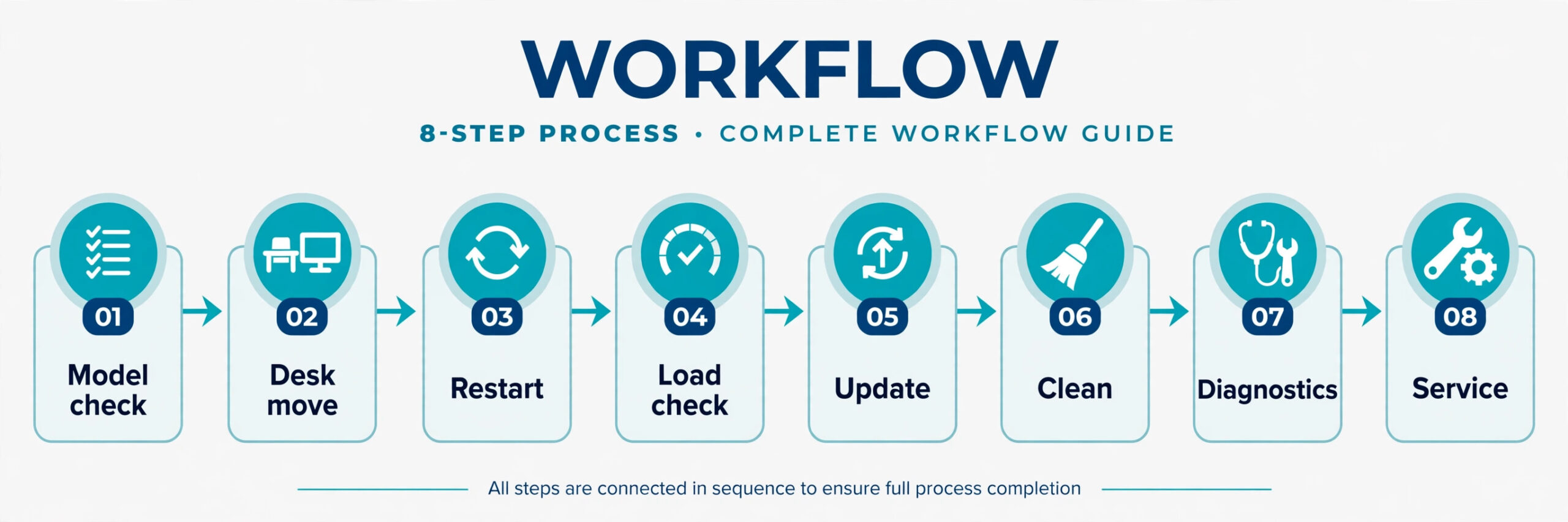
Work this checklist from top to bottom, and test after each step. The order runs from fastest to deepest on purpose. Early steps cost minutes and rule out the most common causes. Later steps take longer, change firmware settings, or need a technician, so they belong only after easy causes are cleared. Do not skip ahead to a reset because it sounds decisive. A load check that finds a runaway process tells you far more than a reset that fixes nothing.
The fix order checklist
- Confirm the model and whether it has a fan. Open About This Mac, note the chip and model, and stop fan troubleshooting if you have a fanless Air. What this rules out is a fan fault on a machine that has no fan.
- Move to a hard desk and lift the rear edge slightly. Remove anything blocking the sides or rear, move out of direct sun, and retest the same task. What this rules out is a blocked vent or a hot surface.
- Restart the MacBook and listen at idle for five minutes with no apps open. What this rules out is a temporary stuck process or a one off indexing spike.
- Open Activity Monitor, sort by CPU, and quit or pause the heaviest process. Repeat the idle test. What this rules out is app load and runaway background work.
- Check Login Items and background apps, and pause cloud sync, photo backup, and large downloads for one test. What this rules out is startup and sync load that hides behind a quiet desktop.
- Update macOS and the heavy app, then restart and retest. What this rules out is a known bug or a power management fix that Apple or the app maker already shipped.
- Clean the vent grilles from outside with short bursts of compressed air while the MacBook is off and unplugged. Wait a few minutes before powering on. What this rules out is surface dust narrowing the air path.
- Run Apple Diagnostics and note any reference code. What this rules out is a detected fan or sensor fault, and it gives support a code to work from.
- On an Intel MacBook only, reset the SMC using the steps for your exact model, then retest at idle. On Apple silicon, a full shut down and restart serves as the equivalent step. What this rules out is a power and thermal management fault.
- On an Intel MacBook only, reset NVRAM if settings such as volume, display resolution, or startup disk are also behaving oddly. Do not use it as a general fan fix on its own. What this rules out is a firmware settings fault, which is rarer than guides suggest.
- Test in a second user account or in Safe Mode if the noise follows no app and no surface change. What this rules out is a user level app or login item versus a system wide fault.
- Book a fan, sensor, or cooling assessment if the fan still roars at idle, makes a mechanical noise, stays silent under heavy load, or the heat returns within days of cleaning. What this rules out is the idea that more software changes will fix a hardware fault.
That checklist has no fan control app, no terminal command to force fan speeds, and no instruction to open the case. Forcing a fan to run slowly can hide heat and let the processor throttle, while forcing it fast can mask a sensor fault. Leave fan speed control to the system until you know the cause, and disable any fan control app while testing.
Test method matters at every step. Use the same task, for the same length, in the same room, before and after each change. A five minute idle test plus a five minute task test is enough for most steps. Keep the task fixed, change one variable, and write down the result, so you do not repeat a fix you already tried.
Check Load and Temperature Before You Touch Anything Else
Activity Monitor is the most useful tool in this guide, and it is already on your MacBook. Open it from Applications, then Utilities, then Activity Monitor, and click the CPU tab. Sort by CPU percentage with the highest process at the top. A healthy idle MacBook should show most processes near zero, with brief spikes. A single process sitting far above the rest for minutes, especially when you are not using that app, is the first suspect.
Common culprits are worth knowing by name. A browser with many tabs, especially tabs playing video, can use more processor power than people expect. Video calls add camera capture, encoding, decoding, and noise suppression at once, which is why a call can push the fan hard even on a capable machine. Photo and cloud sync can spike after a large import or restore. Spotlight indexing after an update or a large file move can also drive load for a while, then settle. The fix differs for each one, so name the process before you act.
Kernel_task deserves special care. It is a system process that can consume a large share of CPU when the MacBook is hot, but in many cases it is not the cause of the heat. It is the system protecting the machine by occupying processor time so other apps cannot push temperatures higher. If kernel_task is high, look for heat first. Improve airflow, reduce load, let the machine cool, and it should fall as temperatures fall. If it stays high on a cool machine at idle, that points toward a sensor or hardware check.
For a deeper check, look at the Energy tab in Activity Monitor. It shows which apps used the most energy over recent hours, and can catch an app that spikes when you are away. Check Login Items in System Settings under General, then Login Items, and remove anything you no longer need. A login item that starts a heavy sync at every boot can make the fan loud within minutes of startup, while the desktop looks empty.
Temperature monitoring apps can help, but treat their numbers with care. Apple does not publish a single internal temperature limit for every MacBook, and limits vary by chip and model. Use such an app to compare before and after a fix, not to chase a magic number. If idle temperature falls and the fan quiets after you quit one app, that app was part of the problem. If temperatures stay high at idle after every software step, airflow or hardware needs attention. In many cases, that single comparison is enough to fix MacBook fan loud noise without touching hardware.
Browser habits are the most common hidden load. Close unused tabs, pause auto playing video, and disable forgotten extensions. For a test, quit the browser entirely and run the idle test again. If the fan quiets sharply, reopen tabs in small groups until the noisy group returns.
Updates matter too, because an outdated app or system version can waste processor time. Check System Settings, then General, then Software Update, and install pending macOS updates. Update the heavy app as well, then restart and retest. A bug that keeps a process spinning can survive every surface and dust fix, and only an update ends it.
Dust, Ventilation, and the Surface Under the MacBook
Dust is a slow problem. It builds up over months, narrows the air path through vents and fins, and forces the fan to work harder for the same cooling. A MacBook more than a year old, never cleaned, or often used on fabric is a strong candidate for dust. The sign is gradual. The fan gets louder over months for the same work, rather than suddenly loud one afternoon after an update. Sudden noise points toward load or a fault. Gradual noise points toward dust and wear.
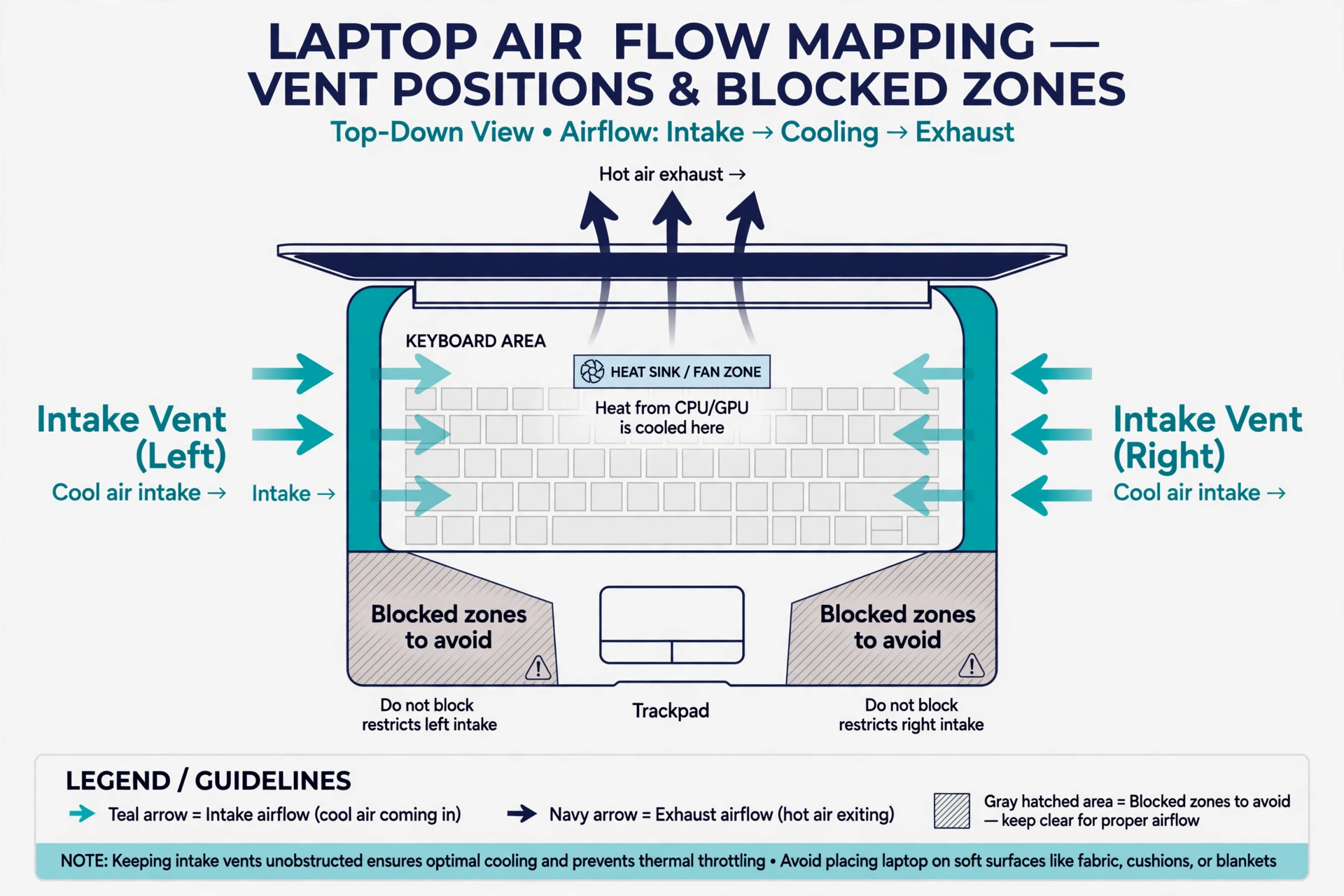
Start with the outside only. Power the MacBook off, unplug it, and inspect the vent grilles along the rear hinge and any side vents. Look for lint, pet hair, or a grey film across the grille. Use short bursts of compressed air from a short distance, angled so dust leaves the vent rather than being driven deeper inside. Do not use a vacuum nozzle, blow with your mouth, or use water or sprays near the vents. Wait a few minutes after cleaning before powering on, then rerun the idle and task tests.
A real dust improvement should show as a fan that rises later, falls sooner, or stays quieter for the same task, which confirms a step that helps fix MacBook fan loud noise.
Do not open the case as a first step. MacBook internals use small screws, delicate connectors, and tightly fitted batteries, and opening the machine can affect warranty and safety. If it is still under warranty or AppleCare, book an authorised clean instead. For most readers, external cleaning first, then a professional internal clean if noise persists, is the right path.
Vent position decides which cooling aids help. A stand that lifts the rear helps almost every MacBook, because it opens airflow around the base. A powered cooling pad helps most when bottom intakes align with the pad fans, and far less when intakes sit elsewhere or the bottom is mostly solid.
Room habits complete the picture. Keep the MacBook away from direct sun, heater vents, and warm devices stacked underneath it. Do not run heavy work inside a closed bag, and do not cover the rear hinge area with a cable bundle or papers. Clear the air path first, then add one cooling aid at a time.
SMC Resets on Intel, and What Apple Silicon Does Instead
The System Management Controller handles power and thermal management on Intel Macs, including fan control. A reset can help when an Intel fan runs at full speed at idle or behaves erratically after a power issue. It is not a general cure, and it will not fix MacBook fan loud noise caused by load, dust, or a failing bearing. Use it only after the load, surface, and update steps, and only on Intel hardware.
On Apple silicon MacBooks, there is no manual SMC reset to perform. Apple states that the equivalent reset happens when the machine restarts or shuts down and powers on again. Do not try Intel key combinations on an Apple silicon Mac. They will not help, and they waste a troubleshooting step that could have tested a real cause. A full shut down, a short wait, and a normal start is the correct Apple silicon step.
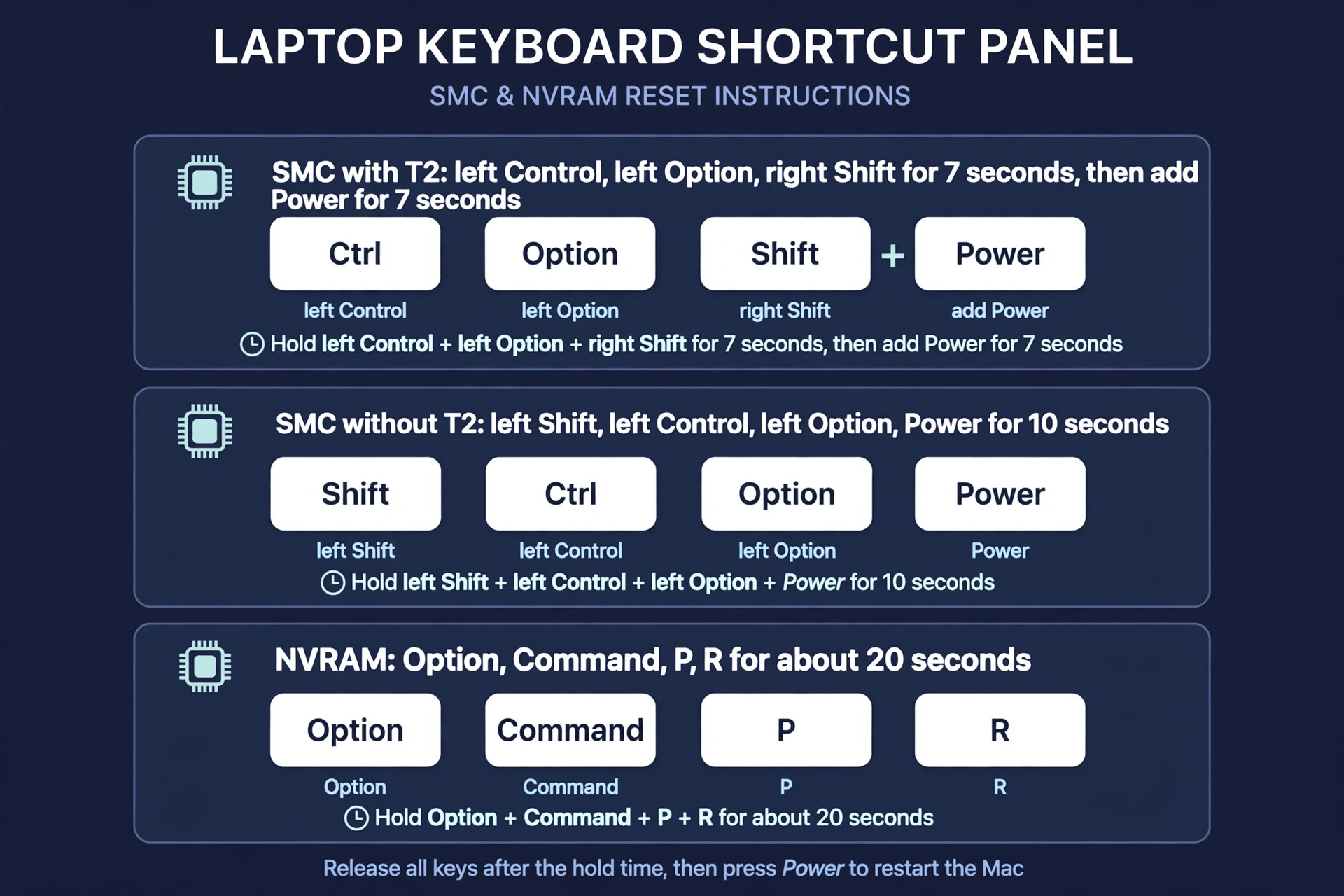
On an Intel MacBook with the T2 chip, first shut down, press and hold the power button for 10 seconds, release it, wait a few seconds, and start the Mac normally. If the problem remains, shut down again, then on the built-in keyboard hold left Control, left Option, and right Shift for 7 seconds. While still holding those keys, also hold the power button for another 7 seconds. Release all keys, wait a few seconds, and start the Mac. On an Intel MacBook without the T2 chip, shut down, then hold left Shift, left Control, left Option, and the power button together for 10 seconds. Release all keys and start the Mac.
Use the built-in keyboard for these steps, because a wireless keyboard may connect too late to register.
NVRAM is a different store. It holds settings such as sound volume, display resolution, startup disk choice, and time zone. On an Intel Mac, shut down, start the Mac, and immediately hold Option, Command, P, and R together for about 20 seconds. The Mac may appear to restart during that time. Release the keys, let it start normally, and recheck any settings that reverted. On Apple silicon, these steps do not apply, because the system checks those settings during startup. Treat an NVRAM reset as a settings fix, not a fan fix, and use it only when settings faults appear alongside the noise.
Apple Diagnostics and What the Codes Mean
Apple Diagnostics can detect a fan or sensor fault that software checks cannot prove. On Apple silicon, shut down, then press and hold the power button until the startup options screen appears, then press Command and D. On an Intel Mac, shut down, press the power button, then immediately hold D. Follow the on screen prompts and note any reference code exactly as shown. Fan related codes include PPF001, PPF003, and PPF004, which point toward a fan problem rather than a settings problem. Keep that code with your notes about sound, load, and idle behaviour, because support will ask for both.
If diagnostics finds no fault but the fan still roars at idle after every software step, that result still matters. It narrows the fault to airflow, wear, or a problem diagnostics did not catch, and it supports a service booking rather than another round of resets.

When to Seek Service, and What to Ask For
Book service when the pattern points past software. That means a mechanical click, grind, or rattle, a fan at full speed at idle after load, surface, update, cleaning, and reset steps, a fan that stays silent under heavy load while the case gets very hot, repeated shutdowns, or heat that returns within days of cleaning. Those signs suggest a failing fan, a faulty sensor, dried thermal paste on an older machine, or a deeper cooling fault. A repair quote should separate the fan, the sensor check, cleaning, and thermal paste work, so you can compare the cost against the age and value of the machine.
Ask whether the quote covers diagnostics, parts, and labour, and whether warranty or AppleCare covers a failed fan or sensor. Do not approve a full logic board replacement without a clear diagnostic reason, because a fan fault alone rarely needs that step. If an old MacBook needs both a fan and a battery, get the combined quote first. That combined number is the honest basis for deciding between repair and replacement, and it stops a small fan repair from turning into a series of separate bills. Knowing when to stop software fixes is part of how to fix MacBook fan loud noise without wasting money on parts that were never faulty.
Further Reading
If heat shows up elsewhere, the guide to laptop overheating on video calls covers call settings and airflow, the guide to iPhone battery drain after an update helps separate a software spike from a battery fault, and the guide to Wi-Fi keeps dropping on a laptop is useful when a network fault keeps background work spinning. Reading those alongside this guide helps you fix MacBook fan loud noise as part of a healthier setup, not as an isolated mystery.
Frequently Asked Questions
Is a loud MacBook fan always a sign of damage?
No. A fan that rises with heavy work and falls after it is doing its job. Damage is more likely when the fan stays loud at idle, makes a mechanical sound, or no longer tracks the work at all. Test idle behaviour first, then load, then surface, before assuming hardware damage.
Why does my fan stay loud after I close every app?
A background process, Spotlight indexing, cloud sync, or a login item can keep load high after the visible apps close. Check Activity Monitor sorted by CPU, pause sync for one test, and restart to fix MacBook fan loud noise at idle before concluding the fan itself is faulty. If the noise survives a clean restart at idle, move to diagnostics.
Should I reset the SMC on an Apple silicon MacBook?
No manual SMC reset exists for Apple silicon. A full shut down and restart performs the equivalent step. Intel key combinations do not apply there. If noise persists after a restart, work through load, surface, cleaning, and diagnostics instead of repeating an Intel procedure.
Does cleaning the vents really help, or is it a myth?
It helps when dust is narrowing the air path, which is common on machines over a year old. External cleaning with short bursts of compressed air, with the machine off and unplugged, is safe for most users. If noise improves for the same task after cleaning, dust was a real contributor.
Can a fan control app fix a loud fan?
It can change the sound, but it does not fix the cause. Forcing a slow fan can hide heat and cause throttling, while forcing a fast fan can wear the bearing and mask a sensor fault. Disable such apps while testing, so you hear what the system itself would do.
How long should I wait before booking a repair?
Give the ordered checklist one full pass, including a restart, a load check, a surface change, an update, an external clean, and diagnostics. If the fan still roars at idle, grinds, or stays silent under heavy load after that pass, book service promptly rather than repeating software steps.
Quiet Again, With a Reason You Can Name
The best outcome here is not just a quieter MacBook. It is a reason you can name for the noise, and a test that proves the fix. If closing one app quieted the fan, you know what to watch. If moving to a desk helped, you know the surface matters. If cleaning helped, you know the maintenance interval. If diagnostics gave you a code, you know the repair to ask for. A fan that tracks work, falls at idle, and stays free of mechanical sounds is a healthy fan, even if it is audible during a heavy task.
That is the standard to aim for, and the ordered steps in this guide are how you fix MacBook fan loud noise without guessing, without replacing healthy parts, and without ignoring a fault that needs a technician.