
A crash on save and a crash on open are not the same problem. A crash on open usually points at the file itself or at Word failing to start cleanly. A crash on save points at what happens in the last second of writing, when Word talks to an add-in, checks the template or printer, writes to a cloud folder, or hits damage inside the document. That distinction matters, because the fastest way to fix Microsoft Word crashing on save is to test the save path itself, not to reinstall the whole suite first. Work in order, stop at the step that fixes it, and note which step did the job.
This guide orders the fixes from the quickest checks to the deepest repairs. Each step rules out one layer before you move to the next. You will start by protecting the document you already have, then test Safe Mode and add-ins, then test whether one file or every file is at fault, then check the template and the default printer, then repair Office itself, and finally fix the save habits that make a future crash harmless. The steps use the built-in tools Microsoft documents for Word and Office, so you do not need a paid repair tool or a registry cleaner.
If a step asks you to rename or move something, it tells you exactly what to restore if it does not help.
Read the Pattern Before You Change Anything
Two minutes of observation will save you an hour of random fixes. Ask four questions before you touch a setting. Does Word crash when you save every document, or only one document. Does it crash on a local folder, a OneDrive folder, a network drive, or all three. Did it start after an add-in was installed, an Office update arrived, a new printer was set as default, or a document grew very large with images and tracked changes. And does Word also crash when you print, or does it only crash when you save. Each answer points at a different layer, and the table below turns those answers into a starting point.
| What you observe | Most likely layer | Start here |
|---|---|---|
| Crash on every document, even a new blank one | Add-in, template, printer, or Office install | Safe Mode, then the template and printer sections |
| Crash on one document only | Damage inside that document | Open and Repair, then copy content into a new file |
| Crash only on OneDrive or SharePoint saves | Sync, connection, or AutoSave conflict | Local save test, then the cloud save section |
| Crash only on a network drive or USB drive | Slow, locked, or disconnected storage | Local save test, then the storage section |
| Crash started right after a new add-in | That add-in, or an add-in update | Disable add-ins one by one |
| Crash started right after an Office update | Update bug, or a reset add-in or printer choice | Update check, then Safe Mode |
| Crash when saving large files with many images | File size, embedded objects, or a damaged image | Save a copy, then split or compress images |
| Word also crashes when printing | Default printer driver | Change the default printer test |
| Word closes with no error, and no recovery file appears | Add-in or template fault, or a forced close by another program | Safe Mode, then close background tools |
One test settles the biggest question early. Create a new blank document, type one sentence, and save it to your Desktop or Documents folder. If that save works, Word itself can save, and the fault is probably in the original document, its save location, or something that document triggers. If even the blank document crashes, the fault is in Word, an add-in, the template, the printer, or the Office install. Write down the result, since it is the one fact support will ask for first.
Also notice what happens just before the crash. A long pause often means Word is waiting on a network folder or a printer driver, while an instant close on Ctrl plus S often means an add-in or template fault. A crash only with AutoSave on points at the cloud sync path. These clues help you to fix Microsoft Word crashing on save faster, because they tell you whether to spend your next ten minutes on add-ins, on the file, or on the save location.

How to Fix Microsoft Word Crashing on Save in the Right Order
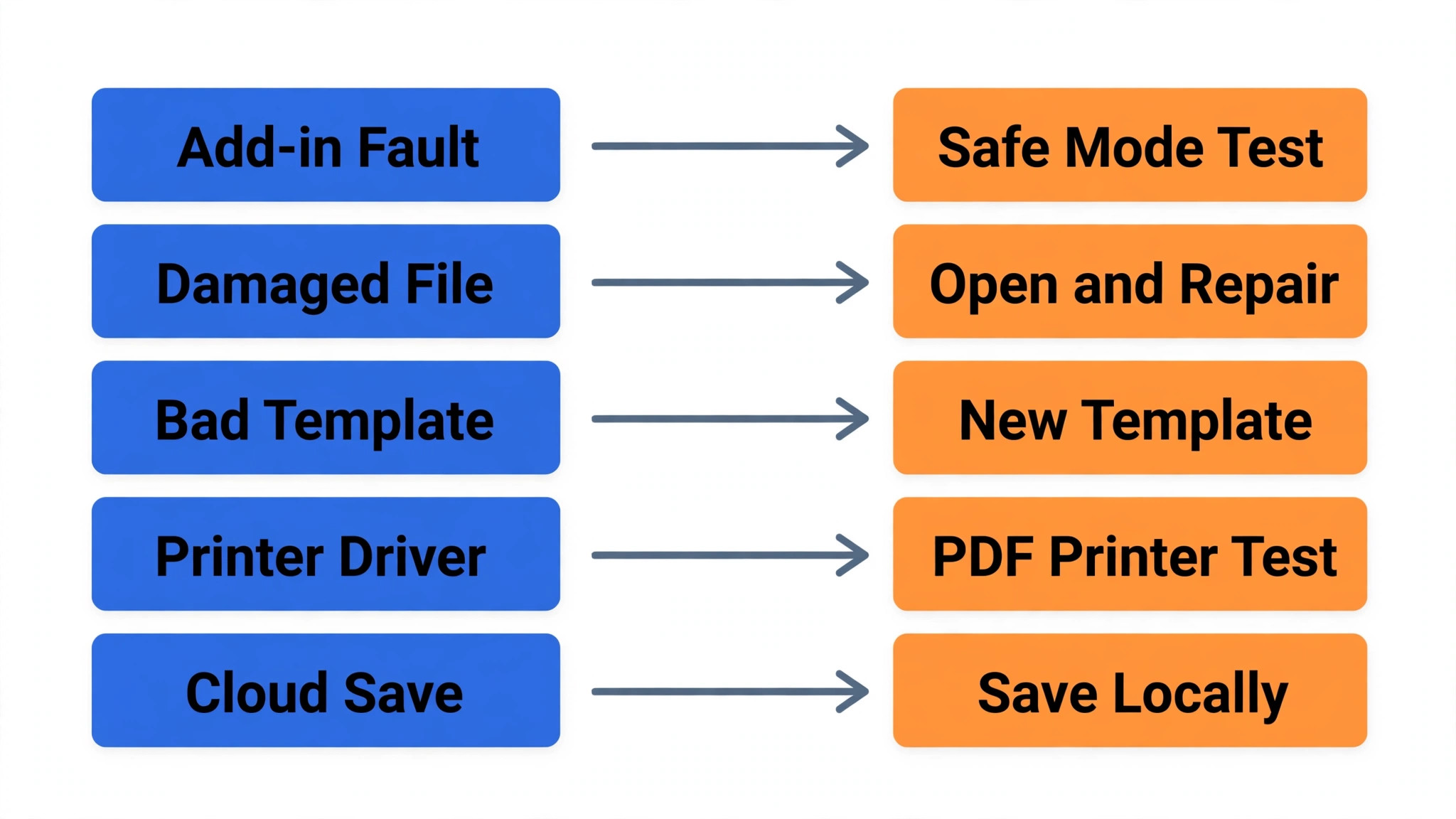
This checklist is the core of the guide, because the order matters as much as the steps. Each step rules out one layer, so you do not undo a good fix while chasing a later one. Work from the top, stop as soon as a save works, and test with the same document and the same save action that crashed before. A fix only counts if that exact save now succeeds twice in a row.
- Save a copy of the document under a new name in a local folder, and recover any unsaved version first if Word offers one.
- Create a new blank document and save it locally. This tells you whether every file or only one file is affected.
- Start Word in Safe Mode and save a test document. If the save works in Safe Mode, an add-in or a custom setting is the prime suspect.
- Disable all COM add-ins, restart Word normally, and re-enable them one at a time until the crash returns.
- Test the document with Open and Repair, and if that fails, copy its content into a fresh document and save the fresh copy.
- Rename the Normal.dotm template so Word builds a fresh one, then test a save.
- Change the default printer to a built-in PDF printer and test a save, to rule out a printer driver fault.
- Save to a local folder instead of OneDrive, a network drive, or a USB drive, and check free disk space.
- Update Office, then run Quick Repair, and run Online Repair only if Quick Repair does not fix it.
- Set up AutoRecover, version history, and a simple backup habit, so a future crash costs minutes, not a day of work.
If you reach step 9, you have already ruled out the document, the add-ins, the template, the printer, and the save location, which is exactly what a repair is for. If you reach step 10 without a crash, do not skip it. A crash you fixed once can return after the next add-in update, and a good save habit turns the next crash into an annoyance instead of a lost document.
Step 1. Protect the Document Before You Test Anything
Do not run repair tools on the only copy of a document. Copy it first, even if you suspect it is damaged. In File Explorer, copy the file into a different folder, or add the word copy to the file name, and work on the copy from now on. If a fix makes things worse, you can start again from the original.
If Word crashed and then offered a recovered version when it reopened, read it before you dismiss it. Open the most recent version in the Document Recovery pane, check the last paragraphs, tables, and images, and if it looks right, save it immediately under a new name in a local folder. Do not overwrite the original yet. If no recovery pane appears, go to File, then Info, then Manage Document, then Recover Unsaved Documents, and look for a recent version there.
AutoRecover is not the same as a saved file, and it is not a backup. It is a safety net Word writes at intervals while you work. Check the interval now at File, then Options, then Save, where you will also find the AutoRecover file location. A ten minute interval is the usual default, and two or three minutes is sensible for a long document you are actively editing. Shorter intervals cost almost nothing, and they shrink the gap between your last save and the recovered version.
Step 2. Test Safe Mode and Hunt the Add-In
Safe Mode starts Word without add-ins and without most custom settings, which makes it the cleanest test in this guide. If Word saves fine in Safe Mode but crashes normally, something Word normally loads is causing the crash, and an add-in is the most common culprit. This test is the quickest way to fix Microsoft Word crashing on save when an add-in is involved. Hold down the Ctrl key while starting Word and confirm the Safe Mode prompt, or press Windows plus R, type winword /safe, and press Enter. Create a test document, type a sentence, and save it to a local folder.
If Safe Mode saves cleanly, restart Word normally, go to File, then Options, then Add-ins, and look at the Manage list at the bottom. Choose COM Add-ins and click Go. Uncheck every add-in, click OK, restart Word, and test a save. If the save now works, re-enable the add-ins one at a time, restarting Word and testing a save after each one, until the crash returns. The last add-in you re-enabled is the suspect. Leave it disabled and check for an update from its maker.
Pay special attention to add-ins that touch saving, printing, or cloud storage. PDF tools, citation managers, grammar tools, and cloud storage integrations all sit in the save path, so they are more likely to crash a save than a simple formatting add-in. Also check the Word Add-ins list at File, then Get Add-ins, then My Add-ins, and remove anything you no longer use. An add-in installed for one project two years ago can still load on every start and still break after an Office update.
If Safe Mode still crashes on save, do not keep disabling add-ins. You have ruled out the add-in layer as the sole cause, and the fault is more likely in the document, the template, the printer, or the Office install. Move on to the document tests, and re-enable your add-ins later once the real fault is fixed. Make a short note of which add-ins were on before you started, even a phone photo of the list, so you can restore them accurately.

Step 3. Find Out Whether One File or Every File Is Broken
A crash that follows one document everywhere it goes is a document problem, not a Word problem, and repairing Office will not fix it. A crash that hits every document, including a fresh blank one, is a Word problem, and repairing the document will not fix it. Keep that distinction in mind as you fix Microsoft Word crashing on save, because it decides whether the next hour goes to the file or to the app.
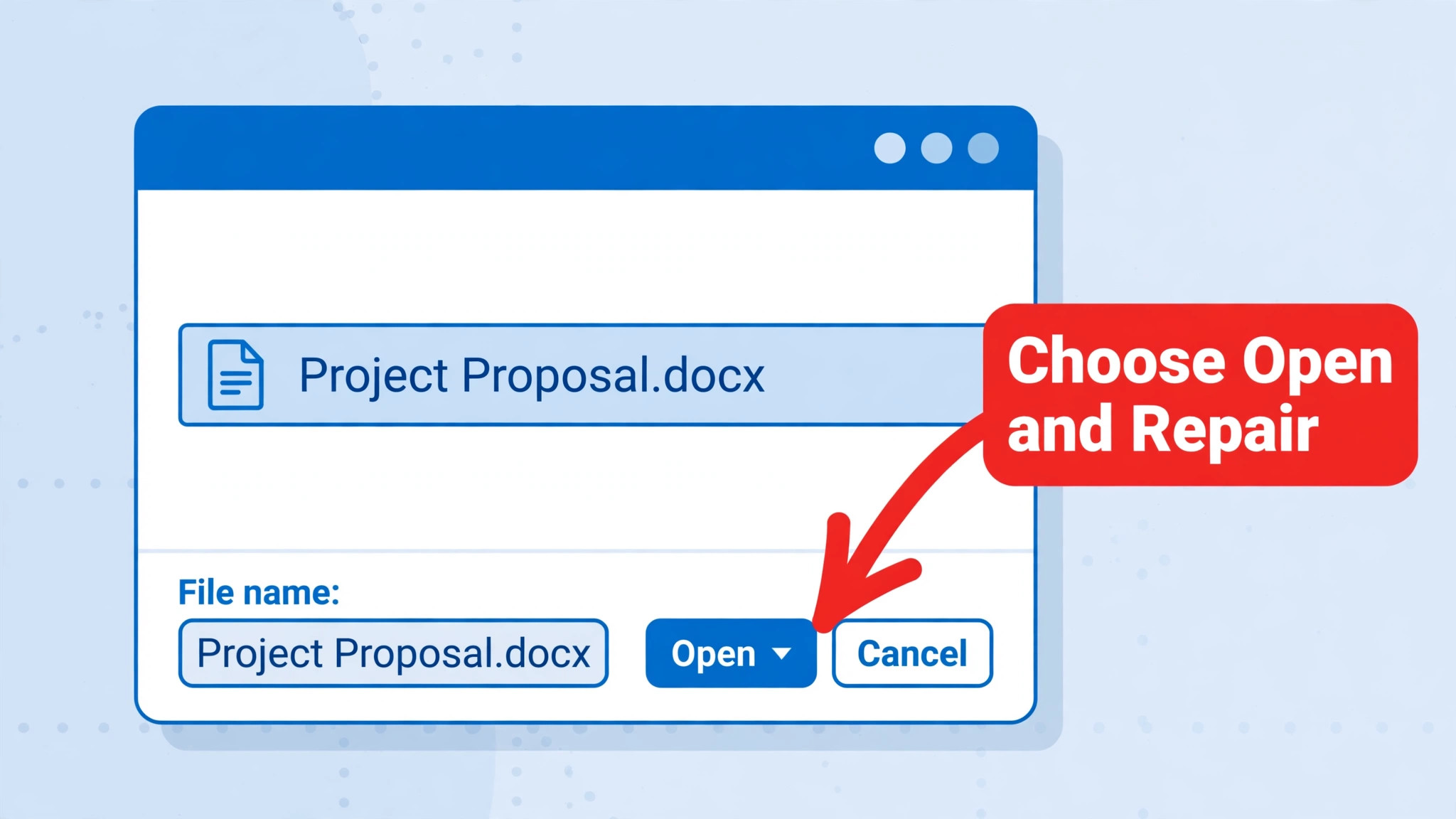
Start with Open and Repair, the built-in tool Microsoft provides for a damaged document. Open Word to a blank document, go to File, then Open, then Browse, and select the damaged file once without opening it. Click the small arrow beside the Open button and choose Open and Repair. If Word opens the file, save it immediately under a new name, then reopen the new copy and check every page, table, image, header, and comment before you overwrite the original.
If Open and Repair fails or the repaired copy still crashes on save, try the content transfer method. Create a new blank document, go to Insert, then Text, then Text from File, and select the damaged document. This pulls the text and much of the formatting into a fresh file structure, which often bypasses damage in headers or embedded objects. Save the new document under a new name and test it. If the crash disappears, the old file structure was the problem.
To narrow down damaged content, work on a copy and remove sections in halves, saving after each removal to see whether the crash stops. A common pattern is a single damaged image or an embedded chart that Word cannot write back correctly. Try deleting images one at a time on a copy, saving after each deletion, or try accepting or rejecting tracked changes on a copy, since a very long tracked change history can make a save slow and fragile. The goal is to find the element that breaks the save, remove or replace that element, and keep everything else.
Step 4. Reset the Template That Every New Document Uses
Word builds every new blank document from a template called Normal.dotm, and that template can become damaged or loaded with a bad setting or a faulty macro. A damaged template is a classic cause of crashes that hit every document, including new ones, because the template loads before you type a word. Checking it is a necessary part of any plan to fix Microsoft Word crashing on save, and the fix is safe, because Word creates a new Normal.dotm automatically the next time it starts.
Close Word completely first. Press Windows plus R, type the templates folder path shown below, and press Enter. In that folder, find Normal.dotm and rename it to Normal-old.dotm instead of deleting it. Renaming keeps your old template available if you need to restore it. The folder path is %appdata%\Microsoft\Templates, typed exactly as shown into the Run box. Start Word again, create a test document, and save it.
If the fresh template does not fix the save, close Word and rename Normal-old.dotm back to Normal.dotm, so you restore your styles, macros, and custom settings exactly as they were. There is no reason to lose those if the template was innocent. If the fresh template does fix the save, rebuild your custom styles gradually in the new template, testing a save after each batch of changes, instead of copying the whole old template back and reintroducing the fault.
Step 5. Rule Out the Default Printer in Two Minutes
This is the fix most people skip, because a printer seems unrelated to saving. Word, however, checks page layout against the default printer when it prepares a document, and a faulty printer driver can crash Word during save or print. Running this two minute test is a smart move when you fix Microsoft Word crashing on save, because it rules out a whole layer before any repair. Open Windows Settings, then Printers, and change the default printer to a built-in option such as Microsoft Print to PDF. Do not uninstall your real printer yet. Just change the default, restart Word, and test a save with the same document that crashed before.
If the save now works with the PDF printer as default, the printer driver was involved. Update or reinstall that printer driver from the printer maker’s site, then set the printer back as default and test again. If the save still crashes with the PDF printer as default, the printer is ruled out, and you can set your real printer back as default without losing anything.

Step 6. Fix the Save Location Before You Blame Word
Where Word saves matters as much as what Word saves. A local folder is the most reliable target, because nothing else has to answer before the write finishes. A OneDrive folder adds a sync step, a network drive adds a connection step, and a USB drive can sleep or disconnect mid-save. Test it directly by saving the same document to your local Documents folder. If the local save works and the cloud or network save crashes, you have found the layer.
For OneDrive and SharePoint saves, start by checking whether AutoSave is part of the crash. Try turning AutoSave off for that document, then save manually and see whether the crash stops. If manual saves work but AutoSave crashes, the sync path is the fault, not the document. Pause OneDrive sync, save locally, then resume sync and let the file upload, or use version history on OneDrive to restore a version from before the crashes began. This local first habit is one of the simplest ways to fix Microsoft Word crashing on save on a cloud stored file.
For network drives and USB drives, check the basics that are easy to overlook. Confirm the drive is still connected, that you have write permission for the folder, and that there is free space on the drive. Try a short file name in a top level folder as a test, since very long paths can trip save routines on older network shares. If the network save works from a different computer but not yours, the fault is on your machine or your connection. Either way, save locally first and copy the finished file to the network location afterwards.
Check free space on the drive that holds the document and on the system drive, since a nearly full drive can fail a save and even damage the file with a partial write. Also check that no other program, such as an antivirus scan or a backup tool, is locking the file at the moment of saving.

Step 7. Update Office and Then Repair It Properly
If the document, the add-ins, the template, the printer, and the save location are all ruled out, the Office install itself is the remaining suspect. Update first, because an update can fix a known save bug. In Word, go to File, then Account, then Update Options, then Update Now, and install anything offered. Restart the computer after the update, then test the exact save that crashed.
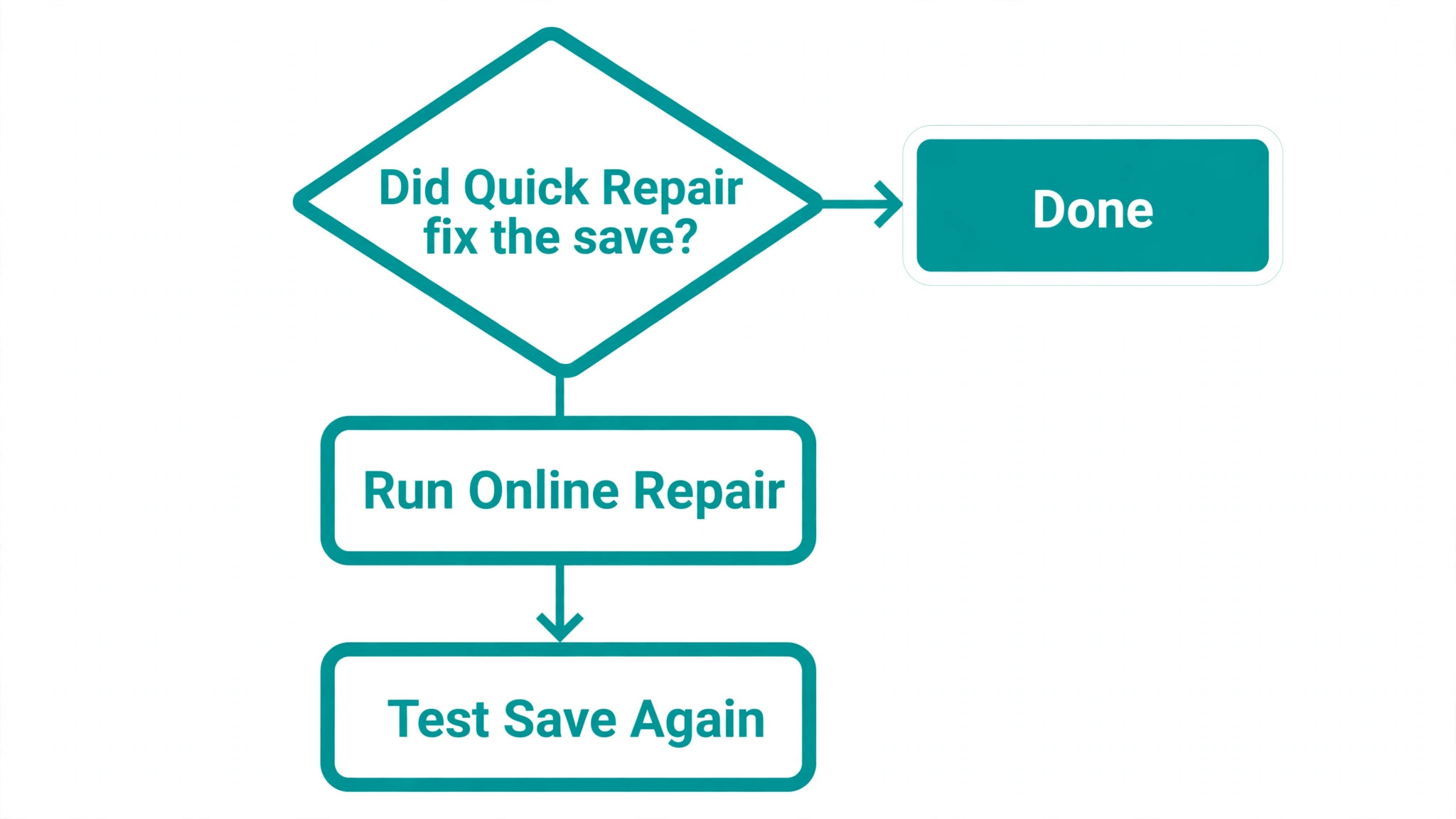
If updating does not help, run an Office repair, and run it in the order Microsoft documents. Quick Repair comes first. Close all Office apps, open Settings, then Apps, then Installed apps on Windows 11, or Apps and features on Windows 10, find Microsoft 365 or your Office product, choose Modify, then choose Quick Repair and Repair. Quick Repair checks for and replaces damaged Office files without a long download. Restart Word after Quick Repair and test a save. This ordered repair step is the deep end of the work to fix Microsoft Word crashing on save, so reach it only after the cheaper tests have ruled out their layers.
If Quick Repair does not fix the save, repeat the same steps and choose Online Repair instead. Online Repair is more thorough, it downloads fresh Office files, and it takes longer, so stay connected to the internet until it finishes. Close all Office apps first, run Online Repair, restart the computer when prompted, then test a save. Online Repair does not delete your documents, but it can reset some Office settings, so check your add-ins afterwards.
A full reinstall is the last resort, not a shortcut. Uninstall Office through Settings, restart the computer, then install fresh from your Microsoft account and sign in with the account that holds your licence. After reinstalling, test a save with a new blank document before you re-enable add-ins or restore a custom template. If a clean install with no add-ins still crashes on save, the fault is likely in Windows, a driver, a disk problem, or a conflicting program, and that is the point to contact Microsoft support or your IT team with the full list of steps you have already ruled out.
Step 8. Make the Next Crash Harmless With Better Save Habits
Fixing the crash is only half the job. The other half is making sure the next crash costs you minutes instead of a day. Start with the simplest habit, which is to save early and often with Ctrl plus S, and to save a versioned copy at milestones in a long document. A file name with a date or a version number, saved in a local folder, gives you a fallback no recovery tool can beat.
Next, set AutoRecover to a short interval and confirm version history is available for your important files. A two or three minute AutoRecover interval, set at File, then Options, then Save, shrinks the gap between your work and the recovered version. For files in OneDrive or SharePoint, version history gives you a second safety net. For local files, copy important documents to a second drive or a cloud folder at the end of each work session. Good backup habits will not fix Microsoft Word crashing on save on their own, but they decide whether the next crash costs minutes or a day.
Finally, keep the add-in and template hygiene that fixed the problem in the first place. Review your add-ins every few months and remove anything you no longer use, keep Office updated instead of postponing updates until a deadline week, and do not let a document grow into a single giant file when chapters would work as separate files. If a crash returns, run the blank document test and the Safe Mode test first, since most repeat crashes are a new add-in, a new printer default, or a document that has grown fragile again.
If Word is only one part of a wider Office problem, the same fastest-first logic applies elsewhere on this site. Readers who hit a printer fault in step 5 may find the printer connection guide useful, and readers whose crashes only happen on cloud saves may benefit from the storage cleanup guide. For a companion fix, see the Teams microphone guide and the Chrome slowdown guide. Each uses the same rule. Test one layer at a time, keep a copy of your work, and stop at the step that fixes it.
Frequently Asked Questions
Why does Word crash only when I save, but not when I type or edit
Saving is the moment Word writes the whole document structure back to disk, talks to add-ins that hook into saving, checks page layout against the printer, and hands the file to a sync tool or a network drive. Editing only changes the copy in memory, so a fault in any of those save path steps stays hidden until you press save. That is why a document can feel perfectly healthy for an hour and then close the moment you save. Test the save path directly with a blank document, Safe Mode, and a local folder to find which step in that path is failing.
Does Safe Mode delete my add-ins or settings
No, Safe Mode only starts Word once without loading add-ins and most custom settings, so you can test whether they are causing the crash. Your add-ins and settings return the next time you start Word normally. Use Safe Mode as a test, not as a permanent way to work, because working in Safe Mode every day hides the fault instead of fixing it. Once Safe Mode confirms an add-in fault, disable the add-ins normally and re-enable them one at a time to find the culprit.
Will renaming Normal.dotm delete my documents or custom styles
Renaming Normal.dotm does not touch your documents, which live in their own folders and are unaffected by the template. It does reset the styles, macros, and custom settings stored in the template itself, which is why this guide tells you to rename rather than delete, and to restore the old name if the fresh template does not fix the save. If the fresh template does fix it, rebuild your custom styles gradually in the new template instead of copying the old template back whole.
Should I run Quick Repair or Online Repair first
Run Quick Repair first, because it is faster, it replaces damaged Office files without a long download, and it fixes many install faults on its own. Run Online Repair only if Quick Repair does not fix the save, because Online Repair downloads fresh files and takes longer. If both repairs fail, a clean reinstall is the next step, but only after you have ruled out the document, the add-ins, the template, the printer, and the save location, since a reinstall cannot fix a damaged document or a bad printer driver.
Can a corrupt document be saved, or is the work lost
A corrupt document can often be saved, and the work is not necessarily lost. Open and Repair can rebuild light damage, and copying content into a fresh document through Text from File can bypass damage in the old file structure. If neither works, Recover Text from Any File can rescue the readable text, though it will lose images and complex formatting. Always work on a copy, check the recovered version page by page, and use AutoRecover or version history to find an earlier version if the current copy is too damaged to repair.
How do I stop this crash from happening again
Keep the habits that make a crash harmless and the hygiene that prevents repeat faults. Save often, keep versioned copies at milestones, set a short AutoRecover interval, and keep important files backed up or in a folder with version history. Review add-ins every few months, keep Office updated, and do not let one document grow into a giant file full of full resolution images. If a crash returns, run the blank document test and the Safe Mode test first, because most repeat crashes are a new add-in, a new printer default, or a document that has grown fragile again.
Your Next Save Should Be Boring Again
A save that works is boring, and boring is exactly what you want. Work through the checklist in order, protect the document first, and let each test rule out one layer before you move to the next. Most save crashes turn out to be an add-in, a damaged document, a tired template, a printer driver, or a save location that cannot keep up, and every one of those has a fix that costs minutes, not a reinstall. If you followed every step here to fix Microsoft Word crashing on save and the crash is gone, the job now is to keep the habits that keep it gone.
If you fixed it, write down the step that worked and keep it where you will find it next time. The next crash will probably look similar, and a one line note turns a stressful hour into a five minute repeat of a known fix. If you worked through every step and the crash survives a clean reinstall with no add-ins, take your ruled out list to Microsoft support or your IT team, because that list moves the case past the basic checks and into the deeper layers.