
Microsoft’s spam filters judge every message on authentication, sender reputation, engagement, and content before it ever reaches an inbox. When any one of those signals looks wrong, a perfectly legitimate email can land in Junk, and the recipient may never notice it. To fix Outlook emails going to spam, you need to find which signal is failing, because a safe sender entry will not rescue mail from a domain that fails authentication, and a clean authentication record will not rescue mail that a hidden rule keeps moving. This guide works both sides of the problem, in order, from the fastest recipient fixes to the deepest sender repairs.
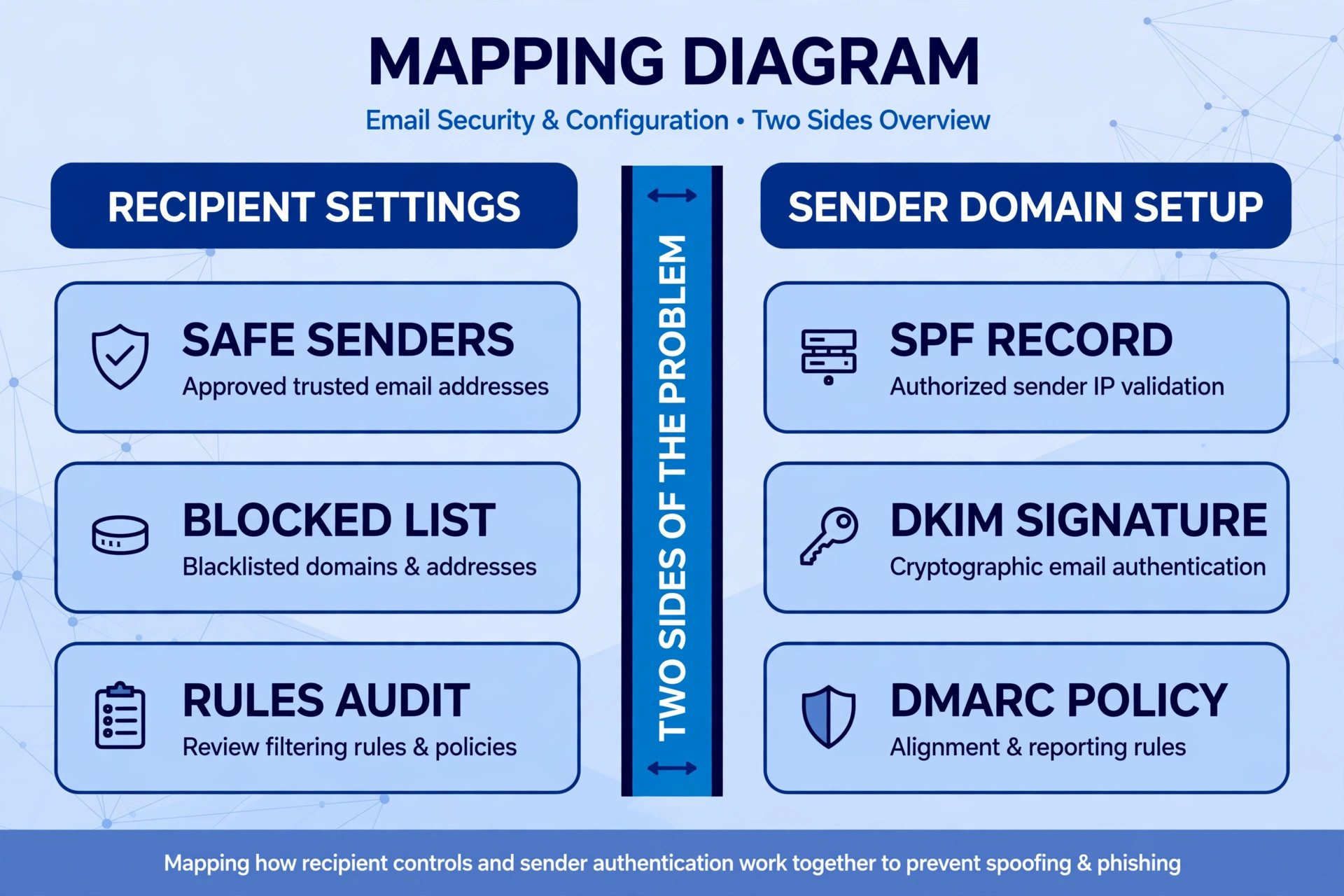
There are two different problems hiding behind one complaint, and the fixes are different for each. The first is that mail you receive keeps landing in your Junk folder. The second is that mail you send keeps landing in other people’s Junk folders. The first is fixed in your own Outlook settings. The second is fixed in your domain setup, your sending habits, and your content. The triage below tells you which half to start with, so you do not waste an afternoon changing settings on the wrong side.
The 10 Minute Triage That Tells You Which Side Is Broken
Before you change anything, run a short triage that narrows the cause to one side. This step matters because the two sides look identical from the inbox. A missing newsletter and a missing invoice both feel like the same problem, but one may be a rule you forgot and the other may be a sender whose domain fails authentication.
Start with a test message. This triage is the first step to fix Outlook emails going to spam without guessing. If you are the recipient, ask the sender to send a plain test email with a simple subject line and no links, images, or attachments. If that plain test lands in your inbox, the sender’s domain and reputation are probably fine, and the problem is content or filtering on specific messages. If even the plain test lands in Junk, the problem is more likely a filter, a rule, a block entry, or a sender reputation issue.
If you are the sender, send the same kind of plain test to your own Outlook address and to a second mailbox at a different provider, and compare where each copy lands.
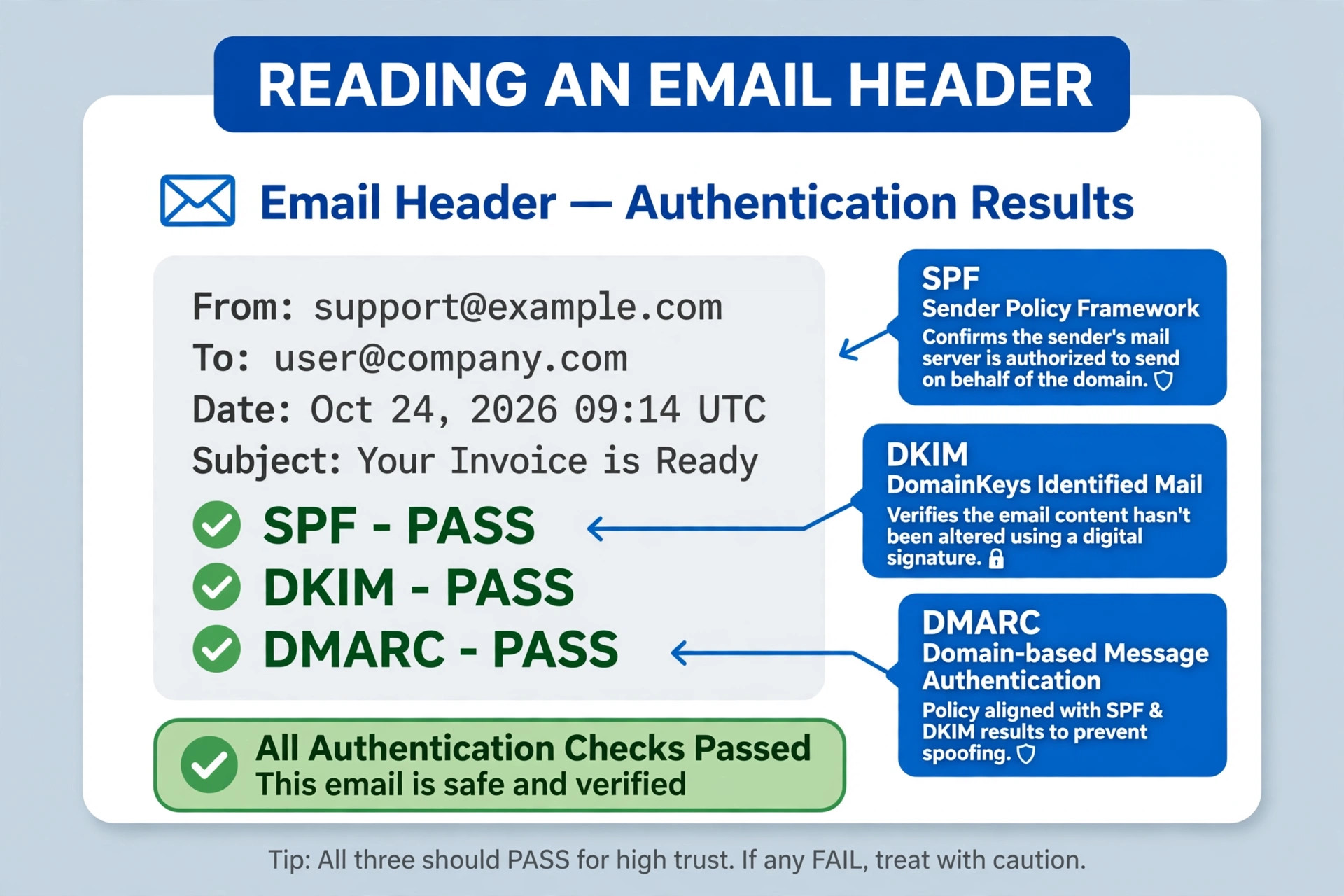
Next, check the message headers on a message that went to Junk. In Outlook on the web, open the message, select the three dots, and choose View message source. Look for the authentication results near the top of the headers. You want SPF, DKIM, and DMARC each marked as pass. If any shows fail, you have found a sender side problem, and no recipient setting will fix it reliably. If all three pass and the message still went to Junk, the cause is more likely a filter, a rule, content, or reputation.
Then check the scope. One sender affected points to that sender’s settings or reputation. Every sender affected points to your own Outlook settings. One recipient affected points to that recipient’s filters or blocks. Every Outlook recipient affected points to your domain authentication or your sending reputation.
| Triage result | Most likely cause | Go to |
|---|---|---|
| Plain test lands in Junk too | Filter, rule, block, or sender reputation | Recipient fixes and rule audit |
| Plain test lands in inbox, real mail does not | Content triggers or link and image patterns | Content triggers section |
| Authentication shows fail in headers | Missing or broken SPF, DKIM, or DMARC | Sender authentication section |
| One sender only | That sender’s setup or reputation | Sender sections, shared with the sender |
| Every Outlook recipient affected | Your domain authentication or reputation | Sender sections in full |
How to Fix Outlook Emails Going to Spam From the Recipient Side
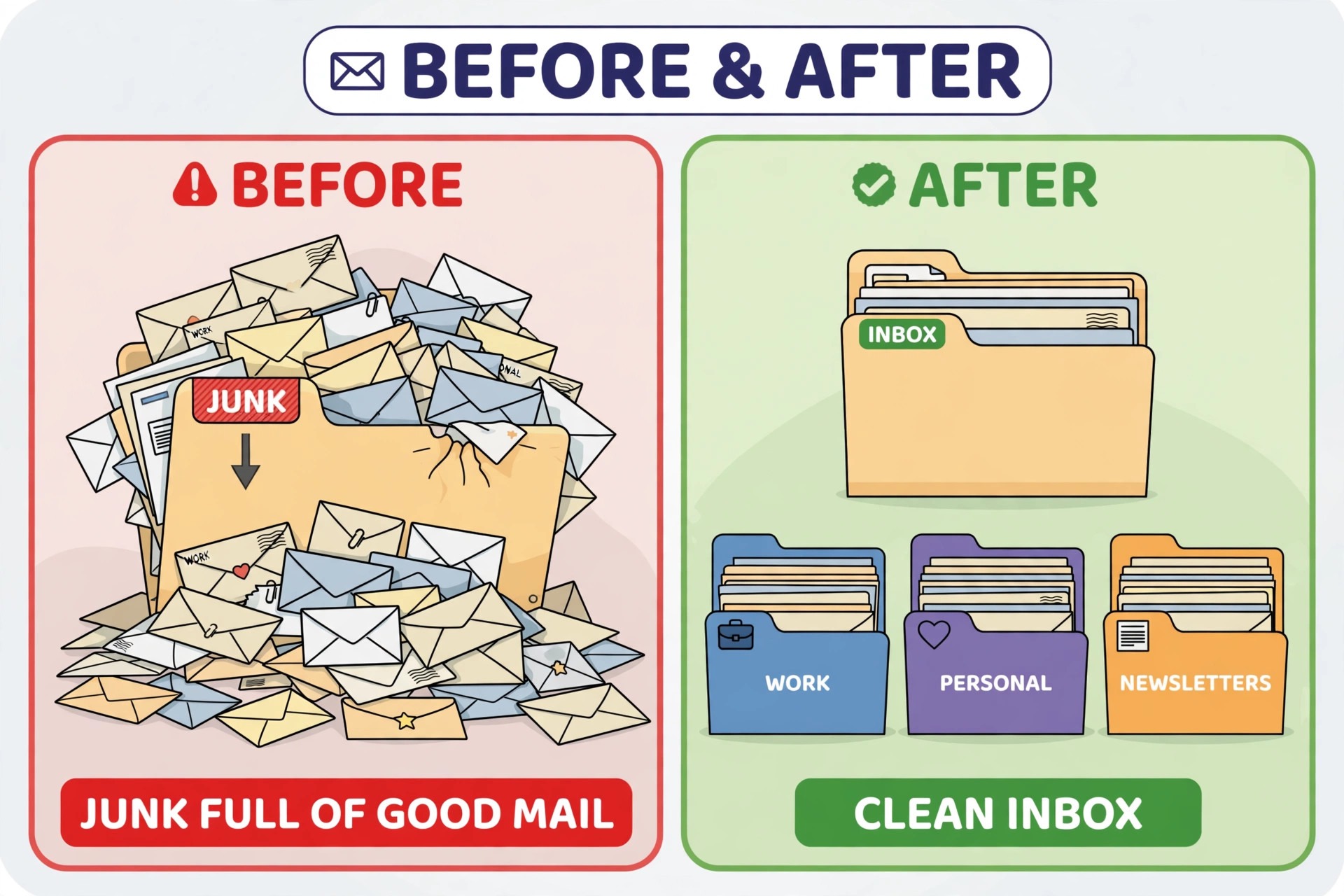
Recipient fixes are the fastest wins, and they are where most people should start. Work through them in this order, and test after each change by asking the sender to resend, or by moving a Junk message back and watching the next one.
**Mark the message as Not junk.** Open the Junk folder, select the message, and mark it as Not junk. In Outlook on the web this also moves the message to the inbox. This step trains the filter, and it matters more than people expect, because Microsoft’s filters learn from user feedback. Mark several messages from the same sender if you have them, not just one, because repeated Not junk reports build a pattern the filter respects.
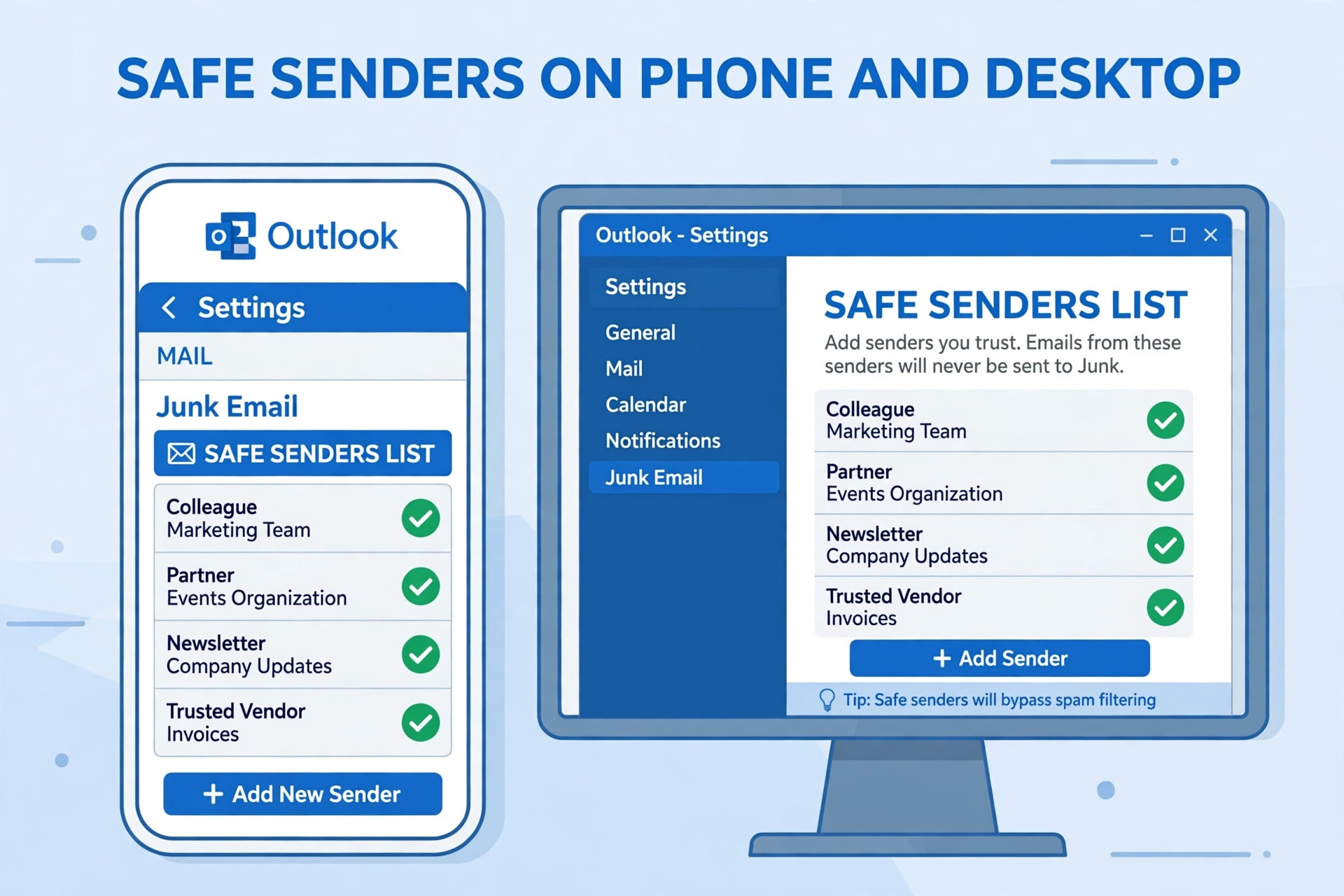
**Add the sender to Safe senders and domains.** In Outlook on the web, go to Settings, then Mail, then Junk email, and under Safe senders and domains add the sender’s address or the whole domain. Microsoft states that addresses and domains on the Safe Senders List are never treated as junk, regardless of message content. In the desktop app, the same list lives under Home, then Junk, then Junk Email Options, then the Safe Senders tab, where you can also tick the option to trust email from your contacts. Add the domain rather than a single address when the sender uses several sending addresses.
**Check the Blocked senders list on the same page.** A sender can end up blocked by accident, for example by a mis-tap on a phone or by an old cleanup session. If the sender or their domain appears under Blocked senders and domains, remove the entry and save. This check takes thirty seconds and explains a surprising number of stubborn cases, because a block entry overrides almost everything else.
**Check your junk email filtering level.** In desktop Outlook, Junk Email Options offers filtering levels. A strict level catches more legitimate mail along with real spam. If you have been losing good mail, a lower filtering level combined with a careful Safe Senders List is usually a better trade than the strictest setting. Do not turn filtering off entirely, because that invites real spam and hides the underlying cause.
**Check Focused Inbox and Sweep.** A message missing from your main inbox view may not be in Junk at all. It may sit in the Other tab of Focused Inbox, which many people never open. Turn Focused Inbox off temporarily while you test, or check the Other tab directly. Sweep is another quiet mover. In Outlook on the web, check Settings, then Mail, then Sweep, and remove any rule that automatically moves or deletes mail from the sender. Sweep rules are easy to set by accident from a single message menu, and they keep running silently afterwards.
One warning about Safe Senders deserves emphasis. The desktop Safe Senders List does not override the server side filter in every case. Mail to an Outlook.com or Hotmail address is first processed by Exchange Online Protection on the server, and if that layer quarantines or marks a message as spam, the desktop list alone will not pull it back. If you added a safe sender in desktop Outlook and mail still lands in Junk, add the same entry in Outlook on the web, which applies at the server level, and test again.
Audit Your Rules Step by Step
Rules are the quietest cause of missing mail, because they work exactly as they were set up, even when the setup was a mistake or is years out of date. A rule created for a newsletter, a shopping site, or an old project can still move mail to Junk, to Deleted Items, or to a folder you never open. A rule can also be created by accident, for example by accepting a suggested rule from a single message menu without noticing how broad it was. The audit below takes about ten minutes, and it is worth doing even if you think you never created a rule.
A clean rule audit alone can fix Outlook emails going to spam for many recipients.
Start on a computer, because the full rule list is easiest to review there. In Outlook on the web, go to Settings, then Mail, then Rules. In desktop Outlook, go to File, then Manage Rules and Alerts. Read every rule, not just the first few, and pay attention to the action each rule takes. Any rule that moves mail to Junk, to Deleted Items, or deletes it deserves a second look, because those actions hide mail completely.
For each suspicious rule, open it and read the conditions. Check the From field, the subject words, and any other matching condition. A common problem is a rule that matches a whole domain when it was meant to match one newsletter address. Another is a rule that matches a subject word such as order, invoice, or receipt, which then catches unrelated mail from banks, shops, and services. A third is a rule built on a sender name rather than an address, which can catch anyone with a similar display name.
The Rule Audit Steps in Order
Work through these steps without skipping, and write down anything you change, so you can undo it if mail starts arriving from a sender you had meant to filter.
- Open the rules list in Outlook on the web or desktop Outlook and list every rule, including disabled ones.
- Flag every rule whose action moves mail to Junk, to Deleted Items, or to a folder you do not check daily.
- Open each flagged rule and read its conditions in full, including the From, subject, and recipient fields.
- Delete or narrow any rule that could catch the missing sender, and note the change and the date.
- Check Sweep separately in Outlook on the web, and remove any automatic move or delete action for the sender.
- Check forwarding separately, and confirm it is off or pointing where you expect.
- Ask the sender to resend a test message, and watch whether it lands in the inbox.
- If the test still lands in Junk, move to the sender side checks, because the cause is probably not your rules.
Deleting a rule does not recover mail it already moved, so after the audit, search Deleted Items and Junk for messages the rule already hid, and move anything legitimate back to the inbox. If you use desktop Outlook and suspect rules are corrupted rather than merely wrong, closing Outlook and launching it with the cleanrules switch resets all rules, but that is a last resort, because it deletes every rule, including good ones, so note your rules first.
The Sender and Filter Checklist
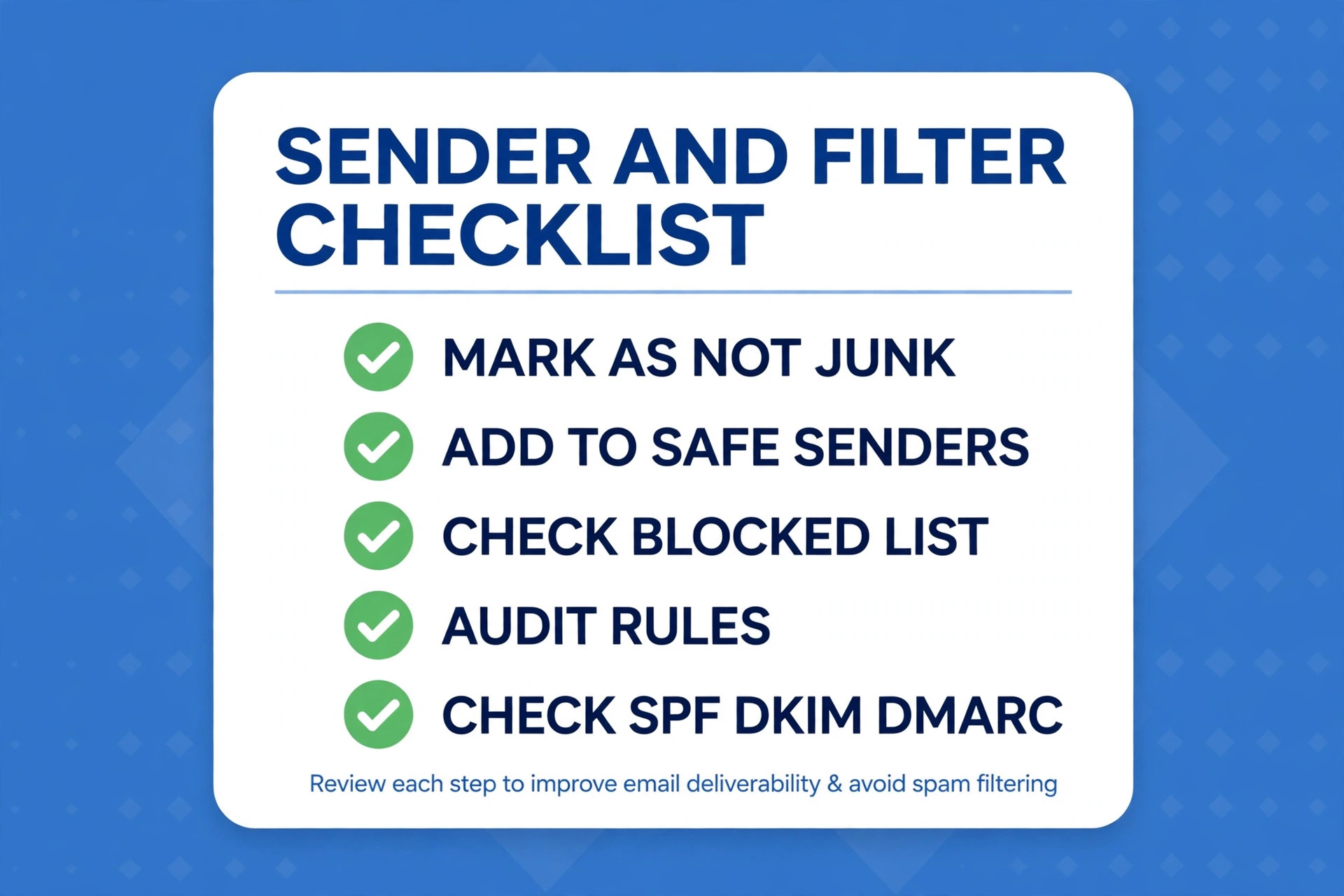
This checklist is the overview-proof core of the guide. Work it top to bottom, and tick each item only when you have verified it, not when you assume it. The order runs from fastest to deepest, and each row tells you what that step rules out.
| Check | How to verify | What it rules out |
|---|---|---|
| Message marked Not junk | Several messages from the sender marked Not junk | Filter has not learned the sender yet |
| Safe sender entry | Sender or domain added in Outlook on the web | Recipient side filtering |
| Blocked list clear | Sender absent from Blocked senders and domains | An accidental block entry |
| Rules audited | Full rule list reviewed, bad rules removed | A hidden move or delete rule |
| Sweep and forwarding clear | Both checked in Outlook on the web settings | Silent auto-move or forwarding |
| SPF passes | Authentication results in message headers show pass | Unauthorised sending servers |
| DKIM passes | Authentication results in message headers show pass | Tampered or unsigned mail |
| DMARC aligned | DMARC passes and aligns with the From domain | Spoofing and alignment failure |
| Sending volume steady | No sudden spike in daily sending volume | A volume spike that damaged reputation |
| List clean | No purchased lists, bounces and unsubscribes honoured | Complaint and bounce damage |
| Content clean | Plain test reaches the inbox, full version does not | Link, image, or wording triggers |
| Placement tested | Seed test to Outlook, Gmail, and a second provider | A provider specific block |
If every recipient side row is ticked and mail still lands in Junk, the problem is almost certainly on the sender side, and the next two sections are where the fix lives. Send the checklist to the sender if you are the recipient, because most sender side fixes need the sender’s domain access, and a recipient cannot make them alone.
Fix the Sender Side, Starting With Authentication
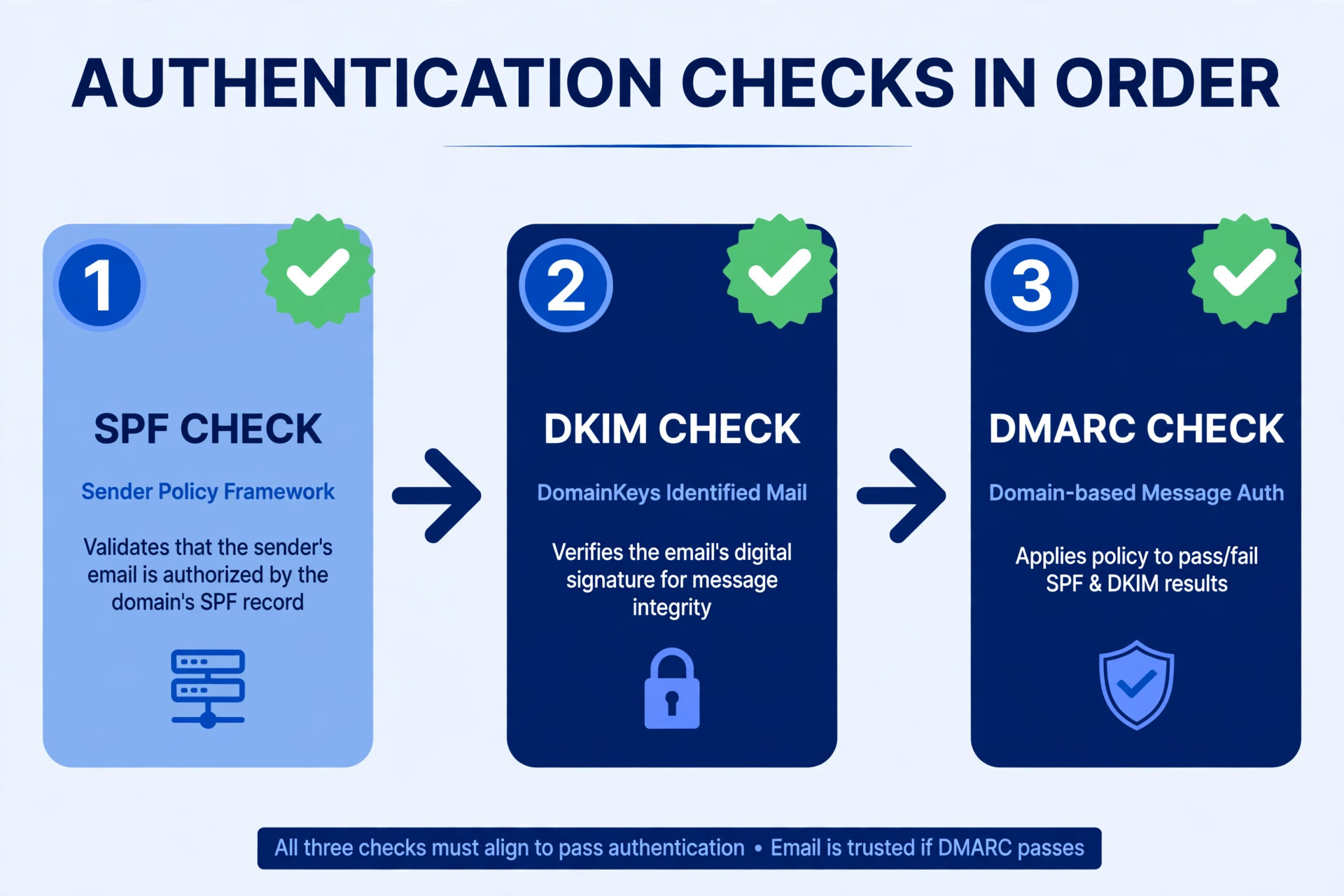
If you are the sender, authentication is the deepest and most important fix, and recipients cannot do it for you. For senders, the way to fix Outlook emails going to spam starts with proving your domain is who it claims to be. Microsoft states that all senders should implement SPF, DKIM, and DMARC, and that domains sending more than 5,000 emails per day to Outlook.com accounts must be fully compliant with all three. Messages from high-volume senders that fail these requirements are sent to the Junk folder, and if the problems stay unresolved, messages may be rejected outright with an access denied error.
Even below that volume threshold, missing authentication is one of the strongest spam signals a filter can see, so treat it as mandatory, not optional.
**SPF tells receivers which servers may send for your domain.** SPF is a DNS TXT record that lists the authorised sending servers and services for your domain. If you send through a newsletter platform, a CRM, or a transactional mail service, each of those services must be included in your SPF record, or mail they send for you will fail SPF. A common failure is a domain whose SPF record lists only the main mail host while the newsletter platform sends from elsewhere. Check your SPF record with a public DNS lookup tool, confirm every sending service appears in it, and confirm the record does not exceed the ten DNS lookup limit that breaks SPF evaluation.
**DKIM signs every message so tampering is visible.** DKIM adds a cryptographic signature to each outgoing message, tied to your domain. When a message arrives, the receiver checks the signature against the public key published in your DNS. If the signature is missing or invalid, the message looks tampered with or forged. Most mail platforms generate DKIM keys for you in their settings, and you publish the key as a DNS TXT record. Turn DKIM on for every sending service, not just your main mailbox, and verify it in the headers of a test message before you move on.
**DMARC ties SPF and DKIM to the visible From domain and tells receivers what to do on failure.** DMARC is also a DNS TXT record, and it requires that at least one of SPF or DKIM passes and aligns with the domain the recipient sees in the From field. Alignment is where many setups fail. A message can pass SPF for a third-party sending domain and still fail DMARC alignment, because the domain that passed is not the domain in the From address. Microsoft recommends at least a DMARC policy of none for monitoring, with reject as the stronger setting once you are confident.
Start with none, read the DMARC reports for a few weeks, fix the failing sources those reports reveal, and only then move to quarantine or reject.
**Warm up new domains and IPs slowly.** A brand new domain or a fresh sending IP has no reputation, and filters treat unknown senders with suspicion. Ramp volume gradually over several weeks rather than sending your full list on day one, and avoid sending your entire list in one burst after a long silence.
**Clean the list and honour every unsubscribe fast.** Sending to stale addresses produces bounces, and bounces damage reputation. Sending to people who never asked for mail produces complaints, and complaints damage reputation faster than almost anything else. Never buy or rent lists, because those addresses did not consent, and they often include spam traps that instantly mark a sender as abusive. Remove hard bounces after the first failure, remove addresses that have not opened in months after a re-engagement attempt, and honour unsubscribe requests immediately. Microsoft’s own guidance stresses sending only to people who want your mail, because engagement is a reputation signal.
Content Triggers That Push Good Mail Into Junk
**Use a recognisable From name and address, and mind shared IPs.** Microsoft’s deliverability guidance advises clear branding with a recognisable friendly From address, so recipients can identify you at a glance. Avoid generic From names and changing the From address from campaign to campaign. On a shared sending IP, your reputation is partly shared with other senders on the same address, so if authentication is clean, the list is clean, and placement is still poor, ask your provider about your IP reputation. Microsoft offers free sender tools for this purpose, including Smart Network Data Services, which shows how Outlook treats your IPs, and the Junk Mail Reporting Program, which forwards complaints back to you.
Content alone rarely sends a well authenticated message from a reputable sender to Junk, but it can tip a borderline message over the edge, and it is the most common cause when plain tests pass and real campaigns fail. The test that proves it is simple. If a plain text test reaches the inbox and the full designed version does not, the difference is in the content. Content is often the last obstacle when you try to fix Outlook emails going to spam after authentication is clean.
**Links are the first suspect.** Link shorteners hide the destination, and filters distrust hidden destinations. Link to your own domain with full, readable URLs, and avoid linking to domains with poor reputations. Avoid IP address URLs entirely, and avoid mismatched link text, where the visible text shows one destination and the link points somewhere else. Keep the number of links reasonable, because a message with dozens of links looks like a link farm.
**Images need balance and honesty.** A message that is one large image with almost no text gives the filter nothing to read, and spammers have long used image-only mail to hide their wording from filters. Keep a healthy ratio of real text to images, add meaningful alt text to images, and never send an image that contains the whole message while the body text is empty. Also avoid scripting elements in mail design. Microsoft’s guidance is explicit that scripting languages such as ActiveX or JavaScript have no place in email, and their presence is a strong spam signal.
**Wording and formatting still matter.** Excessive capitalisation, strings of exclamation marks, and heavy sales pressure all add spam points, especially combined with other weak signals. The same applies to misleading subject lines that promise something the message does not deliver. Write subject lines that describe the message accurately, keep formatting calm, and keep the unsubscribe link prominent and working in every marketing message. A recipient who cannot unsubscribe easily will mark the message as spam instead, and a spam complaint costs far more than an unsubscribe.
**Attachments deserve caution.** Unexpected attachments, especially executable files or archives, raise suspicion, and some attachment types are blocked outright. If you must send a file, warn the recipient first, use a common document format, and consider a download link from your own domain instead for large files.
How to Test Deliverability Before You Send Again
Fixing blind is guesswork. Testing turns each change into evidence, and it tells you whether the next campaign will land in the inbox or repeat the same failure. Testing is how you prove a fix for Outlook emails going to spam actually worked, so run these tests after every major fix, not just once at the end.
**Send a seed test to several providers.** Create test addresses at Outlook, Gmail, and one other provider, and send the same message to all of them. If only Outlook filters the message, the cause is Outlook specific, which points to Microsoft’s sender tools and your Outlook reputation. If every provider filters it, the cause is general, which points to authentication, list quality, or content.
**Read the headers of a Junk message.** The authentication results in the headers are the single most useful diagnostic in this whole guide. SPF, DKIM, and DMARC each show pass or fail, and the spam confidence level often appears nearby. A fail on any of the three means a DNS or alignment fix is still needed. Passes on all three with Junk placement anyway mean the problem is reputation, content, or a recipient filter, and you can stop chasing DNS.
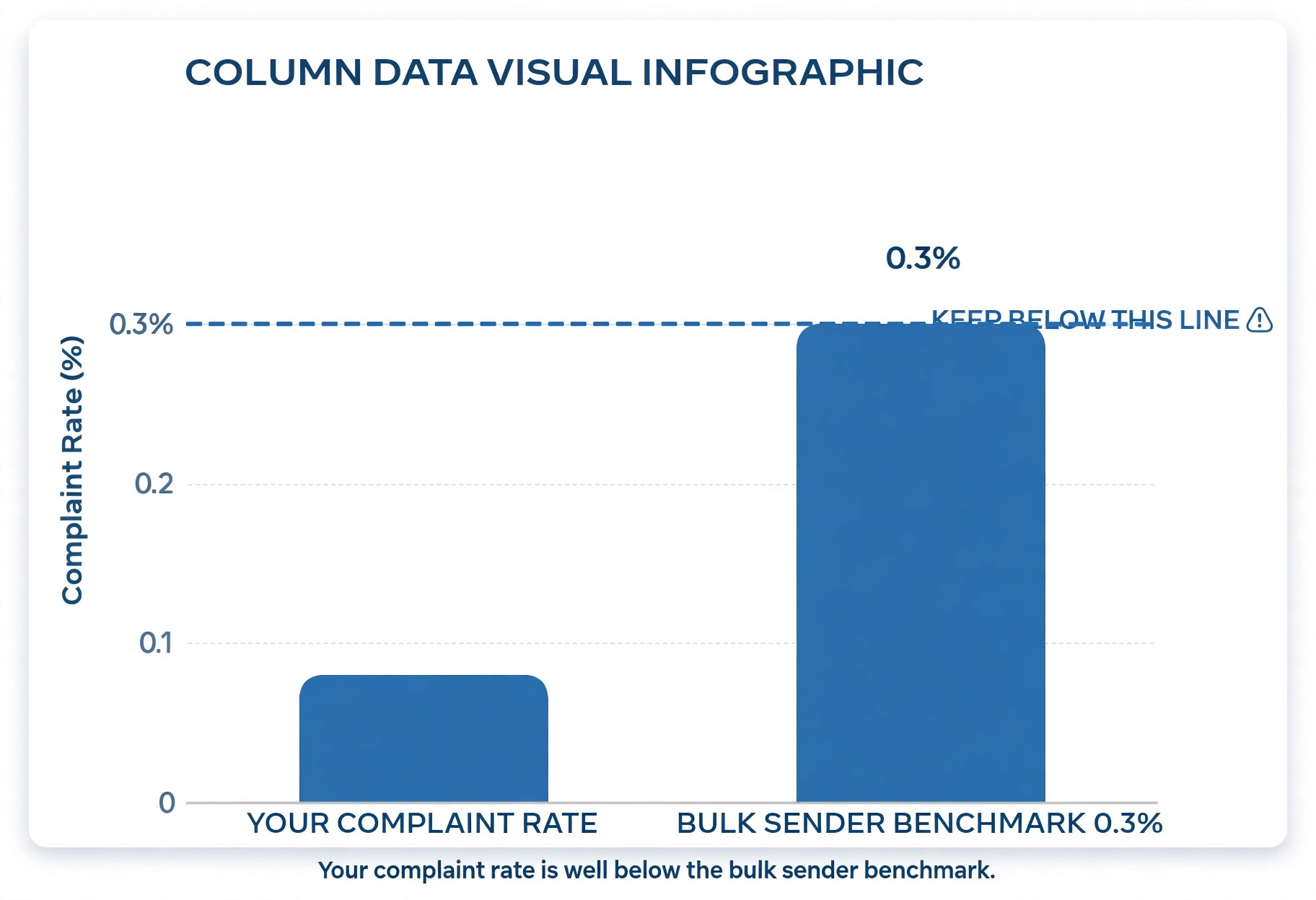
**Use Microsoft’s free sender tools.** Smart Network Data Services shows data about how Outlook treats mail from your IPs, including complaint rates and trap hits. The Junk Mail Reporting Program forwards spam complaints from Outlook users back to you, so you can remove those addresses and spot problem campaigns. Both are free, and both give you the provider’s own view of your reputation rather than a third-party guess. If you send at volume, also watch your complaint rate against the widely published bulk sender benchmark of keeping spam complaints below 0.3 percent, with under 0.1 percent as the healthier target.
**Test with a small segment first.** After a fix, send to your most engaged subscribers first, such as people who opened recently. High engagement on the first sends rebuilds reputation faster than blasting the full list. If the small send lands well, expand in stages. If it still lands in Junk, you have saved your full list from another damaged send.
When a Work or School Account Behaves Differently
Work and school accounts add a layer that personal accounts do not have, which is the organisation’s own mail protection. For these accounts, the way to fix Outlook emails going to spam runs through the administrator, not your personal settings. If you have done every recipient fix and mail still lands in Junk, or if a sender’s mail reaches personal Outlook addresses but not your work address, the organisation’s settings are the likely cause.
In a Microsoft 365 organisation, Exchange Online Protection applies before your personal settings do, and administrators can set anti-spam policies, quarantine policies, and tenant level allow and block lists. A message quarantined by the organisation may never reach your Junk folder at all, so searching Junk will not find it. Ask your IT administrator to check the quarantine and the mail trace for the missing message, and to check whether the sender’s domain appears on any tenant block list.
Also check whether your organisation uses a third-party email gateway in front of Microsoft 365. Some gateways filter mail before Microsoft ever sees it, and their quarantine is a separate place to check.
If your mail problems extend beyond Outlook, the same diagnostic habits apply elsewhere. Our checklist for Gmail delivery problems walks through storage, filters, and forwarding in Google’s world, and our guide to moving a business mailbox from Gmail to Outlook covers migration steps that often break deliverability when DNS records are left behind. For senders building a list from scratch, our comparison of email tools for newsletter beginners covers platforms that handle authentication and list hygiene well.
Frequently Asked Questions
Why do Outlook emails go to spam even when the sender is legitimate?
Legitimate mail lands in Junk when any spam signal fails. The usual causes are missing or broken authentication, a poor sender reputation from complaints or bounces, a recipient rule or block entry, or content patterns that resemble spam. The headers of a Junk message show which authentication checks passed or failed, and that check separates sender side causes from recipient side causes in under a minute.
Does adding a sender to Safe Senders guarantee inbox delivery?
It guarantees a great deal, but not everything. Microsoft states that Safe Senders are never treated as junk regardless of content. However, mail to Outlook.com addresses is first processed by Exchange Online Protection on the server, and a server level quarantine can still hold a message before your personal list applies. If desktop entries do not work, add the entry in Outlook on the web, which applies at the server level, and check whether a work administrator has a separate tenant policy.
How long does it take for a sender reputation fix to improve placement?
Authentication fixes take effect as soon as DNS propagates, usually within hours, though allowing up to 48 hours is prudent. Reputation recovery takes longer, because filters need to see a run of good sends with opens and few complaints before they trust a sender again. Expect days to weeks of steady, well targeted sending, and measure placement with seed tests rather than assuming the first good send means the problem is over.
Can one bad campaign permanently damage a domain’s reputation?
One bad campaign rarely causes permanent damage, but it can cause a sharp short term drop, especially if it generated many complaints, bounces, or spam trap hits. The recovery path is to stop the harmful practice immediately, clean the list, fix authentication, and resume with small sends to engaged recipients. Repeated bad campaigns are what turn a short term dip into a lasting reputation problem.
Why does mail reach Gmail but not Outlook?
Providers run different filters with different data. Gmail and Outlook weigh authentication, reputation, engagement, and content differently, and a sender can pass one provider’s thresholds while failing another’s. A provider specific failure points to that provider’s tools, so for Outlook that means Smart Network Data Services and the Junk Mail Reporting Program, plus a header check for alignment failures that Outlook may weigh more heavily.
Should I use a dedicated IP address to fix Outlook delivery problems?
A dedicated IP helps only when your volume justifies it and your practices are already clean. On a shared IP, neighbours can damage your placement, and a dedicated IP removes that variable. But a dedicated IP with a poor list, missing authentication, or complaint heavy content will earn a poor reputation of its own, and it starts with no history at all. Fix authentication, list hygiene, and content first, and warm the dedicated IP gradually if you move to one.
One Inbox at a Time, Starting With the Fastest Fix
The fastest path to a working inbox is also the most disciplined one. Mark the good mail as Not junk, add the sender to Safe Senders in Outlook on the web, clear the blocked list, and audit your rules. That sequence takes under half an hour and resolves the majority of recipient side cases. If mail still lands in Junk after that, the answer is on the sender side, and it is almost always authentication, list quality, or a reputation dip that steady, clean sending will repair.
To fix Outlook emails going to spam for good, keep the checklist from this guide next to your next campaign, test placement before every large send, and treat each Junk folder sighting as a diagnostic clue. The filter is not guessing. It is reacting to signals you can read, change, and verify, one fix at a time.