
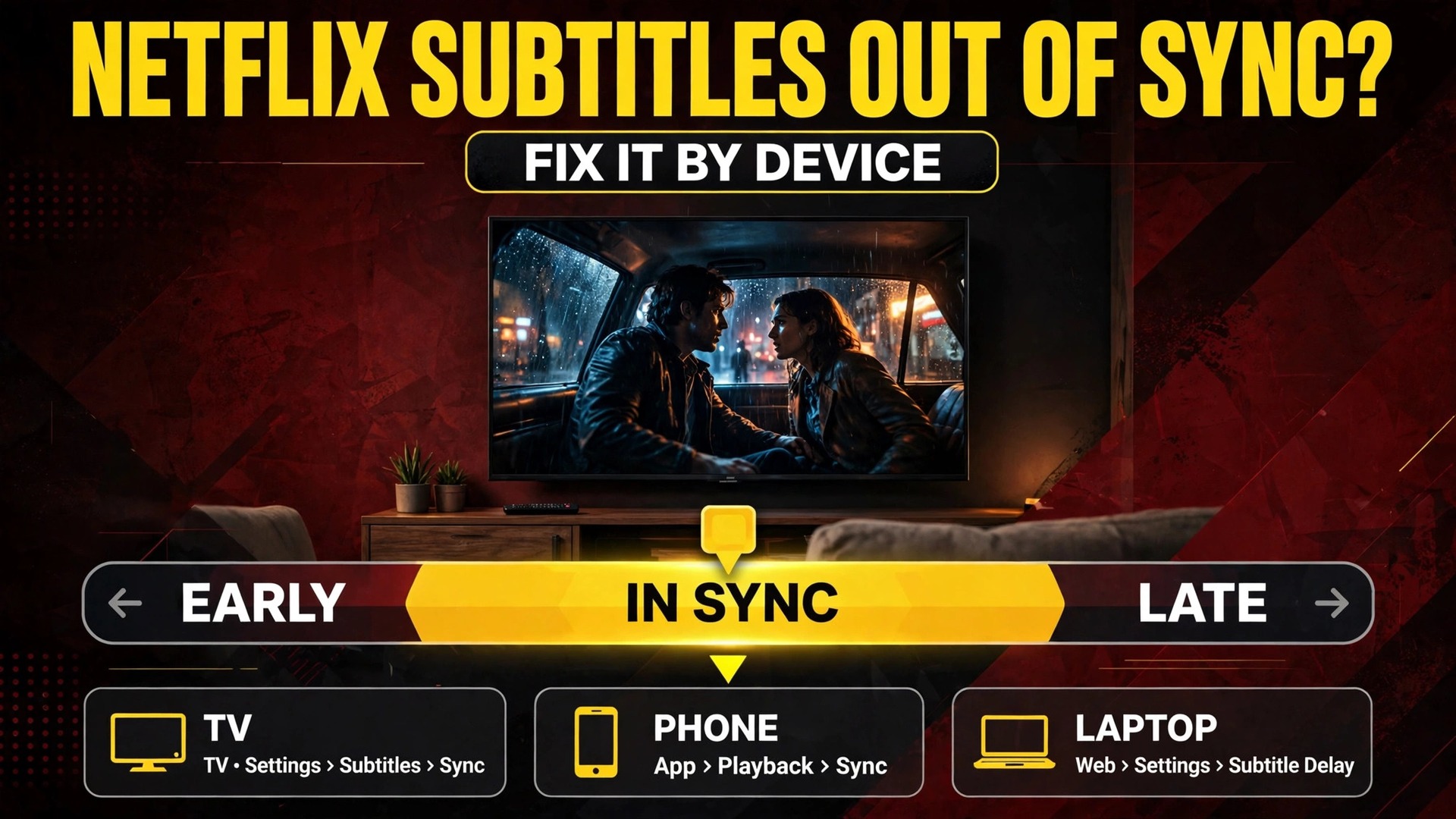
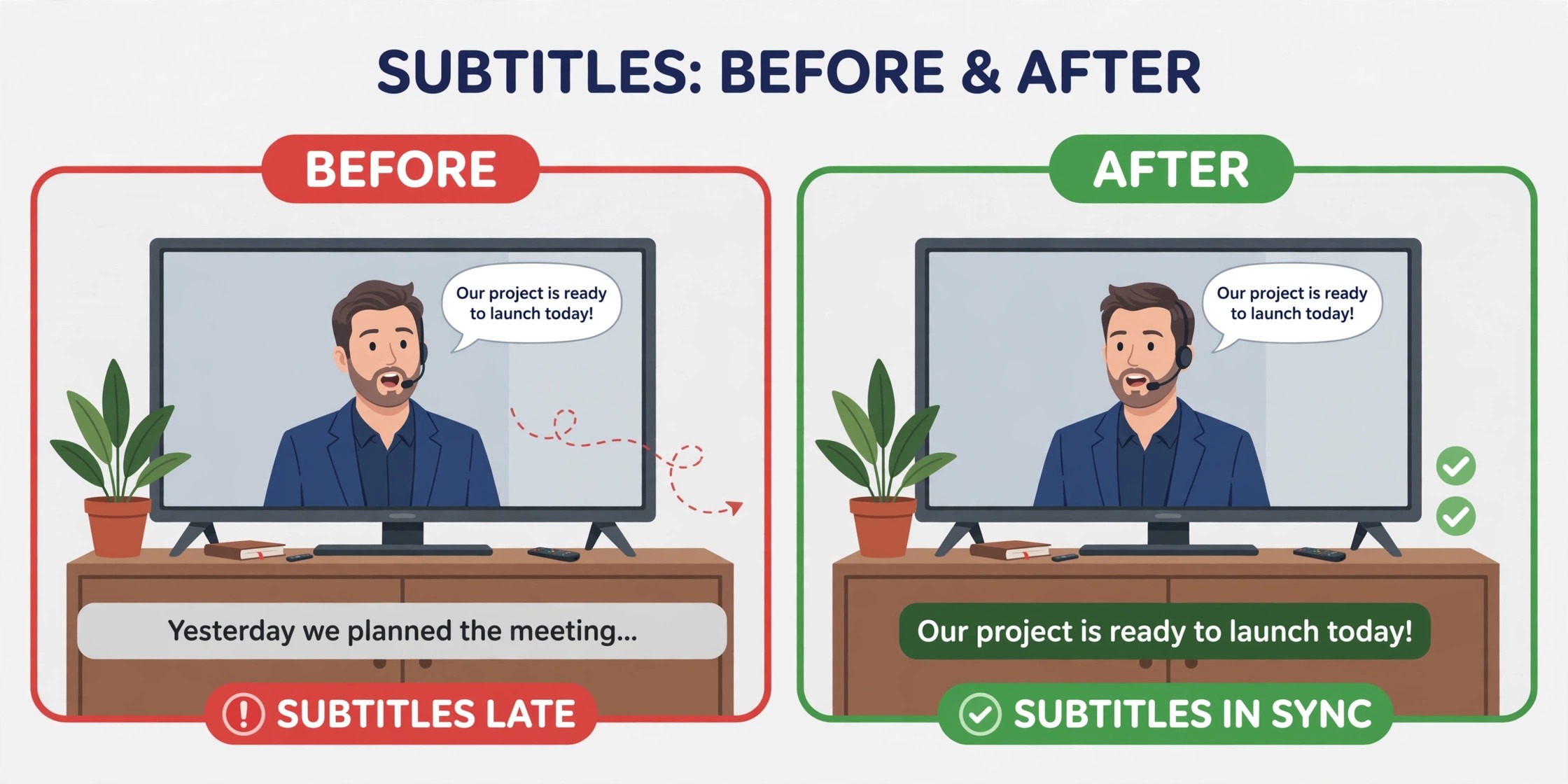
Subtitles that appear a second before the words are spoken feel different from subtitles that trail a second behind them, and that difference is your first clue. Early subtitles usually point to a timing fault in the subtitle track or the title itself, while late subtitles more often point to playback, processing or audio delay on your device. If you want to fix Netflix subtitles out of sync without wasting an evening on random settings, start by noticing which direction the error runs, then match it to the device you are watching on.
The steps below run from fastest to deepest, and each one tells you what it rules out, so you can stop as soon as the words line up again.
This guide covers Netflix only, on smart TVs, streaming sticks, phones, tablets and laptop browsers. It does not ask you to edit subtitle files, download third party tools or change settings on every device you own. You will test one title on a second device, reset the subtitle track, work through the settings that actually shift timing, and learn how to tell a broken title from a broken setup. Menu names vary by brand and app version, so where a path differs, the guide names the setting to look for rather than pretending every remote works the same way.
The Two Minute Diagnosis That Saves an Hour of Guessing
Before you change anything, run four quick tests. First, watch the same scene twice and note whether subtitles run early or late, and by roughly how much. A steady gap suggests a fixed delay. A growing gap suggests playback drift, a weak connection or a device struggling to keep video, audio and subtitles in step.
Second, switch to a different title on the same device and watch for one minute. If the second title is in sync, the problem probably sits with the first title or its subtitle track, not with your TV or network. If the second title is also out of sync, the problem sits with your device, your audio setup or your connection.
Third, play the same problem title on a second device on the same home network. A phone on the same Wi-Fi connection is ideal, because it removes the TV, the soundbar and the HDMI cable from the test in one move. If subtitles line up on the phone, your TV setup is the suspect. If they are out of sync on the phone too, the title, the subtitle track or your account profile is the suspect.
Fourth, check whether the audio itself matches the lips. Pause on a close up of a face, play a line of dialogue, and watch the mouth. If the voice matches the lips but the subtitles do not, you have a subtitle timing problem. If the voice is also early or late against the lips, you have an audio and video timing problem, and the subtitles are only showing it most clearly. That distinction matters, because audio delay settings fix the second case and do nothing useful for the first. Note the device, the title, whether subtitles are early or late, and whether other titles are affected, before you move on.
How to fix Netflix subtitles out of sync on Any Device
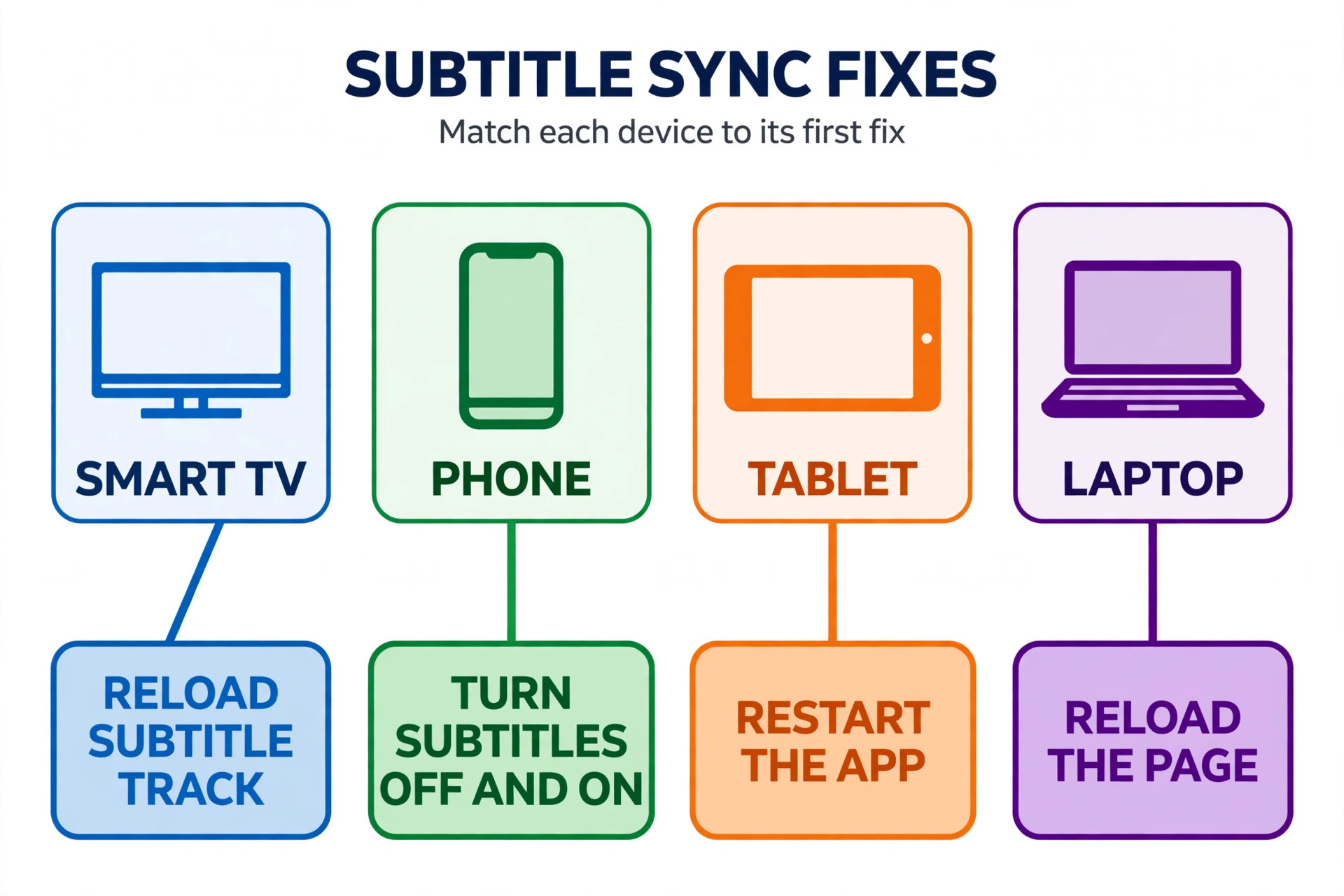
The table below is the shortcut version of this guide. Find your device, try the first fix listed for it, test the same scene again, and only move to the next fix if the gap is still there. The full steps for each device follow the table.
| Device | Try first | Try second | Try third if the gap survives |
|---|---|---|---|
| Smart TV or streaming stick | Turn subtitles off and back on, then reload the title | Switch the audio track to stereo and test again | Restart the TV app, then adjust audio delay on the TV or soundbar |
| iPhone or iPad | Turn subtitles off and back on inside the player | Force close the Netflix app and reopen the title | Check iOS audio settings and test on Wi-Fi instead of mobile data |
| Android phone or tablet | Turn subtitles off and back on inside the player | Clear the Netflix app cache, then reopen the title | Test a downloaded episode or a second title to split app fault from title fault |
| Laptop or desktop browser | Reload the page and restart playback from a few seconds earlier | Try a different browser or a private window | Switch the audio track to stereo and disable browser extensions one at a time |
Work one row at a time, test the same scene after each change, and keep a note of what you changed so you can undo it.
Quick Checks First. Five Steps That Cost Almost Nothing
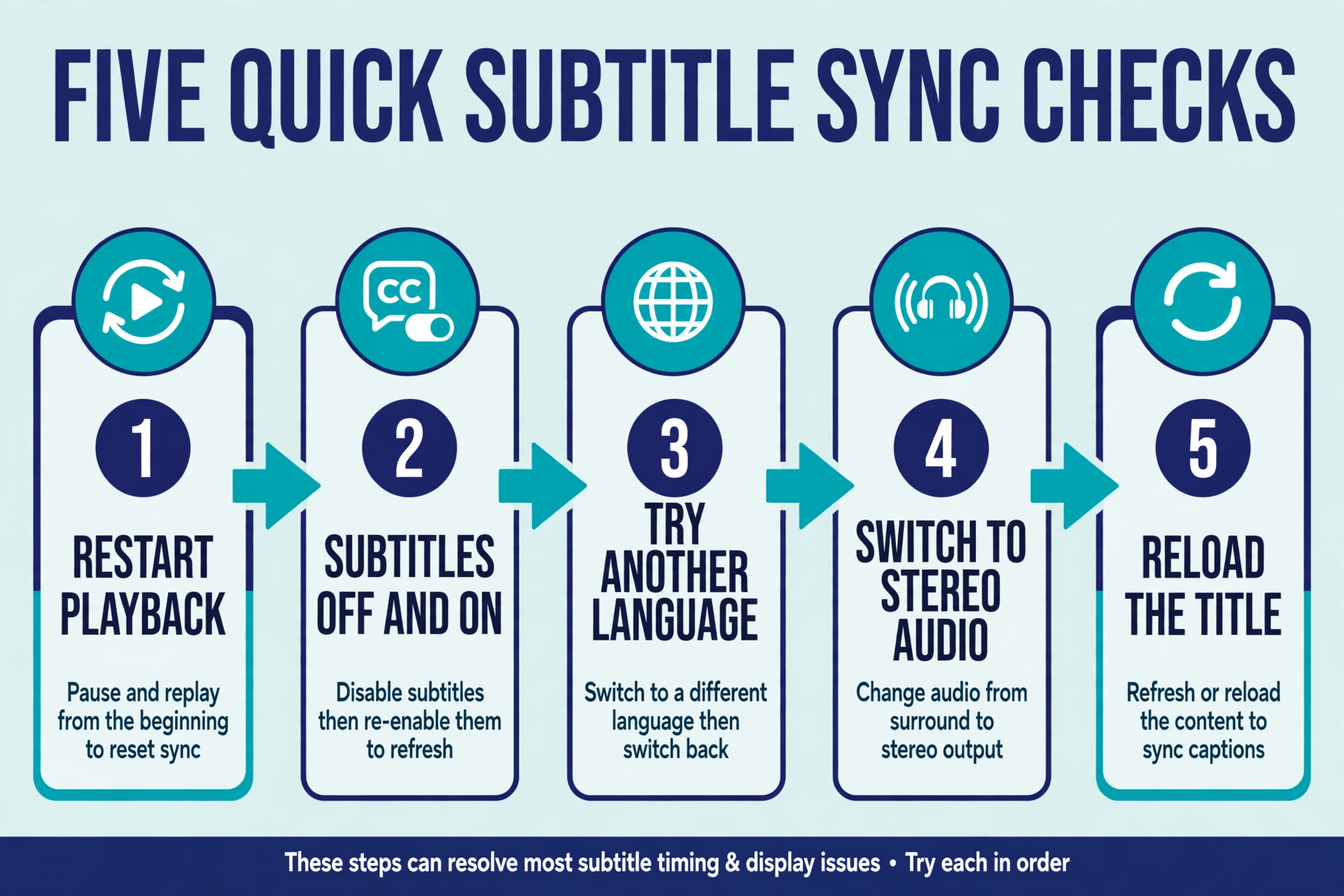
These steps come first because they are fast, they change nothing permanent, and each one rules out a different cause. Do them in order, even if you are fairly sure the problem is deeper.
- Pause, then restart playback from a few seconds before the problem. Scrub back about 10 seconds and play the scene again. This forces the player to reload that stretch of video, audio and subtitles together. If the gap returns at the same line every time, the cause is steadier than a glitch.
- Turn subtitles off and back on. Open Audio and Subtitles, set subtitles to Off, play for about 30 seconds without them, then pick your language again. This reloads the subtitle track, and it rules out a track that loaded badly.
- Try a different subtitle language, then switch back. If the second language is in sync while yours is not, the fault sits in your usual subtitle track. If both are out by the same amount, the fault sits in playback or your device. If you want to fix Netflix subtitles out of sync quickly, these first three checks settle a large share of cases.
- Try a different audio track. Switch from a surround track such as English 5.1 to plain English stereo, or from a dubbed track to the original language track. Surround tracks carry extra processing, and some TVs and soundbars handle them more slowly than stereo.
- Reload the title completely. Exit to the title page, or close and reopen the app, then jump to the same scene. If the gap survives a full reload on one device but disappears on a second device, the device or its app is the suspect. If it survives on both, the title is the suspect.
If all five quick checks fail, move to your device section. The problem is not a one off glitch or a single audio choice you can flip in the player.
TV Fixes. Smart TVs, Roku, Fire TV and Apple TV
TVs cause the most subtitle sync complaints, because a TV setup has the longest chain between Netflix and your ears and eyes. The app, the TV processor, the HDMI cable, the soundbar or receiver, and any picture processing all add small delays, and subtitles make those delays visible. Work this section in order and test the same scene after each step.
- Restart the Netflix app properly. Close the app from the TV app switcher or recent apps list where your TV offers one, then reopen it. On many TVs, pressing Back to the home screen leaves the app running in the background, so a real close matters. This clears stuck playback state without signing you out, and it rules out a session fault.
- Power cycle the TV and any streaming stick or soundbar. Turn everything off, unplug the TV and the streaming device from power for a full 60 seconds, plug them back in, and turn the TV on first, then the soundbar or receiver. A remote power button alone often leaves a TV in standby, which does not clear temporary memory. This step rules out a stale HDMI handshake. If you want to fix Netflix subtitles out of sync on a TV, this power cycle is the step people skip most often, and it is free.
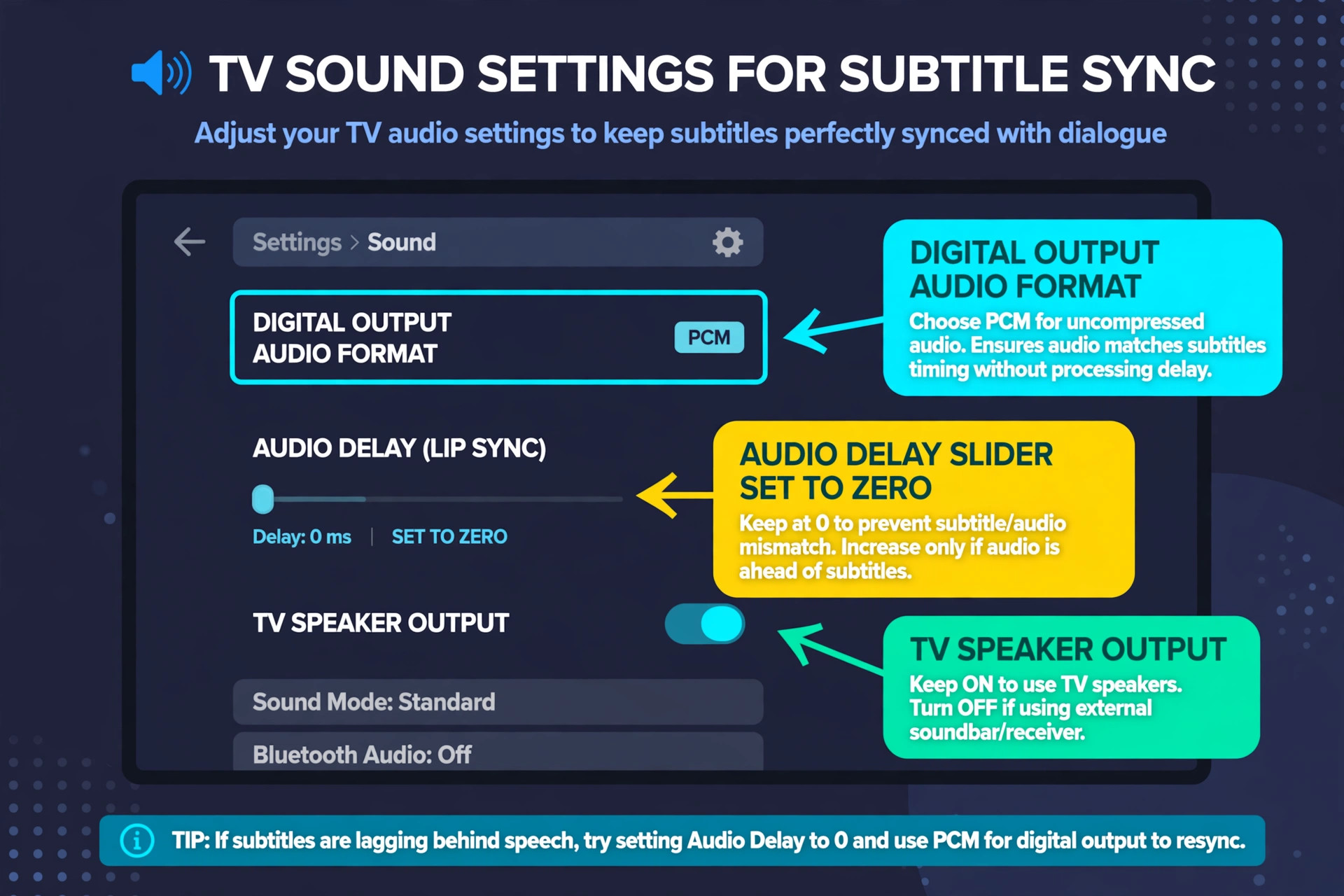
- Test with TV speakers only. Switch the TV sound output to TV Speaker for one scene, usually under Settings, then Sound, then Sound Output. If subtitles line up on TV speakers, the delay lives in the external audio chain. If they are still out, the delay lives in the TV or the app.
- Update the Netflix app and the TV software. Check the app store for a Netflix update, then check TV Settings, then Support or System, for a software update. Install any update, restart the TV once, and test again.
- Clear the Netflix app cache where your TV allows it. On Google TV and Android TV, the path is usually Settings, then Apps, then See all apps, then Netflix, then Clear cache. On Fire TV, it is usually Settings, then Applications, then Manage Installed Applications, then Netflix, then Clear cache. Cache clears temporary files without signing you out, so do not clear data yet.
- Reinstall the Netflix app as a deeper step. Delete the app, restart the TV, install Netflix again from the official store, and sign in. If a clean reinstall still shows the same gap on this TV but not on your phone, the fault is likely in TV settings, and the audio delay steps below are your next move.
- Try a different streaming device on the same TV. If a Fire TV stick, Roku or Apple TV plays the same title in sync on the same TV and sound setup, the built in TV app is the weak link, and using the stick as your main Netflix device is a legitimate long term fix.
Do not adjust audio delay and picture processing at the same time. Change one setting, test, and only then change the next. Also test again with TV speakers before blaming the TV if you tested with a Bluetooth speaker, because Bluetooth adds its own delay.
Phone and Tablet Fixes. iPhone, iPad and Android
Phones and tablets have a shorter chain than TVs, so sync faults here usually come from the app, the connection or an audio output choice rather than from picture processing.
- Turn subtitles off and back on inside the player. Tap the screen, open Audio and Subtitles, set subtitles to Off, play for about 30 seconds, then pick your language again. This reloads the subtitle track, and it rules out a badly loaded track. If you want to fix Netflix subtitles out of sync on a phone in under a minute, this is the step to try before anything deeper.
- Force close the Netflix app and reopen the title. On iPhone, swipe up from the bottom and swipe the Netflix card away, then reopen it. On Android, open recent apps and swipe Netflix away, or use App info and Force stop if the app will not close normally. A force close clears playback state that a simple Back press leaves behind, and it rules out a stuck session.
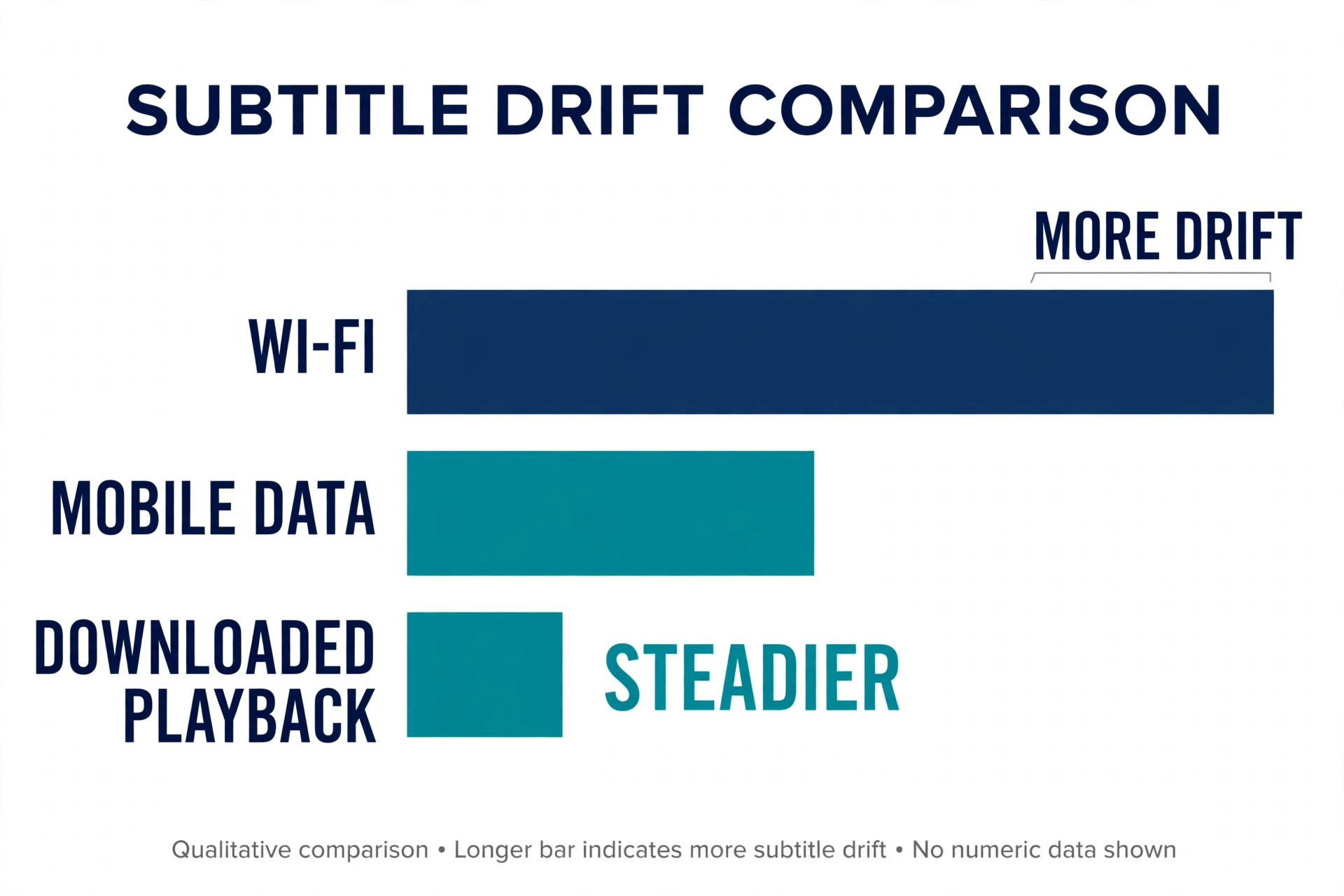
- Switch between Wi-Fi and mobile data for one test. If you are on Wi-Fi, turn Wi-Fi off and play the same scene on mobile data, watching your data allowance as you do. If you are on mobile data, connect to Wi-Fi and test again. If the gap disappears on the second connection, your first network is the suspect.
- Test with the phone speaker, then with your usual earphones or speaker. If subtitles line up on the phone speaker but not on Bluetooth earphones or a Bluetooth speaker, the Bluetooth delay is the cause, not Netflix.
- Clear cache on Android, and update the app on both platforms. On Android, the path is usually Settings, then Apps, then Netflix, then Storage, then Clear cache. On iPhone there is no cache button for a single app, so delete the app and install it again from the App Store. Check for a Netflix update first, because an update is cheaper than a reinstall.
- Test a downloaded episode where downloads are offered. Download the same episode on Wi-Fi, disconnect from the network, and play the download. If the download is in sync while the streamed version is not, the streaming path is at fault. If the download is out by the same amount, the title or the app is at fault.
Laptop and Browser Fixes. Chrome, Edge, Safari and Firefox
Browser playback adds its own suspects, which are browser extensions, hardware acceleration, an overloaded tab set and a browser that has not been restarted in days. The fixes below isolate those suspects one at a time.
- Reload the page and restart playback from a few seconds earlier. Press the browser reload button, wait for the title page to load fully, start the title again and jump to the same scene. This clears temporary page state. If you want to fix Netflix subtitles out of sync on a laptop, this reload plus a subtitle off and on cycle solves a large share of cases, because browser players hold more temporary state than TV apps do.
- Try the same title in a different browser. If you normally use Chrome, try Edge, Firefox or Safari on the same laptop and the same network, without signing into extra extensions. If the second browser is in sync, the fault sits in your usual browser. If both browsers are out by the same amount, the fault sits in the laptop, the network or the title, and browser tweaks will not help.
- Try a private or incognito window in your usual browser. A private window usually loads without most extensions and without stored site data for that session. If subtitles line up in a private window but not in a normal window, an extension or stored site data is the suspect. Return to a normal window and disable extensions one at a time, starting with ad blockers, video downloaders and subtitle tools.
- Close extra tabs and restart the browser. A laptop running dozens of tabs, a video call and a download at the same time can drop video frames while audio and subtitles keep their own timing, which looks like drift. Test again with only the Netflix tab open.
- Toggle hardware acceleration as a test, and restore it if it does not help. In Chrome and Edge, the setting sits under System settings. In Firefox, it sits under Performance settings. Turn it off, restart the browser, and test the same scene. If turning it off helps, update your graphics driver and test again with acceleration back on.
- Test with laptop speakers, then with your usual headphones or external display. Unplug any external monitor, dock or USB audio device for one scene and test on the built in speakers. External displays, especially over a dock or a long HDMI cable, add video delay that subtitles expose.
- Update the browser and the laptop operating system, then restart the laptop. Restart after the update, because a pending restart leaves old drivers loaded. Test the same scene after the restart, not a new title, so the comparison stays honest.
Audio Settings That Cause Delay, and How to Set Them Right
Subtitle timing and audio timing are linked, because Netflix times subtitles against the audio and video streams together. When audio takes a longer path than video, or when a device reprocesses audio before it reaches your ears, subtitles can look wrong even though the subtitle track itself is correct.
Start with the audio track inside Netflix. While a title plays, open Audio and Subtitles and try plain stereo instead of a 5.1 surround track or a Dolby Atmos track. Stereo needs less decoding and processing, so it reaches your ears faster on many TVs and soundbars. If stereo fixes the gap, you have proved a processing delay. You can then try surround again after fixing the output setting below, because the goal is surround sound that stays in sync, not stereo for ever. If stereo makes no difference, return to your preferred track and move on.
If you want to fix Netflix subtitles out of sync through audio settings, this track test is the proof step that comes before any delay slider.
Next, check the TV digital audio output format. On Samsung TVs, the path is usually Settings, then Sound, then Expert Settings, then Digital Output Audio Format. On LG TVs, the path is usually Settings, then All Settings, then Sound, then Advanced Settings, and the matching control is often labelled Match Screen and Sound or TV Speaker Delay. Try PCM first as a test, because PCM lets the TV decode audio itself and sends a simpler signal onward. If PCM fixes the gap, try Dolby Digital next, because Dolby Digital keeps surround sound on many setups while still being easier to handle than a more demanding format. Change one format at a time and test the same scene after each change.
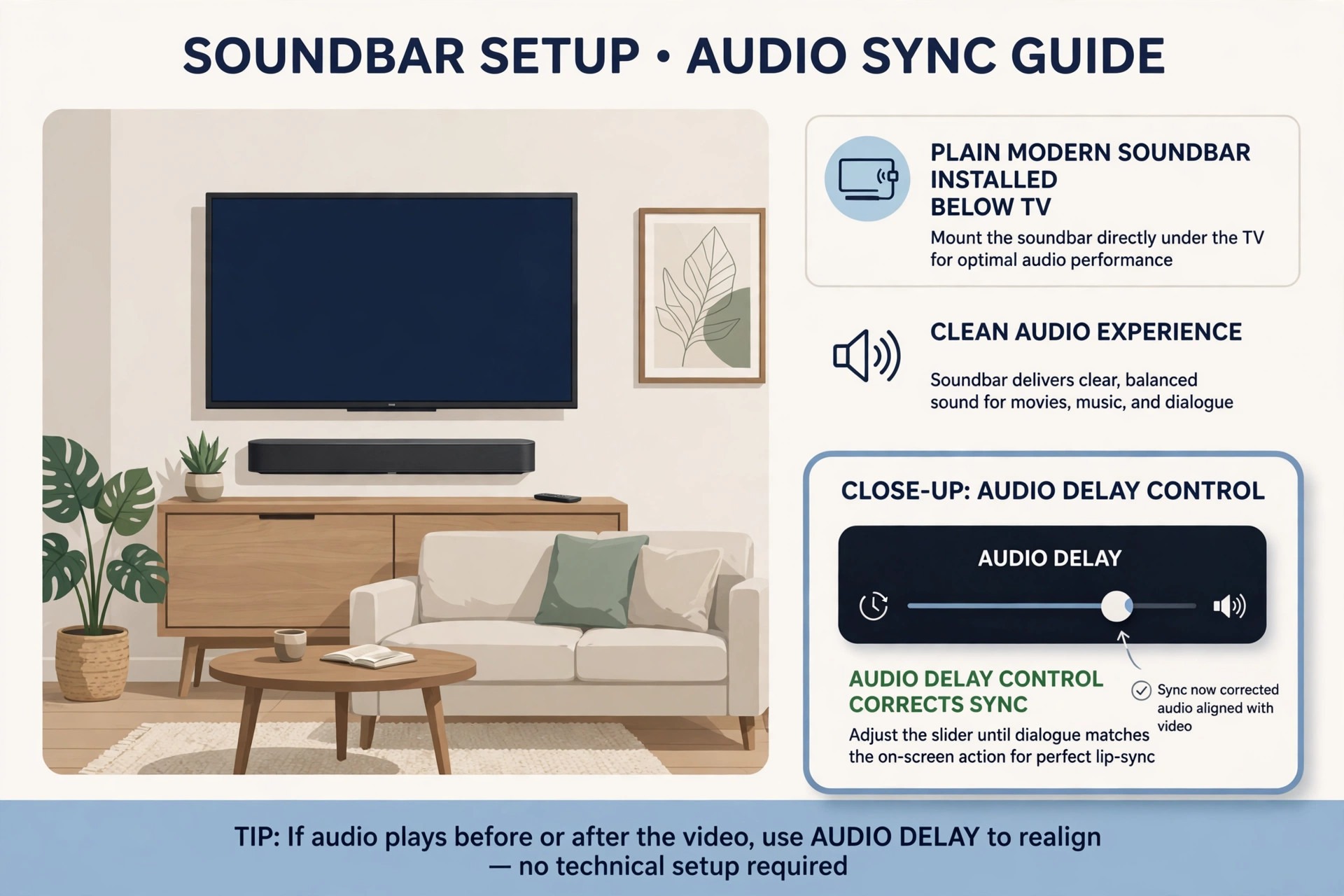
Then check audio delay, also called lip sync, on the TV or soundbar, but only on one device at a time. Samsung TVs offer Digital Output Audio Delay under Sound and Expert Settings, with a slider usually measured in milliseconds. LG TVs offer a delay control under Sound and Advanced Settings. Set every delay control to zero first, then adjust only one device in small steps of about 10 milliseconds while watching dialogue with visible lip movement. If audio arrives before the picture, adding delay holds the sound back. If audio arrives after the picture, adding more delay makes it worse. Never adjust the TV delay and the soundbar delay together, because two corrections stack into a new error.
Turn off extra audio processing for the test. Volume levelling, night mode, dialogue enhancement and virtual surround all reprocess sound, and each stage adds time. On Roku, press the star button during playback, open Sound Settings, and turn Volume Mode off for the test. On Apple TV, open Settings, then Video and Audio, then Audio Format, and test a simpler format such as Dolby Digital 5.1 or Stereo where the menu offers it, restoring your original choice if it does not help.
Check the connection type last in this section. A soundbar connected by HDMI ARC or eARC usually syncs better than one connected by optical cable or Bluetooth, because ARC carries timing information that optical and Bluetooth handle less well. If you use optical, reseat both ends of the cable firmly and test again, then try HDMI ARC if your TV and soundbar both offer it. If you use Bluetooth, test with a wired connection for one scene before you conclude anything about Netflix. Bluetooth delay is a property of the connection, not a Netflix bug, and no subtitle setting inside Netflix can remove it.
When the Title Itself Is the Problem
Sometimes you can do everything right and the subtitles stay out, because the fault is in the title, the subtitle track or the way that title was prepared for streaming. Recognising this case saves you from resetting a TV that was never broken.
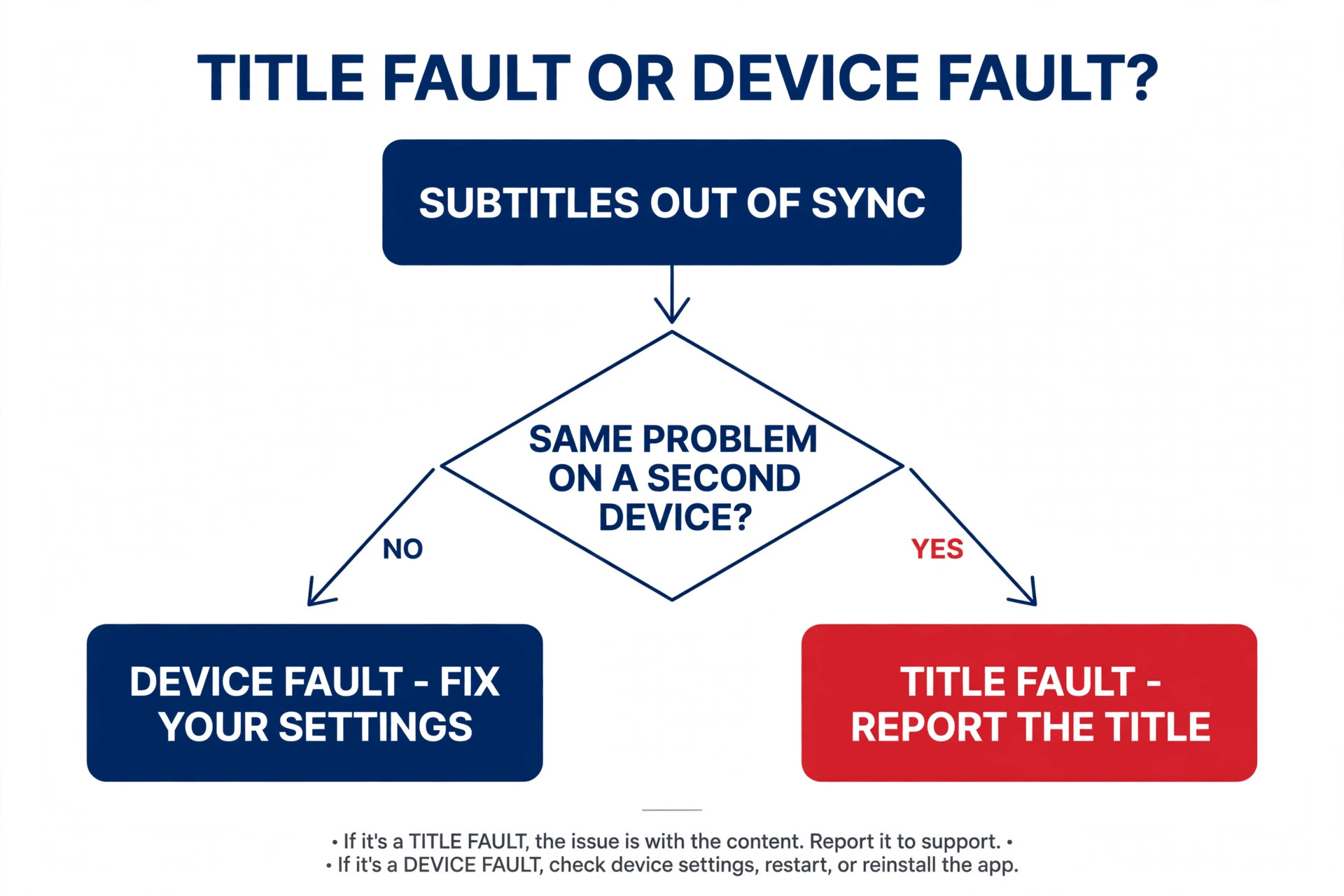
The title test is simple. If the gap appears on one title but not on others, on more than one device, and on more than one network where you can test that, the title is the suspect. If the gap appears only in one subtitle language but not in another language for the same title, the subtitle track for your language is the suspect. If the gap grows steadily through a single episode but other episodes of the same show are fine, that episode file or track is the suspect. If the gap is identical on your TV, your phone and your laptop, no device setting explains it, because three different playback chains are unlikely to share the same error.
Dubbed audio deserves a separate check. A dubbed track is recorded and timed separately from the original language track, and some dubbed tracks drift more than the original. Switch to the original language audio with subtitles in your language and test the same scene. If the original track is in sync while the dubbed track is not, the dubbed track is the fault. That does not make the dubbed track unusable for every viewer, but it tells you that no TV setting will fix it, and that switching tracks is the practical answer for that title.
Downloaded titles can also carry the fault. If a downloaded episode is out by the same amount as the streamed version, the file or track is likely at fault, because the download removed the live network from the test. Delete the download, download it again on a stable Wi-Fi connection, and test once more. If the fresh download still shows the same gap, the title is the answer, not your download.
When the title is the suspect, report it through Netflix rather than repeating device fixes. In a browser, open your account, open Viewing Activity, find the title, and use the Report a Problem option where it is offered, describing the title and episode, the subtitle language, whether subtitles run early or late, and the devices you tested on. While you wait, try a different subtitle language, original language audio with subtitles, or a different profile. Do not factory reset a TV for a single title fault. A factory reset erases Wi-Fi details, accounts, picture settings and installed apps, and it cannot repair a subtitle track stored on a streaming server.
More Fixes for the Same Living Room
Subtitle sync rarely lives alone, and fixing the shared TV, network or audio chain helps every symptom. If your TV apps also close on their own, the brand by brand cache and reinstall steps in Smart TV Apps Crashing cover the same menus you just used. If the gap only appears on Wi-Fi and disappears on Ethernet, the router and signal steps in Wi-Fi Keeps Dropping on Laptop apply to the TV connection just as well. If Bluetooth earphones or a Bluetooth speaker are part of your setup, the pairing and delay checks in Bluetooth Headphones Not Pairing help you separate a pairing fault from a timing fault.
If video stutters as well as subtitles drift, the bandwidth and quality steps in YouTube Videos Buffering on Slow Internet explain the same connection logic for streaming in general.
Frequently Asked Questions
Why are my Netflix subtitles out of sync only on my TV and not on my phone?
A TV setup has a longer chain than a phone, with TV processing, an HDMI cable and often a soundbar or receiver between Netflix and your ears. Any of those stages can add delay, and subtitles make the delay visible. Test with TV speakers only, then test with a different streaming device on the same TV. If TV speakers are in sync, the external audio chain is at fault. If a stick is in sync, the built in TV app is at fault.
Can I adjust subtitle timing directly inside Netflix?
Netflix does not offer a subtitle delay slider inside the player on TV, phone or browser, so you cannot shift subtitles earlier or later by a set number of milliseconds the way some video players allow. What you can do inside Netflix is reload the subtitle track by turning subtitles off and back on, switch subtitle language, and switch audio track. Timing correction happens through the device audio delay setting, the audio format choice, or a fix to the title track itself.
Why do subtitles drift more as an episode goes on?
A gap that grows through an episode usually means playback drift rather than a fixed delay. The player may be dropping video frames, struggling with a weak connection, or running on a device under heavy load, while audio and subtitles keep their own timing. Close extra tabs or apps, test on a stronger connection or Ethernet, and test a downloaded episode where downloads are offered. If the downloaded episode holds sync, the streaming path is the cause.
Does switching from 5.1 surround to stereo really help?
Yes, as a test, because stereo needs less decoding and processing than a surround track, so it can reach your ears faster on TVs and soundbars that struggle with surround formats. Switch to stereo for one scene and compare. If stereo lines up, a processing delay is confirmed, and you can then try a simpler surround format such as Dolby Digital to keep surround sound without the delay. If stereo makes no difference, return to your preferred track, because the delay sits elsewhere.
Why are subtitles early on one title but late on another?
Early and late errors have different likely causes, which is why the direction matters. Subtitles that run early often point to a timing fault in that subtitle track, while subtitles that run late often point to playback or audio processing delay on your device. If one title is early and another is late on the same device, test both titles on a second device. A title that stays early on every device is a title fault, and a title that is late only on one device is a device fault.
Should I factory reset my TV if subtitles stay out of sync?
Only as a last step, and only when the problem affects every title and every app, not a single Netflix title. A factory reset erases Wi-Fi details, accounts, picture settings and installed apps, and it cannot repair a subtitle track stored on a streaming server. Before a reset, work the ladder in order. Try a subtitle reload, a second device, TV speakers only, an app update, a cache clear, a reinstall, and a single audio delay adjustment. If you want to fix Netflix subtitles out of sync without losing a whole evening to rebuilding a TV, keep the reset for the case where every title on every app is out and a clean reinstall has already failed.
Your Fastest Route Back to Subtitles That Match the Words
The fastest route is also the most disciplined one. Note whether subtitles run early or late, test a second title, test a second device, and check whether the audio matches the lips. Then run the quick checks, work only your device section, and change one audio setting at a time, testing the same scene after each change. Most viewers stop at the subtitle reload, the app restart or the stereo test.
Keep one habit after the fix. When a new title looks out of sync, test a second title before you change anything. That single habit separates a title fault from a device fault in under a minute. If the second title is in sync, report the first title and move on. If the second title is also out, work the table at the top of this guide for your device, and stop as soon as the words line up.