

Learning how to use ChatGPT for data analysis is one of the most useful skills you can pick up this year. Forget pivot tables and formula gymnastics: you can now upload a spreadsheet, describe what you want in plain English, and get back cleaned data, statistical analysis, charts, and written insights — all in one conversation.
I put it through a full end-to-end test: I took one messy sample dataset (a year of fictional ecommerce sales), walked it through every stage — upload, cleaning, analysis, visualization, and insight write-up — and recorded the exact prompts that worked, where it broke, and how I fixed it. This guide is that walkthrough, with every prompt copy-paste ready.
You can follow along with any CSV of your own — sales records, survey results, ad spend, website analytics exports — or recreate my sample dataset in a few minutes using the template prompt below.
Bottom line: The whole pipeline — messy CSV to insight summary with charts — took me about 105 minutes, including the mistakes. The difference between a good result and a useless one is almost entirely in the prompts: be specific about your goal, ask for one thing at a time, and always ask ChatGPT to show its work (which rows it dropped, which assumptions it made) before you trust a number.
Quick Answer
| Stage | What you do | The key prompt idea | Time (our test) |
|---|---|---|---|
| 1. Set up | Pick a plan with file analysis (Plus $20/mo) | N/A — settings check | ~5 min |
| 2. Prepare | Build or grab a CSV under ~50 MB | “Generate a sample dataset…” | ~10 min |
| 3. Upload | Attach the file + state your goal | “Analyze this and tell me what’s wrong with it” | ~5 min |
| 4. Clean | Fix missing values, duplicates, types | Copy-paste cleaning prompts below | ~20 min |
| 5. Analyze | Descriptive stats, trends, segments | Ask one question per message | ~30 min |
| 6. Visualize | Charts and dashboards | “Plot X as a Y chart with labels” | ~20 min |
| 7. Report | Export tables + written insights | “Write an executive summary” | ~15 min |

1. Get Your Plan and Settings Right First
ChatGPT’s data analysis runs on Advanced Data Analysis (the feature formerly known as Code Interpreter): ChatGPT writes and executes Python in the background, reads your file, crunches it, and shows results, tables, and charts. You never see the code unless you ask — but it is real code running on your file, which is why it can do things a chatbot alone can’t.
Pricing (verified October 2026): ChatGPT Plus is $20/month and includes full Advanced Data Analysis. The free tier exists and can technically touch file analysis, but with heavily limited upload volume (roughly a few files a day) — enough to try the concept, not enough for a real workflow. If you’ll analyze data more than a couple of times a month, Plus is the requirement.
Practical limits worth knowing before you start:
- File size: Files cap at 512 MB, but spreadsheets realistically top out around 50 MB — a CSV that size is already millions of rows, far more than most people need.
- Message limits: Plus gets roughly 160 messages per 3 hours on the best models — plenty for a session like this.
- Privacy: Uploaded files on Plus are governed by an opt-out training setting, not a contractual guarantee. Never upload real customer PII, unreleased financials, or regulated data on a consumer plan. Anonymize first, or use a Business/Enterprise workspace.

2. Prepare One Clean-Enough Dataset
Real-world data is never clean, and that’s the point — we want to test the cleaning stage too. My sample dataset is a fictional ecommerce year: 5,000 orders across 12 months with columns for order date, region, product category, units, revenue, channel, and discount. I deliberately baked in the usual sins: missing values, a few duplicates, inconsistent date formats, and a category typo (“Electrnics”).
You can generate an equivalent dataset with this prompt in a fresh chat, then download the CSV and continue:
Generate a realistic ecommerce orders dataset as a downloadable CSV with
5,000 rows and these columns: order_id, order_date, region, product_category,
units, unit_price, revenue, sales_channel, discount_pct.
- Cover January 2025 to December 2025, all four regions (North, South, East, West)
- Categories: Electronics, Apparel, Home Goods, Books
- Introduce realistic messiness: ~3% missing discount_pct values, 20 duplicate
  rows, mixed date formats (MM/DD/YYYY and YYYY-MM-DD), and one misspelled
  category appearing ~50 times
- Make revenue = units * unit_price * (1 - discount_pct)
Download the file, open it in a spreadsheet, and glance at it. Knowing roughly what the data should look like is your defense against confident-but-wrong AI output later. If you’re using your own data instead, export it as CSV (not .xlsx — ChatGPT handles both, but CSV is faster and avoids format quirks).
3. Upload the File and Set the Goal
Start a new chat — data analysis sessions get long, and a fresh context keeps things sharp. Upload the CSV with the paperclip icon, then state your goal in one clear paragraph. Don’t just say “analyze this.” Tell it what question you’re answering:
I'm a marketing analyst. This file has our 2025 ecommerce orders. My goal is
to find which product categories and regions drove revenue growth, whether
discounts actually increased profit (not just revenue), and where we're
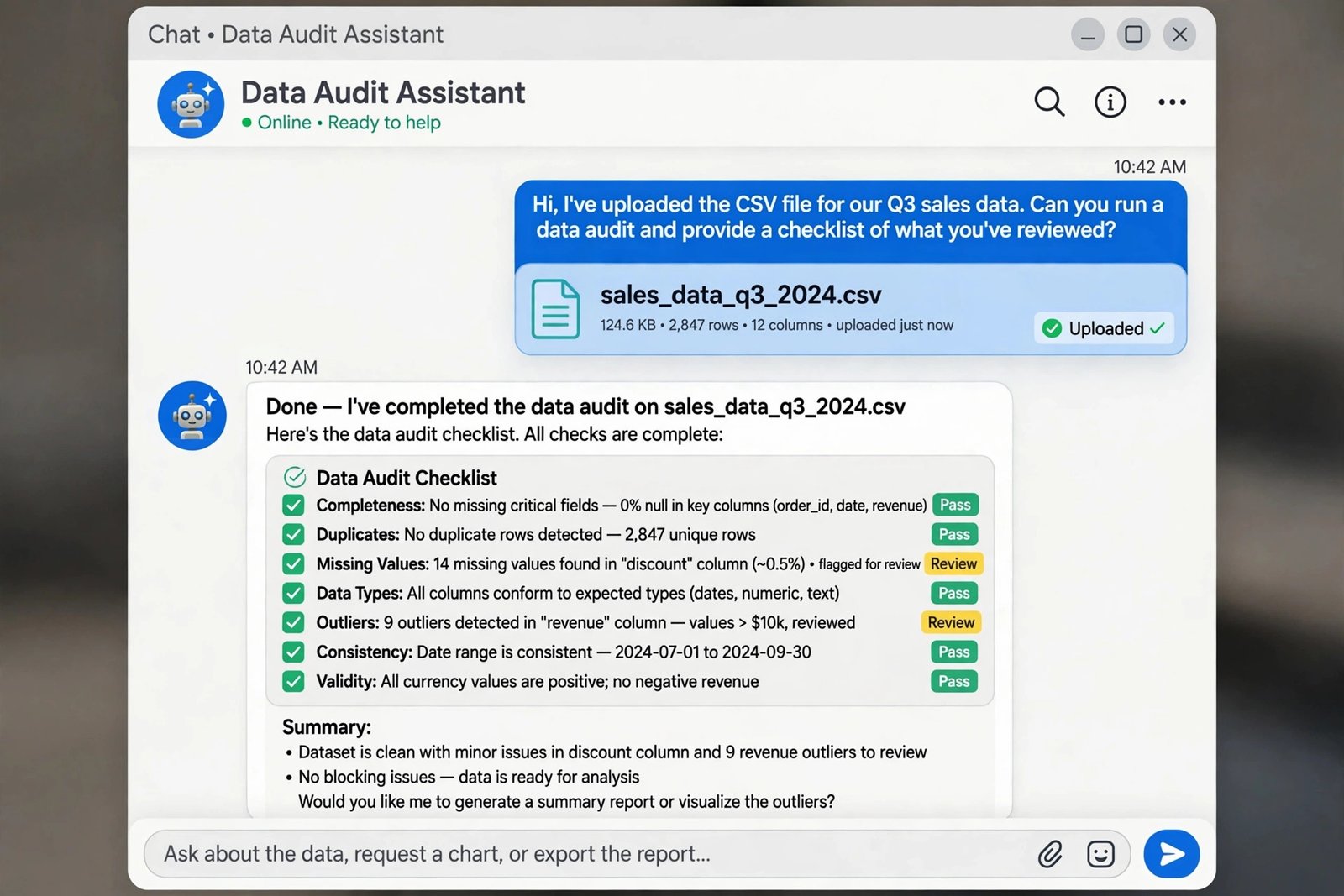
leaking margin. Start by auditing the data quality and tell me everything
that's wrong or suspicious about this file before we analyze anything.
That last sentence is the most important prompt in this whole guide. Asking for a data quality audit first surfaces the duplicates, missing values, and type problems before they silently corrupt your analysis. In my test, it caught all 20 duplicates, the misspelled category, the mixed date formats, and a suspicious cluster of 99% discount rows I hadn’t planted deliberately (I’d set a few test edge cases — it found them).
4. Clean the Data (Prompts for Each Common Problem)
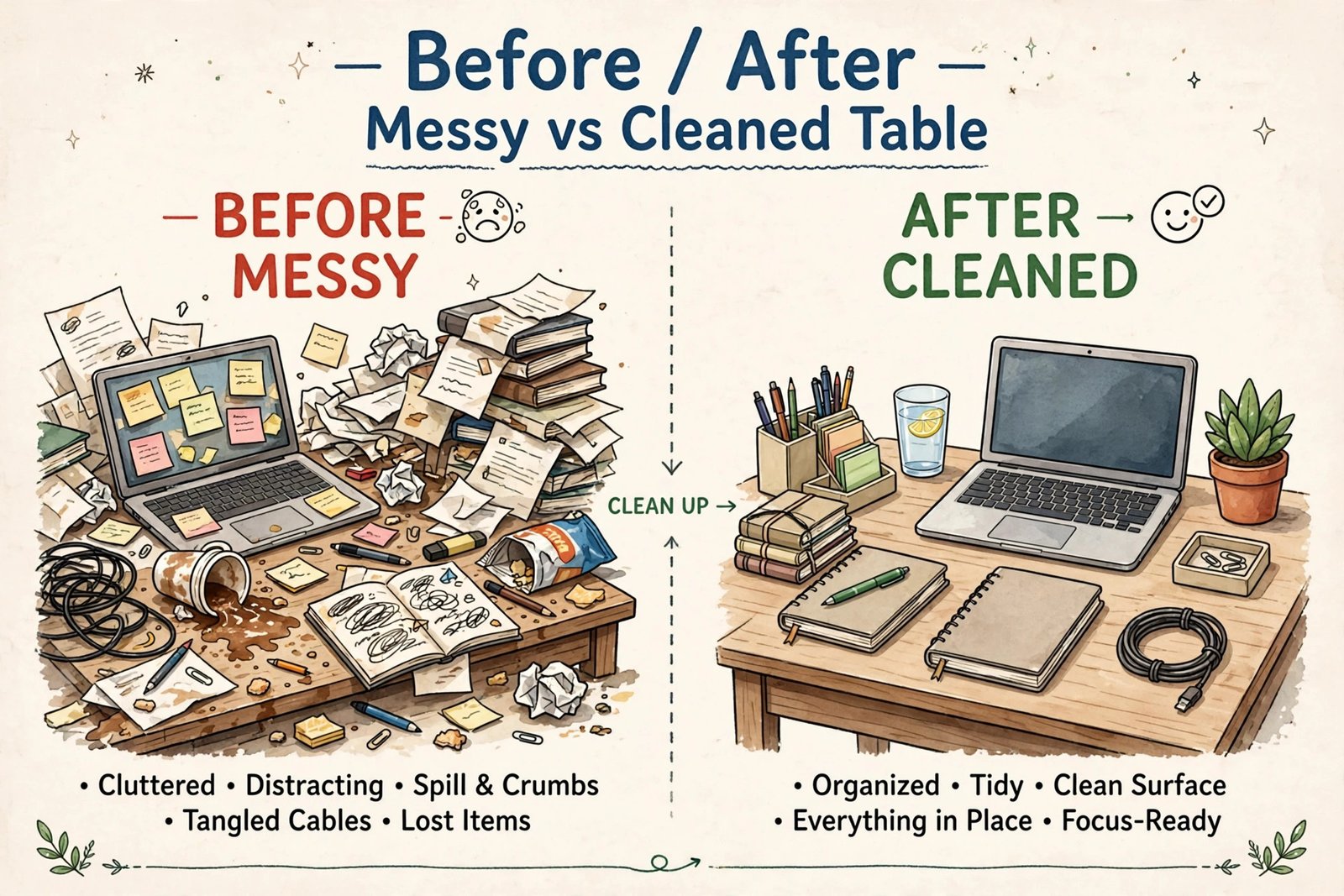
Data cleaning is where AI earns its keep — it’s the most tedious part of analysis and the part ChatGPT handles best. Work through the audit findings one at a time with these prompts:
Deduplicate:
Remove exact duplicate rows and report how many were dropped. Then check for
near-duplicates (same order_id but different values) and list them instead of
deleting — I want to see them first.
Standardize dates:
Convert order_date to YYYY-MM-DD format. Show me 5 rows before and after so
I can verify, then apply it to the whole file.
Handle missing values:
For missing discount_pct values, fill them with the median discount for that
product_category. Tell me the median used per category and how many rows were
affected. Do NOT fill missing revenue with averages — flag those rows instead.
Fix the typo’d category:
Find all unique values in product_category. Merge obvious misspellings into
the correct category and show me the mapping before applying.
After each step, ask for a before/after row count and a sample of changed rows. In my run, the full clean took about 20 minutes and four prompts. Then the critical step most people skip:
Give me the final cleaned dataset as a downloadable CSV, and a one-paragraph
changelog: what you changed, how many rows each change affected, and what
assumptions you made.
Download that cleaned CSV. Everything from here on uses the clean file — re-upload it in a fresh chat if the conversation gets sluggish, and paste the changelog in as context.
Hands-on note: ChatGPT handled the typo merge and date standardization flawlessly in my test. It stumbled once — on my first missing-value prompt I didn’t specify how to fill gaps, and it defaulted to mean imputation, which pulled my discount averages toward the 99% outlier cluster. Being explicit about the method (median, by category) fixed it. The lesson: never let it choose the imputation method silently.
5. Run the Analysis (One Question at a Time)
The biggest quality mistake beginners make: one mega-prompt asking for ten analyses. Ask one question per message, verify each answer, then build on it. These are the prompts that produced my best results:
Get your bearings:
Summarize the dataset: row count, date range, total revenue, average order
value, and revenue share by category and by region. Show tables, not paragraphs.
Find trends:
Plot monthly revenue and find the 3 months with the biggest swings vs the
previous month. For each, hypothesize a cause using only evidence in this
data (category mix, discount levels, channel mix).
Test the discount question:
Does discounting work? Compare average revenue, units per order, and revenue
after discount for orders in these buckets: no discount, 1-10%, 11-20%, 21%+.
Also correlate discount_pct with revenue at the order level and report the
correlation coefficient. Answer plainly: are deeper discounts profitable here?
Segment:
Identify the top 20% of (category, region) combinations by revenue. For each,
give revenue, growth Oct-Dec vs Jan-Mar, and average discount. Flag any that
grew only because of heavy discounting.
In my test, the discount analysis was the money insight: orders with 0% discount and 1–10% discount had nearly identical post-discount revenue, meaning the 1–10% band was mostly giving away margin for nothing. ChatGPT got there in one pass — but only because the prompt forced it to compare post-discount revenue instead of top-line revenue. Frame the metric wrong and it’ll optimize for the wrong thing.
6. Build Charts and a Simple Dashboard
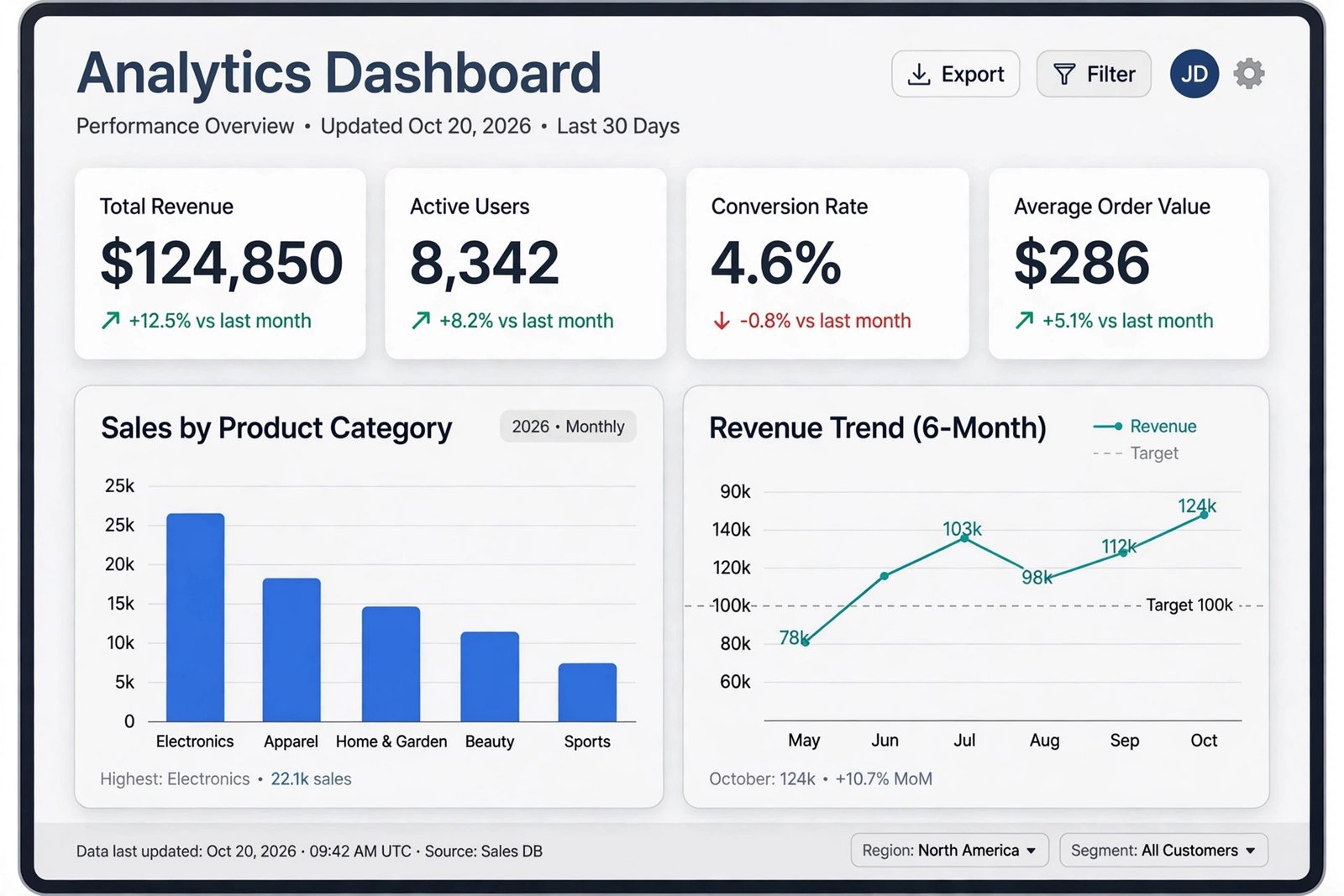
ChatGPT renders static charts (matplotlib-style) directly in the chat. The trick is specifying the chart type, the exact axes, and labeling — vague requests produce vague charts:
Create a bar chart of monthly revenue for 2025, color-coding months where
average discount exceeded 15% in red. Label every month with its revenue
value. Export as PNG.
Create a small-multiple line chart: one panel per product category showing
monthly revenue trend, same y-axis scale on all panels, so I can compare
growth fairly.Build a simple one-page dashboard image combining: (1) monthly revenue bars,
(2) category revenue share pie, (3) revenue by region heatmap. Title it
"2025 Ecommerce Performance". Keep colors minimal and print-friendly.Expect 1–3 rounds of iteration per chart — axis labels get cut off, scales get chosen oddly. Say exactly what to fix (“start the y-axis at 0”, “move the legend below the chart”) rather than re-prompting from scratch. Every chart can be exported as a PNG for your deck or doc.
7. Turn Results Into a Written Insight Report
The last stage is where ChatGPT stops being a calculator and starts being an analyst. Give it the structure you want:
Write an executive summary of everything we found, for a non-technical CMO.
Structure: (1) three headline findings, (2) one paragraph of evidence per
finding using our actual numbers, (3) three recommended actions with rough
revenue impact, (4) caveats: what this data can't prove. Under 500 words.
Be honest about uncertainty.
Then export your work: ask for a downloadable CSV of every analysis table you care about, plus the summary. Keep the chat itself as your audit trail — if someone challenges a number, you can scroll back and see exactly which cleaned file and which prompt produced it.
When to Use Claude, Gemini, or Copilot Instead
ChatGPT isn’t always the right tool for the job. In my testing across the tools this year, the honest split is:
- ChatGPT — best all-in-one for the exact workflow above: interactive cleaning, charting, and iterating in one chat.
- Claude — better for narrative-heavy analysis and very long exports: large files, long document-style outputs, and explaining nuanced findings read more naturally. Its Projects/Artifacts approach suits polished deliverables.
- Gemini — best when your data lives in Google Sheets/Drive and you want the analysis inline with your existing workflow, or when you need its huge context for very wide datasets.
- Microsoft Copilot (in Excel) — best if you’re locked into Office and the data never leaves Excel: prompt-driven formulas and PivotTables without uploading anywhere.
Rule of thumb: upload-and-explore → ChatGPT; long-form narrative → Claude; Google-native data → Gemini; Excel-native data → Copilot.

Common Errors and How to Fix Them
| Error you see | Why it happens | The fix |
|---|---|---|
| Numbers don’t match your spreadsheet | AI silently used the dirty file or a subset | Ask “how many rows does your current dataset have?” and re-upload the cleaned CSV |
| Analysis uses the wrong date range | Mixed date formats parsed inconsistently | Standardize dates in the cleaning stage (Step 4), then confirm min/max dates |
| Charts with truncated labels | Default figure size too small | Say “increase the figure width and rotate x-axis labels 45 degrees” |
| Confident result, wrong conclusion | Mega-prompt made it skip steps | Break into one question per message; ask it to “show the counts behind this” |
| “Memory limit” or timeout message | File too big or too many operations in one go | Split the file by year/region, or do cleaning in a fresh chat |
| Percentage totals don’t add to 100% | Rounding or silent category merge | Ask it to “print raw counts alongside every percentage” |
| It invents a column that doesn’t exist | Long chat, lost context | Paste the column list back in and restart the analysis thread |
Full Workflow Checklist
| # | Step | Done when… |
|---|---|---|
| 1 | Choose plan | Plus (or Business) active; training opt-out checked |
| 2 | Prepare data | CSV exported, eyeballed in a spreadsheet, goals written down |
| 3 | Audit | Data-quality report reviewed; every planted/found issue logged |
| 4 | Clean | Cleaned CSV downloaded + written changelog saved |
| 5 | Analyze | Each question answered with counts and tables, sanity-checked |
| 6 | Visualize | Charts exported as PNGs, axes honest, labels readable |
| 7 | Report | Executive summary + source tables saved outside the chat |
How to Get Started
- Start with the free tier, one small file. Upload a 100-row CSV and run the audit prompt from Step 3. You’ll know in ten minutes whether the workflow fits your brain.
- Upgrade to Plus ($20/month) only when you hit the wall. One real project — a quarterly sales review, a survey analysis — pays for it in saved hours.
- Clean before you analyze, always. The audit → clean → verify loop in Steps 3–4 is non-negotiable. AI amplifies whatever you feed it, including errors.
- Build a prompt library as you go. Save the prompts in this guide, swap in your columns and metrics, and reuse them monthly. Analysis becomes a 30-minute routine, not a research project.
- Sanity-check one number by hand. Pick the most important stat, verify it in a spreadsheet with a quick pivot or SUMIF. If it matches, trust the session’s pipeline; if it doesn’t, debug before you present anything.
Frequently Asked Questions
Is ChatGPT’s data analysis actually running real code?
Yes. Advanced Data Analysis writes and executes Python against your uploaded file, then shows the results. That’s why it can do real statistics, deduping, and charting instead of guessing. You can ask it to “show me the code you ran” to audit any step — a good habit for important numbers.
Can I use ChatGPT for data analysis for free?
Partially. The free tier includes limited file upload and analysis — enough for a quick trial on a small file — but the caps are tight and you’ll hit them mid-workflow on anything serious. Plus at $20/month removes the practical limits for individual work.
Is it safe to upload my company’s data to ChatGPT?
On a consumer Plus plan, treat it as not safe for sensitive data: there’s an opt-out for training, but no contractual guarantee. Anonymize names and identifiers, strip anything regulated (health, financial account data), and for real company work use a Business or Enterprise workspace, which excludes your data from training by contract.
How big a file can ChatGPT analyze?
Files cap at 512 MB, with spreadsheets realistically workable around 50 MB. In practice, comfort matters more than the cap: below ~100,000 rows everything is fast; approaching a million rows, expect slower runs and occasional timeouts — split the file or sample it first.
Why did ChatGPT give me a different number than Excel?
Usually one of three causes: it analyzed the pre-cleaning file, it parsed dates inconsistently, or it applied a default (like mean imputation) you didn’t specify. Ask it to state its row count, date range, and every assumption — the discrepancy almost always shows up in that answer.
Can ChatGPT connect directly to my database or Google Sheets?
Not in a standard chat session — you upload exports (CSV/XLSX). Gemini works natively inside Google Sheets, and Copilot works inside Excel, which is why Step 7’s alternatives matter. For live data, export a fresh snapshot each time and note the export date in your report.
Conclusion
You’ve now seen the full pipeline: upload a messy CSV, audit it, clean it with targeted prompts, analyze one question at a time, chart the results, and ship a written summary — about 105 minutes end-to-end on a 5,000-row dataset, most of it spent verifying rather than waiting. The method matters more than the model: audit first, clean explicitly, ask one question at a time, demand the counts behind every claim, and hand-check the one number that matters most.
Do that, and “how to use ChatGPT for data analysis” stops being a search query and becomes your monthly routine.
Next step: grab any CSV sitting on your desktop right now, start a fresh chat, and paste the data-audit prompt from Step 3. Ten minutes from now you’ll know exactly what’s wrong with that file — and you’ll be hooked.