
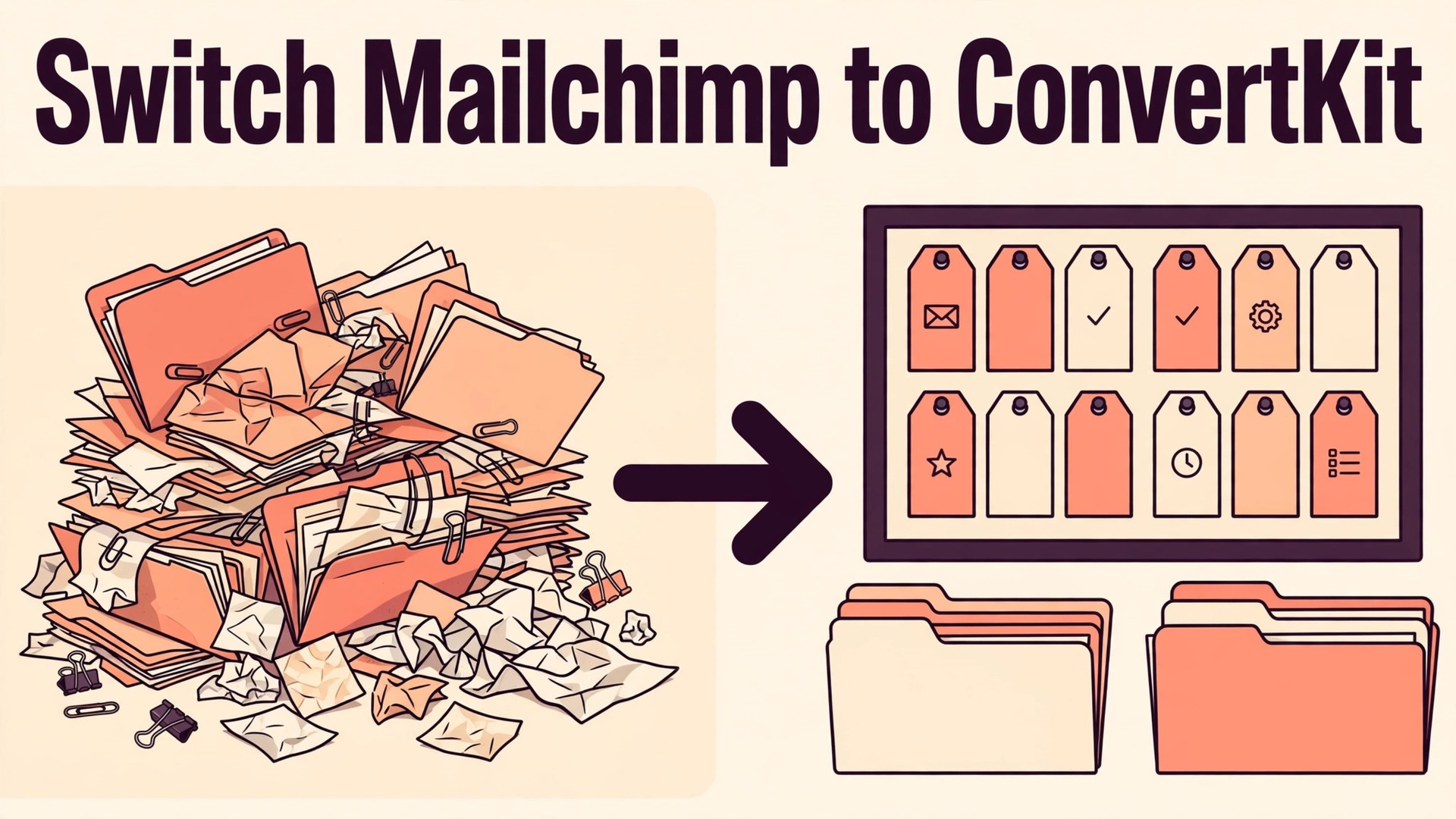
Your list still opens, but every new campaign feels harder to build than it should. Segments live in three places, automations were built years ago for offers you no longer sell, and the tool you picked when the business was tiny now charges for contacts who never open anything. If you switch Mailchimp to ConvertKit small business owners usually do it for one reason. They want email organised around subscribers and what those subscribers actually did, not around lists and campaigns that pile up over time.
That shift sounds small, and it changes almost every daily task in email. In Mailchimp, a contact can sit in an audience with groups and tags layered on top, and a campaign is the unit you send. In ConvertKit, now also called Kit, a subscriber carries tags, and sequences and visual automations move that subscriber forward based on tags, form signups and link clicks. The data moves well. The thinking behind the data needs rebuilding, and that rebuild is where most switches succeed or quietly fail.
This guide walks through how to switch Mailchimp to ConvertKit small business owners can follow, in order. It covers the decision checks before you touch an export, the audience export itself, the tag rebuild, the automation mapping, the form swap, the warm up and send test sequence, and the rollback plan if results drop. Prices are deliberately not quoted as fixed figures here, because both vendors change plan tiers and contact based pricing often. Check the current pricing page for each tool on the day you commit, and judge the cost on your real contact count and sending volume, not on a headline tier.
A note on names matters before you start. ConvertKit rebranded as Kit, and its help documentation now sits under the Kit name. Older guides, invoices and integrations may still say ConvertKit. They refer to the same product for the purposes of this move, and this guide uses ConvertKit because that is the name in the question most owners search for.
Decide First Whether Mailchimp to ConvertKit Is the Right Move
Not every frustration with Mailchimp is a reason to move. A messy audience, dead contacts and stale automations will follow you to any new tool if you import them unchanged. Before you switch Mailchimp to ConvertKit small business teams should run a short honesty check, and only move when at least two of these reasons are clearly true.
The first reason is that your business now sells through email sequences more than through one off broadcasts. A course launch, a coaching intake, a product drop with a waitlist, or a nurture path that changes based on what a reader clicks all fit the tag and sequence model well. If most of your sends are still a monthly newsletter to one list, the move may add work without adding revenue.
The second reason is that your Mailchimp structure has become hard to explain to a new hire. If nobody can say, without opening five screens, who gets a given campaign and why, the structure is the problem. A move forces a rebuild, and that rebuild is valuable even if the new tool were no better than the old one. Be honest about this. Many owners move for a feature and stay for the cleanup.
The third reason is cost on a growing list of engaged buyers mixed with a long tail of cold contacts. Mailchimp pricing rises with total contacts in many plans, while ConvertKit pricing is also contact based, so a move alone does not fix a bloated list. The saving comes from cleaning before you move and from keeping only engaged subscribers on a paid tier. Do the cleaning in Mailchimp first, where you can see open and click history, and do not pay to import contacts you already know will never buy.
Before You Switch Mailchimp to ConvertKit Checklist
Work through this checklist in Mailchimp before you export anything. Each item prevents a specific failure later, and skipping one usually costs more time than doing it now.
First, list every active automation and every scheduled campaign, with its trigger, its audience and its purpose. Mark each one as keep, rebuild, or retire. Retire anything tied to a dead offer, an old lead magnet or a product you no longer sell. A switch is the only moment when deleting old automations feels free, because you have to rebuild the keepers anyway.
Second, audit your tags, groups and segments. Export a list of them and note which ones still drive a real decision, such as who gets a launch email or who is excluded from a sale. Merge duplicates with slightly different spellings, and delete tags that were used once for one campaign in 2023 and never again. Your ConvertKit tag list should be short enough to read on one screen.
Third, check deliverability basics in Mailchimp. Confirm your sending domain is authenticated, note your recent open and click rates, and record your bounce and complaint rates. These numbers become your baseline. If deliverability is already weak, a new tool will not fix it by itself, and you need a list hygiene and warm up plan, not just a migration plan.
Fourth, gather your assets. Download your email templates or copy their text and images, list every signup form and where it lives on your site, and list every integration that touches Mailchimp, such as your store, your booking tool, your course platform and your CRM. Each integration needs a new connection or a replacement in ConvertKit, and the form swap is often the longest tail of the whole project.
Fifth, pick a quiet window. Do not migrate during a launch, a sale, or a seasonal peak. A two week window with no major campaign gives you room to test, fix and warm up without revenue pressure. Tell your team that Mailchimp stays live until the new system has sent successfully, and put that rule in writing so nobody cancels early to save a month of overlap. That discipline is part of any plan to switch Mailchimp to ConvertKit small business owners run well.
What Moves Cleanly and What Breaks in a Mailchimp to ConvertKit Switch
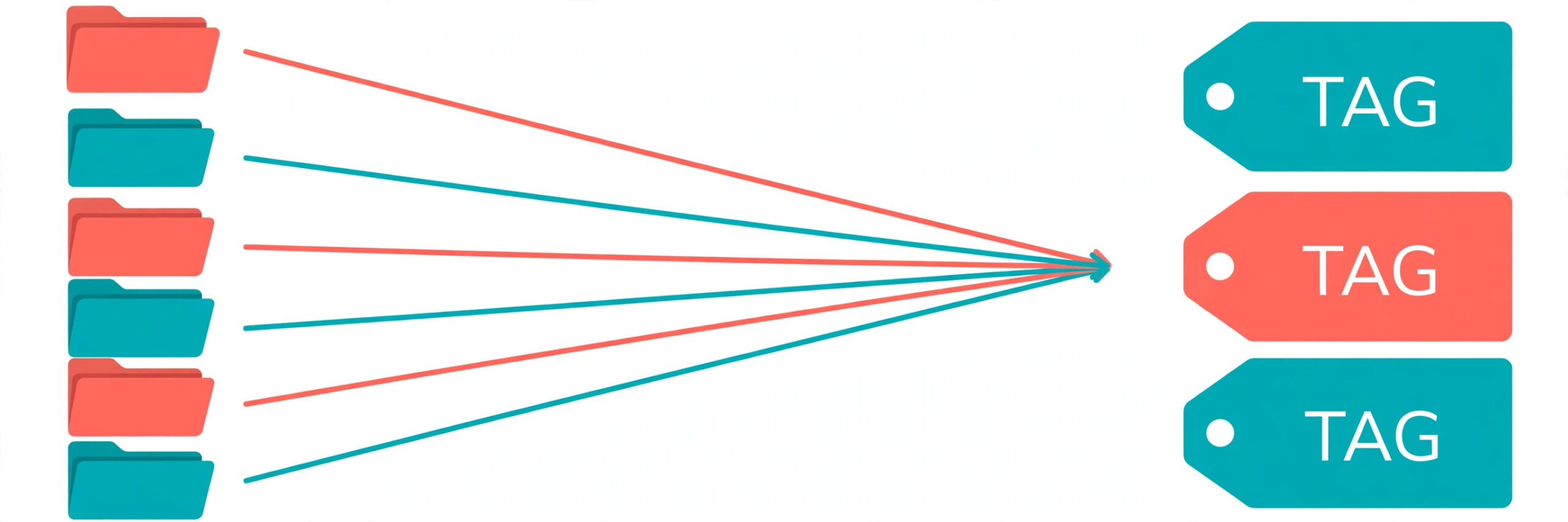
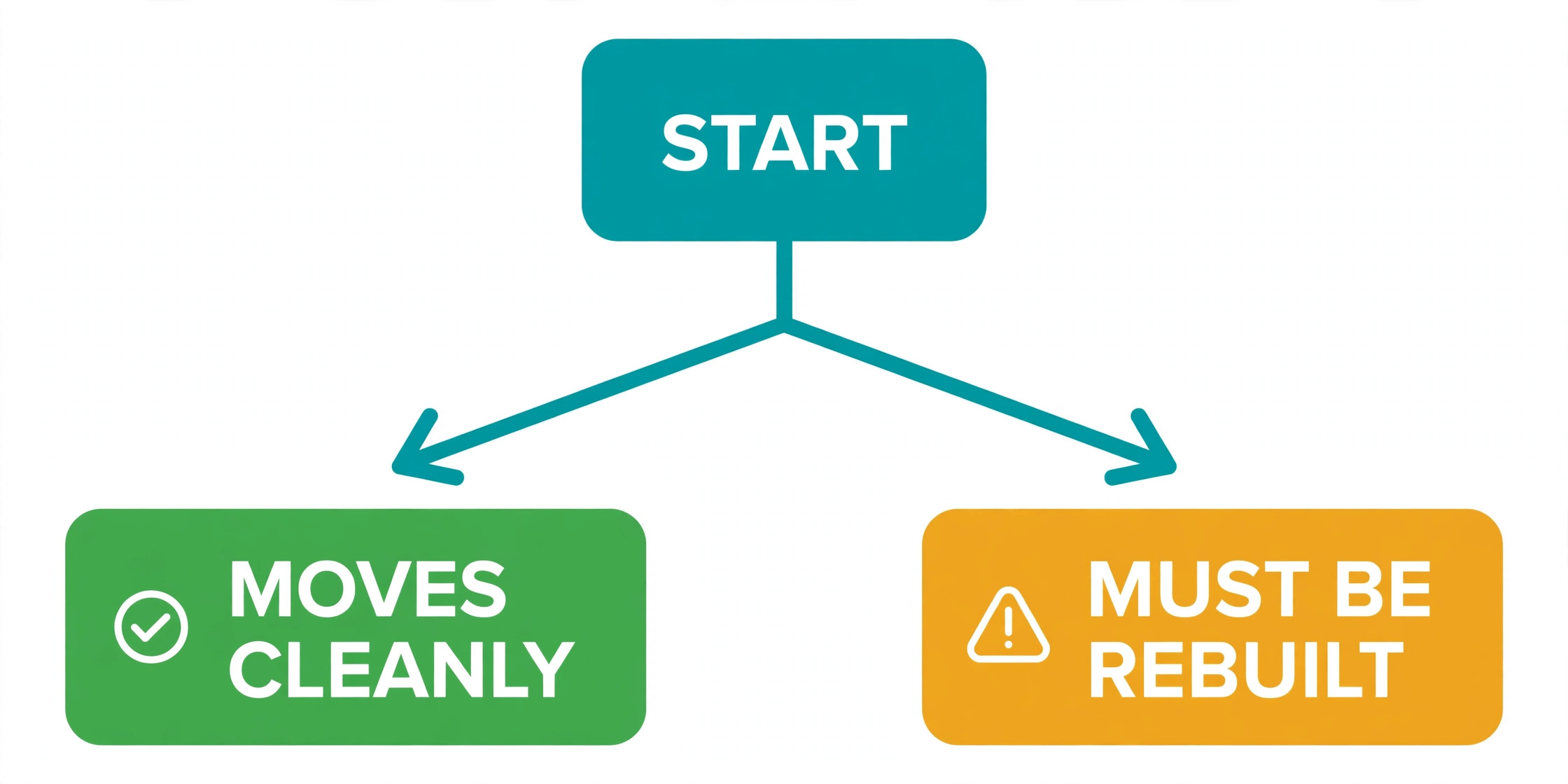
Subscriber email addresses, names and custom fields move cleanly through a CSV export and import, provided you map fields carefully. Tags move too, but they need attention, because Mailchimp audiences, groups and tags do not map one to one onto ConvertKit tags. Kit documentation explains that imported Mailchimp contacts receive tags matching their Mailchimp audience, segment, group and tag, which is helpful, but it also means a messy Mailchimp structure arrives in ConvertKit as a messy tag list unless you clean first.
What breaks, or needs rebuilding, is everything built on top of the contacts. Mailchimp customer journeys, automations and campaign templates do not import as working ConvertKit automations. You rebuild each keeper as a ConvertKit sequence or visual automation, with new triggers, delays and emails.
Forms and landing pages do not move either. You rebuild each form in ConvertKit, replace the embed code or integration on your site, and test each one. Landing pages hosted in Mailchimp need a new home, either in ConvertKit or on your own site. Do not leave a Mailchimp landing page live after cancellation, because it will stop working and break any ad or link that points to it.
Historical campaign reports do not move. Export or screenshot the reports that matter, such as launch results, best performing subject lines and segment performance, and store them outside either tool. Keeping that history is a small job inside a plan to switch Mailchimp to ConvertKit small business owners complete before cancellation. Once Mailchimp is closed, that history is hard to recover, and future you will want it when planning the next launch.
One trap deserves its own warning. Kit documentation warns that tags added during import can trigger automation rules and visual automations that use those tags as an entry point. If you build your automations before you import, a new subscriber can be swept into a welcome sequence, a sales sequence and a tag based rule at the same time. Temporarily disable automations before import, or import into a holding tag and apply real tags only after you check the result. This single step prevents the most embarrassing migration error, which is a confused subscriber receiving three sequences at once.
Step Workflow to Switch Mailchimp to ConvertKit Small Business Owners Can Follow
The workflow below runs in order, and each step has a check before you move to the next. Do not run steps in parallel for the same audience, because a half imported list plus a half rebuilt automation is how subscribers get duplicate or missing emails.

Step 1. Clean the Mailchimp Audience Before Export
Start with suppression, not export. Remove hard bounces, unsubscribes and contacts who have never engaged and never bought, after a final reengagement attempt if you want to keep the door open.
Next, segment what remains into engaged buyers, engaged readers, recent subscribers and cold but legitimate contacts. This is not just tidiness. It decides who gets warmed up first in ConvertKit, who gets a reengagement sequence, and who waits.
Finally, export a test file of a few hundred contacts and open it in a spreadsheet. Check that email addresses, first names, tags and custom fields land in the right columns, and that special characters, commas in names and empty fields do not shift columns. Fix field mapping issues on the test file, not on the full list.
Step 2. Export the Full Audience From Mailchimp
In Mailchimp, export from the audience you actually send to, and export by segment where that helps you keep groups separate. Mailchimp export can take time on a large list, and the file usually arrives as a compressed download. Save the original file untouched as your backup, and work only on a copy. Name the backup with the date, so a later export never overwrites the only good copy.
Check the export for the fields you need. Email address and status are the minimum. First name, last name, tags, signup source, purchase history and any custom field that drives a segment should be included if Mailchimp offers them in the export. If a field is missing, decide now whether it matters enough to rebuild by hand, or whether the segment it drove can be retired.
Keep Mailchimp live after export. Export is a copy, not a move, and subscribers stay subscribed in Mailchimp until you change something. That safety net is the whole point of running both tools in parallel for a short period.
Design the new tag system on paper first. A workable small business system usually has four kinds of tags. Source tags record where a subscriber came from, such as a lead magnet or a checkout. Interest tags record what they clicked or bought. Status tags record where they are, such as buyer, subscriber, or trial user. Exclusion tags record who should never get a given offer, such as recent buyers of that same offer.
Keep the total small. Twenty clear tags beat eighty vague ones, because every tag should answer a question you actually ask when sending. If a tag never decides who gets an email, delete it. Write a one line definition for each tag and share it with anyone who sends email, so the system stays clean after the migration team has moved on.
Build the tags in ConvertKit before import, and map each Mailchimp tag, group and segment to exactly one new tag or to retirement. A mapping sheet with three columns, old name, new name, and action, is the document that makes the import auditable. When a subscriber later asks why they received an email, that sheet is your answer.
Step 4. Map Every Mailchimp Automation to a ConvertKit Sequence
Take your keep list from the checklist stage and map each automation in a table. Record its trigger in Mailchimp, its trigger in ConvertKit, its number of emails, its delays, and its exit condition. An abandoned cart flow, a welcome series, a post purchase series and a launch sequence each map differently, and the exit condition matters most. A subscriber who buys midway through a sales sequence should leave that sequence, not keep receiving sales emails for a product they already own.
Rewrite emails during the rebuild, but do not rewrite everything at once. Start with the highest revenue automation, usually welcome or post purchase, and rebuild that one fully with fresh copy, working links and a test send. Then move to the next. Rebuilding in revenue order means the switch pays for itself even if the project runs long.
Pay special attention to delays and timing. Mailchimp and ConvertKit handle delays, time zones and business day logic differently, so a delay that meant two working days in one tool may mean two calendar days in the other. Check each delay after rebuild, and test with a real subscriber record, not just a preview, so you see the timing a reader will actually experience.
Step 5. Import Subscribers Into ConvertKit Safely
With automations temporarily disabled, import in batches rather than all at once. Start with your own team and a small test segment, confirm tags landed correctly, then import engaged buyers, then engaged readers, then recent subscribers. Importing in batches lets you catch a mapping error on a few hundred contacts instead of on the whole list.
Kit offers a direct Mailchimp importer as well as CSV import. The direct importer can carry audience, segment, group and tag information as tags, which saves manual mapping work. CSV import gives you more control over field mapping and lets you clean the file first. Either route works. The rule that matters is the same. Disable tag triggered automations first, check a sample after each batch, and keep the import log with dates and counts. That log is the audit trail for a plan to switch Mailchimp to ConvertKit small business owners can check later.
After each batch, reconcile counts. The number imported, plus the number suppressed, plus the number rejected for bad addresses should equal the number exported. If the numbers do not reconcile, stop and find the gap before importing the next batch. A silent gap of a few hundred subscribers is easy to miss now and painful to explain when a launch list is short.
Step 6. Swap Forms, Integrations and Landing Pages
Replace signup forms one location at a time, starting with the highest traffic page. For each form, confirm the new ConvertKit form applies the right tag, shows the right confirmation message, and sends the right welcome email. Test with a fresh email address you control, and check that the subscriber lands in ConvertKit with the expected tag and no extra tags. That check belongs in every plan to switch Mailchimp to ConvertKit small business owners run.
Reconnect integrations next. Your store, course platform, booking tool and CRM each need a ConvertKit connection or a bridge through a tool like Zapier or Make, depending on what the vendor supports. Test each integration with a real action, such as a test purchase or a test booking, and confirm the tag or sequence trigger fires. An integration that looks connected but never fires is worse than one that is clearly broken, because it fails silently.
Finally, handle landing pages and links. Point ads, social bios, email signatures and website buttons at the new pages, and keep a redirect or notice on any old Mailchimp page you control until traffic to it has faded. Check the top ten traffic sources to your signup pages before you declare this step done, because one forgotten link in a popular post can keep sending subscribers to a dead form for months.
Step 7. Run the Send Test Sequence Before You Cancel Mailchimp
A send test sequence is a planned series of small sends, not a single test email to yourself. Send first to your team, then to a small engaged segment, then to a larger engaged segment, watching deliverability, opens, clicks, bounces and complaints at each stage. If a stage shows a spike in bounces or complaints, pause, fix the cause, and repeat that stage. Do not push through a warning sign to meet a cancellation date.
Test every rebuilt automation with a test subscriber who walks the full path. Subscribe through the live form, click the links that should trigger the next step, buy or simulate a purchase if the automation depends on it, and confirm the right emails arrive in the right order. Check on mobile as well as desktop, because most readers will open on a phone, and a broken button on mobile is a broken automation in practice.
Warm up matters even when you are not a cold sender. Internet providers treat a new sending domain and a new tool with caution, so a sudden full list blast from a fresh ConvertKit account can land in spam even for a healthy list. Small, engaged sends first, with a few days between stages, build the reputation that lets the full list send land in the inbox. Record the results of each stage, because that record is your proof that the new system is ready.
Cost Comparison When You Switch Mailchimp to ConvertKit
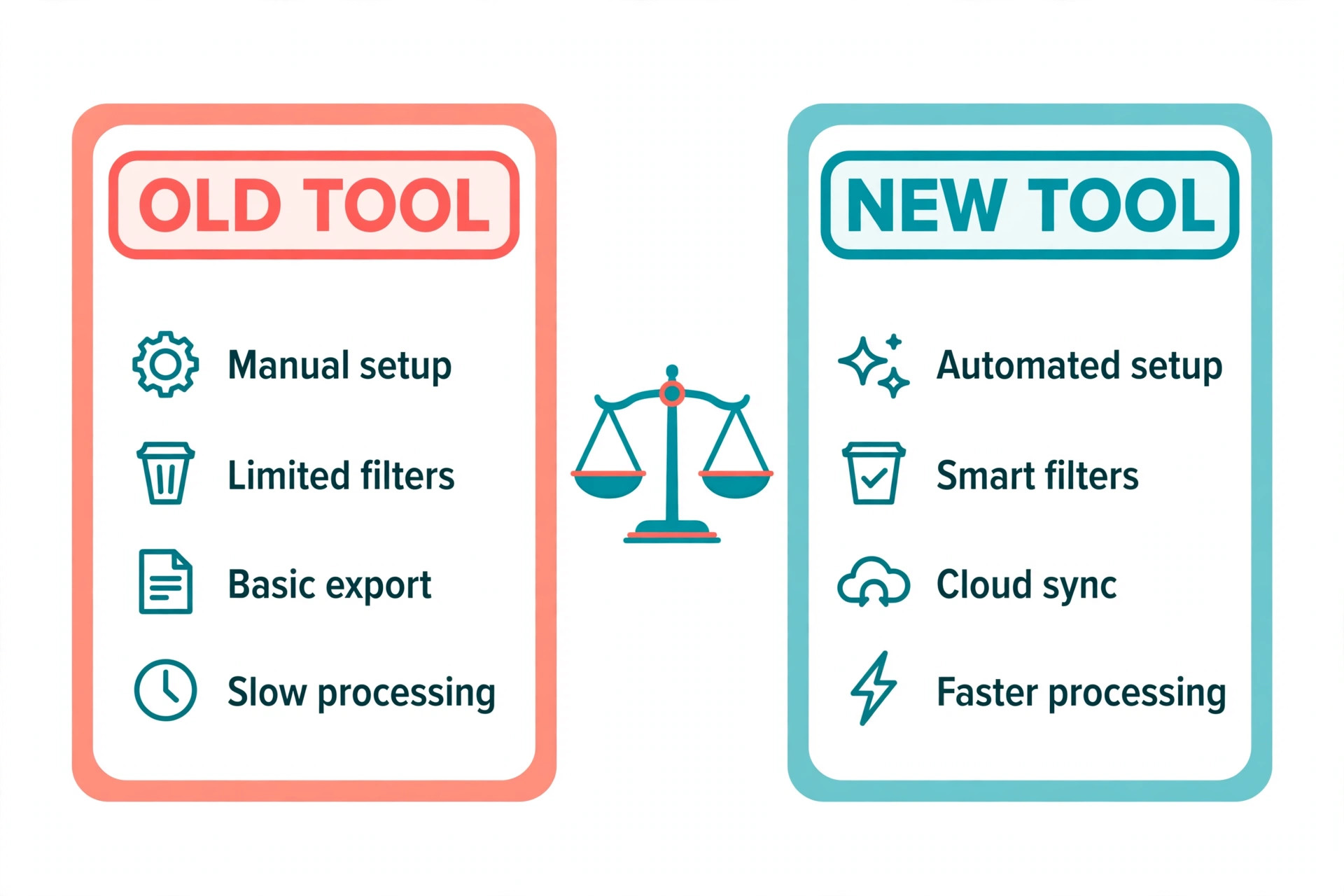
A fair cost comparison starts with the same list in both tools. Count only subscribers you will actually email after cleaning, not the total contacts sitting in Mailchimp, because dead contacts inflate the old bill and would inflate the new bill too if you import them. Then add the real extras on each side, such as paid landing page tools, extra seats, commerce fees where they apply, and any bridge tool you need for an integration that has no direct connection.
The table below is a framework, not a price quote, because tiers change. Fill it with figures from the vendor pages on your decision day, and keep the completed table with your migration notes so a future price rise can be judged against the same baseline.
| Cost item | Mailchimp now | ConvertKit after the move |
|---|---|---|
| Plan on your cleaned contact count | Current bill | Quoted bill for the same count |
| Extra seats or team access | Current charge | Quoted charge |
| Landing pages and forms | Included or separate tool | Included or separate tool |
| Commerce or product fees | Current fees on sales through email | Fees on sales through the new setup |
| Bridge tools for integrations | Current bridge cost | New bridge cost, if any |
| Overlap month, both tools live | Not applicable | One month of both bills |
The overlap month is the cost most owners forget, and it is money well spent. Running both tools for one full sending cycle lets you compare results, catch missed forms, and roll back without panic. Budget for overlap, and treat it as insurance, not waste.
Rollback Plan If Results Drop After the Switch
A rollback plan is not pessimism. It is the reason you can move confidently, because you know exactly what happens if the new system underperforms. Write the plan before you cancel anything, and agree the trigger numbers in advance, so a bad week does not turn into a panicked decision made at midnight.
Keep Mailchimp data and access until the rollback window closes. Do not delete the audience, the automations or the templates. Pause sending in Mailchimp, but keep the account in a state where a campaign could go out within a day. That means keeping the sending domain authenticated, keeping payment current, and keeping at least one admin able to log in.
Set clear triggers. A sensible set is a sustained drop in inbox placement or a complaint rate that stays above your baseline for two consecutive sends, a broken automation that affects buyers, or a form failure that stops signups for more than a day. Any one of those should pause new ConvertKit sends and start the rollback check, not just a note to look at it later.
The rollback itself runs in reverse order. Point forms back to Mailchimp or to a holding page, reactivate the Mailchimp automations you kept, and send a short, honest note to any segment affected by a missed or duplicate email. After rollback, diagnose before retrying, because moving the same broken mapping back and forth helps nobody.

Launch Checklist for the ConvertKit Go Live
Use this checklist on launch day, and do not tick an item from memory. Check it live, with a test subscriber, and record who checked it. The same discipline applies to any plan to switch Mailchimp to ConvertKit small business owners trust.
– Every kept automation is rebuilt, tested end to end, and re-enabled after import – Every form on the site, in social bios, and in ads points to ConvertKit and applies the right tag – Every integration fires on a real test action, with the right tag or trigger – The sending domain is authenticated, and a test send lands in the inbox on major providers – Unsubscribe and preference handling works, and suppressed contacts were not imported – The first three real sends are scheduled to engaged segments first, not to the full list at once – Mailchimp stays live and paused, with data backed up, until the rollback window closes – The team knows who sends, who checks results, and who can pause sending if something breaks
Mistakes That Ruin a Mailchimp to ConvertKit Move
The most common mistake is importing everything, including the dead weight. A list that looks bigger feels safer, but dead contacts hurt deliverability, inflate cost, and drag down every rate you use to judge the new tool. Clean first, import second, and never let list size be the measure of migration success. That rule alone improves most plans to switch Mailchimp to ConvertKit small business owners attempt.
The second mistake is rebuilding automations from memory instead of from a map. Memory drops exit conditions, forgets a delay, and merges two old flows into one confusing new one. The mapping sheet feels like paperwork, and it is the document that keeps the rebuild honest.
The third mistake is swapping forms last, after the first new campaign has already gone out. Subscribers who sign up in the gap land in the old tool, or nowhere, and the new list is incomplete from day one. Swap forms before the first real send, and check the highest traffic form twice.
The fourth mistake is cancelling Mailchimp to save money before the new system has proved itself. Overlap feels wasteful until the day you need it. Keep the old account through at least one full campaign cycle, one automation cycle, and one reporting cycle, so the comparison is real, not hopeful.

Frequently Asked Questions
Will subscribers need to opt in again after the move?
No, not in the normal case, because you are moving an existing permissioned list between tools you operate, not collecting new consent. Keep the original signup source and permission records with your backup, honour every unsubscribe, and do not import contacts who unsubscribed, bounced hard, or complained. If your list includes purchased or rented contacts, do not import them at all, because they were never permissioned in the first place.
Does ConvertKit import Mailchimp automations automatically?
No. Contacts, tags and fields import, but automations must be rebuilt as ConvertKit sequences or visual automations. That rebuild is the main work of the switch, and it is also where most owners improve tired copy and fix broken logic. Budget time for it, and rebuild in revenue order. That order is the practical core of a plan to switch Mailchimp to ConvertKit small business owners finish on time.
How long does the switch take for a small business?
A typical small business with a cleaned list, a handful of forms and fewer than ten automations can complete the technical move in one to three weeks of part time work, plus a warm up and test period. A complex setup with many integrations, a store, a course platform and dozens of automations can take a month or more. The import itself is the fast part. The rebuild, testing and warm up are the real timeline.
What happens to Mailchimp landing pages after cancellation?
They stop working as Mailchimp hosted pages, so any ad, social link or website button pointing to them will break. Rebuild needed pages in ConvertKit or on your own site before cancellation, and update the links that send traffic to them. Check your top traffic sources to signup pages as part of the form swap.
Is ConvertKit cheaper than Mailchimp?
It depends on your cleaned contact count, your sending volume, and the features you actually use on each side. Both tools price largely by contacts, so the saving, if there is one, usually comes from cleaning the list and from dropping separate tools that ConvertKit replaces, not from the headline tier alone. Run the comparison table in this guide with current vendor figures before deciding on price.
Should a small business keep both tools long term?
No, not as a permanent setup. Running both long term doubles cost, splits subscriber data, and guarantees that some subscribers exist in one tool but not the other. Overlap is a migration safety net for one cycle, not a strategy. Pick the winner on results, then close the loser cleanly.
Verdict for a Small Business Considering the Move
Move when email sequences drive revenue, when your Mailchimp structure is too tangled to explain, and when you are willing to clean the list and rebuild automations properly. Stay when a simple newsletter is the whole email job, when Mailchimp integrations are deeply embedded and working, or when the real problem is a dirty list that a new tool will inherit unchanged.
The switch Mailchimp to ConvertKit small business owners get right is rarely the fastest one. It is the one where the list was cleaned, the tags were designed, the automations were mapped, the forms were swapped before the first send, and the old tool stayed live until the new one had proved itself. Do those five things, and the move becomes a genuine upgrade rather than a change of logo on the same mess.
More Reading on Stratilyze
– Migrate Mailchimp to ConvertKit for Creators – Cost of Mailchimp for Small Business Monthly – Mailchimp Alternatives – Mailchimp vs Klaviyo – Migrate Mailchimp to Klaviyo Checklist