
You are live, your game is loud, chat is moving fast, and you need to mute your microphone before you cough, switch to a break screen, and save the last thirty seconds as a clip. On a keyboard and mouse, that is three different windows, two hotkeys you half remember, and a moment where your eyes leave the game. When you use Stream Deck for streaming, those three jobs become three labelled keys under one hand. You press, you see the key change, and you stay in the game. That is the whole point of the device. It does not make you a better streamer on its own. It removes the small fumbles that break a live show.
This guide builds a complete workflow around that idea. You will choose the right model for the size of your show, connect it to OBS Studio, lay out keys you can hit without looking, build a scene switching routine that survives a busy night, take control of microphone, game and music audio, and set up clips and markers so your best moments do not disappear. It also covers the mistakes that turn a useful deck into a drawer full of unused keys, and the exact tests to run before your next live session.
Prices here reflect listings seen in October 2026, and you should check the checkout page before you pay, because street prices move often and sales can change the best value pick.
What a Stream Deck Actually Does for a Live Show
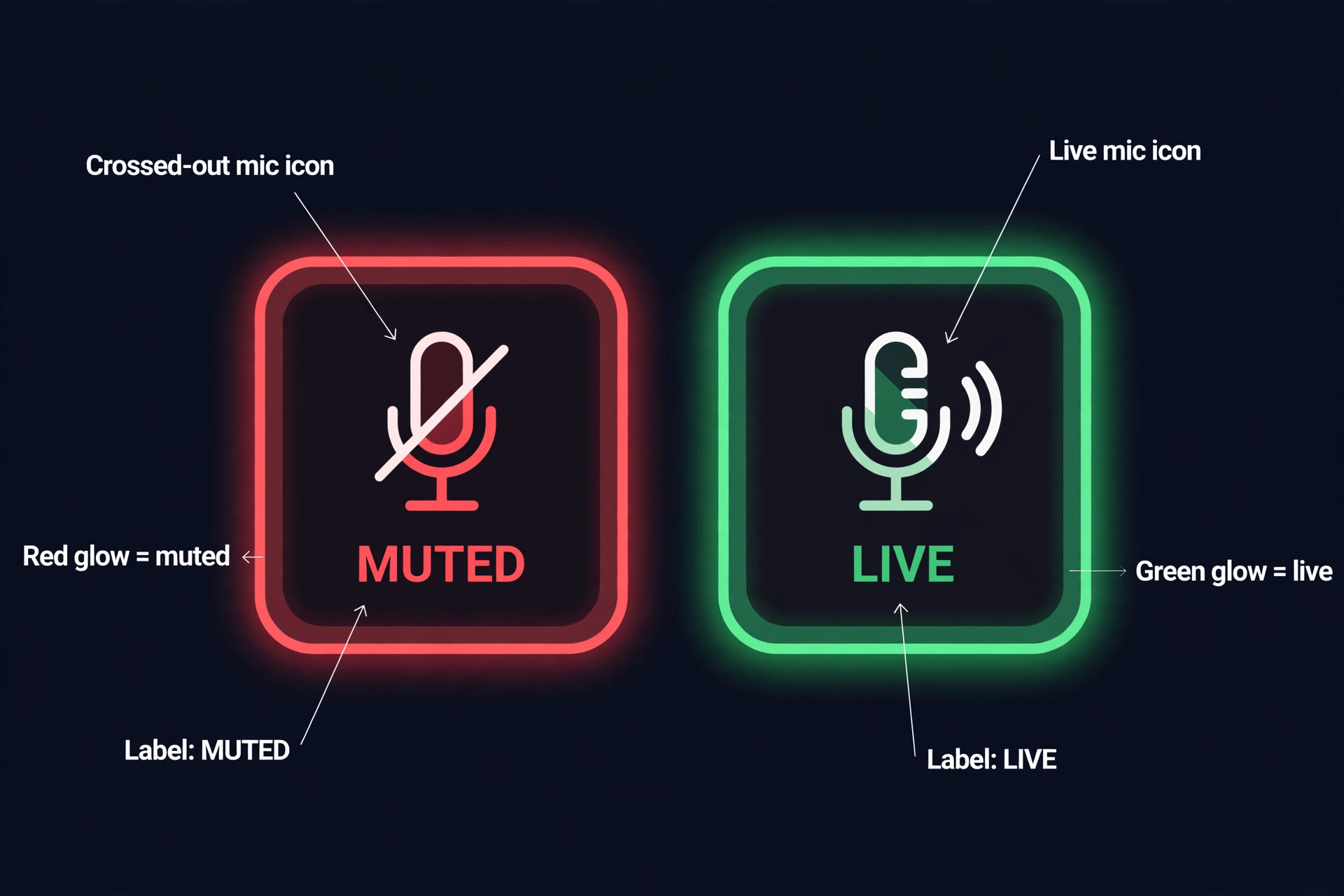
A Stream Deck is a small pad of LCD keys made by Elgato. Each key shows its own icon and label, and each key can trigger an action in OBS Studio, Twitch, Discord, Spotify, your lights, or a simple hotkey in another app. Press a key and the software behind it does the work. The key can also change its look to show state, so a muted microphone can show red while a live microphone shows green. That visual feedback matters more than it sounds, because on a live show you need to know the state of a control at a glance, not after you open a menu to check.
It is not a mixer, it is not a capture card, and it does not replace OBS Studio. Your scenes, sources and audio routing still live in OBS. The deck is the control surface on top of that setup. Think of OBS as the engine room and the deck as the panel on the desk. If your OBS scenes are messy, the deck will only let you switch between messy scenes faster. If your audio routing is tangled, the deck will only mute the wrong source faster. So the first job is not buying keys. It is tidying the show underneath them, then giving the tidy show a set of controls you can trust under pressure.

Choose the Right Model Before You Buy Keys You Will Not Use
Elgato sells several models, and the difference that matters most is key count, not brand prestige. The Stream Deck Mini has 6 LCD keys and was listed at about 59 dollars. The Stream Deck Neo has 8 LCD keys plus 2 touch points for paging, and was listed at 99.99 dollars. The Stream Deck MK.2 has 15 LCD keys and was listed at 149.99 dollars, often nearer 120 dollars at major retailers. The Stream Deck Plus has 8 LCD keys plus 4 dials and a touch strip, and was listed at about 180 to 199 dollars. The Stream Deck XL has 32 LCD keys and was listed at 249.99 dollars, often nearer 200 dollars on sale.
Check the official store and the retailer checkout before you buy, because those street prices change by week.
If you plan to use Stream Deck for streaming every week, key count matters more than extra features. For most solo streamers, the MK.2 is the sensible default. Fifteen keys are enough for a full first page of scenes, audio and stream controls, with one key left as a folder for extras. You do not need to page through folders mid game, which is where mistakes happen. The Mini is a good travel or second deck, and it is enough for a simple show with three scenes and a mute key, but six keys fill up fast once you add clips, chat commands and lights.
The Neo sits between those two, and its touch paging helps if you like a clean desk and do not mind swiping between pages.
| Model | Keys and controls | Listed price in October 2026 | Best for |
|---|---|---|---|
| Stream Deck Mini | 6 LCD keys | About 59 dollars | Travel, simple shows, a second deck |
| Stream Deck Neo | 8 LCD keys plus 2 touch points | 99.99 dollars | Small desks, beginners, paging between profiles |
| Stream Deck MK.2 | 15 LCD keys | 149.99 dollars | Most solo streamers, the default pick |
| Stream Deck Plus | 8 LCD keys plus 4 dials and a touch strip | About 180 to 199 dollars | Live audio riding, editing, dial control |
| Stream Deck XL | 32 LCD keys | 249.99 dollars | Producers, multi camera shows, complex layouts |
How to Use Stream Deck for Streaming in One Evening
Set aside one evening, not one rushed hour before you go live. The setup has four parts, and each part has a test before you move on. First, install the Stream Deck software from Elgato and OBS Studio, and update both. Second, connect the deck by USB and let the software recognise it. Third, install the OBS Studio plugin from the Stream Deck marketplace inside the app. Fourth, connect the plugin to OBS through the built in WebSocket server. OBS Studio exposes that server locally, so the deck talks to OBS on your own computer, not through a cloud service.
In OBS, open Tools, then WebSocket Server Settings, and confirm the server is enabled. Note the port, which defaults to 4455 in current versions, and set a password if you want one. Older guides mention port 4444, so if a guide does not match your OBS version, trust the number you see in your own settings panel, not the number in the guide. Then in the Stream Deck app, drag an OBS action onto a key. The settings panel will ask for the address, port and password. Enter the values from OBS, and the action should then offer a dropdown of your real scene names, sources and audio inputs.
If the dropdown is empty, OBS is probably not running yet, or the WebSocket server is off, or a firewall is blocking local traffic. Start OBS first, confirm the toggle, then reopen the action settings so it can query OBS again.
The first time you use Stream Deck for streaming, do not build all thirty keys on night one. Build a first page of twelve keys that cover a real stream, test them in a private recording, and only then add folders and extras. A deck with twelve keys you trust beats a deck with sixty keys you have never pressed. Name every key in plain words, not abbreviations you will forget under pressure. Use one colour family for scenes, another for audio, and another for stream controls, and keep that colour code the same on every page. Your hand learns colour and position faster than it learns text, and on a live show that muscle memory is the whole advantage.
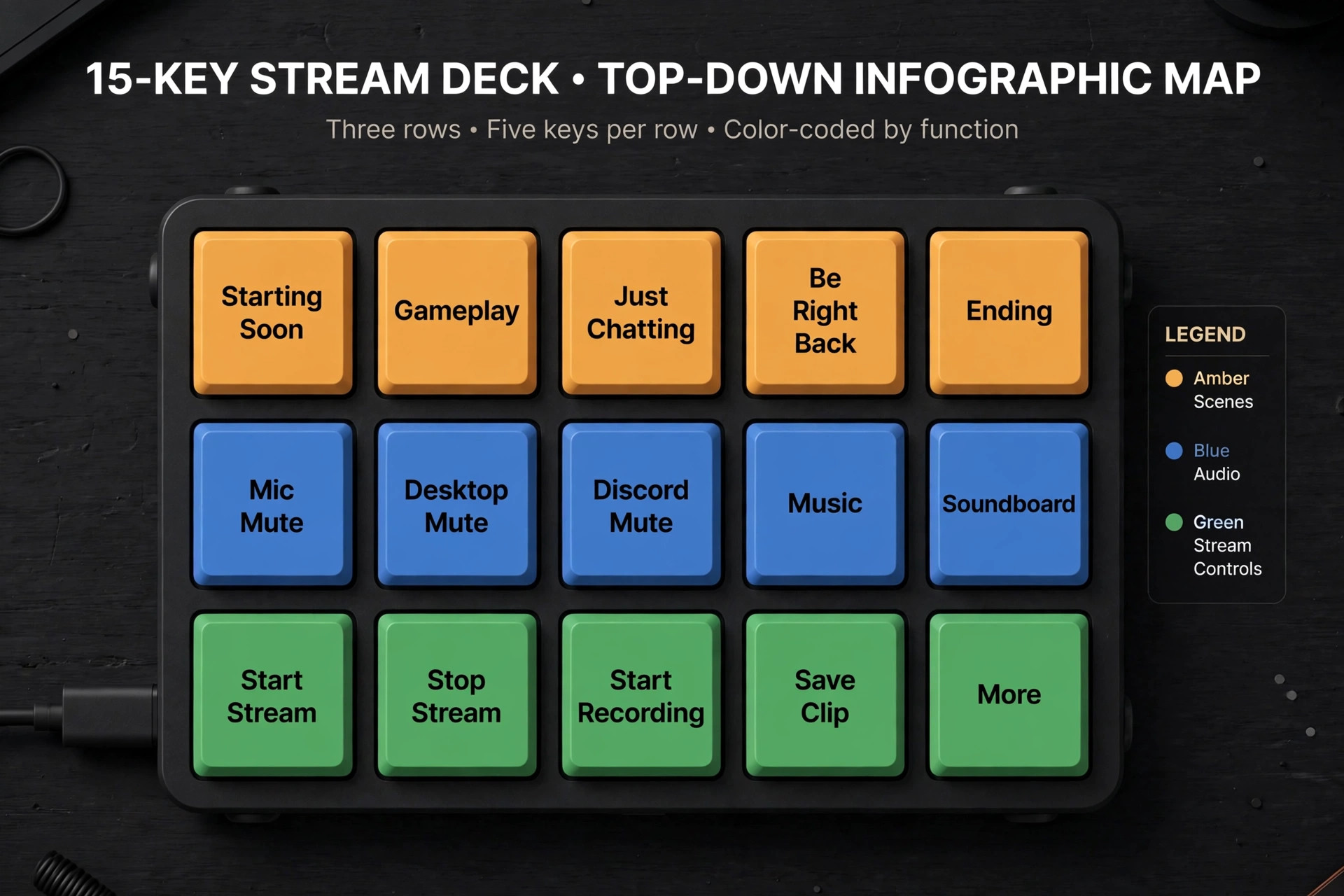
This is the overview proof part of the guide, the layout you can copy and then adjust to your show. It assumes the MK.2 with 15 keys, arranged in three rows of five, and it puts the keys you press in a panic on the easiest row to reach. If your deck sits to the left of your keyboard, your easiest row may differ, so mirror the idea rather than copying the exact positions. The principle stays the same. Scenes on the top row, audio in the middle, stream and clip controls on the bottom, and a folder key in the corner for everything else.
On the top row, put Starting Soon, Gameplay, Just Chatting, Be Right Back, and Ending, in the order you use them during a show. That order follows the arc of a stream, so your hand moves left to right as the show moves forward. On the middle row, put Mic Mute, Desktop Audio Mute, Discord Mute, Music Play and Pause, and a folder labelled Soundboard. On the bottom row, put Start Stream, Stop Stream, Start Recording, Save Clip, and a folder labelled More. The More folder holds lights, chat commands, shoutouts, and any tool you use less than once per stream.
If a key does not earn a place on the first page after two streams, move it into a folder. First page space is prime real estate, and it should only hold keys you press every show.
When you use Stream Deck for streaming with this layout, colour and icon discipline make it work when you are tired. Give every scene key a still image from that scene, not a generic icon, so you recognise the scene by picture before you read the label. Give every mute key a clear on and off state, with red for muted and green or white for live, and test both states before you go live. Give stream start and stop different colours and different positions, because start and stop are the two keys you must never confuse.
Some streamers put Stop Stream inside a folder on purpose, with a confirmation style multi action, so a stray elbow cannot end a show. That is a sensible precaution if your deck sits near a drink or a pet.
The Scene Switching Workflow That Keeps a Show Moving
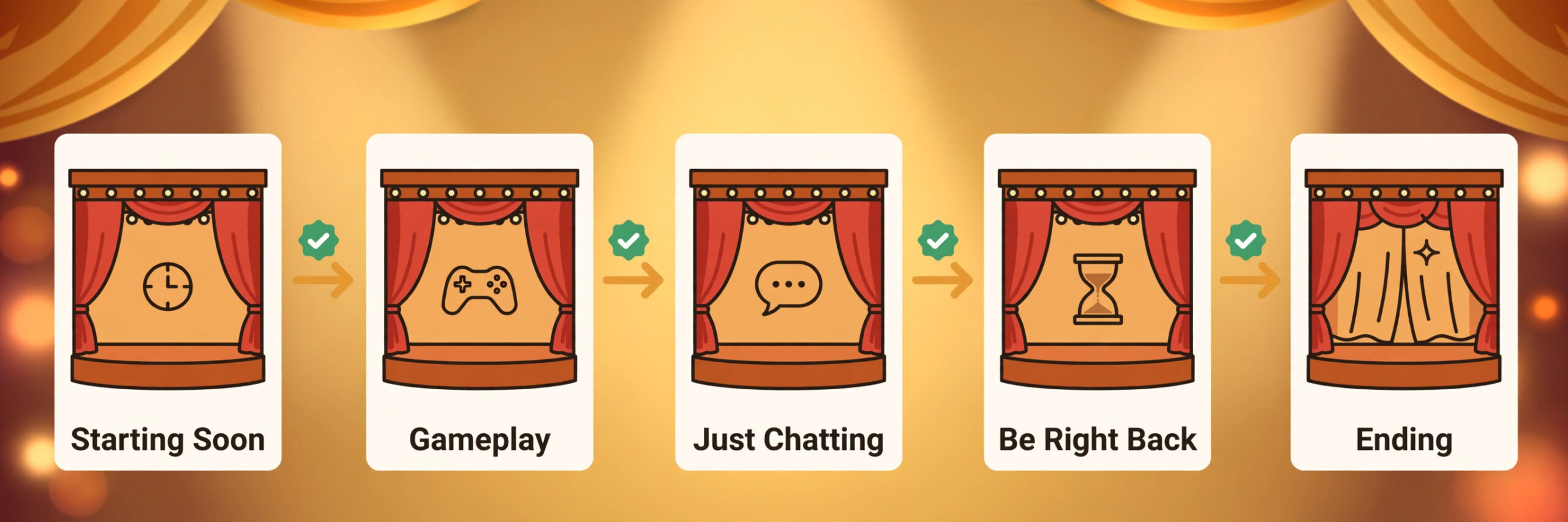
A scene in OBS is a full screen layout, such as a gameplay view with a camera box, a full screen camera view for chatting, or a break screen with music and a countdown. Switching scenes is the most visible job a deck does, and it is where a bad workflow shows up as a jarring cut, a missing camera, or a scene that goes live before it is ready. A good workflow has three habits. Prepare the next scene before you switch, switch with one press, and confirm the switch by looking at the OBS preview or program view, not by guessing from chat reaction.
A simple way to use Stream Deck for streaming without jarring cuts is to start each stream with a written run order, even if it is only five lines in a notebook. Starting Soon for five minutes, Gameplay for the main segment, Just Chatting for questions, Be Right Back for a break, Ending for the close. That run order tells you which scene keys you will press and in what order, so you are not deciding mid stream. Before you press a scene key, glance at the OBS preview if you use Studio Mode, or check that the scene thumbnail on the deck matches the scene you intend.
Studio Mode gives you a preview pane and a program pane, so you can set up a scene and then transition to it, but many solo streamers work faster without Studio Mode and accept a direct cut. Either choice works, as long as you choose it on purpose and practise it before going live.
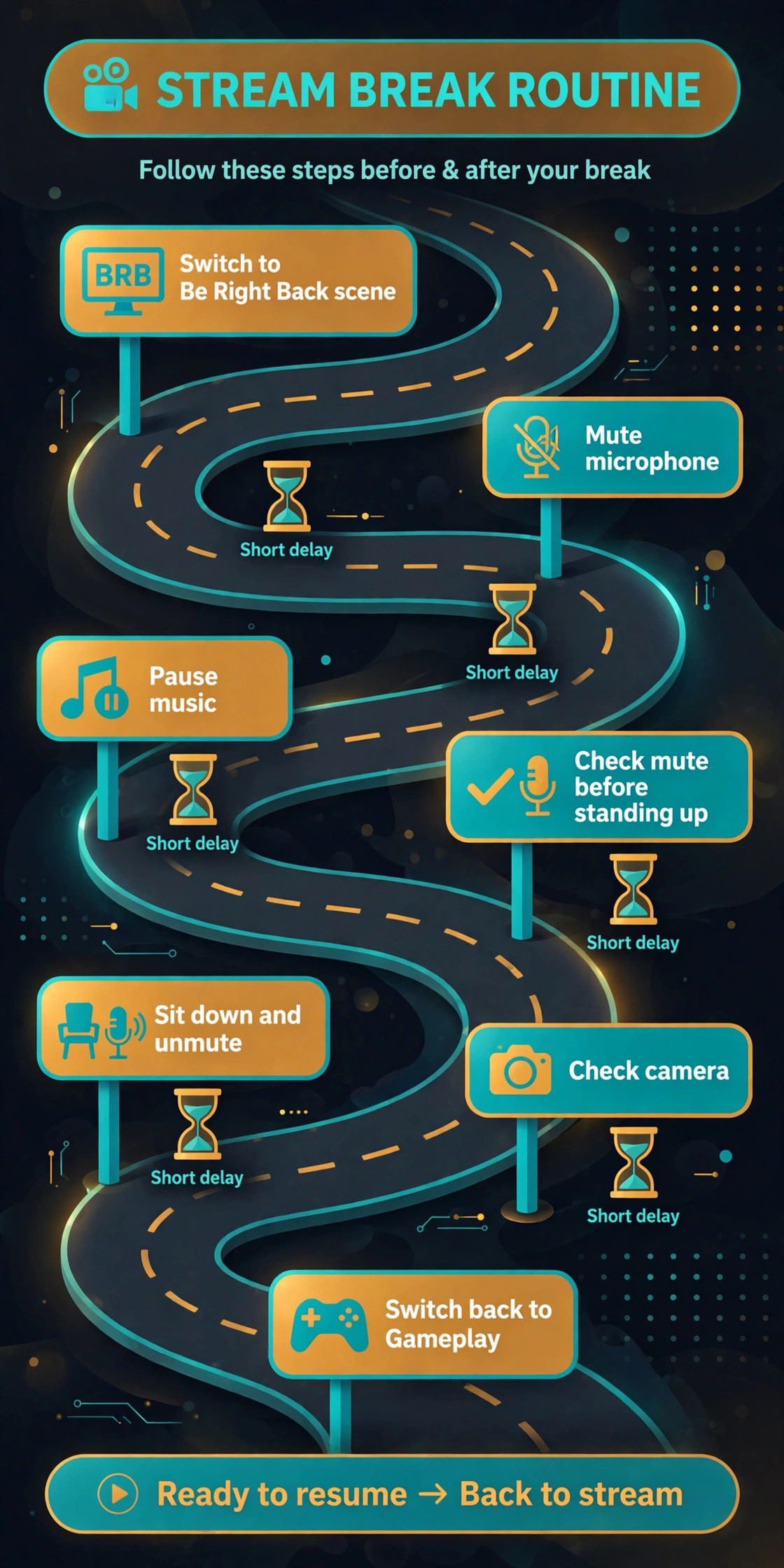
The workflow for a break is the best place to practise. Press Be Right Back, confirm the break screen is live, mute your microphone if the break key does not already do it, and only then stand up, take a drink, or answer a message. Returning is the reverse. Sit down, unmute, check your camera framing, then press Gameplay or Just Chatting. Streamers who press the return scene first and then fumble for the mute key broadcast twenty seconds of rustling and off mic talk to the whole audience. A multi action key can bundle that return sequence into one press, and the multi action section below shows how to build it safely.
Audio Control Without Leaving the Game
Audio is where most live shows actually fail, and it is where a deck earns its price fastest. Viewers will forgive a slightly soft camera, but they will leave a stream where game audio drowns the voice, or where music plays over a serious moment, or where a Discord notification blasts through the whole show. A deck gives you mute and level control for each audio source, without opening the OBS audio mixer. The setup starts in OBS, where each source should be separate. Microphone on one channel, desktop or game audio on another, music on another, Discord or voice chat on another.
If game and music share one desktop source, no deck key can separate them later, so fix the routing first.
If you use Stream Deck for streaming with separate sources, give each important source a mute toggle with a clear state icon on the deck. Mic Mute is the most pressed key on most decks, so put it where your hand rests naturally, and use a large, high contrast icon. Desktop Audio Mute lets you silence a loud game cutscene or an advert without touching the game volume. Discord Mute lets you take a private call during a break without broadcasting it. Music Play and Pause lets you control background music without opening a music app.
If you own a Stream Deck Plus, assign one dial to microphone level, one to game audio, and one to music, and practise small turns rather than big spins. Dials are precise, but a big spin can take audio from too loud to silent in one motion.
Levels need numbers, not guesses. In OBS, aim for your voice to peak in the yellow zone on the meter during normal speech, with game audio clearly below it, and music lower still when you are talking. Test those levels in a recording while you play at normal volume, not while you sit quietly at your desk, because game audio during a loud moment can be far louder than game audio in a menu. Save that test recording and listen to it on headphones and on a phone speaker, because many viewers watch on a phone where quiet voice and loud game audio are harder to balance.
Write the level numbers down in your run order notes, so you can reset them quickly if an update or a new game changes them.
Clips, Markers and Chat Without Breaking Flow
A great moment that is not saved is a lost video, a lost short, and a lost reason for a new viewer to find your channel. A deck makes saving moments a one press job, and that is why clips belong on the first page, not in a folder. To use Stream Deck for streaming clips well, set the OBS Replay Buffer first. In OBS, the Replay Buffer saves the last seconds or minutes of your stream to disk when you trigger it, and the length depends on the buffer setting and your available memory.
Set the buffer to a length that covers a full play or a full reaction, often 60 to 120 seconds, and test it with a local recording before you rely on it live. A buffer set too short will cut a moment in half, while a buffer set very long can use more memory than a modest computer can spare.
On the deck, put Save Clip next to Start Recording, and use different icons and colours so you never press one when you mean the other. Save Clip should trigger the Replay Buffer save in OBS, and if you also want a Twitch clip, add a Twitch action to the same multi action, but test that combination carefully, because a Twitch clip and a local replay are two different files with two different uses. The local replay is your high quality source for editing later. The Twitch clip is your shareable link for chat and social posts. Both have value, and the deck can trigger both, but only if you label the key honestly.
Call it Save Replay if it only saves locally, and call it Clip Both if it does both.
Markers are the quieter partner to clips. A marker drops a timestamp in your recording or stream, so you can find a moment later without scrubbing through two hours of video. Some streamers press a marker key at the start of every segment, so editing later becomes a list of timestamps instead of a hunt. Others press a marker only when something funny or important happens. Either system works, as long as you use it the same way every stream. Put the marker key in the More folder if you edit rarely, and on the first page if you turn every stream into edited videos. Your editing workload, not the key count, should decide.
Multi Actions That Bundle a Whole Sequence Into One Press
A multi action is a single key that runs several actions in order, with delays where needed. It is the most powerful Stream Deck feature for streaming, and the easiest to misuse. A good multi action bundles a sequence you always do in the same order, such as going on break or returning from break. A bad multi action bundles a sequence you sometimes do differently, such as ending a stream, where a bundled stop can end a recording you wanted to keep. Build multi actions only for sequences you have already done by hand at least five times, so you know the order is stable.
You can use Stream Deck for streaming breaks safely when a multi action follows plain steps. A safe break multi action looks like this. First, switch to the Be Right Back scene. Second, mute the microphone. Third, pause the music or switch it to a break playlist. Fourth, show a break message in chat if you use one. Test that sequence in a private recording, with a delay of half a second to one second between steps if a step needs time to take effect. A scene switch that happens at the same instant as a mute can produce a half second of live microphone on the break screen, which defeats the purpose.
Small delays feel slow when you build them, but viewers never notice a half second gap, while they do notice a leaked cough or a private comment.
A return multi action is the mirror image. First, unmute the microphone only after you are seated and ready. Second, switch to the Gameplay or Just Chatting scene. Third, resume the normal music level or playlist. Some streamers add a fourth step that posts a welcome back message, but keep that message short, because chat will already be welcoming you back. An ending multi action needs extra care. Switch to the Ending scene, play an outro, thank chat, and only then stop the stream and stop the recording, with a clear delay before the stop steps. Many streamers keep Stop Stream as a separate manual key even inside an ending sequence, so a mispress cannot end the show early.
That caution is worth the extra press.
How to Choose Between a Deck, Hotkeys and a Phone App
Not every streamer needs hardware, and an honest comparison saves money and desk space. Hotkeys are free, they work in OBS, and they cover simple shows well. Their weakness is memory and state. You must remember which key does what, and you get no visual sign of whether a source is muted. A deck fixes both problems with labelled keys and state icons, at the cost of money and desk space. A phone app with Stream Deck Mobile sits between those two.
It gives you labelled keys and state, for free or a small subscription, but it needs a phone mount, a charged battery, and a stable local connection, and tapping a phone screen feels different from pressing a physical key during a fast game.
Choose hotkeys if you stream occasionally, use fewer than five controls, and play games where your hands never leave the keyboard. Choose Stream Deck Mobile if you want to test the workflow, stream from a laptop while travelling, or keep a second control surface beside a hardware deck. Choose a physical deck if you stream at least weekly, use ten or more controls, play with a controller, or run a show where looking away from the game to find a hotkey costs you a play or a reaction. The deciding question is not whether a deck is nice. It is whether you already feel the friction it removes.
If you have never missed a mute, never lost a clip, and never broadcast the wrong scene, you do not have the problem a deck solves yet.
For related reading, the guide to best AI tools for streamers covers the wider tool set around a live show, how to start a YouTube channel with AI helps turn saved clips into edited videos, how to plan a month of social media content with AI helps turn those clips into a posting plan, and best AI video editing tools covers the editing step after a stream ends.
When a Good Deck Ends Up in a Drawer
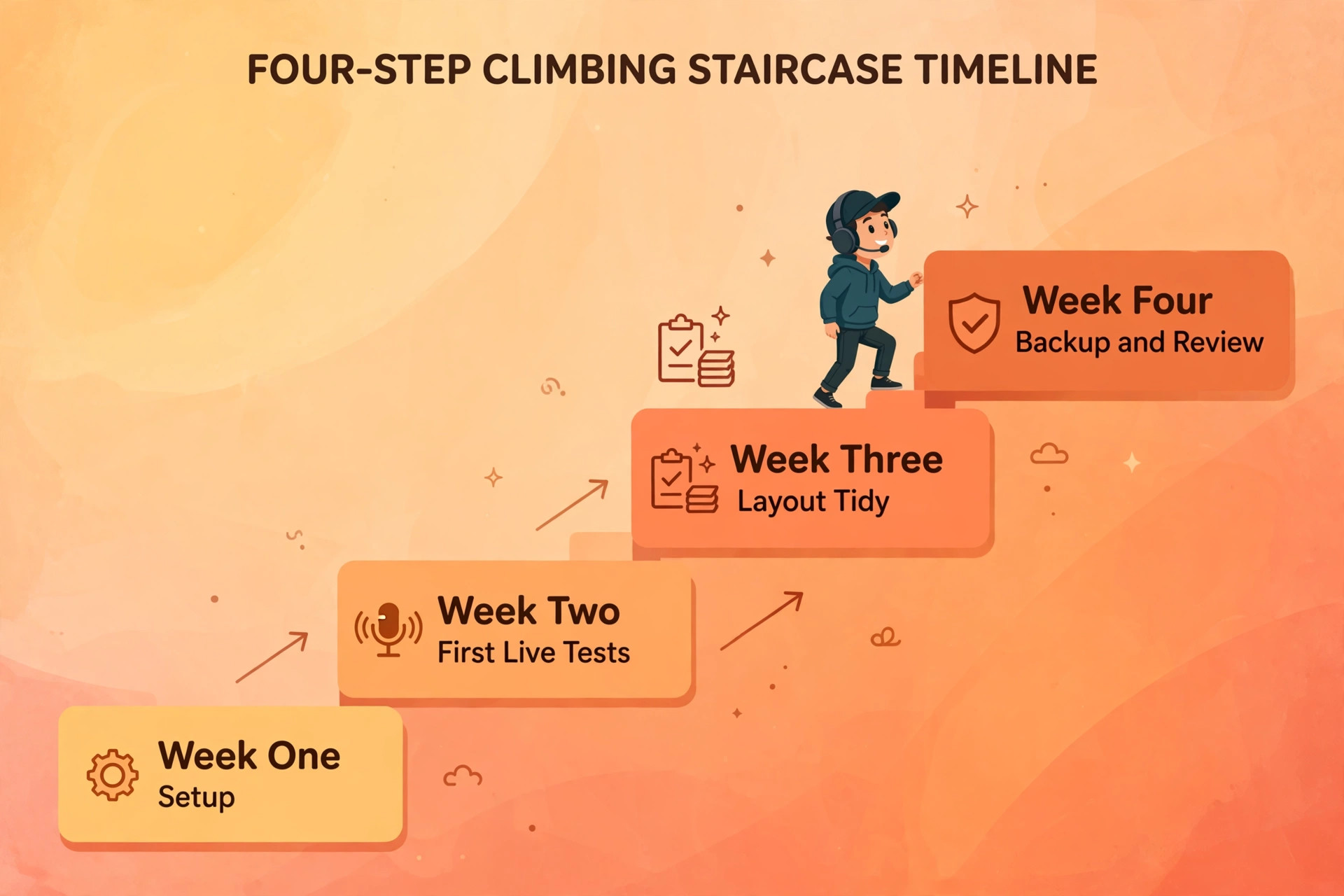
The first mistake is building the deck before fixing OBS. If scenes have inconsistent audio, missing cameras, or sources that overlap, the deck will switch between those problems faster, but it will not fix them. Spend the first evening on OBS scenes and audio routing, and only then map keys to the cleaned up show. The second mistake is filling every key on day one. A new deck with sixty actions feels productive in the editor and overwhelming live. Start with twelve keys, use them for two streams, then add keys based on what you actually reached for and missed.
The third mistake is using tiny text and similar icons. A key you cannot read at a glance is a key you will not press under pressure, and a key you will not press is wasted money. Use large labels, distinct pictures, and a colour code you can explain in one sentence. The fourth mistake is putting Stop Stream next to Start Recording or next to a scene you press often. Dangerous keys need distance, a folder, or a multi action with a delay, not a prime position next to a daily key. The fifth mistake is never testing in a recording.
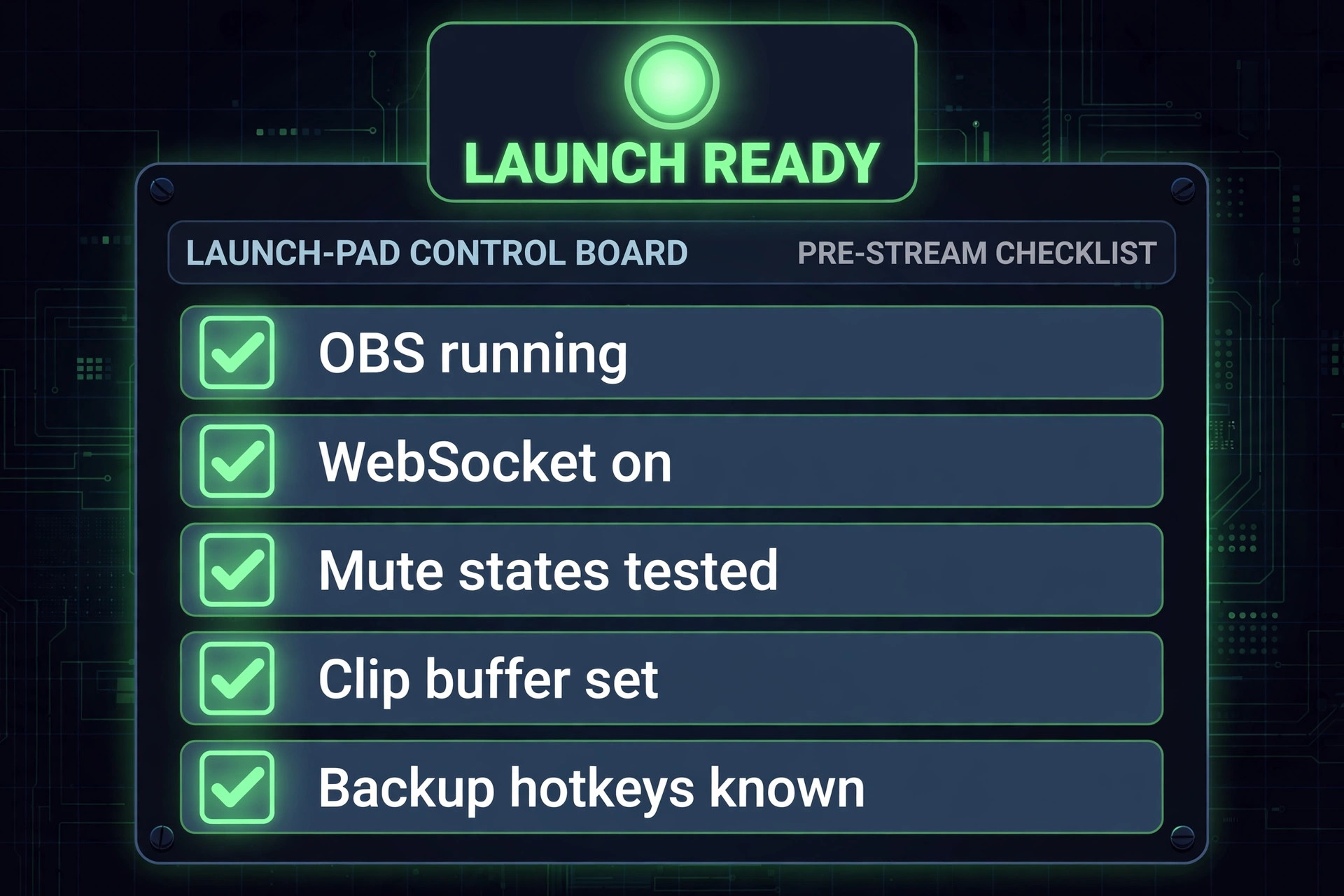
A key that works in the editor can fail live because OBS was not running, a plugin was not connected, or a hotkey conflicted with a game. A ten minute private recording before each stream catches most of those failures.
Frequently Asked Questions
Do I need a Stream Deck to stream on Twitch or YouTube?
No. You can stream well with OBS hotkeys alone, especially for a simple show with few scenes. A deck becomes worth the money when you switch scenes often, control several audio sources live, save clips during play, and want labelled keys with visible mute states instead of memorised hotkeys.
Which Stream Deck model is best for a beginner streamer?
The MK.2 is the best default for most beginners who stream regularly, because 15 keys hold a full first page without constant folder paging, and it was listed at 149.99 dollars in October 2026. The Mini at about 59 dollars is a good low cost test, and Stream Deck Mobile with 6 free keys lets you try the workflow before you buy hardware.
How do I connect a Stream Deck to OBS Studio?
Install the Stream Deck software and OBS Studio, install the OBS Studio plugin from the Stream Deck marketplace, enable the WebSocket server in OBS under Tools and WebSocket Server Settings, and enter the address, port and password in the Stream Deck action settings. The action dropdown should then show your real scene and source names. If it does not, confirm OBS is running and the server toggle is on, then reopen the action settings.
Can a Stream Deck control audio levels, or only mute and unmute?
It can do both, depending on the model and the action. Key based actions can mute, unmute, and adjust volume in steps for a source. The Stream Deck Plus adds dials that turn levels smoothly, which suits live audio riding. For the best result, keep each audio source separate in OBS, so game, music, microphone and voice chat can be controlled on their own.
How do I save clips with a Stream Deck during a live stream?
Set the OBS Replay Buffer to a useful length, such as 60 to 120 seconds, and assign a deck key to save the Replay Buffer. That saves a local file you can edit later. If you also want a shareable Twitch clip, add a Twitch clip action to the same key as a multi action, but label the key clearly so you know whether it saves locally, creates a Twitch clip, or does both.
What should I do if a Stream Deck key stops working mid stream?
First, use your backup OBS hotkey for the same job, so the show keeps moving. After the stream, check that OBS is running, the WebSocket server is enabled, the plugin is still installed, and the action still points to a scene or source that exists. Most failures come from OBS not running, a renamed scene, or a plugin that lost its connection, and reopening the action settings usually restores the link.
Your First Live Night With the Deck in Hand
A deck does not change what you stream. It changes how much of your attention stays on the game, the guest, and the chat, instead of on menus and hotkeys. That shift is worth money only if the rest of the show is ready for it, with clean scenes, separate audio sources, and a layout you have tested in a recording. When you use Stream Deck for streaming for two full shows, notice which keys you press without thinking, and which keys you never touch, and let that evidence reshape the layout.
Start with the MK.2 layout in this guide, or shrink it to a Mini if your show is simpler, and run it for two streams before you add folders, dials, or complex multi actions.