

For most remote workers, the best background is the one nobody notices. It hides a messy room, keeps the focus on the speaker, and signals enough professionalism that the meeting can get on with its real work. That quiet standard is the verdict that shapes this guide, because a flashy background that distracts, glitches or clashes with a brand does more harm than a plain wall. This guide to the best zoom background makers compares still and video makers by how they look on a real call, not by how they look in a gallery.
We judged each maker on size and export quality, brand control, ease of swapping a background before a call, and how it behaves on a modest laptop. A background that needs a powerful machine or a long upload will fail on the morning it matters most. Read the shortlist, test your top two in a real meeting with a colleague, and keep a plain backup ready for any call where video quality drops.
Still Backgrounds, Video Backgrounds, and What Zoom Actually Needs
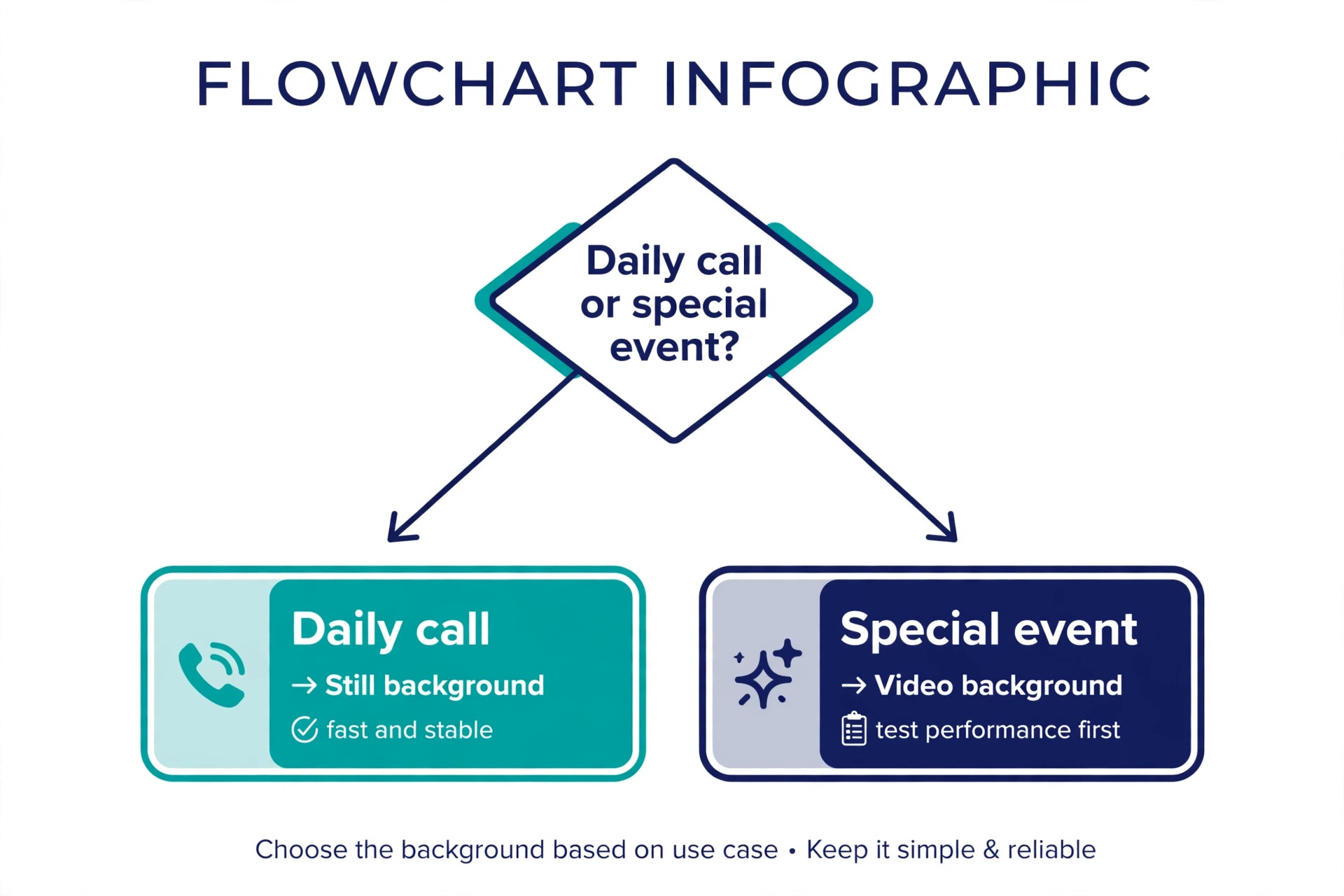
Zoom accepts a still image or a video file as a virtual background, and the practical difference is performance. A still image is light, stable and kind to a weak connection, while a video background can look lively but can also stutter, distract and drain a laptop battery. Zoom recommends a high resolution image with a 16 by 9 shape for a full screen call, and a video file needs to stay small and loop cleanly. For most work calls, a still background wins. Save video for presentations, events and recordings where the extra motion earns its cost.
Best Pick by Job
The table below gives the fast comparison. It separates still makers from video makers, because that choice decides performance before any template style matters.
| Tool | Main type | Best for | Starting point |
|---|---|---|---|
| Canva | Still | Branded templates | Free plan, Pro paid |
| Adobe Express | Still | Polished brand imagery | Free plan, Premium 9.99 dollars |
| Kapwing | Video | Animated backgrounds | Free watermarked, Pro paid |
| Design.com | Still | Themed branded backgrounds | Free tier, paid plans vary |
| VEED | Video | Video suite users | Free watermarked, paid plans vary |
Use the table to shortlist, then judge the best zoom background makers by a real job, not by a feature list alone.
With that context, the next section reviews the best zoom background makers one by one, starting with the strongest all-rounder.
The 5 Tools Reviewed
Canva
Canva offers Zoom background templates at the right size, with brand colours, logo placement and photo or illustration backgrounds, plus easy export as an image. It suits remote workers who already design in Canva and want a branded background fast. Its template range covers professional office scenes, branded panels and simple colour backgrounds, so a worker can match a background to a meeting type in minutes.
Canva has a free plan, and Pro is priced by region, with annual billing commonly shown around 144 dollars a year in the United States. Background templates are available on the free plan, with brand controls on Pro. In daily use, the appeal is practical rather than decorative. a user gets a fast, correctly sized background without learning video software, and the mobile app allows a quick swap before a call. That matters when a deadline is close and the design still has to look intentional, not rushed.
The limit to weigh is that Canva backgrounds are still images, so an animated or video background needs a video tool, and the most polished brand controls sit on Pro. Verdict. The fastest route for a branded still background, especially for a team already in Canva.
A practical check before you commit to Canva is to run one real job through it end to end, from first draft to final export, and time the result. Note where you waited, where you guessed, and where you needed help, because those three moments predict whether the tool will feel fast in a normal week or only in a demo.
Adobe Express
Adobe Express pairs background templates with Adobe Fonts, stock photos and Firefly imagery, so a background can carry a name, a title or a subtle brand mark without looking cluttered. It suits Adobe users who want a polished background with strong type and imagery. Its image quality is the edge. A stock office scene or a generated backdrop looks less like a stock photo when the colour grade and type match the rest of a brand.

Adobe Express has a free plan, and Premium is listed at 9.99 dollars a month, with wider stock and brand features on Premium. In daily use, the appeal is practical rather than decorative. a user gets a clean, professional background with reliable export, and a team can share brand assets across backgrounds and social posts. That matters when a deadline is close and the design still has to look intentional, not rushed.
The limit to weigh is that video backgrounds need a video editor, and the background template range is smaller than a dedicated video background library. Verdict. A strong pick for a polished still background, best when Adobe assets already matter to the user.
Before you pay for Adobe Express, test it with your own material rather than a sample file. Use a real headline, a real photo and a real deadline, then check the export on the device where it will actually be seen. A tool that passes that test is worth its price, while a tool that only impresses on sample content will disappoint when real work arrives.
Kapwing
Kapwing is a browser video editor that can build a video background, add text, trim a clip and export a file sized for Zoom, with collaboration for teams. It suits users who want a video or animated background, not just a still image. Its video strength is the difference. A subtle looping scene, a branded intro clip or a blurred motion backdrop can be made in the same editor used for social video.
Kapwing has a free plan with watermarked exports, and Pro costs 16 dollars a month billed annually or 24 dollars a month billed monthly. In daily use, the appeal is practical rather than decorative. a creator gets real video editing in a browser, with no install, and a team can review a background together before a big meeting. That matters when a deadline is close and the design still has to look intentional, not rushed.
The limit to weigh is that free exports carry a watermark and a resolution limit, so a professional background usually needs Pro, and the learning curve is higher than a template maker. Verdict. The best choice in this guide for a moving background, and a fair price when video is already part of the job.
One more check for Kapwing is to ask who else will use it and what they already know. A tool that one person loves can slow a team if colleagues cannot edit its files, and a simple tool that everyone can use often beats a powerful tool that only one person understands. Match the choice to the weakest skill in the team, not the strongest.
Design.com
Design.com offers a dedicated Zoom background maker with templates across themes, plus customisation for text, logos, uploaded images and colour adjustments. It suits small business owners who want a custom background matched to their brand. Its theme range is broad, from professional office scenes to playful launch and hobby themes, and a business owner can add a logo and brand colours without video skills.
Design.com has a free tier for exploring backgrounds, and paid plans vary by asset and download type, so check the price for high resolution files. In daily use, the appeal is practical rather than decorative. a small business gets a branded background quickly, with a theme for different meeting types, without hiring a designer. That matters when a deadline is close and the design still has to look intentional, not rushed.
The limit to weigh is that video backgrounds and fine editing are thinner than Kapwing, and high resolution downloads sit behind a paid plan, so a team that meets on video all day should test export quality first. Verdict. A useful mid-list option for themed, branded still backgrounds, not the first pick for video backgrounds.
A practical check before you commit to Design.com is to run one real job through it end to end, from first draft to final export, and time the result. Note where you waited, where you guessed, and where you needed help, because those three moments predict whether the tool will feel fast in a normal week or only in a demo.
VEED
VEED is a browser video suite that can build and edit video backgrounds, with background blur, clean-up, captions and team workspaces. It suits creators and teams who want a video background with captions, blur or clean-up tools. Its video toolset suits a presenter who records as well as meets. A background can be built, tested in a recording and refined in the same account.
VEED has a free tier with watermarked exports, and paid plans vary by user and feature, so check the current pricing page for the plan that removes watermarks. In daily use, the appeal is practical rather than decorative. a user gets a broad video toolkit, not merely a background maker, which suits a creator who also edits clips and recordings. That matters when a deadline is close and the design still has to look intentional, not rushed.
The limit to weigh is that the free watermark makes it unsuitable for a client-facing call without a paid plan, and the interface is heavier than a simple template maker for a one-off background. Verdict. A good video-led pick for creators, overkill for a worker who only needs one clean still background.
Before you pay for VEED, test it with your own material rather than a sample file. Use a real headline, a real photo and a real deadline, then check the export on the device where it will actually be seen. A tool that passes that test is worth its price, while a tool that only impresses on sample content will disappoint when real work arrives.
How to Set Up a Background So It Looks Real
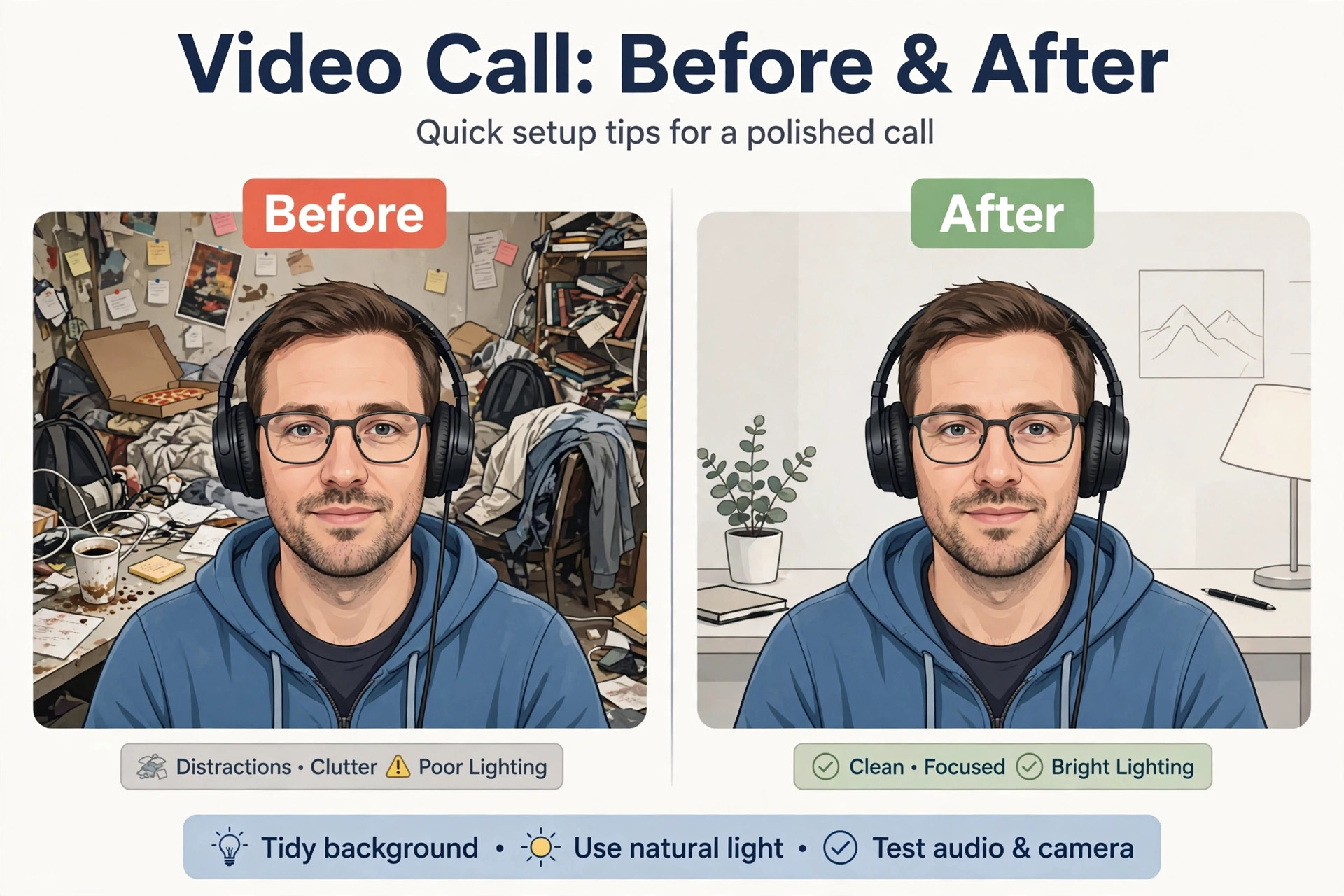
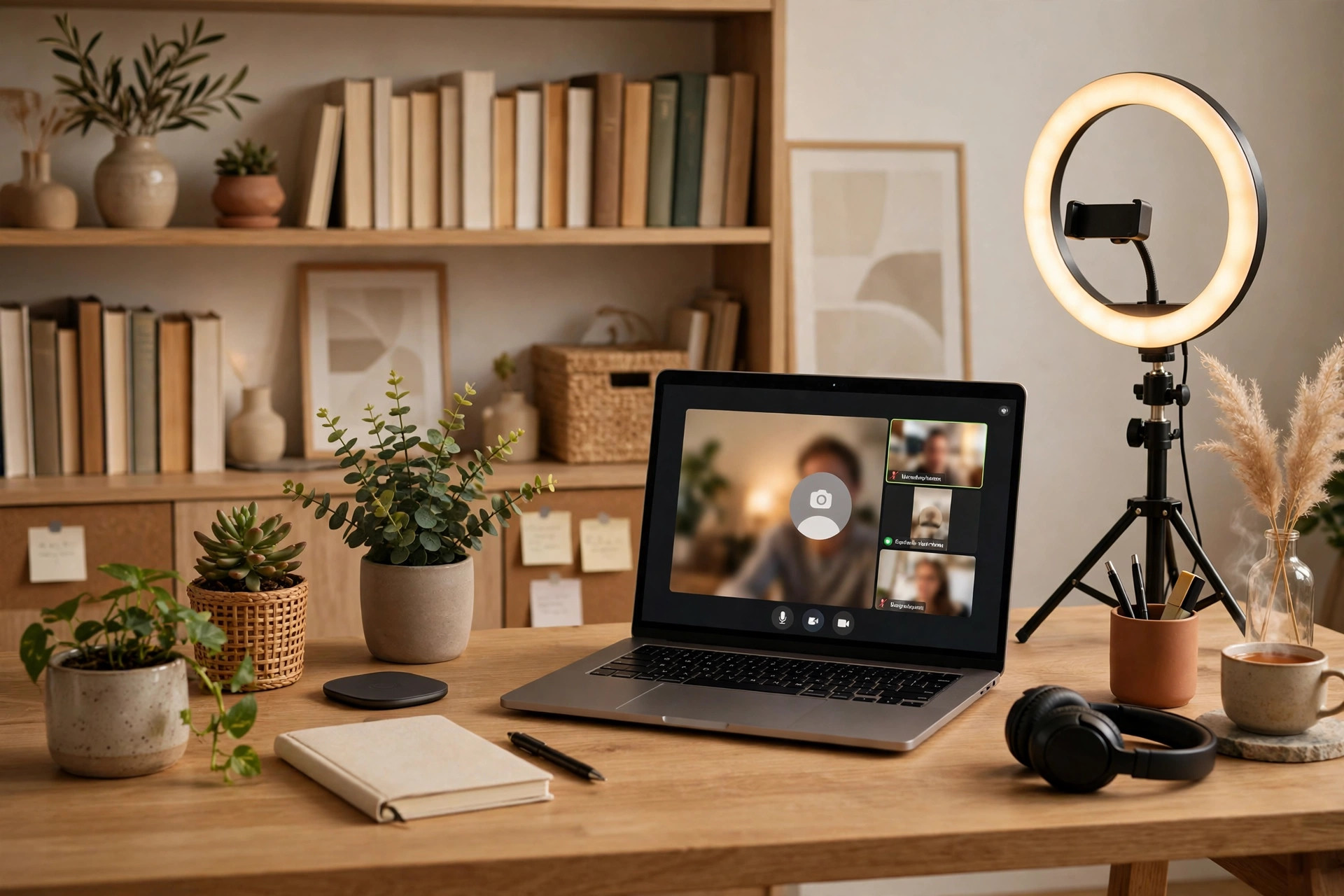
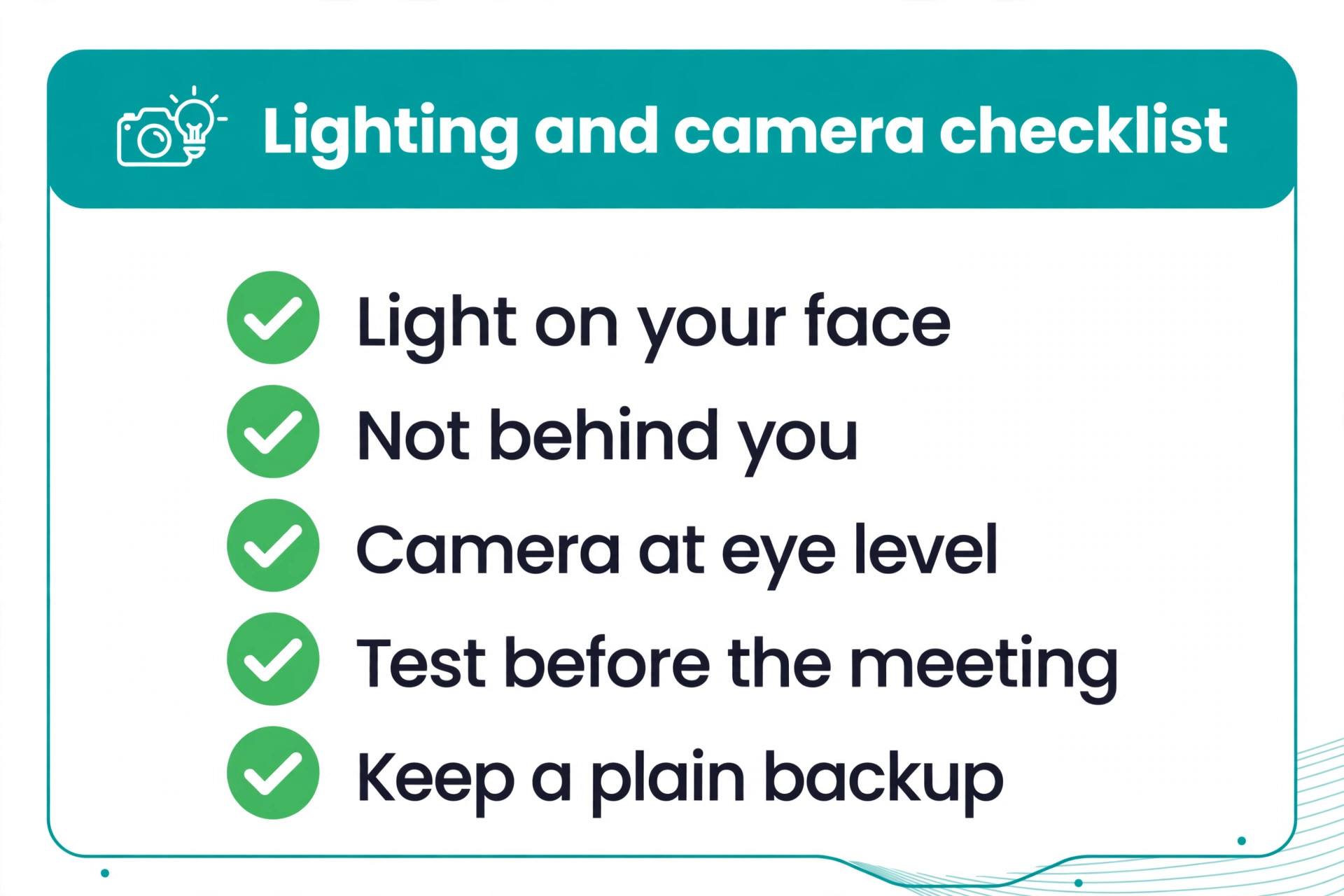
Upload the file in Zoom settings before the meeting, not during it, and test it with your actual lighting and camera angle. Sit with light on your face rather than behind you, keep a little distance from the wall if you use no green screen, and check the edges around hair and glasses, where a weak background shows its flaws first. Keep text small and away from the edges, because Zoom crops differently on different screens, and save the file with a clear name so you can find it again under pressure. A two-minute test with a colleague catches almost every problem that would otherwise appear live.
Sizing, Lighting, and Laptop Performance in Plain Terms
A background that is too small will blur when Zoom stretches it, while a very large file will slow the upload and the call. Aim for a sharp, correctly shaped image rather than the largest file you can find, and prefer a simple scene with a clear focal area behind you. Busy patterns, strong contrasts and moving objects behind a speaker all fight for attention and make compression artefacts worse. If a call starts to lag, switch to a still background or turn the virtual background off, because a smooth call with a plain wall beats a frozen call with a beautiful scene. Keep a plain colour backup in Zoom so the switch takes seconds, not minutes.
Backgrounds for Teams and Brand Consistency
A team that meets clients on video needs more than individual taste. When five colleagues use five different scenes, the company looks scattered, even if each background is good on its own. A shared set solves this. Agree two or three approved backgrounds, one plain, one branded and one for informal calls, and store them where everyone can find them. New joiners then start with the right look on day one, and managers do not need to correct backgrounds in live meetings, which is awkward for everyone.
Brand consistency also means checking the details that a template gallery hides. A logo must stay readable at small size, a colour must match the website rather than merely resemble it, and a tagline must not be cut off on a narrow laptop screen. Test the shared backgrounds on different machines and layouts, because a scene that works on a wide monitor can crop badly on a laptop. Keep the files named clearly, note which background suits which meeting type, and review the set when the brand changes, so an old logo does not linger in client calls for months after a rebrand.
A team that treats backgrounds as a shared asset, rather than a personal choice, looks more professional with almost no extra cost.
Backgrounds for Interviews, Teaching and Events
An interview, a taught class and a public event place different demands on a background, and a scene that works for one can fail for another. For an interview, choose a neutral scene with no text, no logos and no personal items, because anything distinctive becomes a talking point that distracts from the candidate. For teaching, a slightly warmer scene with a clear, uncluttered area behind the teacher helps students focus, and a consistent background across a course makes recordings feel like a series rather than a set of unrelated calls.
For a public event, a branded scene is appropriate, with the event name or organiser mark placed to one side, where it survives cropping and does not sit behind the speaker.
In all three cases, test the background in a recording, not merely in a live preview. A recording reveals flicker, colour shifts and cropping that a preview can hide, and it shows whether text remains readable after compression. Save a separate file for each use, name it for the audience rather than the theme, and keep a plain backup for any session where bandwidth drops. A background chosen for its audience, rather than for its novelty, helps the speaker be heard, which is the only job it really has.
Backgrounds for Different Meeting Types
A daily stand-up, a client pitch, a job interview and a team social call do not need the same background, and using one scene for all of them wastes an easy signal. For a stand-up, choose a plain, calm scene that loads fast and never distracts from status updates. For a client pitch, use a branded background with a modest logo to one side, so the meeting looks prepared without turning into an advertisement. For an interview, choose a neutral, tidy scene that says nothing about politics, hobbies or personal taste, because the focus should stay on the candidate and the role.
For a social call, a lighter theme is fine, and a shared joke background can even help a team relax, provided everyone agrees it is a social call and not a formal one.
The practical step is to save each background with a clear name, such as client, interview and team, so you can switch in seconds. Test each one in a real call, check how it crops on different layouts, and retire any scene that flickers, blurs or pulls attention away from the speaker. A small set of well-chosen backgrounds beats a large library of scenes you never use, because the right background is the one you can find and trust under time pressure.
Green Screen Versus Software Backgrounds
A green screen gives Zoom a solid colour to remove, which usually produces cleaner edges around hair and glasses than software alone. It costs little, folds away, and suits a worker who presents often from the same desk. Its drawbacks are space and light, because a wrinkled or shadowed screen creates its own artefacts, and a small room may not fit a screen behind a chair. Software backgrounds, by contrast, need no equipment and work anywhere, but they depend on lighting, camera quality and processing power, and they can struggle with fine hair, patterned clothing or a busy room behind the speaker.
For most workers, software is enough, provided the light is good and the scene is simple. A green screen is worth it for presenters, trainers and anyone who records regularly, because cleaner edges look more professional on a recording that will be watched again. If you buy one, light it evenly, keep it smooth, and sit far enough from it that shadows do not fall across it. Either way, test the result in a recording, not merely in a preview, because a preview can hide flicker that a recording reveals.
How to Choose Among the Best Zoom Background Makers
Choose by meeting type first. A daily team stand-up needs a clean, low-distraction still background that loads fast and never glitches. A client pitch needs a branded still background with a logo placed where it will not sit behind your head. A webinar or a recorded presentation can justify a video background, because the audience expects more production value and the host usually has a stronger machine. Match the maker to the meeting, not to the template gallery, and keep the flashiest option for the calls where it helps. In short, choosing among the best zoom background makers is a volume and workflow decision first, and a price decision second.
A background policy for a team is worth writing down, even in a short note. Agree a default background for client calls, a branded version for pitches, and a plain backup for low bandwidth days, and share the files in one folder so no one has to hunt for them before a meeting. A policy also helps new joiners, who otherwise guess what is acceptable and may choose a distracting scene for an important call. Keep the policy short, share example screenshots, and review it when the brand changes, so the backgrounds stay current without a formal project.
Privacy is a real benefit of a virtual background that teams understate. A background hides a home, a family member passing by, or a whiteboard with internal notes, and that privacy helps a worker feel comfortable on video for a full day. It also protects clients, who should not see another client’s work on a wall behind a call. Choose a background that hides the room fully, test it from different angles, and remember that a virtual background is not a substitute for tidying sensitive material out of camera view entirely.
Audio and background quality interact in a way that is easy to miss. A worker who spends effort on a perfect background but uses a laptop microphone in an echoing room will still sound distant, and colleagues will remember the audio more than the scene. Pair a good background with a decent headset, a quiet room and light on the face, and test the whole setup in a real call. The background is one part of presence on video, and it works best when the voice and the lighting match its polish.
Brand placement deserves a specific check. A logo that looks perfect in the editor can end up behind a speaker’s head on a real call, because Zoom centres the speaker and crops the sides on some layouts. Place logos and text to one side, keep them modest, and test with your own camera framing, not a model photo. If the brand mark only survives when you sit unnaturally still, move it or shrink it, because a background that forces you to pose will distract you for the whole meeting. That test applies to the best zoom background makers as a whole, not merely to one popular tool.
Mistakes That Make a Good Background Look Amateur
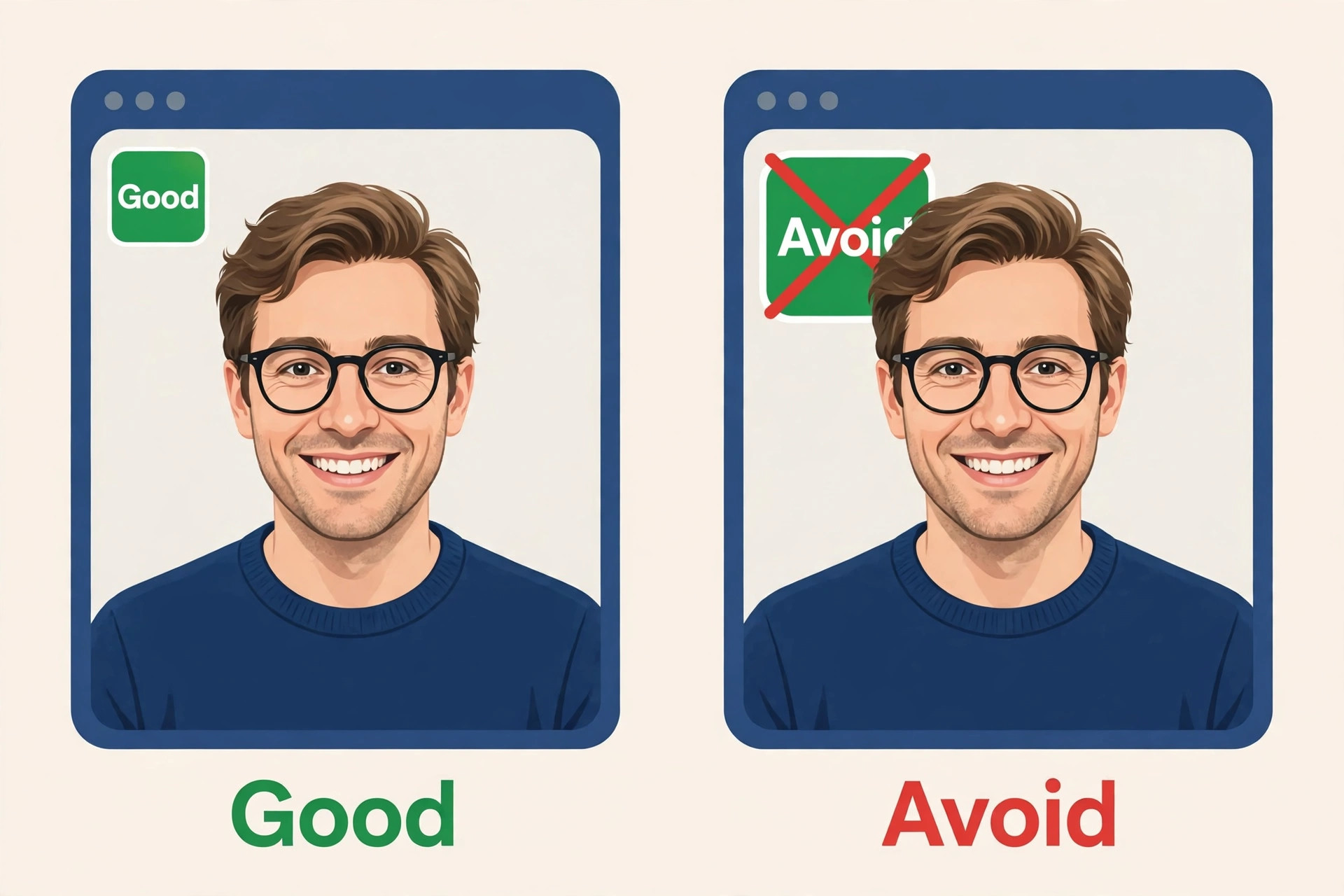
The first mistake is a background that is too busy, with shelves, signs and patterns competing with the speaker. The second is poor lighting, where a dark face sits in front of a bright scene and Zoom struggles to separate person from background. The third is a low resolution image stretched to full screen, which blurs and pixelates. The fourth is using a joke background for a serious meeting, which signals that the caller did not prepare. Fix all four by choosing a simple scene, lighting your face, exporting at full size and keeping a professional default for any meeting with a client or a manager.

Frequently Asked Questions
These answers cover the practical questions that arise once a background is chosen. They cover the best zoom background makers from price to everyday use.
Can I use a Zoom background without a green screen?
Yes, in most cases. Modern Zoom uses software to separate you from the background, and it works well with good lighting and a clear contrast between you and the room behind you. A green screen still gives cleaner edges, especially around hair, but it is not required for a professional result in a normal home office.
What size should a Zoom background be?
Use a high resolution image in a wide shape that matches a full screen call, and export it sharp rather than stretched. A correctly shaped image fills the screen without cropping a logo or a headline, while a square or portrait image will be cropped or blurred when Zoom fits it to the call window.
Are video backgrounds worth it for work calls?
Usually not for daily work calls, because video backgrounds use more processing power, can stutter on a weak connection and can distract colleagues. They suit webinars, events and recordings, where production value matters and the host can test performance in advance. For daily calls, a clean still background is the safer choice.
How do I add a logo without it sitting behind my head?
Place the logo to one side of the frame and keep it modest, then test with your own camera framing before the meeting. Zoom centres the speaker, so a centred logo often ends up hidden. A side placement survives different layouts and still reads as branded without forcing you to sit in an unnatural position.
Why does my background flicker around my hair?
Flicker usually comes from low light, a busy background behind you or a low resolution camera. Improve the light on your face, choose a simpler virtual scene, and keep some distance from the wall if you have no green screen. If flicker persists, switch to a still background with less detail, which is easier for Zoom to separate cleanly.
Can I use the same background on Zoom and other meeting apps?
Yes, in most cases, because a still image file works across Zoom, Teams, Meet and other apps that support virtual backgrounds. Check the recommended size for each app, since cropping differs, and keep a version with the logo placed safely for the app you use most, rather than assuming one file fits every layout perfectly.
Our Call on Backgrounds That Help, Not Distract
For most workers, Canva or Adobe Express will give the cleanest branded still background with the least fuss, and that is the right default. Add Kapwing or VEED only when a video background is genuinely part of the job, such as a webinar or a recorded presentation, and test it on the machine you will actually present from. Design.com is a useful themed option for a small business that wants variety without video skills. That is the practical way to choose among the best zoom background makers without overpaying for features you will not use.
Keep one professional default, one branded version for client calls and one plain backup, and test each one before it matters. A background should make a meeting easier, not become a topic in the meeting, and the makers above all pass that test when they are used with restraint.
More Reading on Stratilyze. For the wider video call toolkit, read Fix Zoom camera not working on a laptop and AI tools for streamers, and for design work behind a background, see Canva alternatives. For content that pairs with video calls, read AI tools for content creators and AI tools for YouTubers. Those guides pair well with the best zoom background makers when you plan a full workflow.