
The verdict is simple. Most Zoom audio failures are device selection failures, not broken software, and they are fixed in minutes once the right microphone and speaker are chosen in the right place. If you need to fix Zoom audio not working small team calls keep hitting, start inside Zoom audio settings, not by reinstalling the app or buying a new headset. This guide works through the checks in the order that solves the most cases first, and it ends with a phone dial in fallback so no client call has to be cancelled while a computer problem is sorted out.
Audio failure feels worse than video failure because a meeting without sound is not a meeting at all. Participants stare at each other, type in chat, leave and rejoin, and the client on the other end wonders whether the team is prepared. Small teams feel this more sharply than large firms, because there is often no IT desk to hand the problem to, and the person whose audio fails is also the person running the call. A calm, repeatable routine changes that dynamic completely. One person follows the steps, the rest of the team knows what to expect, and the call starts on time more often.
Start by defining the failure precisely, before changing any setting. Ask whether nobody can hear you, whether you cannot hear anyone, whether only one person is affected, or whether everyone hears echo. Each answer points at a different cause. If nobody can hear you, the microphone path is broken. If you cannot hear anyone, the speaker path is broken. If only one person is affected, the cause sits on that person’s device.
If everyone hears echo, one microphone is picking up speaker sound and sending it back. Write down the answer, the device in use, and whether the problem happens in the app, in a browser, or in both, because that note prevents repeating checks that have already been ruled out.
Also check the simplest causes first, even though they feel too simple to mention. Confirm the microphone is not muted in Zoom, that the host has not muted you on entry, and that any physical mute button on the headset is switched off. Confirm the device volume is up and not set to vibrate only on a phone. Confirm the headset cable is fully inserted, or that a Bluetooth headset is actually connected and charged. These checks take seconds, and skipping them is how teams spend an hour on driver settings for a headset that was simply muted.
How to Fix Zoom Audio Not Working Small Team Calls Hit in Order
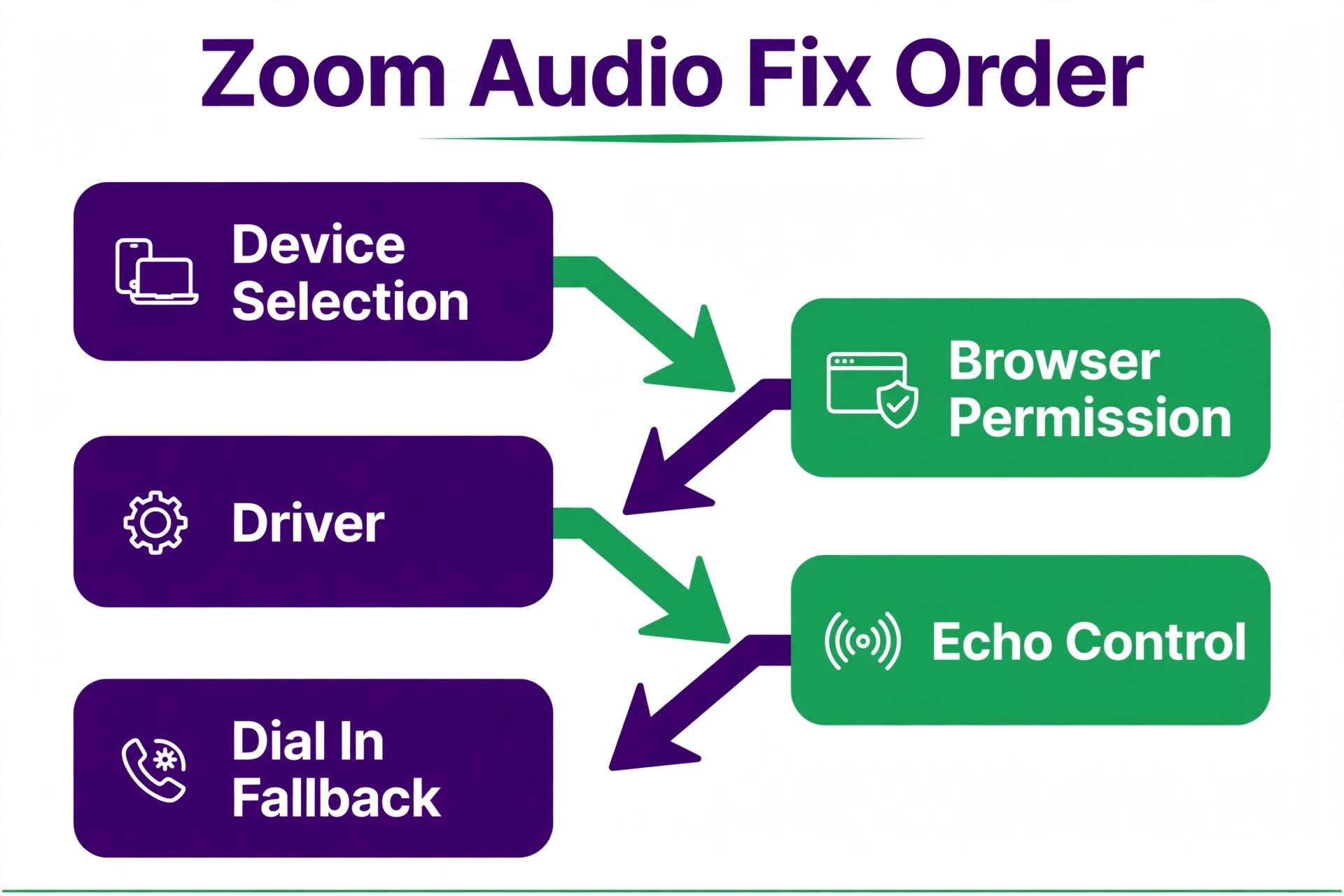
The diagnostic order in this guide runs from the most common and cheapest causes to the rarer and more technical ones. Device selection first, because Zoom often picks a built in microphone or a monitor speaker when a headset is expected. Browser permission second, because a browser that was denied microphone access will never pass sound, no matter how good the headset is. Driver check third, because an outdated or faulty audio driver can hide a device from Zoom entirely. Echo cancellation fourth, because echo usually appears only after basic audio works, and it needs different settings. Dial in fallback last, because a phone call proves the meeting itself works while the computer problem is fixed separately.
Change one thing at a time and test after each change. If you switch the microphone, change a browser permission and update a driver together and audio starts working, you will never know which change mattered, and you will never know which of the other changes might break something else later. One change, one test, one note in a simple log of what you changed and when. That log is also what Zoom support or a headset maker will ask for if you need their help, and having it ready shortens that conversation considerably.
Test inside Zoom, not only in the operating system. The system can play music perfectly while Zoom uses the wrong device, because Zoom keeps its own speaker and microphone choices. Open Zoom settings, open the Audio tab, and use the Test Speaker and Test Mic controls there. Speak a short sentence and watch the input meter move. Play the test tone and confirm you hear it through the intended device. A test that passes in the system settings but fails in Zoom points at Zoom settings or permissions, while a test that fails everywhere points at the device or driver.
| Symptom you hear or see | Most likely cause | First check |
|---|---|---|
| Nobody hears you | Wrong microphone in Zoom | Audio tab, Microphone choice |
| You hear nobody | Wrong speaker in Zoom | Audio tab, Speaker choice |
| Audio works in app, not browser | Browser microphone permission | Browser site permissions for Zoom |
| Device missing from Zoom | Driver or connection fault | System sound settings, then driver |
| Everyone hears echo | Speaker sound reaching a mic | Headset use, echo settings |
Device Selection Check That Fixes Most Silent Microphones
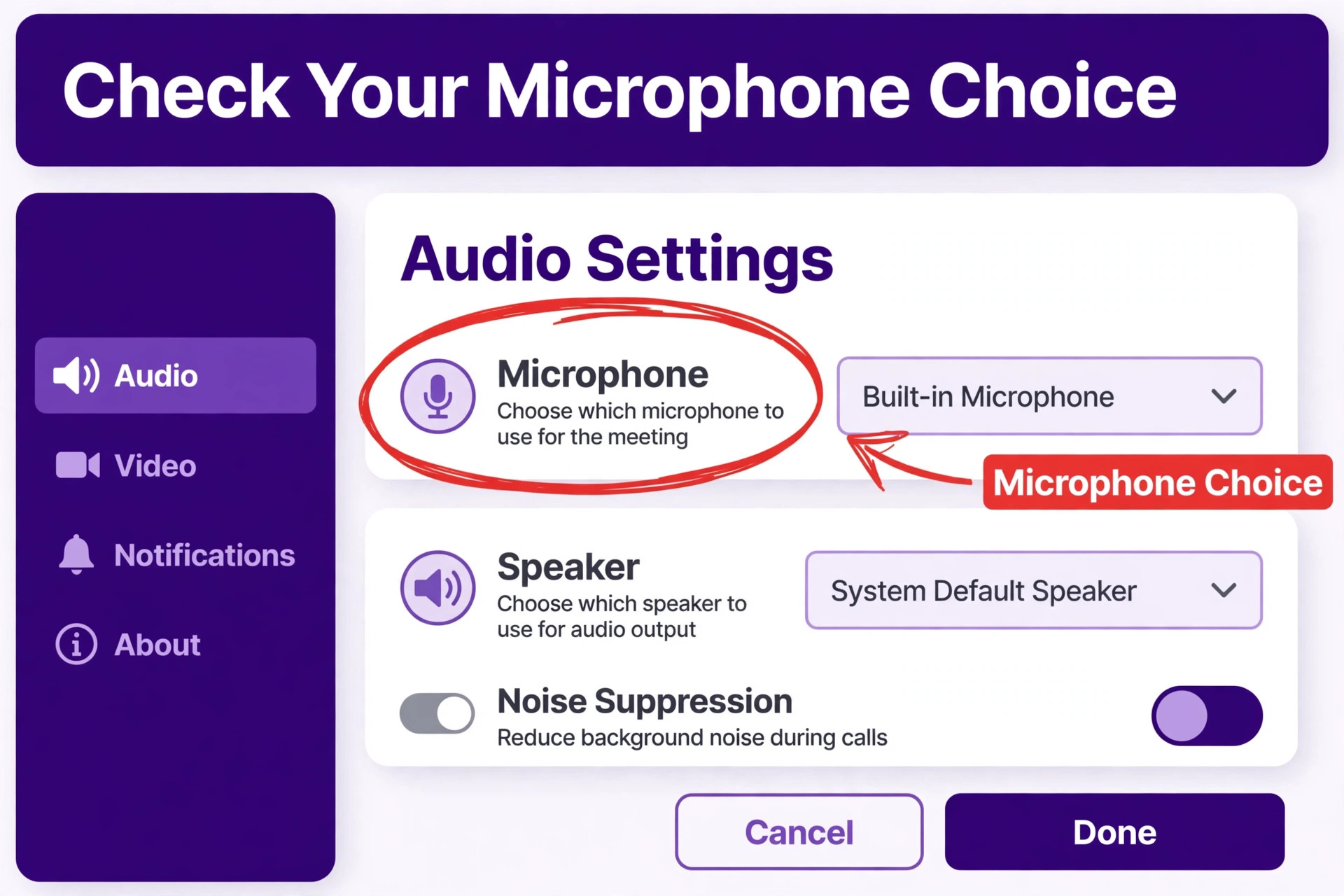
Open Zoom, sign in, open Settings, and open the Audio tab before joining the next call. This check comes first whenever you fix Zoom audio not working small team members report, because device selection is where most failures live. Under Speaker, choose the device you actually want to hear through, whether that is a headset, external speakers, or the laptop speakers. Under Microphone, choose the device you actually want to speak into, whether that is a headset microphone, a USB microphone, or the laptop microphone. Do not leave either choice on a generic system default if a specific device is available, because a default can change silently when a new device is plugged in or a Bluetooth device connects.
Use the built in tests immediately after choosing. Click Test Speaker and confirm the tone comes through the chosen device, not through a different speaker in the room. Click Test Mic, speak normally for a few seconds, and watch the input level meter. If the meter does not move, the chosen microphone is not receiving your voice, so try the next microphone in the list and test again. If the meter moves but nobody in a meeting hears you, the problem may be a mute control or a permission, which the next sections cover, rather than the device choice itself.
Check the same choices during a meeting, because Zoom allows a change mid call. Click the small arrow beside the Mute button, open the audio menu, and confirm the speaker and microphone shown there match the choices you made in settings. This matters when a headset is plugged in after Zoom has started, because Zoom may keep using the original device until you switch it manually. Teams that share a meeting room should make this a habit at the start of every call, with one person confirming out loud that they can be heard before the agenda begins.
Also check the physical device before blaming software. Unplug a USB headset and plug it back in, and confirm the system recognises it. For a Bluetooth headset, confirm it is powered on, connected to the right computer, and not still connected to a phone that is claiming the microphone. Check for a mute switch on the headset cable or ear cup, and check that the microphone boom, if there is one, is positioned near the mouth and not folded away. If Zoom still shows no device at all, move to the driver check later in this guide, because a missing device usually means the system itself cannot see it.
Browser Permission Check That Restores Audio in Web Meetings
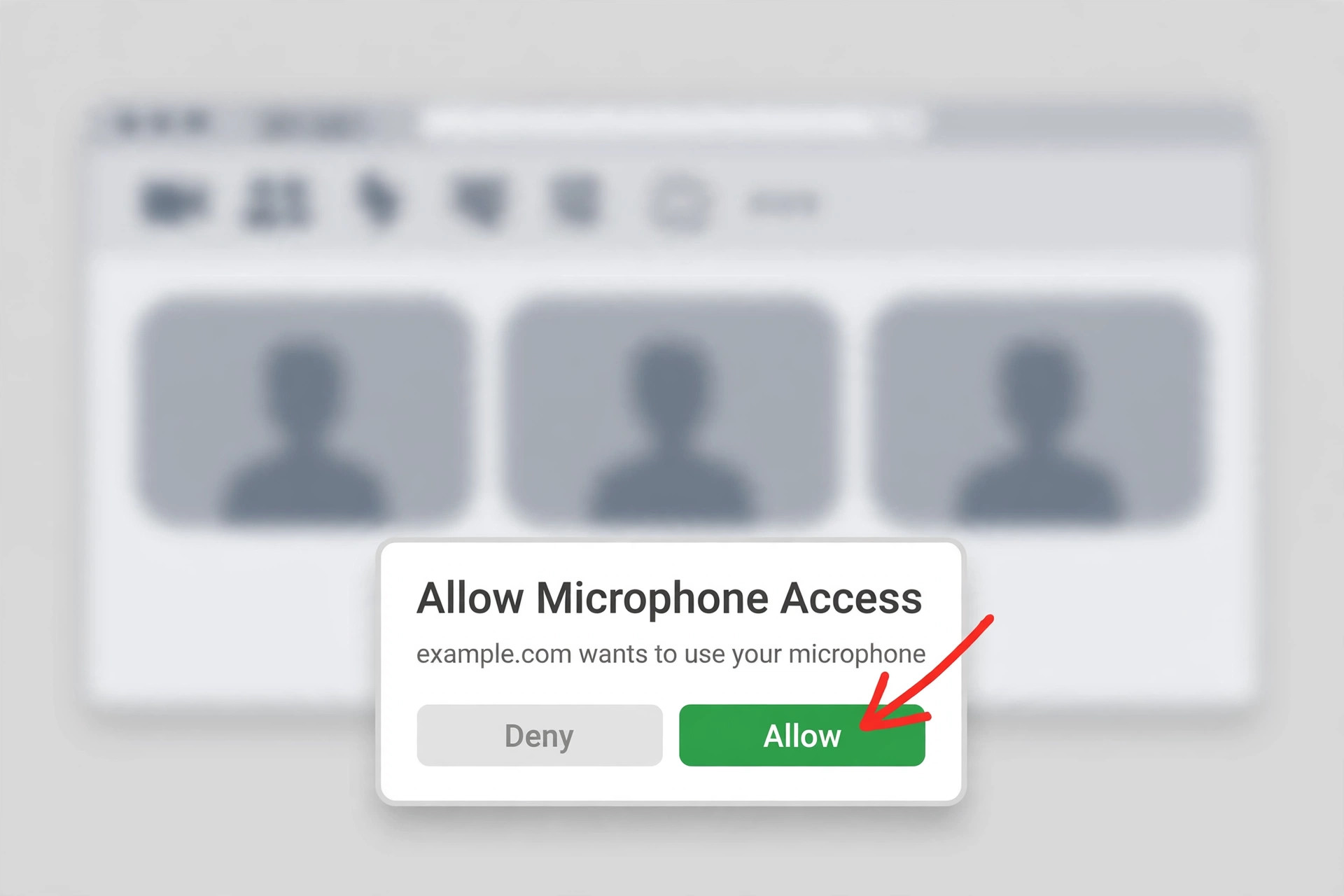
Browser meetings fail differently from app meetings, because the browser adds its own permission layer on top of Zoom settings. This layer is a common cause when you fix Zoom audio not working small team browsers report. When you join from a browser, the browser asks whether Zoom may use the microphone, and sometimes the camera as well. If that request was denied once, the browser remembers the denial, and later meetings will join silently with no fresh prompt to correct it. The fix is to open the browser site permissions for the Zoom meeting page and allow microphone access explicitly, then reload the meeting page and join audio again.
Find the permission in the browser address bar first. Most browsers show a microphone or camera icon near the address bar when a site has requested access, and clicking that icon reveals whether access is allowed or blocked. If it is blocked, change it to allow, reload the page, and rejoin audio. If no icon appears, open the browser settings, open site permissions or privacy settings, find the Zoom site entry, and set microphone permission to allow. The exact menu names vary by browser, so search the browser settings for microphone if the path is not obvious, rather than guessing at other settings.
Also check the browser audio device choice, because browsers can use a different device from the Zoom app. In the meeting, open the audio settings or the device menu and confirm the microphone and speaker match the headset in use. Test by speaking and watching the input indicator, and by playing a test sound if the browser meeting offers one. If audio works in the Zoom app but not in the browser, the cause is almost certainly a browser permission or a browser device choice, not a faulty headset, so do not replace hardware on the strength of a browser only failure.
For teams that meet in browsers regularly, standardise the browser and the permission routine. Choose one supported browser for client calls, grant microphone permission on first use, and document the two click path to reallow it if a new team member denies it by accident. A short written routine, kept beside the meeting link template, prevents the familiar scene where a new joiner spends the first ten minutes of a client call typing in chat that they cannot be heard. Check the Zoom support pages for current browser permission steps before publishing an internal routine, since browser menus change over time.
Driver Check That Brings a Missing Device Back
When a microphone or speaker does not appear in Zoom at all, the cause often sits below Zoom, in the operating system or the audio driver. A missing device is a key clue when you fix Zoom audio not working small team laptops show. Open the system sound settings first. On Windows, open Sound settings, check the output and input device lists, and confirm the intended device appears and is set as the default where appropriate.
On a Mac, open Sound settings, check the Output and Input tabs, and confirm the intended device is selected and its input level moves when you speak. If the device does not appear in system settings either, Zoom cannot be expected to find it, and the fault is with the connection or the driver.
Update the audio driver next, using the device maker driver where one exists rather than only the generic system driver. On Windows, open Device Manager, expand the sound and game controllers section, right click the audio device, and choose the update driver option. Restart the computer after an update, because an audio driver change often needs a restart before Zoom sees the device reliably.
If the device still does not appear, unplug it and plug it into a different USB port, try a different cable if one is available, and test the same headset on another computer. A headset that works on a second computer points at the first computer driver or port, while a headset that fails everywhere points at the headset itself.
Also check for a conflicting application claiming the microphone. Another calling app, a recording app, or a browser tab left in a meeting can hold the microphone exclusively, so Zoom shows the device but receives no sound from it. Close other calling and recording apps, close stray browser meeting tabs, and test Zoom again. On Windows, also check the privacy setting that allows apps to access the microphone, and confirm Zoom is allowed, because a system level denial overrides everything Zoom tries to do. If the device appears after closing another app, note which app caused the conflict, so the team can avoid running both at once in future.
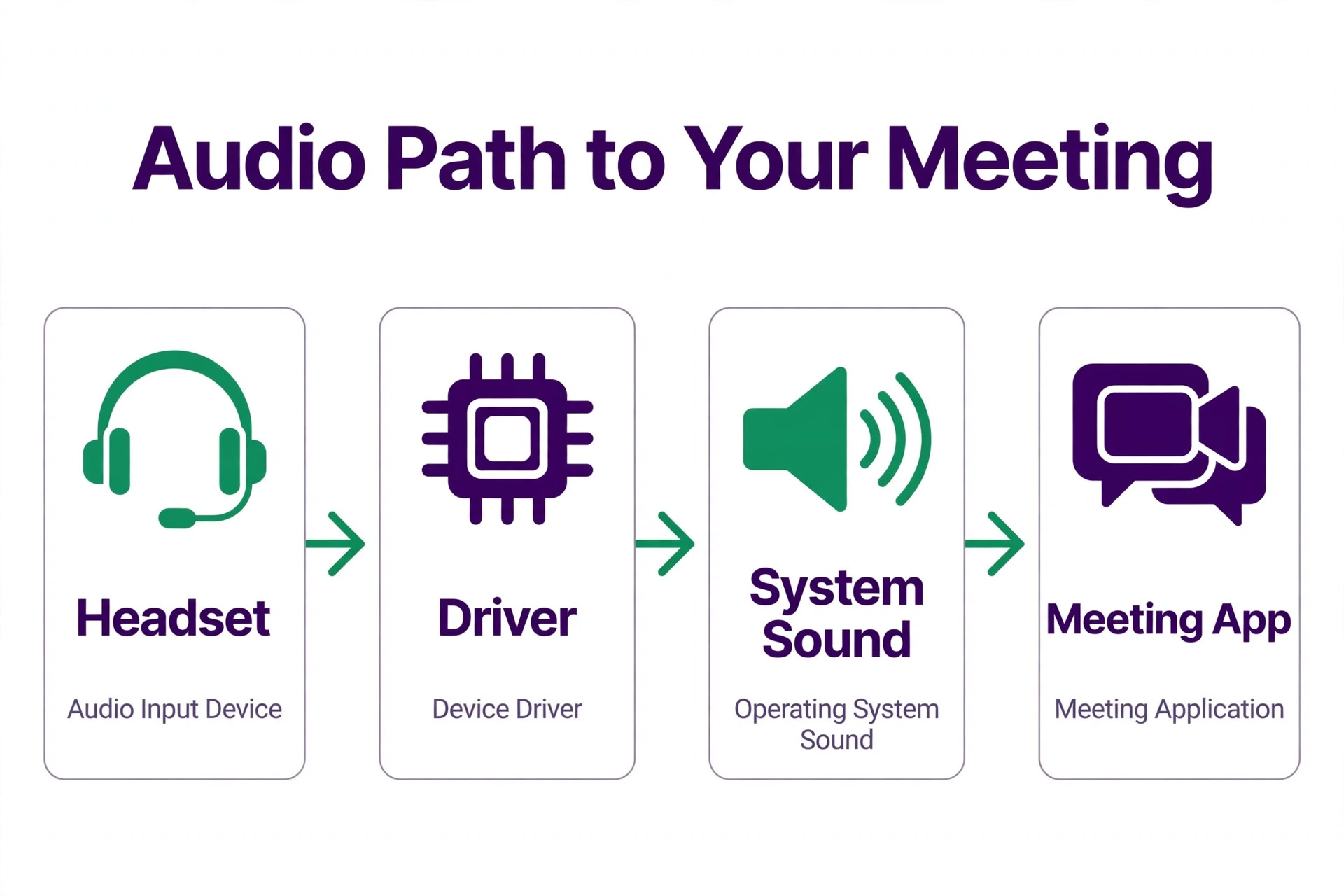
Echo Cancellation Check That Stops Everyone Hearing Themselves
Echo happens when a microphone picks up speaker sound and sends it back into the meeting, so participants hear their own voices repeated a moment later. Echo control is a later step when you fix Zoom audio not working small team rooms suffer. The most reliable fix is also the simplest. Wear headphones or earbuds, because a headset keeps speaker sound out of the microphone path entirely. In a room where several people join from separate devices, use one device for room audio and mute the others, or move the extra devices out of speaker range, because multiple open microphones in one room create a feedback loop that no setting can fully remove.
Check Zoom audio processing settings next. Open Zoom settings, open the Audio tab, and look for background noise suppression. Setting it to Auto suits most calls, while High suits a noisy room, because it reduces unwanted room sound sent into the meeting. Open the Advanced audio options and confirm echo cancellation is enabled for normal speech calls. Turn off any original sound or musician mode for ordinary meetings, because those modes reduce Zoom echo cancellation and noise suppression in favour of unprocessed audio, which is right for music and wrong for speech. If echo appears only after original sound was enabled for a music session, disabling it usually restores normal behaviour immediately.
Also lower the physical causes of echo before changing more settings. Reduce speaker volume so less sound leaks into the microphone, move the microphone away from the speakers, and position the microphone a short distance from the mouth rather than across the desk. Mute when not speaking in larger meetings, because every open microphone adds room sound and echo risk, and the habit also improves clarity for everyone. If echo persists with headphones on and processing enabled, test with a different headset, because a faulty microphone, excessive speaker volume, or a failed echo cancellation path in one device can keep echo alive while every setting looks correct.
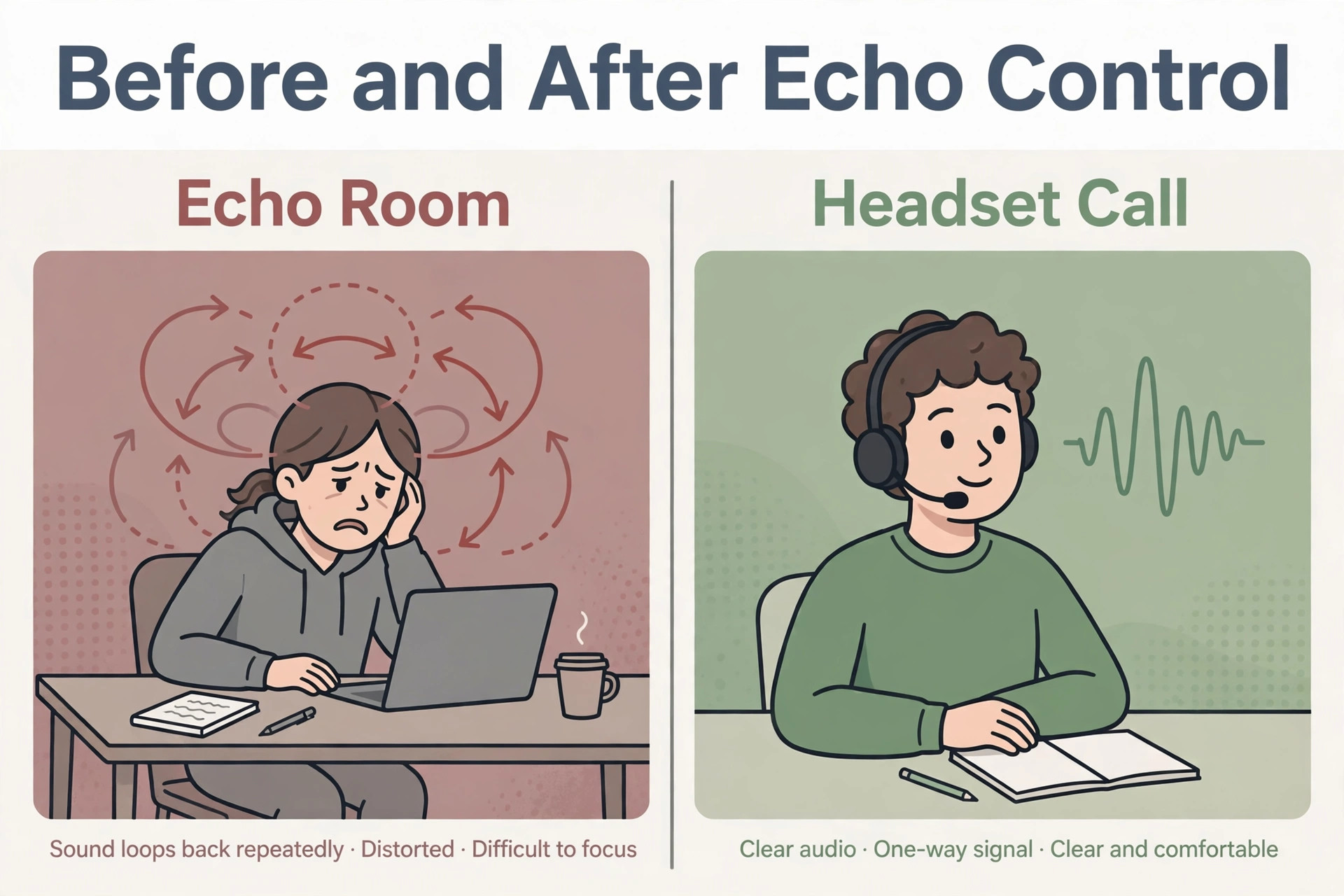
Dial In Fallback That Keeps the Client Call Alive
A dial in fallback is not a defeat. It is a safety net when you fix Zoom audio not working small team calls cannot wait for. It is the plan that keeps a client call alive while a computer audio problem is fixed without an audience. Every important meeting should have a phone dial in option ready before it starts, with the number and meeting ID in the invite, so a participant whose computer audio fails can join by phone in under a minute.
The host should announce the fallback at the start of a high stakes call, so nobody feels embarrassed about using it, and the team should treat a dial in join as a normal outcome, not a disruption.
Use the fallback cleanly to avoid creating a second audio problem. When joining by phone, disconnect computer audio in Zoom first, so the same person does not join twice with two open microphones. On a phone, use the meeting controls to disconnect audio if needed, and keep the phone microphone muted when not speaking. If the computer joins again later with working audio, leave the phone call before unmuting the computer, because running both at once creates the echo loop the earlier section describes. One audio path at a time is the rule, whether that path is a headset, a phone, or a room speaker.
After the call, return to the computer problem with the pressure off. Run the device selection, permission and driver checks in order, test in a private meeting with a colleague, and confirm the fix before the next client call. A private test meeting is the right place for this work, because it lets you switch devices, adjust levels and test echo without an audience. Log what fixed the problem, and add the dial in number to the standing meeting template if it was missing, so the next failure starts from a working fallback instead of a scramble.
Mistakes That Turn a Small Zoom Problem Into a Big One
The most common mistake is reinstalling Zoom before checking device selection. Reinstallation rarely helps when you fix Zoom audio not working small team devices cause. Reinstallation takes time, resets settings, and rarely changes which microphone Zoom picks, so the same failure returns on the next call. Check the Audio tab first, test the speaker and microphone there, and only consider reinstalling after device, permission and driver checks have all passed and audio still fails. Reinstallation has its place, but it belongs at the end of the routine, not at the start.
The second mistake is testing only in the operating system. System sound tests prove the headset works for the system, but they do not prove Zoom is using it. Always test inside Zoom, with the Test Speaker and Test Mic controls, and in a private meeting if possible. A fix that passes a system test can still fail for real participants, and announcing it as fixed on that evidence alone invites an embarrassing repeat in front of a client.
The third mistake is letting several people troubleshoot at once in the live meeting. Multiple participants switching devices, unmuting, and speaking test phrases at the same time makes echo and feedback worse and hides which change helped. Nominate one person to lead the fix, ask everyone else to stay muted, and work the checks in order. Slow diagnosis beats fast guessing, because fast guessing creates a second problem while the first one is still unsolved.
The fourth mistake is ignoring the meeting room itself. A laptop on a hard table, speakers at full volume, and three open laptops in one room will defeat good settings and good headsets alike. Use headphones, lower speaker volume, mute unused devices, and choose a softer room where possible. Audio quality is partly an environment problem, and a team that fixes only software will keep fighting the same echo in the same room.
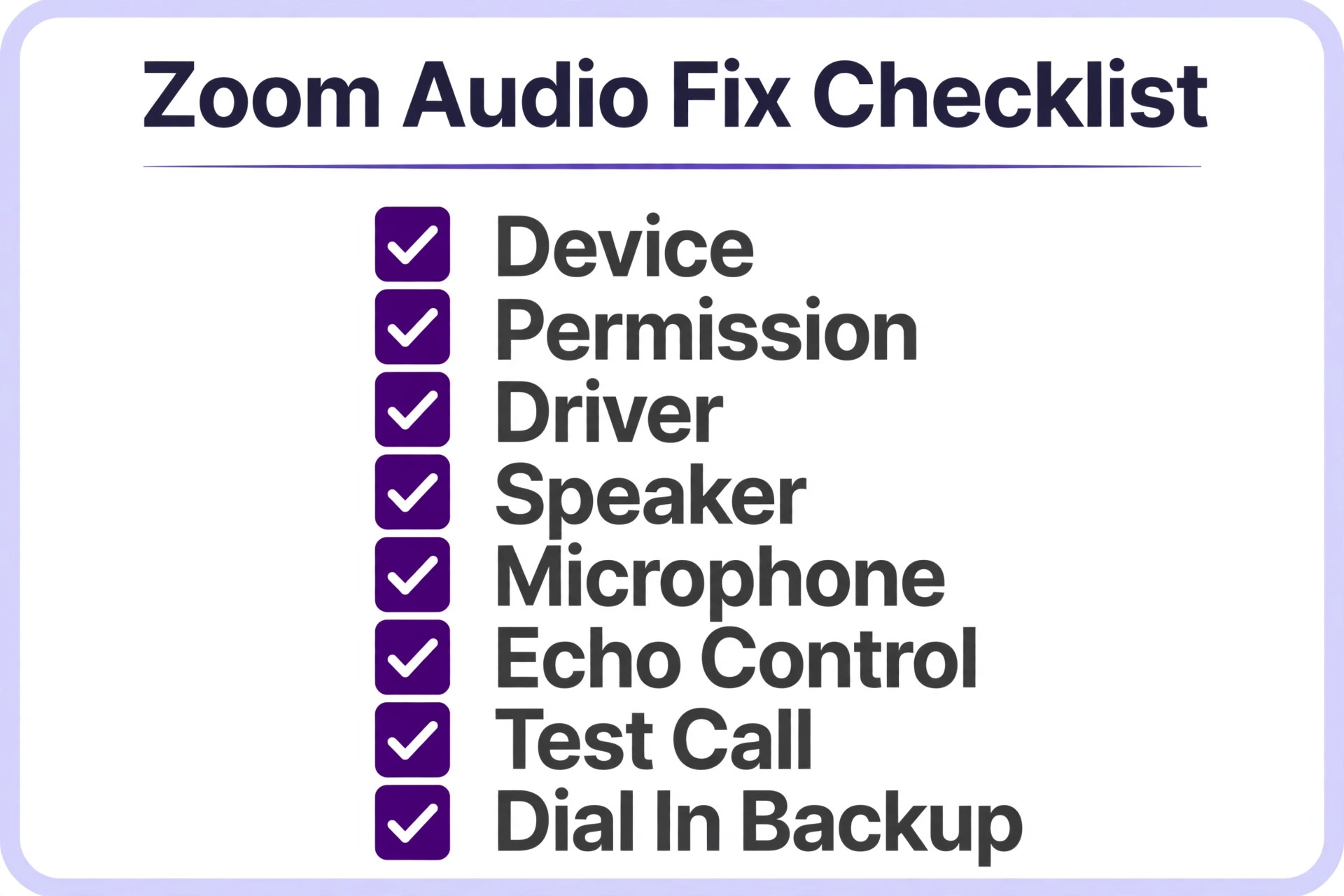
Zoom Audio Fix Checklist
Use this checklist in order, and stop at the step where audio starts working, then run the proof test below to confirm it stays fixed.
- Confirm Zoom is unmuted, the host has not muted you, and any physical headset mute switch is off.
- Open Zoom Settings, Audio tab, choose the correct speaker and microphone, and run Test Speaker and Test Mic.
- During the meeting, check the arrow beside Mute and confirm the same devices are selected there.
- For browser meetings, allow microphone access in browser site permissions, reload the page, and join audio again.
- Check system sound settings for the device, update the audio driver, restart, and test the headset on another computer if needed.
- Close other calling or recording apps that may claim the microphone, and confirm system microphone privacy allows Zoom.
- Wear headphones, set background noise suppression to Auto or High, confirm echo cancellation is on, and turn original sound off for speech calls.
- If computer audio still fails, join by phone dial in, disconnect computer audio first, and fix the computer problem after the call in a private test meeting.
That checklist is deliberately short. A longer repair plan looks impressive and gets ignored under meeting pressure. Eight steps, done in order, fix most small team Zoom audio failures without outside help, and the log they produce makes the remaining cases far easier for support to solve.
How to Prove Zoom Audio Stays Fixed
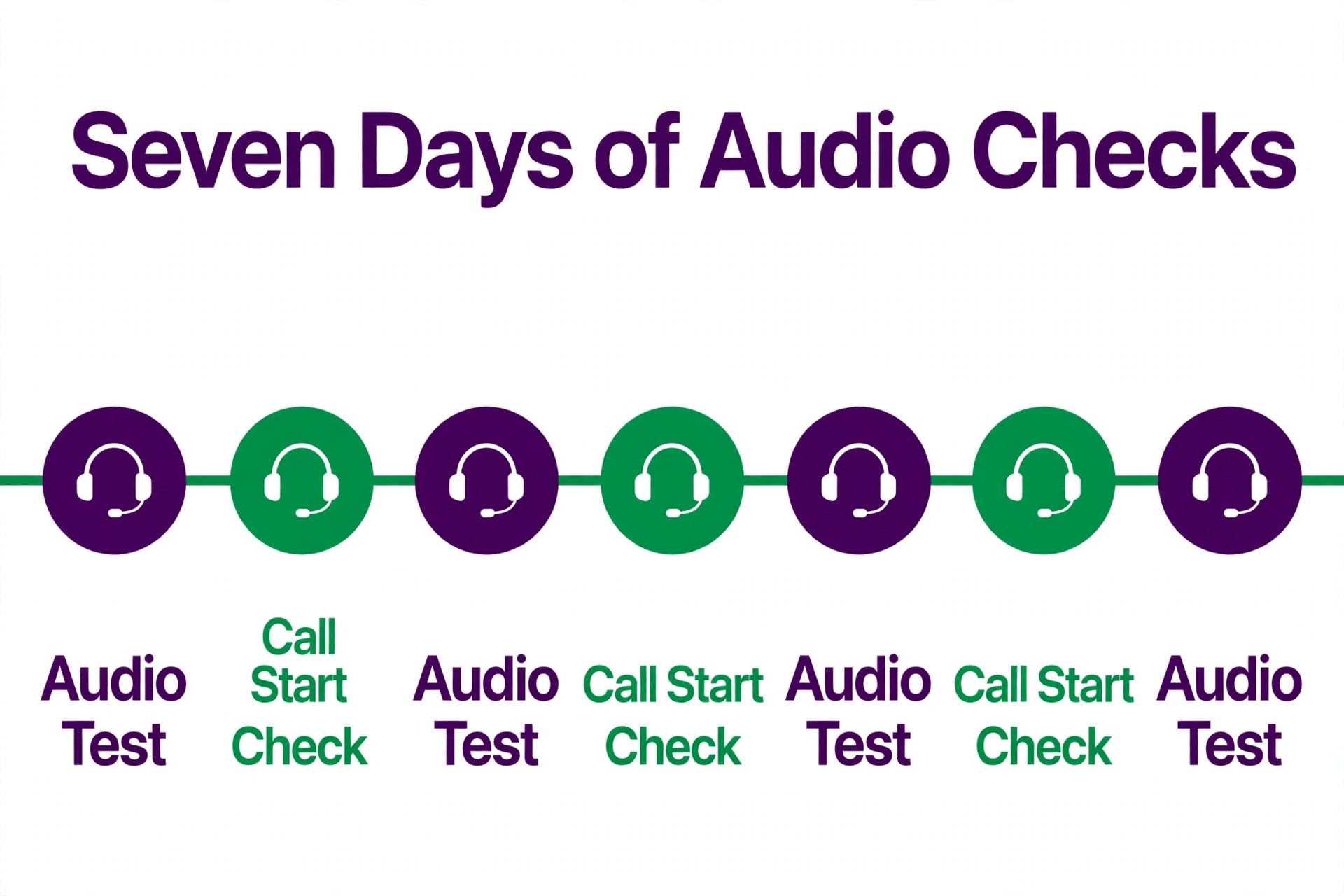
A single successful call proves audio worked once, not that it stays working. Monitor the next seven days with three simple measures. First, a short private test before each client call, where each speaker confirms they can be heard and can hear others. Second, a note of any device change, such as a new headset, a new laptop, or a browser update, because those are the moments audio settings reset. Third, a count of calls that started late because of audio, compared with the week before the fix, which shows whether the routine is actually helping.
Set a weekly audio check as a standing habit, not a one off repair. Once a week, open Zoom settings, confirm the speaker and microphone choices, run the test controls, and confirm browser permissions if the team meets in browsers. Test again after every headset change, driver update, operating system update, or Zoom update, because those are the moments new audio failures are born. A team that tests weekly finds problems in minutes, while a team that tests only after complaints finds them in front of clients.
Watch for the quiet failures that never produce an error message. A microphone level set too low, a headset that works but sounds distant, a speaker that plays only through laptop speakers while the headset sits unused, and an echo that only one participant hears all lose clarity without a single complaint. Ask participants directly whether audio is clear at the start of important calls, and treat a pattern of repeated clarifications as an audio problem until proven otherwise, even when nobody has reported a failure yet.
The Zoom Verdict for Small Teams That Cannot Miss a Call
The fastest way to fix Zoom audio not working small team calls suffer from is also the least dramatic. Choose the right devices in Zoom, allow browser microphone access where needed, check the driver when a device is missing, control echo with headphones and processing settings, and keep a phone dial in ready as a fallback. That order finds the common causes first, avoids the trap of reinstalling everything at once, and leaves a log that makes any remaining problem easy for support to solve.
Start with the symptom table, work the checklist in order, and do not skip the private test after any change. Test weekly after the repair, and test again after every headset, driver or app change, because audio is the one part of a meeting where a small unnoticed change costs credibility every time. Done that way, an audio failure becomes a short interruption with a known cause, not a long crisis with a guessed fix.
Frequently Asked Questions
Why can nobody hear me even though my headset works for music?
Because Zoom keeps its own microphone choice, separate from system playback. Music proves the speaker path works, but it says nothing about the microphone Zoom has selected. Open Zoom Settings, open the Audio tab, choose the headset microphone explicitly, and watch the input meter while you speak. Also check the Zoom mute control, the host mute on entry, and any physical mute switch on the headset.
Why does Zoom audio work in the app but not in the browser?
Because the browser adds its own microphone permission. If that permission was denied once, the browser remembers the denial and later meetings join silently. Open browser site permissions for the Zoom page, set microphone access to allow, reload the page, and join audio again. Also confirm the browser meeting device choices match the headset in use.
How do I know whether a driver problem is causing my audio failure?
If the device does not appear in system sound settings as well as in Zoom, the cause sits below Zoom. Update the audio driver, restart the computer, and test the headset on another computer. A headset that works elsewhere points at the first computer driver or port, while a headset that fails everywhere points at the headset itself.
What should I do if everyone hears echo in my meetings?
Wear headphones first, because that removes the speaker to microphone loop that causes most echo. Then confirm background noise suppression is set to Auto or High, confirm echo cancellation is enabled, and turn original sound off for normal speech calls. In a room with several devices, use one device for audio and mute the rest.
Is it safe to join by phone when computer audio fails?
Yes, and it is the recommended fallback for important calls. Disconnect computer audio before joining by phone, so you do not join twice with two open microphones. Keep the phone muted when not speaking, leave the phone call before returning to computer audio, and fix the computer problem in a private test meeting after the call.
When should I contact Zoom support instead of keep fixing?
Contact support when audio fails in Zoom with the correct devices selected, permissions allowed, drivers updated, and a known working headset tested on another computer, or when the failure affects the whole team at the same time. Send the symptom, the devices tested, the settings checked, and the log of changes already made, so support can move faster than a general report that audio does not work.
More Reading on Stratilyze
– Best Live Chat Software for Small Business Websites – Fix Shopify Checkout Not Working for a Small Store – Fix a Slow WordPress Site for a Small Business – Best CRM Software for Consultants