
The verdict is narrow, and that narrowness is the point. You should switch Notion to Evernote small team workflows only when your team wants simpler capture, faster notes, and less system building, and is willing to give up live databases, linked views, and complex project logic. If your team lives inside Notion databases, relations, and dashboards, do not make this move to save money or to simplify. You will lose the structure that makes Notion useful, and you will rebuild workarounds in Evernote that cost more time than the original system did.
That verdict surprises teams that expect a simple tool swap. Notes are not just text. In Notion, a note can be a database row, a linked view, a formula result, and a task with relations to other work. In Evernote, a note is a note, organised by notebooks, stacks, and tags. That simpler model is excellent for capture, reference, and search. It is a poor fit for a team that needs a database to run operations. This guide helps a small team tell which model it actually uses, and then move the right content in the right way.
Why a Team Would Leave a More Powerful Tool
Teams leave Notion for reasons that have little to do with features on paper. Notion rewards teams that enjoy building systems. It punishes teams that just want to write a note, find it later, and move on. A small team with high turnover, many part-time members, or simple meeting and client notes may find that Notion setup, permissions, and database rules create more work than the notes themselves. Evernote, with notebooks and tags, can feel faster because there is less to configure before writing.
Capture speed is the clearest benefit. A team member can clip a web page, save a photo, scan a document, or write a quick note in Evernote without deciding which database, template, or relation it belongs to. For field teams, client-facing teams, and research-heavy teams, that low-friction capture matters. A note captured quickly and found later beats a perfect database entry that was never written because the form felt too heavy.
Cost and simplicity also matter, but they should not decide alone. Check the vendor’s current pricing page for both tools, count seats honestly, and include any paid features you use, such as offline access, large uploads, or team administration. A cheaper tool that forces manual workarounds is not cheaper. A simpler tool that matches how the team actually works can be cheaper in time, which is the cost small teams feel most.
The Core Problem, There Is No Direct Notion Importer in Evernote
Evernote does not offer a one-click Notion importer in the way Notion offers an Evernote importer in the opposite direction. That asymmetry matters. Moving from Evernote to Notion has a documented account-based path. Moving from Notion to Evernote is a file-based, manual, or converter-assisted project. Teams that expect symmetry will be disappointed, and teams that plan for a conversion project will succeed.
Evernote desktop import focuses on ENEX files, its own export format, and import is done through desktop applications rather than the web app in the documented flow. Notion does not export ENEX. Notion exports pages and workspaces as Markdown with CSV for databases, HTML, or PDF, depending on scope and plan. That mismatch is the central technical fact of this migration. You must bridge formats, either by converting exported files into ENEX with a third-party tool, by recreating key notes manually in Evernote, or by using a mix of conversion for bulk content and manual rebuild for the notes that matter most.
Do not trust a converter blindly. Test it on a small, non-critical set first, and check text, headings, lists, tables, images, attachments, and tags after conversion. A converter that handles simple notes well may still break tables, lose attachments, or flatten structure in ways that only appear on larger pages. A test batch is not extra work. It is the only way to know what the bulk conversion will actually deliver, before you move hundreds of notes and discover faults too late to fix cleanly.
What Notion Exports Actually Contain, and What They Lose
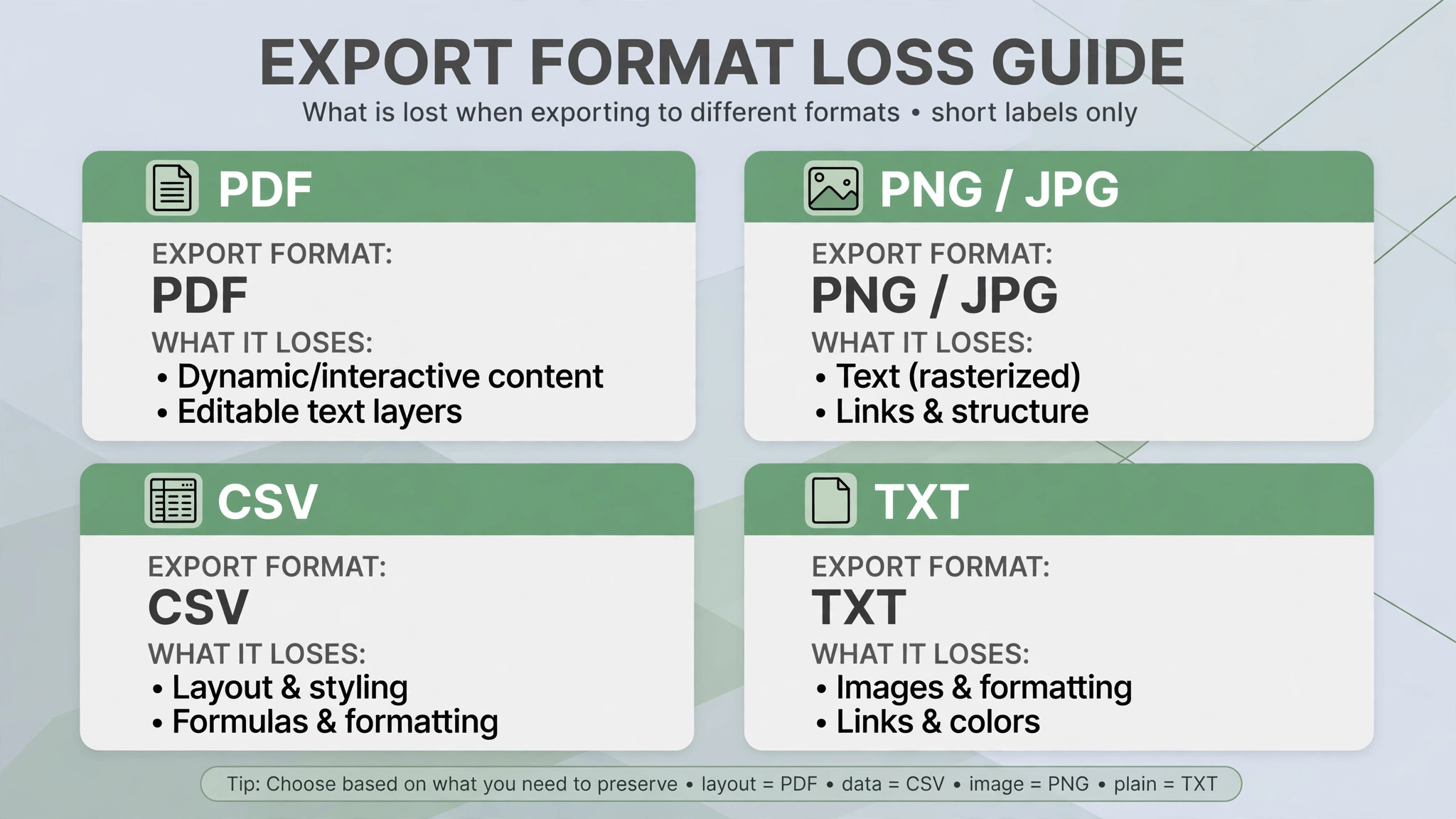
Notion export is useful, but it is not a full system copy. A page export as Markdown and CSV gives you one Markdown file per page and one CSV file per full-page database. An HTML export gives you browsable pages that preserve more layout, and it is the only format that includes comments in some guides. A PDF export gives you a fixed snapshot for sharing or filing, not an editable workspace. Choose the format based on what the destination needs, not on which export button is easiest to find.
Databases lose the most in export. Relations export as plain text references rather than live links. Rollups export as computed values at export time, not as live formulas. Formulas export as their computed values, not as the underlying logic. Linked database views export as separate CSV files, disconnected from the source database. Synced blocks export as static copies, losing the sync relationship. Those losses are not faults. They are what export means for a live system. A team that depends on live relations must redesign that workflow in Evernote, not expect it to survive export.
| Item | Likely outcome | Action needed |
|---|---|---|
| Simple pages and notes | Exports as Markdown or HTML | Convert or recreate, then check formatting |
| Page hierarchy | Largely preserved in HTML export | Rebuild notebook and stack structure |
| Databases | Flatten to CSV rows | Redesign as notes, tables, or tags |
| Relations and rollups | Become plain values | Decide what logic must be rebuilt elsewhere |
| Formulas | Become computed values | Record formulas that drive decisions |
| Linked views | Become separate CSV files | Choose one canonical view per workflow |
| Synced blocks | Become static copies | Update each copy or remove duplicates |
| Attachments and images | Usually export with pages | Check file links and re-upload missing files |
| Comments | Only in HTML in many cases | Save important comments before export |
| Permissions and sharing | Does not transfer | Recreate Evernote sharing and team access |
| Page links | Often break or change | Rewrite internal links to Evernote notes |
Attachments need a separate check. A page that looks complete in Markdown may reference an image or file that did not export cleanly, especially for large files or embedded content. Download the export, open a sample of pages, and confirm that images display and attachments open. If a file is missing, re-export that page alone or upload the original file manually. Missing attachments are easy to overlook in a bulk move, and they are painful to recover after Notion access ends.
Decide What Moves, What Archives, and What Gets Rebuilt
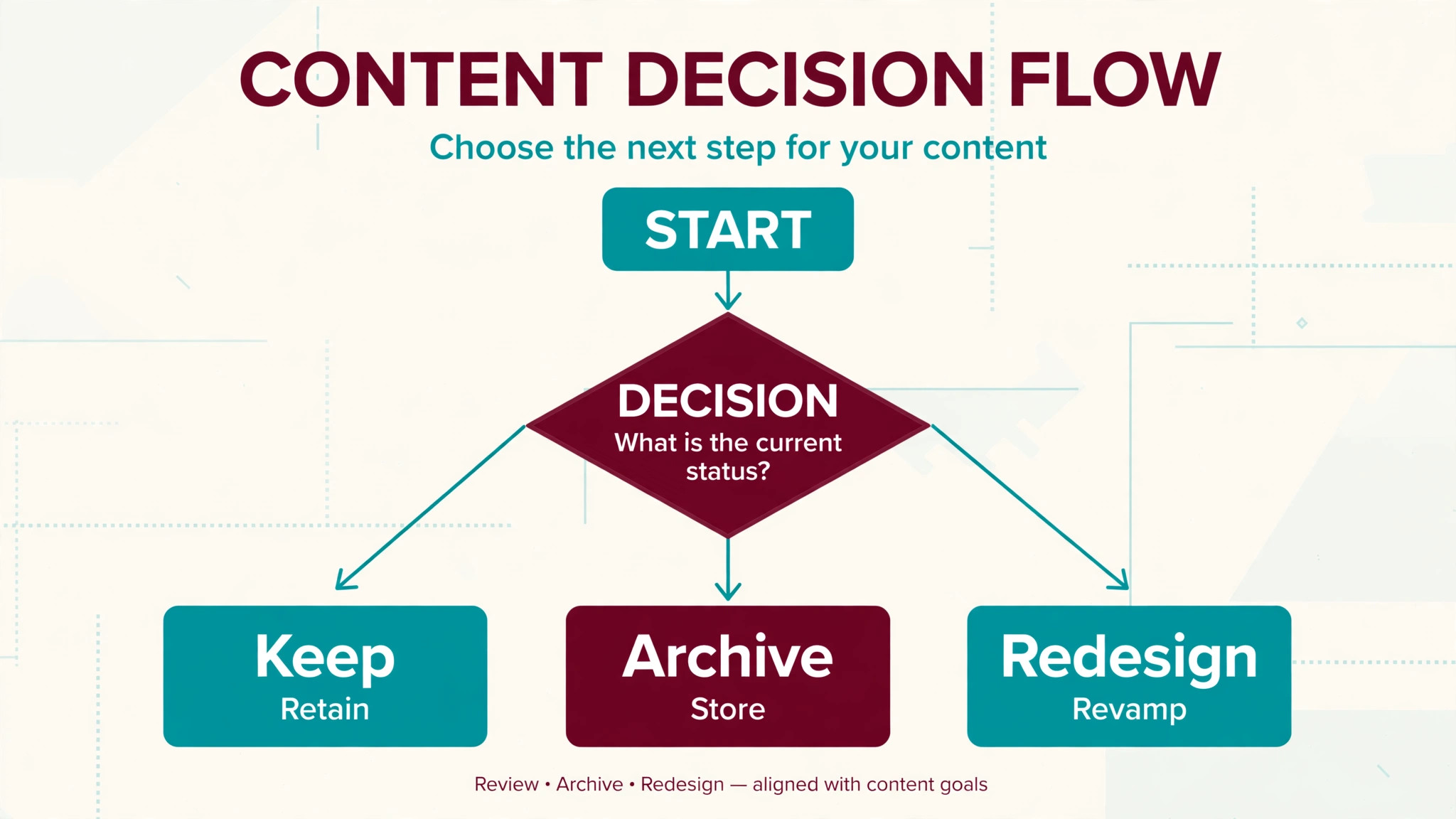
Not every Notion page deserves a place in Evernote. A workspace that grew for years contains templates, experiments, duplicate project pages, and outdated meeting notes. Moving all of it into Evernote creates a cluttered notebook system that no one trusts. Use the migration as an edit. Keep active client notes, reference material, standard procedures, and meeting notes that still guide work. Archive completed projects, outdated guides, and experimental pages outside Evernote, in the exported files themselves.
Create a simple decision rule for the team. If a page is used at least monthly, move it and clean it. If a page is used rarely but contains important reference material, move it as a single reference note with a clear title and tags. If a page has not been used in months and no one can explain its purpose, archive it in the export folder and do not import it. That rule keeps Evernote lean, and a lean notebook system is one the team will actually search and use.
Databases need a redesign decision, not just a move. A client database in Notion may become a set of client notes in Evernote, organised by a notebook per client type and tags for status, region, or service. A project tracker may become a set of meeting and status notes, with a weekly summary note that links to the current work. A content calendar may move to a calendar tool instead, with Evernote holding drafts and reference material. Each redesign should be tested with real work for a week before the team commits to it. A redesign that looks good in a planning meeting may fail under real deadlines.
Evernote organisation is simpler than Notion, but it still needs a plan. Notebooks group related notes, stacks group notebooks, and tags cut across notebooks for status, client, project, or topic. A small team should agree on a small tag set before import, not after. Ten clear tags that everyone uses beat fifty tags that only one person understands. Write the tag list down, with a one-line meaning for each tag, and share it with the team on day one.
Notebook structure should mirror how the team actually finds work. Common patterns include one notebook per client, one per project, or one per function such as meetings, procedures, and reference. Choose one primary pattern, and use tags for the other dimensions. If you organise by client and tag by project, a team member can find a client note quickly and filter by project when needed. If you organise by project and tag by client, the same logic works in reverse. What fails is organising by both at once, with duplicate notebooks for every combination, because that system collapses under its own complexity.
Search behaviour also changes. Notion search finds pages, database rows, and content across a structured workspace. Evernote search finds note text, titles, tags, and, in many cases, text inside images and documents, depending on plan and file type. Train the team to use consistent titles, because title search is often the fastest path to a note. A title like “Client Acme onboarding checklist” beats “Notes” or “Meeting” every time. Title discipline is boring, but it is what makes a simple notebook system feel powerful.
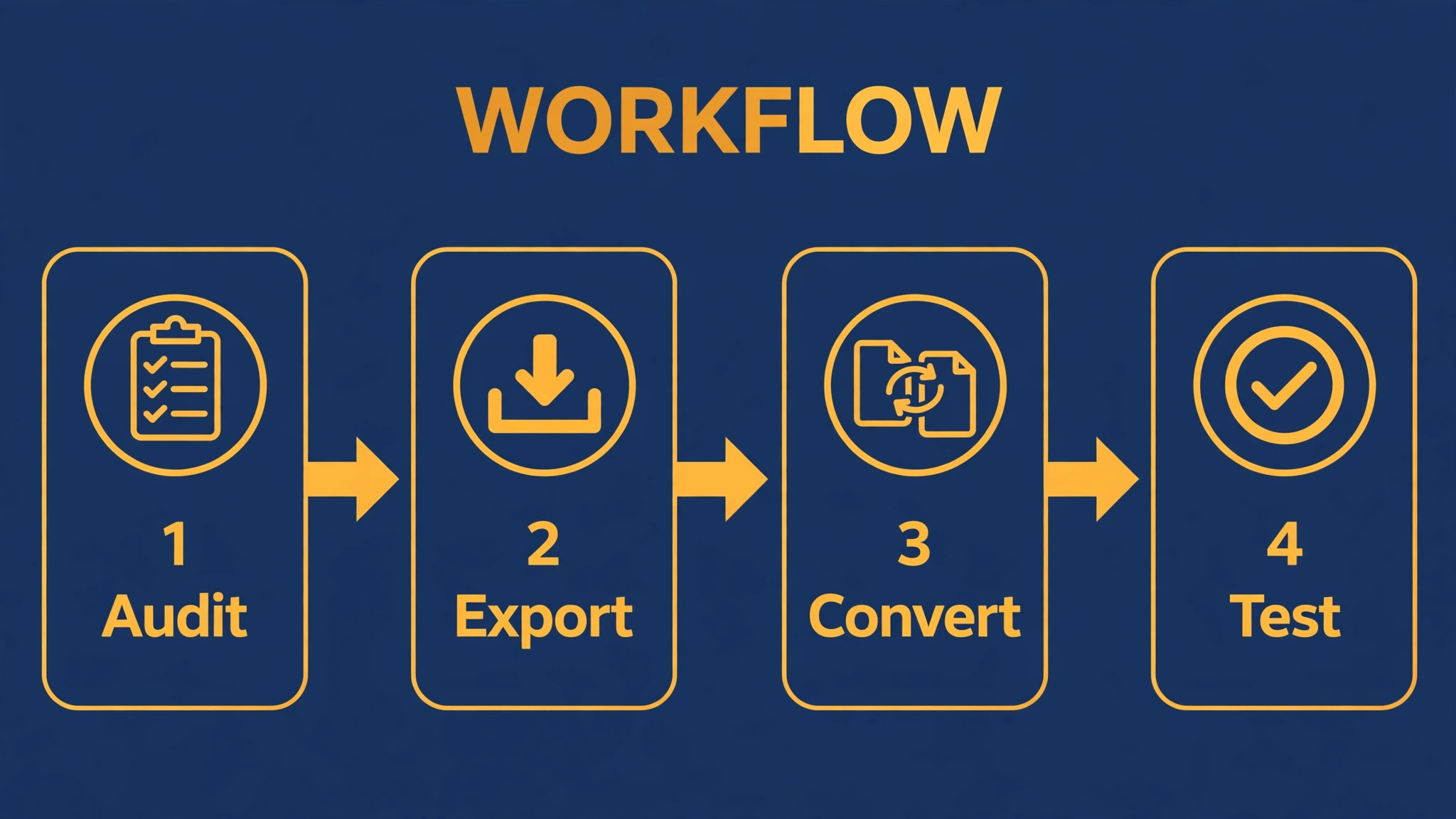
The Migration Checklist for Pages, Notes, Databases, and Attachments
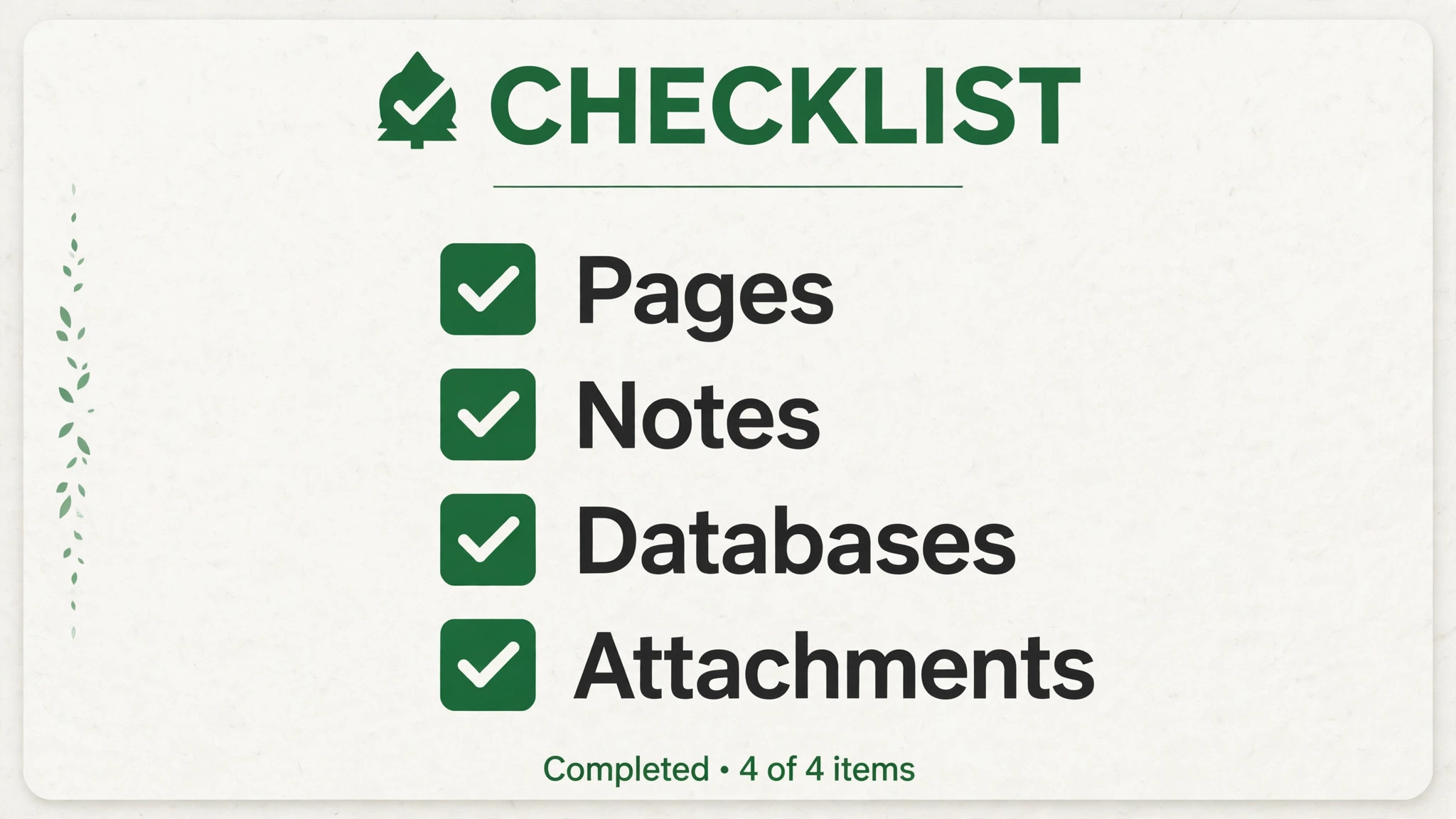
Verify each item on a test import before you move the whole workspace. A checked item means you opened the imported note and saw the content, not that a tool reported success.
– Export Notion workspace or key pages as HTML and Markdown with CSV, and store copies outside both tools – Audit pages and databases, and decide what moves, archives, or gets redesigned – Record database formulas, relations, and views that drive decisions – Test a converter or manual route on a small, non-critical set first – Convert or recreate pages, and check headings, lists, tables, images, and attachments – Rebuild notebook and stack structure in Evernote before bulk import – Agree a small tag set and apply it consistently during import – Re-upload missing attachments and fix broken image links – Recreate sharing, permissions, and team access in Evernote – Rewrite internal links to point to Evernote notes where possible – Keep Notion access until the first-week checks pass – Train the team on titles, tags, search, and capture habits
Permissions need a careful reset. Notion sharing, guest access, and page-level permissions do not transfer to Evernote. Recreate team access in Evernote, confirm who can edit shared notebooks, and remove access for former team members during the move rather than after it. A migration is a good time to audit access, because old permissions often outlive the people they were granted to. Document the new access list, so a future joiner or leaver can be handled in minutes.
First-Week Cutover Plan
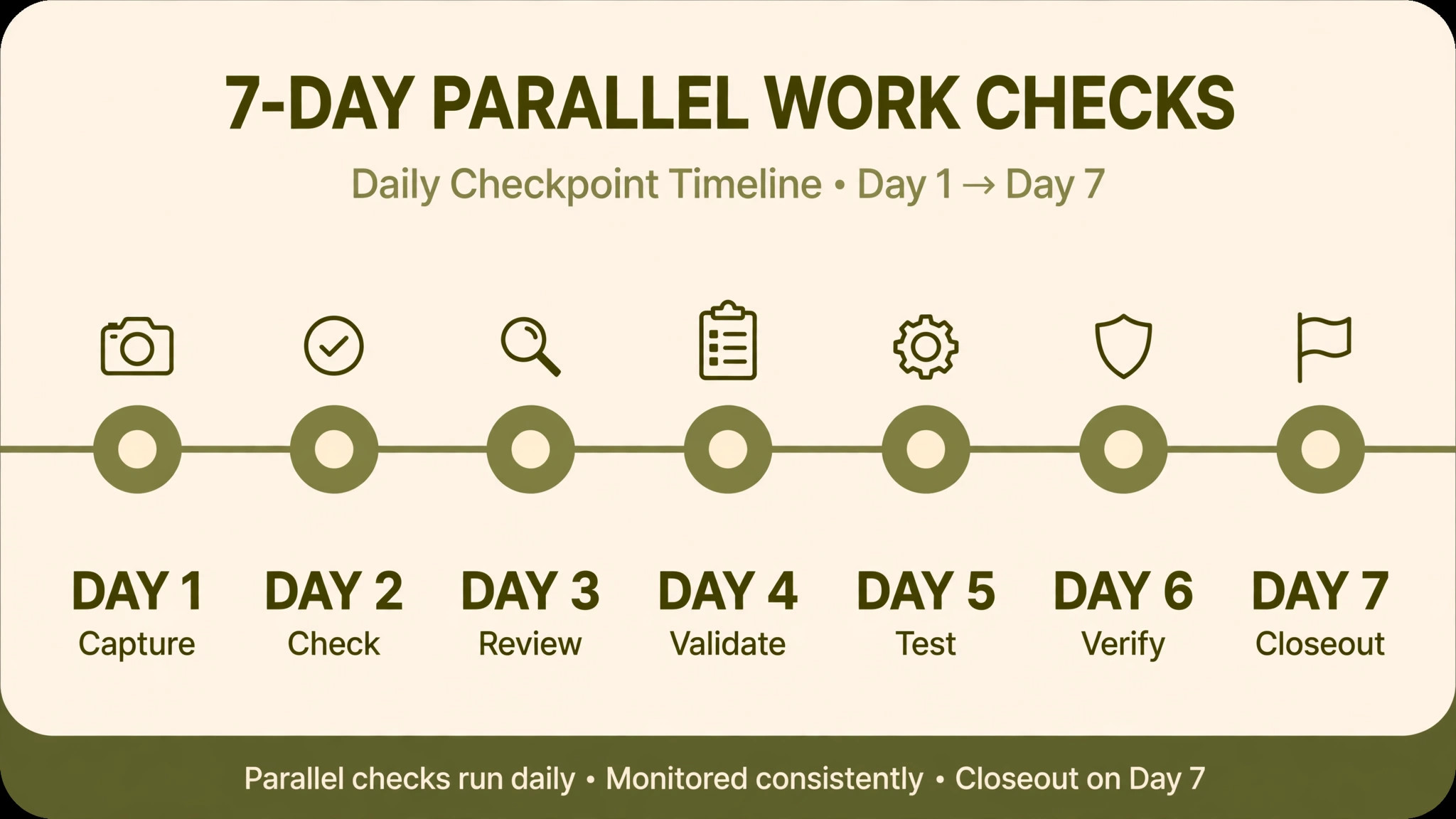
Keep Notion live during the first week, even if the team starts working in Evernote. Staff will need to check an old database, copy a formula, or find a page that did not import cleanly. Cancelling Notion early removes that safety net and forces the team to work from memory. The cost of one more month of Notion is small compared with the cost of losing a workflow that no one documented.
| Day | Focus | Checks before you finish |
|---|---|---|
| Day 1 | Capture and search | Test new notes, clipping, and title search |
| Day 2 | Imported notes | Fix formatting, images, attachments, and tags |
| Day 3 | Databases redesigned | Test client, project, and task workflows |
| Day 4 | Sharing and access | Confirm team permissions and shared notebooks |
| Day 5 | Meetings and tasks | Run real meetings and tasks in Evernote |
| Day 6 | Support and habits | Fix title, tag, and capture problems |
| Day 7 | Closeout decision | Confirm workflows, then decide on Notion access |
On day 1, ask every team member to capture a real note, find it by search, and share it with a colleague. That simple test covers capture, search, and sharing, which are the three habits Evernote must support. If any step feels slow or confusing, fix the notebook, tag, or title pattern before the team builds more notes on a broken pattern. Early habit fixes are cheap. Late habit fixes require retraining and cleanup.
By day 5, run real work in Evernote, not just test notes. Hold a meeting, record decisions, assign follow-ups, and find those notes the next day. If the team still opens Notion for core work, the redesign is incomplete. That is useful information, not failure. It tells you which workflow still needs a Notion database, a spreadsheet, or another tool, rather than a forced Evernote note. A hybrid system with a clear boundary is better than a pure Evernote system that the team secretly works around.
By day 7, decide whether Notion stays as an archive, a limited tool for specific databases, or closes. Many teams end with a hybrid, where Evernote handles capture and reference, and a simpler tool handles the one database that truly needs live relations. That outcome is fine, as long as the boundary is explicit. A vague hybrid, where no one knows which tool holds the truth, is worse than either pure system.
How to Switch Notion to Evernote Small Team Training Without Losing Habits
Tools fail when habits fail, and a notes migration is mostly a habit migration. A team that learned to capture, tag, and search in Notion will not automatically do the same in Evernote, even if the imported notes look correct. To switch Notion to Evernote small team habits successfully, train for thirty minutes on real work, not for two hours on features. Features are easy to demo and easy to forget. Habits built on real notes last.
Start training with capture. Ask each team member to save a web page, a photo, and a short meeting note in Evernote during the training session, using the agreed notebook and tag pattern. That exercise surfaces the questions that matter, such as which notebook holds client notes, which tag marks an urgent follow-up, and how to title a note so it can be found next week. Answer those questions in the session, write the answers down, and share the one-page guide the same day. A guide written after training, from memory, will miss the questions that actually came up.
When you switch Notion to Evernote small team search habits also need retraining. In Notion, team members may search by database filter or by page type. In Evernote, search by title, tag, and text works best when titles are consistent. Practise finding a note from last month using only a title search, then using only a tag search. That practise teaches the team why title discipline matters, far better than a rule that says titles must be clear. A rule without practise is ignored. A practise session with a real search failure, followed by a fix, is remembered.
Meeting habits deserve a template, even in a simple tool. Agree a short meeting note pattern, such as title with client and date, a decisions section, and a follow-up section with owners. Keep the template short, because a long template will be skipped under time pressure. Test the template in a real meeting during the first week, and adjust it based on what the team actually wrote. A template that survives a real meeting is a good template. A template that looks perfect in planning but is skipped in practice is clutter.
A training plan should also cover what not to do in Evernote. Do not recreate Notion databases as dozens of notebooks. Do not create a new tag for every project without checking the agreed list. Do not store the only copy of a critical document in a single note without a backup. Those three habits cause most Evernote clutter, and they are easy to prevent with a short guide and a weekly check in the first month. When you switch Notion to Evernote small team discipline matters more than tool power, because a simple tool amplifies both good habits and bad ones.
Finally, assign a notes owner for the first month. That person checks titles, tags, and notebook placement weekly, fixes the worst examples, and answers questions quickly. The role is not a full-time job. It is a short, visible responsibility that keeps the new system clean while habits form. After a month, the team should be able to maintain the system without a dedicated owner, but the first month sets the pattern. When you switch Notion to Evernote small team success depends on that first month more than on the import itself, because imported notes are only useful if the team keeps adding good notes after them.
Mistakes That Make a Notes Move Fail
The most common mistake is importing everything without an audit. A bulk import of a messy Notion workspace creates a messy Evernote workspace, and the team blames Evernote for a problem that started in Notion. Audit first, import second, and keep the imported system lean. A smaller system that the team trusts will grow naturally. A larger system that no one trusts will be ignored.
Another mistake is expecting databases to survive. A team that imports CSV rows into Evernote and then wonders why relations, rollups, and views no longer update has misunderstood export. Databases must be redesigned, not imported. Record the logic behind each database before export, decide what that logic was for, and rebuild only the logic that still matters. Some logic will turn out to be unnecessary, and dropping it is a benefit, not a loss.
A third mistake is skipping the converter test. A converter that works on simple notes may fail on tables, attachments, or large pages, and those faults appear only after bulk import. Test on a sample that includes a table, an image, an attachment, a list, and a linked page. Check the result carefully, fix the conversion settings or choose a manual route for complex pages, and only then run the full import. That test takes an hour and can save a week of cleanup.
For related tool moves, read Switch Notion to Coda Small Team if you want a database-friendly alternative to Evernote, and Best Note Taking Apps for a broader comparison of capture tools. For project structure after a move, Best Project Management Software helps separate notes from project tracking. For meeting notes specifically, Best AI Meeting Notes Tools Fathom vs Otter vs Fireflies shows how capture and transcription differ from a notebook system. For client note workflows, Use AI for Therapist Session Note Summaries is a useful parallel on turning notes into usable records.
Frequently Asked Questions
Can I switch Notion to Evernote small team databases automatically?
No. There is no direct Notion importer in Evernote that preserves databases as live systems. Notion exports databases as CSV files, with relations as plain text and formulas as computed values. You must redesign each database as Evernote notes, tags, and tables, or move the live tracking part to another tool. Test the redesign with real work before committing the team to it.
What format should I export from Notion?
For most teams, export both HTML and Markdown with CSV, and store copies outside both tools. HTML preserves layout and comments in many cases, while Markdown with CSV gives editable text and database rows. PDF is useful for filing a snapshot, but it is not an editable migration format. Choose the format that matches how you will convert or recreate each page, not just the easiest export button.
Do Notion attachments move to Evernote?
Attachments usually export with pages, but they need checking. Open a sample of imported notes and confirm that images display and files open. Re-upload missing files manually, and keep the original export as a backup until the first-week checks pass. Large or embedded files are the most likely to need manual handling.
Do Notion links work in Evernote?
Not reliably. Internal Notion links often break or change during export and conversion, so rewrite key links to point to Evernote notes where possible. Prioritise links in procedures, onboarding notes, and client records, because those are the links the team uses daily. Archive links that no longer matter rather than fixing every historical link.
Should the team keep Notion after moving to Evernote?
Often, yes, at least as an archive or for a specific database that truly needs live relations. Keep Notion access through the first week, then decide based on real use. A clear hybrid, where Evernote handles capture and reference and another tool handles live tracking, is better than a forced move that the team works around in secret.
How long does the move take?
A small team with simple pages can export, test, convert, and launch in a few days. A team with many databases, attachments, and shared pages can take one to three weeks, plus a first-week parallel period. The schedule depends on how many databases need redesign, how many notes need manual cleanup, and how much access and training the team needs.
A Simpler System, Chosen on Purpose
Evernote wins for a small team only when simplicity is the real need. It captures quickly, searches well, and stays out of the way. It does not replace a database, a project system, or a collaborative workspace that depends on live structure. A team that moves for the right reason will feel the benefit in the first week, in faster capture and easier finding. A team that moves for the wrong reason will feel the loss just as quickly, in broken workflows and manual workarounds.
Choose on that basis. Audit what Notion actually does for the team, redesign what must change, test conversion on real pages, and run the first week with both tools available. If Evernote fits after that test, the move will feel like a relief, not a downgrade. If it does not fit, you will have learned exactly what your team needs from its next tool, and that knowledge is worth more than a rushed migration.
After the first month, review the system with the team and ask three questions. Are notes captured faster than before. Are notes found faster than before. Are decisions and follow-ups easier to track than before. If the answer to all three is yes, the simpler system is working, even if it lacks Notion features the team once liked. If the answer to any question is no, fix that specific habit or workflow before adding new tools. A notes system should be judged by capture and retrieval, not by feature count.
The decision to switch Notion to Evernote small team workflows should be revisited once a year, not once a week. Tools change, teams change, and a system that fits today may not fit after growth. An annual review, based on real capture and retrieval data, keeps the choice honest. It also prevents a team from staying in a tool out of habit, or leaving a tool out of frustration, without evidence either way, and that evidence is what makes the next tool choice easier than the last one.
A calm annual review, shared with the whole team, turns a tool decision from a debate into a routine check that everyone understands and can act on without a long meeting.