
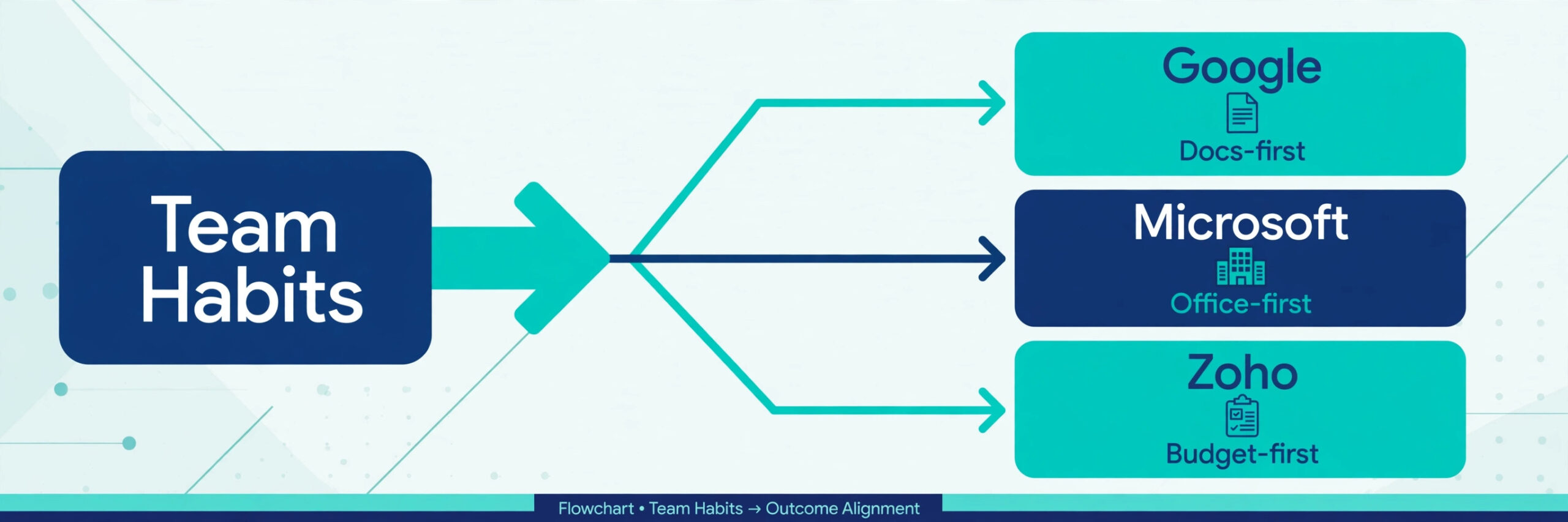
For most small teams that work mainly in a browser and share documents online, Google Workspace is the safest starting point. It is familiar, it bundles mail with documents and meetings, and it is easy to administer for a team without an IT department. That verdict changes if your team lives in desktop Word, Excel, and Outlook, in which case Microsoft 365 fits better, and it changes again if budget is the deciding factor, in which case Zoho Mail deserves the first look. Learning how to choose a business email provider small business owners can actually run day to day starts with that fit, not with a feature list.
A business email provider does more than put your domain name after the @ sign. It controls mail storage, spam and phishing filtering, calendar and contact sync, and how quickly a new hire gets a working mailbox. A poor choice shows up slowly, in missed messages, storage warnings, and a migration nobody wants to repeat. A good choice disappears into the background, and staff simply send mail, book meetings, and find old messages without thinking about the system underneath.
This guide works through the decision in the order that matters. It starts with what your team already uses, then compares the main providers side by side, then covers cost, security, and deliverability, and it ends with a migration checklist you can hand to whoever does the move. Prices change often, so where a figure is not confidently known this guide says to check the vendor pricing page rather than quoting a number that may already be out of date.
What a Business Email Provider Actually Gives You
A provider gives you mailboxes on your own domain, so an address reads as name@yourbusiness.com instead of a free personal address. That single change affects trust. Customers judge a business by its address more than most owners expect, and a supplier or client who sees a personal address may wonder whether the business is established, whether invoices will be handled properly, and whether support will still exist in six months. A domain address answers those doubts before a conversation starts.
Beyond the address, a provider gives you an admin console. From one screen you can add a user, remove a leaver, reset a password, set a shared mailbox for support@ or info@, and control who can send as a group address. Without that console, every change becomes a support ticket or a favour asked of whoever set the mail up years ago. For a team of five that may feel trivial. For a team of twenty with regular joiners and leavers, it is the difference between a ten minute task and a week of confusion.
Storage is the third piece, and it is where cheap plans surprise buyers. Some plans pool storage across mail, documents, and photos, so a team that stores large files can eat its mail allowance without realising it. Others give a separate mailbox allowance plus separate file storage. Before you compare prices, check how storage is counted, what happens when a mailbox fills up, and whether you can buy more storage for one heavy user without upgrading the whole team.
Calendars, contacts, and mobile access complete the package. A provider that syncs calendars properly means a meeting booked on a phone appears on a laptop without a manual refresh, and a shared calendar actually shows when colleagues are free. A provider with weak mobile apps will push staff back to personal accounts for convenience, which defeats the purpose of a business system. Test the mobile app on a real phone during a trial, not just on a desktop demo.

How to Choose a Business Email Provider Small Business
The method that works best is short, and it starts with your team, not with a comparison site. List the tools your staff open every day. If that list is Gmail, Google Docs, and Google Sheets, a Google based provider will cause the least retraining. If the list is Outlook, Word, Excel, and Teams, a Microsoft based provider will cause the least friction. If the list is Zoho CRM or Zoho Books, Zoho Mail will slot into the same admin world. Switching ecosystems costs more in lost time and mistakes than any per user saving, so ecosystem fit should outrank a small price gap.
Next, decide what the provider must do on day one, and separate that from features you might want later. Day one needs are usually a domain mailbox, spam filtering, mobile access, calendar sharing, and a way to recover a forgotten password. Later wants might include shared drives, video meetings, advanced security controls, or device management. Buying a top tier plan for later wants on day one means paying for months for controls nobody has configured. Start on the tier that covers day one well, and confirm that an upgrade path exists without a migration.
Then run a real trial with real mail. Give two or three staff trial accounts, move a sample of old mail if the trial allows it, and ask them to do ordinary jobs for a week. Send attachments, book meetings, search for an old message, set an out of office reply, and open mail on a phone with a poor connection. A provider that looks polished in a demo can still frustrate staff on search speed or mobile layout, and a week of real use will reveal that faster than any review.
Finally, price the whole three years, not the first month. Multiply the per user price by your user count and by 36 months, add any storage upgrades, add the cost of migration help if you will pay for it, and add the cost of any add on that your day one list requires. A plan that looks cheap per user can become expensive once archived mail, extra storage, or a needed security feature is added. A written quote for your real user count, with included and extra features listed separately, is worth more than a headline price on a pricing page.

Provider Comparison Table
| Provider | Best for | Mail and office style | Admin strength | Price note |
|---|---|---|---|---|
| Google Workspace | Browser first teams | Gmail plus Docs, Sheets, and Meet | Strong for small teams | Check the vendor pricing page |
| Microsoft 365 | Office heavy teams | Outlook plus Word, Excel, and Teams | Strong, deeper at higher tiers | Check the vendor pricing page |
| Zoho Mail | Budget conscious teams | Zoho Mail plus Writer, Sheet, and WorkDrive | Good, simplest of the three | Check the vendor pricing page |
| Proton Mail | Privacy focused teams | Encrypted mail with a smaller office set | Good for mail, thinner for office | Check the vendor pricing page |
| Fastmail | Independent mail fans | Polished mail and calendars, no office suite | Good for mail administration | Check the vendor pricing page |
| Host mailbox | Teams already on a host | Basic mail tied to web hosting | Basic, often no shared calendars | Check the vendor pricing page |
That table is a shortlist, not a ranking for every business. A comparison written for how to choose a business email provider small business teams can run should be read against your day one list, because the provider that wins on privacy may lose on shared calendars, and the provider that wins on price may lose on the office tools your team already knows. Keep the table beside your day one list, and strike out any provider that fails a day one need, however attractive its price looks.
Google Workspace
Google Workspace suits teams that live in a browser. Gmail is familiar to most staff before training starts, Docs and Sheets allow several people to edit the same document at once, and Meet handles video calls without extra software. The admin console covers user management, groups, and basic security controls in a way a small owner can learn in an afternoon. The limits to check are storage counting on the entry tier, because mail and files share an allowance, and the absence of desktop Office apps, which matters if clients send complex Word or Excel files that need exact formatting.
Best for a small team that collaborates in documents online, works from phones and laptops in equal measure, and wants the shortest learning curve. Check the vendor pricing page for the tier that gives your team enough pooled storage, and confirm whether you need a higher tier for stronger admin controls.
Microsoft 365
Microsoft 365 suits teams that depend on desktop Office. Outlook remains the standard mail client in many offices, Word and Excel handle complex documents and spreadsheets with full fidelity, and Teams covers chat and meetings in the same subscription. The entry tier covers web and mobile Office apps but not desktop apps, so a team that needs desktop Word and Excel must price the tier that includes them. Higher tiers add device management and stronger security controls, which matter once staff use company devices or handle sensitive client data.
Best for an office heavy team, a Windows based office, or a business whose clients and partners work in Office formats all day. Check the vendor pricing page and confirm in writing which tier includes desktop apps, because that single difference changes the three year total more than any other line item.
Zoho Mail
Zoho Mail suits a budget conscious team, and it is the only major option here with a genuinely free tier for very small teams. The paid plans cover ad free mail, calendars, and documents at a lower per user price than the two big suites, and the system integrates naturally with Zoho CRM, Zoho Books, and Zoho Desk if you already use those tools. The trade off is familiarity. Staff who know Gmail or Outlook will need a short adjustment period, and document compatibility with Office formats is good but not identical.
Best for a small team watching every subscription, a team already using Zoho business apps, or a solo owner who needs a proper domain address without a suite price. Check the vendor pricing page for the free tier limits, because storage and shared calendar features differ between free and paid plans.
Proton Mail
Proton Mail suits a team for whom privacy is a genuine business requirement, such as a legal, medical, or advisory practice that handles sensitive correspondence. Mail is encrypted in a way that keeps message content private even from the provider, and the service is built around that promise rather than adding it as an extra. The trade off is ecosystem depth. Search, office tools, and third party integrations are thinner than in the big suites, so a team that needs deep document collaboration or a wide integration list should test those jobs before committing.
Best for a privacy first team that values encrypted mail above office breadth. Check the vendor pricing page and test search, mobile access, and calendar sharing on real mail before deciding, because those everyday jobs matter as much as encryption.
Fastmail
Fastmail suits a team that wants excellent mail without buying an office suite. The webmail and mobile apps are fast and well designed, calendars and contacts sync cleanly, and the admin tools cover domains, aliases, and shared folders without suite complexity. The trade off is that there is no document suite or meeting tool included, so a team will pair Fastmail with separate document and meeting tools. For a team that already has those tools elsewhere, that separation can be a benefit rather than a drawback.
Best for a mail focused team that already has document and meeting tools it likes. Check the vendor pricing page for user and storage limits, and confirm that any shared mailbox or alias pattern your team needs is supported.
Host Mailbox
A mailbox bundled with web hosting can look like free email, and for a one person business with light mail it may be enough. The limits appear as the team grows. Shared calendars, reliable mobile sync, spam filtering quality, and storage management are usually weaker than in a dedicated provider, and support for mail problems may be slower than support for hosting problems. A host mailbox also ties your mail to your hosting decision, so moving hosts later can become a mail migration as well.
Best for a solo owner with very light mail who wants the lowest possible starting cost and is willing to move to a dedicated provider as the team grows. If you choose this route, keep a separate backup of important mail, because host mail is the easiest kind to lose in a hosting change.
The True Cost Over Three Years
Per user pricing hides the real total in three places. The first is user count growth. A team of eight that grows to fourteen over three years will pay for fourteen users in year three, and a provider that charges per user will grow with you whether or not you planned for it. Model the cost at your expected year three headcount, not just at today’s headcount, and ask whether shared mailboxes or part time users need full paid seats or can use aliases and shared access instead.
The second hidden cost is storage. A team that sends large attachments, keeps years of mail for legal reasons, or stores project files in the same account will hit storage limits sooner than a team that archives old mail. Check whether archived mail counts against the same allowance, whether you can buy storage for one user alone, and what happens when a mailbox fills up. A provider that bounces incoming mail when a box is full can lose orders silently, so a storage warning system and a clear upgrade path are worth more than a slightly lower headline price.
The third hidden cost is migration and support. A provider that offers a free migration tool and clear documentation will cost less in staff time than a provider that leaves you to move mail by hand. If you will pay a contractor or a provider partner to migrate, get that quote before you choose, because migration cost can exceed a year of subscription for a team with large mailboxes. Also check support hours and channels. A provider whose support is email only and slow will cost you a working day when mail stops, while a provider with phone or chat support during your working hours will resolve the same problem in an hour.
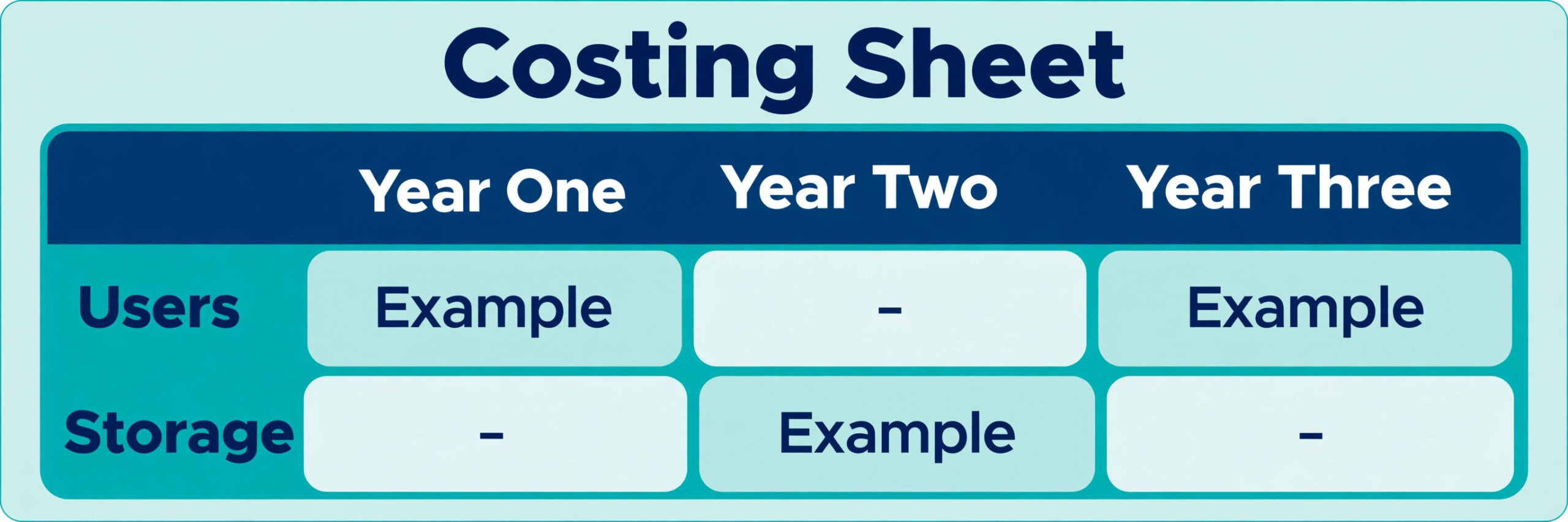
A simple costing sheet helps any owner working out how to choose a business email provider small business budgets can sustain. Put user count by year, per user price by tier, storage add ons, migration help, and any security add on in separate rows, and total each provider over three years. That sheet often reverses a first impression. A provider that looked expensive per user can win once storage and migration are included, and a provider that looked cheap can lose once a needed tier upgrade is added. Keep the sheet, because it also becomes the record you show a partner or accountant when the subscription is questioned later.
Security and Deliverability Checks That Matter
Security for business mail starts with two factor authentication for every user, including the owner. An owner account without a second factor is the most valuable target in the business, because it can reset other accounts and access shared mail. Enforce two factor authentication in the admin console rather than asking staff to turn it on voluntarily, and give every critical account at least two admins so a lost phone does not lock the business out of its own mail.
Next, check spam and phishing filtering. A good provider filters most spam before it reaches an inbox, flags suspicious links and attachments, and lets an admin quarantine messages for review. Ask how the provider handles a message that looks like an invoice from a known supplier but comes from a slightly different address, because that pattern is the most common small business scam. A provider that only filters obvious spam will leave that message in the inbox, while a provider with stronger impersonation checks will flag it. Train staff to check sender addresses on payment requests regardless of filtering, because no filter catches every attempt.
Deliverability depends on three domain records, and a provider should help you set them correctly. SPF lists which servers may send mail for your domain, DKIM adds a signature that proves a message was not altered, and DMARC tells receiving servers what to do with mail that fails those checks. Without those records, your mail is more likely to land in spam, especially at large providers. A good provider gives you the exact record values to add at your domain registrar and a way to test them. After migration, send test messages to several major providers and to a colleague outside your domain, and check spam folders before announcing that the move is complete.

Migration Without Losing Mail
Migration is where how to choose a business email provider small business owners trust is tested most harshly, and it fails most often through rushing, not through technology. The safest pattern is to prepare, pilot, cut over, and then clean up, with a full backup of old mail kept until the new system has run for at least a month. Start by listing every mailbox, alias, group, and shared mailbox in the old system, and decide what each one becomes in the new system. Aliases that nobody uses should be dropped, groups should be rebuilt with correct members, and shared mailboxes should be tested by the people who actually read them.
Next, run a pilot with two or three users. Move their mail, check that old folders, sent mail, and calendars arrive correctly, and let them work in the new system for a few days before the rest of the team moves. A pilot catches problems that a demo never shows, such as a calendar format that loses recurring meetings, a folder structure that flattens, or a signature that does not transfer. Fix those problems for the pilot users first, and write down the fixes so the main migration does not repeat them.
Cutover day should be planned around DNS changes. Mail routing is controlled by MX records at your domain, and changing them points new mail to the new provider. Lower the time to live on those records a day or two before the change, so the change spreads quickly, and make the change at a quiet time, such as an evening or a weekend, when a short delay will affect fewer messages. Keep the old system running and readable during cutover, so any message that still arrives there can be found and forwarded. Do not delete the old system until new mail has flowed correctly for several weeks.
After cutover, work through a clean up list. Confirm that every user can send and receive, that shared mailboxes work, that signatures are correct, that out of office replies are set where needed, and that mobile devices sync. Update any website contact forms, invoice templates, and third party tools that send mail through the old provider, because those tools will keep using old settings until someone changes them. Finally, store a backup of old mail outside both providers, so a later problem with either system does not become a data loss.

Migration Checklist
Use this checklist for every mailbox move, and tick each item off in writing rather than from memory.
– List every mailbox, alias, group, and shared mailbox in the old system, and decide what each becomes in the new system. – Back up old mail outside the old provider, and keep that backup until the new system has run for a month. – Confirm the new provider tier covers your day one needs, including storage, shared calendars, and two factor authentication. – Set SPF, DKIM, and DMARC records correctly, and test them before cutover day. – Run a pilot migration for two or three users, and fix folder, calendar, and signature problems before the main move.
– Lower DNS time to live a day or two before cutover, and make MX changes at a quiet time. – Keep the old system readable during cutover, and check it for stray messages for at least two weeks. – Test sending, receiving, shared mailboxes, signatures, and mobile sync for every user after cutover. – Update website forms, invoice tools, and any third party sender that used the old mail settings. – Remove leaver accounts and old aliases, and record the new admin console access in a safe place.
That checklist is the overview proof for this guide. A provider choice that cannot pass it, because it lacks shared mailboxes, because it cannot set the three deliverability records, or because its migration tool cannot move old folders, should be struck from the shortlist even if its price is attractive.
Mistakes Small Teams Make When Choosing Mail
The most common mistake when owners learn how to choose a business email provider small business teams rely on is choosing on price alone. A provider that saves two dollars per user per month but loses a day of mail, or forces a second migration a year later, costs far more than the saving. Price matters, but it should be weighed after fit, security, and migration ease, not before them. A three year costing sheet makes that trade off visible, and it stops a headline price from deciding the purchase.
The second mistake is ignoring the leaver problem. A business that removes a staff member by deleting the mailbox immediately can lose client history, project mail, and invoice threads. A good provider lets you suspend a user, transfer mailbox access to a manager, or convert a mailbox to a shared mailbox before deletion. Decide that process before the first leaver, and write it into your admin notes, so a departure does not become a data loss.
The third mistake is letting staff keep personal accounts for business mail. Personal accounts are convenient, but they hide client mail from the business, they cannot be recovered if a staff member leaves, and they break the professional image that a domain address creates. Make business mail the only approved channel for client work, and give staff a mobile setup that is easy enough that they do not need a personal workaround. Convenience is a security control in its own right.
The fourth mistake is never testing recovery. A team that has never restored mail, never tested a password reset for the owner, and never checked what happens when a phone is lost will discover those gaps during a crisis. Test recovery once a quarter, with a real mailbox and a real device, and record what worked. That test takes an hour and prevents the most stressful kind of support call, the one where the business cannot reach its own mail.

Frequently Asked Questions About Choosing a Business Email Provider
Do I need a paid provider if my host includes free mail
Host mail can work for a solo owner with light mail, but it usually lacks shared calendars, strong spam filtering, and easy mobile sync. As soon as a team shares calendars, needs reliable mobile access, or grows beyond a few users, a dedicated provider pays for itself in saved time and fewer missed messages. Keep host mail as a starting point, not as a permanent system for a growing team.
How many mailboxes should I actually pay for
Pay for a mailbox for each person who sends mail as an individual, and use aliases and shared mailboxes for roles such as support, info, and sales. Aliases cost nothing on most providers and let several people read role mail without paying for extra seats. Audit the list every quarter, and remove or suspend seats for leavers promptly, because unused seats are the most common subscription waste in a small business.
What storage size is enough for a small team
That depends on attachment habits and retention needs. A team that sends mostly text mail and small documents can manage on a modest pooled allowance, while a team that sends large photos, drawings, or video files will need more. Check how storage is counted on the tier you will buy, and confirm what happens when a mailbox fills up, before you commit. Archiving old mail to a separate store is often cheaper than upgrading every user.
Can I keep my old mail when I switch providers
Yes, in most cases, once you have worked through how to choose a business email provider small business migration tools support, using the new provider migration tool or an IMAP migration will move most mail cleanly. The pilot step in this guide exists to catch the cases where folders, sent mail, or calendars do not transfer cleanly. Keep a backup of old mail outside both providers until the new system has run for a month, so a migration problem does not become a permanent loss.
Do I need all three deliverability records
Yes. SPF, DKIM, and DMARC work together, and missing one weakens the others. A provider should give you the exact values to add, and you should test sending to several major providers after setting them. If your provider cannot explain those records clearly, that is a warning sign about its support quality, and it should weigh against the provider in your decision.
Should the owner account have the strongest security
Yes, without exception. The owner account can reset other accounts and access shared systems, so it should have the strongest password and a second factor, ideally a security key or an authenticator app rather than a text message code. Give a second trusted person admin access as well, so a lost device does not lock the business out of its own mail.
A Verdict You Can Act On This Week
Start with the tool your team already knows. If that is Google, trial Google Workspace. If that is Office, trial Microsoft 365. If budget forces the decision, trial Zoho Mail first and judge it on real mail, not on price alone. Run the trial with two or three staff, price three years honestly, check the security and deliverability records, and only then move the whole team. That order is the practical answer to how to choose a business email provider small business owners will not regret, and it protects you from the two expensive outcomes in this market, which are a cheap provider that nobody likes using and a powerful provider that nobody fully configured.
For more on the systems that sit beside mail, see our guide to choosing a business phone system and our guide to writing a welcome email sequence, both of which build on the mailbox this guide helps you choose. A business email provider is infrastructure, and infrastructure should be boring, reliable, and invisible. Choose the provider that gives you that, and spend the time you save on the work that actually grows the business.