

A host backup, a plugin backup, and a manual backup look like three versions of the same safety net, until the day you need one of them and discover how different they really are. This guide shows how to back up a wordpress site small business owners can actually restore, not just a site they believe is backed up.
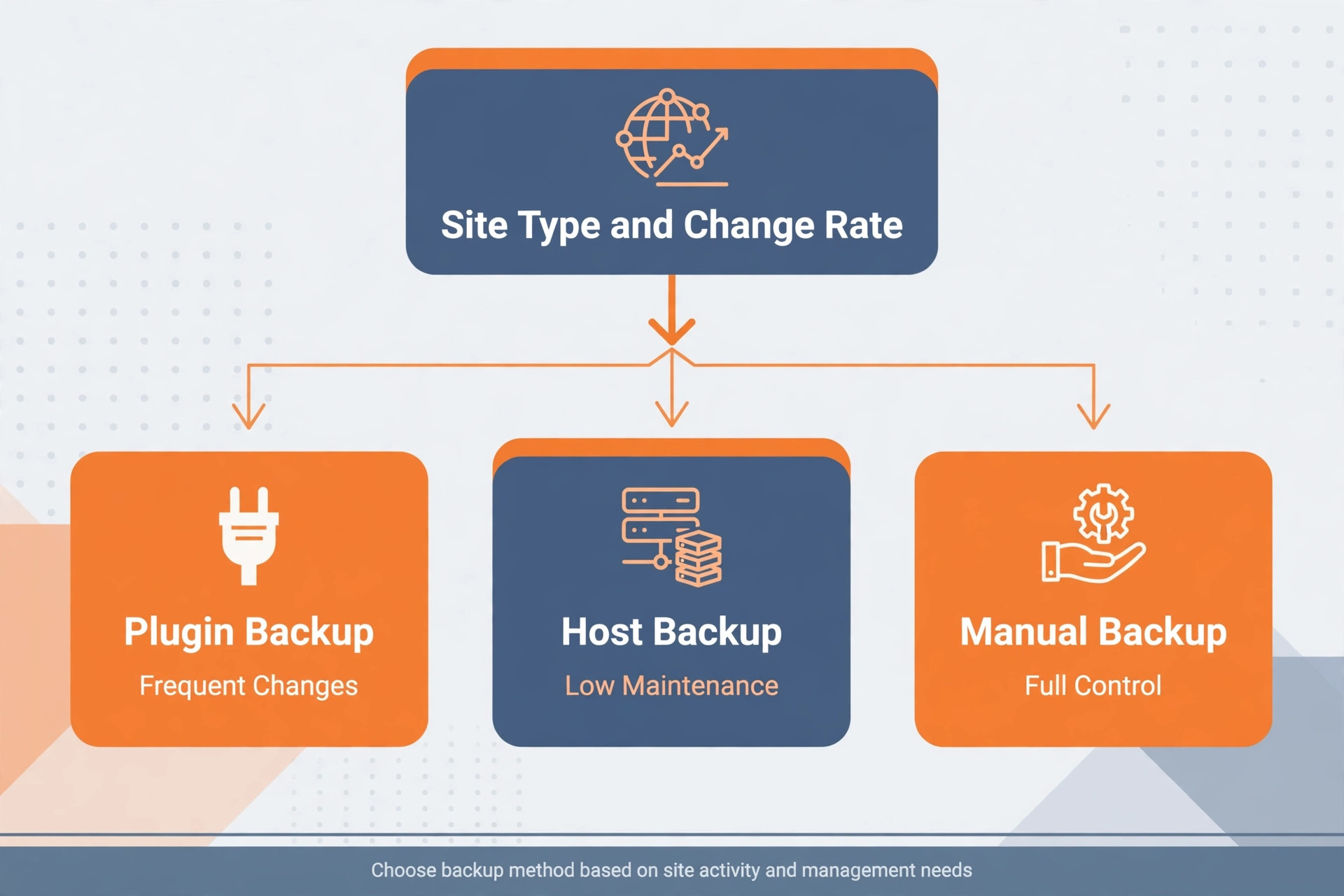
A host backup is convenient, but you may not control when it runs, how long it is kept, or how quickly you can restore a single page. A manual backup gives you full control, but it depends on someone remembering to do it, and on that person still being available when disaster strikes. A plugin backup with offsite storage sits between those extremes, and for most small business sites it is the right answer, because it runs on a schedule, stores a copy away from the server, and lets you restore from the dashboard.
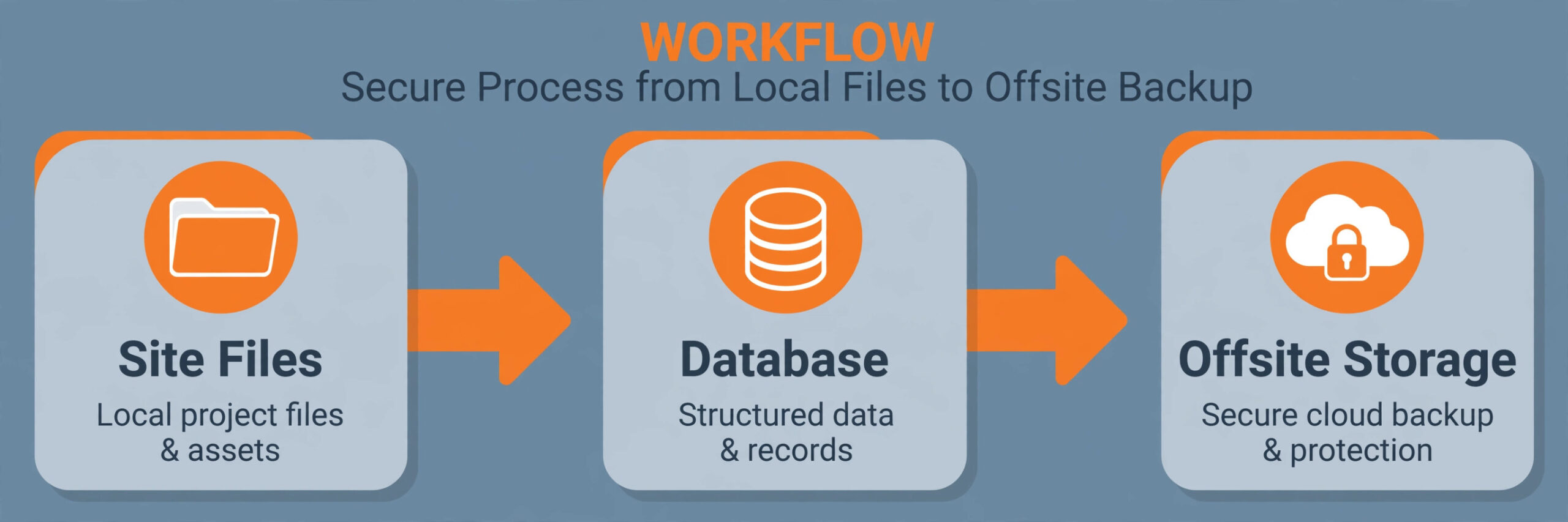
A complete WordPress backup has two parts, and both parts matter. The files part includes the core software, themes, plugins, uploads, and images. The database part includes posts, pages, users, orders, comments, settings, and plugin data. A backup that saves only files will restore the look of the site without its content. A backup that saves only the database will restore content without images, themes, or plugins. Either failure looks like a successful backup until the restore is attempted, which is why every method in this guide is judged on whether it saves both parts together and whether the restore has been tested.
The risks that make backups necessary are ordinary, not dramatic. A plugin update can conflict with a theme and break the site. A staff member can delete a page by mistake. A host server can fail. A site can be infected through an outdated plugin. None of those events is rare, and each of them is recoverable in minutes with a good backup and painful for days without one. The cost of a backup system is small beside the cost of rebuilding pages, recovering orders, or explaining to customers why the site vanished.
What Counts as a Real Backup
A real backup is a complete copy, stored somewhere other than the live server, with a known date, and a restore that has been tested. Each part of that definition exists because of a common failure. Completeness fails when a backup saves files but not the database, or saves the database but not uploads. Offsite storage fails when the only copy sits on the same server as the site, so a server failure destroys both the site and its backup. A known date fails when a backup set has no clear label, so nobody knows whether it predates the problem or contains it. Testing fails most often of all, because most owners never restore until they must.
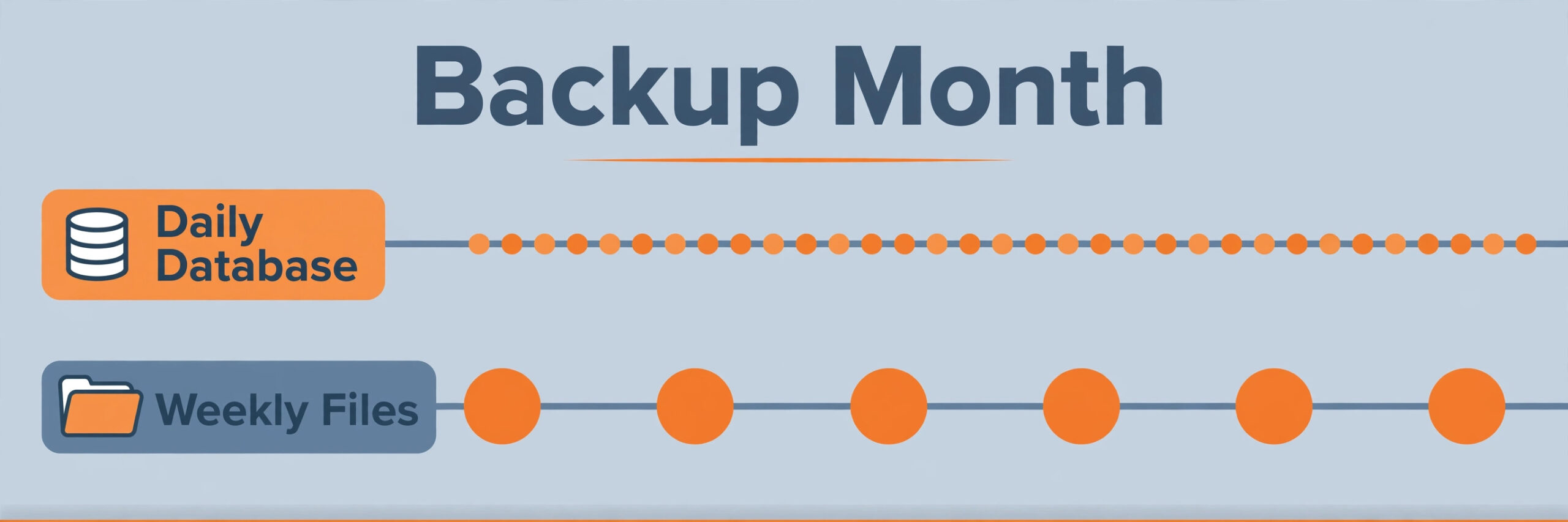
Retention is part of the definition too. A single latest backup is not enough, because a problem can go unnoticed for days. If a site is infected on Monday and the infection is found on Friday, a backup system that keeps only the latest copy will hold only infected copies. Keeping several dated copies, such as daily database backups for two weeks and weekly file backups for a month, gives you a clean copy to return to. Retention costs storage, but storage is cheap beside a rebuild, and most backup tools let you set retention automatically.
Access control is the last part. Backup files contain the whole site, including user data and configuration details, so they must be stored in an account that is protected and not shared casually. A backup stored in a personal cloud account that a former staff member still controls is a security risk, and a backup stored in an account nobody can reach during an incident is useless. Record where backups live, who can reach them, and how to reach them if the main admin is unavailable, and review that record when staff change.
Plugin, Host, and Manual Backups Compared
| Method | Effort to run | Offsite storage | Restore control | Best for |
|---|---|---|---|---|
| Backup plugin | Low after setup | Yes, to your cloud account | High, restore from dashboard | Most small business sites |
| Host backup | Very low | Depends on host | Low to medium, host help often needed | Extra safety net, not the only copy |
| Manual backup | High, and easy to forget | Yes, if you move files offsite | High, but slow and technical | Developers and very small static sites |
| Real time backup service | Low after setup | Yes, provider storage | High, with point in time restore | Shops and membership sites |
A plugin is the recommendation for most readers learning how to back up a wordpress site small business teams can restore, because it balances automation with control. Once configured, it runs on a schedule without human memory, it stores copies in a cloud account you control, and it restores from the dashboard in a few clicks. Its weakness is that it runs inside WordPress, so if WordPress itself is broken, you may need a separate restore path. That weakness is manageable, as the restore section explains, and it does not outweigh the benefit of scheduled, offsite, complete backups.
A host backup is a useful second copy, but a weak only copy. Hosts vary widely in how often they back up, how long they keep copies, and whether restoring is free or charged. Some hosts back up daily and restore quickly. Others back up weekly, keep copies for a few days, and charge for a restore. Ask your host those three questions in writing, and keep the answers with your backup record. If the host cannot answer clearly, treat its backup as a bonus, not as your plan.
A manual backup, done through a hosting panel or file transfer plus a database export, is free and fully controlled, but it fails on human reliability. A busy owner will skip it during a busy week, and a manual backup that is three months old is barely better than no backup for a site that changes weekly. Manual backups still have a place, which is as a before change snapshot. Before a major update, a theme change, or a migration, take a manual backup as well as relying on the scheduled plugin backup, so you have a known good point to return to.
Real time backup services, such as Jetpack VaultPress Backup, suit shops and membership sites where orders and signups change every hour. A daily backup for a busy shop can lose a day of orders, while a real time service records changes as they happen. For a brochure site updated twice a month, that level of protection is unnecessary cost. Match the backup frequency to how often the site changes, not to how impressive the service sounds.
Setting Up a Plugin Backup Step by Step
The steps below use UpdraftPlus, one of the most widely used free backup plugins, because its screens match what most small owners will see. Other reputable plugins, such as Duplicator and WPvivid, follow the same pattern, with an install step, a storage step, a schedule step, and a restore step. If you choose a different plugin, follow the same four steps in its own screens.
Install and Activate the Plugin
Sign in to the WordPress dashboard, open Plugins, then Add New, and search for UpdraftPlus. Install the plugin and activate it. After activation, open Settings, then UpdraftPlus Backups, which is the plugin control panel. Take a moment to look at the tabs before changing anything, because the panel separates the backup and restore list from the settings, and confusing those tabs is a common first time mistake. Do not run a backup yet, because storage and schedule should be set first, so the first backup already goes to the right place on the right timetable.
Connect Offsite Storage
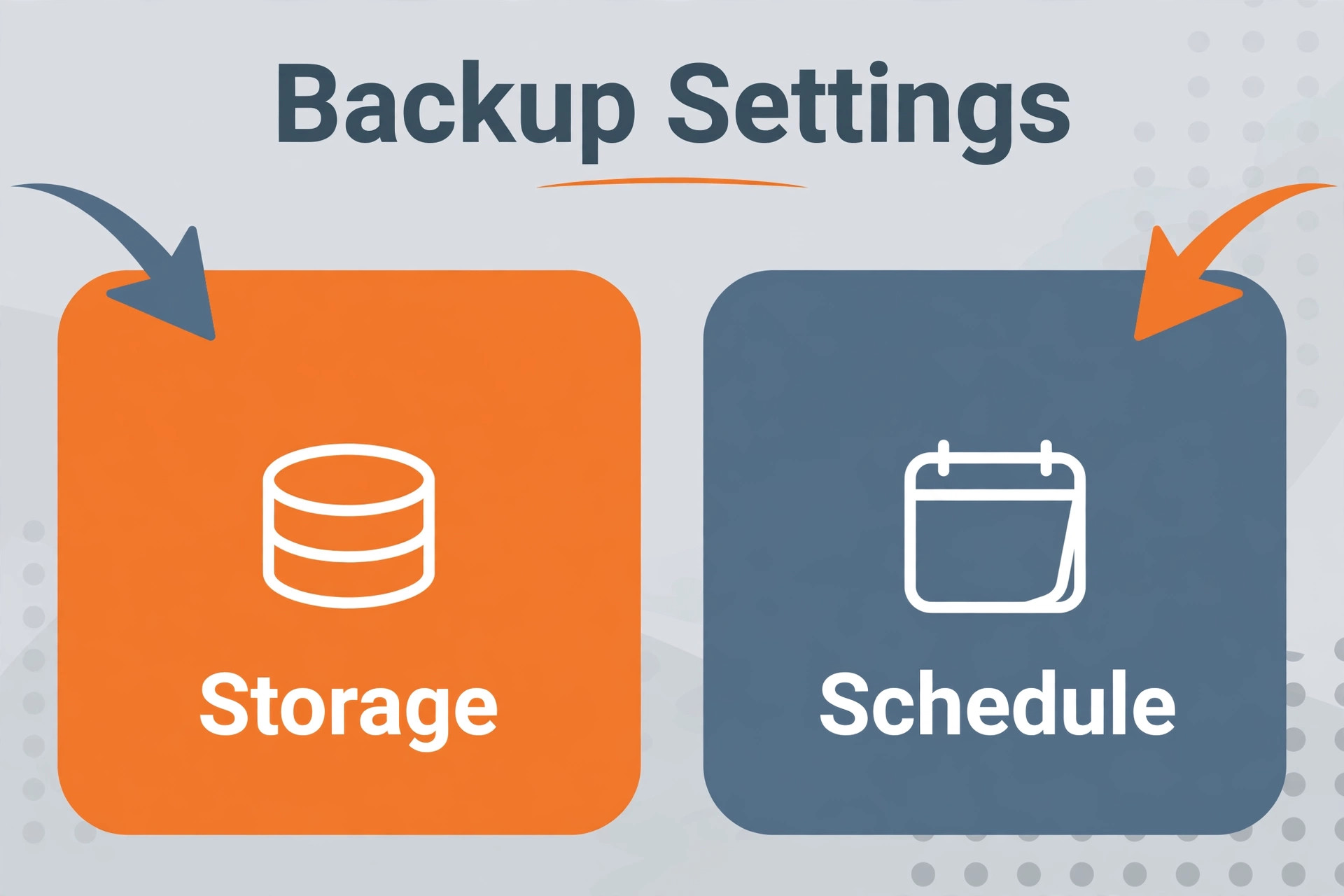
Open the Settings tab and choose a remote storage option, such as Google Drive, Dropbox, or another cloud account the business controls. Never store your only backup on the same server as the website, because a server failure would then destroy both. Follow the authorisation steps the plugin shows, which will ask you to sign in to the cloud account and approve access, and then save the settings. Confirm that the connection test passes, if the plugin offers one, before relying on the connection. A storage connection that looks set up but never authorised is a silent failure that only appears when a restore is needed.
Choose a cloud account that the business owns, not a personal account of a single staff member, and protect that account with its own second factor. Record the account name in your backup record, so a future admin can find backups without guessing which personal account was used years ago. If the business already uses a cloud account for documents, using the same business account for backups keeps access in one controlled place.
Set the Schedule and Retention
Set a files backup schedule and a database backup schedule separately, because files and database change at different rates. A common starting point for a small business site is a weekly files backup and a daily database backup, with retention of two weeks of database copies and four weeks of file copies. A site that changes daily, such as a shop, should back up files more often, while a brochure site that changes monthly can back up files less often. The schedule in the template later in this guide gives starting points by site type.
Set retention in the same screen, so old backups are deleted automatically and storage does not grow without limit. Without retention, a daily backup will eventually fill the cloud account and then fail silently, which is a failure mode owners discover only when they need a backup that was never made. Check the retention numbers after saving, and confirm that the first scheduled backup actually appears in the cloud account on its due date.
Run the First Backup and Check It
From the Backup and Restore tab, run a manual backup now, and watch it complete. When it finishes, check that a new entry appears in the existing backups list, with a date, a size, and the components included. Then open the cloud account in a separate browser tab and confirm that backup files are actually there, with recent timestamps. That two place check, in the plugin and in the cloud account, is the minimum proof that the system works. A backup that appears only in the plugin list but not in cloud storage is not offsite, and a backup that appears in cloud storage but not in the plugin list may be hard to restore.
Download a copy of that first backup to a local drive as well, if the site is small enough for that to be practical, and label it with the site name and date. A local copy is a third layer of safety, and it is useful if both the server and the cloud account are unavailable at the same time. Keep local copies in a safe place, and delete old local copies on the same retention rhythm, so they do not become an unmanaged pile of site data.
Backup Schedule Template
Use this template as your starting schedule when planning how to back up a wordpress site small business schedule, and adjust it to how often your site actually changes. The template is the overview proof for this guide, because a backup plan without a schedule is a wish, not a plan.

| Site type | Files backup | Database backup | Retention | Extra note |
|---|---|---|---|---|
| Brochure site, updated monthly | Monthly | Weekly | Four file copies, four database copies | Manual backup before any theme change |
| Business site, updated weekly | Weekly | Daily | Four file copies, fourteen database copies | Manual backup before plugin updates |
| Blog, updated several times a week | Weekly | Daily | Four file copies, fourteen database copies | Check storage monthly |
| Online shop or membership site | Daily | Daily, or real time | Fourteen file copies, thirty database copies | Real time service worth pricing |
| Site under active rebuild | Daily | Daily | Keep a labelled copy at each rebuild stage | Do not rely on auto retention alone |
A schedule should also name a person. One named person owns the backup system, checks that scheduled backups appear, and reports a failure. That person does not need to be technical, because checking means opening two screens and confirming a recent date. What matters is that the check happens, and that a missed backup is noticed within days, not months. Put the check on a recurring calendar reminder, monthly for a quiet site and weekly for a shop, and record each check with a date.
Before change backups deserve their own rule. Before any plugin update, theme update, WordPress core update, or design change, run a manual backup and label it with the change you are about to make. That label turns a restore from a guess into a decision, because you can return to the exact point before the change. If the change succeeds, the manual backup simply ages out under retention. If it fails, it saves hours of diagnosis, because you can restore first and investigate afterwards.
How to Back up a WordPress Site Small Business Restore Plan
Restoring from inside WordPress is the normal path for how to back up a wordpress site small business recovery, and it works when the dashboard still loads. Open Settings, then UpdraftPlus Backups, and open the Backup and Restore tab. Find the backup you want in the existing backups list, choosing the newest clean backup, not simply the newest backup, if the problem started days ago. Click Restore, choose which components to restore, such as plugins, themes, uploads, database, and other files, and run the restore. Read each confirmation screen carefully, and check the restore report when it finishes before assuming success.
If the dashboard will not load, the path is longer but still workable. Install WordPress fresh on the same host or a new host, install and activate the same backup plugin, and use its upload or rescan feature to find backup files stored in the cloud account or uploaded from a local copy. Restore from those files, and then check the site thoroughly before announcing it is back. A restore that looks complete but has a broken database connection or missing uploads is not finished, and checking pages, forms, and checkout, where relevant, is part of the restore, not an optional extra.
After any restore, work through a verification pass. Load the homepage and several inner pages, submit a test contact form, check that images load, check that the shop checkout reaches the payment step if you run a shop, and check that recent orders or comments that should be present are present. Also check that the problem that caused the restore is gone, and that it has not simply been restored along with the site. If a hacked site is restored from a backup taken after the hack, the hack returns with it, which is why choosing a clean backup date matters more than choosing the newest date.
Restore Checklist
Use this checklist every time you restore, and do not skip the verification steps at the end, even when the restore report says success.
– Identify the problem and its likely start date, so you can choose a clean backup rather than the newest backup. – Confirm the backup set is complete, with both files and database, and stored offsite or available locally. – Run a fresh backup of the current broken site first, if possible, so nothing is lost by the restore itself. – Restore the chosen backup set, selecting plugins, themes, uploads, database, and other files as needed. – Read the restore report fully, and note any component that failed or was skipped. – Load the homepage, inner pages, and key forms, and confirm images and layout are correct. – Test checkout or booking to the payment step, if the site sells or books online. – Check that the original problem is gone, and investigate its cause before it recurs. – Update any plugin, theme, or password that caused the problem, and run a fresh backup once the site is healthy. – Record the restore in your backup log, with the backup date used, the cause, and what was learned.
That checklist is what turns a backup from a file into a recovery plan. A team that has worked through it once, even on a practice restore, will restore far faster during a real incident, because the steps are familiar rather than being read for the first time under stress.

Testing Backups Before You Need Them
A practice restore is the single most valuable hour a site owner learning how to back up a wordpress site small business protection can spend on backups. The safest way to practice is on a staging site, which many hosts provide as a copy of the live site that visitors do not see. Restore a backup to staging, check that pages, images, and forms work there, and note any step that was unclear. If your host does not offer staging, a local test install on a computer can serve the same purpose for a small site, although the setup is more technical.
Test on a schedule, not just once. A backup system that worked a year ago may have broken since, through a changed cloud password, a full storage account, or a plugin update that altered settings. A quarterly practice check, even a light one that only confirms recent backups exist in cloud storage and that a restore report from a staging test is clean, catches most decay. For a shop, test monthly, because the cost of a failed restore is measured in lost orders.
Also test the human side. Confirm that a second person, not just the owner, knows where backups live and how to start a restore. If only one person knows, a holiday or illness can turn a recoverable incident into a wait. Write the restore steps in plain language, keep them with the backup record, and walk the second person through them once. That walkthrough is short, and it removes the single person dependency that quietly undermines many small business systems.
Common Backup Failures and How to Avoid Them
The most common failure for owners learning how to back up a wordpress site small business safely is a backup that was never offsite. A plugin set to store backups only on the server will list backups neatly in the dashboard, and will feel like protection, until the server itself fails. Avoid this by checking the cloud account directly after setup and monthly afterwards, as this guide describes. If backups are not appearing in cloud storage, fix the connection at once, and do not assume the dashboard list alone proves safety.
The second failure is a backup that is too old. A schedule that runs monthly for a site that changes daily will lose weeks of work when it is needed. Avoid this by matching frequency to change rate, using the template in this guide, and by checking backup dates, not just backup existence. A backup list with recent dates is healthy. A backup list whose newest entry is months old is a warning, even if the list looks long.
The third failure is a backup that contains the problem. Restoring an infected or broken site from a post problem backup simply returns the problem. Avoid this by keeping several dated copies, by noting when problems started, and by choosing the newest clean copy rather than the newest copy. After a restore, investigate the cause, update the vulnerable plugin or password, and take a fresh clean backup once the site is healthy.
The fourth failure is a backup nobody can restore because the plugin or host changed. A backup made by a plugin that is no longer installed, or by a host whose panel has changed, can still be restored, but only with extra steps. Avoid this by recording which tool made each backup, by keeping the plugin installed and updated, and by downloading a local copy of important backups. For plugin conflicts that break a site before a backup can help, see our guide to fixing a WordPress plugin conflict, and if a restore means moving hosts, read our guide to moving from WordPress to another platform before changing hosting, so the move does not create a second problem.
Frequently Asked Questions About WordPress Backups
How often should a small business site be backed up
That depends on how often the site changes. A brochure site updated monthly can use a monthly files backup with a weekly database backup, while a shop needs daily or real time backups. Use the schedule template in this guide as a starting point, and increase frequency whenever the cost of losing a day of changes exceeds the cost of storage and backup time, which for a shop it almost always does.
Is a host backup enough on its own
Usually not, because host backup frequency, retention, and restore charges vary, and you may not control them. Treat a host backup as a useful second copy, and keep a plugin backup with offsite storage you control as your main plan. Ask your host its backup frequency, retention period, and restore cost in writing, and keep those answers with your backup record.
What should I do before updating plugins
Run a manual backup first, and label it with the update you are about to make. Update one plugin at a time where practical, and check the site after each update, so a broken update can be traced to one change. If an update breaks the site, restore the pre update backup first, then investigate, rather than trying to fix a broken live site under pressure.
Can I restore just one page from a backup
Most backup plugins restore whole components, such as the database or uploads, rather than a single page, although some tools allow partial restores. In practice, the reliable way to recover one deleted page is to restore the database to a staging copy, copy the page content from staging, and paste it into the live site. That avoids overwriting newer changes on the live site with an older database.
How long should I keep old backups
Keep enough dated copies to return to a clean point if a problem goes unnoticed for days. Two weeks of daily database backups and four weeks of file backups is a practical starting point for most small sites, with longer retention for shops. Balance that against storage cost, and use automatic retention so old copies delete themselves rather than filling the account.
What if my site is hacked and my backups are infected too
Choose the newest backup from before the infection, restore it to a clean install, change all passwords, update all plugins and themes, and scan the restored site before returning it to visitors. If no clean backup exists, a security professional may be needed to clean the site manually. That scenario is the reason retention and early detection matter, because a longer clean history gives you more chances to find a safe restore point.
Choose the Backup You Will Actually Test
The best backup system for a small business is not the most powerful one. It is the one that runs on a schedule, stores a copy away from the server, keeps several dated copies, and has been restored at least once in practice. For most sites in this guide, that means a reputable plugin with offsite storage, a schedule matched to how often the site changes, and a quarterly check that backups exist and a restore works. Add a host backup as a second copy if your host provides one, and keep a manual backup before every major change.
Set the system up this week, run the first backup, check it in cloud storage, and put a practice restore on the calendar for next month, because that sequence is how to back up a wordpress site small business owners can trust in practice. That sequence takes less than an afternoon, and it is the difference between a site owner who hopes the site can be recovered and a site owner who knows it can. A backup you have never tested is a guess. A backup you have restored is a plan, and a plan is what a small business needs when its website goes wrong.