

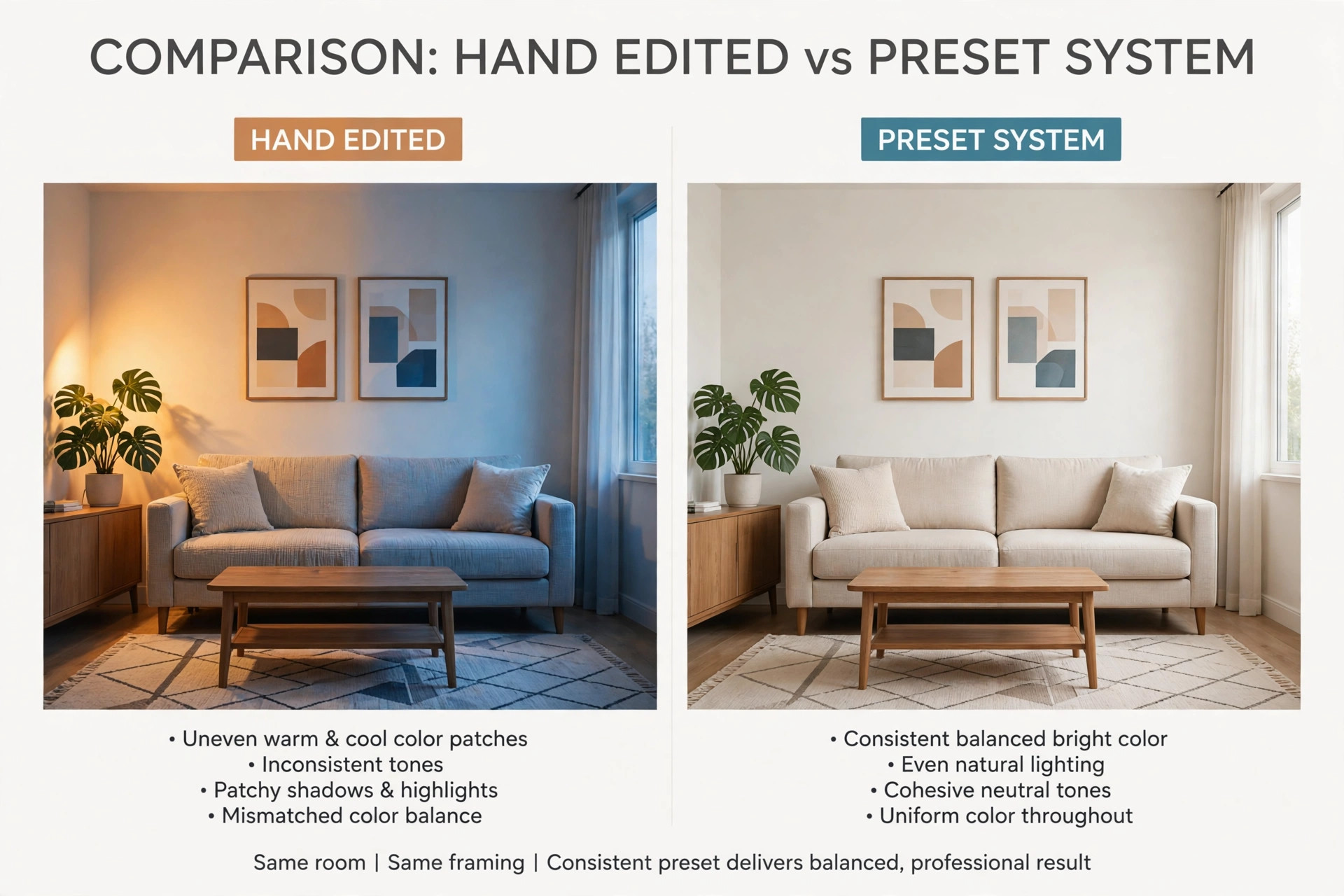
A listing shot edited by hand, one slider at a time, and the same shot edited through a tested preset workflow can look like they came from two different properties. The hand edited version often ends up warmer in the kitchen, cooler in the living room, and darker in the hallway, because every frame gets a fresh set of guesses. The preset version keeps the same white balance logic and colour restraint from the front door to the back bedroom, so a buyer sees one home, not ten separate edits, and that consistency is why photographers use Lightroom for real estate photo editing.
That is why so many agents and property photographers choose to use Lightroom for real estate photo editing, and why the photographers who keep clients are rarely the ones with the most dramatic single image. They are the ones whose thirtieth image looks as clean as their first.
This guide gives you that repeatable system. You will learn how to set up a shoot so editing starts well, how to build a small set of presets that survive different light, how to work through a seven pass edit in the same order every time, and how to run a final before and after checklist before anything leaves your computer. It also covers what the workflow costs in time and money, where Lightroom Classic fits, and the mistakes that turn a bright listing into an over edited one.
Prices here reflect Adobe pricing as reported in October 2026 roundups, and you should confirm the figure at checkout before you subscribe, because Adobe adjusts plans and introductory offers through the year.
The Choice That Decides Your Listing Look
Every property photographer faces the same three options. You can edit each photo from scratch, you can outsource the whole gallery, or you can build a preset workflow and run it yourself. Editing from scratch gives full control, but it is slow, and slow editing is where inconsistency creeps in. By photo twenty, fatigue sets the white balance, not judgment. Outsourcing can be fast and cheap per image, yet it hands your look to someone else, and revisions can eat the time you thought you saved. A preset workflow sits between those extremes.
You keep control, you cut repetitive work to a few decisions per image, and you can hand off routine passes later if volume grows, because the system is written down and teachable.
What You Need Before the First Edit
Good property editing starts before you open the Develop module. Shoot in RAW whenever the camera allows it, because a RAW file holds far more highlight and shadow detail than a JPEG, and window recovery depends on that extra data. A JPEG can look fine on the camera screen and still fall apart when you pull back a bright window or lift a dark corner. RAW files are larger and slower to move, so carry enough cards and plan a backup routine, but the editing freedom is worth the storage cost for paid listing work.
How Much the Software Costs
Adobe sells Lightroom through subscriptions, not as a one time purchase, and the plan you choose should follow the rest of your workflow, not just the monthly figure. As reported in October 2026 pricing roundups, the standalone Lightroom plan costs about US$11.99 per month on an annual plan billed monthly, and it includes 1TB of cloud storage along with Lightroom and Lightroom Classic. The Photography plan costs about US$19.99 per month on an annual plan billed monthly, and it adds Photoshop, again with 1TB of cloud storage.
Check the official Adobe plans page before you buy, because regional pricing, taxes, and introductory offers change the checkout total, and an annual plan billed monthly is a yearly commitment paid in instalments, not a cancel anytime monthly deal.
| Plan | What it includes | Reported price, annual billed monthly |
|---|---|---|
| Lightroom | Lightroom, Lightroom Classic, 1TB cloud storage | About US$11.99 per month |
| Photography | Lightroom, Lightroom Classic, Photoshop, 1TB cloud storage | About US$19.99 per month |
How to Use Lightroom for Real Estate Photo Editing in Seven Passes
A repeatable workflow needs a fixed order, because editing order decides what you can still fix later. Grading colour before correcting white balance bakes a cast into the image. Straightening verticals after heavy local work can shift masks and force rework. The seven pass order below avoids those traps, and it is the order to teach anyone who edits for you. Each pass has one job, and you move on when that job is done. When you use Lightroom for real estate photo editing this way, the preset becomes the starting point for the middle passes, not a finish line you hope will fix the early ones.

Pass 1. Cull and organise
Import into the property folder, apply a simple import preset that adds copyright and contact metadata but changes no tone or colour, and then cull before you edit a single slider. Use flags or star ratings to mark one keeper per angle, and colour labels for the hero images that deserve extra attention, usually the exterior, the main living space, and the primary bedroom. Group images by room, so batch edits later apply to the right set. Editing 30 keepers well beats editing 90 frames thinly, and a tidy set makes the batch steps later in the workflow safe to run.
Pass 2. Correct geometry and lens problems
Enable profile corrections and remove chromatic aberration on every image before any creative adjustment. Wide angle lenses, the standard choice for interiors, bend straight lines and fringe high contrast edges, and those faults look worse once you brighten shadows or add clarity. Then fix verticals with the Transform panel, using the automatic upright option first and the guided upright tool when a room has strong lines the automatic result misses. Crop only after verticals are straight, because a crop made first can cut a line you needed as a guide. Keep crops honest. Framing a living room to show its size is fair.
Cropping out a structural flaw a buyer will see on arrival is a trust problem, not an editing skill.
Pass 3. Set white balance and exposure
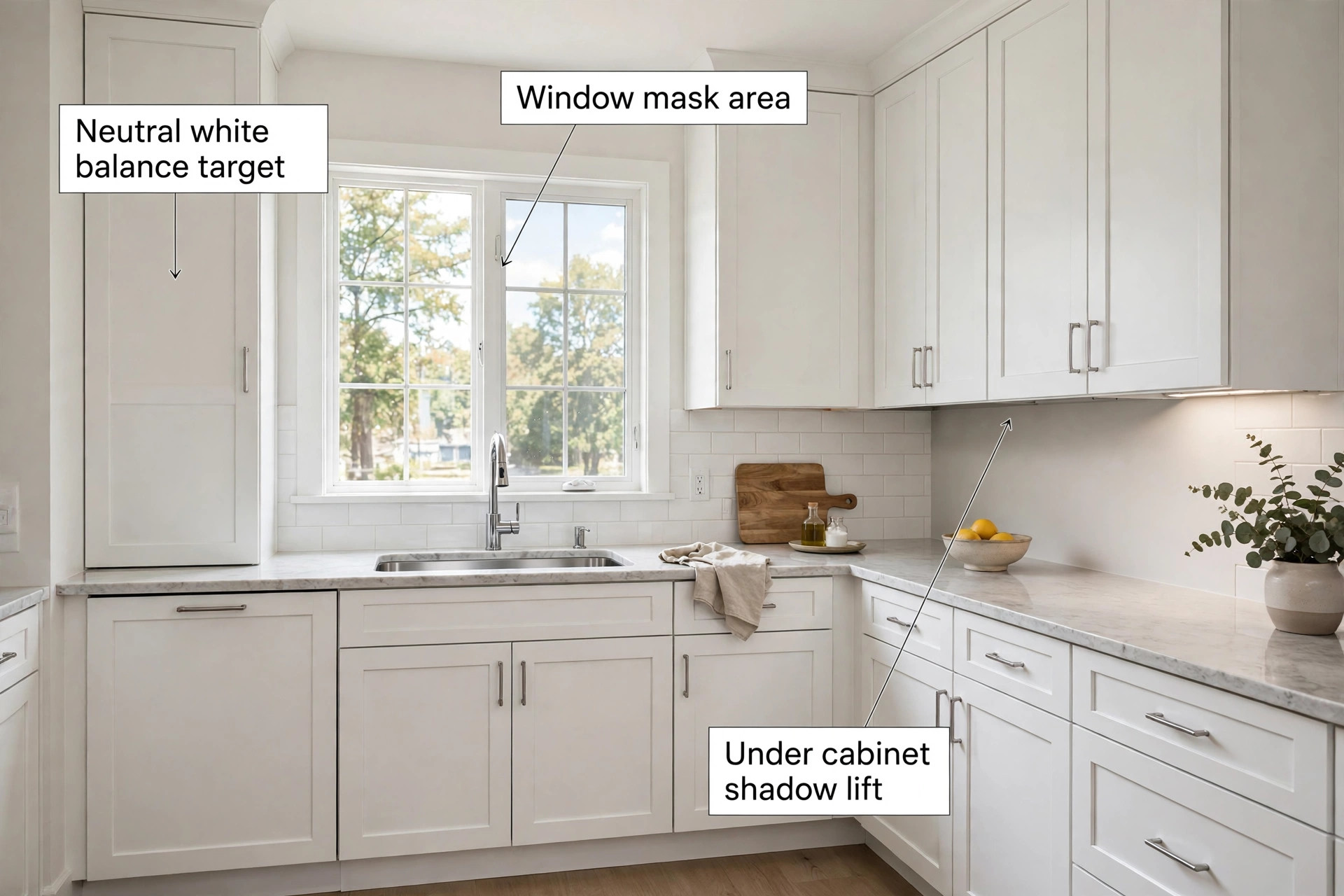
White balance comes before the preset, because a preset built on neutral whites will look wrong on top of a tungsten cast or a green fluorescent tint. Use the eyedropper on a genuinely neutral surface, such as a white ceiling, a white door frame, or a grey worktop, and check the result on a second neutral area before moving on. Mixed lighting is the hard case, where daylight from a window meets warm lamps inside. Balance for the dominant light in the room and accept a slight warmth in the lamps, because a room that looks lived in beats a room that looks clinically grey.
Then set exposure so the midtones feel bright but not washed out, and use the histogram as a check, not as a target. A bright listing still needs blacks that anchor the image, or the room floats.
Pass 4. Apply the base preset and batch the room
Now apply your base preset to the whole room set at once, not image by image. Sync the preset across the living room frames, then walk through them one by one for the small per image fixes presets cannot know, such as a half stop of exposure here or a white balance nudge there. This is the pass where a preset workflow earns its time saving, because the shared starting point means the room already looks like one room. Resist the urge to stack a second creative preset on top of the first.
Stacked looks fight each other, and the result is usually muddy colour and crushed shadows that take longer to undo than a single careful pass would have taken to build.
Pass 5. Recover highlights, open shadows, and shape tone
With the base look in place, work the tone controls in a fixed sequence. Pull highlights down to recover window detail where the view matters, lift shadows to open dark corners and under cabinet areas, then set whites and blacks so the image has a clean bright end and a grounded dark end without clipping either. Add contrast gently through the tone curve rather than pushing the contrast slider hard, because a soft S curve keeps wood tones natural while still giving the room shape. Clarity and texture need a light hand. A small amount adds crispness to brick, tile, and fabric, but too much turns walls gritty and makes every surface compete for attention.
If a room looks good at a glance but tiring after ten seconds, clarity is usually the slider to pull back.
Pass 6. Local work on windows, lamps, and distractions
Local adjustments are where a good listing becomes a believable one, and they are also where over editing starts. Use masking to treat windows separately from the room, so you can hold the outdoor view without darkening the interior to match it. A linear gradient on a bright window, or a sky selection where the window dominates the frame, lets you pull exposure and highlights down in that area alone. Treat lamp glow the same way, with a small radial mask that warms or cools the pool of light rather than shifting the whole room. Remove only genuine distractions, such as a cable across a floor, a dust spot, or a reflection of the photographer in a mirror.
Removing a stain, a crack, or a dated fixture crosses from editing into misrepresentation, and it creates a viewing day problem that no gallery can fix.
Pass 7. Final polish, sharpening, and noise control
Finish with detail controls, and judge them at full size on the hero images and at export size on the rest. Sharpen enough that edges read cleanly on a phone screen, but not so much that walls show halos or noise turns to grain. Apply noise reduction to high ISO interior shots, especially evening and basement frames, and balance the two sliders together, because sharpening noise and then blurring detail is a loop that wastes time. Check colour one last time on a neutral surface, and check the whole gallery as a set, scrolling quickly through it as a buyer would.
A single image can pass alone and still break the set, usually because its white balance drifted or its brightness sits a full stop away from its neighbours. Fix the outlier now, while the preset and the masks are still live, rather than after export.
Build Your Own Preset Set That Holds Up Across Properties
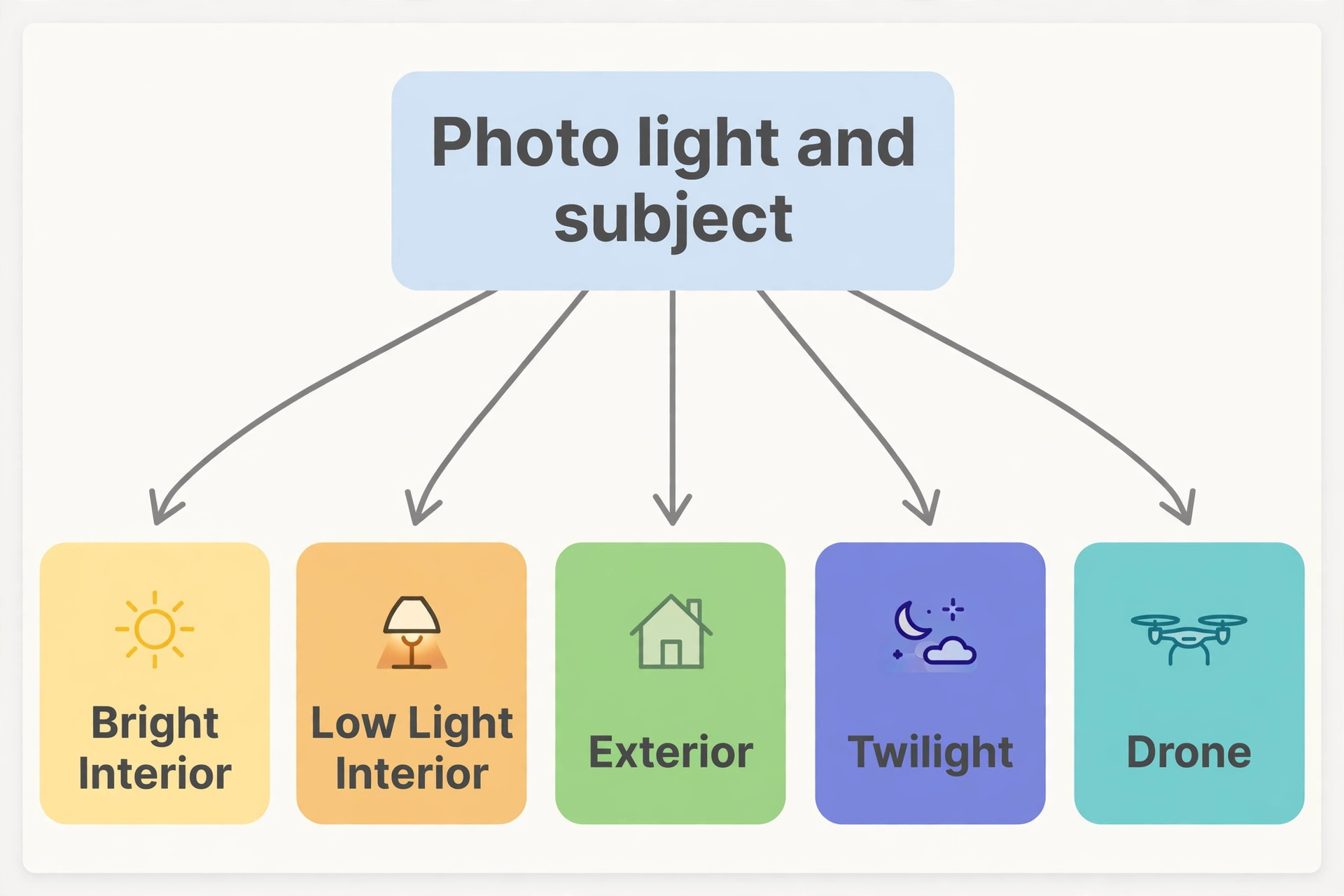
A good preset set is small. Most property photographers need four base presets, not forty, each named for the situation it serves rather than for a mood. Start with a bright interior preset for sunlit living spaces and kitchens, a low light interior preset for basements and hallways, an exterior preset for daylight facades and gardens, and a twilight preset for dusk hero shots. A fifth preset for drone aerials helps if you fly regularly, because aerial light and colour behave differently from ground level shots. When you use Lightroom for real estate photo editing with a set this small, you learn each preset behaviour quickly, and you stop hunting through folders for a look you half remember.
Build the base preset from a representative image, not from your favourite image. Choose a living room shot with mixed light, white walls, wood floors, and a window, because that frame tests every decision the preset will make. Edit it through the seven passes, then save the preset with tone, white balance, presence, lens correction, and transform settings included only if your lens and shooting style stay constant. Leave sharpening and noise reduction out of the base preset, because those values depend on ISO and camera, and baking them in forces you to fight the preset on every high ISO frame.
Test the preset on at least three properties before you trust it, including one dark property and one with strong colour on the walls.
Room by Room Adjustments That Keep Photos Honest
Kitchens reward restraint. Stainless steel, white cabinets, and stone worktops give you neutral references, so set white balance from a cabinet door or worktop and keep the preset gentle on saturation, because oversaturated wood grain makes a kitchen look staged rather than clean. Watch reflections in appliances and glass cabinet doors, and remove only the photographer reflection or a stray cable, not the signs of a working kitchen. Brighten under cabinet shadows with a local mask rather than lifting the whole image, so the worktop stays bright without washing out the window behind the sink.
Living rooms are the gallery anchor, and they are where consistency matters most, because buyers compare the living shot against every other room. Keep the brightness and white balance close to the hallway and dining shots that sit beside it in the gallery, even if the living room could carry a brighter grade on its own. A living room that jumps a full stop brighter than its neighbours reads as a different property. Pay attention to the window view, since that is often the selling point, and recover it with a local mask rather than darkening the whole room. If the view is a blank wall or a car park, do not fake a better one.
A bright, honest room sells better than a manipulated view that collapses trust at the viewing.
Bedrooms and bathrooms need a softer hand than kitchens, and the common error is to chase the same brightness in a small windowless bathroom as in a sunlit living room. A bathroom pushed too bright loses tile texture, turns mirrors into white blocks, and makes grout lines glow in a way that looks wrong even to a non photographer. Instead, aim for clean and bright relative to the room, not absolute brightness matched to another room. In bedrooms, keep bedding whites neutral and wood tones warm but not orange, and check that the preset has not turned a cream wall pink or a grey carpet blue. Those shifts are small on one image and obvious across a set.
The Before and After Checklist You Run on Every Gallery
A preset workflow without a final check is only half a system, because the same speed that makes batch editing efficient also lets a single bad sync slip through a whole room. This checklist is the overview proof element of the workflow, and it works best as a literal pass through the finished gallery, image by image, before export. Run it in the same order every time, and do not skip it on a rush job, because rush jobs are where the checklist earns its keep. When you use Lightroom for real estate photo editing at volume, this checklist is what separates a fast editor from a careless one.

Start with the set as a whole. Scroll through the gallery at small size and look for the outlier, the one image that is brighter, warmer, or darker than its neighbours. Then check white balance on a neutral surface in each room, and confirm that whites read white, not yellow, pink, or blue. Next, check verticals on every exterior and every room with visible door frames or cabinets, because a leaning line that slipped past the Transform pass will not fix itself at export. Then check windows, one by one, and ask whether the view is held where it matters and whether the window area looks like glass rather than a white panel pasted into the wall.

After windows, check shadows for blocked up corners and highlights for clipped worktops or skies, using clipping warnings as a guide rather than a verdict, since a small clipped lamp highlight is fine while a clipped window view is not.
| Check | What passes | What fails |
|---|---|---|
| Set consistency | No single image jumps in brightness or colour | One room looks like a different property |
| White balance | Whites read neutral on a second surface | Yellow, pink, or blue cast on walls |
| Verticals | Door frames and house edges stand straight | Leaning walls or cabinets |
| Windows | View held where it matters, glass looks real | White panel with no detail |
| Tone | Shadows open, highlights held, blacks grounded | Blocked corners or clipped worktops |
| Honesty | Only distractions removed, nothing structural hidden | Stain, crack, or view altered |
| Delivery | Count, heroes, and file names match the brief | Missing hero or confusing names |
Export is where many good edits lose quality, because the wrong size or format undoes careful work. For listing portals and agent websites, export JPEG files in the sRGB colour space, because portals and browsers expect sRGB, and a wider colour space exported without conversion can look dull or shifted online. Use a high quality setting, usually in the 80 to 90 range on the Lightroom quality scale, and a long edge of around 3000 pixels for portal delivery, which gives portals room to display sharply without forcing a huge download on a buyer phone.
If an agent specifies a size, follow their brief over this guide, because their portal or print supplier may resize anyway, and a file that matches their system needs no second conversion.
For print, such as a brochure or a window card, export a separate set at full resolution in the same sRGB space unless the printer asks for a different profile, and keep the file names distinct so print and web sets never mix. Print files are larger and slower to send, so deliver them in a separate folder, and confirm the printer colour expectations before sending, because a brochure printed from a web sized file will look soft no matter how good the edit was.
For social media, export a second set cropped to the platform shape you actually need, such as a vertical crop for stories and a horizontal crop for a feed post, rather than letting the platform crop the listing image automatically. Automatic crops cut doorways and furniture in ways that change the room, while a deliberate crop keeps the selling feature in frame. When you use Lightroom for real estate photo editing for portal, print, and social together, keep three export presets saved, one per destination, so no set is ever exported with the wrong size by accident.
How to Choose Between Lightroom and Lightroom Classic
Lightroom and Lightroom Classic share a name and a Develop engine, but they organise work differently, and the choice affects how a property workflow scales. Lightroom Classic is desktop centred, with local folders, catalogs, and the fullest set of tools for batch work, presets, and print. Lightroom, the cloud centred version, syncs originals and edits across desktop, mobile, and web, which suits a photographer who culls on a tablet at the property and finishes on a desktop later. For a high volume listing workflow run mainly from one desk, Classic is usually the stronger choice, because its catalog and folder control match the way property sets are organised by address and date.
Mistakes That Make Listings Look Edited Instead of Bright
The most common mistake is over brightening. A room pushed until every shadow is gone and every wall is paper white stops looking bright and starts looking flat, because the eye needs some shadow to read depth, furniture shape, and room size. Brightness should come from balanced exposure, recovered highlights, and opened shadows together, not from the exposure slider alone. If a room needs more than a stop of brightening from the camera exposure, the fix is usually better shooting, such as a bracketed set or a different time of day, rather than a harder edit. A gallery that is consistently bright and grounded beats a gallery where every room glows.
The second mistake is oversaturation, especially on grass, sky, wood, and skin. Property buyers are not looking for a travel poster, and colour that pops on a phone screen at first glance often looks wrong on a second look, particularly when wood turns orange and lawns turn neon. Keep saturation modest, use the vibrance control with care, and check wood and grass separately, because a global saturation lift hits those surfaces hardest. The third mistake is heavy clarity and sharpening, which makes walls gritty, fabrics harsh, and noise visible in evening shots. Clarity should be felt, not seen, and if you can name the slider that changed a wall, it is probably too strong.
What a Repeatable Workflow Costs in Time and Money
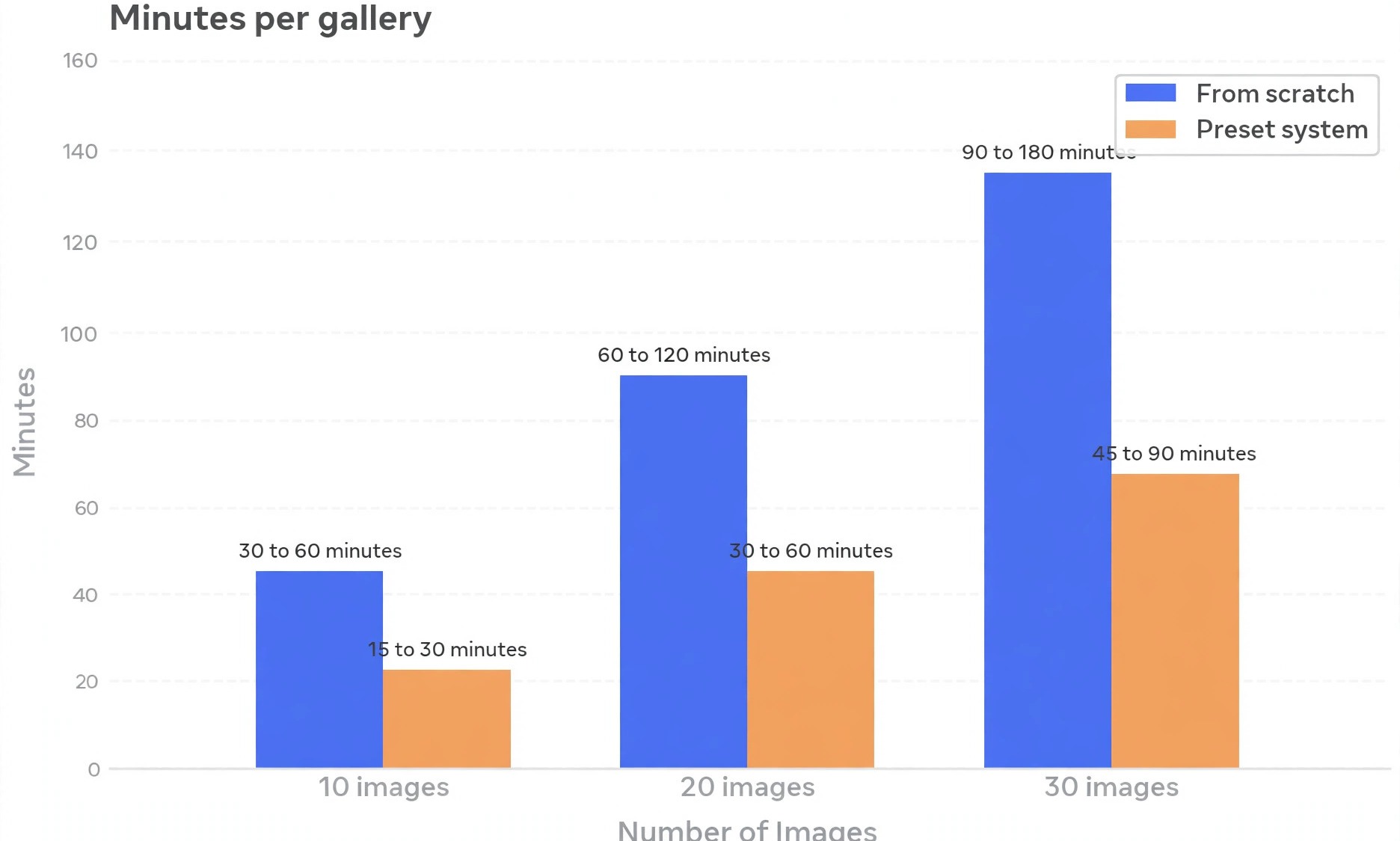
Time is the real cost in property editing, and a preset workflow should be judged on minutes per gallery, not on how fast a single hero image can be finished. A workable pace for a finished listing image, once the preset set is built and the room sync is running, sits around 90 seconds to three minutes per image for standard angles, with hero images taking longer for window masks and careful tone work. On that pace, a 30 image gallery takes roughly 45 to 90 minutes of editing time, plus culling, export, and delivery.
A photographer editing from scratch without presets often takes twice that, and the extra time does not buy better images, because it goes on repeated decisions rather than on the hero frames that actually sell the viewing. When you use Lightroom for real estate photo editing at this pace across a month of listings, the saved hours become the clearest return on building the preset set.
For photographers building a wider client base, this site guide to best AI tools for real estate agents covers the tools agents use around listings, while best AI tools for photographers looks at the broader photography toolkit and best AI photo enhancers compares enhancement options that some photographers pair with a manual Lightroom pass. If your work touches floor plans or property management, best AI floor plan generators and best AI tools for property managers are useful companion reads, and for product style interior shots, best AI tools for ecommerce product photos covers a related but different lighting problem.
Frequently Asked Questions
Should I edit real estate photos in Lightroom Classic or the cloud version of Lightroom?
Use Lightroom Classic if your work is mainly desk based, high volume, and organised by local folders and catalogs, because its batch tools and preset handling fit property sets well. Use the cloud version if you need to cull and review across phone, tablet, and desktop, or show an agent a near finished gallery away from your desk. Either version runs the same seven pass workflow, so choose the organisation you will still understand after a busy week, and keep one version as the master catalog.
How many presets do I need for property photography?
Four base presets cover most work, one for bright interiors, one for low light interiors, one for daylight exteriors, and one for twilight. Add a fifth for drone aerials only if you fly regularly. A smaller set is easier to learn, easier to test across properties, and easier to hand to a second editor, while a large pack often hides the few presets you actually use among many you never touch.
Do presets replace manual editing for listings?
No, presets replace repeated starting decisions, not judgment. You still correct geometry and lens faults first, set white balance and exposure for the room, sync the preset across the room set, and then make per image fixes for windows, lamps, and tone. A preset applied without those steps will look inconsistent across a gallery, especially in mixed lighting, and agents notice that inconsistency faster than they notice any single dramatic edit.
How do I fix blown out windows without darkening the whole room?
Use a local mask on the window area alone, such as a linear gradient or a sky selection where the window dominates, and pull exposure and highlights down inside that mask while leaving the interior untouched. For the hardest rooms, blend bracketed exposures first, so the merged file already holds window detail before you apply the preset. Avoid darkening the whole image to save a window, because the room then looks gloomy and the window fix still looks pasted in.
What export settings work best for listing portals?
Export JPEG files in sRGB at a high quality setting, usually in the 80 to 90 range, with a long edge of around 3000 pixels for portal delivery, unless the agent brief specifies a different size. Export print and social sets separately, with print at full resolution and social cropped deliberately to the platform shape, rather than letting a platform crop the listing image automatically. Keep file names consistent across properties so agents can find images without opening every file.
Is it acceptable to remove objects from listing photos?
Remove only temporary distractions, such as a photographer reflection, a cable, or a dust spot. Do not remove structural faults, stains, dated fixtures, neighbouring buildings, or anything else a buyer would find on arrival, and do not replace a view with a better one. Honest editing protects the agent relationship and the viewing, while manipulated editing creates a trust problem that no gallery can repair.
A Gallery an Agent Can Post the Same Day
A repeatable preset workflow does not make property photography effortless, and any guide that promises that is selling a pack, not a practice. What it does is move your effort to the places where it changes a sale, the hero living shot, the window view, the straight verticals, and the honest brightness that holds up on a phone and at a viewing. The rest of the gallery, the standard angles that fill out a listing, should be consistent, clean, and fast, because those images do their work by not distracting from the heroes. That balance, heroes given time and standard angles given system, is what agents remember when they book the next shoot.
Start with one property and the seven passes in order, even if the first run feels slower than your old habit. Build the four base presets from that shoot, test them on two more properties, and write the before and after checklist into a single page you keep beside your desk. When you use Lightroom for real estate photo editing this way, the third gallery will already feel different, because the decisions you used to remake every time will be settled, and the time you save will show up where it matters, in better hero images and faster delivery.
An agent who receives a consistent gallery on the same day, with heroes flagged and files named clearly, does not need to be told about your workflow. The gallery itself makes the case, and that is the quiet advantage a preset system gives you over every photographer still guessing slider by slider.