
Amazon claims up to 12 weeks of reading battery life on a single charge, and up to three weeks when you write regularly. That gap is the first honest clue about what this device is for. It is built to be read and written on for long stretches without a charger hunt, and it is not built to replace a laptop. If you want to use Kindle Scribe for study notes, the device itself is only half the system. The other half is a repeatable routine for capturing ideas while you read, turning handwriting into material you can search, and getting notes out of the device before an exam makes them urgent.
This guide gives you that routine. It covers which Scribe to buy and what it costs, how to set up notebooks by subject, how to annotate books and PDFs without turning every page into a yellow blur, how to convert handwriting into searchable text, and exactly what survives export and what does not. It also covers the mistakes that leave students with hundreds of pages of notes they never revisit. Prices change often and discounts are frequent, so check the checkout page before you pay for any model mentioned here.
Start With the Right Model and Setup
The Kindle Scribe line has changed enough across generations that buying on price alone can leave you with the wrong pen or the wrong screen. The 2022 original used a 10.2 inch, 300 pixels per inch display, and came with either a Basic Pen or a Premium Pen. The 2024 redesign kept the 10.2 inch display, improved the writing feel, and shipped with the Premium Pen as standard. Its list prices at launch were about 399.99 dollars for 16GB, 419.99 dollars for 32GB, and 449.99 dollars for 64GB. The newer 11 inch model announced in late 2025 starts at about 499.99 dollars for 32GB, with a 64GB version at about 549.99 dollars.
Older models are often discounted well below list, and refurbished units can cost far less again, so the cheapest sensible buy is often a discounted 2024 model rather than the newest one at full price.
For study notes, the Premium Pen matters more than extra storage. It adds a shortcut button and an eraser end, and both save real time when you annotate for an hour at a time. The Basic Pen works, but flipping to an on screen eraser every time you fix a word gets old fast. Storage matters less than most buyers expect. Textbooks and notebooks are small files compared with video, and 16GB holds thousands of books. Choose 32GB only if you carry large scanned PDFs, image heavy lecture slide packs, or several years of notebooks you never archive. There is no memory card slot, so buy the storage you need at the start rather than planning to expand later.
Set the device up for study before the first lecture week, not during it. Connect Wi-Fi, sign in, and turn on sync so Kindle book notes back up to your Amazon account. Send one test document through Send to Kindle, open it, write on it, and export it. That ten minute test teaches you more than any review, because it shows you which of your file types annotate cleanly and which ones fight back. Keep spare pen tips with the pen, since a worn tip writes worse and students often blame the screen when the tip is the problem.
One more setup choice pays off all term. Decide where finished notes live outside the Scribe on day one. Pick one folder per subject in a cloud drive or a notes app, and use the same folder names as your Scribe notebooks. Export then becomes filing, not archaeology. Students who skip this step end up with a device full of notebooks named Notebook 1 through Notebook 47, and no way to find the revision notes for a specific exam.

Build Your Notebook System Before the Term Starts
A notebook system is a set of decisions you make once so you do not remake them under deadline pressure. That is the practical starting point when you use Kindle Scribe for study notes across a full term. Start with one notebook per subject, not one notebook per lecture. A single notebook per subject keeps related ideas together and makes end of term review possible without opening twenty files. Inside each subject notebook, use the first page as an index. Write the subject name, the exam date, the main textbook, and a short list of topics in the order they appear in the syllabus.
Update that index page as topics are added, and it becomes a map of the whole course by revision week.
Use templates with intent. Lined pages suit lecture notes and summaries. Grid pages suit diagrams, equations, and tables. Blank pages suit mind maps and freeform problem working. The to do style template suits weekly task lists and assignment checklists. Do not mix templates at random inside one notebook, because a mixed notebook is harder to skim later. A simple rule works well. Use lined pages for reading notes, grid pages for worked problems, and blank pages for maps and diagrams. When you flip back through the notebook, the page type itself tells you what kind of material you are looking at.
Naming matters more than decoration. Name every notebook with the subject code, the subject name, and the term, in that order. A name like BIO101 Cell Biology Autumn reads clearly on a small screen and sorts well in a list. Name every exported file the same way, plus the date and a short topic label. When you search a drive folder in December for cell division notes, a clear file name beats a clever one every time. Avoid splitting one subject across a notebook, a set of loose book notes, and a pile of PDFs with no labels. One subject, one notebook, one export folder is the rule that keeps the system honest.
Keep a separate notebook for questions. Every time a lecture or a chapter leaves you unsure, write the question in that notebook with the date and the source page. Questions are the most valuable notes a student owns, because they point directly at gaps in understanding. Review the questions notebook once a week, answer what you can, and carry the unanswered ones into tutorials and office hours. Students who only record answers end up revising what they already know. Students who record questions revise what they do not.
Annotate Like a Student, Not a Highlighter Collector
Highlighting feels productive and often is not. A page covered in highlights gives you nothing to review except the same page again, and it hides the sentences that actually matter. A better rule is to highlight only what you could not reconstruct from memory a week later. That usually means definitions, formulas, dates, causal claims, and conclusions, not introductions, examples you already understand, or every sentence that sounds important. If more than a quarter of a page is highlighted, the highlight has stopped being a signal and has become wallpaper.
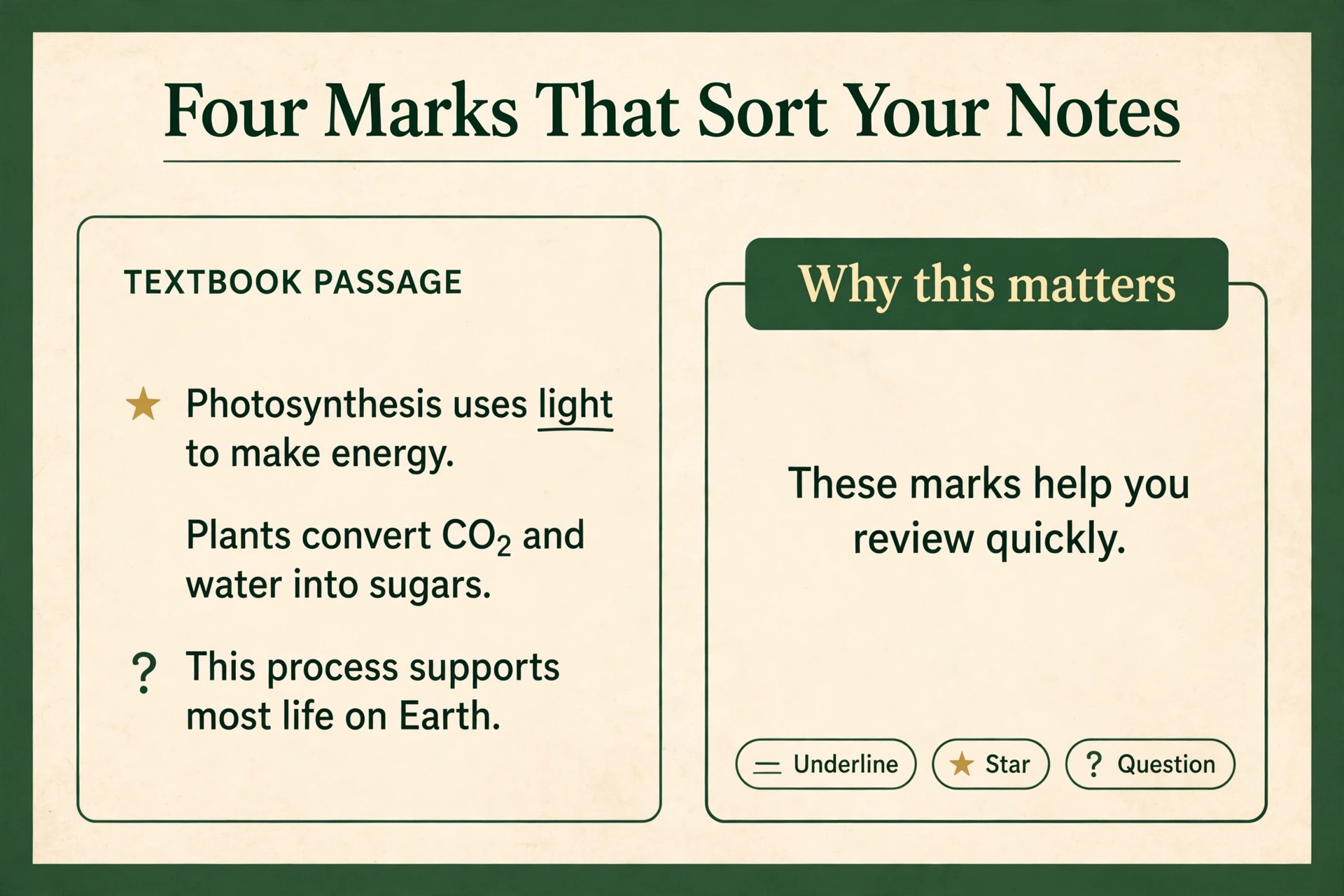
Use a small set of marks and use them the same way every time. One useful system uses four marks only. Underline a definition or a formula. Put a star beside an idea that is likely to be examined. Put a question mark beside anything you do not yet understand. Draw a box around a conclusion or a result. Four marks are enough to sort notes later, and few enough to remember under time pressure. Write a short margin note beside each star, in your own words, that says why the point matters. A star with no reason attached is just decoration. A star plus a one line reason is a revision prompt.
Books and PDFs annotate differently on the Scribe, and knowing the difference saves frustration. In Kindle books and reflowable documents, Active Canvas lets handwritten notes sit in the text flow, pushing surrounding text aside so the note stays readable and attached to its passage. That works well when you change font size, because the note moves with the text instead of floating over the wrong paragraph. In PDFs, you write directly on the page, which feels more like paper and suits diagrams and scanned lecture slides. The trade off is that a PDF note is fixed to a page position, so a heavily marked PDF page can get crowded fast.
For dense journal articles, read the PDF once without marking, then annotate on a second pass with the four mark system. The first pass tells you what matters. The second pass marks only that.
Sticky notes deserve a specific job. Use them for thoughts that are longer than a margin scribble, such as a counterargument, a connection to another chapter, or a worked example that does not fit in the margin. Do not copy sentences into sticky notes. Write a summary instead. When you use Kindle Scribe for study notes in a book, keep book notes short and put the longer thinking in your subject notebook, where it sits beside notes from lectures and problem sets.
How to Use Kindle Scribe for Study Notes in a Weekly Routine
A weekly routine is what turns annotation into learning. Reading without review is entertainment, and notes without review are storage. The routine below takes about two hours across a week for a typical subject load, and it scales up or down by subject count. It is built around four stages, and each stage has a clear output. If a stage has no output, it did not happen, no matter how long you spent on the device.

Stage one is capture, and it happens while you read or attend a lecture. Highlight with the four mark system, add margin notes in your own words, and drop longer thoughts into your subject notebook. Do not stop to perfect handwriting or redraw diagrams during capture. Capture is about getting ideas down while they are fresh. A messy note captured today beats a beautiful note you planned to write tomorrow and never did.
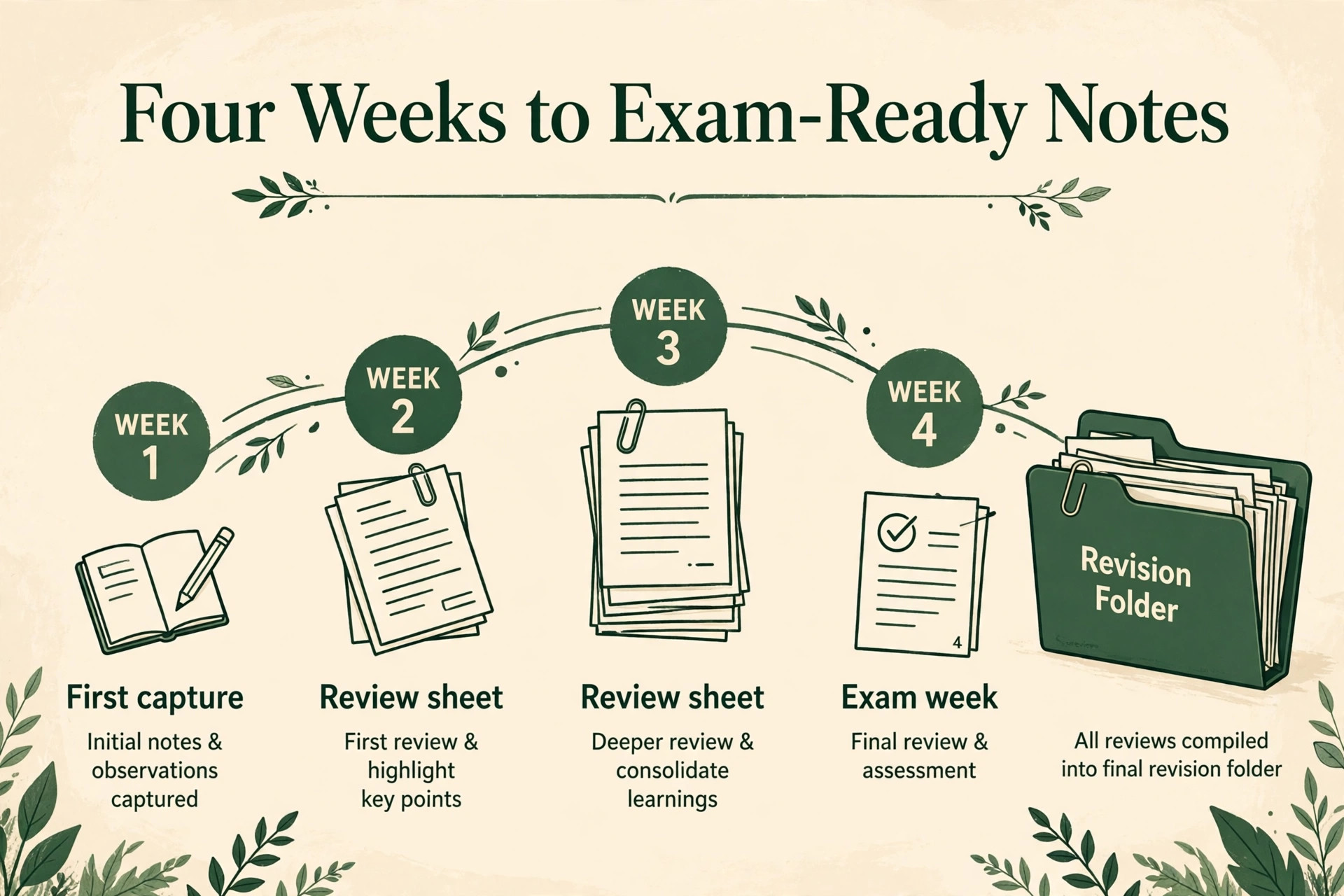
Stage two is same day cleanup, and it takes fifteen minutes per subject at most. Open the notes you captured, fix unreadable words, expand abbreviations you will not remember next week, and add a one line summary at the top of each notebook section. Move any unanswered question into your questions notebook. Same day cleanup is the highest return habit in this whole guide, because it converts raw capture into notes you can actually read later. Notes that sit uncleaned for a month are often unreadable even to the person who wrote them.
Stage three is the weekly review, and it is the heart of the system. Once a week, open each subject notebook and your book notes, and turn them into a short review sheet. A review sheet is one or two pages that list the key definitions, the core arguments, the formulas, and the questions you still cannot answer. Write it by hand on the Scribe, from memory first, then check it against your notes and correct it in a different pen thickness or with a mark beside each correction. The corrections are the most important part, because they show you exactly what you did not know.
File the review sheet at the front of the subject notebook, so it is the first thing you see next week.
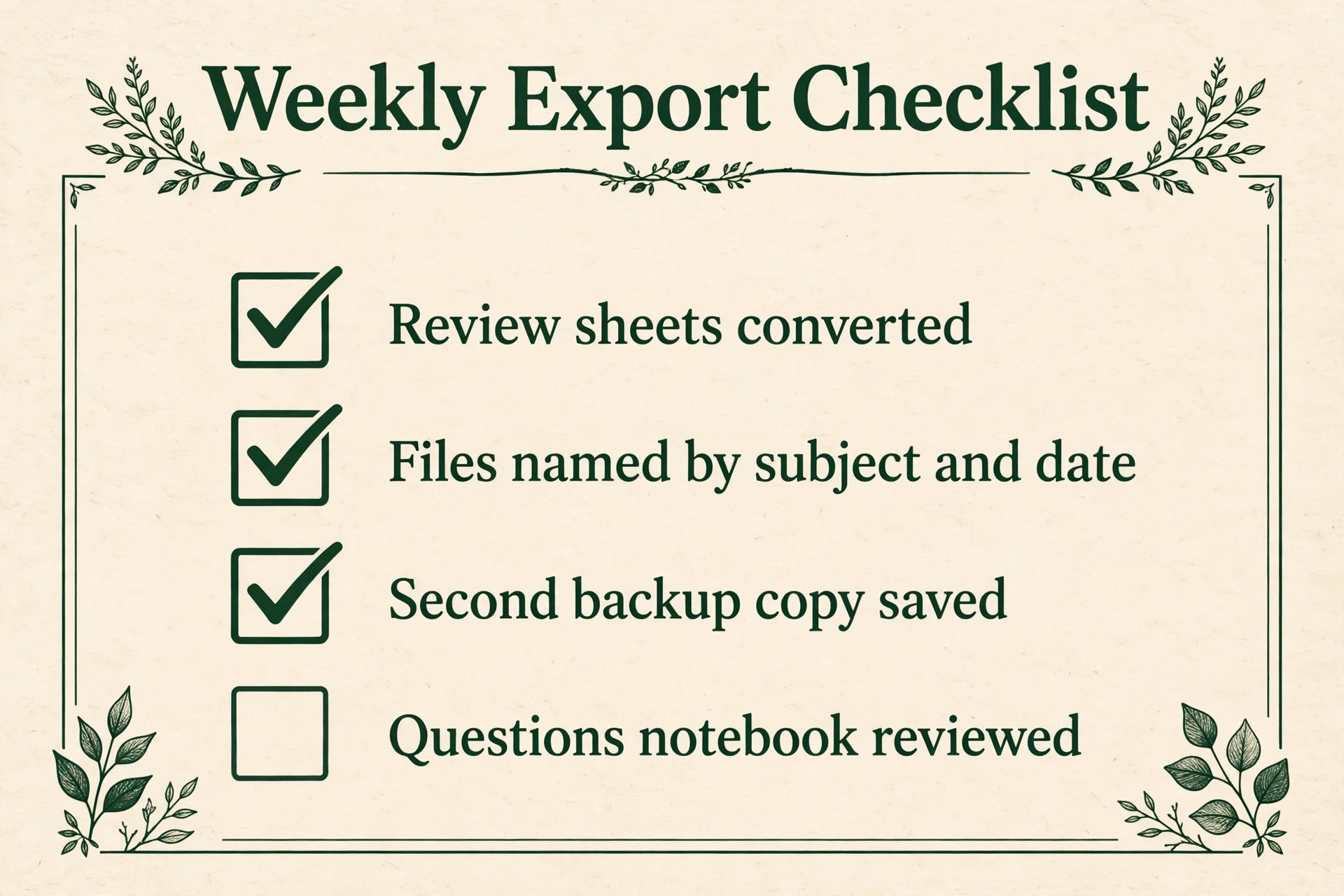
Stage four is export and filing, and it happens at the end of the week, not the night before an exam. Export the review sheets and any cleaned notebook pages you need, convert handwriting where it helps, and file the exports in your subject folders with clear names. Exporting weekly keeps each batch small, and small batches are easy to check for errors. Exporting a whole term at once is where students discover that half their notes exported as unreadable images or that a file never synced. Weekly export also gives you a backup habit that protects against a lost, broken, or replaced device.
Turn Handwriting Into Searchable Review Material
Handwritten notes have one great strength and one great weakness. They are easy to write and hard to search. The Scribe closes part of that gap with tools that convert handwriting to typed text, summarise a notebook, and tidy messy writing. These tools are useful, but they work best when you understand what they do to your notes. Conversion is not magic, and a converted page is a new version of your notes, not a perfect copy.
Refine Writing is the main conversion tool. It takes a handwritten notebook page or a whole notebook and produces a typed version, while keeping the original handwritten page intact. That safety net matters. Never delete the handwritten original until you have read the converted version and checked it for errors. Conversion handles full sentences and standard grammar best, and it struggles with diagrams, equations, lists with deep nesting, and shorthand. A page of prose usually converts well. A page of maths working, chemical structures, or a mind map usually does not, and forcing conversion on those pages creates a tidy looking page that says the wrong thing.
Use conversion selectively. Convert summaries, definitions, essay plans, and review sheets, where searchable text helps you find material later. Leave worked problems, diagrams, and sketches as handwriting, and give those pages clear titles and index entries so you can find them without search. After conversion, read the typed page once and fix errors on the spot. A converted page with uncorrected errors is worse than no conversion, because you will trust it during revision and repeat the error in an exam.
Summaries need the same caution when you use Kindle Scribe for study notes for exam revision. An AI generated summary of a notebook can be a good starting point for a review sheet, but it is not a substitute for writing the review sheet yourself. The act of deciding what matters is where learning happens. If a tool decides for you, you skip that act. Use a generated summary as a checklist, compare it with your own memory based review sheet, and add anything it missed. That comparison often surfaces a topic you had forgotten entirely, which is exactly what revision is for.
Search deserves a realistic expectation. Converted text is searchable across notebooks, which is a genuine advantage over paper. Unconverted handwriting is not reliably searchable in the same way, so a notebook that was never converted is only findable through its index page and file names. That is why the index page and the naming rule from earlier matter so much. They are your search system for everything that stays handwritten. Do not expect every scribble to become searchable text. Expect converted notes to become searchable, and the rest to be findable through good organisation.
Export Your Notes Without Losing Them
Export is where Scribe study workflows most often break, and the break usually happens at the worst moment, the night before an exam. The device offers several export routes, and each one preserves something different. If you use Kindle Scribe for study notes, knowing the difference before you need it is the difference between a clean revision folder and a folder full of files you cannot use.
Notebook pages can be shared by email as PDF or as an image, and notebooks can be converted to text where conversion is supported. Book highlights and notes can be shared as a text summary by email, which is handy for building a quote bank or a revision list. Annotated PDFs keep visible handwriting and highlights when opened in a standard PDF viewer, which makes them useful for sharing with a study group or submitting as marked work. What does not survive cleanly is just as important. Handwritten notes inside a book do not become editable comments in an exported file.
They stay inside the Kindle system unless you share them through the built in sharing route, and even then they arrive as text or image, not as live annotations you can edit in another app.
The export limits table below is the part of this guide to check before you build a workflow that depends on export. It reflects how the current Scribe software behaves for typical student files, and software updates do change details, so test your own most important file type before exam season.
| Export route | What you get | What is lost or limited |
|---|---|---|
| Notebook page by email | PDF or image of the handwritten page | Handwriting stays as ink, not editable text |
| Converted notebook by email | Typed text version of the page or notebook | Diagrams, equations and list structure often flatten |
| Book highlights and notes by email | Text summary of highlights plus notes | Page position and visual layout are gone |
| Annotated PDF shared out | PDF with visible handwriting and highlights | Handwriting cannot be edited or moved afterwards |
| Sideloaded PDF marked on device | PDF with your marks visible in a viewer | Marks are fixed to the page, not live comments |
| Notebook to a cloud notes app | Pages as files you can store and search by name | Native Scribe organisation and links do not carry over |
Read that table as a workflow rule. If you need editable text later, convert before you export, and check the converted file. If you need to share marked work with a tutor, export the annotated PDF and check it on a computer first, because what looks clear on an e ink screen can look small or crowded on a laptop. If you need a quote bank, share book notes as text and paste them into your subject folder with source page numbers added by hand, since exported text alone rarely carries enough context to cite safely.
Back up on a schedule, not on a feeling. Export weekly, as the routine above sets out, and keep two copies of anything exam critical, one in your cloud folder and one in a separate location such as a USB drive or a second cloud account. Kindle book notes sync to your Amazon account, but your own documents and PDFs with handwritten notes need manual export to be safe long term. A student who discovers this during a device replacement has already lost the notes. A student who exports weekly never has to think about it.
How to Choose Between Scribe and the Alternatives
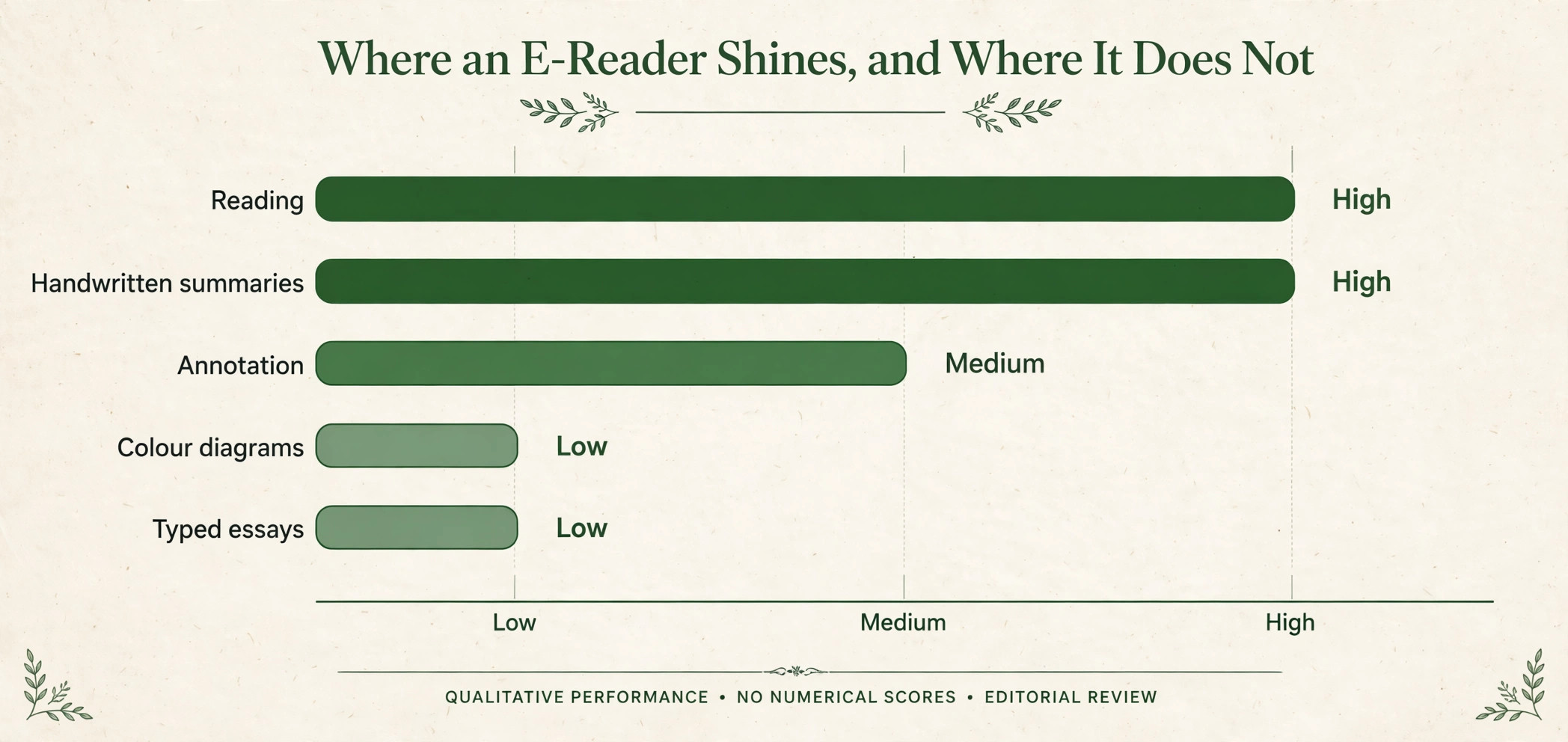
The Scribe is a strong study device for a specific kind of student, and a poor buy for others. Choose it if most of your study material is reading, if you already buy or borrow Kindle books, if you like writing by hand, and if you want a distraction free device that does not tempt you with social apps and video. It suits students who read long texts, annotate journal articles, and keep handwritten summaries, and who already have a laptop or tablet for everything else. It does not suit students who need to run apps, watch lectures, type long essays, or collaborate live in shared documents on the same device.
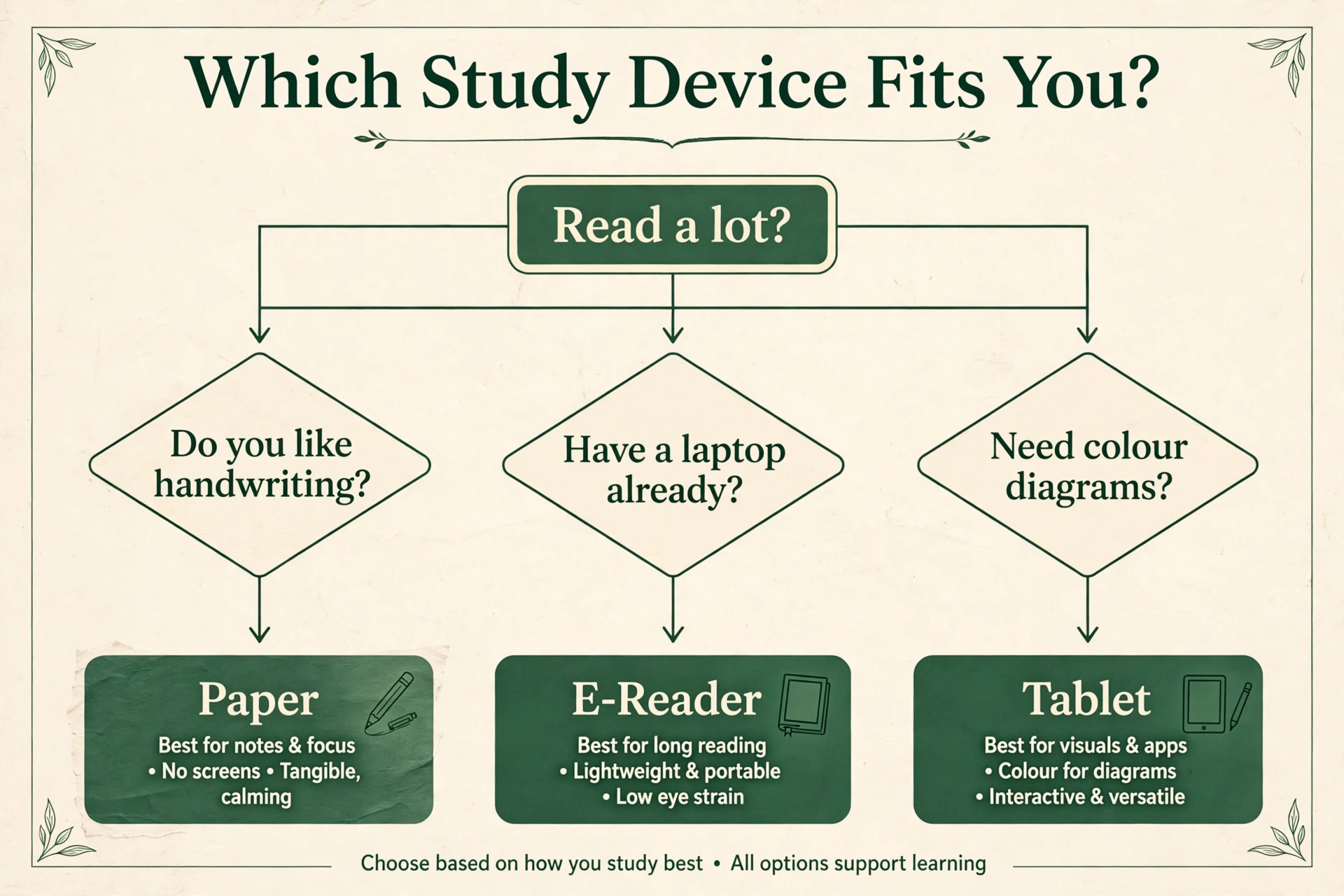
Compare it honestly with the alternatives before spending several hundred dollars. A tablet with a stylus runs full apps and handles colour diagrams, but it also brings notifications and daily charging. A dedicated e ink notebook from a rival brand may offer better handwriting search, folder tools, or PDF handling, but it usually lacks the Kindle bookstore and the reading experience that make the Scribe pleasant for long books. Paper notebooks cost almost nothing and never need charging, but they cannot be backed up, searched, or exported at all. The right choice depends on which weakness you can live with, not on which device has the longest feature list.
When you use Kindle Scribe for study notes alongside a laptop, the division of labour should be clear. The Scribe owns reading, annotation, handwritten summaries, and review. The laptop owns typing essays, building slides, running reference software, and collaborating. Trying to force the Scribe to do laptop work, or the laptop to do focused reading work, wastes the strength of both. Students who are happiest with a Scribe are usually those who already have a laptop and want a second, quieter device for the reading and thinking part of study.
Price the whole system, not just the device, including a case and spare tips. A Scribe used daily is good value at full price. A Scribe used twice a month is an expensive bookmark, so buy it for a reading habit you already have.
Mistakes That Waste a Term of Notes
The first mistake is highlighting everything. A book with every line highlighted has no highlights, and revision becomes rereading the whole book. Highlight less, write more in your own words, and let the margin note carry the meaning. The second mistake is keeping notes only on the device. A device can be lost, broken, or replaced, and unexported notes go with it. Export weekly, file by subject, and keep a second copy of exam critical material.
The third mistake is never converting or reviewing anything. Notes that are written and never revisited are not study notes, they are a diary of reading. The weekly review sheet is the fix, because it forces you to recall, check, and correct. The fourth mistake is building a system with too many notebooks, too many mark types, and too many apps. Complexity feels organised, but it collapses under deadline pressure. One notebook per subject, four marks, one export folder per subject is enough for most courses.
The fifth mistake is annotating PDFs and scanned slides as if they were clean text. Scanned pages without a text layer cannot be searched, highlights may not anchor properly, and handwriting can drift from the passage it refers to. Check a scanned PDF on the first page before annotating the whole file. If search does not work and text cannot be selected, consider getting a cleaner copy from the library or the course site before investing hours in marks that will be hard to use later. The sixth mistake is trusting converted text without reading it. Conversion errors in a definition or a formula will be revised as truth if nobody checks them.
Read every converted page once, fix it, and only then file it as revision material.
The seventh mistake is studying only from the Scribe. Some material needs colour, video, or timed practice that e ink handles poorly, so keep a laptop or tablet alongside it for those tasks.
For students building a wider study setup, related reading includes AI tools for students for study apps that pair with a reading device, best note taking apps for comparing digital note systems, how to use AI to prepare for an exam for revision planning, and NotebookLM complete guide for turning exported notes into searchable study material.
Frequently Asked Questions
Can I write directly in Kindle books on the Scribe?
Yes, on current software you can write in reflowable Kindle books and documents, with notes sitting in the text flow so they move with the passage they refer to. In PDFs you write directly on the page instead. Check your software version and test one book before annotating a whole course text, because older behaviour and older file routes handled notes differently.
Does the Kindle Scribe convert handwriting to text?
Yes, the Refine Writing tool converts handwritten notebook pages, either one page at a time or a whole notebook, into typed text while keeping the original handwriting intact. It works best on full sentences and standard prose, and it struggles with diagrams, equations, and complex list structures, so read and correct every converted page before you rely on it for revision.
Can I export my Scribe notes to another app?
You can share notebook pages by email as PDF or image, and share converted text where conversion is supported, then file those exports in a cloud drive or notes app. What does not carry over cleanly is native Scribe organisation, live annotation editing in exported PDFs, and handwritten notes as editable comments. That is the core limit to plan around when you use Kindle Scribe for study notes for a full course. Plan your filing around exported files, not around live Scribe features.
Is the Kindle Scribe good for PDFs and lecture slides?
It is good for reading and marking PDFs, especially text based PDFs with a proper text layer, and the large screen suits slides and journal articles far better than a small e reader. Scanned PDFs without a text layer are harder to search and annotate reliably, so get a clean copy where possible, and test search and selection on page one before marking a long file.
Which Kindle Scribe should a student buy?
A discounted 2024 model with the Premium Pen is the best value for most students, since it has the improved writing feel, the eraser end, and enough storage for thousands of books. Choose the newer 11 inch model only if you want the larger screen and the newest software at full price, and choose 32GB or more only if you carry large scanned PDFs or several years of notebooks without archiving.
Do I need a subscription to use Kindle Scribe notes?
No subscription is required for core reading, writing, annotation, and notebook features. You pay for the device and for any books you buy, and notebook tools such as conversion and summarising are part of the device software. Some optional services, such as Kindle Unlimited or a cloud storage plan for your exported files, are separate and optional, so do not confuse them with a requirement to use the pen.
Keep the Scribe Only If It Earns Its Desk Space
A study device earns its place by making review easier, not by making capture prettier. Give the Scribe a four week trial with the routine in this guide. Set up one notebook per subject, annotate with four marks, clean up the same day, write a weekly review sheet from memory, and export every week. At the end of four weeks, open your export folders and ask a blunt question. Could you revise for an exam from those folders alone, without reopening every book? If the answer is yes, the system works and the device has earned its desk space. If the answer is no, the problem is usually not the pen or the screen.
It is a missing review stage, an unexported notebook, or a highlight habit that never turned into summaries.
Students who succeed with this device treat notes as material to be revisited, not as proof of reading. They write less, review more, and file everything where future them can find it. Start with one subject this week, run the weekly routine for a month, and let the quality of your revision folders decide whether the Scribe stays.