

Video calls push a laptop harder than almost any other everyday task. A single call can run the camera, the microphone, live video encoding, live video decoding for every other person on screen, screen sharing, noise suppression, background blur and chat at the same time. Support forums for Zoom, Teams and Meet show the same pattern. Heat complaints cluster around calls, not around writing documents or browsing. That is why the first step to fix laptop overheating video calls is not to buy a cooling pad on impulse. It is to find out whether the heat comes from settings, from background apps, from blocked airflow or from hardware that can no longer keep up.
This guide gives you a cause elimination checklist you can work through in about 30 minutes, plus a settings table for the three apps most people actually use. You will learn what temperatures are normal, which settings cut the most heat for the least loss in call quality, how to test one change at a time, and when a hot laptop needs repair rather than another software tweak. Prices quoted here are ranges seen in public listings at draft time. Check the official product page and checkout before you buy, because prices and models change often.
Why Video Calls Heat a Laptop More Than Other Work
A video call is not one job. It is several jobs running at once, and each one adds heat. Your camera captures video. Your processor encodes that video so it can be sent. At the same time it decodes incoming video from other people, which is why a large gallery view with 20 faces can feel heavier than a one to one call. If you share your screen, the processor must capture and encode that too. Add background blur and the work grows again, because the app must separate you from the room behind you.
What Counts as Hot, and When to Worry
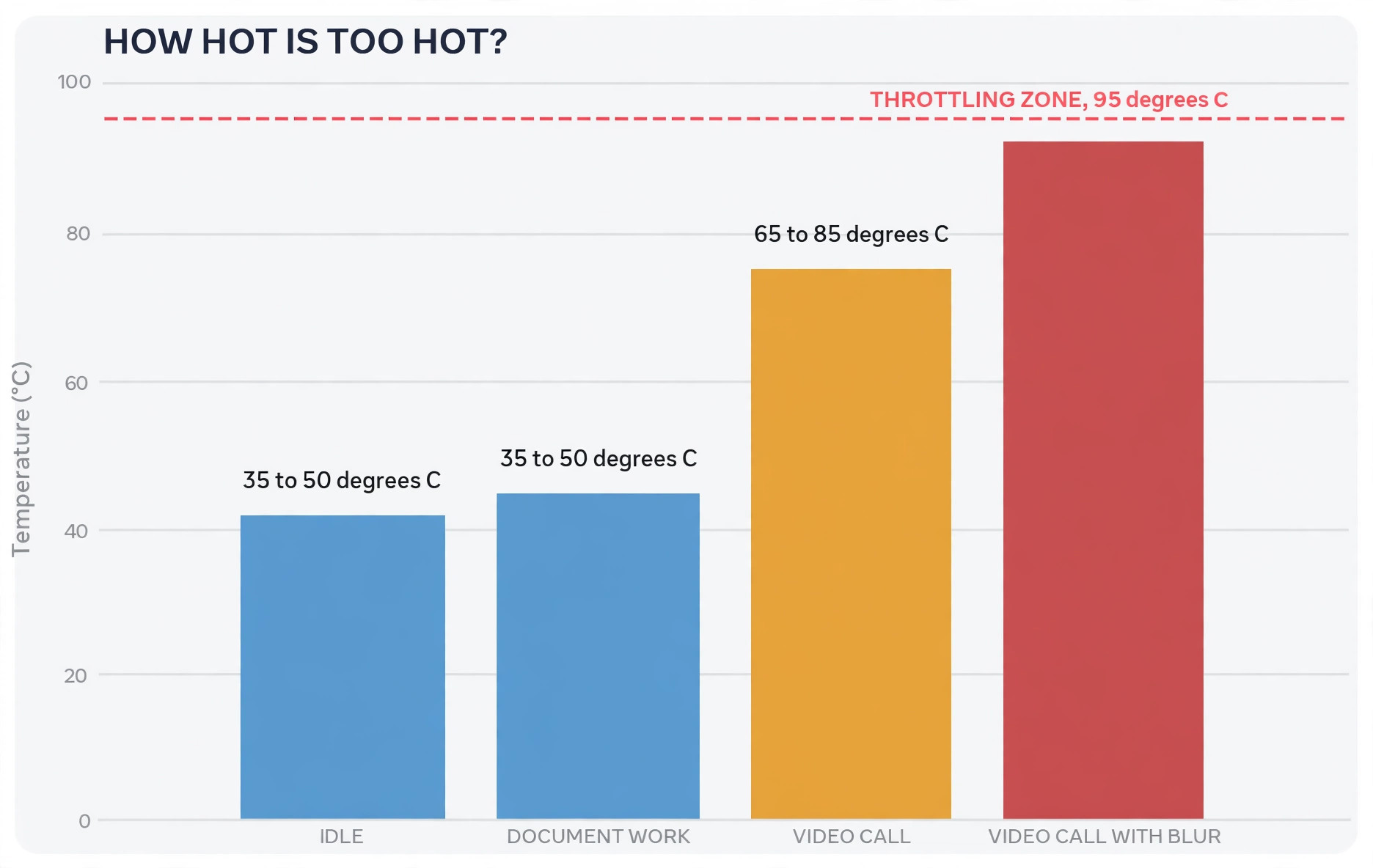
You do not need to panic at the first warm keyboard. Laptops are designed to run warm under load. The numbers below are practical guides for most modern Intel and AMD laptops, not a specification for your exact model. Check your processor maker page for the limit for your chip, because limits vary by model. Idle or light browsing usually sits between 35 and 50 degrees Celsius. A video call on a healthy laptop usually sits between 65 and 85 degrees Celsius. Short spikes to 90 degrees during screen sharing are common and are not, on their own, a sign of failure.
Sustained temperatures above 95 degrees, frequent fan noise at full speed, sudden slowdowns, frozen video, or a laptop that shuts down on its own are different. Those are signs that the cooling system cannot shed heat as fast as the call creates it.
Thermal throttling is the safety step in between. When a processor reaches its designed limit, often 100 degrees for many Intel laptop chips and around 95 degrees for many AMD laptop chips, it slows itself down to stop damage. You will notice this as stuttering video, lagging audio or a sluggish shared screen. If throttling happens on every call, the setup needs a fix, not just acceptance.
Battery swelling is the one symptom to treat as urgent. If the trackpad feels raised, the bottom case bulges or the lid does not close flat, stop using the laptop on mains power, back up files if you can do so safely, and take it to a repair shop. Do not try to press a swollen battery flat, and do not keep running long calls on it.
The Cause Elimination Checklist
Work through this checklist in order, and test with a real call after each group of changes. The point is to isolate the cause. If you change ten things at once, you will never know which one helped.
Start with a five minute test call and note three things. How hot does the underside feel after ten minutes. How loud is the fan. Does video stay smooth or does it stutter. Without a baseline, every later change feels like a guess.
Next, check the surface and the vents. Move the laptop to a hard, flat desk. Lift the rear edge by about two centimetres with a book or a stand, so air can flow underneath. If you can see dust, lint or a blocked grille, that is a likely contributor.
Then check what else is running. Open Task Manager on Windows or Activity Monitor on Mac before your next call, sort by processor use, and look for anything above 10 percent that is not your call app. Browsers with many tabs, cloud sync, photo backup and game launchers are frequent culprits. Close what you do not need for the call, and test again.
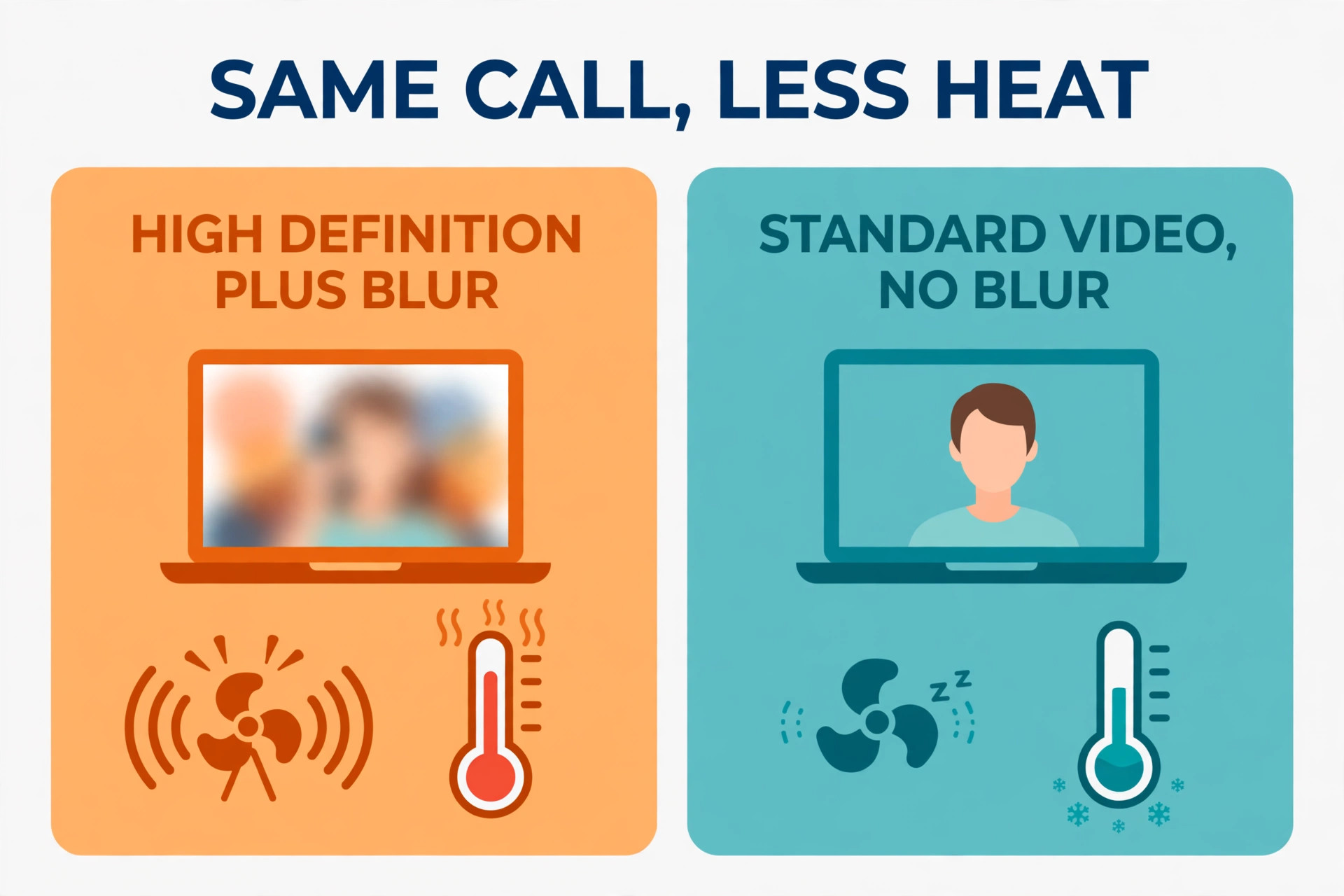
Then change the call settings, using the table later in this guide. Drop from high definition to standard video, turn off background blur and virtual backgrounds, and switch gallery view to speaker view. These three changes alone often cut processor load enough to drop temperatures by several degrees and quiet the fan.
Finally, check power and charging. Run one test call plugged in and one on battery, and compare fan noise and heat. If heat drops sharply on battery with a power saving mode, the power plan is part of the story. If heat stays high in both cases and the fan sounds weak or rattling, the problem is more likely dust, a failing fan or dried thermal paste.
| Step | What to check | If the answer is yes | Likely fix |
|---|---|---|---|
| 1 | Laptop on a bed, lap or soft cloth | Vents are covered | Move to a hard desk and lift the rear |
| 2 | Fan loud within five minutes | Load is high or airflow is poor | Close background apps, lower video settings |
| 3 | Video stutters and the laptop slows | Processor is throttling | Cut gallery size, blur and screen sharing load |
| 4 | Heat drops when you unplug or use power saving | Power plan is pushing full speed | Use Balanced mode for calls |
| 5 | Fan sounds weak, rattling or silent under load | Fan or dust problem | Clean vents or book a fan check |
| 6 | Heat only in one app | That app settings are the cause | Change that app settings first |
| 7 | Heat in every app, even light work | Cooling hardware is struggling | Clean, repaste or repair assessment |
Use the table as a decision aid, not as a diagnosis on its own. Its value is that it stops the most expensive mistake, which is buying new hardware for a settings problem, or reinstalling software for a blocked vent. To fix laptop overheating video calls reliably, work the rows in order.

How to Fix Laptop Overheating Video Calls Without Buying Anything First
The cheapest fixes are also the most effective for most people, because they cut the work the laptop has to do. Start here, and only spend money after these steps have been tested on two or three real calls.
First, lower the video you send and receive. High definition video looks better, but the gain on a small meeting tile is small, while the processor cost is real. Zoom lists a dual core processor at 2 GHz as a minimum and a quad core at 2.5 GHz or higher as recommended, with 4 GB of memory as a minimum and 16 GB as recommended. A laptop near the minimum will struggle far sooner with high definition video and effects than a newer quad core machine.
Second, turn off the visual extras. Background blur, virtual backgrounds, touch up filters and studio lighting effects all need extra processing in every frame. They are useful for privacy or polish, but they are optional. If your laptop is hot, turn them off for work calls.
Third, shrink what you decode. Gallery view forces your laptop to decode many video streams at once. Speaker view, or a small grid of active speakers, cuts that work sharply. If you are presenting, ask whether you need to see everyone at full size. Most of the time you do not.
Fourth, stop sharing your whole screen when a single window will do. Sharing a full high resolution desktop, especially with moving video on it, is heavier than sharing one document window or one browser tab. Pause auto playing video on the shared screen, and share the smallest area that still makes sense.
Fifth, close the browser before the call, or at least close tabs with video, ads and auto refresh. A browser with 20 tabs can use more processor power than the call itself. If you need notes during the call, keep one tab open, not a full research session.
Sixth, use the desktop app rather than the browser version when you have a choice. Browser calls add a browser layer on top of the call, and browser video handling is often less efficient than a dedicated app. If the desktop app is very old, update it first, then compare.
These six steps sound simple, and that is the point. Most overheating on calls is not a mystery fault. It is a laptop doing more work than it needs to do, in a warm room, on a soft surface, with a dozen other apps running. Remove the extra work, and the temperature usually follows. That is the core of how to fix laptop overheating video calls without spending money first.

Settings That Cut Heat in Zoom, Teams and Meet
Settings differ by app, but the pattern is the same. Lower resolution, turn off effects, reduce the number of video streams you decode, and turn off extras you do not need. Keep the table below open during your next call, alongside the checklist above, to fix laptop overheating video calls one setting at a time.
| Setting | Zoom | Microsoft Teams | Google Meet |
|---|---|---|---|
| Video resolution | Turn off HD video, use standard video | Use lower video quality, reduce camera resolution in Devices | Set Send and Receive resolution to Standard 360p |
| Background effects | Turn off virtual background and blur | Turn off background blur and effects | Turn off backgrounds and effects |
| View size | Use speaker view or a small gallery | Use a smaller gallery or focus view | Use a smaller layout, spotlight the speaker |
| Screen sharing | Share one window, not the full desktop | Share one window, not the full desktop | Share one tab or window, not the full screen |
| Audio extras | Turn off noise suppression extras if audio stays clear | Use a headset, keep noise suppression moderate | Keep noise cancellation on only if noise is a real problem |
| App choice | Use the updated desktop app, not a browser tab | Use the updated desktop app, not a browser tab | Meet runs in the browser, close other tabs first |
For Zoom, open Video settings before the call, turn off high definition, and turn off virtual backgrounds. During the call, switch to speaker view if the fan rises. For Teams, the path is similar. Teams on mobile has a data saver style option to reduce data use, described on the official Microsoft support page, and that option is a useful model for desktop habits too.
For Google Meet, the official Google help page explains the two controls that matter most, Send resolution and Receive resolution. Send resolution controls the quality other people see from you. Receive resolution controls the quality you see from them. Lowering Receive resolution is often the bigger win in a large meeting, because you stop decoding many high quality streams. Set both to Standard 360p for a test call, then raise one at a time if temperatures stay comfortable.
A note on hardware acceleration. Some guides tell you to turn it off to fix heat. That advice is often backwards for video calls. Hardware acceleration moves video encoding and decoding to the graphics chip, which is built for that work, and can lower processor load. If you do not have a black screen or a graphics glitch, leave it on.
Windows and Mac Power Settings That Actually Help
Power settings decide how hard your laptop is allowed to push itself. On Windows, the Balanced plan is usually the best choice for calls. High Performance keeps clock speeds high even when the call does not need them, which adds heat for no visible gain. Power Saver can help temperatures, but it can also cause audio lag, so test it on a low stakes call first.
On Windows, go to Power options, choose Balanced, and check the advanced setting for maximum processor state if you are comfortable with it. Setting it to 95 percent or 90 percent on mains power can cut peak heat with little visible loss in call quality, because calls rarely need full turbo speed. Do not set it to a very low value such as 50 percent, because that can make the call stutter.
On a Mac, Low Power Mode is the closest equivalent, and it is worth testing for long call days. It reduces clock speeds and background activity, which can lower fan noise. Also avoid maximum brightness while charging, because display brightness adds heat and drains the battery faster.
On both systems, update the operating system and the call app before you blame hardware. Vendors ship thermal and power fixes in updates, and a known bug in a graphics driver or a call app version can cause heat that no settings change will fix. Check for BIOS or firmware updates from your laptop maker too, but only install them from the maker official support page, with the laptop plugged in.
Background Apps, Browser Tabs and Updates
Background load is the silent partner in most overheating stories. Before a call, open your task manager and look for the top processor users. Common offenders include cloud storage syncing a large folder, photo backup uploading, a game launcher updating, and a browser restoring many tabs.
Cloud sync deserves special attention. If you have just added a large video file or a photo folder to a synced drive, the sync app may upload for an hour, right through your call. Pause sync during calls. The same applies to operating system updates, which will compete for processor, disk and network even if the call itself is light.
Browser choice matters less than browser load. Chrome, Edge, Firefox and Safari can all run a call well, but any of them with 30 tabs, several video tabs and extensions will add load. For a call day, close extensions you do not need. Screen recording extensions are a particular problem, because they capture and encode video on top of the call encoding.
A simple pre call routine helps more than any single app. Two minutes before the call, close unused apps, pause sync, close extra browser tabs, plug in if the battery is low, and place the laptop on a hard surface with the rear lifted. Done every time, that routine prevents the slow build up of background load that turns a normal call into a hot one, and it is a practical daily way to fix laptop overheating video calls before heat builds up.

Physical Setup, Airflow and Room Temperature
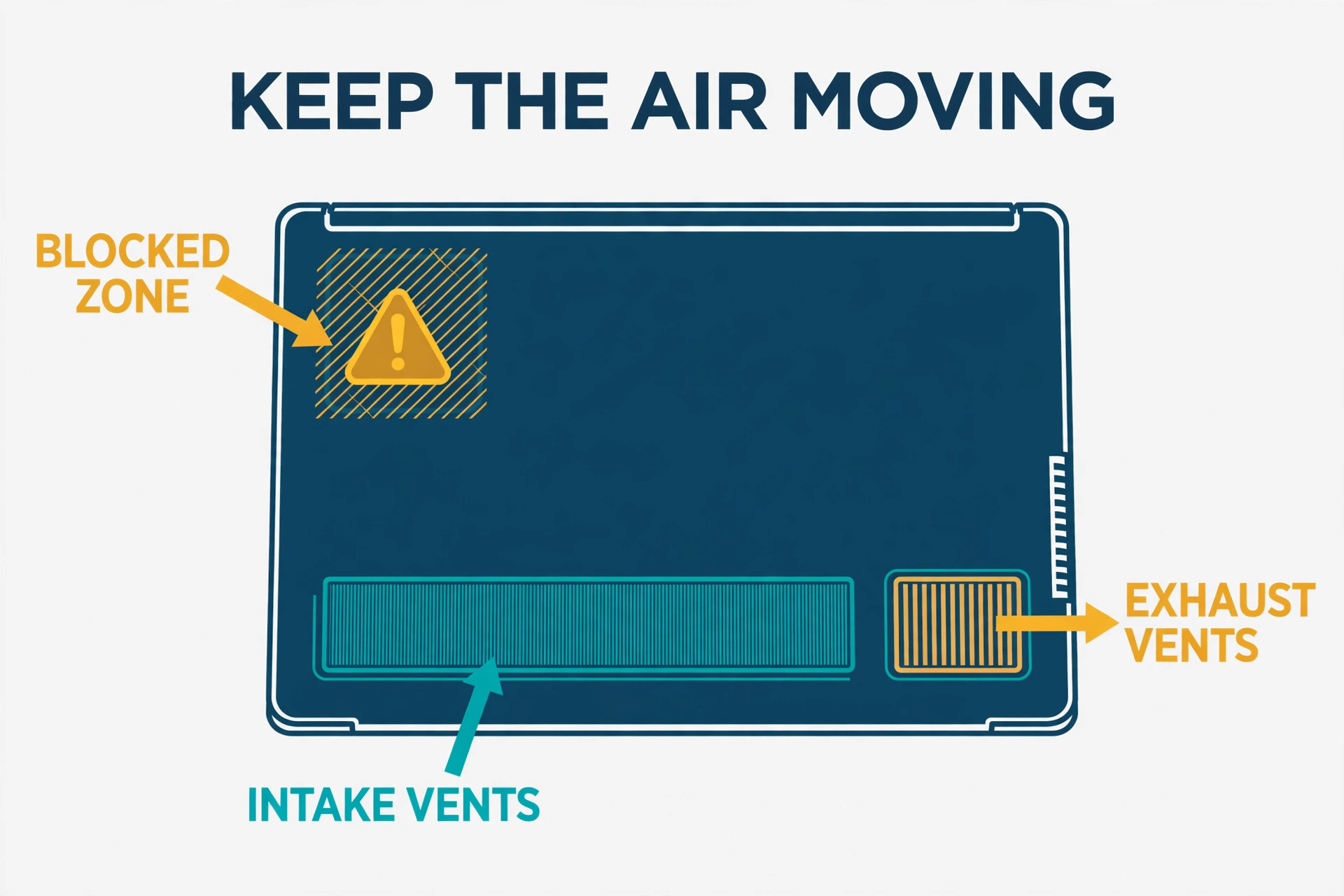
Airflow is physics, and no software setting can fix a blocked vent. Most laptops draw cool air from the bottom or the side and push warm air out of the side or the rear. If the intake is on the bottom, a bed, a cushion or a thick tablecloth will block it. If the exhaust is on the side, a stack of books or a cable bundle pushed against it will trap warm air.
A hard desk is the baseline. A laptop stand that lifts the rear is the next step, because it opens the bottom intake and improves the viewing angle at the same time. A simple passive stand, with no fans, costs less than a powered cooling pad and helps many laptops enough on its own. If you use the laptop on your lap, use a lap desk with a hard top, not a cushion.
Room temperature matters more than people expect. A laptop in a 30 degree room starts hotter and has less room to shed heat than the same laptop in a 22 degree room. Direct sunlight, a heater vent, or a closed room with no airflow on a summer afternoon can all push a borderline laptop into throttling. Move away from direct sun, open a door or window for airflow if you can, and avoid placing the laptop on top of another warm device.
Cooling Pads, Stands and External Fans, With Prices
Cooling pads help some laptops a lot, and others barely at all. The difference is vent position. A pad with fans blowing upward helps a laptop with bottom intakes. It helps far less for a laptop with side intakes, or for a thin laptop with very small bottom vents. Before you buy, look at your laptop underside. If you can see a large vent grille on the bottom, a pad is a plausible fix. If the bottom is mostly solid, a passive stand may give you most of the benefit for less money and less noise.
That vent check is an easy step to fix laptop overheating video calls spending, because it stops you buying a pad your laptop cannot use.
Price ranges seen in public listings at draft time give a useful budget guide. Basic slim cooling pads with three fans, such as the widely sold Havit HV-F2056 style, are commonly listed around 20 to 40 dollars. Mid range pads with larger fans and a metal mesh top are commonly listed around 30 to 45 dollars. A well known Targus chill mat style pad is listed direct at 42.99 dollars in one official store listing seen at draft time. Premium gaming style pads with a large single fan and speed control are commonly listed around 60 to 80 dollars. Check the official store page and checkout for the exact model you choose, because prices vary by seller and sale period.
When you test a cooling pad, test it properly. Run the same test call, for the same length, with the same settings, once without the pad and once with it, and note fan noise and underside heat. A pad that drops temperatures by 3 to 5 degrees and quiets the fan is doing its job. A pad that makes no difference after two test calls is not worth keeping.
Cleaning, Thermal Paste and When to Open the Laptop
Dust is a slow problem. It builds up over months, narrows the air path, and makes the fan work harder for the same cooling. If your laptop is more than a year old, has never been cleaned, and now runs hot on every call, dust is a likely contributor. The safe first step is compressed air through the vents, with the laptop powered off and unplugged, using short bursts. Do not use a vacuum cleaner on the vents, and do not blow with your mouth.
Opening the laptop is a bigger step, and the right choice depends on warranty and skill. If the laptop is still under warranty, opening it may void that warranty, so check the maker terms first, or book a maker authorised clean. If it is out of warranty and you are comfortable with small screws and static precautions, a careful internal clean can make a real difference. Take photos as you remove screws, and do not force connectors.
Thermal paste is the material between the processor and the heat sink, and it dries out over years. Repasting can drop temperatures by 5 to 10 degrees on an older laptop, but it is not a beginner job, and a bad repaste can make things worse. If your laptop is three or more years old, runs hot even after cleaning and settings changes, and is out of warranty, a professional repaste is worth quoting. Ask for a fixed price before work starts.
How to Choose Between a Settings Fix, a Cooling Fix and a New Laptop
Choosing well saves money. Use this decision path after you have tested the checklist and the settings table on at least three calls.
If temperatures drop and the fan quiets after settings changes alone, you have a settings problem. Keep the lower settings for work calls, and raise them only for short calls where quality matters more than heat. No purchase is needed.
If settings help but the laptop still runs hot, and the vents are dusty or the bottom is blocked, you have an airflow problem. Buy a stand first, clean the vents, and test again. A cooling pad is the next step only if the laptop has bottom intakes and the stand alone is not enough. This order matters when you fix laptop overheating video calls on a budget, because the cheapest effective fix should come first.
If cleaning and cooling help for a week and then heat returns, or if the fan sounds faulty, you have a hardware maintenance problem. Book a professional clean, fan check and, if the laptop is older, a repaste quote.
If the laptop is more than five years old, has a dual core processor or 4 GB of memory, and still throttles after all of the above, you have a capacity problem. Video calls in 2026 expect more than that hardware can comfortably give, and no pad will change the processor. A newer laptop with a quad core processor and 16 GB of memory, which matches the recommended level in the Zoom system requirements, is a better investment than repeated repairs.
That decision path also helps you avoid the most common waste, which is buying a premium cooling pad for a laptop that needs a settings change, or buying a new laptop for a machine that only needs a clean and a stand. Test in order, cheapest fix first.

Mistakes That Make Overheating Worse
The first mistake is running calls on a bed or a sofa every day and then blaming the app. The surface is part of the cooling system, and a soft surface defeats it. Move to a desk, even for a short test, before you change anything else.
The second mistake is installing a fan control app and forcing the fan to run slowly to reduce noise. A quiet laptop that is throttling is not a fixed laptop. It is a laptop that is quietly overheating.
The third mistake is stacking fixes that fight each other. A cooling pad blowing air into a bottom intake while the laptop sits on a thick cloth, or a vacuum fan on a side vent while the rear exhaust is blocked by a book, will not help. Clear the air path first, then add one cooling aid at a time.
The fourth mistake is ignoring the battery. A battery that swells, drains in under an hour, or makes the laptop shut down at 30 percent is not a minor annoyance. It is a safety and reliability problem, and it can add heat. Get it checked.
Further Reading
If your call problems are also app choice problems, this site comparison of Zoom vs Google Meet and Zoom vs Microsoft Teams helps you see which app fits your team and your hardware, and the guide to best AI meeting assistants covers note taking tools that can add load during a call. For teams that record calls, the comparison of best AI meeting notes tools is useful background, because a recorder running alongside a call is another layer of processor work.
Frequently Asked Questions
Why does my laptop only overheat on video calls?
Video calls combine camera capture, video encoding, video decoding for other people, screen sharing and audio processing at the same time, and they sustain that load for the whole call. Documents and browsing use short bursts with pauses, so they generate less sustained heat. Lowering resolution, turning off blur and using speaker view usually cuts the call load enough to bring temperatures down.
Is it safe to keep using a laptop that reaches 95 degrees on calls?
Short spikes near 95 degrees are common on thin laptops, but sustained temperatures at or above 95 degrees, with throttling, stuttering or shutdowns, are a sign to act. Work through the checklist, clean the vents, and lower call settings. If the laptop still sits at that level on every call, get a repair assessment.
Does a cooling pad really help to fix laptop overheating video calls?
A cooling pad can help if your laptop has bottom air intakes and the pad fans align with them, and a drop of 3 to 5 degrees is a realistic result. It helps far less for laptops with side intakes or mostly solid bottoms. Test with the same call, once with the pad and once without it, before you decide to keep it.
Should I turn off hardware acceleration to cool my laptop?
Usually no. Hardware acceleration moves video work to the graphics chip, which is designed for it, and turning it off can push that work back to the processor and increase heat. Only toggle it as a test if you have a black screen or a graphics glitch, and revert the change if temperatures rise.
Will closing the laptop lid help with cooling during a call?
Closing the lid can help only if you are using an external monitor and keyboard, and the laptop vents are not blocked by the closed position. On Windows, set the lid close action to Do nothing for this to work. On a Mac, clamshell mode needs an external display and mains power. If the laptop is on a soft surface, closing the lid can trap heat, so check airflow first.
When should I replace my laptop instead of fixing the heat?
Consider replacement if the laptop is more than five years old, has a dual core processor or 4 GB of memory, and still throttles after settings changes, cleaning and a stand or pad. Get a repair quote first, because a clean, a new fan or a repaste can still save a younger laptop.
Cooler Calls Start With Less Work, Not More Gear
The fastest way to fix laptop overheating video calls is to give the laptop less work to do, a clearer path for air, and a fair test after each change. Lower the resolution, turn off blur and virtual backgrounds, shrink the gallery, close background apps, lift the rear of the laptop, and use Balanced power for calls. Those steps cost nothing.
If those steps help but do not finish the job, add a stand, clean the vents, and only then consider a cooling pad that matches your vent layout. If the fan sounds faulty, the battery swells, or heat stays high in every app, book a repair assessment before you buy a new laptop. Work the checklist in order, and let the results decide the next step.