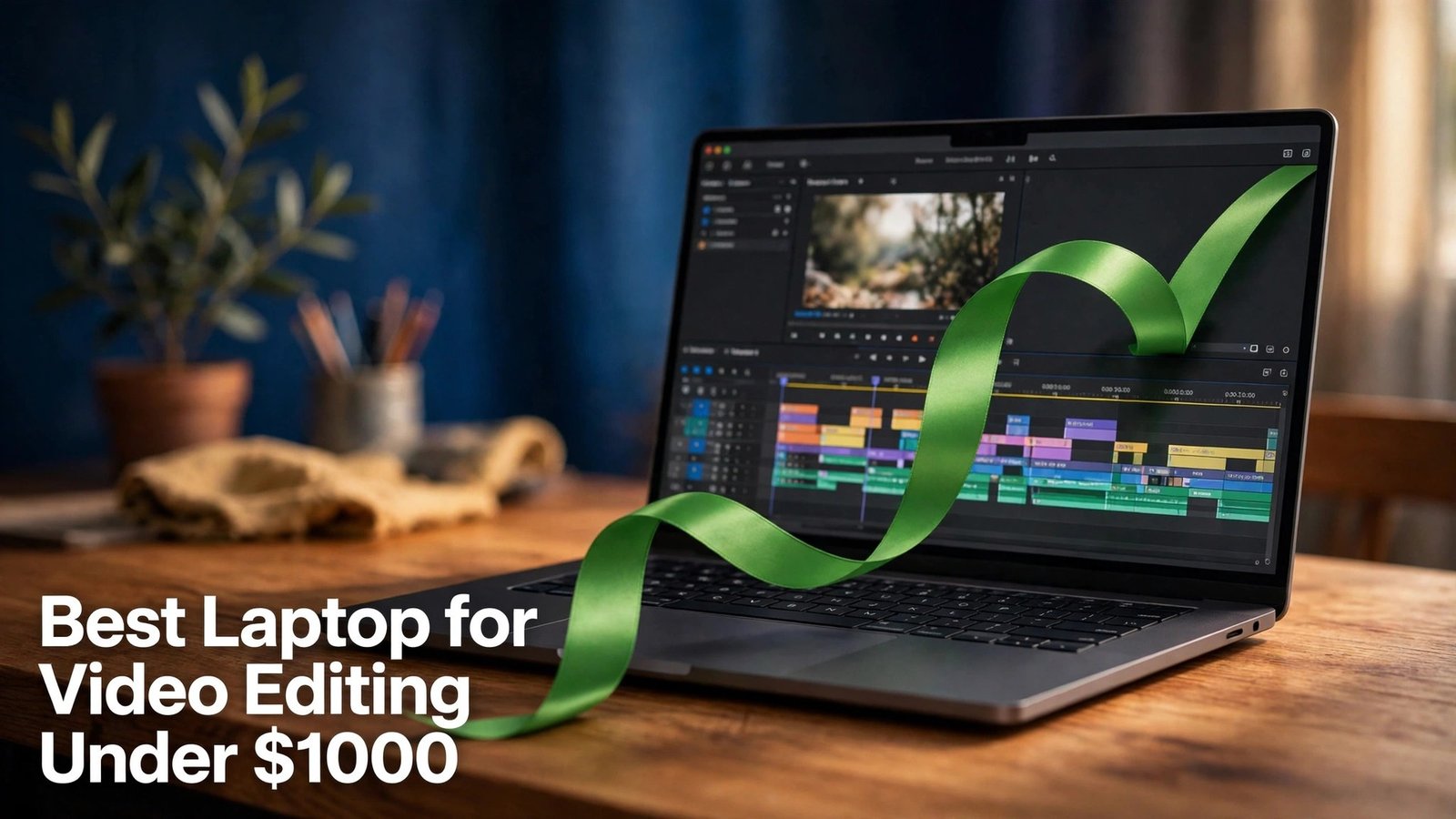
Here is the verdict first, without a long warm up. For most people editing 1080p and light 4K video in 2026, the best laptop for video editing under 1000 is the 13 inch MacBook Air with the M4 chip, 16GB of memory, and 256GB of storage, at a starting price of $999. It is quiet, it lasts a full working day on battery in normal use, and its media engines handle common codecs with far less fuss than most Windows machines at this price.
That verdict changes, though, if you need a dedicated NVIDIA graphics card, if you work mainly in DaVinci Resolve with heavy colour work, if you need a larger OLED screen for grading, or if you want a machine you can upgrade later. Those situations point to a Windows RTX machine instead, and buying the Mac in those cases would be a mistake even though the Mac is the better general pick.
This guide therefore does not name one winner and stop. It gives a situation verdict, with what editing demands, a spec comparison, rejection reasons for tempting machines, and a pick for each common situation. Prices are ranges from vendor and retailer listings checked in October 2026. Check the exact configuration and checkout total before you pay, because two machines with the same model name can differ in processor, graphics, memory, screen, and storage.
The Verdict Up Front
Buy the MacBook Air M4 if you edit for YouTube, social video, client work in 1080p, or 4K projects with modest effects, and if you value battery life, silence, and a machine that stays fast without constant fan noise. Its 16GB of unified memory is now the base configuration, which removes the old trap of a cheap Mac with too little memory. Its weakness is also plain. You cannot upgrade memory or storage later, the base storage is only 256GB, and it has only two Thunderbolt ports plus a headphone jack, so a hub or dock is part of the real cost for many editors.
Buy an RTX 4050 Windows laptop, most often the Acer Nitro V 15 or the Lenovo LOQ 15, if you edit in DaVinci Resolve, if you use many GPU effects, if you need CUDA acceleration for a Windows only workflow, or if you want upgradeable memory and storage. These machines are heavier, louder under load, and weaker on battery, but they give you a dedicated graphics card with 6GB of video memory and a path to 32GB of system memory later. That trade is worth it when the graphics card is doing real work in your timeline rather than sitting idle.
Buy the ASUS Vivobook Pro 15 OLED if screen quality comes first and you still want RTX graphics. Its OLED panel makes grading easier than a typical budget IPS panel, but check the exact panel on the configuration you buy, because Vivobook models vary.
Finding the best laptop for video editing under 1000 for Your Situation
Start with your footage, not with a brand. A creator cutting 1080p talking head videos has a different machine in mind than a wedding editor grading 4K footage from two cameras. Write down your usual resolution and codec, your software, and your export pattern. H.264 and H.265 are harder to decode than ProRes or DNx proxies, Final Cut Pro only runs on a Mac, and daily client exports reward a faster encoder more than a weekly single export does.
Next, rank your constraints in order. Most buyers under $1000 cannot have everything, so the order decides the pick. If portability and battery come first, the MacBook Air wins. If upgradeability comes first, a Windows machine with memory and storage slots wins. If screen accuracy comes first, the OLED Vivobook wins. If GPU power per dollar comes first, the Nitro V 15 and LOQ 15 win. A machine you leave at home because it is heavy does not edit anything.
Finally, set a total budget, not just a laptop budget. Budget for an external SSD for footage and for a hub if you buy the MacBook Air. If the laptop costs $999 and you have nothing left for storage, an $850 machine with a $100 external drive is the better system.
What Video Editing Actually Demands From a Laptop
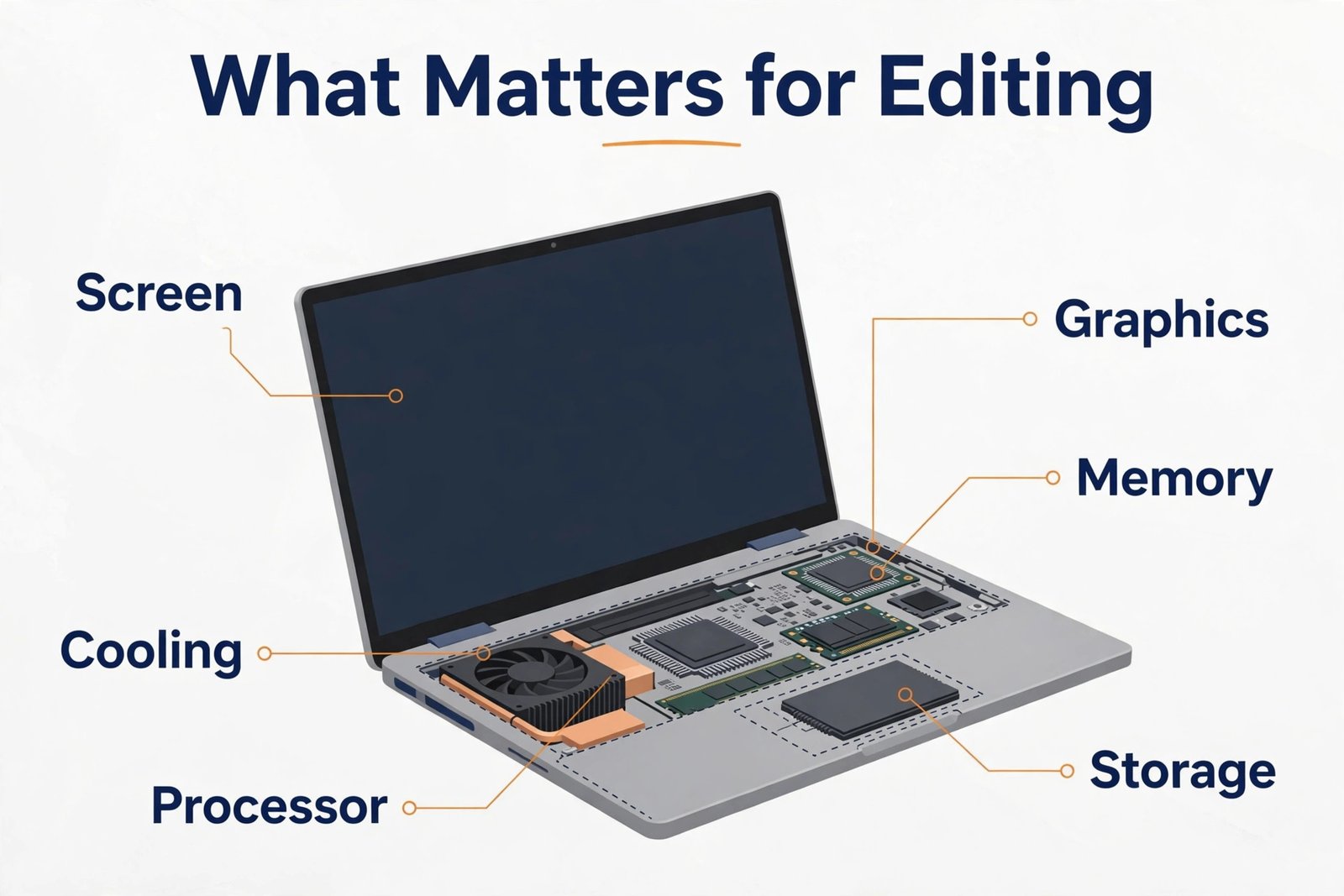
Video editing stresses four parts of a laptop at once, and a weakness in any one of them shows up as stutter, slow exports, or crashes. The processor decodes footage, handles the timeline, and runs effects that are not GPU accelerated. A modern six core or better processor, such as an Intel Core i5 or i7 from the 13th generation or newer, an AMD Ryzen 5 or 7 from the 7000 series or newer, or Apple M4, is a sensible floor for 1080p and light 4K work. Older or low power processors can still cut simple projects, but they struggle with H.265, multicam timelines, and background rendering.
Memory is the second demand, and it is where budget buyers most often go wrong. Adobe lists 8GB as a minimum for Premiere Pro in HD, but recommends 16GB for HD and 32GB for 4K. DaVinci Resolve lists 16GB as a practical minimum on Windows and recommends 32GB for Fusion work. In plain terms, 16GB is the floor for a machine you plan to keep for two or three years. On a Mac, memory is shared between processor and graphics and cannot be upgraded later, so choose carefully at purchase.
Graphics power is third. A dedicated NVIDIA RTX 4050 with 6GB of video memory gives Windows editors hardware encoding and CUDA acceleration in Premiere and Resolve. Apple silicon takes a different path, with dedicated media engines that make the MacBook Air feel faster than its raw graphics numbers suggest. If your work depends on CUDA only plugins or Windows only tools, the Mac path will frustrate you no matter how good the Air feels in other apps.
Storage speed and screen quality complete the picture. A fast NVMe SSD matters because editing reads and writes large files constantly. For the screen, look for at least full HD resolution and colour coverage that matches your delivery, and check paid colour work on a calibrated external display. Battery, weight, and cooling sit underneath all of this, because a machine that throttles after ten minutes of rendering will export slower than its spec sheet promises.
The Spec Comparison That Matters
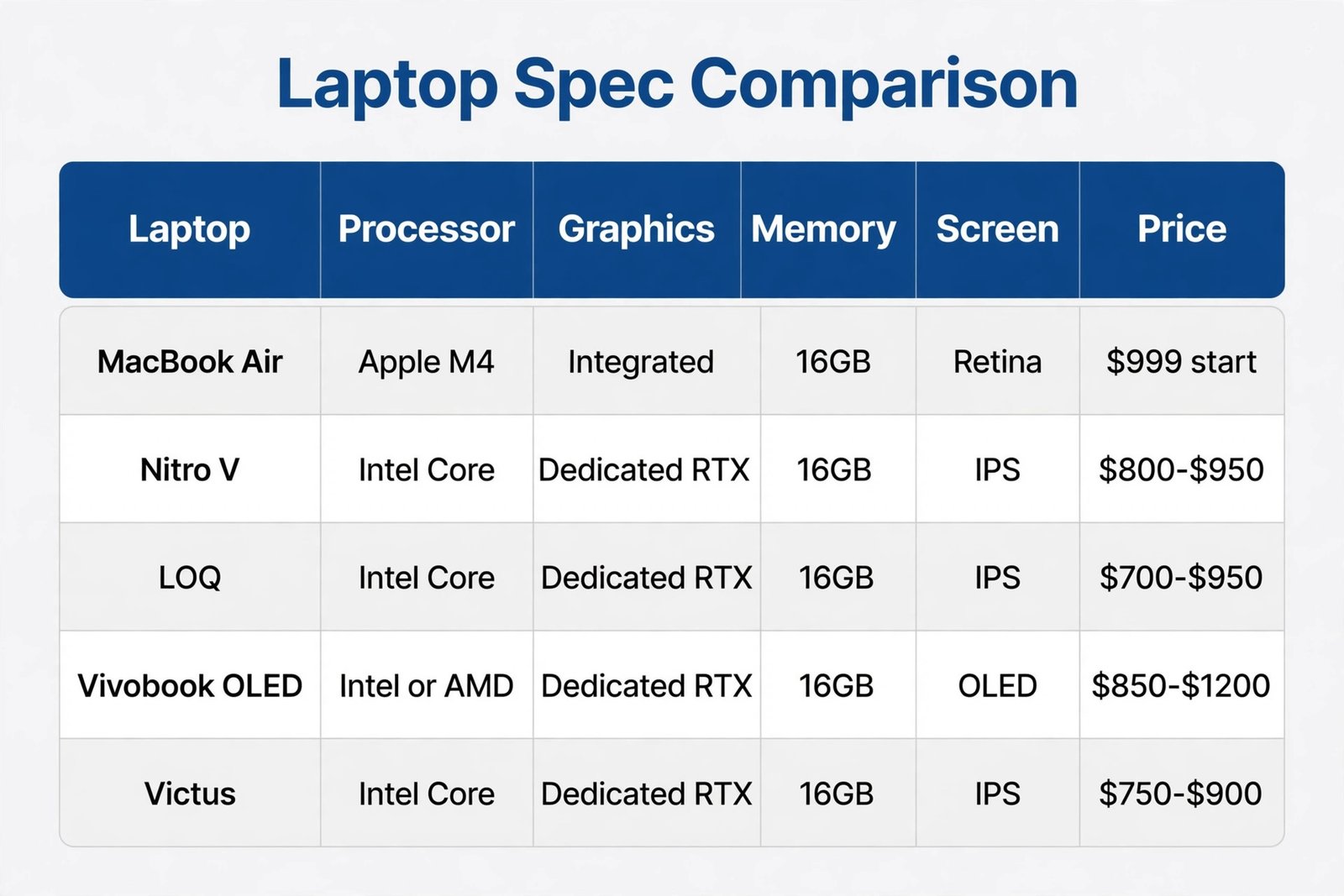
The table below compares the leading candidates for the best laptop for video editing under 1000, not every variant ever sold. Prices are ranges from listings checked in October 2026, and they move with sales. Check the exact processor, graphics, memory, screen, and storage on the listing you buy, because a single model name covers several configurations.
| Machine | Typical price range | Processor and graphics | Memory and storage | Screen | Weight and battery note |
|---|---|---|---|---|---|
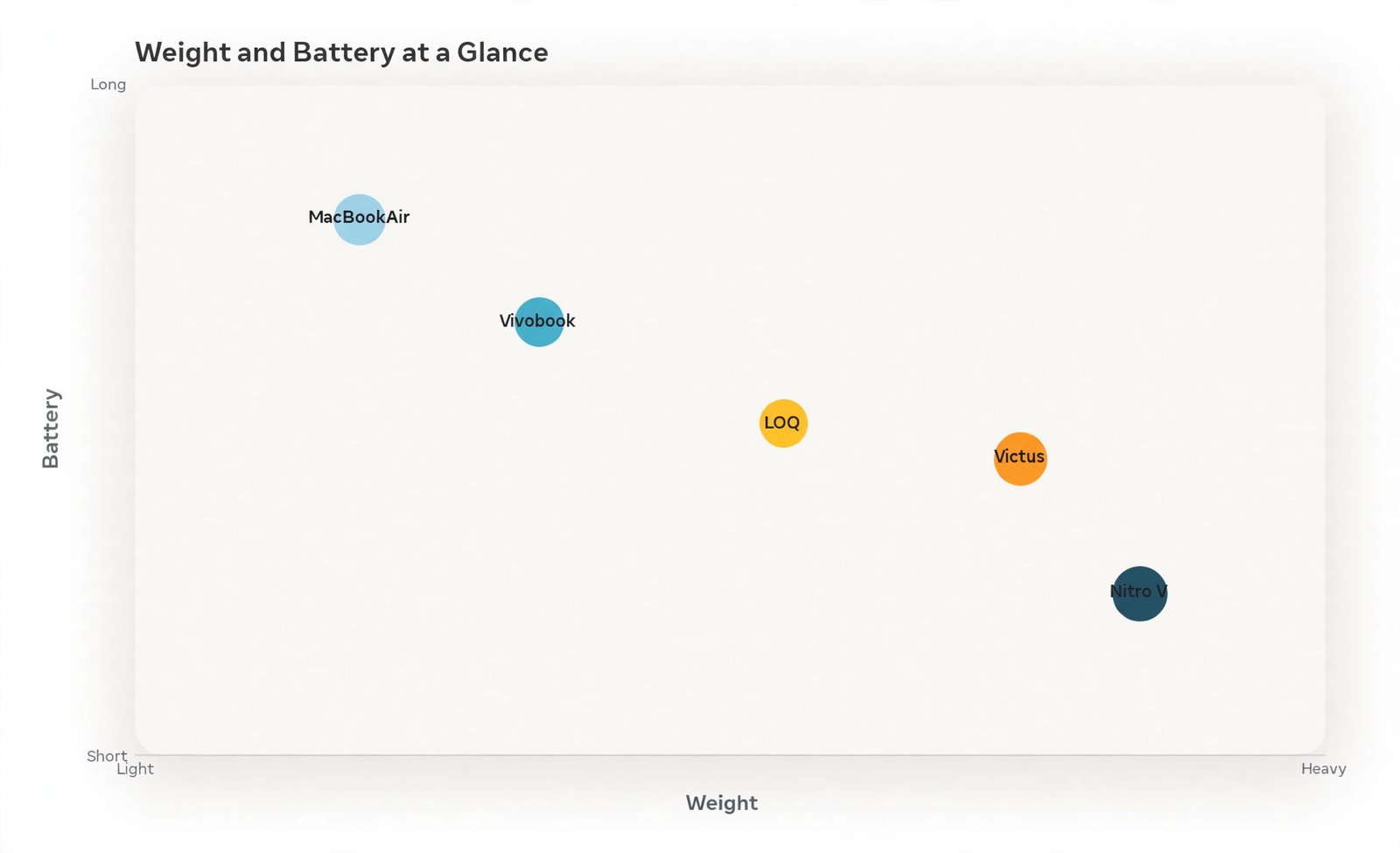
| Apple MacBook Air 13 M4 | $999 starting | Apple M4, integrated media engines | 16GB unified, 256GB SSD base | 13.6 inch Liquid Retina, P3 colour | About 2.7 pounds, up to 18 hours claimed |
| Acer Nitro V 15 RTX 4050 | $800 to $950 for 16GB models | Intel Core i5 or i7, RTX 4050 6GB | 16GB DDR5, 512GB to 1TB SSD | 15.6 inch full HD IPS, 144Hz or 165Hz | About 4.7 pounds, modest battery under load |
| Lenovo LOQ 15 RTX 4050 | $700 to $950 depending on sale | Intel Core i5 or i7, RTX 4050 6GB | 16GB, 512GB SSD common | 15.6 inch full HD IPS, 144Hz common | About 5 pounds class, modest battery under load |
| ASUS Vivobook Pro 15 OLED RTX 4050 | $850 to $1200 for RTX models | Intel Core Ultra or AMD Ryzen 7 class, RTX 4050 6GB | 16GB to 24GB, 512GB to 1TB SSD | 15.6 inch OLED, high colour coverage on OLED configs | Heavier than an ultrabook, shorter battery on OLED |
| HP Victus 16 RTX 4050 | $750 to $900 for common configs | Intel Core i5, RTX 4050 6GB | 16GB, 512GB SSD common | 16.1 inch full HD IPS, 144Hz common | Heavy desktop replacement style, short battery under load |
Read the table by situation, not by headline speed. The MacBook Air leads on weight, battery, and silence. The RTX machines lead on dedicated graphics memory and upgradeability. The Vivobook leads on screen quality. No candidate for the best laptop for video editing under 1000 leads on every row, and that is the point of a situation verdict.
Situation Verdicts and Rejection Reasons
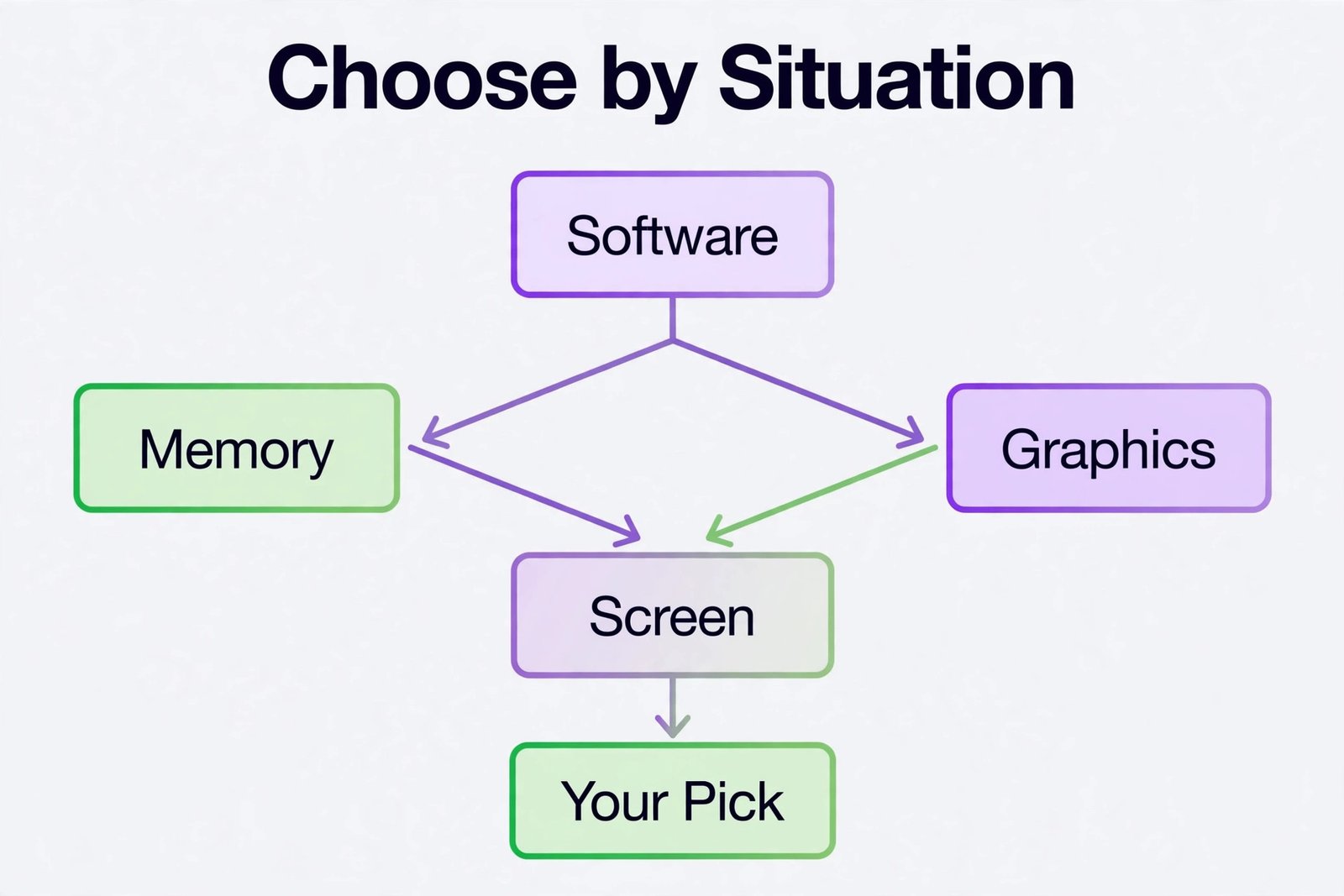
This section is the part a short summary cannot copy without losing the value, because it says no as clearly as it says yes. Each verdict below pairs a situation with a pick and a rejection reason for the tempting alternative. Use it as a checklist against your own work, not as a ranking to memorise.
If you edit YouTube and social video in 1080p and occasional 4K, buy the MacBook Air M4. Reject the heavy RTX gaming laptop for this situation, because you will carry extra weight and fan noise for GPU power your timeline rarely uses. The Air exports common social formats quickly through its media engines, and its battery lets you edit away from a desk.
If you edit in DaVinci Resolve with colour nodes, Fusion titles, or noise reduction, buy an RTX 4050 Windows machine with 16GB or more. Reject the base MacBook Air for heavy Resolve colour work, because Resolve leans hard on GPU memory and the Air shares its memory between processor and graphics. The Air can still run Resolve for lighter projects, but a long grading session with many nodes is where the RTX card earns its keep.
If you grade paid client work and need the best screen under $1000, buy the Vivobook Pro 15 OLED in an RTX 4050 configuration with an OLED panel verified on the listing. Reject a budget IPS gaming laptop for this situation, because its panel may cover only part of the sRGB range and its brightness may fall short for consistent colour decisions. Even with the OLED, calibrate the display and check final exports on a second screen before delivery.
If you work on Windows only software, plugins, or a company workflow built around Premiere and After Effects on Windows, buy the Nitro V 15 or LOQ 15. Reject the Mac for this situation even if friends praise it, because a workflow that depends on a Windows only plugin or a Windows only capture tool will cost you more in workarounds than any battery advantage saves. Software compatibility is a hard constraint, not a preference.
If you are a student who must carry the laptop all day and edit between classes, buy the MacBook Air M4. Reject any five pound gaming laptop for daily campus carry, because weight and battery will decide whether you actually edit between classes or leave the machine in your room. A lighter machine you carry edits more footage than a faster machine you leave behind.
The Main Contenders in Detail
Apple MacBook Air 13 with M4
The MacBook Air M4 starts at $999 for 16GB of unified memory and 256GB of storage, according to Apple launch pricing still reflected in retailer listings in October 2026. Its 13.6 inch Liquid Retina display covers the P3 colour range, its claimed battery life reaches up to 18 hours for light use, and its fanless design means timeline scrubbing stays silent. For Premiere Pro and Final Cut Pro work in 1080p and light 4K, that combination is hard to beat under $1000. Exports of H.264 and H.265 benefit from hardware media engines, and the machine stays responsive with a browser, music, and an editor open at once.
The limits are structural. Storage starts at 256GB, so an external SSD is not optional for most editors. Memory cannot be upgraded, so buy more at purchase if you think you will need it, or choose a Windows machine you can upgrade. Ports are limited to two Thunderbolt ports, MagSafe, and a headphone jack, so a hub is part of the setup for card readers, drives, and monitors.
Acer Nitro V 15 with RTX 4050
The Nitro V 15 is the most common RTX 4050 route under $1000, with 16GB models commonly listed from $800 to $950 and some 8GB models listed lower. Do not buy the 8GB model for editing unless you will upgrade memory immediately, because 8GB will bottleneck Resolve and Premiere once effects and browser tabs pile up. The 16GB model pairs an Intel Core i5 or i7 with an RTX 4050 with 6GB of video memory, a 512GB or 1TB SSD, and a 15.6 inch full HD IPS display at 144Hz or 165Hz depending on configuration. That hardware handles 1080p easily and 4K with proxies or modest effects, and it gives Windows editors CUDA acceleration and NVENC hardware encoding.
The trade is size, screen, and battery. At around 4.7 pounds plus a large charger, the Nitro V 15 is a portable desktop replacement rather than a daily carry ultrabook. Its IPS panel suits timelines but is not a grading reference display, and battery life drops sharply under rendering load, so plan to edit plugged in for long sessions.
Lenovo LOQ 15 with RTX 4050
The LOQ 15 is the closest rival to the Nitro V 15, with RTX 4050 configurations commonly listed from $700 on sale to $950 at regular prices, depending on processor and storage. Its strengths mirror the Nitro V, with a dedicated RTX card, upgradeable memory and storage on many configurations, and a full HD IPS display that suits timeline work. Some LOQ configurations offer better keyboards and thermals than the cheapest Nitro V models, while others cut screen brightness or battery to hit a sale price, so compare the exact configuration rather than the LOQ name alone.
Choose the LOQ over the Nitro V when its configuration gives you more memory or storage for the same money, or when a sale puts a 16GB RTX 4050 model well under the Nitro V price. Either machine is a sound Windows pick for Resolve and Premiere, and neither is a good daily carry choice compared with the Air. Compare the configuration in front of you on the day you buy, not brand loyalty.
ASUS Vivobook Pro 15 OLED with RTX 4050
The Vivobook Pro 15 OLED stands apart because of its screen. OLED configurations commonly offer a 15.6 inch panel with high colour coverage, deep blacks, and strong contrast, which makes it easier to judge exposure and colour than on a budget IPS panel. RTX 4050 configurations are listed across a wide range, often from $850 to $1200 depending on processor, memory, and panel, so only some configurations fit under $1000. A Vivobook Pro 15 with an IPS panel is a different machine for grading purposes, so verify that the listing actually says OLED before you pay for an OLED advantage.
Performance is solid, with Intel Core Ultra or AMD Ryzen 7 class processors and RTX graphics on higher configurations, plus a design that looks more like a creator laptop than a gaming laptop. Battery life is the cost, because OLED panels and RTX graphics drain power faster than the Air. If your work is colour led and you edit mainly near power, this is the screen first pick under $1000.
How to Choose in Ten Minutes
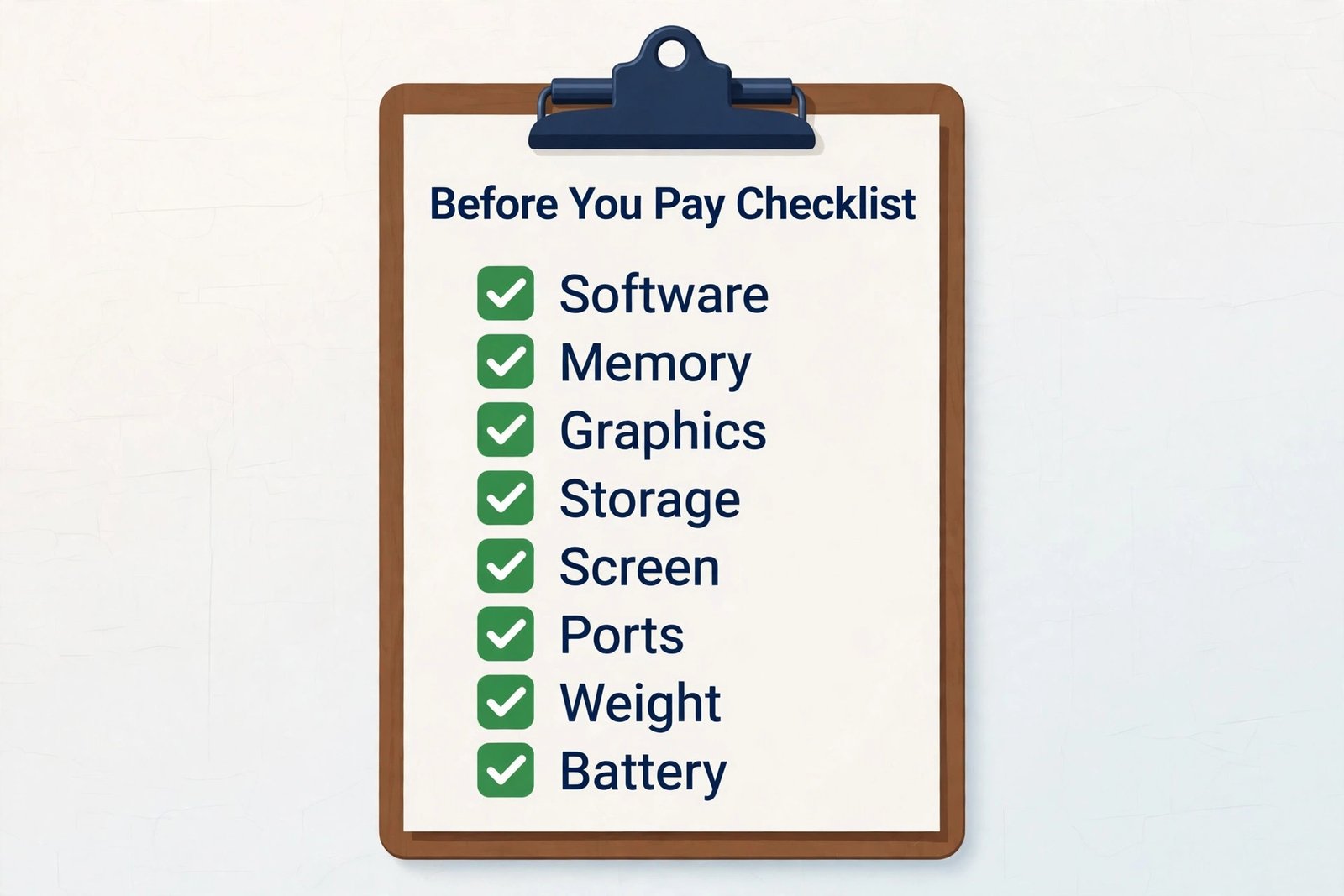
Use this short process to judge the best laptop for video editing under 1000 at the shop or on the retailer page, in order, and stop as soon as a hard constraint eliminates a machine. First, confirm software compatibility. If your software, plugin, or school workflow is Windows only, remove the Mac. If your workflow is Final Cut Pro, remove Windows. Second, confirm memory. Remove any machine with 8GB unless you will upgrade it before your first project, and prefer 16GB as the floor with a path to 32GB on Windows. Third, confirm graphics.
If you use Resolve heavily or GPU effects daily, require an RTX 4050 or better on Windows, or accept that the Air will need proxies and lighter effects for the heaviest work.
Fourth, confirm storage. Remove any machine whose total storage, internal plus the external drive you already own, cannot hold your current project plus proxies and exports with headroom. A 256GB Mac with no external drive fails this test for most 4K editors, while the same Mac with a 1TB external SSD passes it. Fifth, confirm screen and ports. If you grade colour, require a verified wide colour panel or budget for a calibrated external monitor. If you use SD cards, external drives, and a monitor at once, count ports and budget for a hub where needed. Sixth, confirm weight and battery against your real day. If you carry the laptop for hours, weight and battery outrank a small speed advantage.
If you edit at a desk, screen size and cooling outrank portability.
A final check saves more regret than any benchmark. Search the exact model and configuration number for known issues with thermals or screen brightness, and read reviews that tested the same configuration you plan to buy. If a listing hides panel type, graphics memory, or memory speed, ask for the full specification before you pay.
Mistakes That Waste Money Under $1000
The first mistake when hunting for the best laptop for video editing under 1000 is buying on processor name while ignoring memory. A fast processor with 8GB of memory will stutter in Resolve and Premiere once a timeline grows, while a slightly slower processor with 16GB or 32GB will stay smooth longer. Memory is the cheapest performance upgrade in this price range when a machine allows it, and the most expensive regret when a machine does not.
The second mistake is paying for a graphics card you will not use. An RTX machine looks impressive on a spec sheet, but if you edit simple 1080p talking head videos in an editor that relies mainly on media engines, the extra GPU power adds weight, heat, and battery cost without improving your timeline. Spend that money instead on storage, a better screen, or a configuration with more memory. Conversely, buying an ultrabook for heavy Resolve colour work because it looks premium is the opposite version of the same mistake.
The third mistake is trusting a model name instead of a configuration. Retailers sell the same model name with different processors, graphics cards, screens, and memory, and the cheapest configuration often cuts exactly the part that matters for editing. Always compare processor, graphics card and its video memory, system memory, storage size and type, screen resolution, panel type, and refresh rate line by line. If any line is missing from a listing, do not assume the best version.
The fourth mistake is forgetting total cost. A $999 laptop that needs a $100 external SSD, a $50 hub, and a $30 card reader costs $1179 as a working editing system, while an $850 laptop with ports and upgradeable storage may cost less overall. Software cost belongs here too. A free editor such as Resolve changes the maths compared with a subscription editor, especially over two or three years. Price the system, not just the laptop.
The fifth mistake is buying for a future that may not arrive. A machine bought for 8K editing you might do in three years will be outdated by then anyway, while a machine bought for the 4K work you do now will serve you well if it has 16GB, a fast SSD, and a decent screen. Buy for the next two years of real projects, keep upgrade paths open where you can, and plan to reassess when your work actually changes.
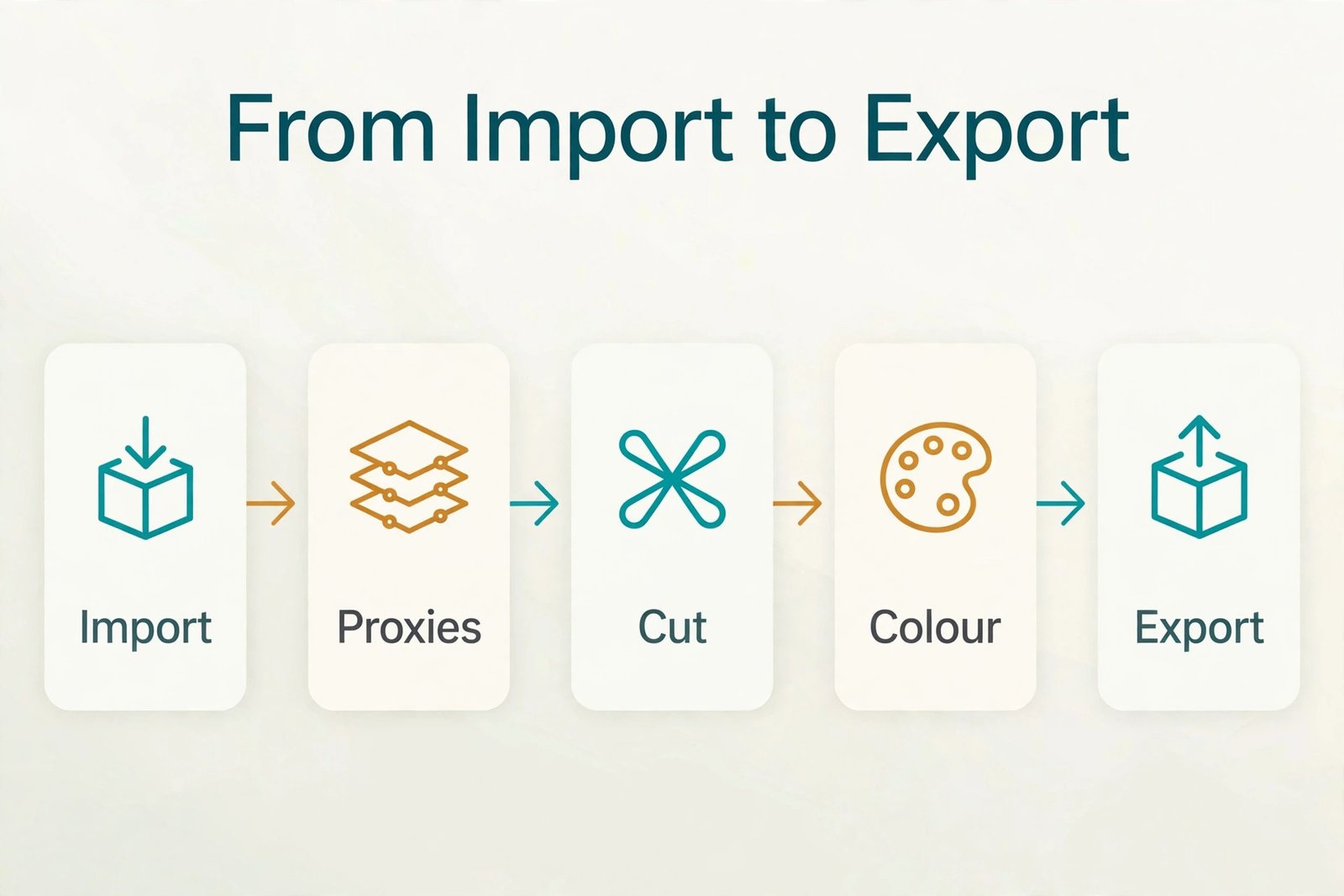
The sixth mistake is skipping proxies. Even a good sub $1000 laptop will struggle with high bitrate H.265 4K footage at full resolution with effects. Proxies let you edit smoothly on modest hardware and export from the original files, so learn your editor proxy workflow before you blame the hardware.
Storage, Ports, Display, and Battery Checks Before You Pay
Storage deserves a separate check when you buy the best laptop for video editing under 1000, because video fills drives faster than any other common work. A ten minute 4K project with proxies, cache, and exports can consume tens of gigabytes, and a wedding or documentary project can consume hundreds. Keep active footage on a fast external SSD, keep the internal drive for software and cache with at least 20 percent free space, and archive finished projects to a larger drive rather than leaving them on the editing machine. If you buy a 256GB machine, that external SSD is part of the purchase, not an optional extra.
Ports decide how painless that storage setup feels. Count how many devices you connect at once, including a card reader, an external SSD, a monitor, a mouse, and audio gear. The MacBook Air needs a hub for most multi device setups, while RTX Windows machines often include HDMI, USB A, USB C, and a card reader built in. Check whether USB C ports support video output and fast data, because not every USB C port does everything, and a hub that looks cheap can bottleneck a fast drive. For audio, a headphone jack still matters for monitoring, and Bluetooth audio alone introduces latency that makes precise editing harder.
Display checks matter even if you do not grade colour professionally. Look for brightness that suits your room and a screen treatment that copes with bright rooms. For colour work, look for verified colour coverage on the exact panel and calibrate if paid accuracy matters. A second monitor improves timeline space and keeps scopes and bins visible while you cut.
Battery checks should use realistic expectations, not headline claims. Vendor figures assume light use, while editing and rendering drain power far faster. Treat the MacBook Air as a genuine all day machine for light editing, and treat RTX Windows machines as plugged in machines for long renders. If you edit on location, carry the charger and use proxies to reduce processor load.
For related reading on the software side of this decision, this site covers best AI video editing tools for editors comparing modern editing apps, best AI video caption generators for creators who caption social cuts, and best AI tools for YouTubers for channel workflows that pair with a new laptop. Students weighing a purchase against coursework can also check ai tools for students for study and creation tools that run well on the machines in this guide.
Frequently Asked Questions
Is 16GB of memory enough for the best laptop for video editing under 1000?
Yes for most 1080p work and light 4K work, provided you use proxies for demanding codecs and keep background apps under control. For regular 4K editing with effects, Fusion work, or After Effects alongside Premiere, 32GB is the safer target, which is easier to reach later on upgradeable Windows machines than on a MacBook Air bought with 16GB.
Can the best laptop for video editing under 1000 edit 4K video smoothly?
Yes, with conditions. A MacBook Air M4 or an RTX 4050 Windows laptop can cut 4K timelines smoothly when footage uses a friendly codec or when you use proxies for H.265 material. Smooth 4K without proxies, with many effects and colour nodes, is where sub $1000 machines show limits, so test your actual footage during the return window rather than trusting a benchmark alone.
Is a MacBook Air or an RTX Windows laptop better for DaVinci Resolve?
An RTX Windows laptop is generally better for heavy Resolve work, because Resolve uses dedicated GPU memory for colour, effects, and Fusion. The MacBook Air runs Resolve well for lighter projects and benefits from fast media engines, but long grading sessions with many nodes favour the RTX card and upgradeable memory on Windows.
Do I need an OLED screen to edit video well?
No, but it helps for colour decisions. A good IPS panel is enough for YouTube and social delivery, while an OLED panel with verified colour coverage makes exposure and colour judgement easier for paid work. Even with OLED, check final delivery on a calibrated external display, because no laptop screen alone is a complete grading environment.
Should I buy a gaming laptop for video editing?
A gaming laptop can be a good editing machine when it gives you an RTX card, 16GB or more, a fast SSD, and upgradeable parts for less than a creator branded laptop. The downsides are weight, fan noise, battery life, and often a screen tuned for speed rather than colour accuracy, so compare the exact screen and cooling before assuming a gaming laptop is automatically an editing laptop.
What should I upgrade first on a sub $1000 editing laptop?
Upgrade memory first if you have 8GB, then storage with a fast external SSD for footage, then your display setup with a second monitor for timeline space. Those three upgrades improve daily editing more than a small processor step, and they cost less than replacing the laptop itself.
The Machine That Fits the Work You Actually Do
The right purchase under $1000 is not the fastest machine on a benchmark chart. It is the machine whose strengths match your footage, your software, and your working day, and whose weaknesses fall in areas you can work around. The MacBook Air M4 fits creators who value portability, battery, and silence for 1080p and light 4K work. An RTX 4050 Nitro V 15 or LOQ 15 fits editors who need dedicated graphics, Windows software, and upgrade paths for Resolve and heavier effects. A Vivobook Pro 15 OLED fits colour led editors who will trade battery for a better screen. A Victus 16 fits desk editors who want timeline space for the money.
Before you pay for the best laptop for video editing under 1000, run the ten minute check in this guide, confirm the exact configuration, and test your real footage during the return window with proxies enabled where needed. That test tells you more than any spec sheet, because it uses your codec, your effects, and your export settings. Buy the system, including storage and any hub you need, not just the laptop, and keep headroom for the projects you will take on next year. Done that way, a sub $1000 laptop is not a compromise you tolerate. It is a working editing machine that earns its place on your desk, in your bag, and in your next project.