
A plain price list tells guests what you sell. A designed menu tells them what to order first, what pairs well, and what is worth paying more for. When you use Canva for restaurant menu design, that difference comes from decisions you make before you touch a template. You choose the size, you rank the dishes, and you give prices a quiet place on the page instead of letting them shout from a separate column. Guests scan a menu in seconds, so the layout has to do the selling before anyone reads a full description.
This guide walks through the whole job, from picking a format that fits your item count to exporting a file a print shop can use without asking for fixes. It covers sizes, hierarchy, photo and type rules, and the export settings that prevent white edges, dull colour, and clipped text. Prices mentioned here were checked against public listings in October 2026. Confirm the current price on Canva’s own pricing page before you budget around it, since plan prices have moved more than once in the past two years.
Start With the Format, Not the Template
Most menu problems start with the wrong container. A template that looks good on screen can still fail on a table if it forces 40 dishes onto one page or leaves a three panel fold with one empty panel. Count your items first, including drinks if they share the same sheet, and let that count pick the format. A cafe with nine sandwiches and four drinks does not need a booklet, and a full service restaurant with starters, mains, desserts, and wine does not fit on a single page without type too small to read comfortably.
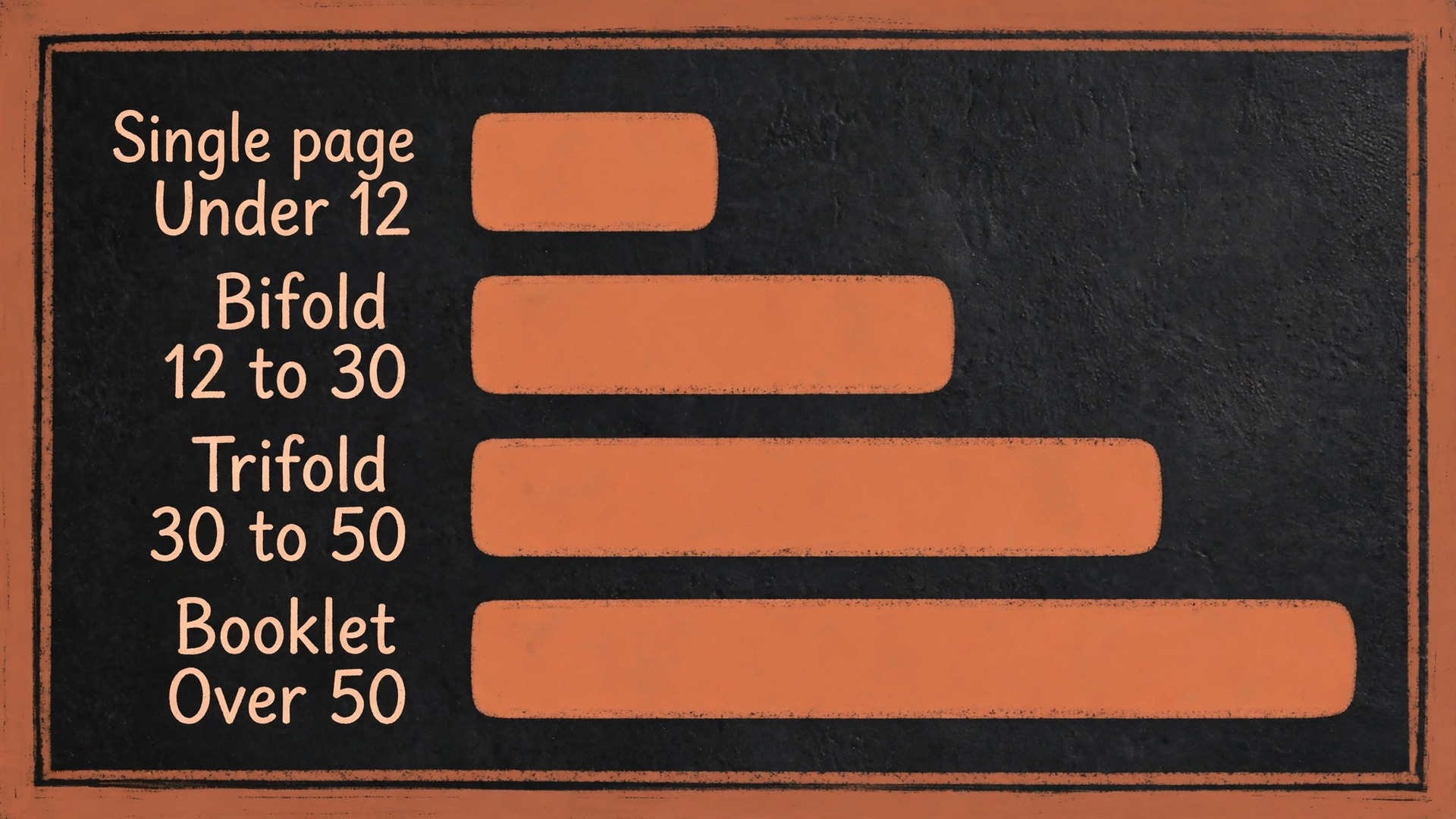
The table below gives a practical starting point. Treat the item counts as guides, not hard rules, because long dish names and descriptions take more room than short ones. If half your dishes need two lines of description, move up one format size rather than shrinking the type.
| Format | Typical item count | Best fit |
|---|---|---|
| Single page, one or two sides | Under 12 | Cafes, food trucks, prix fixe and focused menus |
| Bifold, two inside panels | 12 to 30 | Casual and sit down restaurants, the most common format |
| Trifold, three panels | 30 to 50 | Large menus and takeout, each panel works as a section |
| Booklet or multi page | Over 50 | Hotels, fine dining and large wine programs |
Paper size follows the same logic. In the United States, letter size at 8.5 by 11 inches is the most common single page menu, legal at 8.5 by 14 inches suits longer diner and Italian menus, and half letter at 5.5 by 8.5 inches works for dessert, drink, and happy hour cards. A letter bifold starts as an 11 by 17 inch sheet and folds to 8.5 by 11 inches. Outside the United States, A4 and A5 are the equivalents to check with your printer. Ask your printer which sizes they stock before you design, because a standard size is cheaper to print and simpler to reprint later.
Think about the table as well. A tall narrow drinks list stands well in a table tent but gets lost on a large table, while a tabloid sheet suits a counter poster but feels awkward on a two person table. A folded menu should close to a size a guest can hold in one hand. If you are unsure, print a blank sheet at that size, fold it, and hold it at a table.
Digital use changes the choice too. A menu that also lives on your website or a QR code page needs a readable PDF as well as a print file. Canva lets you download a standard PDF for screens and a separate PDF Print file for the shop. Design the print version first, then export a screen version from the same file.
When you use Canva for restaurant menu design, a fixed order keeps the work fast and stops the usual rework. Templates tempt you to decorate first and fit content later. That order guarantees a cramped menu. Work in the order below instead, and finish each step before you move to the next one.
- Set a custom size or pick a menu template at your real trim size. If your printer gave you a size, use Create a design, then Custom size, and enter the exact width and height. Do not design at one size and resize at the end, because text wraps, images crop, and fold lines move.
- Turn on the print guides before you place anything. Go to File, then View settings, and switch on Show print bleed, Show margins, and Show rulers and guides if they are available in your editor. These guides show you the trim edge, the bleed area beyond it, and the safe zone inside it. Design with them visible from the start.
- Type the full menu text first, in plain text boxes, with no styling. Paste or type every dish name, description, and price, grouped under section headings. This step exposes the real length of the menu while it is still cheap to change the format.
- Build the hierarchy. Make section headings clearly larger than dish names, dish names clearly larger than descriptions, and prices the same size as dish names or one step smaller. Set the column widths and the space between sections before you add colour or photos.
- Add photos only where they earn their space. Pick one hero photo for the cover or top of the menu and, at most, one photo per section for dishes guests may not recognise. Place each photo next to the dish it shows, not in a separate gallery block at the bottom.
- Apply your brand colours and fonts, then check contrast. Use one main colour, one supporting colour, and a neutral for body text. Check every heading and price against its background at full size, not zoomed out, because small type on a mid tone background fails on paper even when it looks fine on a bright screen.
- Proof on paper, fix, and only then export. Print the menu at full size on an ordinary printer, read it at arm’s length under normal room light, and mark every fix on the paper copy. A screen proof hides spacing errors, tight folds, and type that is too small. A paper proof shows them in a minute.
This order also makes updates cheaper. When a price changes, you edit text in a file that already has room for it, rather than rebuilding a decorated page. Save a dated copy before each seasonal change, so you can roll back if a new edit breaks the layout.

Layout Hierarchy That Moves Eyes to the Right Dish
Guests do not read a menu top to bottom like a book. They scan it in chunks, pause on headings, and look for familiar dishes and price anchors. Your layout should match that behaviour. Put your highest margin dishes and signature dishes where eyes land first. On a single page, that means the top right area and the top of each column. On a bifold, it means the top of the right inside panel, which guests see first when the menu opens. On a trifold, it means the inside centre panel, which carries the main courses, while the front panel carries the name, the hook, and the sections that draw people in.
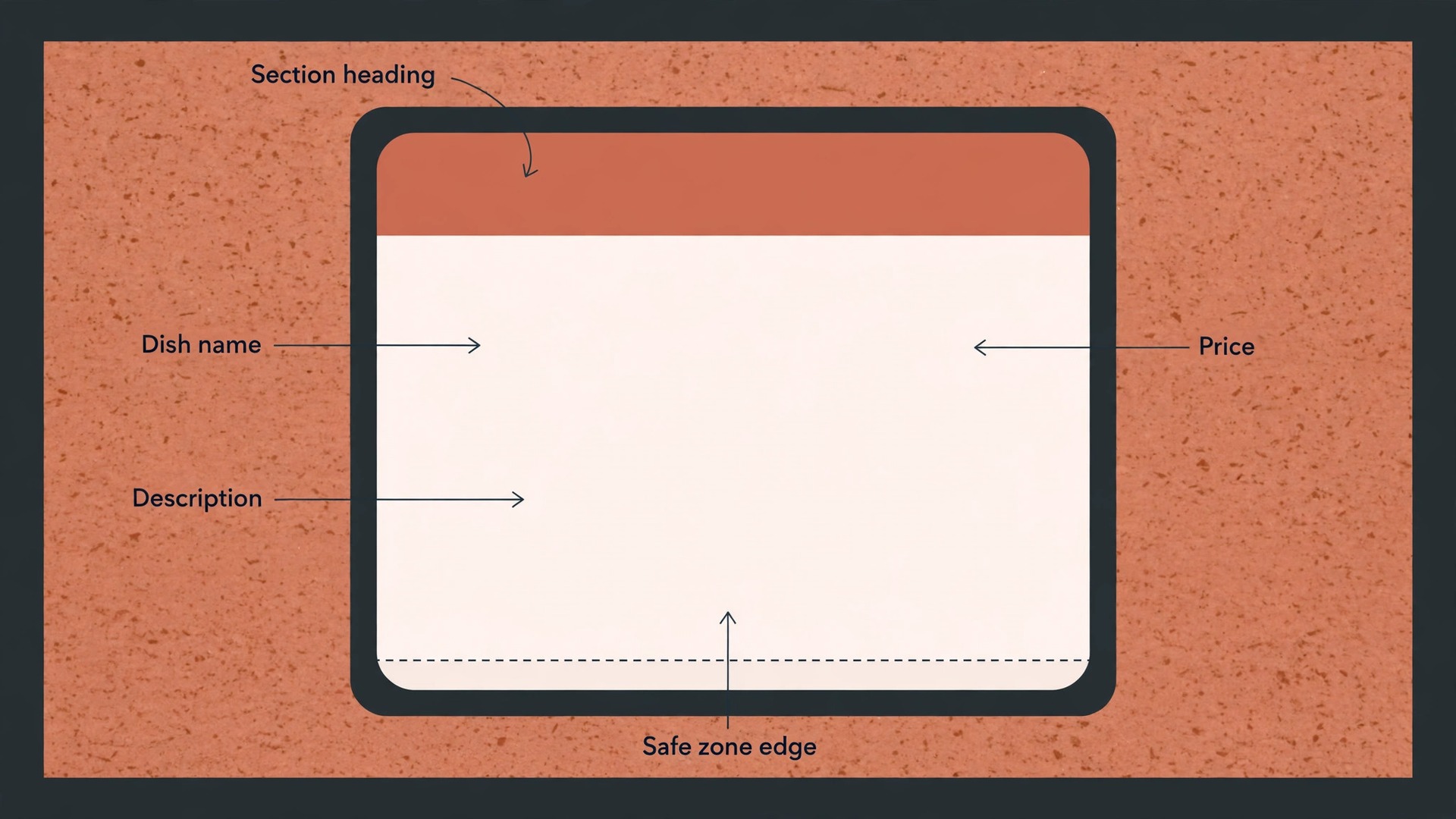
Use a clear visual order in every section. The section heading comes first and should be unmistakable, through size and weight rather than decoration alone. Dish names come next, in a weight guests can scan. Descriptions sit under the dish name in a smaller, lighter weight, and prices sit on the same line as the dish name or just to its right. Never put all prices in a separate column far from the dish names, because guests then compare prices before they read dishes, and the cheapest item wins by default.
White space is part of the hierarchy, not wasted space. Leave a clear gap between sections and a smaller gap between dishes. If two sections look like one section, add space before you add a rule or a coloured band. A menu with generous spacing and plain headings reads better than a crowded menu with ornate dividers, and it prints better too, because thin decorative lines can disappear on some printers.
Columns need care as well. Two columns suit most letter and A4 menus, because a single wide column forces long lines that tire the eye, while three narrow columns squeeze dish names and prices together. Keep column widths equal and align prices along a shared right edge inside each column. If a dish name wraps to two lines, let the price stay on the first line, since a price that drops to the second line looks like it belongs to the next dish.
Test the hierarchy in five seconds. Show the printed menu to someone new, take it away, and ask which three dishes they remember. If they remember sections but no dishes, your headings are too strong. If they remember only the cheapest dishes, your prices are too prominent. If they remember your signature dishes, the hierarchy is working.

Prices, Sections and Specials Without the Clutter
Sections should follow how guests decide, not how your kitchen is organised. Appetisers, mains, desserts, and drinks are safe, but a long mains section with no subdivisions is hard to scan. Break a long section into smaller groups that match real choices, such as grilled, pasta, and salads. Keep section names short and plain, since clever names confuse guests reading in a second language or in dim light.
Descriptions should sell the dish in one line where possible and two lines at most. Name the main ingredient, the cooking method, and one flavour or texture note, then stop. A description that lists every ingredient reads like a recipe and pushes prices down the page. Allergens and dietary marks belong as a short key at the bottom, not as a long note under every dish. Use a simple key with symbols for vegetarian, vegan, gluten free, and spicy, and explain the symbols once at the foot of the menu.
Prices need consistency above all else. Pick one format and use it everywhere. Either use whole numbers with no decimal places, or use decimals on every price, but do not mix the two. Drop currency symbols from every price except the first one in a section if you want a cleaner look, or keep them on all prices if your guests expect them. Round prices to clean numbers where your pricing allows it, because uneven endings look busy and slow scanning. When a price changes, update it in the Canva file and in any digital copy on the same day.
Specials and boxes deserve restraint. One callout box per menu is enough. Use it for the dish you most want to sell, or for a genuine limited offer, and give it a border or a tint that sets it apart without shouting. Two or three boxes compete with each other and guests skip them all. Place the box where it breaks up a long section, not at the very top. The same rule applies to chef recommendations and new dish flags. Use one flag system, use it sparingly, and explain it in the key if it is not obvious.
Photos and Typography Rules That Hold Up in Print
Photos sell unfamiliar dishes and hurt familiar ones if they are used badly. A guest does not need a photo of a cheeseburger, but a photo helps a guest who has never tried your signature stew or a dish with an unfamiliar name. That is the test to apply. If the photo answers a question the guest would otherwise ask the server, keep it. If it only fills space, remove it. Three strong photos beat ten average ones.
Photo quality matters more in print than on screen. Use your own photos where you can, shot in natural light, from the angle a guest sees the dish at the table. Avoid stock photos of dishes you do not serve, because guests notice the gap when the plate arrives and trust drops. Check every photo at full print size and at 100 percent zoom in Canva. If it looks soft or grainy at that size, it will look worse on paper. Crop tightly around the dish and avoid heavy filters that shift food colours toward orange or grey.
Typography is where most Canva menus fail, and the fix is simple. Use two fonts at most, one for headings and one for body text, and use the same pair on every menu you print. A display font for headings can carry personality, but it must stay readable at small sizes and in low light. Keep body text at 10 points or larger for a printed menu, and keep dish names at least one step larger. Anything below 9 points may look fine on a bright screen and become a struggle on paper, especially for older guests.
Line spacing needs the same discipline. Set body line spacing to at least 1.2 times the type size, and do not squeeze lines to fit more dishes on a page. If the menu does not fit, cut a dish, shorten a description, or move up a format size. Keep headings in title case or sentence case rather than all capitals for long headings, because all capitals slow reading and take more width.
Colour choices should support reading first and branding second. Dark text on a light background remains the most readable combination for a printed menu, and it prints more reliably across different printers. If your brand uses a dark background, test it on paper first, because dark backgrounds use more ink, show fingerprints, and can make small white text harder to read under warm light. Keep your palette tight, with one main colour, one supporting colour, and a neutral.
Canva Print Settings, Bleed and Colour Mode Explained
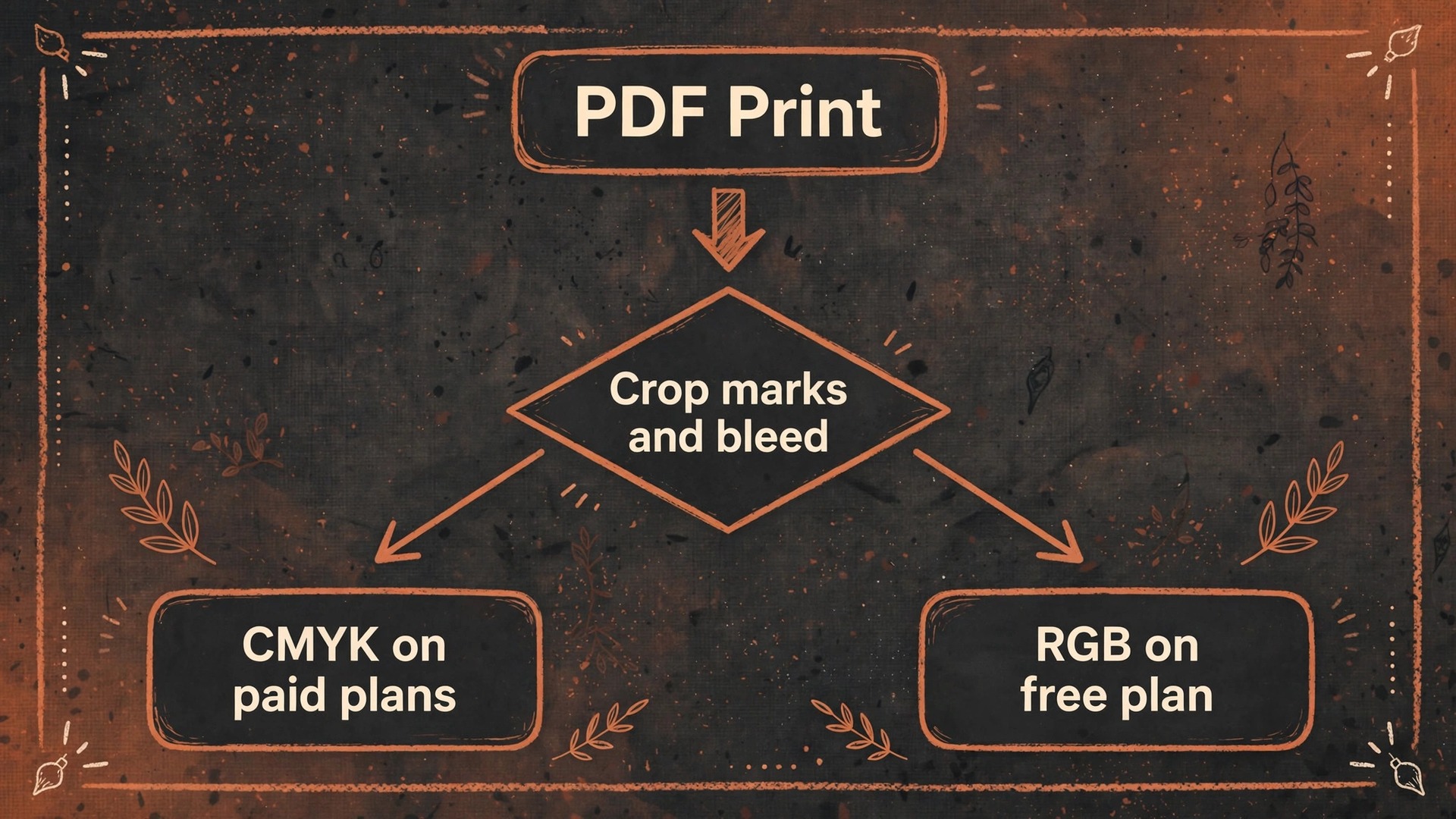
When you use Canva for restaurant menu design, this is the section that prevents the most expensive mistake in the whole process, which is sending a screen file to a print shop and discovering the error after the run. Canva designs on screen in RGB colour, which is the colour system screens use. Print shops print in CMYK colour, which uses cyan, magenta, yellow, and black ink. The two systems do not match exactly, so bright screen colours, especially vivid blues, greens, and oranges, can print duller than they look on screen. Canva cannot switch your working document into CMYK mode. It offers CMYK only as an export choice, and only on paid plans, inside the PDF Print download panel.
That limit shapes every decision in this section.
Start by turning on Show print bleed under File and View settings, as described earlier. Canva’s bleed is fixed at 3 millimetres, which is about 0.125 inch, on each side, and you cannot change it to a larger value inside Canva. Bleed is the extra area beyond the trim edge that gets cut off after printing. It exists so that a background colour or photo that runs to the edge of the page does not leave a thin white line if the cut shifts slightly. Extend every background colour and photo all the way to the bleed edge, past the trim line.
Keep all text, logos, and prices inside the safe zone, at least 0.125 inch inside the trim line, so a small cutting shift never clips them.
When the design is ready, export for print with a fixed set of choices. Go to Share, then Download, then set the file type to PDF Print. Tick the box for Crop marks and bleed, which adds the bleed area and the trim marks the shop uses to cut the sheet. If you are on a paid plan, set the Colour profile to CMYK. If you are on the free plan, the CMYK choice is not available, so your file exports in RGB and the shop will convert it. Ask the shop to show you how the conversion affects your main colours before a large run.
Leave the Flatten PDF box unticked unless the shop specifically asks for a flattened file, because flattening turns text into image data and can soften small type.
The table below sums up the export choices so you can check them at a glance before every download.
| Setting | Print choice | Why it matters |
|---|---|---|
| File type | PDF Print | High resolution output suited to paper |
| Crop marks and bleed | Ticked | Adds bleed and trim marks for accurate cutting |
| Colour profile, paid plans | CMYK | Matches the print shop colour system |
| Colour profile, free plan | RGB, shop converts | Colours may shift, so proof first |
| Flatten PDF | Unticked unless asked | Keeps text sharp and editable |
Canva also offers its own print service, which prints your design directly. That route suits a small restaurant that wants a simple order, but it removes your control over paper stock, finish, and proofing. A local shop lets you feel paper samples, check a physical proof, and discuss lamination for menus that get wiped down after every seating. Ask about 250 to 300 gsm card for a sturdy menu, or a laminated finish for menus that face spills. Confirm stock, finish, quantity, and turnaround time in writing before you approve the run.
One more limit deserves a plain warning. Canva is a strong tool for single menus, folded menus, and short multi page menus, but it is not built for long booklets or complex offset print production. If your menu grows into a 20 page booklet, a desktop publishing tool or a designer will handle it better. For the menus most restaurants actually print, which are one to six pages, Canva is fast and good enough when the export settings above are followed.
The Pre-Print Proofing Checklist
Run this checklist on the final file, not on an early draft, and tick each item on a printed copy. Keep a printed copy of it next to the menu proof.
- Trim size matches the printer order, including fold type for bifold and trifold menus.
- Background colours and photos extend to the bleed edge on every side with no white gaps.
- All text, prices, logos, and symbols sit inside the safe zone, clear of the trim line.
- Every dish name, description, and price has been read aloud or checked against the till system.
- Prices use one format throughout, and the printed prices match the digital menu and the till.
- Section headings, dish names, and descriptions follow one size order on every page.
- Photos show dishes you actually serve, and each photo looks sharp at full print size.
- Allergen and dietary symbols match the key, and the key appears on the menu.
- The PDF Print file has crop marks and bleed ticked, and CMYK set on paid plans.
- The file name includes the menu version and the date, so the shop prints the right file.
- One full size paper proof has been read at arm’s length under normal room light.
- Fold lines have been checked on a folded paper proof, with no text sitting on a fold.
If any item fails, fix it in the Canva file and re-export. Do not fix it by editing the PDF, because the next seasonal update will start from the Canva file again and the fix will be lost. Keep the checklist with the order so the next person who updates the menu follows the same steps. That habit is what stops a small price change from becoming a reprint.

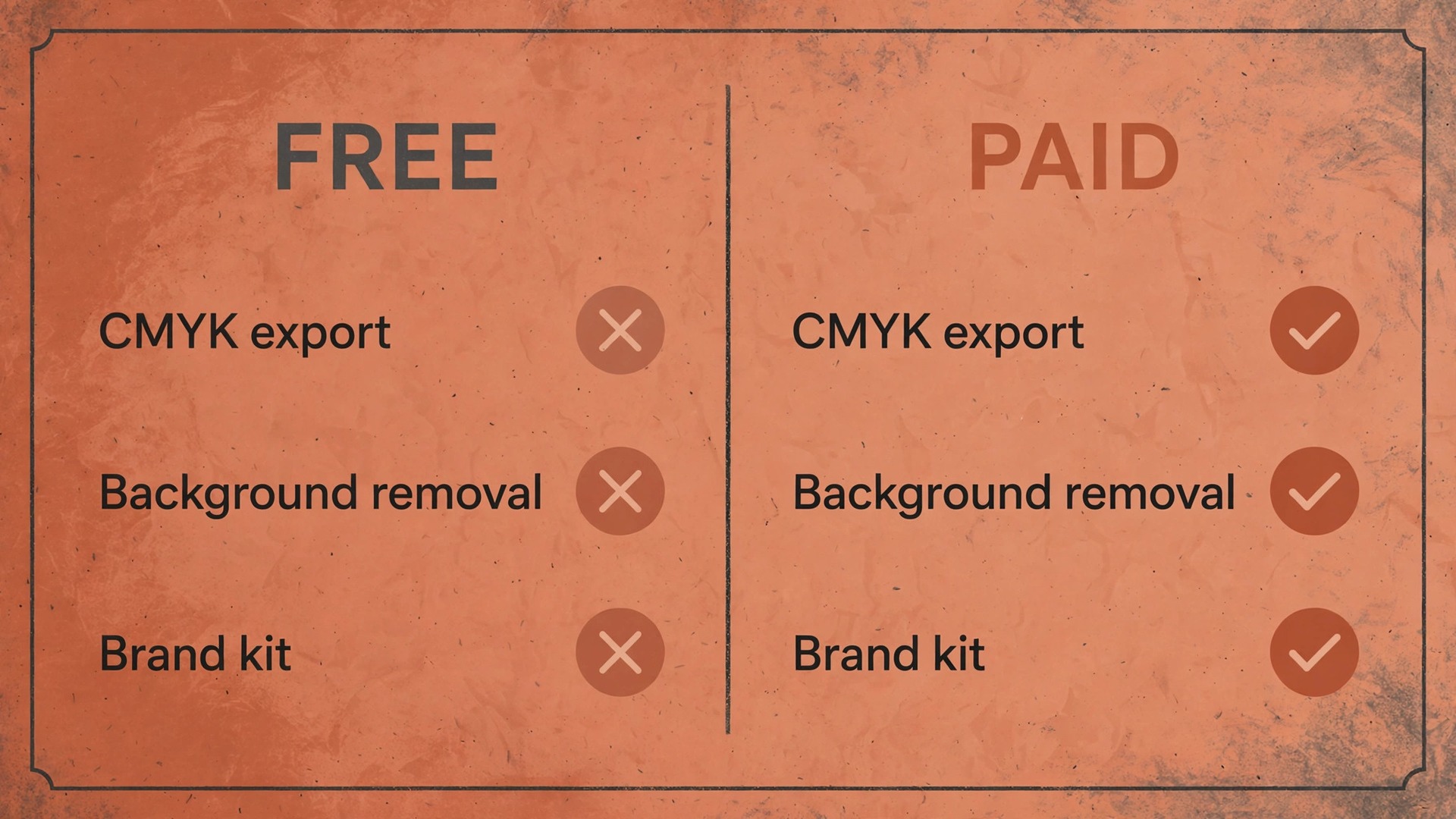
When you use Canva for restaurant menu design on a budget, the free plan handles a basic printed menu well. You can set a custom size, use free templates and photos, build sections and prices, and export a PDF Print file with crop marks and bleed. The main free plan limits that affect menus are the CMYK export choice, the background remover, the full brand kit, and access to premium photos and fonts. For a single cafe menu with your own photos and a simple palette, those limits rarely matter. For a restaurant group that needs the same brand kit across five menus, a drinks list, and a digital version, the paid plan saves time and keeps colours consistent.
Paid plans also unlock one click background removal for food photos and larger cloud storage for a library of menu versions. Pricing has shifted over the past two years, and recent public listings in October 2026 put the Pro plan in a range around 15 to 18 dollars per month on monthly billing, with a lower monthly equivalent on annual billing. Treat that range as a guide only and check Canva’s own pricing page for the current price in your country before you subscribe. A restaurant that updates menus seasonally and needs CMYK export for every run will usually recover the cost in avoided reprints.
If you stay on the free plan, manage the CMYK gap with a proof. Send the shop a short test file with your main brand colours and one food photo, ask for a printed proof, and compare it with your screen under daylight. If a key colour shifts badly, adjust it toward a duller, print friendly version on screen and proof again. If you use a paid plan, still proof the first run with a new printer, because Canva’s CMYK conversion uses a generic profile and cannot match every printer’s exact setup.
Mistakes That Force a Reprint
When you use Canva for restaurant menu design, the same five mistakes cause most menu reprints. The first is designing without bleed, which leaves a white edge on every copy. The second is placing text too close to the trim or on a fold line, which clips words or splits them across a fold. The third is using low resolution photos pulled from social media, which look fine on a phone and blurry on paper. The fourth is sending a screen PDF instead of a PDF Print file, which gives the shop a lower resolution file without trim marks.
The fifth is approving a run from a screen proof alone, without a folded paper proof, which hides fold and spacing errors until the boxes arrive.
Each mistake has a simple prevention step in the sections above, and the proofing checklist catches all five if it is used honestly. A restaurant approves a run of 500 menus, discovers the error on delivery day, and either uses flawed menus for weeks or pays for a second run. A ten minute paper proof and a two minute export check prevent that story. Build those two steps into every menu update, even a one price change.
Keep Reading
For related reading, if you are weighing Canva against other design tools, Canva alternatives compares the main options and Canva vs Adobe Express puts the two closest rivals side by side. If food is your whole business, best AI tools for restaurants covers a wider toolkit beyond menu design, and how to start a food truck business with AI looks at the business side of a mobile food operation. For print work beyond menus, best AI tools for print on demand sellers covers print products and sellers. When you use Canva for restaurant menu design alongside those guides, the menu becomes one part of a consistent brand rather than a one off document.
Frequently Asked Questions
Yes, for most single menus. When you use Canva for restaurant menu design on the free plan, you still get custom sizes, free templates, text layout, your own photos, and PDF Print export with crop marks and bleed. The paid plan adds CMYK export, background removal, and the full brand kit. If you print through a local shop, ask the shop to convert your free plan RGB file and proof the colours before a large run.
Start from your item count and your tables. A single page letter menu suits under 12 items, a bifold suits 12 to 30 items, and a trifold suits 30 to 50 items. Check your printer’s stocked sizes before you design, because a standard size costs less and reprints more easily.
How do I set up bleed in Canva?
Turn on Show print bleed under File and View settings, then extend every background colour and photo past the trim line to the bleed edge. Canva’s bleed is fixed at 3 millimetres, about 0.125 inch, on each side. When you export, choose PDF Print and tick Crop marks and bleed so the bleed area and trim marks are included in the file you send to the shop.
Should I export in CMYK or RGB from Canva?
Use CMYK for print when your plan allows it, because print shops print in CMYK ink. The CMYK choice in Canva is available only on paid plans, inside the PDF Print download panel. On the free plan, export in RGB and let the shop convert the file, but proof the colours first.
Use fewer photos than you think you need. One strong hero photo plus one photo per section for unfamiliar dishes is a good ceiling for most menus. Each photo should show a dish you actually serve and look sharp at full print size.
Update the Canva file every time a price, dish, or allergen note changes, and re-export both the print file and the digital version on the same day. Save each seasonal version as a separate dated copy. Run the pre-print proofing checklist again before every print run, even when only one price has changed.
A good menu does quiet work. It guides eyes to signature dishes, keeps prices in their place, and lets guests decide without asking the server to explain every section. That result comes from format, hierarchy, and proofing, not from decoration. When you use Canva for restaurant menu design with those three disciplines in place, you get a menu that looks considered, prints cleanly, and survives daily use on real tables. Start with the size your item count needs, build the hierarchy before you add photos, export with bleed and the right colour profile, and proof on paper before you pay for a run.
Do those steps in order, and the next menu you print will be one guests enjoy reading as much as they enjoy ordering from.