
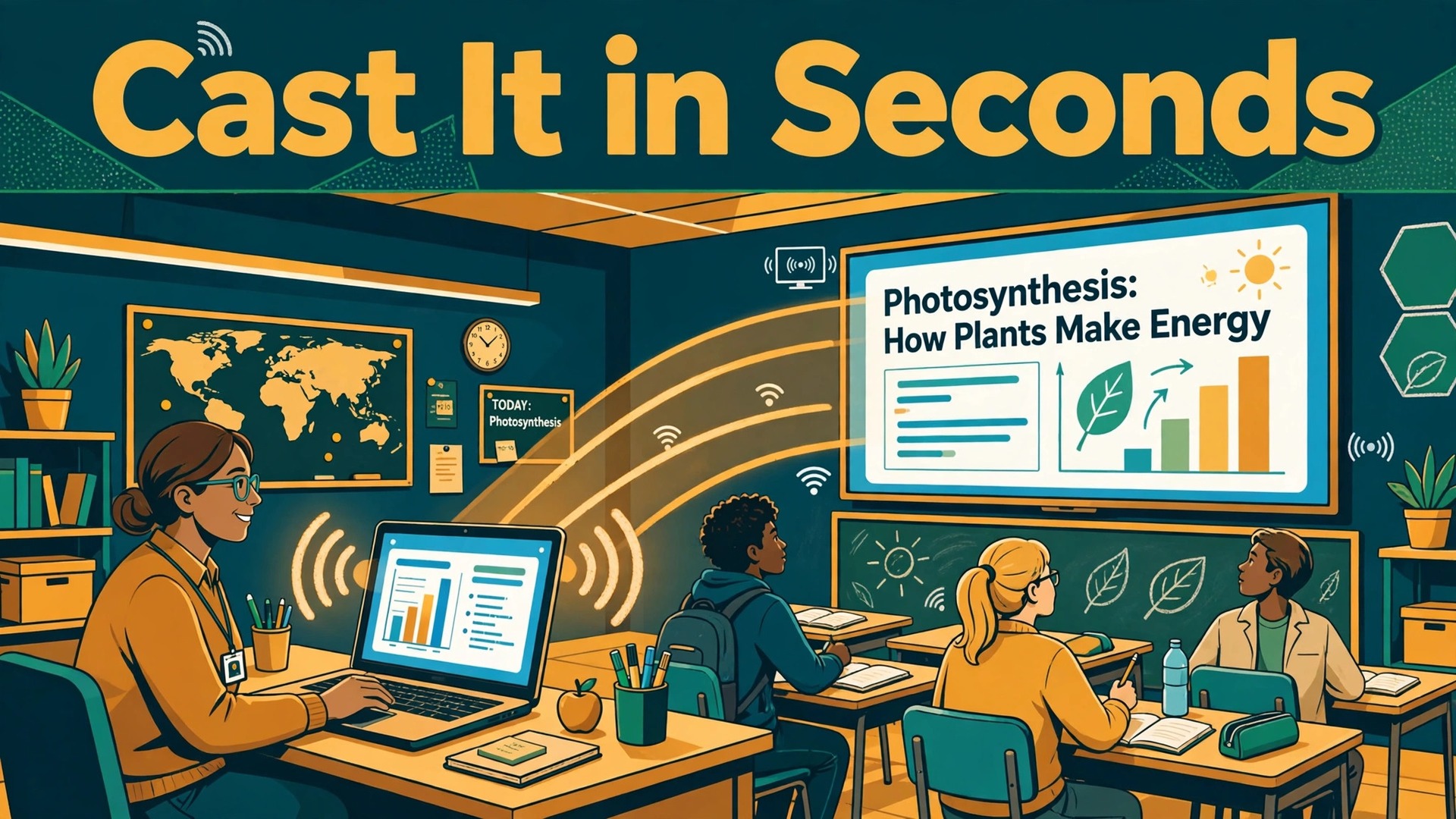
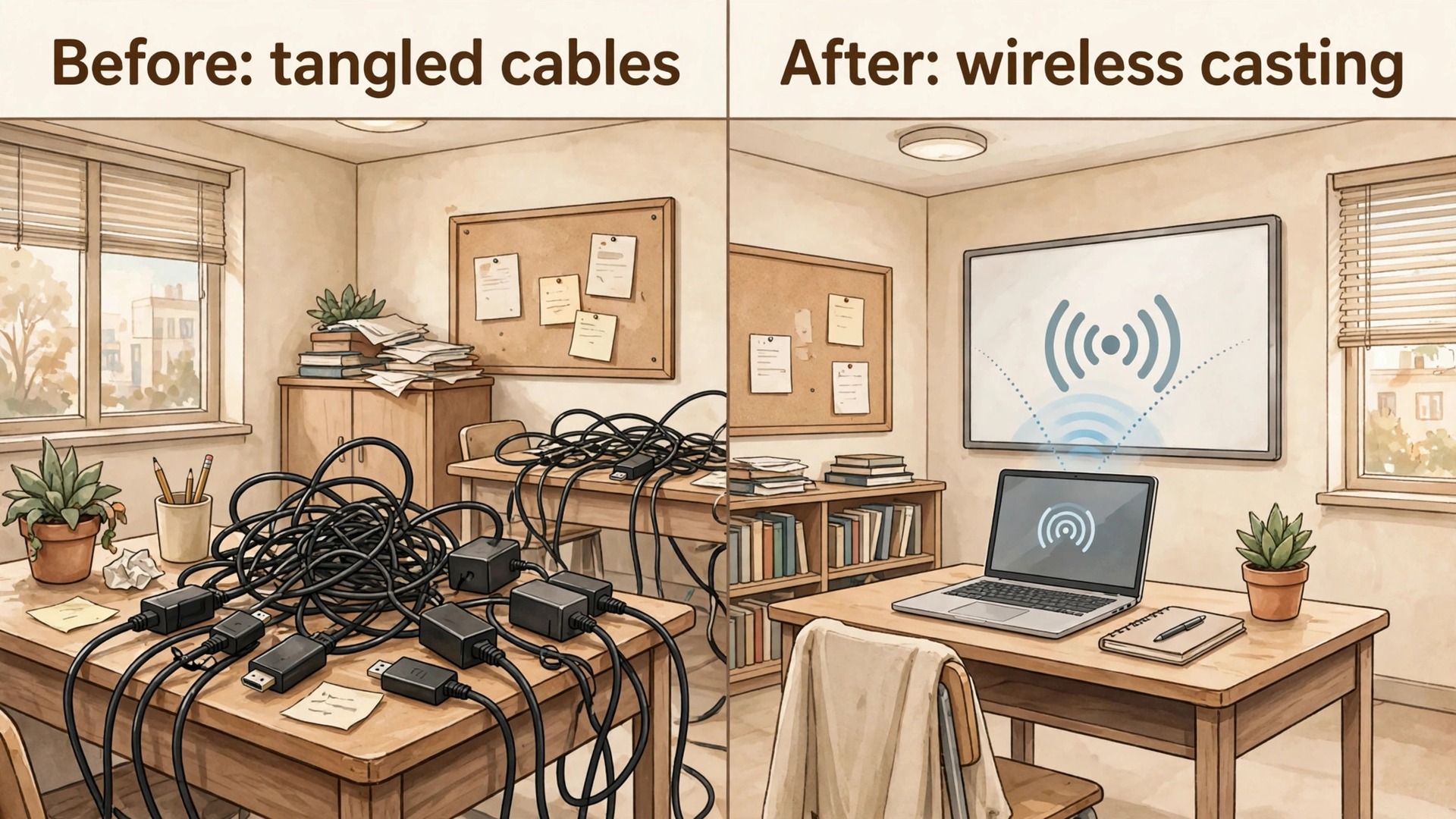
An HDMI cable works until it does not. It is too short for the teacher desk, it disappears into a drawer, it forces the presenter to stand beside the screen, and it only serves one laptop at a time. When you set up Chromecast classroom presentations, the cable stops being the lesson plan. The teacher casts from a desk at the back, a student shares work from a Chromebook without unplugging anything, and the switch between presenters takes seconds rather than a hunt for an adapter.
That comparison only holds if the setup is done properly. Casting is a network task before it is a presentation task. A weak signal, a device on the wrong network, a muted tab, or a student who cannot join will undo the advantage in front of a full class. This guide covers the full routine, from the first plug-in to the daily habits that keep lessons starting on time. It uses Google’s own support guidance for setup, casting, and classroom tools, and it flags the limits that older guides still get wrong, including guest mode.
Why Casting Beats the Cable in a Classroom
A cable gives you one reliable connection and a long list of small frictions. Every new laptop needs the right adapter. Every presenter change means someone walks to the front, crouches behind a desk, and swaps a plug while the class waits. The teacher cannot move around the room while presenting, because the laptop is tethered to the wall. Over a term, those minutes add up, and they always arrive at the worst moment, right when attention is hardest to win back.
Cost is the other honest comparison. Google’s support comparison lists Chromecast with Google TV (HD) at 29.99 dollars, Chromecast with Google TV (4K) at 49.99 dollars, and Google TV Streamer (4K) at 99.99 dollars, with prices varying outside the United States. Google also notes that Chromecast with Google TV is no longer available to buy from the Google Store, although Google says it will continue to support those devices with updates. For a classroom, that matters in two ways. First, check retailer stock and the checkout total before you promise a room a particular model. Second, do not buy a device for a feature it no longer offers.
If your school plans to use managed classroom casting, check receiver compatibility before you buy, because that tool does not work on every Google TV device.
How to set up Chromecast classroom presentations in one afternoon
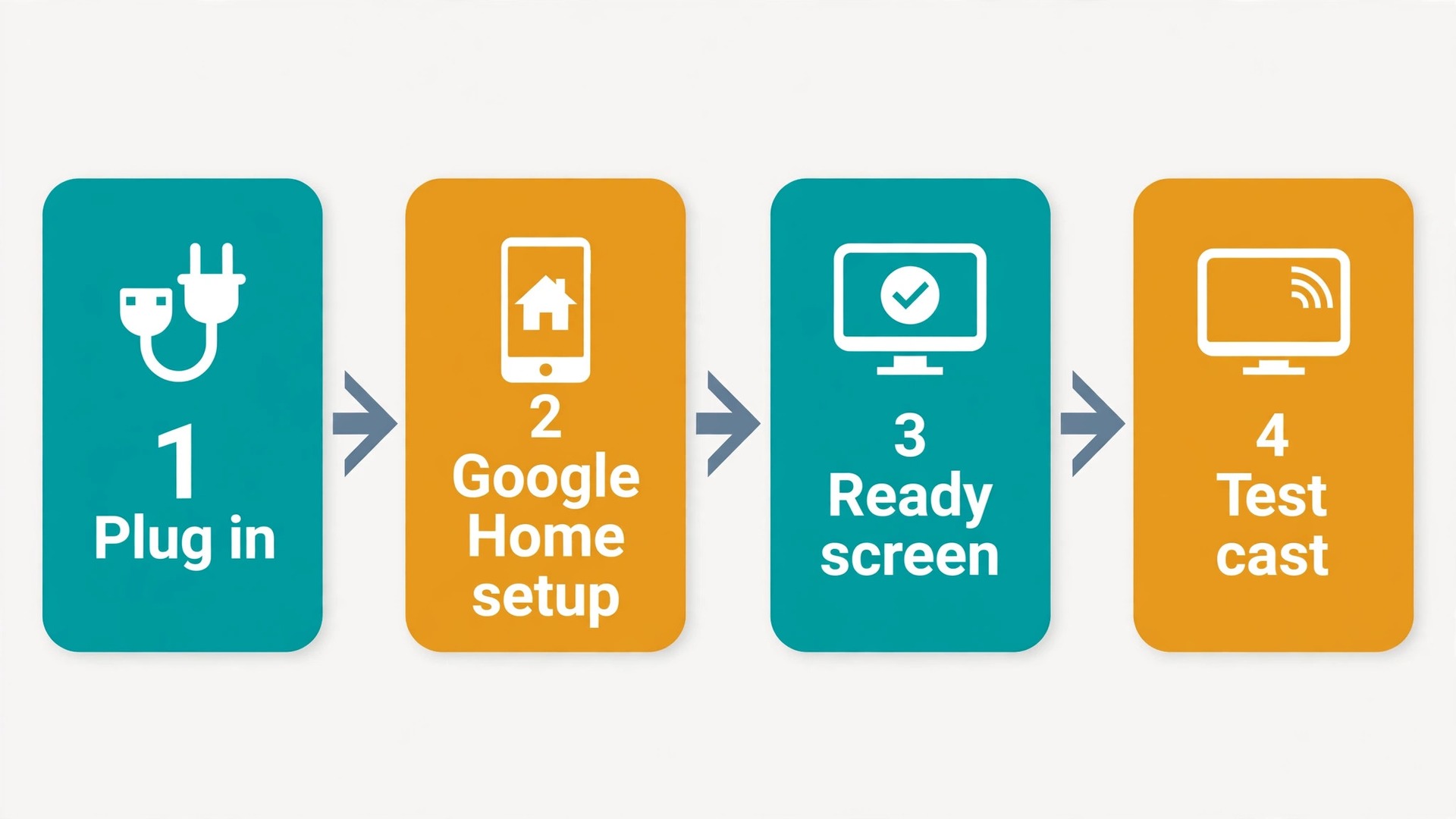
Start with the physical install, because everything else depends on it being stable. Plug the Chromecast into an HDMI input on the display or projector, then connect the USB power cable to the power adapter supplied in the box and plug that adapter into a wall outlet. Google’s quick start guide stresses using the supplied adapter, and that advice matters in a classroom, where a TV USB port may not deliver steady power and a loose cable gets knocked daily. Note which HDMI input you used, and label it on the remote routine or on a small card near the display, so a cover teacher is not guessing.
Switch the display to that HDMI input. You should see a setup screen. If you see nothing, check the input first, then the power light, then try a different HDMI port before you assume the device is faulty. A surprising number of classroom “dead Chromecast” reports end at the wrong input, especially where a display also has a DVD player, a document camera, or a second computer attached.
Setup itself runs through the Google Home app on a phone or tablet, not through a computer browser. Google states that Chromecast setup on a computer is not supported, so have a phone or tablet ready even if every lesson will later be cast from a laptop. Download the Google Home app, connect the phone to the same Wi-Fi network you intend to use for the Chromecast, and open the app. If setup steps do not appear, use the add option in the app, choose the option to set up a new device, and follow the remaining prompts.
Give the device a name the whole school can understand. “Room 12 display” beats “Living Room TV” and beats a teacher’s name, because rooms outlast timetables. A clear name also prevents the classic error of casting to the next room’s display, which is funny once and disruptive every time after. If your school has several Chromecast devices, agree a naming pattern before the first install, such as room number first, then display type. Write the name, the network, and the date of setup on the room’s tech card, so the next person to troubleshoot does not start from zero.
Get the Network Right Before the First Lesson
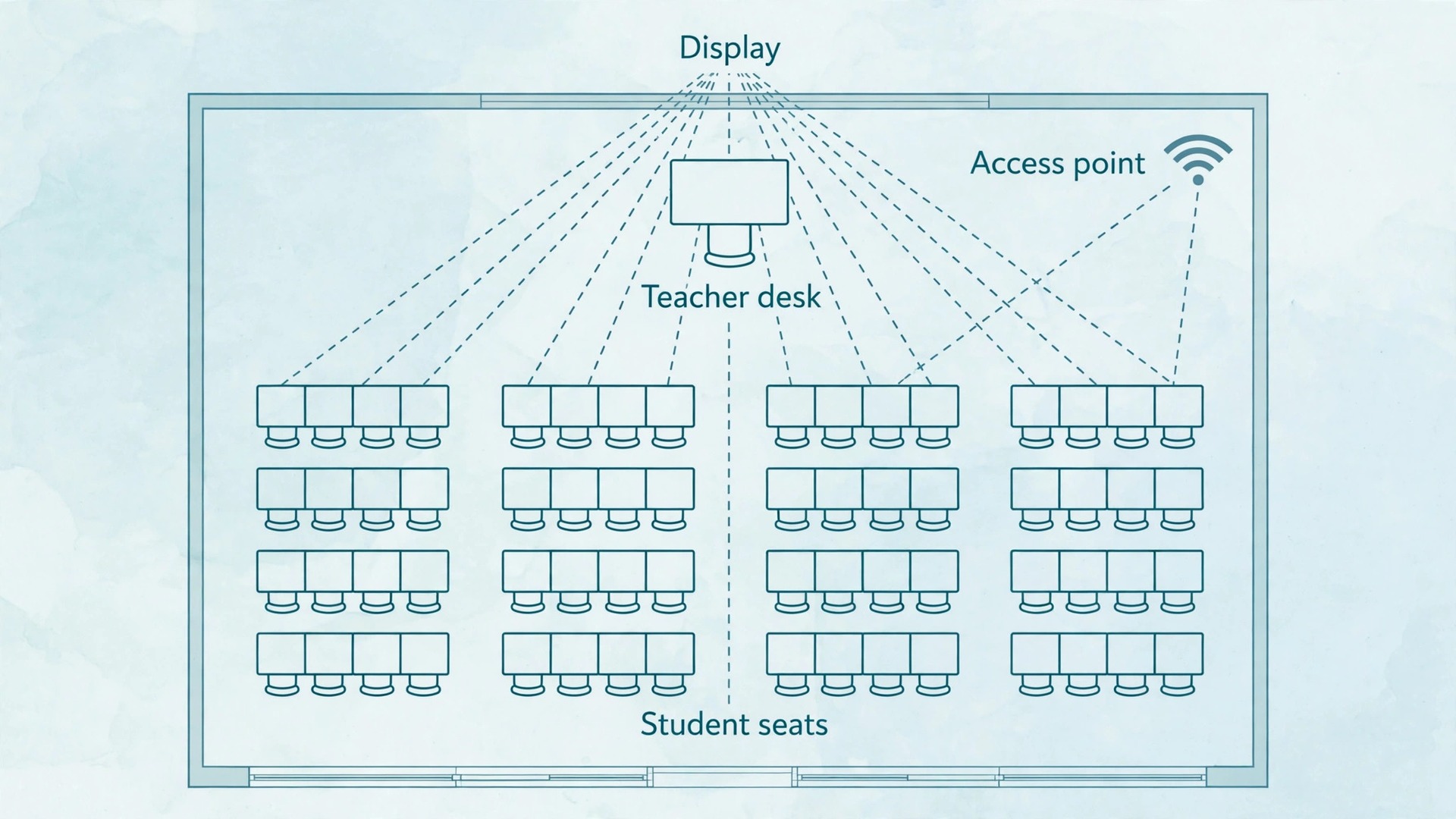
Casting discovery is the part most classrooms get wrong, because it is invisible until it fails. In plain terms, the sending device and the Chromecast must be able to find each other on the same local network. Google’s support pages repeat the same requirement in several forms, and classroom experience confirms it. If the laptop is on a staff network and the Chromecast is on a student network, or if one device is on a guest network that blocks device discovery, the cast button will show nothing, or it will show a device that refuses to connect.
Signal strength deserves a practical test, not a guess from a coverage map. Stand at the teacher desk with a laptop, load a video page, and watch for stuttering. Walk to the far corner where a student might present, and repeat the test. If video struggles in either spot, the room needs a network fix, not a new Chromecast. Crowded 2.4 GHz bands are a common culprit in schools, where dozens of devices compete, so a 5 GHz connection is worth preferring where the access point supports it and the Chromecast model supports it.
The Casting Checklist for Every Lesson
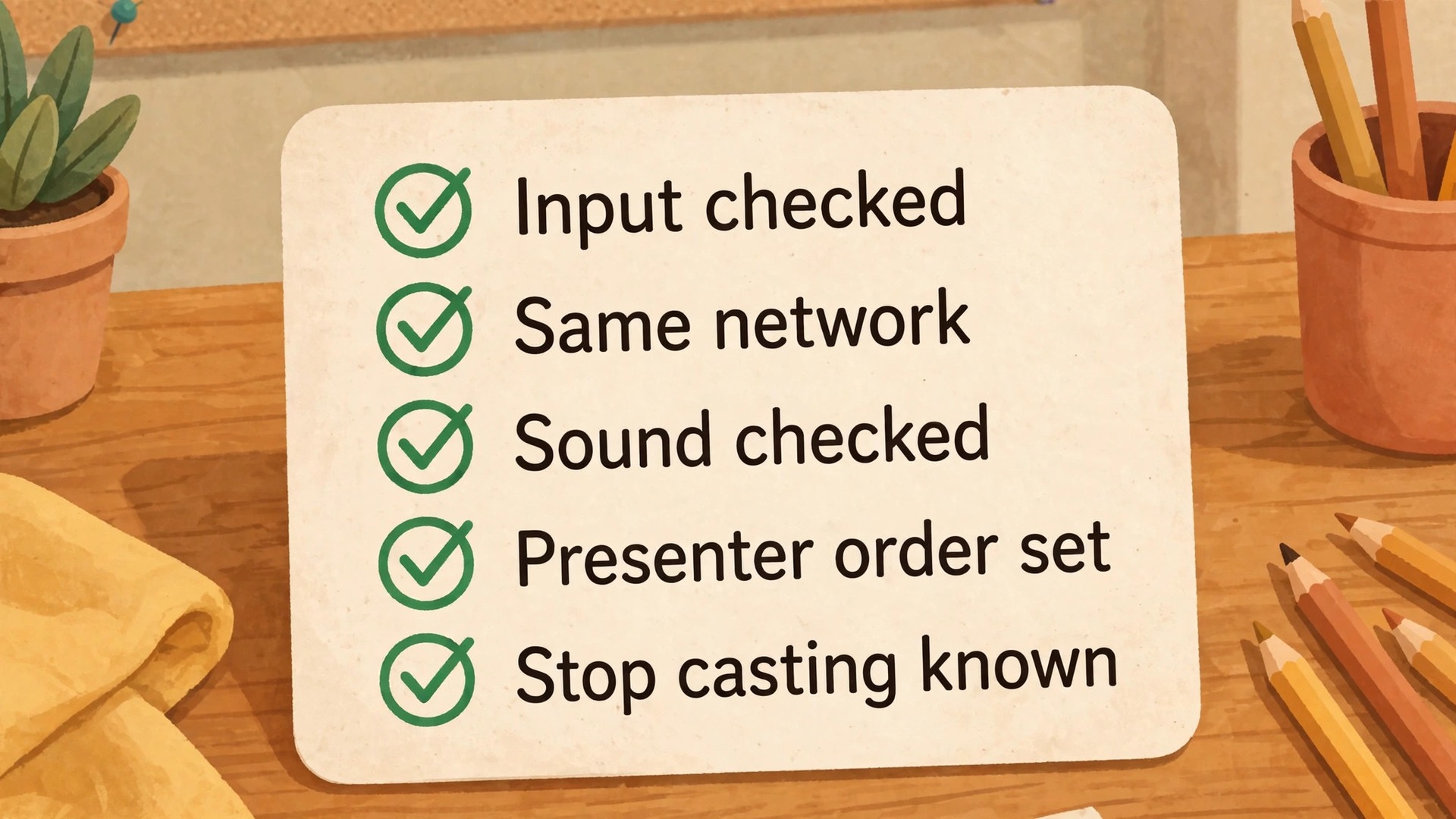
A checklist sounds bureaucratic until it saves a lesson. Tape this routine inside the teacher desk drawer, or pin it to the room’s tech card, and run it in the two minutes before students arrive. It takes less time than one failed cast attempt in front of a class.
- Confirm the display is on the Chromecast HDMI input and the ready screen is visible.
- Confirm the laptop or student device is on the same Wi-Fi network as the Chromecast.
- Close notifications, private messages, and tabs you do not want the class to see.
- Open only the tab, deck, or app you will present, and load it fully before you cast.
- Cast a tab first. Switch to full screen casting only if the lesson needs an app outside the browser.
- Play ten seconds of video or audio and check sound at the back of the room, not just at the front.
- Agree who presents next and in what order, so handover takes seconds.
- Know how to stop casting in one action, and test it once, so a private screen never stays up by accident.
- If the cast target does not appear, restart the browser, check the network name, and move closer to the access point before you try a deeper fix.
- At the end of the lesson, stop casting, close the deck or tab, and leave the display on the ready screen for the next teacher.
Cast From a Teacher Laptop Without Losing the Lesson
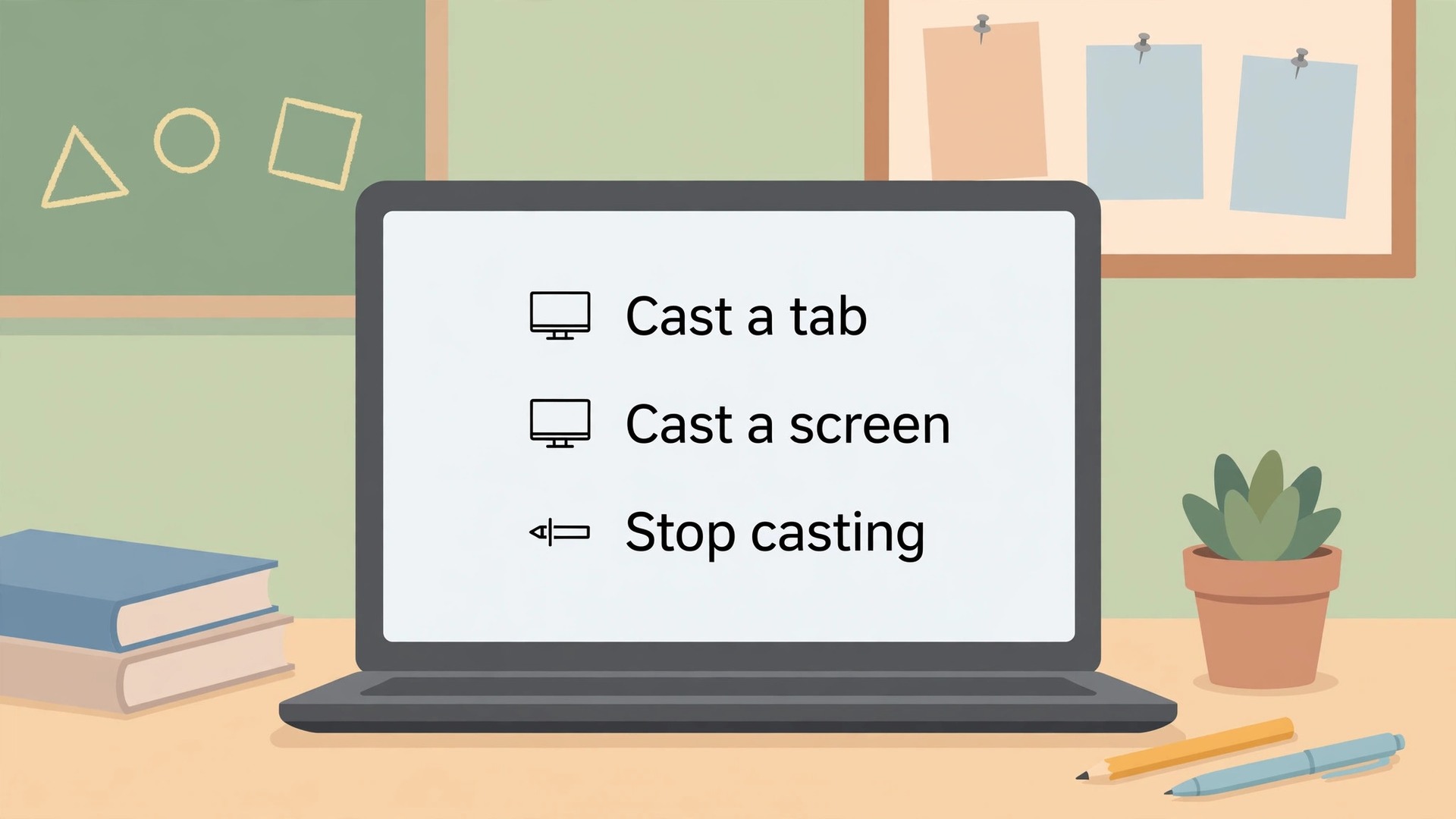
Casting from Chrome on a laptop is the core classroom workflow, and it is built into the browser, so there is no separate Chromecast app to install on Windows or Mac. Open Chrome, open the three dot menu in the top right, and choose the cast option. In current Chrome versions this sits under a save and share submenu, but the result is the same. A cast window appears, you choose the room display, and the content appears on the big screen.
The choice inside that window decides how the lesson behaves. Cast a tab sends only that browser tab to the display. You can switch to other tabs or apps on the laptop without the class seeing them, and audio from the tab plays through the display speakers. That is the right choice for slides in a browser, for web pages, for videos played in a tab, and for most day-to-day teaching. It is also the most forgiving choice on a busy network, because it sends less than a full mirror.
Cast a screen, sometimes labelled cast desktop, mirrors everything on the laptop display. Use it when the lesson needs an app outside the browser, such as a desktop whiteboard, a local file viewer, or a piece of subject software. Remember the cost. Everything is visible, including notifications, messages, and anything you type, and audio behaviour differs by system. Google’s support guidance notes that desktop audio casting works from Windows, while a Mac or ChromeOS desktop cast shows the picture without computer audio. If you teach from a Mac and need desktop app sound, cast the tab version where possible, or route the app sound through a separate speaker plan, and test it before the lesson.
Let Student Devices Present Without Handing Over the Room
Student presenting is where Chromecast earns its place, and where classroom control matters most. The method depends on the device, so teach students the route for their device rather than giving one generic instruction that fails for half the class.
Chromebooks are the simplest student case. The student opens Chrome, uses the cast option, and chooses the room display, or uses the cast control in Quick Settings. A tab cast keeps the student’s other work private, while a full screen cast shows everything, so teach students to cast a tab by default. A Chromebook on the same network as the Chromecast, with an updated Chrome browser, should appear as a sender without extra software.
Android phones and tablets cast from apps that carry a cast button, such as YouTube and other video apps, and from Chrome for tab content. The student taps the cast icon inside the app, chooses the room display, and the media plays on the big screen while the phone acts as a remote. That app-based route is often smoother than mirroring the whole phone, because the display pulls the media directly rather than receiving a live mirror of a small screen.
Apple devices need a frank explanation, because the limits surprise teachers. An iPhone or iPad cannot mirror its whole system screen to a Chromecast in the way it can to an Apple TV. It can cast from apps that include a cast button, such as YouTube, and from Chrome for web content, but an app without a cast button will not appear on the display. If a lesson depends on an iPad-only app with no cast support, plan a different route for that lesson, such as a Chromebook, a teacher laptop with the file, or the wired fallback. Discovering that limit mid-lesson wastes the exact minutes the casting setup was meant to save.
For managed school devices, there is a stronger option, and it is worth knowing by name. Cast moderator, described in Google’s Chrome Enterprise and Education help, lets a teacher and students share a single Chrome tab or mirror to a shared screen by connecting with a code. It needs a managed ChromeOS device or a managed Chrome browser on version M108 or later as the sender, a Chromecast with Google TV device as the receiver, and a managed school or work account. It does not work with personal email accounts, and Google notes it is not available for Google TV Streamer or other Google TV devices.
If your school manages Chromebooks centrally, ask IT whether cast moderator is set up for your rooms, because it gives code-based control that an open Chromecast does not. If your school does not manage devices that way, use the order routine above, and do not promise students a code system the school has not enabled.
Audio Routing That Reaches the Back Row
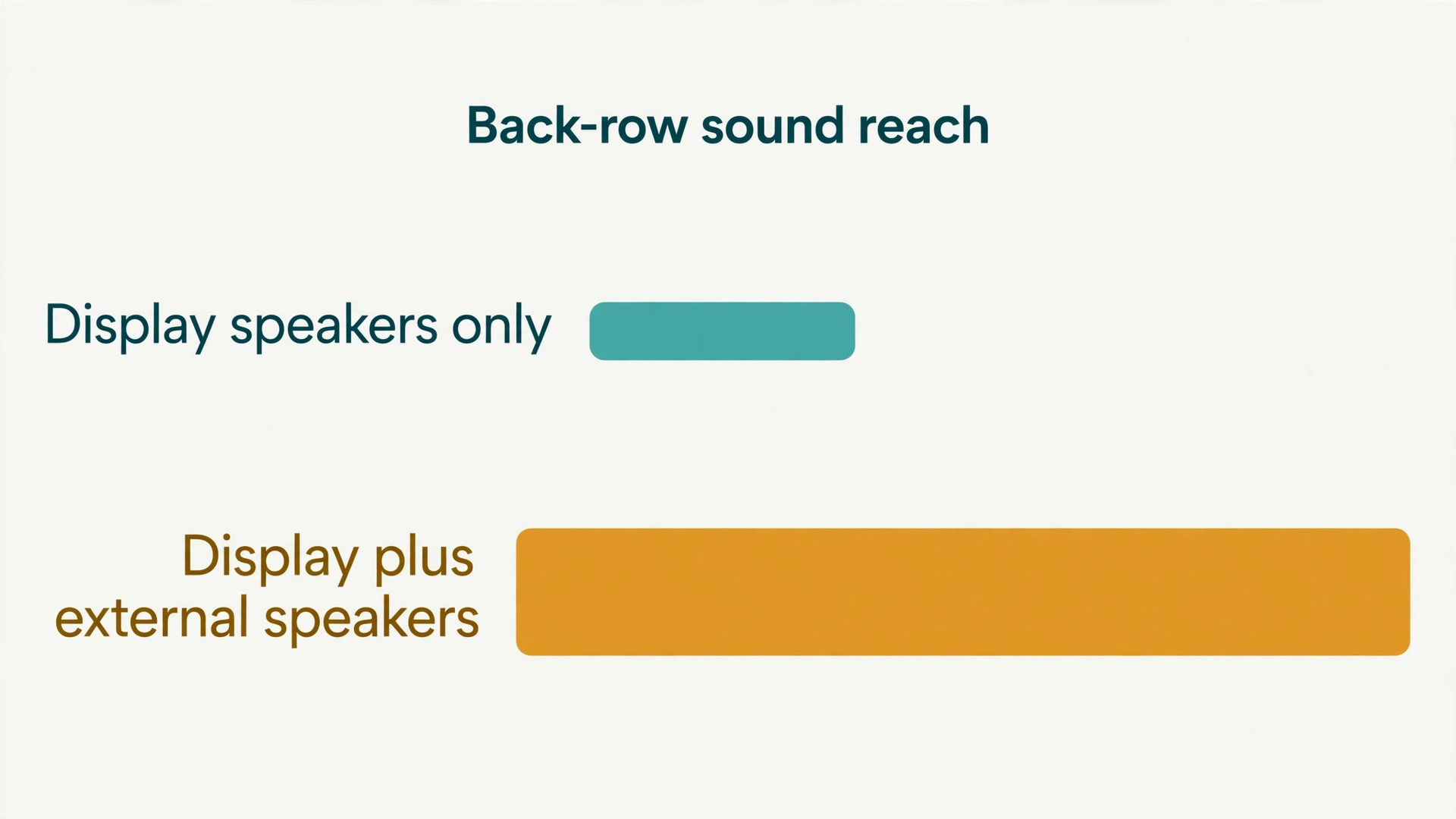
Picture problems get noticed first, but audio problems end lessons. A video that looks perfect and sounds faint at the back teaches nothing, and a teacher who has to shout over a quiet clip loses the room. When you set up Chromecast classroom presentations, plan audio as a separate system, not as an afterthought to the picture. The display speaker is the starting point, not the plan, because a flat panel speaker designed for a living room rarely carries speech and music across a classroom with thirty students, ventilation noise, and corridor sound.
The first decision is where the sound should come from. In most rooms, the answer is the display speakers for short clips, and external classroom speakers for any lesson where audio carries meaning, such as language listening, music, film study, or a long video. External speakers can connect to the display audio output, to a soundbar under the display, or to a classroom audio system if the room has one. Test the chosen route with the room full in mind, not empty. Sound that seems loud in an empty room at 8 in the morning can vanish under a full class.
The second decision is which casting route carries the sound. A tab cast carries tab audio to the display, so the display or its connected speakers play it. An app cast from a phone or tablet sends the media to the display, and the display speakers play it, while the phone volume controls may or may not affect it depending on the app. A full desktop cast from Windows carries desktop audio, while the same cast from a Mac or ChromeOS machine shows the picture without computer audio, as Google’s support guidance states. That single difference decides whether a Mac teacher can present a desktop app with sound, or must use a tab cast or a separate audio route instead.
When you set up Chromecast classroom presentations on mixed devices, test audio on each device type your staff actually use, not just on the teacher laptop that happened to be free on install day.
Use the table below as a room planning tool. Find the device, find the route, and check the audio result before the lesson that needs it.
| Device and casting route | Where sound plays | Watch out for |
|---|---|---|
| Windows laptop, cast a tab | Display speakers or speakers connected to the display | Tab must be the source of the sound, mute other tabs |
| Windows laptop, cast a screen | Display speakers or speakers connected to the display | Everything on screen is visible, including notifications |
| Mac laptop, cast a tab | Display speakers or speakers connected to the display | Works well for browser video, slides, and web audio |
| Mac laptop, cast a screen | Picture only, no computer audio on this route | Use a tab cast or a separate speaker plan for app sound |
| Chromebook, cast a tab | Display speakers or speakers connected to the display | Student should cast a tab, not the full screen, by default |
| Chromebook, cast a screen | Display speakers or speakers connected to the display | Everything is visible, close private tabs first |
| Android phone or tablet, cast from an app | Display speakers or speakers connected to the display | App must include a cast button, phone volume may not control display volume |
| iPhone or iPad, cast from an app | Display speakers or speakers connected to the display | Only apps with a cast button work, whole system mirroring is not available |
| Any device, display speaker only | Display speakers | Test from the back row with a full room in mind, plan external speakers for long audio |
| Any device, display plus external speakers | External classroom speakers | Check the audio output, the cable, and the volume before the lesson |
Guest Mode and Permissions, What Actually Works Now
This section corrects the most common outdated advice in classroom casting guides. Guest mode, as older articles describe it, is no longer supported. Google’s support page states that plainly, and adds that guests can cast from Android or iOS devices by connecting to the host Wi-Fi network. The old guest PIN system, where a visitor cast without joining the network, should not be promised to a visiting speaker, a supply teacher, or a student with a personal device. If a guide still tells you to turn on guest mode and share a PIN, that guide is out of date, and following it will waste setup time.
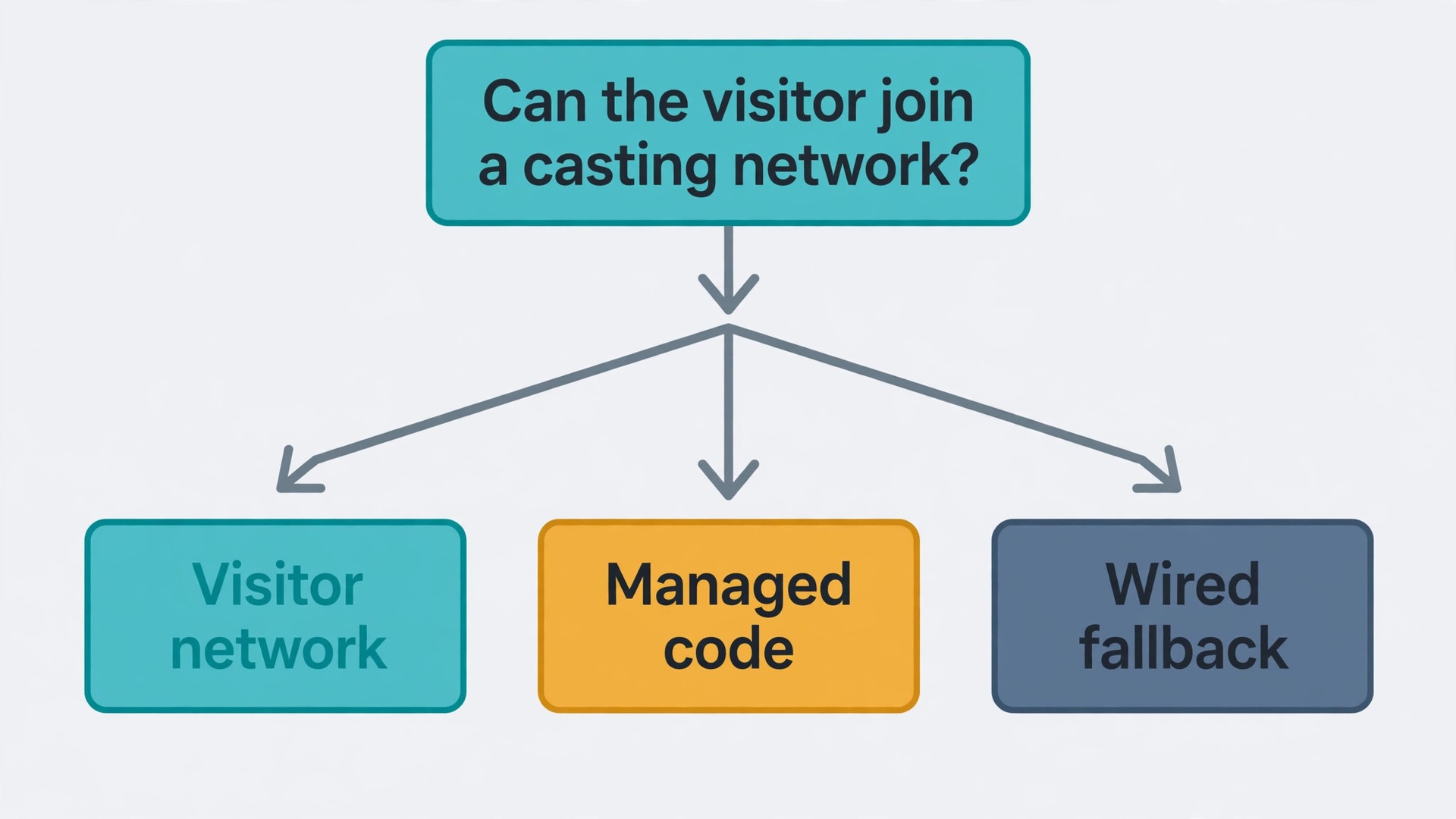
What replaces guest mode is a set of practical choices, and the right one depends on how your school runs its network. When you set up Chromecast classroom presentations for visitors, start with the network question, not the device question. Can a visitor join a school Wi-Fi network that allows casting, without receiving the main staff password. Many schools run a separate visitor or student network for exactly this purpose. If that network allows device discovery to the classroom Chromecast, a visitor can cast from a phone or tablet after joining it. If the visitor network isolates devices, casting will fail, and IT needs to adjust the setting or offer a different route.
The second choice is managed casting. When you set up Chromecast classroom presentations in a managed school, cast moderator is the controlled alternative to an open device. A teacher shares a code, a student or guest with a managed account and a supported sender connects with that code, and the session stays within the managed system. It does not solve every visitor case, because it needs a managed account and a supported receiver, but for classes on managed Chromebooks it is the tidiest permission model. It keeps the display under teacher control, it avoids sharing Wi-Fi passwords, and it avoids the free-for-all of an open cast target.
The third choice is the honest fallback. For a one-off guest with a personal laptop and no suitable network access, the wired HDMI cable is still the right answer. Keep the cable, the adapters, and a short instruction card in the room. A guest who presents over a cable without drama is better served than a guest who spends fifteen minutes trying to join a network they were never meant to join. The goal is a successful presentation, not a pure wireless presentation at any cost.
Permissions inside the lesson need the same clarity. Decide who may cast, and say it out loud at the start of the term. In most classrooms, the rule is simple. The teacher casts, the current student presenter casts, and everyone else waits. The teacher can stop any cast at any time, and stopping a cast is not a sanction, it is how the room changes presenters. For younger classes, add a rule that students ask before casting, because a well-meaning student who casts early can overwrite the teacher’s screen. For older classes, add a rule about content, because a cast screen is a public screen, and anything shown on it should be suitable for the whole class.
Classroom Troubleshooting Habits That Save Lessons
Troubleshooting in a classroom is different from troubleshooting at home, because the audience is waiting and the clock is running. The habit that matters most is a short, fixed routine, run in the same order every time, instead of random fixes that change with whoever is nearest the remote. Teach every teacher in the room the same five steps, and most failures resolve in under two minutes.
First, check the visible things. Is the display on the right HDMI input, is the Chromecast powered, and is the ready screen showing. Second, check the network name on the sending device, and confirm it matches the network the Chromecast uses. Third, close and reopen the browser, then try casting again, because a stale browser session causes more failures than faulty hardware. Fourth, move closer to the access point or restart the cast from a device that is already known to work in that room. Fifth, if those steps fail, switch to the wired fallback and report the fault, rather than spending the lesson on diagnostics while the class waits.
When you set up Chromecast classroom presentations as a school routine, log recurring faults by room, not by teacher. A room that fails every Monday morning may have a network contention problem, a room that fails only for one laptop may have an outdated browser, and a room that fails only for student devices may have a network permission problem. A simple log, kept on the tech card or in a shared document, turns repeated anecdotes into a pattern IT can fix. Without a log, every failure feels new, and the same fault gets “fixed” by restarting the same device week after week.
End-of-day habits matter as well. When you set up Chromecast classroom presentations for shared rooms, the last teacher of the day should stop casting, leave the display on the ready screen, and report any fault the same day, not next week. A fault reported on Friday can be fixed before Monday. A fault reported on Monday morning becomes Monday’s first lesson problem. That reporting habit, more than any single setting, is what separates rooms teachers trust from rooms teachers avoid.
A Chromecast is only one part of a teaching room, and the rest of the kit decides whether lessons run smoothly. For the display itself, best projector for small classroom covers brightness, throw distance, and budget by room size, which matters when a Chromecast feeds a projector rather than a flat panel. For hybrid lessons that mix a room with remote learners, best video conferencing tool for hybrid classes helps choose the platform that will share the room audio and video fairly.
For lesson planning that makes the most of the big screen, use ChatGPT for lesson planning for teachers covers planning workflows, while fix Zoom audio echo step by step is useful when a video call, rather than a cast, is the source of the echo. If the room network itself is the weak point, best Wi-Fi router for a 3 storey house is a home focused guide, but its coverage and band advice explains the same signal problems that affect classrooms, and fix Wi-Fi keeps dropping on laptop covers the laptop side of an unstable connection. Read those guides alongside this one when you plan the full room, not just the casting device.
Frequently Asked Questions
Do the teacher laptop and the Chromecast have to be on the same Wi-Fi network?
Yes, in normal classroom use. Casting discovery depends on the sending device and the Chromecast being able to find each other on the same local network. If they sit on different networks, or if the network isolates devices from each other, the cast target may not appear or may refuse to connect. Check the network name on both sides first, and ask IT which network classroom casting should use if your school runs separate staff, student, and visitor networks.
Can students cast from a Chromebook, an Android phone, and an iPhone?
Chromebooks and Android devices cast well, through Chrome and through apps that include a cast button. iPhones and iPads cast from apps that include a cast button, such as YouTube, and from Chrome for web content, but they cannot mirror the whole system screen to a Chromecast. If a lesson depends on an iPad-only app with no cast support, plan a Chromebook, a teacher laptop, or a wired route for that lesson instead of discovering the limit in front of the class.
Is guest mode still available for visitors who should not get the Wi-Fi password?
No. Google’s support page states that guest mode is no longer supported, and that guests can cast from Android or iOS devices by connecting to the host Wi-Fi network. For visitors, use a school visitor network that allows casting, use a managed code-based system where your school has one, or use the wired HDMI fallback for a one-off guest. Do not promise a guest PIN system that no longer exists.
Why does the cast target sometimes not appear at all?
The most common cause is a network mismatch, followed by device isolation on a guest network, a Chromecast that is powered off or on the wrong HDMI input, and a stale browser session. Work in order. Confirm the input and the ready screen, confirm the network name on the sending device, close and reopen Chrome, and try again. If the target still does not appear, try a device that is known to work in that room, which tells you whether the fault sits with the first device or with the room.
Why is there picture but no sound when casting a desktop?
The answer depends on the system. A tab cast carries tab audio to the display, so check the tab volume, the player volume, and the display volume in that order. A full desktop cast from Windows carries desktop audio, while a full desktop cast from a Mac or ChromeOS machine shows the picture without computer audio, according to Google’s support guidance. If you need desktop app sound from a Mac, use a tab cast where possible, or route sound through a separate speaker plan, and test it before the lesson.
What should a teacher do when casting fails in the middle of a lesson?
Stop trying to diagnose in front of the class after two quick attempts. Reopen the browser and try the cast once more, then switch to the wired HDMI fallback and continue teaching. Report the fault the same day, with the room, the device type, the network name, and what you already tried. A short report lets IT spot a pattern, while a silent retry next lesson lets the same fault return. Keeping a fallback cable in every room is what makes this advice practical rather than theoretical.
The Lesson Should Start on Time, Every Time
A classroom Chromecast setup earns trust the same way any classroom tool does, by working on a wet Monday morning, with a cover teacher, in a room full of students, without a technical performance first. That trust comes from four decisions made before the term starts. The network is checked at the teacher desk and at the student seats. The device has a clear room name and a school account attached. The audio route is tested from the back row on every device type staff use. And the room has a fallback cable, a tech card, and a presenting order that everyone knows.
When you set up Chromecast classroom presentations with those four decisions in place, casting stops being a novelty and becomes ordinary classroom furniture, the kind of ordinary that lets the teacher teach and the students present without thinking about the screen at all.