

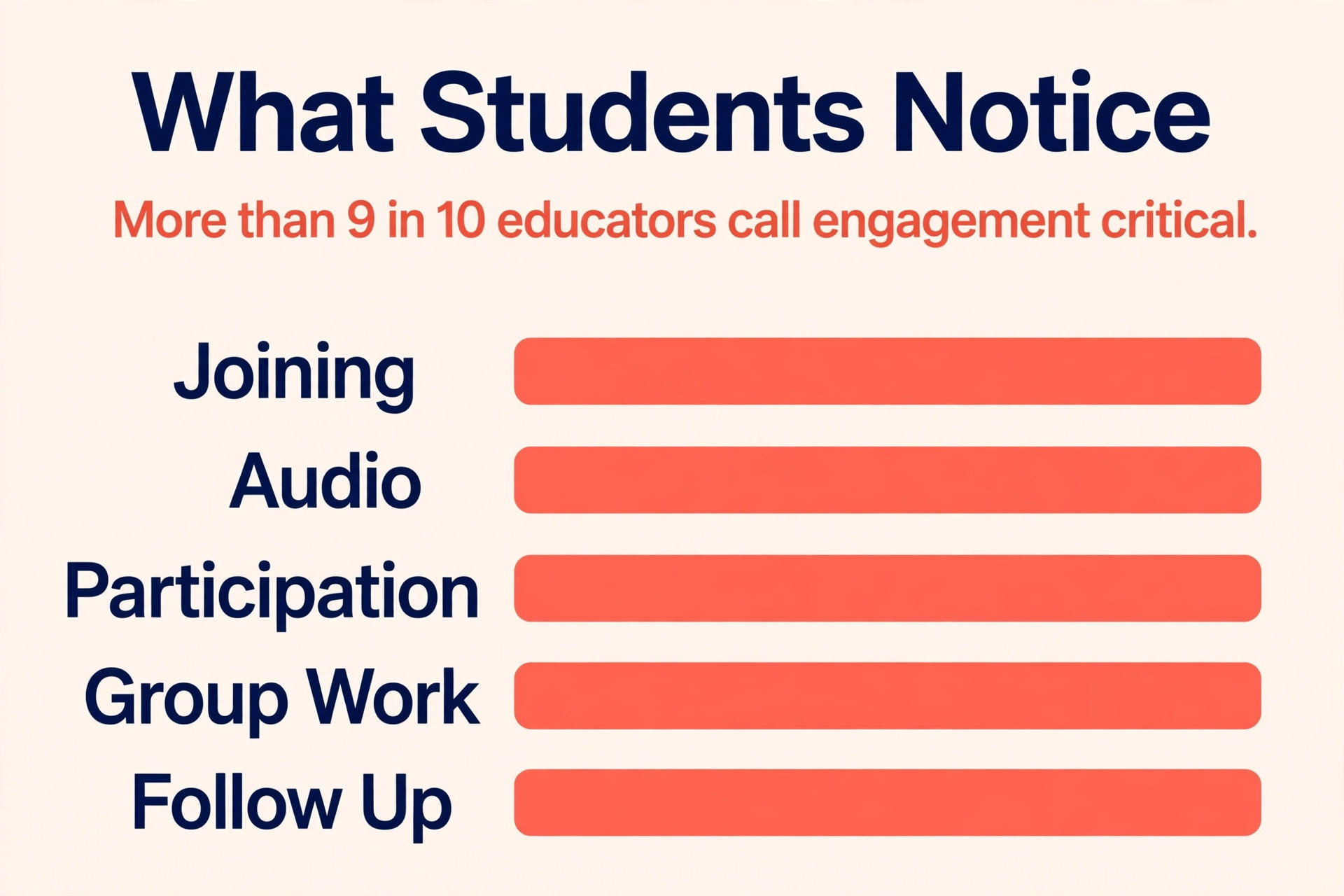
More than nine in ten educators in a 2025-2026 Discovery Education survey agreed that student engagement is a critical measure of achievement, yet teachers and school leaders in the same survey disagreed sharply on whether their schools even had a shared way to measure it. That gap is exactly what a hybrid class exposes. A teacher can feel that a lesson worked because the room was lively, while remote students sat silent with cameras off, unsure when to speak and unable to hear a question from the back of the room. Choosing the best video tool for hybrid classes is therefore not a contest for the prettiest gallery view.
It is a decision about who can hear whom, who can take part without friction, and what remains after the lesson ends for revision, absence cover and marking.
This guide judges the four platforms most schools and colleges already have access to, Zoom, Google Meet, Microsoft Teams and Webex, from two directions at once. The teacher view asks about control, pacing, breakout work, polls, whiteboards, recording and the work needed before and after class. The student view asks about joining on a weak connection, speaking up without embarrassment, following the lesson on a phone, catching up after an absence and getting help without waiting for a whole class session. Prices quoted here reflect publicly listed figures found in October 2026 searches, and you should check the official pricing page and checkout before paying, because vendors change plans, seat minimums and included features without warning.
The Hybrid Class Verdict in Brief
For most mixed classrooms, Zoom is the safest general pick. It is the platform students are most likely to have used before, its host controls for muting, breakout rooms, polls and waiting rooms are easy to learn, and its recording and caption options cover the common classroom needs without extra purchases. Google Meet is the best pick for a school already running on Google Workspace, because joining from Calendar and Classroom, sharing Docs and Slides, and storing recordings in Drive remove several steps that otherwise eat lesson time.
Microsoft Teams is the best pick for a college or school district already paying for Microsoft 365, because channels, class teams, assignments and persistent chat give a hybrid course a home between live sessions. Webex is the best pick where a school needs strong meeting control, Slido polls and question handling, and enterprise grade admin controls, and is willing to pay a little more per host for that discipline.
How to Pick the Best Video Tool for Hybrid Classes
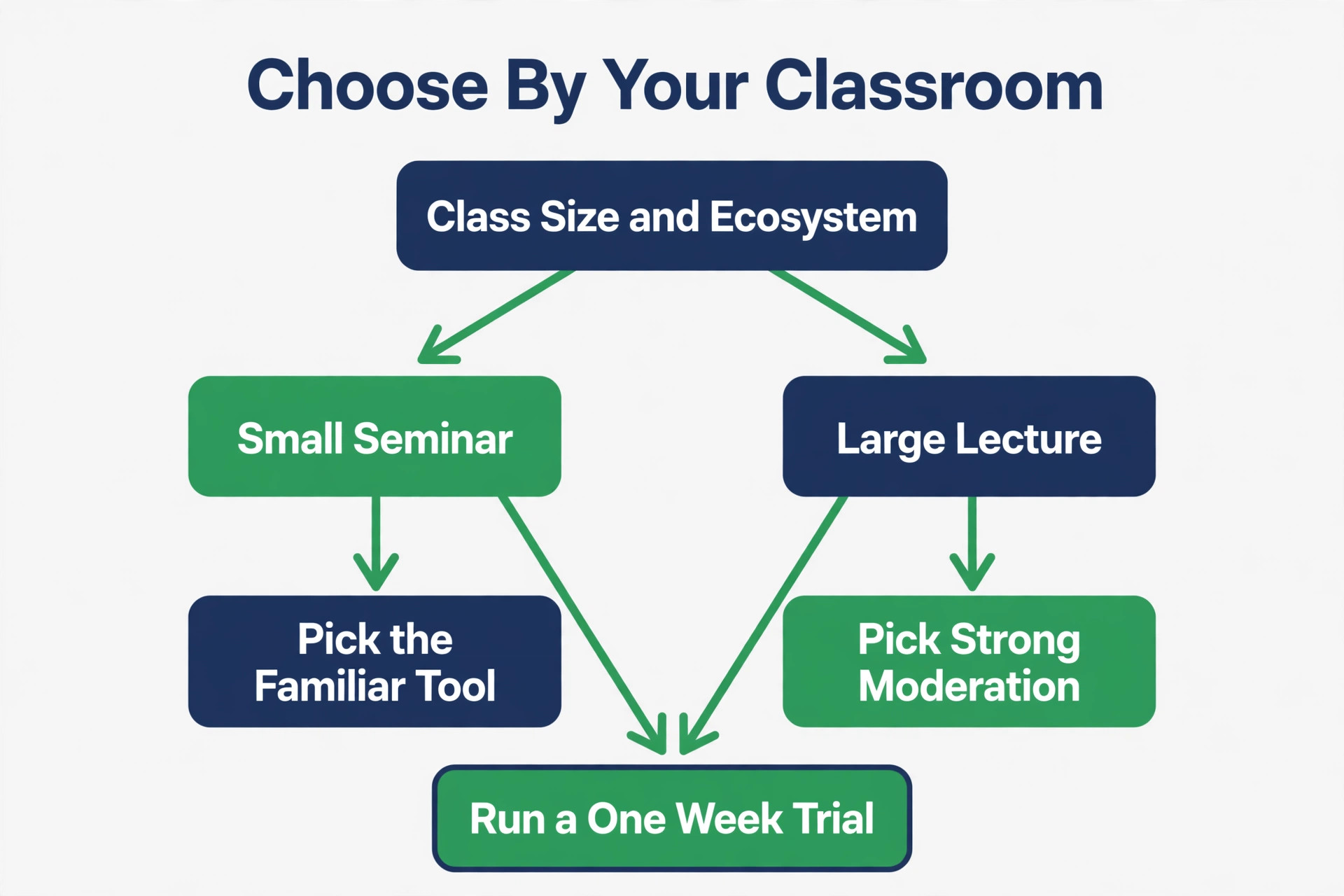
Start with the classroom you actually run, not the classroom in a vendor demo. Count how many students are in the room, how many join remotely, whether remote students join every session or rotate in on certain days, and whether the lesson is mostly lecture, mostly discussion, mostly practical work or a mix. A 12 student seminar with six remote learners needs different controls from a 200 student lecture with a chat moderator, and a practical lab session needs screen sharing and small group work far more than it needs a webinar registration page. Write those facts down before you compare features, because they decide which limits matter.
The Teacher View. Control, Pacing and Workload
From the front of a hybrid room, the teacher is doing two jobs at once. One job is teaching the students in front of them. The other job is hosting a live broadcast, watching a chat window, admitting late joiners, managing breakout groups and checking that remote students can hear and see the work. Any platform that forces the teacher to do all of that from one small control bar, while also presenting slides, will slow the lesson down.
The best classroom platforms put the important controls where a teacher can reach them without hunting, keep the participant list, chat and polls in panels that can stay open, and let a co-host or teaching assistant handle admissions, chat triage and breakout management while the teacher teaches.
Pacing is the second teacher test. A good hybrid lesson moves in short blocks, a brief explanation, a quick check, a small task, a return to the whole group, and the platform should support that rhythm without a five minute setup for each change. Breakout rooms should open with a clear task and a timer, students should return automatically, and their work should be visible in a shared board or document rather than trapped in a room the teacher never saw. Polls should launch in seconds, not through a separate app that needs another login. A whiteboard should accept typed text as well as drawing, because many students answer faster by typing than by drawing with a mouse.
When those transitions are slow, teachers quietly drop interactive work and drift back to lecturing, and remote students drift with them.
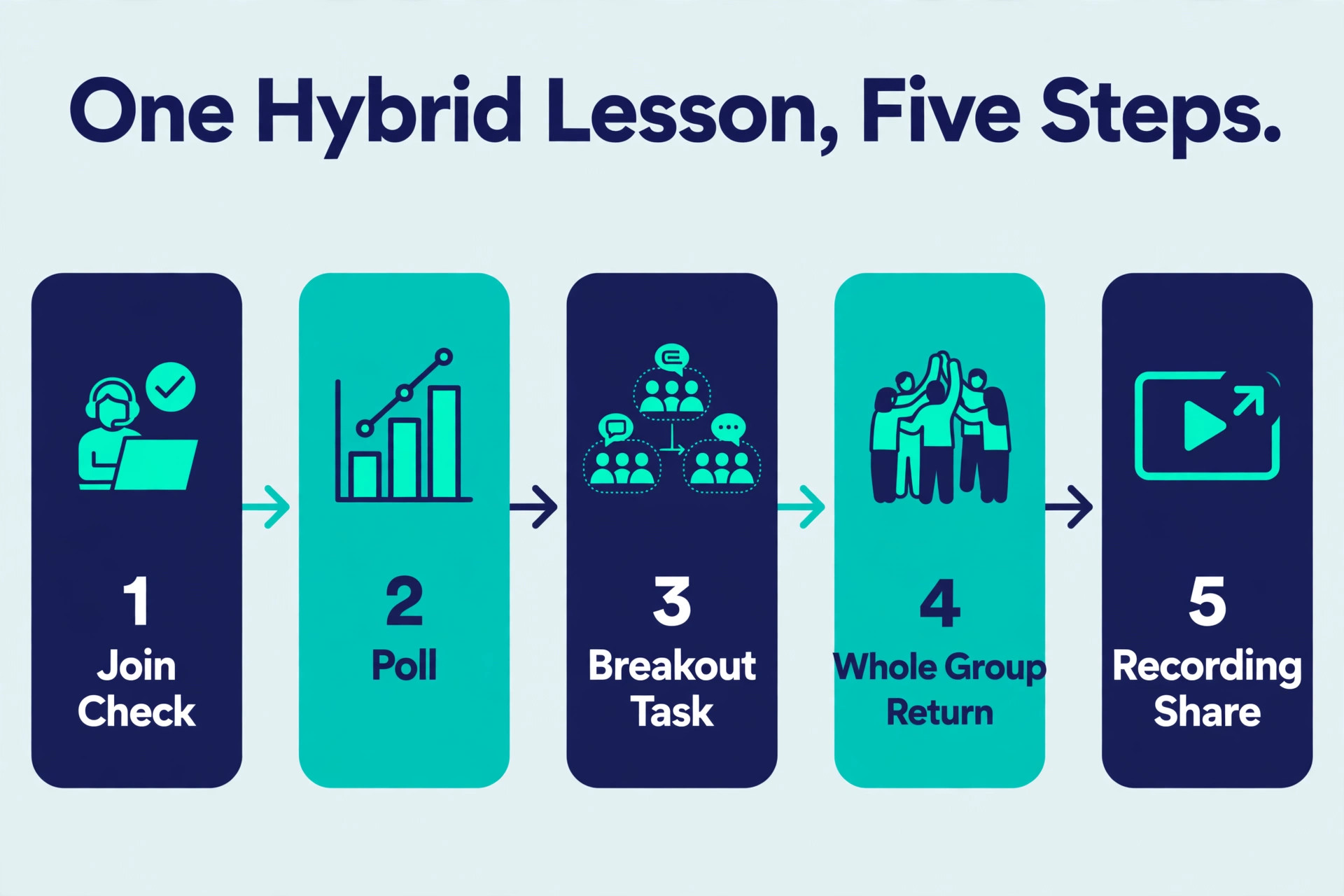
The Student View. Joining, Speaking and Catching Up
From the student side, the first test is joining. A student on a phone, on a shared family laptop, on a school Chromebook or on a weak home connection should reach the lesson in two or three taps, without installing software they cannot install, creating an account they do not have, or waiting in a lobby nobody is watching. Browser joining matters here, because many school devices block installs. A clear link in the timetable or learning platform, a consistent meeting ID pattern, and a waiting room message that tells a late student what to do all reduce the quiet dropout of students who tried to join, failed, and never told anyone.
The second test is speaking up. Remote students often stay silent for reasons that have little to do with confidence about the subject. They cannot tell when the teacher is about to move on, they do not want to interrupt a room they cannot see, and unmuting in front of 40 people feels much bigger than raising a hand in a classroom. Good hybrid platforms lower that barrier with a visible hand raise, a chat that the teacher actually reads aloud, a question queue for larger classes, emoji reactions for quick agreement, and breakout rooms small enough that speaking feels normal.
Anonymous question options and polls also help, because a student can test an idea without attaching their name to it in front of the whole class. A platform that only offers open microphone discussion will hear from the same confident students every week.
The third test is catching up. Students miss sessions for illness, transport problems, caring duties and timetable clashes, and a hybrid course should treat that as normal rather than exceptional. A recording with chapters or a transcript, slides linked from the same page, a short written summary of decisions and homework, and a place to ask follow up questions make absence recoverable. Without those, a missed live session becomes a missed week. Also check mobile playback, because many students revise on a phone, and check whether captions and transcripts work well enough to search for a topic rather than scrubbing through an hour of video. Accessibility is not an extra here.
Captions, keyboard navigation, screen reader support and low bandwidth modes decide whether some students can take part at all.
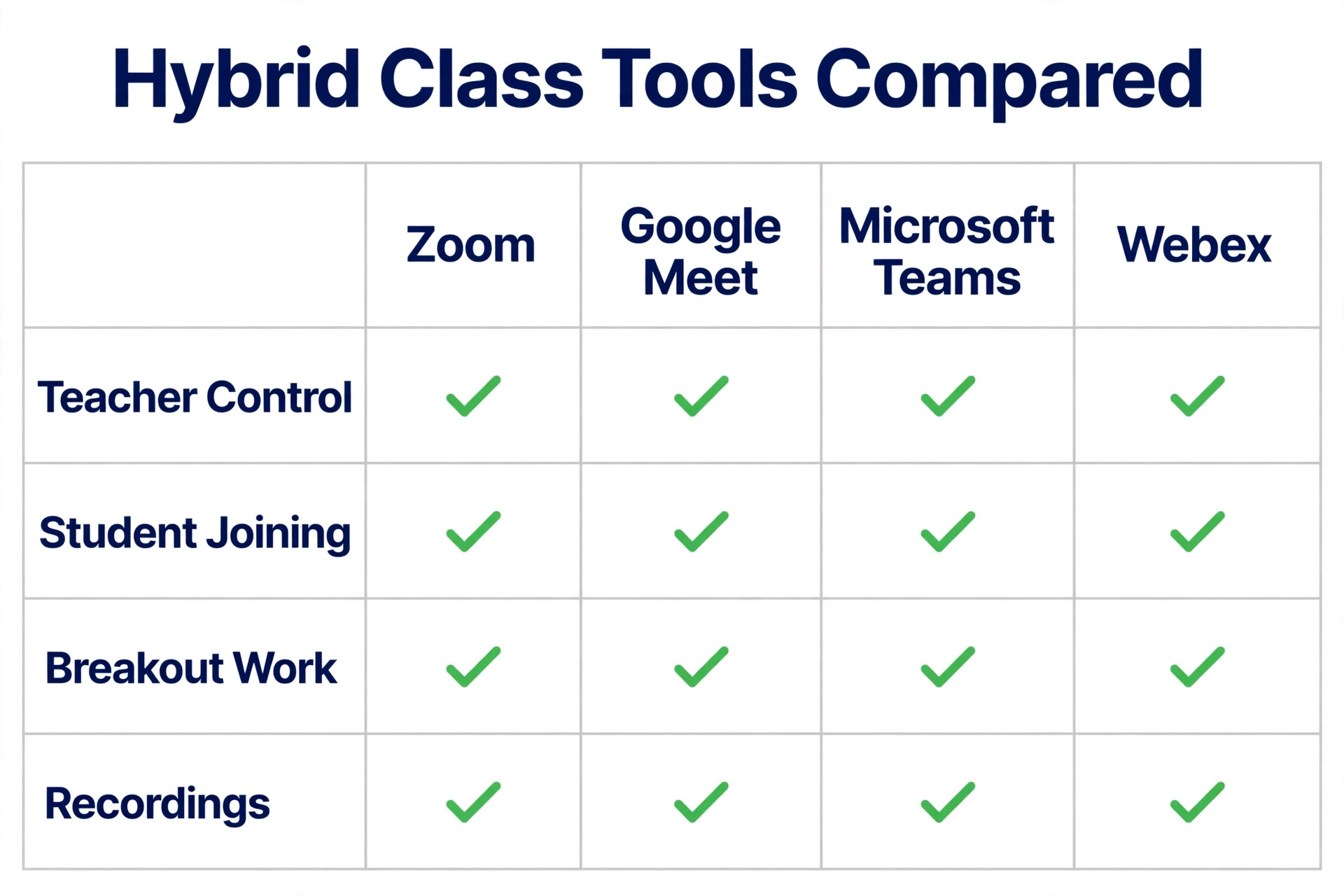
Feature Table and Classroom Verdict
| Feature | Zoom | Google Meet | Microsoft Teams | Webex |
|---|---|---|---|---|
| Free group limit | 40 minutes and 100 people | 60 minutes and 100 people | 60 minutes and 100 people | 40 minutes and 100 people |
| Paid participant range | 100 to 300 on common plans | 100 to 500 on business plans | 300 on common business plans | 200 on the Meet plan |
| Breakout rooms | Yes, with timers and broadcast | Yes, on paid Workspace plans | Yes, with channels and rooms | Yes, with breakout sessions |
| Polls and questions | Yes, built in polls | Yes, polls and Q and A on paid plans | Yes, polls and Q and A | Yes, Slido polls and Q and A |
| Whiteboard | Yes, built in | Yes, through Jamboard successor tools | Yes, built in Whiteboard | Yes, built in whiteboard |
| Recording and transcript | Cloud on paid plans | On Standard and higher plans | On paid plans, with transcript | Cloud on paid plans |
| Best classroom fit | General hybrid classes | Google schools | Microsoft schools | Controlled large sessions |
Classroom verdict by shape. A small seminar, up to 30 students with a rotating remote group, works well on any of the four, so pick the one students already know. A medium lecture and discussion class, 30 to 120 students, favours Zoom or Meet, because joining is simple, breakout work is quick to run, and recordings are easy to share. A large lecture, 120 students or more, favours Teams or Webex where moderation, question handling and attendance tracking matter more than free form discussion. A practical or lab style class, where students share screens, work in pairs and show work back, favours Zoom or Teams, because screen control, breakout deliverables and persistent group channels keep practical work visible.
A training provider selling short courses to adults favours Zoom or Meet, because guests can join without a school account and the booking and recording path stays simple.
Zoom in the Classroom
Zoom remains the default classroom video platform for a practical reason. Students, guest speakers and part time tutors have usually used it before, so the first lesson is not spent teaching the tool. The host controls are clear, the waiting room, mute controls, breakout rooms, polls, whiteboard and reactions sit where a teacher expects them, and a co-host can manage admissions and chat while the teacher teaches. For a teacher running a hybrid room alone, that familiarity and that co-host role are worth more than a longer feature list, because the lesson keeps moving while small problems are handled in the background.
Pricing is where Zoom needs careful reading. The free Basic plan allows group meetings up to 40 minutes with up to 100 participants, which is too short for most lessons. Paid Pro is listed at about 16.99 dollars per user per month on monthly billing, or about 14.16 dollars per user per month on annual billing in several October 2026 pricing summaries, with meetings up to 30 hours and 100 participants, plus cloud recording and AI Companion summaries on paid plans. Business is listed at about 21.99 dollars per user per month on monthly billing, or about 18.33 dollars on annual billing, raising the participant limit to 300 and adding admin controls, branding and single sign on.
A small school therefore usually needs only one or two paid host licences, not a licence for every student, because students join as participants without paying. Confirm seat minimums and current rates on the official Zoom pricing page before budgeting, and check whether a large meeting add on is cheaper than moving a whole department to Business for one large lecture.
For official plan details, see the Zoom pricing page at https://zoom.us/pricing and check the meeting, recording and AI features included in the tier you intend to buy.
Google Meet in the Classroom
Meet limits are plan dependent, so check the tier before you promise a feature. A free personal account allows group meetings up to 60 minutes with up to 100 participants. Workspace Starter, listed at about 7 dollars per user per month on annual billing in recent pricing summaries, keeps the 100 participant limit but removes the group time pressure with meetings up to 24 hours. Workspace Standard, listed at about 14 dollars per user per month on annual billing, raises the limit to 150 participants and adds recording, noise cancellation and breakout rooms. Workspace Plus, listed at about 22 dollars per user per month on annual billing, raises the limit to 500 participants and adds attendance tracking.
Education editions follow a separate structure, with Fundamentals free for qualifying institutions and Plus offering up to 1,000 participants, so a school should ask for an education quote rather than assuming business pricing applies.
For official plan details, see the Google Workspace pricing page at https://workspace.google.com/pricing.html?source=gafb-alpha_%5Bbasename%5D_6804053-globalnav-en and confirm which Meet features your education or business edition includes.
Microsoft Teams in the Classroom
Microsoft Teams is a course home first and a video room second, and that distinction helps hybrid courses that run over a term rather than a single session. A class team holds channels for topics, a Files tab for slides and readings, an Assignments tab for work and marking, a persistent chat for questions between sessions, and a meeting link that students can find in the same place every week. Remote students are therefore less likely to feel like visitors to a one off call, because they belong to a team that exists before and after the live session.
For colleges, sixth forms and training providers already using Microsoft 365, that continuity is a strong reason to choose Teams even if another platform has a slightly simpler meeting screen.
Teams pricing needs the same careful reading as the other platforms. Teams Free allows group meetings up to 60 minutes with up to 100 participants. Teams Essentials is listed at 4 dollars per user per month on annual billing on the official Microsoft business options page, with meetings up to 30 hours, up to 300 participants, 10 GB of cloud storage per user, recordings with transcripts and live captions. Microsoft 365 Business Basic is listed at about 6 to 7 dollars per user per month on annual billing in recent summaries, adding 1 TB of storage per user and the web and mobile Office apps.
Business Standard, listed at about 12.50 dollars per user per month on annual billing, adds desktop Office apps and webinar hosting. Education licensing is separate again, so schools and colleges should confirm education pricing and student licensing before comparing business rates directly.
For official plan details, see the Microsoft Teams business options page at https://www.microsoft.com/en-us/microsoft-teams/compare-microsoft-teams-business-options and confirm education licensing separately if you are a school or college.
Webex in the Classroom
Webex suits a classroom that needs order at scale. Slido polls and question handling give a large lecture a structured way to collect questions, vote on the most useful ones, and answer them without the chat scrolling past the teacher. Breakout sessions, whiteboards, closed captions, noise removal and strong host controls help a teacher run a formal session with guests, assessors or multiple presenters. Admin controls, security options and recording management also suit institutions that must show who attended, what was recorded, where recordings are stored and who can access them. For a university lecture, a professional training session or a school event with external speakers, that discipline matters.
Webex pricing sits above the cheapest classroom options, so it needs a clear reason to choose. The free plan allows meetings up to 40 minutes with up to 100 attendees. The Meet plan is listed at 14.50 dollars per licence per month on the official Webex meetings page, with meetings up to 24 hours, up to 200 attendees, advanced noise cancellation, 10 GB of cloud meeting recording and Slido polls and question handling. The Meet plus Call plan is listed at 25 dollars per licence per month, adding calling features most classrooms do not need.
Newer Webex pricing pages also list Starter at about 12 dollars per user per month and Business at about 17 dollars per user per month, with different attendee limits, which shows why you should confirm the exact plan name and attendee limit at checkout rather than relying on a single summary figure. As with Zoom, a school usually buys host licences, not a licence for every student.
For official plan details, see the Webex meetings page at https://www.webex.com/us/en/dg/online-meetings.html and the Webex pricing page at https://pricing.webex.com/sg/en/hybrid-work/meetings/all-features/ before choosing a plan name.
Pricing for a Real Class, Not a Single Licence
A pricing page can mislead a school in two ways. First, it quotes a per user rate, while a classroom usually needs only a few host licences. Second, it quotes the cheapest tier, while the features a teacher needs, such as recording, breakout rooms, polls and attendance, may sit on the next tier up. Price the plan that includes your must have features, for the number of teachers who host at the same time, and add any room hardware, large meeting add on or storage upgrade separately. A department with six teachers hosting at once needs six host licences, not 200 student licences, and that distinction can cut the quoted cost by a large margin.
| Platform | Entry paid host rate | Common classroom tier | Participant limit on that tier |
|---|---|---|---|
| Zoom | About 14.16 dollars per month annual | Business about 18.33 dollars per month annual | 300 |
| Google Meet | Workspace Starter about 7 dollars per month annual | Standard about 14 dollars per month annual | 150 |
| Microsoft Teams | Essentials 4 dollars per month annual | Business Basic about 6 to 7 dollars per month annual | 300 |
| Webex | Meet 14.50 dollars per month | Business about 17 dollars per month annual on newer pages | 200 |
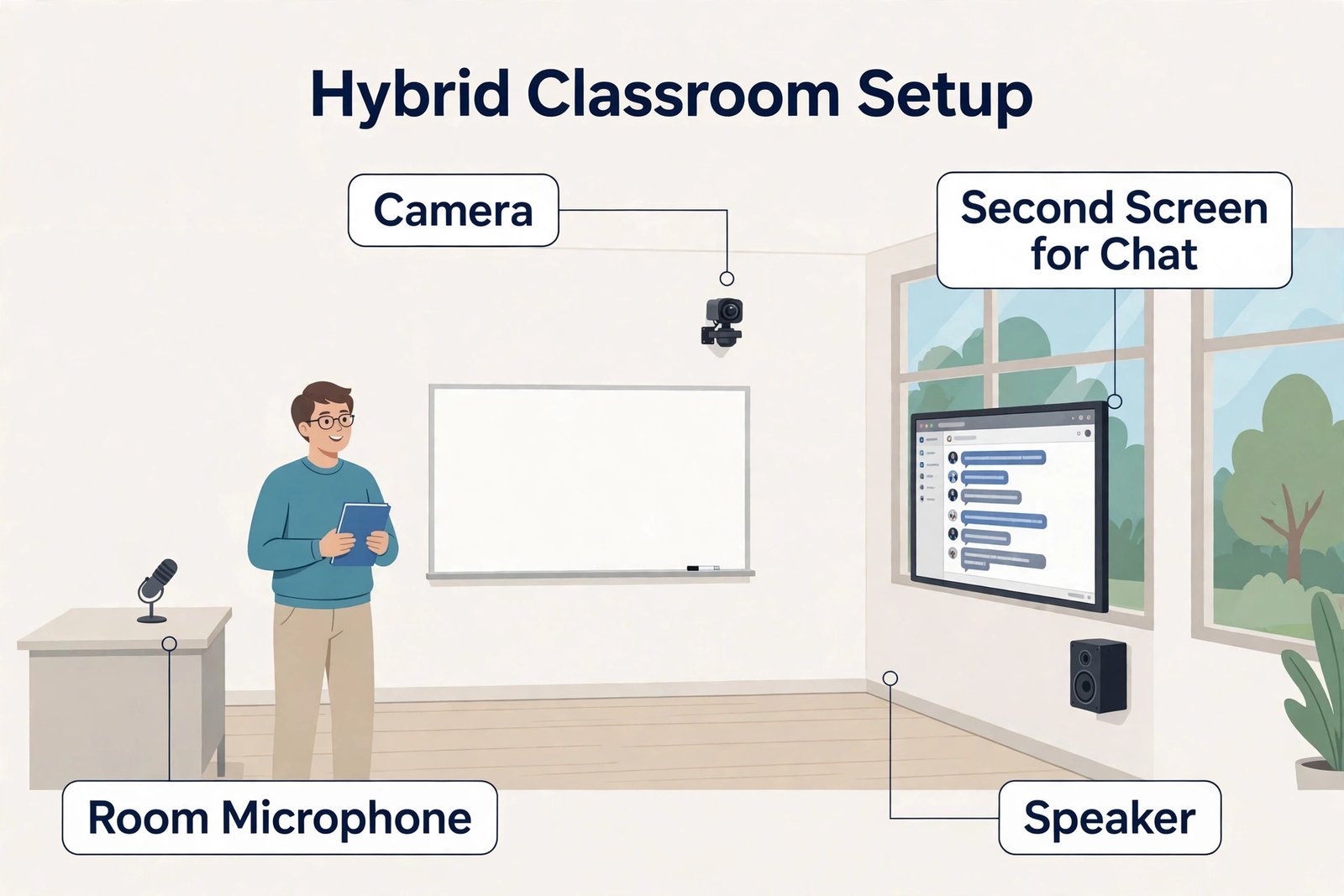
When you judge cost for the best video tool for hybrid classes, include the hidden costs that do not appear on a pricing page. A room microphone, a camera that can see the teacher and the board, a second screen for chat and participants, and time for IT support in the first month all cost money or time. A free platform that needs a teacher to spend 20 minutes per lesson fixing audio is more expensive than a paid platform that works first time.
Likewise, a bundled platform that your institution already pays for can be the cheapest good option even if its meeting screen is not your personal favourite, because the licence cost is already sunk and students already have accounts.
Audio, Room Setup and the First Five Minutes
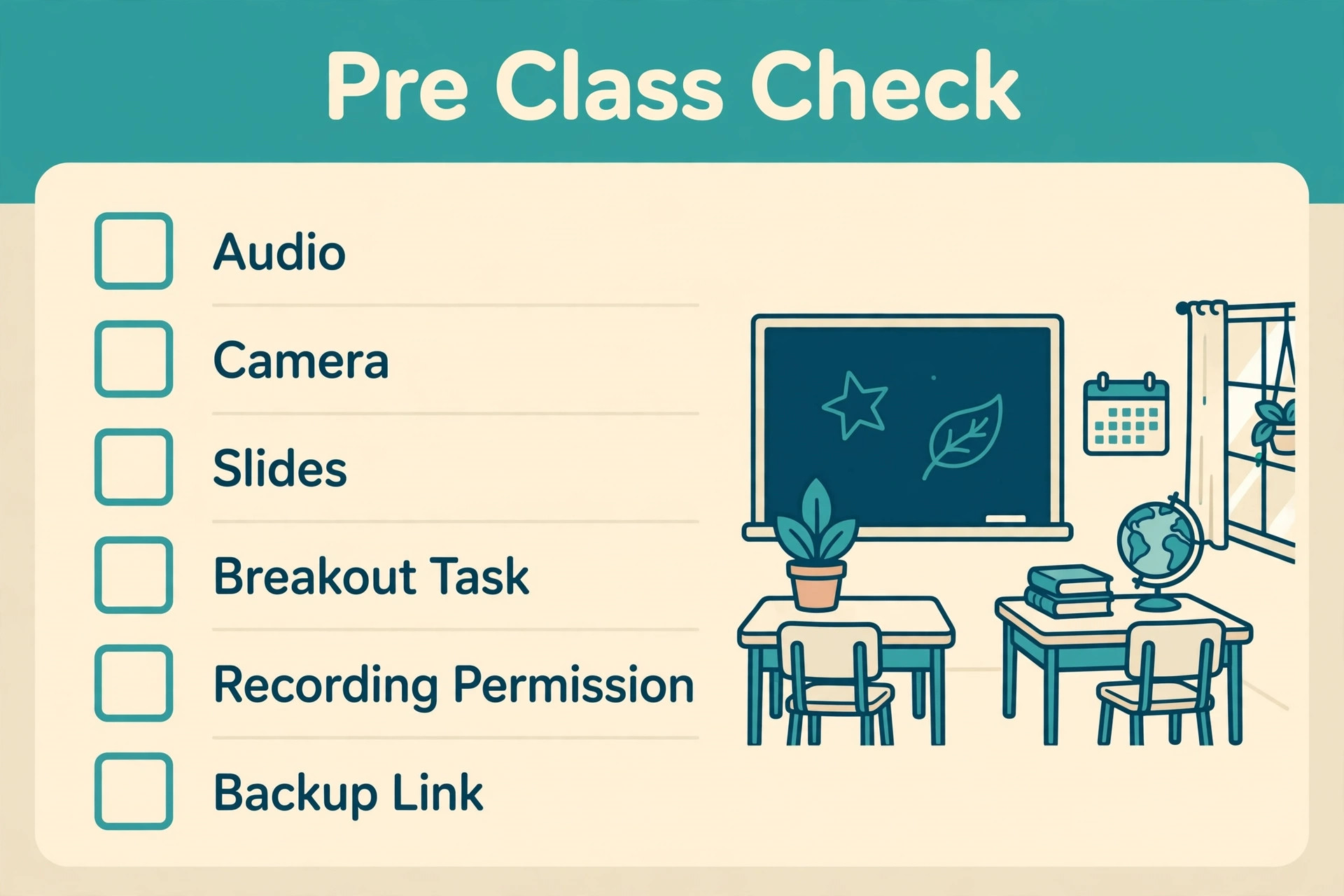
Audio decides a hybrid lesson more than video quality does. Remote students can tolerate a slightly soft picture, but they cannot follow a lesson if in-room questions sound distant, if two microphones create echo, or if the teacher moves away from a laptop microphone to write on a board. The simplest reliable setup is one room microphone near the teacher and near the front rows, one speaker that everyone in the room can hear, and a rule that only the room system is unmuted in the room. Students in the room should keep their own laptop microphones and speakers muted, and ask questions either aloud through the room microphone or through chat, so remote students hear every question once, clearly.
Choosing the best video tool for hybrid classes also means choosing a backup plan. Keep a second joining link or a phone dial in option for the teacher, keep slides and the task sheet in a place students can open without the live session, and agree what happens if the room network drops. A short message in the learning platform, such as the recording link, the task and the deadline, lets a disrupted lesson continue as independent work rather than collapsing into confusion. Test that backup once, before you need it, with one remote student and one in-room student.
How to Choose for Your Classroom Shape
Choose by the constraint that will hurt first. If your school has almost no IT support, choose the platform students already know and that needs the fewest steps to join. If your classes are large, choose the platform with the strongest moderation, question queue and attendance tools. If your course runs over a term with assignments and group work, choose the platform that gives the course a persistent home. If your students join from many different devices and networks, choose the platform with the best browser joining and low bandwidth behaviour, and test it on a phone on a weak connection, not only on a staff laptop on school Wi-Fi.
When you compare the best video tool for hybrid classes for a whole department, do not let one enthusiastic teacher decide for everyone. Trial with at least two subjects, one discussion heavy and one practical, because a platform that suits a history seminar may frustrate a science lab or a language class. Include a student panel in the trial, and ask students specifically about joining, hearing in-room questions, asking questions, working in breakout groups and finding recordings afterwards. Teachers notice control and pacing. Students notice friction and exclusion. A good decision needs both views, which is why this guide keeps them separate instead of blending them into a single score.
Mistakes That Ruin a Good Platform Choice
The first mistake is buying on brand familiarity alone. A platform can be famous for business meetings and still be a poor fit for a classroom, because business meetings rarely need breakout deliverables, attendance follow up, assignment links and revision recordings in the same way. The second mistake is running a trial with staff only. Staff join from good devices on a good network, they know the host controls, and they are polite about audio problems. Students join from shared devices, weak connections and noisy rooms, and they will not always report a problem. Trial with real students, on real devices, in a real room.
The fifth mistake is letting chat become a second lesson that only some students follow. If important questions, links and decisions live only in a fast moving chat, students who join late, students on a phone, and students who need more time to read will miss them. Repeat key links and decisions aloud, pin the task and the homework in one place, and copy decisions into a shared document or class post after the session. The sixth mistake is adding too many tools at once. A video platform, a separate polling app, a separate whiteboard, a separate quiz tool and a separate chat channel in one lesson will confuse students and increase login failures.
Use the built in poll, whiteboard and question tools first, and add an external tool only when it solves a specific problem the built in tool cannot solve.
A common error when choosing the best video tool for hybrid classes is to treat the free tier as a full classroom trial. Free tiers limit meeting length, recording, breakout features and participant numbers in ways that change the lesson, so a free trial can make a platform look weaker than its paid classroom tier, or can hide a storage limit that appears only after a term of recordings. Trial the tier you intend to buy, with the same number of students, the same room and the same lesson shape you will run in term time.
A One Week Trial That Settles It
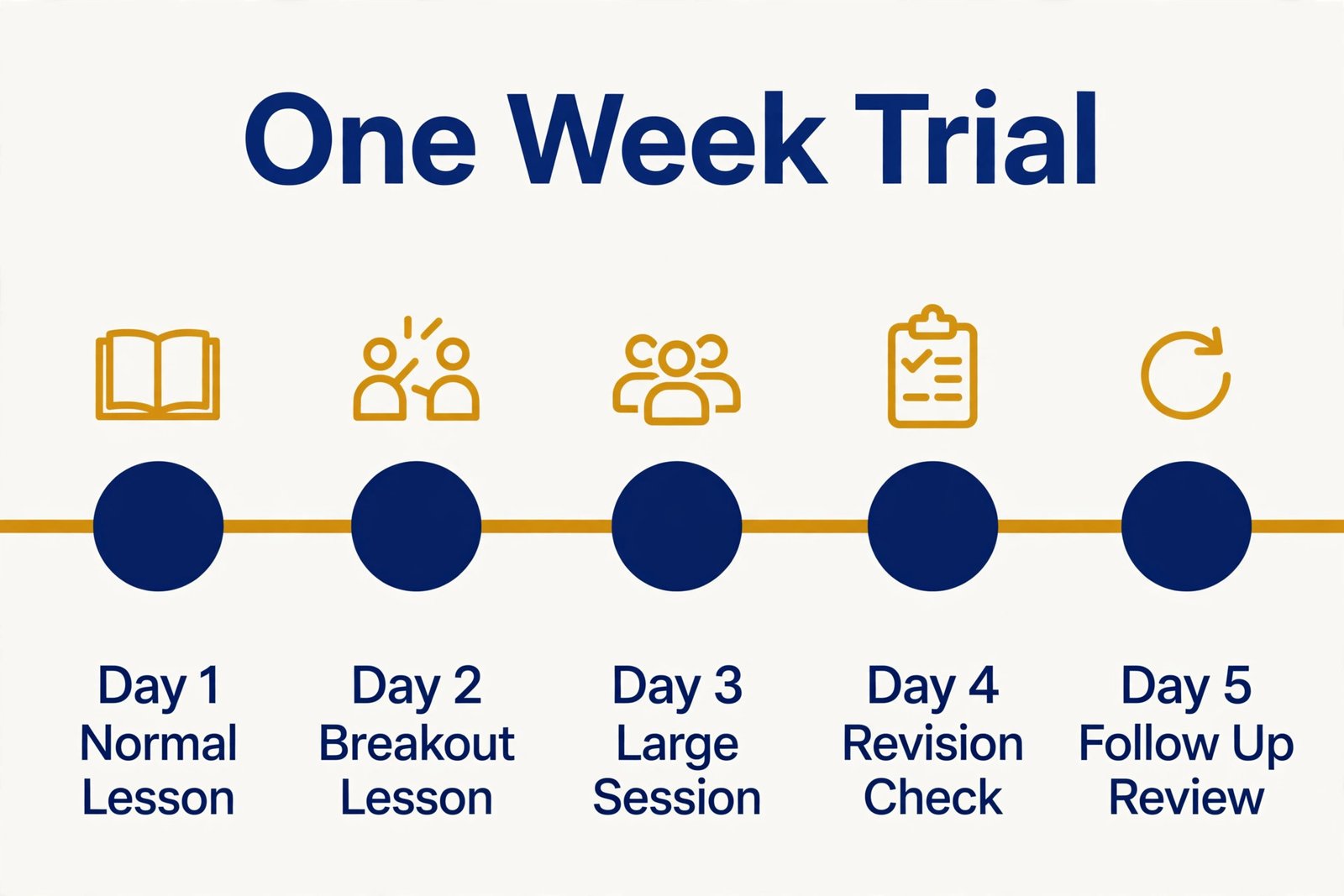
Run the trial over one teaching week, not one meeting. On day one, teach a normal lesson and score joining, audio, participation and recording. On day two, run a breakout heavy lesson and check whether group work returns with a visible deliverable. On day three, run a large or guest session and check moderation, question handling and late joiners. On day four, ask students to revise from the recording and transcript alone and note what they could not find. On day five, ask the teacher and any teaching assistant how much follow up work the platform created, including renaming recordings, answering repeated questions and chasing missing work.
For related reading, ai tools for students covers study and revision tools students use alongside live classes, best AI tools for teachers covers planning, marking and classroom support beyond video, Zoom vs Google Meet compares the two most common classroom platforms head to head, and best AI meeting assistants covers note taking and summaries that can reduce follow up work after a hybrid session.
Frequently Asked Questions
Can a free video plan work for a full hybrid class?
A free plan can work for short tutorials, revision sessions and small group work, but it rarely works for a full timetable. Group limits of 40 or 60 minutes, missing recording and breakout features on some tiers, and limited storage create weekly friction. Trial the paid tier you intend to buy, and use free plans for ad hoc sessions rather than as the main classroom system.
Should remote students keep cameras on in a hybrid class?
Camera expectations should be set by learning need, not by surveillance. Cameras help a teacher read a small seminar, but they can exclude students with poor connections, shared rooms or privacy concerns. A workable rule is cameras optional, participation expected through polls, chat, breakout work or voice, and camera use encouraged for small group work where faces help discussion.
How many host licences does a school actually need?
A school usually needs one host licence per teacher hosting at the same time, not one licence per student. Students join as participants. Count simultaneous hosts at peak timetable times, add cover for absence and for large events, and ask about education pricing and seat minimums before buying licences for every staff member.
What is the most important equipment for a hybrid room?
A good room microphone and a clear rule for muting in-room laptops matter more than an expensive camera. Add a camera that shows the teacher and the teaching surface, a second screen or tablet for remote participants and chat, and a stable network connection. Test the full setup with remote students before term starts.
Share recordings from one consistent place, such as a class team, Classroom page or learning platform folder, with a clear name that includes date and topic. Link slides, the task sheet and homework from the same post, state how long recordings are kept, and tell students whether student voices and faces are included. A recording without slides and homework is much harder to revise from.
Can one platform serve both small seminars and large lectures?
One platform can serve both, but the teaching routine must change with size. Small seminars can use open discussion and frequent breakout work. Large lectures need a moderator, a question queue, polls, chat triage and a clear rule for when students speak. If a platform cannot support both routines, use it for one shape and choose a second platform or a webinar add on for the other.
Two Rooms, One Verdict
Choose the best video tool for hybrid classes by running a real week, with real students, in a real room, and scoring joining, audio, participation, breakout work and follow up. Fix the room microphone and the joining routine first, publish the participation and recording rules, and keep the follow up path to one place students can find. A platform chosen that way will not need to be perfect, because the teaching routine around it will carry the moments when technology is imperfect. That routine, more than any logo on a meeting screen, is what turns a hybrid class from a compromise into a course students can join, follow and return to with confidence.