
At 60Hz, a new frame can appear every 16.67 milliseconds. At 120Hz, that interval drops to 8.33 milliseconds. That single change is why a console game can feel noticeably quicker on a well chosen monitor even when the graphics look similar at first glance, and it is the reason many players who set up gaming monitor console gaming for the first time report that aiming, turning and tracking feel different before they can explain why. The console has not changed. The display is simply showing newer information sooner, and showing it twice as often.
Most setup guides stop at telling you to buy a 120Hz screen. That advice is incomplete, because a monitor can carry a 120Hz label and still miss the console experience entirely. The wrong HDMI port can cap the signal at 60Hz. A missing VRR setting can leave tearing in place. An HDR badge with no real brightness behind it can make games look washed out. This guide works through each trap in order, so you finish with a setup you have verified on screen.
What Refresh Rate Actually Changes in Console Play
Refresh rate is the number of times per second a display draws a new image. A 60Hz display draws 60 images per second. A 120Hz display draws 120. A 144Hz display draws 144, although current PlayStation 5 and Xbox Series X games top out at 120 frames per second, so extra headroom on a 144Hz panel helps a future PC connection rather than adding console frames.
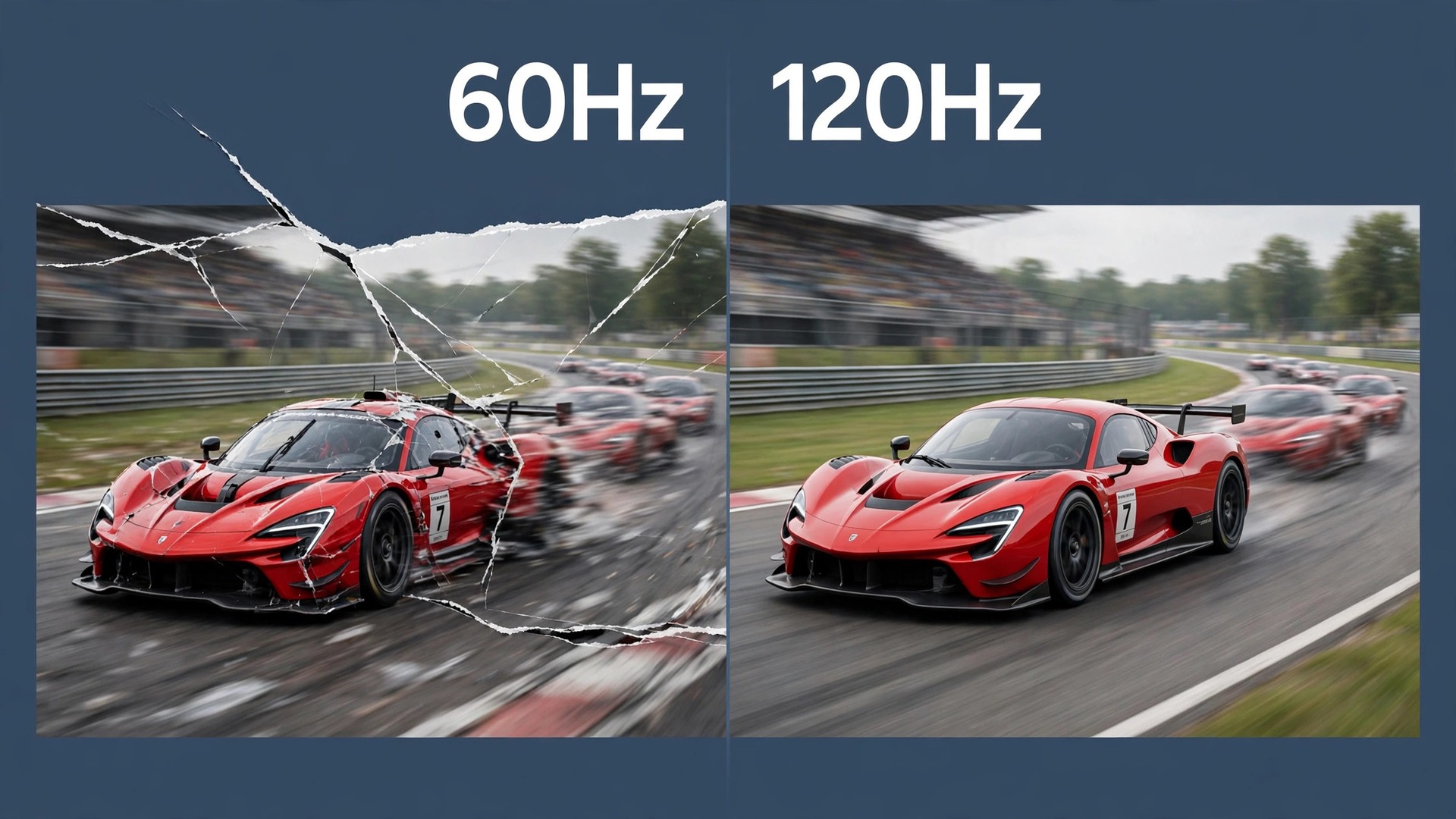
The practical effect is about motion clarity and timing. When you pan a camera across a scene, a higher refresh rate shows more intermediate positions, so movement looks smoother and edges stay easier to follow. When you aim, the crosshair position updates more often, so small corrections feel more connected to your thumb. This matters most in fast shooters, racing games and sports titles, where a fraction of a second of stale image can cost a shot or a braking point.
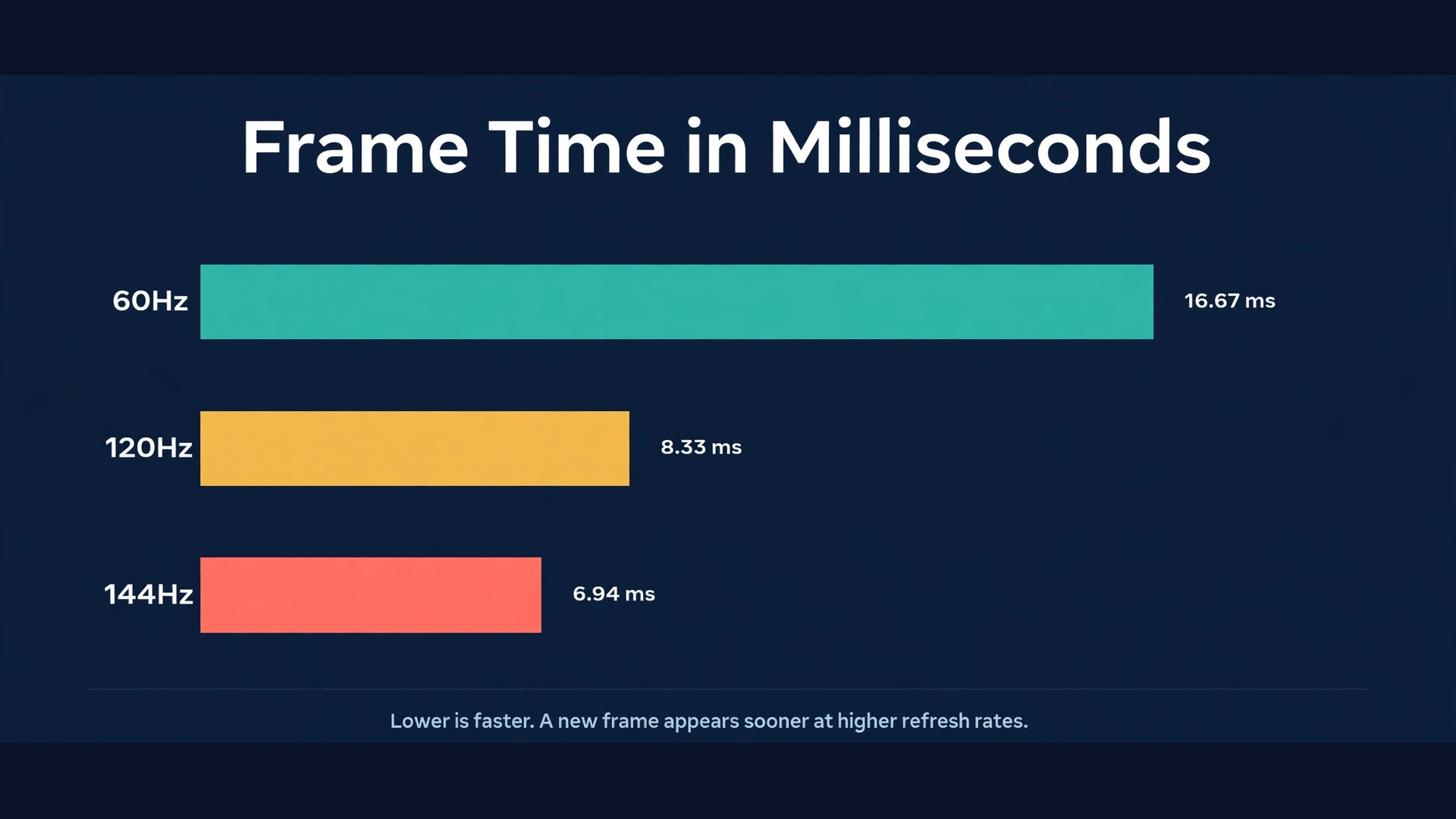
Frame time puts numbers on that feeling. Each frame at 60Hz lasts 16.67 milliseconds. Each frame at 120Hz lasts 8.33 milliseconds. Each frame at 144Hz lasts 6.94 milliseconds. Cutting frame time in half does not make a player twice as skilled, and it does not fix a slow internet connection or a poor controller. It does remove one layer of delay between an action and its visible result.
Input lag is the wider measure behind that feeling. It covers the whole chain from a button press to the changed picture, including controller wireless time, game processing and display processing. Response time is different. It measures how fast individual pixels change colour, usually quoted as gray to gray time. A monitor can have a fast pixel response and still feel slow if its picture processing adds delay, and a monitor can have low processing delay yet smear motion if its pixels are slow. For console play, look for both. A gray to gray response under 5 milliseconds is a sensible target, and a game mode that bypasses extra picture processing is close to essential.
Panel type shapes this trade off. Fast IPS panels typically sit in the 2 to 4 millisecond gray to gray range and suit most desks. VA panels offer deeper blacks but can smear in dark scenes. OLED panels respond almost instantly and produce true blacks, but cost more and need care around static on screen elements.
The Spec Comparison Table
Use this table before you buy or before you judge a monitor you already own. It separates the specs that change console play from the specs that only look impressive on a box.
| Spec | What to look for | Why it matters | When it matters less |
|---|---|---|---|
| HDMI version | HDMI 2.1 on at least one port | HDMI 2.1 carries up to 48 Gbps for 4K at 120Hz with HDR, while HDMI 2.0 tops out at 18 Gbps and 4K at 60Hz | You play at 1080p or 1440p, or only at 60Hz |
| Refresh rate | 120Hz or higher over HDMI | Consoles connect over HDMI, so a DisplayPort only figure does nothing for a PS5 or Xbox | You play slow strategy games at a locked 60 frames per second |
| VRR | HDMI Forum VRR or FreeSync over HDMI | VRR matches display refresh to game frame rate and removes tearing when frames dip | Every game you play holds a perfectly locked frame rate |
| ALLM | Auto Low Latency Mode support | ALLM switches the display into low latency game mode automatically when a game starts | You always switch game mode on by hand |
| HDR tier | DisplayHDR 600 or higher, or OLED True Black | DisplayHDR 400 accepts HDR but often lacks brightness and local dimming for a real HDR difference | You play SDR games, or you prefer SDR and leave HDR off |
| Peak brightness | 600 nits or more for HDR in a lit room | Bright HDR highlights need real light output, not only a wider colour signal | You play in a dark room on OLED, where blacks matter more |
| Response time | Under 5 milliseconds gray to gray | Faster pixel changes keep fast motion clear and reduce ghost trails | You play slow paced games where blur is barely visible |
| Input lag in game mode | Well under one frame at your refresh rate | Lower display delay makes controls feel direct, especially in competitive games | You play story games where a few milliseconds never decide an outcome |
| Resolution | 4K for PS5 and Xbox Series X, 1440p as a value choice | 4K matches top console output, while 1440p still looks sharp on a 27 inch desk monitor | You sit far back, or value frame rate over pixel count |
Refresh Rate and VRR for PS5 and Xbox
Console refresh rate settings live in two places, and both must agree. The console must be set to output 120Hz, and the monitor must be set to accept it on the port you actually used. If either side is wrong, the chain falls back to 60Hz, often without an error message that explains why.
Set up PS5 output first
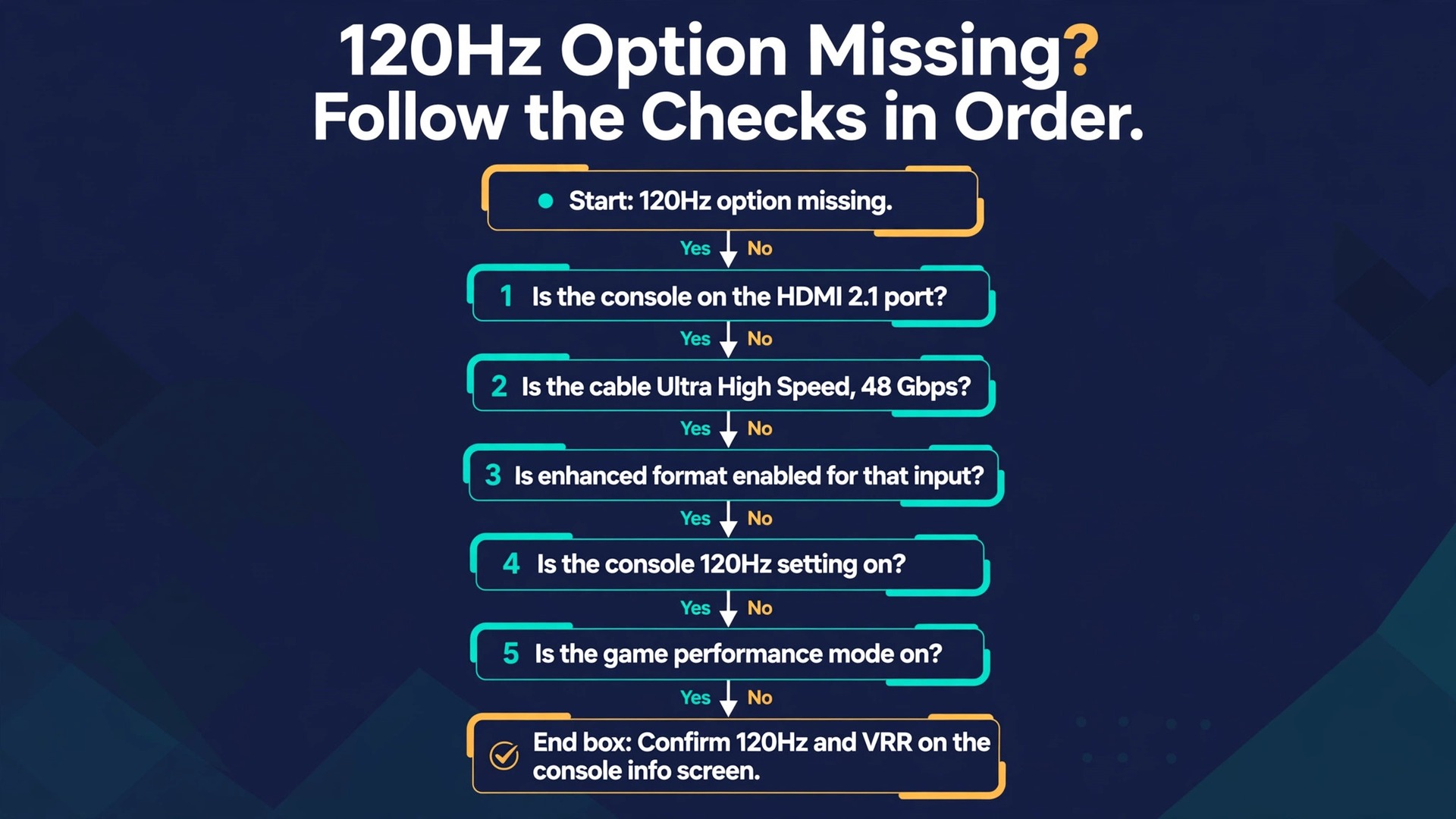
On PlayStation 5, open Settings, then Screen and Video, then Video Output. Set Resolution to Automatic so the console negotiates the best resolution the display reports. Set 120Hz Output to Automatic. This option only appears when the console detects a 120Hz capable display on the current HDMI input, so its absence is itself a diagnosis. It usually means the wrong port, an older cable, or a monitor setting that has not enabled the high bandwidth mode on that input.
Set VRR to Automatic in the same menu. PlayStation 5 VRR works up to 120Hz and only over a genuine HDMI 2.1 connection in supported games, so a monitor that supports VRR only over DisplayPort will not deliver VRR to a PS5. After changing these settings, open Video Output Information at the bottom of the same menu and confirm what the console reports. You want to see 4K resolution where applicable, a 120Hz refresh rate, and VRR shown as supported or enabled. If VRR shows as unsupported, check the cable and the port before blaming the monitor, because those two items cause most VRR failures.
Many PS5 games also gate high frame rate play behind an in game setting. Look for Performance Mode, High Frame Rate, or a 120Hz toggle in the game display options. A game that defaults to a fidelity mode will stay at a higher resolution and a lower frame rate even when the console settings are correct.
Set up Xbox Series X and Series S output
On Xbox Series X, open Profile and System, then Settings, then General, then TV and Display Options. Under Refresh Rate, select 120Hz. Like PS5, this option only appears when the connected display reports 120Hz support, so a missing option points at the cable, the port, or the monitor input setting. Open Video Modes and turn on Allow 4K and Allow 120Hz. In the same submenu, enable Allow Variable Refresh Rate as a separate toggle, because Xbox keeps VRR apart from resolution and refresh rate, and it is easy to miss.
Xbox also offers an Allow Auto Low Latency Mode toggle and an HDR calibration tool under TV and Display Options. Turn ALLM on so the monitor switches to game mode when a game starts. Run Calibrate HDR for Games and follow the on screen prompts, because skipping it is a common reason HDR looks dull on an otherwise capable monitor.
Xbox Series S shares the same menus, so a 1440p 120Hz monitor is often the better value pairing for Series S than a 4K 120Hz panel.
How VRR actually helps, and where it stops
Variable refresh rate lets the display change its refresh timing to match the frame rate the game is producing at that moment. When a demanding scene drops from 120 frames per second to 90, a fixed 120Hz display repeats some frames and can show a tear line where two partial frames meet. A VRR display simply draws the next frame when it is ready, so motion stays smooth through the dip. The effect is most visible in open world games, where frame rate moves up and down as you cross from a quiet interior to a busy city street.
VRR flavours also matter, and this is a detail to verify when you set up gaming monitor console gaming with a new screen. HDMI Forum VRR is the open standard built into HDMI 2.1. FreeSync is AMD technology that Xbox supports over HDMI. G-Sync Compatible matters more for PC play. A monitor that lists FreeSync only for DisplayPort may not give a console any VRR at all, so confirm the HDMI column of the spec sheet.
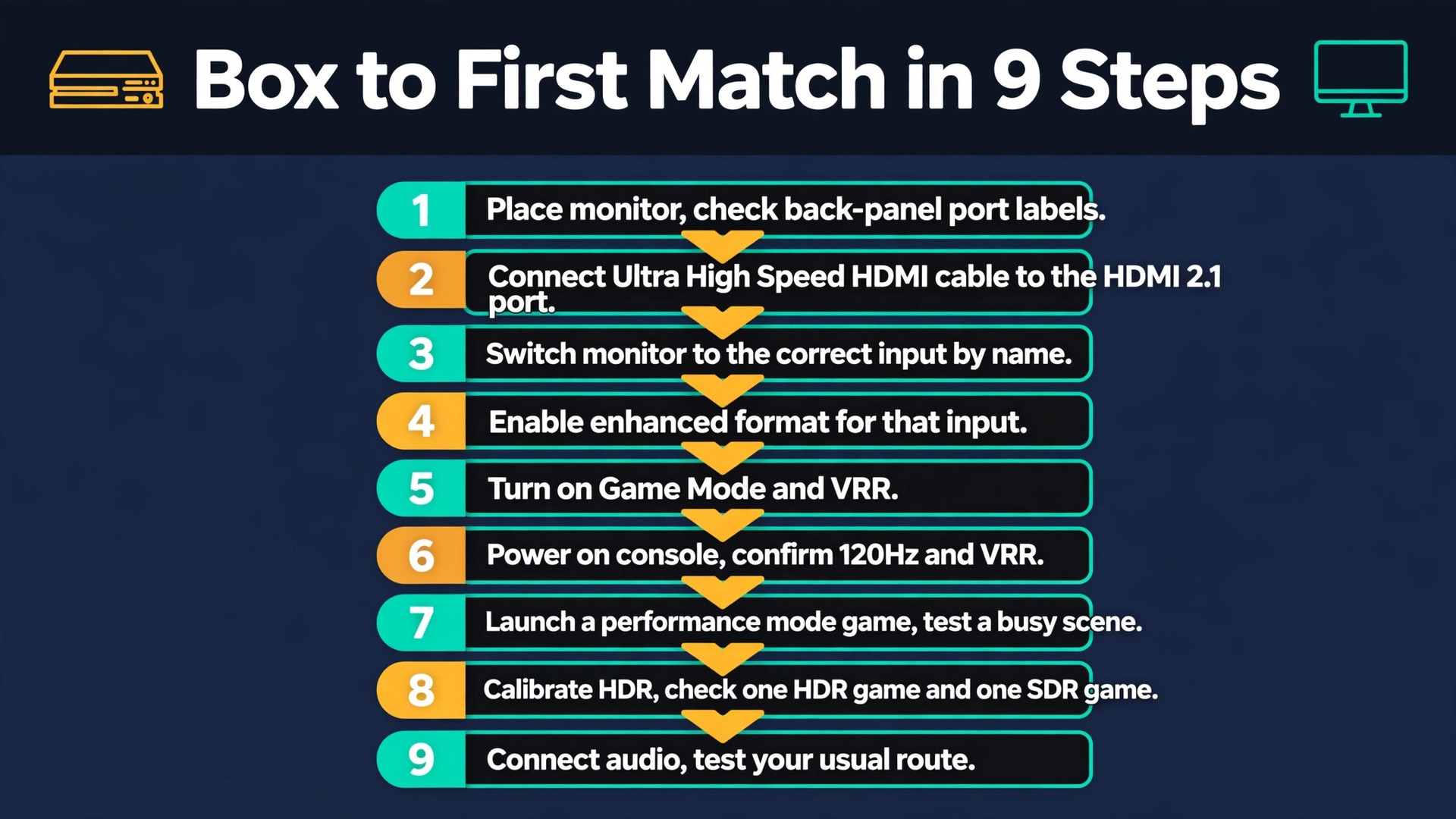
How to Set Up Gaming Monitor Console Gaming From Box to First Match
This is the full sequence in order. Do it once, carefully, and you will not need to repeat it for every game. Keep the monitor remote or joystick control nearby, because half of these steps live in the monitor menu rather than the console menu.
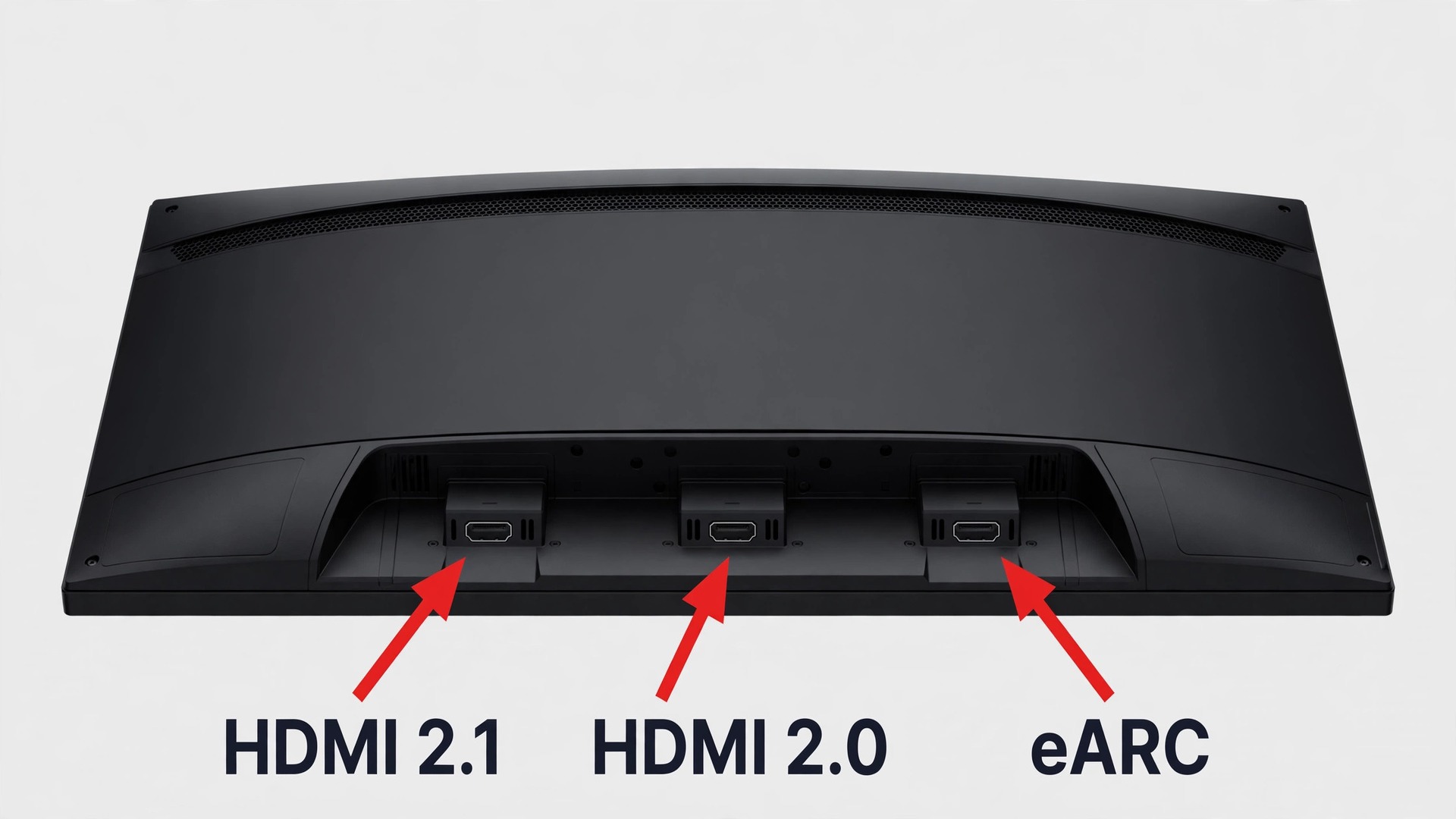
- Place the monitor, connect power, and leave the console off for now. Check the input labels on the back panel before you plug anything in, and note which port is marked HDMI 2.1, 4K 120Hz, or Game. On many monitors only one port carries full bandwidth.
- Connect the console to the full bandwidth HDMI port with an Ultra High Speed HDMI cable rated at 48 Gbps. Use the cable that came with a PS5 or Xbox Series X if you still have it, because both consoles ship with a cable rated for their top output.
- Switch the monitor to the correct input by name, not by guessing. If the monitor shows two HDMI inputs with similar names, check the on screen input label against the physical port number you used.
- Open the monitor menu and enable the high bandwidth or enhanced format mode for that input if the monitor offers one. Makers name this differently, with terms such as HDMI Enhanced Format, Input Signal Plus, or 4K 120Hz mode. Without this step, a capable port can still run in a compatibility mode that caps the signal.
- Turn on Game Mode for that input, and set VRR on in the monitor menu if it has its own toggle. Some monitors enable VRR automatically once the console requests it, while others need a manual switch.
- Power on the console and set its output using the PS5 or Xbox steps above. Confirm 120Hz and VRR on the console info screen before you launch a game. If 120Hz is missing, swap the cable first, then try the other HDMI port, then revisit the monitor enhanced format setting.
- Launch a game that offers a performance mode, enable that mode in the game settings, and play for a few minutes in a busy scene. Watch for tearing during fast camera turns, smearing behind moving objects, and flicker in dark areas with VRR on.
- Calibrate HDR on the console, then check one HDR game and one SDR game back to back. Do this now, before you judge the picture, because an uncalibrated HDR signal can look worse than SDR on the same screen.
- Connect audio last, and test it through the route you will actually use. Monitor speakers are often weak, so test headphones through the controller jack, a headset through USB, or a soundbar through HDMI eARC or optical output.
When you set up gaming monitor console gaming this way, the console info screen becomes your proof. If it reports the resolution, refresh rate and VRR status you expect, the chain is working. If it does not, one link in the chain is still wrong, and the steps above tell you which link to check next.
HDMI Versions and Ports, and the Port Checklist
HDMI versions are about bandwidth first and features second. HDMI 2.0 carries up to 18 Gbps. That is enough for 4K at 60Hz, and for 1080p or 1440p at 120Hz on a compatible display. HDMI 2.1 carries up to 48 Gbps. That is enough for 4K at 120Hz with HDR, plus VRR and ALLM in the same signal. The connector looks identical, which is why so many setup problems hide in plain sight. You cannot tell the version by looking at the plug.
Cable certification matters as much as port version. A cable labelled Premium High Speed is rated for 18 Gbps and HDMI 2.0 use. A cable labelled Ultra High Speed is rated for 48 Gbps and full HDMI 2.1 use. An older cable in a new port cannot unlock new features, and a new cable in an old port cannot raise the port ceiling. When a 4K 120Hz signal fails, the cable is the cheapest part to swap and the most common culprit, so test with a known good Ultra High Speed cable before you return a monitor.
The port checklist
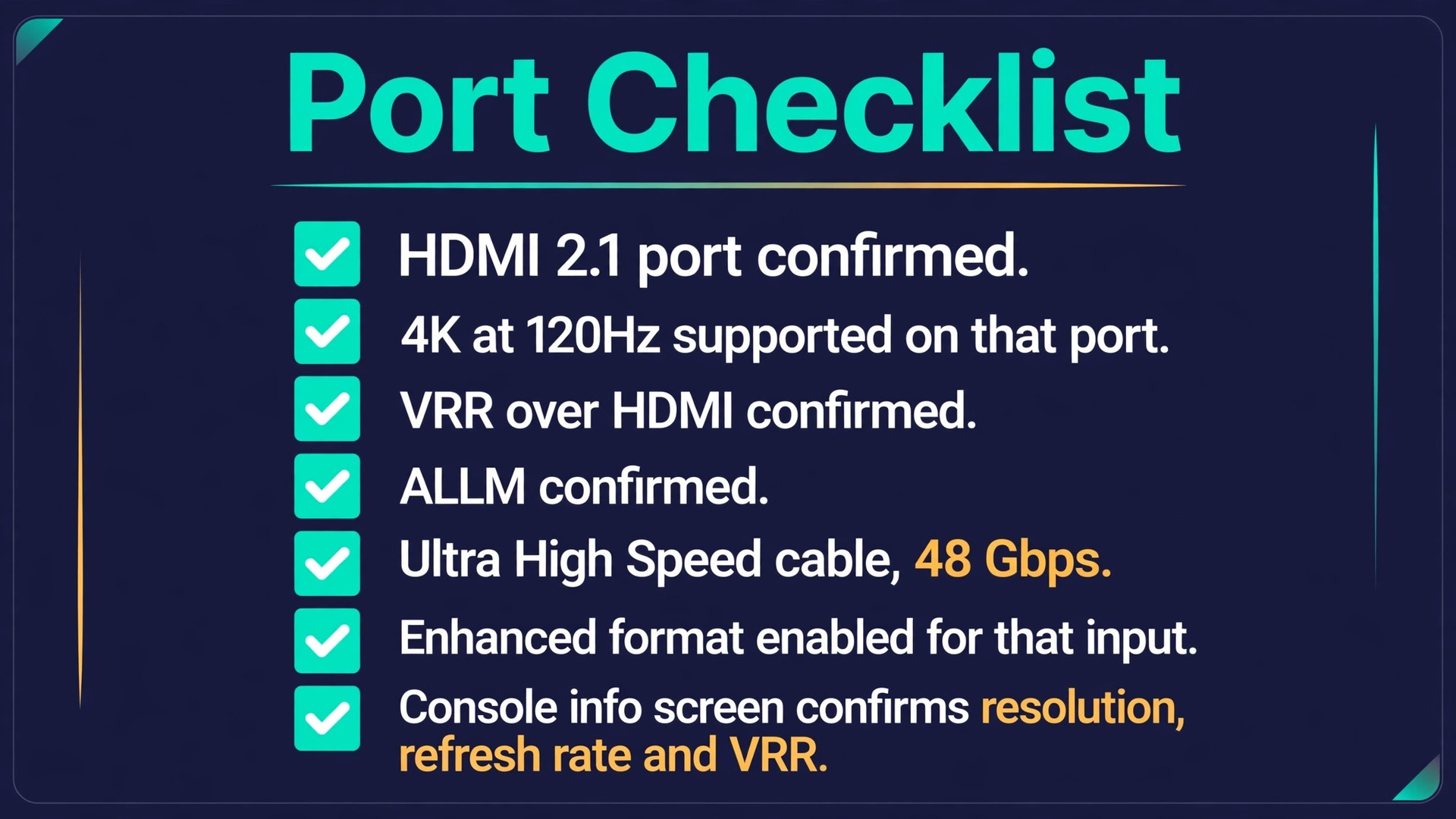
Work through this checklist with the monitor manual or spec sheet open. Tick each item against the physical port you will use, not against the monitor as a whole, because ports on the same monitor often differ.
- Confirm which physical HDMI port is HDMI 2.1, and which ports are HDMI 2.0 only, by reading the port labels and the spec sheet together.
- Confirm that the HDMI 2.1 port supports 4K at 120Hz, not only 4K at 60Hz with HDMI 2.1 features listed elsewhere on the box.
- Confirm VRR support over HDMI on that exact port, and note whether it is HDMI Forum VRR, FreeSync, or both.
- Confirm ALLM support on that port, or confirm that you are happy to switch game mode on by hand every session.
- Confirm the cable in use is Ultra High Speed and rated at 48 Gbps, and replace any unlabelled older cable before troubleshooting further.
- Confirm the monitor enhanced format or high bandwidth mode is enabled for that input in the monitor menu.
- Confirm the console info screen reports the expected resolution, refresh rate and VRR status after setup.
- Reserve a port plan for a second console, a PC, or a soundbar, and note which device will use the slower port if ports run out.
- Label the cables at the back of the desk once the setup works, so a future tidy up does not silently move a console to a slower port.
- Retest the full checklist after any firmware update to the monitor or console, because updates can reset input settings.
A setup that passes this checklist rarely produces mystery problems later. A setup that skips it often produces a familiar complaint, which is that the monitor was advertised as 120Hz but the games still run at 60Hz. In almost every case, the monitor was fine and the port, cable, or input mode was wrong.
HDR Behaviour, and Why HDR Sometimes Looks Worse
HDR, or High Dynamic Range, widens the range between the darkest and brightest parts of a picture and carries wider colour information than standard SDR. Done well, it makes sunlight feel bright, shadows hold detail, and explosions carry a punch that SDR flattens. Done badly, it makes everything look grey, washed out, or dim, and many players conclude that HDR is a gimmick. In most of those cases, HDR is not the problem. The chain is.
The first HDR trap is the badge. HDR10 means a display can accept an HDR10 signal. It says little about how well the display shows it. VESA DisplayHDR certification tiers say more, because each tier sets a minimum peak brightness and other criteria. DisplayHDR 400 requires at least 400 nits peak brightness but does not require local dimming, so the whole backlight brightens and dims together, and HDR can look lower in contrast than well tuned SDR. DisplayHDR 600 requires 600 nits and local dimming, and it is a meaningful entry point for visible HDR. DisplayHDR 1000 requires 1000 nits with fuller local dimming, and it matches a common HDR mastering target, so tone mapping is under less pressure.
OLED screens use a separate True Black branch, where per pixel light control gives near perfect blacks even at a lower peak brightness figure, so compare OLED and LCD HDR by watching real content, not by comparing nit numbers alone.
The second HDR trap is calibration. Both PS5 and Xbox offer HDR calibration screens that ask you to adjust brightness until a symbol is just visible or just disappears. Run the calibration in your normal room lighting, because the result is tuned to the light you calibrate in. On PS5, calibration lives under Adjust HDR. On Xbox, it lives under Calibrate HDR for Games. If HDR looks washed out after calibration, run it again slowly.
The third HDR trap is tone mapping. Games are mastered for a range of display brightness levels, and a monitor must map that range onto what its panel can actually produce. A monitor with modest brightness must compress bright highlights, which can flatten the picture. A monitor with strong brightness and good local dimming maps highlights more faithfully. Judge HDR in a game with both dark interiors and bright outdoor scenes, not in a menu, because menus hide tone mapping problems that gameplay reveals.
Picture Presets, Response Time and Overdrive
Game Mode is the preset that matters most, because it typically disables motion smoothing, noise reduction and other processing that adds delay. On many monitors, Game Mode also unlocks the fastest response settings and the lowest input lag. Use Game Mode for play, and switch to a cinema or standard preset only for films. Checking this preset is a small step that pays off every time you set up gaming monitor console gaming on a new input.
Response time settings, often called Overdrive, push pixels to change colour faster. A middle setting is usually the sweet spot. Set overdrive too low and fast motion smears. Set it too high and pixels overshoot their target colour, creating bright inverse ghosting trails behind moving objects. Test overdrive in a fast game with high contrast edges, and pick the setting where edges stay clean without a bright halo. Retest it after switching between 60Hz and 120Hz play, because the best setting can change with refresh rate.
Sharpness should sit near the middle, because high sharpness adds halos around text and edges. Colour temperature should start at Warm or Normal rather than Cool, because Cool often pushes whites toward blue. Black level must match the console output range, which is usually automatic, but a mismatch is a classic cause of crushed blacks or grey blacks, so check that setting on both devices before changing brightness. Backlight strobing can reduce perceived blur, but it can also dim the picture and introduce flicker, so try it only if your monitor offers it and turn it off if you notice flicker or eye strain.
Size, Resolution and Desk Placement
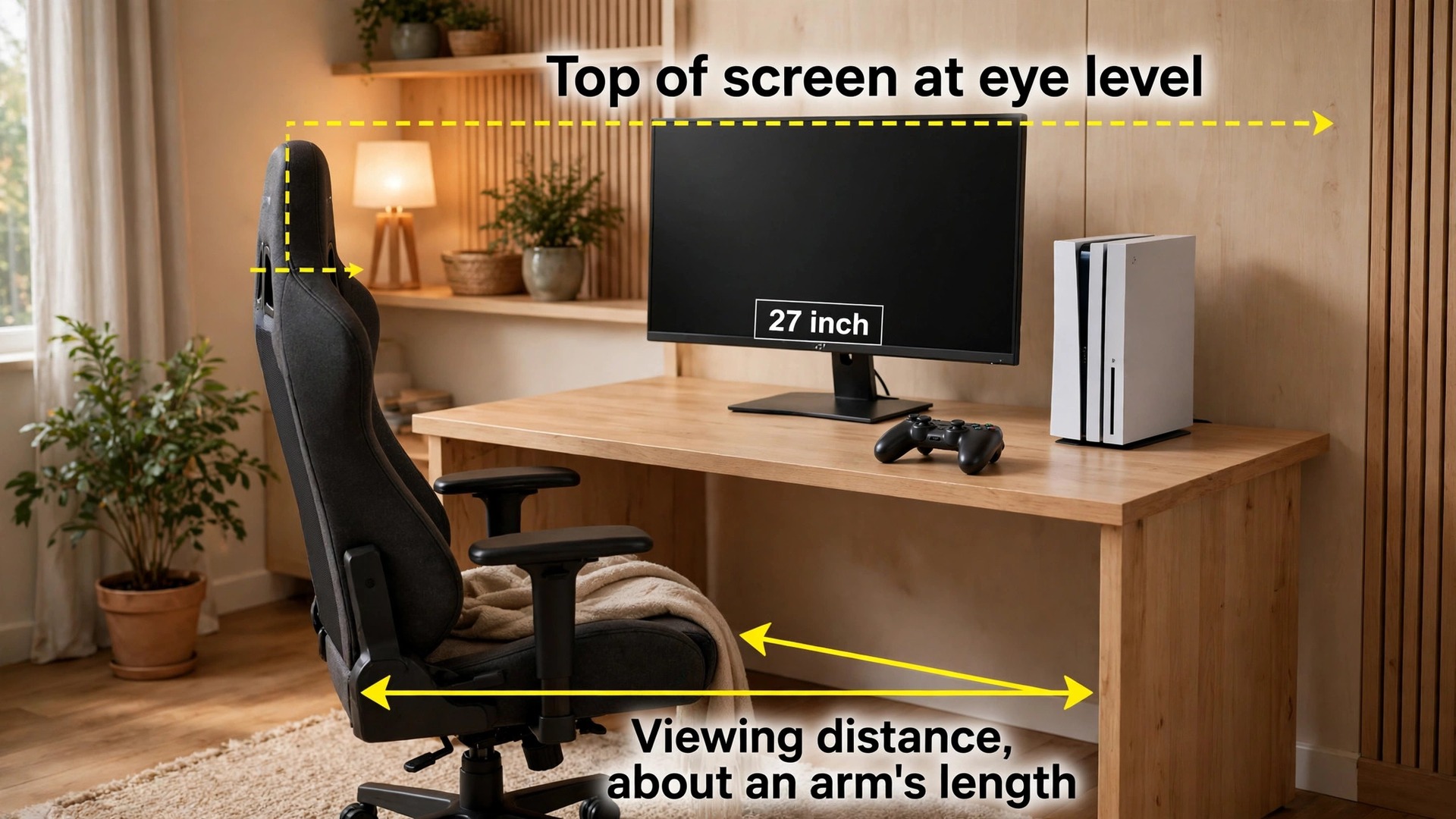
Size and resolution interact with viewing distance, and desk placement decides whether a good monitor feels good for hours. A 27 inch monitor suits most desks and lets a player sitting at a normal desk distance see the whole screen without large head turns. A 32 inch monitor suits a deeper desk or a player who sits further back, and it makes 4K resolution easier to appreciate. A 24 inch monitor still works for competitive play at close range, where tracking a small screen quickly matters more than immersion, but it can feel cramped for cinematic games.
Resolution choice follows from size and console. A 4K monitor matches PS5 and Xbox Series X output at its best and gives the sharpest picture for story games and media. A 1440p monitor is a strong value choice for Xbox Series S and for players who value high refresh rate over maximum pixel count, and it can look very sharp on a 27 inch screen at desk distance. A 1080p monitor is best reserved for older consoles or a second screen.
Desk placement starts with height. The top of the screen should sit roughly at eye level when you sit upright, so your eyes rest naturally on the upper third of the display rather than tilting up or down for hours. A monitor arm or a stand with height adjustment makes this easy, and a stack of books under a fixed stand is a workable temporary fix, provided the stack is stable. Get height right before you judge any picture setting, because no preset fixes a screen you have to crane your neck to see when you set up gaming monitor console gaming at a new desk.
Distance is the second placement rule. As a starting point, sit about an arm length from a 27 inch screen and a little further from a 32 inch screen, then adjust until you can read small on screen text without leaning forward and can see the minimap without turning your head.
For related reading, best projector for a small classroom helps if you ever move console play to a bigger screen for a group session, best standing desk for small apartments covers desk choices that make monitor height and distance easier to get right in a tight room, best Wi-Fi router for a 3 storey house matters when online play shares a network with the rest of the home, and fix smart TV apps crashing is useful when the same display doubles as a streaming screen. If you set up gaming monitor console gaming with the port checklist in hand, those related guides slot in around it without forcing you to redo the display work.
Frequently Asked Questions
Do I need HDMI 2.1 to play console games at 120Hz in 4K?
Yes, for 4K at 120Hz you need HDMI 2.1 on the monitor port, an Ultra High Speed cable rated at 48 Gbps, and a console output set to 120Hz. HDMI 2.0 tops out at 18 Gbps, which covers 4K at 60Hz and lower resolutions at 120Hz, but not 4K at 120Hz. If any link is HDMI 2.0, the signal falls back to what that link can carry, so check every link when you set up gaming monitor console gaming for 4K play.
Why does my 120Hz monitor still show games at 60Hz?
The usual causes are the wrong HDMI port, an older cable, or a monitor input mode that has not been set to its enhanced setting. Check the port label, swap in a certified Ultra High Speed cable, enable the enhanced format mode for that input, and confirm the console info screen reports 120Hz. Also check the in game graphics mode, because a fidelity mode can lock a game to a lower frame rate.
Does VRR work on every game?
No. VRR needs support from the display, the console setting, and in many cases the game itself. On PS5, VRR applies to supported games, with a system option to apply it more widely. On Xbox, VRR is a separate toggle under Video Modes. If a game does not support VRR, the display runs at a fixed refresh rate for that title.
Is DisplayHDR 400 good enough for console HDR?
DisplayHDR 400 is a starting point, not a strong HDR experience. It accepts an HDR signal and requires at least 400 nits peak brightness, but it does not require local dimming, so contrast can look flat. For HDR that clearly beats good SDR, look for DisplayHDR 600 or higher on LCD, or an OLED True Black tier.
Should I choose 4K or 1440p for a console monitor?
Choose 4K for PS5 and Xbox Series X if you want their top output and you sit far enough back to enjoy it on a 27 inch or larger screen. Choose 1440p for Xbox Series S, for a tighter budget, or when you value high refresh rate play on a 27 inch desk monitor over maximum pixel count.
How far should I sit from a gaming monitor?
Sit about an arm length from a 27 inch screen as a starting point, and a little further from a 32 inch screen, then adjust until small text is readable without leaning forward and the whole screen is visible without turning your head. Set the top of the screen roughly at eye level and tilt it slightly back.
What Good Looks Like When You Switch It On
A good console monitor setup does not announce itself with a single spectacular setting. It shows up in small, repeatable ways. Camera turns stay smooth without tearing. Dark scenes hold detail instead of turning into grey fog or black crush. Buttons feel connected to the screen rather than slightly behind it. You stop thinking about the display and start thinking about the game, which is the whole point of the setup work.
That result comes from a chain, not a single purchase. The port must carry the signal, the cable must carry the bandwidth, the console must request the right output, and the monitor must run game mode with VRR on. Skip any link and the chain shows it, usually as a game that looks fine but feels slightly off.
If you take one habit from this guide, make it verification. After any change, whether a new cable, a firmware update, or a monitor moved to a new port, open the console info screen and confirm resolution, refresh rate and VRR status before you play. That thirty second check catches the silent fallback to 60Hz that causes most console monitor complaints. When you set up gaming monitor console gaming with that habit in place, you protect every later upgrade too, because each new console or screen gets judged by what it actually delivers on your desk, not by what its box promises. Build the setup once, verify it often, and let the games do the rest.