
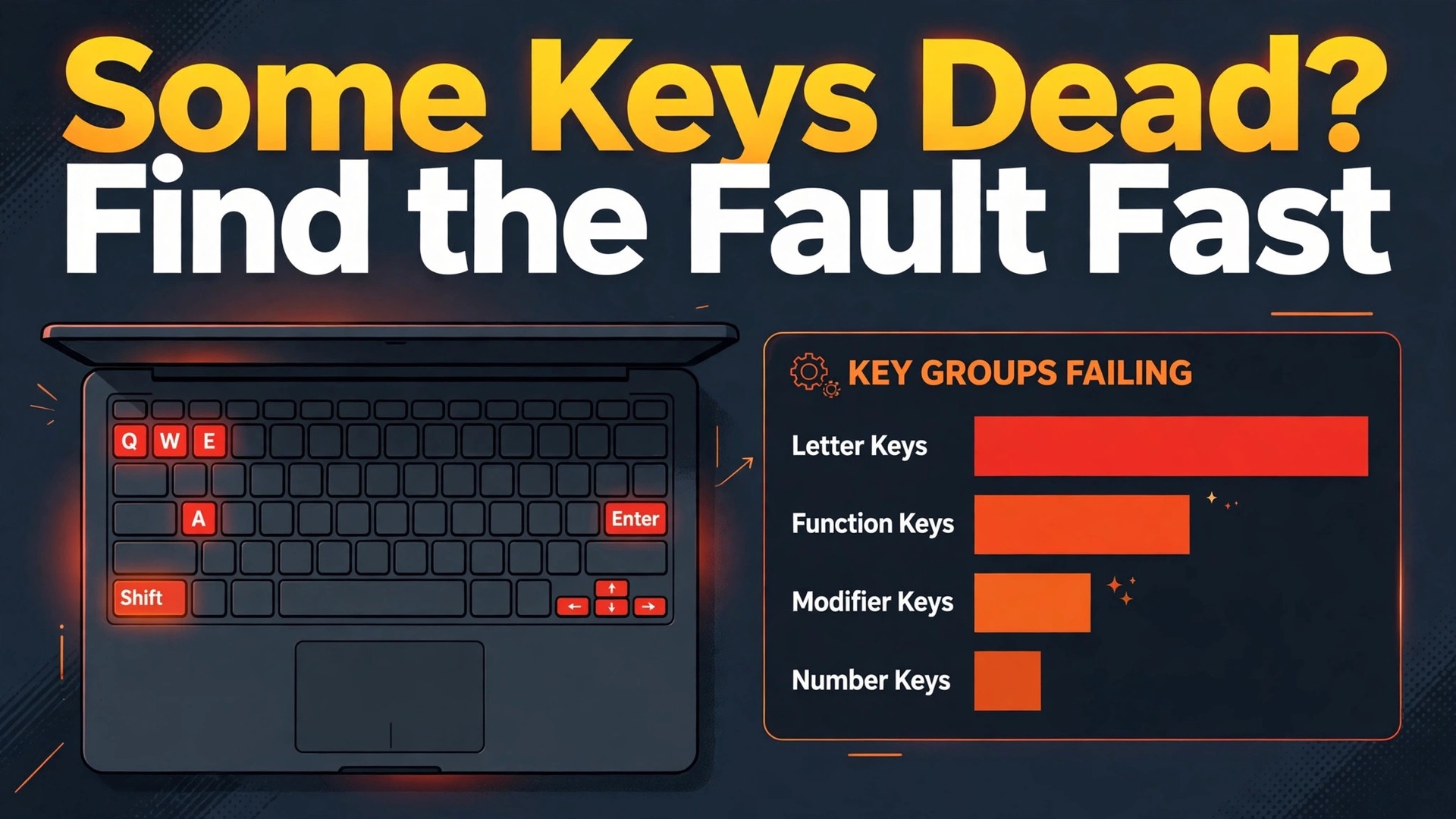
One dead key is usually software or debris, not a dead keyboard. That is the verdict to hold on to before you order a replacement or book a repair, because the most common causes are free to check and take minutes rather than days. If you want to fix laptop keyboard keys not working without guessing, work from the fastest checks to the deepest ones, and let each test rule something out before you move on. A key that fails after a spill, a key that fails only in one program, and a key that fails everywhere tell three different stories, and this guide shows you how to tell them apart.
The order matters more than any single trick. Many people reinstall a driver when the real problem is a crumb under one key, and just as many people open a laptop when the real problem is a setting that was switched on by accident. You will start with a two minute diagnosis, then follow a numbered fix order that moves from settings to drivers to cleaning to hardware tests. Each step ends with a clear result. If a step fixes the problem, stop there. If it does not, the result still narrows the cause, so the next step is smarter than the last one.
How to Fix Laptop Keyboard Keys Not Working in the Right Order
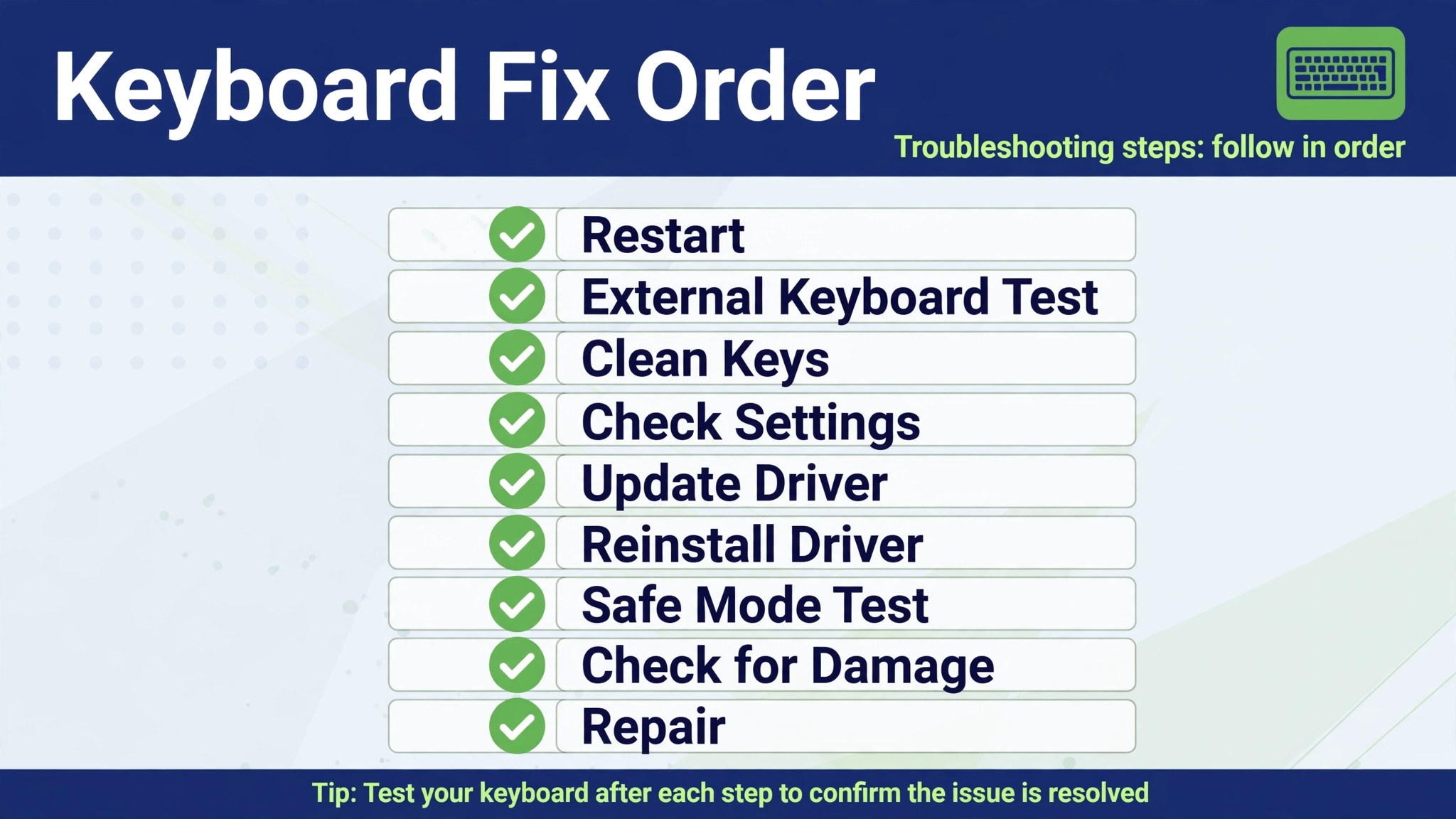
The fastest route is not the longest list of tips. It is a short list in the right sequence, with a test after every change. The table below is that sequence in miniature. Read it first, then work through the matching sections in full. Do not skip the diagnosis at the top, because it saves you from fixing the wrong thing well.
| Step | Fix | Time it takes | What it rules out if it fails |
|---|---|---|---|
| 1 | Restart and a full power reset | 5 minutes | A temporary software glitch |
| 2 | Check accessibility settings, layout, and Fn lock | 5 minutes | A setting that changes how keys register |
| 3 | Test an external keyboard | 5 minutes | A Windows or macOS problem versus a built-in keyboard problem |
| 4 | Reinstall, roll back, or update the driver | 15 minutes | A damaged or mismatched Windows driver |
| 5 | Clean debris from under the keys | 20 minutes | Dust, crumbs, and sticky residue |
| 6 | Test in Safe Mode and before Windows or macOS loads | 20 minutes | Startup programs and user software |
| 7 | Check macOS settings and updates on a Mac | 15 minutes | A Mac setting, layout, or system fault |
| 8 | Install system and firmware updates | 30 minutes | A known bug fixed by the maker |
| 9 | Decide on repair or replacement | No fix time | A hardware fault that home steps cannot reach |
Start With a Two Minute Diagnosis Before You Change Anything
Diagnosis is not a delay. It is the step that makes every later step faster, because it separates three different problems that look identical on screen. The first question is scope. Do all keys fail, or only some. If every key fails, the cause is more likely to be a system setting, a driver, a connection, or a full keyboard fault. If only one key or one row fails, debris, a damaged key mechanism, or a layout problem moves higher on the list. If only the top row fails, check Fn lock and function key settings before anything else, because those keys are designed to change behaviour with one toggle.
Step 1. Restart Properly and Try a Full Power Reset
A restart clears temporary glitches that a simple sign out does not. It also reloads the keyboard driver and resets keyboard state, which is why support guides list it first even though it sounds too simple. Use the mouse or touchpad to choose Restart from the power menu, not just a quick sleep and wake. Wait for the laptop to shut down fully, then test the keyboard in a plain text editor before you open other programs. If the keys work again, you have managed to fix laptop keyboard keys not working, and you can move on with normal use.
If a normal restart does not help, try a full power reset, sometimes called a hard reset or a power drain. Shut the laptop down fully, unplug the charger, and remove the battery only if your model has a removable battery that is designed to be removed by the user. Press and hold the power button for about 30 seconds, then reconnect power and turn the laptop on. This step drains residual charge and can clear a stuck hardware state that survives a normal restart. Do not open the laptop to remove a sealed battery for this step. If the battery is sealed, the unplug and hold method without battery removal is the safe version.
Step 2. Check Sticky Keys, Filter Keys, and Fn Lock
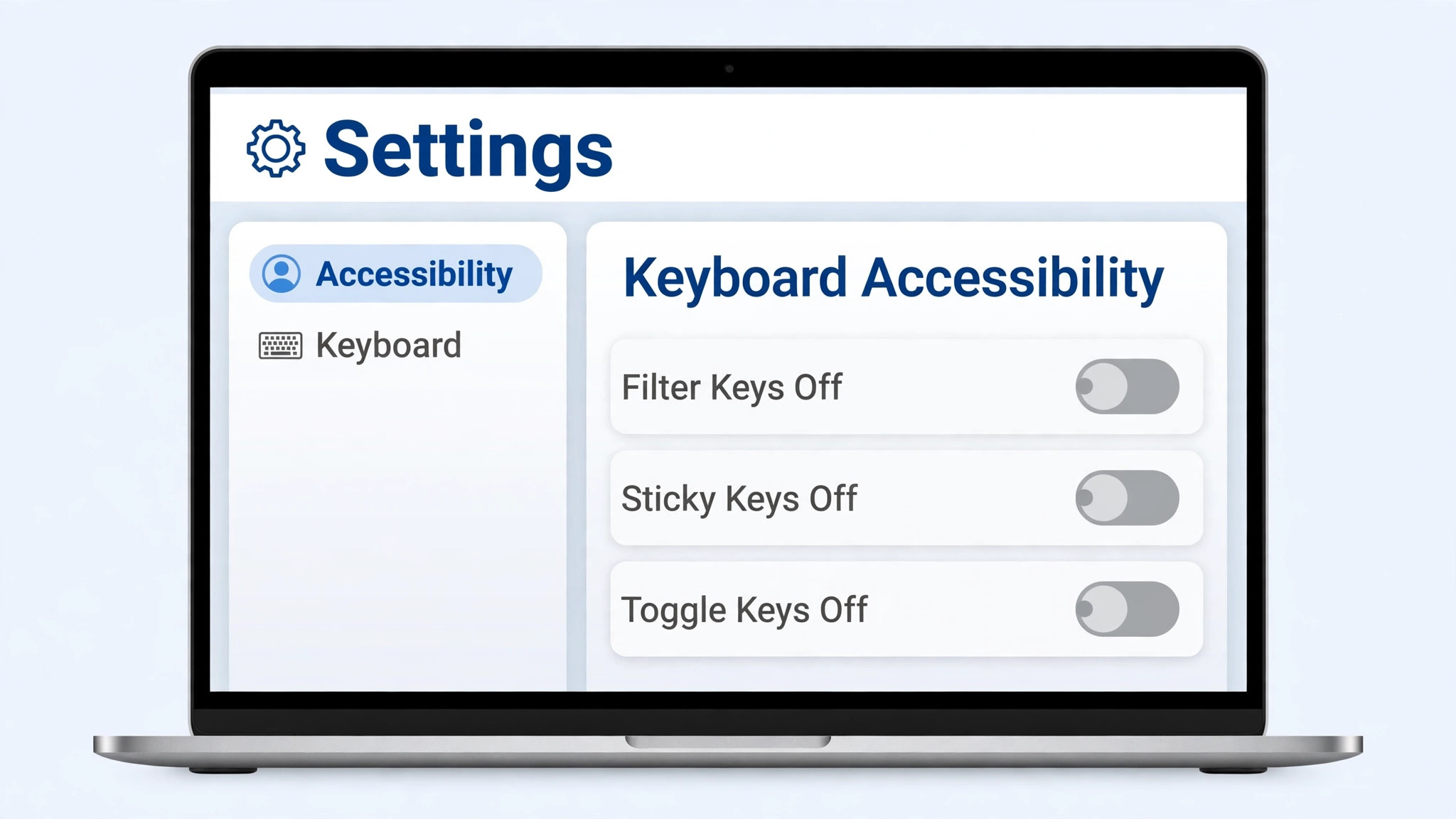
This is the step that fixes more keyboards than any other, because the settings involved can switch on by accident and make a healthy keyboard look broken. On Windows 11, open Settings, then Accessibility, then Keyboard. Turn off Sticky Keys, Filter Keys, and Toggle Keys while you troubleshoot. Filter Keys is the most important one here, because it tells Windows to ignore brief or repeated keystrokes, which can make quick typing look like dead keys. Sticky Keys changes how shortcut keys behave, so shortcuts can feel wrong even when single keys work.
Toggle Keys plays a sound when Caps Lock, Num Lock, or Scroll Lock is pressed, and it is less likely to cause dead keys, but turning it off removes one more variable.
Fn lock is the third check in this step, and it matters most when only the top row is affected. On many laptops, the top row does double duty for brightness, volume, and media controls, and Fn lock decides whether those keys act as function keys or media keys. Try pressing Fn and Esc together, which is the common Fn lock toggle on many models, then test the top row again. If that does not work, look for a small Fn lock icon on Esc or another key, and check your laptop maker support page for the exact toggle for your model. Do not assume every laptop uses the same key combination, because makers differ here.
Step 3. Test an External Keyboard and Test Before the System Loads
An external keyboard is the single most useful test in this whole guide, because it splits the problem in half. Plug in a USB keyboard, or pair a Bluetooth keyboard if you can navigate with the mouse, and test the same keys that fail on the built-in keyboard. If the external keyboard works perfectly, the fault is almost certainly with the built-in keyboard, its connection, or a laptop specific driver, not with Windows or macOS in general. If the external keyboard fails in exactly the same way, the fault is system wide, and software, settings, or a user account issue moves to the top of the list.
The on-screen keyboard is still worth knowing about, because it lets you keep working while you troubleshoot. On Windows, open Settings, then Accessibility, then Keyboard, and turn on the on-screen keyboard. You can also open it from the accessibility options on the sign-in screen. On a Mac, open System Settings, then Accessibility, then Keyboard, and turn on the Accessibility Keyboard, or use Keyboard Viewer from the Input menu. Use it for passwords, searches, and the driver steps below, so a dead physical keyboard does not lock you out of the fix itself.
To fix laptop keyboard keys not working, a second test belongs in this step, and it is just as decisive. Test the keyboard before the operating system loads, for example on the sign-in screen, in the firmware setup screen, or in a boot menu, if you are comfortable reaching one. If the keys fail before Windows or macOS starts, no Windows setting, driver, or startup program can be blamed, because none of those have loaded yet. That result points firmly toward hardware or firmware. If the keys work before the system loads but fail after sign-in, the fault is almost certainly software, and the driver and Safe Mode steps below become the priority.
Do not change firmware settings while you are in that screen unless you know what the setting does. Use it as a test only, then exit without saving changes.

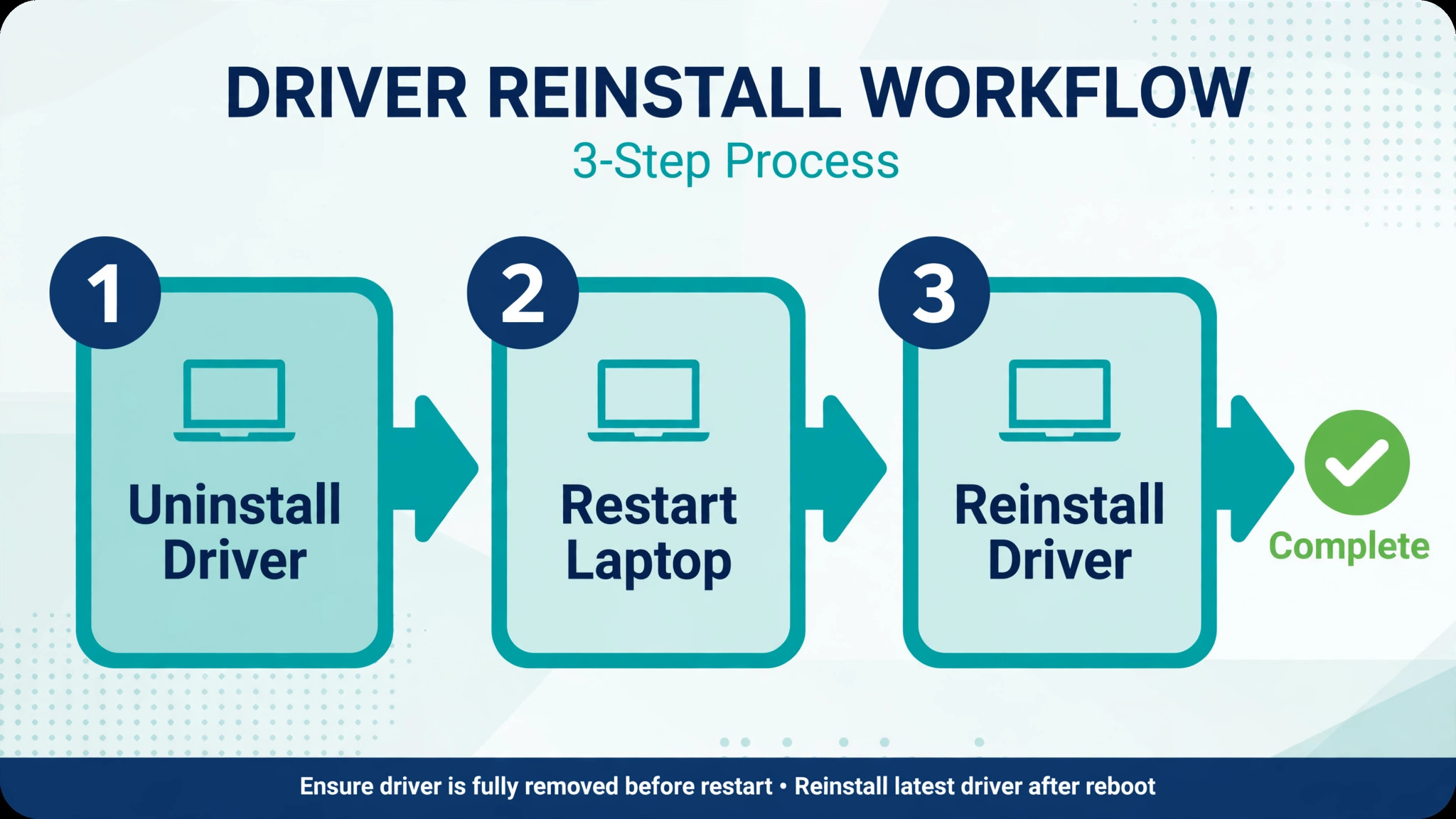
Step 4. Reinstall, Roll Back, or Update the Driver on Windows
To fix laptop keyboard keys not working through drivers, start with the safest driver step, which is a reinstall through a restart. Right click the Start button and select Device Manager. Expand the Keyboards section, right click your keyboard device, and select Uninstall device. If you see an option to delete the driver software for the device, you can tick it for a cleaner reinstall, but only if you have a way back online and a mouse or on-screen keyboard to navigate with after the restart. Restart the laptop, and Windows will reinstall a standard keyboard driver automatically.
Test the keys in a plain text editor before you reinstall other software or change other settings, so you know whether this step alone fixed the problem.
If the problem started right after a Windows update or a driver update, try a rollback before you try a newer driver. In Device Manager, right click the keyboard device, choose Properties, open the Driver tab, and select Roll Back Driver if the option is available. The button is greyed out when Windows has no earlier driver to return to, and that is normal. A successful rollback that holds for a full day is strong evidence that the newer driver was the cause, not a lucky guess.
Newer is not always better for keyboard drivers, because a new version can fix one laptop model and break another, and laptop makers sometimes adjust drivers for their own keyboard layout and power design.
If neither reinstall nor rollback helps, update from the right source, in the right order. First, check Windows Update, including optional driver updates, and install what is offered. Second, go to your laptop maker support page, enter the exact model number from the sticker on the base or from System Information, and download the keyboard or chipset driver listed for your model. The maker version can be more stable than a generic version, because it is tested against that exact laptop. Avoid third party driver updater tools, which can install the wrong driver, bundle unwanted software, and leave you with no keyboard at all.
A wrong driver is worse than an old driver, and it can be hard to undo without a second device or a wired connection.
Step 5. Clean Debris From Under the Keys, Safely and in Order
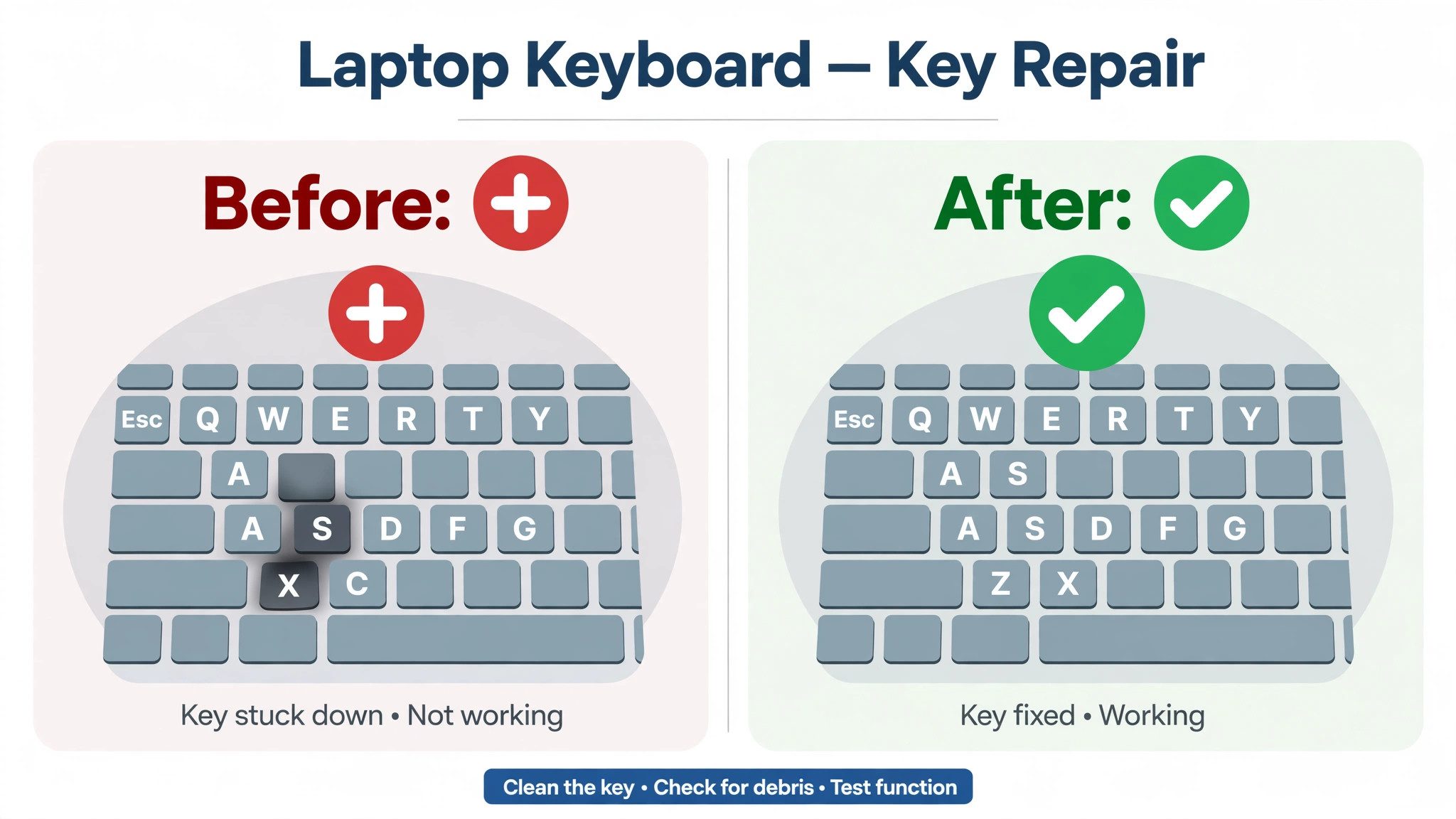
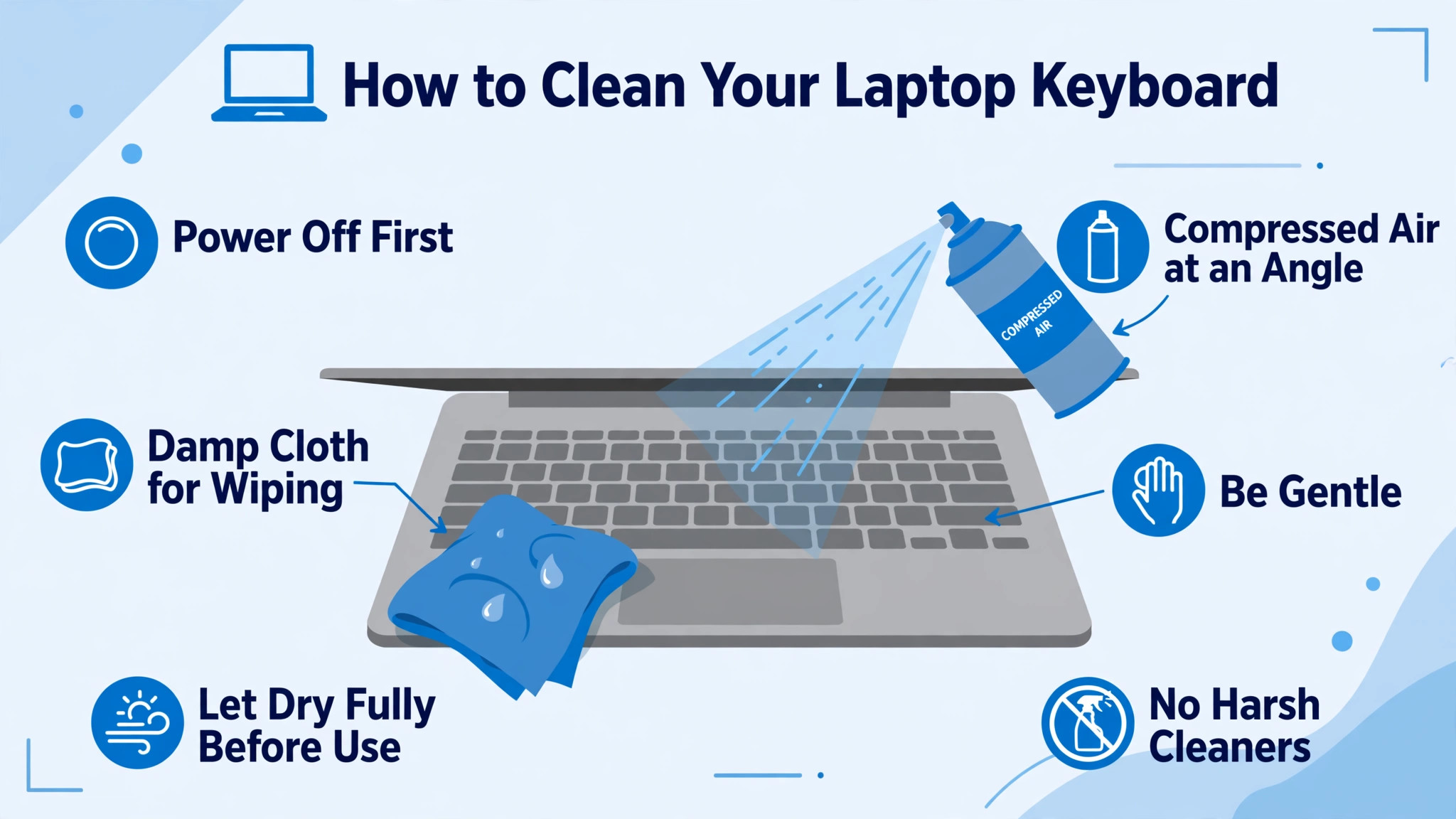
Debris is the cause most people underestimate, because a single crumb is invisible and a single sticky key can affect a whole row of typing. Cleaning is also the step where well meaning force does real damage, so the order and the tools matter. Never pry off a laptop keycap unless you know that your model allows it and you have checked the maker guide for that model. Many modern laptop keycaps use fragile scissor clips that break easily, and a broken clip turns a cleaning job into a key replacement. The steps below clean effectively without removing keycaps, and they are safe for most laptops.
Start with the laptop off and unplugged. Shut it down fully, not just to sleep, and disconnect the charger. Turn the laptop upside down over a clean surface and tilt it gently from side to side, so loose crumbs fall out rather than deeper in. Do not shake it hard, because hard shaking can move debris into worse places and stress hinges and drives. A gentle tilt, repeated a few times, is enough for loose material. Wipe the surface around the keys with a dry, lint-free cloth to remove dust that would otherwise fall back in during the next step.
Next, use short bursts of compressed air, held upright, with the can a short distance from the keyboard. Angle the bursts so debris blows out from under the keys, not straight down into them. Work across the keyboard in rows, starting with the row that contains the dead keys, then the rows around it. Keep the can upright, because tilting it can spray cold liquid, which can damage key mechanisms and leave residue. Do not use a vacuum cleaner nozzle pressed hard against the keys, because strong suction and static can damage or dislodge keycaps on fragile laptop keyboards.
A soft brush, such as a clean camera lens brush, can help move surface dust toward the edge, but use light strokes and never force bristles under a keycap.
To fix laptop keyboard keys not working with cleaning, test after cleaning, one key at a time, in a plain text editor. Press each previously dead key ten times, slowly, and count how many register. A key that now registers every time is fixed. A key that registers sometimes is still partly blocked or worn, and it may need a second gentle cleaning pass. A key that feels normal but still registers nothing after cleaning has probably moved out of the debris category and back into the software or hardware categories, so return to the driver and hardware tests rather than cleaning harder. Harder cleaning does not fix a software fault, and it risks breaking a working mechanism.
For a related look at another laptop problem that also starts with careful diagnosis, see the guide on fixing a laptop that overheats during video calls. The pattern is the same. Match the fix to the cause, test after each change, and do not replace hardware until software and cleaning have been ruled out.
Step 6. Test in Safe Mode, a Clean Boot, and a Second User Account
If the keys work before the system loads but fail after sign-in, a startup program or a user setting is a strong suspect. Safe Mode is the cleanest way to test that idea, because it loads Windows with a minimal set of drivers and startup programs. To reach it on Windows 11, open Settings, then System, then Recovery, then Advanced startup, and choose Restart now. From the recovery screen, choose Troubleshoot, then Advanced options, then Startup Settings, then Restart, and select Safe Mode when the list appears. To fix laptop keyboard keys not working in Safe Mode, test the keyboard in a plain text editor there.
If the keys work there, a normal startup program, driver, or service is interfering, and you have narrowed the fault a great deal.
Step 7. Mac Specific Checks, Updates, and System Settings
Mac readers who need to fix laptop keyboard keys not working follow the same fastest-first order, but the settings and the driver path differ, so Mac readers should work through this section rather than forcing Windows steps onto macOS. Start with the accessibility checks described in Step 2, because Slow Keys, Sticky Keys, and Mouse Keys can all make a healthy Mac keyboard look broken. Open the Apple menu, then System Settings, then Accessibility, then Keyboard, and turn those three settings off while you troubleshoot. Also check Accessibility, then Pointer Control, and turn off Mouse Keys there if it is enabled, because Mouse Keys can redirect keyboard input to pointer control.
Step 8. System Updates, Firmware, and the Laptop Maker Support Page
System updates and firmware updates are placed late in this order on purpose, not because they are unimportant, but because they take longer and they change more than one thing at once. A driver reinstall is precise. A full system update is broad, and if it fixes the problem you may never know which part fixed it. That is acceptable at this stage, because you have already ruled out settings, layout, debris, and the basic driver, and a broad fix is now a reasonable next step.
Do not install BIOS or firmware updates casually or from a third party site. A firmware update is a deeper change than a driver update, and a wrong or interrupted update carries real risk. That is why this step sits after the safer software and cleaning steps, and why it deserves a charged battery, a plugged in charger, and a saved copy of open work before you start. If the release notes do not mention keyboard or input fixes, and your other tests point toward hardware, a firmware update is less likely to help, and the repair decision below becomes the more honest next step.
What to Do After a Liquid Spill, a Drop, or a Swollen Battery
Three events change the rules, and they deserve their own section because normal troubleshooting can make them worse. After a liquid spill, shut the laptop down immediately, unplug it, and do not keep testing the keyboard while moisture may still be inside. Turn the laptop upside down to drain liquid, blot the surface with a dry cloth, and do not use a hair dryer on high heat, which can push liquid deeper and damage plastics. Let the laptop dry for at least a day in a ventilated room, and do not power it on to test every few hours, because each power on risks a short.
If the spill was more than a few drops, or if the liquid was sugary or sticky, a professional cleaning is the safer route, because residue under the keyboard can cause corrosion over weeks even when the keys seem to recover at first.
A swollen battery is a safety issue, not a keyboard issue. If the trackpad feels raised, the keyboard feels uneven, the case does not sit flat, or the bottom cover bulges, stop using the laptop, do not press on the bulge, and do not try to remove the battery yourself unless you are trained to handle it. Contact the maker or a qualified repair shop for battery replacement, and mention the keyboard symptoms as well, because a swollen battery can press on the keyboard assembly from below. This is one case where the repair decision is immediate, and no further software step should delay it.
When to Seek Repair, and What to Tell the Repair Shop
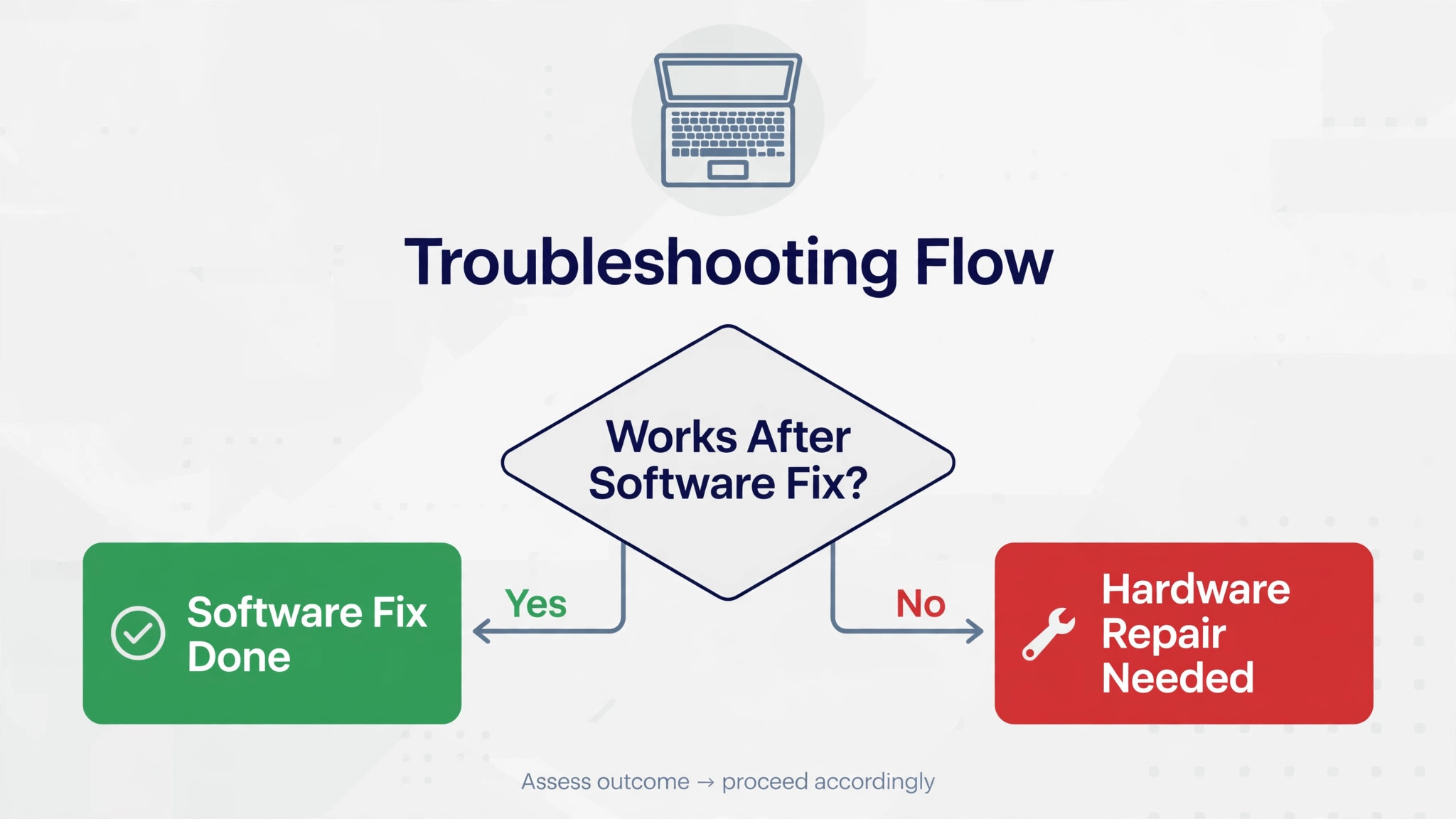
If you still need to fix laptop keyboard keys not working after these steps, you have reached the repair decision when several of the following are true at once. The external keyboard works fine, the built-in keyboard fails before the system loads, cleaning did not help, drivers and updates did not help, and the fault affects many keys or the whole keyboard rather than a single sticky key. That combination points to a hardware fault, such as a failed keyboard assembly, a damaged cable, or a main board input fault, and none of those are fixed by another settings change. Booking a repair at that point is not giving up. It is the correct result of a thorough diagnosis.
Ask the shop three questions before you agree to work. First, is the keyboard a separate replaceable part on this model, or is it integrated into the top case, which makes replacement more involved and more expensive. Second, will the shop test with a known good keyboard or a cable reseat before replacing the whole assembly, because a reseat is cheaper than a replacement. Third, what is the total cost including parts and labour, and what happens to your data if the laptop needs to stay overnight.
Back up your files before you hand the laptop over, even for a keyboard job, because any repair that opens the case carries a small risk to storage, and a backup removes that worry entirely.
If you are weighing a new keyboard for desk work rather than a repair, the guide on using a mechanical keyboard for long writing sessions covers switch feel, layout, and noise in practical terms. That choice is separate from this repair decision, but it helps if your workaround becomes permanent.
Mistakes That Make a Keyboard Problem Worse
The most common mistake is forcing a keycap off a laptop keyboard that was never designed for user removal. Scissor clips are small, brittle, and easy to snap, and a snapped clip can leave a key that wobbles or falls off even after it is pushed back on. The second mistake is spraying liquid cleaner directly onto the keyboard, which lets liquid run under the keys and onto the electronics below. Always apply cleaner to a cloth first, wring the cloth until almost dry, and wipe the surface only. The third mistake is using a powerful vacuum or an air compressor at close range, which can dislodge keycaps and drive debris deeper into the mechanism.
Keyboard faults rarely travel alone, because the same habits that cause them, such as carrying a laptop in a dusty bag, working through updates without testing, or ignoring early warning signs, also cause other laptop problems. If this guide helped, keep the same fastest-first method for the next issue. Start with the pattern, test with a known good replacement where you can, change one thing at a time, and note the result before you move on. For readers whose laptop also drops its connection during calls, the guide on fixing Wi-Fi that keeps dropping on a laptop applies the same diagnosis table idea to wireless faults.
For readers who want a better desk setup while a repair is planned, the mechanical keyboard guide linked above is a practical next read. Either way, the skill that matters most is not any single fix in this guide. It is the habit of testing before replacing, which saves money on every laptop problem that follows.
Frequently Asked Questions
Why do only some laptop keys stop working while others work fine
A single dead key or a dead row usually points to debris under those keys, a damaged key mechanism, or a layout or program setting that affects those keys. A whole keyboard failure points more toward a driver, a system setting, or a hardware connection. Test the dead keys in a plain text editor and in a second program, check the feel of the dead keys against working neighbours, and clean gently before you assume the whole keyboard has failed. If only the top row fails, check Fn lock and function key settings first.
Can Sticky Keys or Filter Keys really make a keyboard look broken
Yes, and this is one of the most common causes. Filter Keys tells Windows to ignore brief or repeated keystrokes, so fast typing can look like dead keys. Sticky Keys changes how shortcut keys behave, so shortcuts can feel wrong even when single keys work. On a Mac, Slow Keys has a similar effect, because it changes how long a key must be held before it registers. All of these settings can switch on by accident through their own shortcuts, so check them early and turn off their shortcuts as well.
How do I reinstall a laptop keyboard driver safely on Windows
Open Device Manager, expand Keyboards, right click the keyboard device, and select Uninstall device. Restart the laptop, and Windows will reinstall a standard driver automatically. Before you uninstall, make sure you have a mouse, an external keyboard, or the on-screen keyboard ready, so you can sign in and navigate after the restart. If the problem started after an update, try Roll Back Driver from the Driver tab in device properties first, because returning to a known good driver is often faster than installing a newer one.
Is it safe to remove laptop keycaps to clean underneath them
It depends on the model, and for many modern laptops the answer is no for a home user. Keycaps on thin laptops use fragile scissor clips that break easily, and a broken clip turns a cleaning job into a replacement job. Clean without removing keycaps first, using gentle tilting, short bursts of compressed air held upright, and a barely damp cloth for surface residue. Remove a keycap only if the maker guide for your exact model explicitly allows it, photograph the mechanism first, and remove only one key at a time.
Why does an external keyboard work when the built-in keyboard does not
That result separates a built-in keyboard fault from a system fault. If an external keyboard works perfectly, Windows or macOS is accepting keyboard input correctly, so the fault is almost certainly with the built-in keyboard, its cable, or a laptop specific driver. If an external keyboard fails in exactly the same way, the fault is system wide, and settings, drivers, or startup software move to the top of the list. Either way, the external test gives you a clear next step instead of a guess.
When should I stop troubleshooting and book a repair
Book a repair when the external keyboard works, the built-in keyboard fails before the system loads, cleaning and driver steps have not helped, and the fault affects many keys or the whole keyboard. Also book promptly after a significant liquid spill, a drop that coincides with the failure, or any sign of a swollen battery, because those cases need professional inspection rather than more home steps. Take your troubleshooting note to the shop, ask whether a cable reseat will be tested before a full replacement, and back up your files before you hand the laptop over.
Your Keyboard, Back to Work
Work through this guide in order to fix laptop keyboard keys not working, and let each test earn the next step. Restart first, then settings, then the external keyboard test, then drivers, then cleaning, then Safe Mode, then updates, and only then repair. Most readers will stop well before the end, because a setting or a crumb was the whole story. Readers who reach the end will arrive at repair with a clear note, a proven diagnosis, and no wasted spending on a replacement that would not have fixed a software fault. That is the point of a fix order. It does not just restore typing.
It tells you why typing stopped, and it leaves you with a test you can reuse the next time a key misbehaves. Keep the external keyboard, keep the note, and check settings first before you assume hardware, because the next dead key will almost certainly be a setting or debris again.