
Canva is the safest default for most teams, but it is not the best answer for every feed. A photo-led creator, a data-heavy marketer and a small team on a tight budget each need a different strength, and the wrong pick shows up as slow weeks, off-brand posts or a subscription that costs more than the time it saves. This guide to the best social media design tools sorts that choice by real work, not by template count alone.
We compared template depth, brand control, photo and video editing, scheduling and price, and we weighted the free plan honestly. A generous free tier matters when you are testing a format, and a paid plan only earns its price when it removes a repeated task. Read the shortlist, check the table, then test your top two with a real post before you commit to a year.
How This Shortlist Was Built
We started with the tools readers actually ask about, then removed any option that could not produce a finished social graphic at a standard network size. That cut left template editors, photo editors and one design system tool, because a social workflow usually needs more than one kind of editing. Each review below states who the tool suits, what it costs to start, where it helps and where it falls short, so the comparison stays useful after the first week of use.

Best Pick by Job
The table below gives the quick comparison. Use it to narrow the list to two or three options, then read the full reviews for the trade-offs that a table cannot show, such as how a free plan limits downloads or how a brand kit behaves when a team grows.
| Tool | Best for | Starting point |
|---|---|---|
| Canva | Broad templates and team use | Free plan, paid Pro |
| Adobe Express | Adobe users and safer AI images | Free plan, Premium paid |
| VistaCreate | Value for small teams | Free Starter, Pro paid |
| Figma | Shared design systems | Free plan, paid editors |
| Creatopy | Ad campaigns at volume | Free tier, paid plans vary |
| Snappa | Fast simple graphics | Free Starter, Pro paid |
| Visme | Data visuals and presentations | Free Basic, paid plans |
| Design.com | Fast branded starting point | Free tier, paid plans vary |
| Picsart | Photo-led mobile editing | Free plan, paid plans |
| Pixlr | Browser photo editing | Free plan, low paid entry |
| Fotor | Photo edits and collages | Free plan, Pro annual |
| Photopea | Free professional file editing | Free with ads |
Use the table to shortlist, then judge the best social media design tools by a real job, not by a feature list alone.
With that context, the next section reviews the best social media design tools one by one, starting with the strongest all-rounder.
The 12 Tools Reviewed

Canva
Canva is the broadest template platform in this guide, with ready sizes for Instagram, Facebook, TikTok, LinkedIn and YouTube, plus a large stock library and a simple drag and drop editor. It suits small teams, creators and non-designers who publish every week. Its Brand Kit, Magic Resize and background remover are the features that change a weekly workflow, because one approved design can become a story, a feed post and a banner without rebuilding the layout three times.
Canva has a free plan with a large template library, and Pro is priced by region, with annual billing commonly shown around 144 dollars a year in the United States. Confirm the price on the vendor page before you buy, since regional pricing moves. In daily use, the appeal is practical rather than decorative. a team can hand a template to a colleague who has never opened a design program and still get a usable post back the same day, and the mobile app keeps that workflow alive away from a desk. That matters when a deadline is close and the design still has to look intentional, not rushed.
The limit to weigh is that many popular templates are easy to recognise, so a feed built only from trending layouts can start to look like everyone else, and the strongest brand controls sit on the paid plan. Verdict. Start here if you want speed and breadth, then customise the template enough that it stops looking like a template.
Adobe Express
Adobe Express pairs templates for social posts and short video with Firefly image generation and a large Adobe Stock library, all inside a browser editor that feels lighter than a full desktop design program. It suits businesses already in the Adobe world and anyone who wants commercially safer AI images. Its scheduler and brand controls help a small team keep colours and fonts steady across channels, and Firefly assets are presented as commercially safe, which matters for client work.
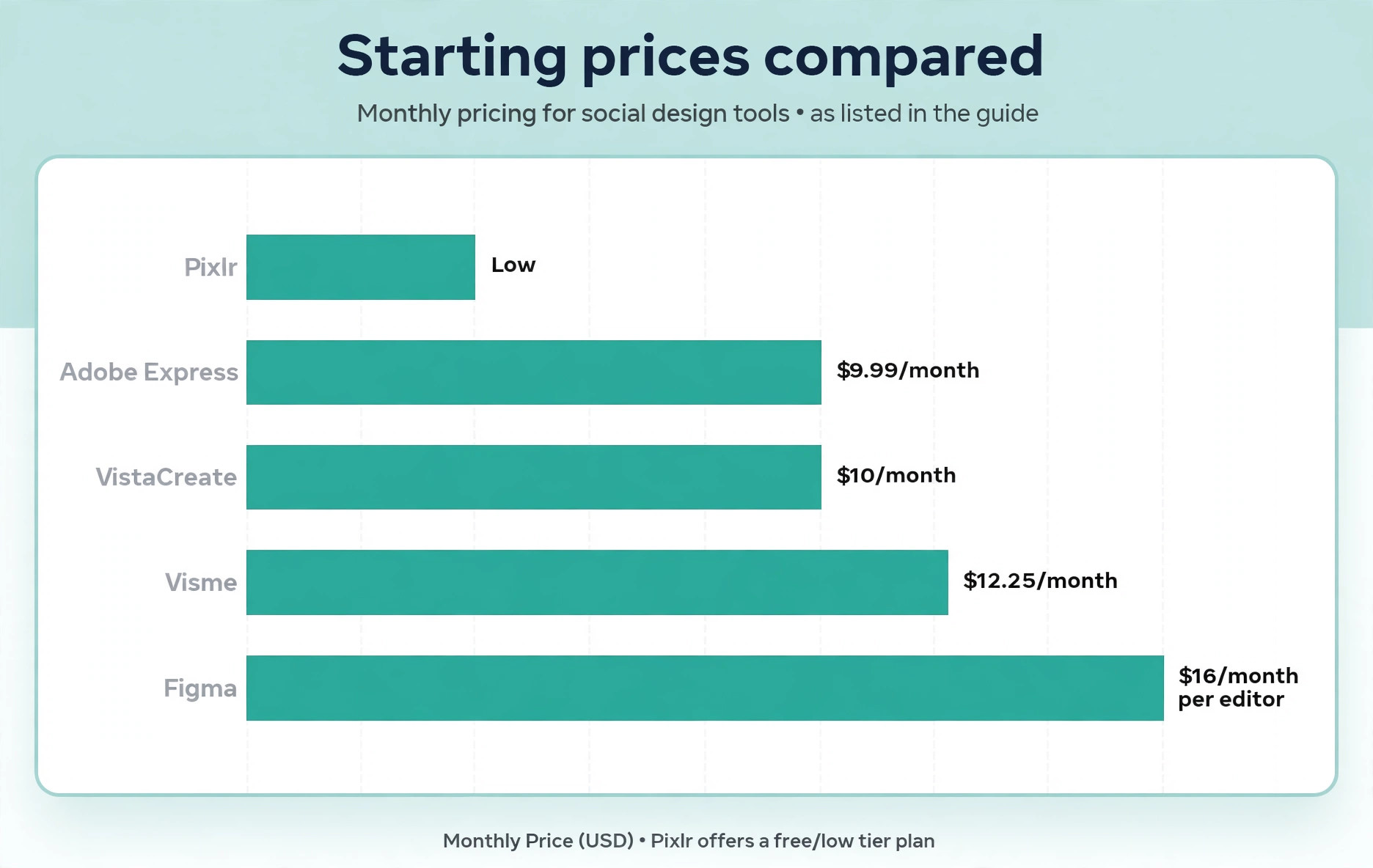
Adobe Express has a free plan, and Premium is listed at 9.99 dollars a month. Some Creative Cloud plans include Premium, so check an existing subscription before paying twice. In daily use, the appeal is practical rather than decorative. the price undercuts several rivals at the entry paid tier, and the Adobe font and stock libraries give a post a more finished feel than a free stock search. That matters when a deadline is close and the design still has to look intentional, not rushed.
The limit to weigh is that the template range for social formats is narrower than Canva, and some advanced export and brand options sit behind Premium, so the free plan is a trial of the idea rather than a full replacement. Verdict. Pick this when Adobe is already part of your stack, or when image rights and price matter more than the largest template count.
VistaCreate
VistaCreate offers more than 100,000 templates on its free Starter plan, with social formats, animation tools and direct posting to Facebook, Instagram and Pinterest. It suits small teams that want a generous free plan and simple scheduling. Its Pro plan covers up to ten team members under one price, which makes it unusually cheap per seat for a small team that designs together.
VistaCreate Starter is free with no time limit, and Pro costs 10 dollars a month billed annually or 13 dollars a month billed monthly, with a 14 day free trial. In daily use, the appeal is practical rather than decorative. a small team gets a real free tier, a usable brand kit on Starter, and unlimited downloads in common formats without hitting a download counter. That matters when a deadline is close and the design still has to look intentional, not rushed.
The limit to weigh is that AI tools, background removal and premium templates sit on Pro, and the asset library, while large, is smaller than the two leaders in this guide. Verdict. A strong value pick for teams that post steadily and want to keep the per seat cost low.
Figma
Figma is a collaborative design tool where components, styles and shared libraries turn social templates into a system that many people can reuse without drifting off brand. It suits design-led teams that build a social system rather than one-off posts. Its component approach means a change to a button, a badge or a headline style can flow through every template that uses it, which is hard to copy in a template-only editor.
Figma has a free plan for starters, and paid plans for professionals start at 16 dollars per editor a month. Viewers can usually review work without a paid editor seat. In daily use, the appeal is practical rather than decorative. a design team can prototype, review and hand off social assets in one file, and version history makes it easy to see who changed what and why. That matters when a deadline is close and the design still has to look intentional, not rushed.
The limit to weigh is that Figma is not a quick template shop. A beginner who only needs three posts a week will spend more time learning it than designing, and stock photos and scheduling need other tools. Verdict. Choose it when a shared design system matters more than a same-day template, and pair it with a scheduler.
Creatopy
Creatopy is built for ad creatives, with automation that turns one design into many sizes and variations for different placements. It suits advertisers and agencies that need many sizes of one campaign. Its bulk and automation features save real time when a campaign needs a feed version, a story version and several banner sizes from the same idea.
Creatopy has a free tier for trying the editor, and paid plans vary by feature and volume, so check the current pricing page for the plan that matches your output. In daily use, the appeal is practical rather than decorative. an agency can test several headlines and images without rebuilding each size by hand, and team review keeps approvals inside the same workspace. That matters when a deadline is close and the design still has to look intentional, not rushed.
The limit to weigh is that the entry experience is more campaign focused than casual posting, so a solo creator who only needs a weekly Instagram graphic may find it heavier than a simpler editor. Verdict. Buy it for campaigns at volume, not for occasional posts.
Snappa
Snappa keeps the editor deliberately simple, with preset sizes for every major network, a stock photo library and one-click resizing. It suits solo creators and small businesses that want a fast graphic in minutes. Its strength is speed. There is little to learn, and a graphic that would take an hour in a full design program can be finished in ten minutes.
Snappa has a free Starter plan limited to three downloads a month, and Pro removes that cap and adds background removal, custom fonts and social integrations. Paid plans vary, so check the vendor page. In daily use, the appeal is practical rather than decorative. a beginner gets the full template and photo library on the free plan, so the trial is honest about what the editor can do. That matters when a deadline is close and the design still has to look intentional, not rushed.
The limit to weigh is that the three download limit on Starter makes it a poor home for a daily posting schedule, and it lacks the deeper brand and video tools of the larger platforms. Verdict. A good speed tool for occasional graphics, and a clear upgrade path when three downloads a month stop being enough.
Visme
Visme combines social templates with charts, data widgets and interactive content, so a statistic that would be dull as text becomes a visual a reader actually stops on. It suits teams that mix social graphics with infographics and short presentations. Its data tools are the difference. A bar chart, a comparison block or a timeline can be built inside the same file as the social graphic that promotes it.
Visme has a free Basic plan, and paid plans start at around 12.25 dollars a month billed annually. Confirm the current price before committing. In daily use, the appeal is practical rather than decorative. a marketer who reports numbers can keep the chart and the post in one brand system, and the presentation tools mean one account covers more than social alone. That matters when a deadline is close and the design still has to look intentional, not rushed.
The limit to weigh is that the social template library is smaller than Canva or VistaCreate, and the free plan limits downloads, so heavy social-only users may pay for features they rarely touch. Verdict. Pick it when data visuals and presentations sit next to social in the same job.
Design.com
Design.com is an AI led design platform that generates social graphics, logos and other brand assets from a business name, industry and keywords, then lets the owner adjust colours, fonts and layout. It suits small business owners who want a fast branded starting point. Its appeal is the starting point. Instead of browsing hundreds of templates, an owner gets a set of brand-matched options in minutes and can refine the one that feels closest.
Design.com has a free tier for exploring designs, and paid plans vary by product and billing period, so check the price for the exact asset before checkout. In daily use, the appeal is practical rather than decorative. a new business can get a coherent set of social graphics and a logo direction without hiring a designer, and the brand application keeps colours steady across assets. That matters when a deadline is close and the design still has to look intentional, not rushed.
The limit to weigh is that the social template depth is narrower than the dedicated social editors in this guide, and some high resolution downloads sit behind a paid plan, so a team that posts daily may outgrow it. Verdict. A useful shortcut for a new brand, and a fair mid-list option here, but not the first pick for a high volume social calendar.
Picsart
Picsart is a photo-first editor with AI tools, stickers, filters and collage layouts, built for people who edit on a phone as much as on a desktop. It suits creators who start from photos and want playful edits. Its mobile strength matters for social, because a photo taken at an event can be edited, captioned and posted before the moment passes.
Picsart has a free plan, and paid plans start at around 10.50 dollars a month billed annually. Prices vary by region and platform. In daily use, the appeal is practical rather than decorative. a creator gets strong photo editing and AI image tools without learning a desktop program, and the community templates offer fresh ideas. That matters when a deadline is close and the design still has to look intentional, not rushed.
The limit to weigh is that it is weaker as a brand system than Canva or VistaCreate, with less control over locked templates and team brand kits, so a business feed can drift. Verdict. Use it when photos lead the post, and pair it with a template tool when brand control matters more.
Pixlr
Pixlr is a browser photo editor with layers, filters and AI tools, closer to a desktop editor than a template shop. It suits users who need real photo editing in a browser without installing software. Its layer support lets a user cut out a product, adjust light and build a composite that a template editor would struggle to match.
Pixlr has a free plan, and paid plans start at around 1.99 dollars a month. Confirm the current plan details, since AI credits and storage differ by tier. In daily use, the appeal is practical rather than decorative. a marketer gets genuine editing power for almost no money, and the browser approach means it works on a borrowed or low powered machine. That matters when a deadline is close and the design still has to look intentional, not rushed.
The limit to weigh is that there is no large social template library or scheduler, so a user still needs a second tool for fast templated posts and publishing. Verdict. A smart second tool for photo work, and a cheap way to lift the quality of images before they go into a template.
Fotor
Fotor bundles a photo editor, collage maker and design templates, with AI tools for enhancement and background removal. It suits beginners who want photo edits, collages and simple social designs in one place. Its one-stop mix suits a user who edits a photo, builds a collage and makes a post without switching accounts.
Fotor has a free plan, and Pro is listed at 39.99 dollars a year billed annually. Check the vendor page for the current monthly equivalent. In daily use, the appeal is practical rather than decorative. a beginner gets a gentle editor, useful batch tools and a low annual price compared with several monthly rivals. That matters when a deadline is close and the design still has to look intentional, not rushed.
The limit to weigh is that the design templates feel less current than the leaders, and advanced brand controls are thinner, so a growing brand may move on within a year. Verdict. A friendly low cost start, best for photo-led social posts rather than a full brand system.
Photopea
Photopea opens PSD, AI and other professional file formats in a browser, with layers, masks and adjustments familiar to desktop users. It suits users who already know desktop design files and want a free browser alternative. Its file compatibility is the reason to use it. A designer can open a client file, adjust it and export without installing a desktop program.
Photopea is free with ads, and a paid option removes ads and adds more steps in history. There is no large template library to pay for. In daily use, the appeal is practical rather than decorative. a freelancer gets professional grade editing for no subscription, which is rare, and the learning curve is lower for anyone who already knows Photoshop style tools. That matters when a deadline is close and the design still has to look intentional, not rushed.
The limit to weigh is that it has no social templates, stock library or scheduler, and a complete beginner may find the interface dense compared with Canva or Snappa. Verdict. Keep it as a free editing backup, not as the main social design tool.
Start with volume. If you publish three posts a week, a simple editor with a good free plan is enough, and paying for automation will not repay itself. If you publish daily across four networks, brand control, resizing and scheduling become the real cost, because every manual resize is time a small team cannot get back. Match the tool to the number of posts first, then to the kind of post, and only then to the price. In short, choosing among the best social media design tools is a volume and workflow decision first, and a price decision second.
A useful test is to build the same post in two tools and compare the finished files side by side. Check headline readability at phone size, colour accuracy after export and file size for uploading, because a tool that looks good in its editor can export a softer image than a rival. Also check how the tool handles a second language or a long headline, since a template built for short English phrases can break when a real campaign needs longer copy. This ten-minute test tells more than a feature list, and it prevents a year-long subscription to a tool that fails on your actual content.
Team approval is another hidden cost. A tool that lets a manager comment on a design, request a change and approve the final version in one place saves a chain of screenshots and chat messages. A tool without that flow forces the team to invent its own approval process, usually in email, where versions get lost. If more than two people touch a post before it publishes, weigh approval and version history as heavily as templates, because a lost final file can delay a campaign more than a missing filter ever will.
The usual mistake is buying for the busiest week rather than the normal week. A tool that shines during a launch can feel heavy during a quiet month, and a simple tool that feels fast in week one can slow down once a team needs approvals and shared assets. Test with a normal week of content, not a single hero graphic, and watch where work piles up. That pile-up is the feature you actually need to pay for. That test applies to the best social media design tools as a whole, not merely to one popular tool.

Mistakes That Make a Feed Look Inconsistent
The first mistake is mixing templates from too many sources without a shared palette. A feed can have good individual posts and still look scattered, because the colours, fonts and photo style change every day. Fix it by locking three colours, two fonts and one photo treatment, then checking every new template against that set before it ships. The second mistake is designing at the wrong size and cropping later, which cuts headlines and faces. Start from the network size you will publish, and keep text inside a safe margin. The third mistake is treating the caption as an afterthought.
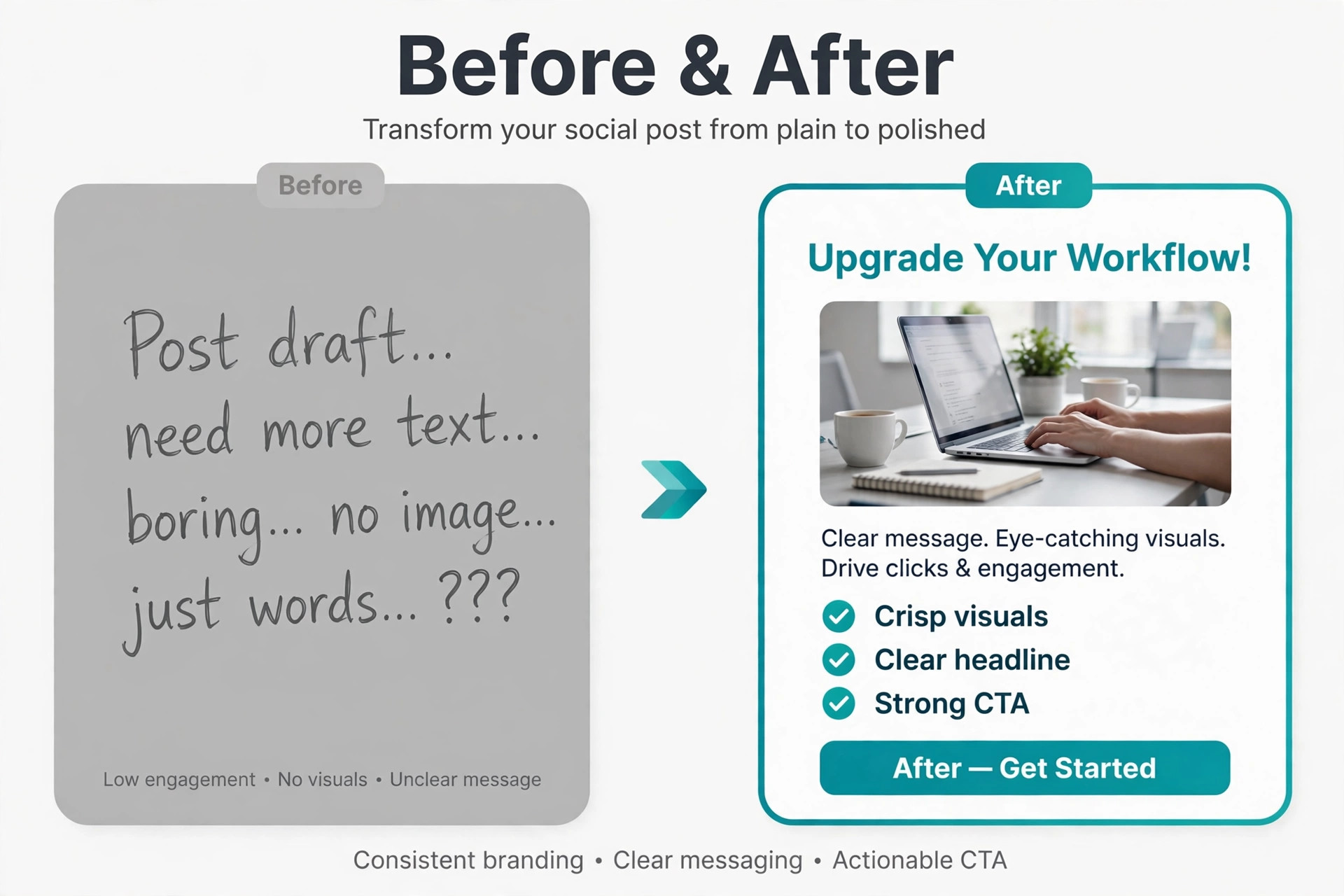
A clear graphic with a vague caption still underperforms, so write the point of the post before you choose the template, and let the design carry one idea, not four.

Frequently Asked Questions
Readers ask the same questions before they pay, so here are direct answers drawn from the reviews above. They cover the best social media design tools from price to everyday use.
Is a free plan enough for a small business feed?
Yes, for a modest schedule. Canva, Adobe Express and VistaCreate all offer free plans that cover templates, stock assets and standard exports, which is enough for a few posts a week. The paid step becomes worth it when you need brand kits, background removal, resizing or a higher download volume, because those features save repeated manual work.
Which tool is best for a team rather than a solo creator?
Canva and VistaCreate handle teams most simply, with shared folders and brand controls that a non-designer can use. Figma is stronger when a design team owns the system and wants components, but it needs more skill. Pick the team tool by who will actually edit, not by who approves the budget.
Do I need a separate scheduler?
Not always. Adobe Express and VistaCreate include scheduling for major networks, while Canva offers publishing from paid plans. If your chosen editor lacks scheduling, pair it with a dedicated scheduler rather than paying for a second design tool, and keep the design and publishing steps in separate accounts if that suits your workflow.
How do I stop templates from looking generic?
Change more than the text. Swap the photo, adjust the colour blocks, move the headline and use your own font pairing, even when the layout stays the same. A template should set the structure, not the finished look, and two or three custom elements are usually enough to make a post feel owned.
Is Adobe Express better than Canva for client work?
It can be, mainly because Firefly assets are presented as commercially safe and the entry paid price is lower. Canva wins on template breadth and ease for non-designers. For client work, check image rights and brand control first, and let template count decide only when those two are equal.
What size should I design for first?
Design for the network where the post will earn the most attention, then resize. A square feed post, a vertical story and a wide banner need different crops, and a headline that fits a square can break in a story. Build the main version first, check the resize, and fix any cut text before you publish.
The Short Verdict for Busy Teams
Most teams should start with Canva, test Adobe Express if they already pay for Adobe, and keep VistaCreate in mind when the budget is tight. That trio covers breadth, rights and value, and the reviews above show why each one earns its place. A photo-led creator should add Picsart or Pixlr for editing, and a design-led team should build its system in Figma rather than forcing a template tool to act like one. That is the practical way to choose among the best social media design tools without overpaying for features you will not use.
Whatever you pick, judge it after a full week of real posts. Count the minutes per post, check the feed as a whole, and ask whether the tool removed work or added steps. The right choice feels boring after a month, because the design stops being the problem and the message gets the attention.
More Reading on Stratilyze. If you manage content as well as design, read AI social media management tools and AI tools for Instagram, and if brand assets sit next to social posts, see AI logo makers. For a head-to-head on the two leaders, read Canva versus Adobe Express and Canva alternatives. Those guides pair well with the best social media design tools when you plan a full workflow.
